




What can a VPN do?
Show Me
5 ways to use your VPN
See Them NowExpressVPN lets you securely access a variety of streaming services and home subscriptions. Streaming with ExpressVPN enhances your viewing experience by reducing lag and avoiding bandwidth throttling by your internet service provider.
Jump to…
Streaming services compatible with ExpressVPN
Before accessing the streaming service
Access the streaming service
Troubleshoot streaming issues
Streaming services compatible with ExpressVPN
You can use ExpressVPN to securely access a variety of streaming services, including:
See the full list of streaming services compatible with ExpressVPN.
Before accessing the streaming service
Before accessing a streaming service, you will need:
- An active ExpressVPN subscription.
- The ExpressVPN app.
- The ExpressVPN browser extension.
- An account with the streaming service. (Note: Some platforms require your account to be registered in the same region you are streaming from.)
Tip: On Windows and Mac, streaming services generally work best through a web browser. On mobile or streaming media devices, it is best to use the service’s official app.
To set up the ExpressVPN app and browser extension, refer to the instructions specific to your device below.
Access the streaming service
Refer to the instructions corresponding to your device.
Windows or Mac
- Download and set up the ExpressVPN app:
- Download and set up the ExpressVPN browser extension.
- In the app, click the VPN tab, then > next to Selected Location.
- Connect to a VPN server location that matches your home country. (If there is more than one server location available for your country, choose the one that is closest to your physical location.)
- Check your IP address and run a DNS leak test to verify you are connected to the VPN successfully.
- Access the streaming service.
iOS or Android
- Download and set up the ExpressVPN app:
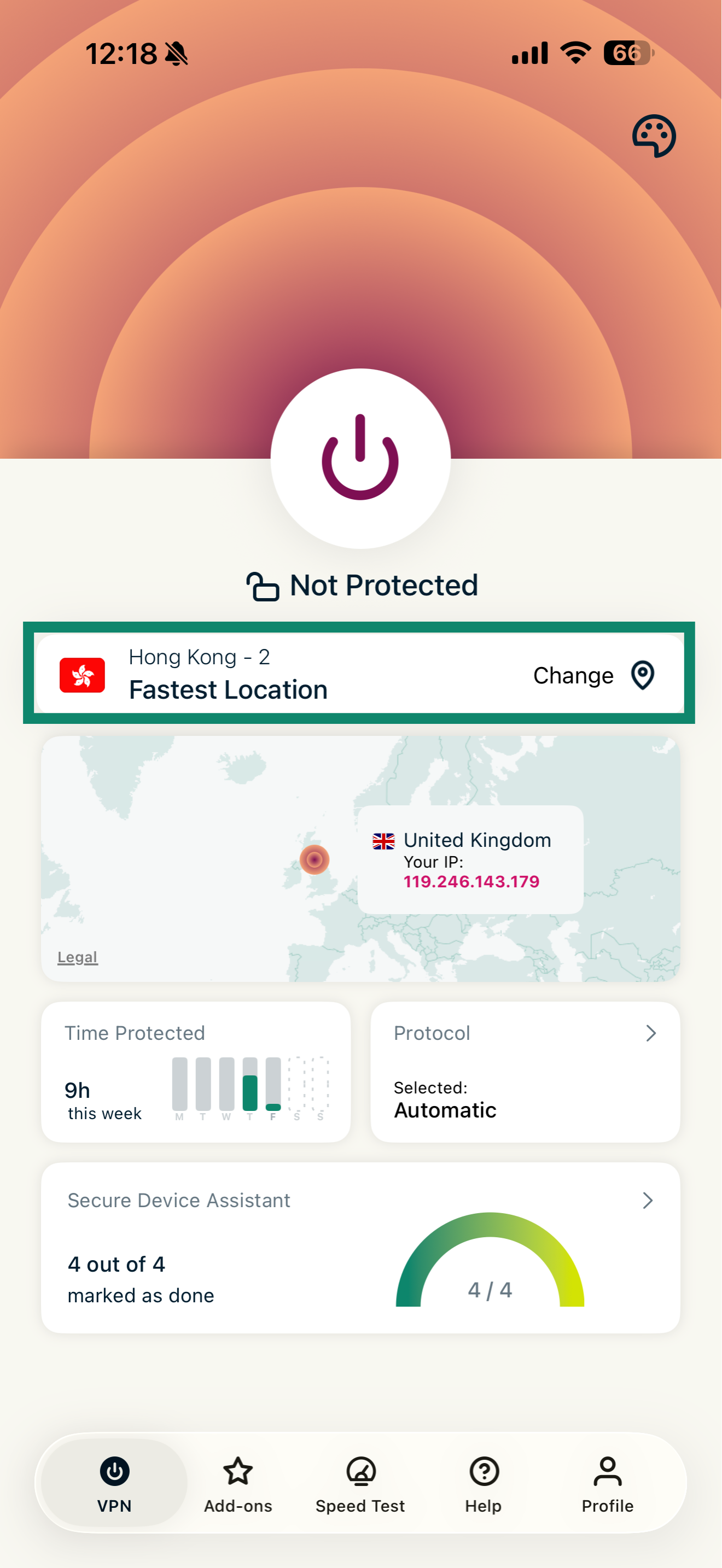
- In the app, tap Change to open the list of available servers.


- Connect to a VPN server location that matches your home country. (If there is more than one server location available for your country, choose the one that is closest to your physical location.)
- Check your IP address and run a DNS leak test to verify you are connected to the VPN successfully.
- Access the streaming service.
Linux
- Download and set up the ExpressVPN app for Linux.
- Download and set up the ExpressVPN browser extension.
- Connect to a VPN server location that matches your home country:
- In the GUI app: In the app, click the VPN tab, then > next to Selected Location, and choose a server from the list.
- In CLI: Run the following command:
expressvpn connect
(If there is more than one server location available for your country, choose the one that is closest to your physical location.)
- Check your IP address and run a DNS leak test to verify you are connected to the VPN successfully.
- Access the streaming service.
Streaming media devices or smart TVs
The ExpressVPN app is compatible with select streaming media devices that support built-in VPNs:
- Amazon Fire TV and Fire Stick
- Streaming media devices that run on Android TV
- Chromecast with Google TV
If you have these streaming media devices:
- In your device’s app store, download and set up the ExpressVPN app:
- In the app, select

 .
. - Connect to a VPN server location that matches your home country. (If there is more than one server location available for your country, choose the one that is closest to your physical location.)
- Check your IP address and run a DNS leak test to verify you are connected to the VPN successfully.
- Access the streaming service.
If you do not have a compatible streaming device or a smart TV that supports built-in VPNs, you can:
- Set up a VPN connection with a virtual VPN router.
- Connect to a VPN server location that matches your home country. (If there is more than one server location available for your country, choose the one that is closest to your physical location.)
- Check your IP address and run a DNS leak test to verify you are connected to the VPN successfully.
- Access the streaming service.
You can also set up MediaStreamer on your device to access particular streaming services.
Note: MediaStreamer is not a VPN and does not offer the privacy and security benefits of a VPN. MediaStreamer does not have a graphical user interface. You cannot change locations on MediaStreamer.
ExpressVPN for routers
You can set up ExpressVPN for routers and connect your devices to the router for streaming.
- Download and set up ExpressVPN for routers.
- Connect to a VPN server location that matches your home country. (If there is more than one server location available for your country, choose the one that is closest to your physical location.)
- Check your IP address and run a DNS leak test to verify you are connected to the VPN successfully.
- Connect your device to the router running ExpressVPN.
- Access the streaming service.
Casting and mirroring
Casting and mirroring are wireless technologies that allow you to play content from your device on a streaming media device or smart TV.
To cast or mirror content while connected to the VPN, follow the instructions for:
Troubleshoot streaming issues
If you are encountering issues with ExpressVPN not working with your streaming service, refer to these guides:
- Cannot connect to the VPN
- Connected to the VPN but cannot access certain content
- Connected to the VPN but the internet is slow
- Connected to the VPN but cannot browse the internet
- The VPN keeps disconnecting
- Can’t stream Netflix
- Can’t stream YouTube TV
- Can’t stream BBC iPlayer
- Can’t stream ITVX
- Can’t stream Max
- Can’t stream Hulu
- Can’t stream Disney+
- Can’t stream Prime Video