






This guide is for users who are unable to connect to the ExpressVPN app. Examples of failing to connect include:
- Encountering “Unable to Connect” error messages.
- Being stuck in the “connecting” state or taking too long to connect.
The likely causes for these issues include:
- The VPN server location you are trying to connect to is under maintenance.
- The VPN connection is blocked by your antivirus or online security application.
- Not using the latest version of the ExpressVPN app.
- Using a dedicated IP address but not connected to the Lightway protocol. See our dedicated IP troubleshooting guide for more detailed instructions.
Preliminary check
Before you proceed, check whether you have an active internet connection.
- Confirm you are not connected to the ExpressVPN app.
- On your web browser, access a website of your choice.
If you are able to access the website, the VPN connection issue is not caused by your internet connection. Follow the troubleshooting steps below to resolve the issue.
If you are unable to access the internet even when disconnected from ExpressVPN, there is likely an issue with your internet connection. Check whether your internet connection is active or has underlying issues. (If you are on Windows, try these steps to restoring your internet connection.)
Troubleshooting steps
Follow the troubleshooting steps below to resolve the connection issue. After each step, check if the issue is fixed. If the issue is fixed, you can skip the rest of the steps.
- Download the latest version of ExpressVPN
- Connect to a different VPN server location
- Change your VPN protocol
- Add ExpressVPN as an exception to your antivirus or online security application
- Contact the ExpressVPN Support Team
1. Download the latest version of ExpressVPN
If you haven’t installed ExpressVPN, you can download and set up the latest version of the app for your device using the instructions below:
Set up your ExpressVPN app:
- Setup instructions for Windows
- Setup instructions for Mac
- Setup instructions for iOS
- Setup instructions for Android
- Setup instructions for Linux
- Setup instructions for routers
- Setup instructions for Android TVs
- Setup instructions for Apple TV
- Setup instructions for Amazon Fire TV
If you already have ExpressVPN installed and are running an older version:
- On desktop: You’ll see a banner in the app saying an update is available.
- On mobile: The app updates automatically by default. You can also manually check and update following the instructions in this guide to updating the app.
- On smart TV: The app updates automatically in the background. If you want to manually check: visit the relevant app store for your TV device, search for “ExpressVPN” and see if there is an Update button for it. If there is, select it to update to the latest version. If there is not, you are already using the latest ExpressVPN version of the app for your device.
2. Connect to a different VPN server location
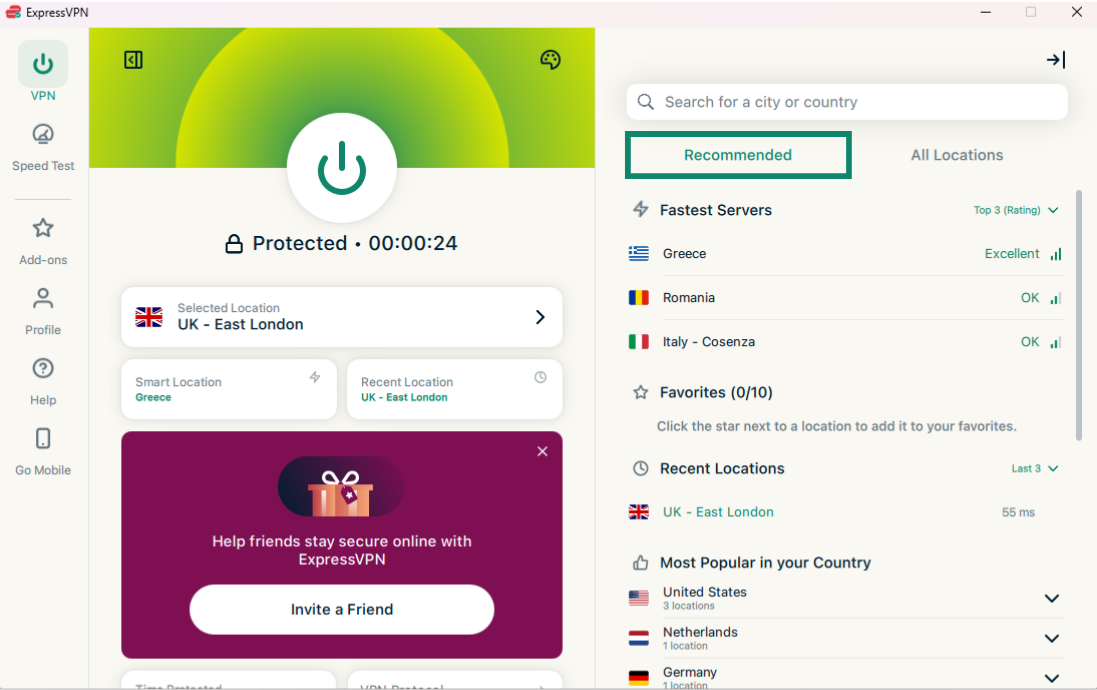
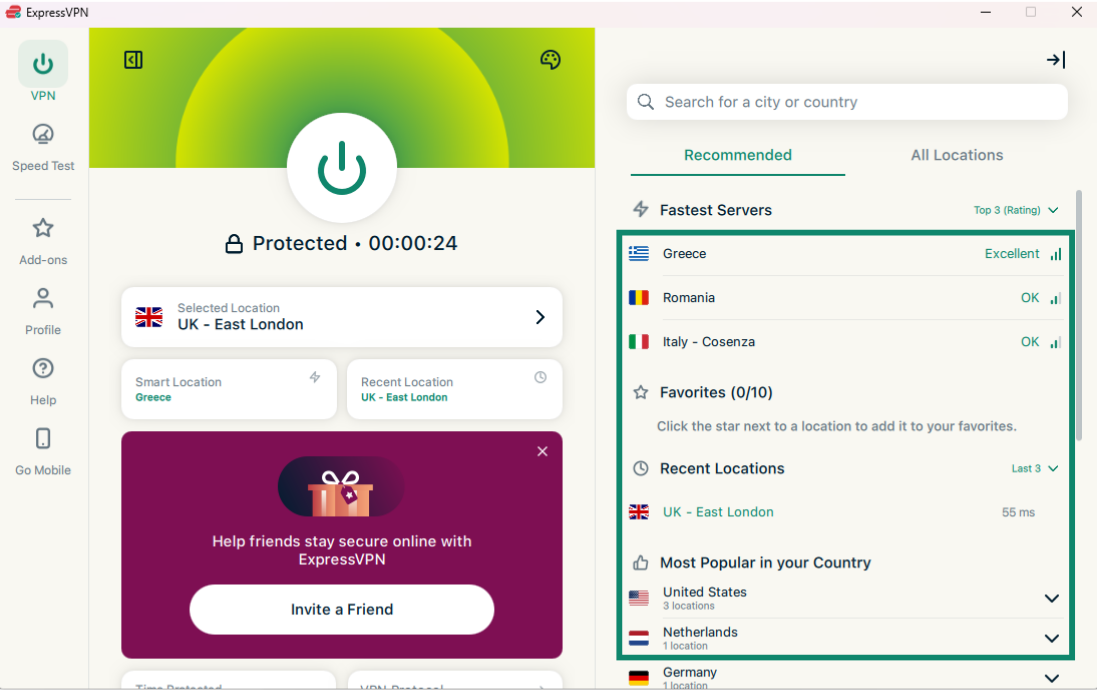
Connect to a different VPN server location on the Recommended server location list.
How to connect to a different server location on each of our apps:
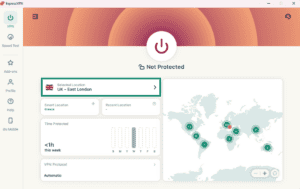
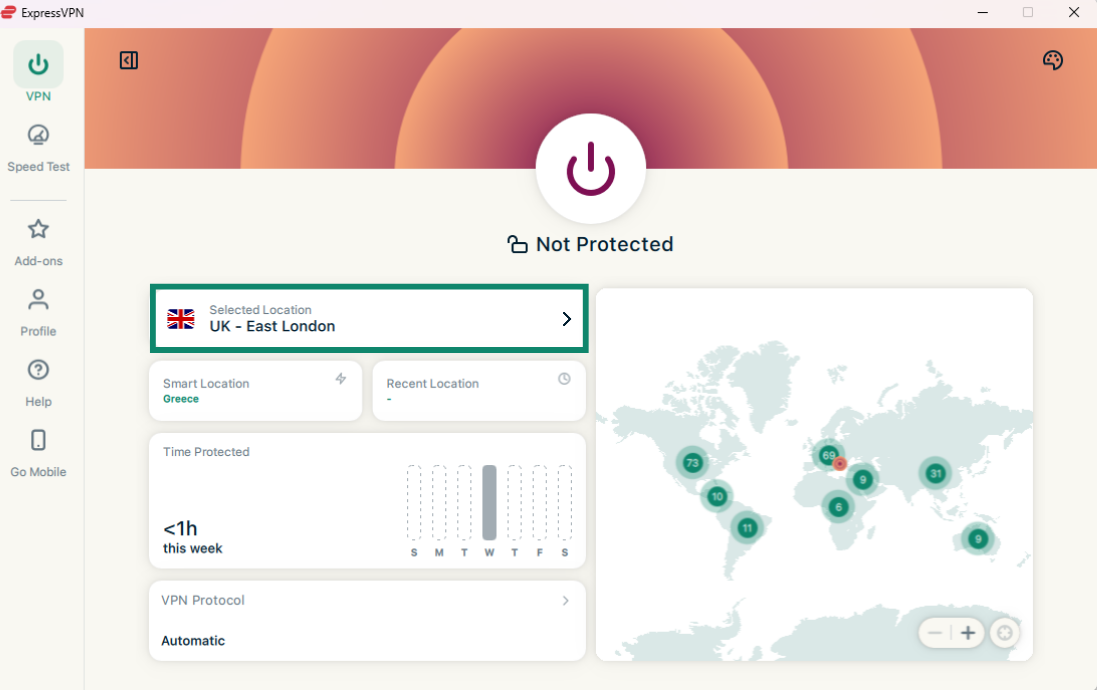
- Click > next to Selected Location to access the list of VPN locations.

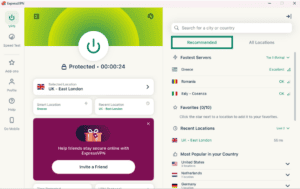
- Scroll through the Recommended or All Locations server lists to find a specific location, or use the search bar to find the location you want to connect to.
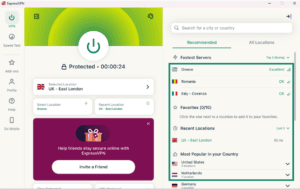
- Click on your desired server location, and ExpressVPN will automatically connect to it and return you to the VPN tab.
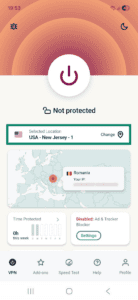
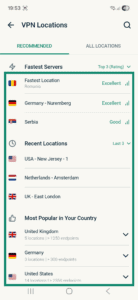
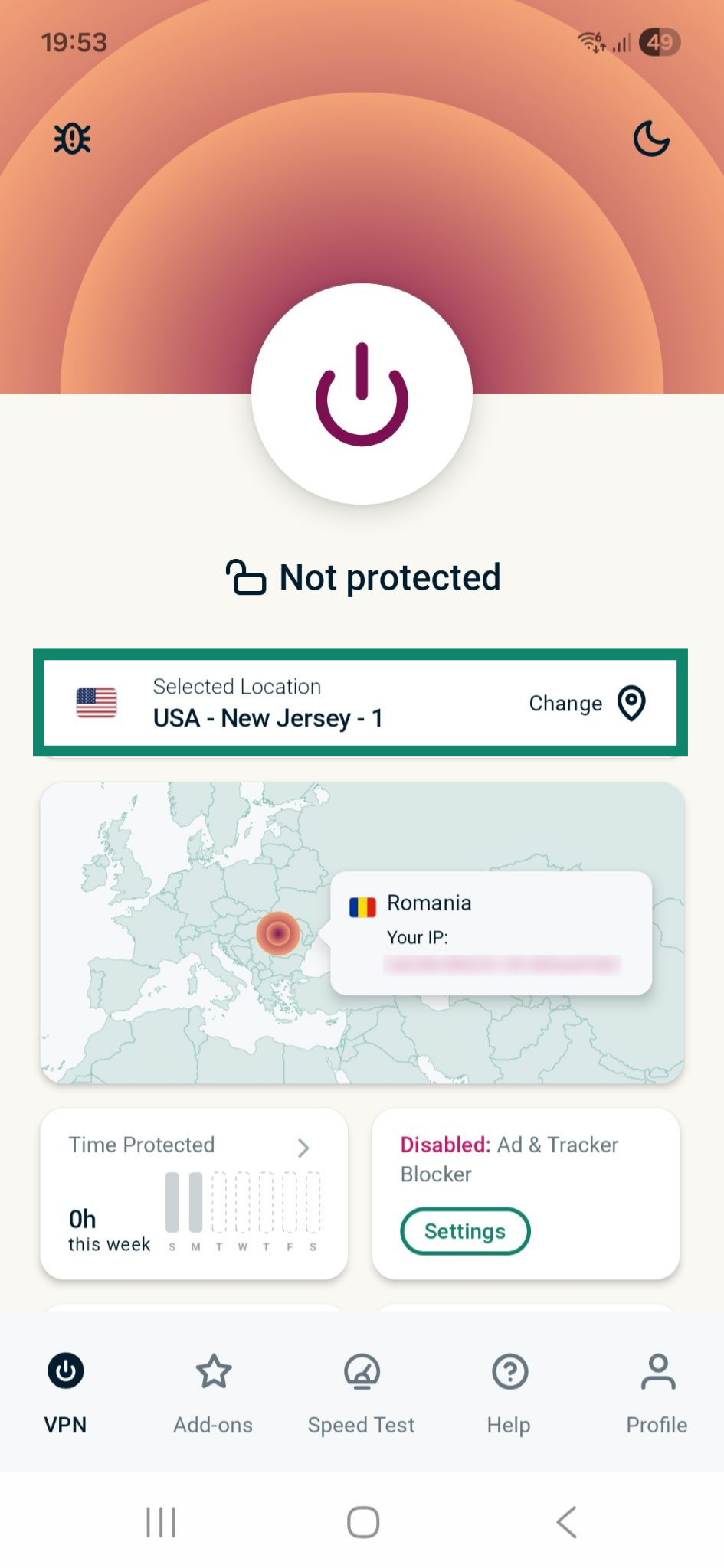
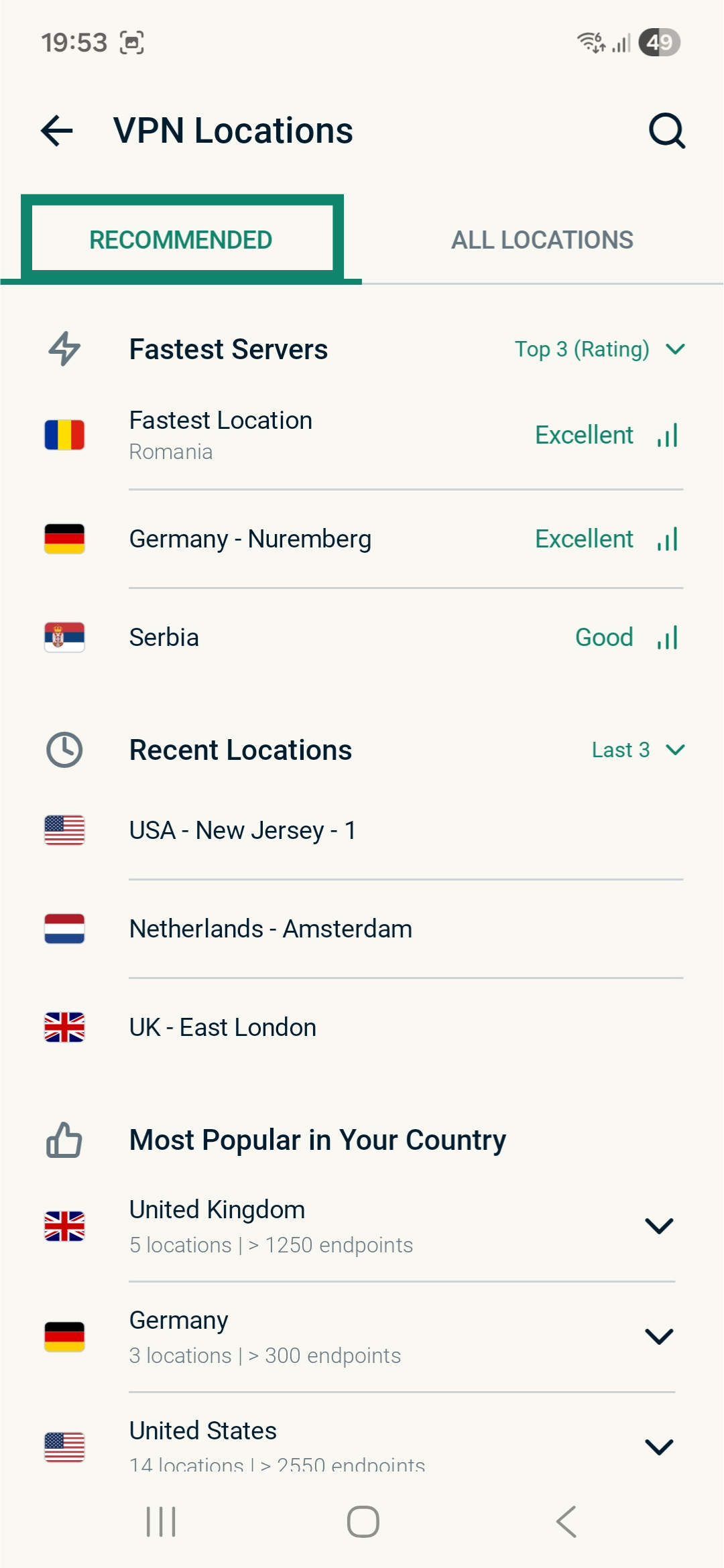
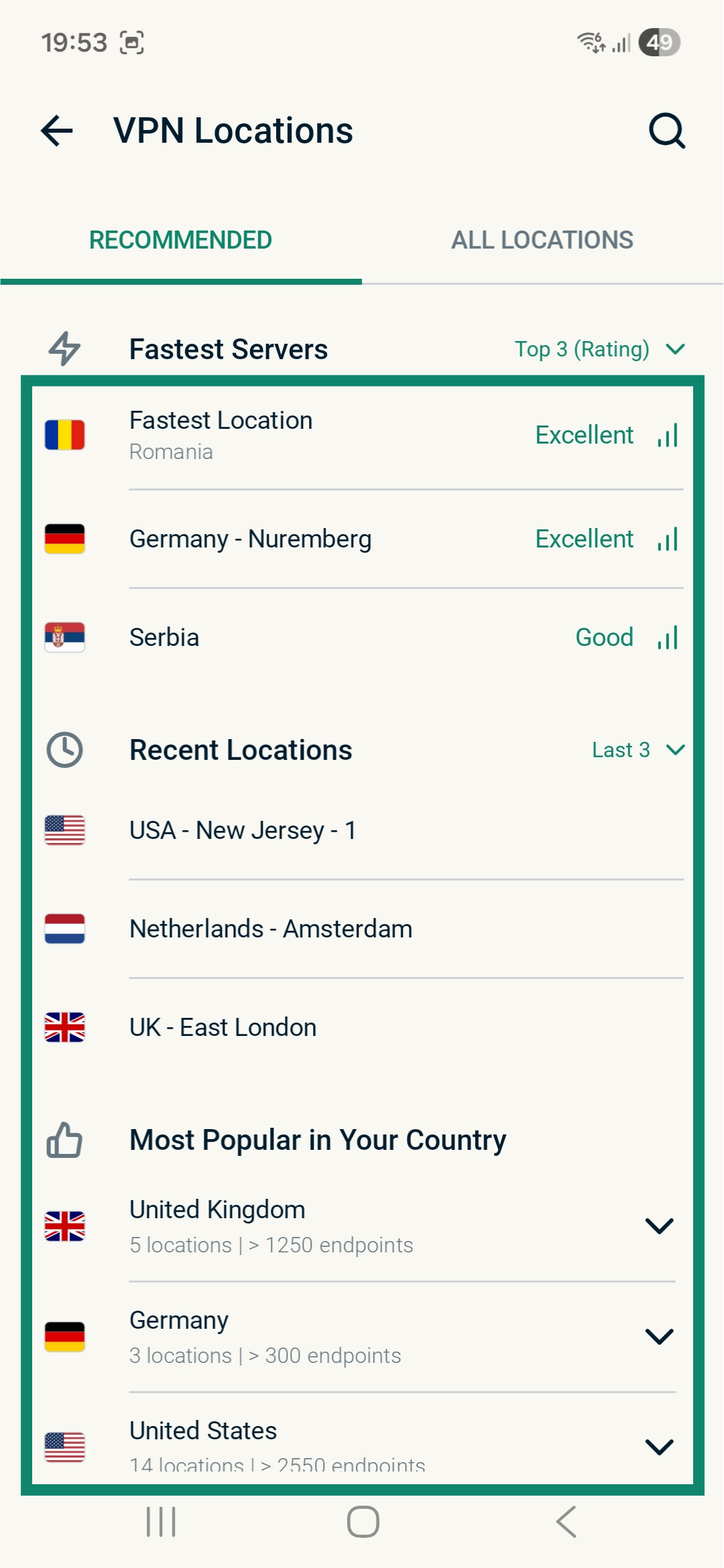
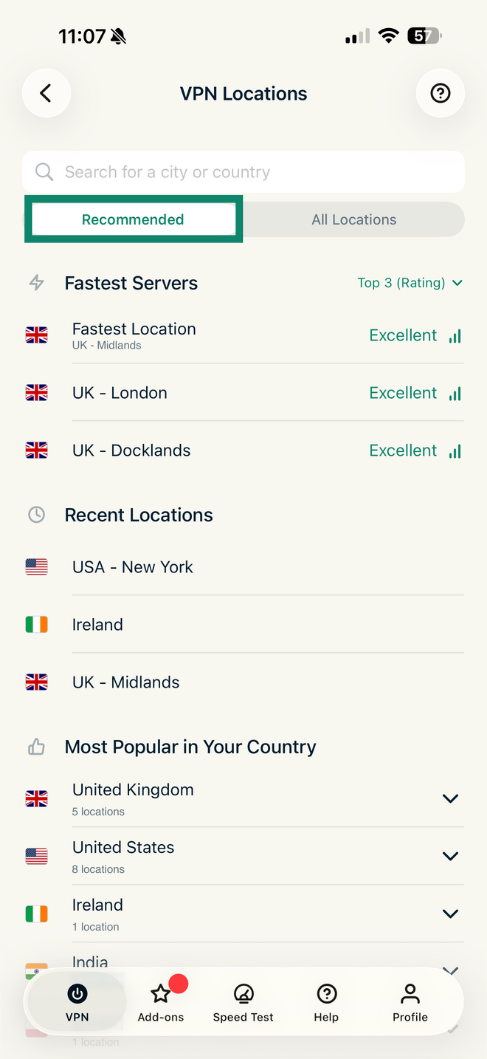
- In the VPN tab, tap Change in the server location widget below the power button.

- A list of Recommended server locations will be displayed. Scroll through it to find a specific server. Alternatively, tap All Locations to view all available options, or tap the search icon and type the location you’re looking for to find the server you want.
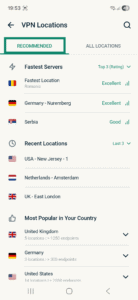
- Tap the desired location and ExpressVPN will automatically connect you to the server and return you to the VPN tab.
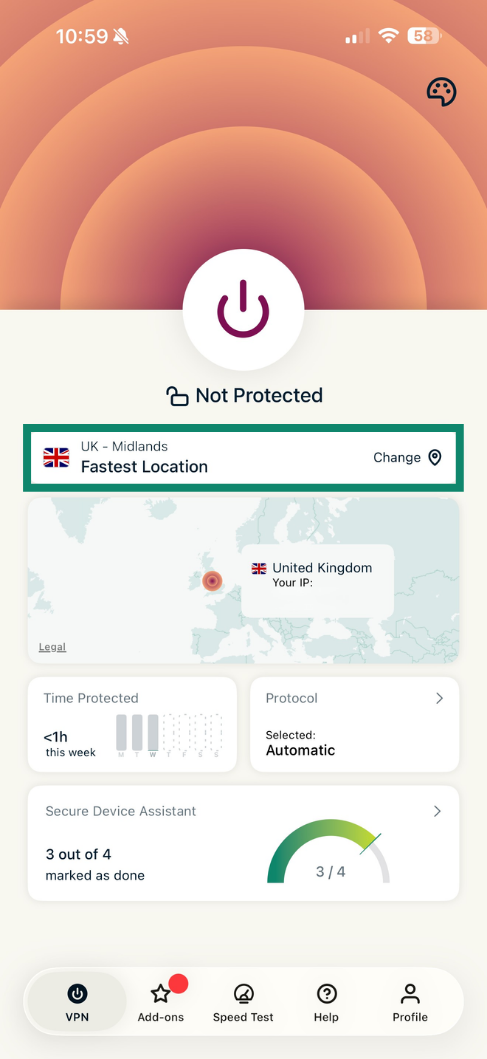
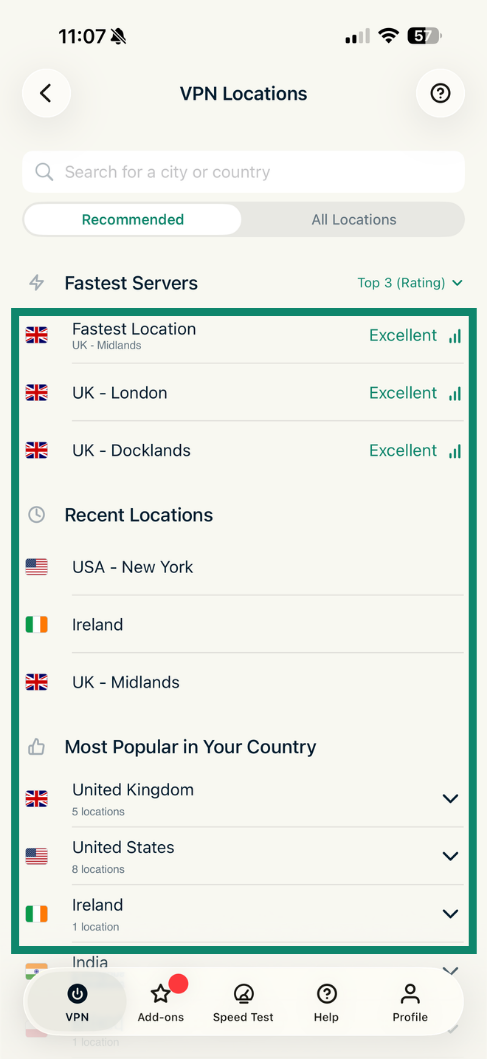
- In the VPN tab, tap Change in the server location widget below the power button.
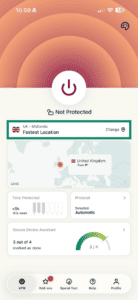

- A list of Recommended server locations will be displayed. Scroll through it to find a specific server. Alternatively, tap All Locations to view all available options, or tap the search icon and type the location you’re looking for to find the server you want.
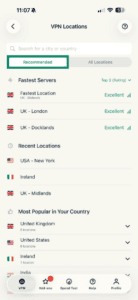
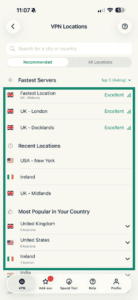
- Tap a VPN server location and ExpressVPN will automatically connect to the server and return you to the VPN tab.
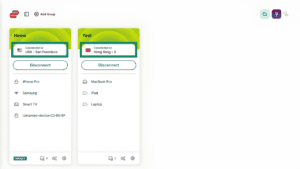
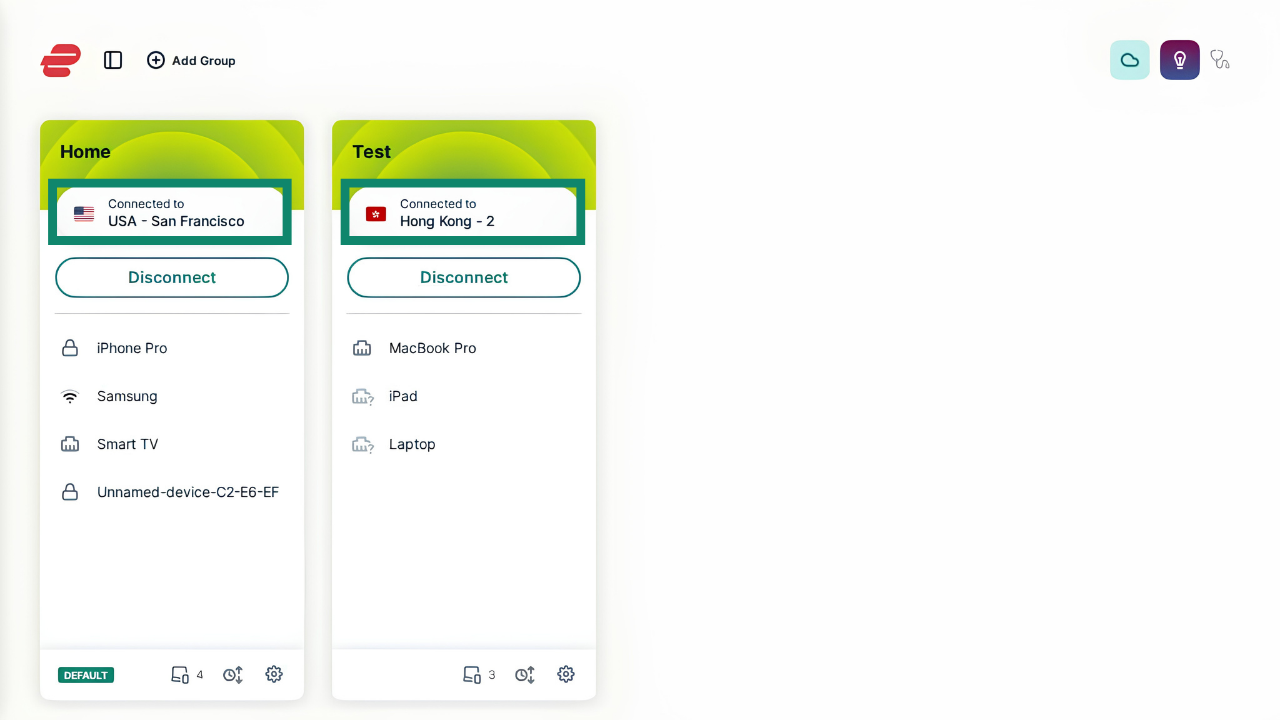
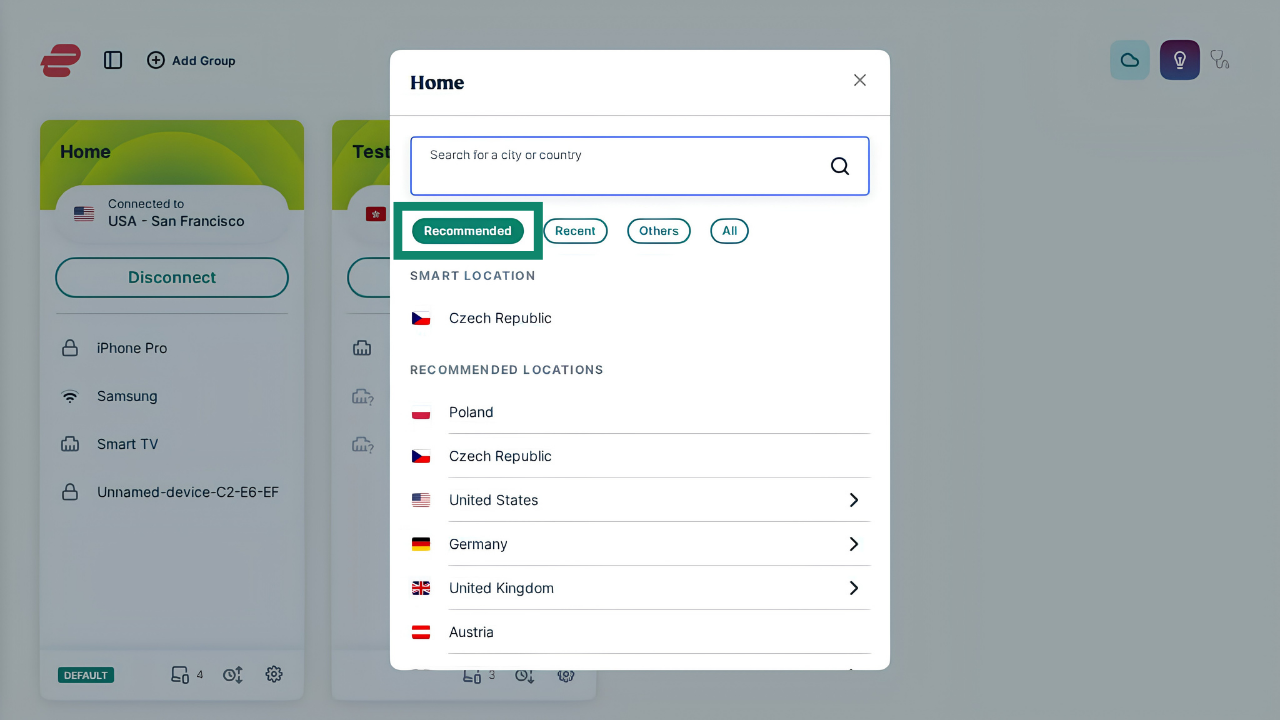
- On the connection screen, select the server location widget for the device group you want to change server locations for.

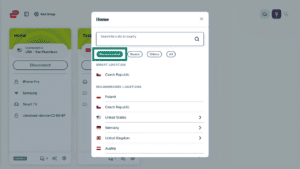
- A window displaying VPN server locations will pop up. Select your desired VPN server from the Recommended tab, and ExpressVPN will automatically connect to it.
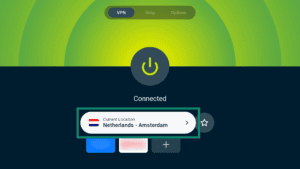
- On the VPN tab, select the server location widget.
- A list of servers will open. Scrolls through the servers in the Recommended tab to find a specific location.
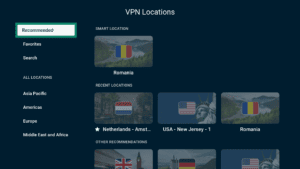
- Select your desired server location, and pick a city if prompted. ExpressVPN will automatically connect you to it and return you to the VPN tab.
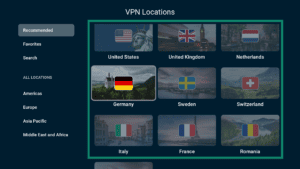
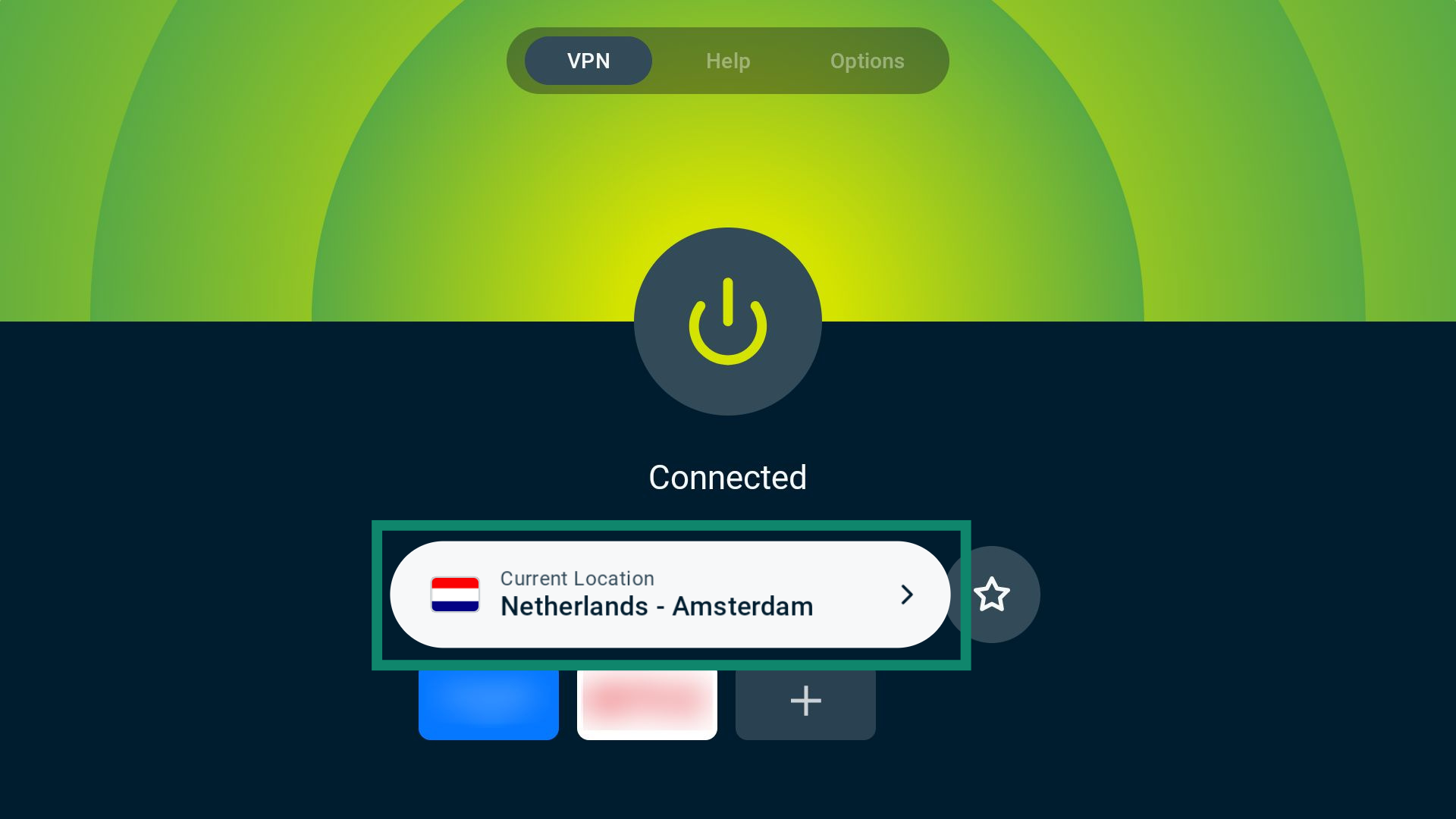
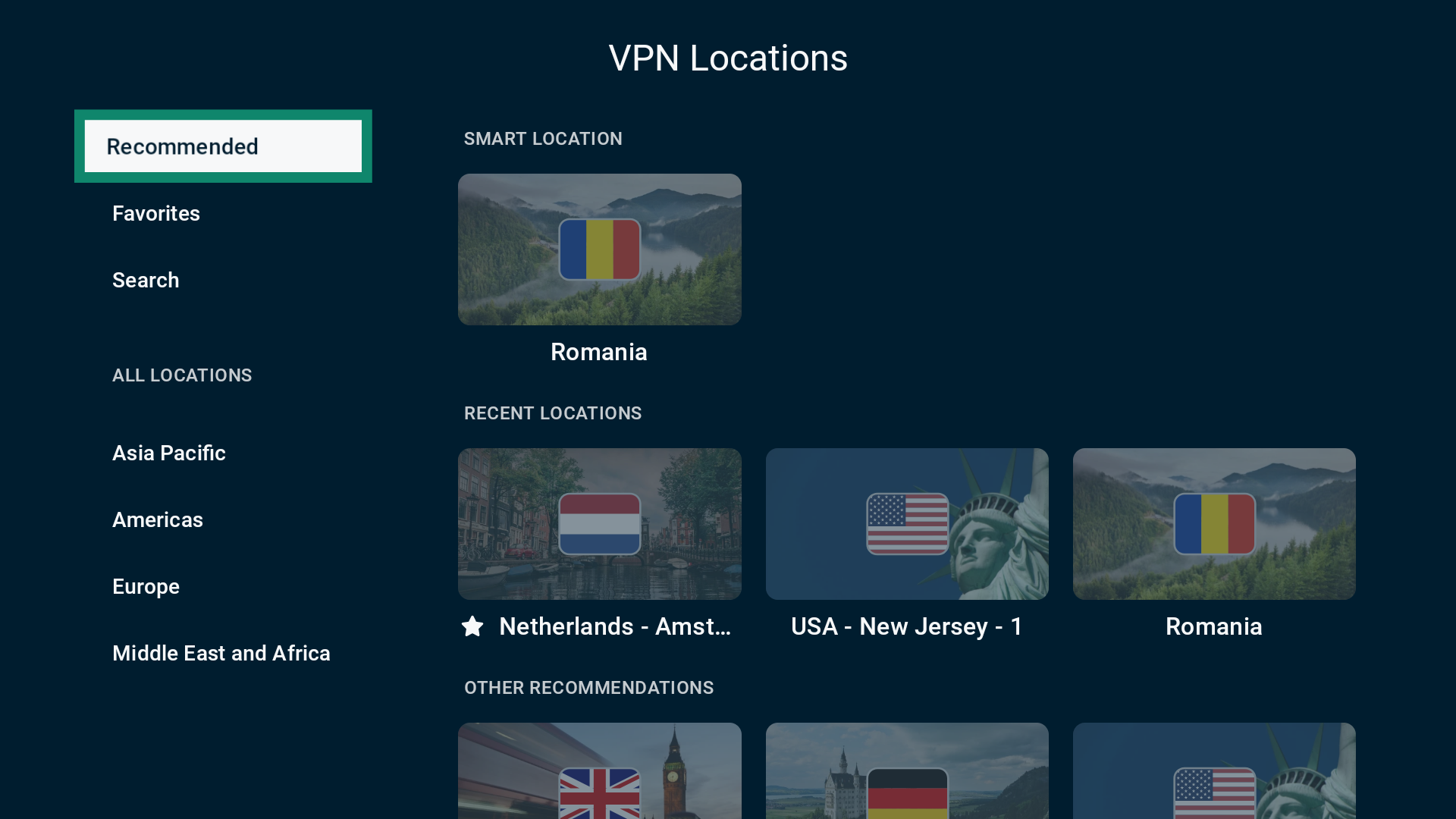
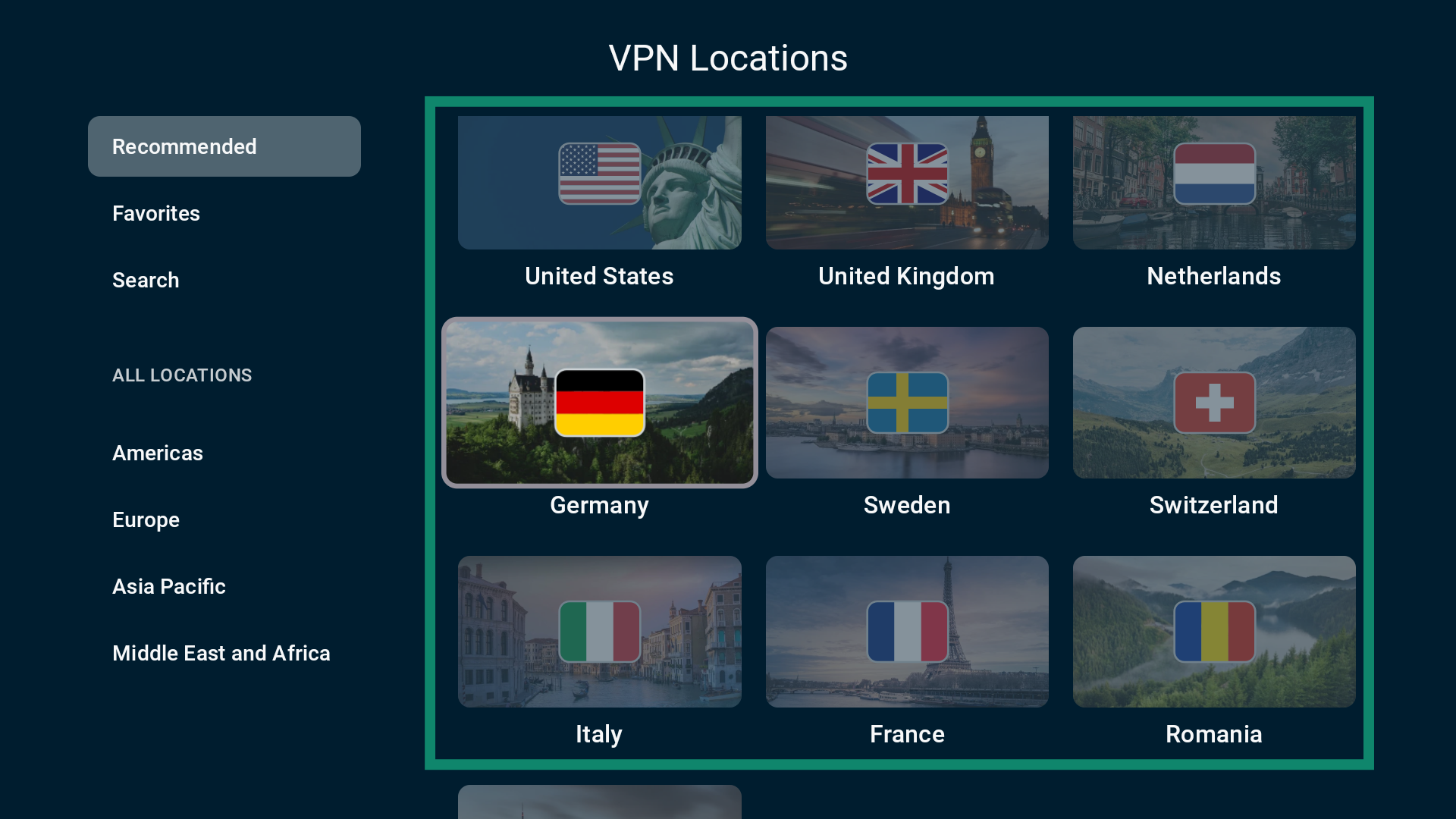
- Select the server location widget on the VPN tab.
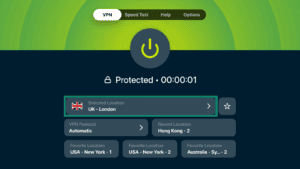
- You will now see a list of server locations. Scroll through the servers in the Recommended tab to find a specific location.
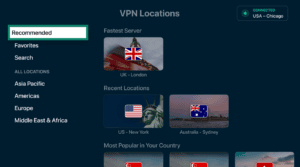

- Select your desired location, and choose a city if prompted. ExpressVPN will automatically connect you and return you to the VPN tab.
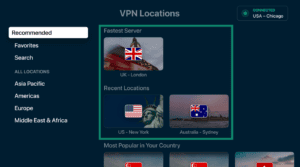
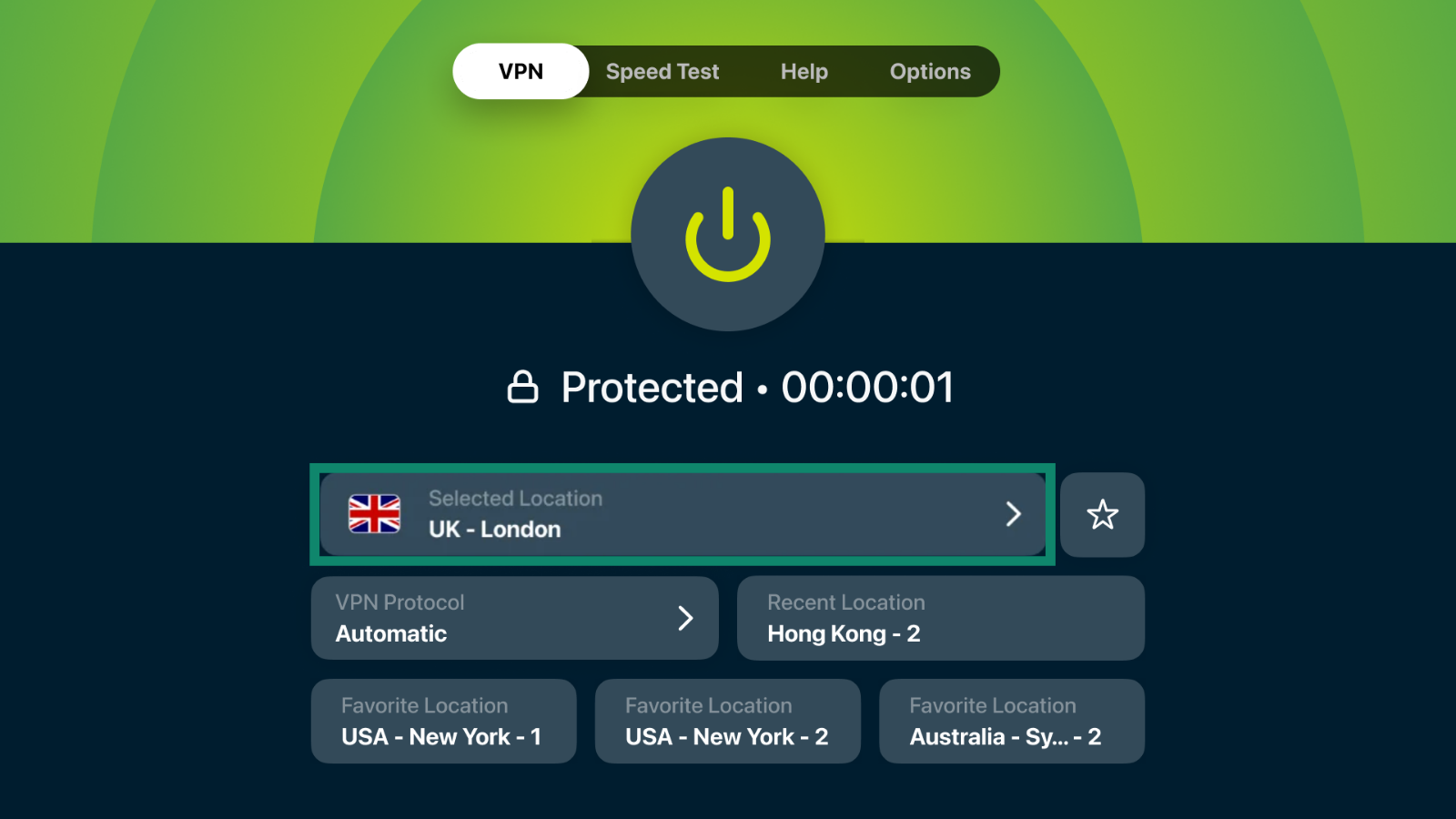
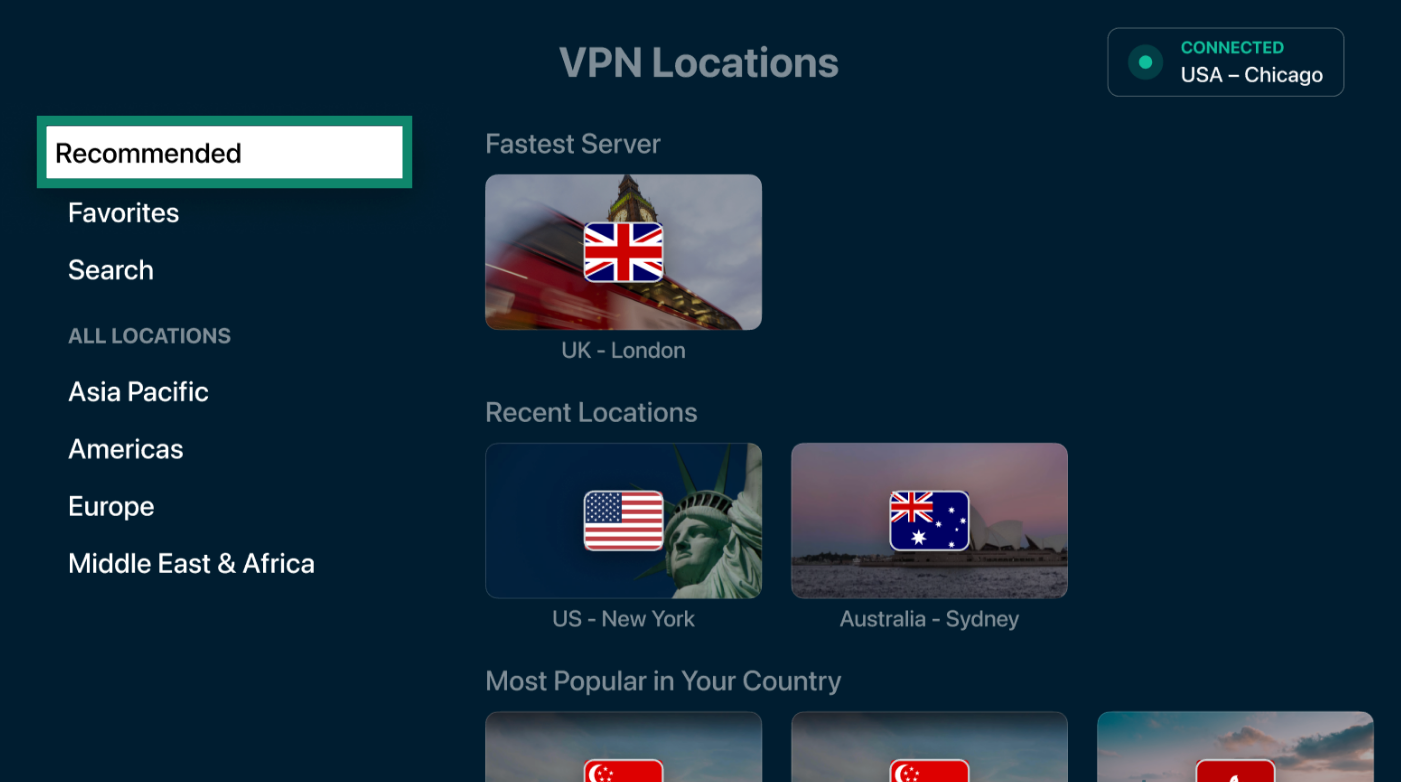
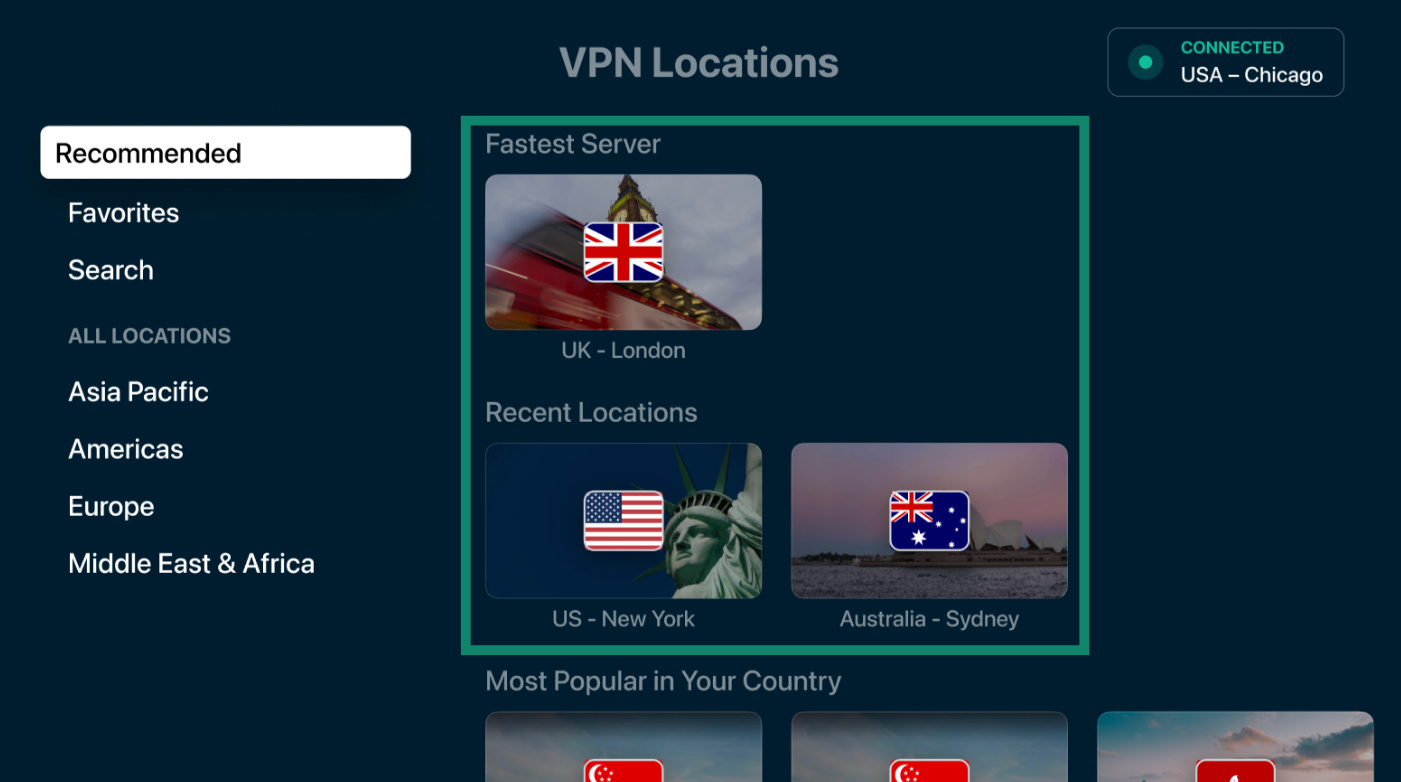
If you can connect to ExpressVPN after connecting to a different VPN server location, there may be a temporary issue with the VPN server location you were previously trying to connect to. Contact the ExpressVPN Support Team about the issue and use other VPN server locations in the meantime.
3. Change your VPN protocol
VPN protocols are the methods by which your device connects to a VPN server.
For the best experience, ExpressVPN recommends using the Automatic protocol option, which is selected by default. With the protocol set to Automatic, ExpressVPN will choose the best option for your network, which is usually Lightway.
If you are unable to connect with the Automatic protocol, try the other protocols in the following order (if available):
- Lightway – UDP
- Lightway – TCP
- WireGuard
- OpenVPN – TCP
- OpenVPN – UDP
- IKEv2 (iOS only)
Note: If you are using a dedicated IP address, it will only work when using the Lightway protocol.
How to change the protocol on each of our apps:
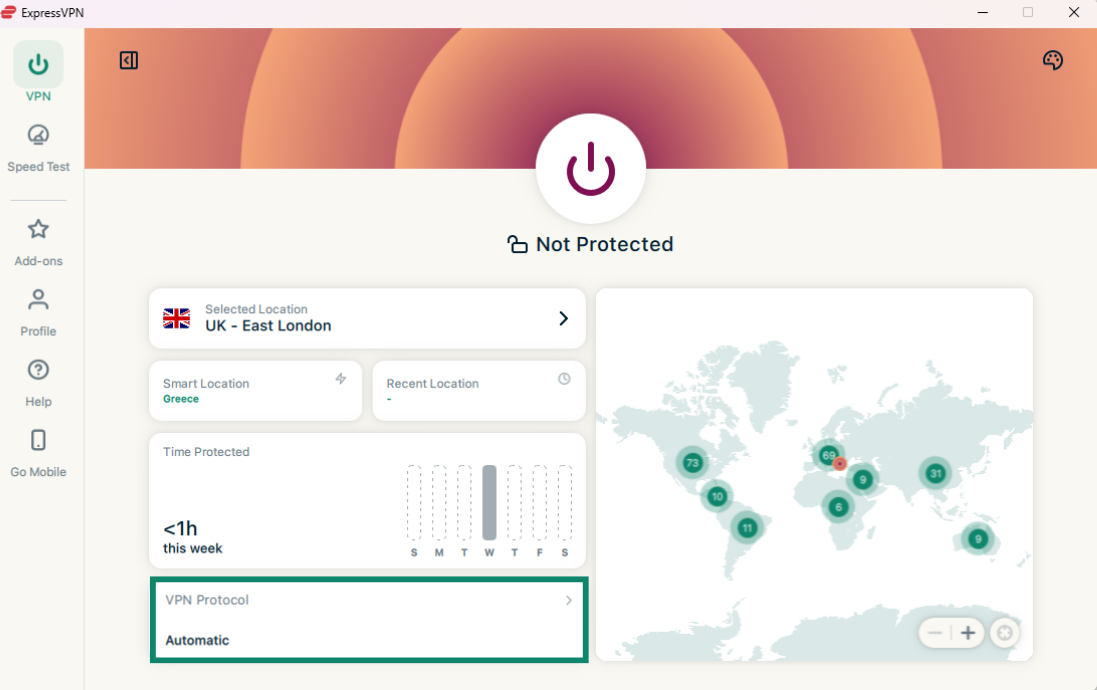
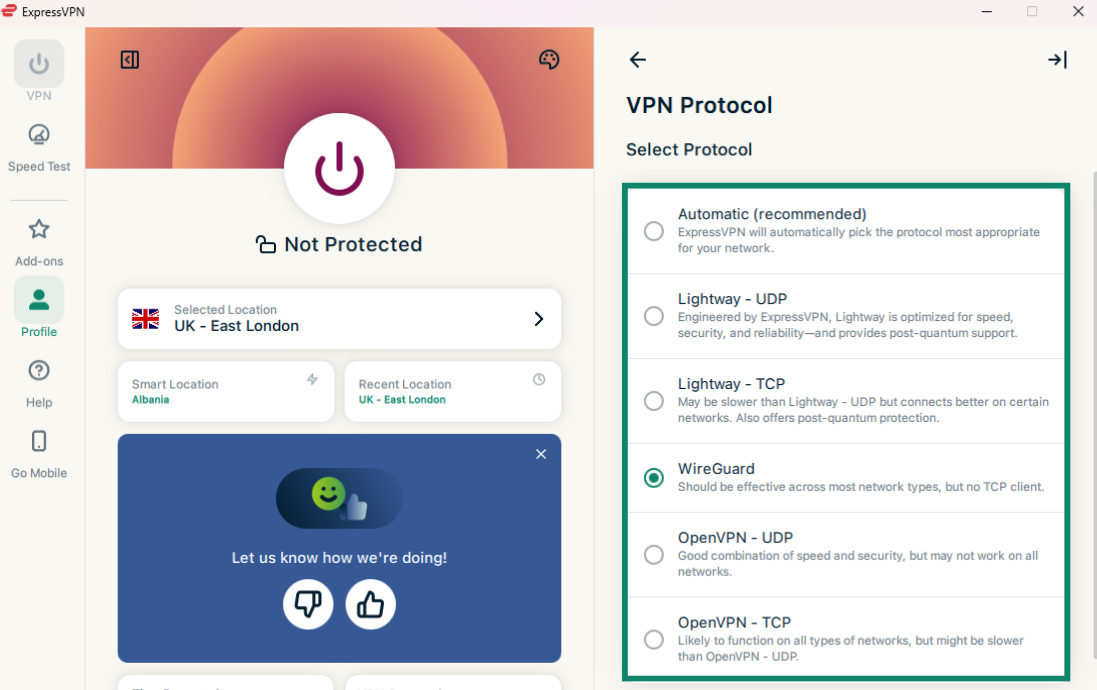
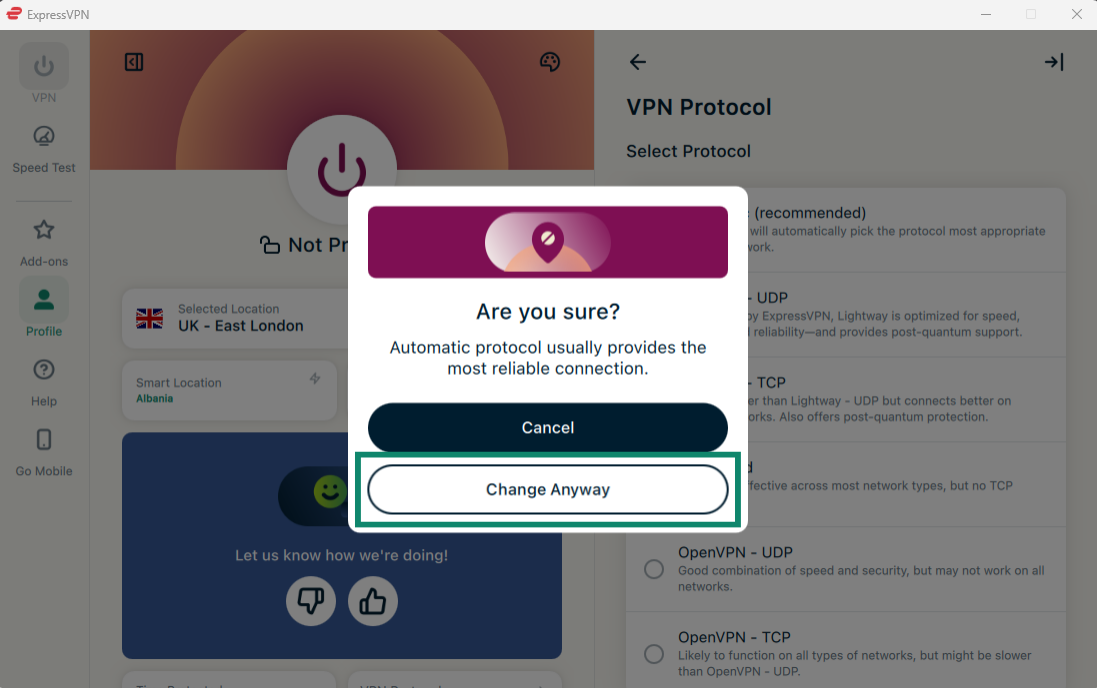
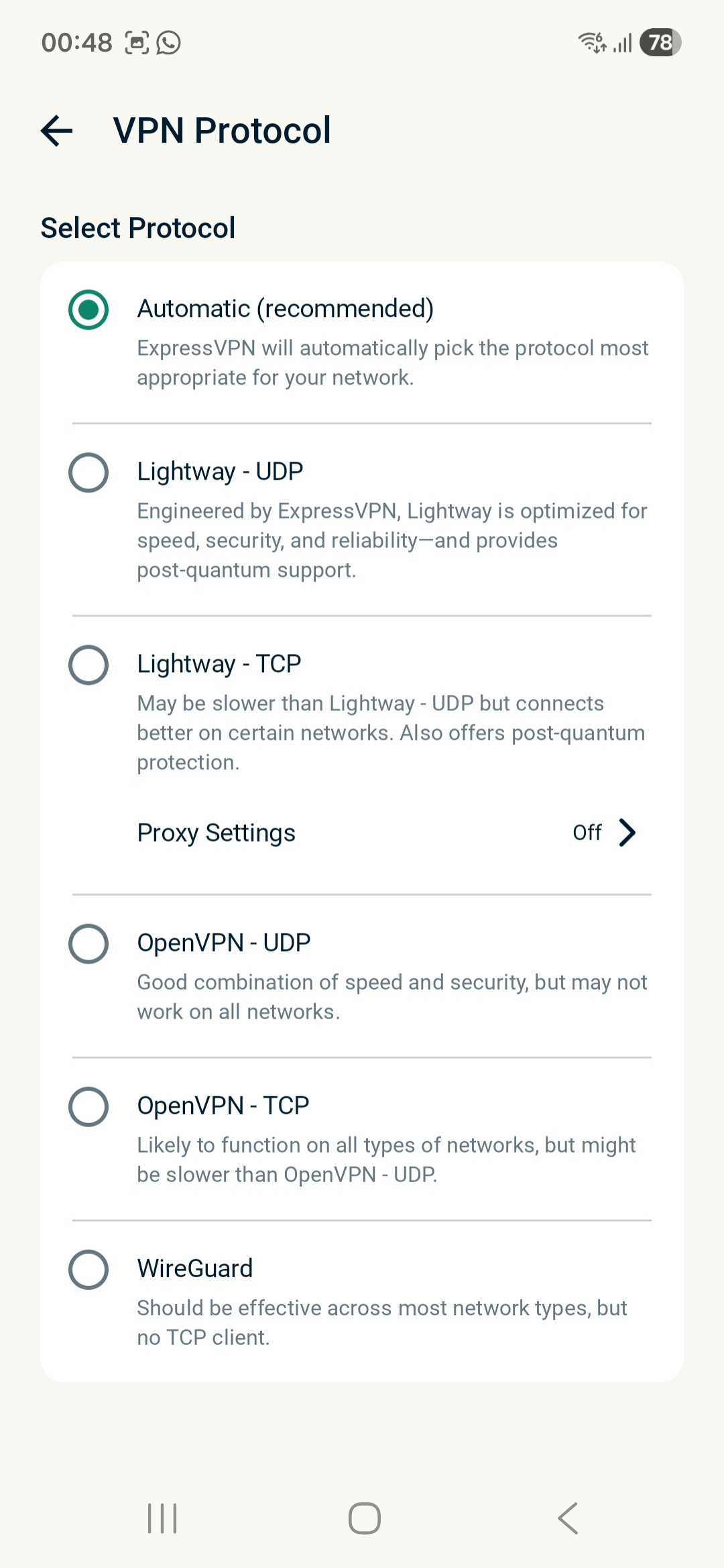
- On the VPN tab, click the VPN Protocol widget.
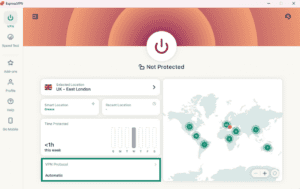
- A list of available protocols will be displayed. Click the protocol you want to use.
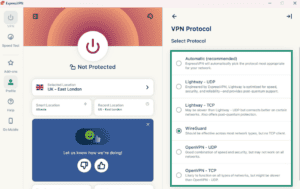
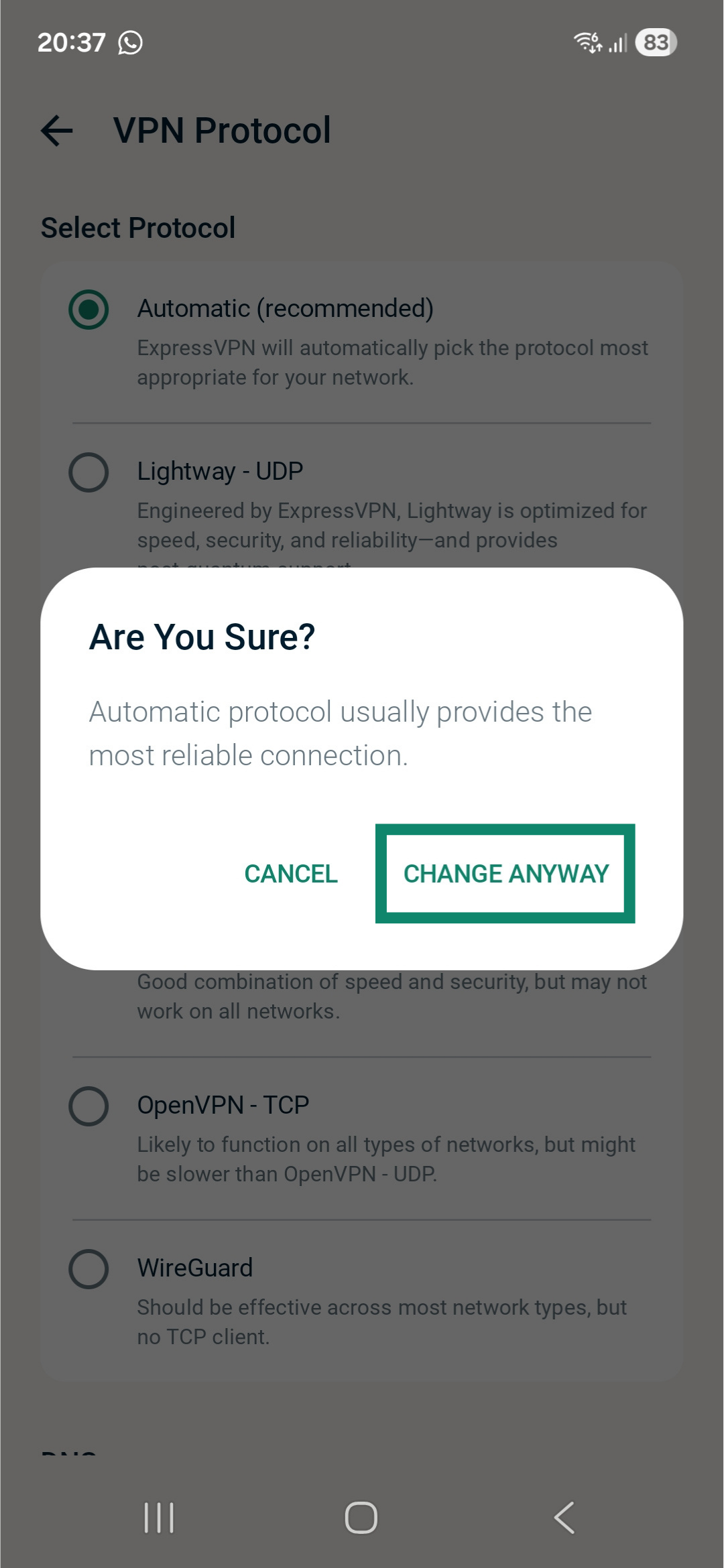
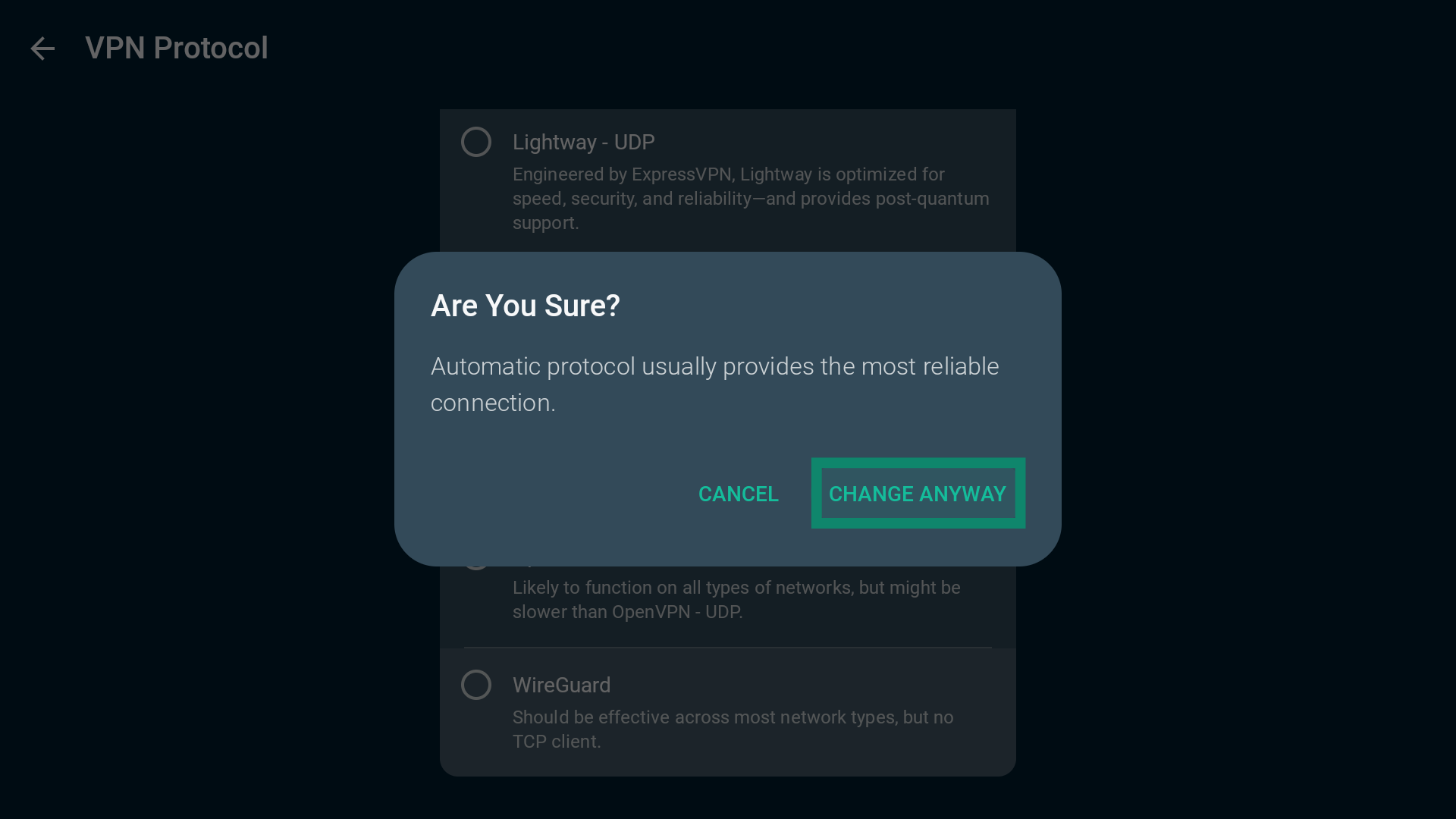
- When switching from Automatic to other protocol options, you will see a pop-up asking if you are sure. Click Change Anyway to continue.
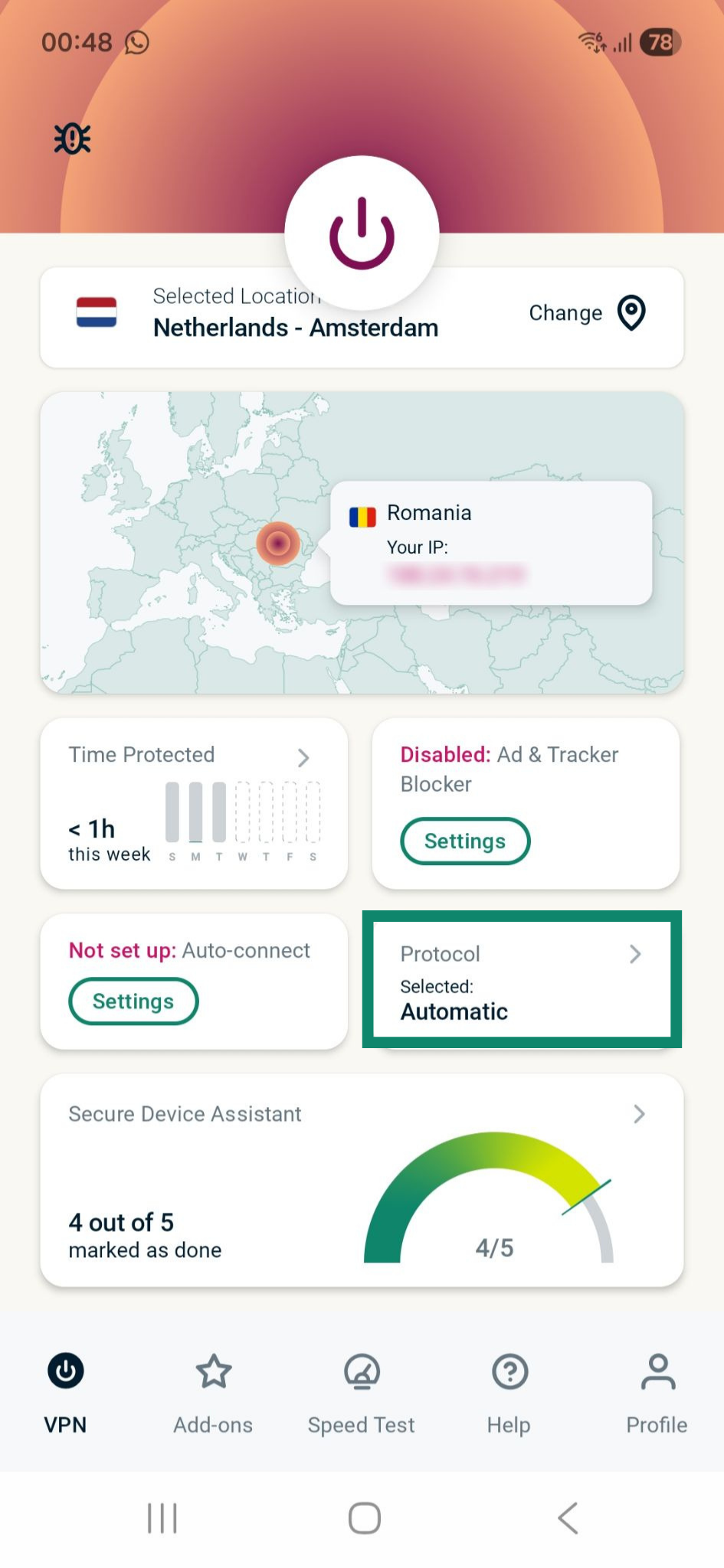
- On the VPN tab, tap Protocol.
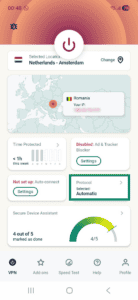
- Tap your desired VPN protocol.
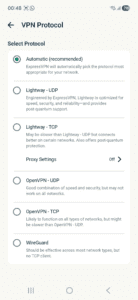
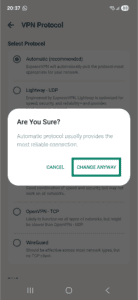
- If switching from Automatic to protocol options other than Lightway – UDP, a pop-up message asking if you are sure will be displayed. Tap Change Anyway to proceed.
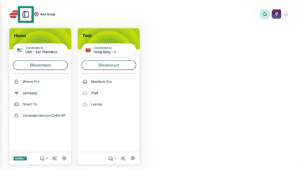
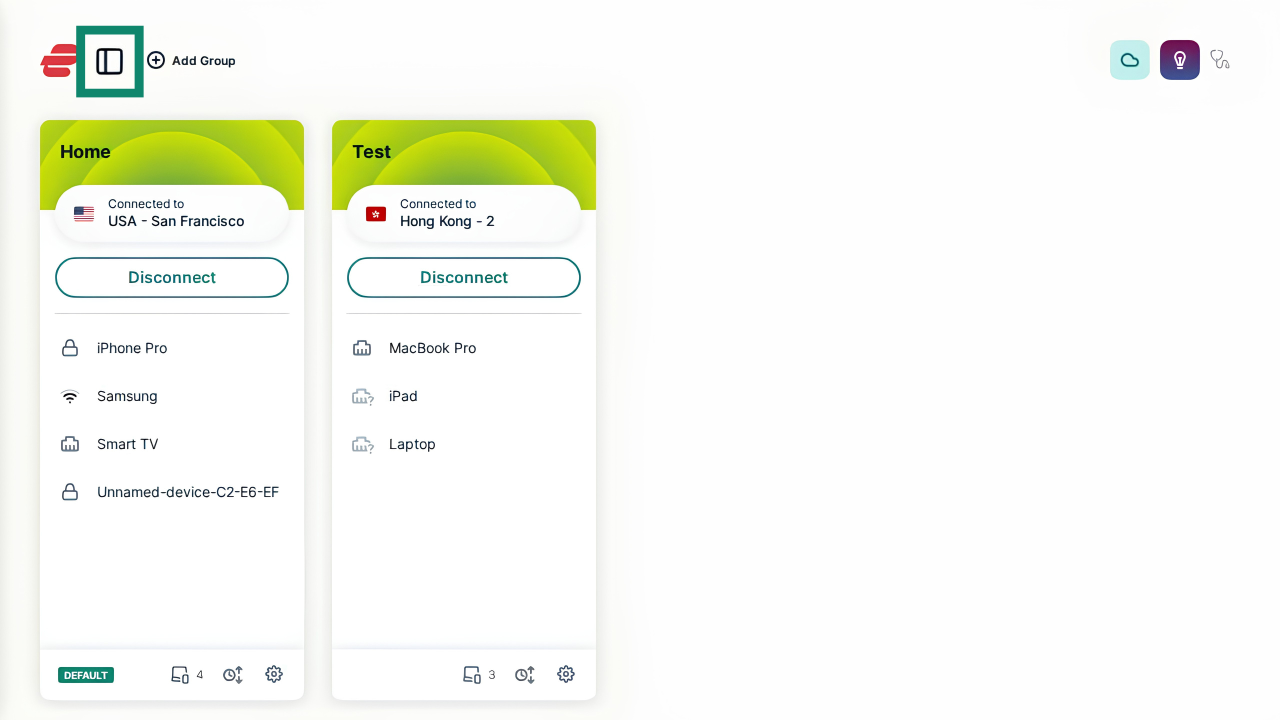
- On the main screen, use the sidebar icon in the top left corner to expand and view the sidebar menu.
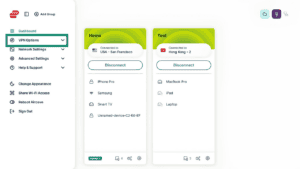
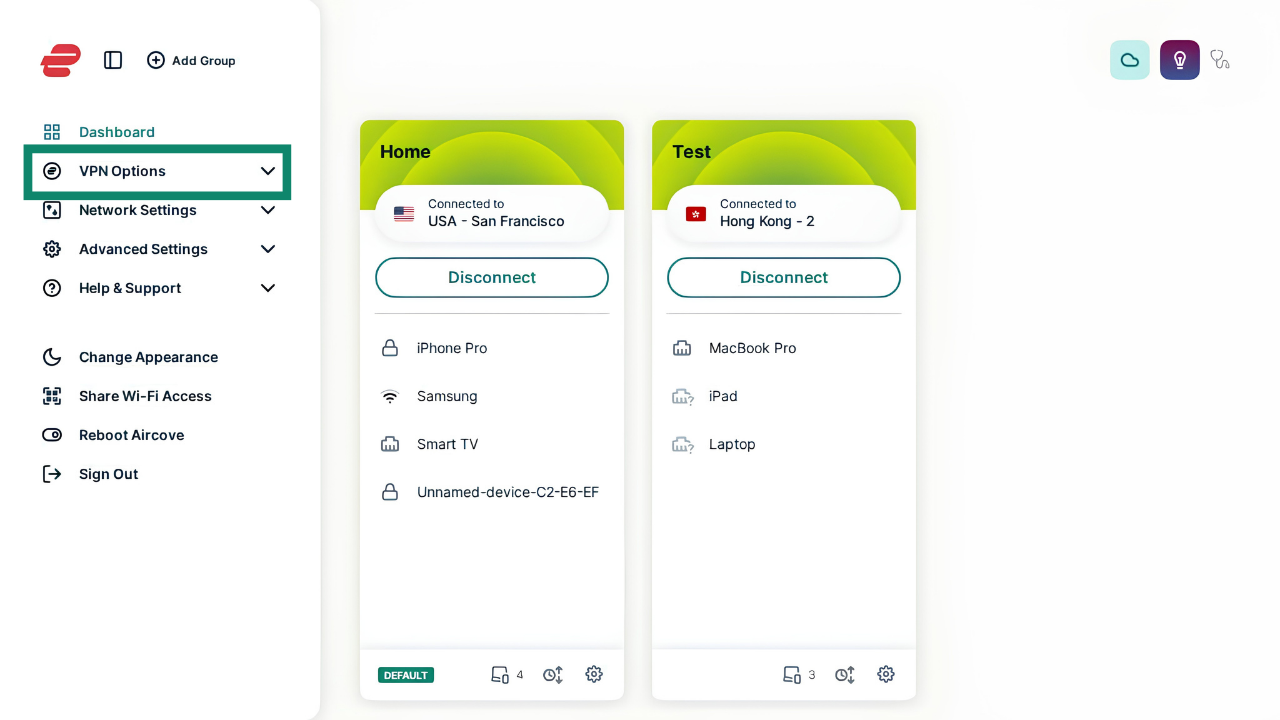
- From the opened sidebar, select VPN Options to open the dropdown menu, then select VPN Protocol.
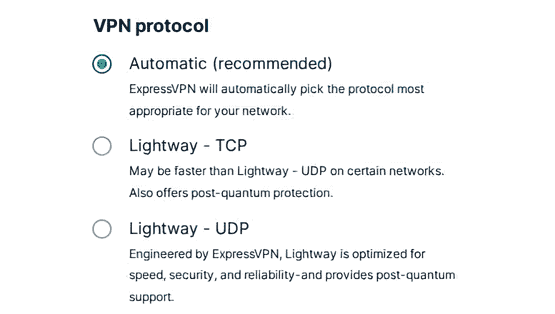
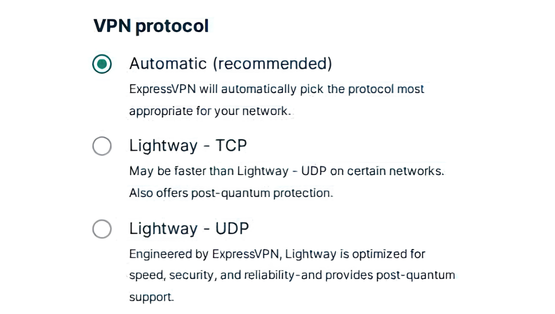
- Select your desired protocol. Available options include Lightway, OpenVPN, and IKEv2/IPsec. If you are unsure which to pick, select the Automatic option.

When done, disconnect and reconnect to apply the changes.
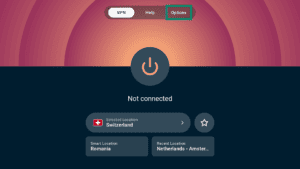
- In the top menu bar, select Options.
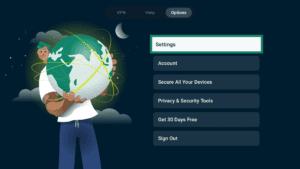
- Next, select Settings.
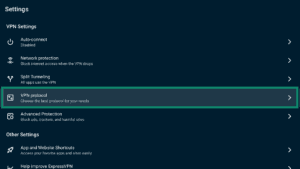
- Select VPN protocol.
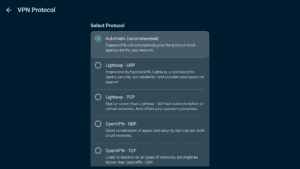
- Select your desired VPN protocol.
- When switching from Automatic to OpenVPN or WireGuard, ExpressVPN will ask you to confirm the choice. Select Change Anyway to proceed.
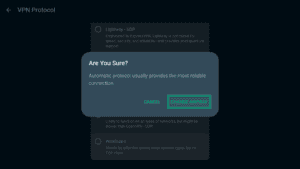
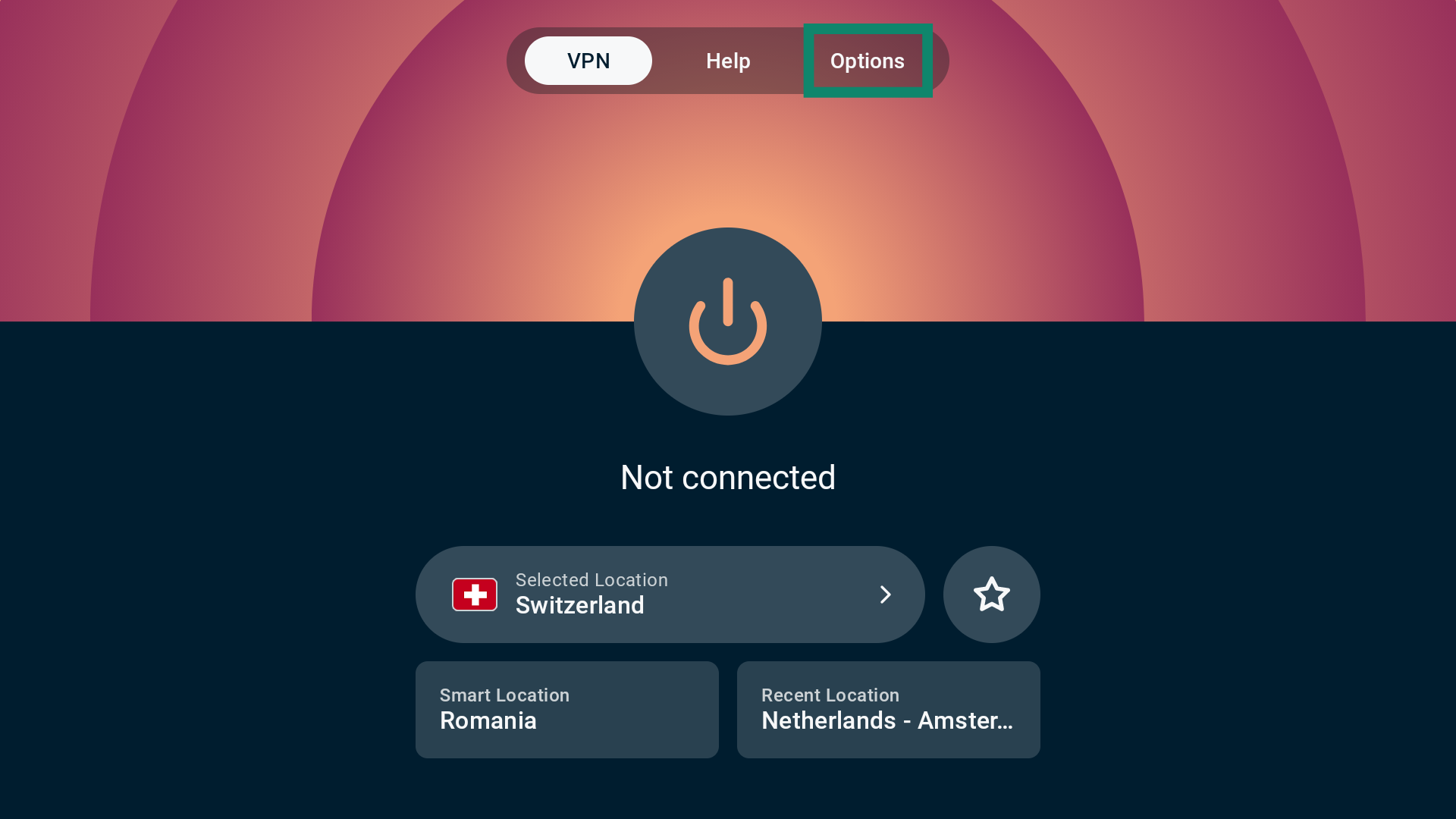
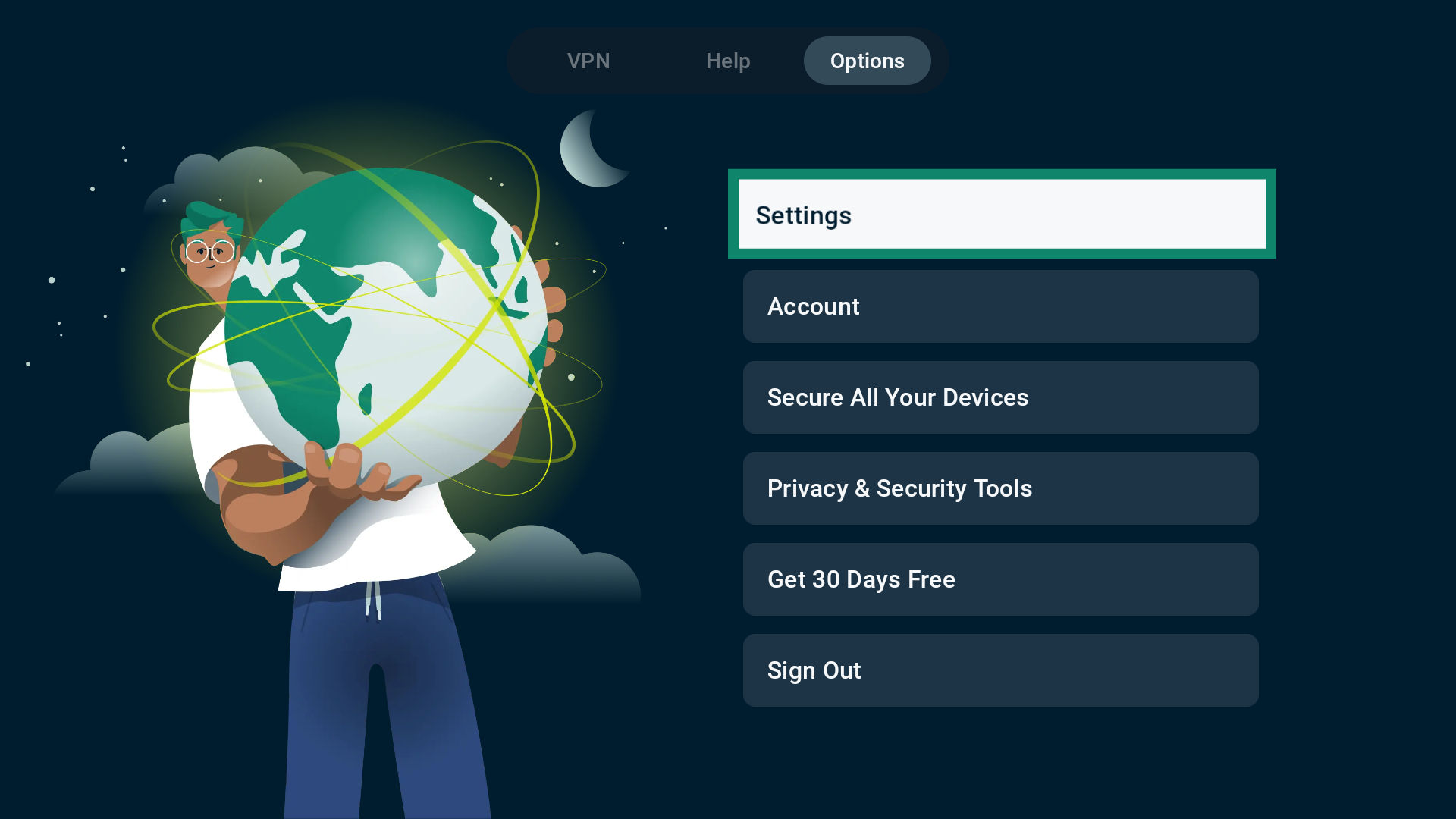
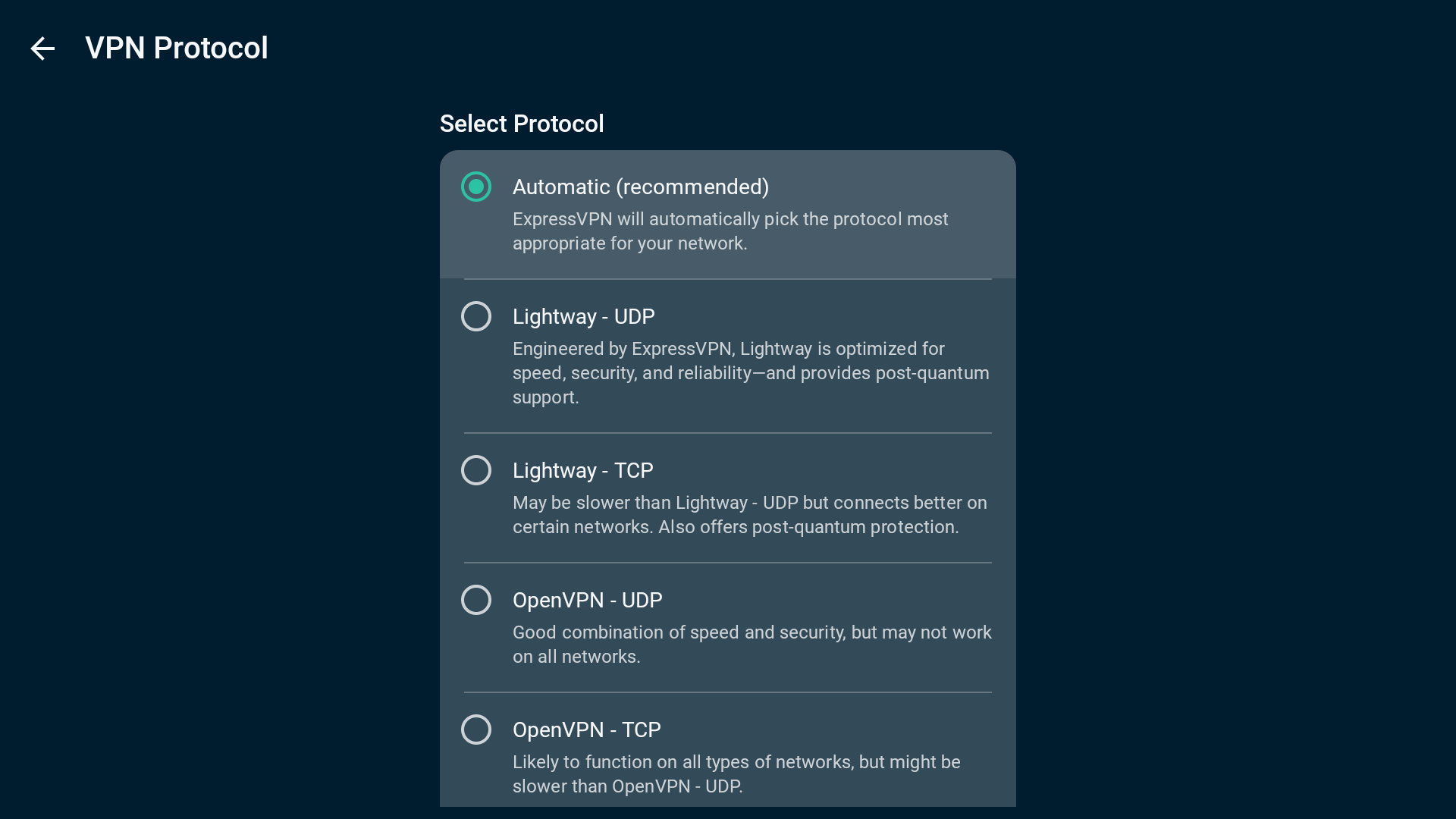
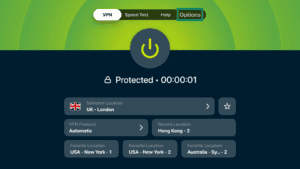
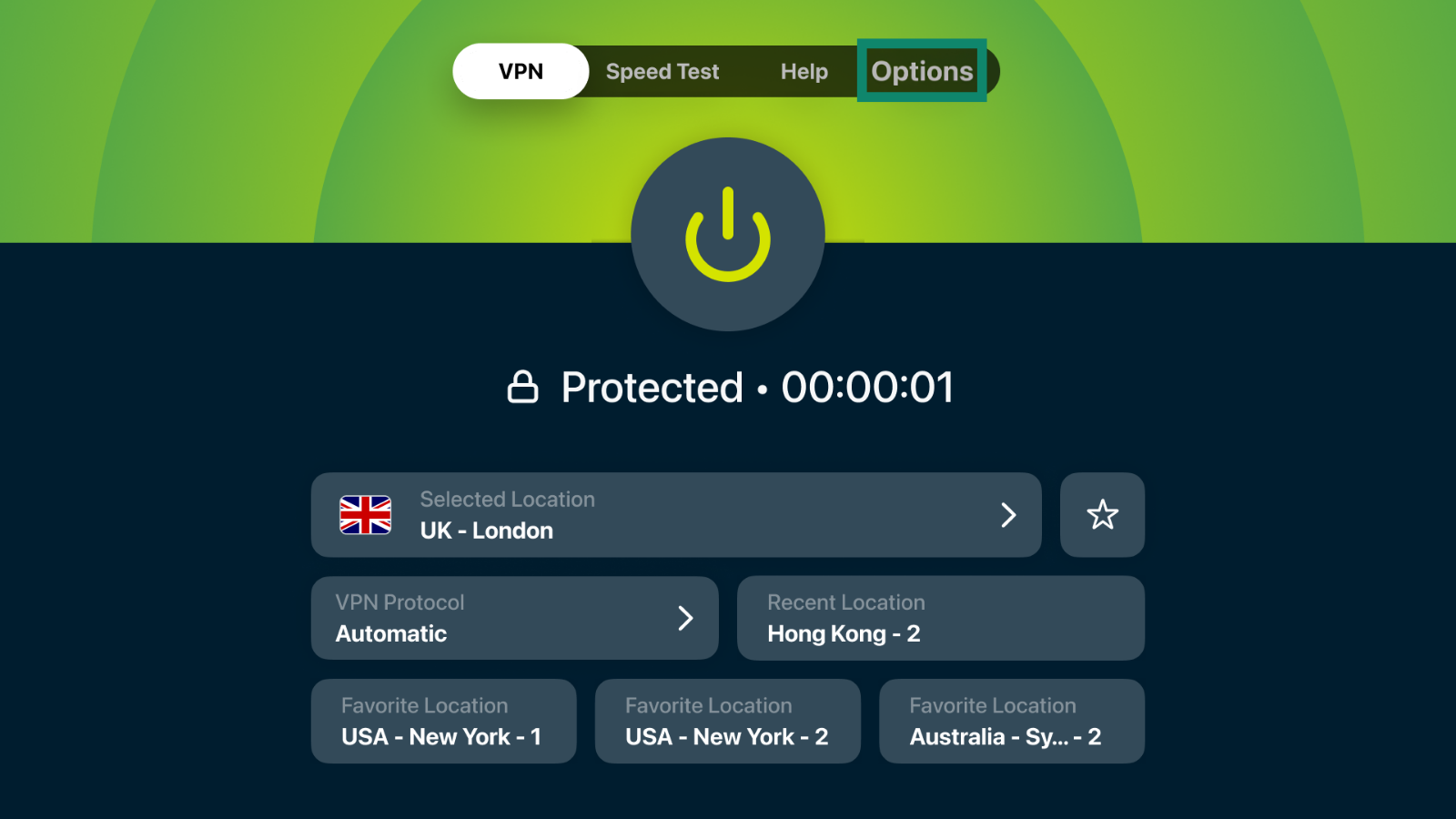
- Select Options from the top navigation bar.
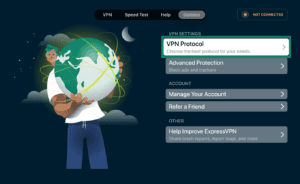
- Select VPN Protocol.

- Select the VPN protocol you want to use.

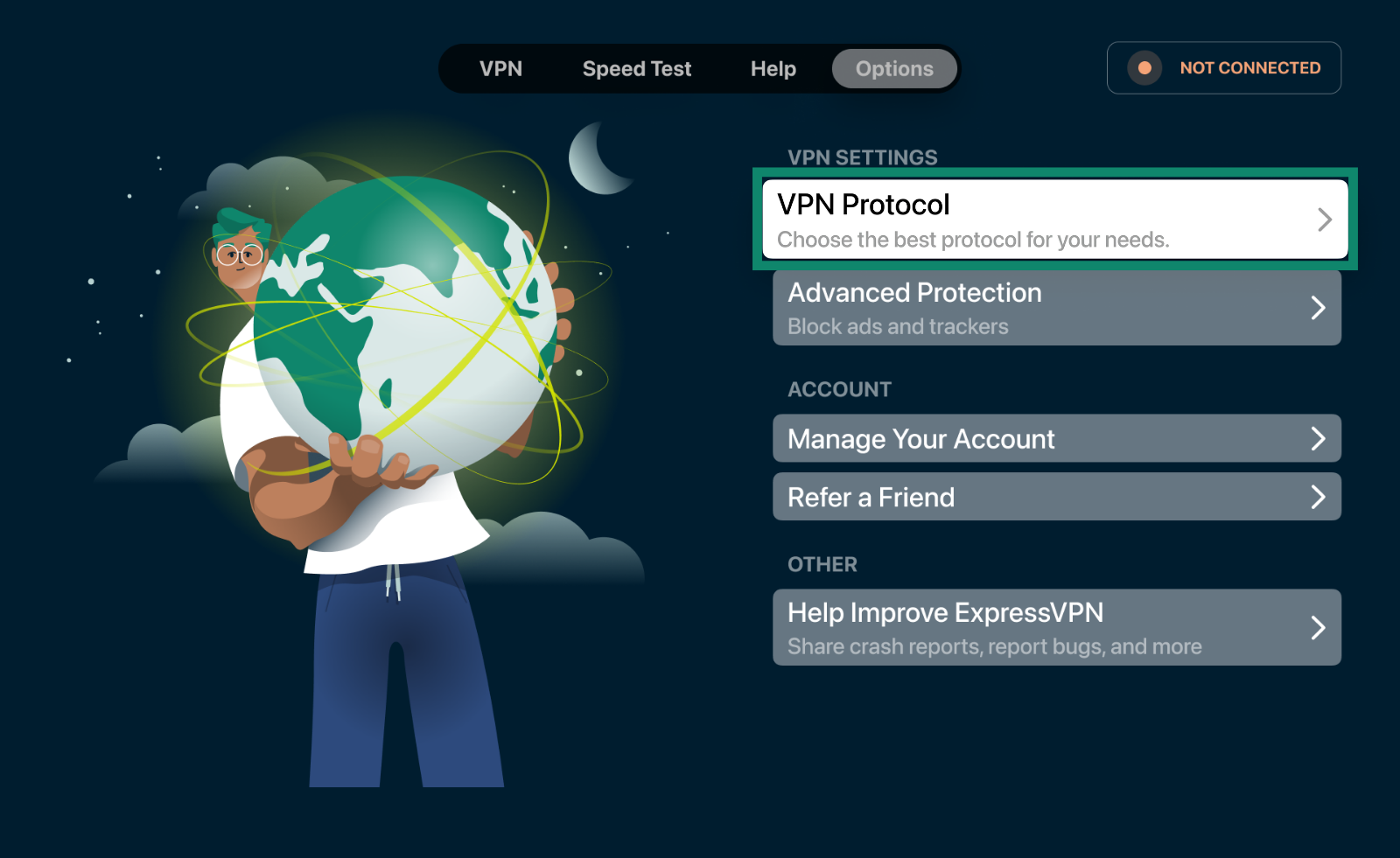
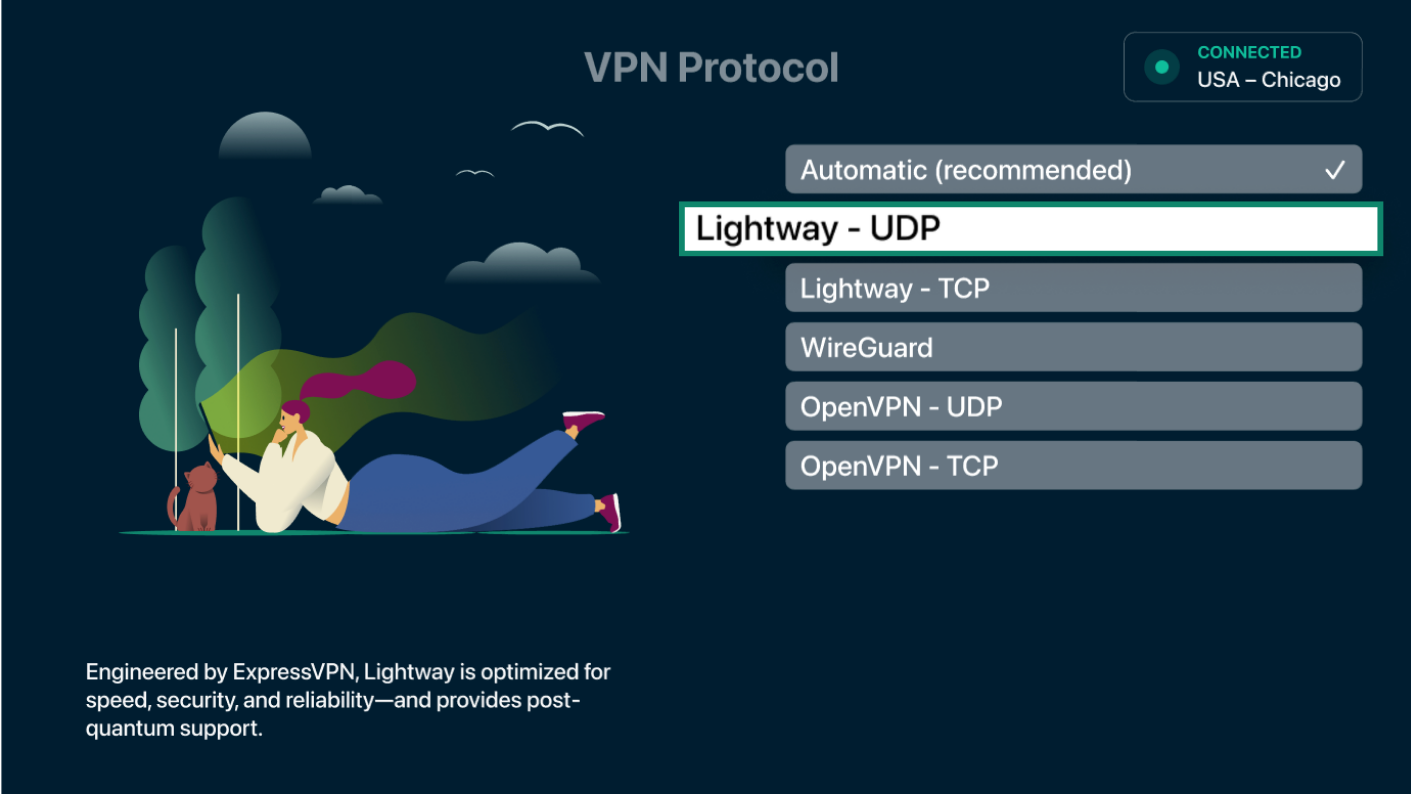
The app will save your changes automatically.
4. Add ExpressVPN as an exception to your antivirus or online security application
If you use the ExpressVPN app while an antivirus or online security application is running, your antivirus or online security application may block the VPN connection.
To test whether your antivirus or online security application is blocking your VPN connection:
- Disable the antivirus or online security application on your device. (For specific instructions, contact your antivirus or online security application provider.)
- On your ExpressVPN app, connect to a VPN server location.
If you are able to connect to the VPN while your antivirus or online security application is disabled, your antivirus or online security application is blocking your VPN connection.
To resolve this, add ExpressVPN as an exception to your application. For other applications, you may need to:
- Change the security level from High to Medium
- Grant an exception to UDP ports 1194 to 1204
- Set it to Trust ExpressVPN
Different antivirus or online security products have different steps for adding applications as exceptions. For specific instructions, contact your antivirus or online security application provider.
After adding ExpressVPN as an exception to your antivirus or online security application,
- Restart the ExpressVPN app.
- Connect to a server location.
5. Contact the ExpressVPN Support Team
If you have tried all the steps above but are still unable to connect to the VPN, contact the ExpressVPN Support Team for immediate assistance.
You can also submit your diagnostic information, which may reveal the cause of your connection issue, through the ExpressVPN app. The ExpressVPN Support Team will contact you after receiving your information.
- Click Help > Contact Us.
- Click Issues with the VPN service > Connection Issues.
- Fill in the form and click Submit.
- Wait for a response from the ExpressVPN Support Team via email.
- Click Help > Contact Us.
- Click Issues with the VPN service > Connection Issues.
- Fill in the form and click Submit.
- Wait for a response from the ExpressVPN Support Team via email.
- Tap Help > Contact us.
- Tap Issues with the VPN service > Connection Issues.
- Fill in the form and tap Submit.
- Wait for a response from the ExpressVPN Support Team via email.
- Tap Help > Contact us.
- Tap Issues with the VPN service > Connection Issues.
- Fill in the form and tap Submit.
- Wait for a response from the ExpressVPN Support Team via email.
- Click Help > Contact Us.
- Click Issues with the VPN service > Connection Issues.
- Fill in the form and click Submit.
- Wait for a response from the ExpressVPN Support Team via email.
- Sign in to your router running ExpressVPN.
- Select Help & Support > Diagnostic Information.
- Select Download All Logs.
- Send the diagnostic information in the ExpressVPN Support Chat.
- Go to the Help tab.
- Select Contact Support.
- Explain your issue in the empty field.
- Toggle the switch on or off for Include diagnostic information.
- Select Send.
- Go to the Help tab.
- Select Contact Support.
- In the Message field, describe your issue.
- In the Attach diagnostic information field, select Yes or No.
- Select a topic for the issue.
- Select Send.
- Go to the Help tab.
- Select Contact Support.
- Explain your issue in the empty field.
- Toggle the switch on or off for Include diagnostic information.
- Select Send.
Need help? Contact the ExpressVPN Support Team for immediate assistance.