



This guide will show you how to resolve sign-in errors when you try to activate your ExpressVPN app.
What error message do you see?
Error message: “Your activation code is incorrect. Please try again or contact Support.”
Error message: “Unable to sign in.”
Error message: “Invalid access code.”
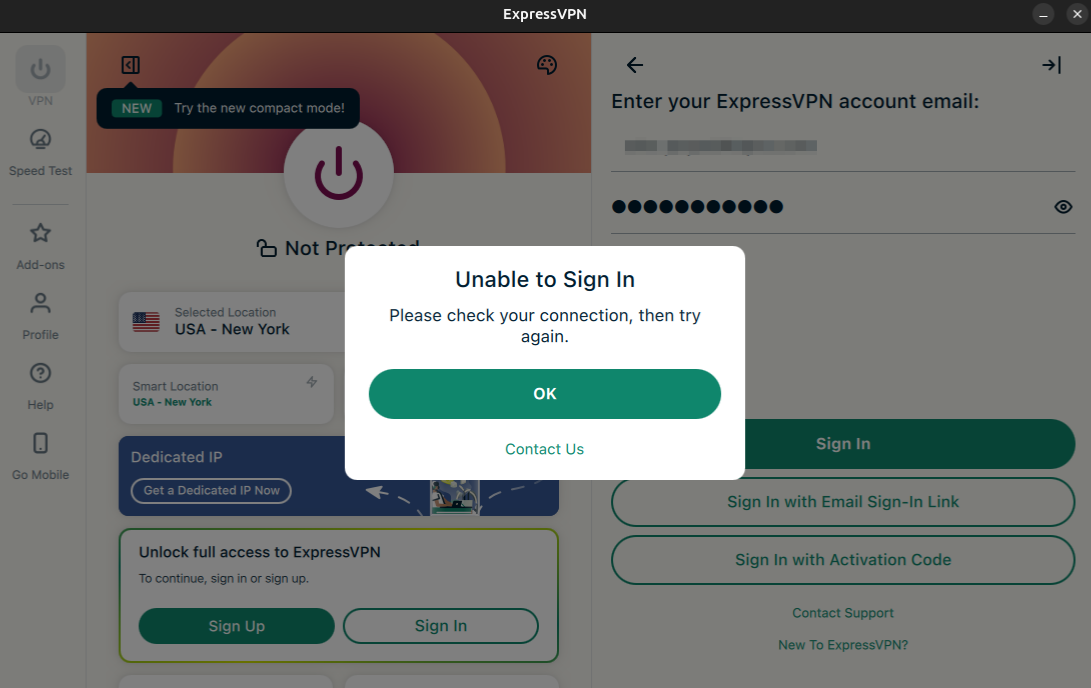
Error message: “Please check your connection, then try again.”
Errors with email sign-in link
Troubleshooting activation code issues
On the desktop app, you may get this error when using the Sign in with your activation code option:
Your activation code is incorrect. Please try again or contact support.
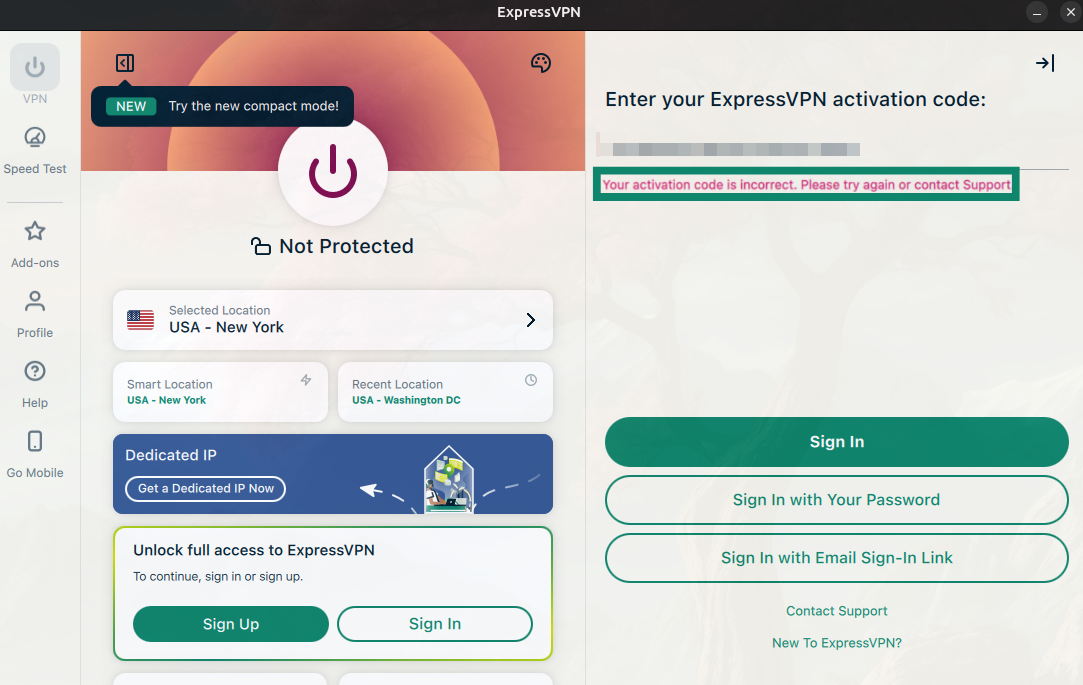
Find your correct activation code
- Log into the ExpressVPN+ dashboard.
- In the left sidebar, select ExpressVPN > VPN.
- Here you’ll see your correct Activation code. Click the copy icon

 to copy your activation code to your clipboard.

- Open the ExpressVPN app and paste the activation code you copied.
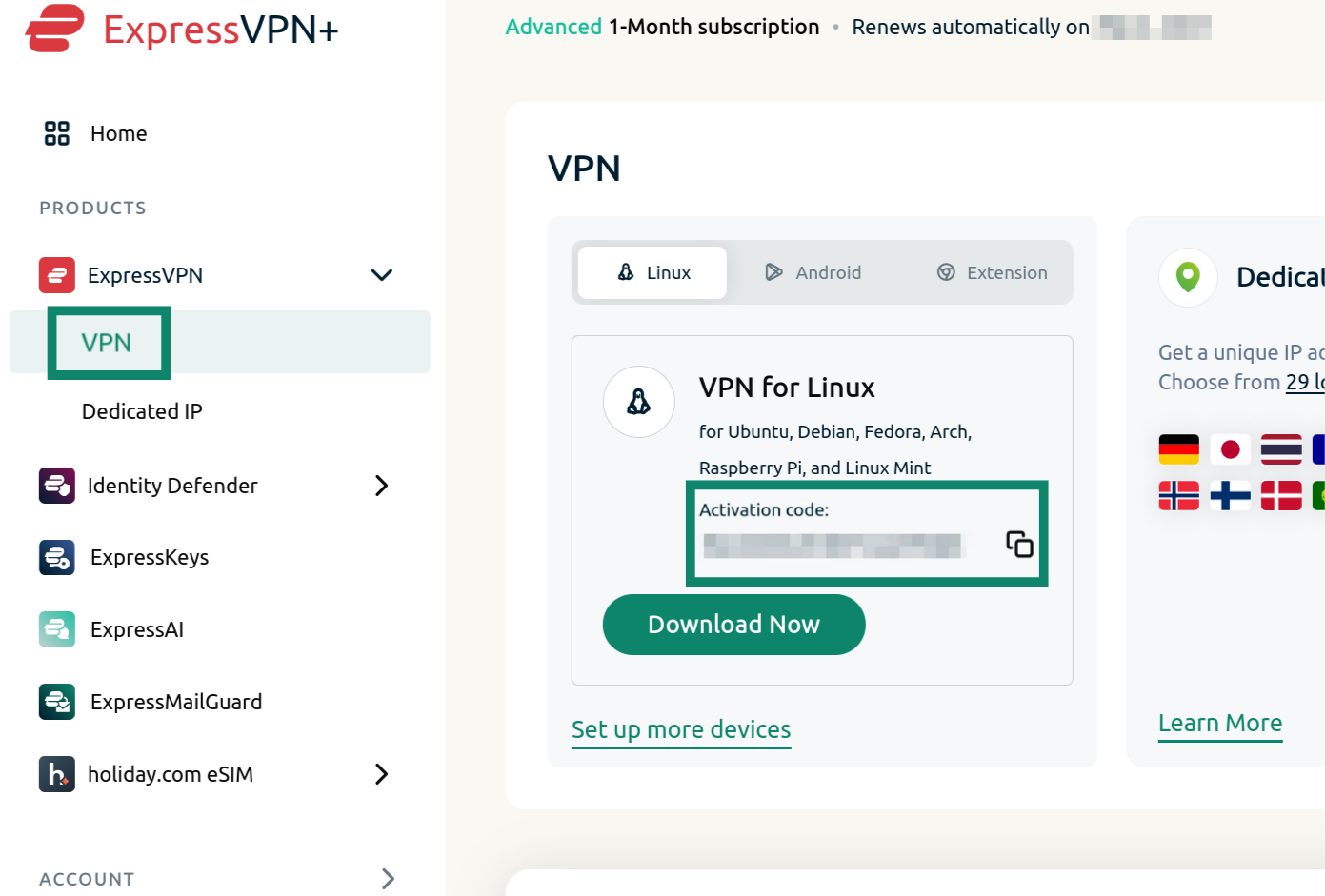
For more detailed information, follow our guide on how to find and use your ExpressVPN activation code.
Try the alternative sign-in options
If the issue persists, you have alternative options for signing into the ExpressVPN app. These options vary depending on the device you are using.
Sign in with your password
- Select Sign in with Your Password.
- Enter your email address and password associated with your ExpressVPN account and click Sign In.
Sign in with an email sign-in link
- Select Sign in with Email Sign-In Link.
- Enter the email address connected to your ExpressVPN account and click Email My Sign-In Link.
- Open the email on any device and select Sign In to ExpressVPN. The app will be activated automatically and sign you in.
Sign in with Email Address and PasswordIf you purchased your ExpressVPN subscription from our website, you can enter your email address and password to sign into the ExpressVPN app.
Sign in with Play Store or App Store Subscription
If you purchased your ExpressVPN subscription from the Google Play Store or the App Store, select the Restore your Play Store/App Store subscription button. You can then continue setting up ExpressVPN for Android or for iOS.
Sign in with a QR Code
- Scan the QR code on your TV with a mobile device.
- Enter the email address associated with your ExpressVPN account and tap Send Code.
- Enter the verification code from your email. If you have not received a code, tap Get another code on the sign-in page. Tap Continue once you have the code.
- Tap Yes to approve the sign-in request from your Android TV.
Sign in with an authentication link
- On a computer, enter the link from the sign-in page on the Android TV.
- On the “Device Login” page on your computer, enter the code from the Android TV.
- Click Yes to approve the Android TV sign-in request.
Sign in with a password or authentication code
- Enter your ExpressVPN email address and password.
- Select Sign in. If you have purchased ExpressVPN through the Google Play Store, select Restore your Play Store subscription instead.
Need help? Contact the ExpressVPN Support Team for immediate assistance.
Troubleshooting sign-in issues (desktop and mobile)
When attempting to sign in to ExpressVPN on the desktop browser dashboard or mobile app, you may encounter specific errors.
Wrong email address and password
On mobile, you may get the following error when trying to sign in:
Unable to Sign In. Please make sure your email address and password are correct.
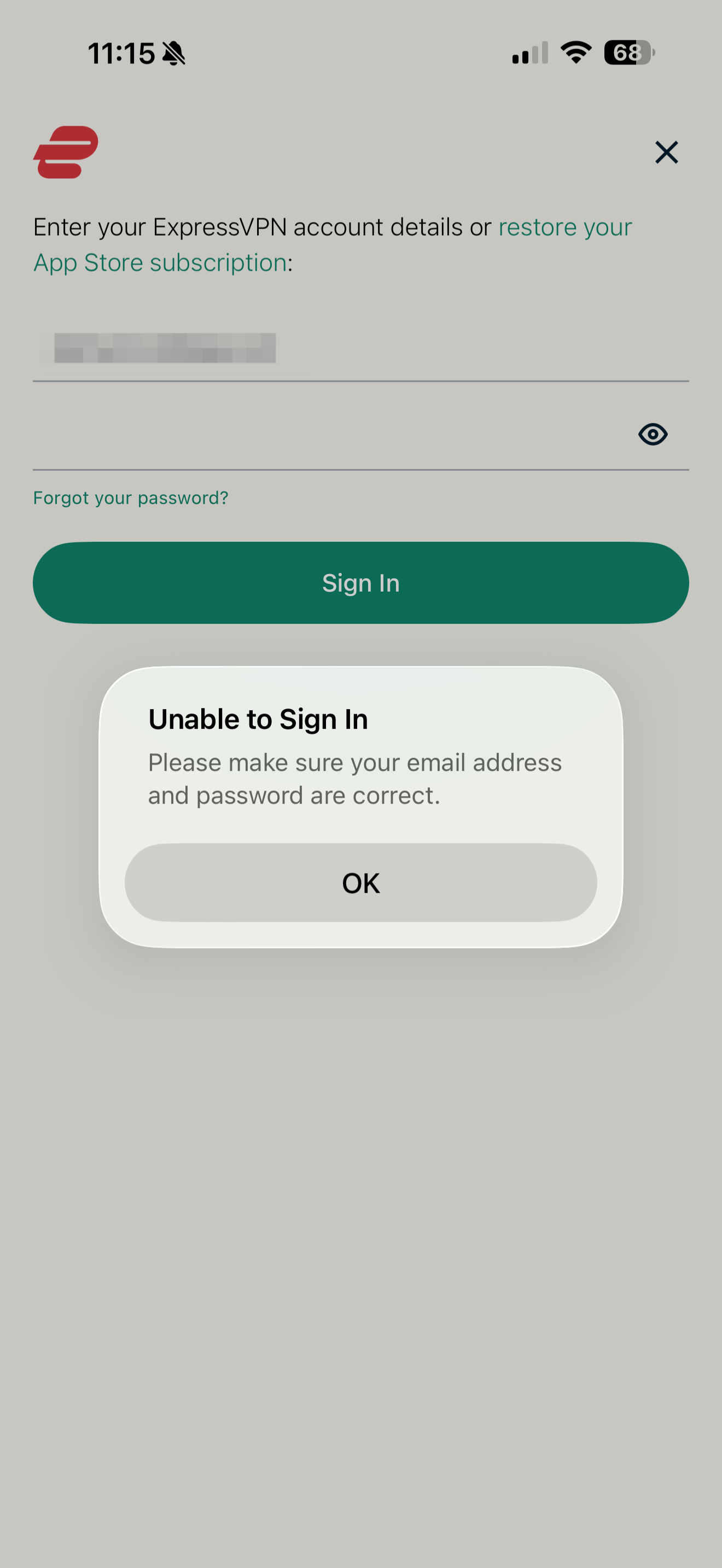
Try signing into your ExpressVPN account on the website.
If you cannot sign in to the website either, this means your sign-in details are incorrect. Please reset your password and log in to your ExpressVPN account again.
Wrong verification code
When signing in using a verification code sent to your email, you may get this error message:
Invalid access code.
To sign in, please enter the verification code sent to [Email address].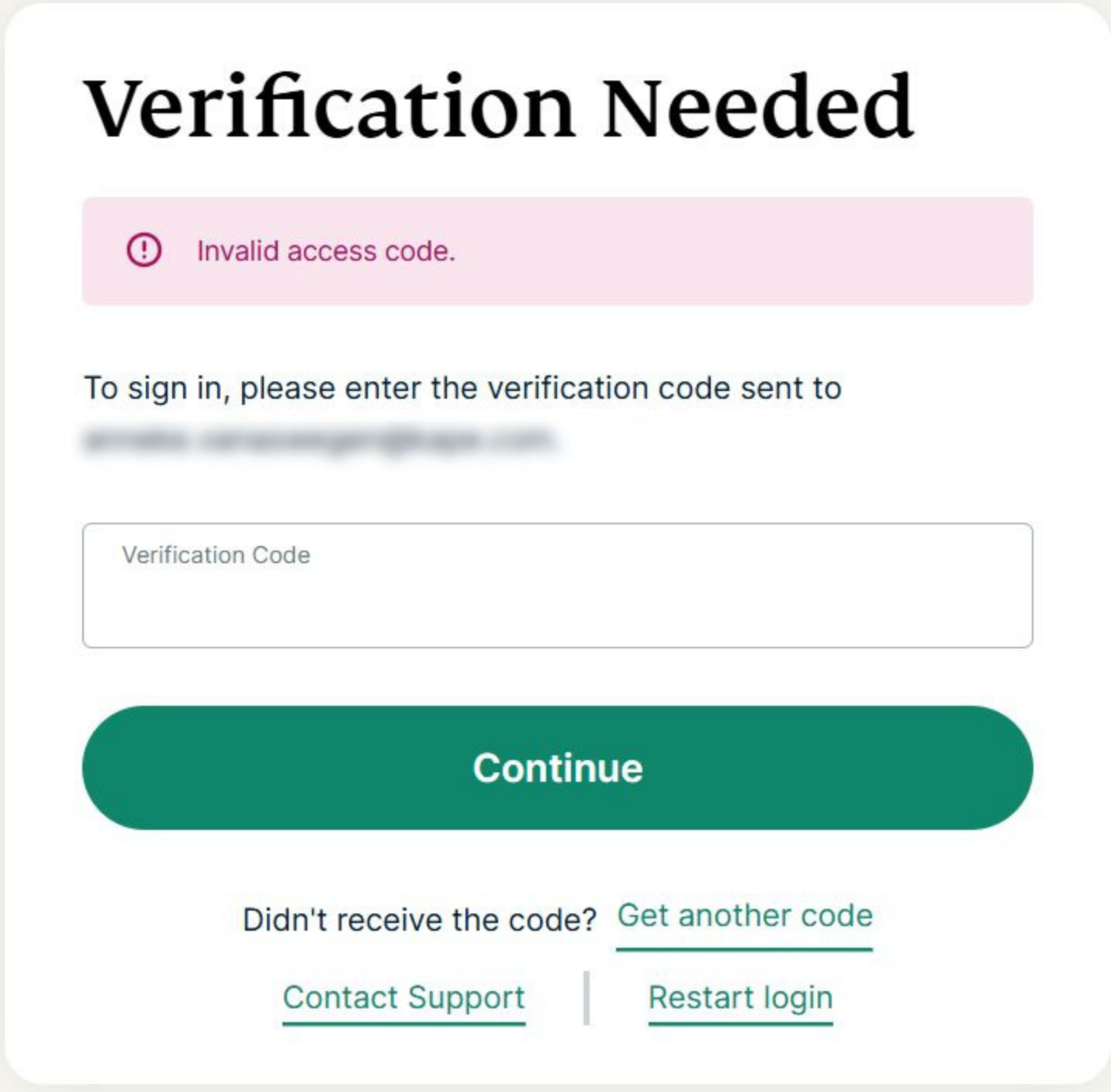 Make sure you copy and paste your verification code into the field to avoid mistyping it. If the issue persists, please contact the ExpressVPN Support Team for immediate assistance.
Troubleshooting network issues
When signing in to your ExpressVPN app, you may get the below connection error message:
Please check your connection, then try again.
 Try connecting your device to another available network.
If the issue persists, you can try changing your DNS servers to OpenDNS’s DNS servers only. Please refer to the section appropriate to your device below.
Note: Write down your current DNS address/setting before changing it for future reference and safekeeping.
You can change your DNS server with these steps:
- Go to Control Panel > Network and Internet > Network and Sharing Center > Change Adapter Settings.
- Right-click on the active network connection and click Properties.
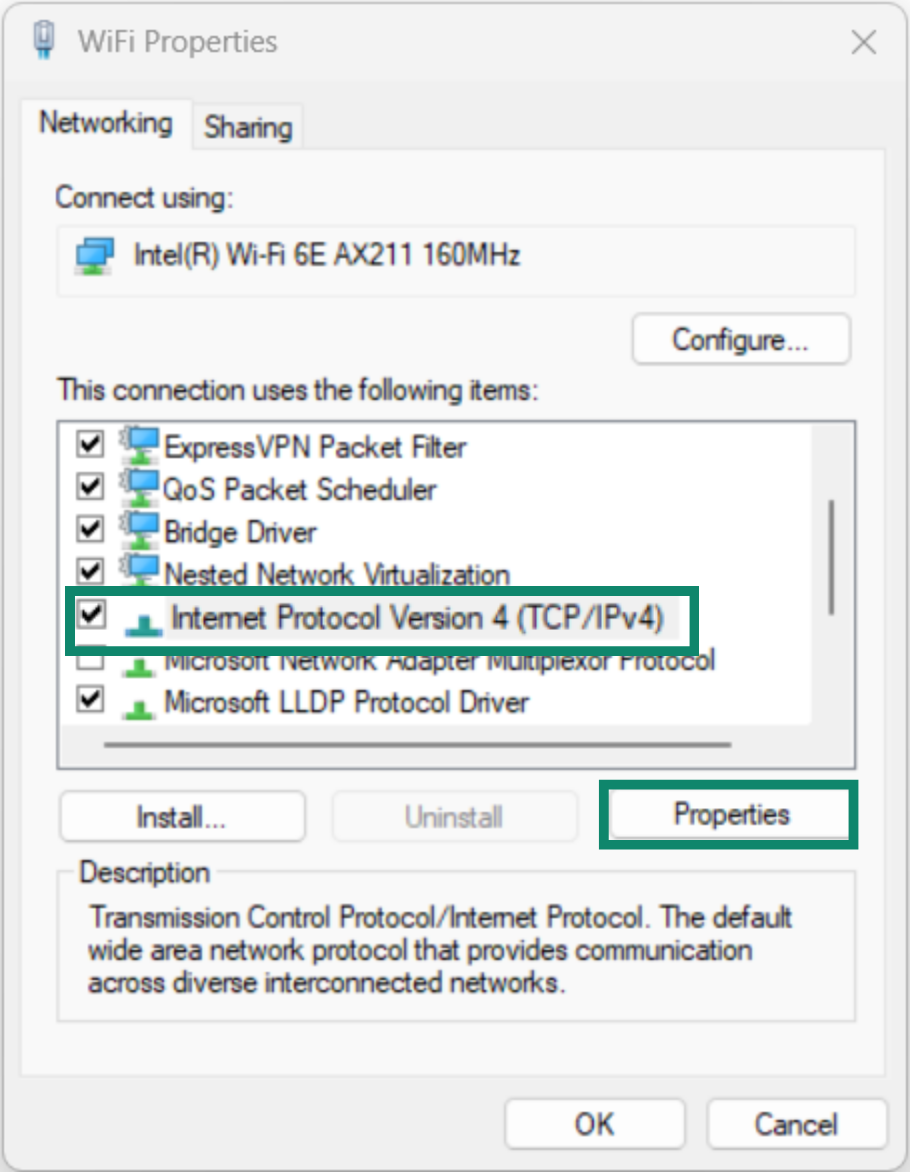
- In the Networking tab, select Internet Protocol Version 4 (TCP/IPv4) and click Properties.
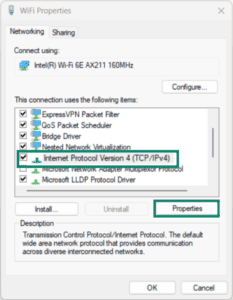

- Select Use the following DNS server addresses.
- Enter 208.67.222.222 and 208.67.220.220. These are secure OpenDNS’s DNS servers.
- Click OK and OK.
- Try activating your ExpressVPN app again.
You can revert the changes made to your DNS settings to use your local DNS servers after you have successfully activated your ExpressVPN app.
You can change your DNS server with these steps:
- Click
 . Select System Preferences or System Settings > Network.
 - Select the connection for which you want to change your DNS server settings. Click Details or Advanced…
- Select the DNS tab. Click
 to enter 208.67.222.222 and 208.67.220.220. These are secure OpenDNS’s DNS servers.
 - Click OK.
- Try activating your ExpressVPN app again.
You can revert the changes made to your DNS settings to use your local DNS servers after you have successfully activated your ExpressVPN app.
Different distros have different GUIs, so the settings may be named differently. Below are the general steps to change your DNS server on Linux:
- Go to Settings > Network or Wi-Fi & Internet.
- Select the connection for which you want to change your DNS server settings.
- Click Edit. Select IPv4.
- Select Automatic (DHCP) or Choose Automatic.
- In the DNS servers field, enter 208.67.222.222 and 208.67.220.220.
- Click Apply.
- Try activating your ExpressVPN app again.
You can revert the changes made to your DNS settings to use your local DNS servers after you have successfully activated your ExpressVPN app.
Every Android device uses a different user interface in its settings. You can change your DNS server settings with these generic steps below:
- Go to Settings > Network & internet or Connections.
- Tap your current Wi-Fi network.
- Tap the Edit icon (gear).
- Select Advanced options or View more.
- Change IP settings to static.
- In DNS 1 and DNS 2 fields, enter 208.67.222.222 and 208.67.220.220. These are secure OpenDNS’s DNS servers.
- Tap Save.
- Try activating your ExpressVPN app again.
You can revert the changes made to your DNS settings to use your local DNS servers after you have successfully activated your ExpressVPN app.
You can change your DNS server with these steps:
- Go to Settings.
- Tap Wi-Fi > Your current network.
- Tap Configure DNS and change Automatic to Manual.
- Remove existing DNS servers.
- Tap Add Server. Enter 208.67.222.222 and 208.67.220.220. These are secure OpenDNS’s DNS servers.
- Tap Save.
- Try activating your ExpressVPN app again.
You can revert the changes made to your DNS settings to use your local DNS servers after you have successfully activated your ExpressVPN app.
Every router admin panel has a different user interface. You can change your primary router’s DNS server settings with these generic steps below:
- Find your router’s IP address. Then, type it in your browser.
- Log in to your router admin panel.
- Go to your DNS server settings. Enter 208.67.222.222 and 208.67.220.220. These are secure OpenDNS’s DNS servers.
- Tap Save or Apply.
- Try activating your ExpressVPN app again.
Note: Changing DNS settings on your router may affect all devices connected to that network.
You can revert the changes made to your DNS settings to use your local DNS servers after you have successfully activated your ExpressVPN app.
If you are still unable to activate the ExpressVPN app after changing your DNS server, try connecting your device to another Wi-Fi network you haven’t connected to before. If the same issue persists, please contact the ExpressVPN Support Team for immediate assistance.
For any further issues, contact the ExpressVPN Support Team for immediate assistance.
Errors with email sign-in link
Select the issue you are facing and follow the corresponding troubleshooting steps.
I didn’t receive an email with a sign-in link
Check if the email address you entered is correct.
If the email address you entered is incorrect:
- Enter the correct email address.
- Click Resend Email.
If the email address you entered is correct:
- Wait to check your email inbox and check your spam folder.
- If you still haven’t received the email, enter your email address again.
- Click Resend Email.
In both cases, if you still haven’t received the email, use the activation code associated with your ExpressVPN account to activate the app. Note that to do this, you would need to be signed into your ExpressVPN account on the website.
- Open the Activation Code.
- Select Sign In.
- Choose Sign In with Activation Code (or similar wording).
- Copy your activation code from your ExpressVPN account dashboard.
- Paste the code into the app and click Sign In.
I received an email with a sign-in link and clicked the email link, but saw an error in the browser
Use the activation code instead to activate the ExpressVPN app.
- Click Sign In with Activation Code.
- Find your activation code in your ExpressVPN account’s dashboard.
- Enter the activation code in the app. Click Continue.
Use the activation code instead to activate the ExpressVPN app.
- Click Sign In with Activation Code.
- Find your activation code in your ExpressVPN account’s dashboard.
- Enter the activation code in the app. Click Continue.
Need help? Contact the ExpressVPN Support Team for immediate assistance.