



This guide will show you how to register your IP address on the ExpressVPN website.
MediaStreamer is a DNS service designed to improve your streaming experience. If your device doesn’t natively support VPN, MediaStreamer is a great alternative for streaming.
To use MediaStreamer smoothly, you must register your IP address on the ExpressVPN website. This allows ExpressVPN to recognize your IP address and grant your device access to MediaStreamer.
Note: MediaStreamer is not a VPN and does not offer the privacy and security benefits of a VPN. You cannot change locations with MediaStreamer.
Note: Before you proceed, disable any proxy settings on your device without connecting to ExpressVPN.
Jump to…
1. Register your IP address on the ExpressVPN website
2. Get your MediaStreamer IP address
3. Set up MediaStreamer on your device
How is my IP address updated?
When will ExpressVPN remove my IPs?
1. Register your IP address on the ExpressVPN website
To register your IP address on the ExpressVPN website:
- Go to the ExpressVPN DNS settings page.
- If prompted, enter your email address and select Send Code.
- Enter the verification code that is sent to your email, then select Continue.
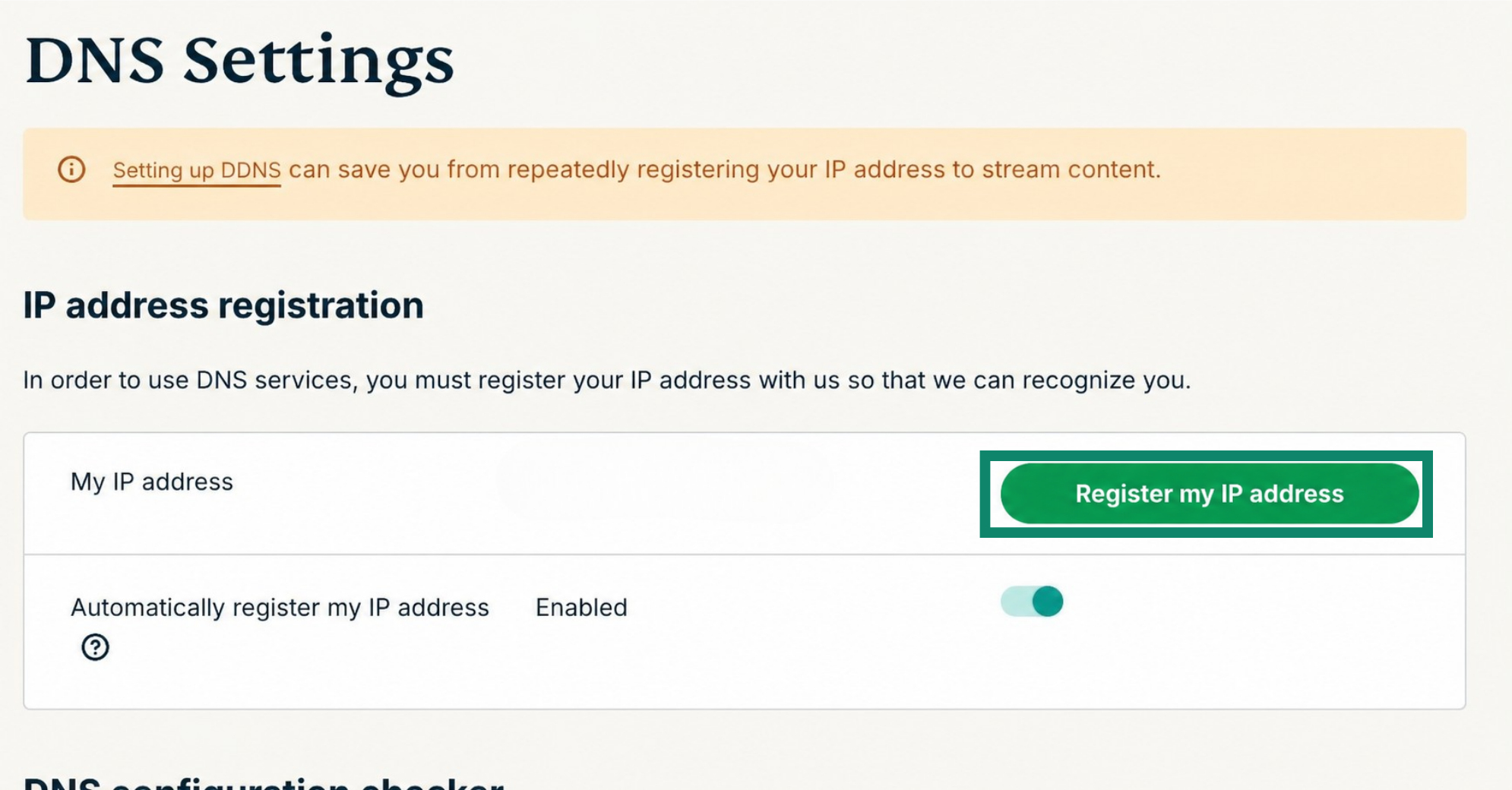
- Under IP address registration, click Register my IP address. If you see “registered” next to your IP address, there is no need to select this option again.
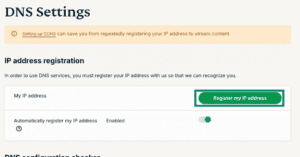

- Toggle Automatically register my IP address on. This is recommended because your IP address may change periodically, for example, when you restart your router or switch networks. When this setting is enabled, ExpressVPN will automatically detect and update your IP address, ensuring MediaStreamer continues to work without you having to manually re-register every time your IP address changes.
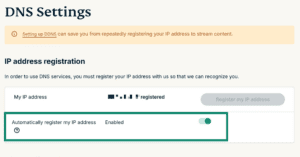
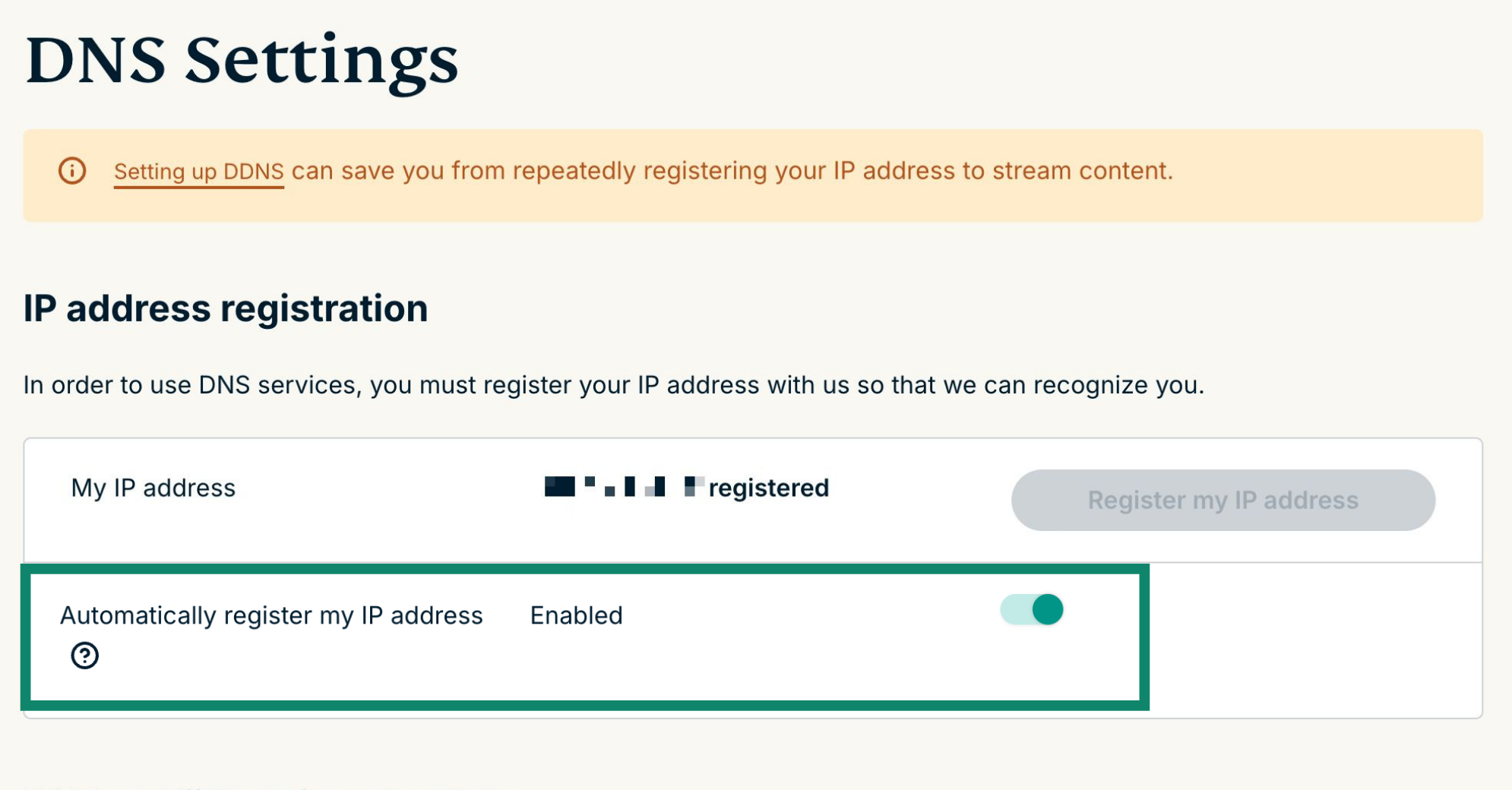
Note: Even with Automatically register my IP address enabled, ExpressVPN needs an occasional trigger to detect changes to your IP address. To keep your IP address updated, periodically sign into your ExpressVPN account on the website, or open the ExpressVPN app on any device connected to the same network as your streaming device. This allows MediaStreamer to continue to work if your IP address changes.
2. Get your MediaStreamer IP address
- Go to the ExpressVPN setup page.
- If prompted, enter your email address and select Send Code.
- Enter the verification code that is sent to your email, then select Continue.
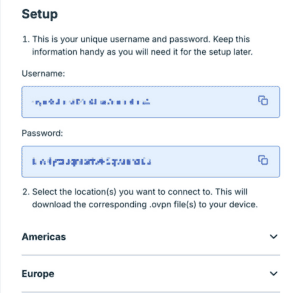
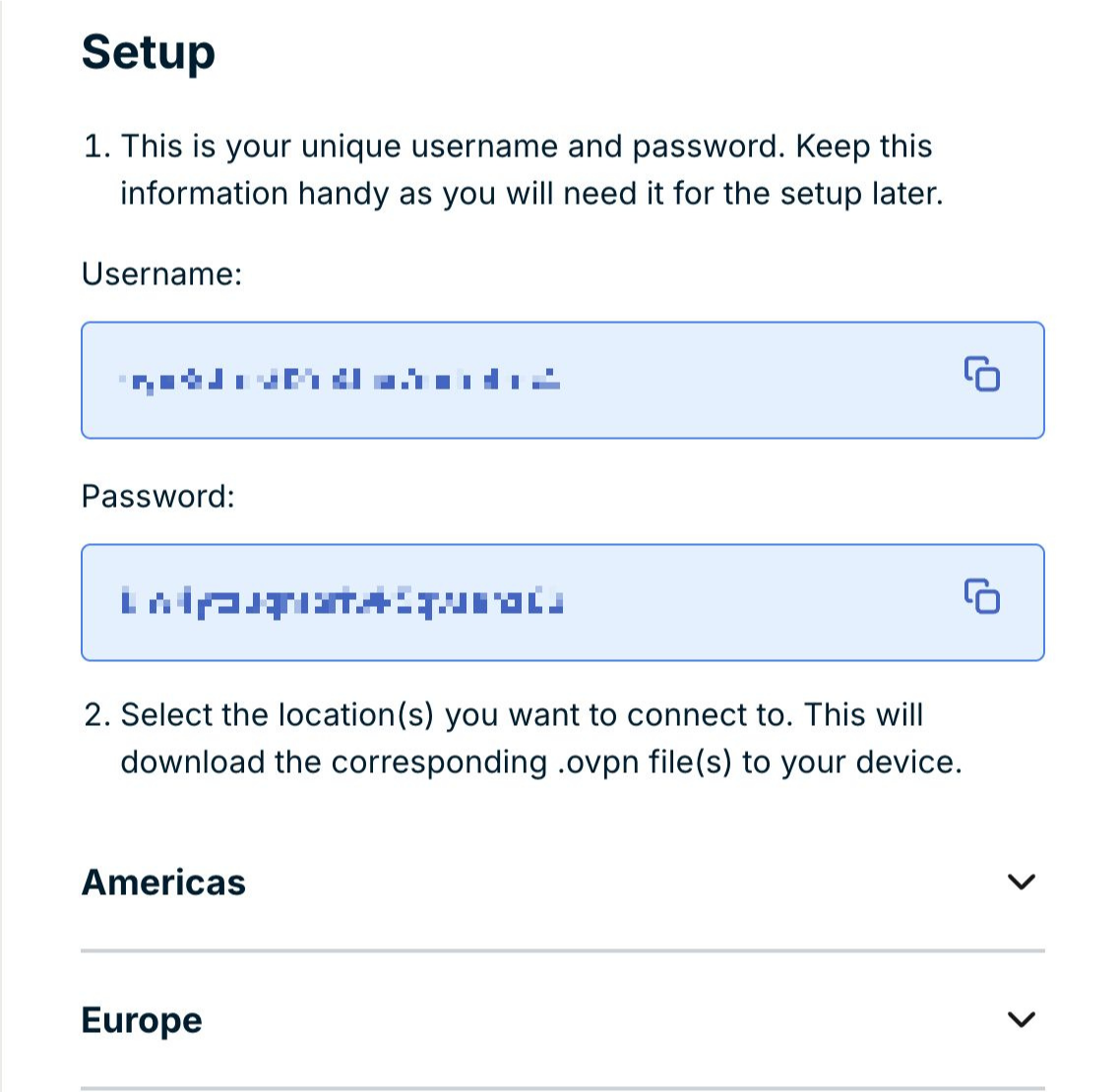
- On the right, you will find the MediaStreamer DNS server IP address. Keep this browser window open. You will need this information for the setup later.

3. Set up MediaStreamer on your device
Once you have registered your IP address with ExpressVPN, you can set up MediaStreamer on your device.
Please refer to the appropriate guide for your device:
Need help? Contact the ExpressVPN Support Team for immediate assistance.
How is my IP address updated?
If you have enabled Automatically register your IP address, you can keep your IP address updated by using the ExpressVPN app on your device or signing in to your ExpressVPN account occasionally.
Need help? Contact the ExpressVPN Support Team for immediate assistance.
When will ExpressVPN remove my IPs?
If you have enabled Automatically register my IP address, your IP address will be removed from ExpressVPN’s systems if you do not do either of the following for 30 days:
- Use the ExpressVPN app while connected to the same network as your streaming device.
- Sign into your ExpressVPN account on the website while connected to the same network as your streaming device
If you have disabled Automatically register my IP address, your IP address will be removed if you do not manually re-register it and use it within 30 days.
For revoked accounts, it may take up to 30 days for the IP address to be removed.
Note: If you have a dynamic IP address, your IP address may change and be reassigned to another user over time. If that user registers the same IP address with ExpressVPN, it will be associated with their account instead of yours. If this happens, you will need to re-register your new IP address to continue using MediaStreamer.
Need help? Contact the ExpressVPN Support Team for immediate assistance.