



This tutorial will show you how to set up the ExpressVPN app on your Amazon Fire TV Stick or Fire TV. The steps vary depending on what OS your Fire device is running.
ExpressVPN has an app for Fire OS 6 and above and an app for Vega OS. It’s also possible to sideload the APK app (on Fire OS 6 and above) if you can’t find the app or you can’t access the Appstore.
Jump to…
Check which OS you are using
ExpressVPN is available on Fire TV and Fire TV Stick devices running both Fire OS (Android-based) and Vega OS (Linux-based). If you’re not sure which operating system your device is running, open your Fire device and:
- Go to Settings > My Fire TV.
- Select About.
- Here, you will see the name of the Fire device you are using, for example: “Fire TV Stick 4K Max.”
- On the right, look for Software Version.
- Fire OS: The OS is specified, so you will see something like Fire OS 8.1.7.4.
- Vega OS: The OS is not specified, so you will see something like OS 1.1.
Set up and use ExpressVPN on Fire OS
These instructions apply to Amazon Fire TV and Fire TV Stick devices running Fire OS 6 and above (Android models).
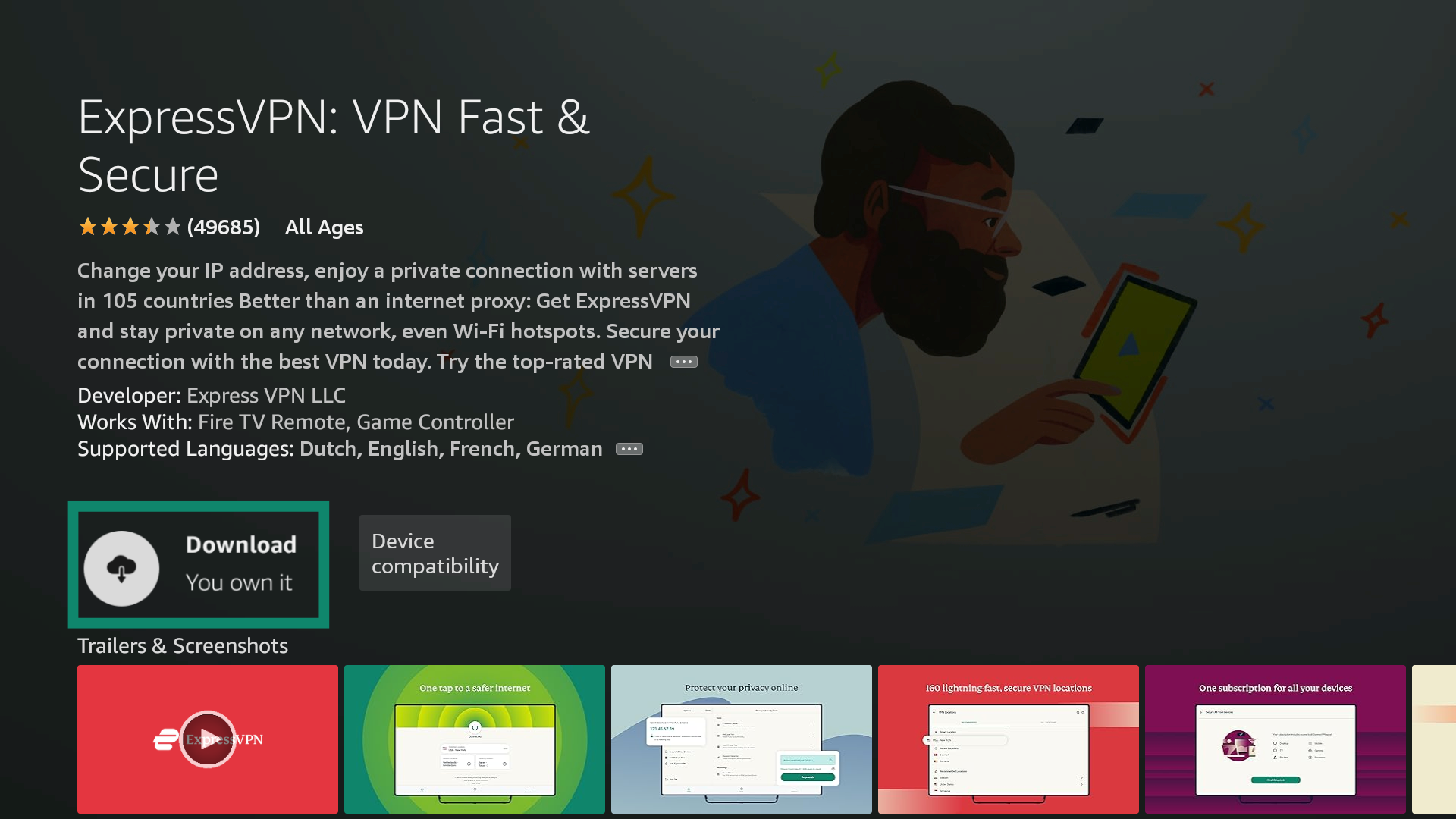
Download the ExpressVPN app
- On your Fire device, go to search (

 ). Enter ExpressVPN.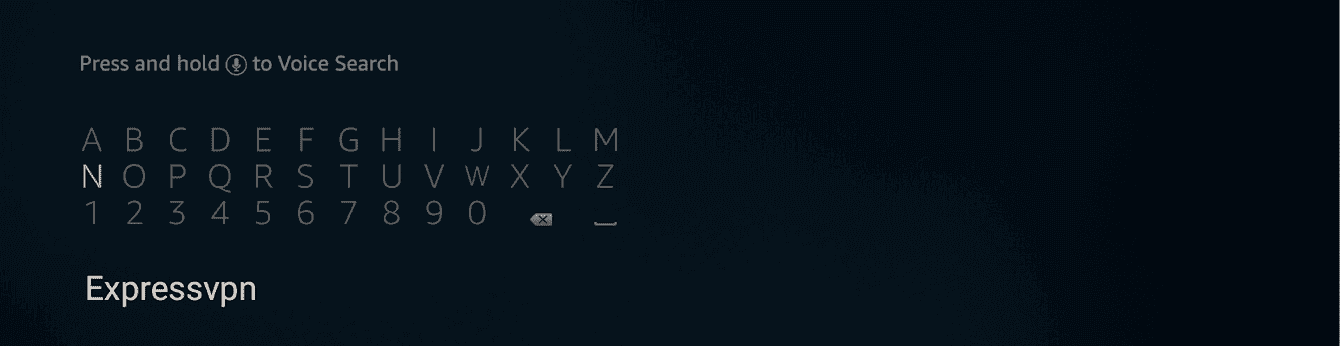

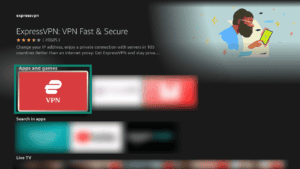
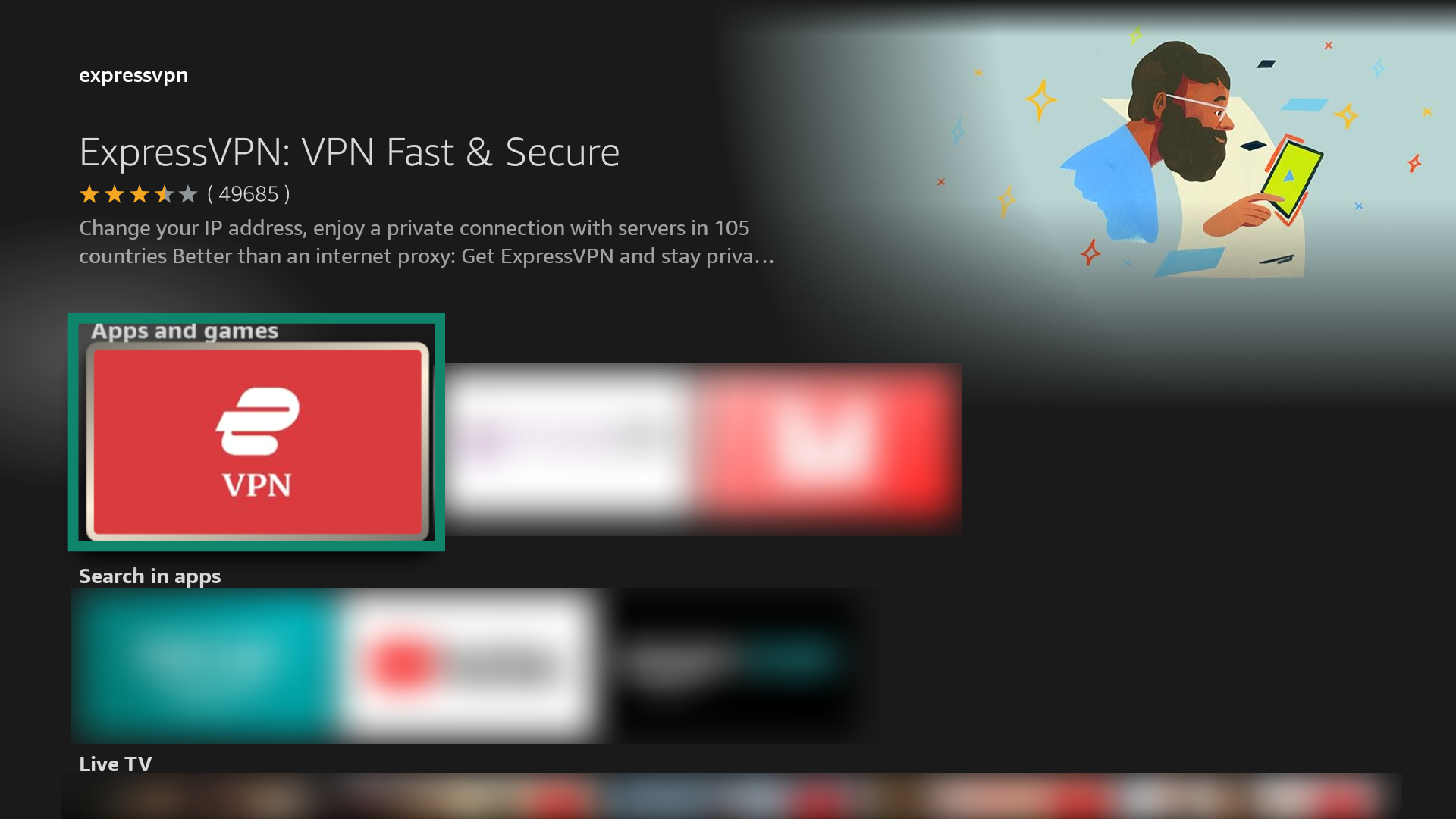
- Select ExpressVPN.

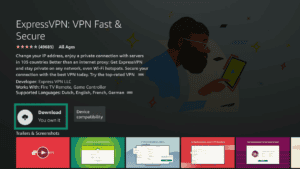
- Select Download.
- Once the download is complete, select Open. The ExpressVPN app will launch automatically on some devices.
- Select Install once the app asks if you want to install it.
Alternative method: Sideload the ExpressVPN APK
If you cannot access the Amazon Appstore or you cannot find the app there, you can sideload the ExpressVPN app to your Fire device (provided it is running on Fire OS 6 or above).
Note: ExpressVPN is not affiliated with any third-party apps.
How to sideload the ExpressVPN app APK.
On your Fire device, go to Settings > Device & Software > Developer Options.
- Go to Device & Software > About.
- Select the first option in the list. This should say YouR TV or the name of your Fire TV device.
- Press the Select button on your Fire TV remote seven times.
You should now see a message saying you’re already a developer. You can now access Developer Options from Device & Software.
On the main menu, go to . Enter Downloader.
Select Download.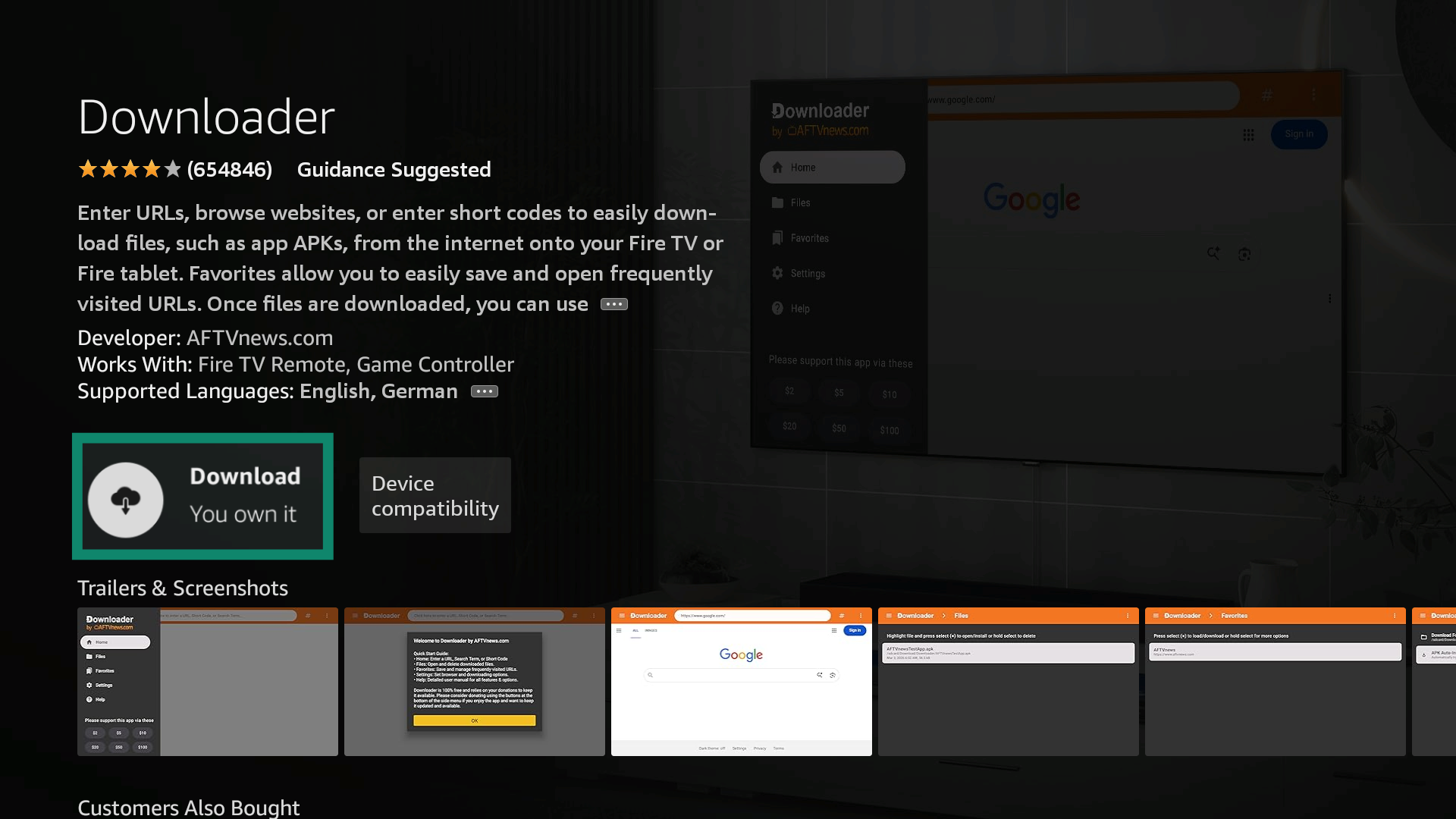 Exit the app if it opens automatically, and go to Settings > Device & Software.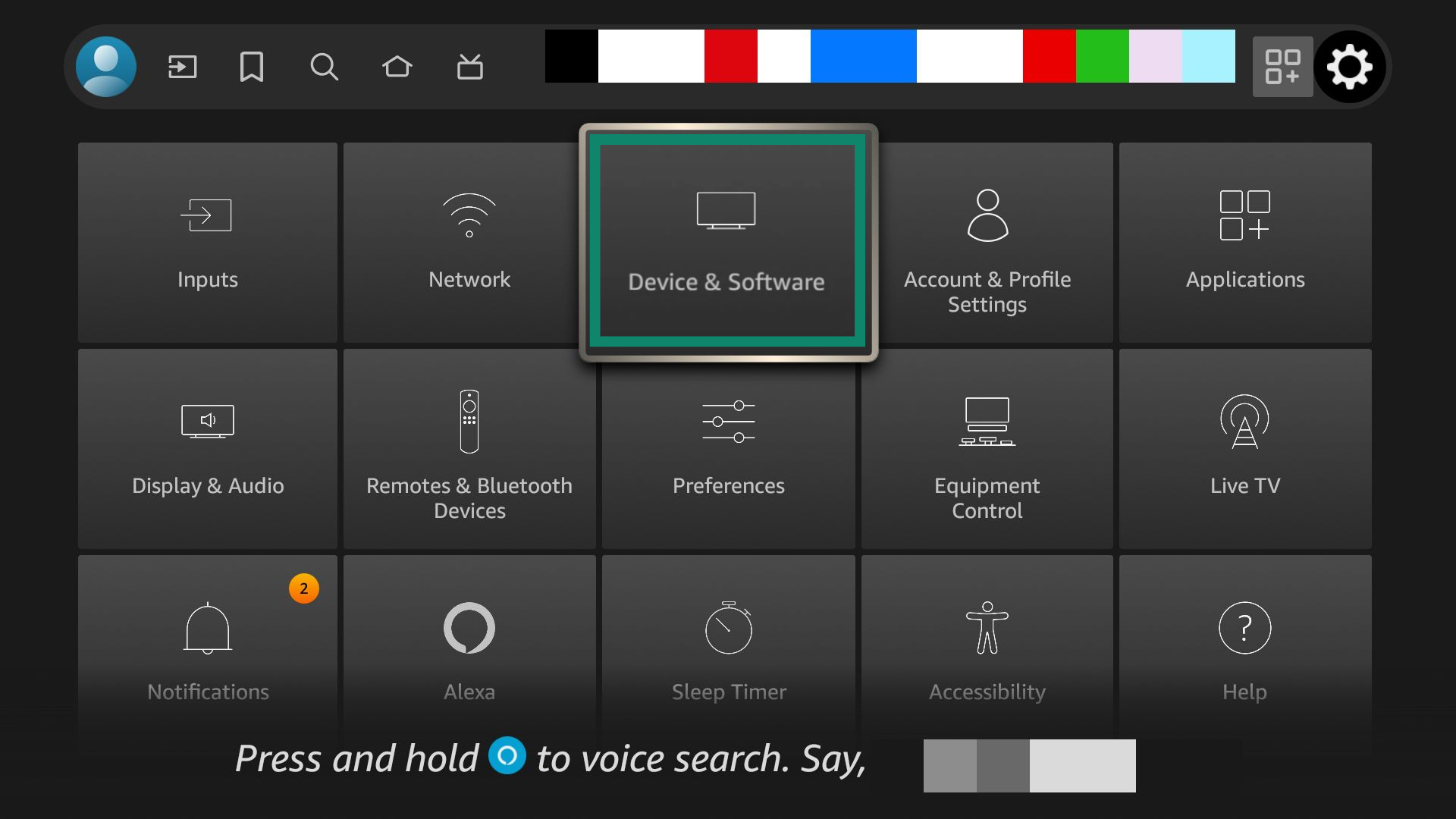
Select Developer Options.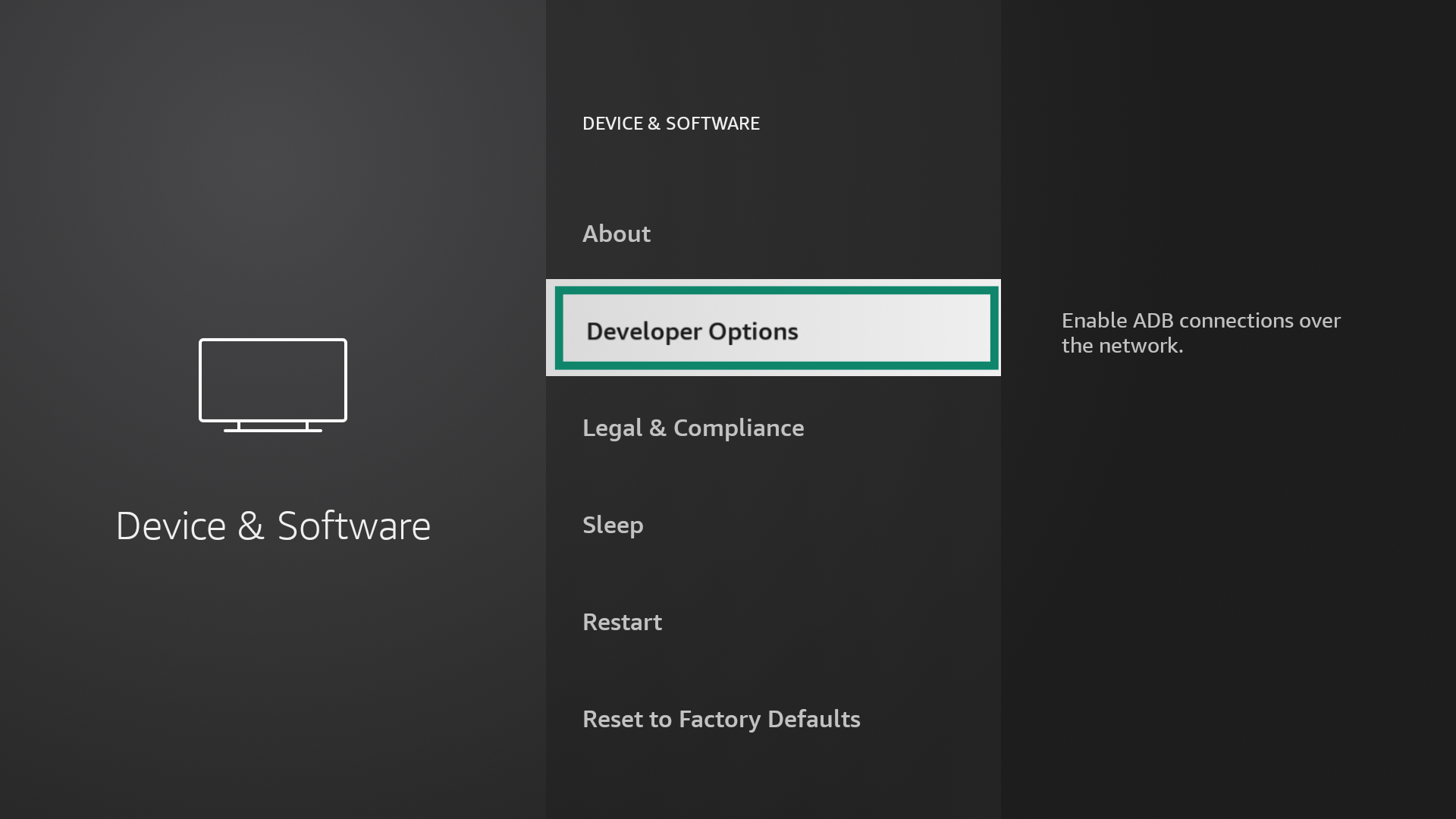
Select Install unknown apps.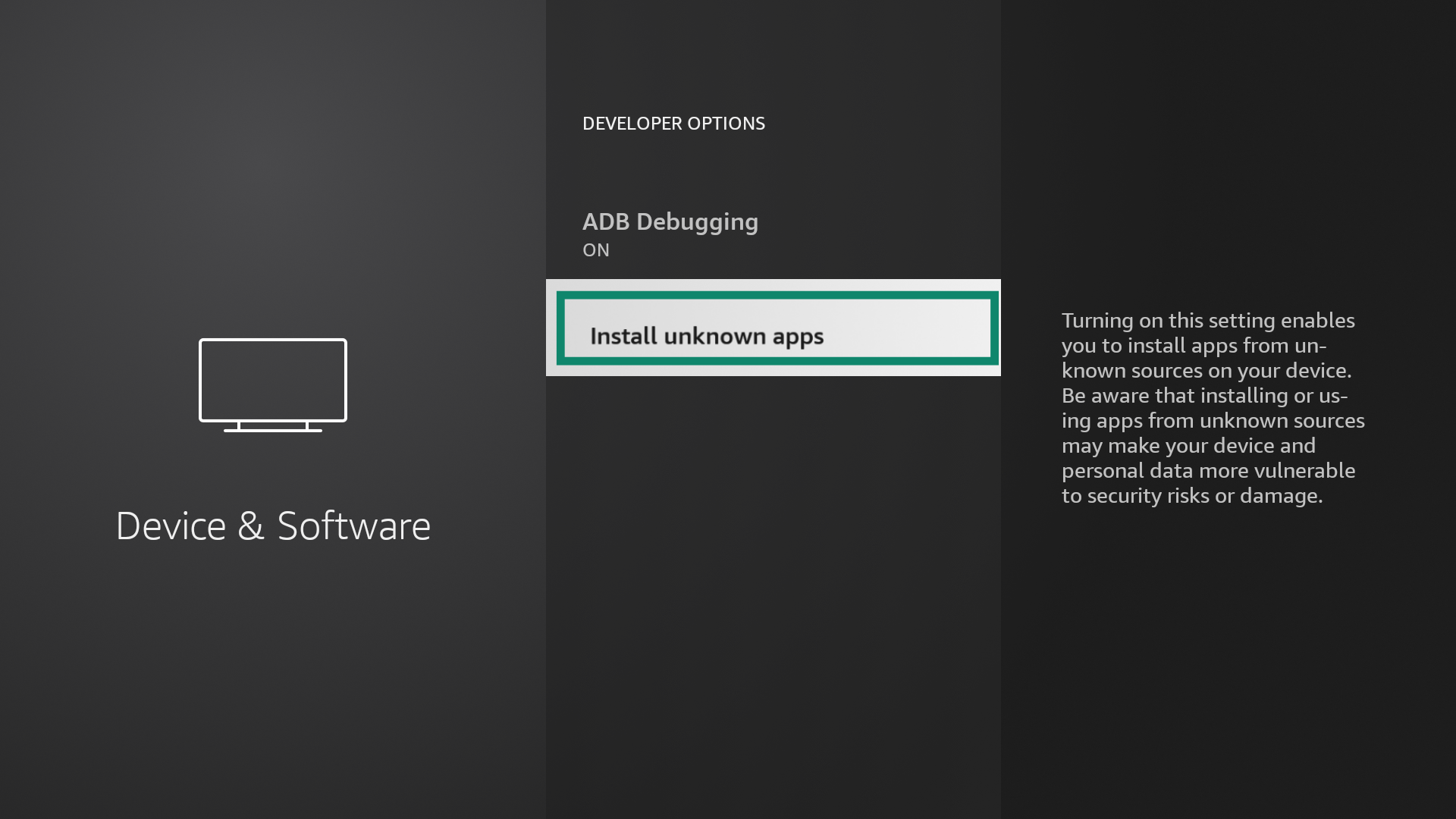
Toggle Downloader to ON.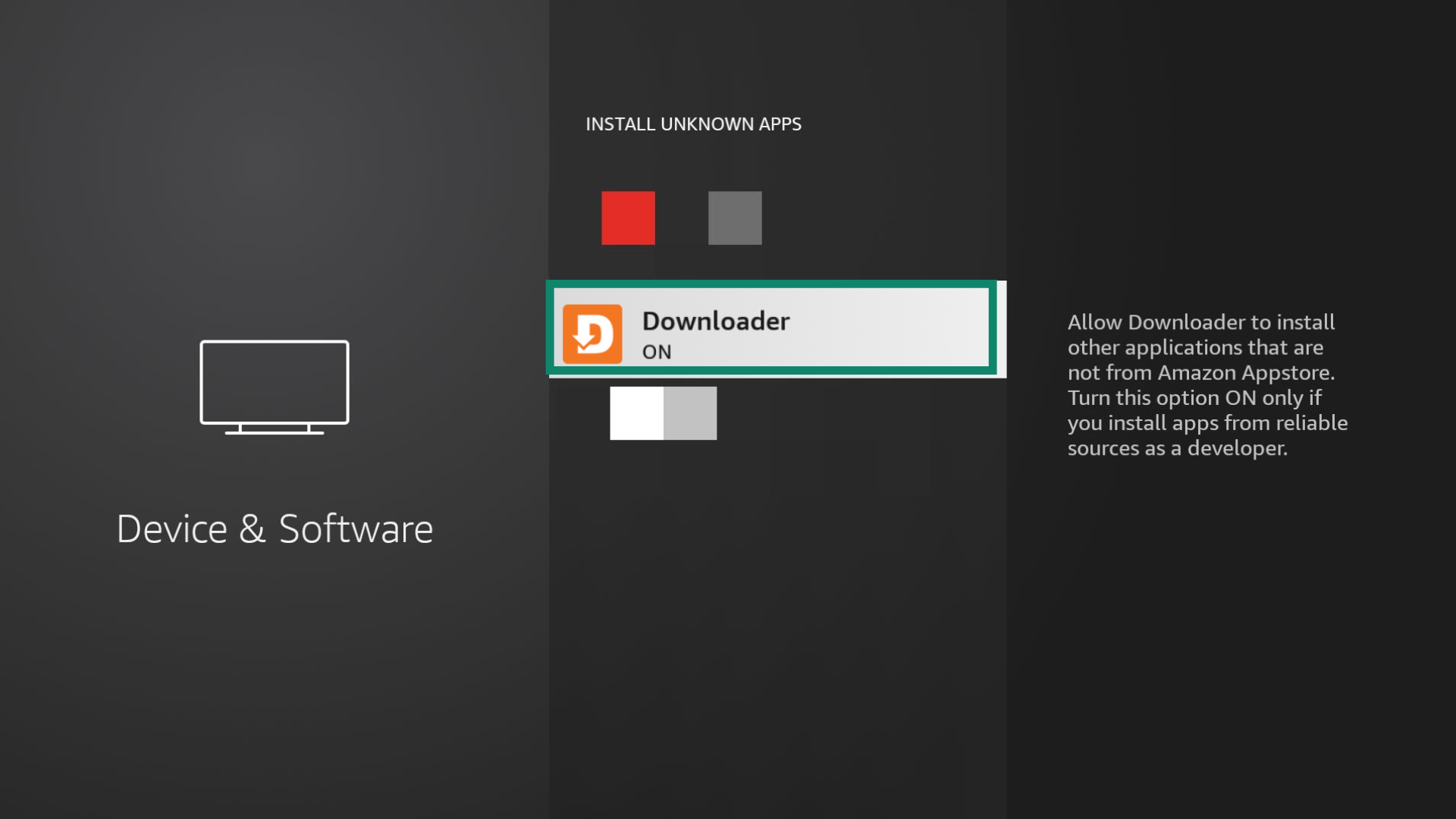
Go back to Your apps and channels and open the Downloader app.
Select Allow to give Downloader access to your photos, media, and files.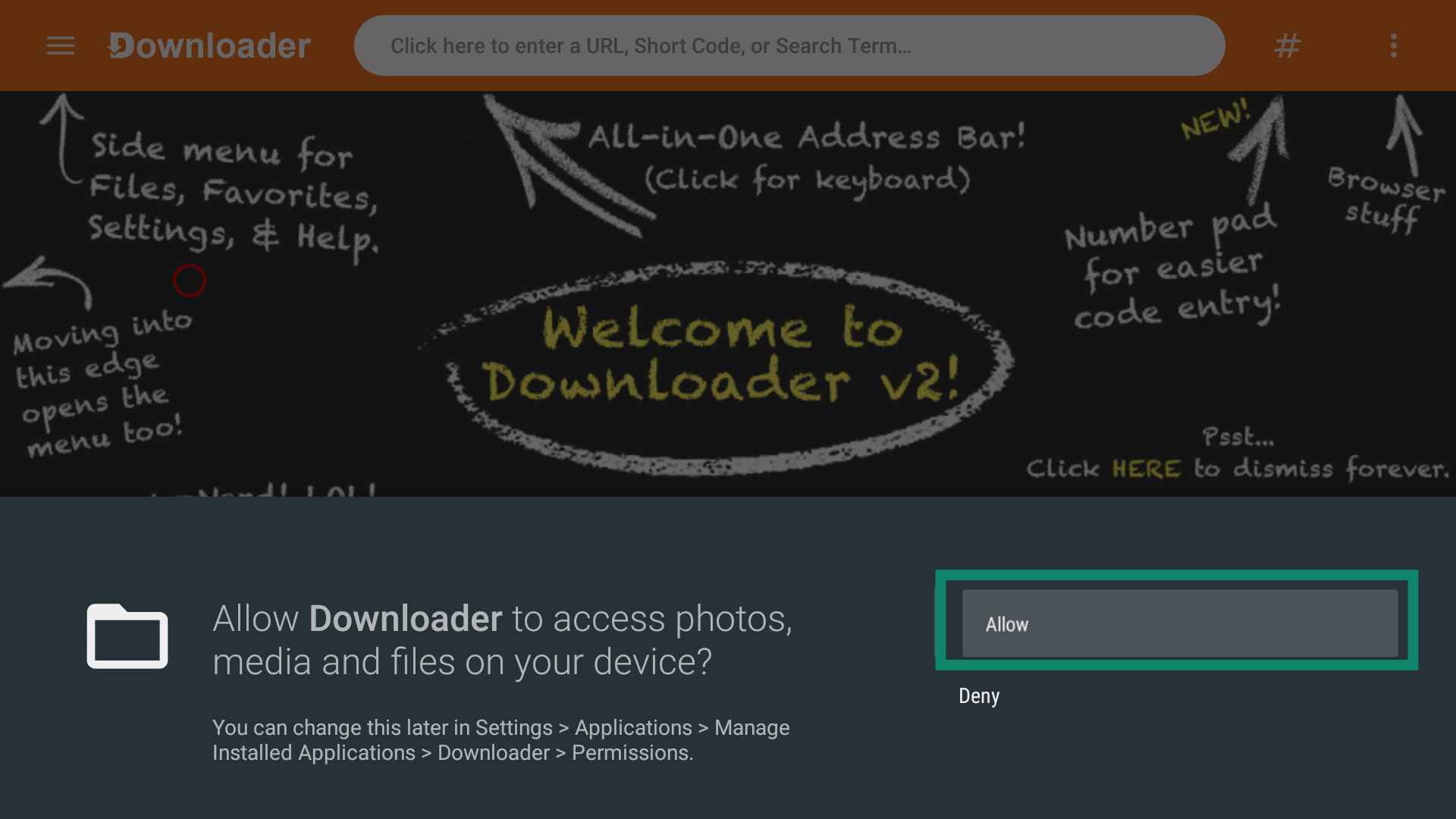
Enter the URL of the ExpressVPN APK installer, which is www.expressvpn.com/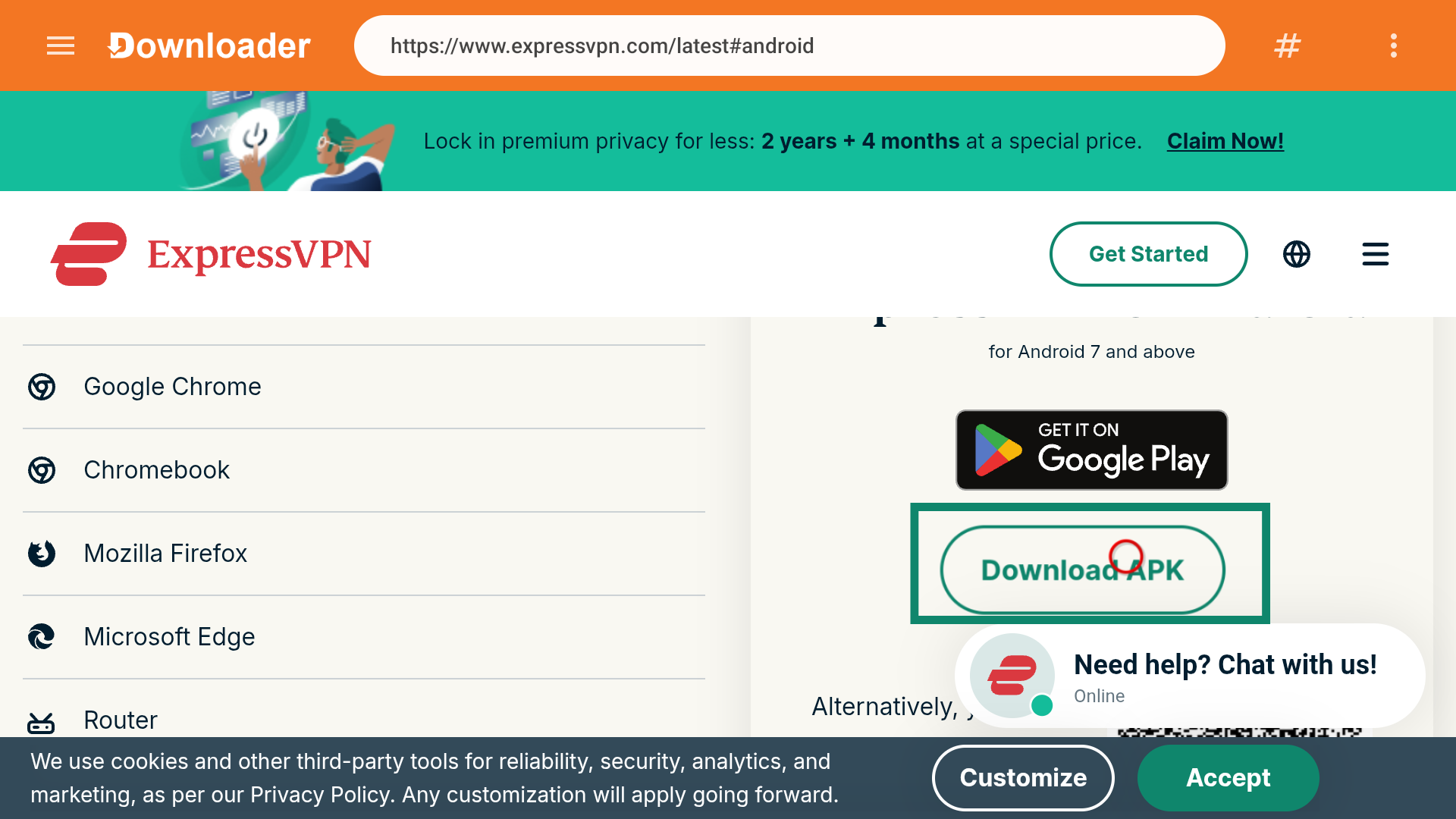
Need help? Contact the ExpressVPN Support Team for immediate assistance.
Set up the ExpressVPN app
Open ExpressVPN. Scan the QR code to sign in on your mobile device or select Sign in with Activation Code. Enter the email and password or activation code for your ExpressVPN account.
Note: If signing in using a QR code, tap Yes on your phone when prompted to approve access on ExpressVPN for Android TV.
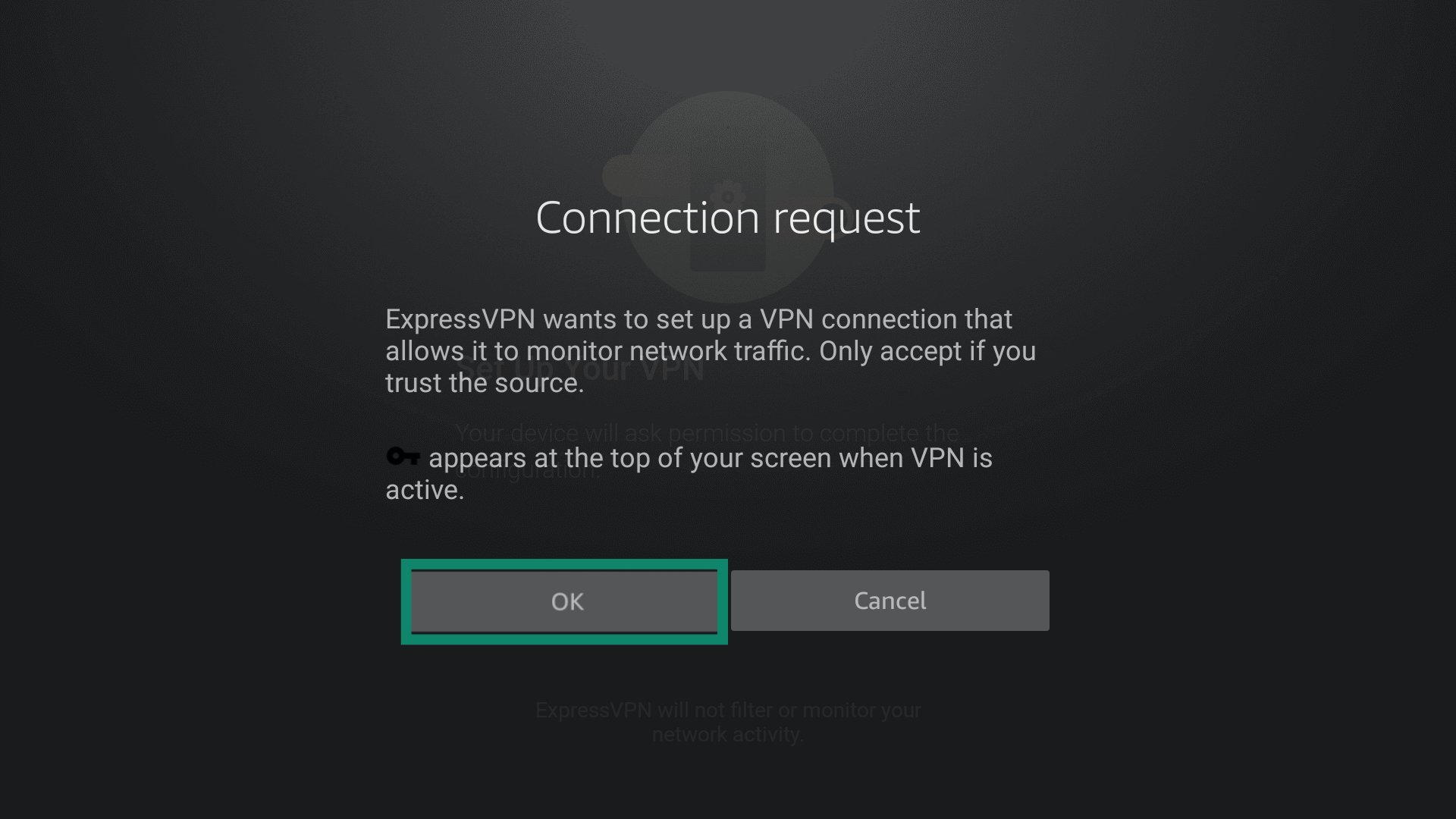
Once you have signed in, your device will ask permission to set up the VPN. Select OK to give permission and continue the setup.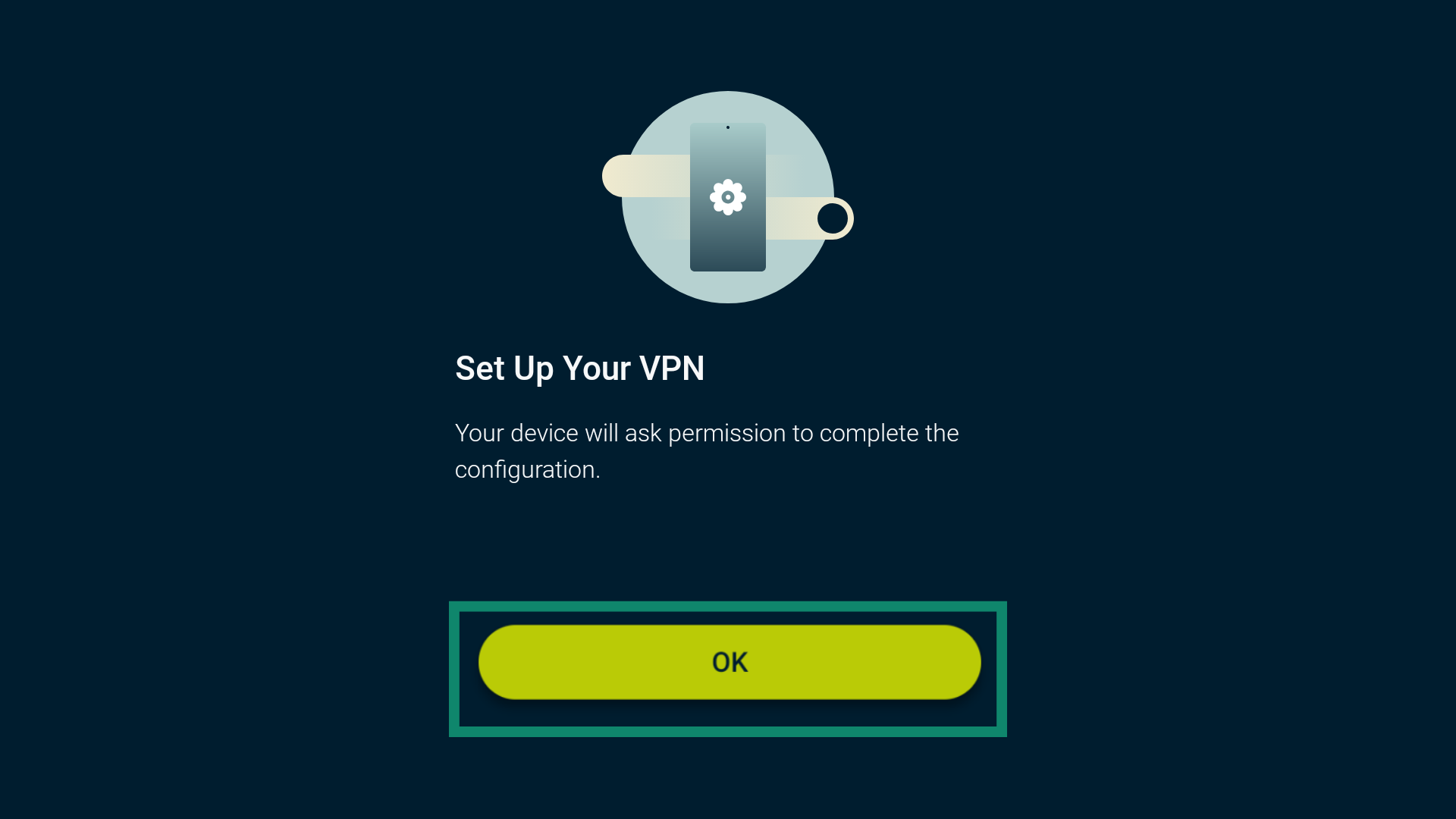 When asked to accept ExpressVPN’s connection request, select OK.
 The app will ask if you would like to share anonymous information to help make ExpressVPN faster and more reliable. Select your preference to continue.
Need help? Contact the ExpressVPN Support Team for immediate assistance.
Connect to a server location
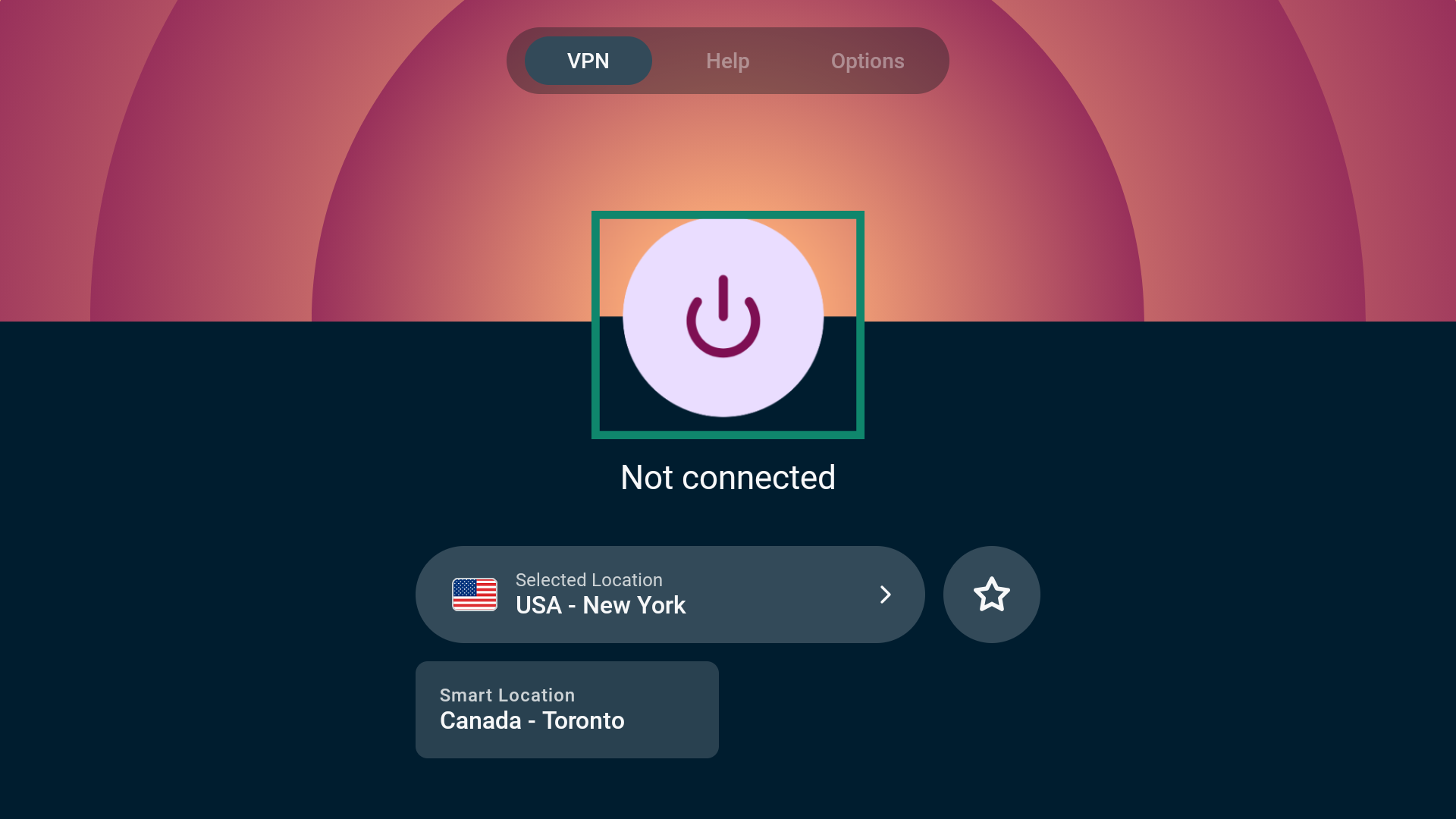
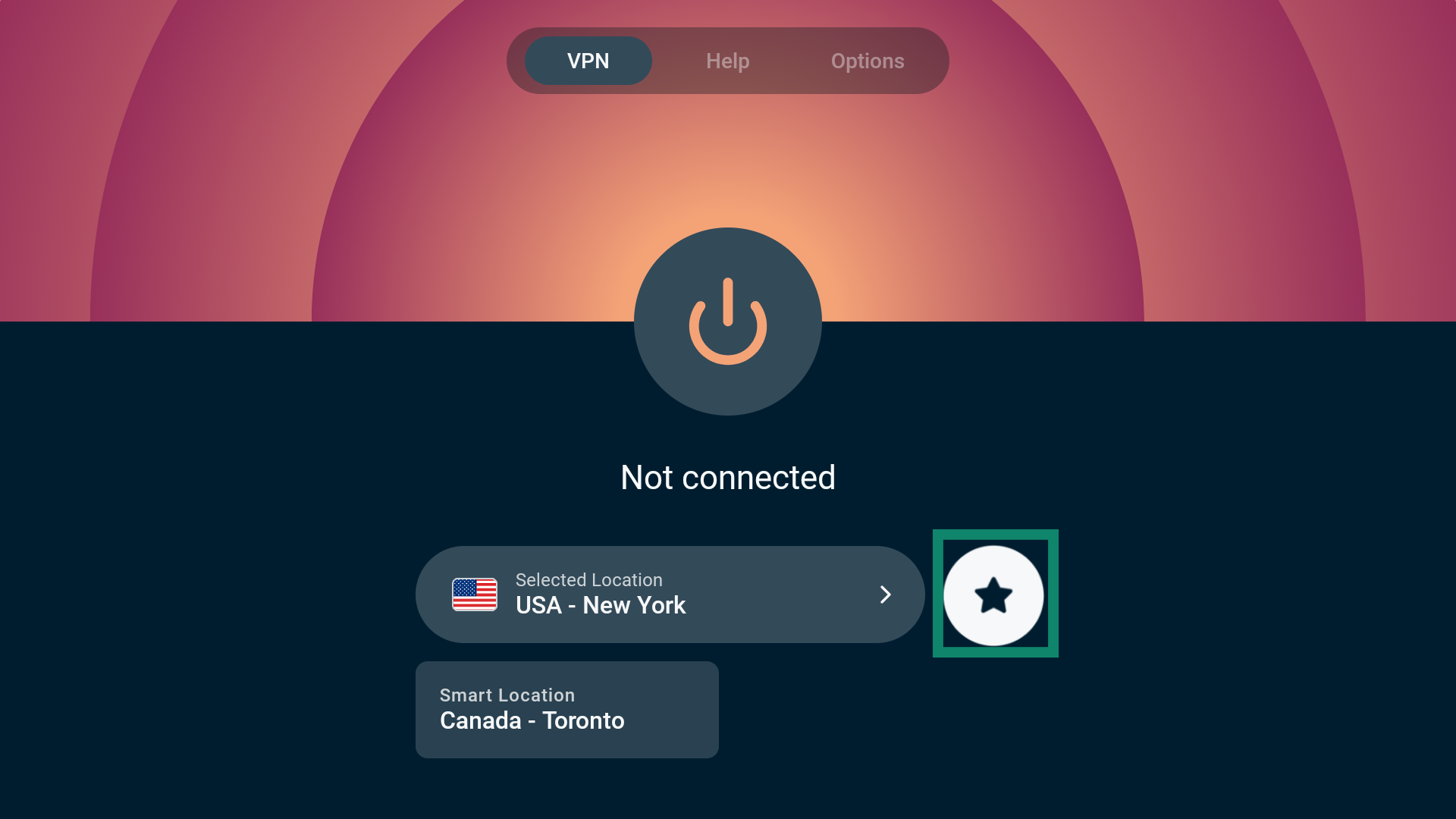
To connect to a server location, select the power button ( ). By default, ExpressVPN will suggest a Smart Location. This location is chosen for you to provide you with an optimal experience.
 Once you see the “Connected” message, you can begin using the internet with added privacy and security.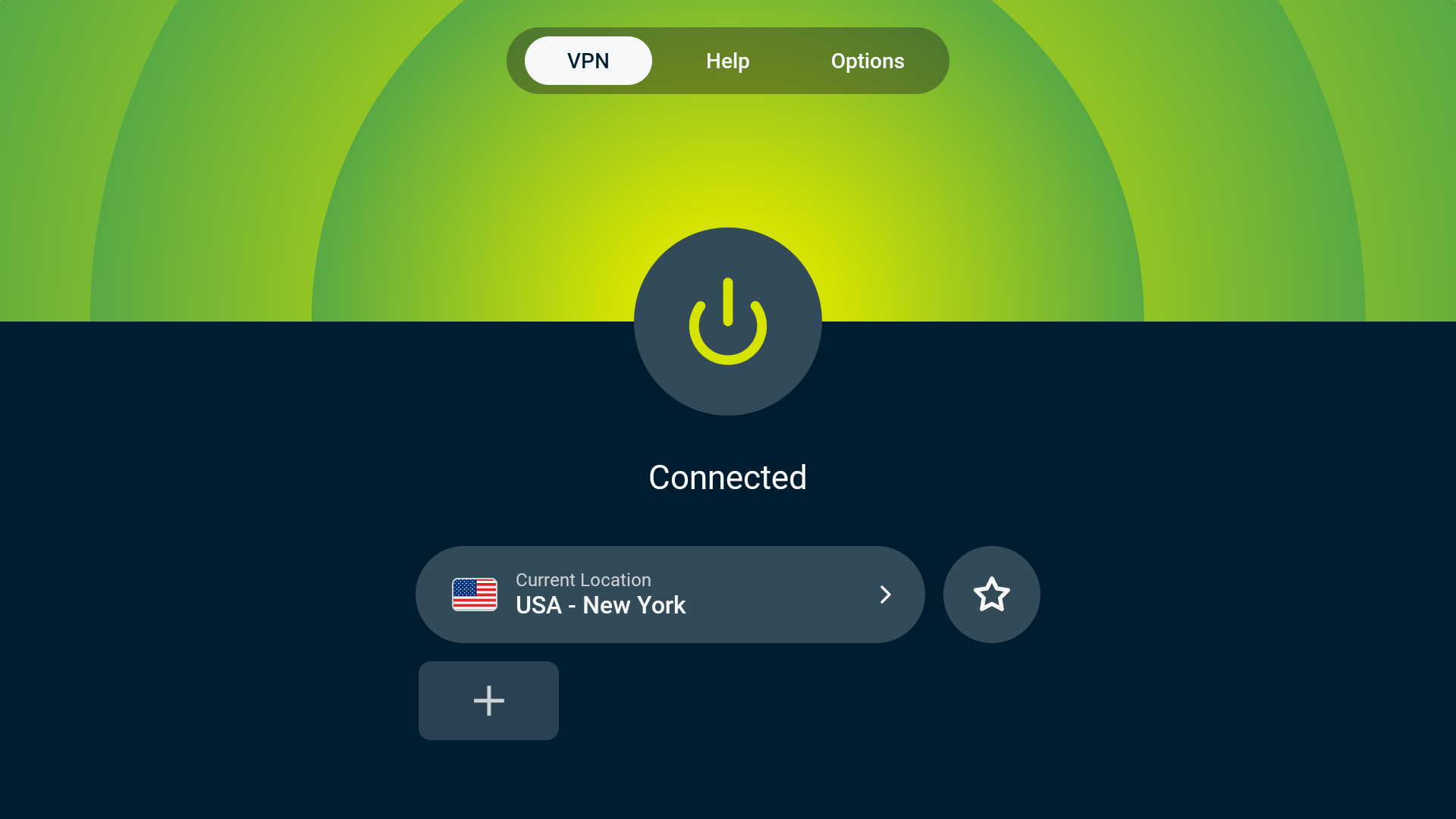
Need help? Contact the ExpressVPN Support Team for immediate assistance.
Disconnect from a server location
To disconnect from a server location, select .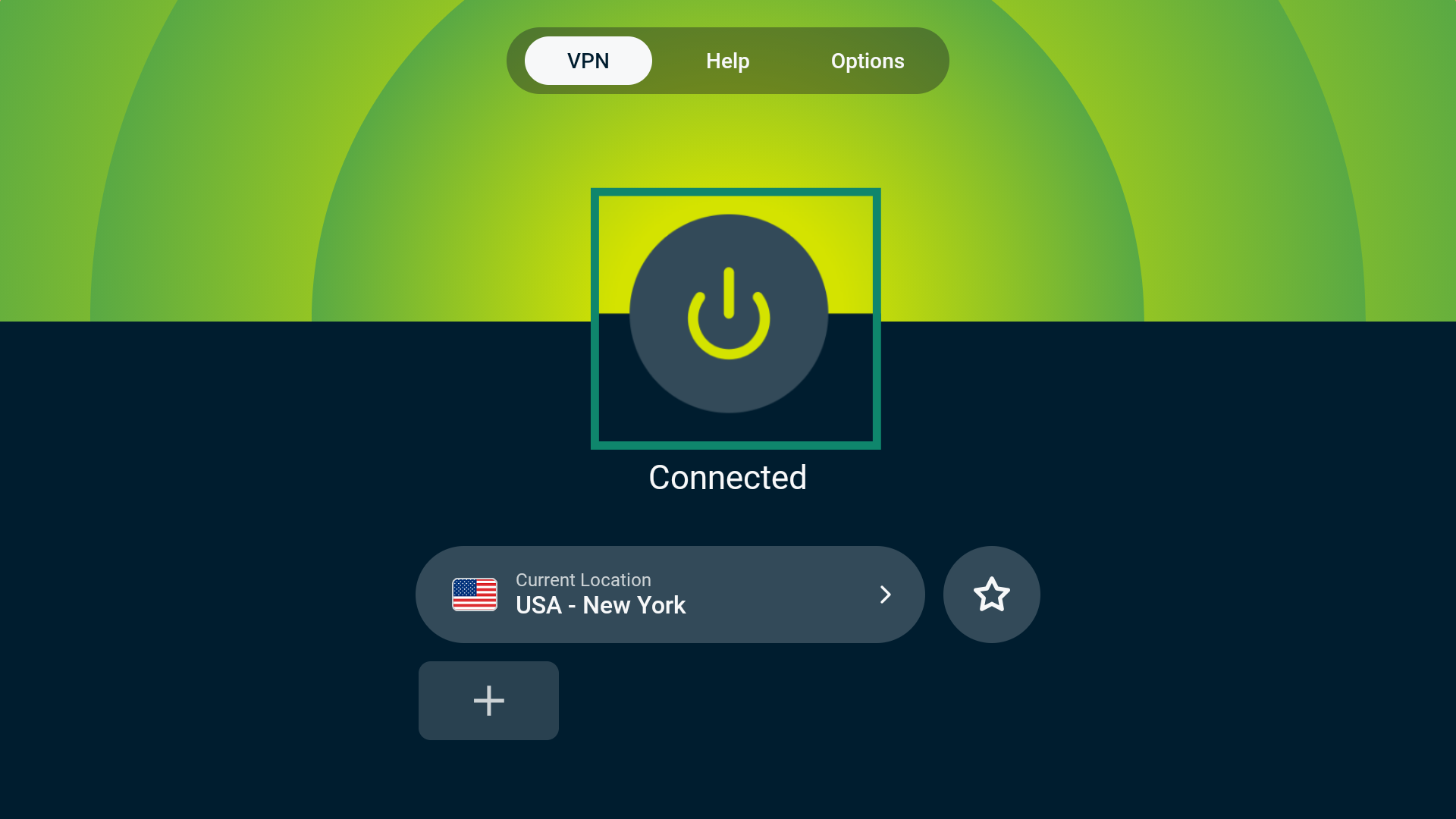 You will see the message, “Not connected.”
Need help? Contact the ExpressVPN Support Team for immediate assistance.
Change server location
To choose a different server location, select Current Location/Smart Location.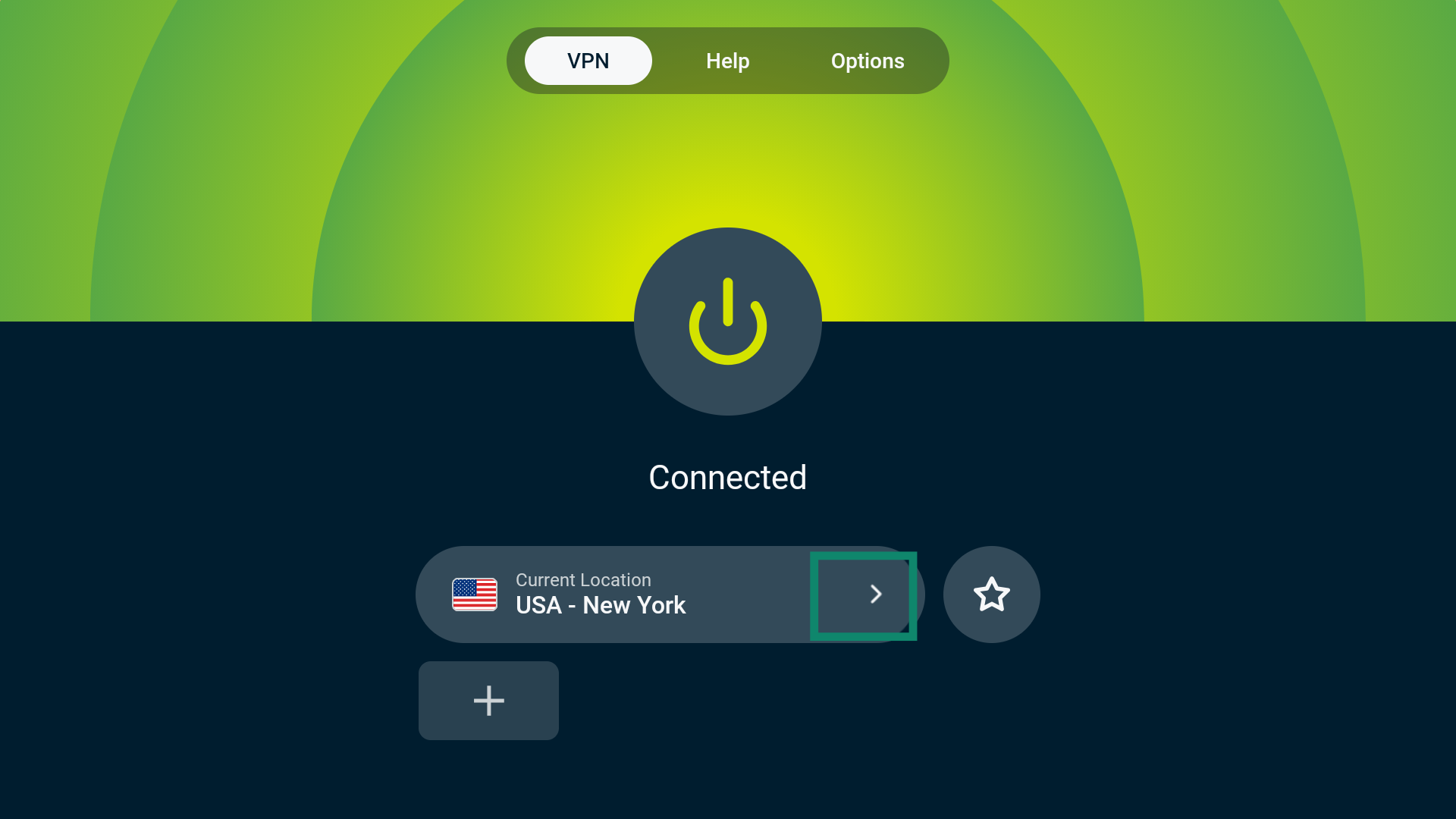 This will take you to the VPN Locations picker. From here, you will see several options: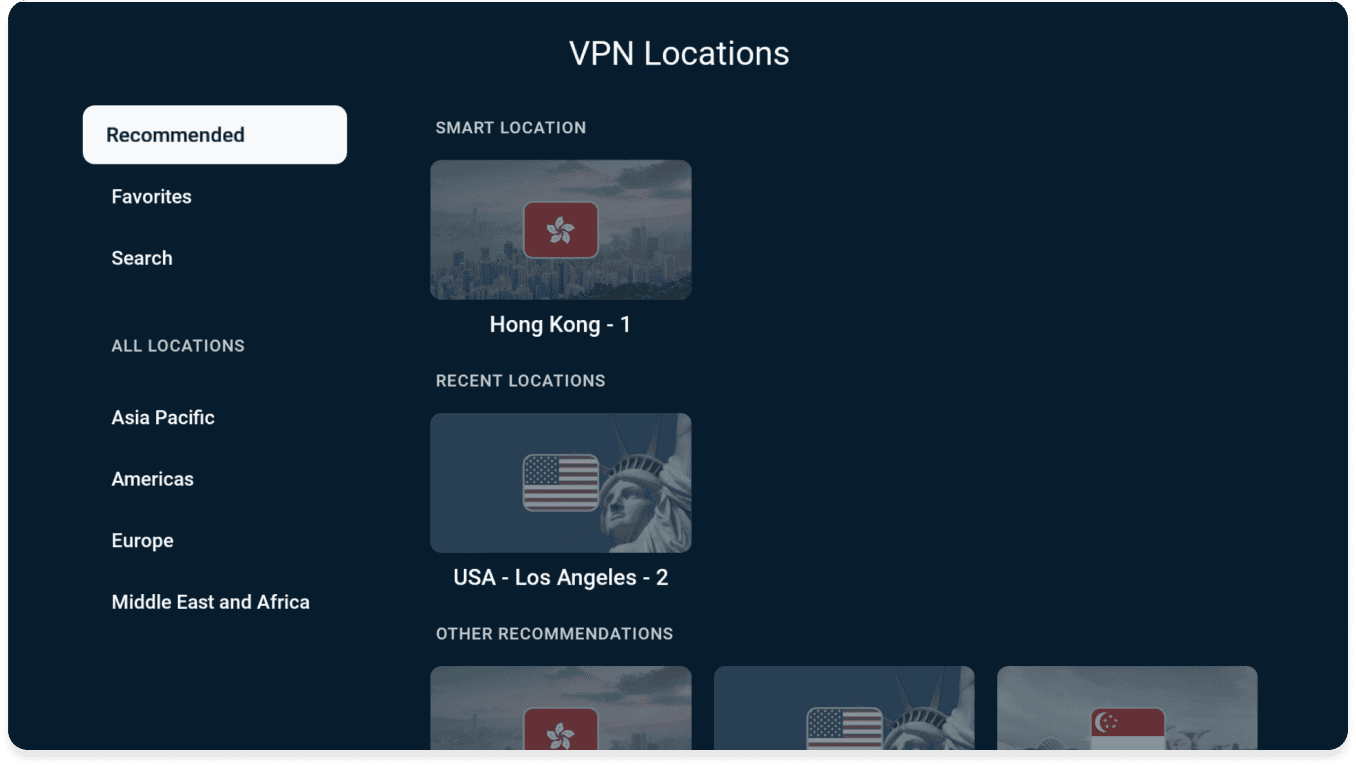
Recommended
Here you will find Smart Location, which is the location suggested by ExpressVPN to provide you with an optimal experience as well as other recommended locations based on your current location.
Any server locations you have recently connected to can also be found here under RECENT LOCATIONS.
Favorites
Here you will find any VPN locations you have favorited. There are two ways to add a VPN location to your favorites:
EITHER
- Find the VPN location you wish to favorite.
- Long-press the Select button on your Fire TV remote.
- If successful, an “Added to favorites” message will appear.
OR
- Select the VPN location you wish to favorite.
- Select the star icon to add the location to your favorites.
- If successful, an “Added to favorites” message will appear.
Search
From here, you can search for a specific VPN location by typing the name of the location into the search bar. You can search for both countries and cities.
ALL LOCATIONS
Under ALL LOCATIONS, you will find servers in 113 countries, spread across 214 locations worldwide. These locations are divided into four geographic locations: Asia Pacific, Americas, Europe, and Middle East and Africa.
Note: Some countries feature multiple server locations. After selecting the country, select the server location you want to connect to.
Once you have selected a server location, ExpressVPN will automatically connect you to that server location.
Need help? Contact the ExpressVPN Support Team for immediate assistance.
Switch to a different protocol
Protocols determine how your device establishes a connection with an ExpressVPN server. For optimal performance, we recommend using the Automatic protocol setting. It automatically selects the best-suited protocol for your current network, and it is enabled by default.
That said, in some cases, such as when advised to do so by our Support Team, switching to a different protocol may help you achieve faster connection speeds.
To change your protocol settings:
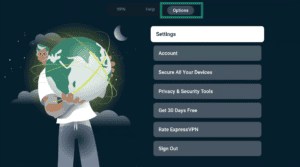
- Go to Options > Settings.

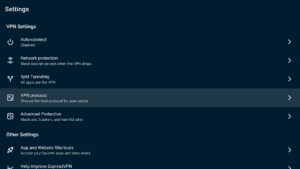
- Select VPN Protocol.
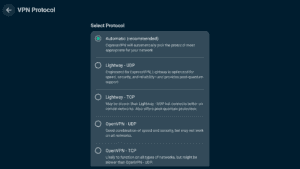
- Select the protocol you want to use.
- Reconnect to your chosen location.
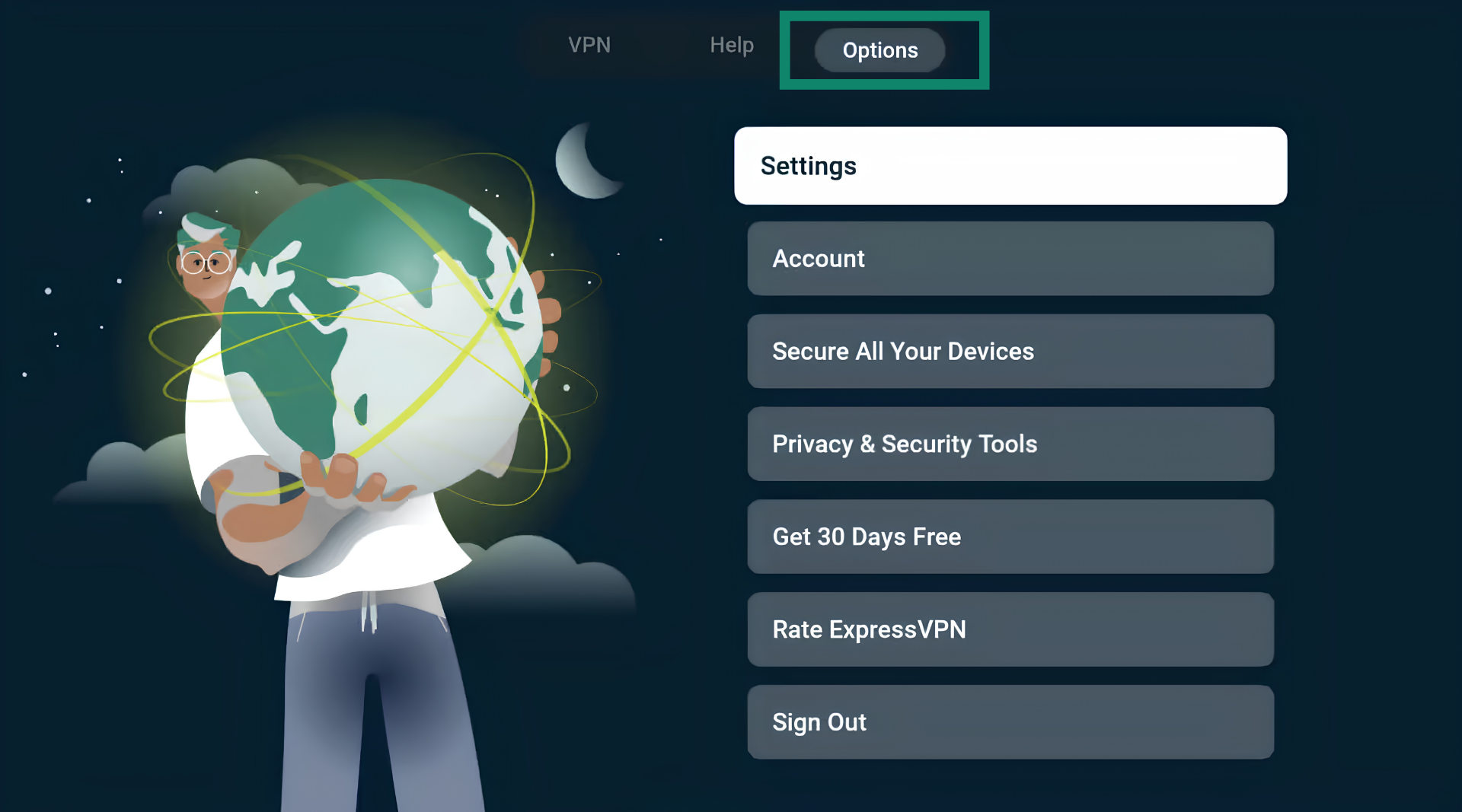
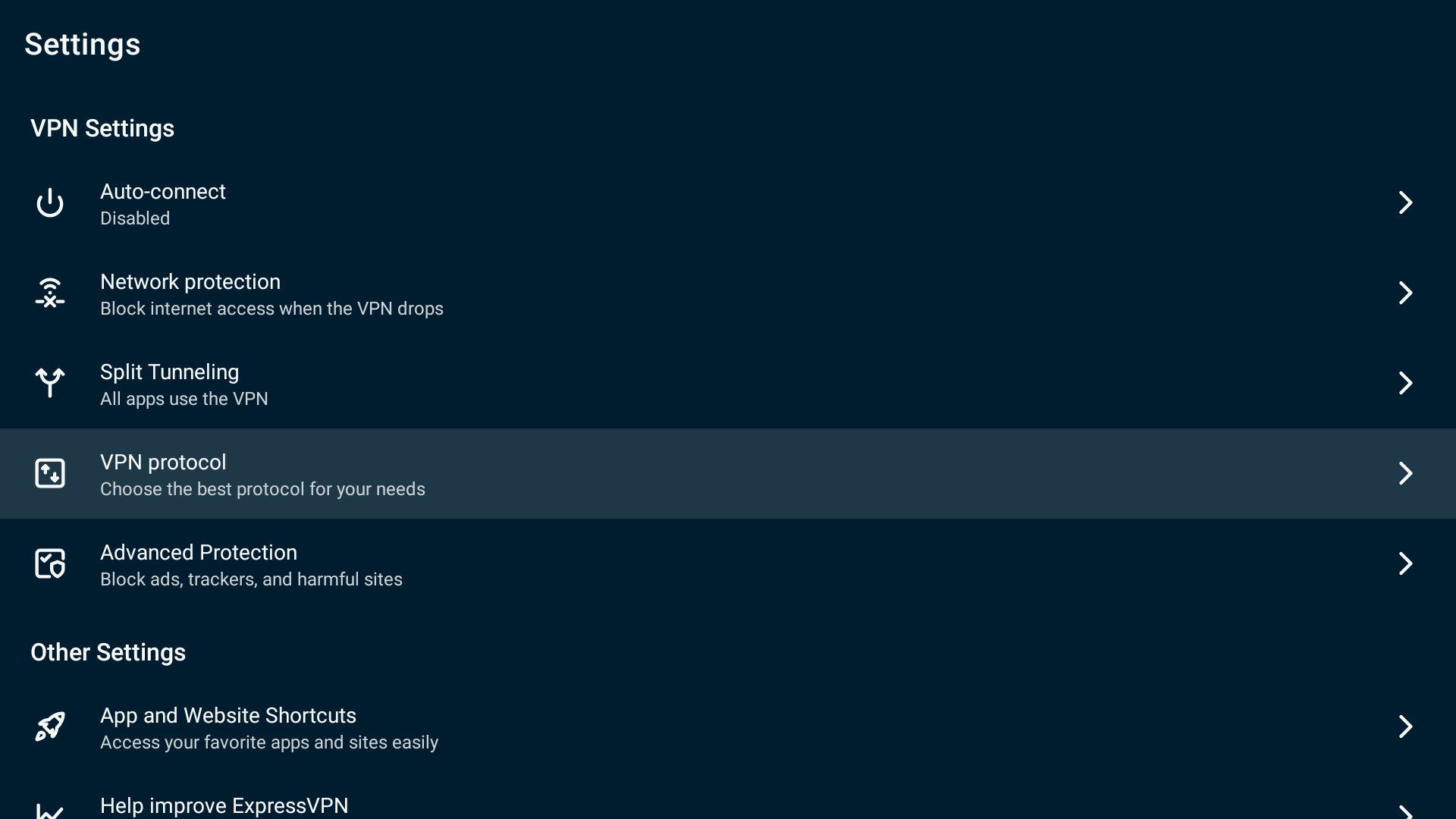
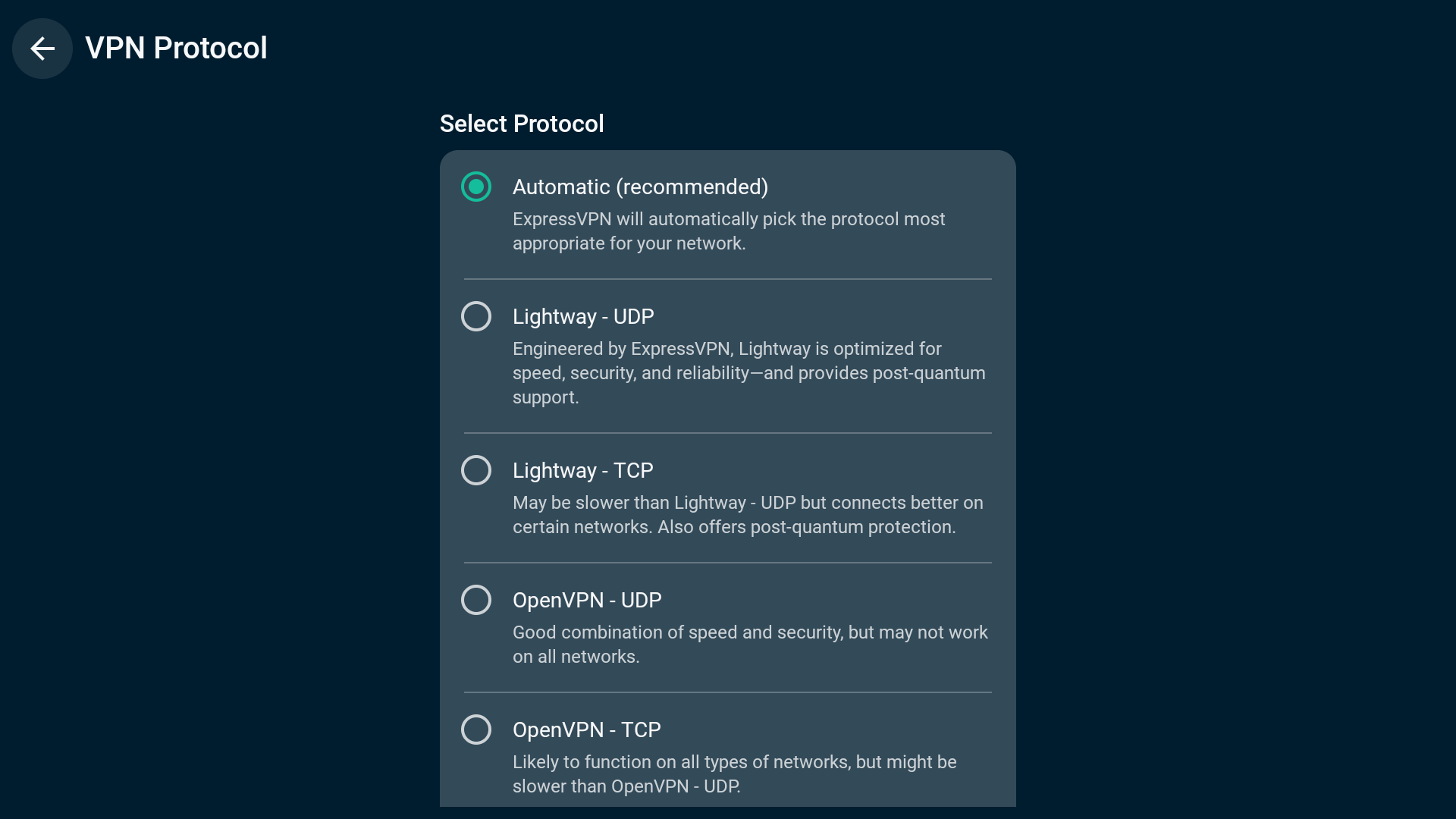
If connecting to a protocol other than Automatic or Lightway – UDP, you will see a pop-up asking if you are sure. Select Change Anyway to continue.
Note: When Advanced Protection features are turned on, only Automatic or Lightway protocols are available.
Need help? Contact the ExpressVPN Support Team for immediate assistance.
Block ads and trackers
You can block ads and trackers from within the ExpressVPN app in just a few steps.
A lot of the apps you visit may keep a record of and share your activity with third-party companies, including trackers. This information may be used to serve you more targeted ads and content.
These advanced protection features prevent all apps you visit on your device from communicating with the third-party companies in our open-source blocklists.
Advanced protection features are disabled by default. To enable them:
- Connect to the VPN.
- Go to Options > Settings.


- Select Advanced Protection.

- Turn on the advanced protection features to suit your needs.

Need help? Contact the ExpressVPN Support Team for immediate assistance.
Set up and use ExpressVPN on Vega OS (Linux-based)
These instructions apply to Amazon Fire TV Stick 4K Select devices running Vega OS (Linux-based).
Download the ExpressVPN app
- On your Fire device, go to search (). Enter ExpressVPN.
- Select ExpressVPN.
- Select Download.
- Once the download is complete, select Open. The ExpressVPN app will launch automatically on some devices.
- Select Install once the app asks if you want to install it.
Need help? Contact the ExpressVPN Support Team for immediate assistance.
Set up the ExpressVPN app
Open ExpressVPN. Scan the QR code to sign in on your mobile device, or select Sign in with Email. Enter the email address and password for your ExpressVPN account.
Once you have signed in, you’ll see a privacy notice. Select Agree and continue.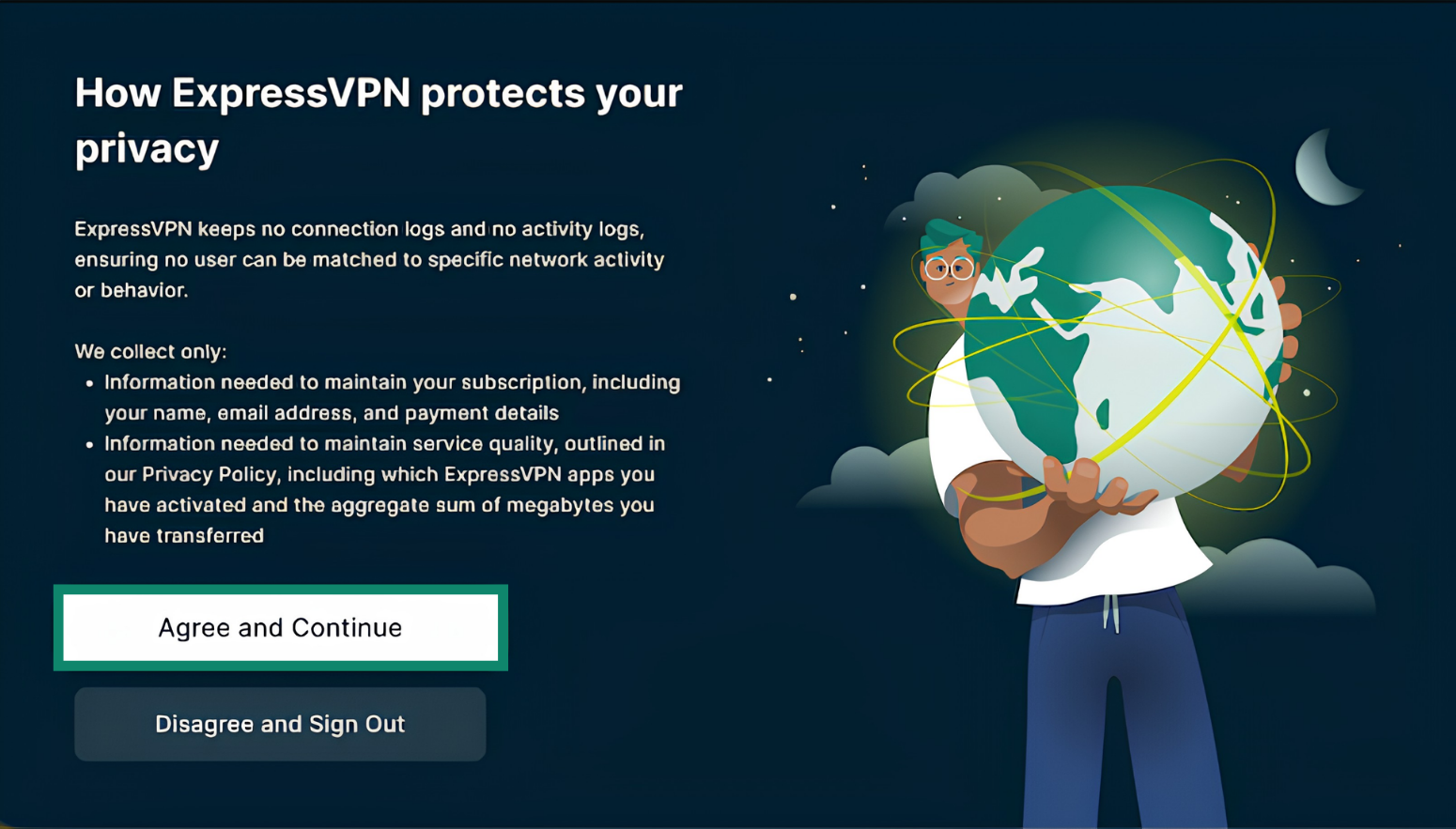
Your device will ask permission to set up the VPN. Select Continue to give permission and continue the setup.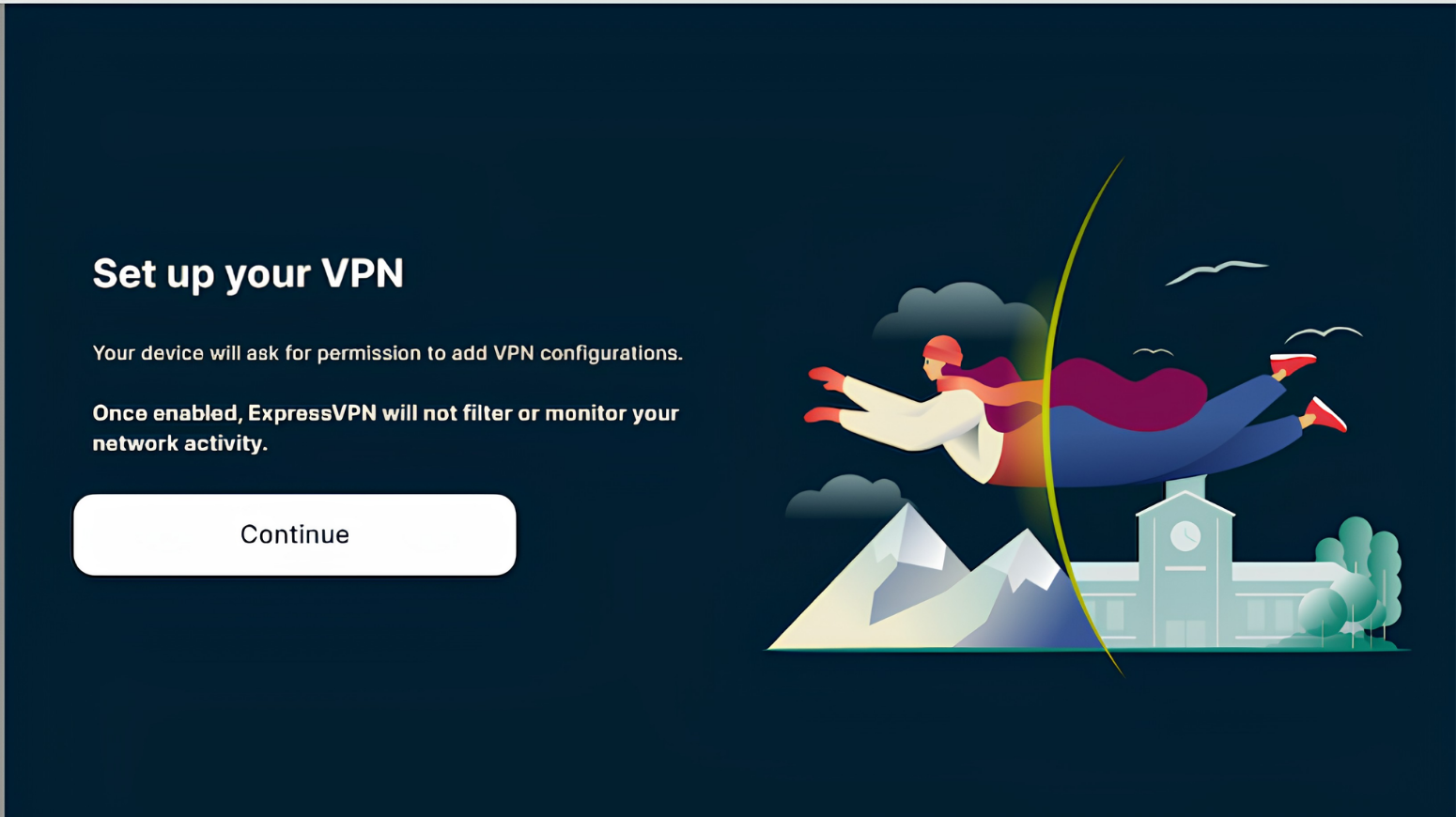
When asked to accept ExpressVPN’s connection request, select OK.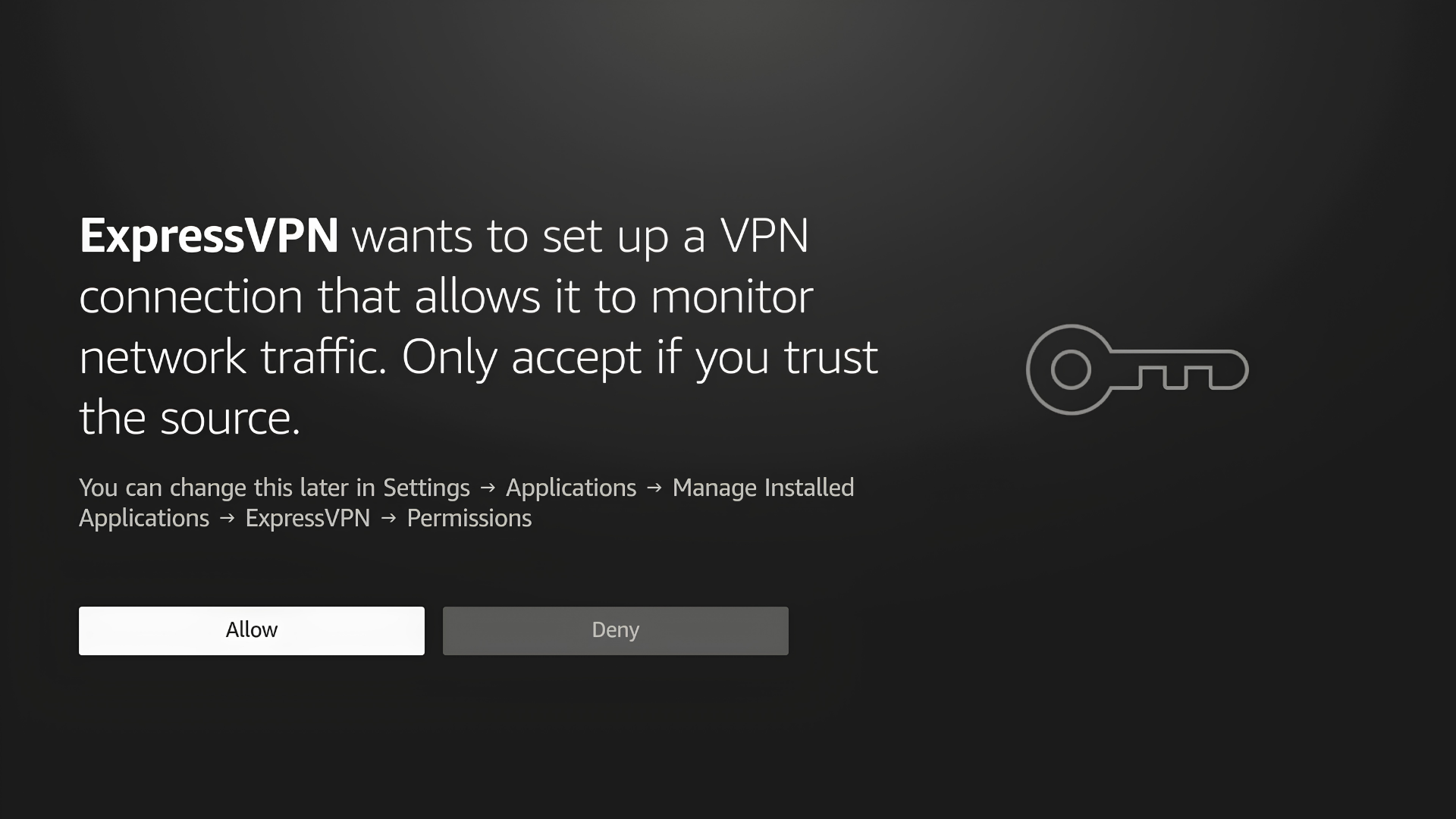
The app will ask if you would like to share anonymous information to help make ExpressVPN faster and more reliable. Select your preference to continue.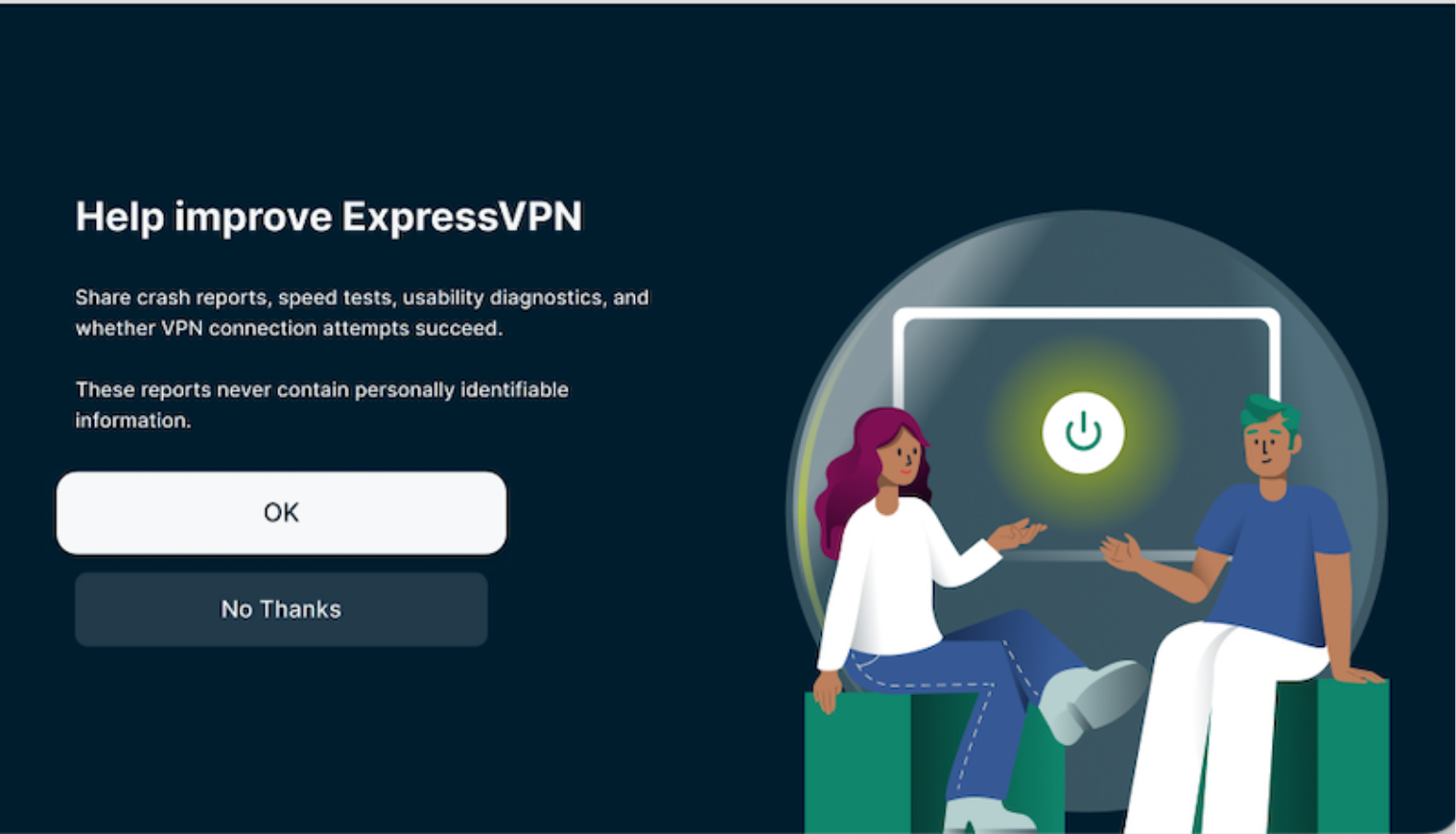
Need help? Contact the ExpressVPN Support Team for immediate assistance.
Connect to a server location
To connect to a server location, select the power button (). By default, ExpressVPN will suggest a Smart Location. This location is chosen for you to provide you with an optimal experience.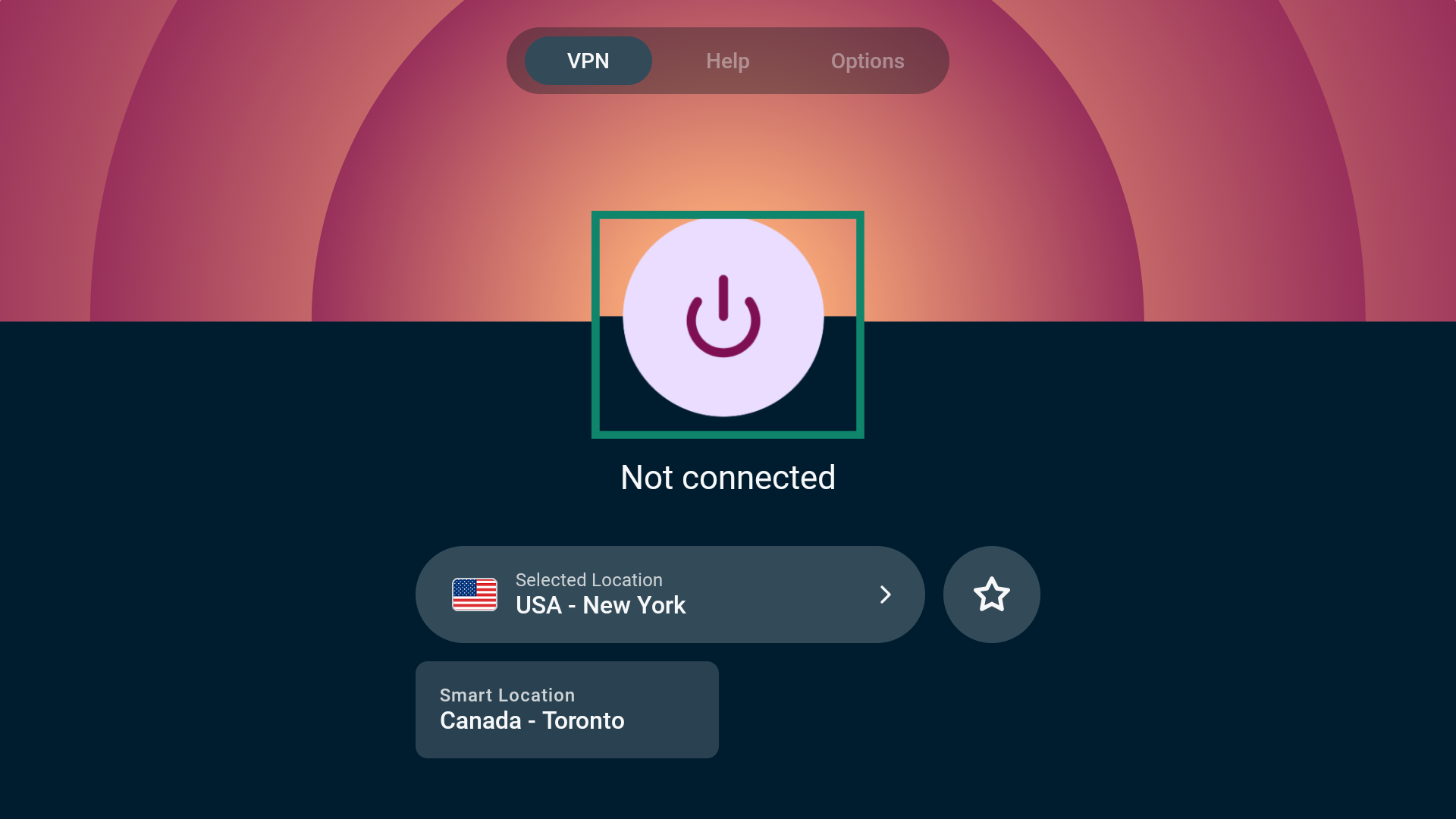
Once you see the “Connected” message, you can begin using the internet with added privacy and security.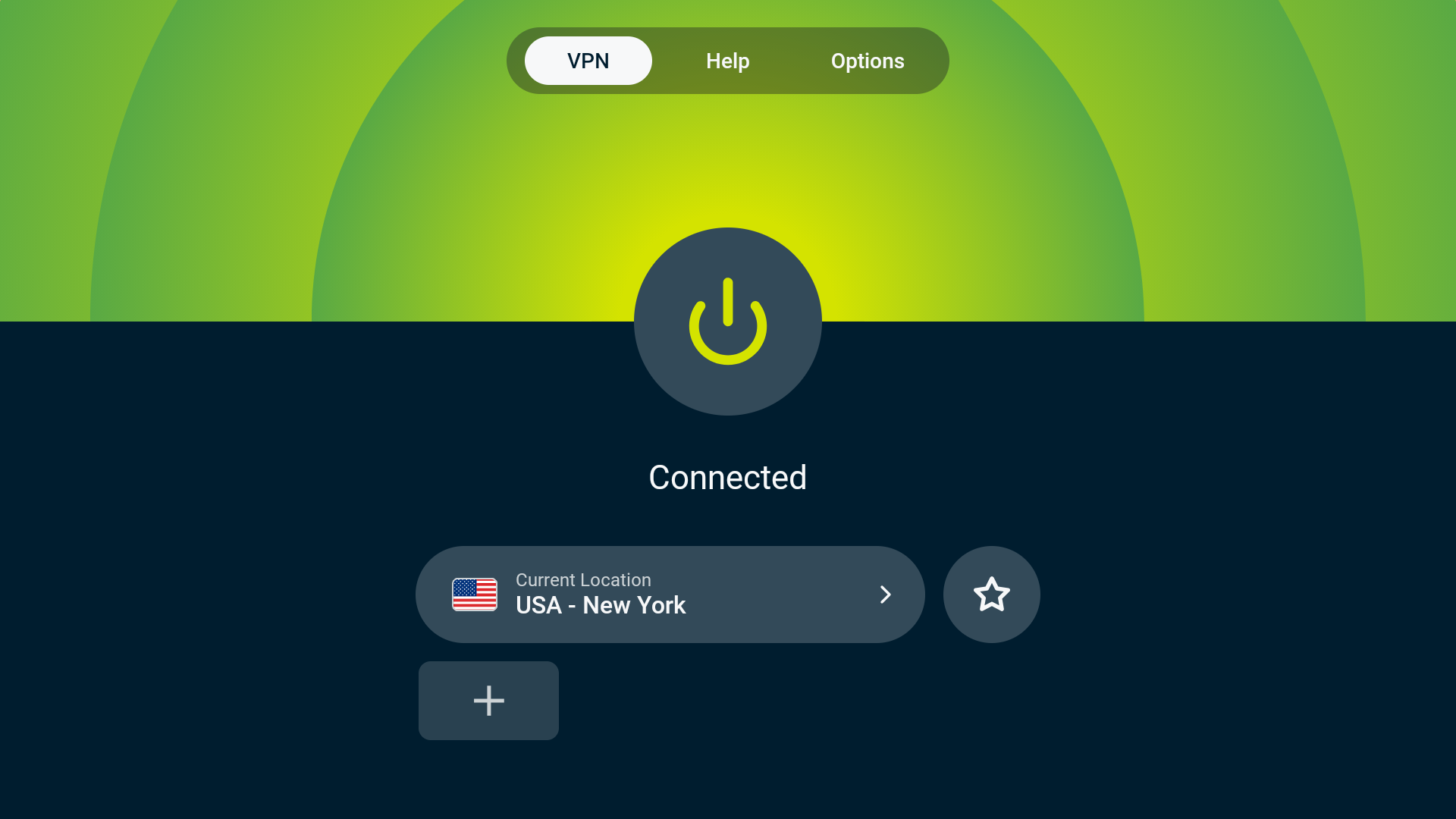
Need help? Contact the ExpressVPN Support Team for immediate assistance.
Disconnect from a server location
To disconnect from a server, select the power button ().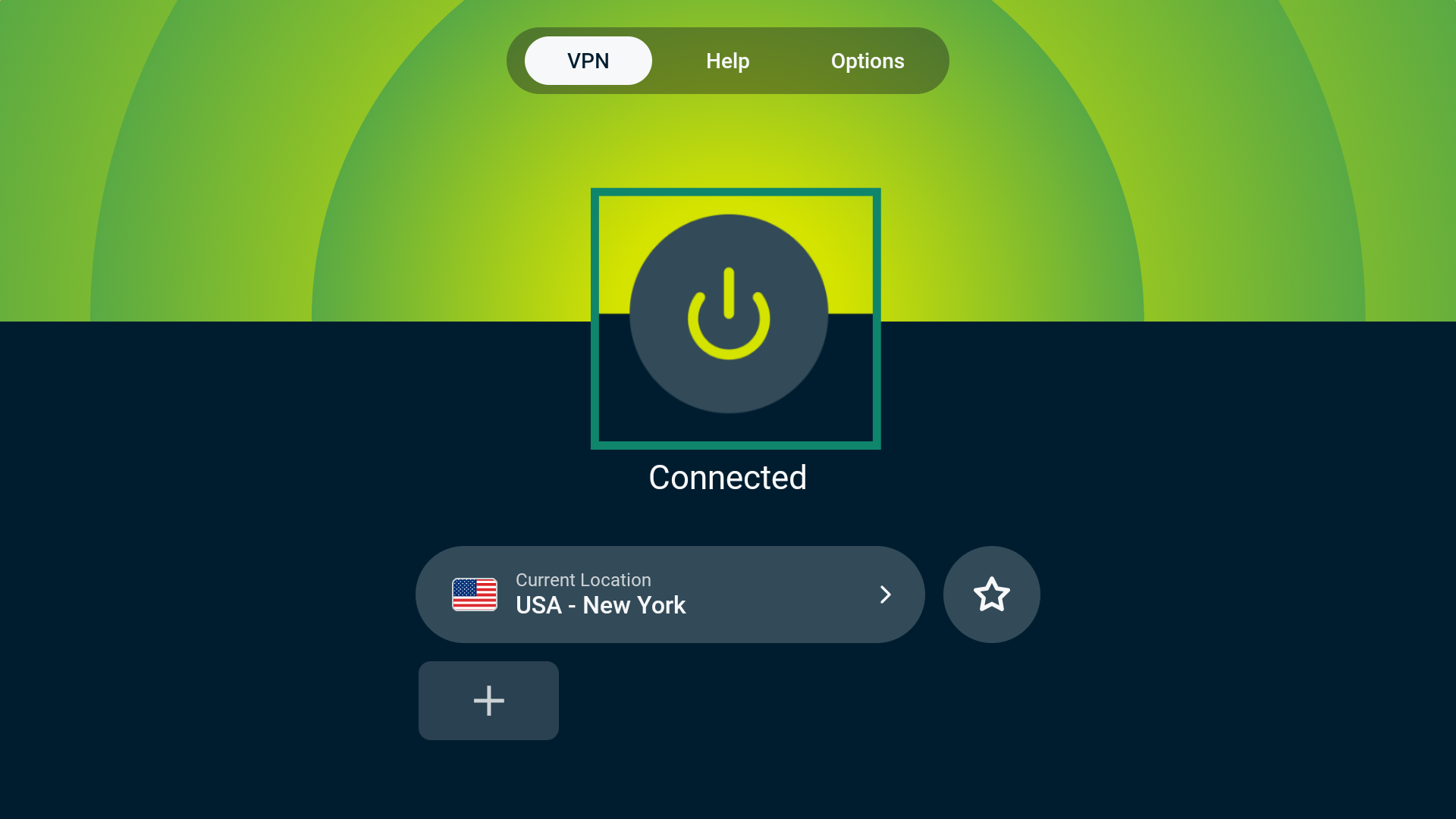
You’ll see a “Not connected” message once disconnected.
Need help? Contact the ExpressVPN Support Team for immediate assistance.
Change server locations
To choose a different server location, select the Current Location or Smart Location widget.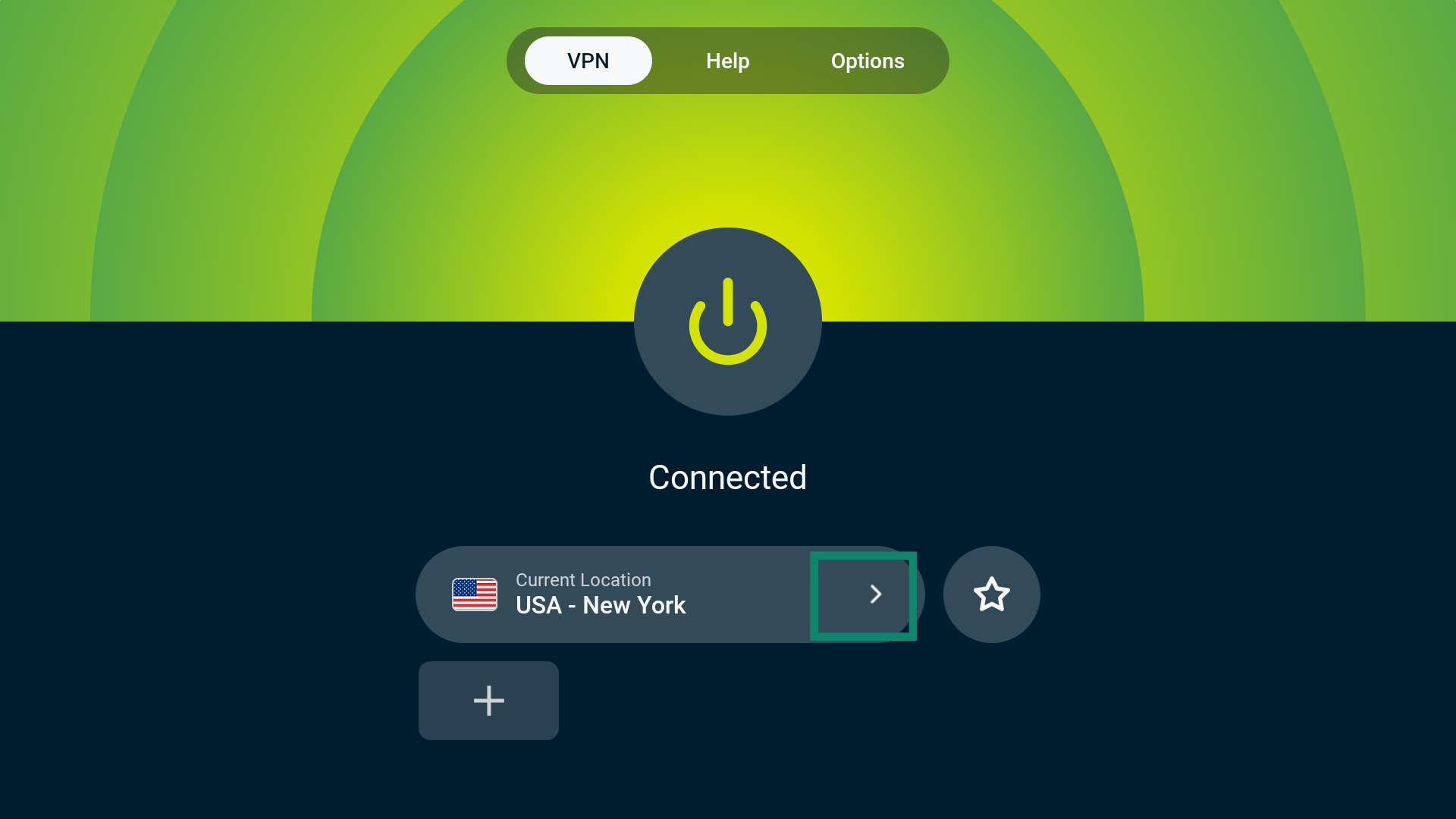
This will take you to the VPN Locations picker. From here, you’ll see several options: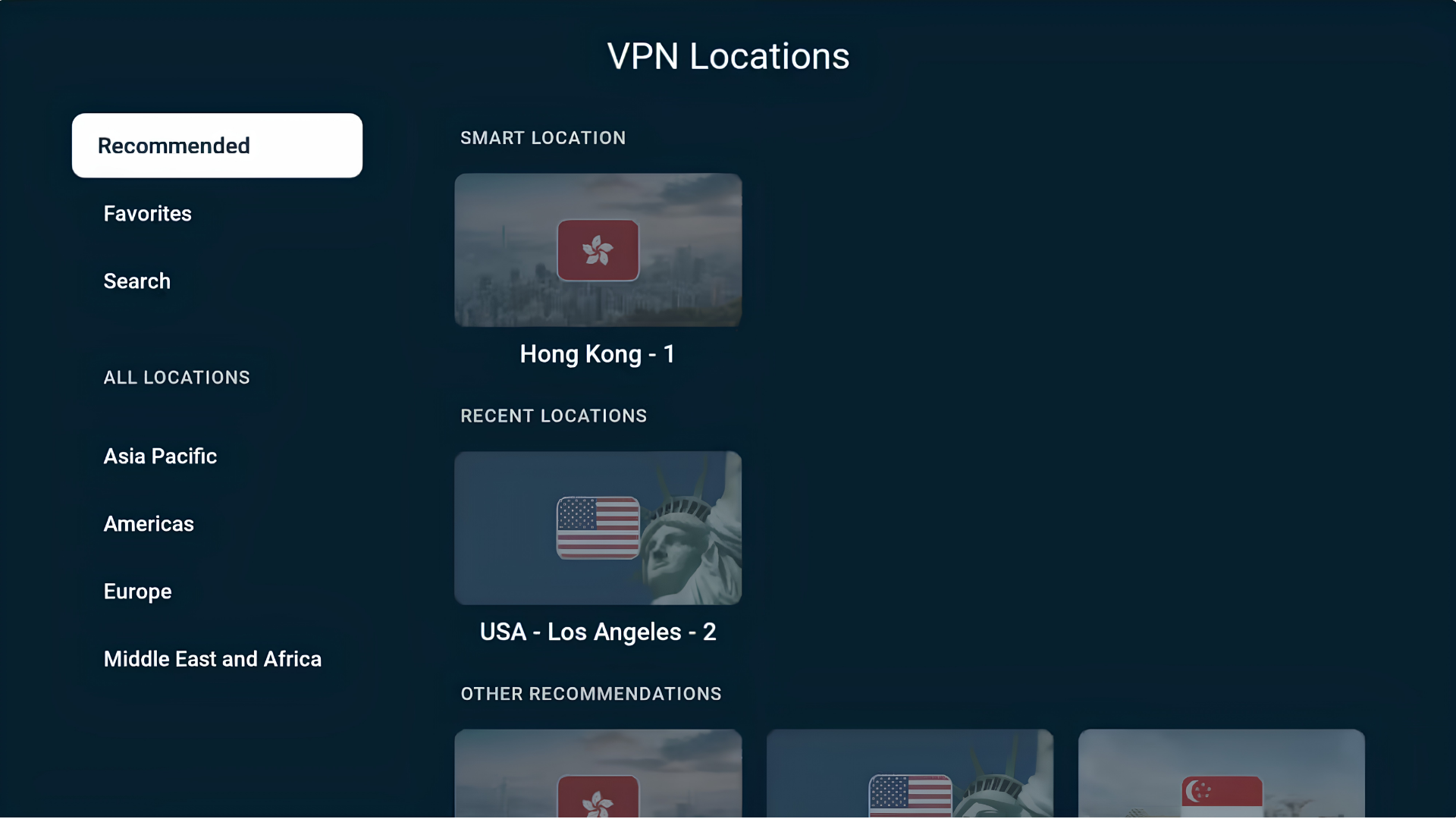
Recommended
Here you will find Smart Location, which is the location suggested by ExpressVPN to provide you with an optimal experience, as well as other recommendations based on your location.
Any server locations you have recently connected to can also be found here under RECENT LOCATIONS.
Favorites
Here you’ll find any locations you have favorited. There are two ways to add a VPN location to your favorites:
EITHER
- Find the VPN location you wish to favorite.
- Long-press the Select button on your Fire TV remote.
- If successful, an “Added to favorites” message will appear.
OR
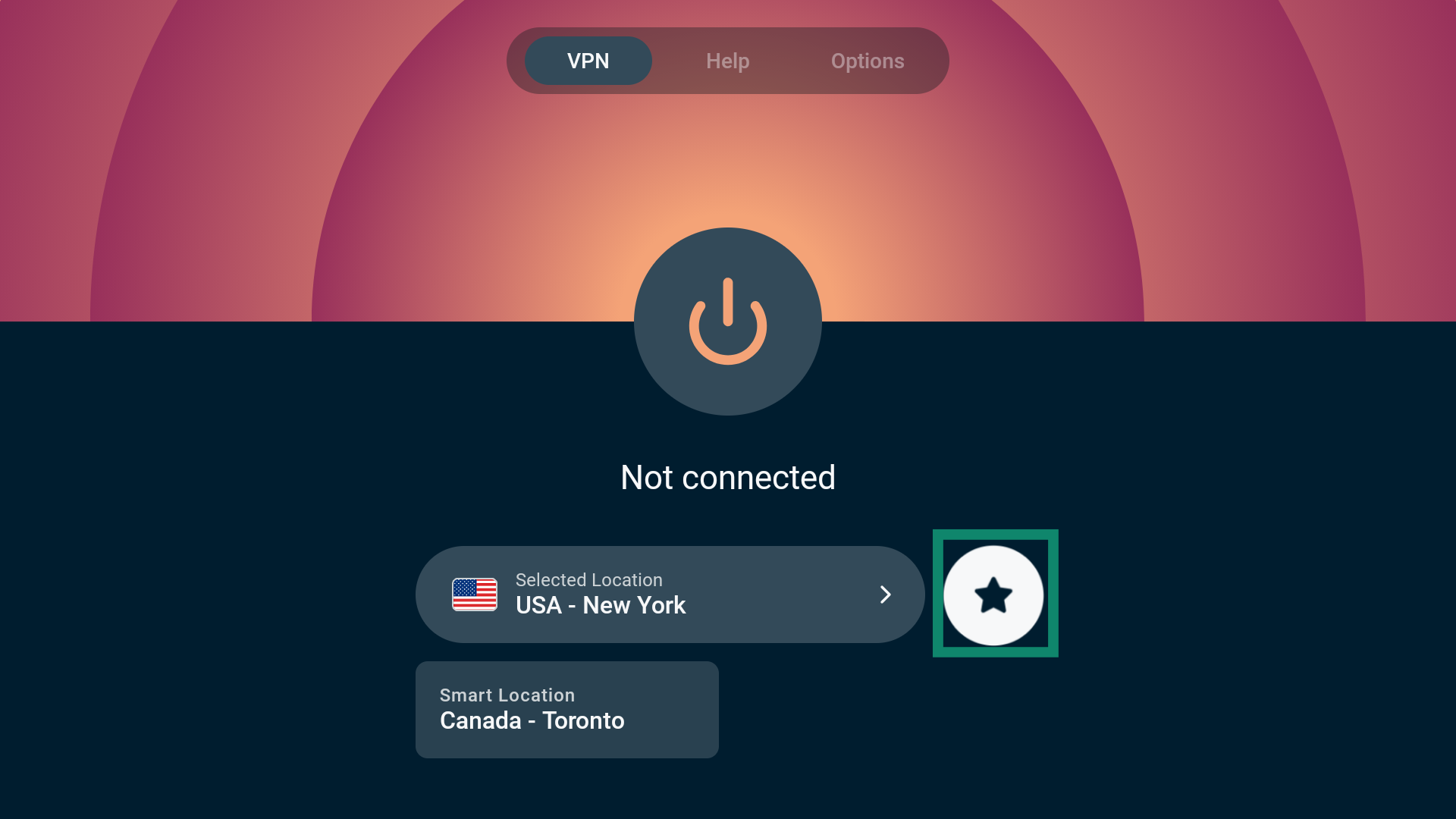
- Select the VPN location you wish to favorite.
- Select the star icon to add the location to your favorites.
- If successful, an “Added to favorites” message will appear.
Search
From here, you can search for a specific VPN location by typing the name of the location into the search bar. You can search for both countries and cities.
ALL LOCATIONS
Under ALL LOCATIONS, you will find servers in 113 countries, spread across 214 locations worldwide. These locations are divided into four geographic locations: Asia Pacific, Americas, Europe, and Middle East and Africa.
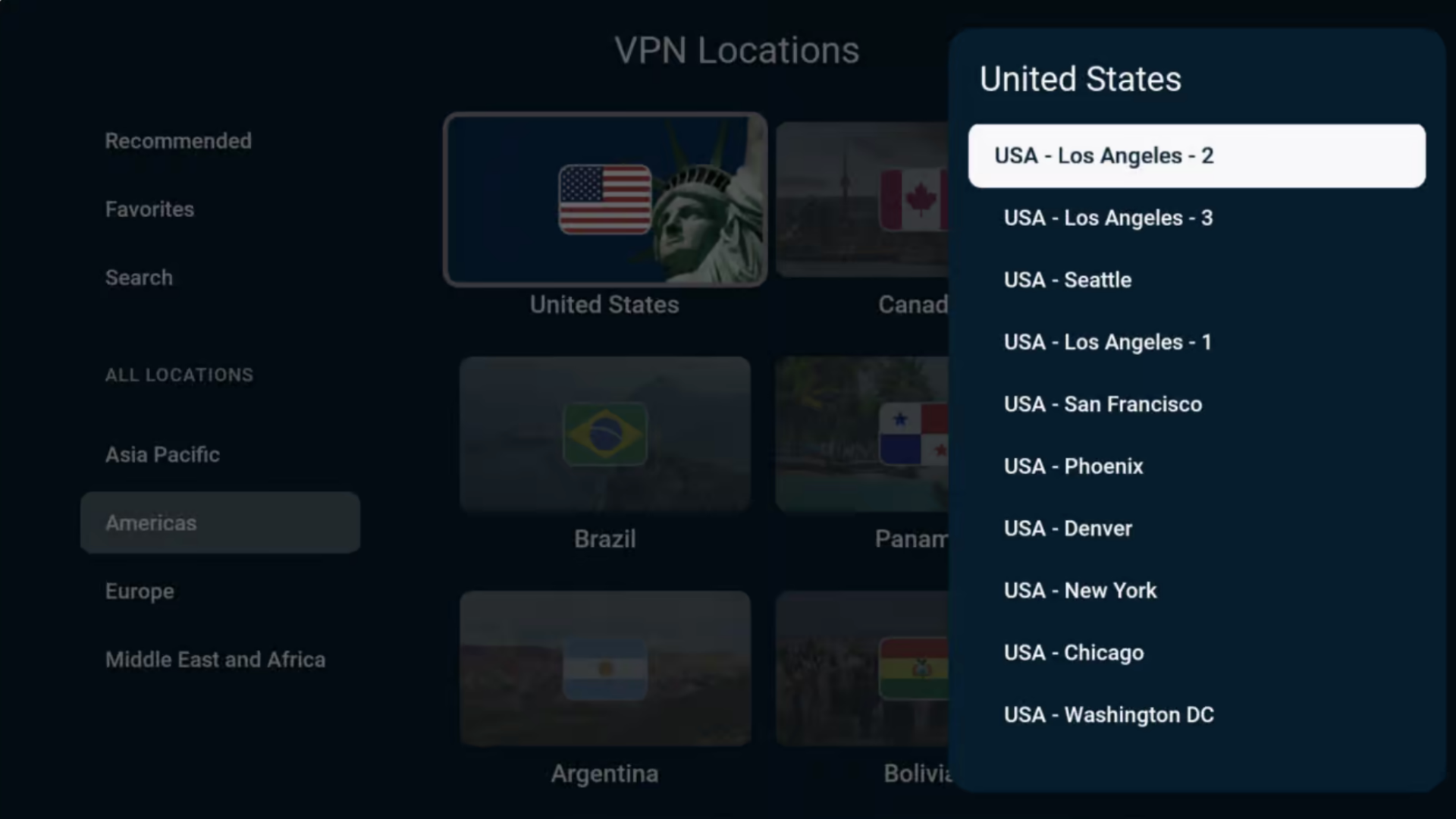
Once you have selected a server location, ExpressVPN will automatically connect you to that server location.
Need help? Contact the ExpressVPN Support Team for immediate assistance.
How to cast or mirror from your device to your Amazon Fire Stick or Fire TV
Casting and mirroring are wireless technologies that let you display content from your device on a TV using Amazon Fire TV or Fire TV Stick. The available casting and mirroring options depend on whether your device runs Fire OS or Vega OS.
Fire OS
If your Amazon Fire TV or Fire TV Stick runs Fire OS, you can use the following casting and mirroring options with ExpressVPN:
| Casting | Mirroring | |
| Android (with VPN) | ✘ Not supported | ✔ Supported |
| Windows (with VPN) | ✔ Supported (in Chromium-based browsers) | ✘ Not supported |
| Chromebook (with VPN) | ✘ Not supported | ✘ Not supported |
| Linux (with VPN) | ✘ Not supported | ✘ Not supported |
You cannot cast or mirror content from iOS or macOS to Amazon Fire TV.
Vega OS
If your Amazon Fire TV Stick runs Vega OS, you can only mirror content from an Android device. Vega OS does not currently support casting or mirroring from Windows, Chromebook, Linux, iOS, or macOS devices.
Alternative options
You can also connect your Amazon Fire TV or Fire TV Stick to an ExpressVPN Fortify or Aircove router, another VPN router, a manually configured VPN, or a virtual VPN router. With this setup, you do not need to cast or mirror content from another device. Simply connect your Amazon Fire TV or Fire TV Stick to the VPN-protected network and stream directly.
Need help? Contact the ExpressVPN Support Team for immediate assistance.
How to uninstall ExpressVPN from your device
- On your Fire device, go to Settings > Applications > Manage Installed Applications.
- Scroll down the list to find ExpressVPN.
- Select Uninstall > Uninstall or Confirm.
The app is now removed from your device.
Need help? Contact the ExpressVPN Support Team for immediate assistance.