



This tutorial will show you how to set up the ExpressVPN GUI app for Linux.
ExpressVPN is compatible with these Linux operating systems:
- Ubuntu: 24.04 LTS and above
- Debian: 12 and above
- Fedora: 39 and above
- Arch Linux: Latest rolling release
- Raspberry Pi OS 64-bit: Bookworm and above
- Linux Mint 22 and above
If you prefer to control the ExpressVPN Linux app with a command-line interface (CLI) via the Terminal, follow this guide.
Jump to…
Download the installer
Install and activate the app
Connect to a VPN server location
Disconnect from a VPN server location
Connect to a different VPN server location
Switch to a different VPN protocol
Block ads, trackers, and harmful sites
Speed test
Launch and connect to ExpressVPN on startup
Use split tunneling
Advanced kill switch
Use the auto-connect feature
MCP server
Enable compact mode
Change languages in the app
Change app appearance
Uninstall the app
Download the installer
- Go to the ExpressVPN+ setup page. If prompted, enter your ExpressVPN email and select Send Code. Then enter the verification code sent to your email and select Continue.
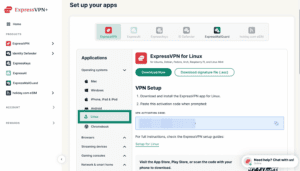
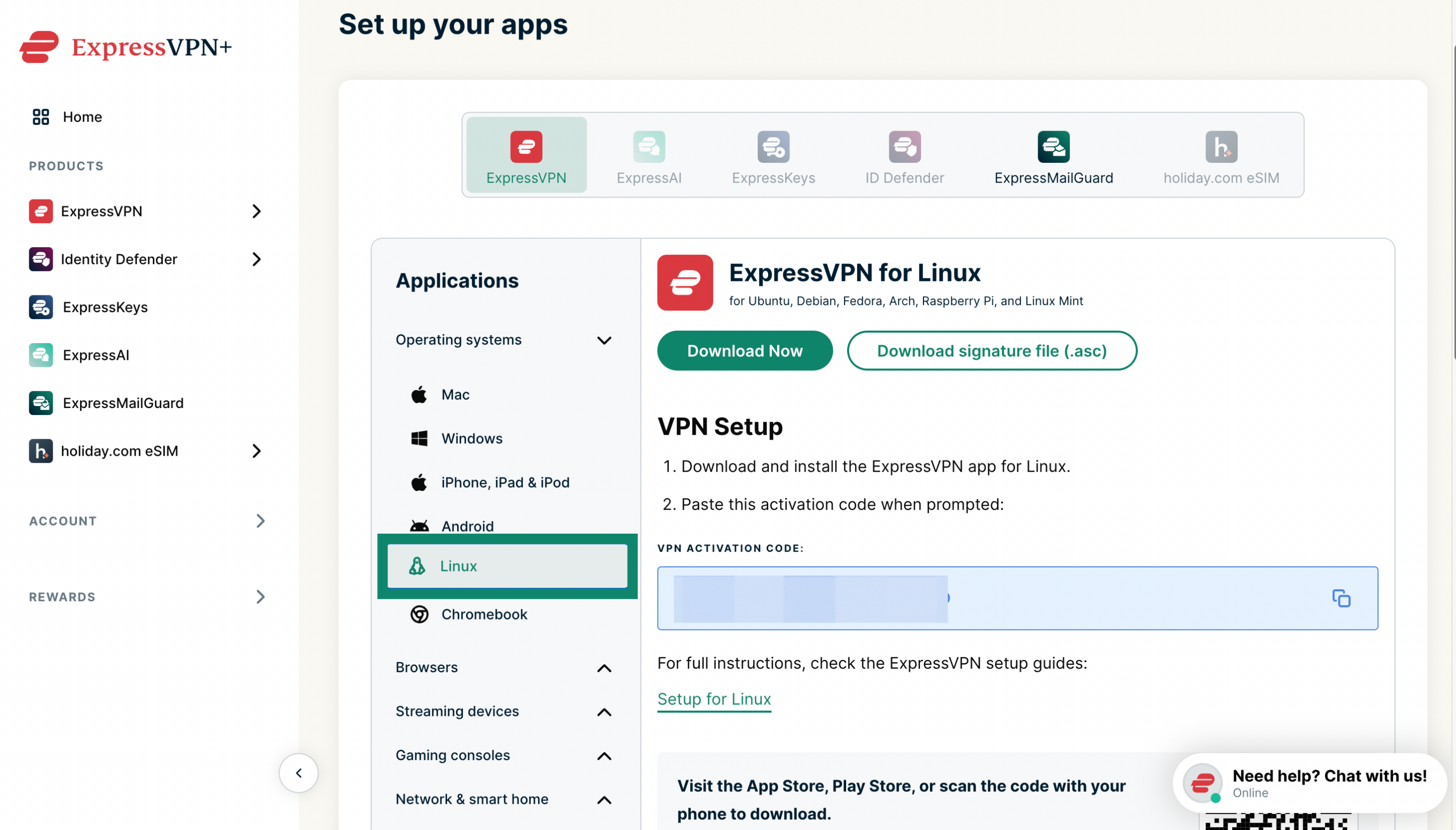
- Under Applications > Operating systems, select Linux.

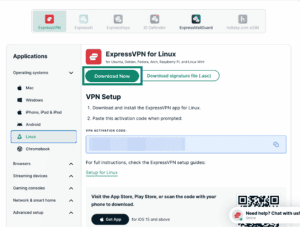
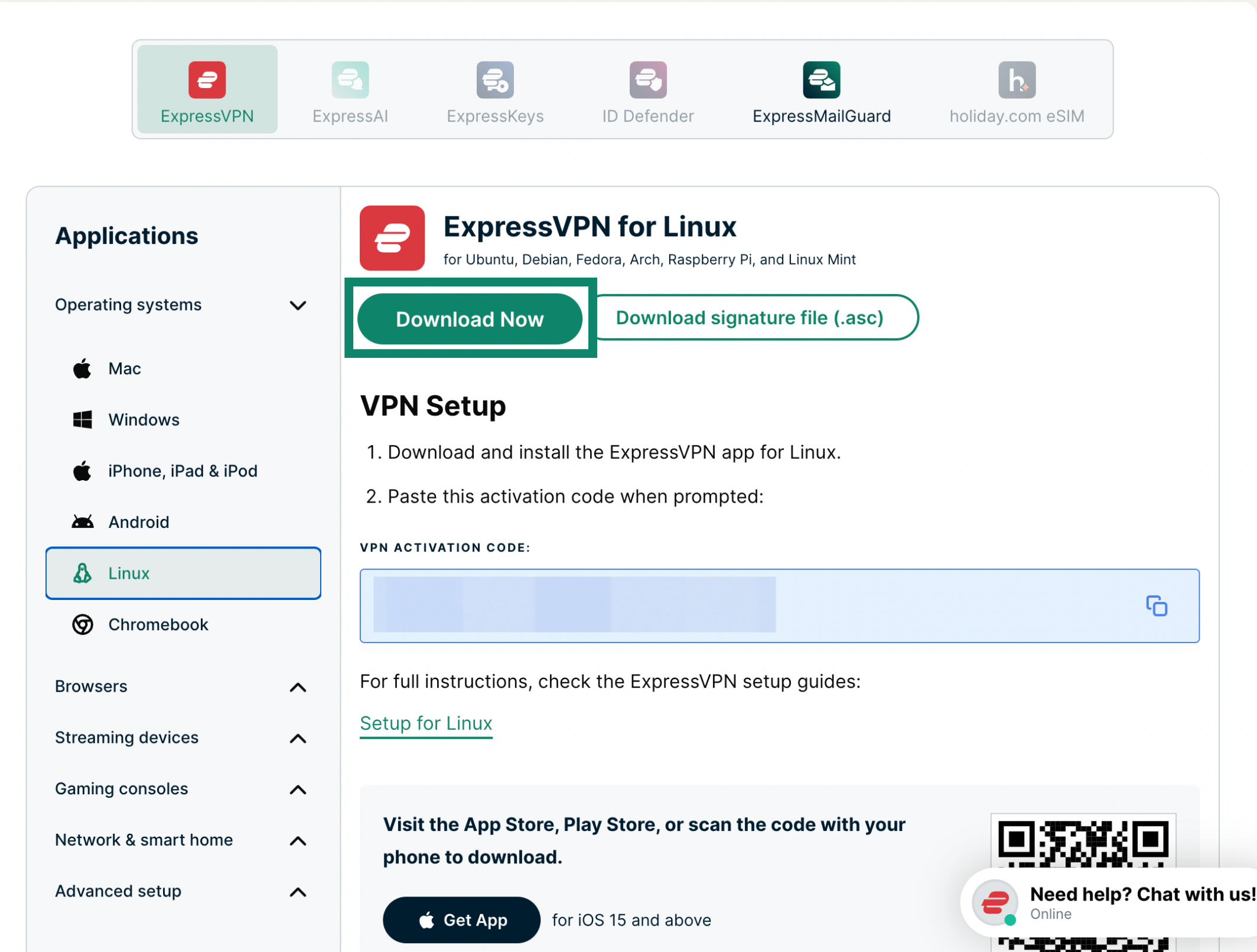
- Select Download Now.

Need help? Contact the ExpressVPN Support Team for immediate assistance.
Install and activate the app
To install the app:
- Open the folder where you downloaded the installer.
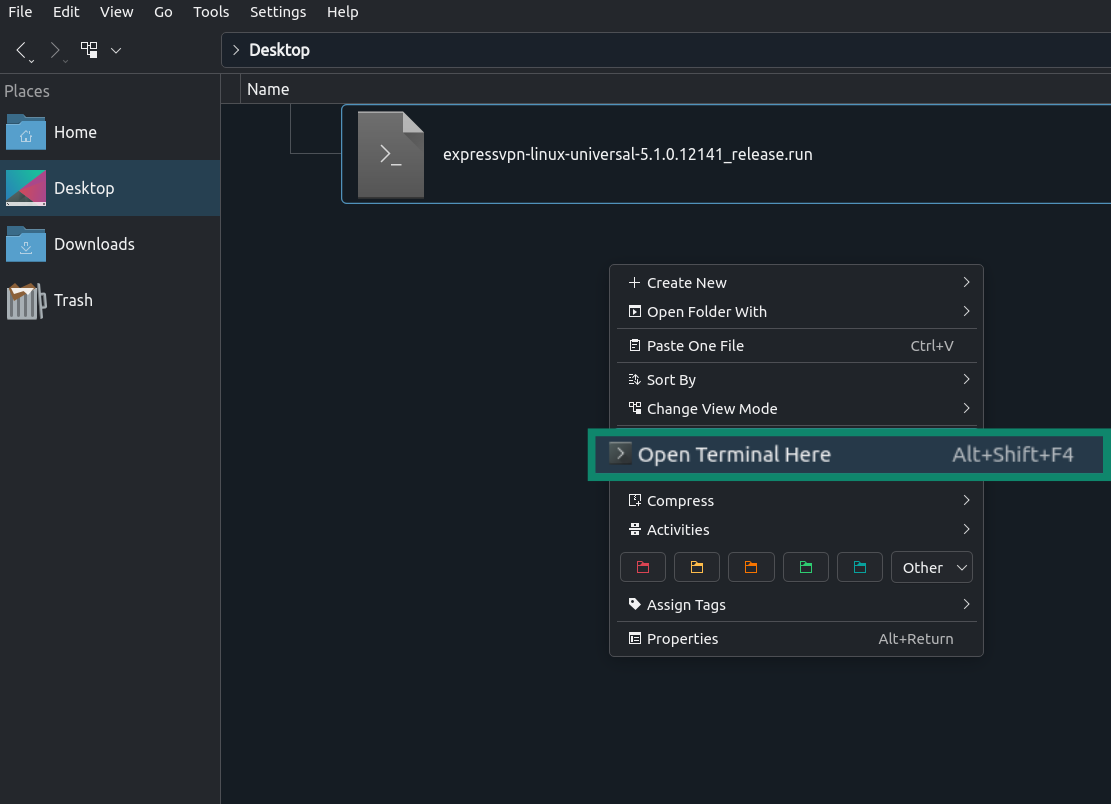
- Open a terminal in that folder:
- Right-click in the folder and select Open Terminal Here (if available).
- Or, open Terminal and navigate to the folder using the command cd.
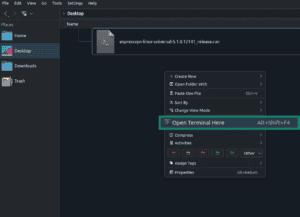

- (Optional) Make the installer executable: chmod +x [installer filename]


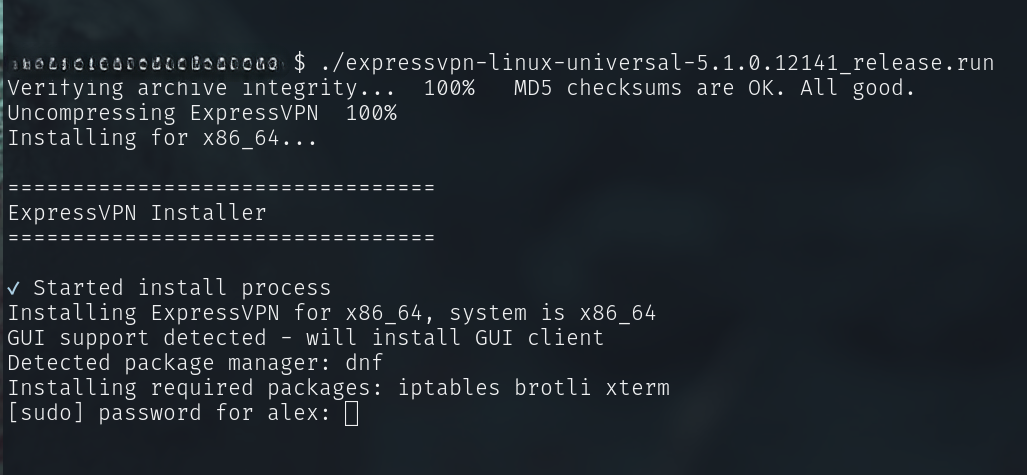
- Run the installer: ./[installer filename]
- If this doesn’t work for your system, try: sh [installer filename]
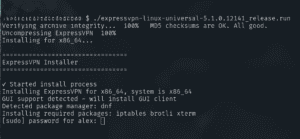

- If this doesn’t work for your system, try: sh [installer filename]
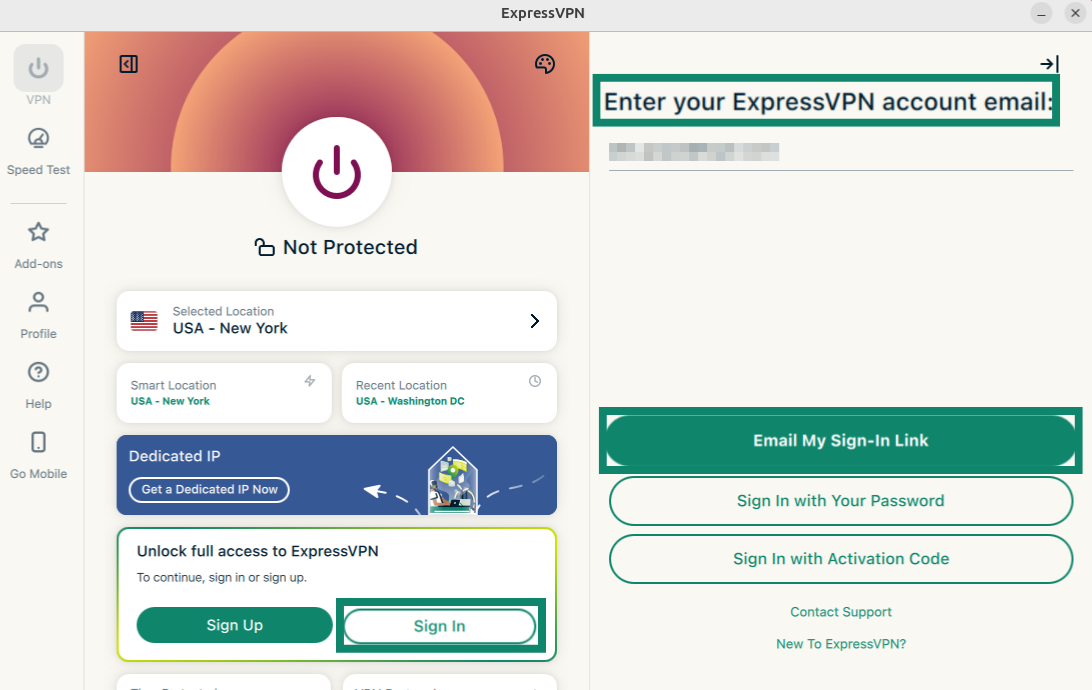
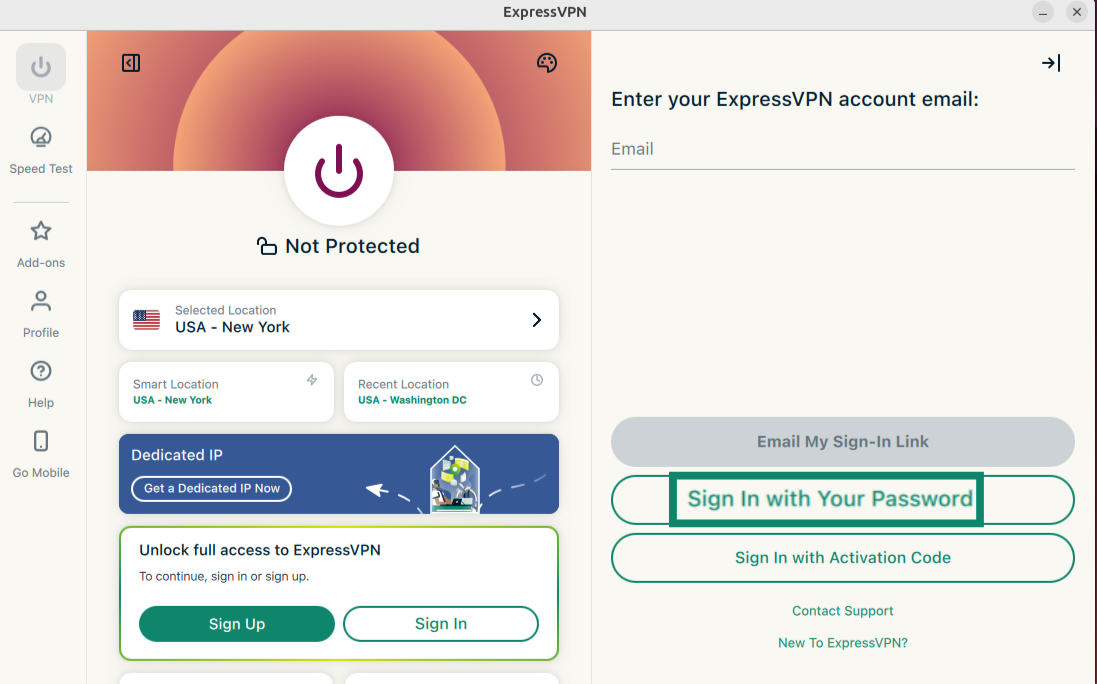
- Enter your Linux device password when prompted. Wait for the installation to complete. The app will launch automatically. Click Sign In.

You can then sign in via one of three options:
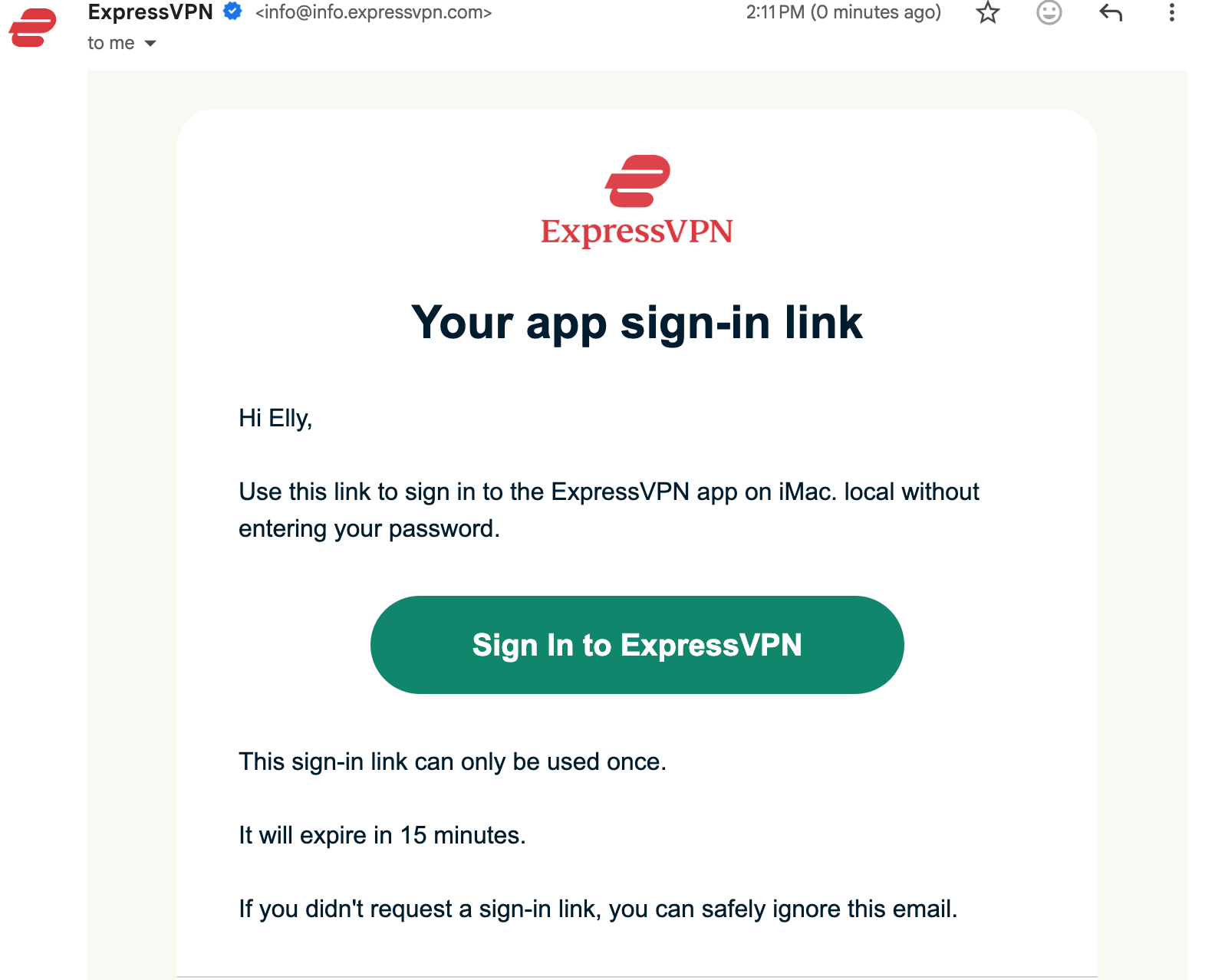
- Click Sign In with Email Sign-In Link.
Enter the email address associated with your ExpressVPN account. Click Email My Sign-In Link.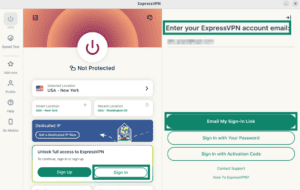
 Open the email and select Sign In to ExpressVPN. The app will be activated automatically and sign you in.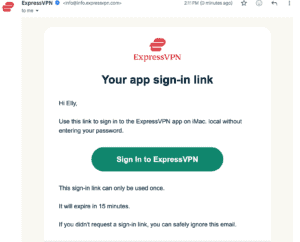

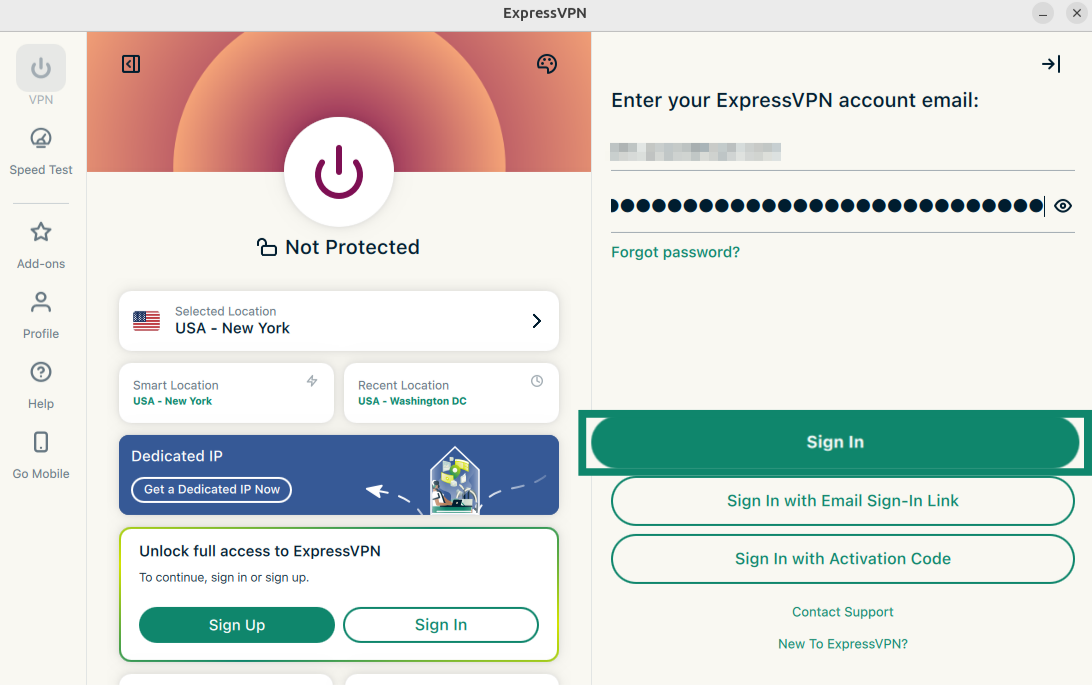
- Click Sign in with Your Password.
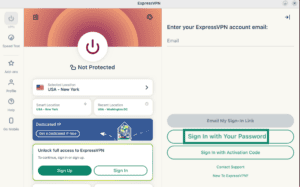
 Enter your ExpressVPN account email and password, then click Sign In.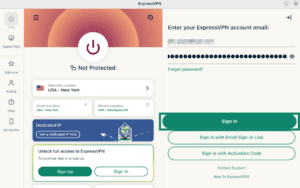

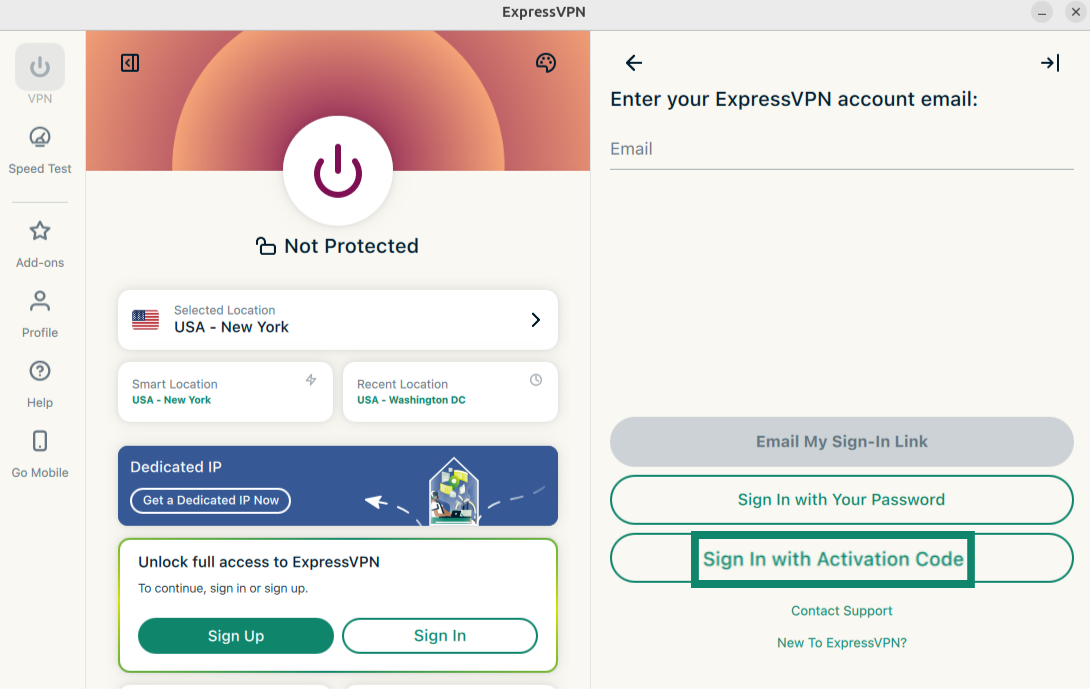
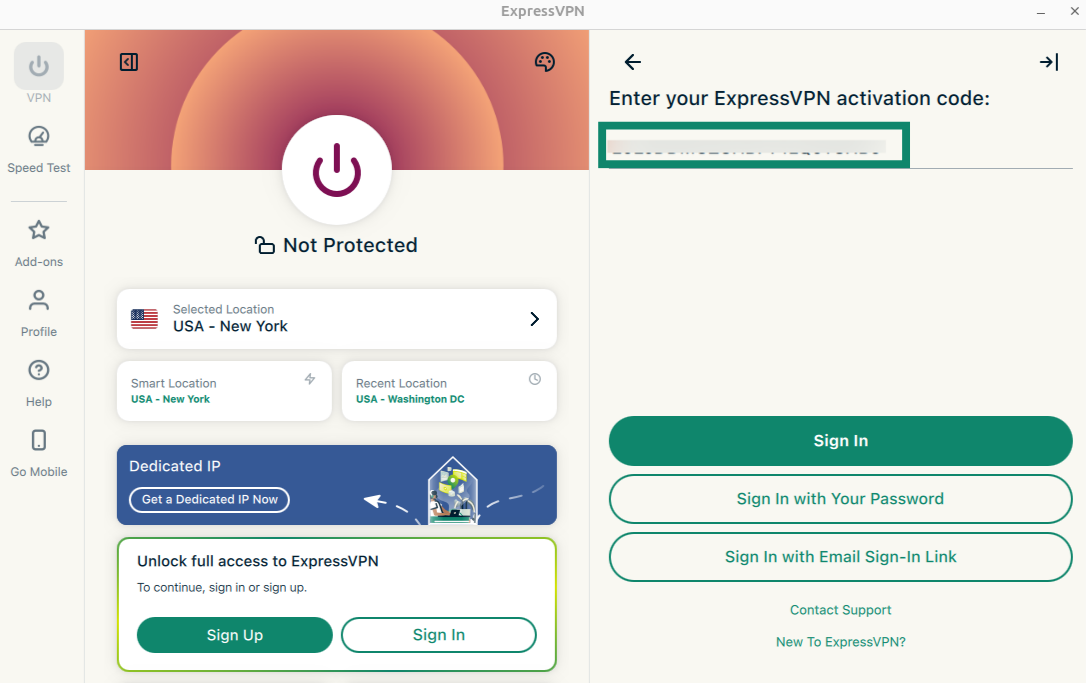
- Select Sign in with Activation Code.
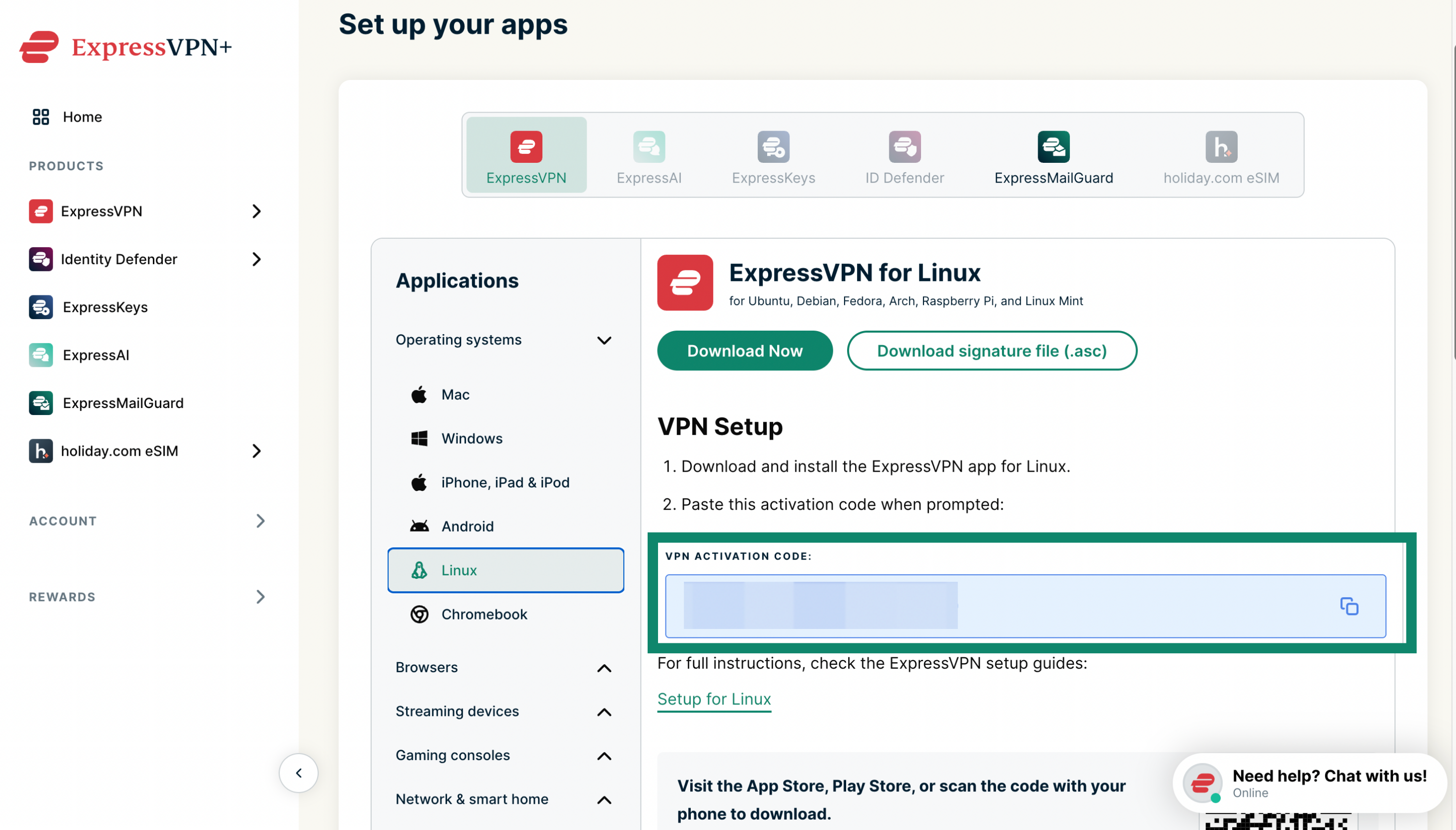
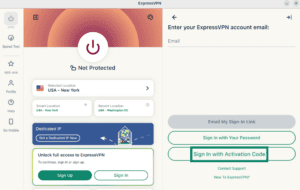 Go to the ExpressVPN+ setup page on your browser, then copy the activation code displayed on the page.
 Enter the activation code and select Sign In.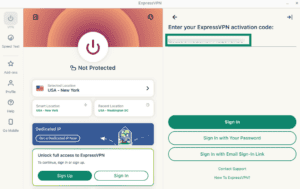

- Once signed in, your device will ask your permission to set up the VPN. Click Continue.
- You will be asked if you want the app to launch automatically on startup. Select your preference to continue.
- You will be asked whether you want to share anonymous diagnostics with ExpressVPN. This helps ExpressVPN continually improve its products and services. Select your preference to continue.
- If Advanced Protection is part of your subscription, you will be asked if you want to block display ads and enable additional safeguards. Select your preference to continue.
You have successfully set up ExpressVPN on your Linux machine. You are now ready to access our many VPN server locations.
Need help? Contact the ExpressVPN Support Team for immediate assistance.
Connect to a VPN server location
To connect to a VPN server location:
- Open the ExpressVPN GUI app for Linux.
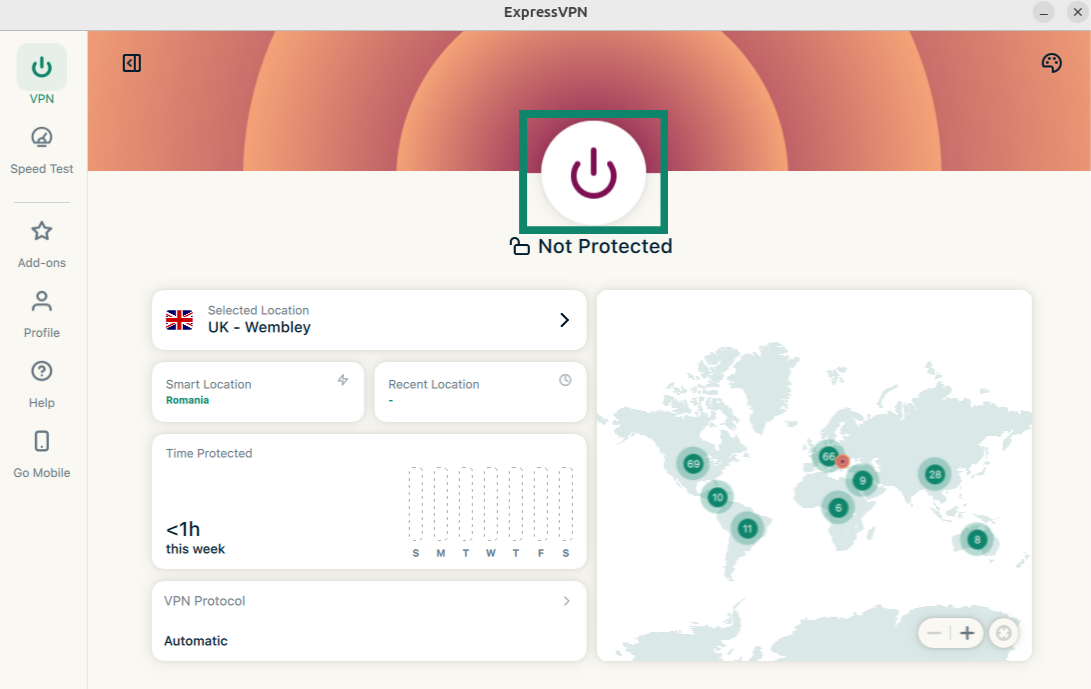
- Click

 . By default, ExpressVPN will suggest the location that provides the optimal experience for you, called Smart Location.
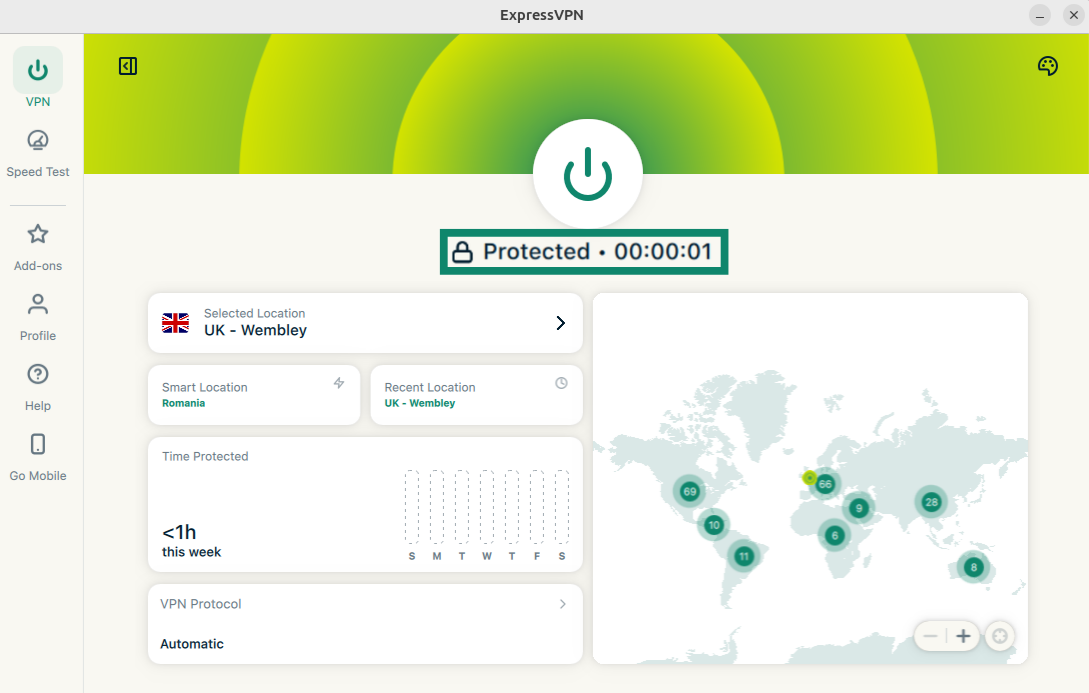
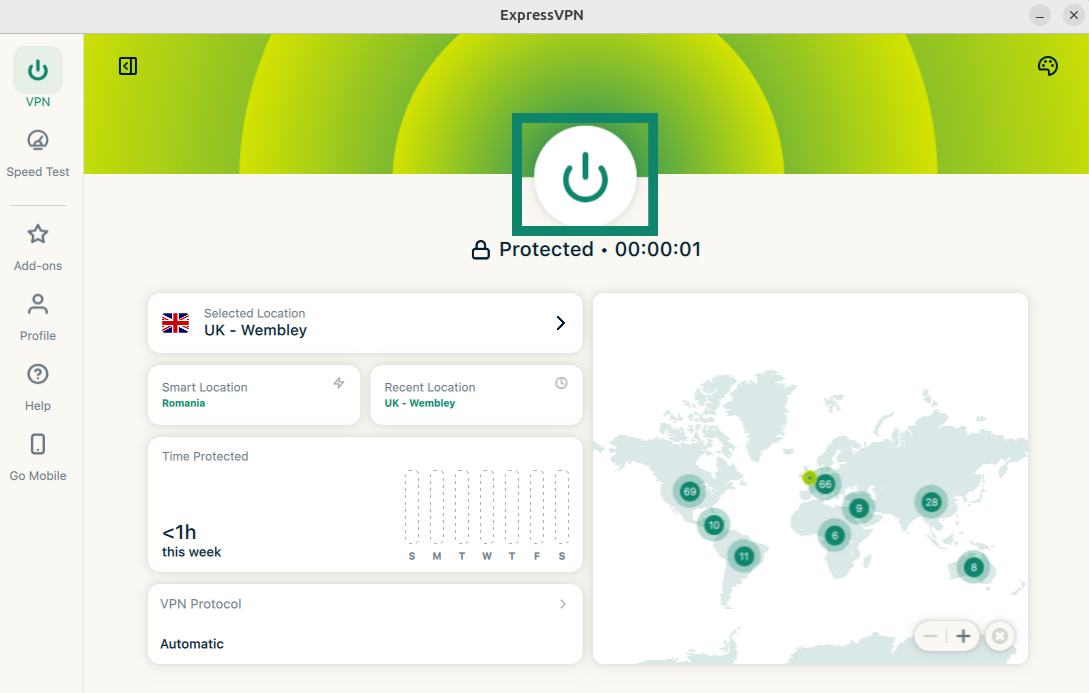
- Once you see the Protected message on the app screen, you can begin surfing with freedom and security!

Note: The number of devices you can connect to the VPN at the same time depends on the subscription tier you chose at checkout:
- Basic: 10 devices at the same time.
- Advanced: 12 devices at the same time.
- Pro: 14 devices at the same time.
If you try to connect more devices than your subscription tier allows at once, you will need to either disconnect one of your 14 devices from the VPN or purchase an additional subscription.
Need help? Contact the ExpressVPN Support Team for immediate assistance.
Disconnect from a VPN server location
To disconnect from a VPN server location:
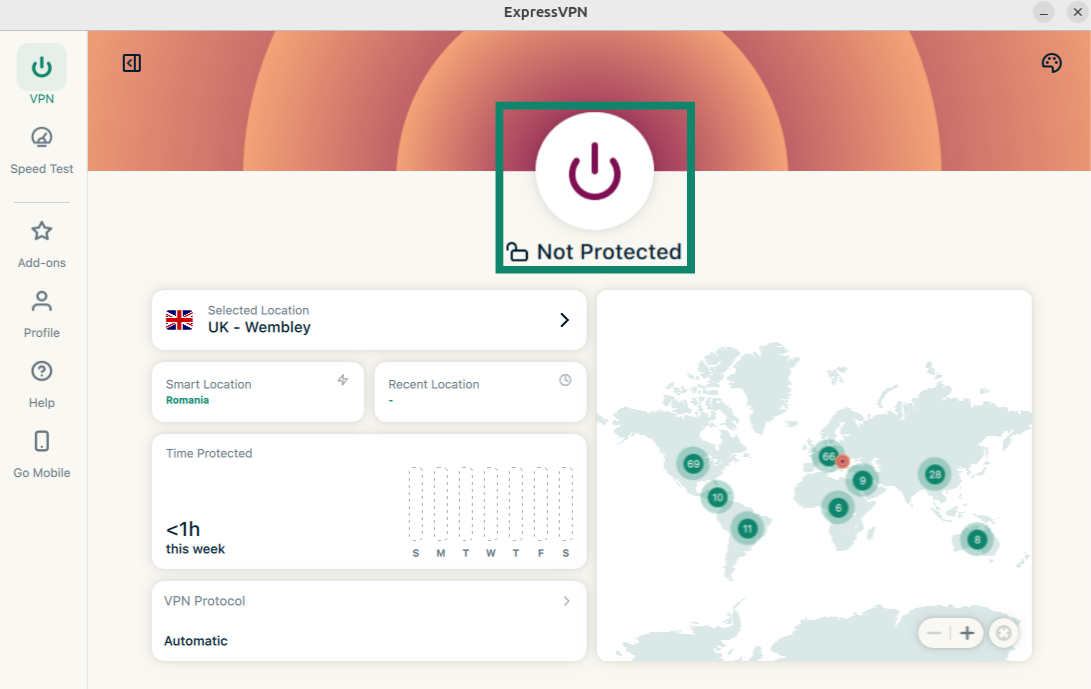
- Click to disconnect from the server location.
- You will know you are disconnected when the screen says Not Protected.
Need help? Contact the ExpressVPN Support Team for immediate assistance.
Connect to a different VPN server location
To connect to a specific VPN server location:
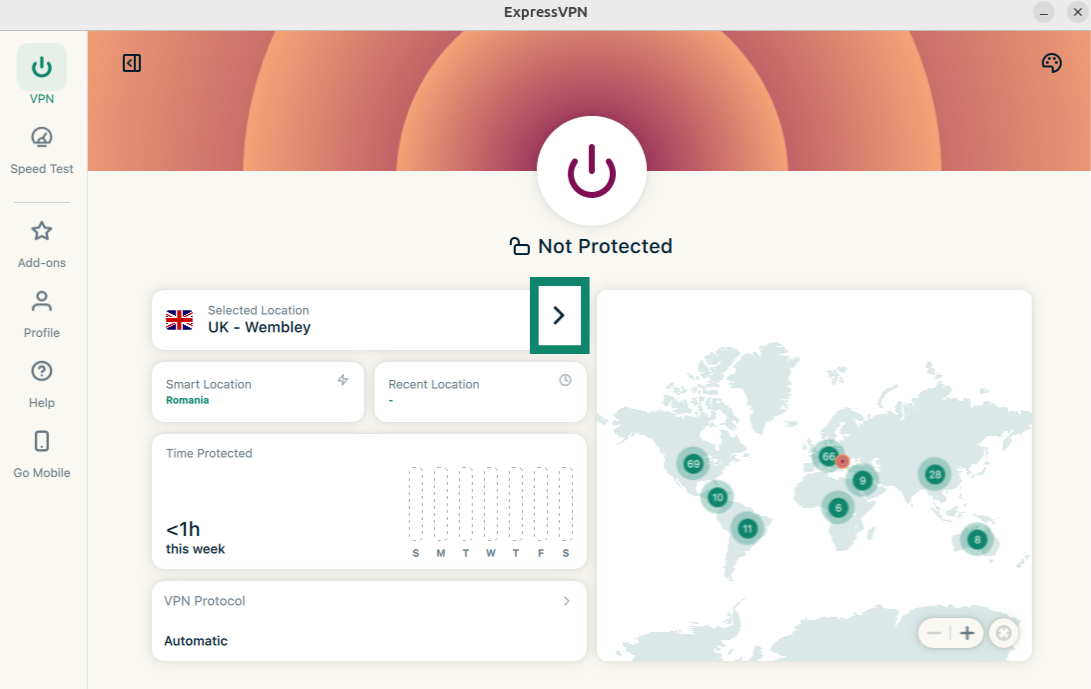
- Click
 next to Selected Location to access the list of VPN locations.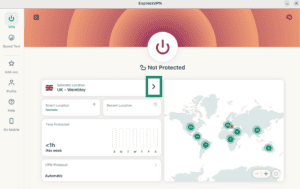
- A list of server locations will appear. Scroll through the list or use the search bar to find a specific location.
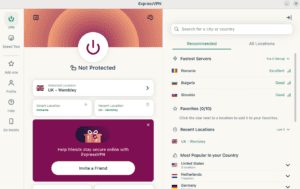
- Click on your desired server location and ExpressVPN will automatically connect you to your selected server location.
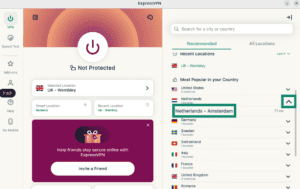
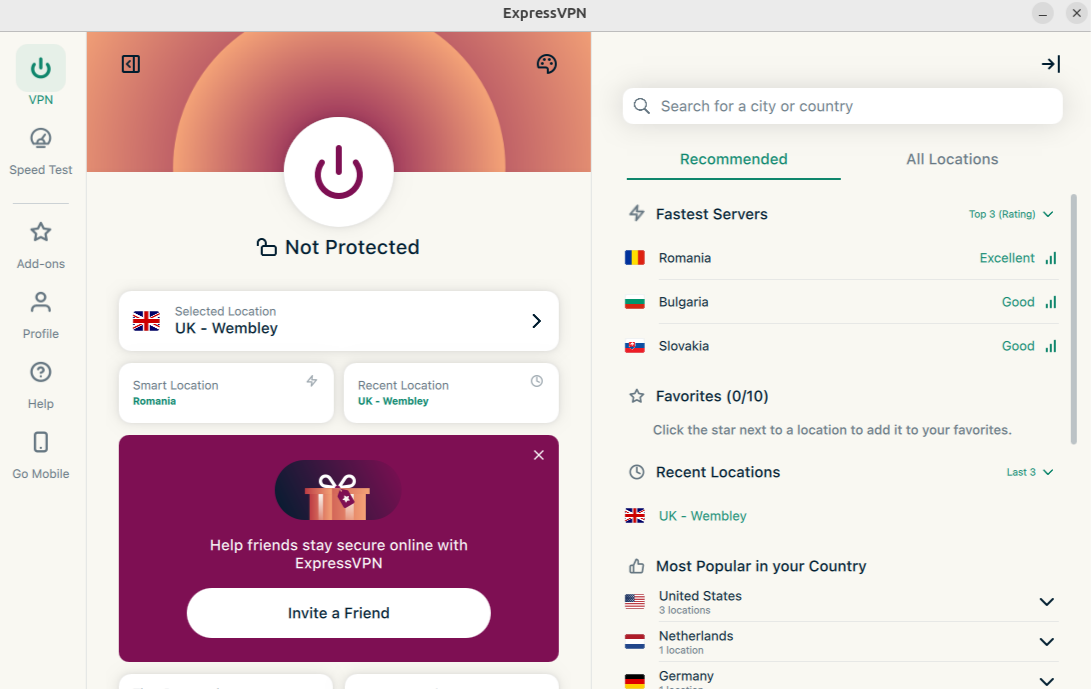
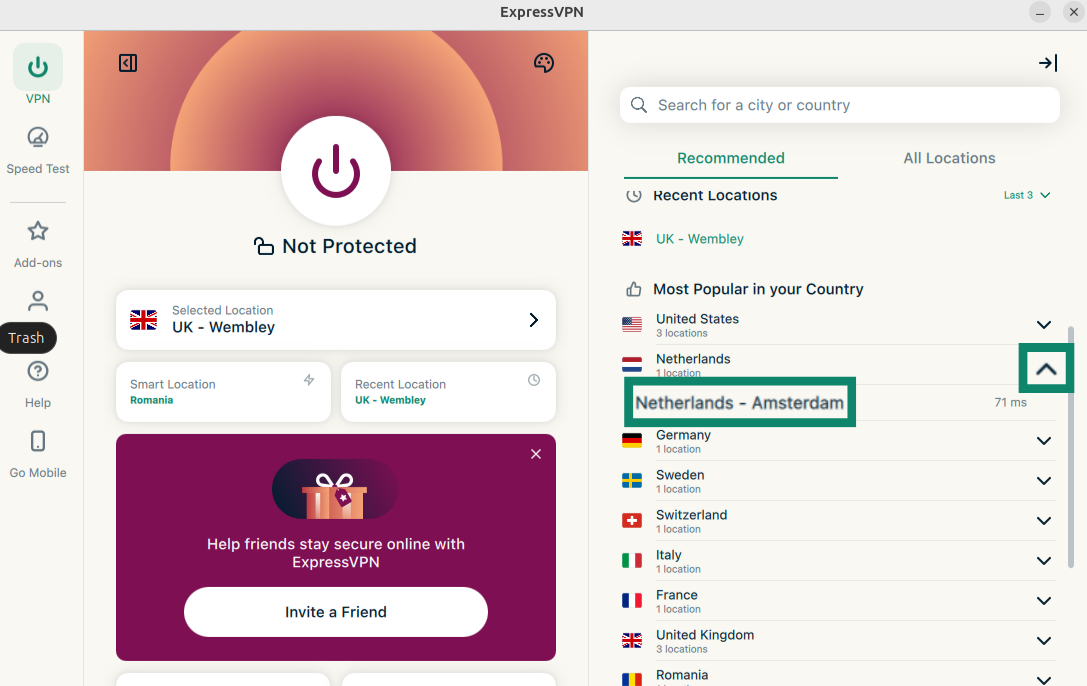
The list of VPN locations has two tabs: Recommended and All Locations.
The Recommended tab includes four sections:
- Fastest Servers: A list of up to five of the fastest servers based on your current location.
- Recent Locations: A list of up to five of the most recent server locations you have connected to.
- Favorites: Server locations you have marked as your favorites. You can add up to 10 server locations.
- Most Popular in Your Country: The server locations most often used by other ExpressVPN users in your country.
How to add locations to your Favorites
To add server locations to your Favorites, click  next to the server location name.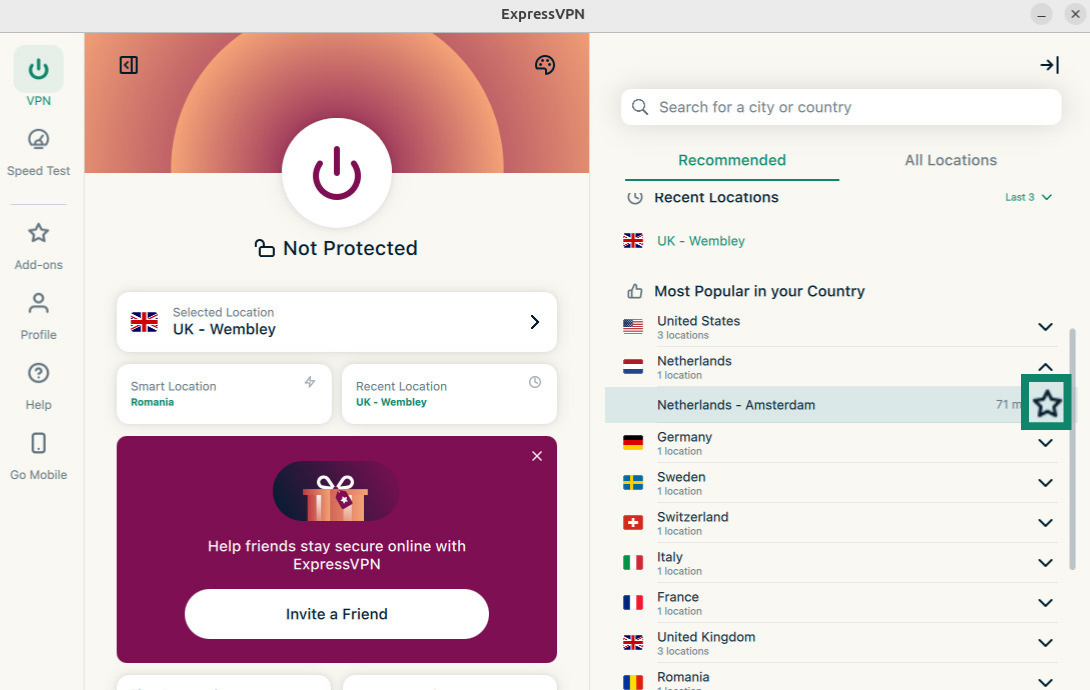
The All Locations tab lists the VPN server locations by region.
You can sort the locations by either Name or number of Endpoints.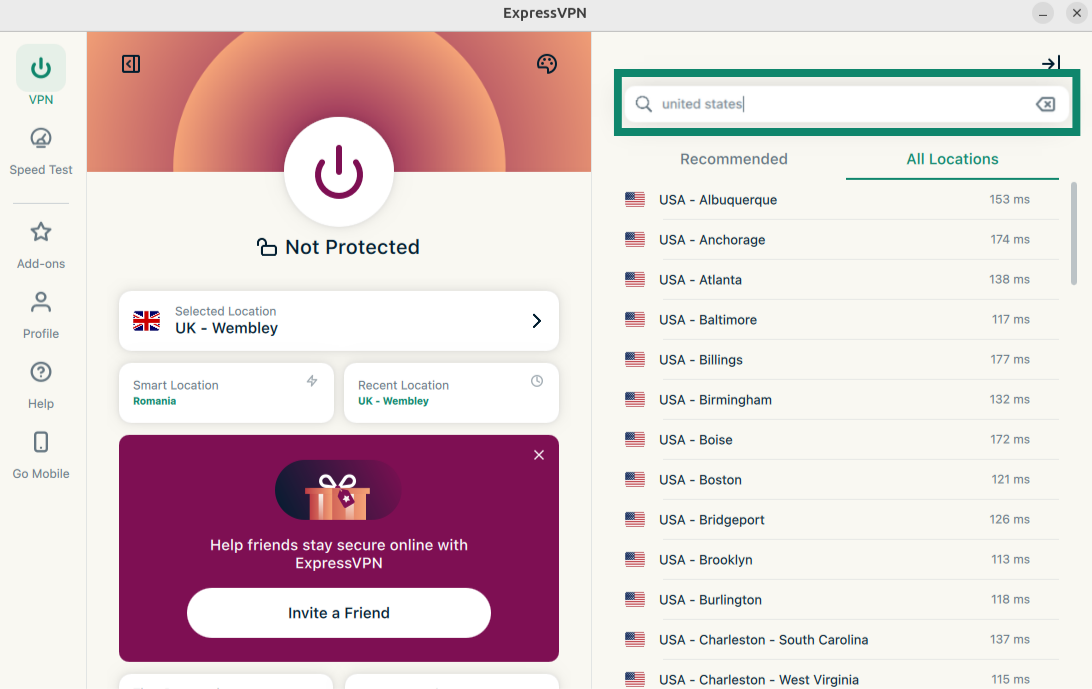
You can also search for your desired server location through the search bar. Inside the search bar, type the name of a location and then click the server in the search results to connect.
After disconnecting from a server location you selected, you can return to your Smart Location (the location recommended for optimal experience) by clicking Smart Location.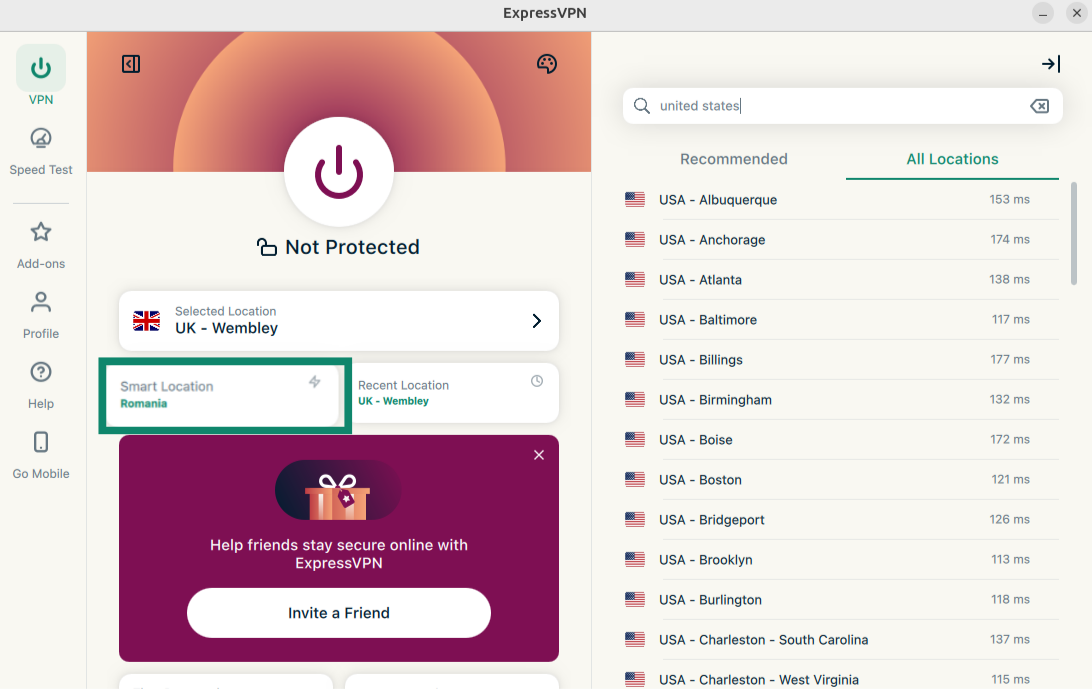
You can also connect to the server location you most recently connected to by clicking Recent Location.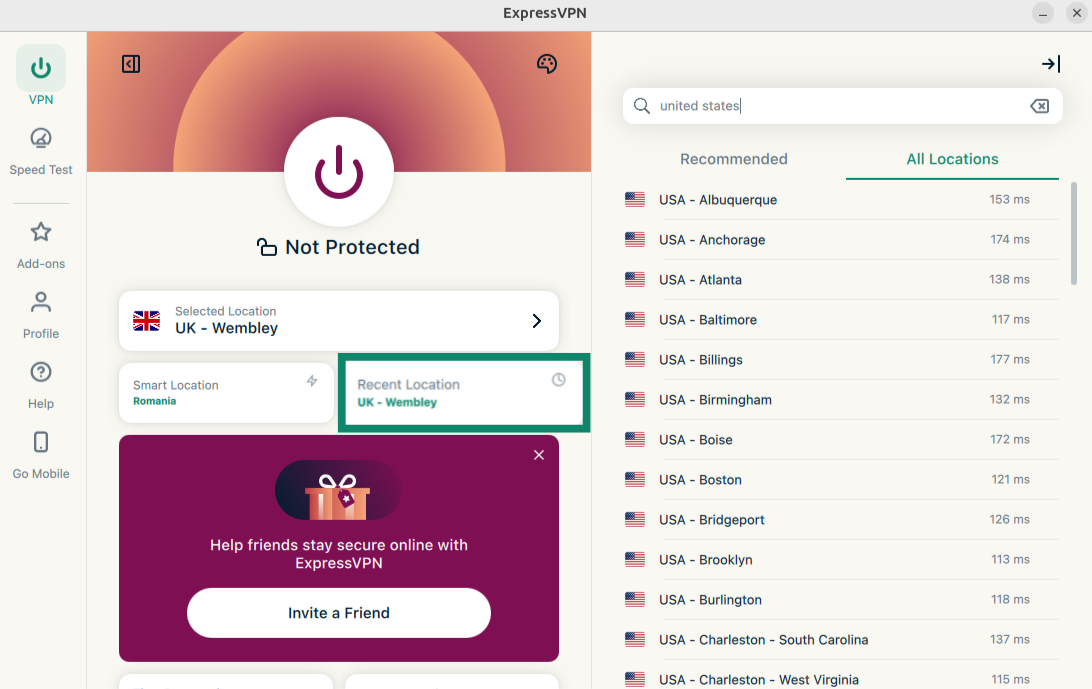
Need help? Contact the ExpressVPN Support Team for immediate assistance.
Switch to a different VPN protocol
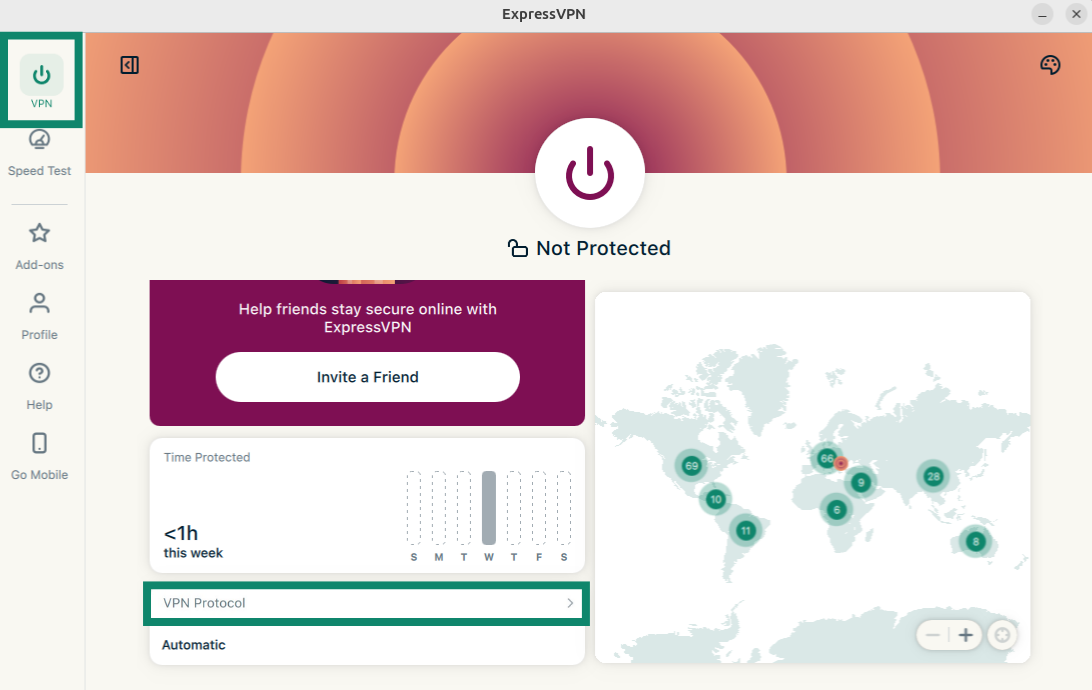
VPN protocols are the methods by which your device connects to a VPN server. For the best experience, ExpressVPN recommends using the Automatic protocol option. This is selected by default and automatically picks the protocol most appropriate for your network.
In some cases, switching to a different protocol can give you faster connection speeds.
To switch to a different VPN protocol:
- Click on the VPN tab. Click VPN Protocol.
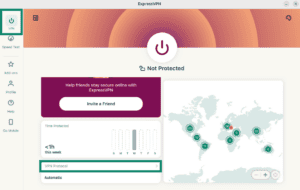
- Click the protocol you want to use.
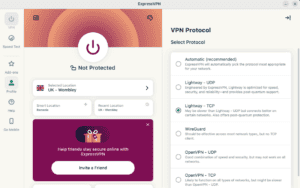
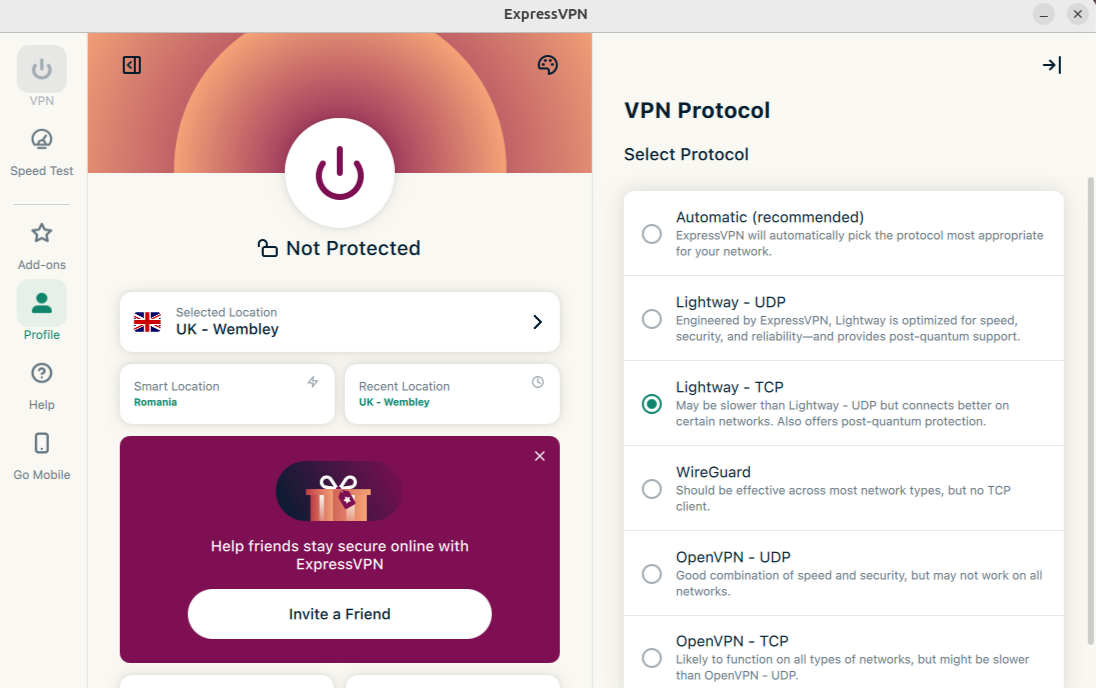
If connecting to a protocol other than Automatic, you will see a pop-up asking if you are sure. Click Change Anyway to continue.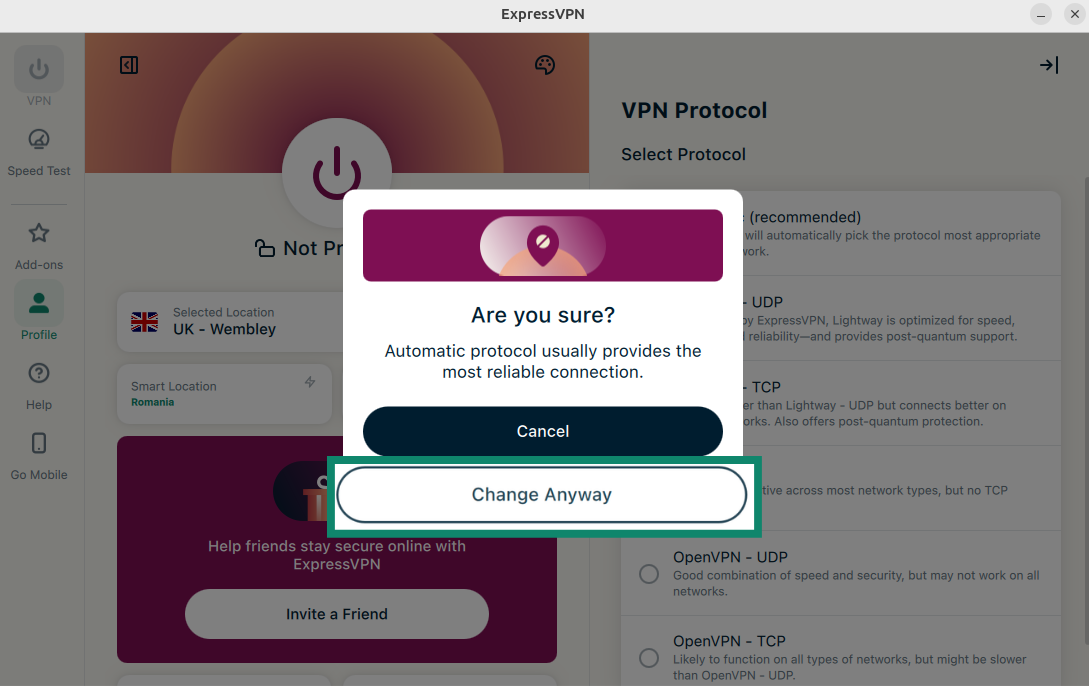
Note: When Advanced Protection features are turned on, only Automatic or Lightway protocols are available.
Need help? Contact the ExpressVPN Support Team for immediate assistance.
Block ads, trackers, and harmful sites
You can block many forms of ads, trackers, malicious sites, and adult content with ExpressVPN’s advanced protection features.
A lot of the apps and websites you visit keep a record of and share your activity with third-party companies, including trackers, scammers, and malware sites. This information is often used to serve you more targeted ads and content.
ExpressVPN’s advanced protection features prevent the apps and websites you visit on your device from communicating with the third-party companies in our open-source blocklists. Note that you must be connected to a VPN server for these features to work.
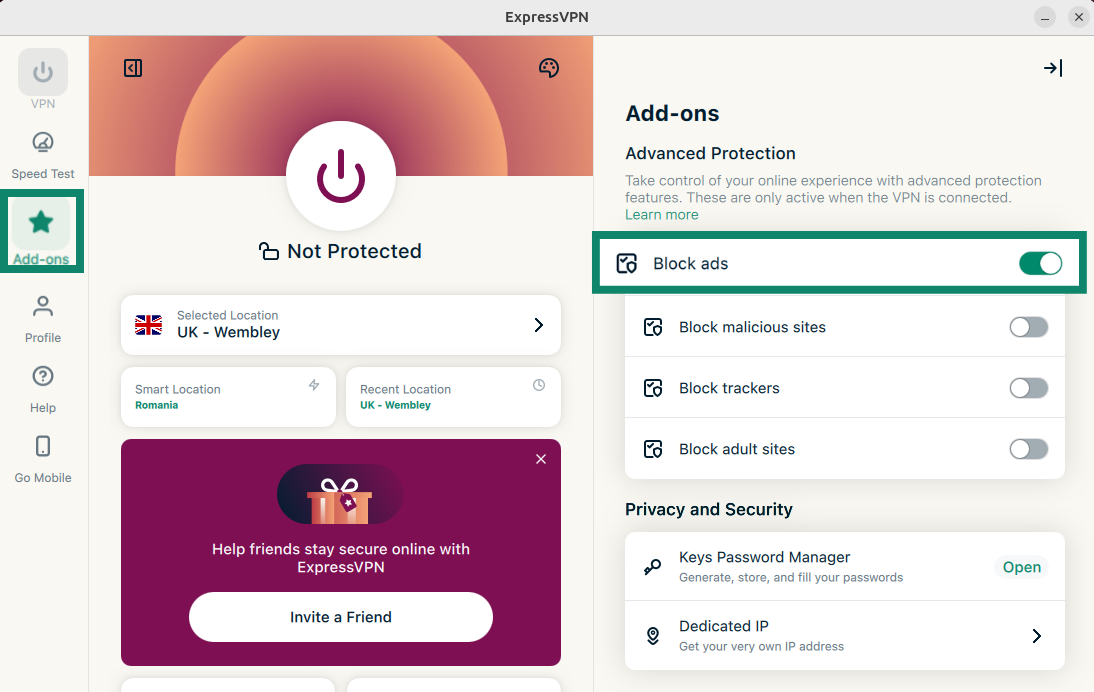
Advanced protection features are disabled by default. To enable them:
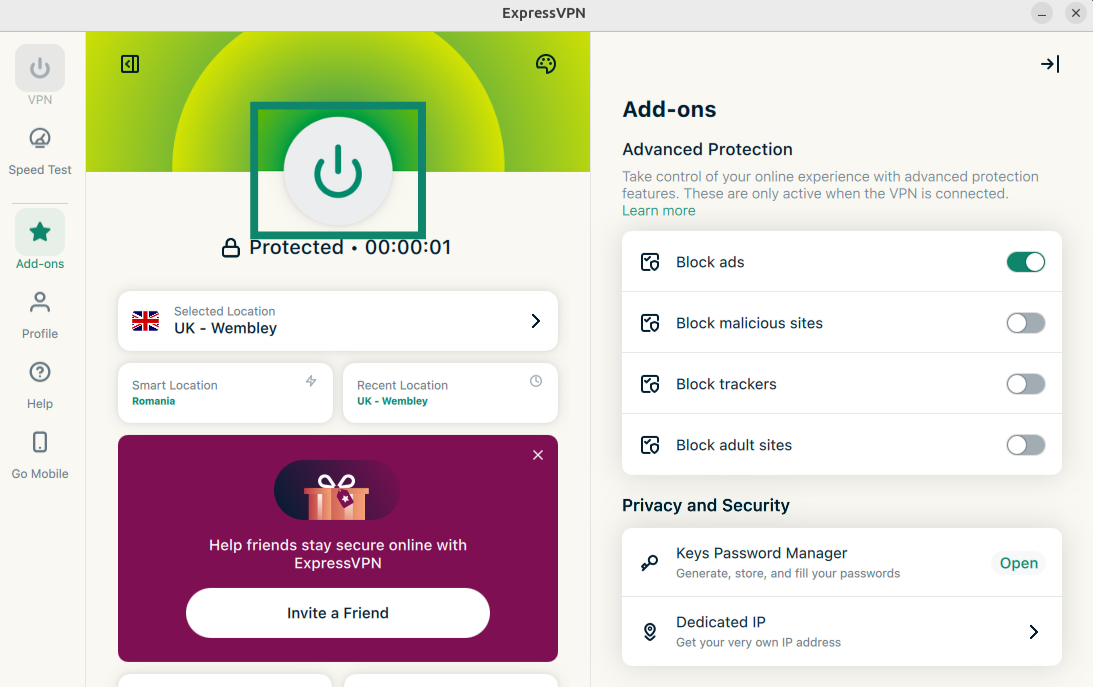
- Click the Add-ons tab. Under Advanced Protection, toggle on/off the features to fit your needs.
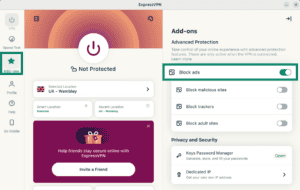

- Click to reconnect to the VPN and apply the changes.
Read more about ExpressVPN’s advanced protection features.
Need help? Contact the ExpressVPN Support Team for immediate assistance.
Speed test
You can run a speed test within the ExpressVPN. Here you can compare the speed of your current VPN location versus the speed of your internet service provider (ISP).
To run a speed test:
- Click the Speed Test tab. Click the Play button to start the speed test. You will get the results after a few minutes.
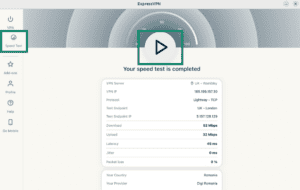
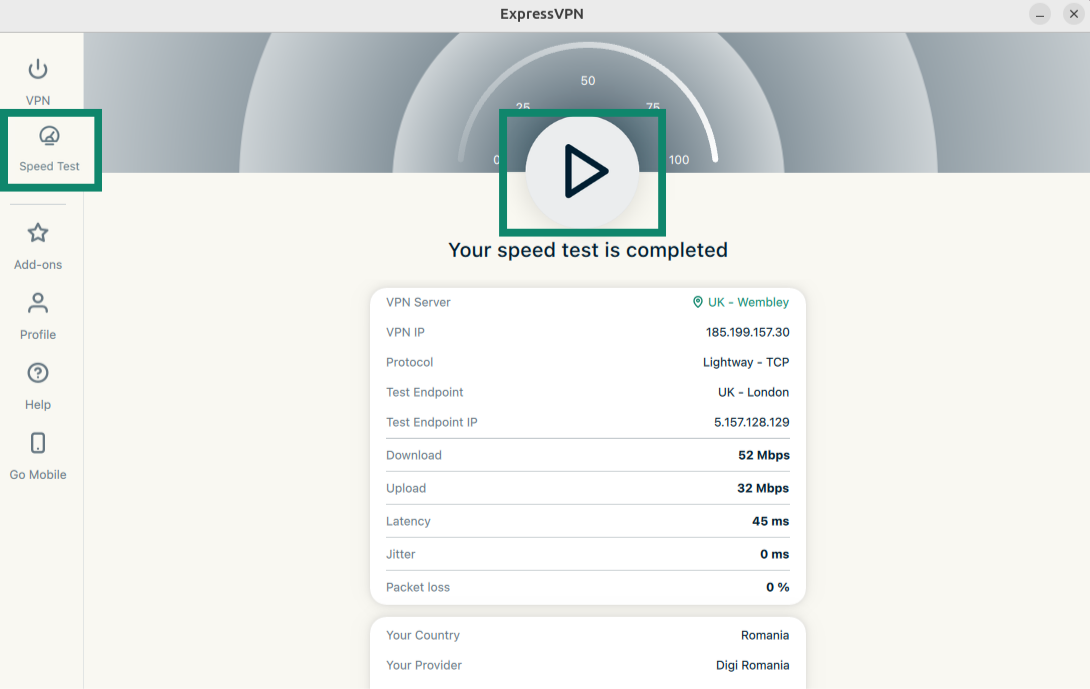
You can find more information about ExpressVPN’s speed test here.
Need help? Contact the ExpressVPN Support Team for immediate assistance.
Launch and connect to ExpressVPN on startup
You can configure whether ExpressVPN automatically launches and connects after your Linux starts up. You can also configure ExpressVPN to connect to the last used location when you launch the app. To do so:
- Click the Profile tab. Click to toggle Launch ExpressVPN on startup and Connect on launch on. You might need to scroll down to find them.

- To disable, simply turn the toggles off.
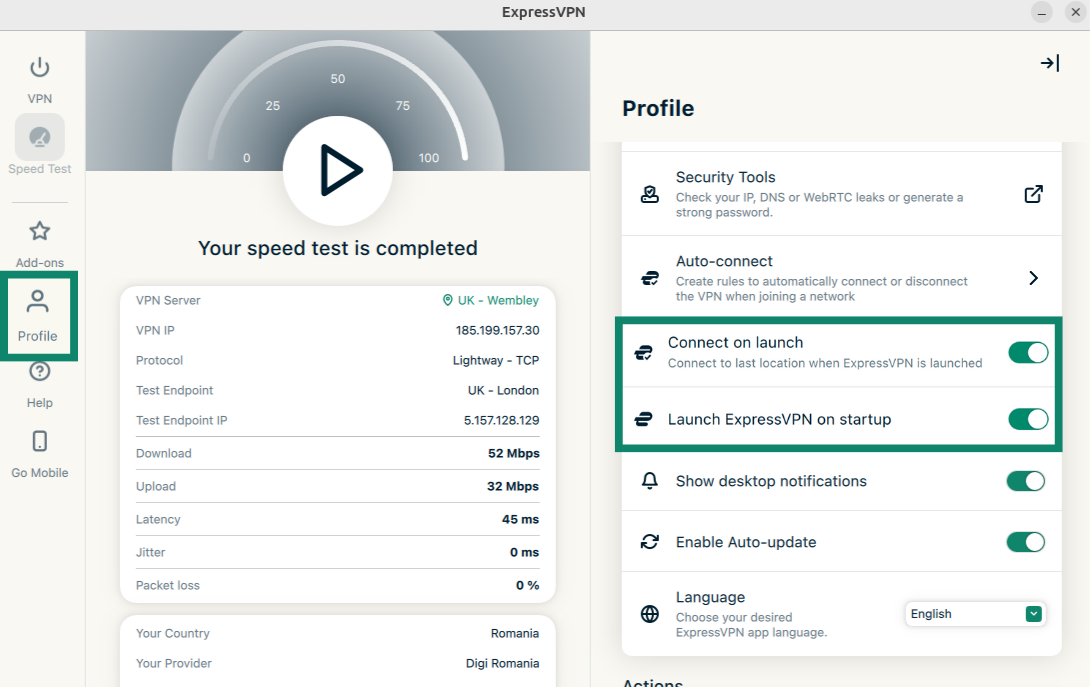
Need help? Contact the ExpressVPN Support Team for immediate assistance.
Use split tunneling
Split tunneling lets you exclude some apps from ExpressVPN, so that they connect to the internet directly.
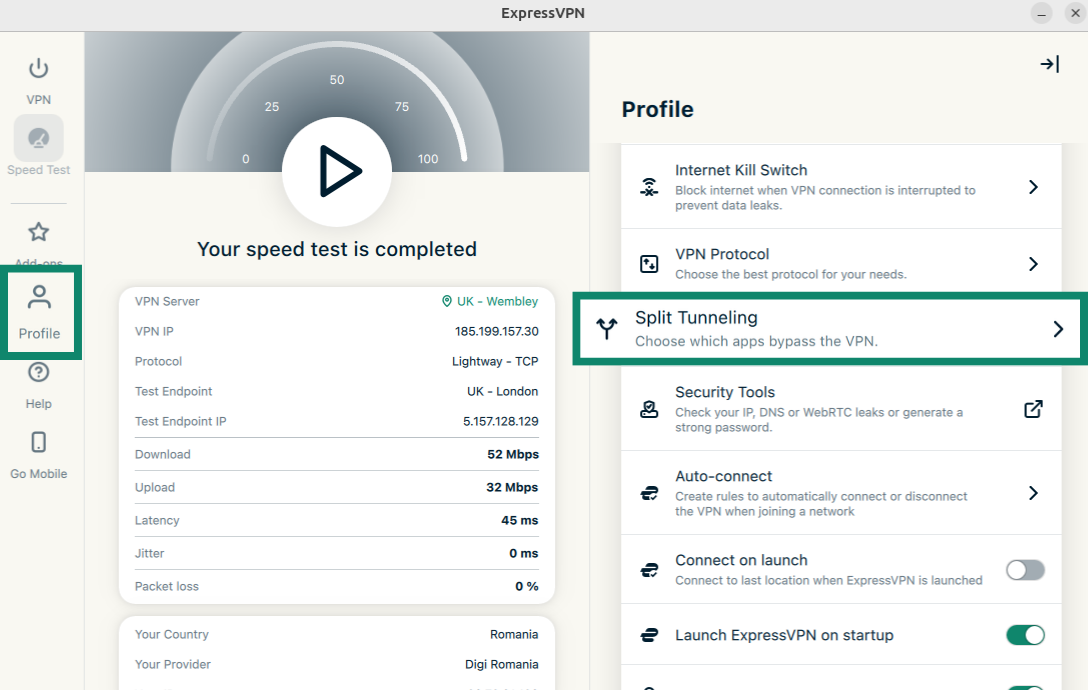
To change your split-tunnel settings:
- Click the Profile tab. Click Split Tunneling.

- Click the toggle to enable split tunneling.
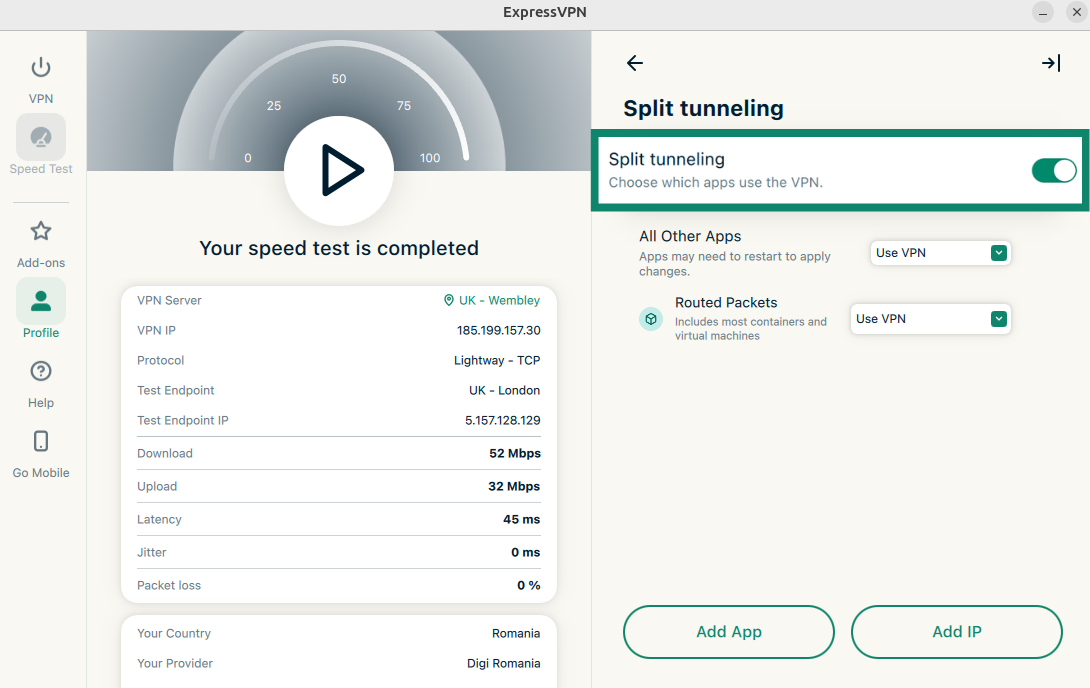
From there, you can adjust your split tunneling settings.
Add Apps
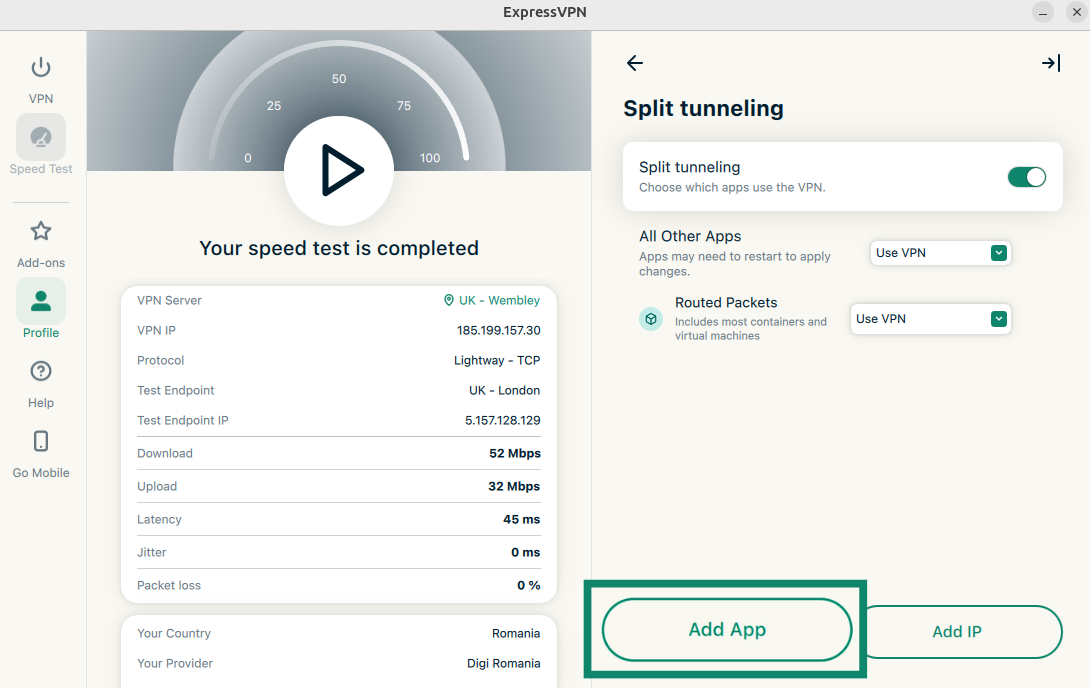
- Click Add App.
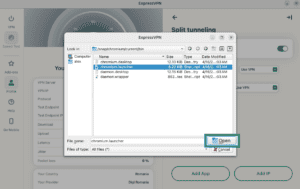
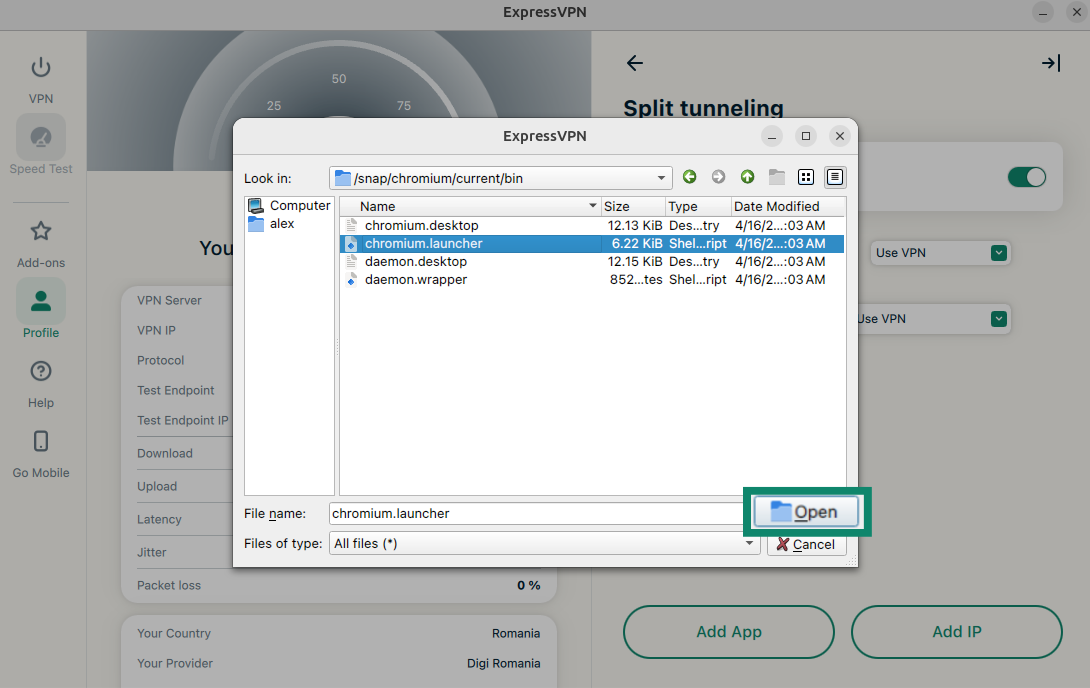
- Find and click on the app you want to add. Click Open.
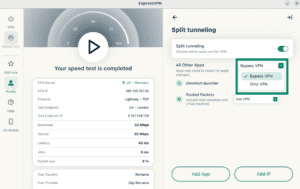
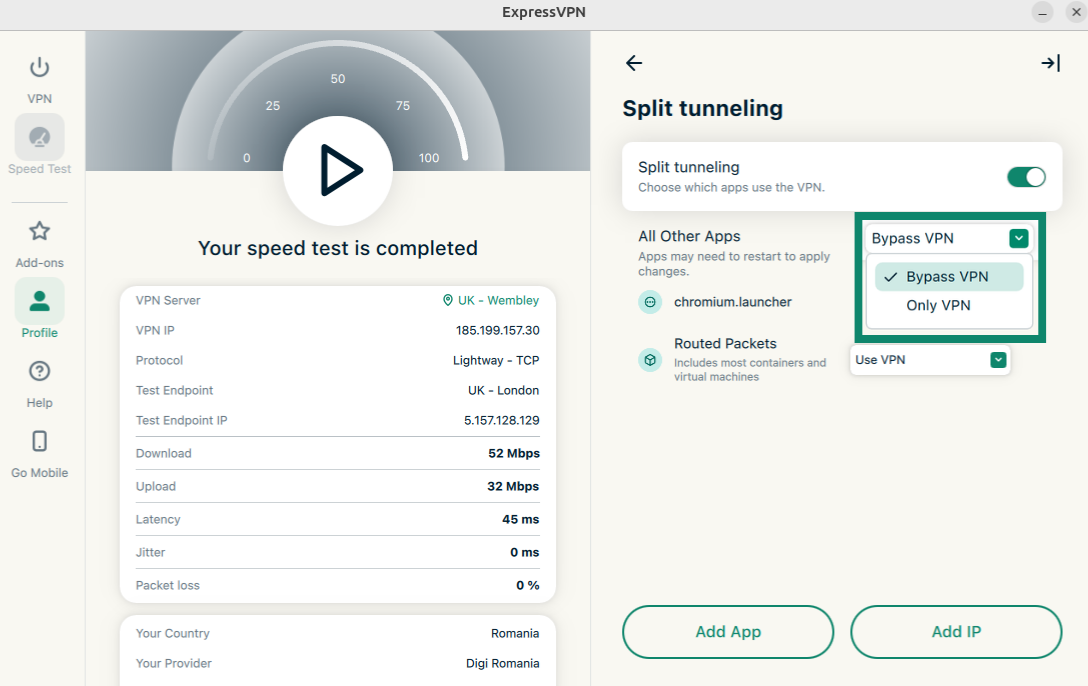
- Click the dropdown next to the app you just added. Choose either Bypass VPN or Only VPN.
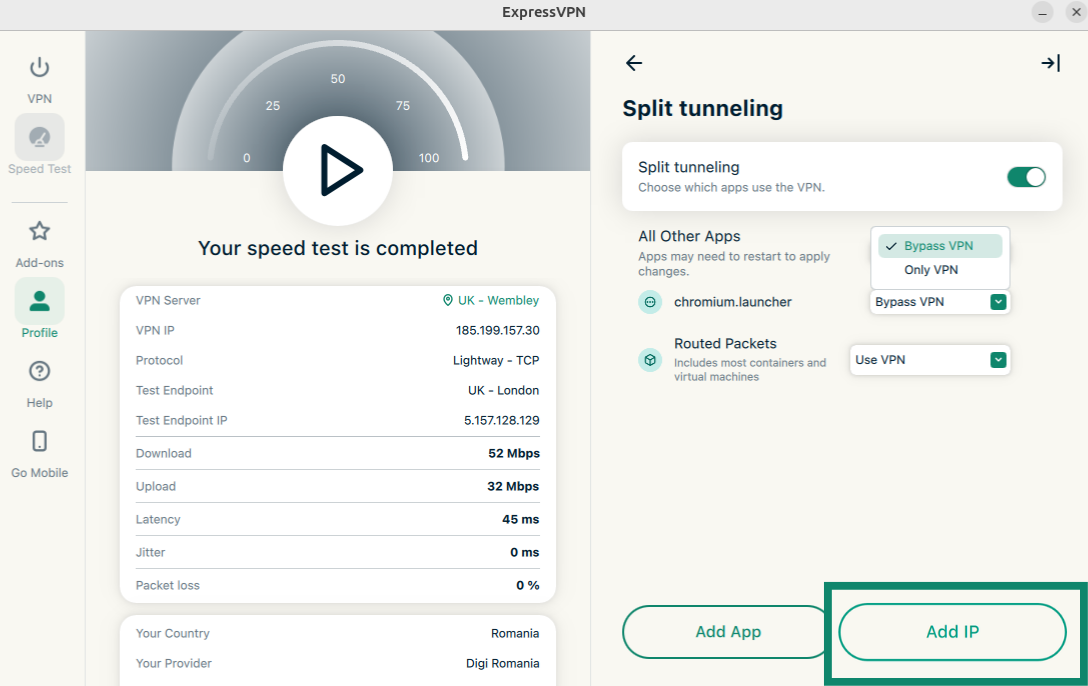
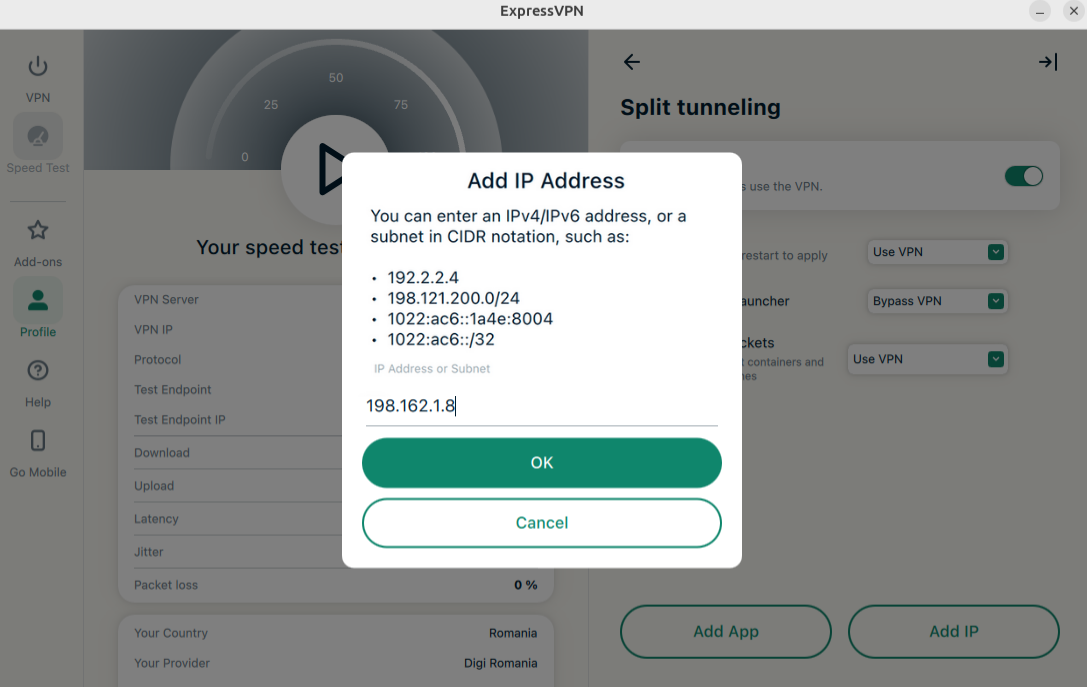
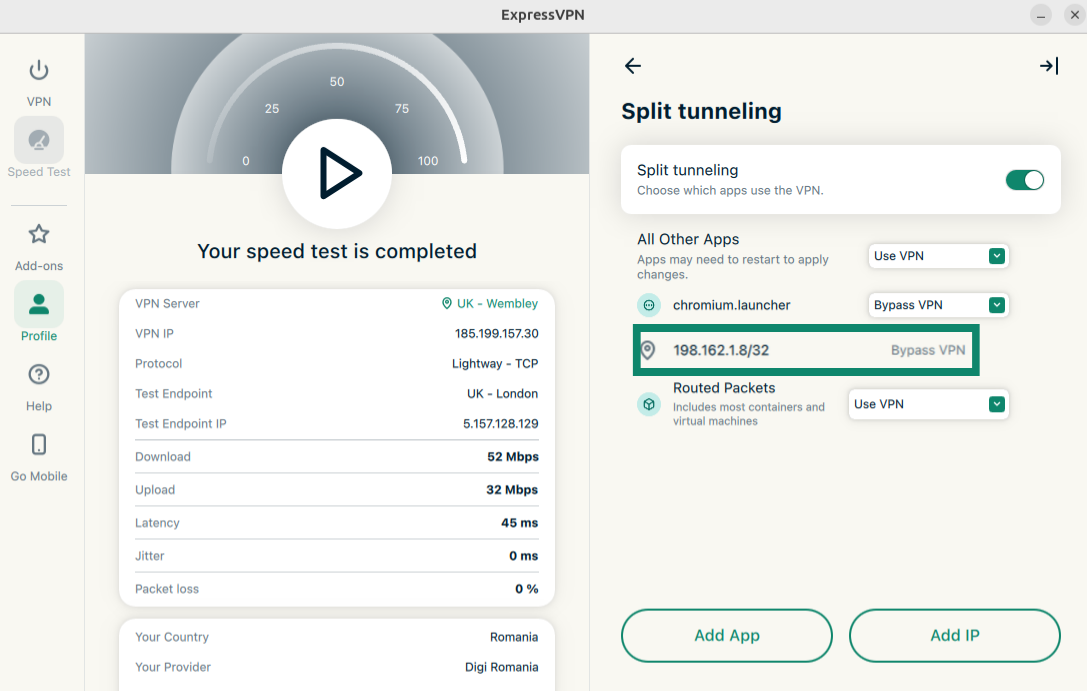
Add IP Address
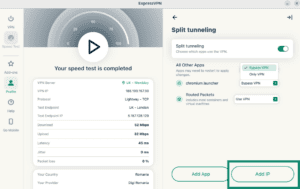
- Click Add IP.
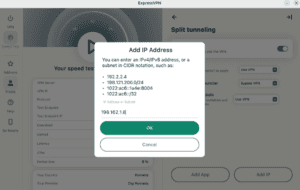
- Enter an IPv4/IPv6 address or a subnet in CIDR notation and click OK.
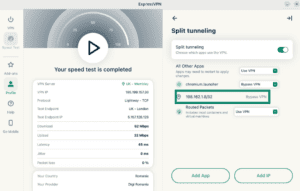
- The app will show that this IP address will now bypass the VPN.
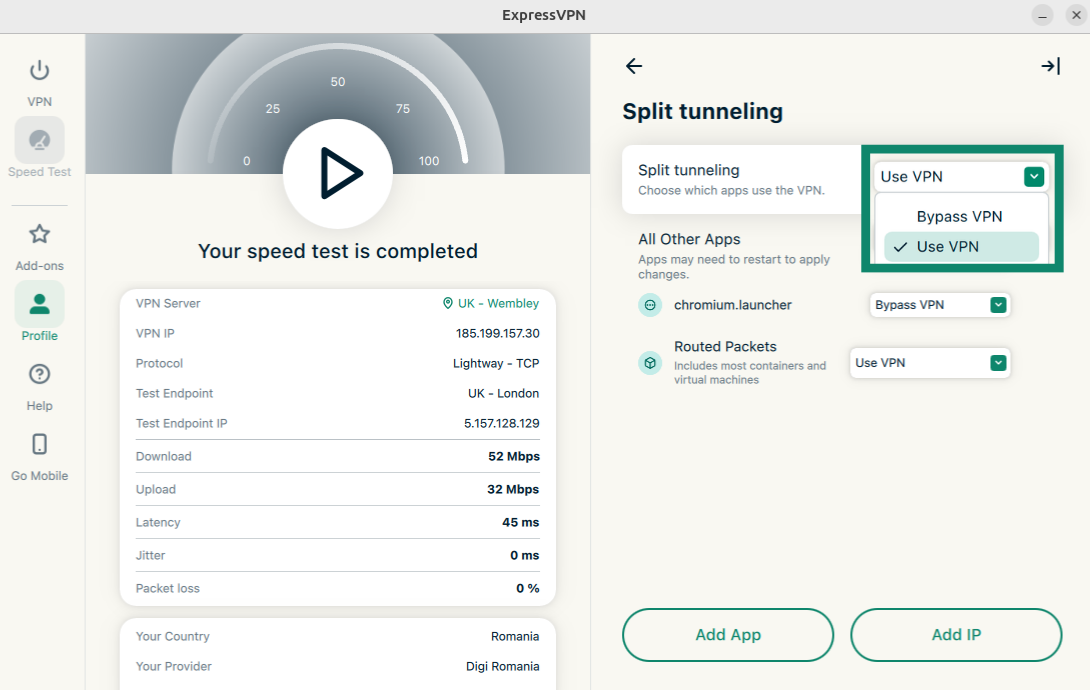
All Other Apps
This option enables you to decide the split tunneling rules for all the other apps on your device.
To adjust the settings for other apps:
- Click the dropdown menu next to All Other Apps.
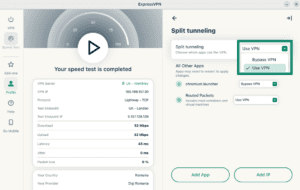
- Choose either Bypass VPN or Use VPN.
Need help? Contact the ExpressVPN Support Team for immediate assistance.
Advanced kill switch
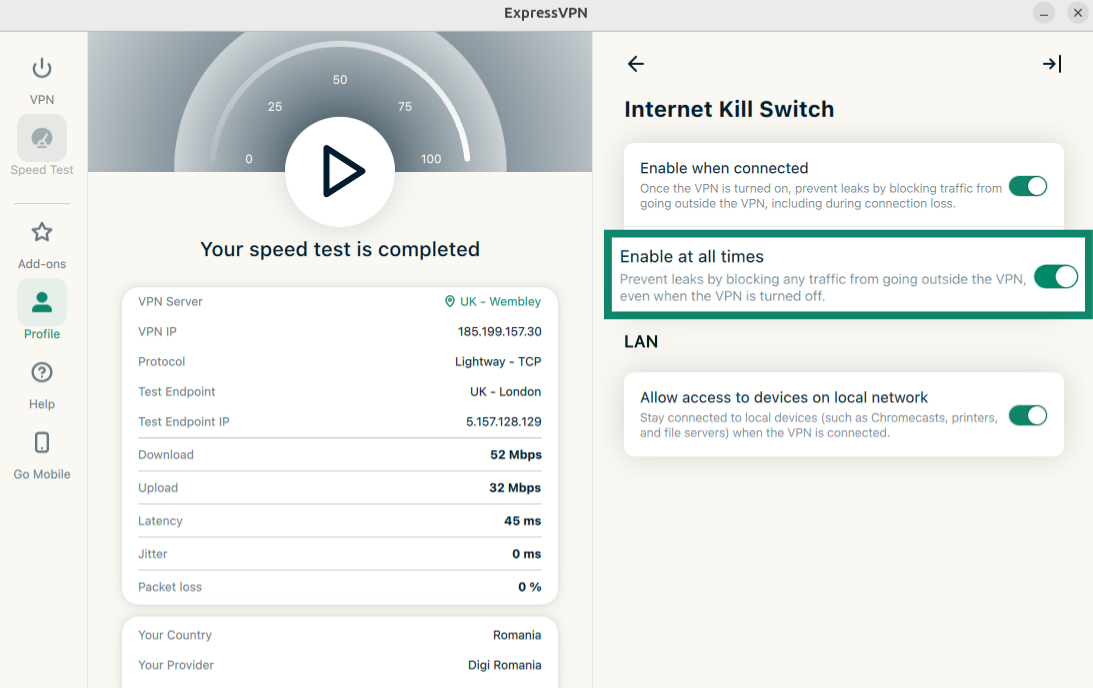
The ExpressVPN app for Linux includes an advanced kill switch. When enabled, this advanced kill switch prevents data leaks even when the VPN is off. All internet traffic is blocked unless the VPN is active.
The standard kill switch is enabled by default. To disable:
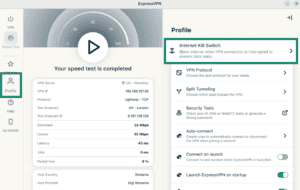
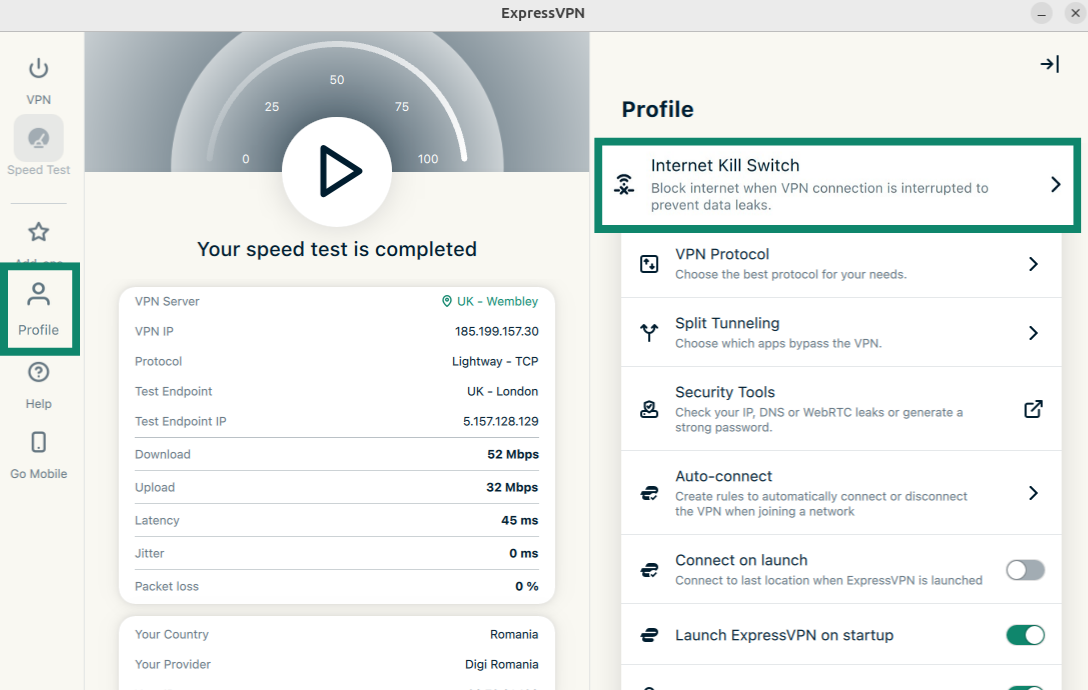
- Click on the Profile tab. Under Settings, click Internet Kill Switch.
- Click Enable when connected.
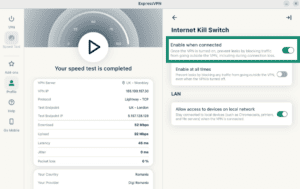
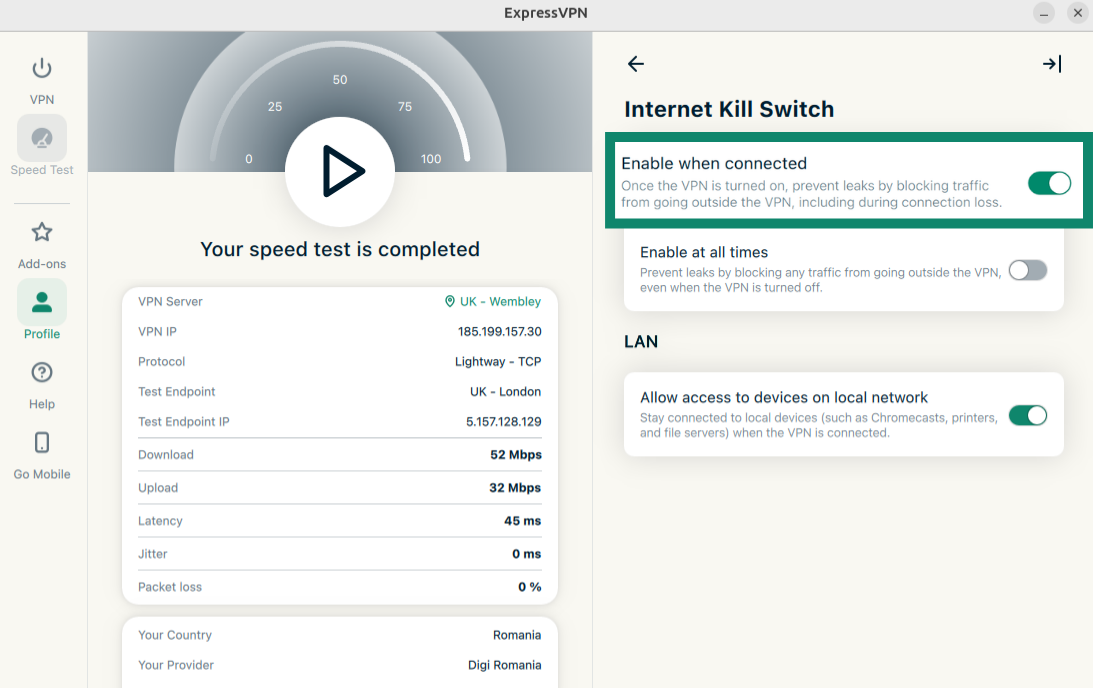
In the ExpressVPN GUI app for Linux, the advanced kill switch is indicated by a checkbox for Enable at all times:
- When checked: All your internet traffic is blocked unless you’re connected to the VPN. This offers an extra layer of security to protect your data.
- When unchecked: The kill switch works as normal, only blocking internet traffic if your active VPN connection unexpectedly drops.
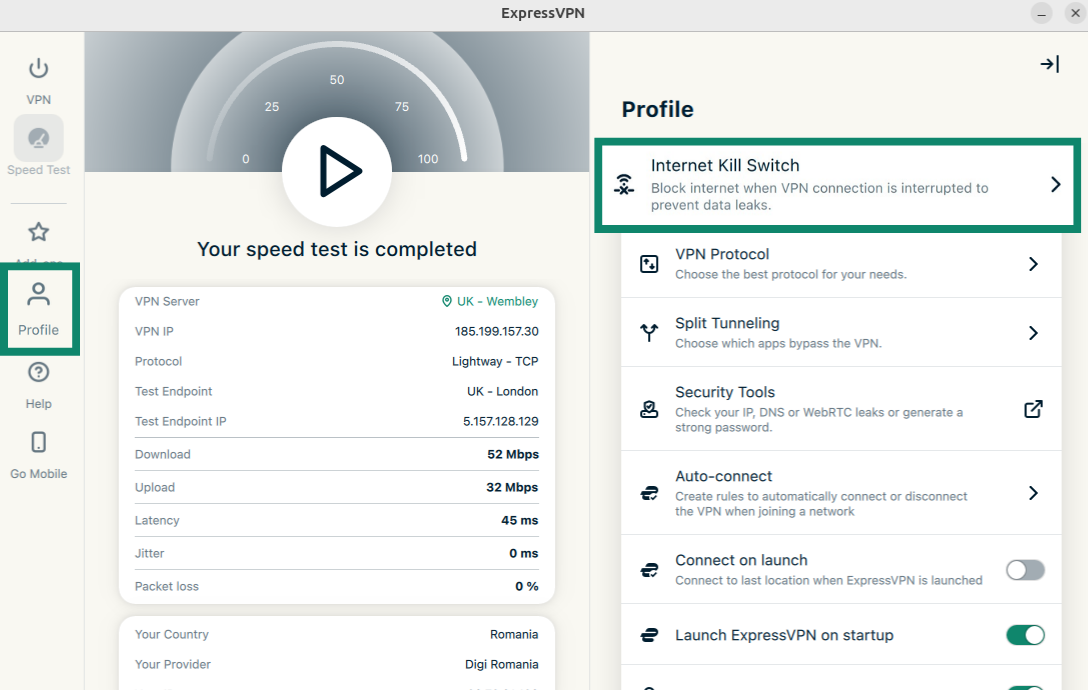
To enable/disable the Advanced Internet Kill Switch:
- Click the Profile tab. Under Settings, click Internet Kill Switch.
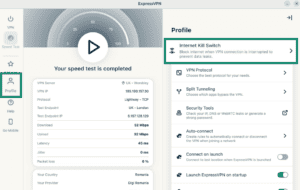
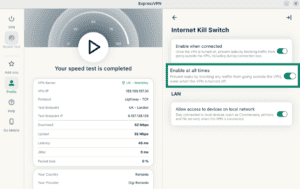
- Click Enable at all times to toggle on/off.
Need help? Contact the ExpressVPN Support Team for immediate assistance.
Use the auto-connect feature
You can set the ExpressVPN app to automatically connect to your last connected location on start-up. You can use this feature to set automation rules when using different network types.
To enable auto-connect:
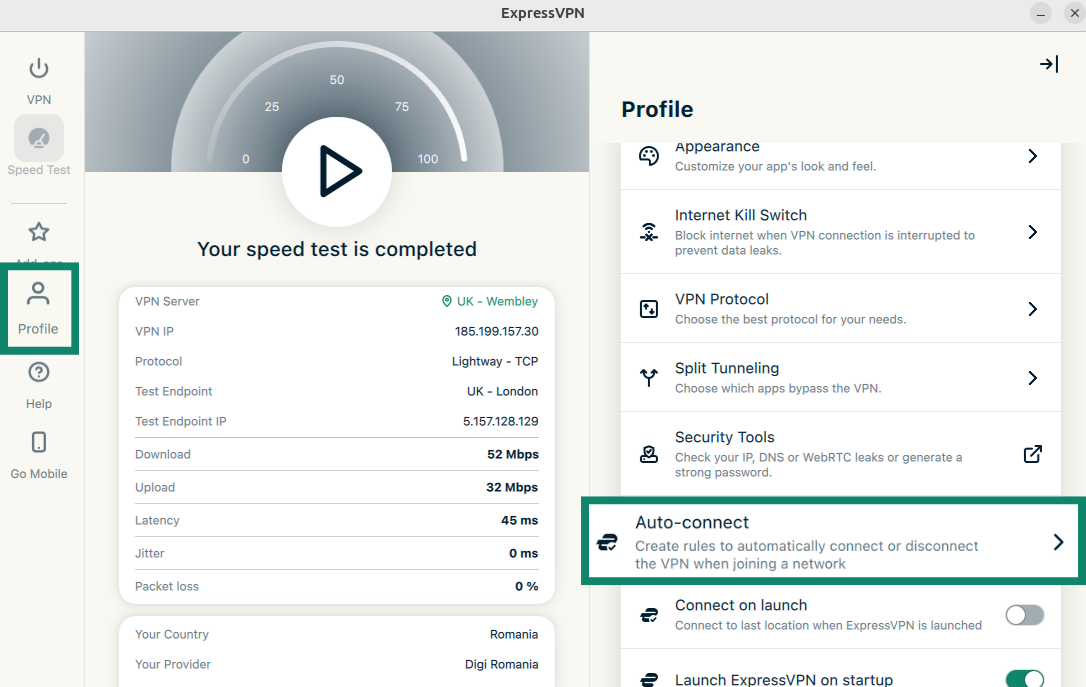
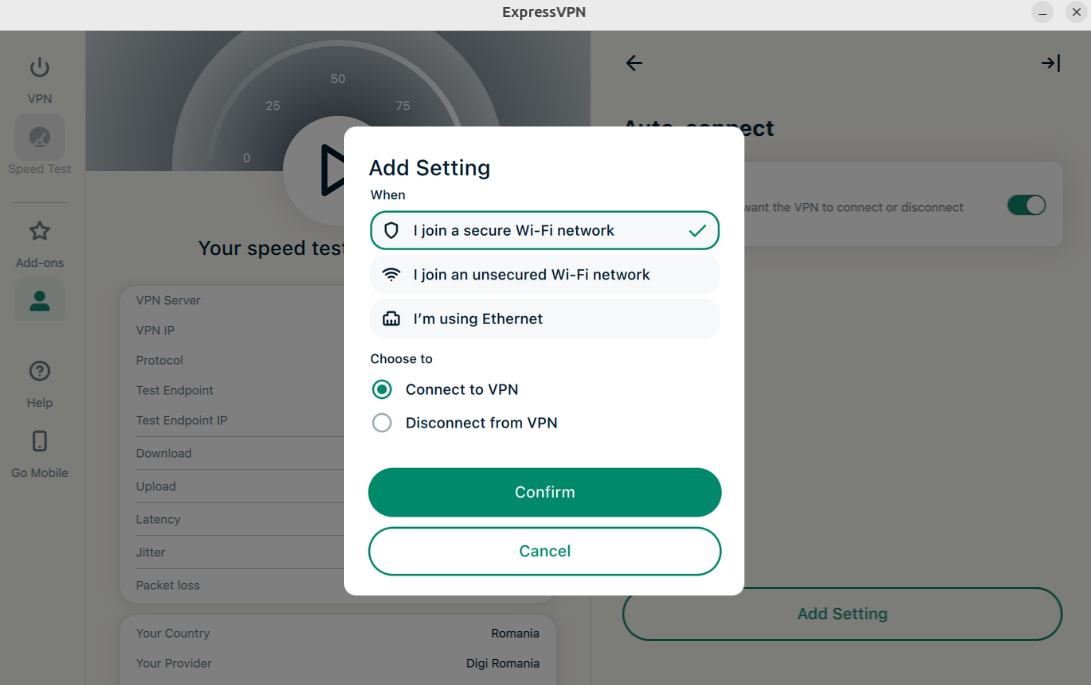
- Click the Profile tab. Under Settings, click Auto-connect.
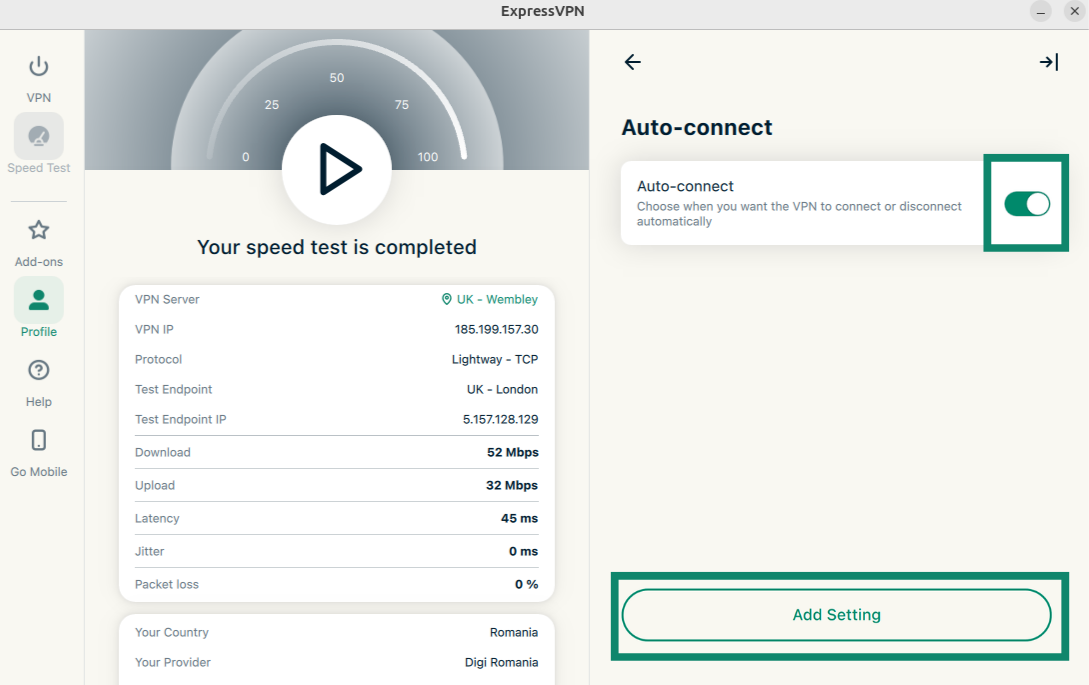
- Click the toggle to enable auto-connect. Once enabled, click Add Setting.

- From here, you can choose when the VPN automatically connects and disconnects. You can choose from the following options:
- When I join a secure Wi-Fi network
- When I join an unsecured Wi-Fi network
- When I’m using Ethernet

- Select either:
- Connect to VPN
- Disconnect from VPN
- Click Confirm.
To delete an auto-connect setting, click the Trash icon next to the auto-connect setting you wish to delete.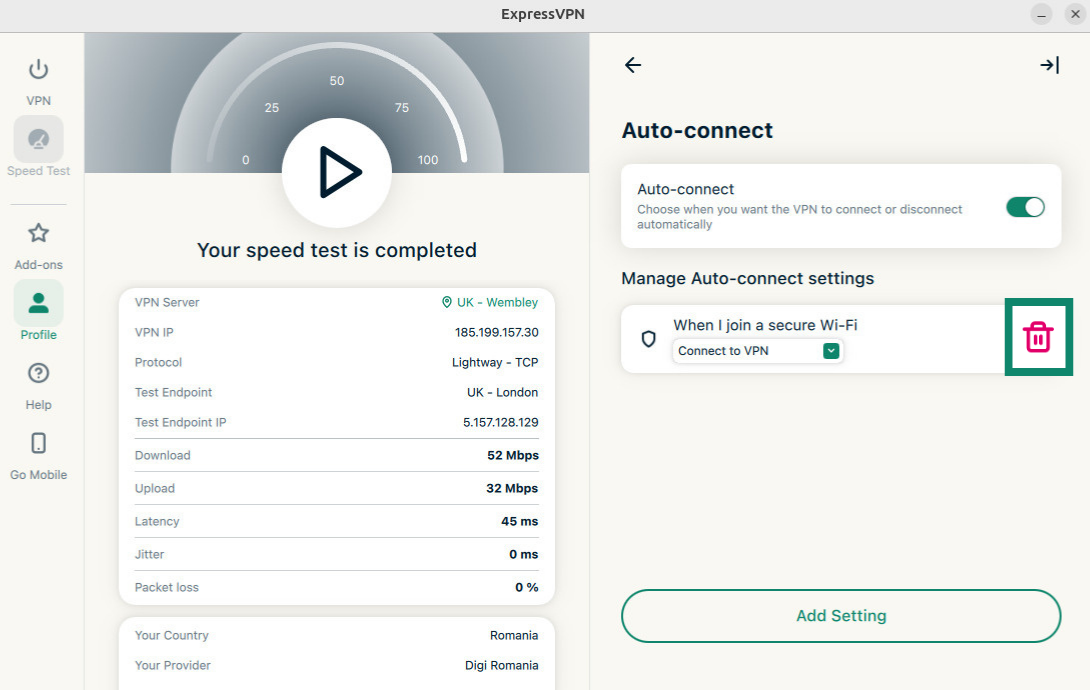
Need help? Contact the ExpressVPN Support Team for immediate assistance.
MCP server
The ExpressVPN MCP server allows you to connect ExpressVPN directly to your AI developer tools using the Model Context Protocol (MCP).
This local integration lets your AI assistant read and control your VPN connection through natural language or programmatic commands. For example, checking your connection state, switching server regions, changing protocols, and troubleshooting issues without you ever needing to open the ExpressVPN app.
This feature is available at no additional cost to all users with an active 1-year or 2-year ExpressVPN or ExpressVPN for Teams subscription. It is not available with monthly subscriptions.
Before you can connect to the ExpressVPN MCP server, you need:
- An MCP-compatible AI client. The tool must support HTTP-based MCP servers.
- An active ExpressVPN or ExpressVPN for Teams subscription (1-year or 2-year subscriptions only; not available with monthly subscriptions).
- The latest ExpressVPN app for Linux.
- To enable MCP in ExpressVPN.
To enable MCP in the ExpressVPN beta app for Linux:
- Click the Add-ons tab. Toggle Enable MCP Server on. The local MCP server will start automatically in the background.


Once enabled, follow this guide for full instructions on how to connect your chosen AI tool and what you can do with ExpressVPN MCP tools.
Need help? Contact the ExpressVPN Support Team for immediate assistance.
Enable compact mode
Compact mode lets you switch between a slim and expanded interface, depending on your preference. Use it to reduce the app window size and simplify the layout while staying connected to the VPN.
To enable or disable compact mode:
- Go to the VPN tab. Click the compact mode toggle.

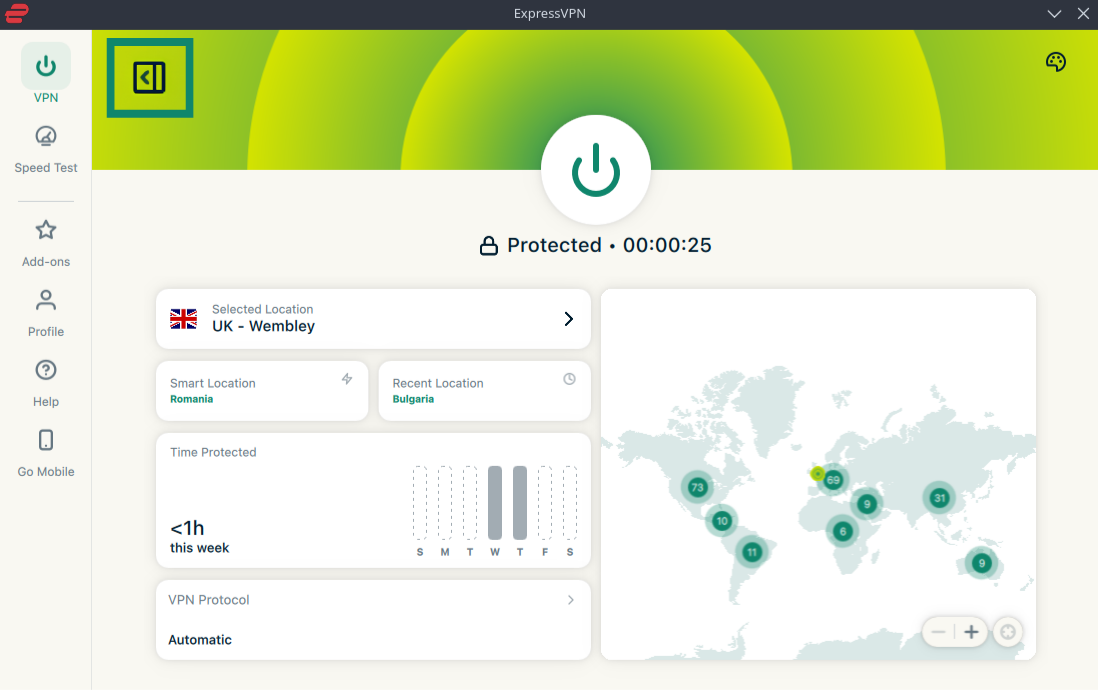
Note: You cannot switch to compact mode while on the Speed Test tab, so you will need to return to the VPN tab to enable compact mode.
Need help? Contact the ExpressVPN Support Team for immediate assistance.
Change languages in the app
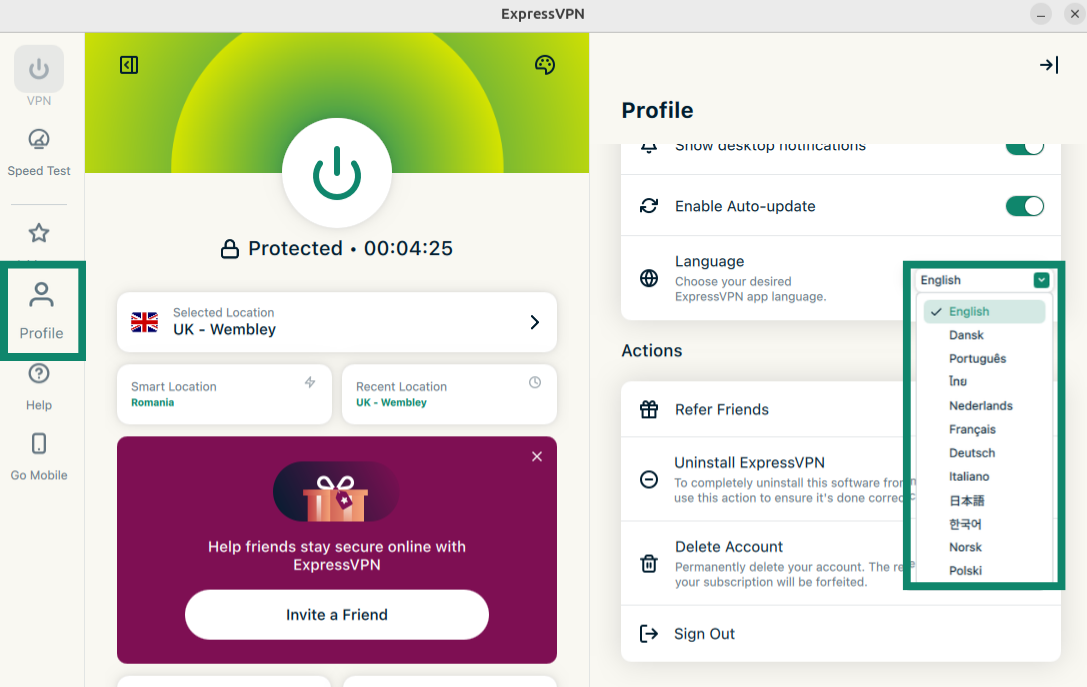
The ExpressVPN GUI app for Linux is available in 17 languages.
To change languages in the app:
- Click the Profile tab. Click the dropdown menu next to Language and select your language of choice.
Need help? Contact the ExpressVPN Support Team for immediate assistance.
Change app appearance
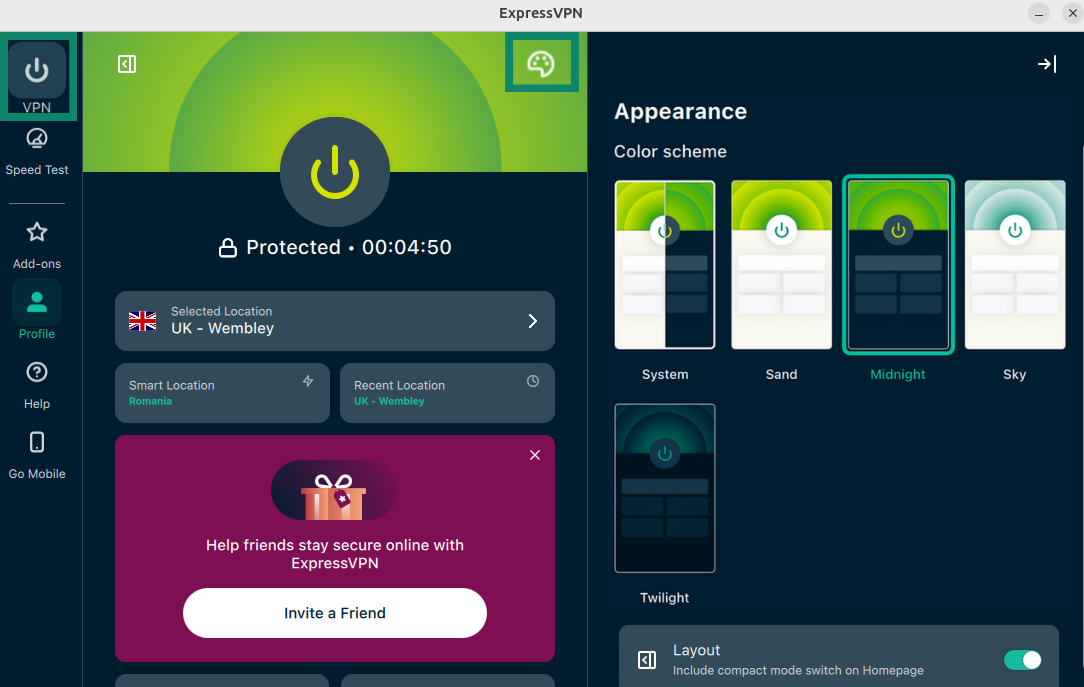
You can change the color scheme of the app to tailor it to your personal preference.
To change the color scheme of the ExpressVPN app:
- Click on the VPN tab. Click the color palette icon, Under Color scheme, click the theme you want to use. The app color scheme will change immediately.
Need help? Contact the ExpressVPN Support Team for immediate assistance.
Uninstall the app
To uninstall the ExpressVPN GUI app for Linux:
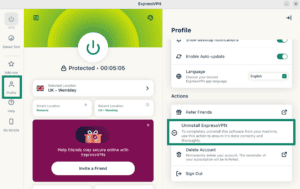
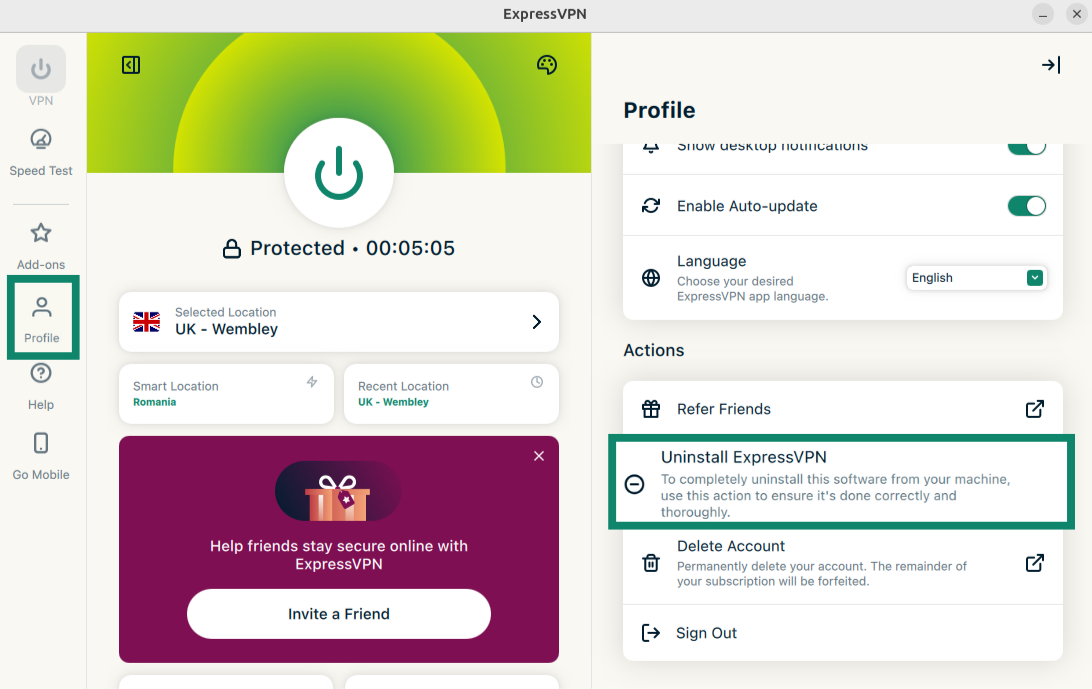
- Click the Profile tab. Scroll down to Actions and click Uninstall ExpressVPN.
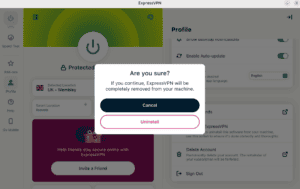
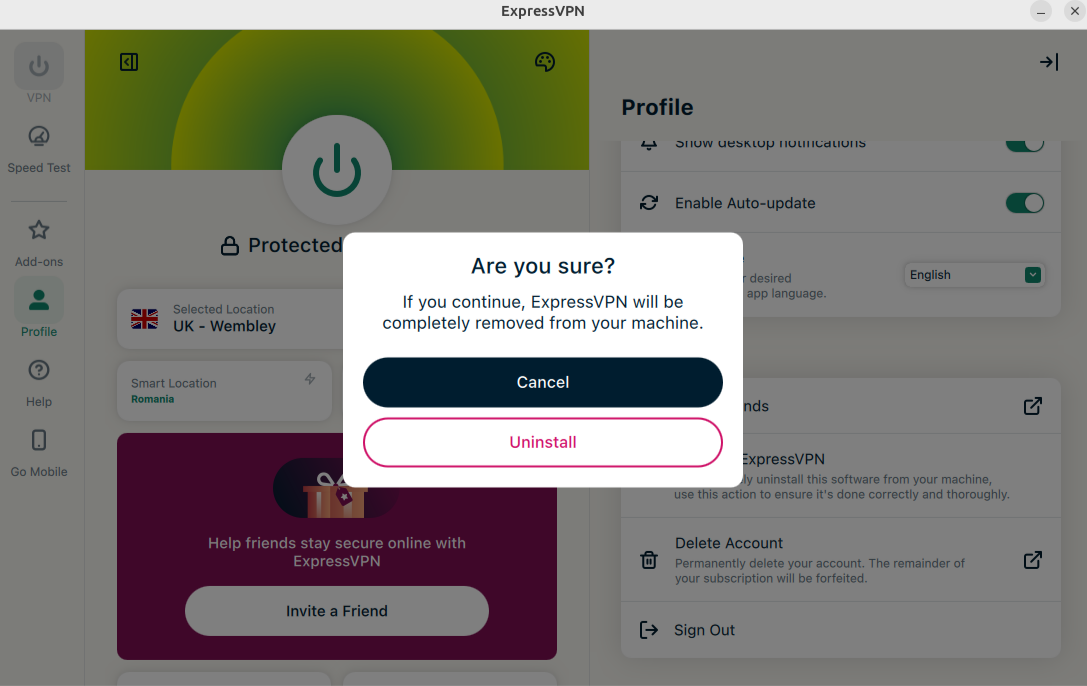
- Select Uninstall in the new window.
Need help? Contact the ExpressVPN Support Team for immediate assistance.