




Need a VPN or DNS for your Apple TV?
Get ExpressVPN Now
One ExpressVPN account. All devices.
Get Apps for FreeThis guide will show you how to install, set up, and use the ExpressVPN app for Apple TV on tvOS 17 and later.
Not yet a customer? Learn more about ExpressVPN for Apple TV.
Jump to…
Set up the ExpressVPN app for Apple TV
Download the VPN app
- On your Apple TV, open the App Store and search for ExpressVPN.
- Select Get or the cloud download icon.
- Wait for the app to download to your Apple TV. Select Open to launch the ExpressVPN app.
Set up the VPN app
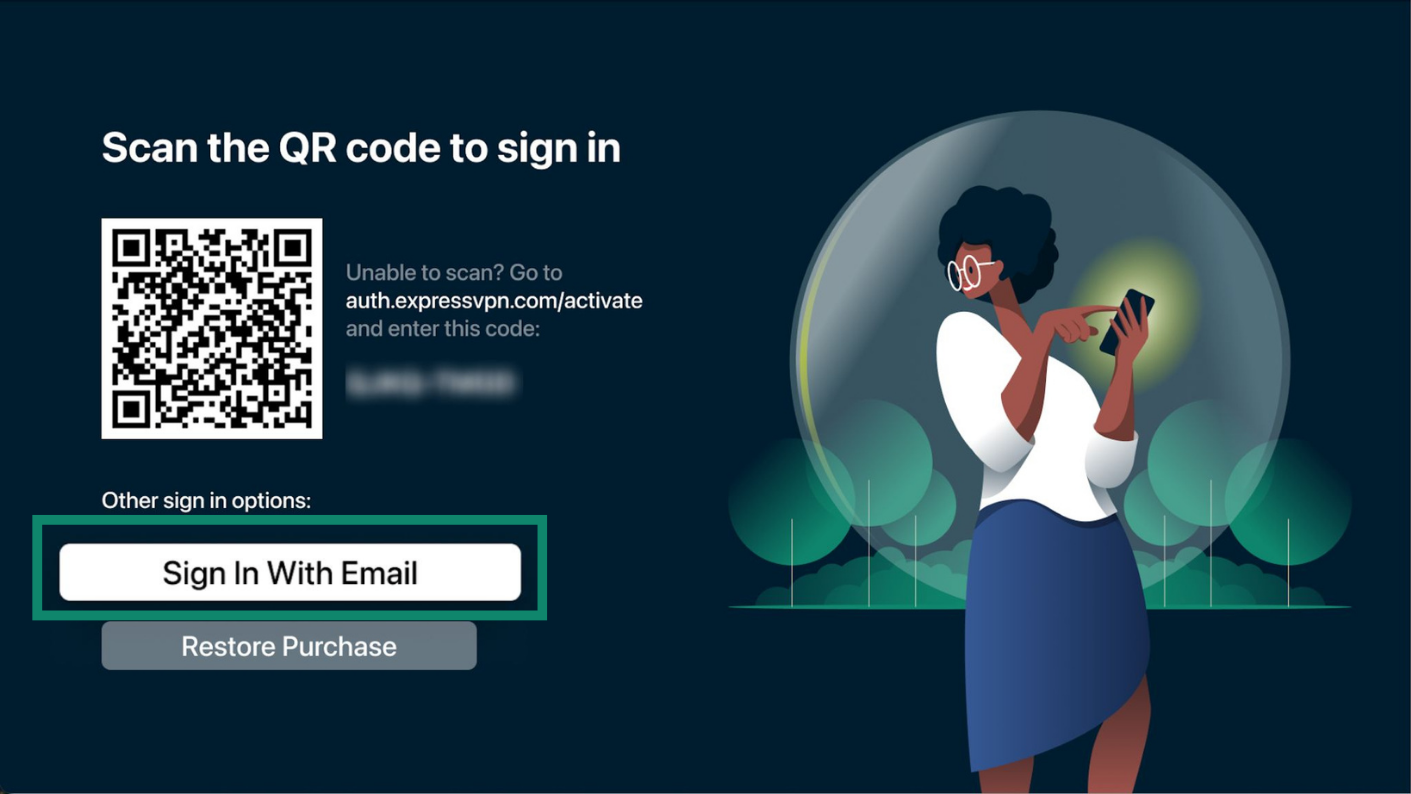
On the ExpressVPN welcome screen, select Sign In. You can either sign in with a QR code, your email, or by restoring your purchase.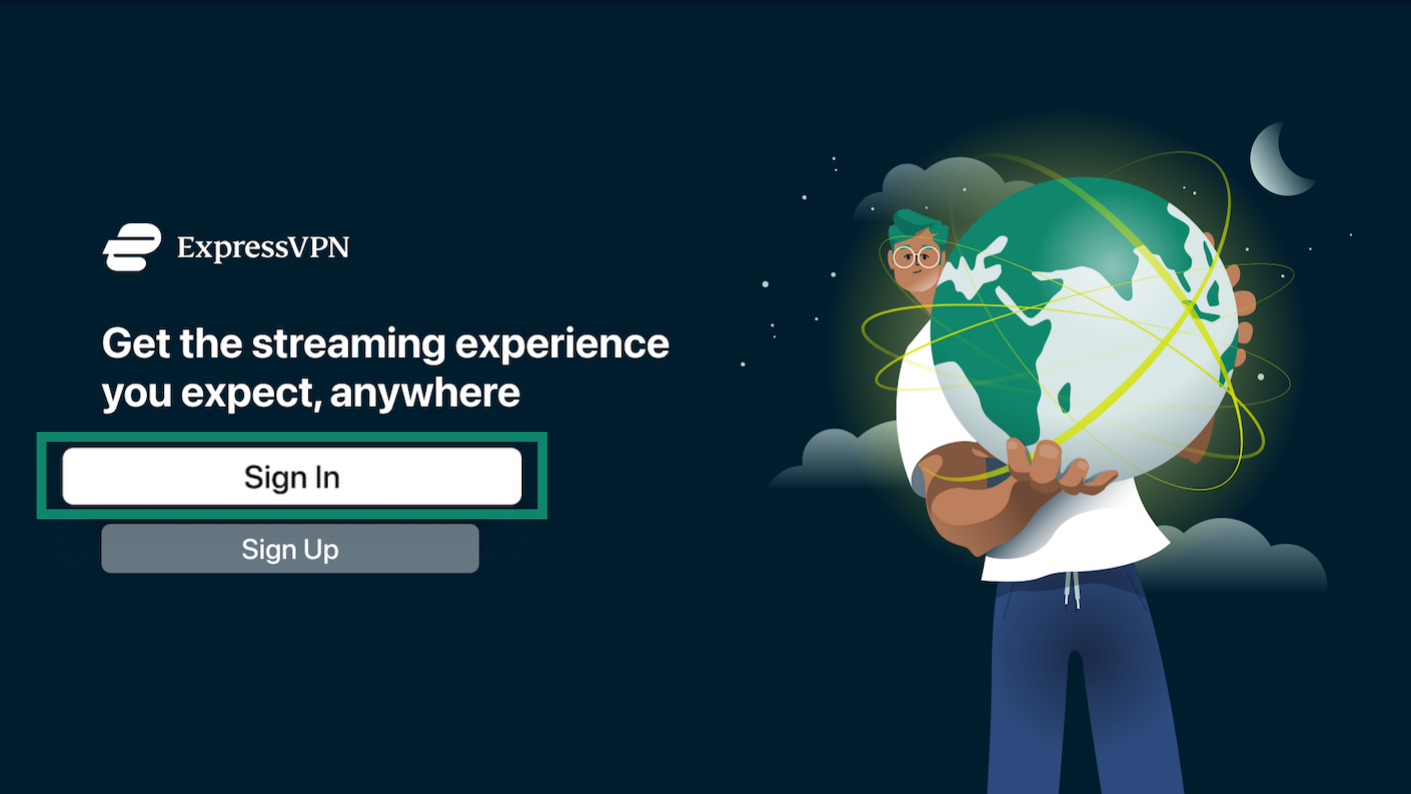
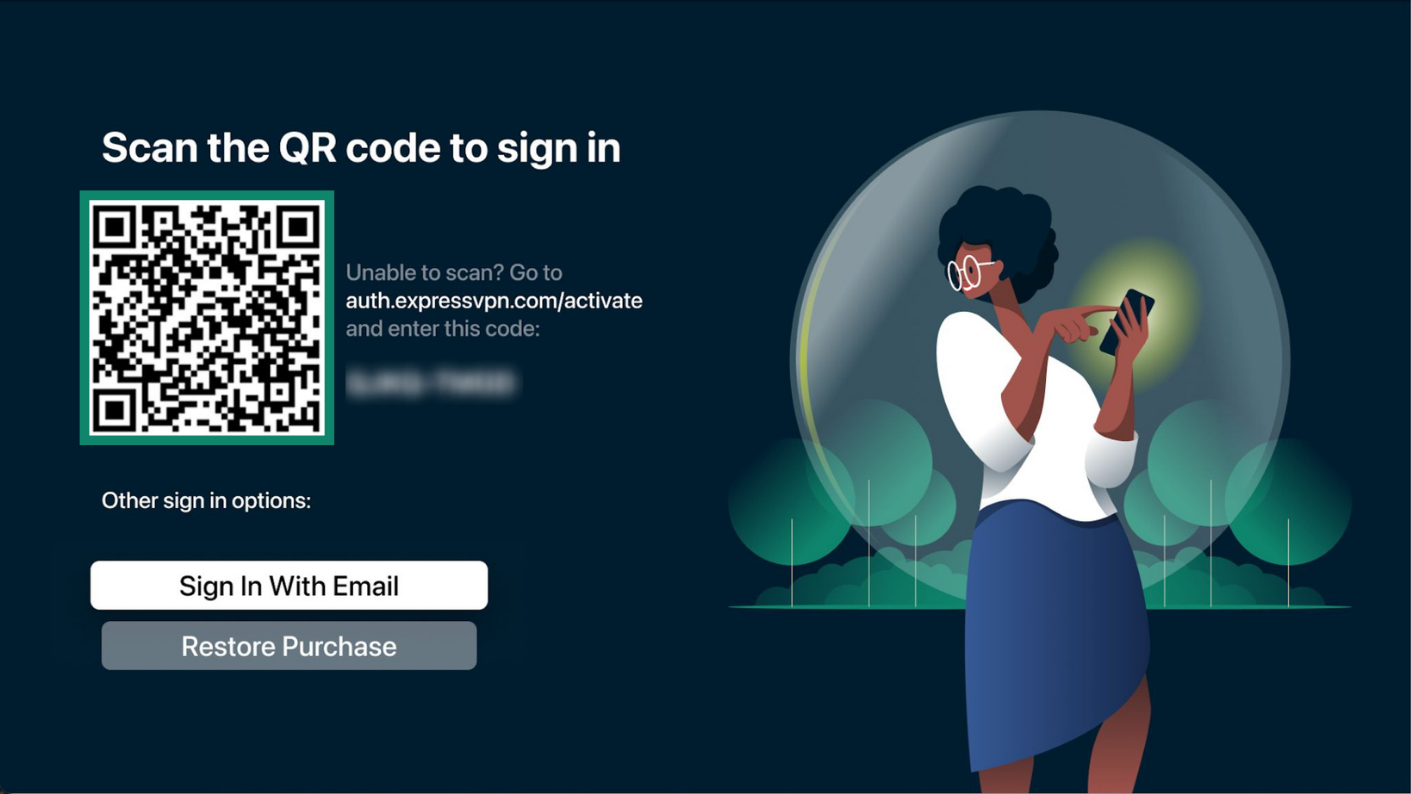
Sign in with QR code (recommended)
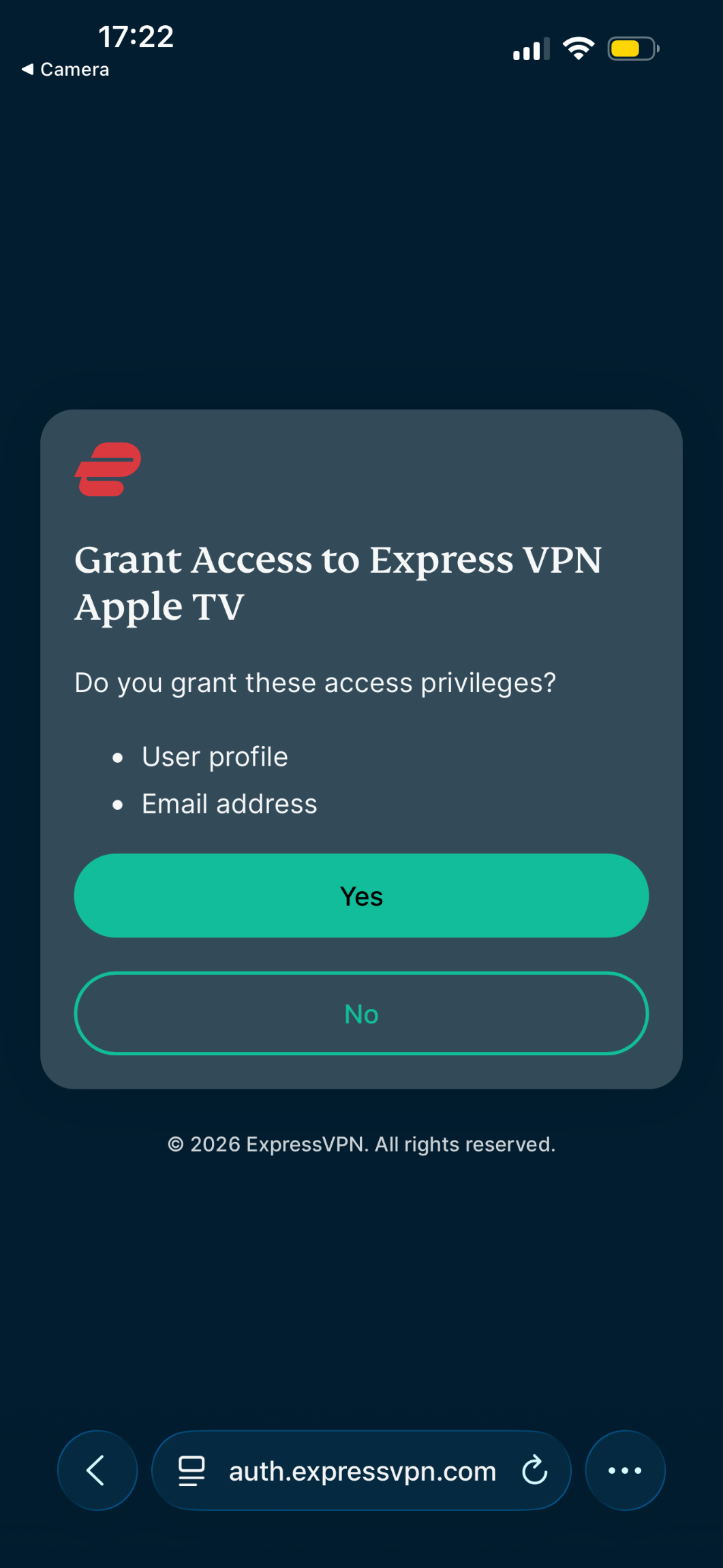
- Scan the QR code using your smartphone.


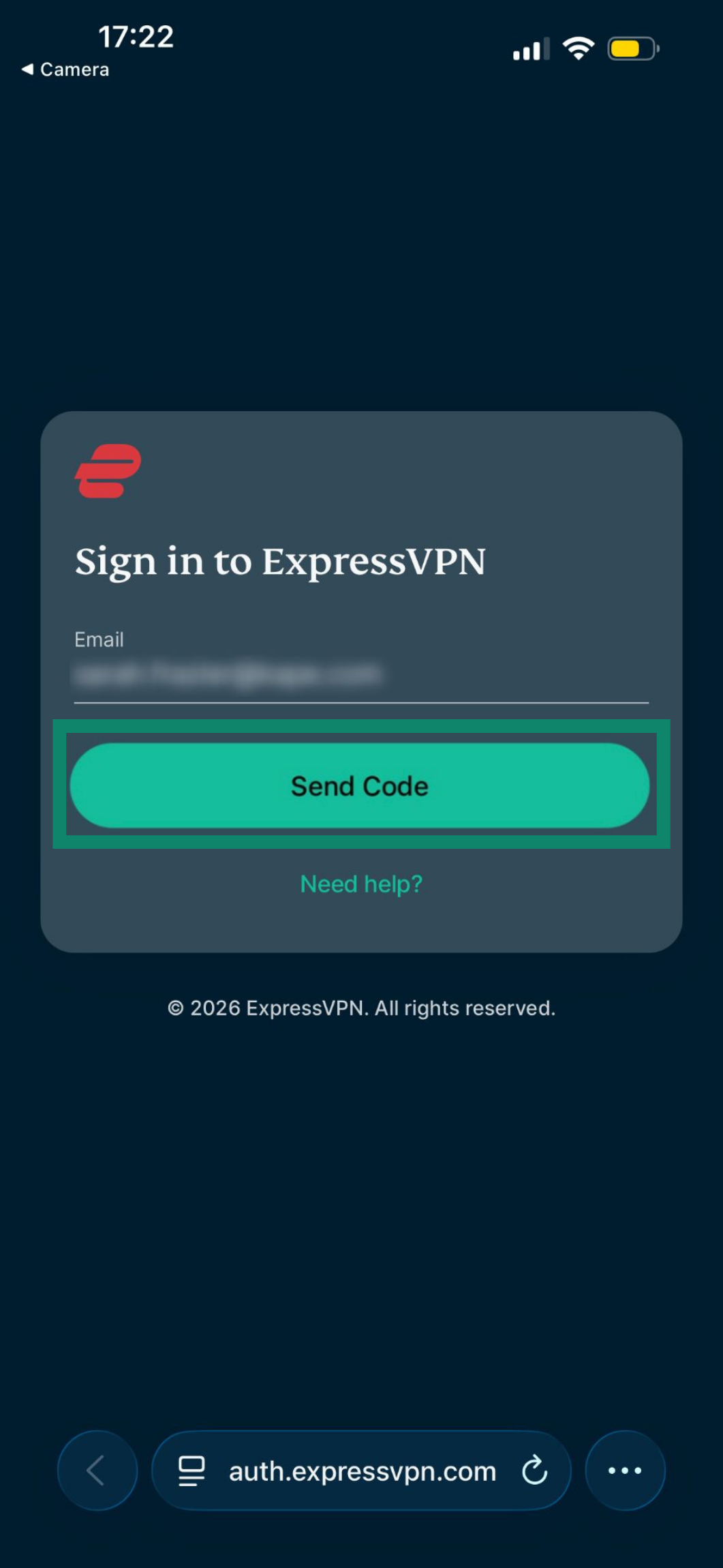
- On your smartphone, enter the email address and authentication code or password associated with your ExpressVPN account, then tap Send Code.


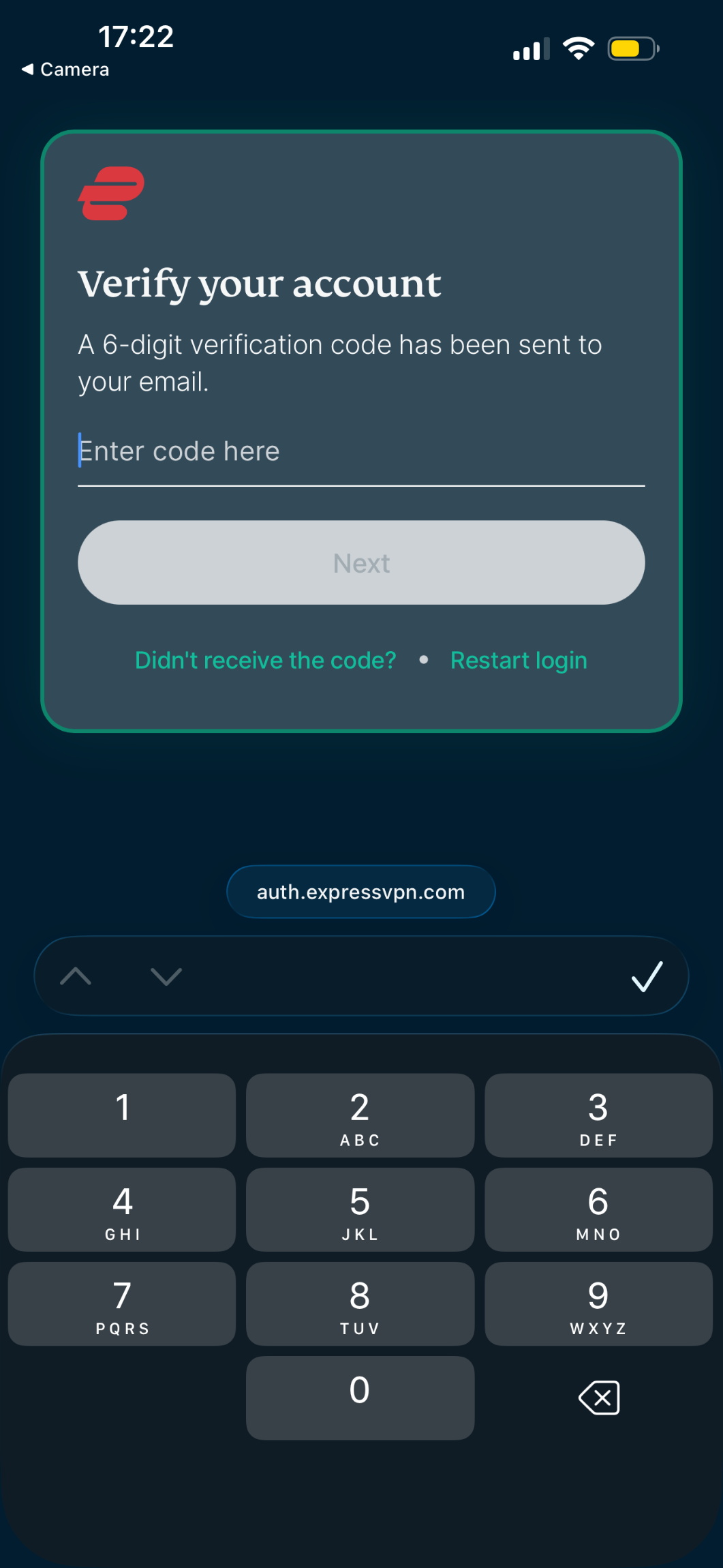
- Enter the six-digit authentication code sent to your email and tap Next.

- On the grant access permissions screen, tap Yes.

Sign in with email
- On your Apple TV, select Sign In With Email.

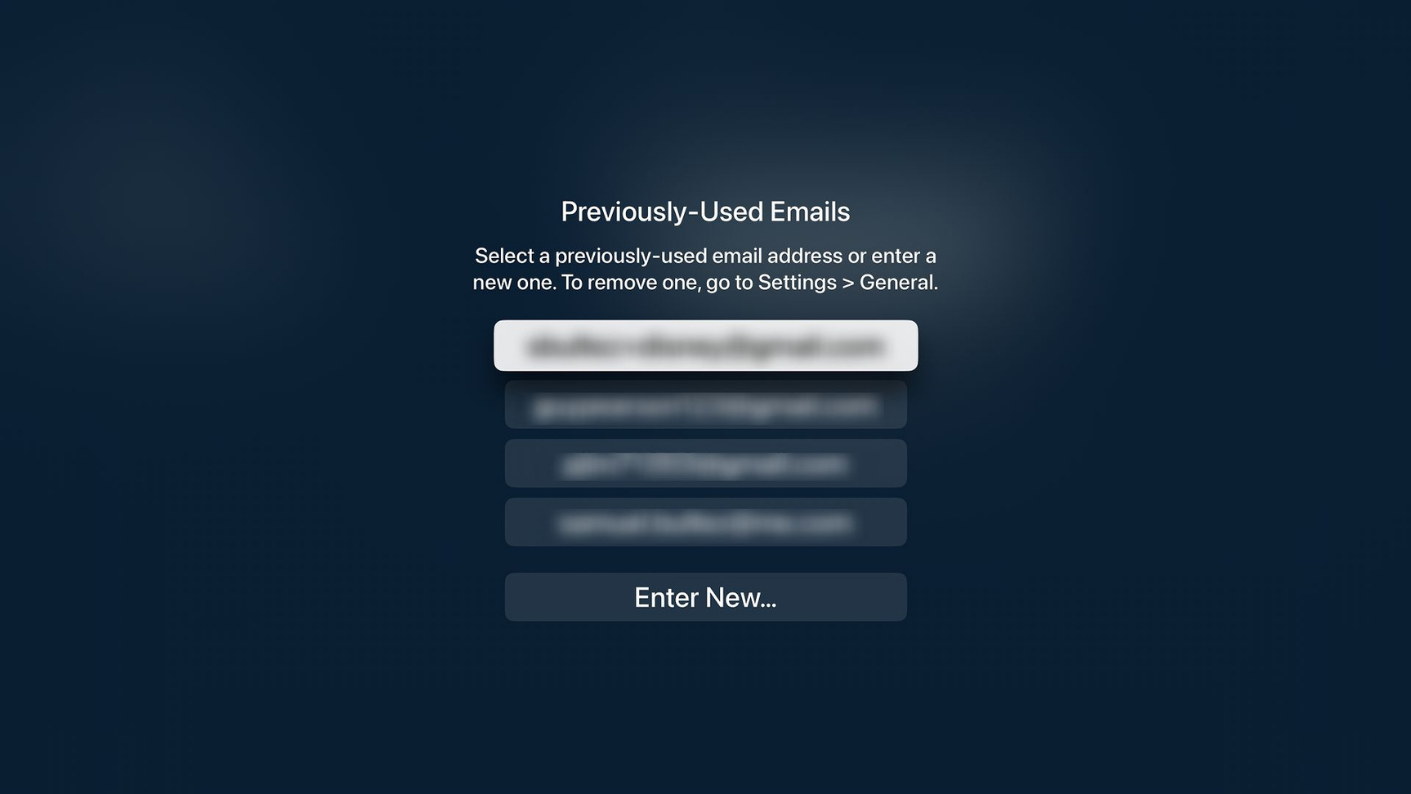
- Select a previously used email or enter a new one.

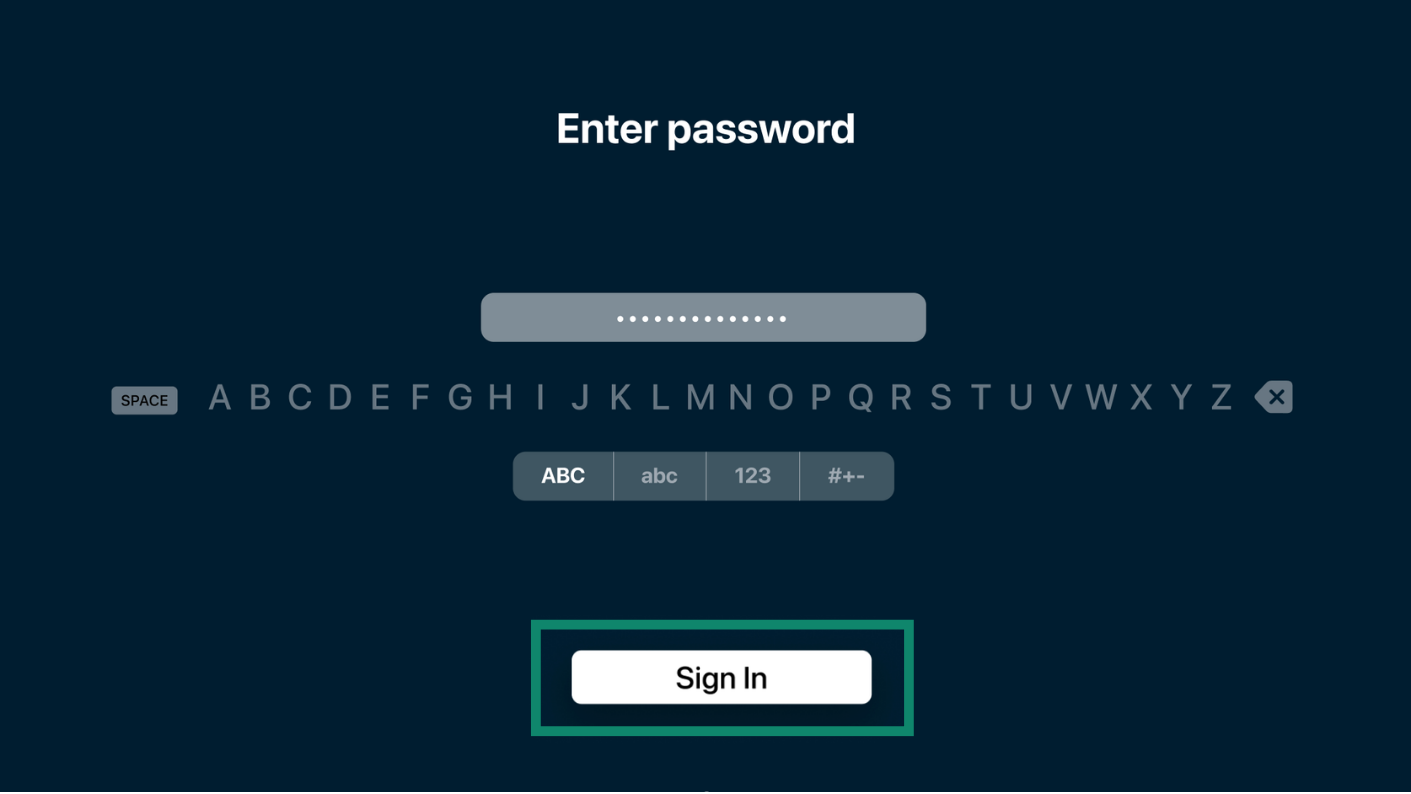
- Enter your password, then select Sign In.

Sign in by restoring a purchase
If you purchased your ExpressVPN subscription through the App Store, you can select Restore Purchase to sign in.
If you have an active subscription, the app will sign you in automatically. Otherwise, you can renew your subscription.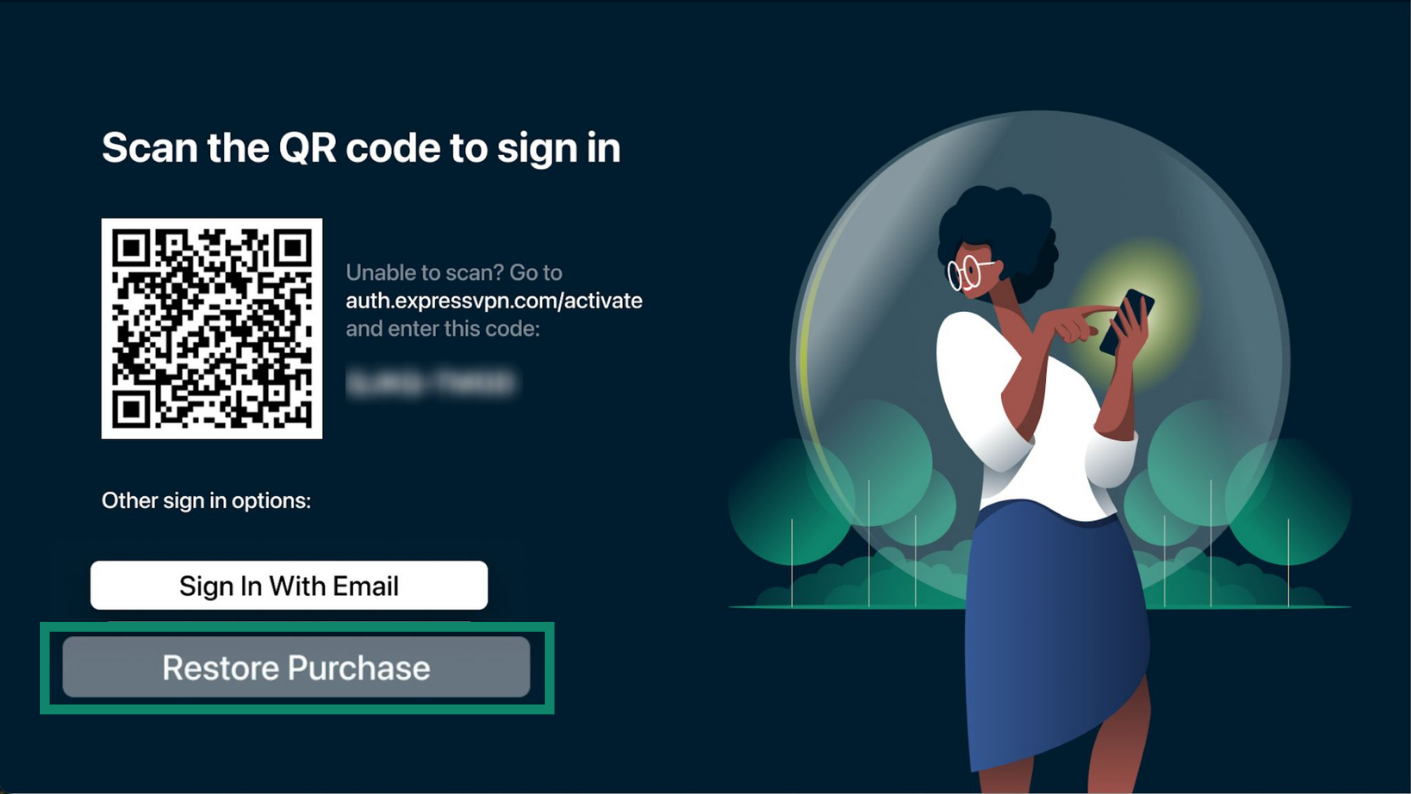
After signing in:
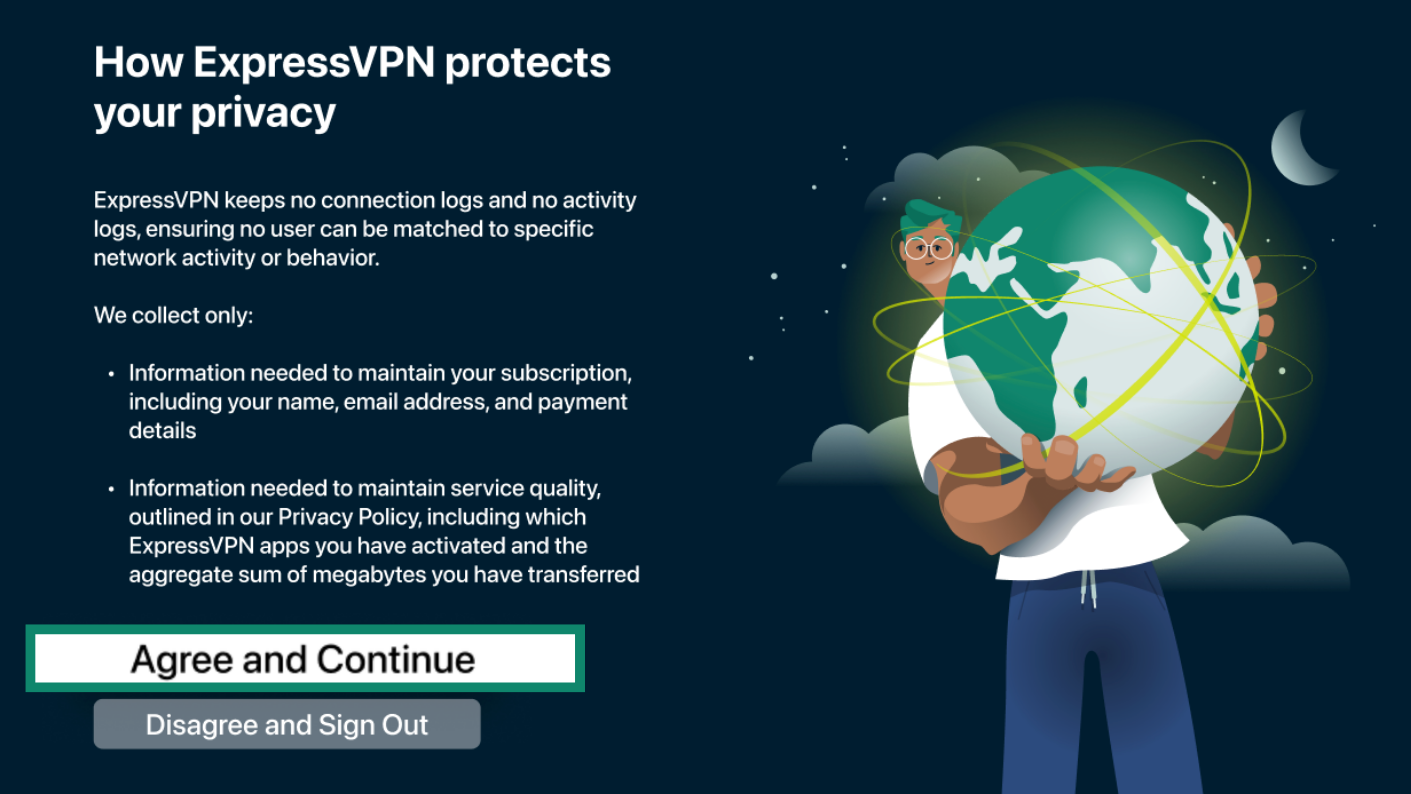
- On the privacy screen, select Agree and Continue.

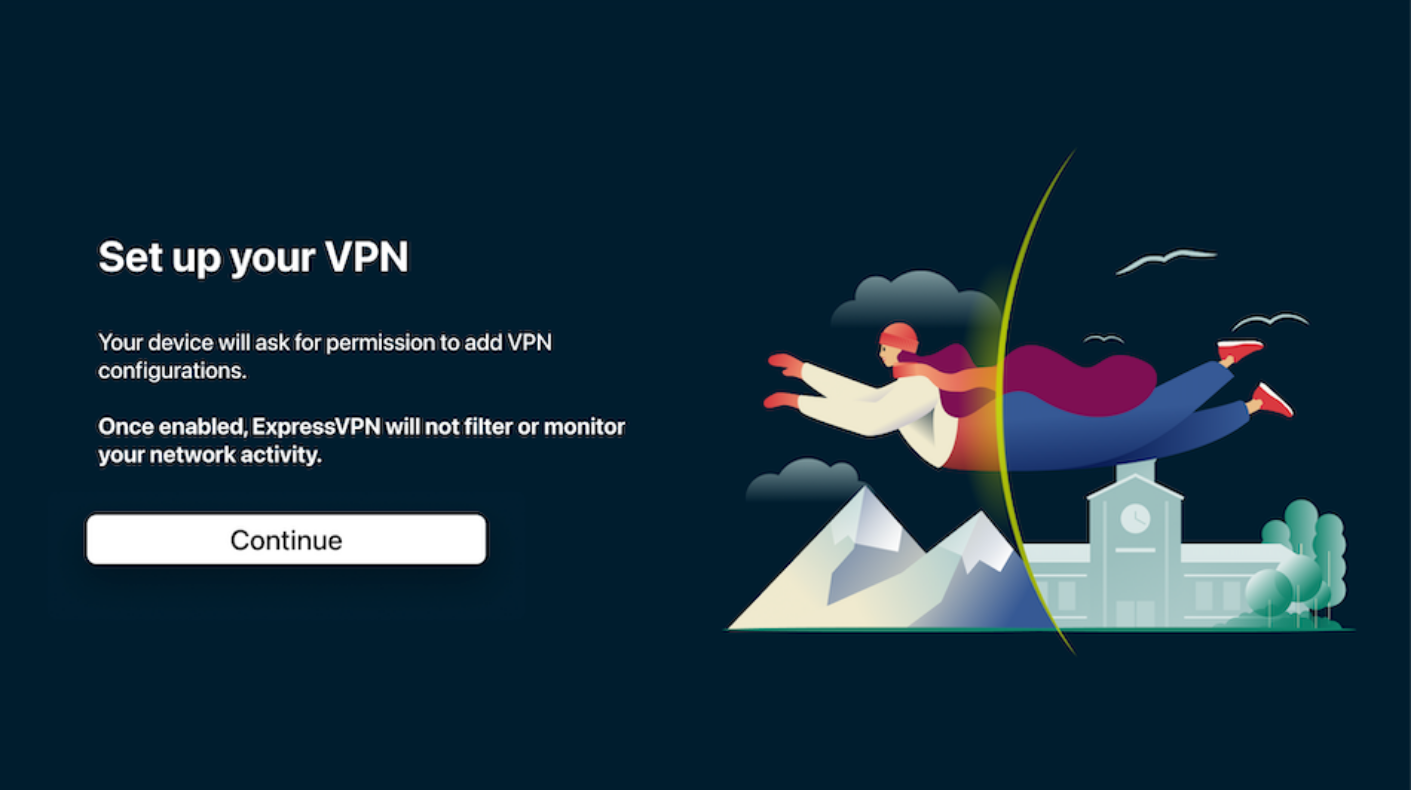
- Select Continue to set up the VPN.

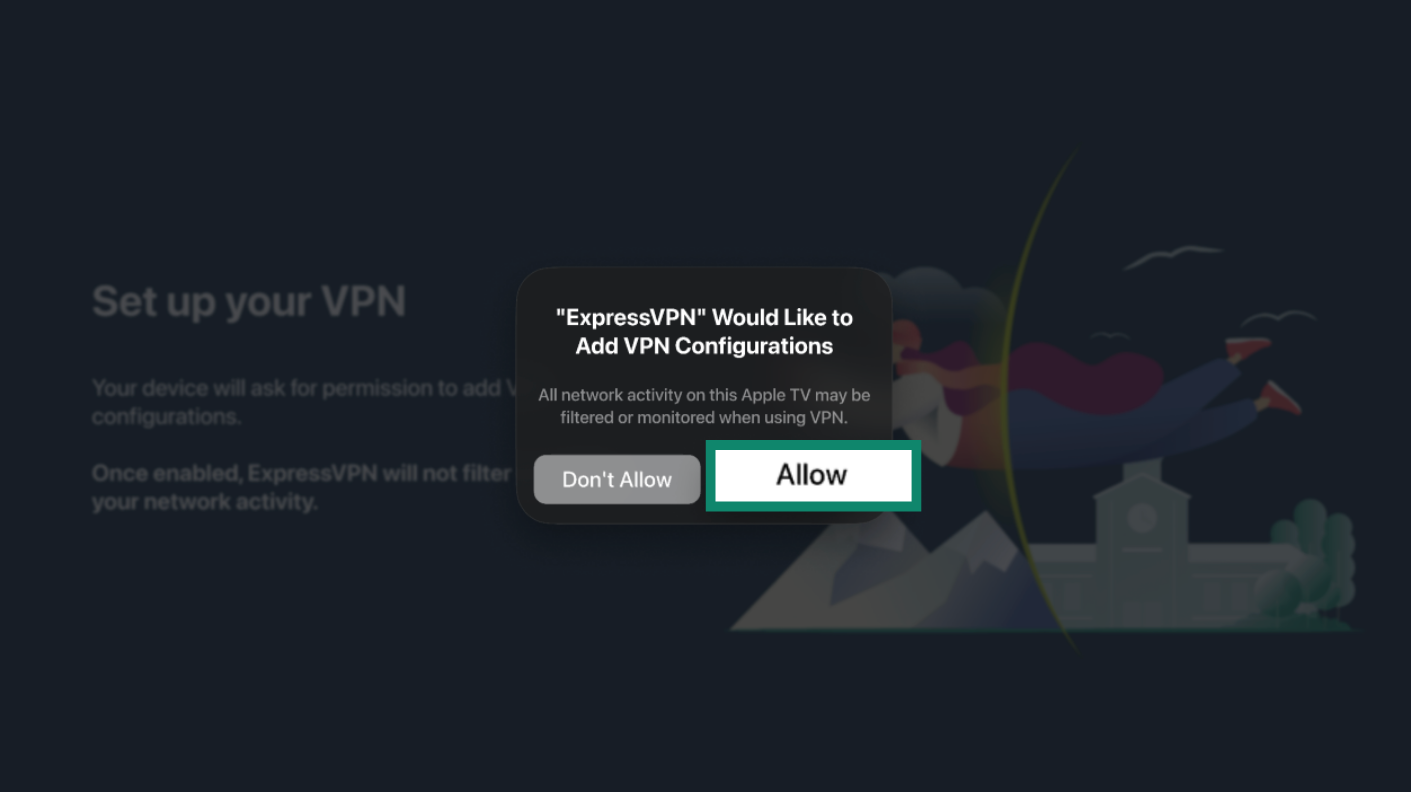
- When prompted, select Allow to add VPN configurations.

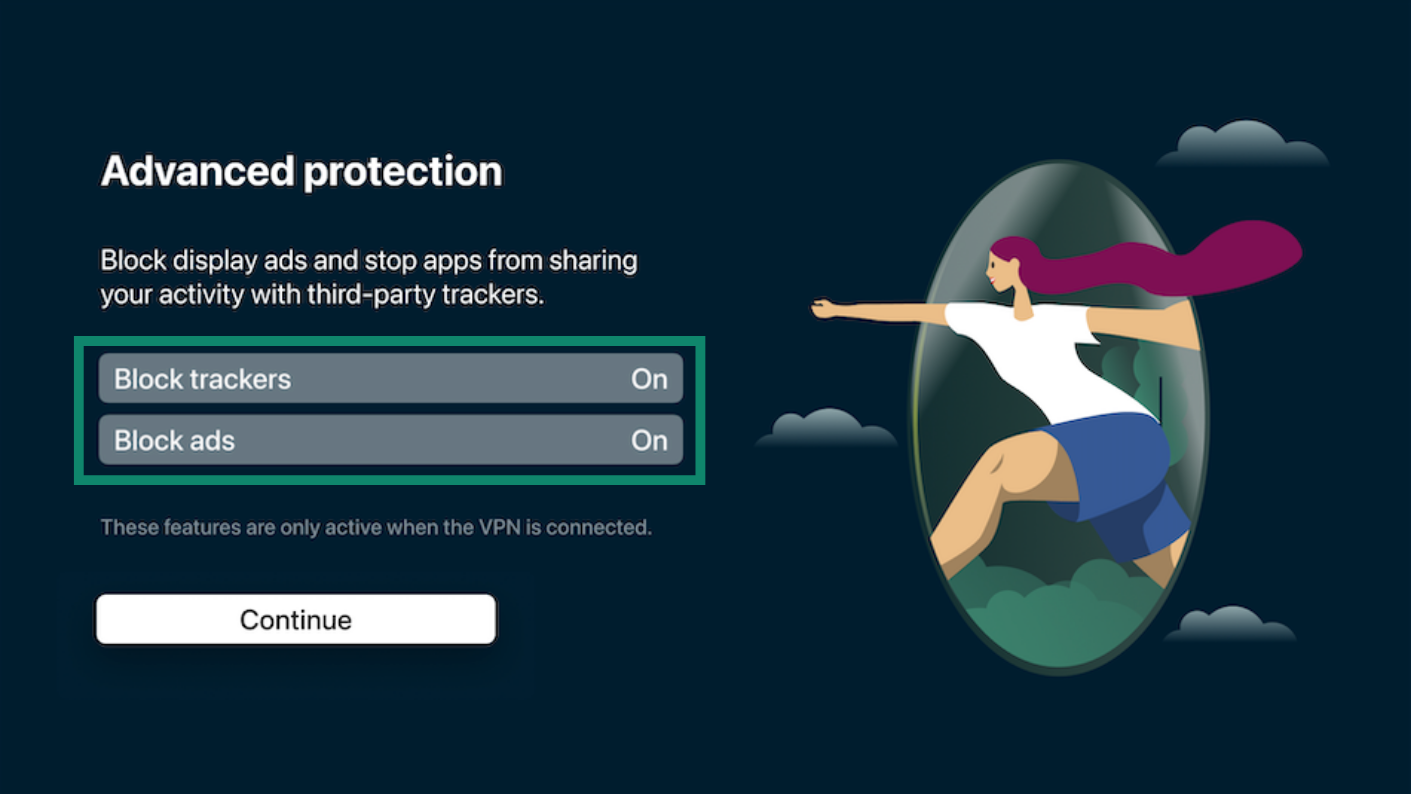
- Choose whether to block ads and trackers, then select Continue.

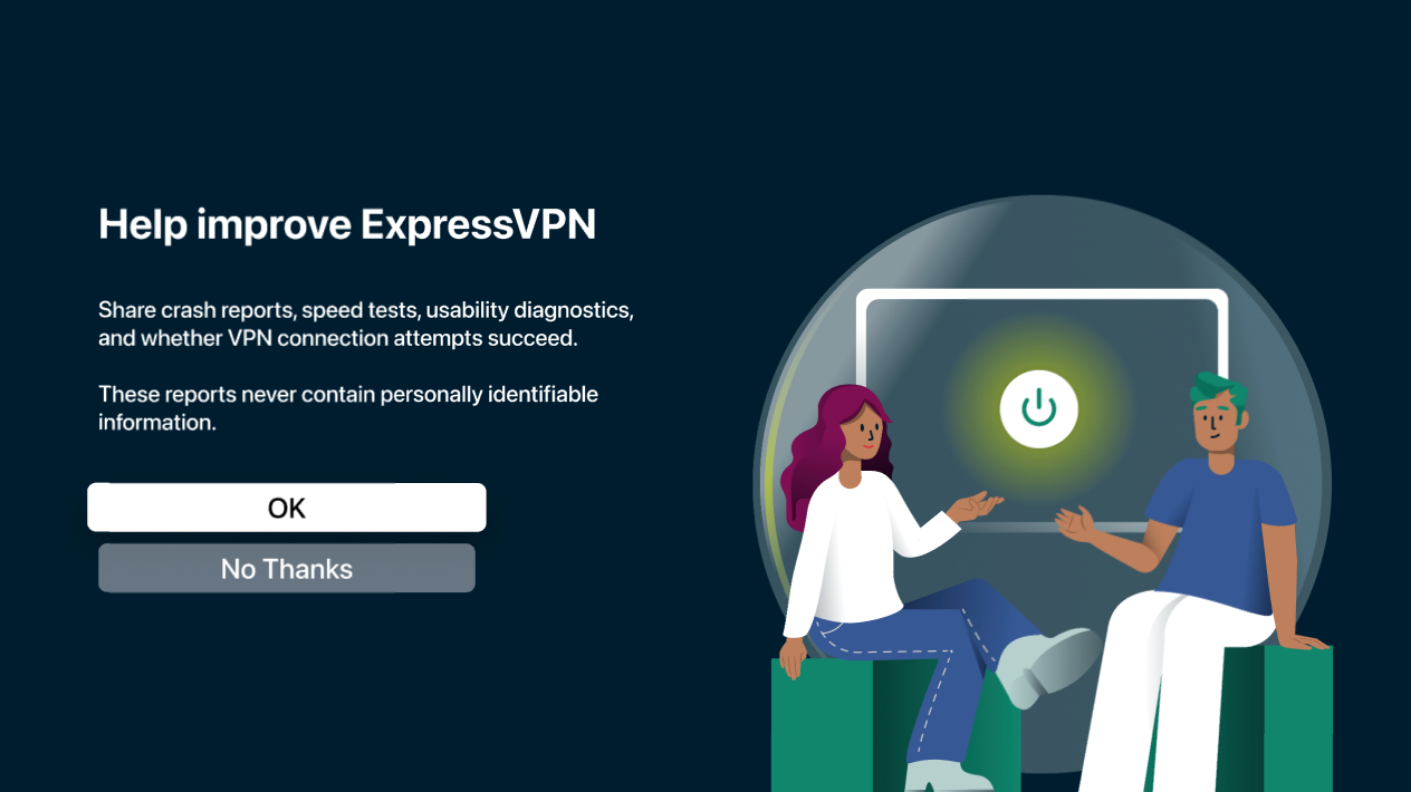
- Choose whether to share anonymous analytics with ExpressVPN. Select OK or No Thanks.

Need help? Contact the ExpressVPN Support Team for immediate assistance.
Use the ExpressVPN app for Apple TV
Connect to a VPN server location
By default, ExpressVPN suggests the location that should provide the best experience for you. This is called Fastest Server. To connect:
- Open the ExpressVPN app and select the power button.

- When the app says Protected, your Apple TV is connected to the VPN.

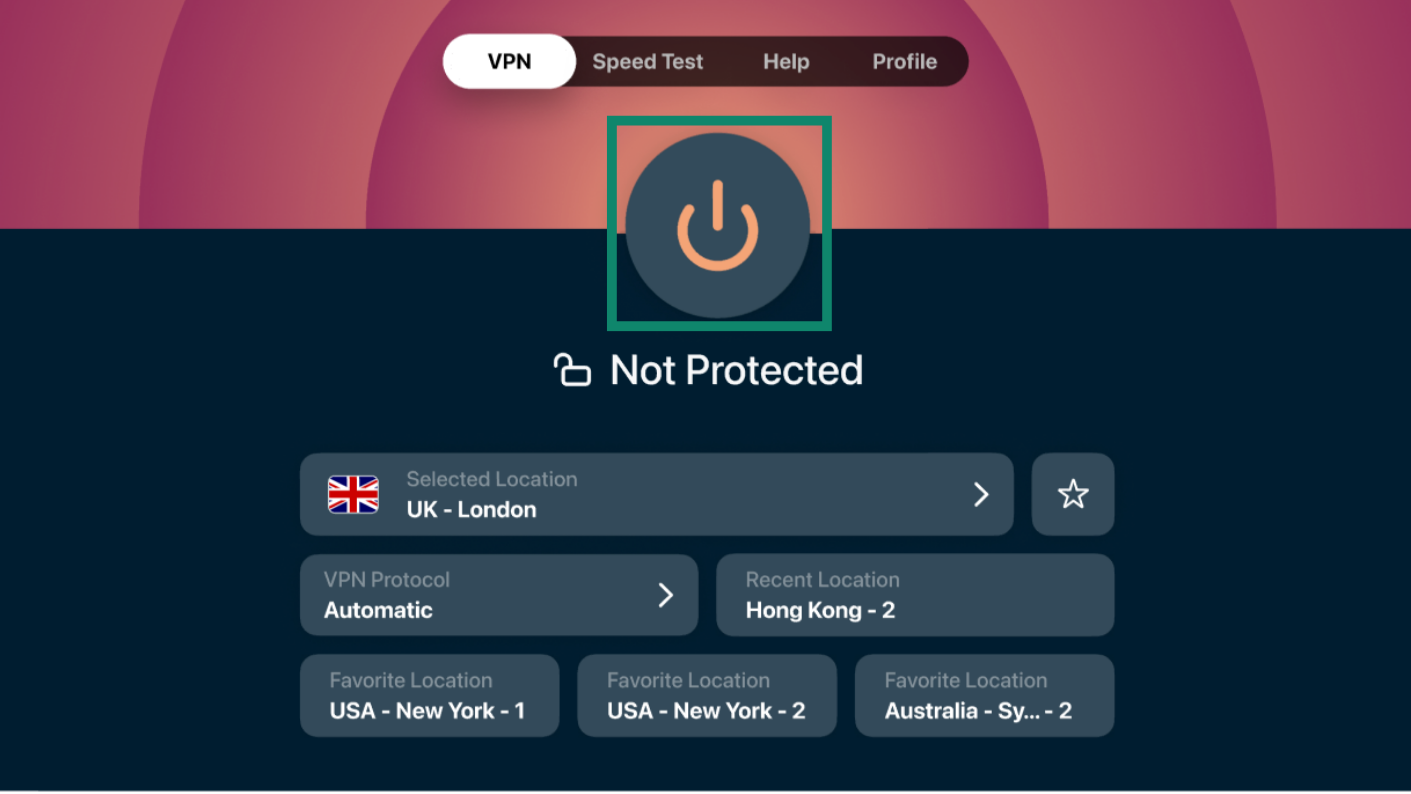
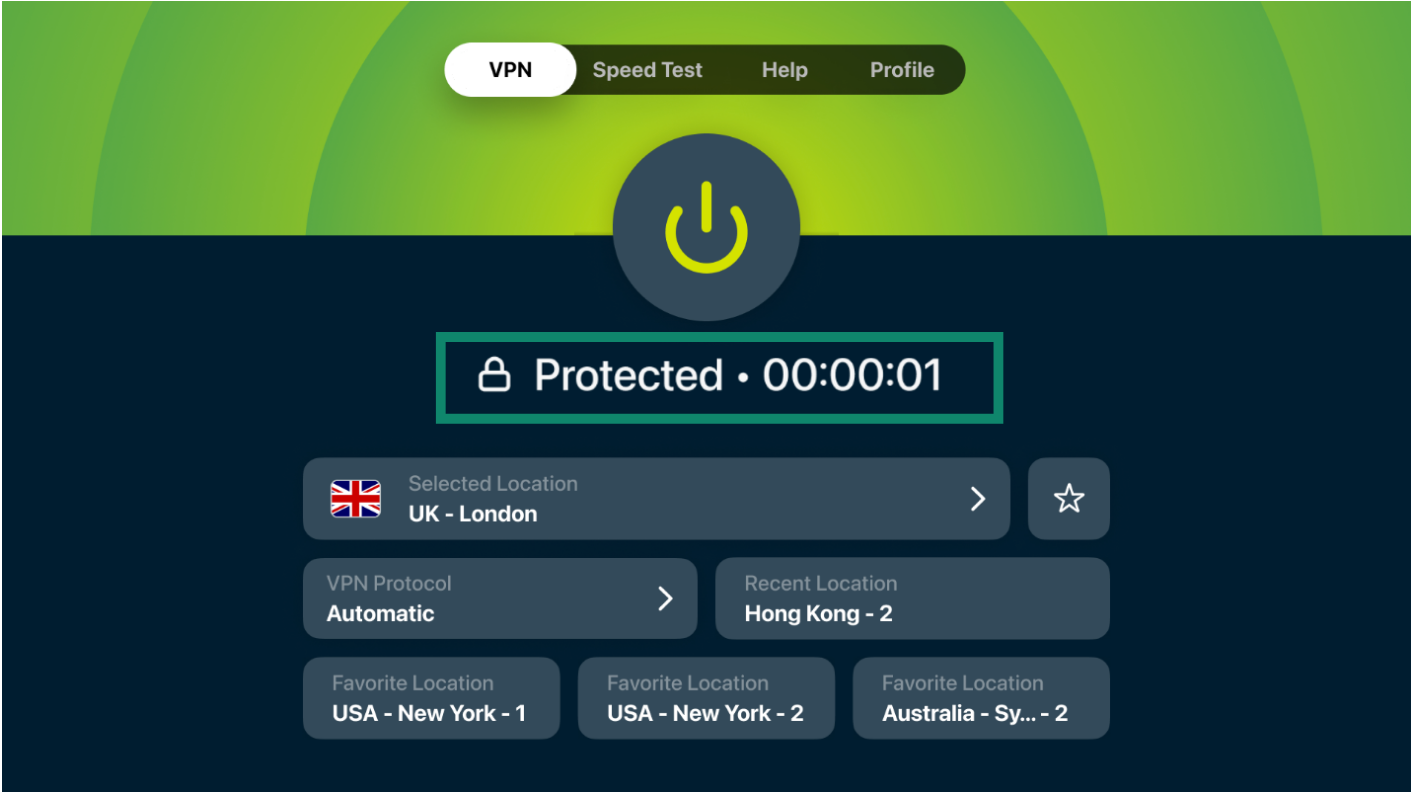
To disconnect, select the power button again. The app should say Disconnecting… then Not Protected.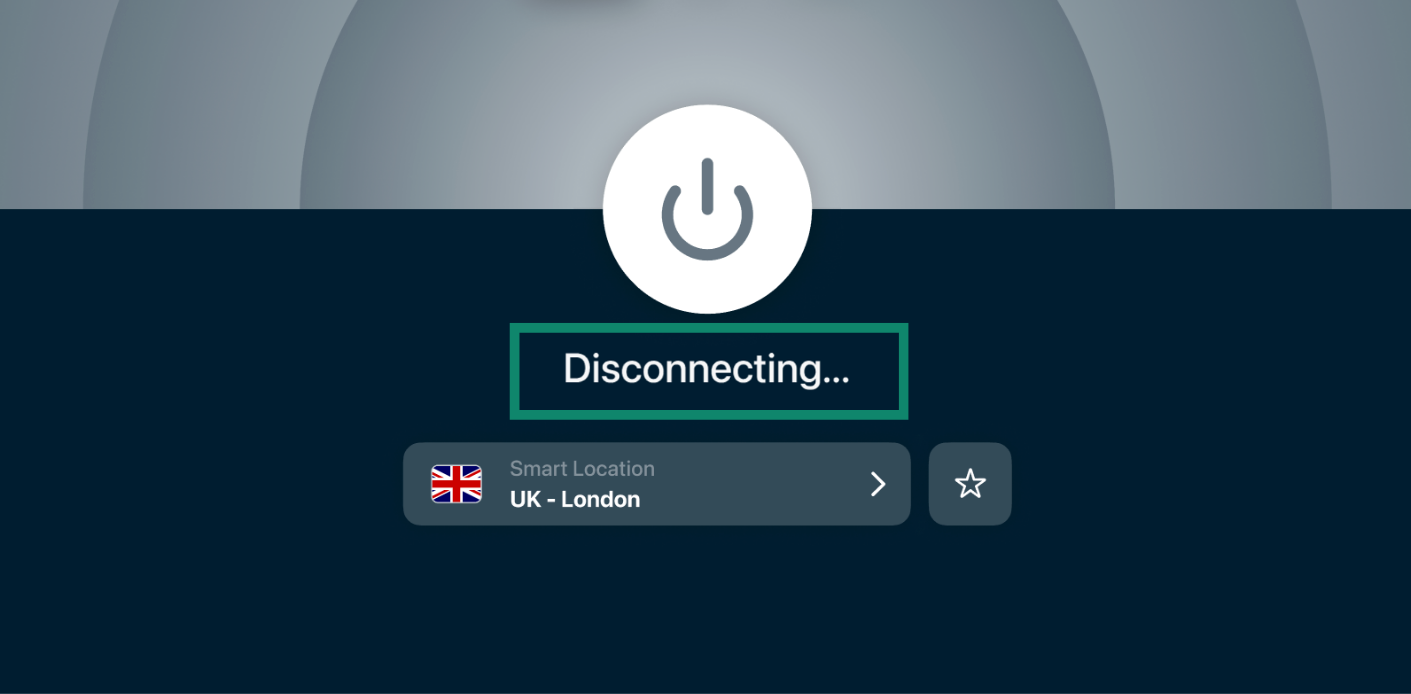
Need help? Contact the ExpressVPN Support Team for immediate assistance.
Change VPN server location
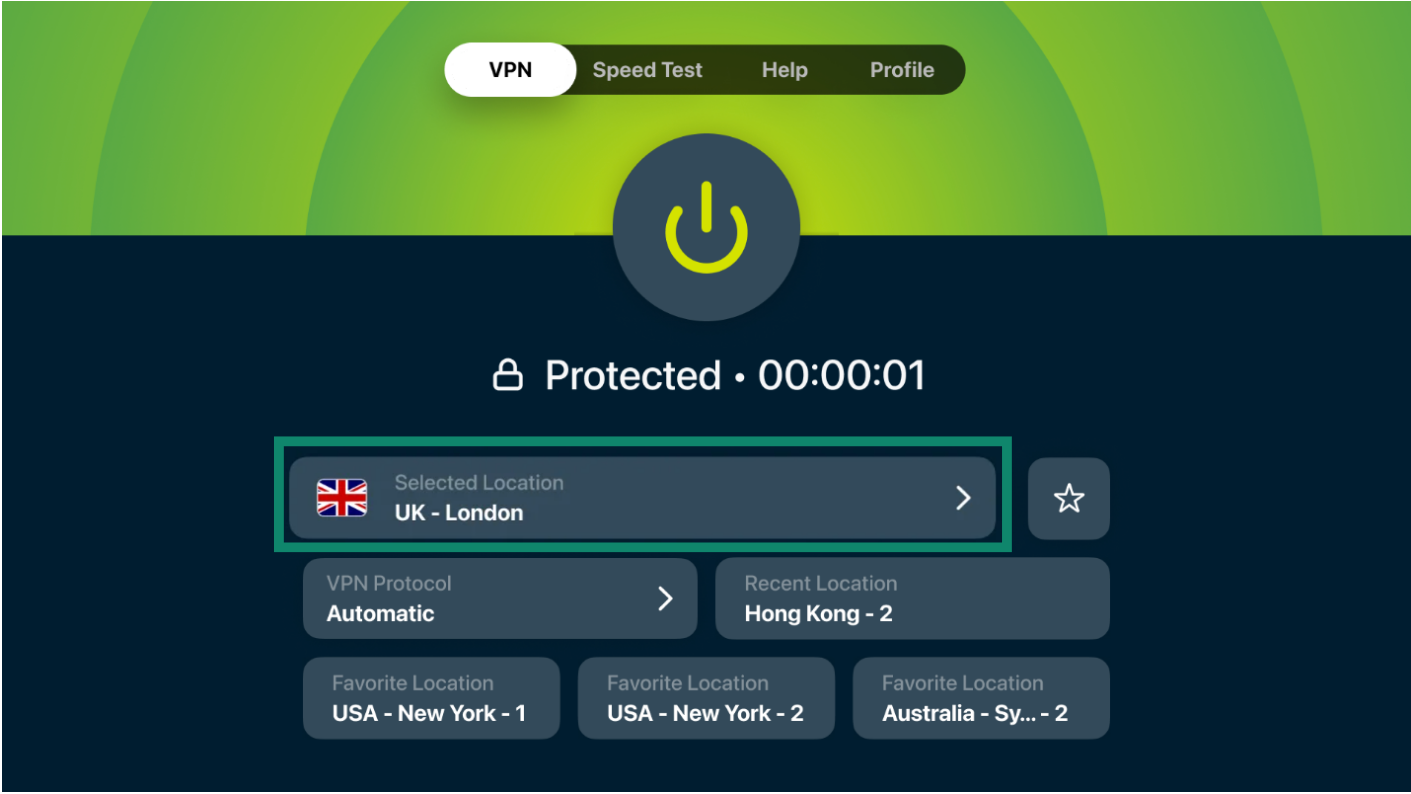
- In the ExpressVPN app, click Selected Location.

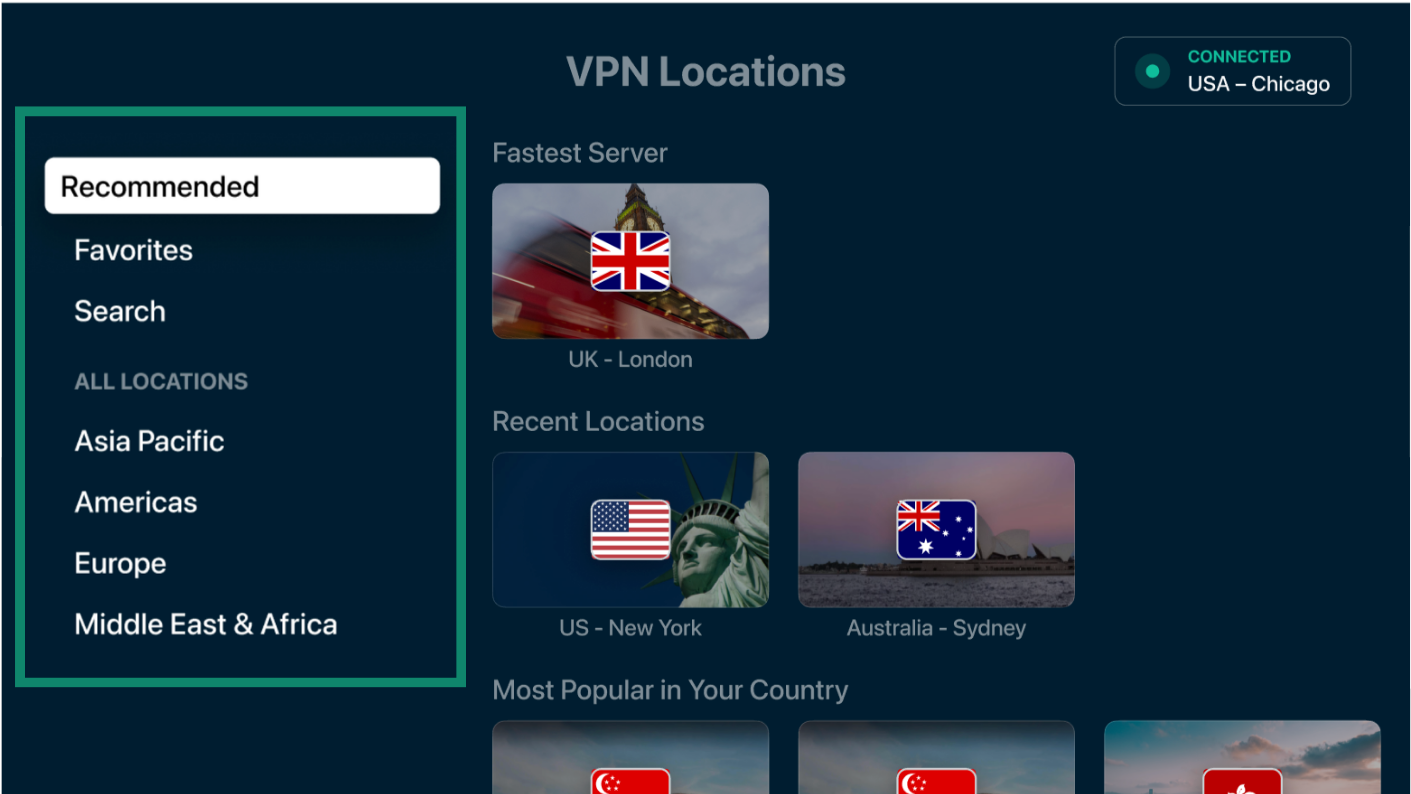
- You’ll see VPN servers in different categories:
- Recommended: View the Fastest Server, recent locations, and other recommended locations.
- Favorites: View locations you have saved as favorites.
- Search: Search for a country or server location.
- All locations: Browse locations by region, including Asia Pacific, Americas, Europe, and Middle East & Africa.

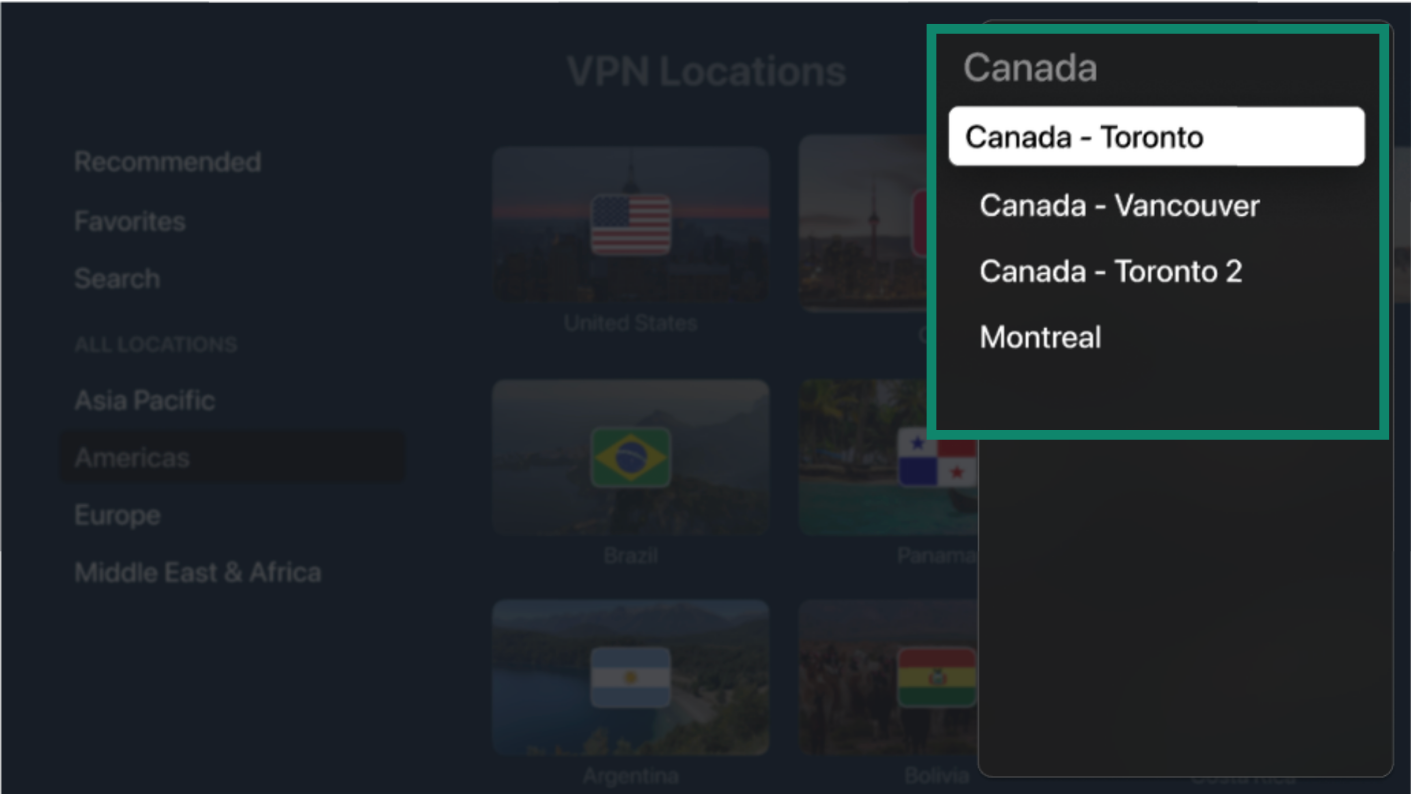
- Click on any location you’d like to connect to and select a city, if available. The app will connect you automatically.

Need help? Contact the ExpressVPN Support Team for immediate assistance.
Save favorite locations
You can save both VPN server countries and cities to your favorites for quicker access. Your favorite locations appear on the ExpressVPN home screen, so you can reconnect without opening the full location list.
On the home screen, select the star icon next to the connected VPN location.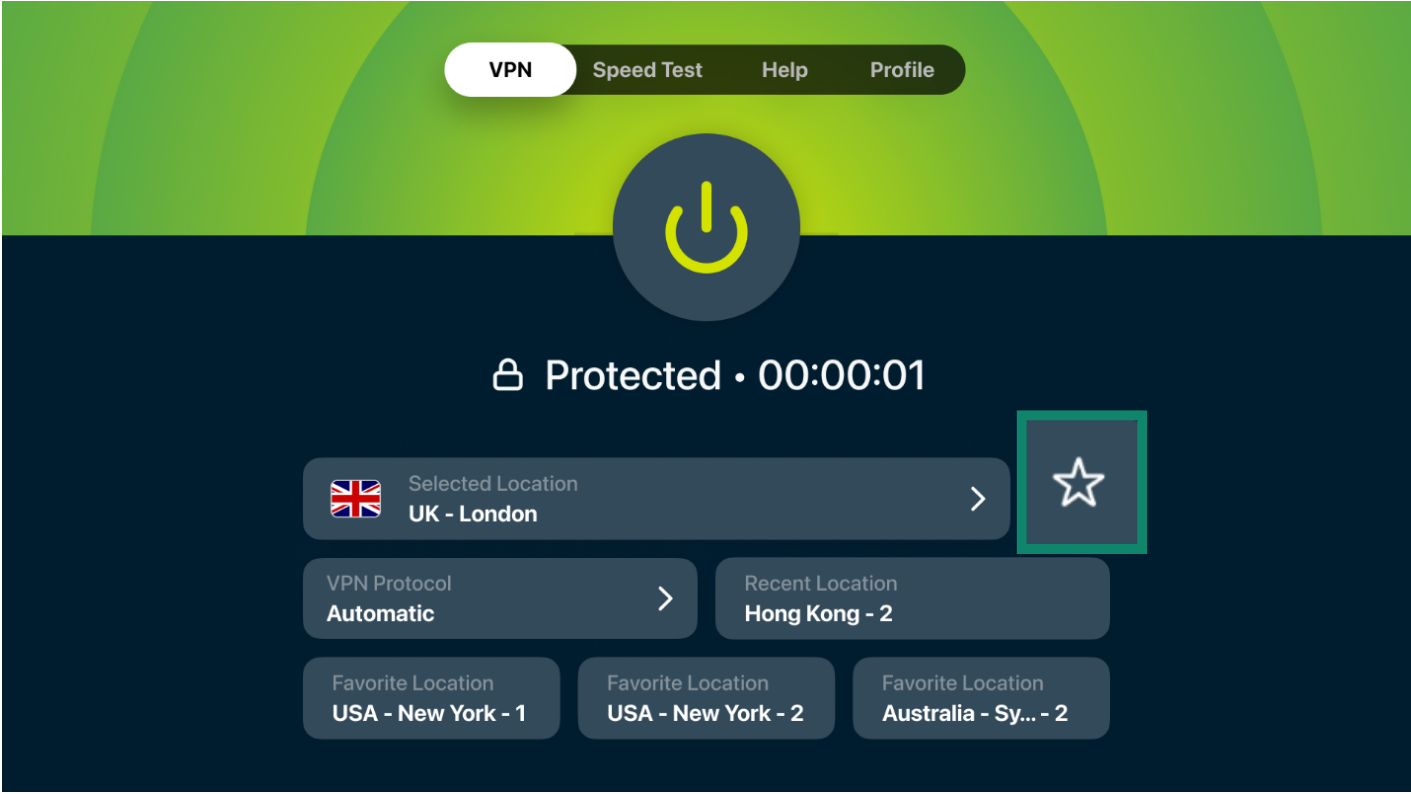
The app adds the VPN location to your favorites and displays it on the home screen in a quick-access tile.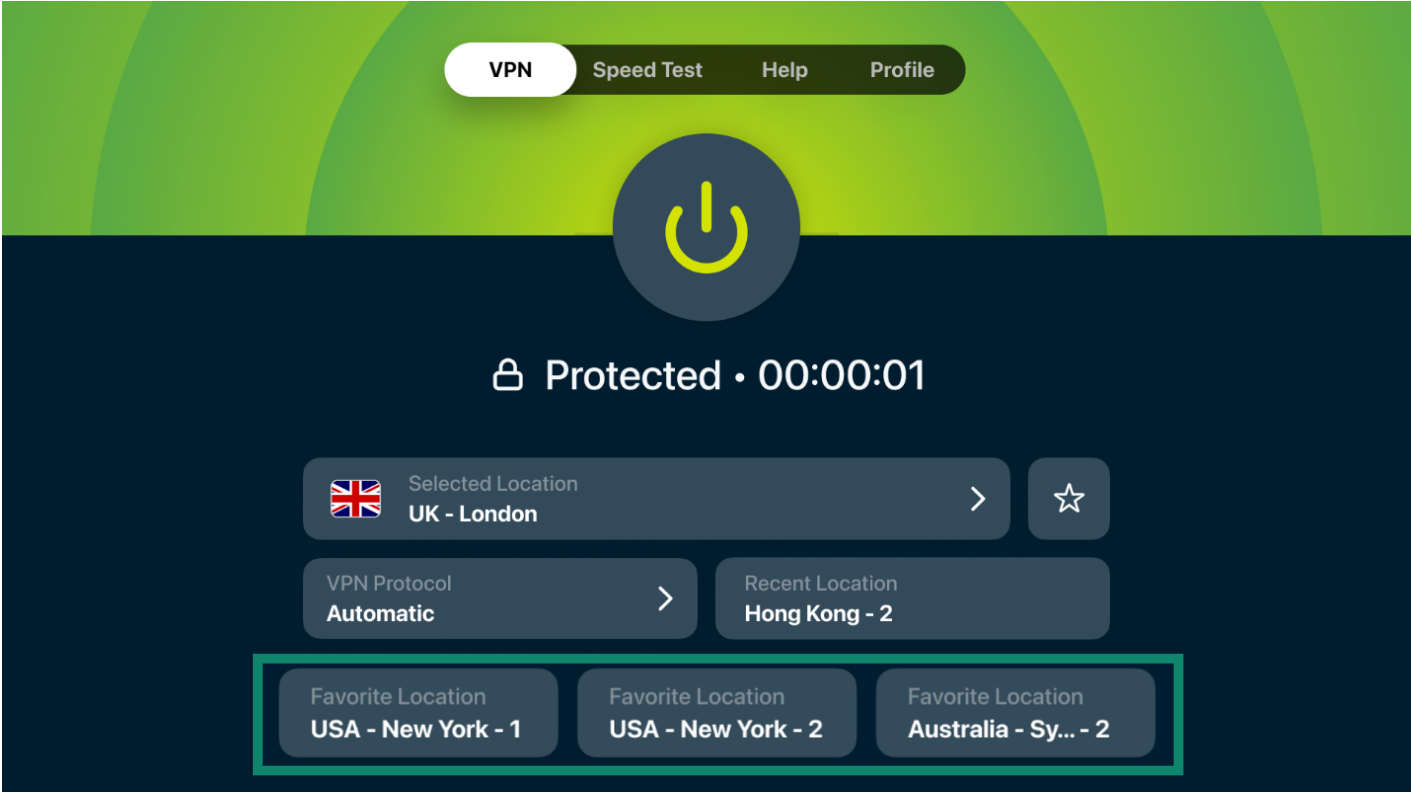
You can also access all saved locations from the Favorites tab in the VPN server list.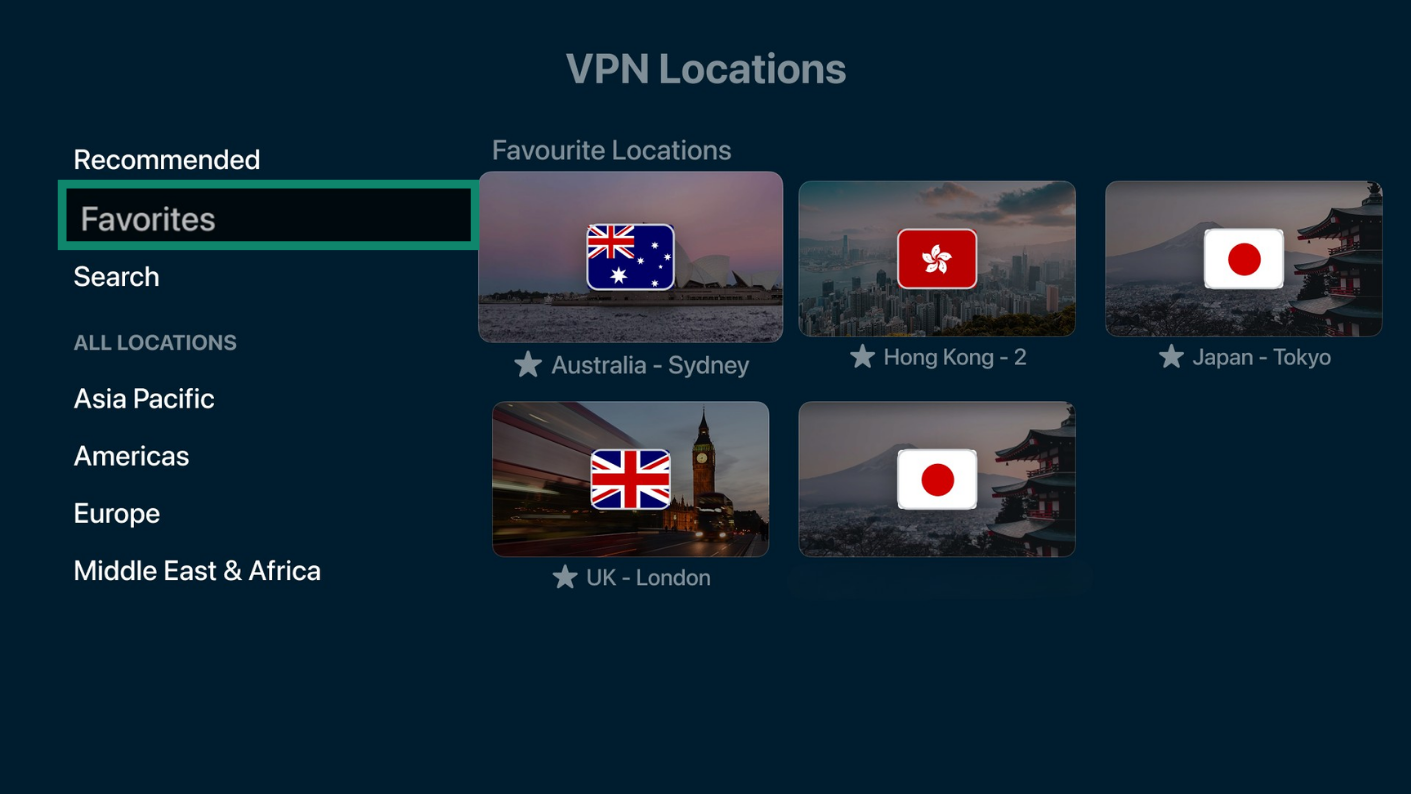
Need help? Contact the ExpressVPN Support Team for immediate assistance.
Run a speed test
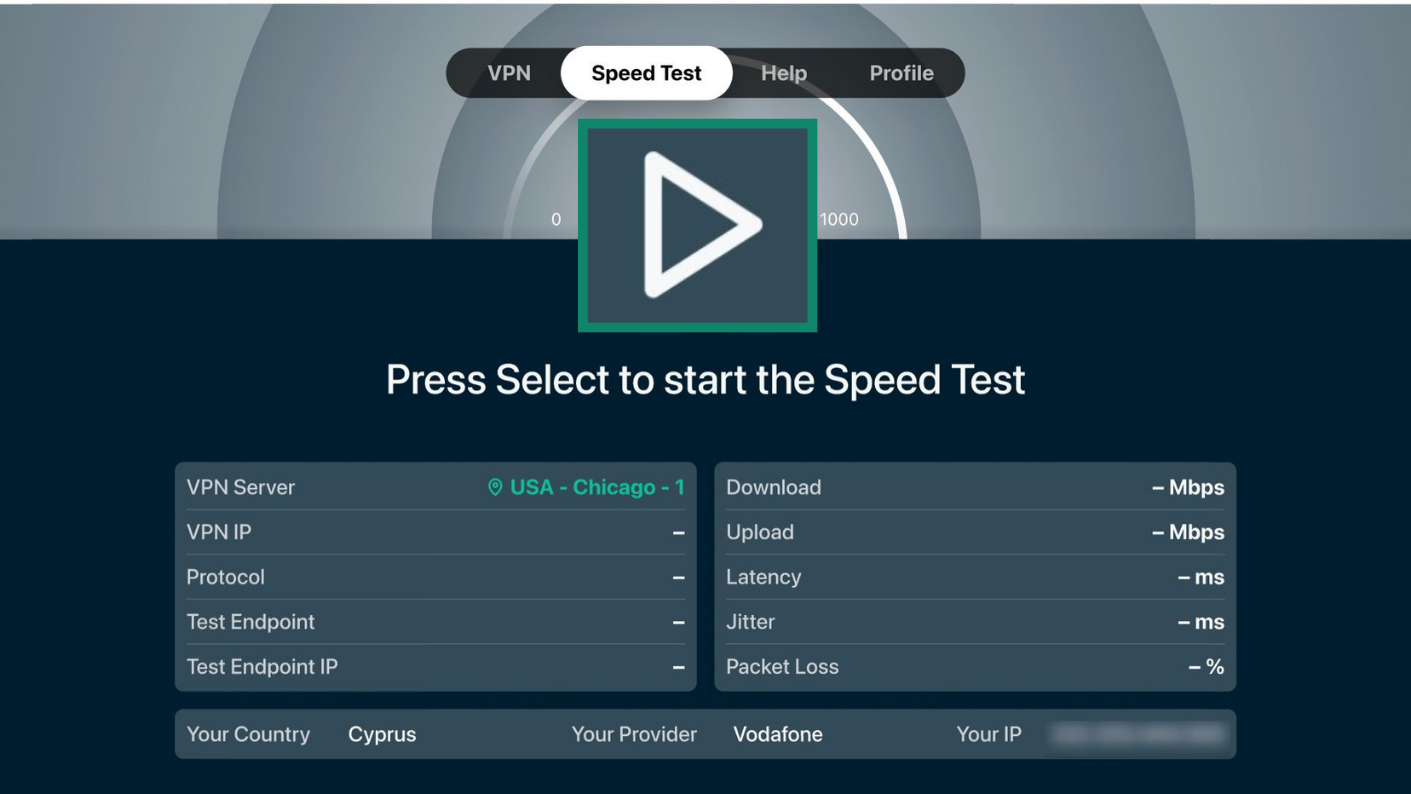
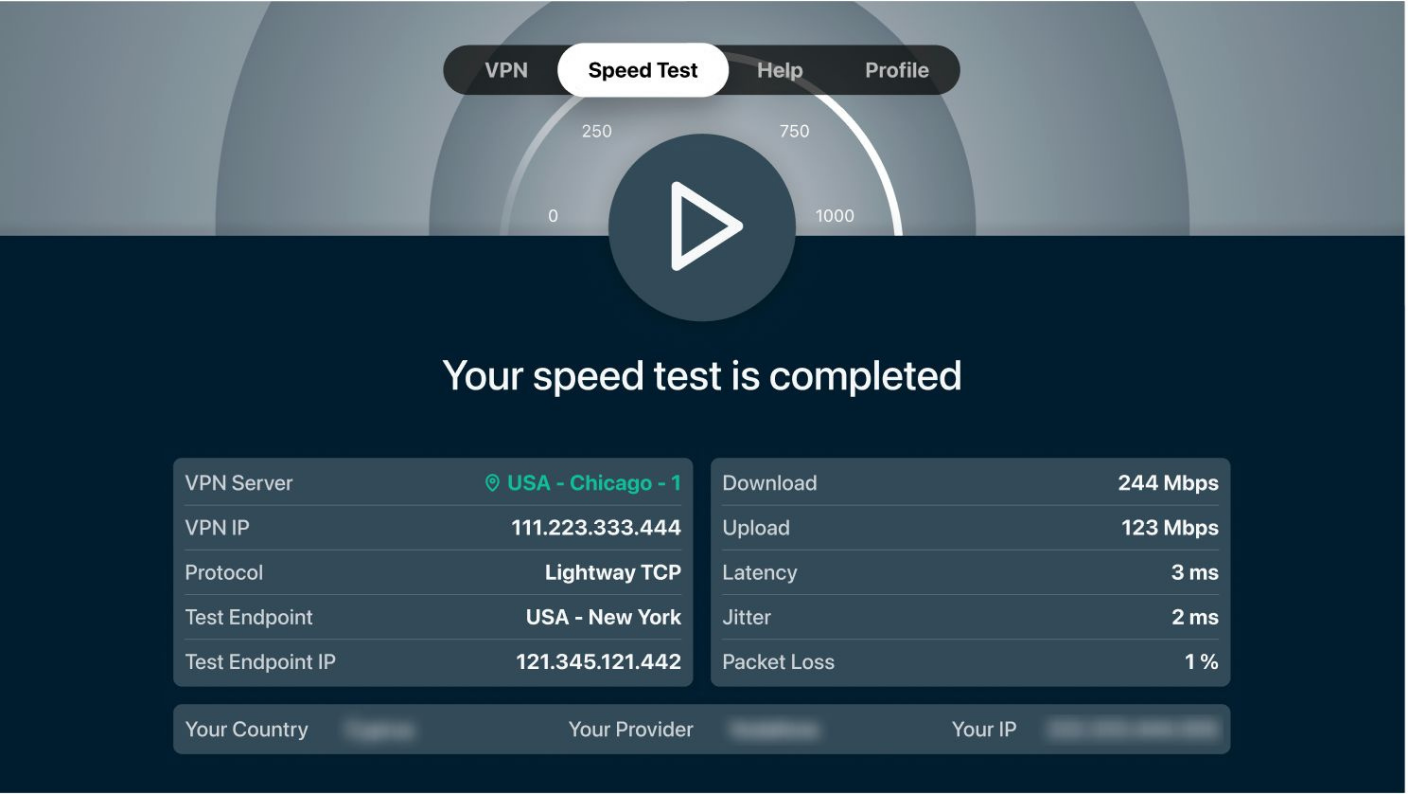
The speed test tool measures the speed and performance of your connection to different VPN server locations. You can use it to help choose a server location that offers the best performance for your connection.
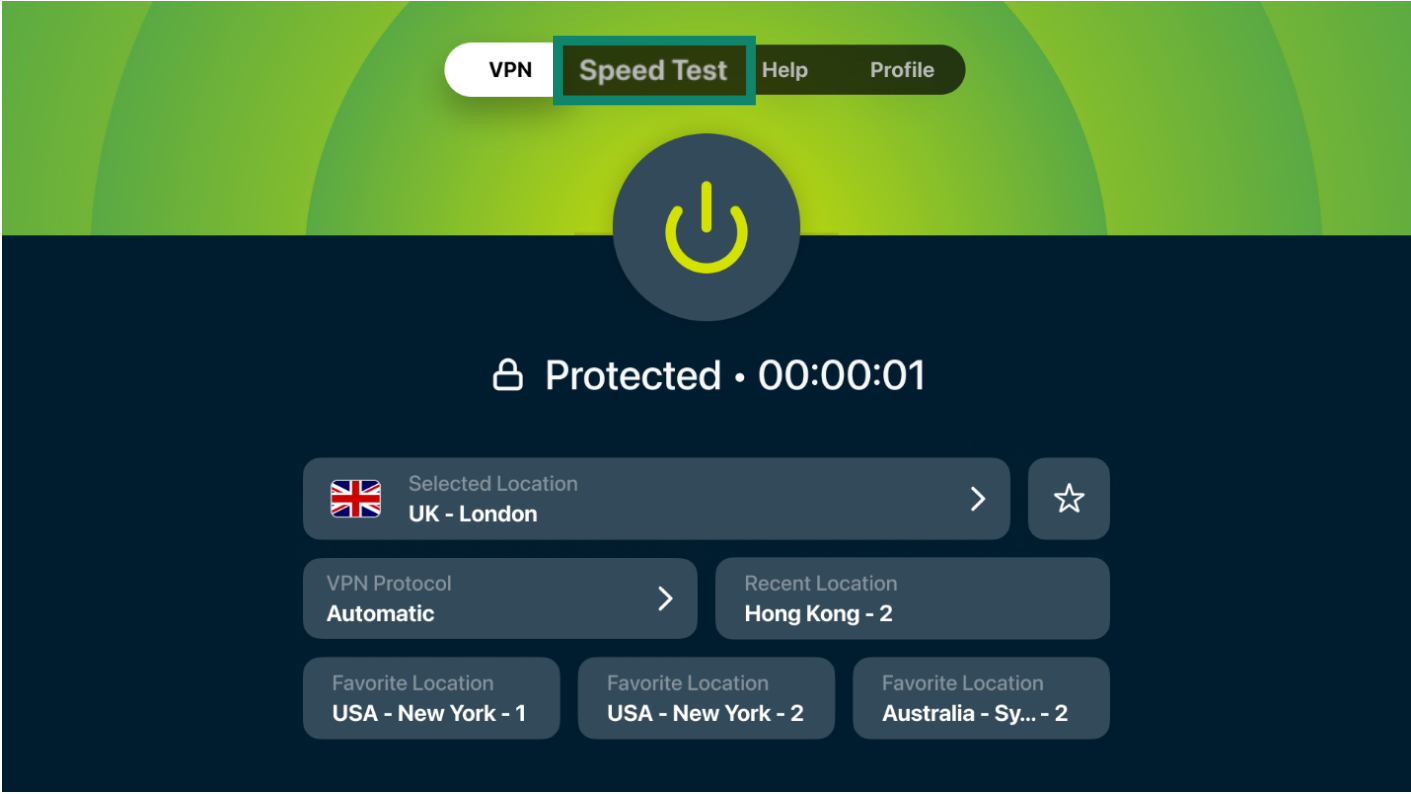
- In the ExpressVPN app, select Speed Test from the top navigation bar.

- Select the play button to start the speed test.

- Wait a few minutes for the test to finish and view your results.

Need help? Contact the ExpressVPN Support Team for immediate assistance.
Change VPN protocols
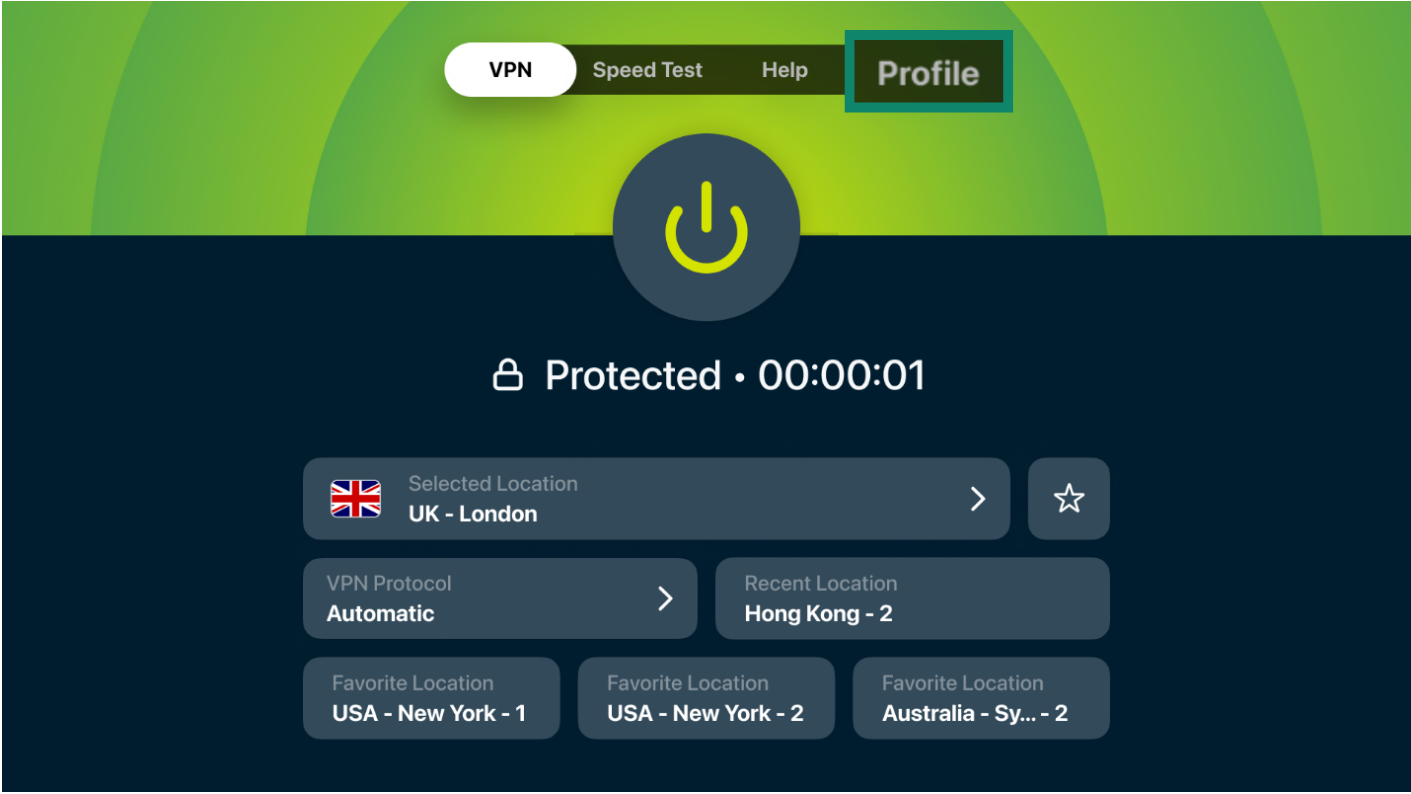
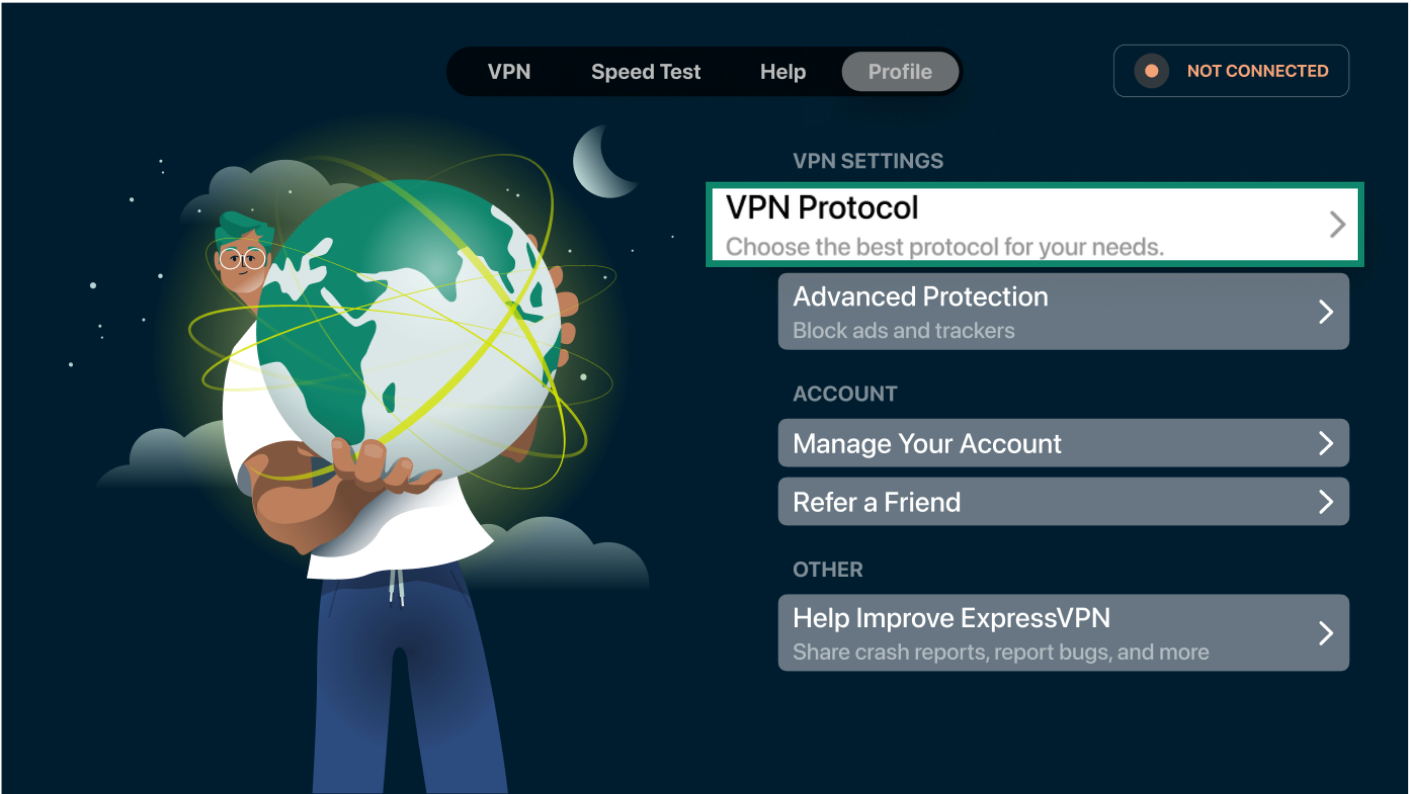
You can switch between VPN protocols for more flexibility over how you connect. You can choose between Automatic (the app chooses for you), OpenVPN, Lightway, or WireGuard.
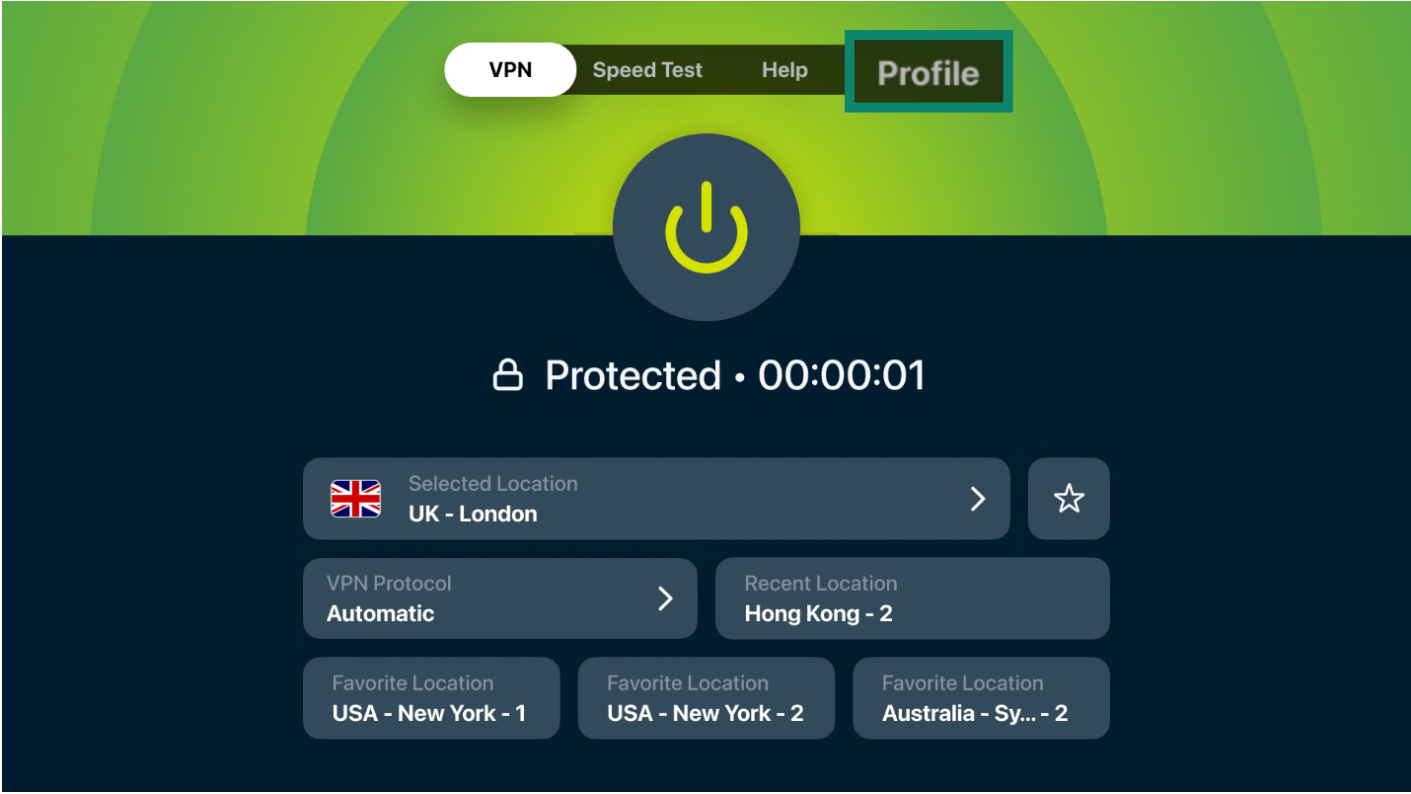
- In the ExpressVPN app, select Profile from the top navigation bar.

- Select VPN Protocol.

- Select the VPN protocol you want to use.

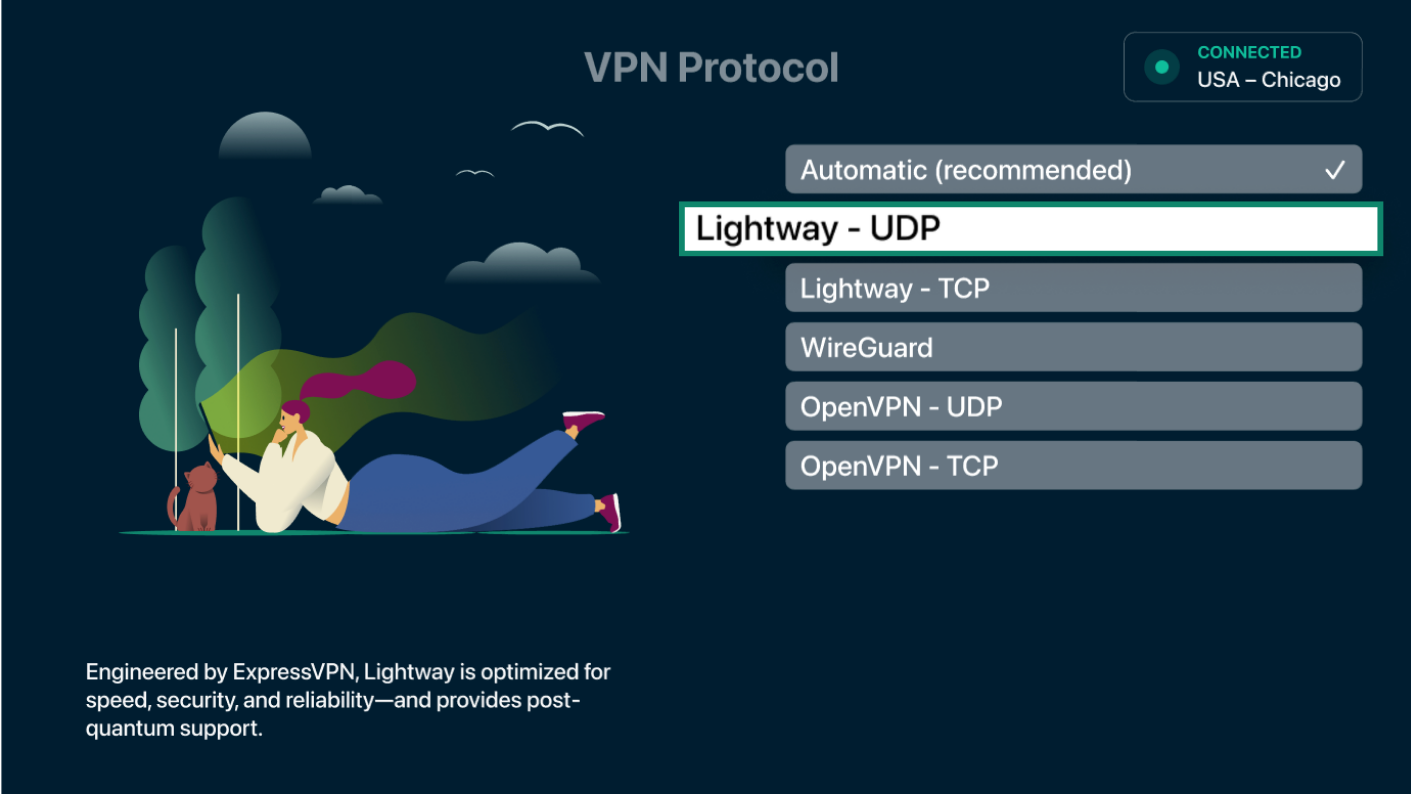
The app will save your changes automatically.
Need help? Contact the ExpressVPN Support Team for immediate assistance.
Block ads and trackers
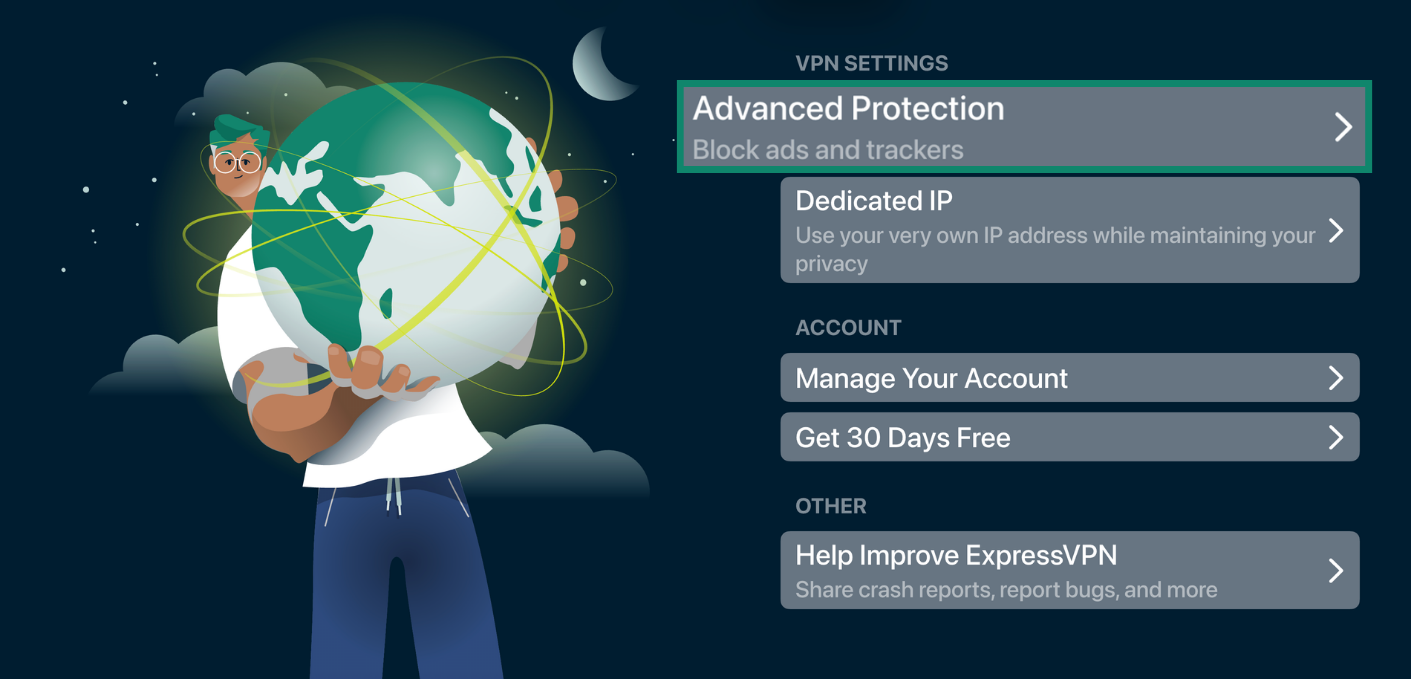
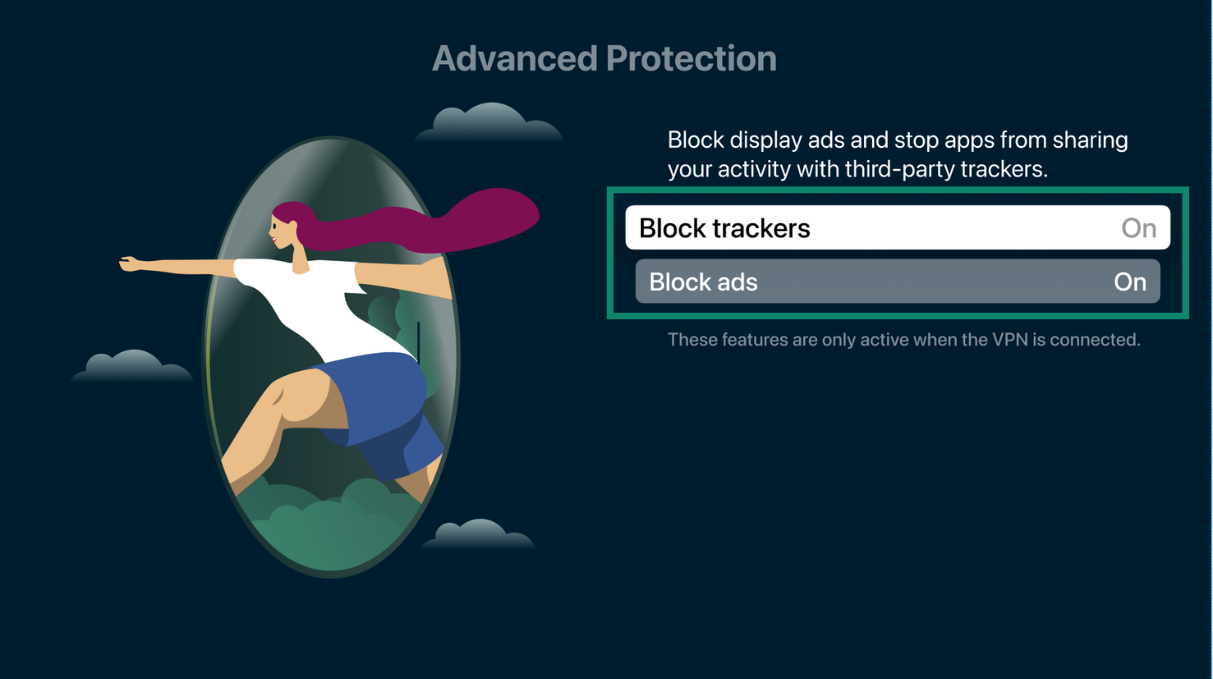
ExpressVPN’s advanced protection features can block ads and trackers while you use your Apple TV.
- In the ExpressVPN app, select Profile from the top navigation bar.

- Select Advanced Protection.


- Turn on Block trackers and Block ads.


Need help? Contact the ExpressVPN Support Team for immediate assistance.
Remove the ExpressVPN app
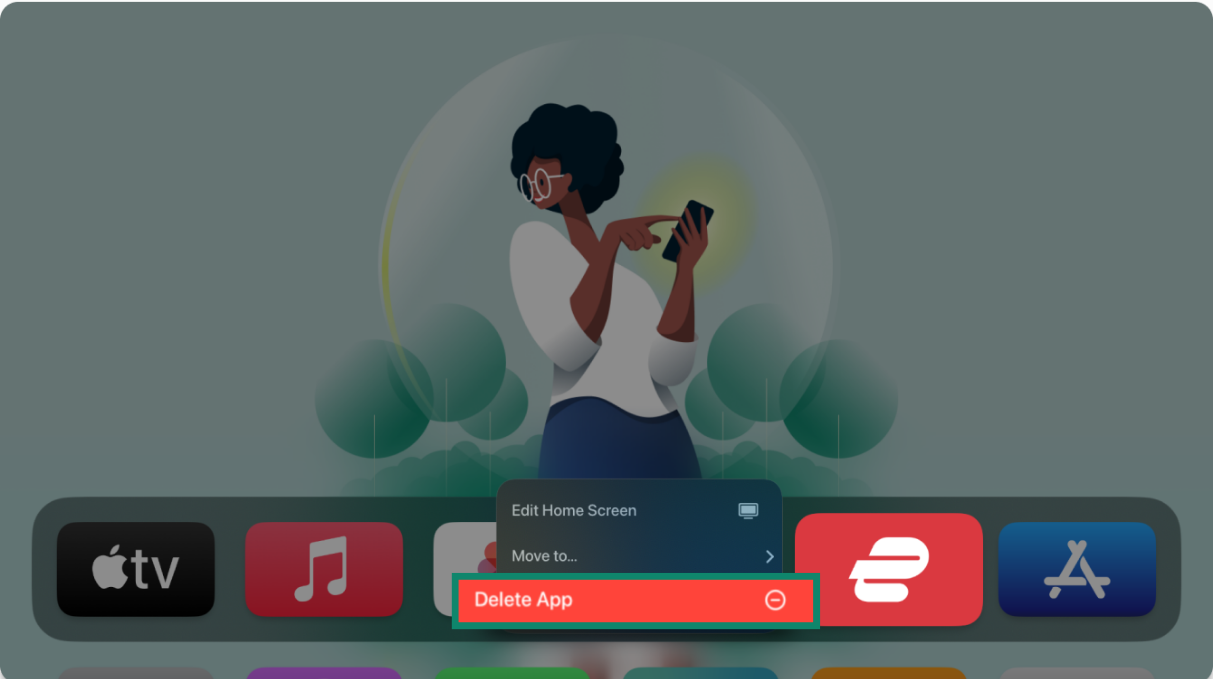
- On your Apple TV home screen, find the ExpressVPN app.
- Press and hold the clickpad center on your Siri Remote (2nd generation or later) or the touch surface on your Siri Remote (1st generation).
- Select Delete App.

- Select Delete or Offload.

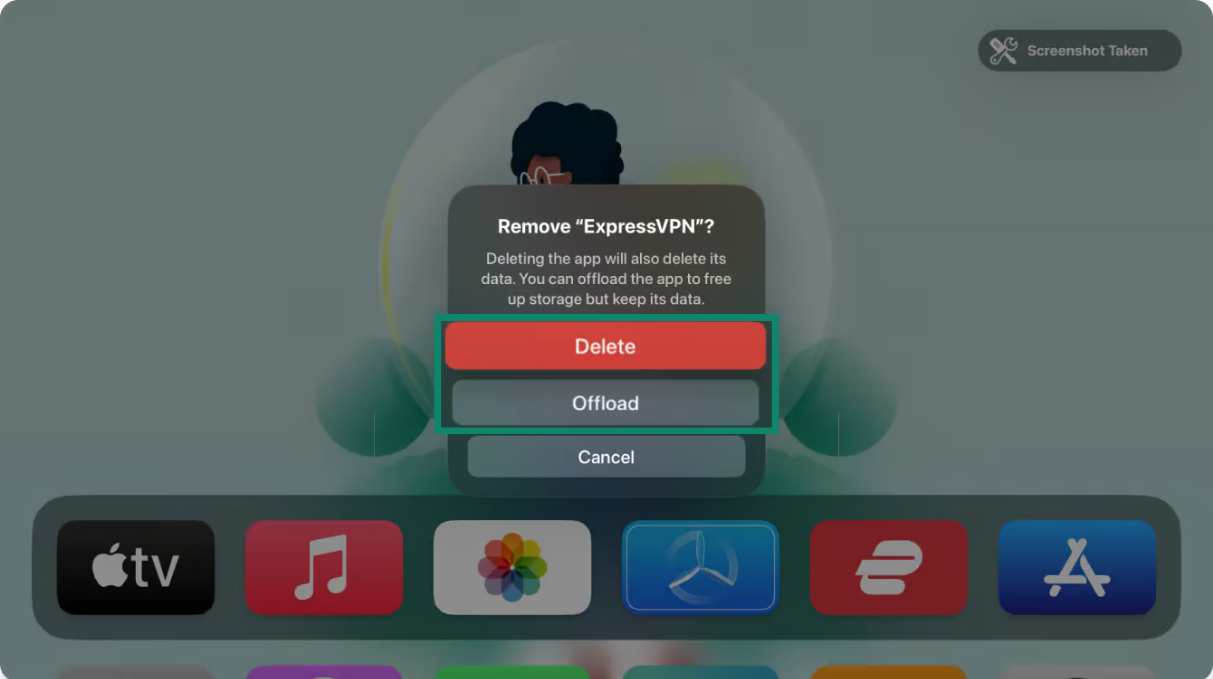
Offload removes the app from the home screen and frees up storage space but keeps the app data on your Apple TV.
Delete removes both the app and its data from your Apple TV.
Need help? Contact the ExpressVPN Support Team for immediate assistance.