




Need a VPN or DNS for your Apple TV?
Get ExpressVPN Now
One ExpressVPN account. All devices.
Get Apps for FreeThis tutorial will show you how to set up your Apple TV tvOS (newer models including HD and 4K) with MediaStreamer by changing your DNS settings.
MediaStreamer is a DNS service designed to improve your streaming experience. If your device doesn’t natively support VPN, MediaStreamer is a great alternative for streaming.
To use MediaStreamer smoothly, you must register your IP address on the ExpressVPN website. This allows ExpressVPN to recognize your IP address and grant your device access to MediaStreamer. Alternatively, you can get your DDNS hostname and register the hostname on the ExpressVPN website.
Note: MediaStreamer is not a VPN and does not offer the privacy and security benefits of a VPN. You cannot change locations with MediaStreamer.
If you have an iOS device, you can mirror content to your Apple TV without using MediaStreamer.
Not yet a customer? Learn more about ExpressVPN for Apple TV.
Jump to…
1. Register your IP address on the ExpressVPN website
2. Get your MediaStreamer server IP address
3. Configure the DNS servers on your Apple TV
4. Restart your Apple TV
I cannot access or stream videos
Cast or mirror from your device to Apple TV
1. Register your IP address on the ExpressVPN website
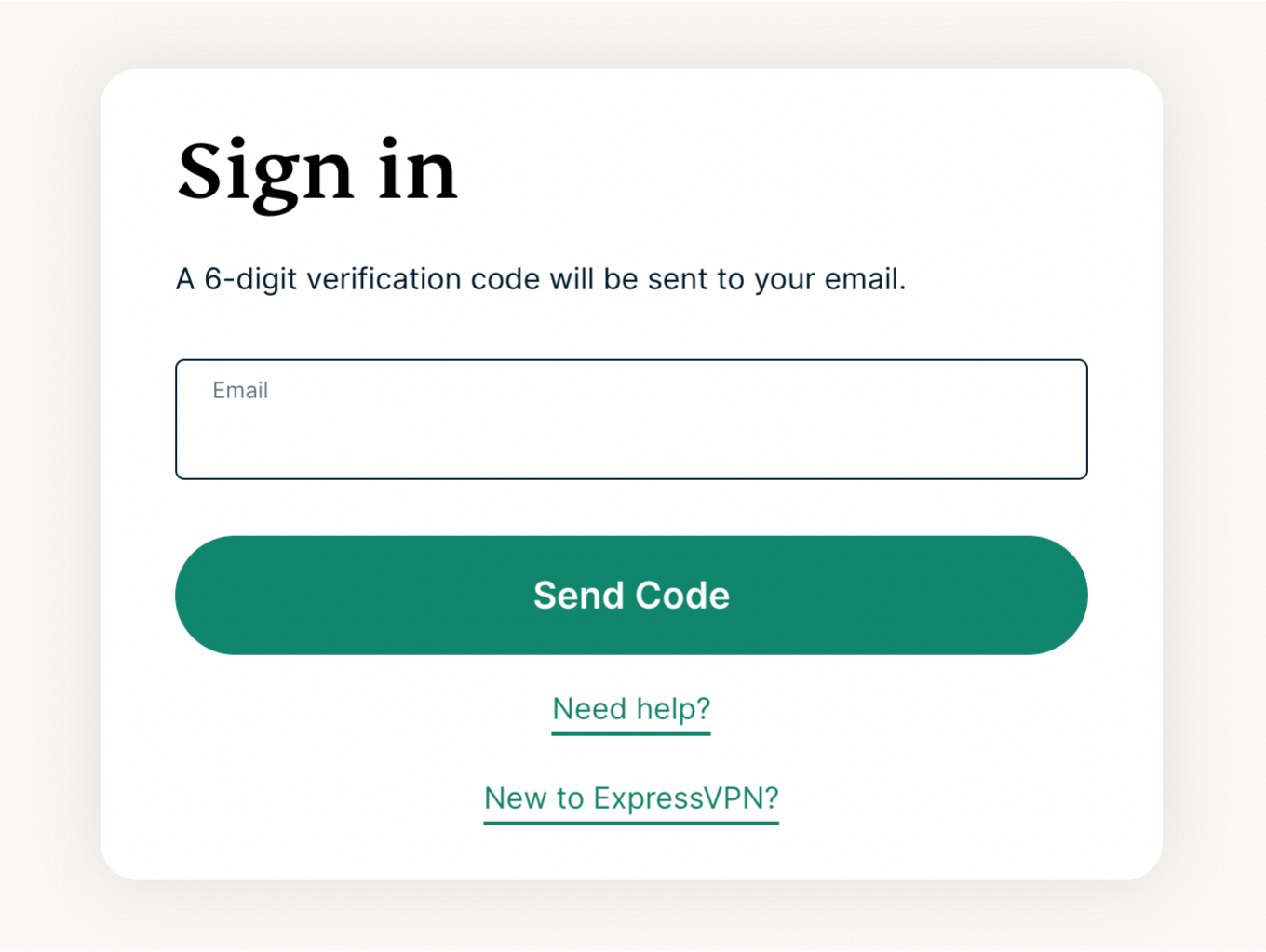
- Log into the ExpressVPN+ portal. If prompted, enter your email and click Send Code.
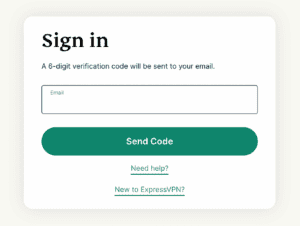

- Enter the verification code sent to your email.
- Select your profile picture and click DNS Settings.


- Under IP address registration, click Register my IP address. If it already reads “registered” next to your IP address, there is no need to select this option again.
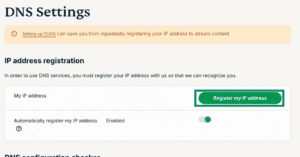

- Toggle Automatically register my IP address on. This is recommended as it automatically tracks changes to your IP address.
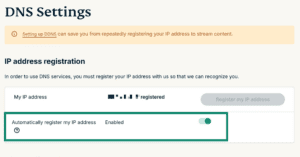
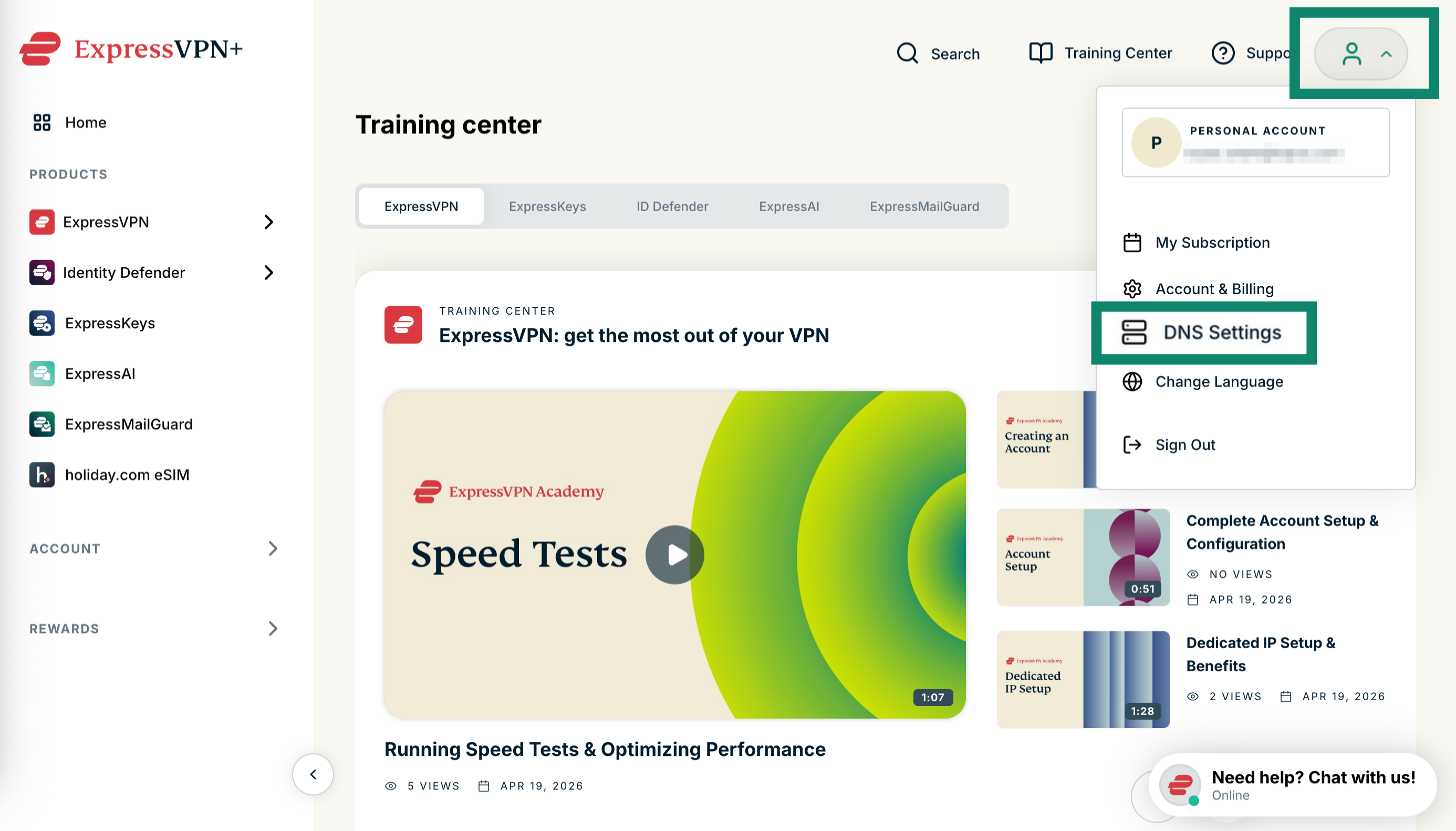
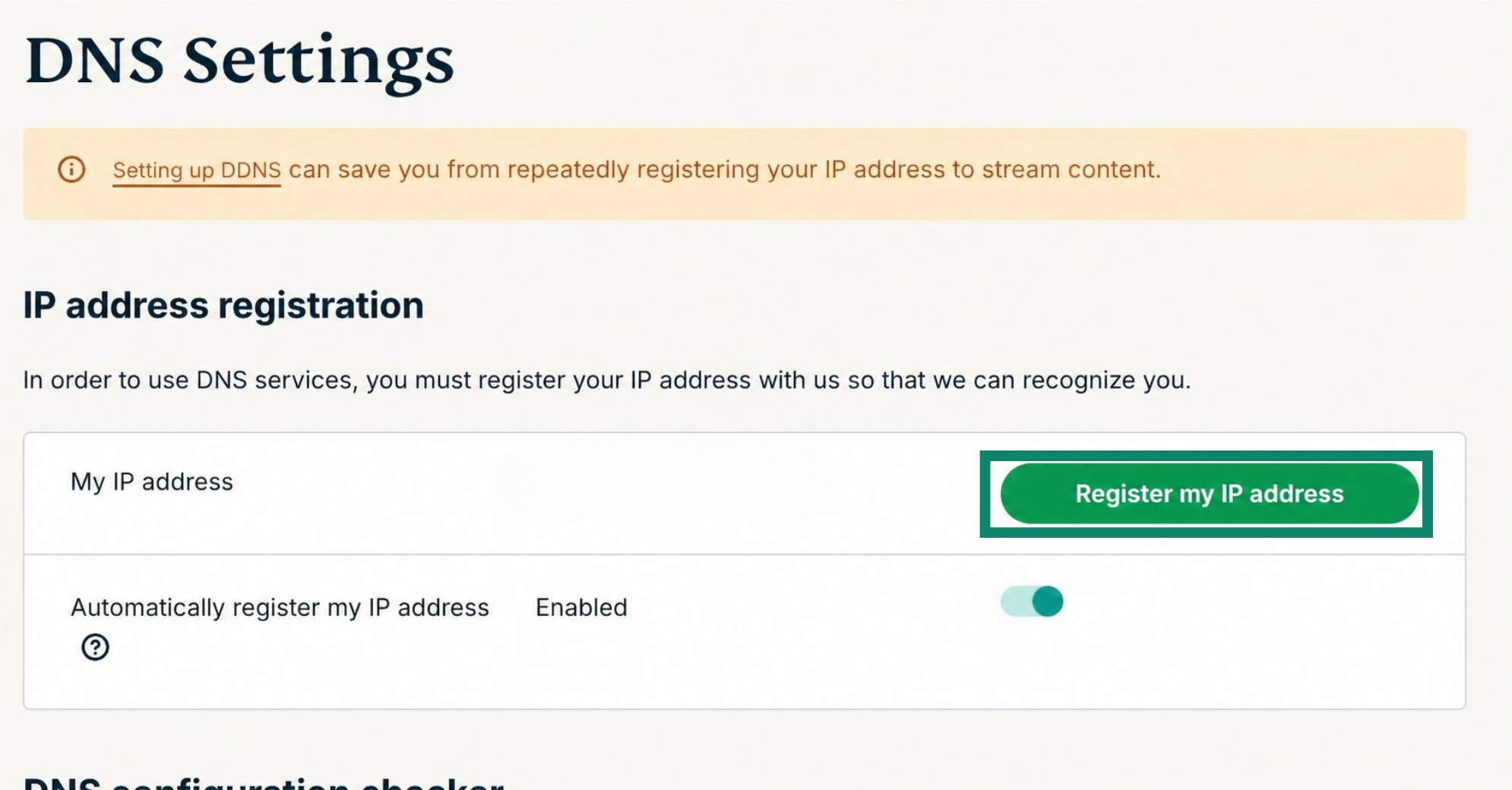
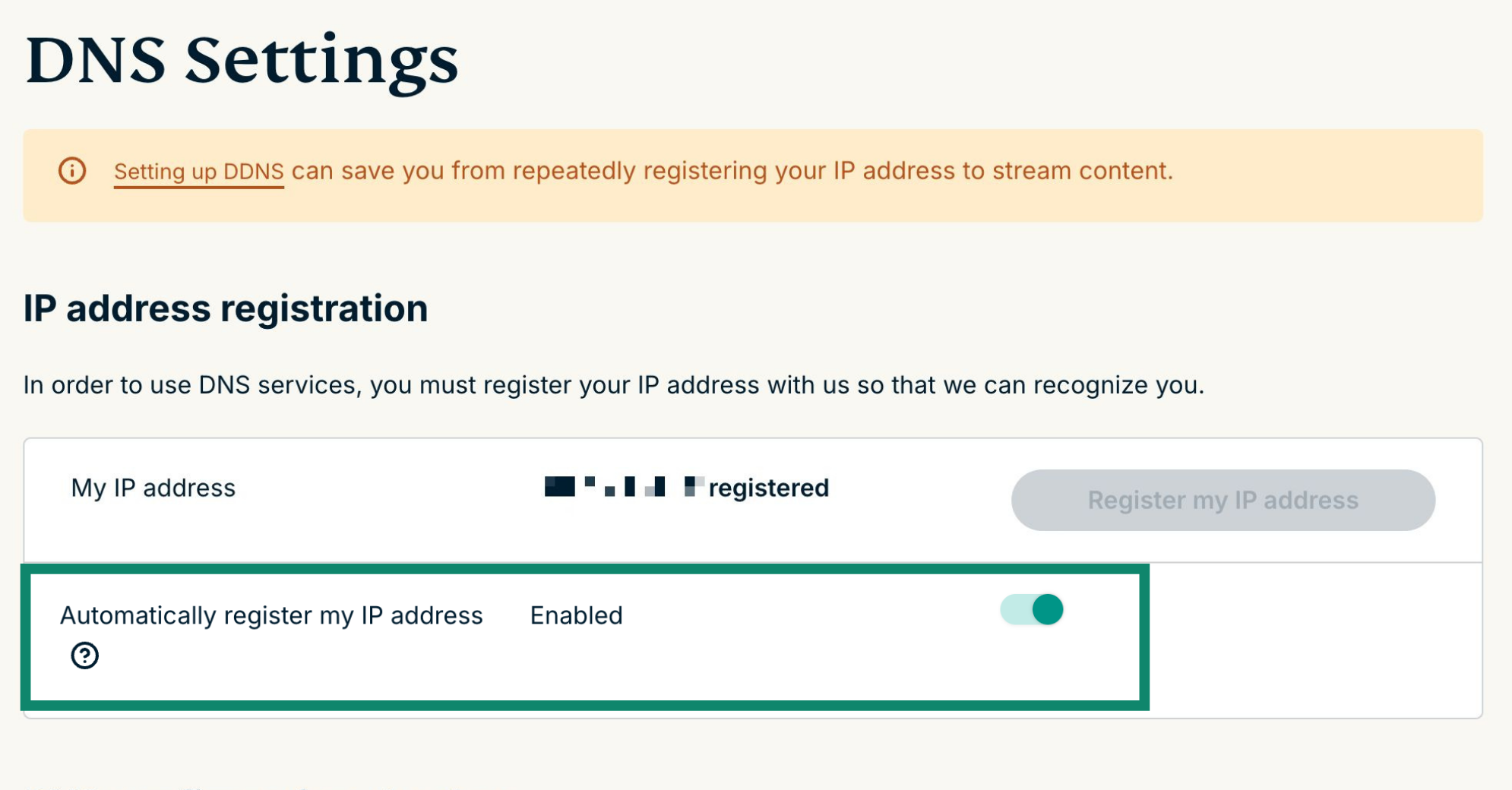
If you have enabled Automatically register your IP address, you can keep your IP address updated by using the ExpressVPN app on your device or signing in to your ExpressVPN account occasionally.
Need help? Contact the ExpressVPN Support Team for immediate assistance.
2. Get your MediaStreamer server IP address
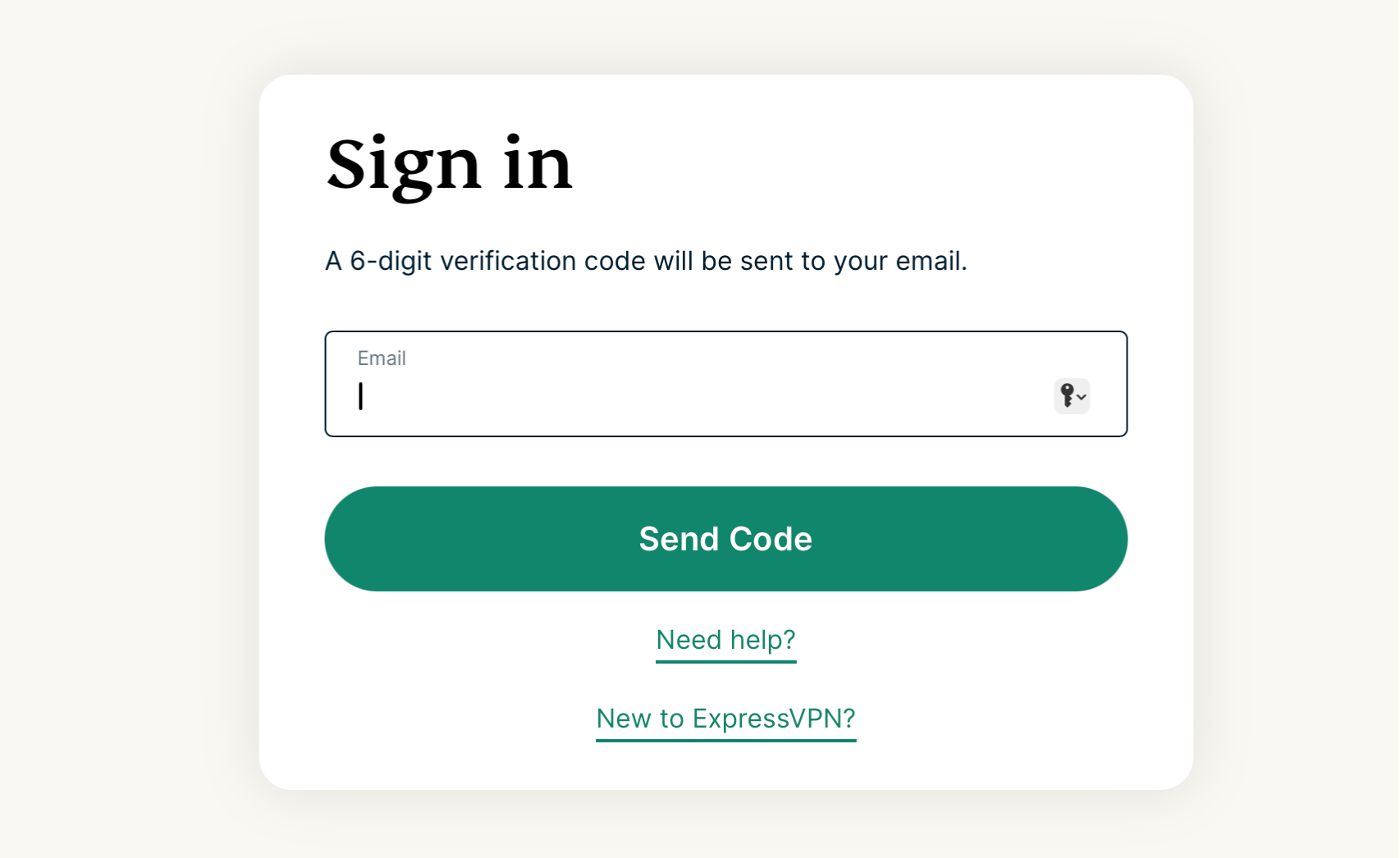
- Go to the ExpressVPN Setup page. If prompted, enter your email and click Send Code.
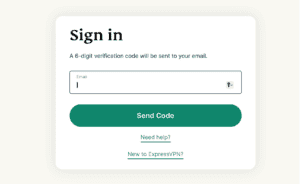

- Enter the verification code sent to your email.
- Under Applications, select Network & smart home to open the dropdown menu. From there, click MediaStreamer.
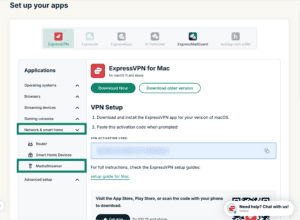

- You will find your DNS server IP addresses on the right side, under MediaStreamer IP#1 and MediaStreamer IP #2.


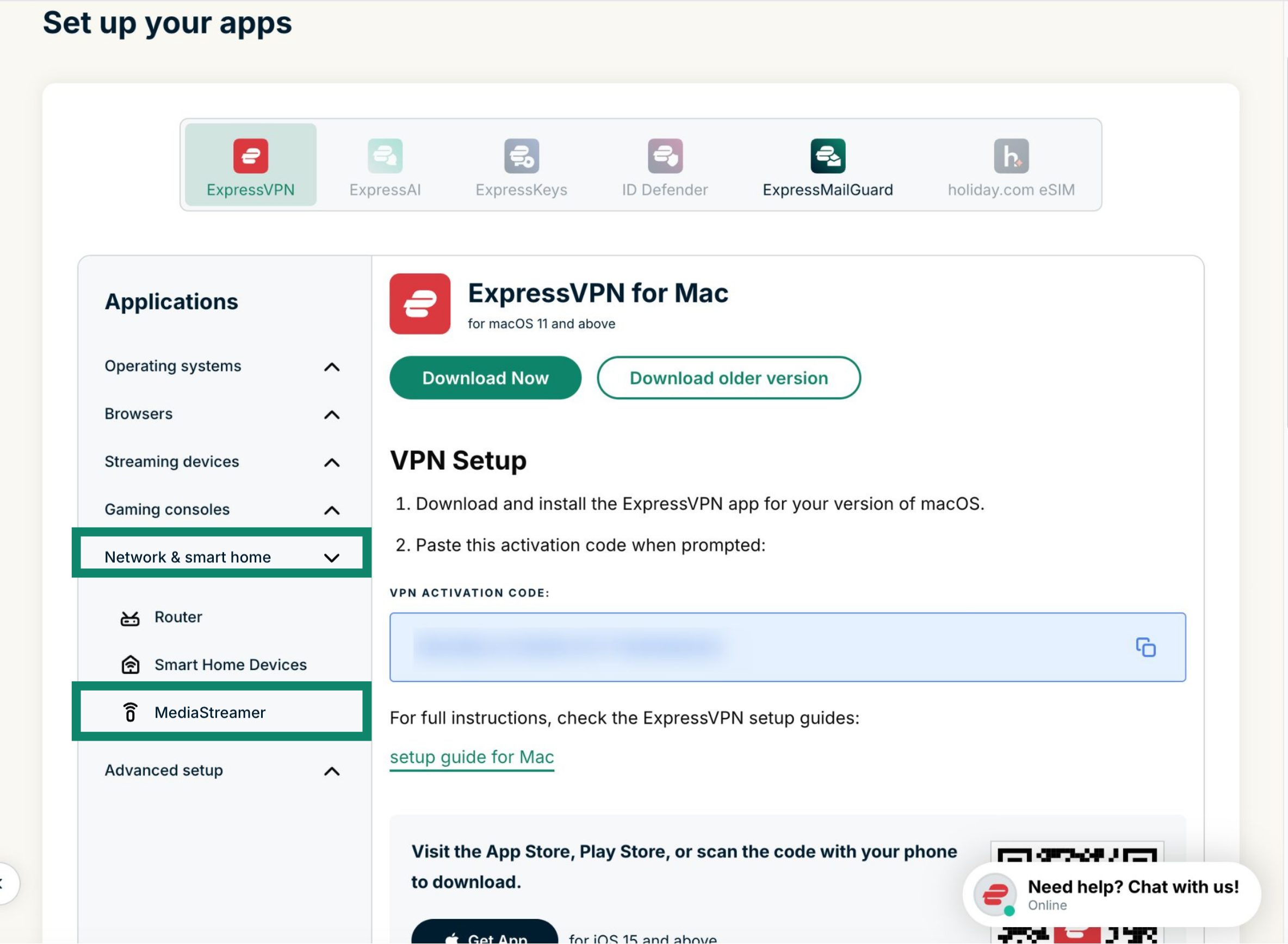
Keep this browser window open. You will need this information for the setup later.
Need help? Contact the ExpressVPN Support Team for immediate assistance.
3. Configure the DNS servers on your Apple TV
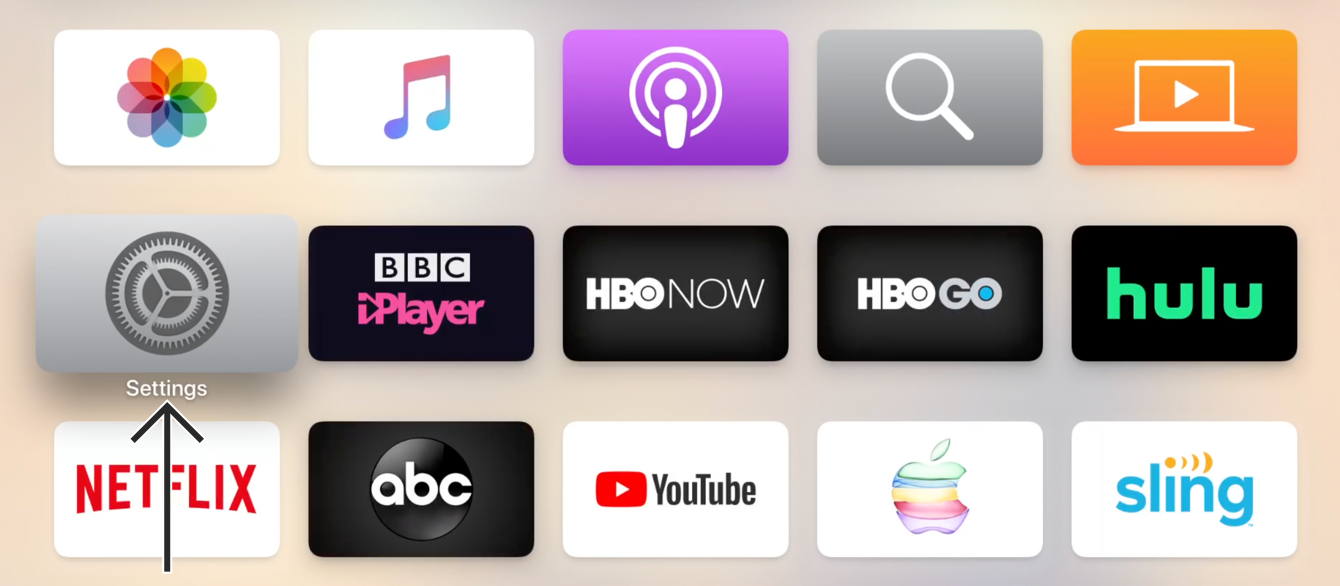
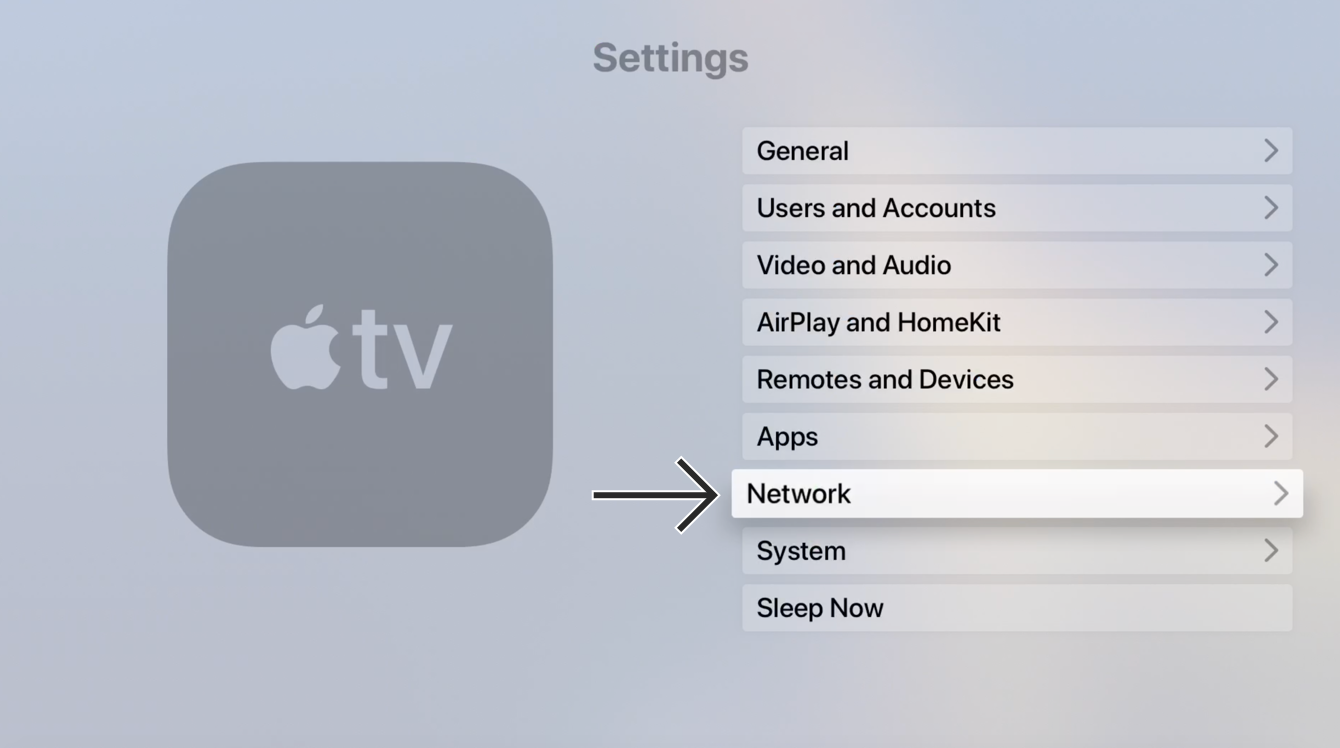
- On your Apple TV, open Settings.


- In Settings, select Network.


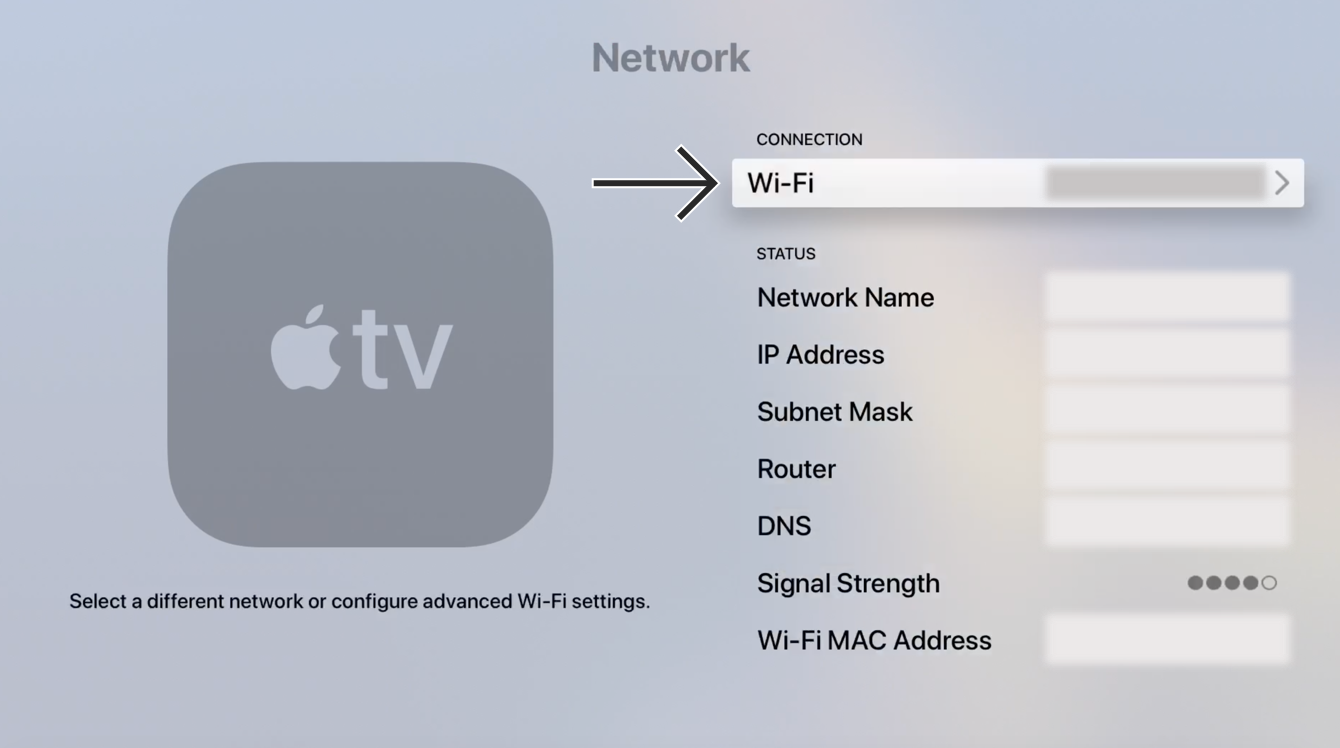
- In the Network menu, select your current active connection. (In our case, it’s a Wi-Fi connection.)

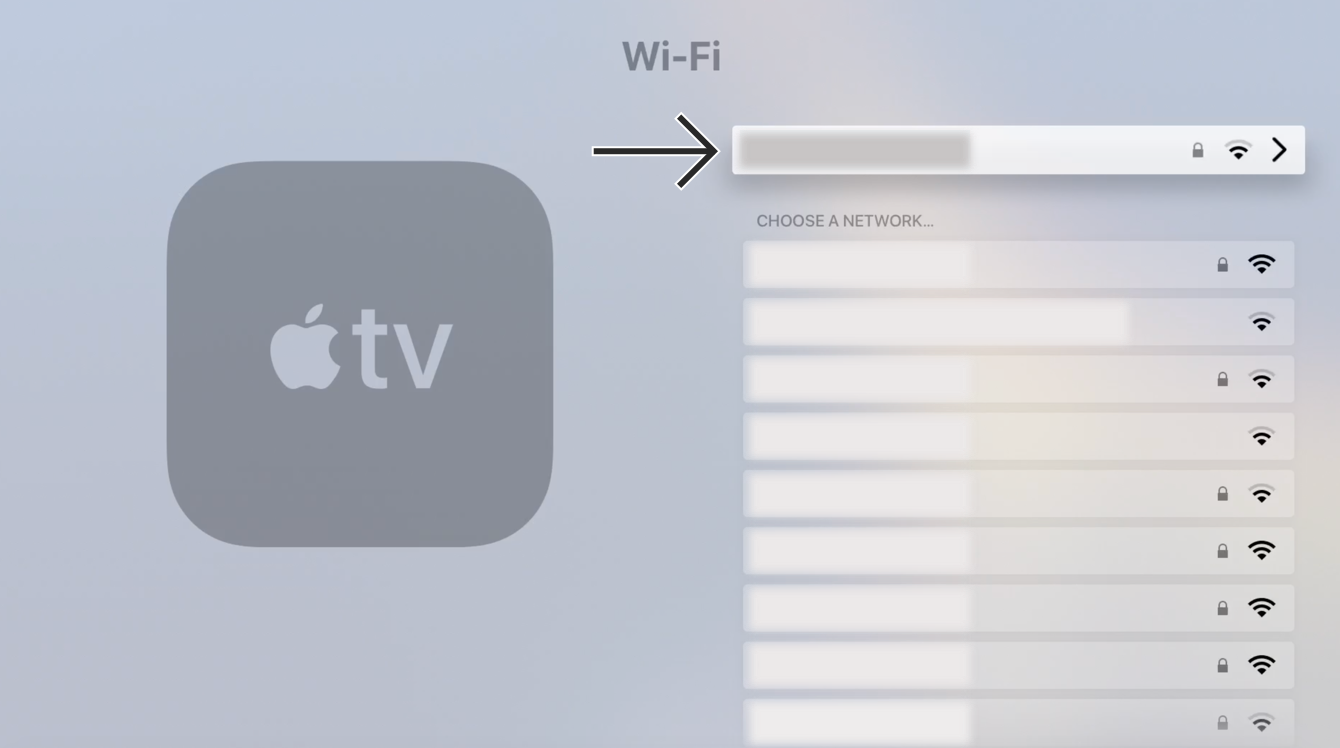
- In the Wi-Fi menu, select your Wi-Fi network to access its settings.

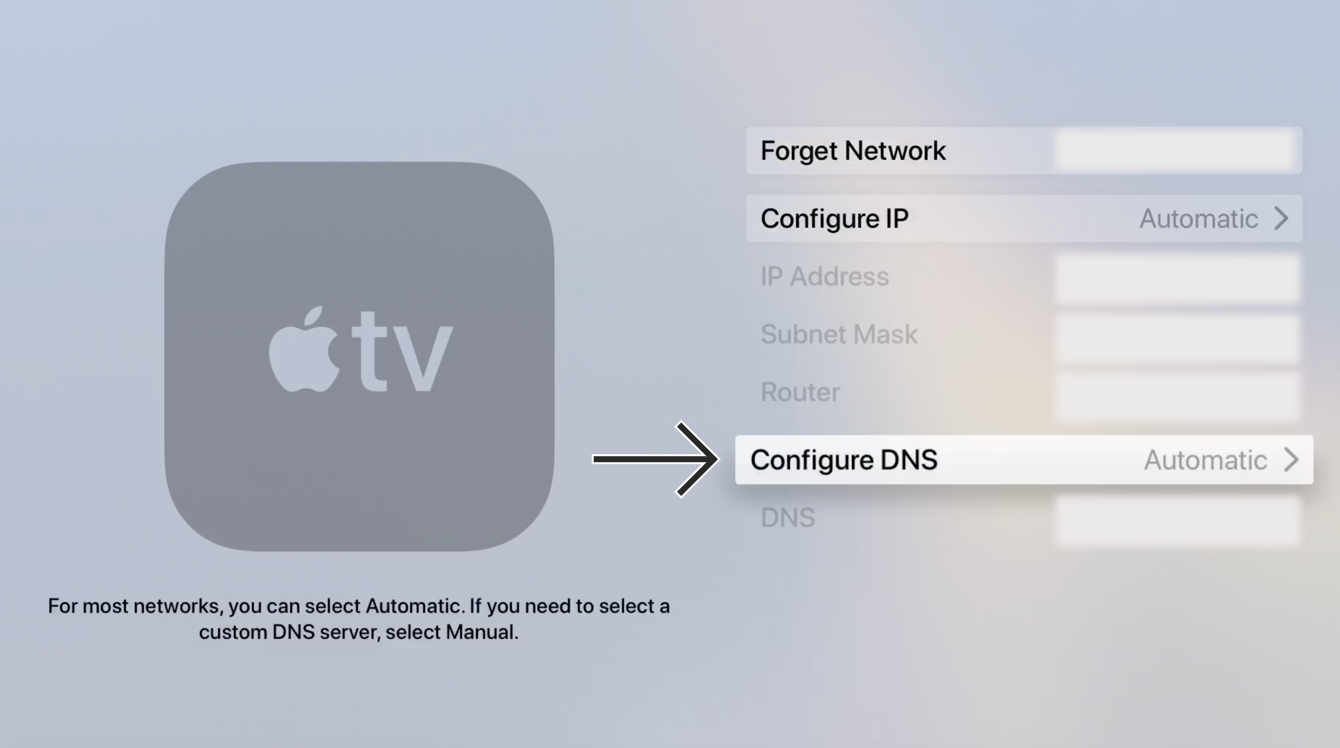
- In the connection’s settings menu, scroll down and select Configure DNS.

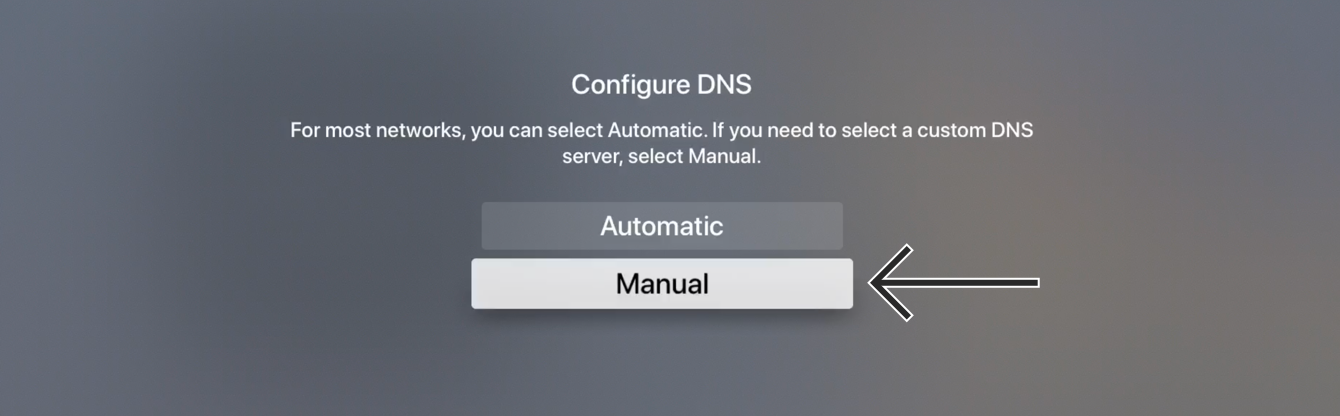
- In the Configure DNS options, select Manual.

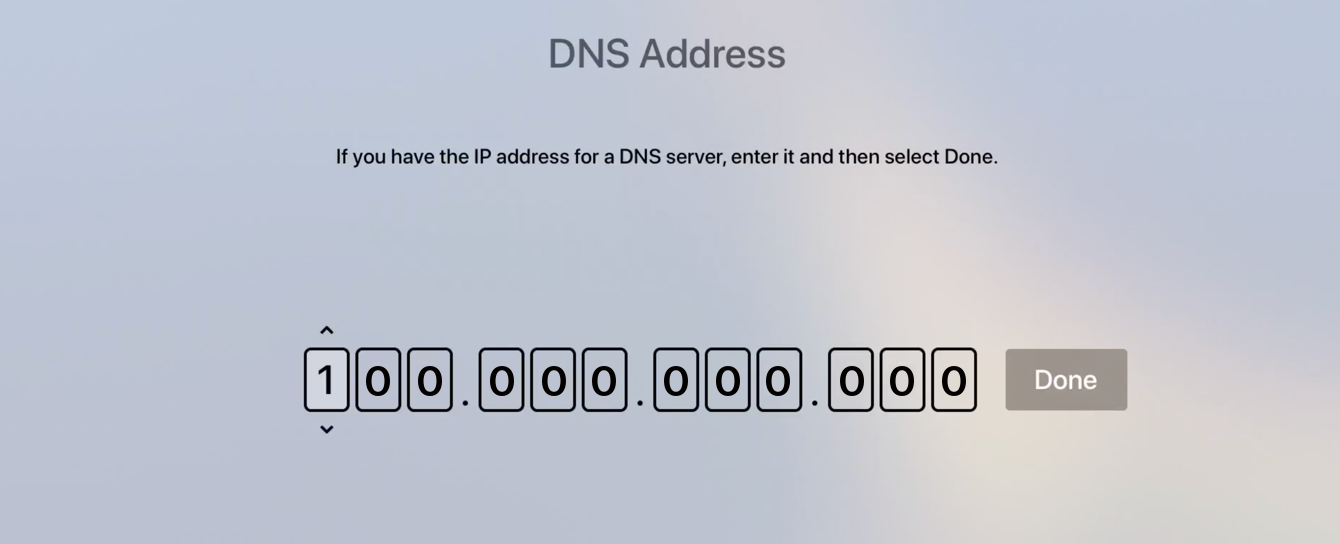
 You will arrive at the manual DNS input screen.
Note: Make a note of your current DNS settings if you have manually configured it before. If you didn’t, you can set Configure DNS to Automatic again to revert to your original one. - Enter the numbers of your MediaStreamer DNS IP address, which you found earlier.


Need help? Contact the ExpressVPN Support Team for immediate assistance.
4. Restart your Apple TV
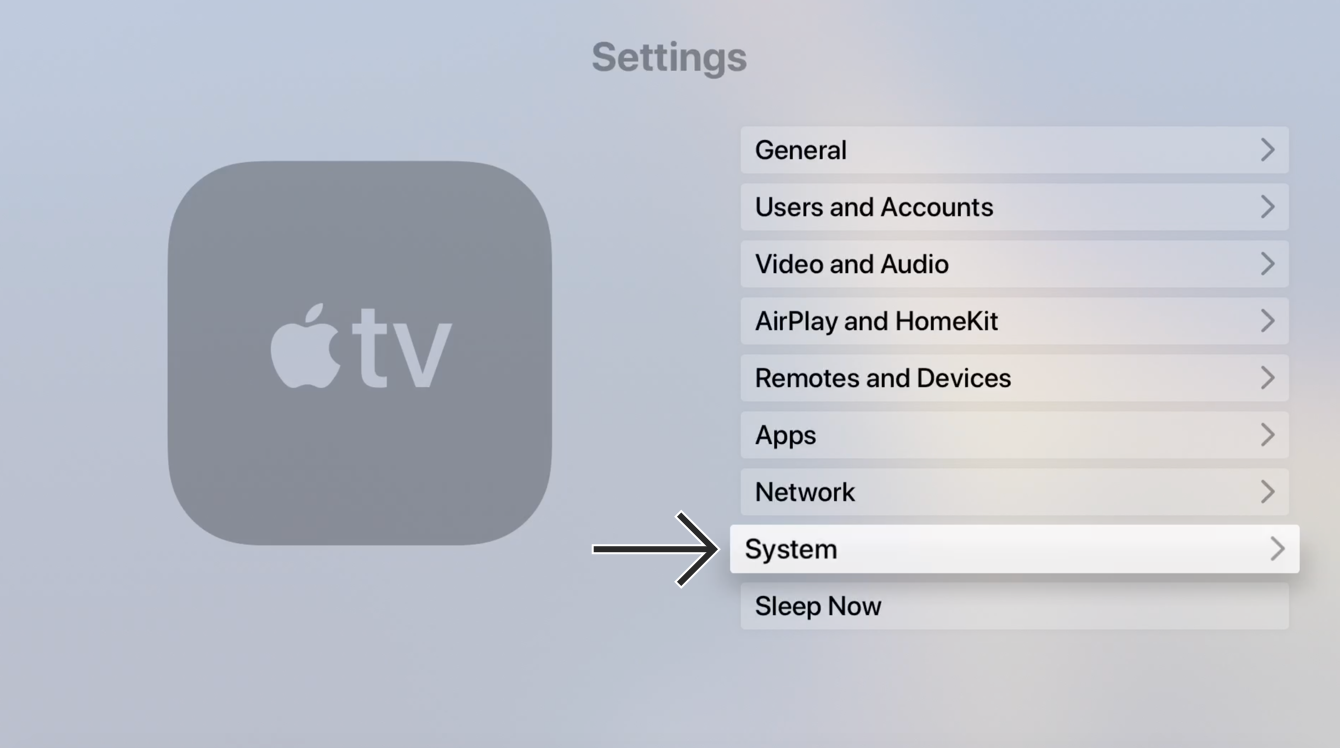
- You must restart your Apple TV for the DNS change to take place. To restart your Apple TV, return to the Settings menu.
- From the Settings menu, select System.

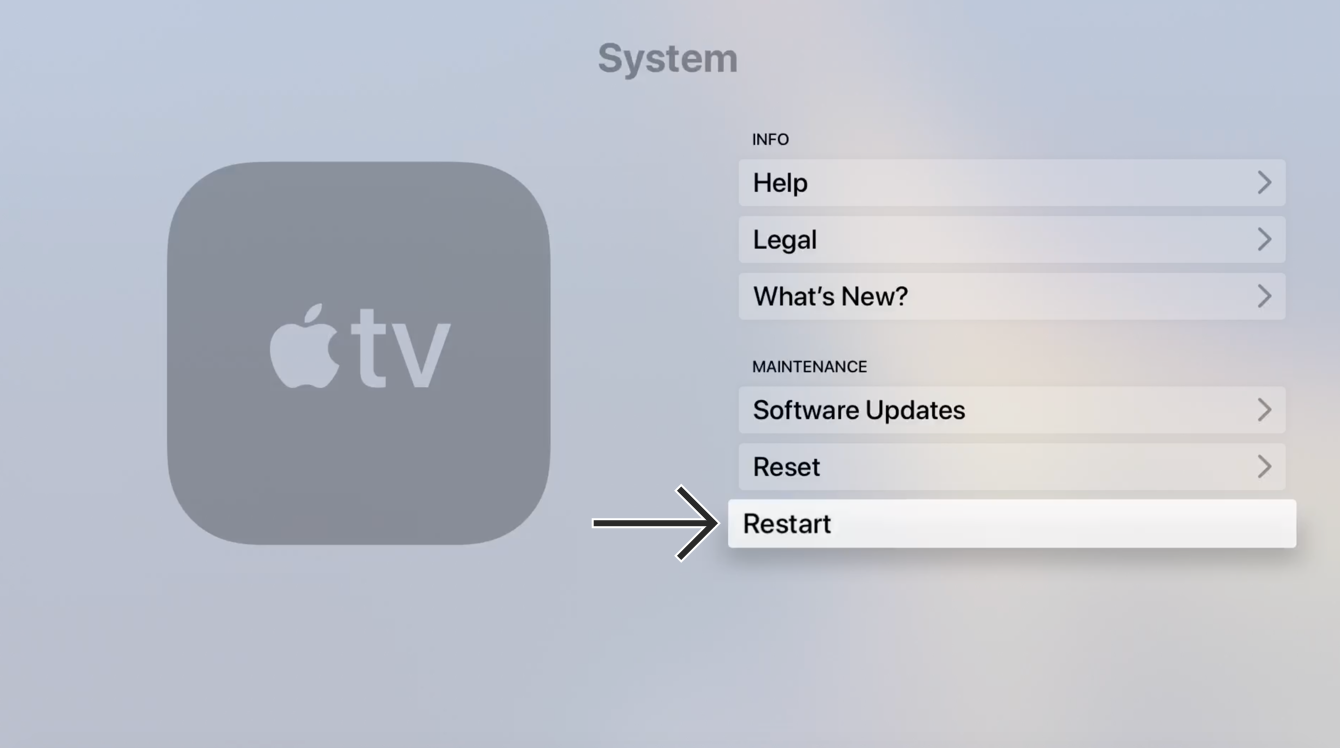
- From the System menu, select Restart.

Congratulations! You now have access to MediaStreamer DNS services and can enjoy previously blocked content on your Apple TV!
Note: MediaStreamer DNS is not a VPN. It does not offer the same privacy and security benefits as a VPN.
Need help? Contact the ExpressVPN Support Team for immediate assistance.
I cannot access or stream videos
If you have followed the above steps but have trouble accessing or streaming videos, contact the ExpressVPN Support Team for immediate assistance.
Cast or mirror from your device to Apple TV
Casting and mirroring are wireless technologies that allow you to stream content from your device to a TV with Apple TV.
If you want to stream from your device (with VPN) to a TV via your Apple TV, here are the compatible casting and mirroring options:
| Screen mirroring | AirPlay | |
| iOS (with VPN) | ✔ Supported | ✔ Supported |
| macOS (with VPN) | ✔ Supported | ✔ Supported |
(It is not possible to cast or mirror content from Android, Windows, Chromebook, or Linux to your Apple TV.)
Alternatively, you can connect your Apple TV to a VPN router, a manually configured VPN, or a virtual VPN router. Under this option, you do not need to cast or mirror content from your mobile device to your Apple TV. You simply need a VPN-connected Apple TV and a TV to stream the content.
Need help? Contact the ExpressVPN Support Team for immediate assistance.