This guide will show you how to use the split tunneling feature on the ExpressVPN apps for Windows, Mac, and Linux.
Jump to…
What is the split tunneling feature?
What happens to my DNS queries when I use split tunneling?
How to use VPN split tunneling on Windows
How to use VPN split tunneling on Mac
How to use VPN split tunneling on Linux
What is the split tunneling feature?
The split tunneling feature allows you to decide which apps use the VPN and which apps don’t when your device is connected to ExpressVPN.
For example, if you want all of your apps except Firefox to use the VPN, you can configure ExpressVPN to “split tunnel” the traffic so that only Firefox won’t go through the encrypted VPN tunnel.
Need help? Contact the ExpressVPN Support Team for immediate assistance.
What happens to my DNS queries when I use split tunneling?
As long as you are connected to ExpressVPN, all of your DNS queries will go through ExpressVPN’s servers, no matter how you configure your split-tunneling settings.
Need help? Contact the ExpressVPN Support Team for immediate assistance.
How to use VPN split tunneling on Windows
Note: You must be disconnected from the VPN to change your split-tunneling settings.
To change your split-tunnel settings:
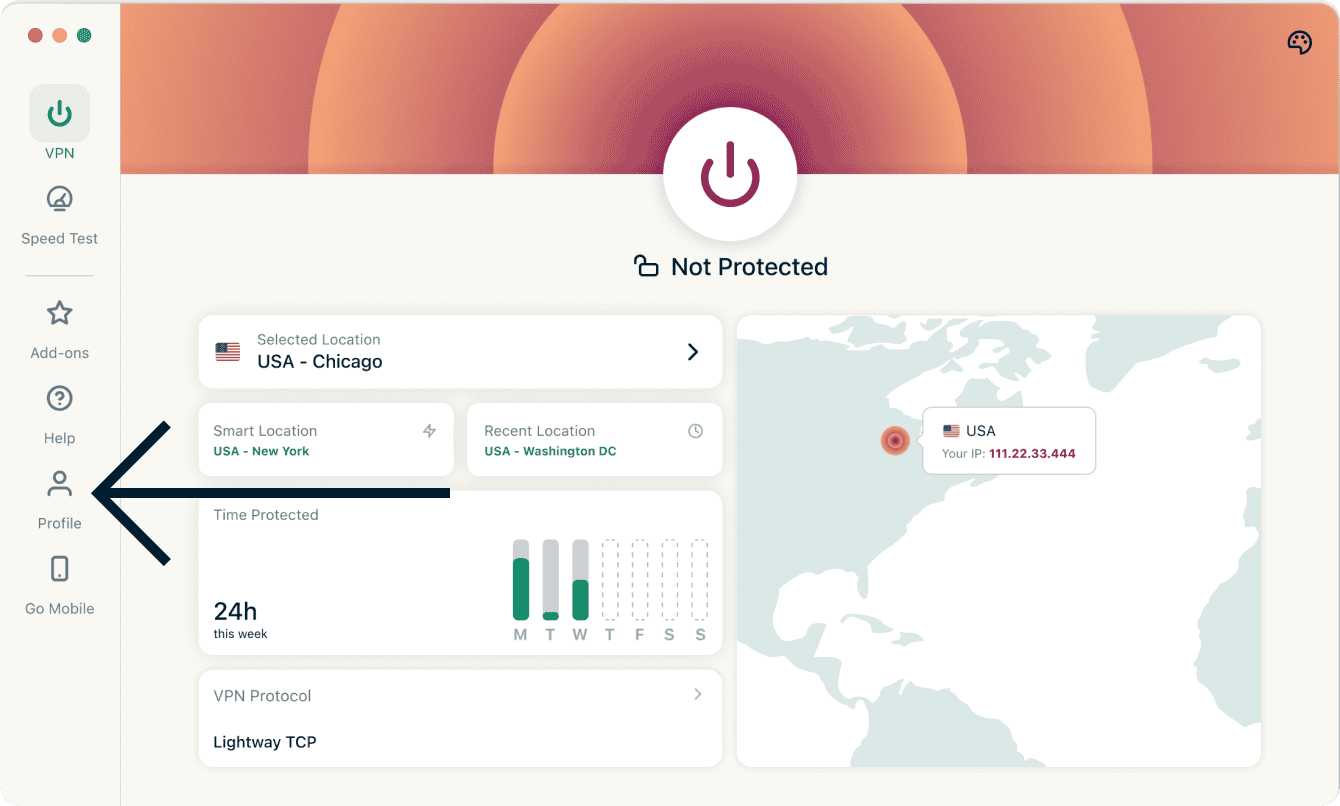
- Click the Profile tab.

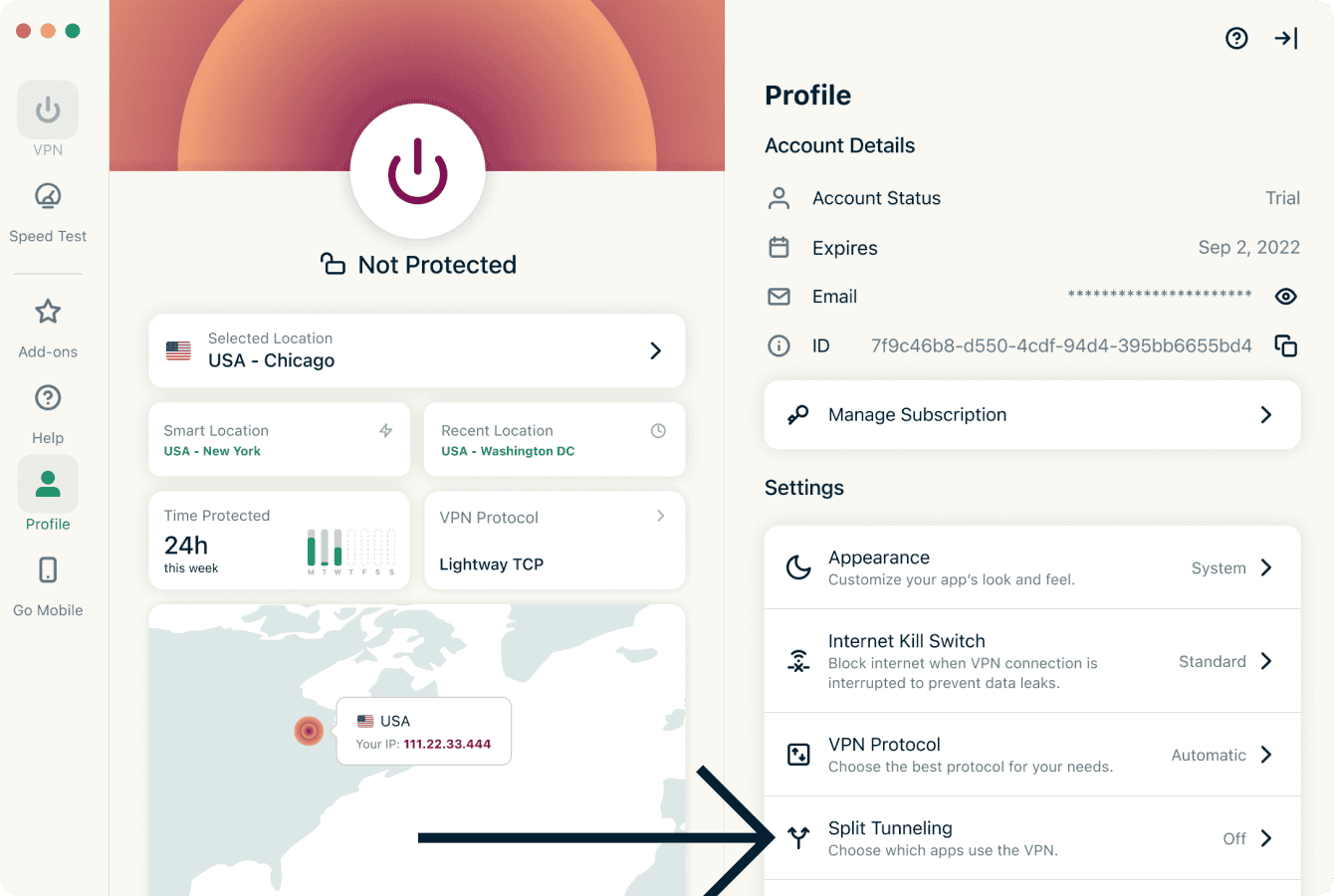
- Click Split Tunneling.

- Toggle Enable Split Tunneling on.
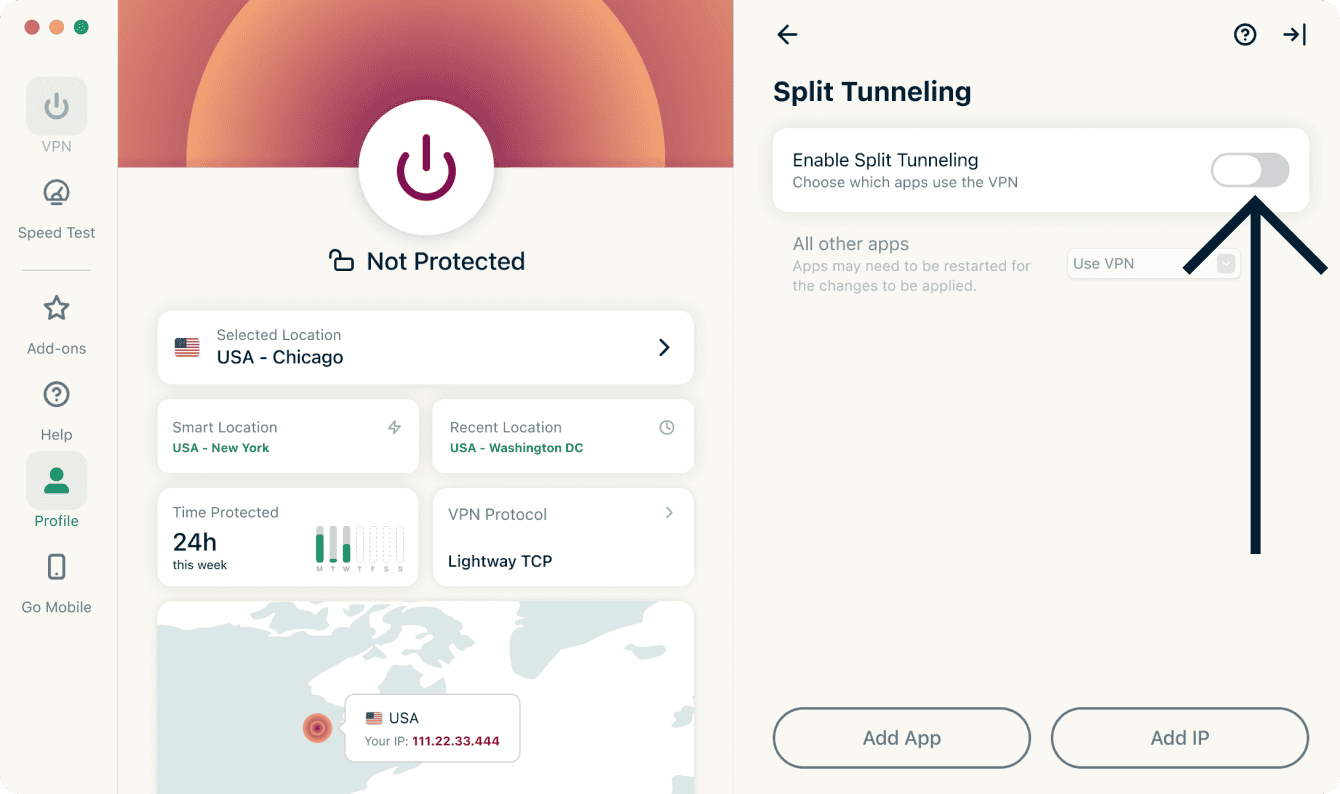

From there, you can select different split-tunneling options. Learn more about each settings option below:
Add apps
- Click Add App.
- Click the app you want to set up split tunneling rules for, then click Add.
- Click the dropdown next to the app you just added.
- Choose either Bypass VPN or Only VPN.
Add IP addresses
- Click Add IP Address.
- Enter an IPv4/IPv6 address or a subnet in CIDR notation.
- Click OK.
- Click the dropdown next to the IP address or subnet you just added.
- Choose either Bypass VPN or Only VPN.
All other apps
This option enables you to decide the split tunneling rules for all the other apps on your device.
To adjust the settings for other apps:
- Click the dropdown menu next to All Other Apps.
- Choose either Bypass VPN or Use VPN.
Need help? Contact the ExpressVPN Support Team for immediate assistance.
How to use VPN split tunneling on Mac
Note: You must be disconnected from the VPN to change your split-tunneling settings.
To change your split tunnel settings:
- Click the Profile tab.
- Click Split Tunneling.
- Toggle Enable Split Tunneling on.
From there, you can select different split-tunneling options. Learn more about each settings option below:
Add apps
- Click Add App.
- Find and click on the app you want to add.
- Click Open.
- Click the dropdown next to the app you just added.
- Choose either Bypass VPN or Only VPN.
Add IP addresses
- Click Add IP Address.
- Enter an IPv4/IPv6 address or a subnet in CIDR notation.
- Click OK.
- Click the dropdown next to the IP address or subnet you just added.
- Choose either Bypass VPN or Only VPN.
All other apps
This option enables you to decide the split tunneling rules for all the other apps on your device.
To adjust the settings for other apps:
- Click the dropdown menu next to All Other Apps.
- Choose either Bypass VPN or Use VPN.
Enable Split Tunneling on your Mac
By default, split tunneling is disabled on Mac. To enable:
- Follow the steps in the app, but when you see a notification for “System Extension Blocked”, click OK.


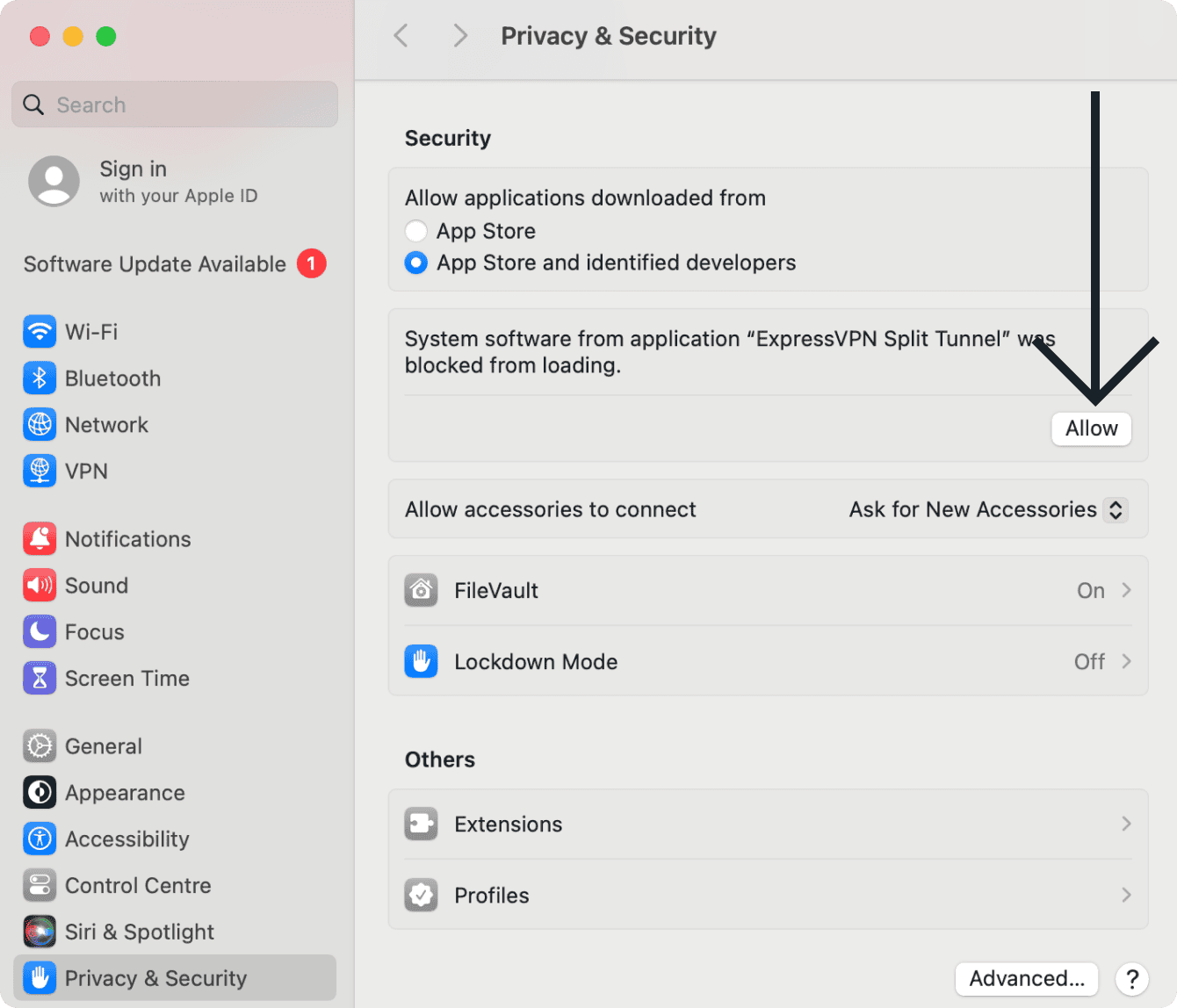
- Open your Mac System Settings to click Privacy & Security.
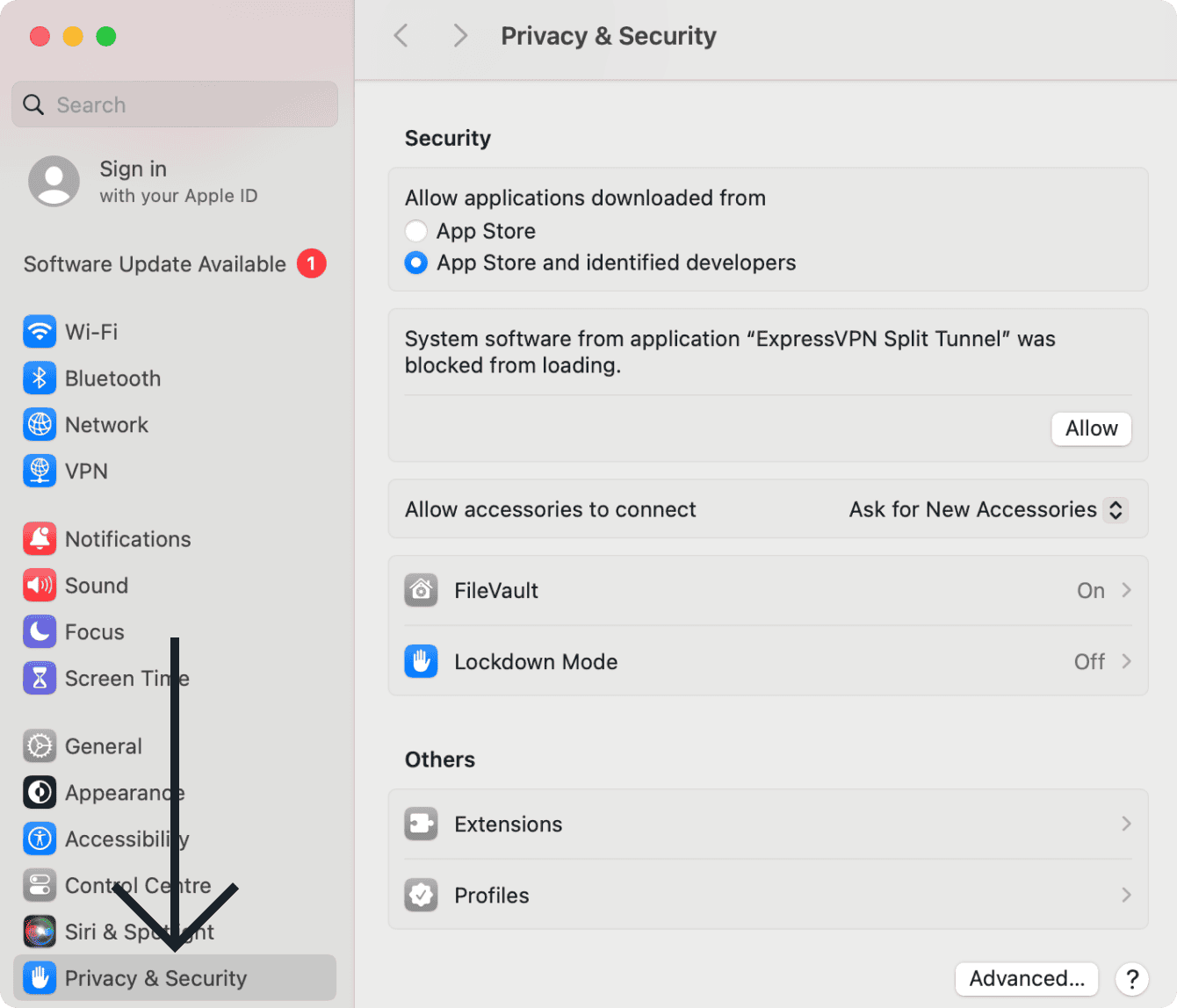

- Click Allow next to System software from application “ExpressVPN Split Tunnel” was blocked from loading.
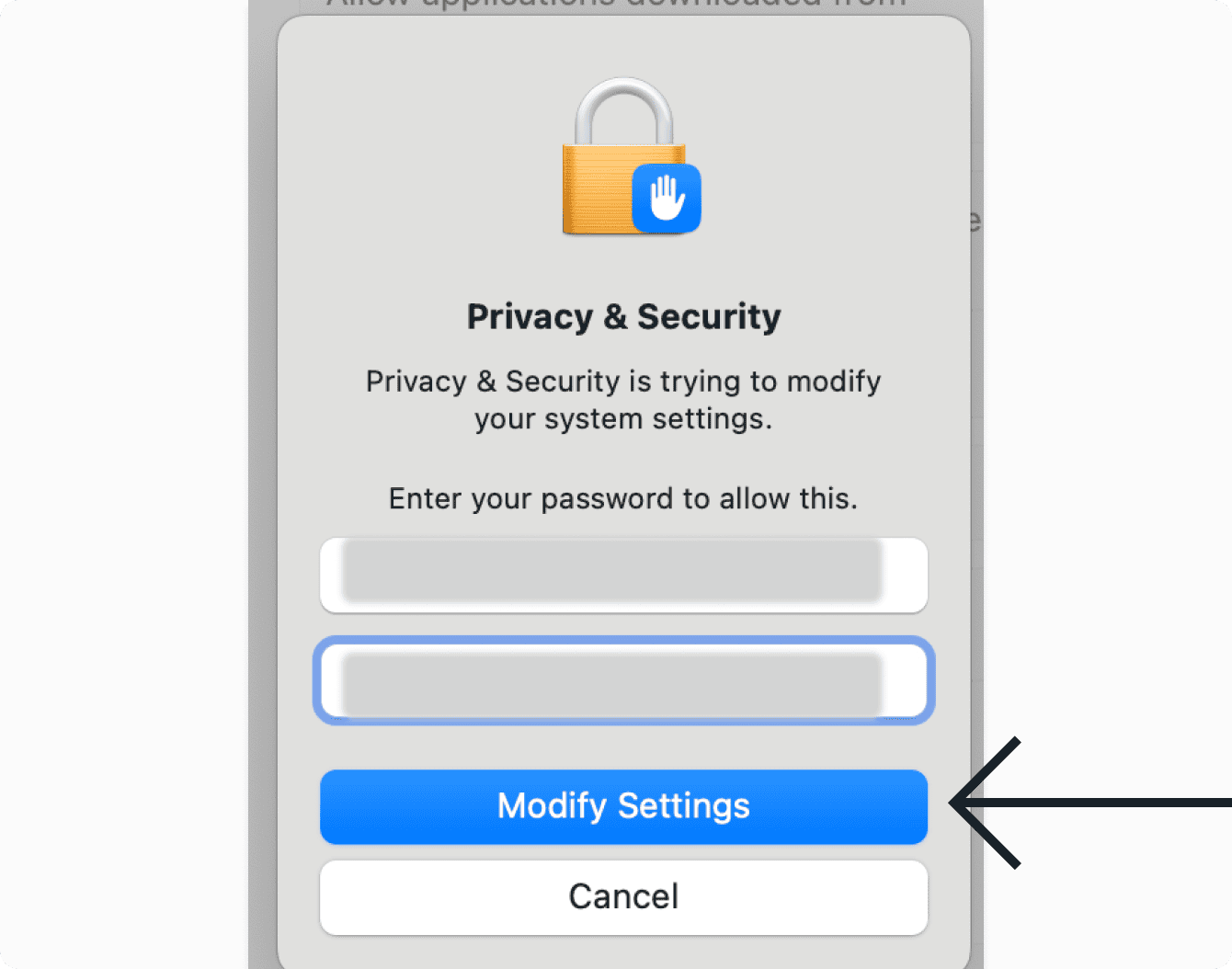
- Enter your Mac system’s Username and Password, then click Modify Settings.

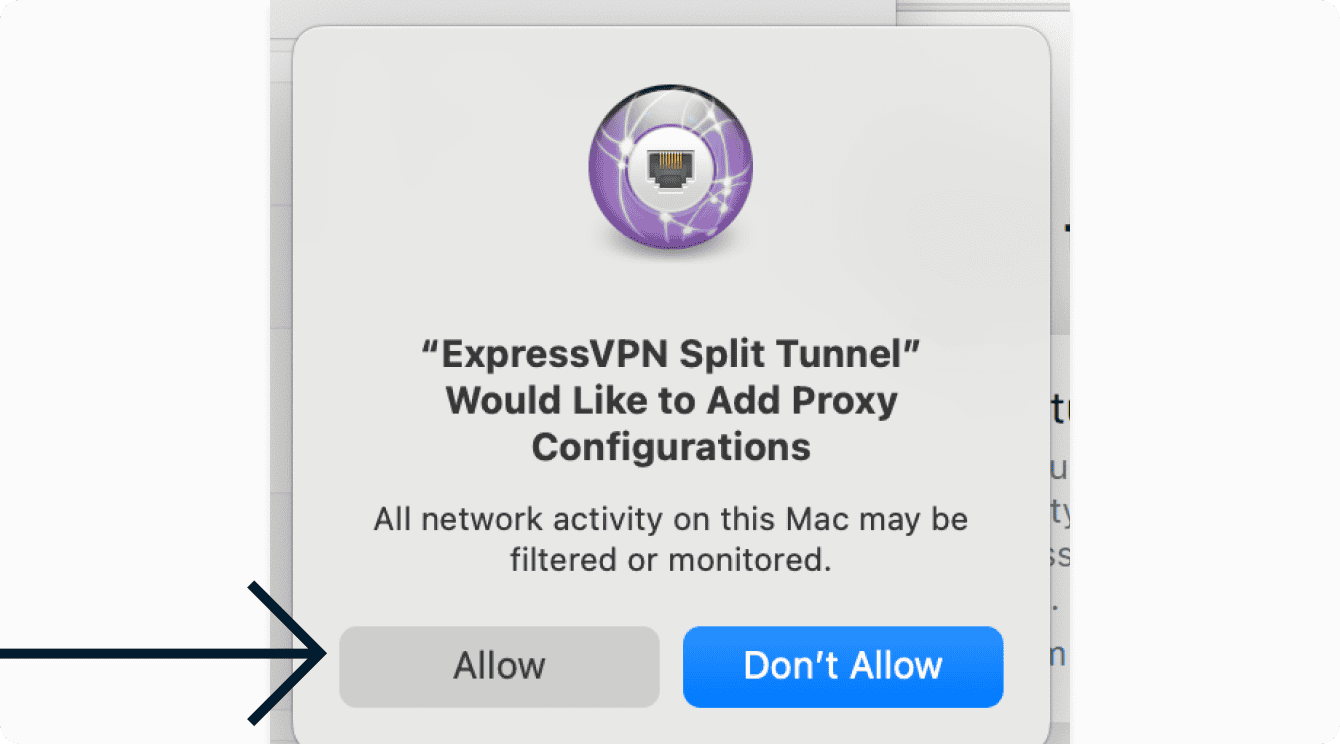
- When you see a notification saying, “ExpressVPN Split Tunnel” Would Like to Add Proxy Configurations, click Allow.

You can now return to the ExpressVPN app and change the split-tunneling settings.
Need help? Contact the ExpressVPN Support Team for immediate assistance.
How to use VPN split tunneling on Linux
- Click Profile.
- Click Split tunneling.

- Toggle Enable Split Tunneling on.

From there, you can adjust your split tunneling settings. Expand the list below to learn more about each settings option:
Add apps
- Click Add App.
- Click the app you want to set up split tunneling rules for, then click Add.
- Click the dropdown next to the app you just added.
- Choose either Bypass VPN or Only VPN.
Add IP addresses
- Click Add IP Address.
- Enter an IPv4/IPv6 address or a subnet in CIDR notation.
- Click OK.
- Click the dropdown next to the IP address or subnet you just added.
- Choose either Bypass VPN or Only VPN.
All other apps
This option enables you to decide the split tunneling rules for all the other apps on your device.
To adjust the settings for other apps:
- Click the dropdown menu next to All Other Apps.
- Choose either Bypass VPN or Use VPN.
To enable split tunneling, run the command: expressvpnctl set splittunnel trueOnce enabled, you can decide which apps bypass the VPN and which apps use the VPN.
To add apps you wish to bypass the VPN, run the command: expressvpnctl set split-app bypass[ROUTE TO FOLDER WHERE THE APP IS LOCATED]
For example, if you wanted the VPN to bypass Firefox, you would run the command: expressvpnctl set split-app bypass:/usr/lib/firefox/firefox
To add apps you wish to use the VPN, run the command: expressvpnctl set split-app vpn[ROUTE TO FOLDER WHERE THE APP IS LOCATED]
For example, if you wanted the VPN to bypass Firefox, you would run the command:
expressvpnctl set split-app vpn:/usr/lib/firefox/firefox
To delete split tunneling rules for an app, run the command:
expressvpnctl set split-app remove[ROUTE TO FOLDER WHERE THE APP IS LOCATED]
Need help? Contact the ExpressVPN Support Team for immediate assistance.