



If the ExpressVPN iOS app is not available in your country’s App Store, you can download the app by changing your App Store’s location to one where ExpressVPN is available, such as the United States.
There are two ways to change your App Store’s location. You can change your current Apple ID’s location, or if you want to keep your current Apple ID’s subscriptions unchanged, you can create a new Apple ID with a different location.
Jump to…
Change your existing Apple ID’s location
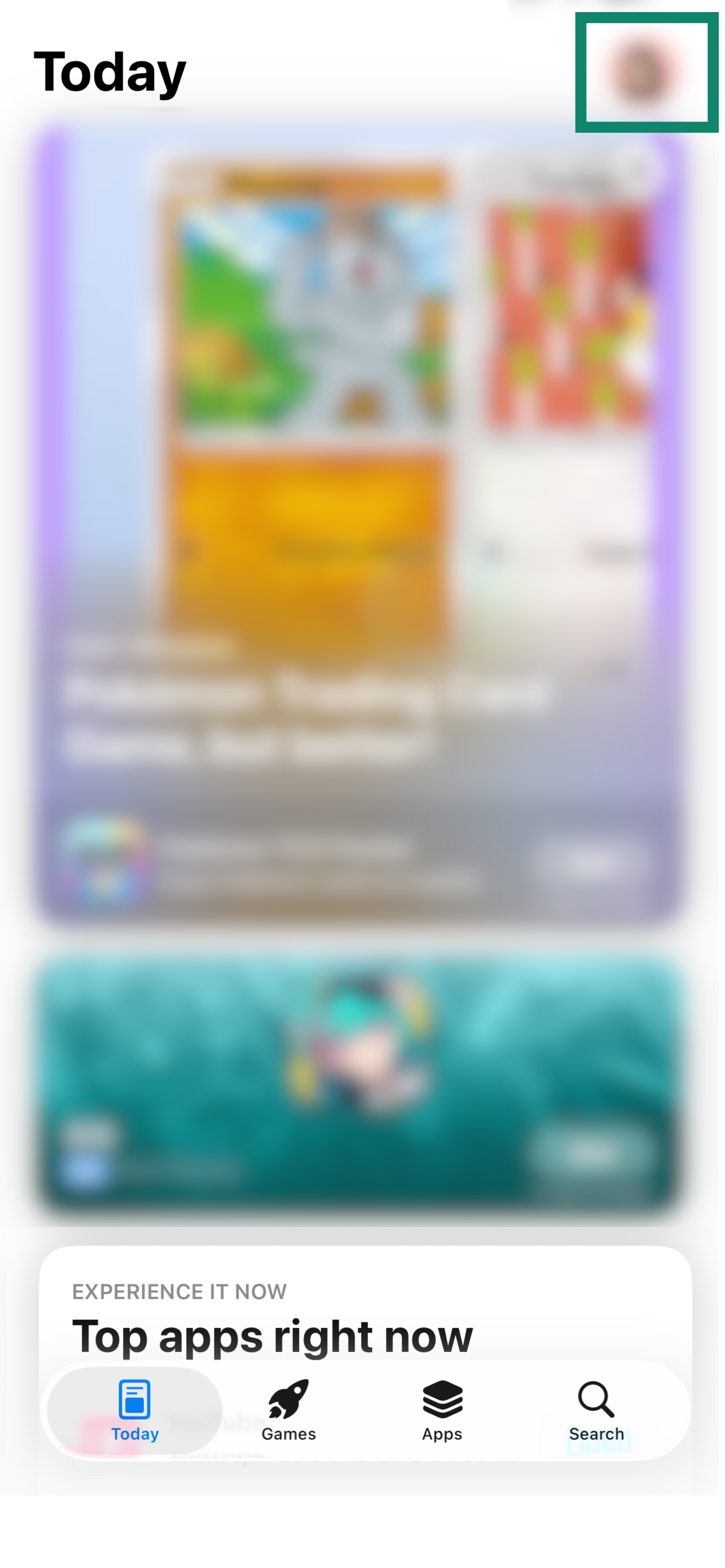
- On your device, go to the App Store.
- Tap the profile icon located at the top right corner.
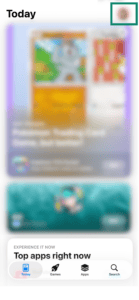

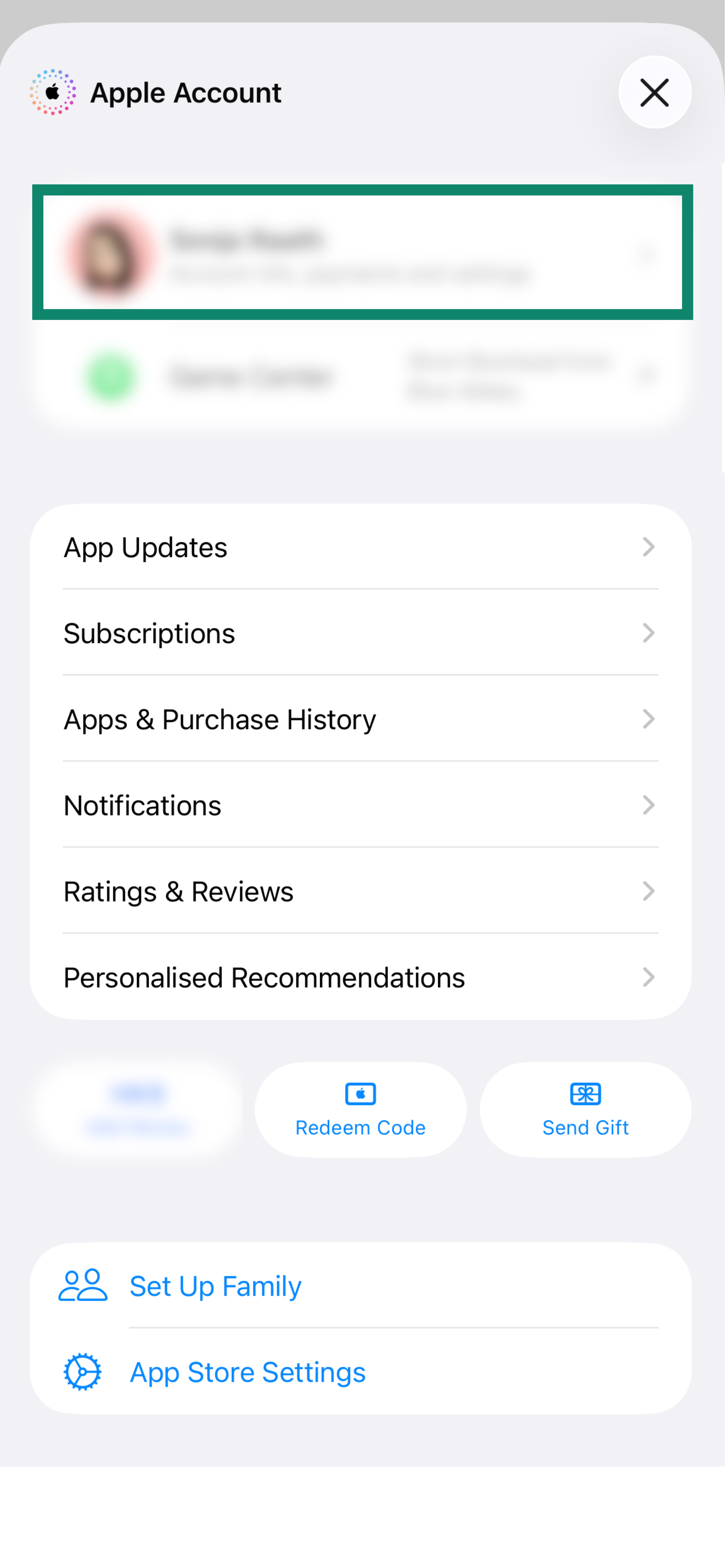
- At the top of the screen, tap your profile icon or your Apple ID. (If prompted, enter your Apple ID Password and tap Sign In.)
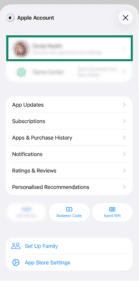
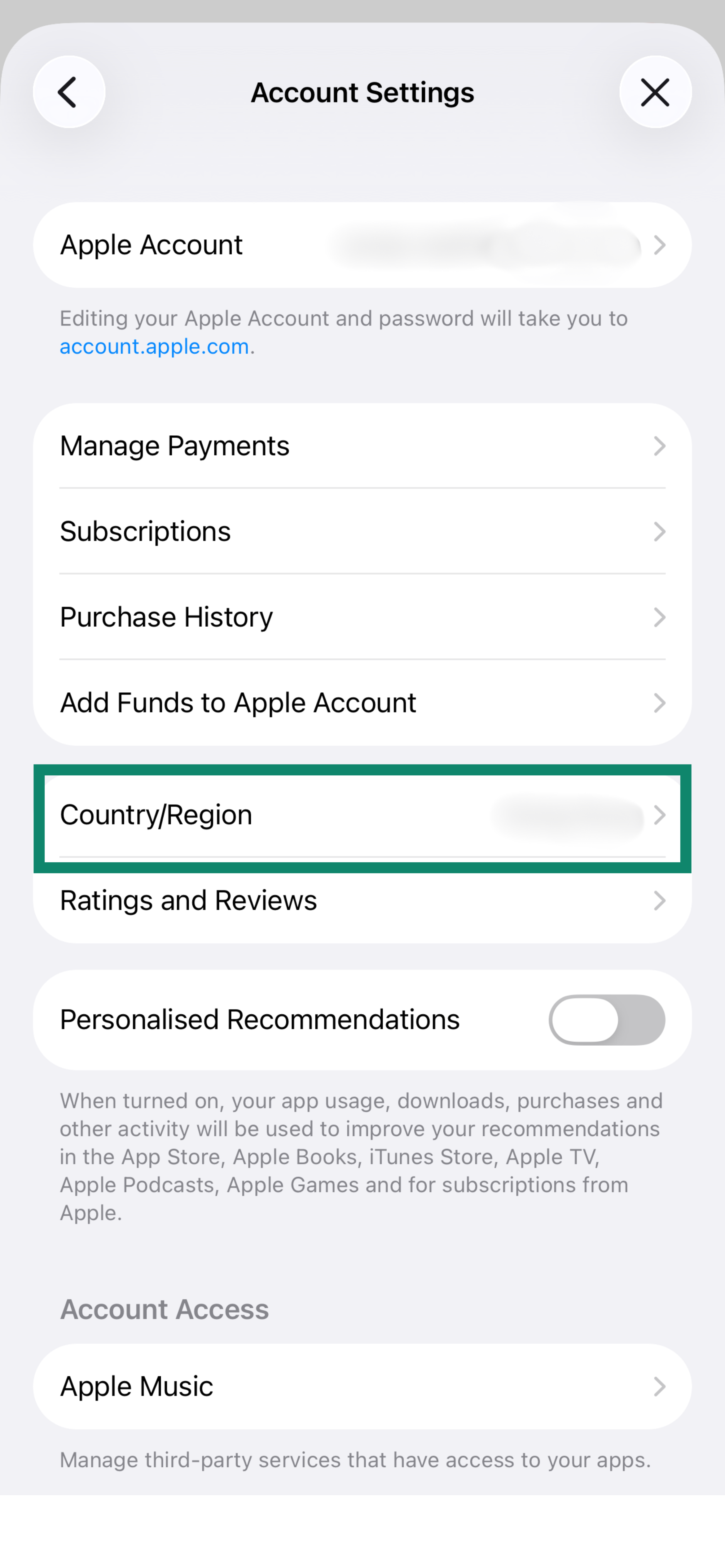
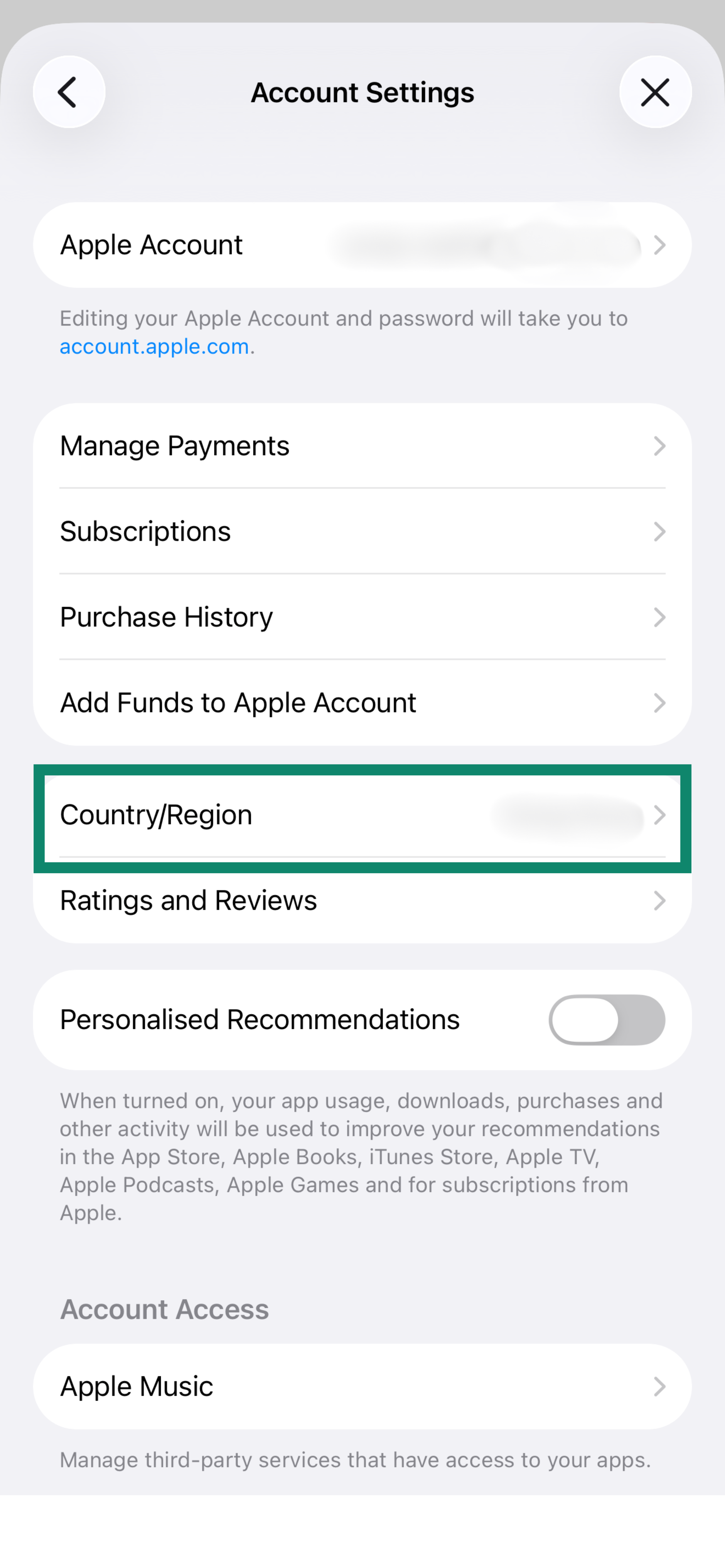
- Tap Country/Region.
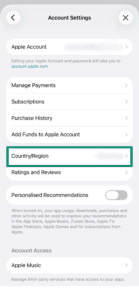
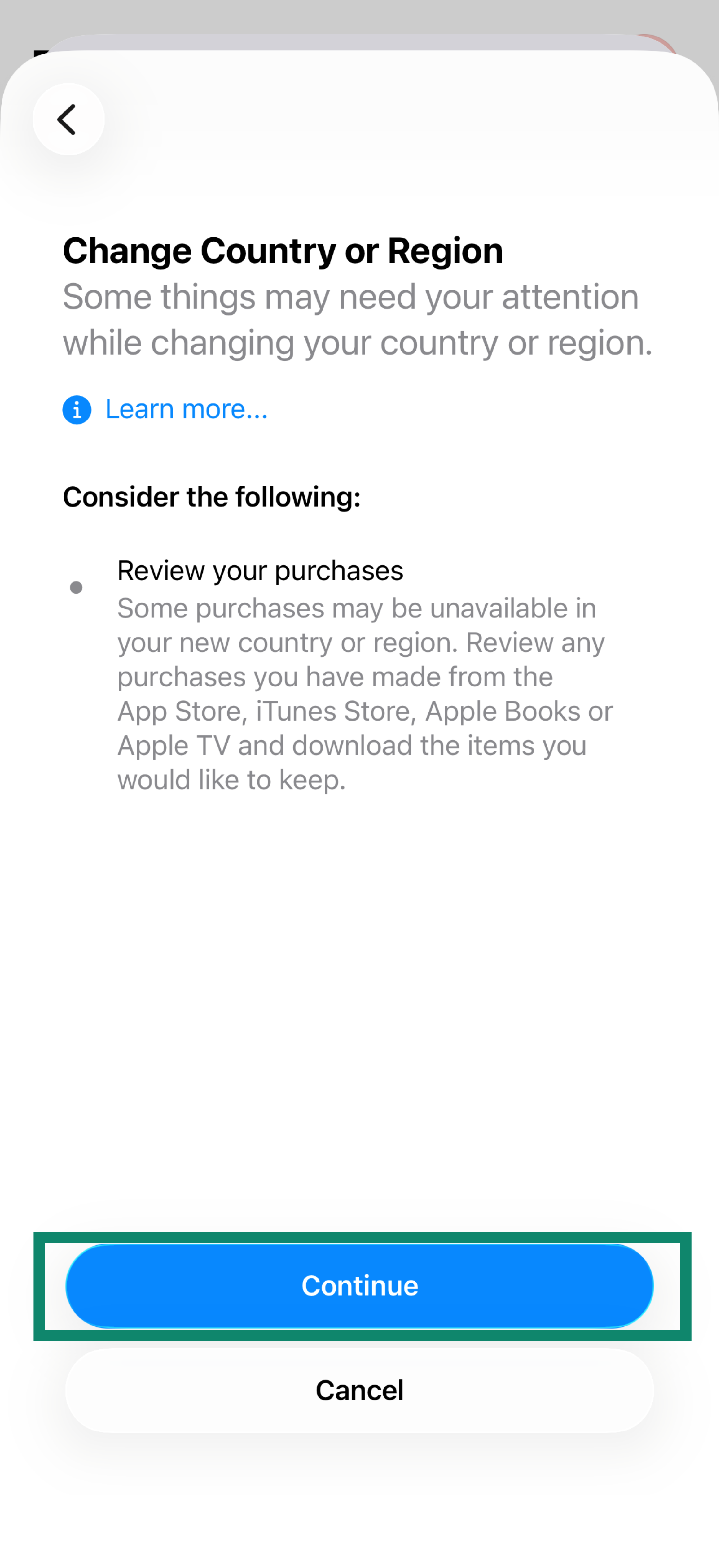
- Tap Change Country or Region and select any location where ExpressVPN is available (e.g., United States). If you want to use the 7-day free trial, you must select a location which you have a valid payment method for.
- Tap Continue.
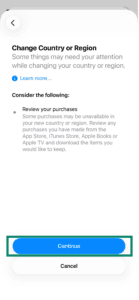
- Read the Terms and Conditions, then tap Agree.
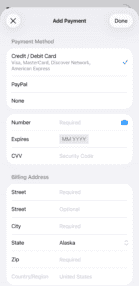
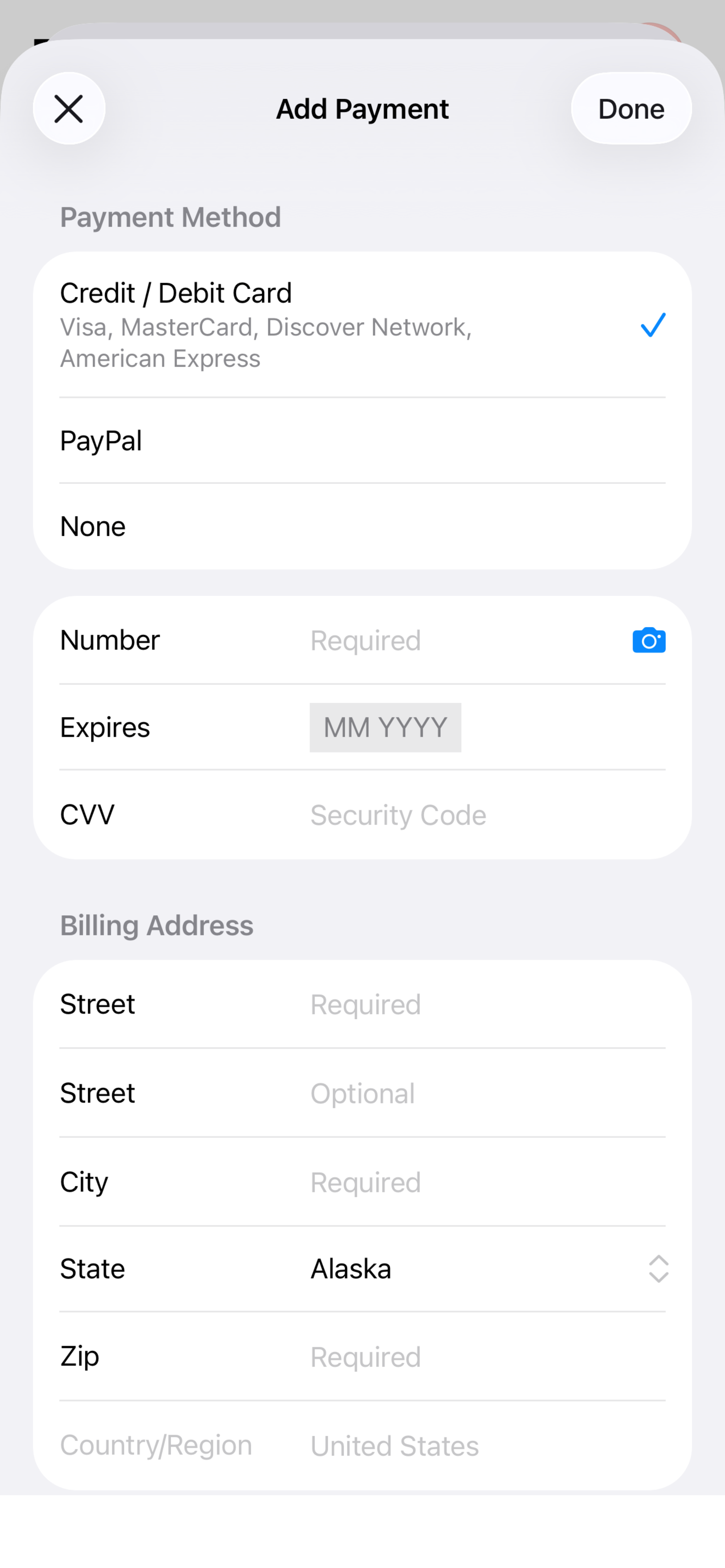
- Enter the following details:
Payment MethodSelect a payment method.- If you do not want to use the 7-day free trial, you will not have to enter a payment method, so select None. If you do not see None as an option, follow the resolution steps from Apple or enter a payment method associated with the new location you use.
- If you want to use the 7-day free trial, you will have to enter a payment method associated with the new location you choose.
Billing Name
- First Name: Enter your first name.
- Last Name: Enter your last name.
Billing Address
- Street: Enter a street name (e.g., Fireweed Ln).
- City: Enter a city (e.g., Juneau).
- State: Enter a state (e.g., Alaska).
- Zip: Enter a zip code (e.g., an Alaska code is 99501).
- Phone: Enter a phone number.
- Tap Next, then tap Done.
You can now download ExpressVPN with your changed location.
Need help? Contact the ExpressVPN Support Team for immediate assistance.
Create a new Apple ID with a different location
You can create a new Apple ID on your iOS device or with iTunes on Windows or Mac.
Create a new Apple ID on your iOS device
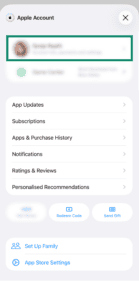
- On your device, go to the App Store. Tap the profile icon located at the top right corner.
- At the top of the screen, tap the profile icon or your Apple ID.
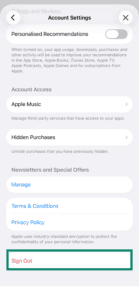
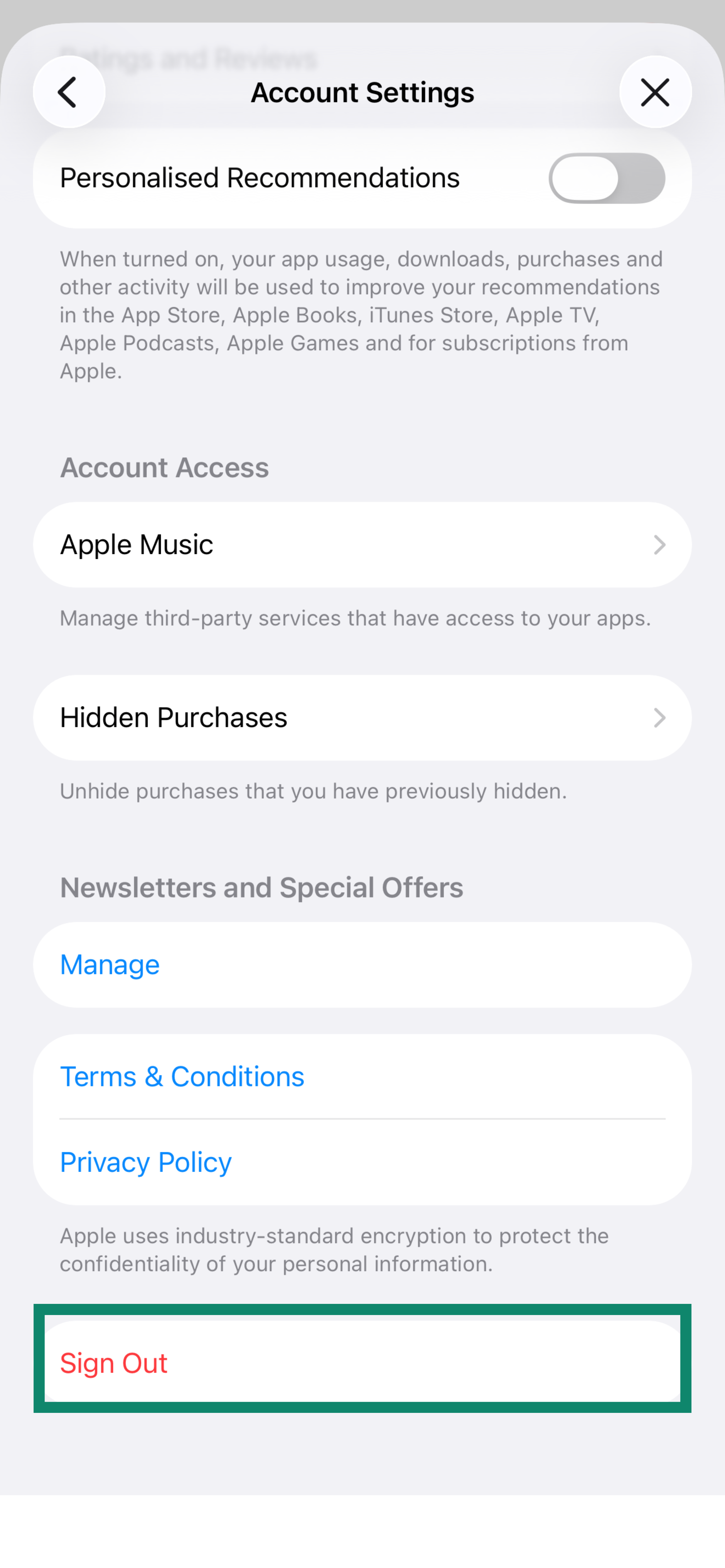
- Scroll all the way to the very bottom of that account page and tap Sign Out. (Don’t worry, this only signs you out of the App Store, not your iCloud or iMessage).
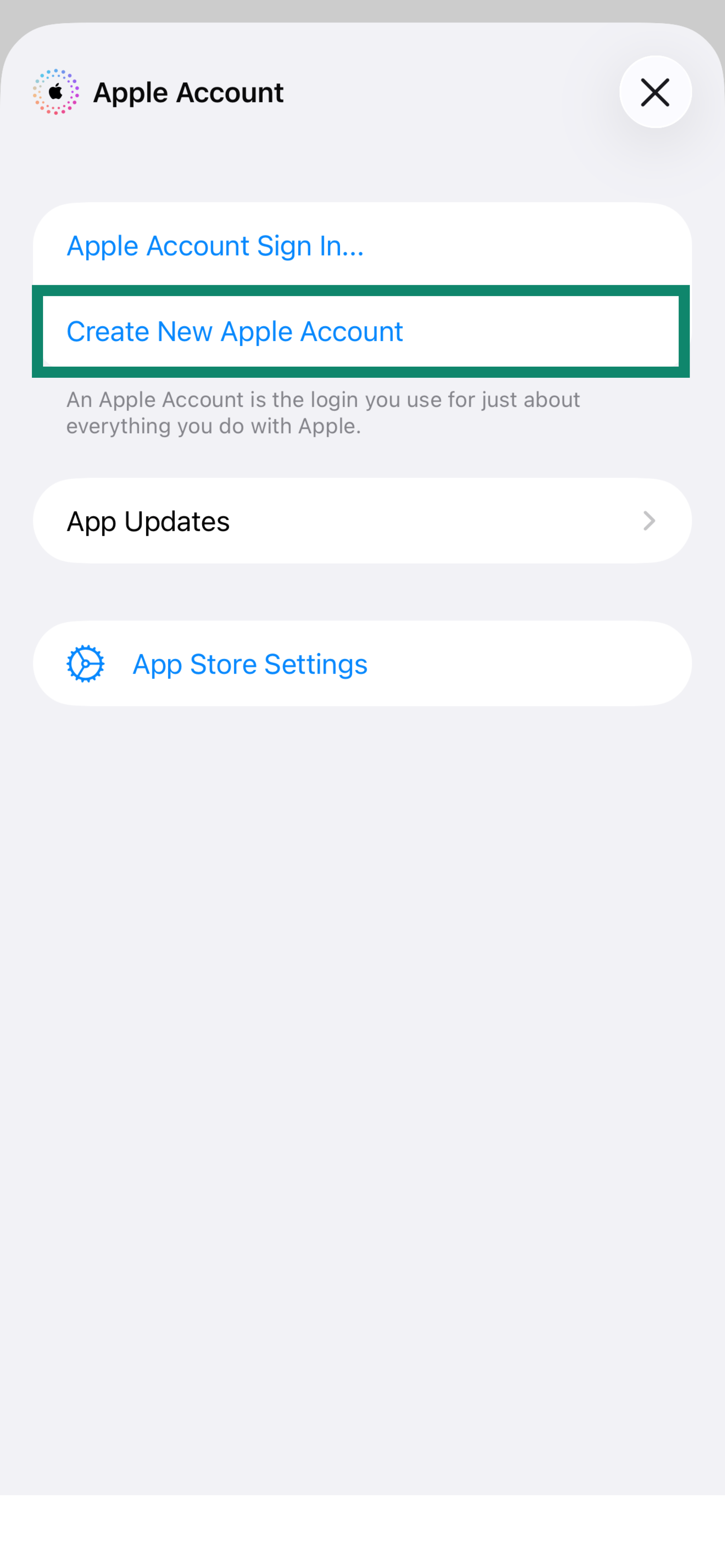
- Scroll back to the top of that same page and tap Create New Apple Account.
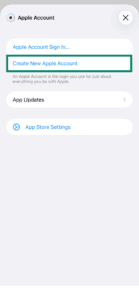
- Enter your email address (it cannot be the one associated with your original Apple ID account) and set up a new password. Set the Country/Region to a country where ExpressVPN is available (e.g., the United States).
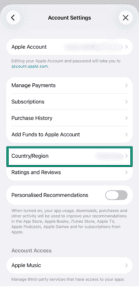
- Next, agree to Apple’s Terms and Conditions.
- Select Next.
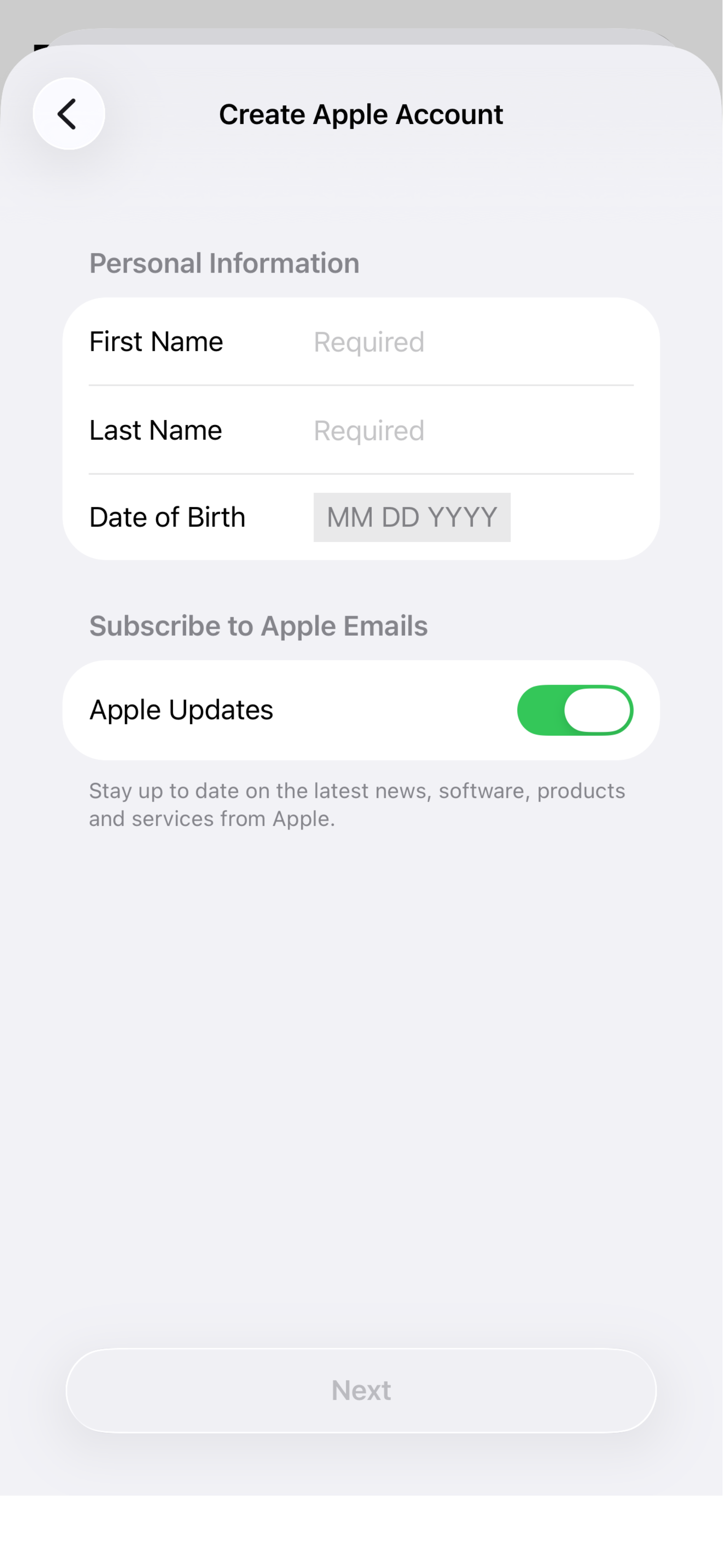
- Enter your first and last name/s as well as your date of birth.

- Select Next.
- Enter the following details:
Payment MethodSelect a payment method.- If you do not want to use the 7-day free trial, you will not have to enter a payment method, so select None. If you do not see None as an option, follow the resolution steps from Apple or enter a payment method associated with the new location you use.
- If you want to use the 7-day free trial, you will have to enter a payment method associated with the new location you choose.
Billing Name
- First Name: Enter your first name.
- Last Name: Enter your last name.
Billing Address
- Street: Enter a street name (e.g., Fireweed Ln).
- City: Enter a city (e.g., Juneau).
- State: Enter a state (e.g., Alaska).
- Zip: Enter a zip code (e.g., an Alaska code is 99501).
- Phone: Enter a phone number.
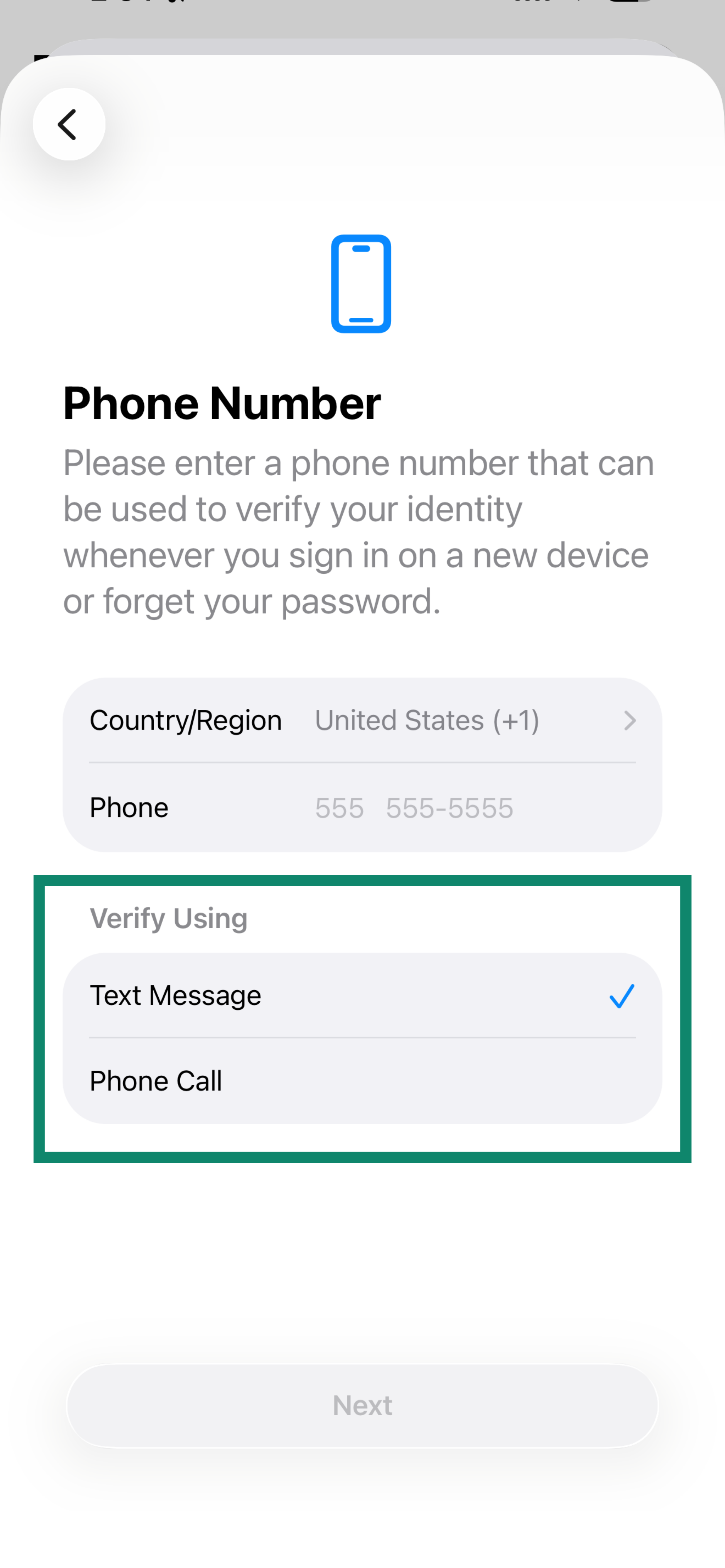
- Enter a phone number and select Text Message or Phone Call for verification.
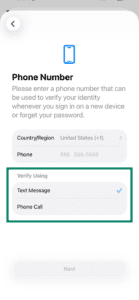
- Enter the verification code sent to your phone number and tap Next.
- Check your email for a verification code from Apple. Enter the code, and tap Next.
- You have now successfully created a new Apple ID.
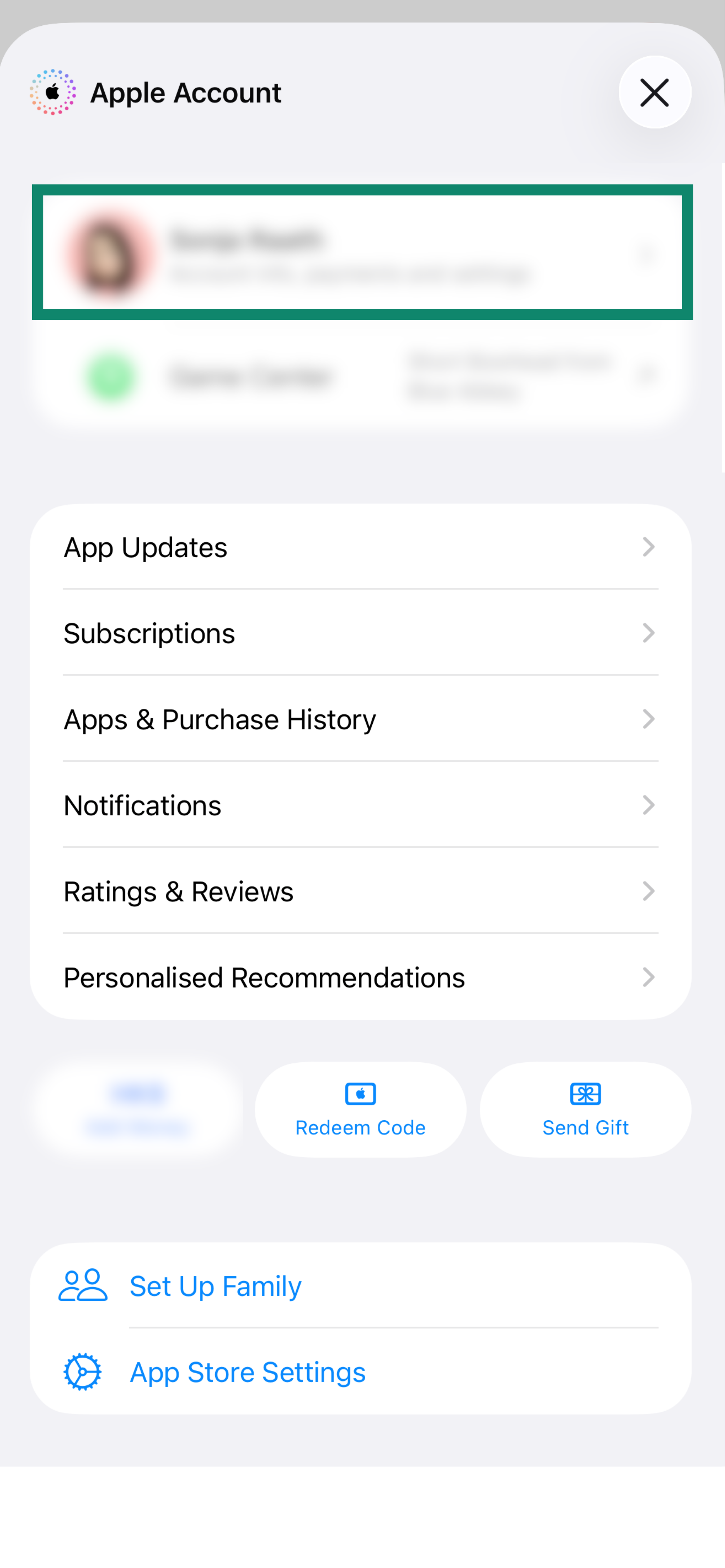
You have now successfully created a new Apple ID.
Need help? Contact the ExpressVPN Support Team for immediate assistance.
Create a new Apple ID on Apple’s official site
- Visit Apple’s official site to create a new Apple ID.
- Enter the following details:
- First name: Enter your first name.
- Last name: Enter your last name.
- Country/ Region: Select a country where ExpressVPN is available (e.g., United States).
- Date of birth: Enter your date of birth.
- Email: Enter your email. This will be your new Apple ID.
- Password: Enter your password.
- Confirm password: Enter your password again.
- Phone number: Enter your phone number. (You will need this to receive a verification code later.)
- Verify with a: Select Text Message or Phone Call.
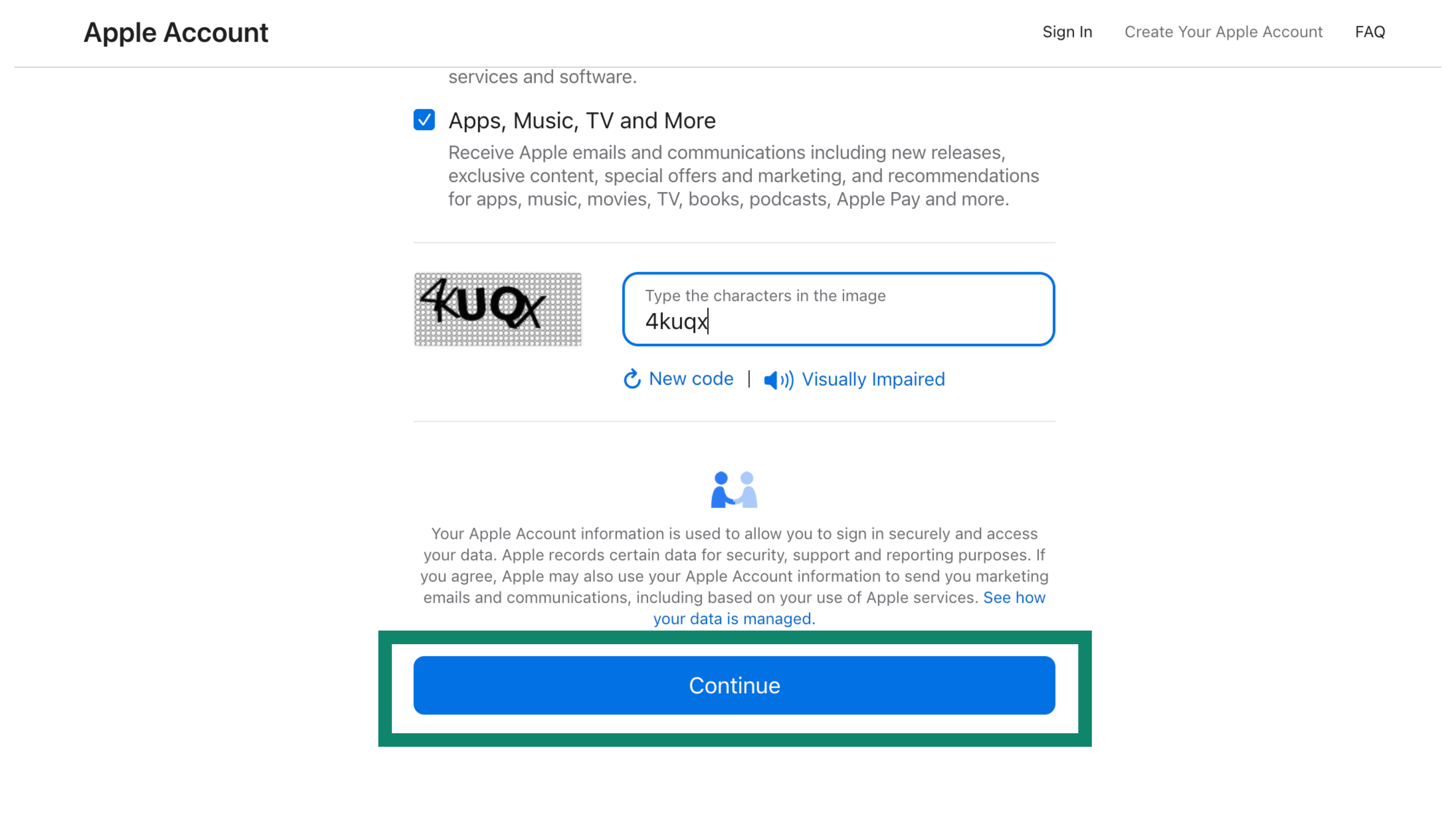
- Enter the characters in the image.
- Click Continue.
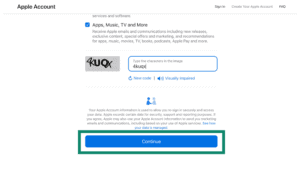

- Enter the code sent to your email address. Click Continue.
- Enter the code sent to your phone number. Click Continue.
You have now created a new Apple ID. You can now sign out of your current Apple ID and sign in to your new one.
- On your device, go to the App Store. Tap the profile icon located at the top right corner. Scroll to the bottom, and tap Sign Out.
- Scroll back up, and sign in with your new Apple ID. Tap Sign In.
You will receive a prompt that says your App Store will be changed to the country you selected. Tap OK > Continue.
You can now download ExpressVPN on your iOS device.
Need help? Contact the ExpressVPN Support Team for immediate assistance.
Frequently asked questions
After downloading ExpressVPN, can I switch back to my original Apple ID?
Yes. Once you have downloaded ExpressVPN on your device, it will work regardless of the country your Apple ID is associated with.
How do I keep ExpressVPN updated?
To update any apps on your iOS, you will have to use the same Apple ID you used to download the app.
If you switched back to your original Apple ID after downloading ExpressVPN with a new Apple ID, you will have to sign into your new Apple ID to update the app.
Need help? Contact the ExpressVPN Support Team for immediate assistance.