




What can a VPN do?
Show Me
5 ways to use your VPN
See Them NowThe Internet Kill Switch is ExpressVPN’s kill switch. If your VPN connection unexpectedly drops, the Internet Kill Switch blocks all internet traffic, keeping your data safe.
The Internet Kill Switch is available in the ExpressVPN app for Windows, Mac, Linux, routers, Android, and iOS.
Jump to…
How does the Internet Kill Switch work?
When is the Internet Kill Switch active?
How to enable or disable the Internet Kill Switch?
Unable to apply changes to the Internet Kill Switch
Allow (or deny) access to local network devices
How to enable (or disable) the Advanced Kill Switch
How does the Internet Kill Switch work?
When you are not connected to the VPN, your internet traffic may be vulnerable to third-party tampering. To keep your data safe and secure, in case your VPN unexpectedly disconnects, the Internet Kill Switch is activated and blocks all internet traffic until your VPN connection is restored. Learn more about the Internet Kill Switch.
Need help? Contact the ExpressVPN Support Team for immediate assistance.
When is the Internet Kill Switch active?
The Internet Kill Switch is enabled by default. When enabled, the Internet Kill Switch is active as soon as you are connected to the VPN and when the app is in other connection states (view table below). It does not block traffic if you disconnect from the VPN yourself.
The following tables summarize when the Internet Kill Switch is active (or inactive) in different VPN connection states:
| Connection state | Kill switch status |
| Not connected | Inactive |
| Connecting | Active |
| Connected | Active |
| Disconnecting | Inactive |
| Error state | Kill switch status |
| Reconnecting | Active |
| Connection failed (not connected) | Active |
Note: When the VPN is connecting, it may take a few seconds for the Internet Kill Switch to become active.
If your VPN unexpectedly disconnects, the Internet Kill Switch is activated and blocks any internet traffic entering or leaving your device until the connection is restored.
Need help? Contact the ExpressVPN Support Team for immediate assistance.
How to enable (or disable) the Internet Kill Switch
The Internet Kill Switch is enabled by default. If you disabled the Internet Kill Switch previously, you can go into the app settings to re-enable it.
If the Internet Kill Switch is disabled:
- You will be able to browse the internet if your VPN unexpectedly disconnects.
- Your traffic will not be encrypted and secure.
Follow the instructions corresponding to your device:
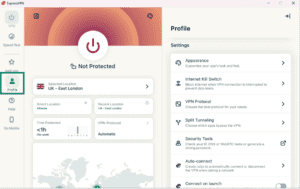
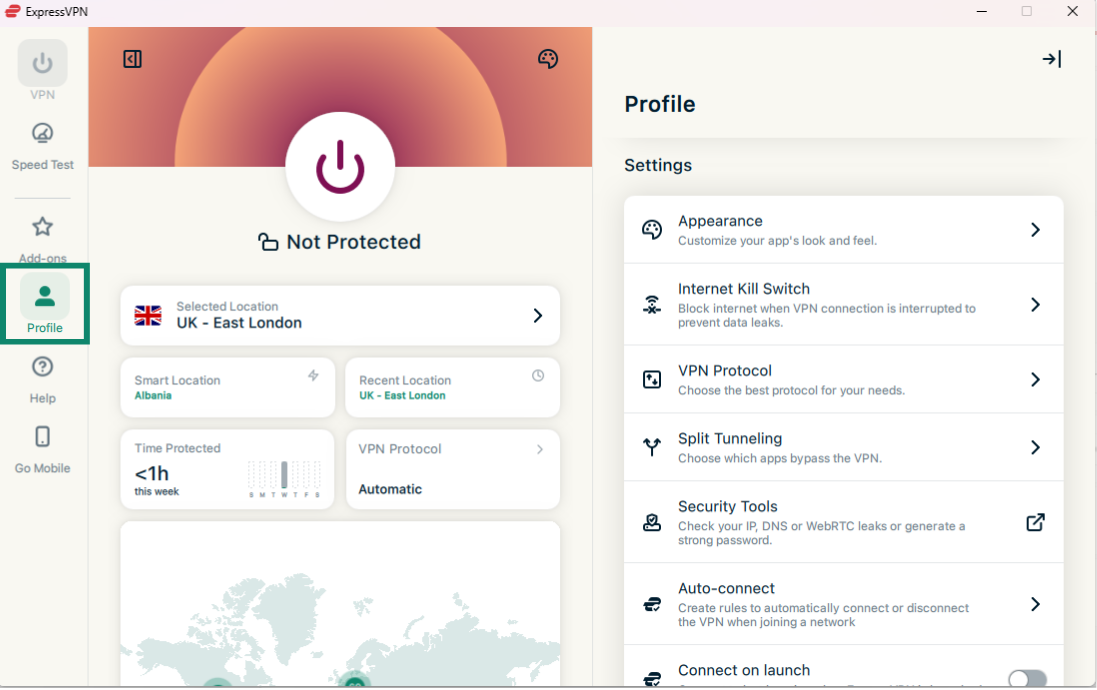
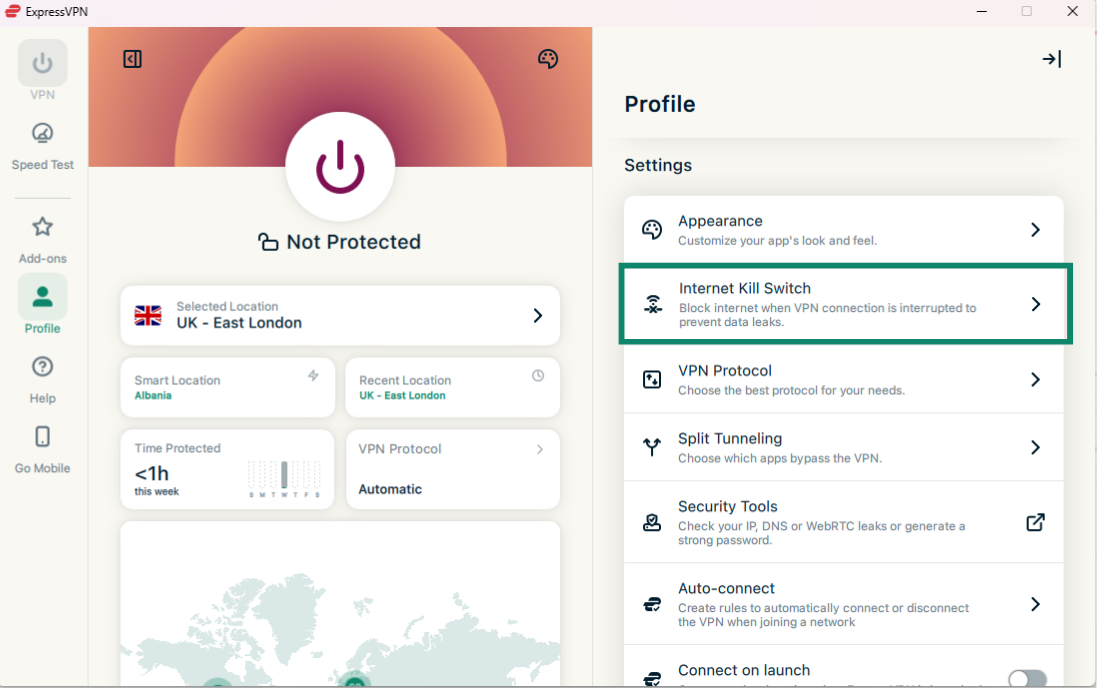
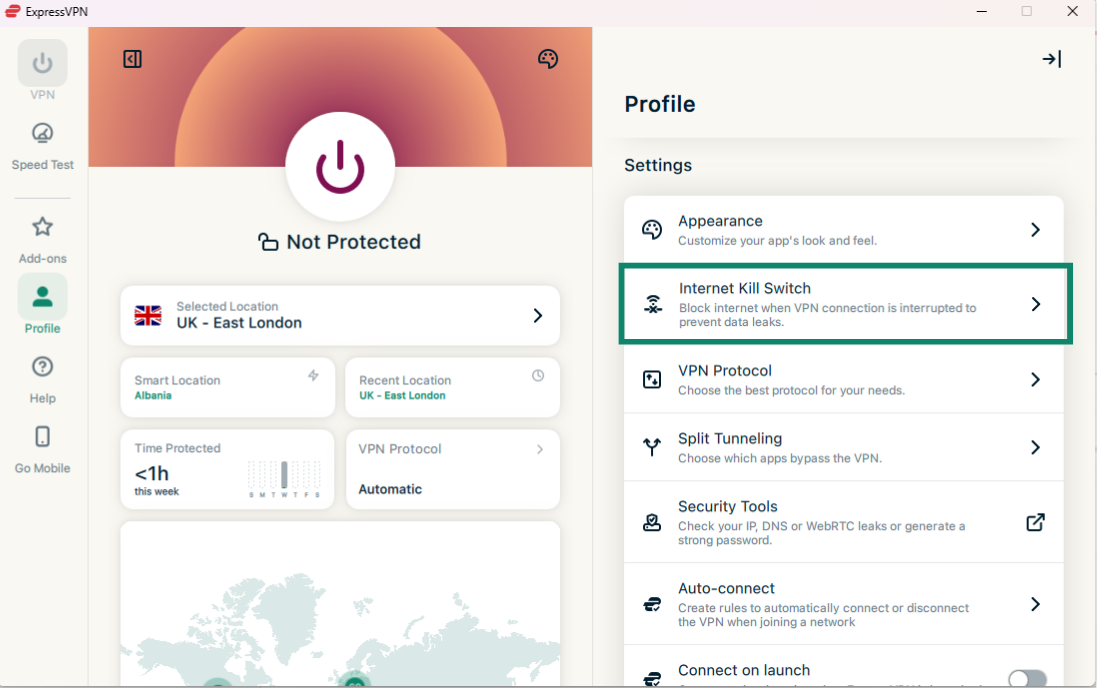
- In the ExpressVPN app, click the Profile tab.

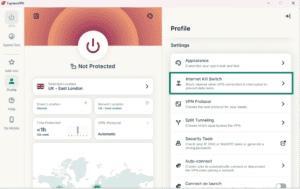
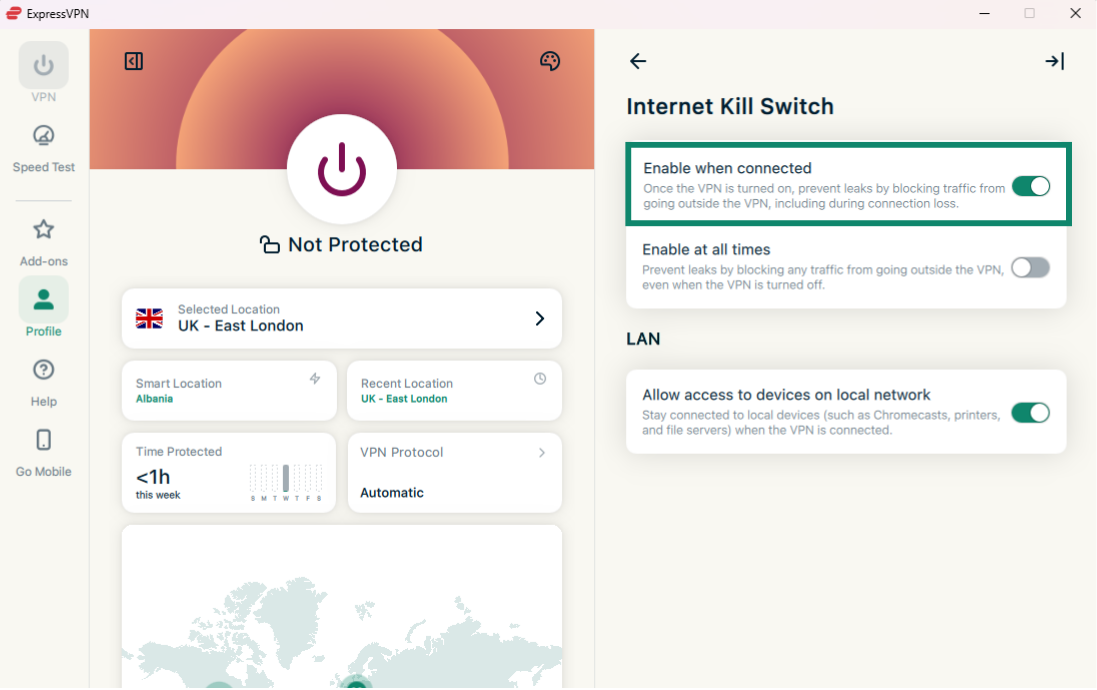
- Under Settings, click Internet Kill Switch.
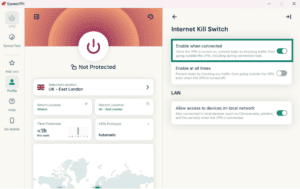
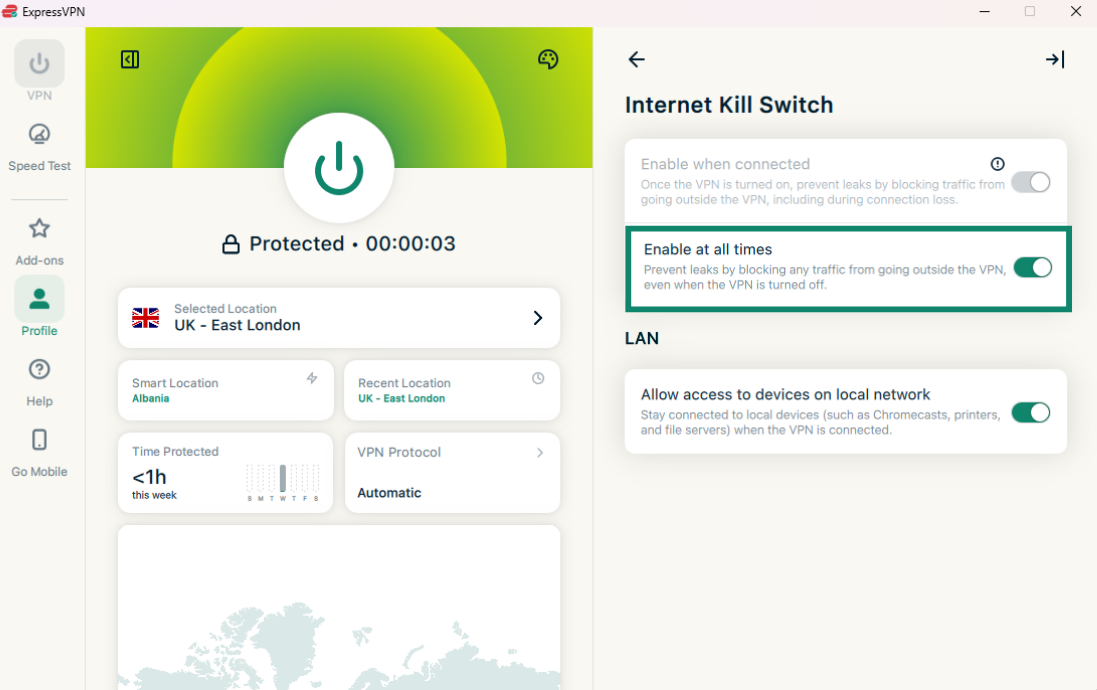
- Click Enable when connected.
- Open Terminal.
- To disable the Internet Kill Switch, enter the following command:
expressvpnctl set networklock false
To enable Internet Kill Switch, enter the following command:
expressvpnctl set networklock true
Need help? Contact the ExpressVPN Support Team for immediate assistance.
Unable to apply changes to the Internet Kill Switch
If you are unable to apply changes to the Internet Kill Switch:
- Restart your device.
- Restart the ExpressVPN app.
If the issue persists, follow these instructions specific to your device:
Windows (while running as administrator)
- Press Ctrl + Alt + Delete.
- Select Task Manager. (In Windows 10, you might need to click Yes to allow changes made to your device and then click More details).
- Select Services.
- Right-click ExpressVpnService.
- Click Stop.
- Right-click ExpressVpnService.
- Click Start.
- Relaunch ExpressVPN.
Need help? Contact the ExpressVPN Support Team for immediate assistance.
- Use Spotlight Search to find Activity Monitor.
- Select ExpressVPN.
- Click the Stop button in the upper-left of the screen and select Force Quit.
- Relaunch ExpressVPN.
Need help? Contact the ExpressVPN Support Team for immediate assistance.
- Open System Monitor.
- Find ExpressVPN in the process list.
- Select it and click End Process or Kill.
- Reopen ExpressVPN.
Need help? Contact the ExpressVPN Support Team for immediate assistance.
Allow (or deny) access to local network devices
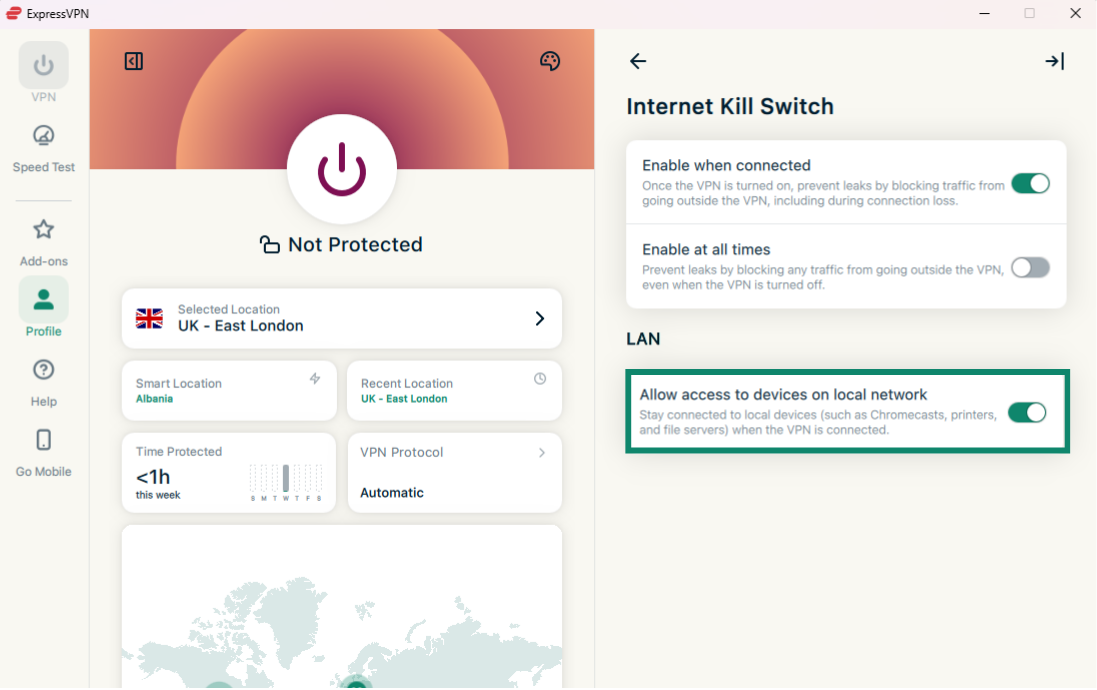
When the internet kill switch is enabled, you are still able to access your local network devices by default. In the app settings, you can change access to your local network devices by allowing or denying access to them.
In the ExpressVPN apps for Windows, Mac, and Linux, access to local network devices is indicated by a checkbox for Allow access to devices on local network:
- When toggled on: Access to local network devices is allowed.
- When toggled off: Access to local network devices is denied.
Important: Before changing your Internet Kill Switch setting, make sure you are disconnected from the VPN.
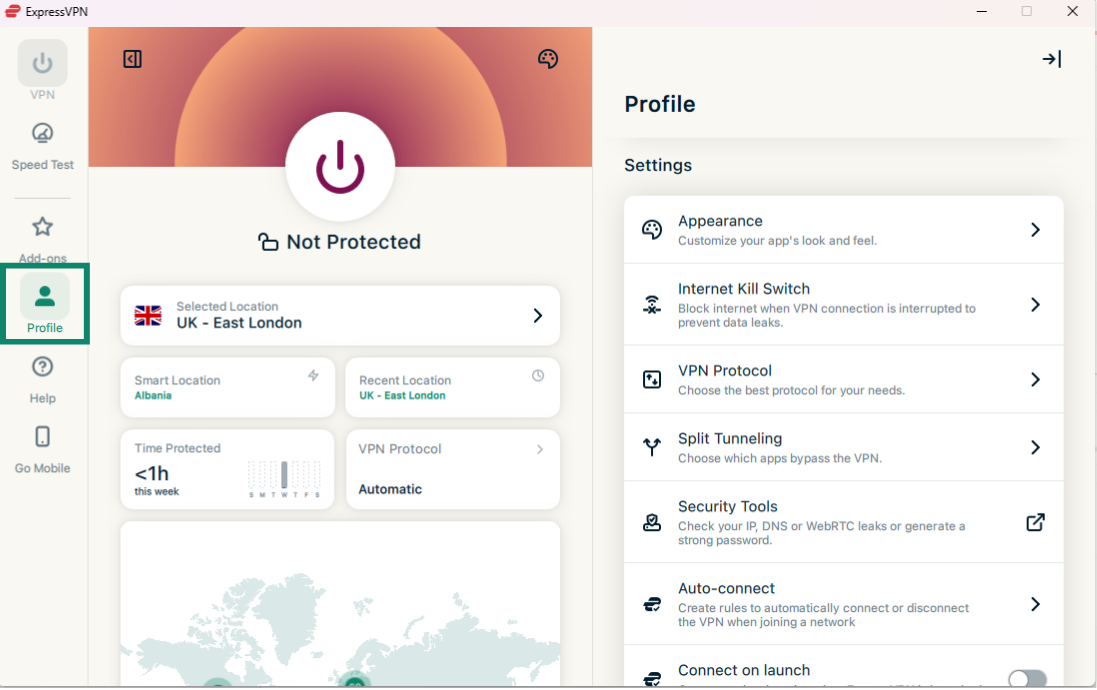
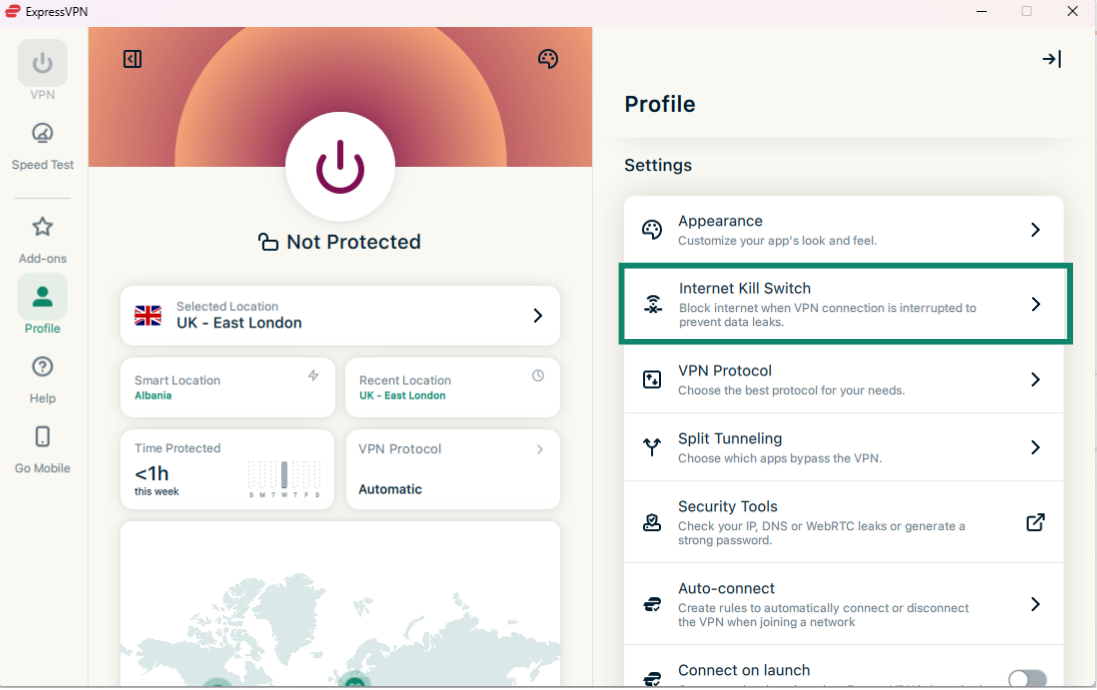
- In the ExpressVPN app, click the Profile tab.
- Under Settings, click Internet Kill Switch.
- Under LAN, click Allow access to devices on local network to toggle on/off.
Need help? Contact the ExpressVPN Support Team for immediate assistance.
How to enable (or disable) the advanced kill switch
The ExpressVPN apps for Windows, Mac, and Linux include an advanced kill switch called the Advanced Internet Kill Switch. When enabled, this advanced kill switch prevents data leaks even when the VPN is off. All internet traffic is blocked unless the VPN is active.
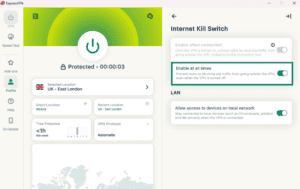
In the apps, the Advanced Internet Kill Switch is indicated by a toggle labeled Enable at all times:
- When toggled on: All your internet traffic is blocked unless you’re connected to the VPN. This offers an extra layer of security to protect your data.
- When toggled off: The kill switch works as normal, only blocking internet traffic if your active VPN connection unexpectedly drops.
Follow the instructions corresponding to your device To adjust the settings of the advanced internet kill switch:
Windows, Mac, and Linux
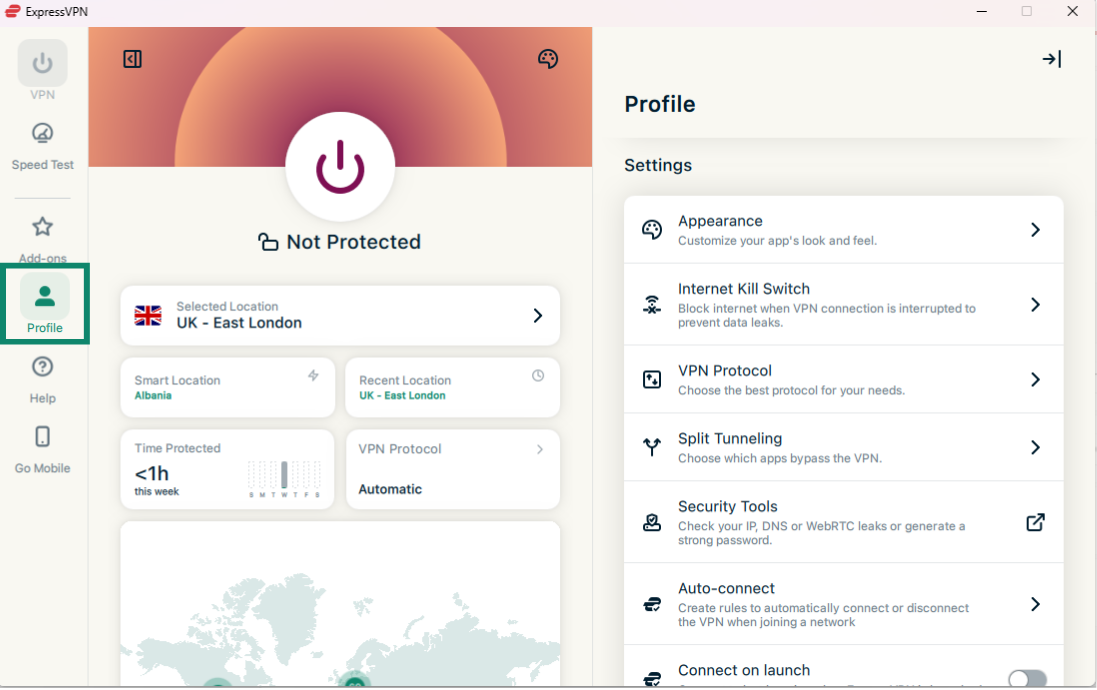
- On the ExpressVPN app, click the Profile tab.
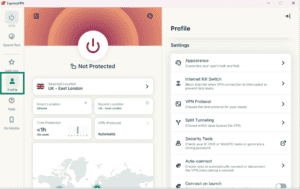
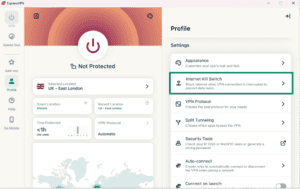
- Under Settings, click Internet Kill Switch.
- Click Enable at all times to toggle on/off.
Need help? Contact the ExpressVPN Support Team for immediate assistance.