



This tutorial will show you how to set up the ExpressVPN app on Android TVs or Android TV boxes, which include the following devices:
- Sony
- Sharp
- TCL
- Philips
- Xiaomi
- MINIX
- Nvidia Shield
- Formuler
Not yet an ExpressVPN customer?
Read more about why ExpressVPN is the best VPN for Android TV.
Jump to…
Download and install the ExpressVPN app on your Android TV
Set up the ExpressVPN app
Connect to a server location
Disconnect from a server location
Choose a different server location
Favorite a VPN server location
Use app and website shortcuts
Change the VPN protocol
Use split tunneling
Block ads, trackers, and harmful sites
Enable or disable Network Protection
Set up auto-connect
Contact support
Uninstall ExpressVPN from your Android TV
Download and install the ExpressVPN app on your Android TV
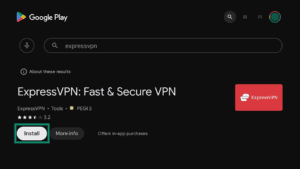
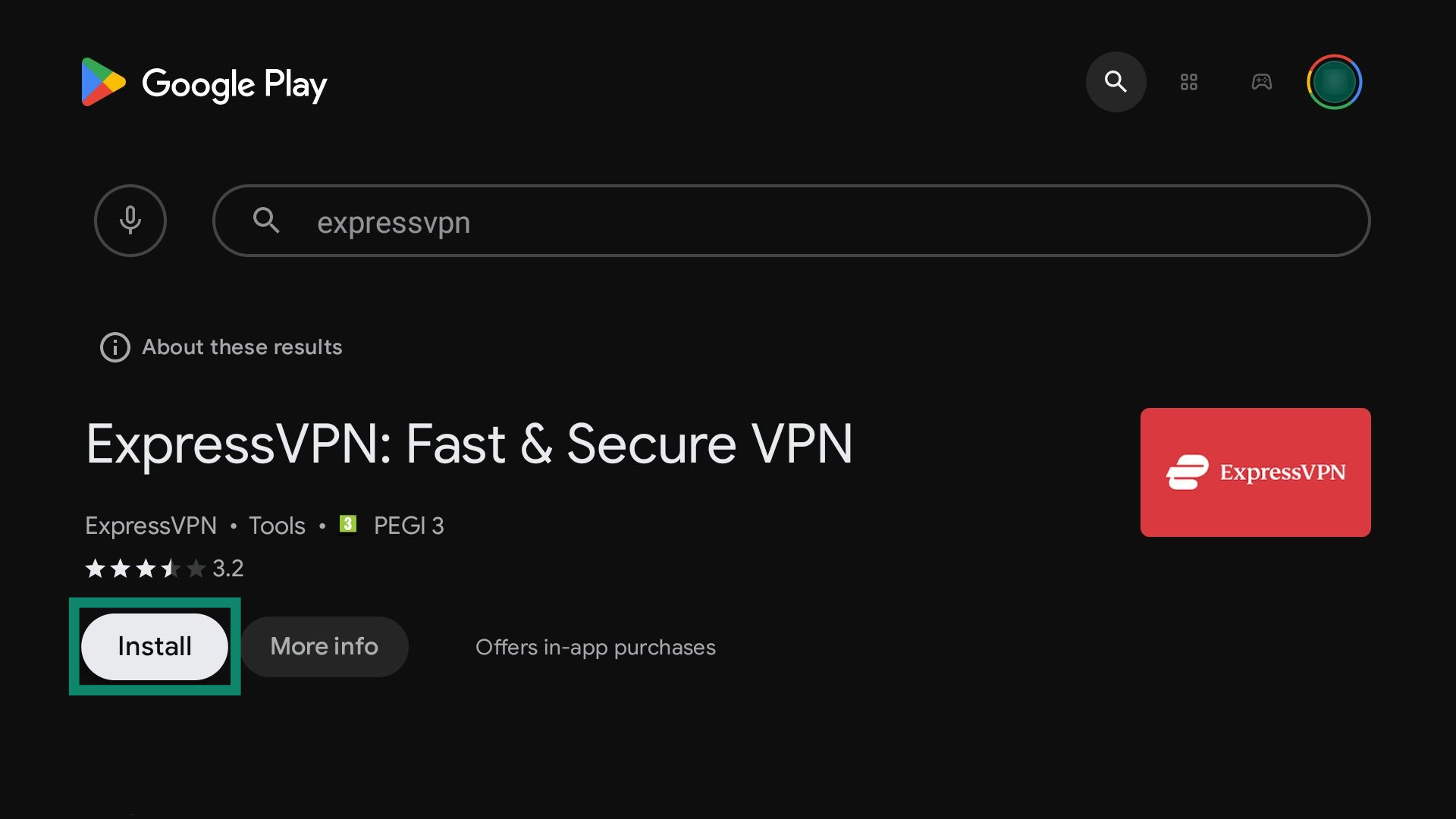
On your Android TV, open the Google Play Store and type ExpressVPN. This will automatically take you to the ExpressVPN app page. When you reach it:
- Select Install. It will automatically download and install the ExpressVPN app.

- When the installation finishes, select Open.

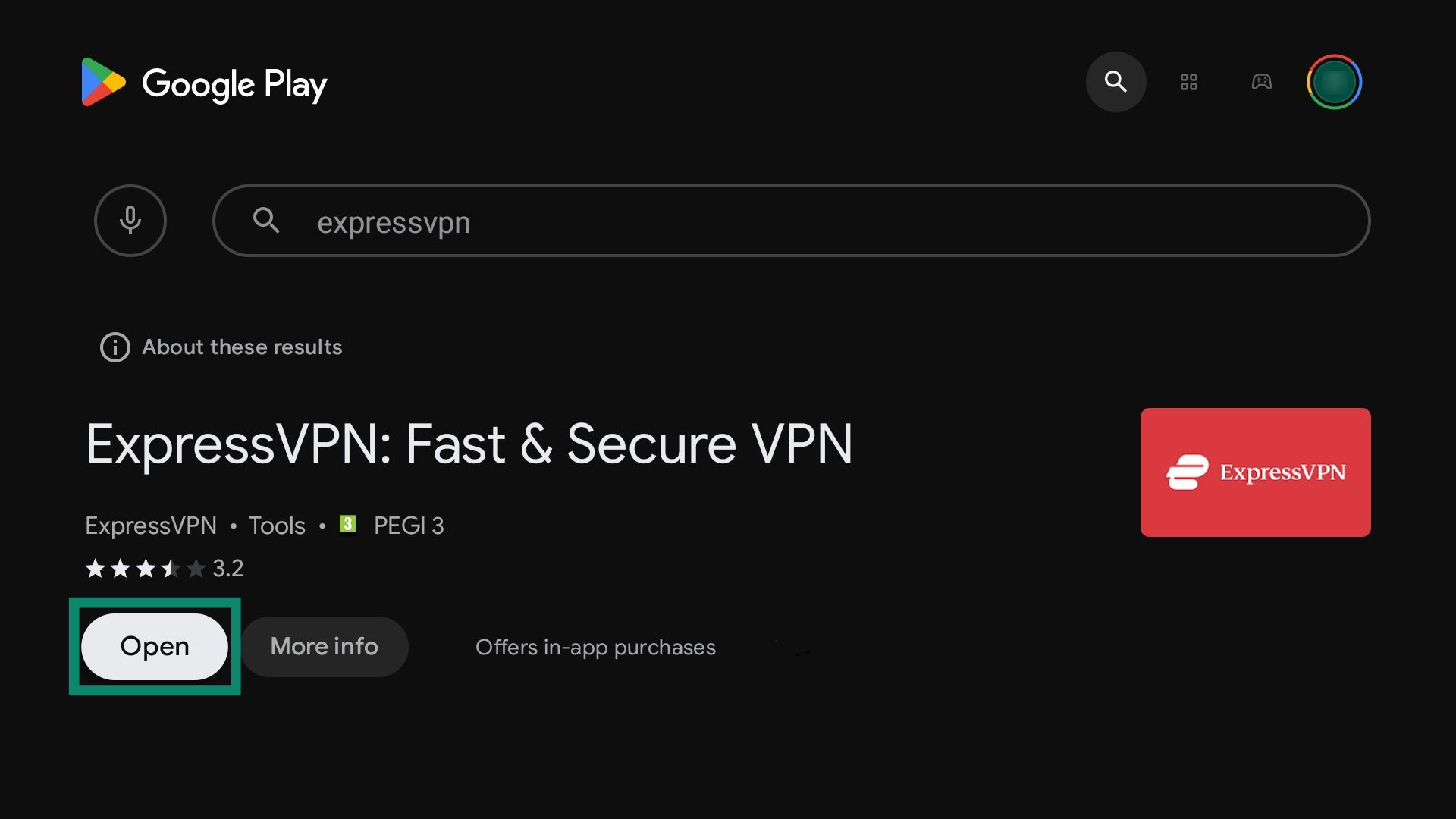
You can now set up the ExpressVPN app.
How to sideload the ExpressVPN app
- To get the ExpressVPN APK app, access the ExpressVPN setup page on your computer.
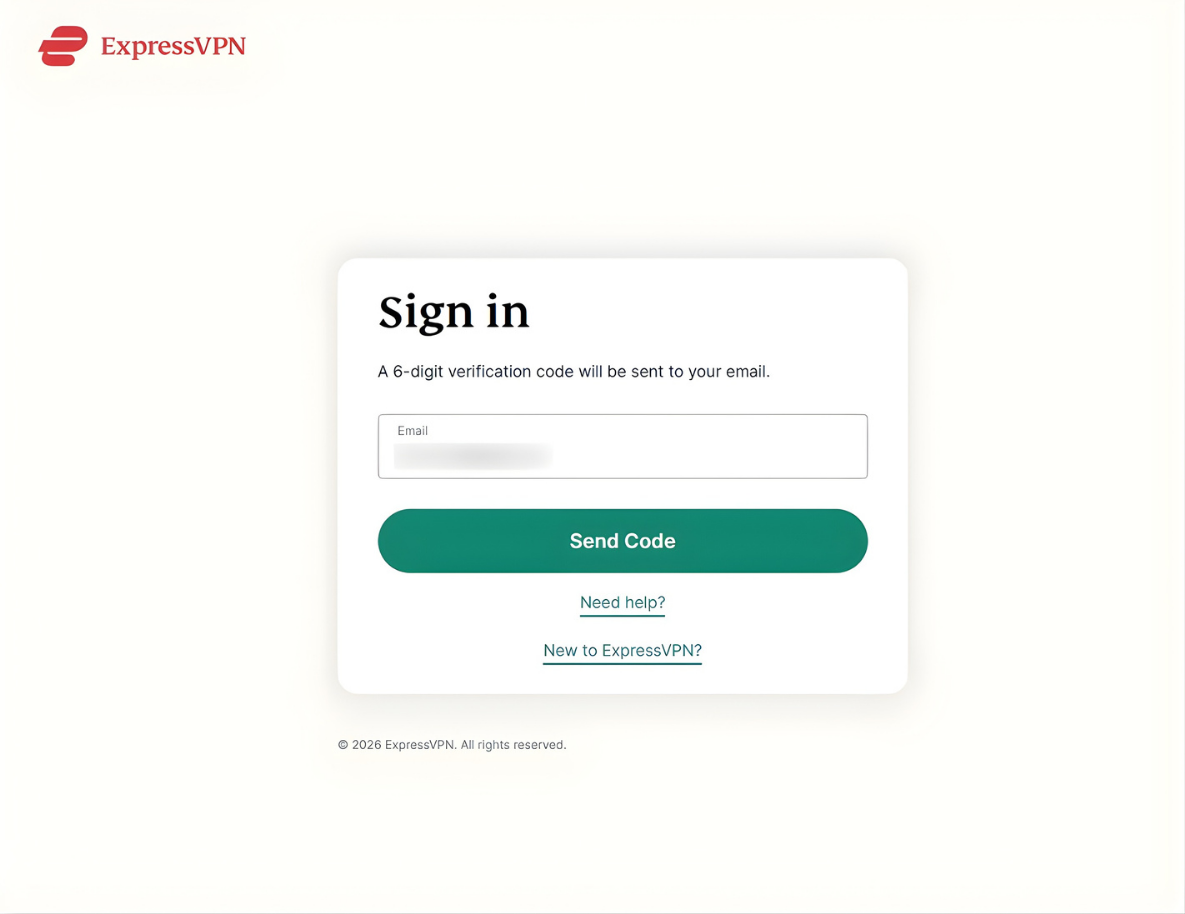
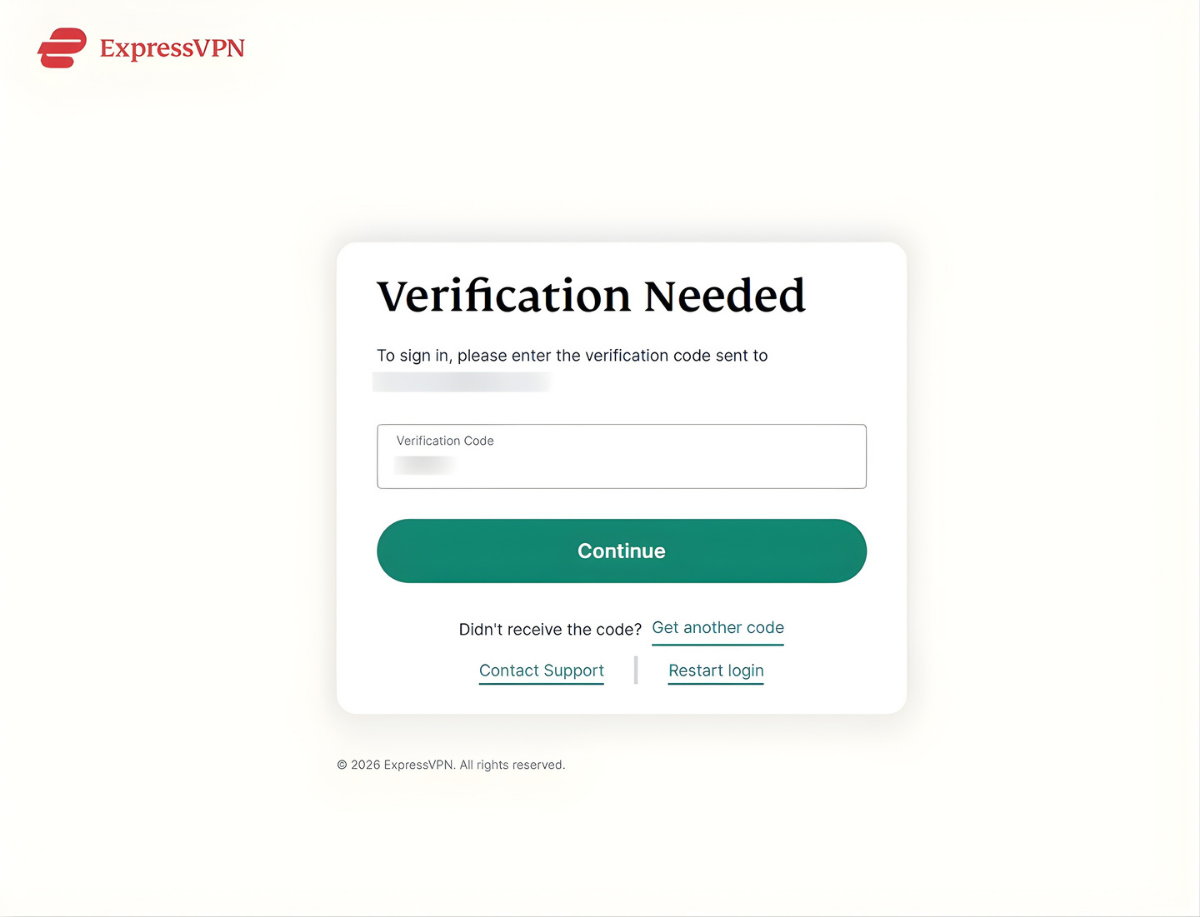
- Next, enter the email associated with your ExpressVPN account and click Send Code to receive a verification code.


- Enter the verification code received over email and click Continue.


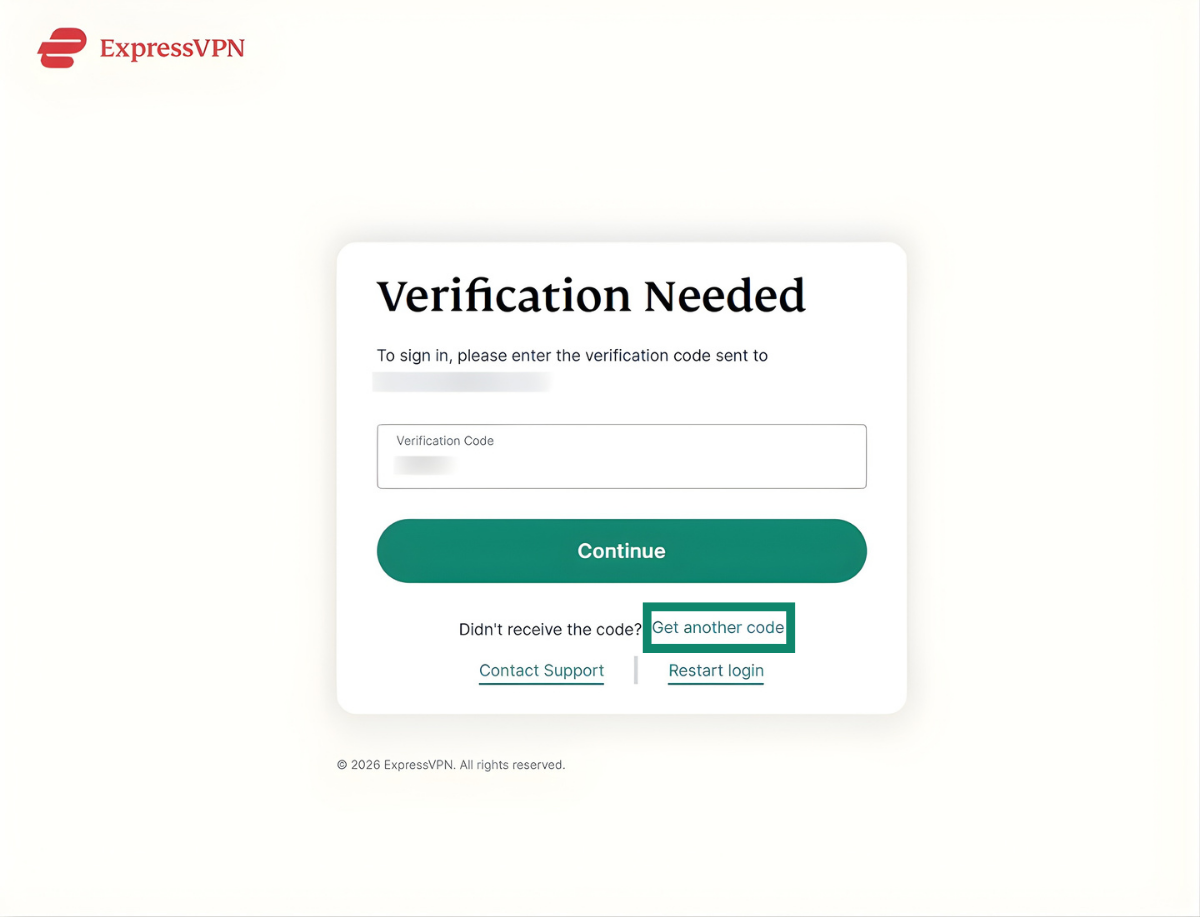
If you do not receive a verification code, click Get another code on the sign-in page.
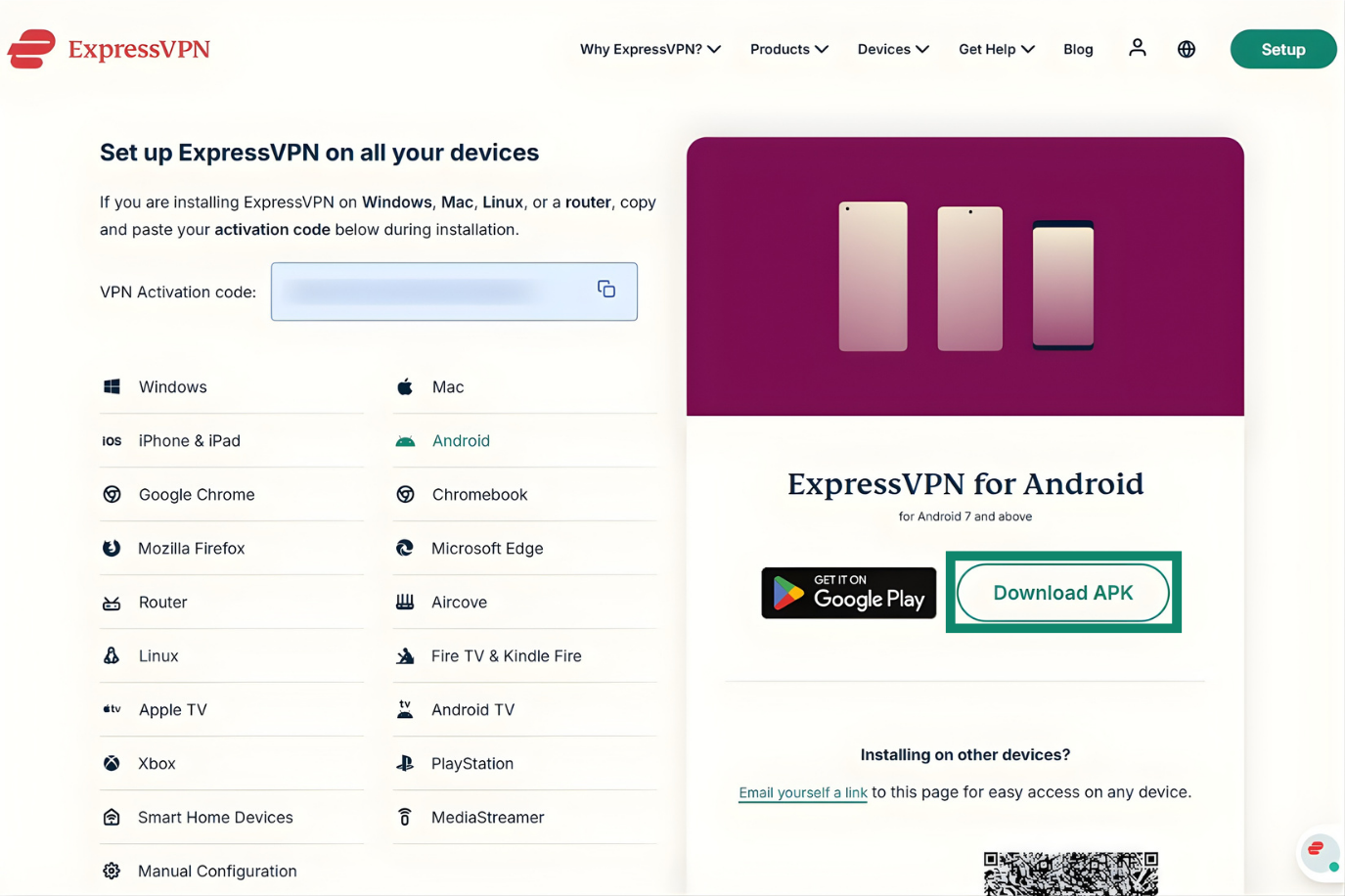
- Once signed in, you will be taken to the downloads page. Click Download APK and save the APK app on your device.


Install the ExpressVPN APK app
You now have to transfer and install the APK app on your Android TV. The simplest way to do this is with removable media, like a USB flash drive or external hard drive, and a file management app. Cloud storage apps can be used too, but they may stop working or be incompatible with certain Android TV versions.
This sideloading guide uses a USB flash drive and the Cx File Explorer app.
Copy the ExpressVPN APK app to a USB flash drive and insert it into your Android TV. After that:
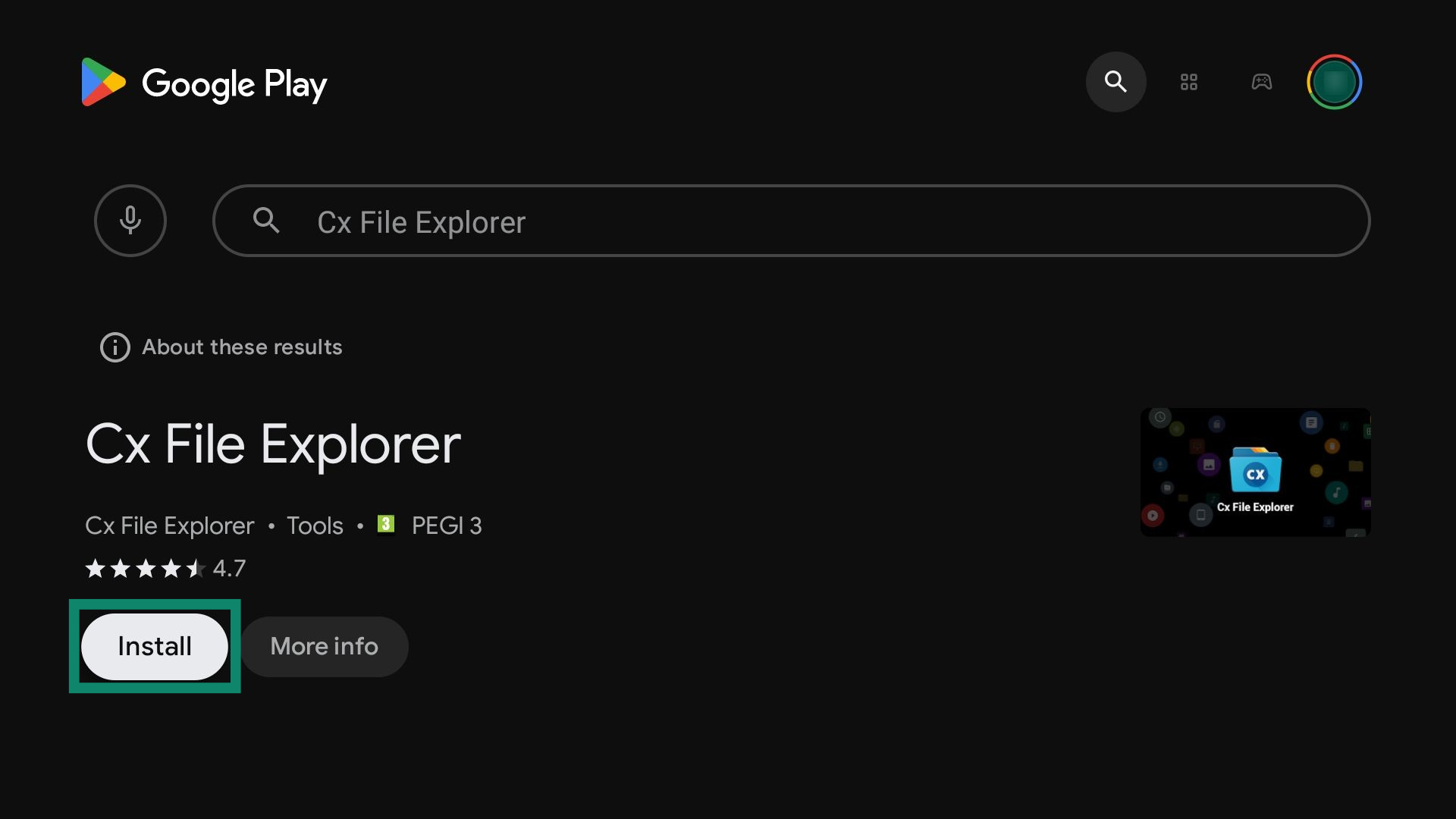
- Find the Cx File Explorer app in Google Play, and select Install to download and install it.

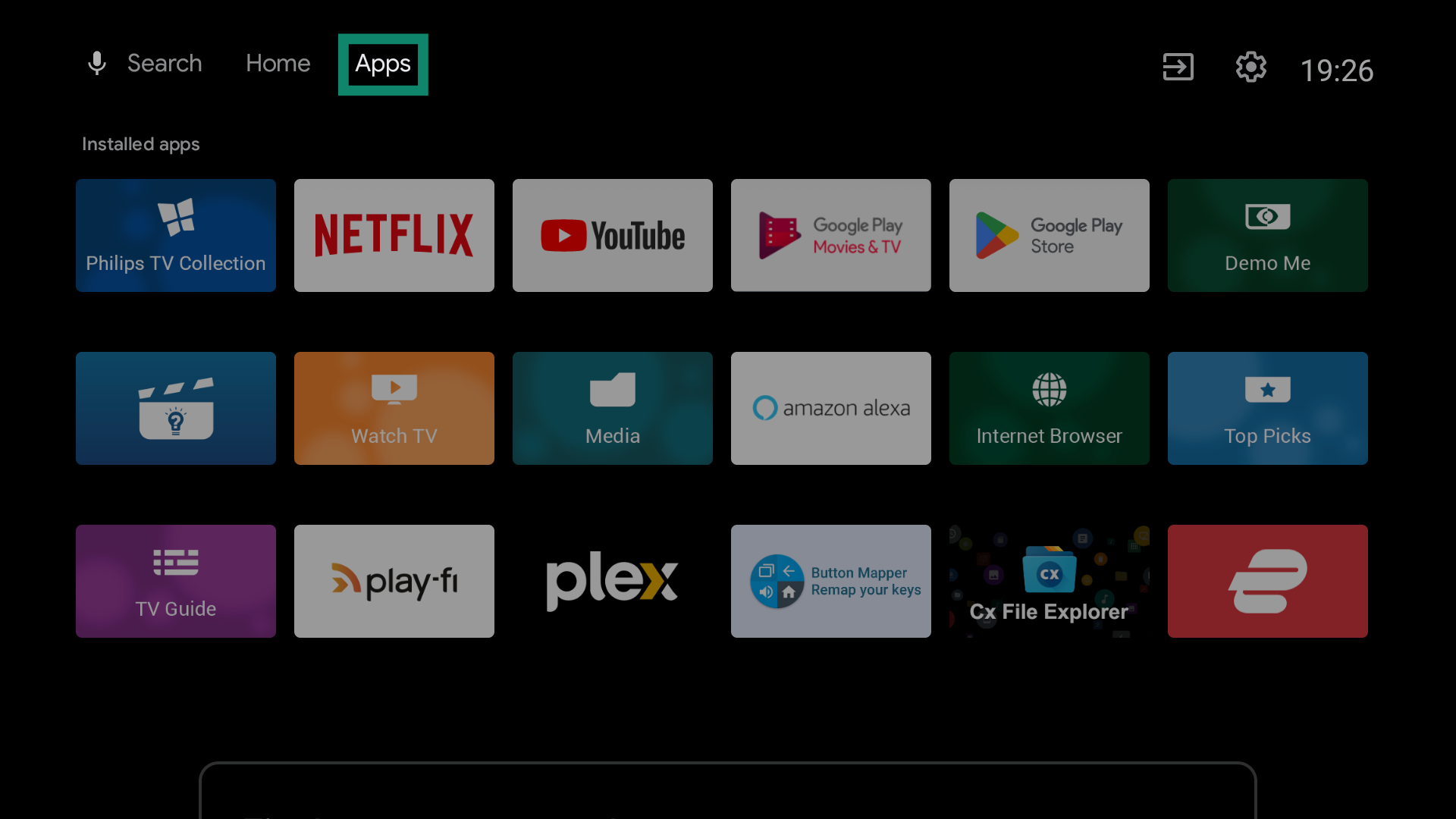
- Navigate to the Apps tab on your Android TV.

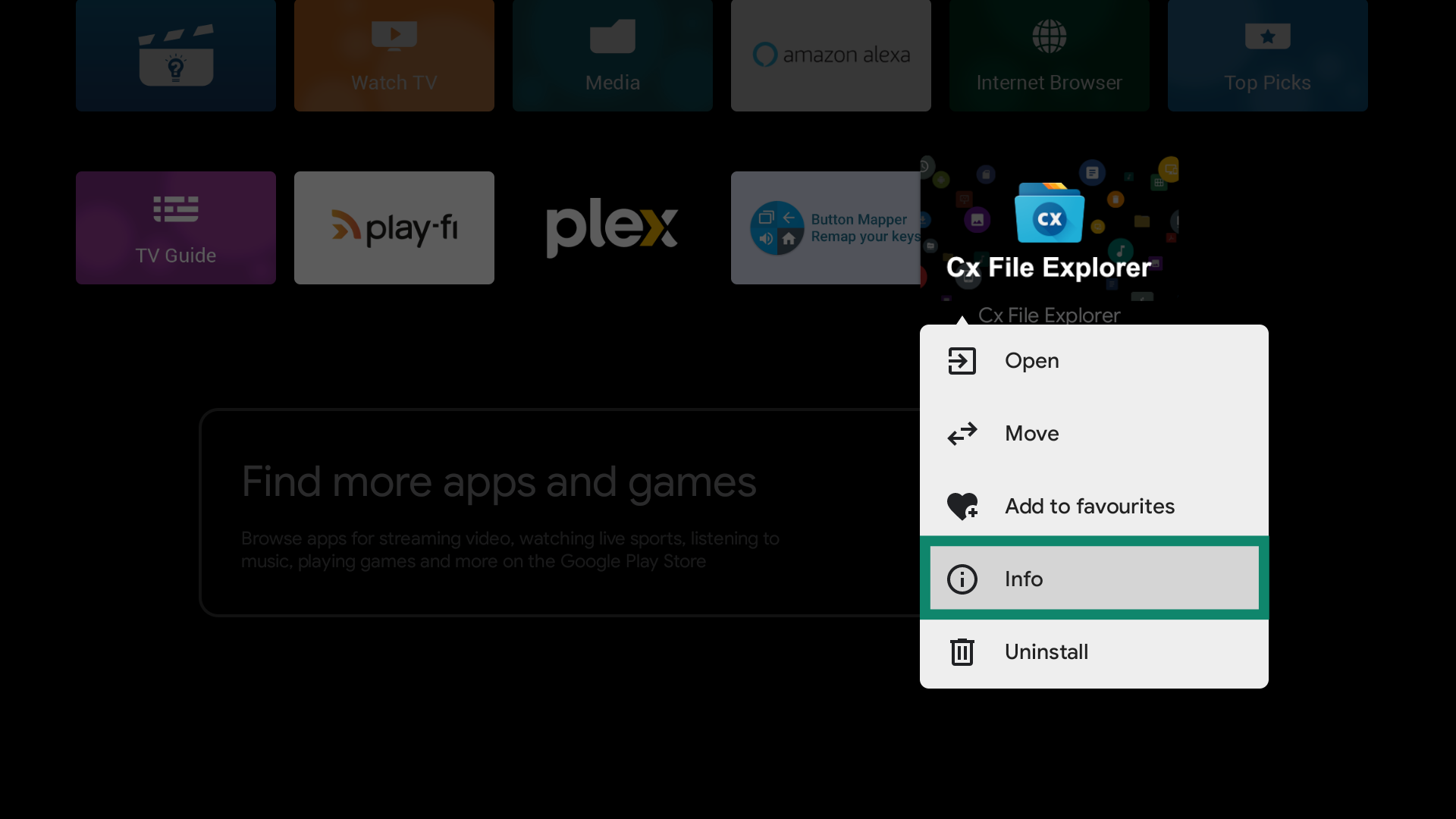
- To work, the Cx File Explorer app requires access to manage files on your device. To grant permission, long-press the app icon and select Info.

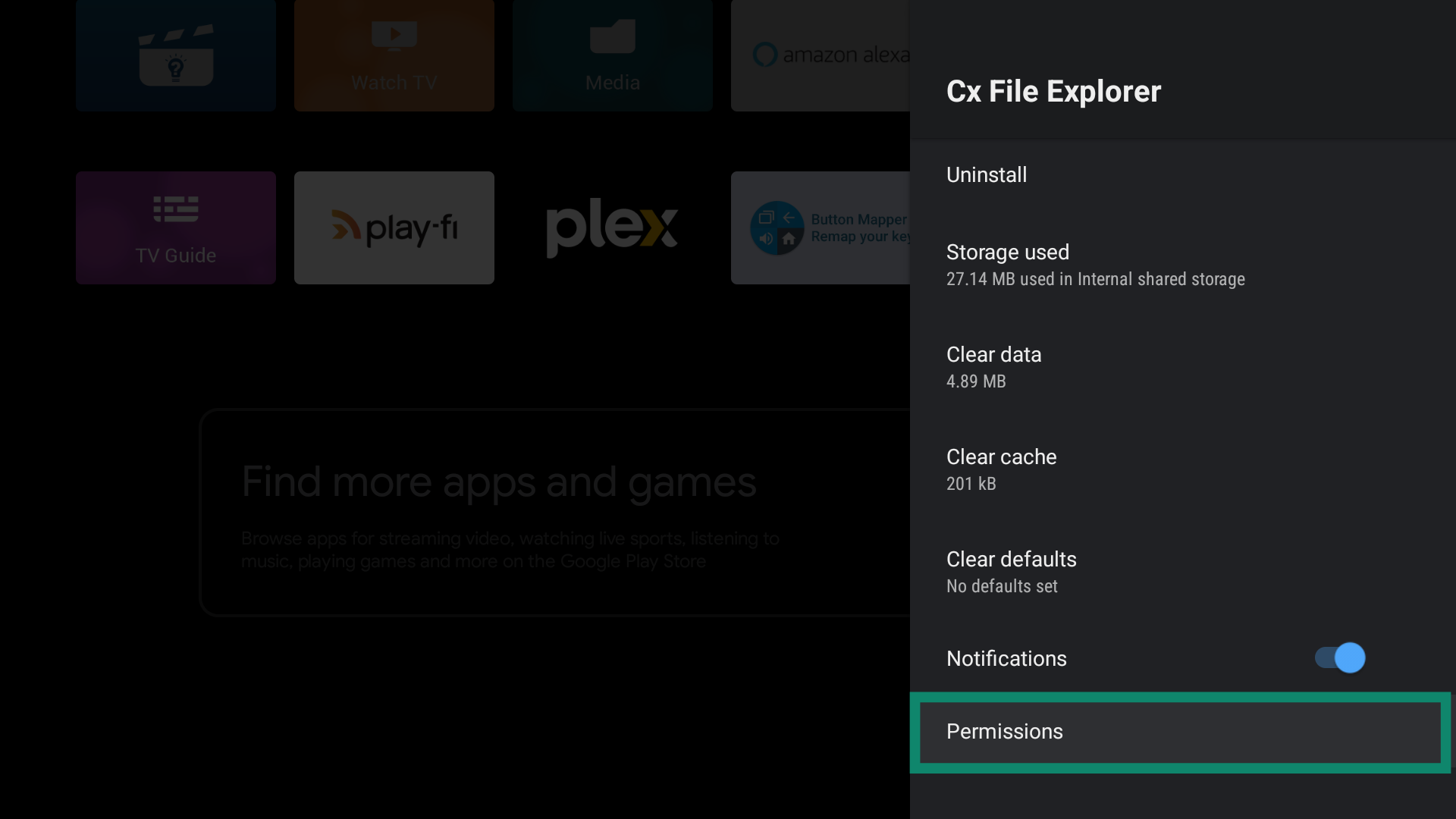
- Next, select Permissions.

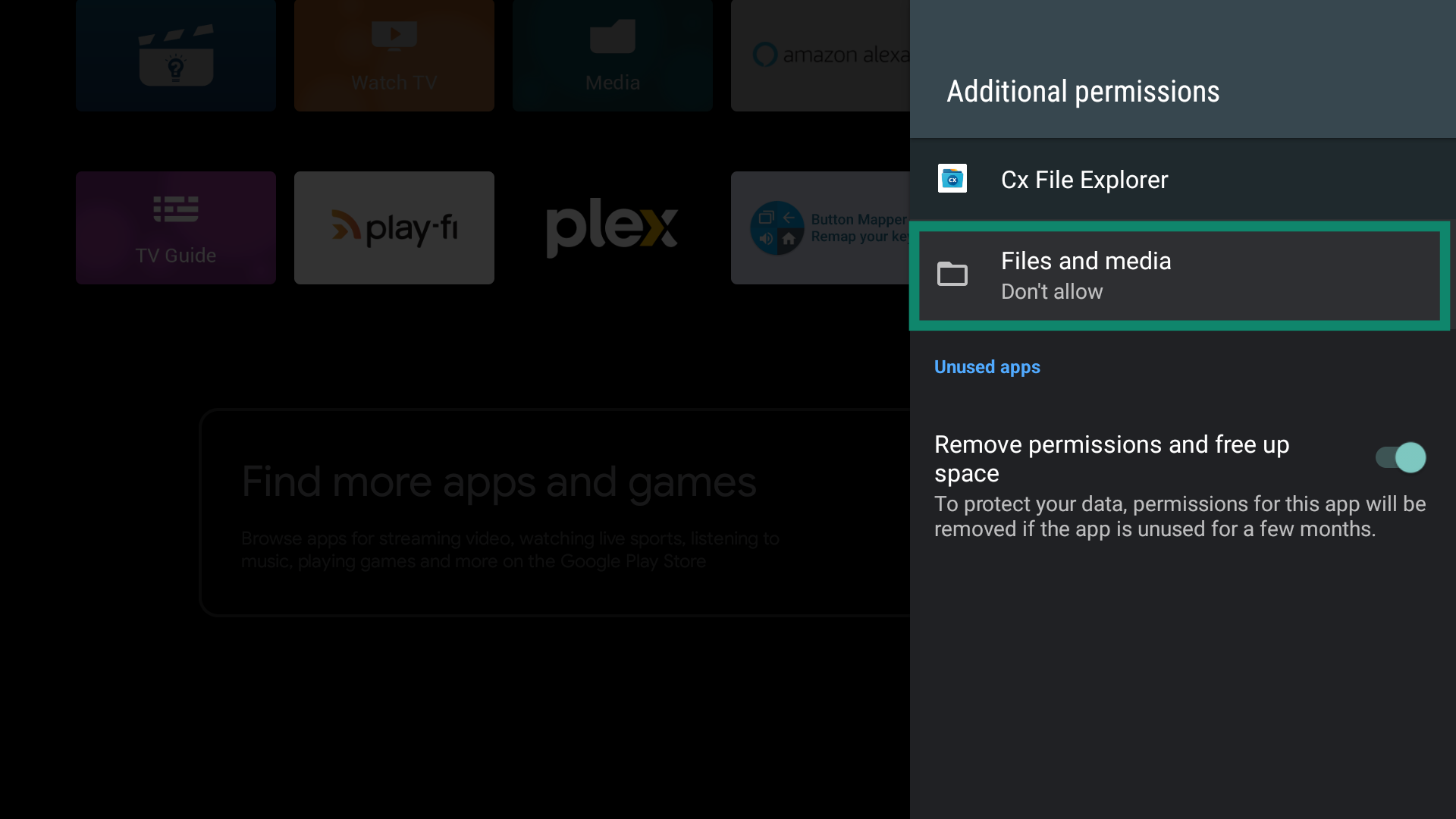
- Select Files and media.

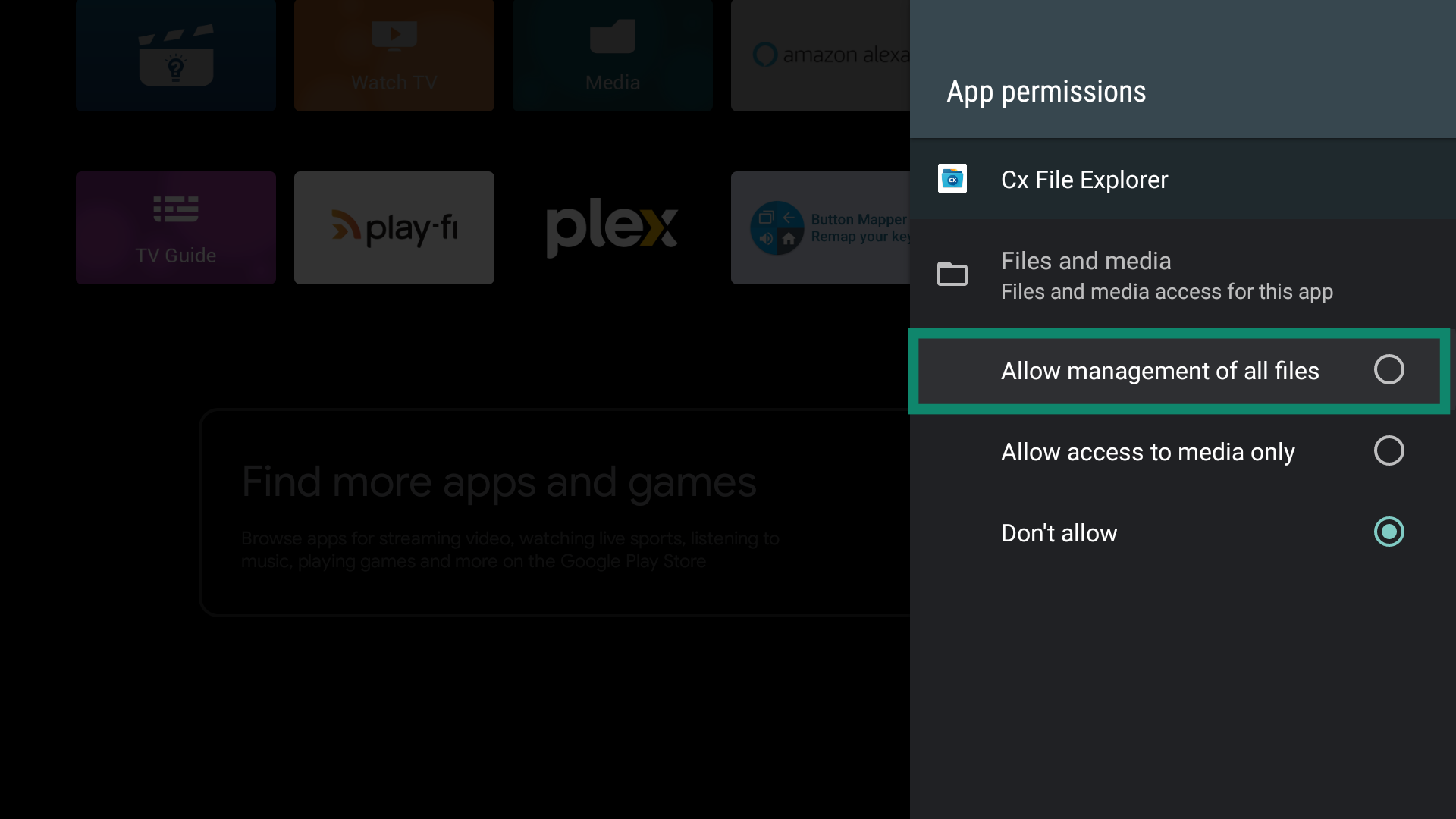
- Select Allow management of all files.

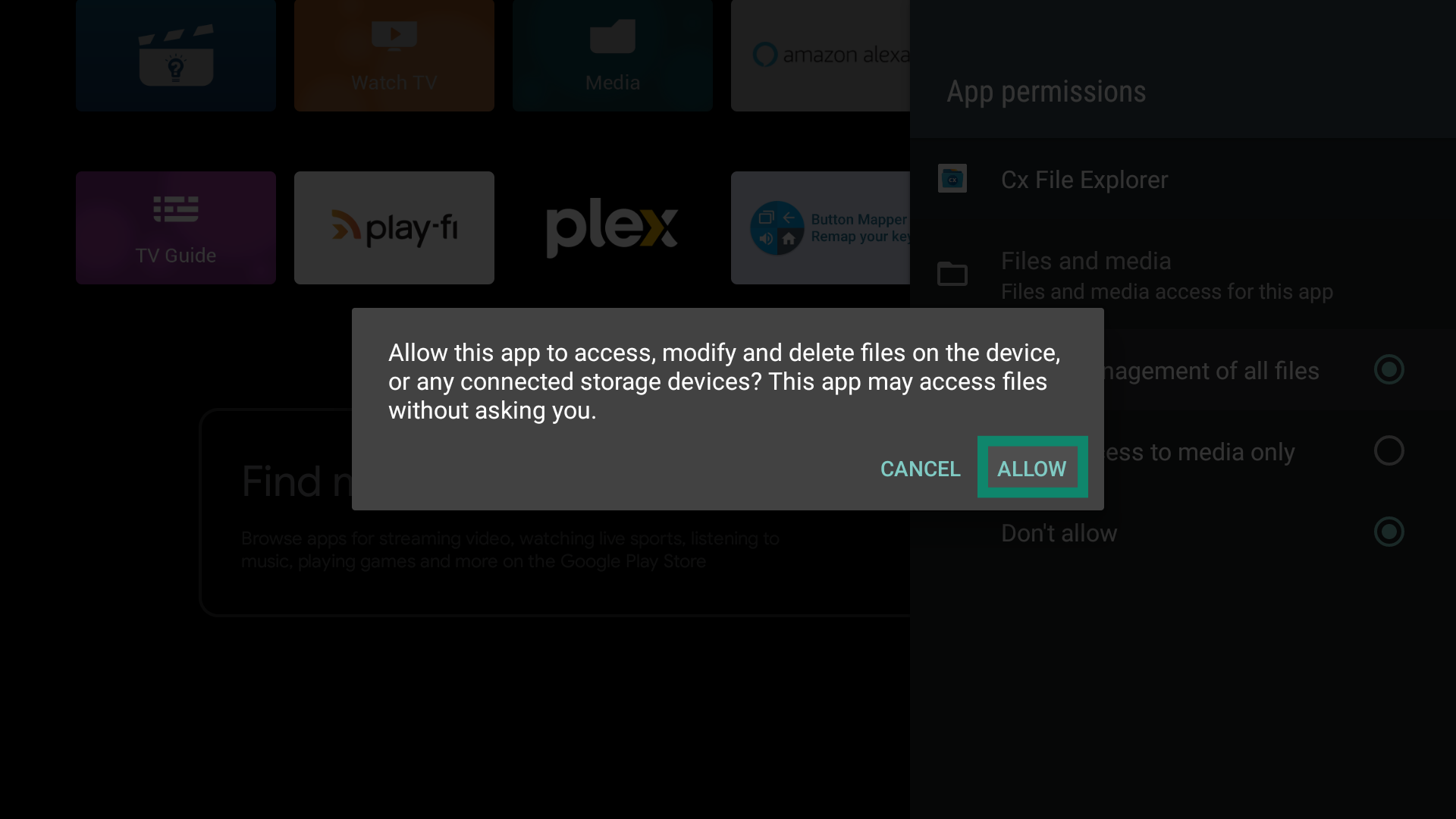
- Select Allow to confirm.

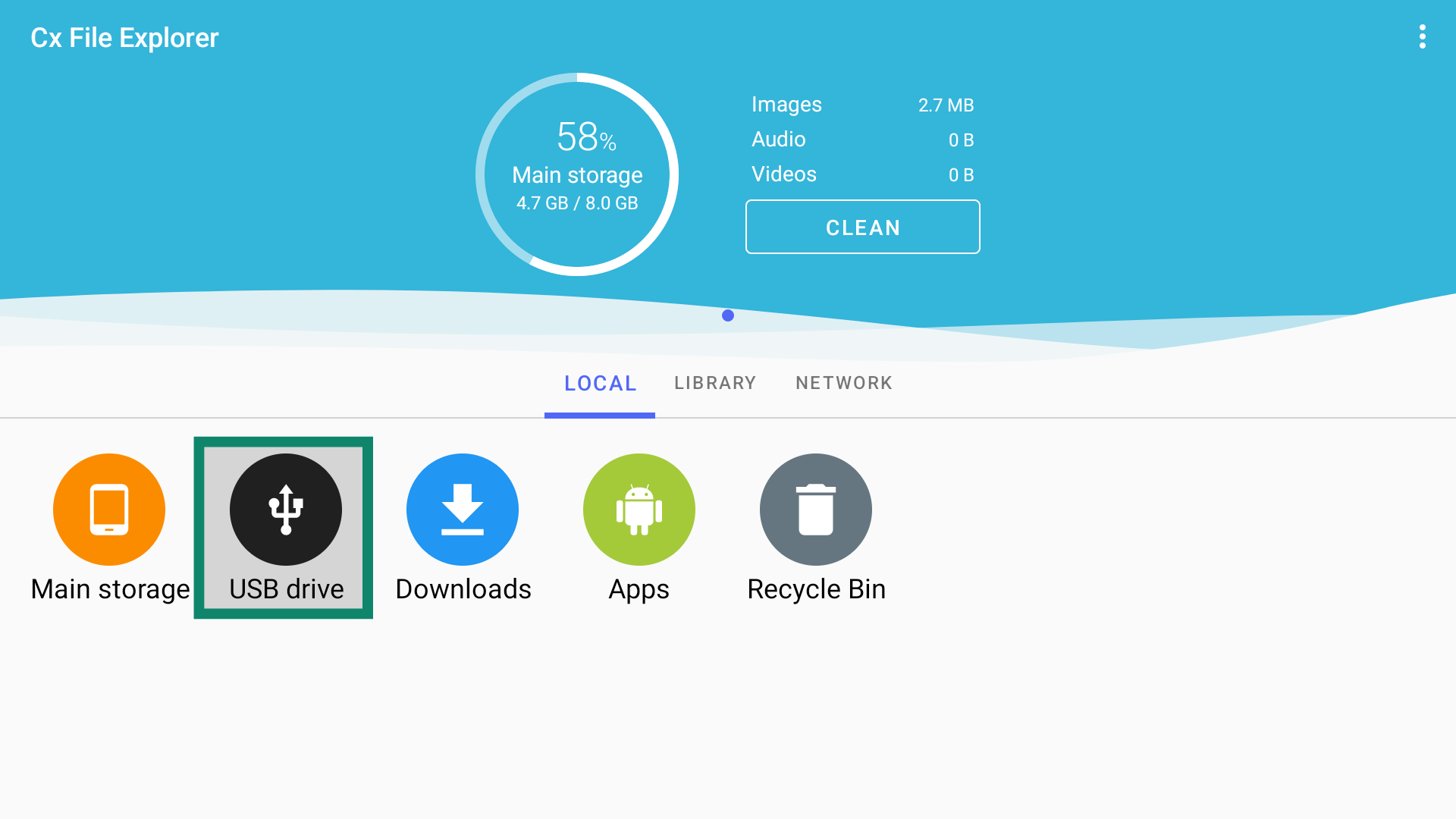
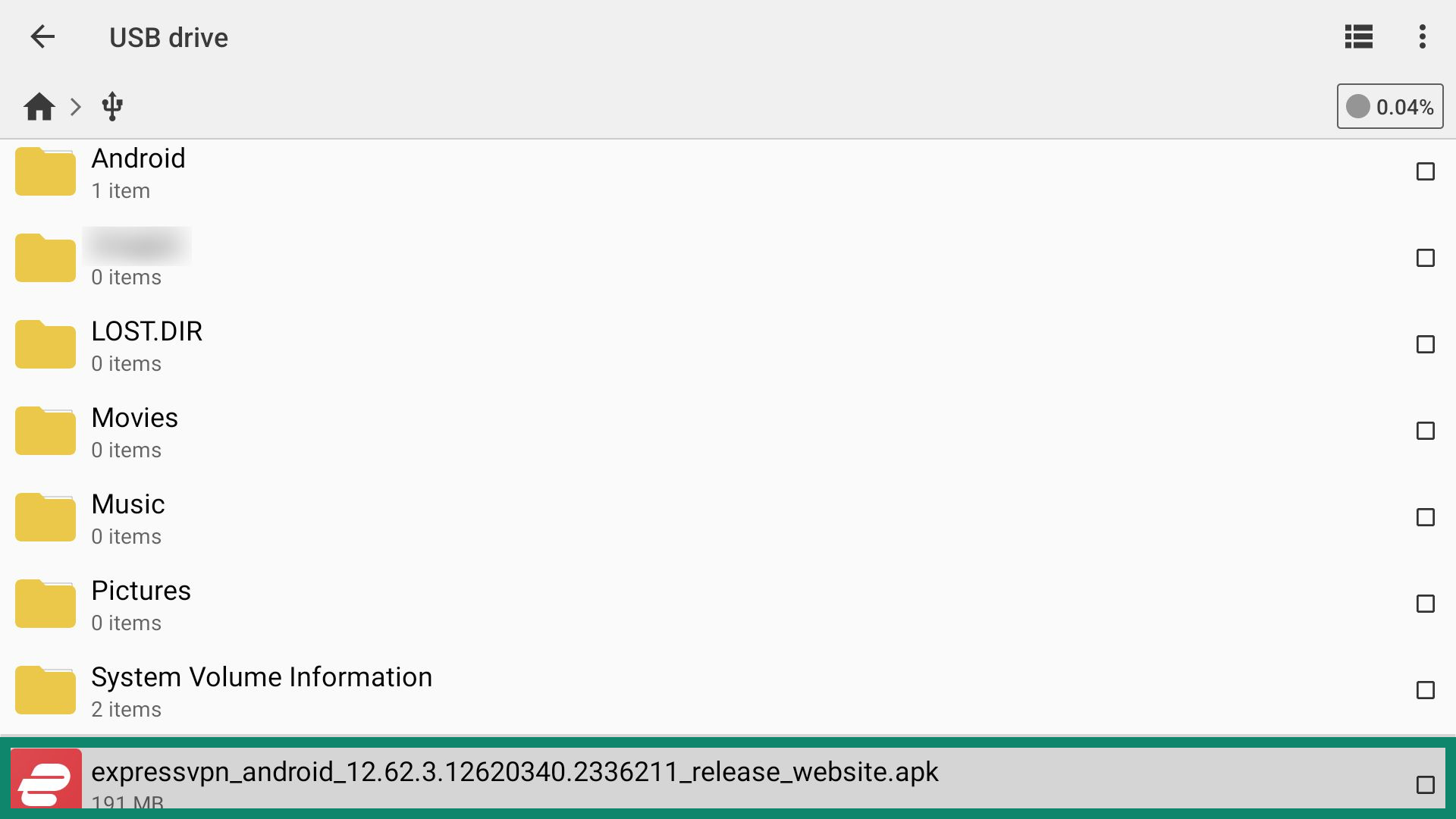
- Open the Cx File Explorer app and select USB drive.

- Select the ExpressVPN APK file.

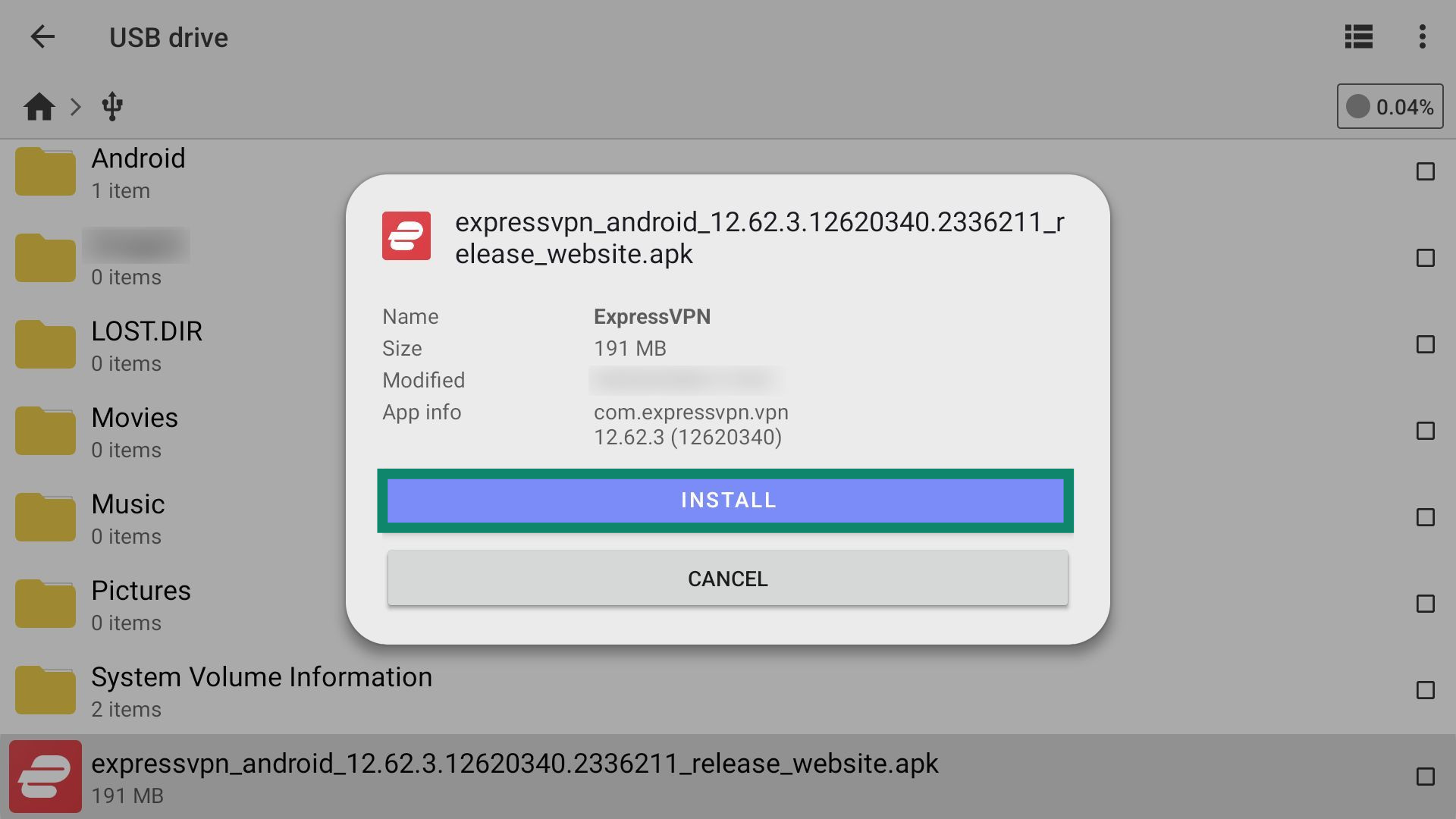
- Select INSTALL.

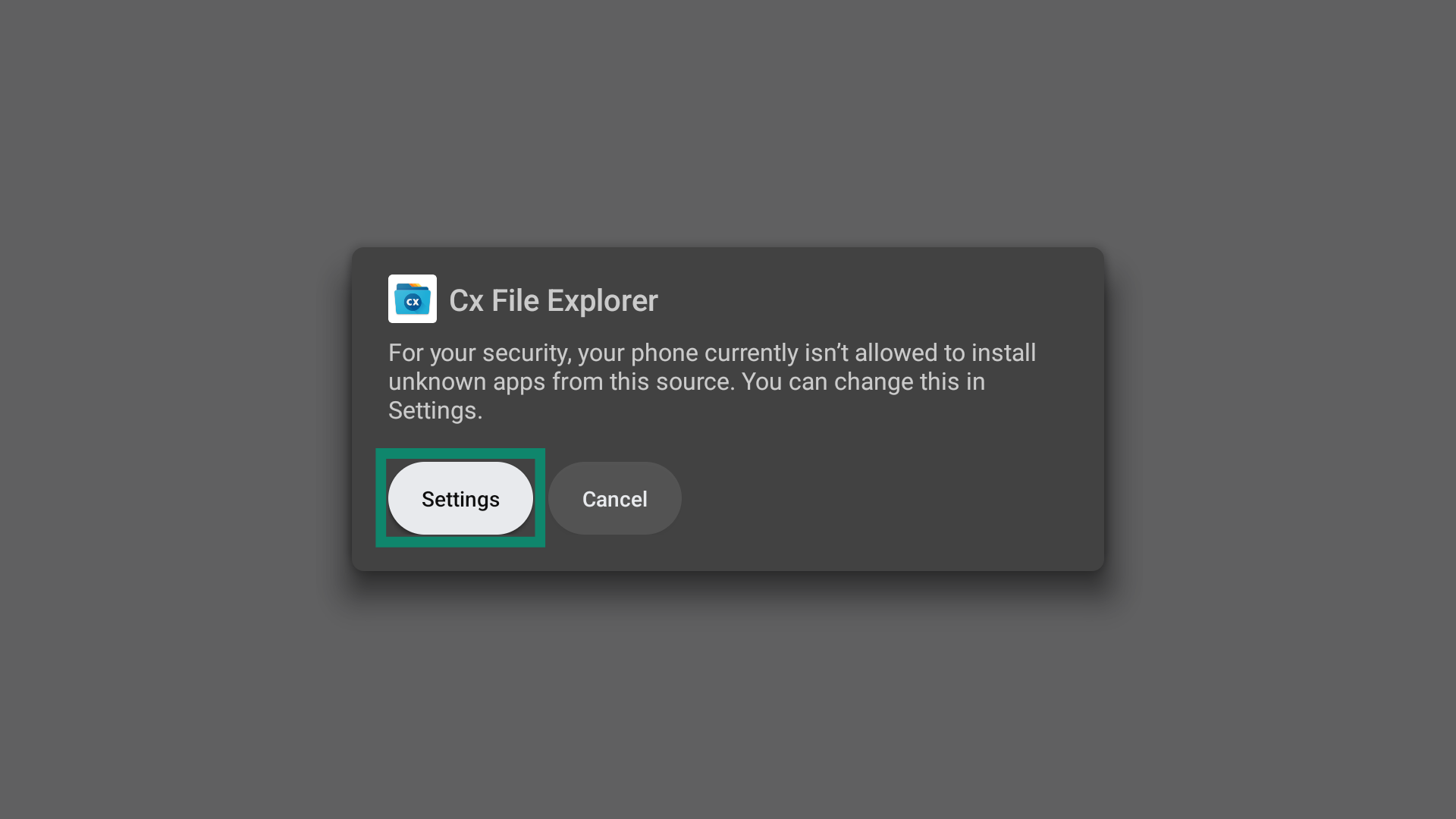
- If prompted, select Settings to allow your Android TV to install apps from Cs File Explorer.

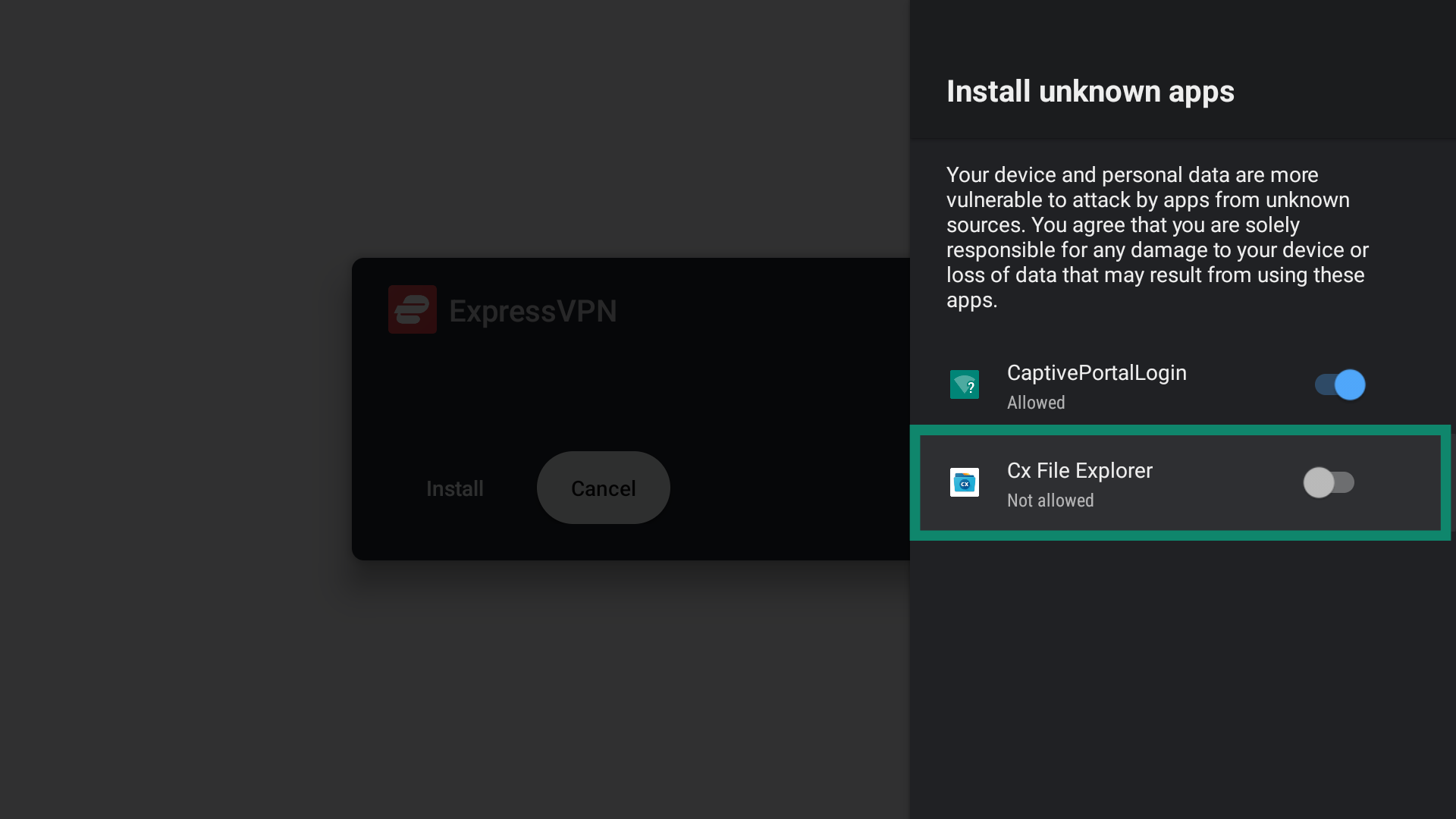
- Toggle Cx File Explorer to the on position.

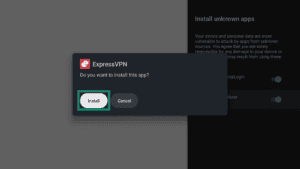
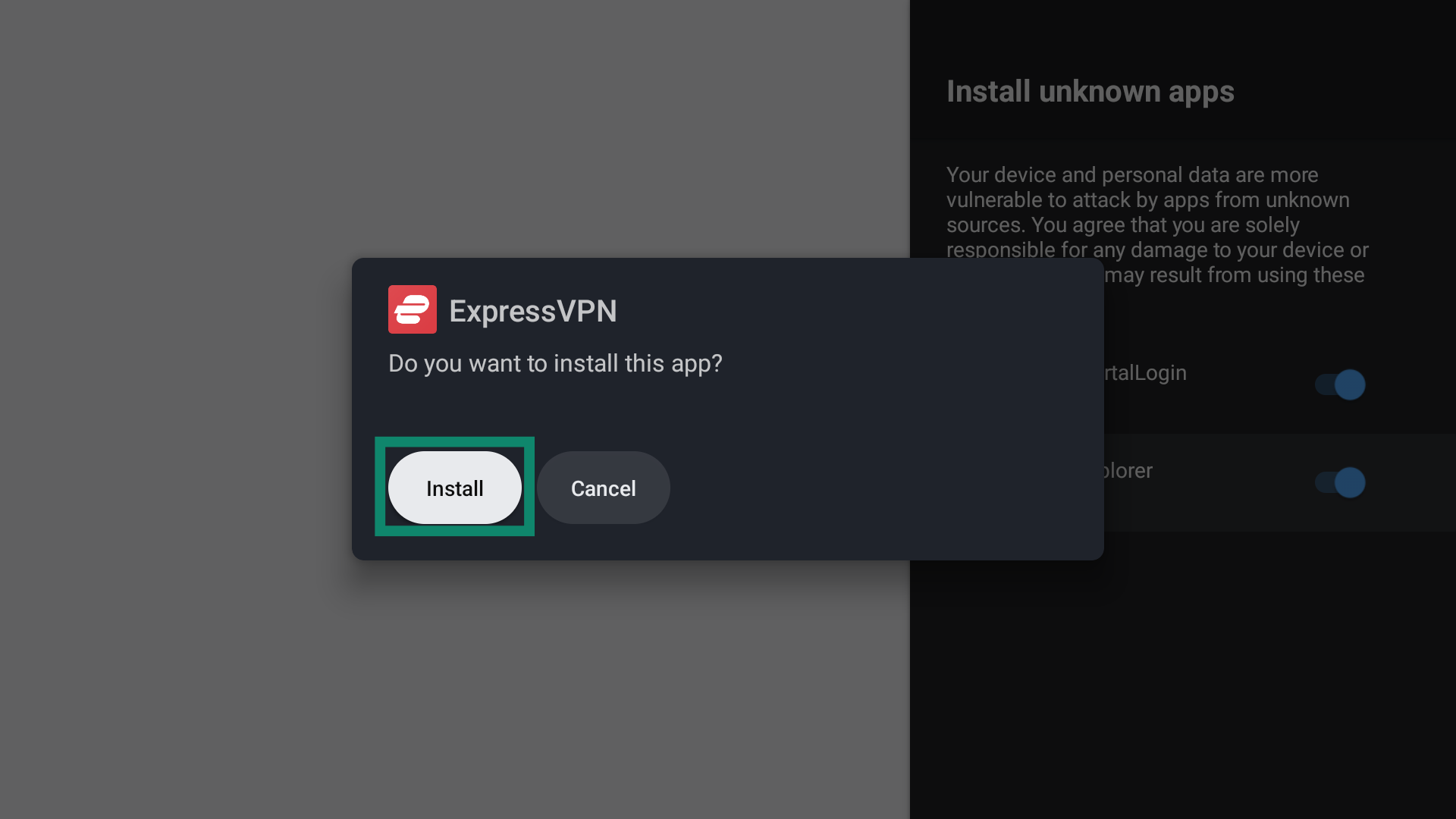
- When prompted, select Install.
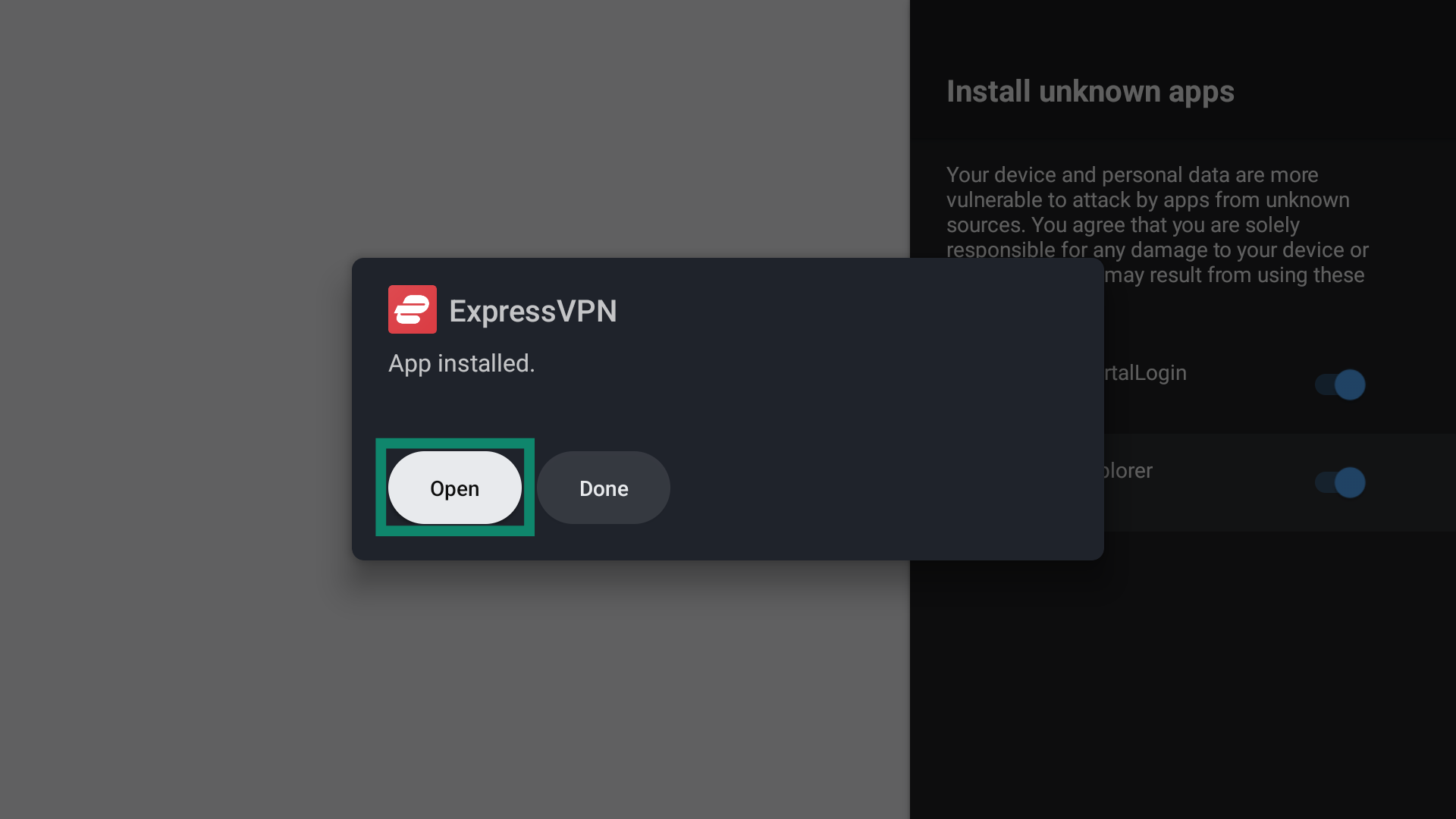
- Select Open to launch the ExpressVPN app.

Need help? Contact the ExpressVPN Support Team for immediate assistance.
Set up the ExpressVPN app
When you first open the ExpressVPN app, you will see a window that details privacy-related choices. Select your preference to continue.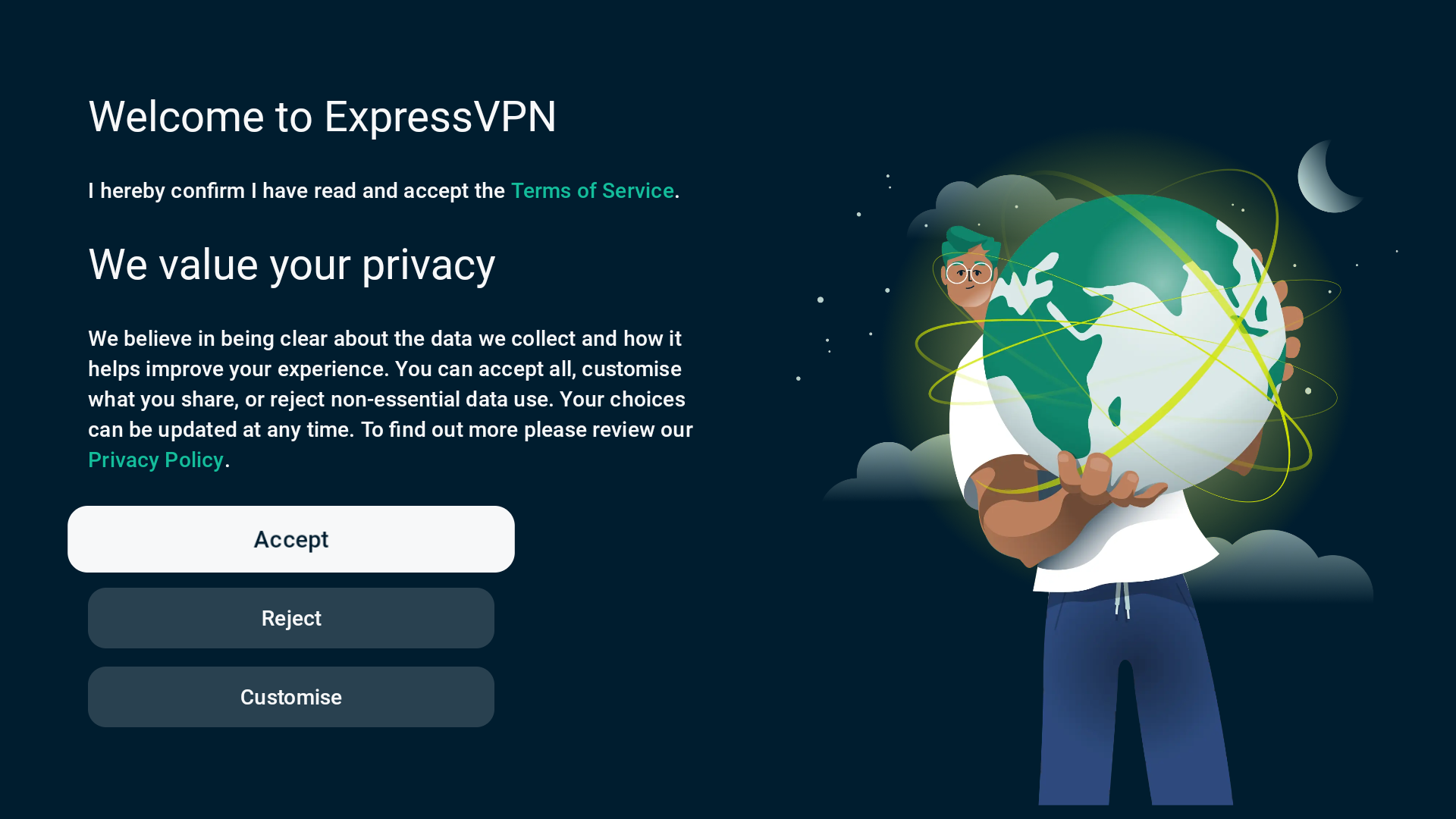 On the next window, select Sign in.
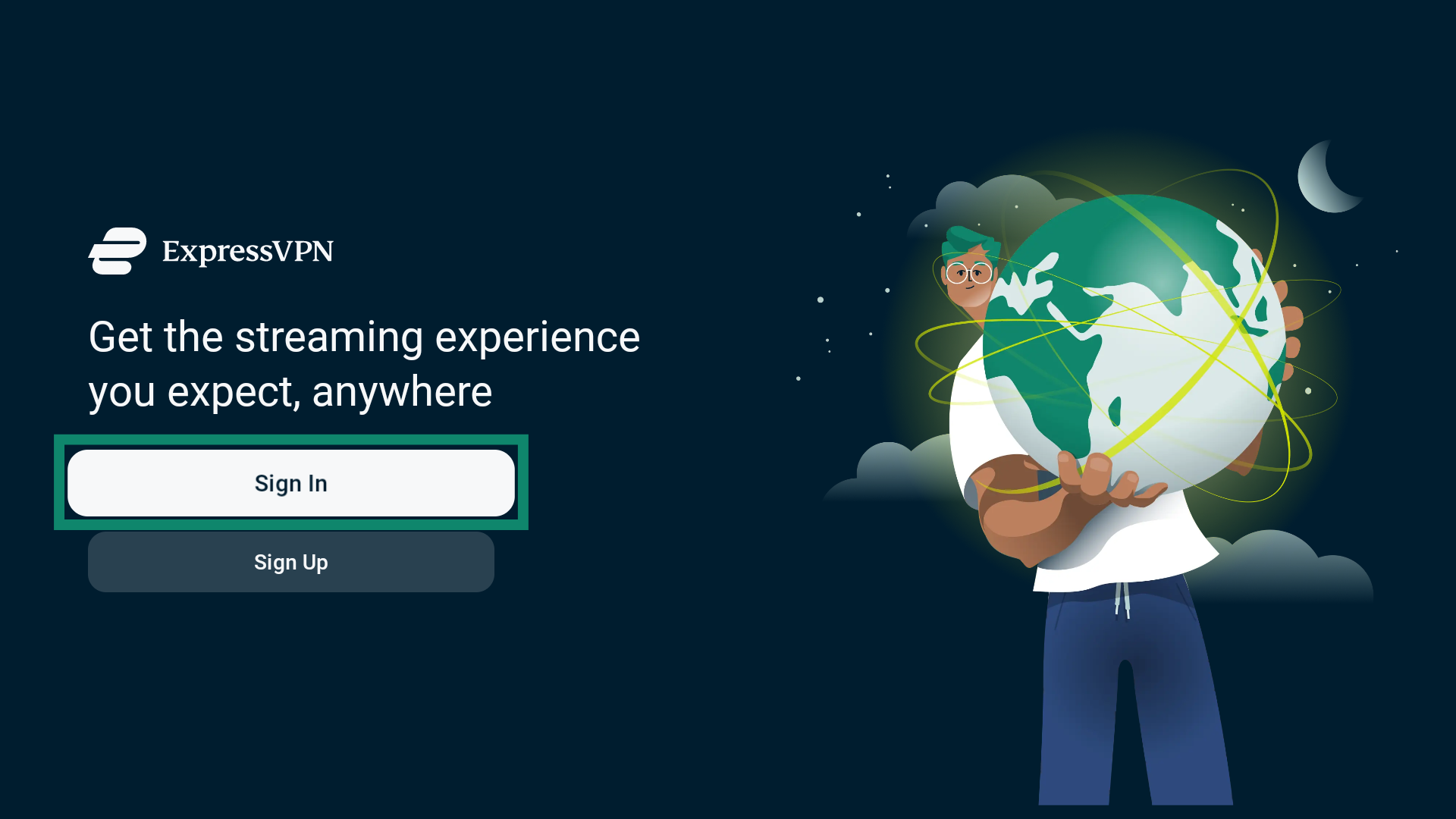 There are three ways to sign in.
Sign in with a QR code
Scan the QR code with a mobile device to open up an ExpressVPN sign-in page. Then follow these steps:
- Enter the email address linked to your ExpressVPN account and tap Send Code.


- Enter the verification code received via email and tap Continue.

- Tap Yes to approve the sign-in on your Android TV.

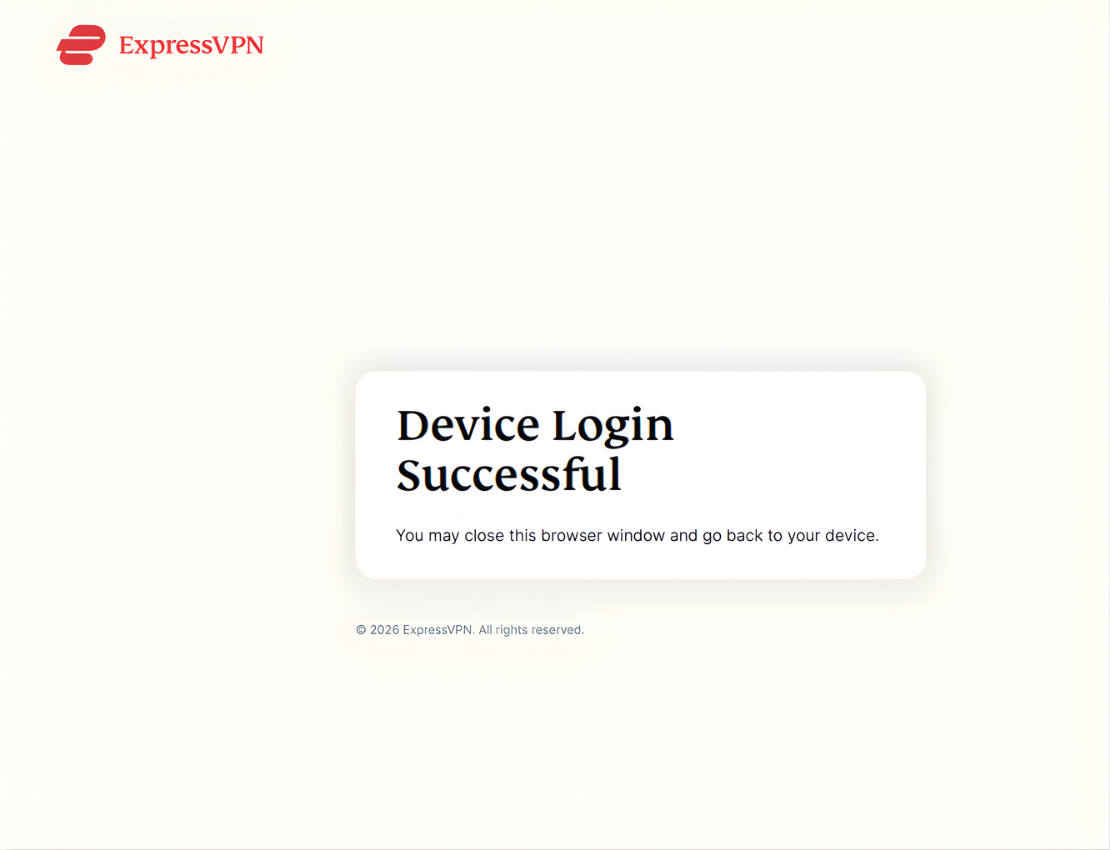
- If done right, you should see a screen that says Device Login Successful.

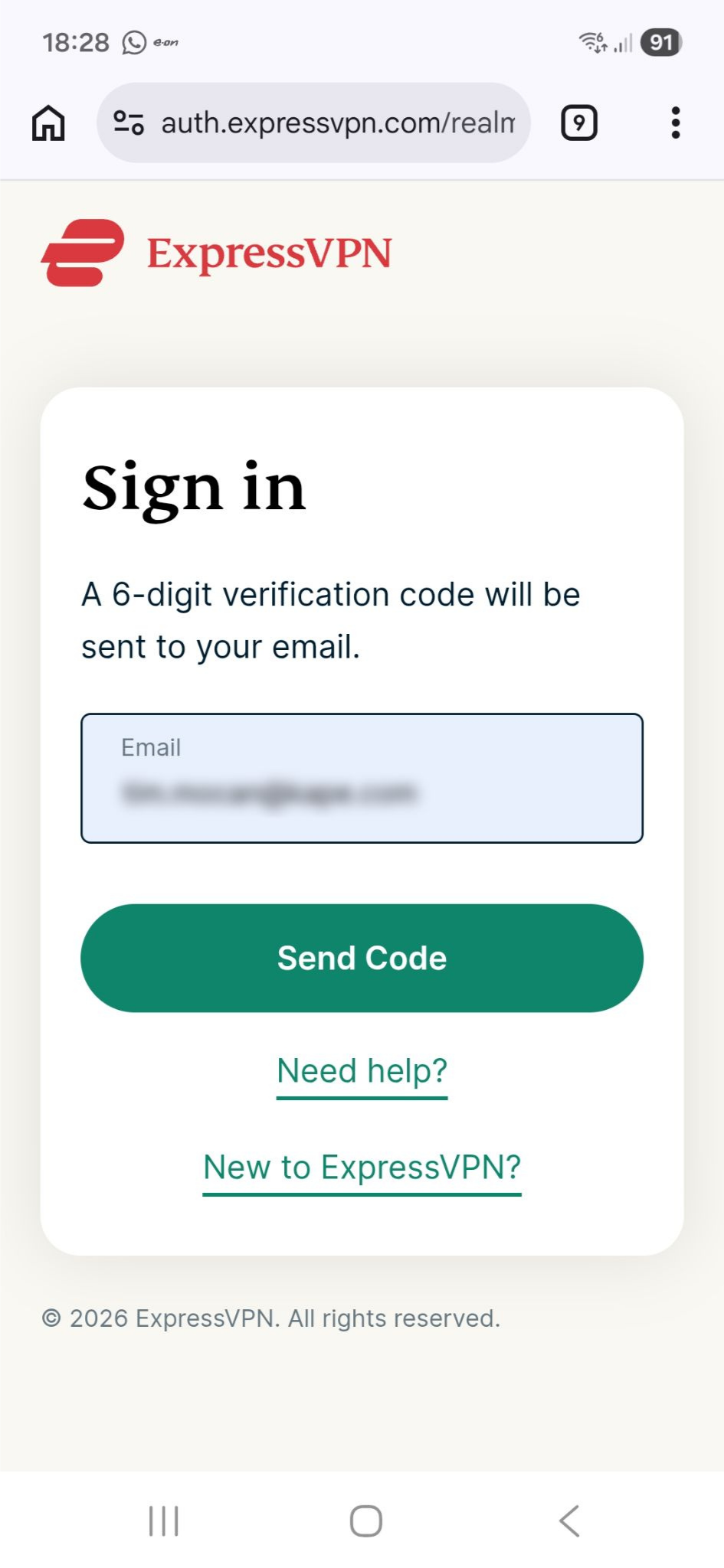
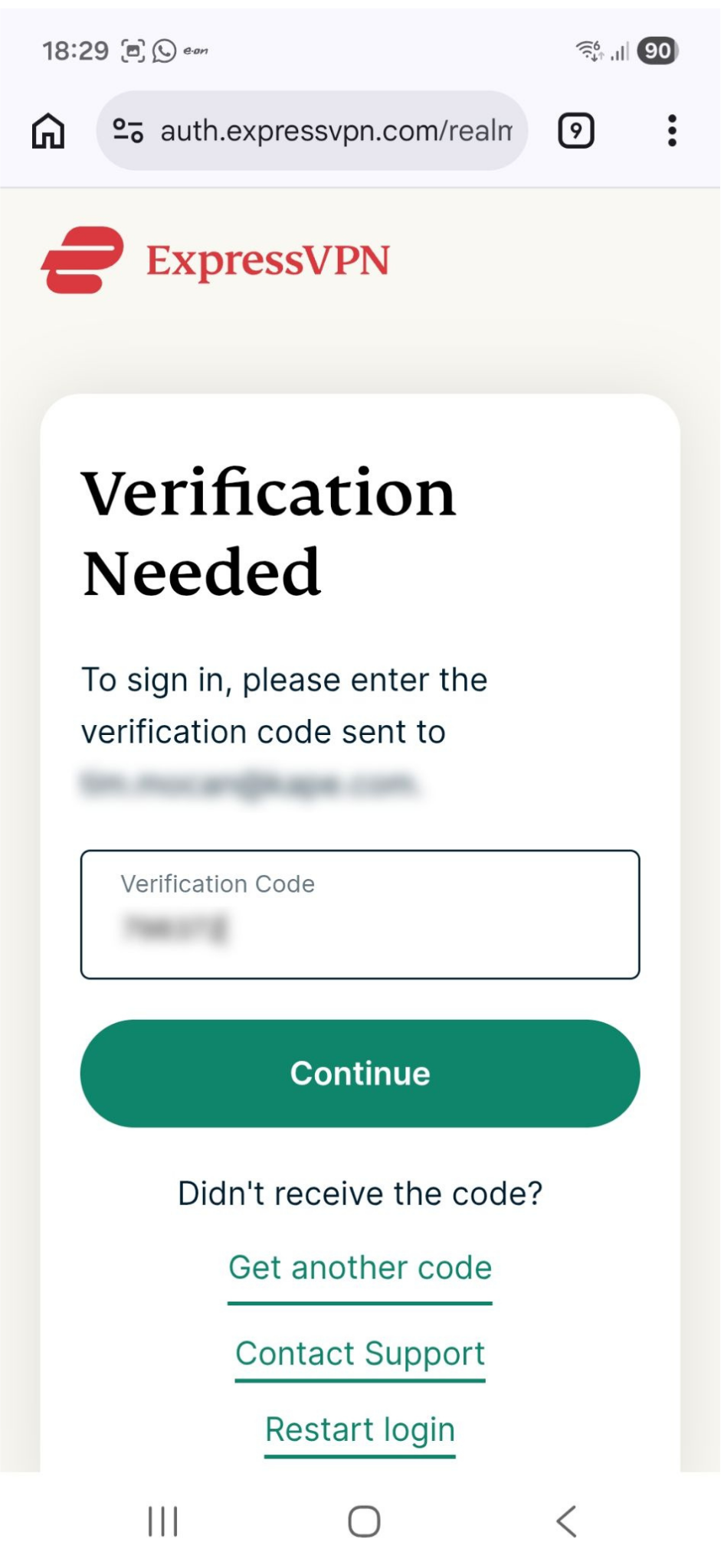
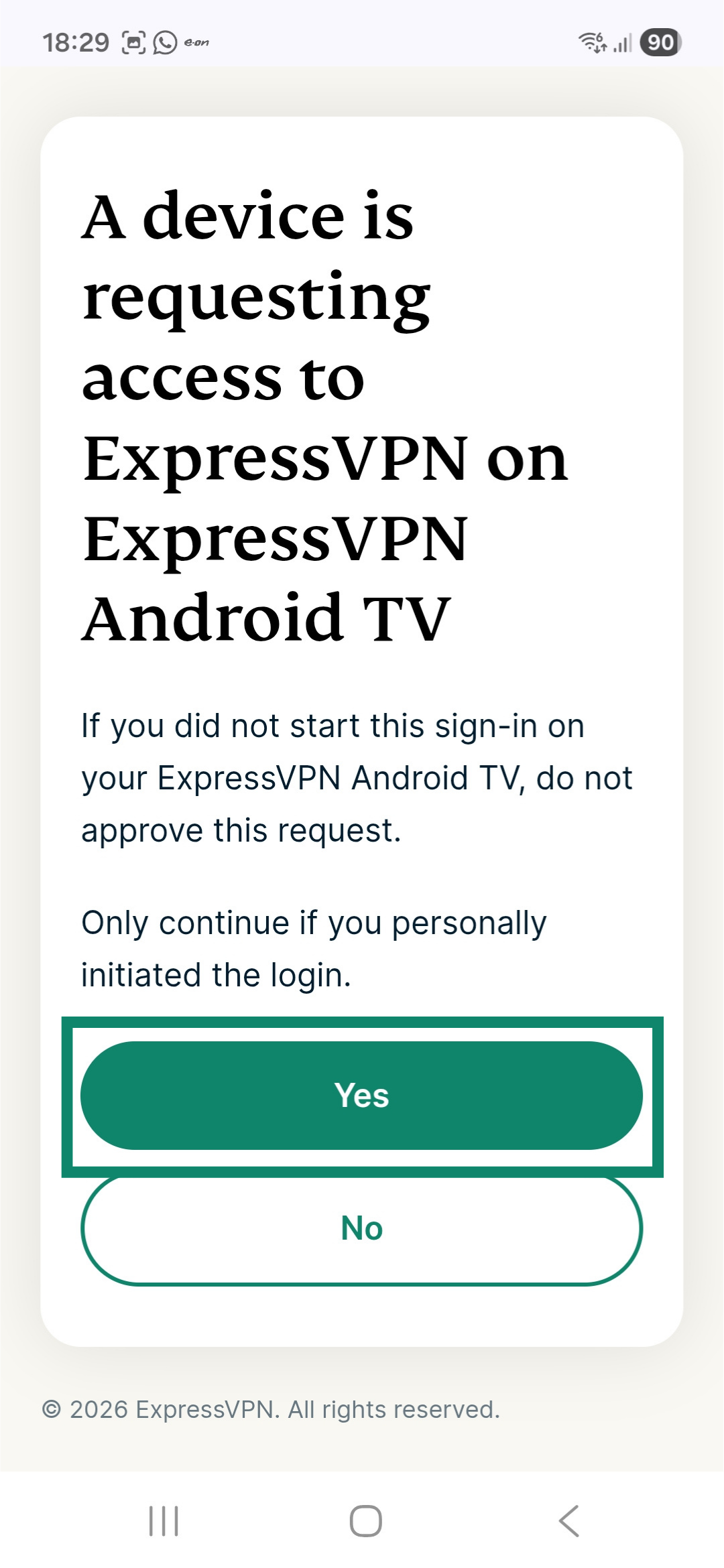
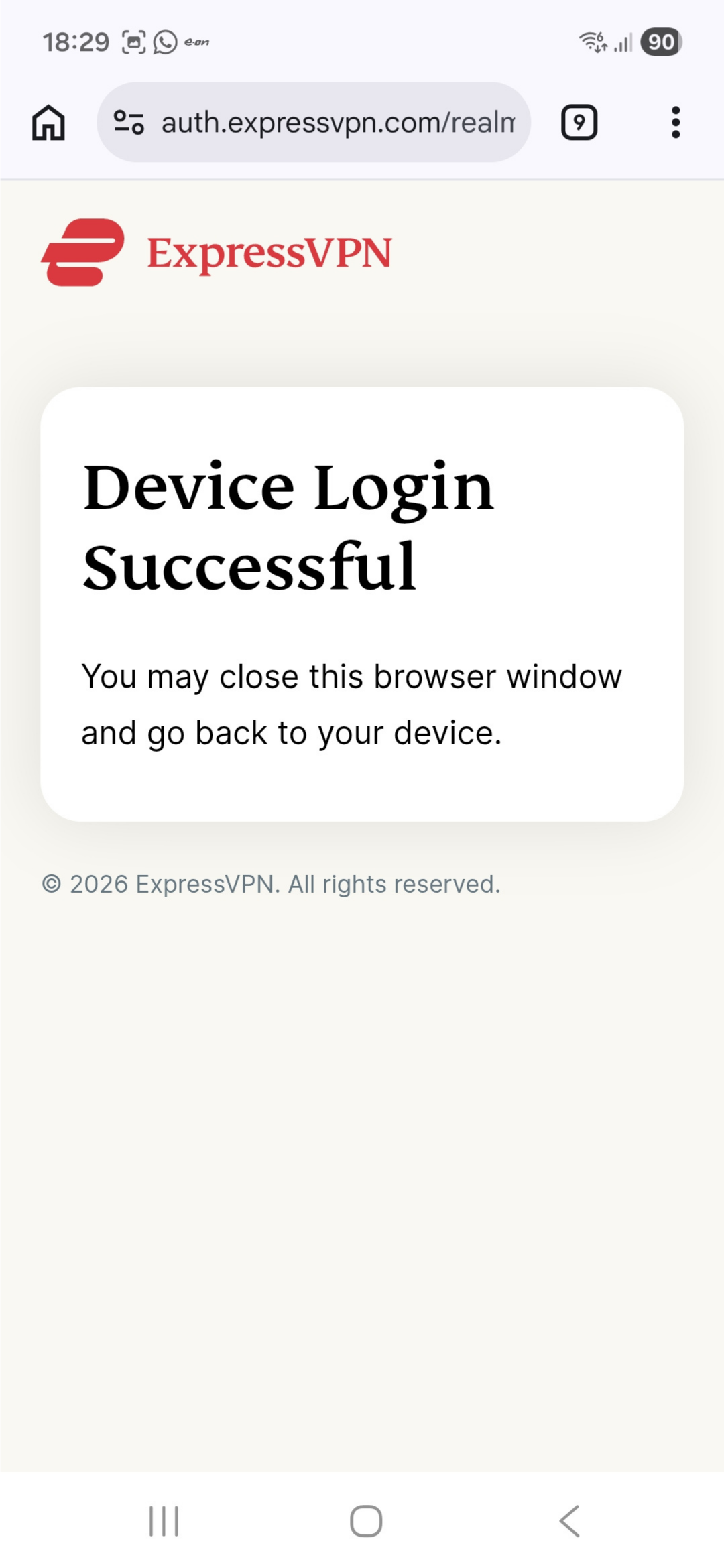
If you do not receive a verification code over email, tap Get another code on the sign-in page.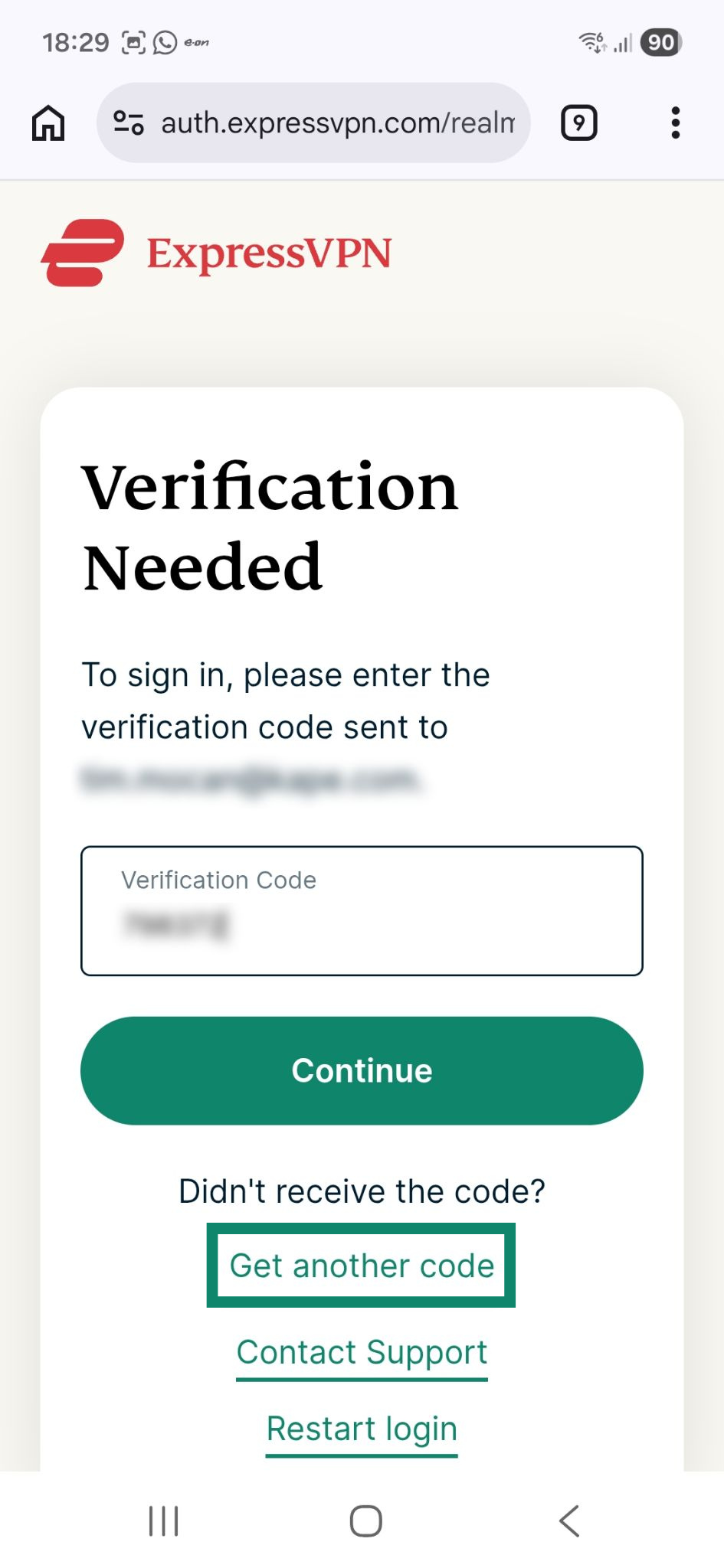
Sign in with an authentication link
On your computer, enter the link provided on the sign-in page. Next, do the following:
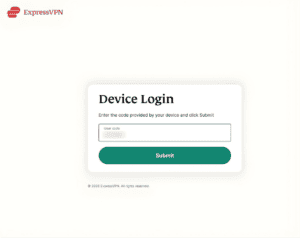
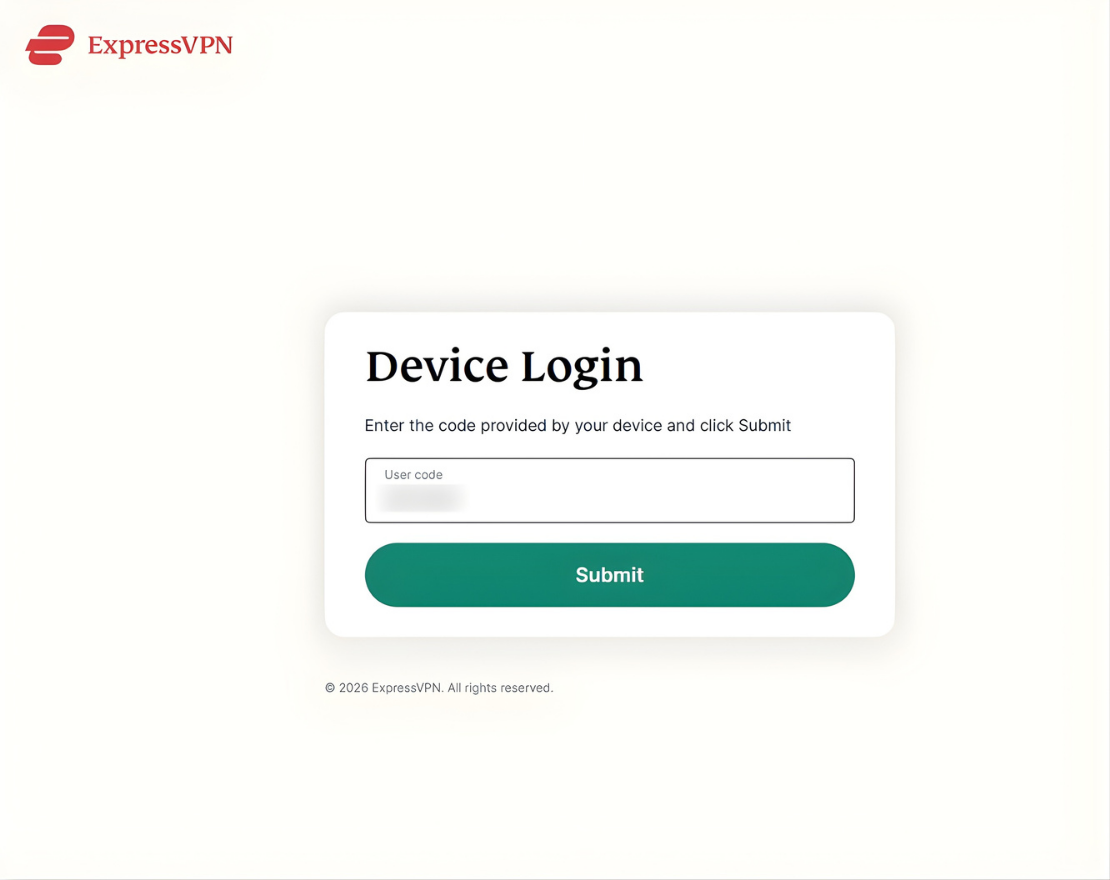
- Enter the code shown on the sign-in page on your Android TV, and click Submit.

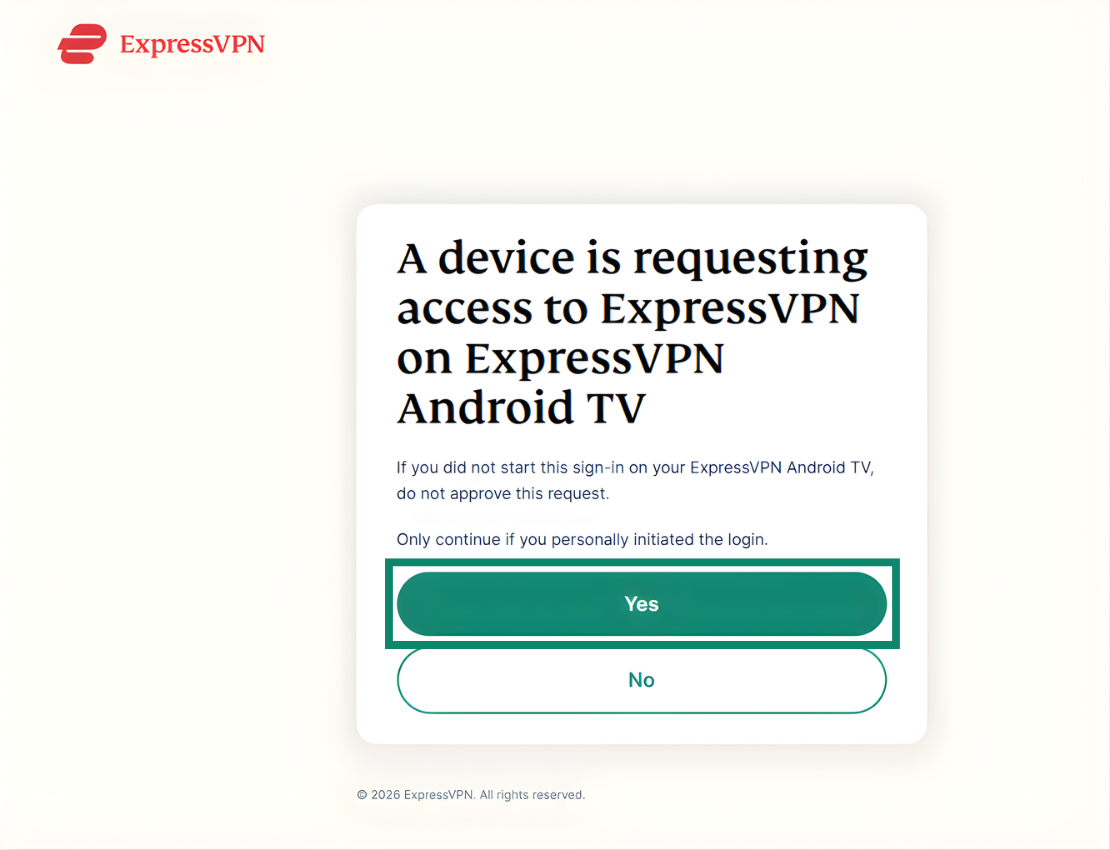
- Click Yes to approve the sign-in request from your Android TV.


- If successful, you will see a page that says Device Login Successful.

Sign in with a password or an authentication code
- Enter your ExpressVPN email address and password or activation code.
- Select Sign In.
Note: If you purchased your ExpressVPN subscription from the Google Play Store, select the Restore your Play Store subscription option.
You now have to set up the ExpressVPN app. Select OK to continue.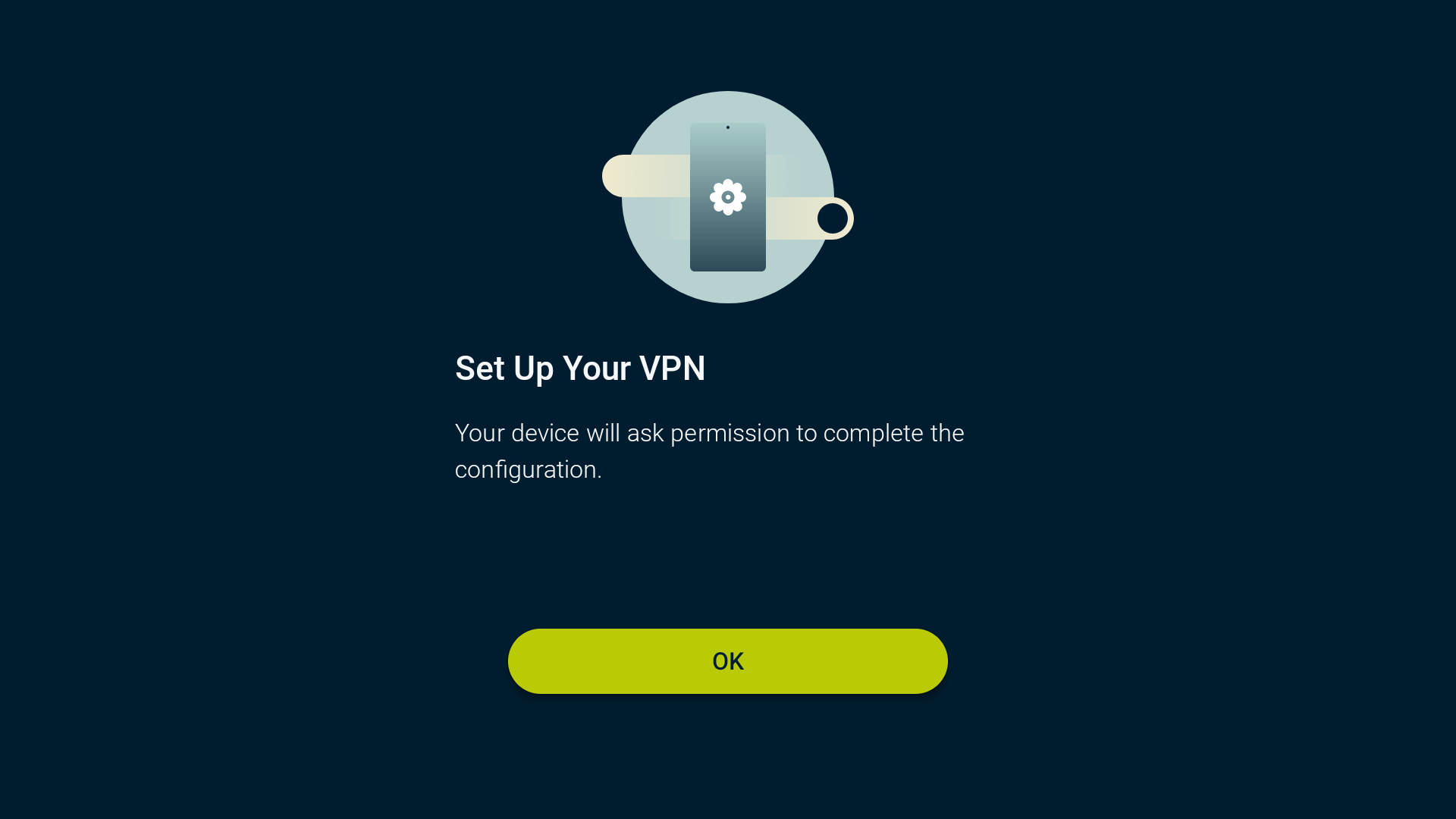
ExpressVPN requires permission to set up VPN connections and monitor network traffic. This is a standard Android requirement, and all VPN apps must request this permission to function. This doesn’t mean ExpressVPN logs or monitors your browsing activity. It’s safe to select OK to continue.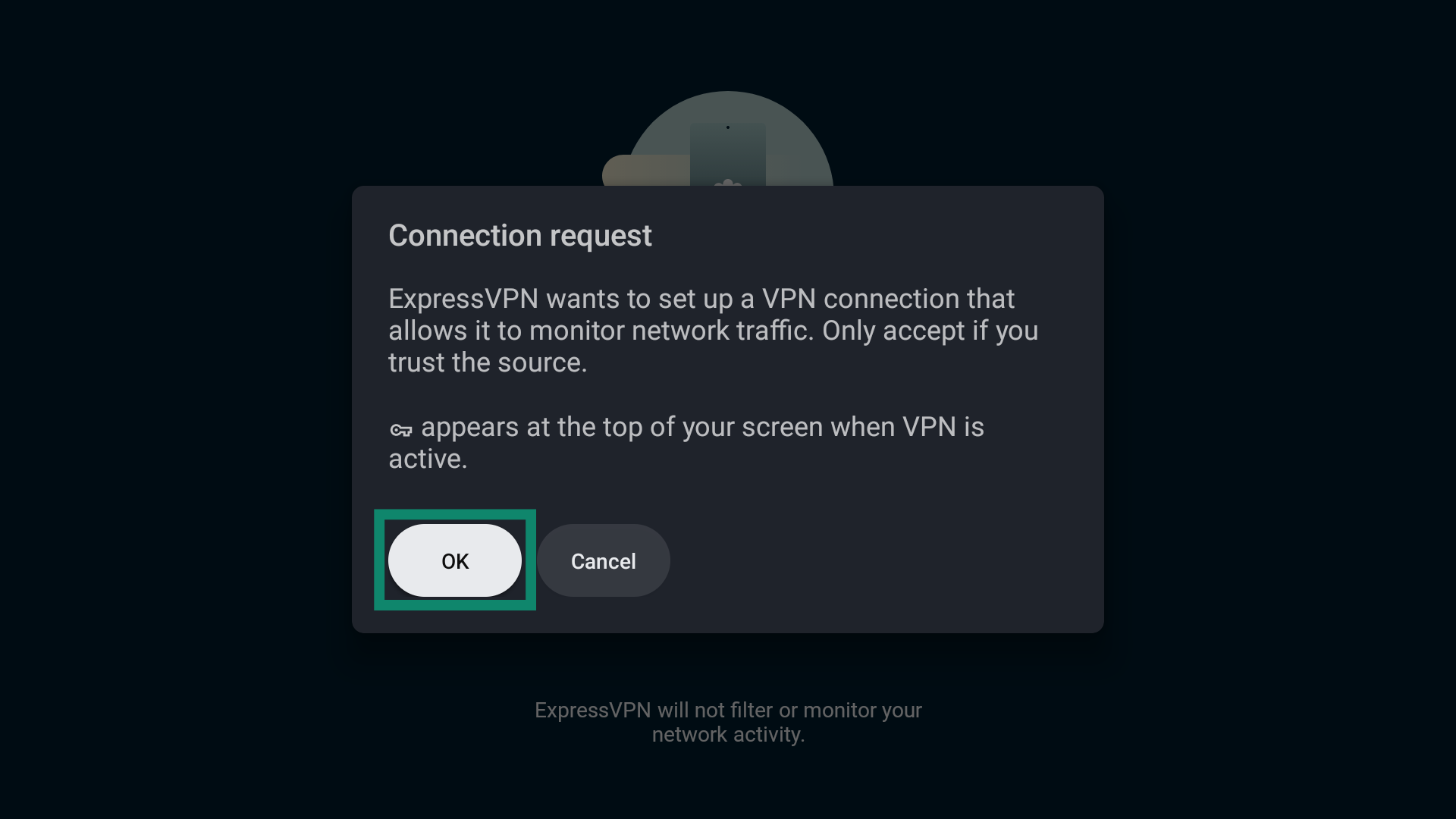
Need help? Contact the ExpressVPN Support Team for immediate assistance.
Connect to a server location
To connect to a VPN server location:
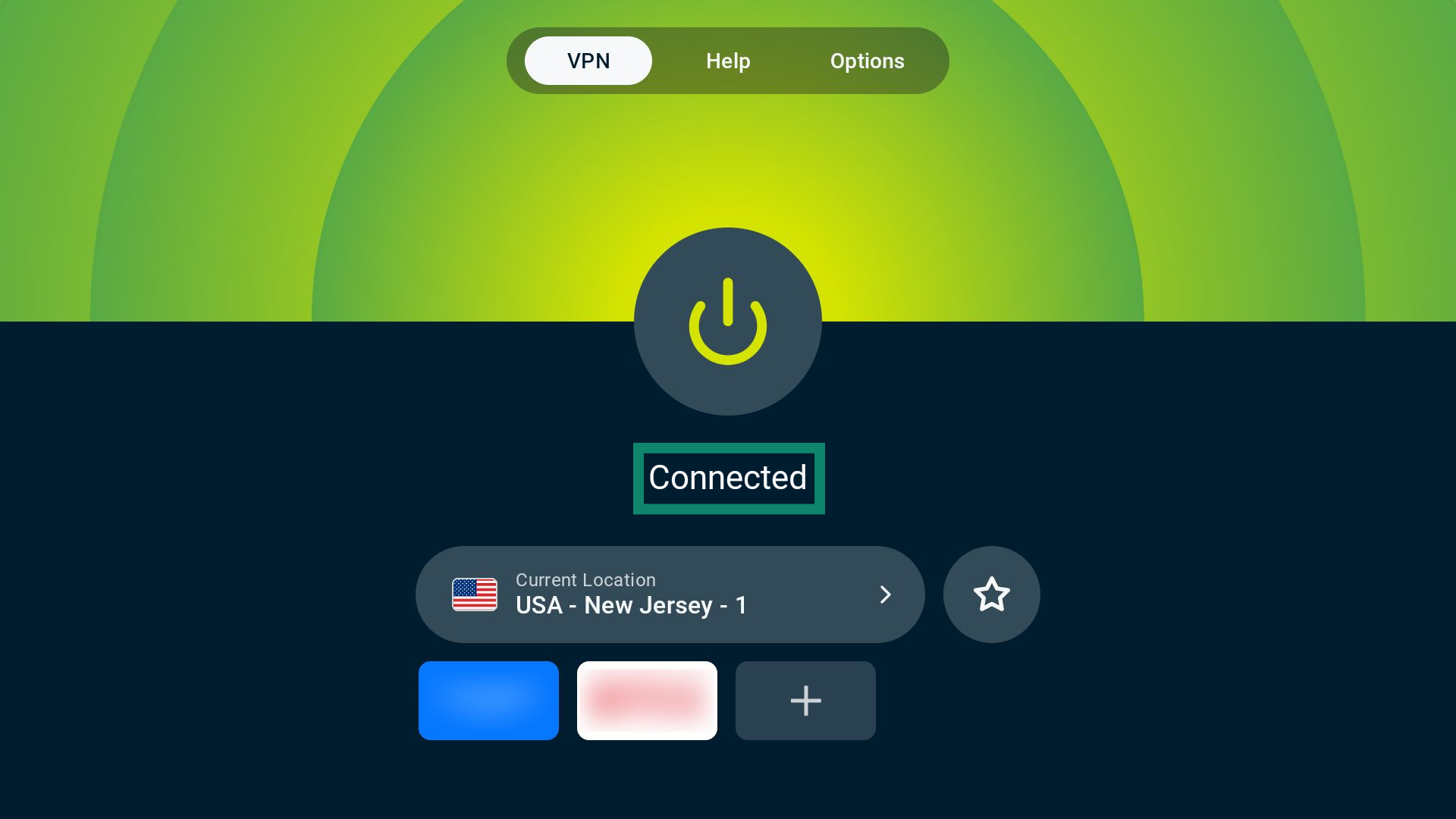
- Select the power button (

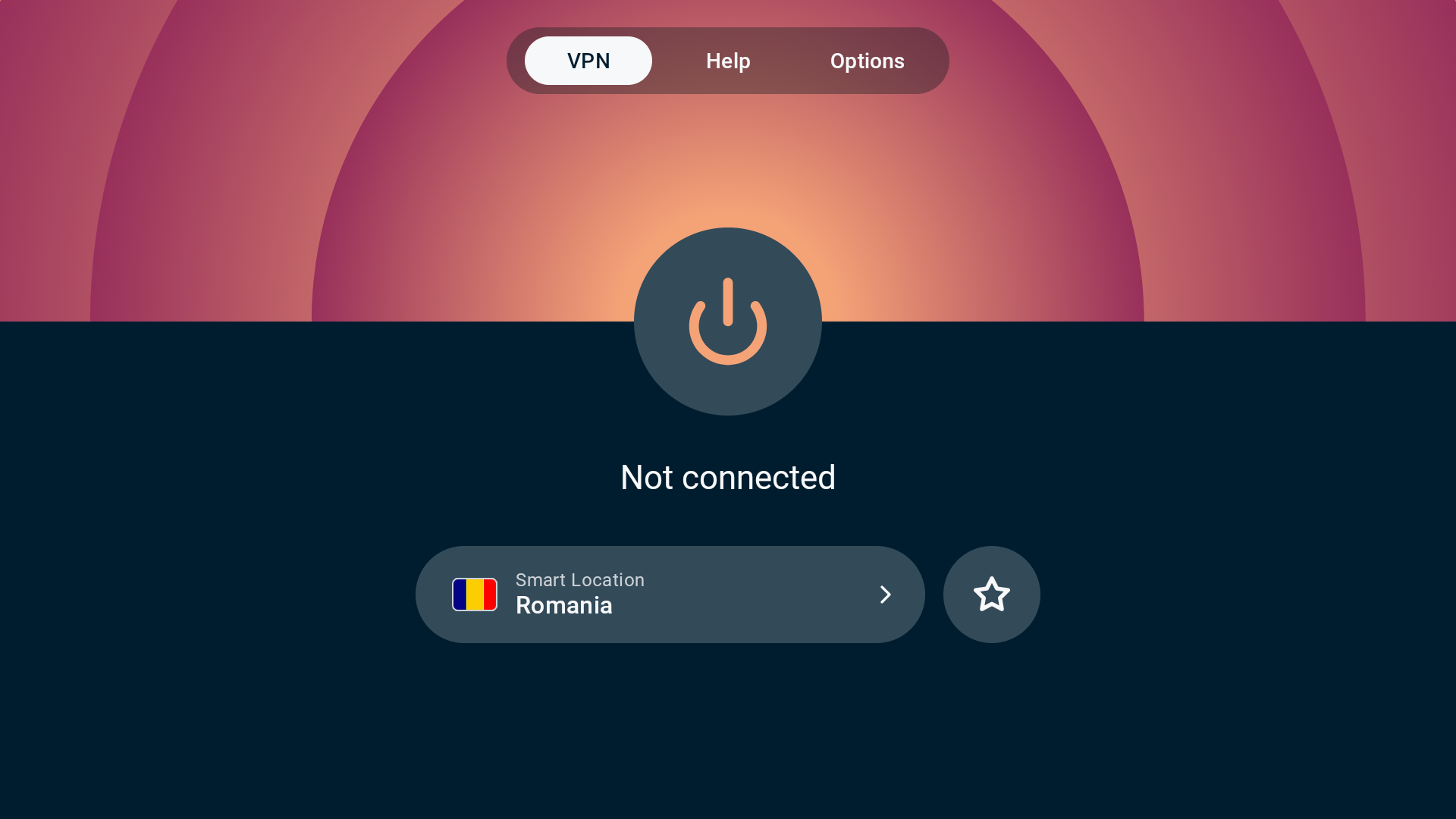
 ) on the home screen. By default, ExpressVPN connects to the most optimal location for you, called Smart Location.
- If you successfully connect to the VPN, you will see Connected displayed under the button.

Note: How many devices you can connect to the VPN at the same time depends on the subscription tier you chose at checkout:
- Basic: 10 devices at the same time.
- Advanced: 12 devices at the same time.
- Pro: 14 devices at the same time.
Need help? Contact the ExpressVPN Support Team for immediate assistance.
Disconnect from a server location
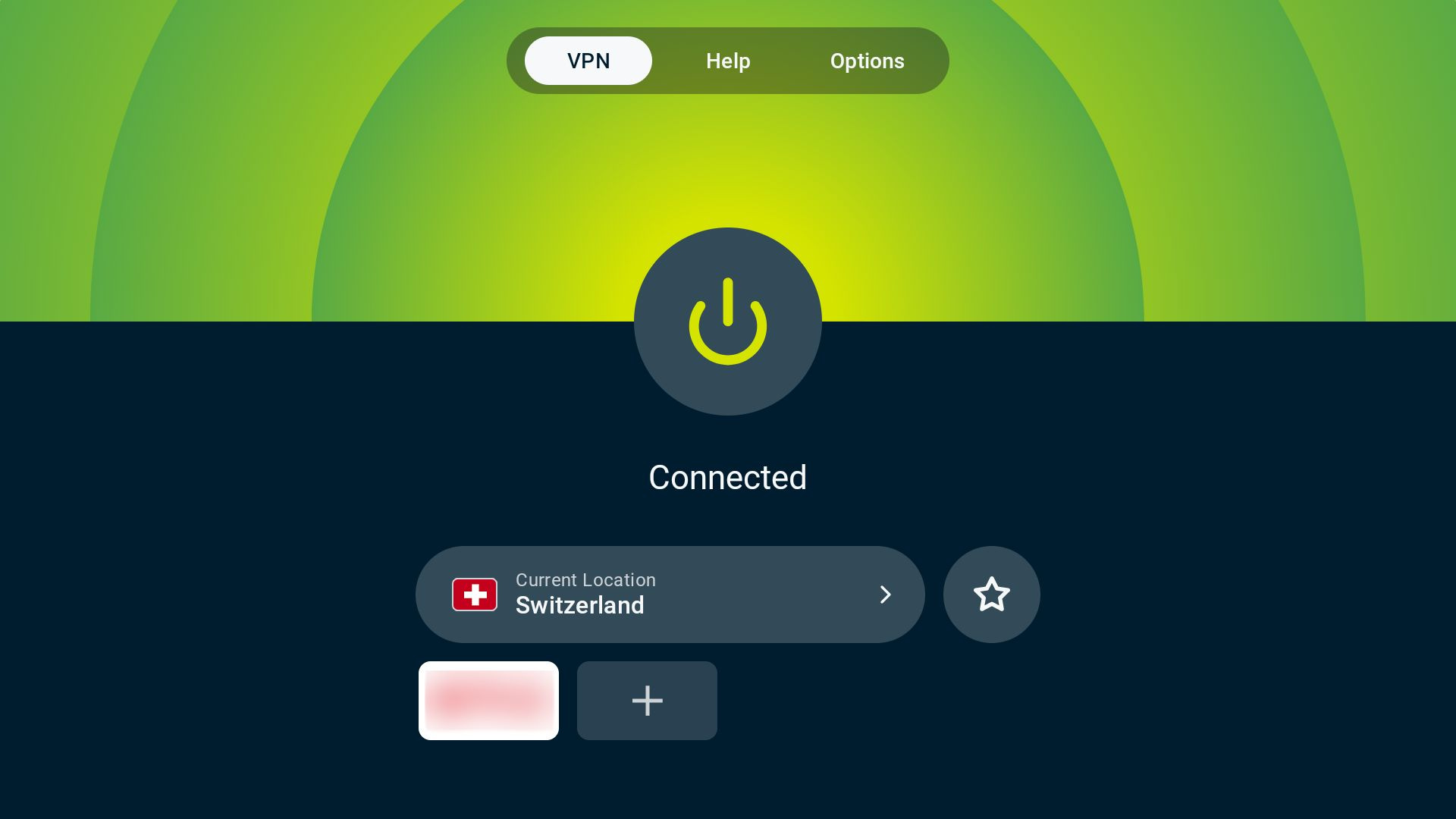
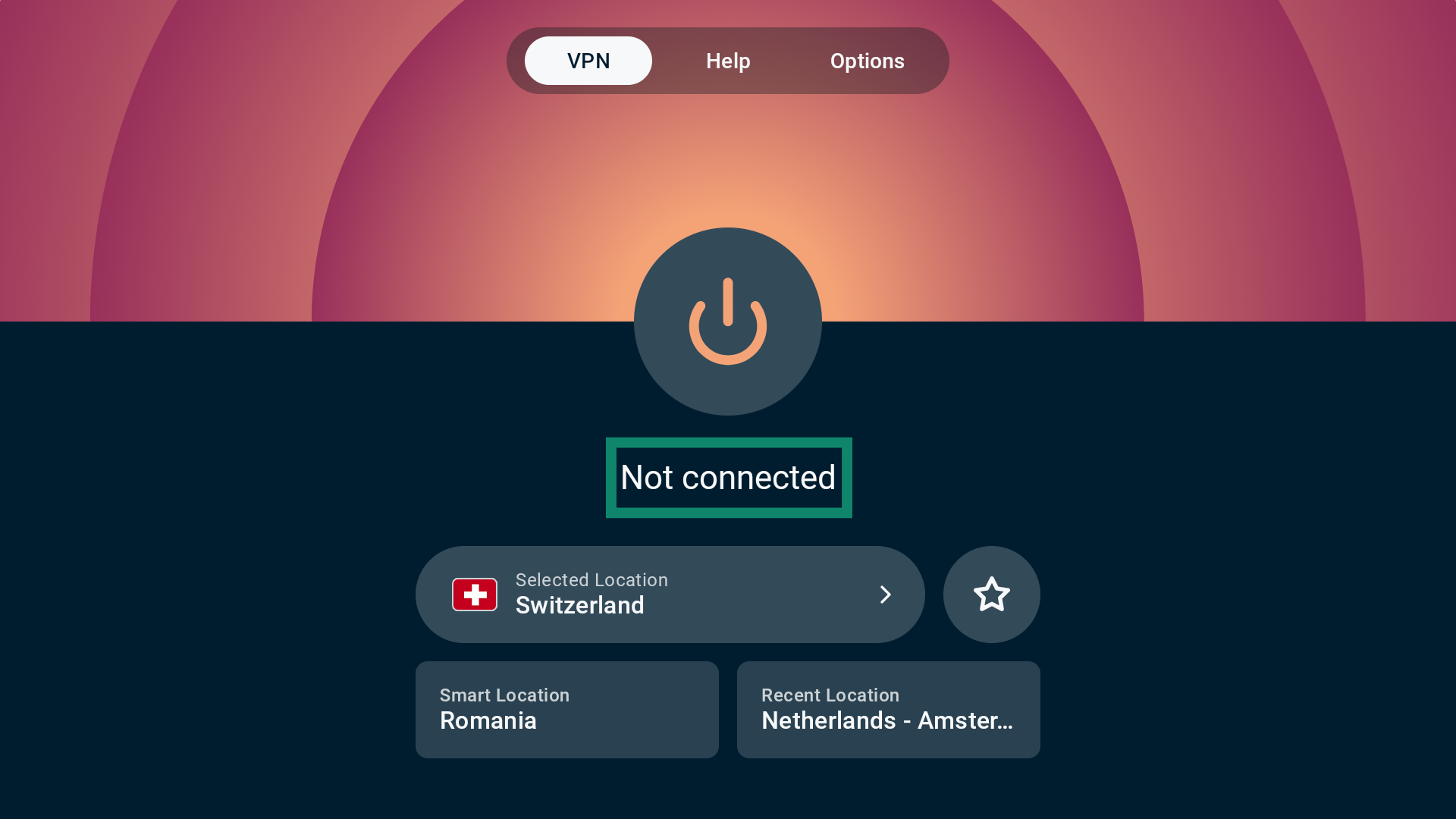
To disconnect from a VPN server location:
- Select .

- You will know you are disconnected when you see Not connected under the button.

Need help? Contact the ExpressVPN Support Team for immediate assistance.
Choose a different server location
To connect to a different server location:
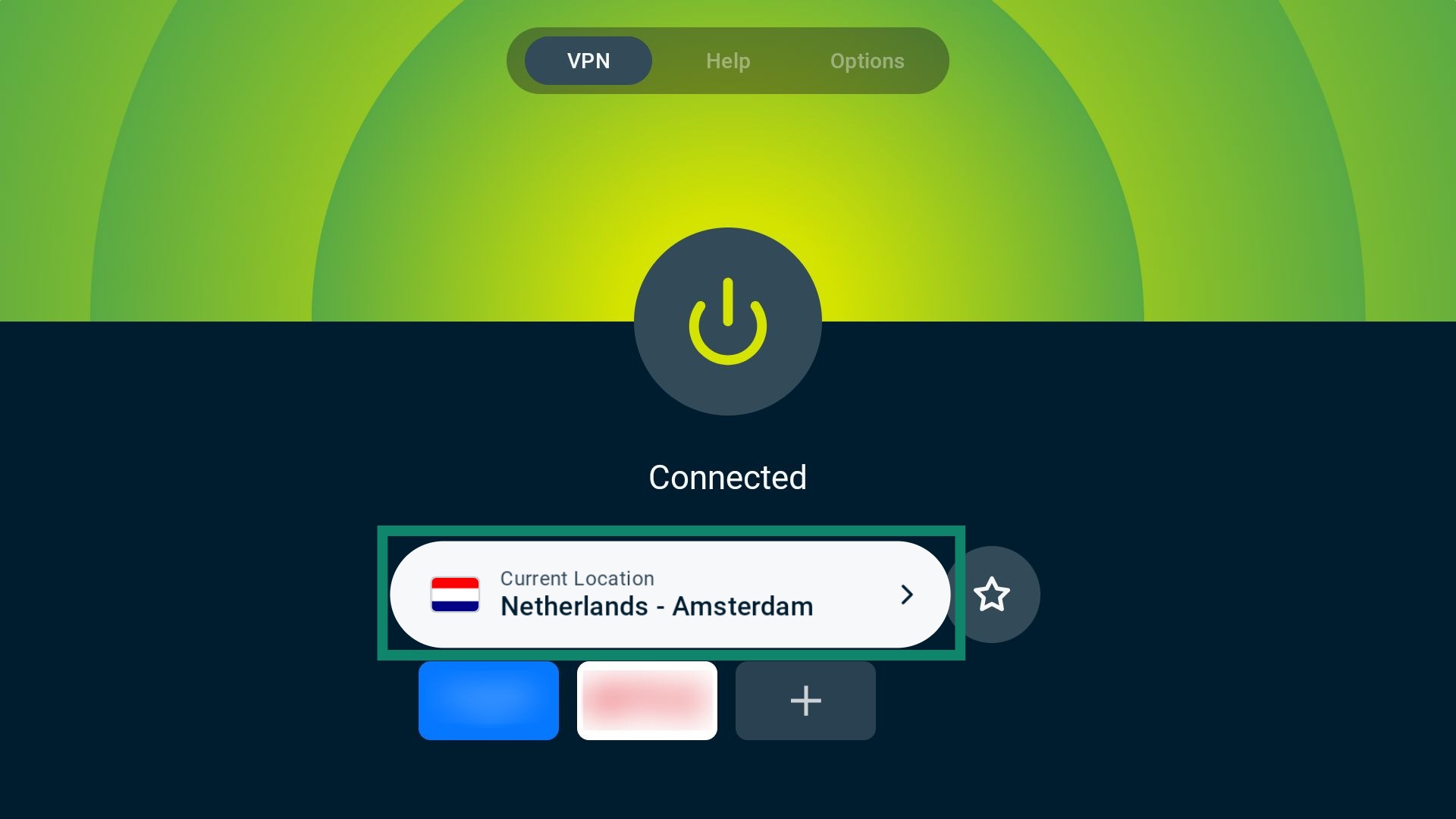
- Select the VPN server location widget.

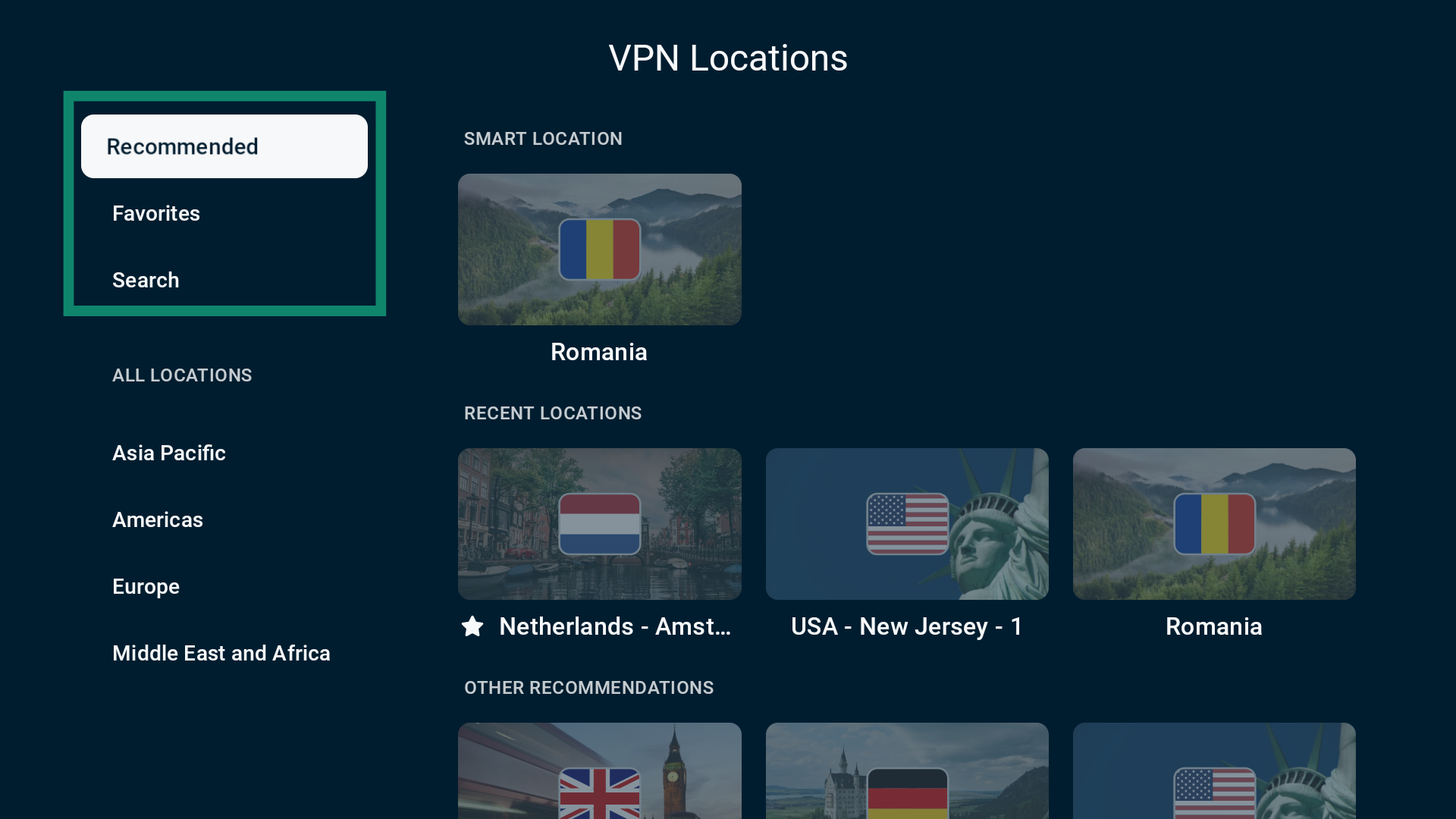
- You will see a list of tabs.The first three options are:
- Recommended: Includes the Smart Location, three recent locations, and 12 other server recommendations.
- Favorites: All the VPN server locations you favorited.
- Search: Lets you manually search for a city or country.
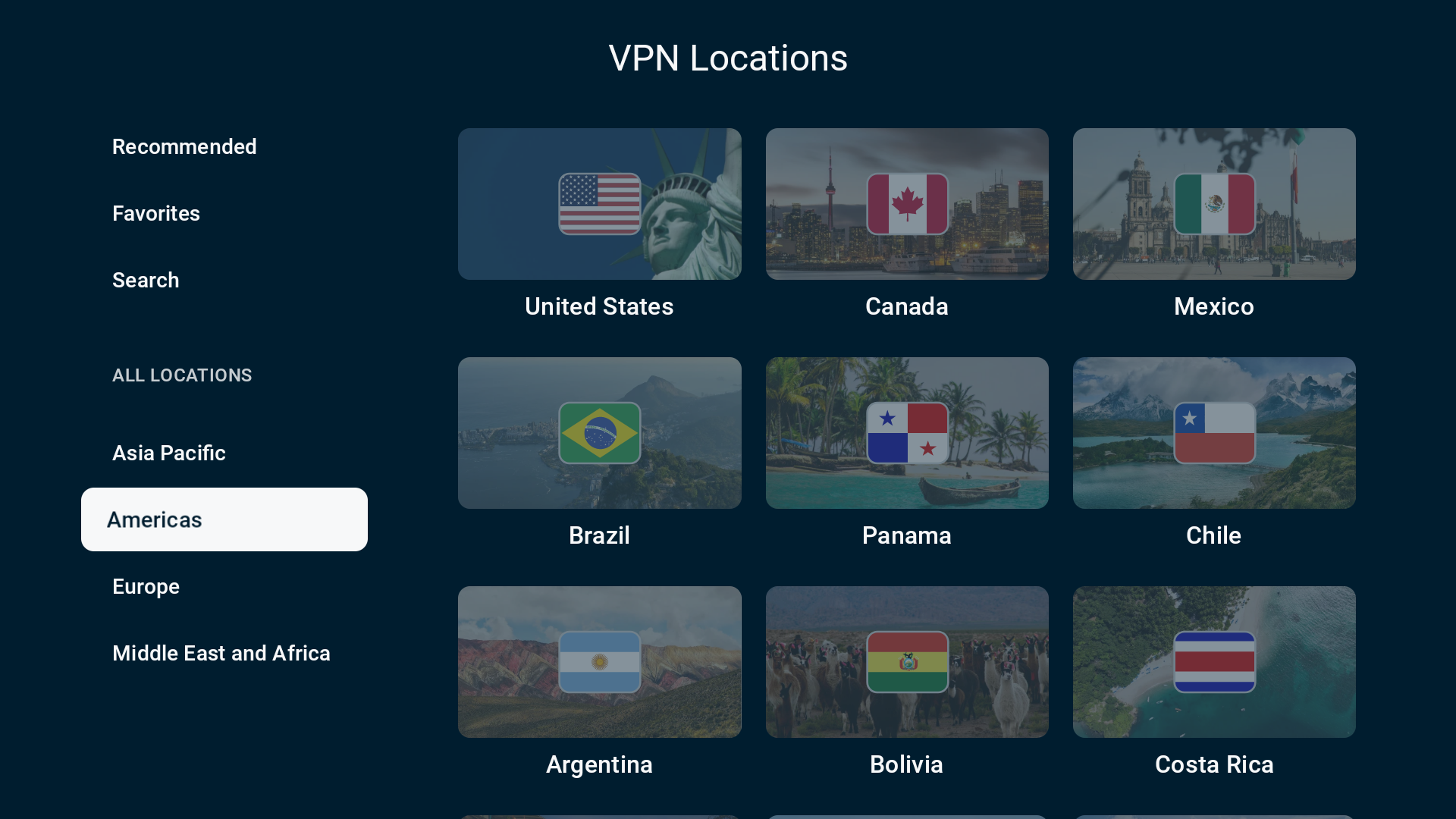
 The ALL LOCATIONS section groups VPN server locations based on four regions: Asia Pacific, Americas, Europe, and Middle East and Africa.
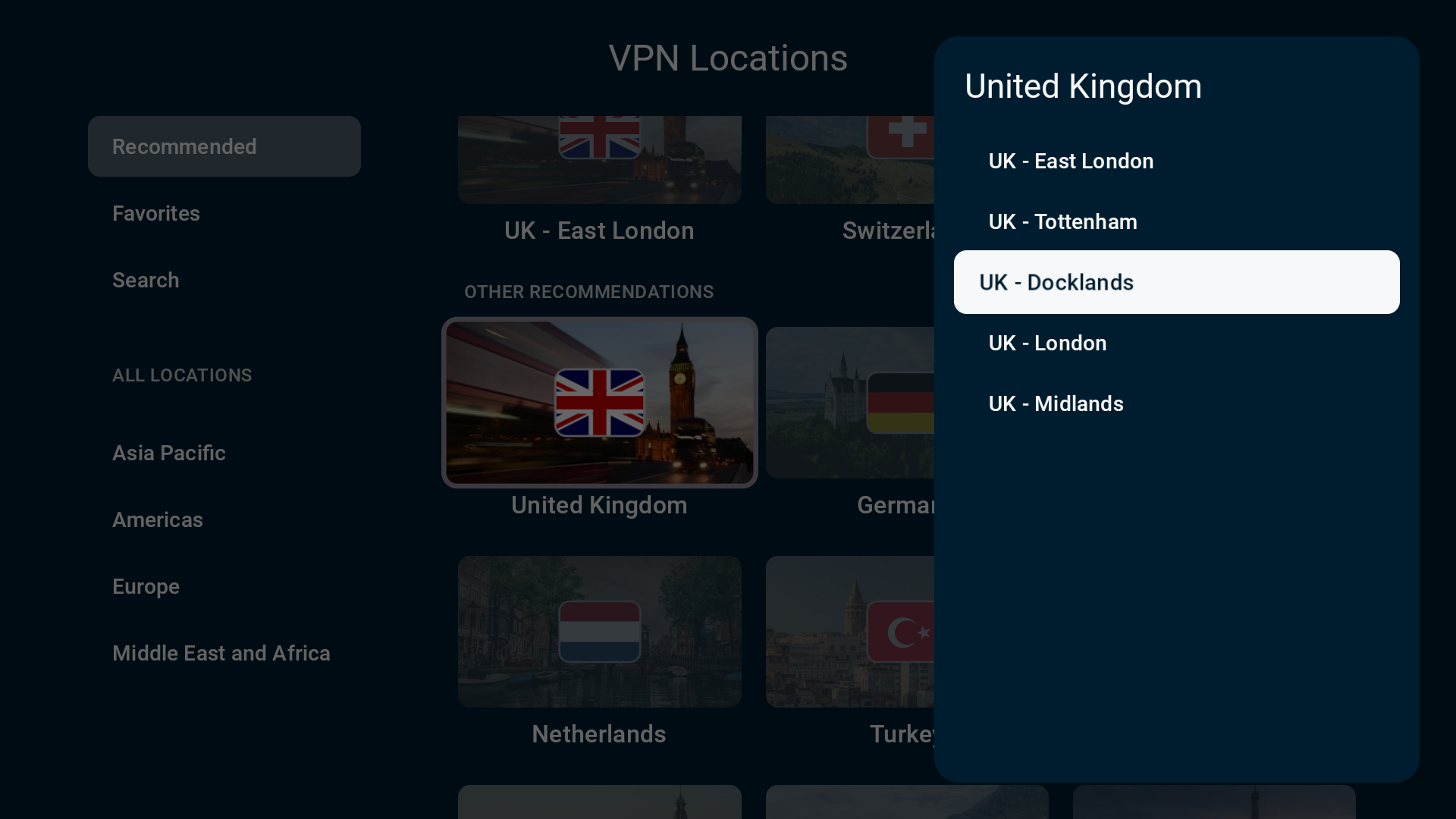
- When you select certain countries, you may be prompted to choose a city to connect to.

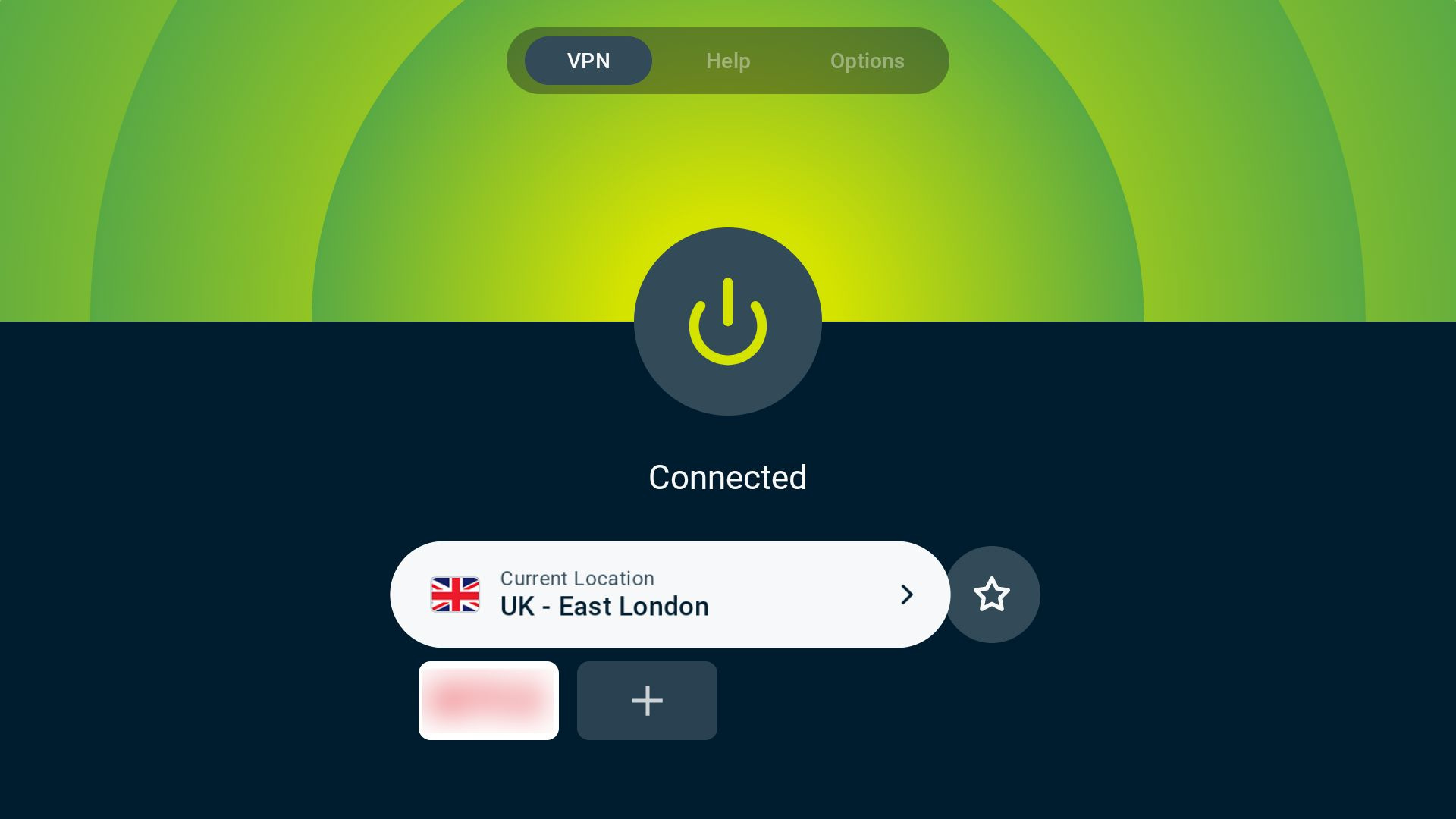
- Once you select your desired server location, ExpressVPN will automatically connect you to it and return you to the VPN tab.

Need help? Contact the ExpressVPN Support Team for immediate assistance.
Favorite a VPN server location
You can favorite a VPN server to add it to the Favorites tab found in the list of available VPN server locations.
To favorite a VPN server location, go to the VPN tab and select the star icon on the right of the server location widget.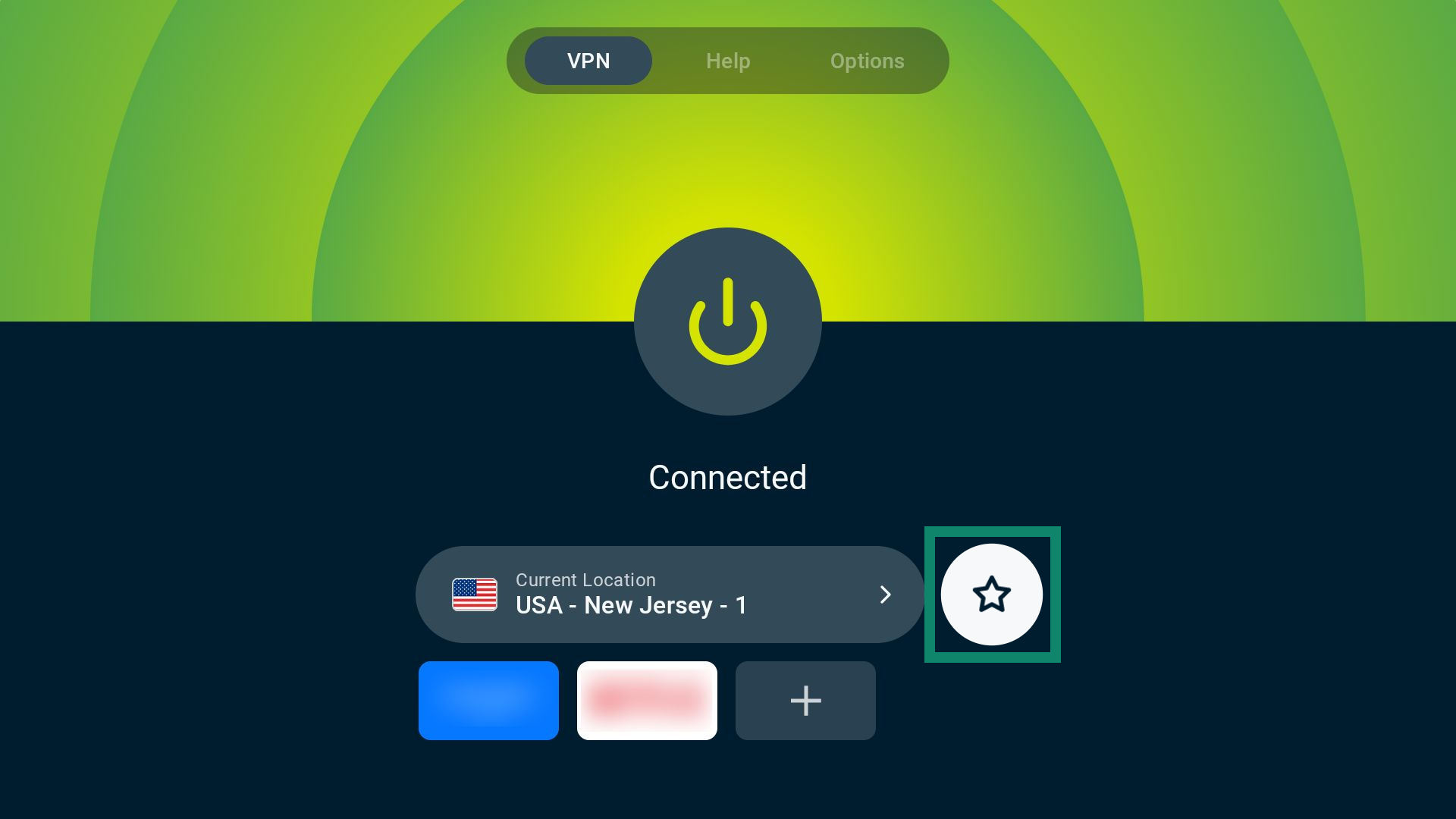
Need help? Contact the ExpressVPN Support Team for immediate assistance.
Use app and website shortcuts
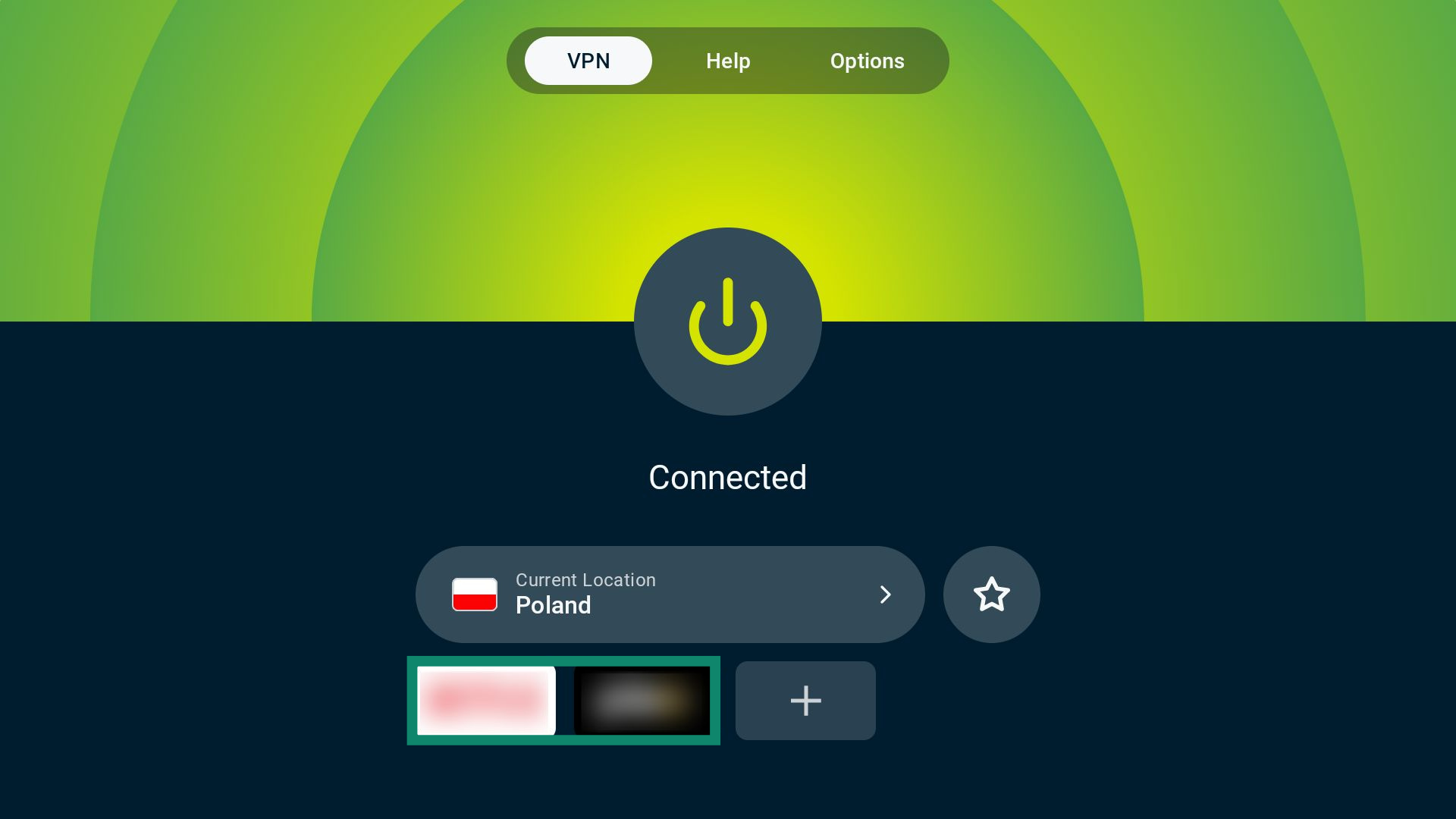
When connected to ExpressVPN, you can add shortcuts to apps and websites. These shortcuts appear directly on the connection screen so you can open them from the ExpressVPN app, ensuring your connection is always active before you start browsing.
By default, ExpressVPN automatically includes relevant shortcuts for services installed on your Android TV.
To use app and website shortcuts:
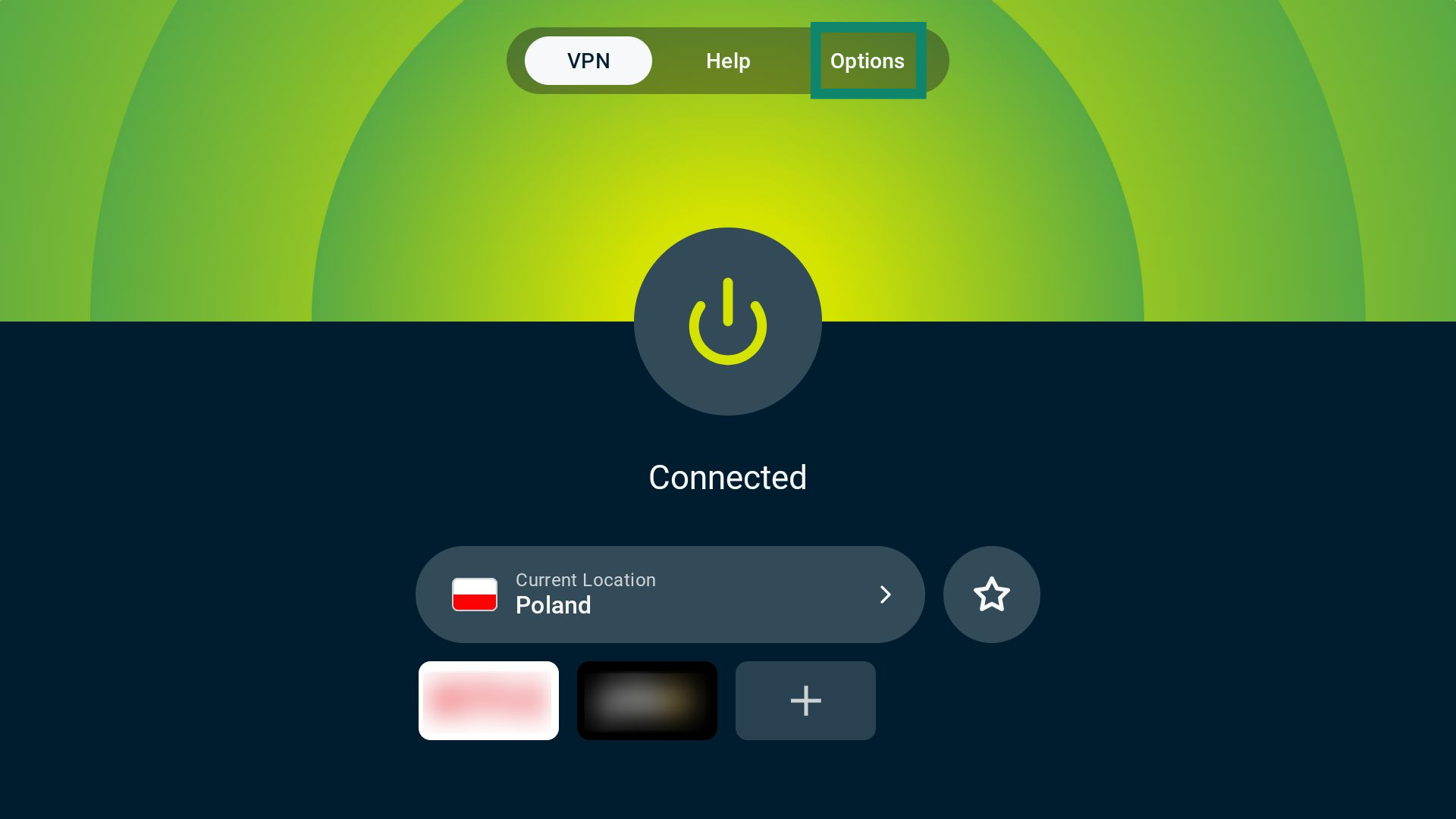
- On the VPN tab, select the desired app or website icon. This will automatically launch the service while you are connected to ExpressVPN.

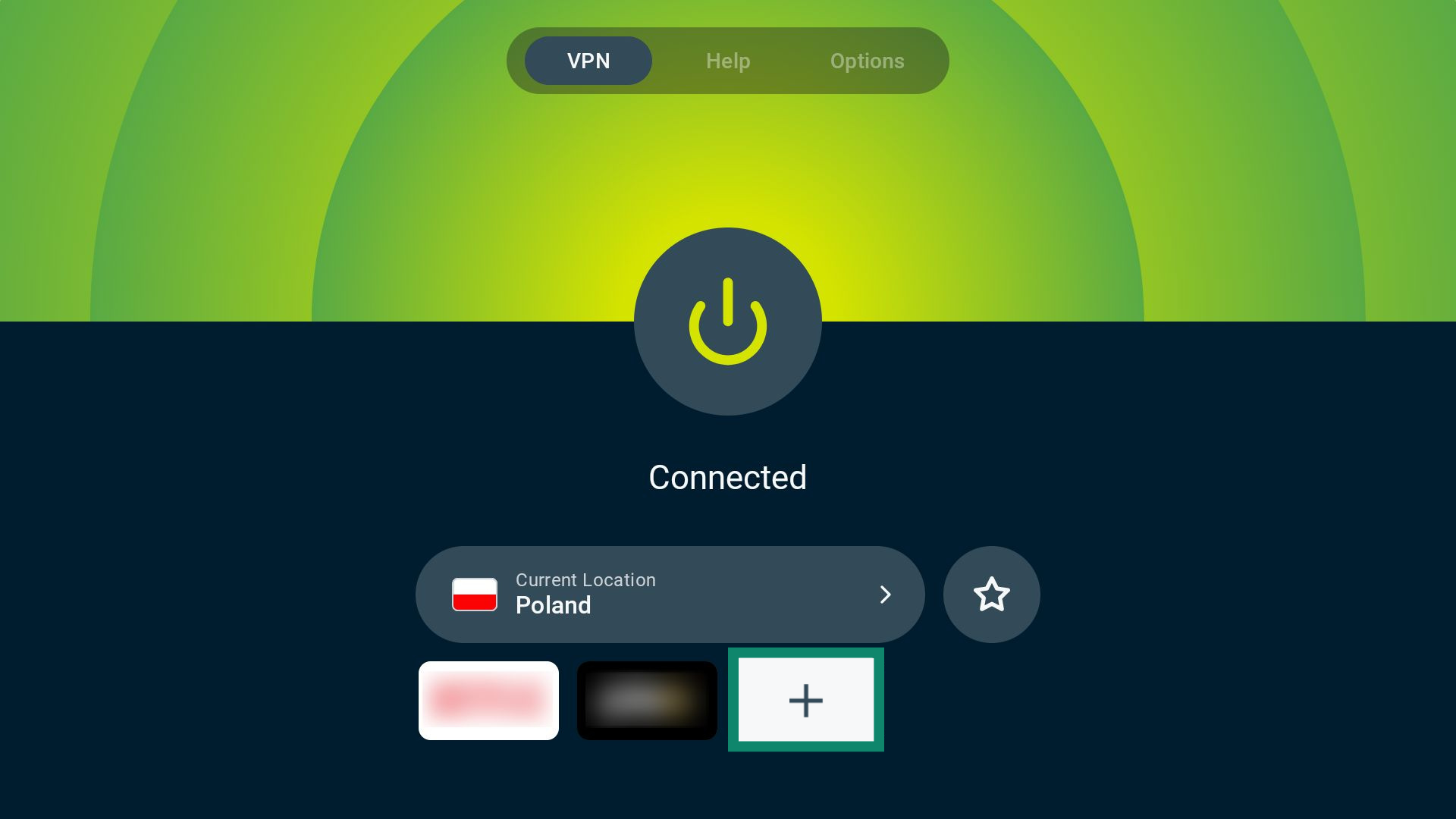
To add or remove shortcuts:
- Select the plus (+) icon.

- Toggle the switch next to each shortcut to turn it on or off. To see more options, scroll through the list.

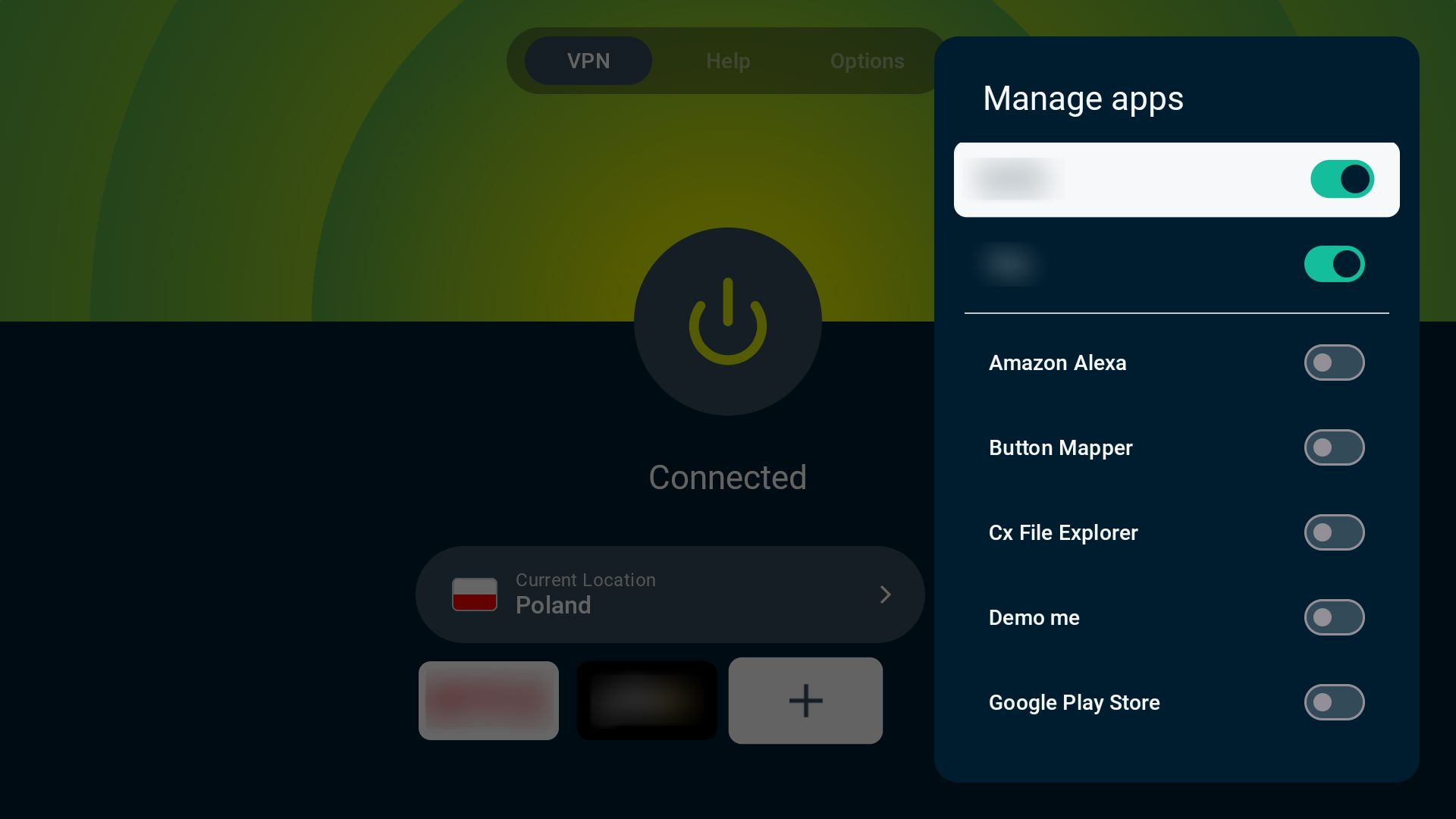
To disable or enable shortcuts:
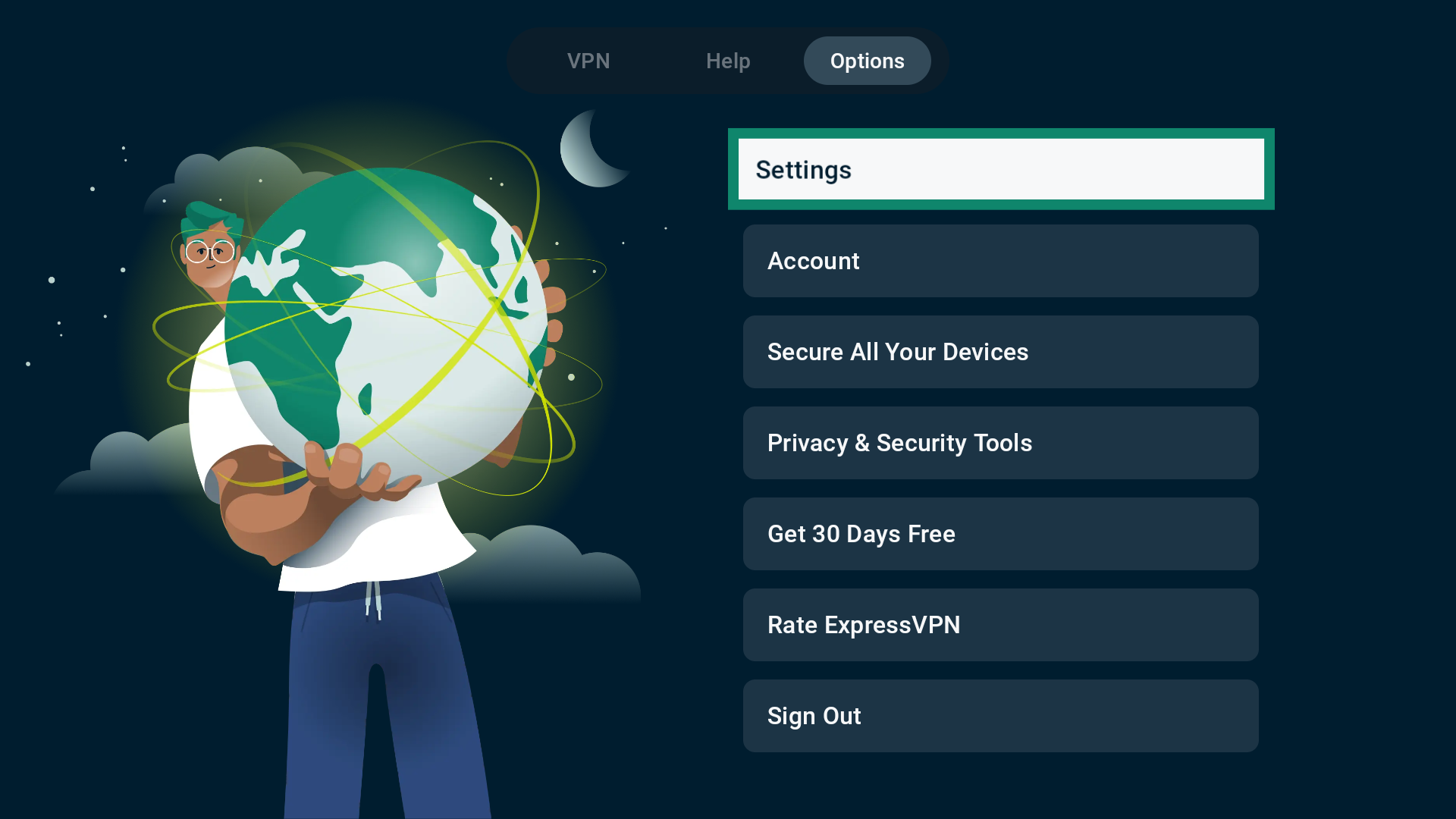
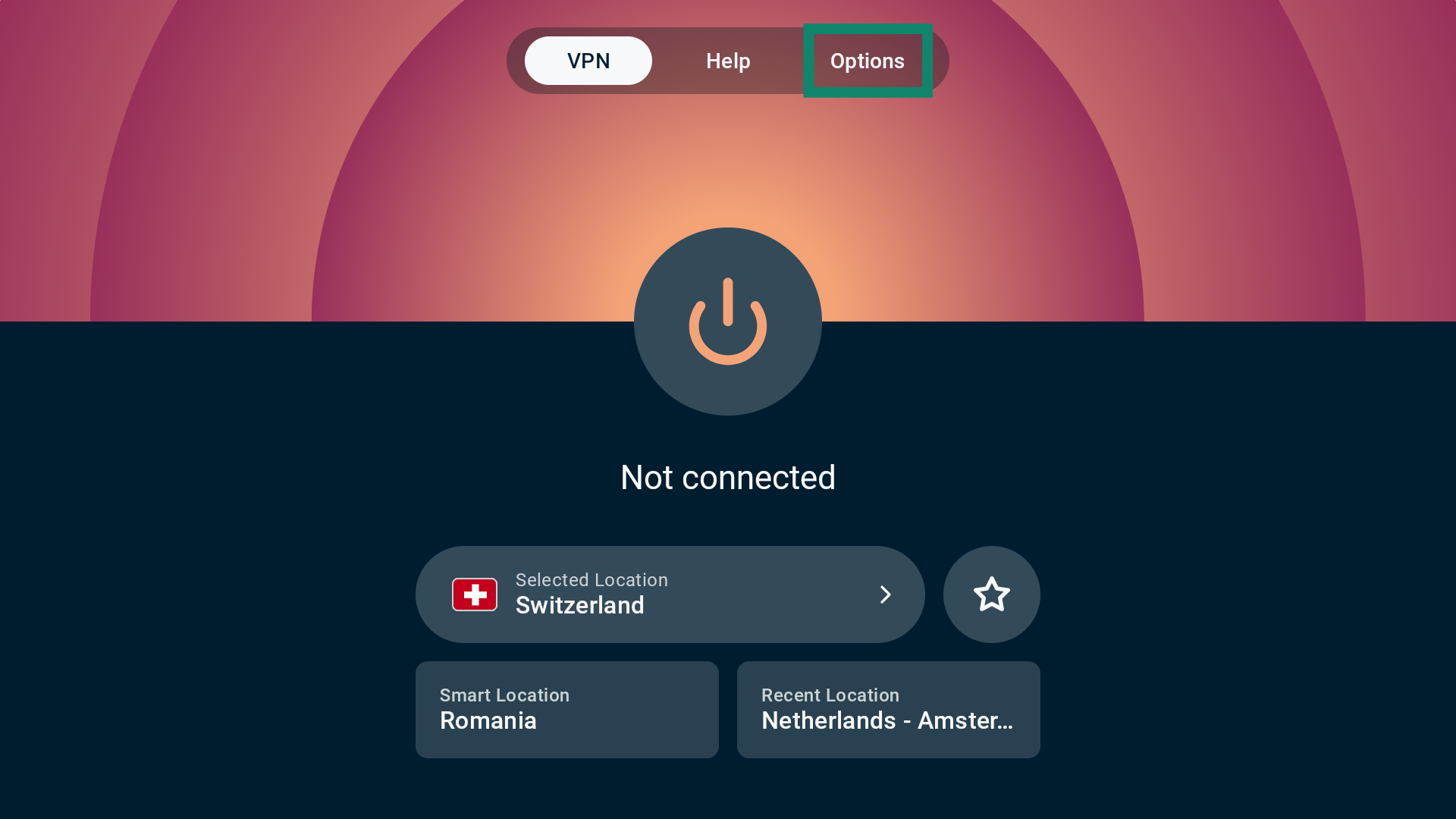
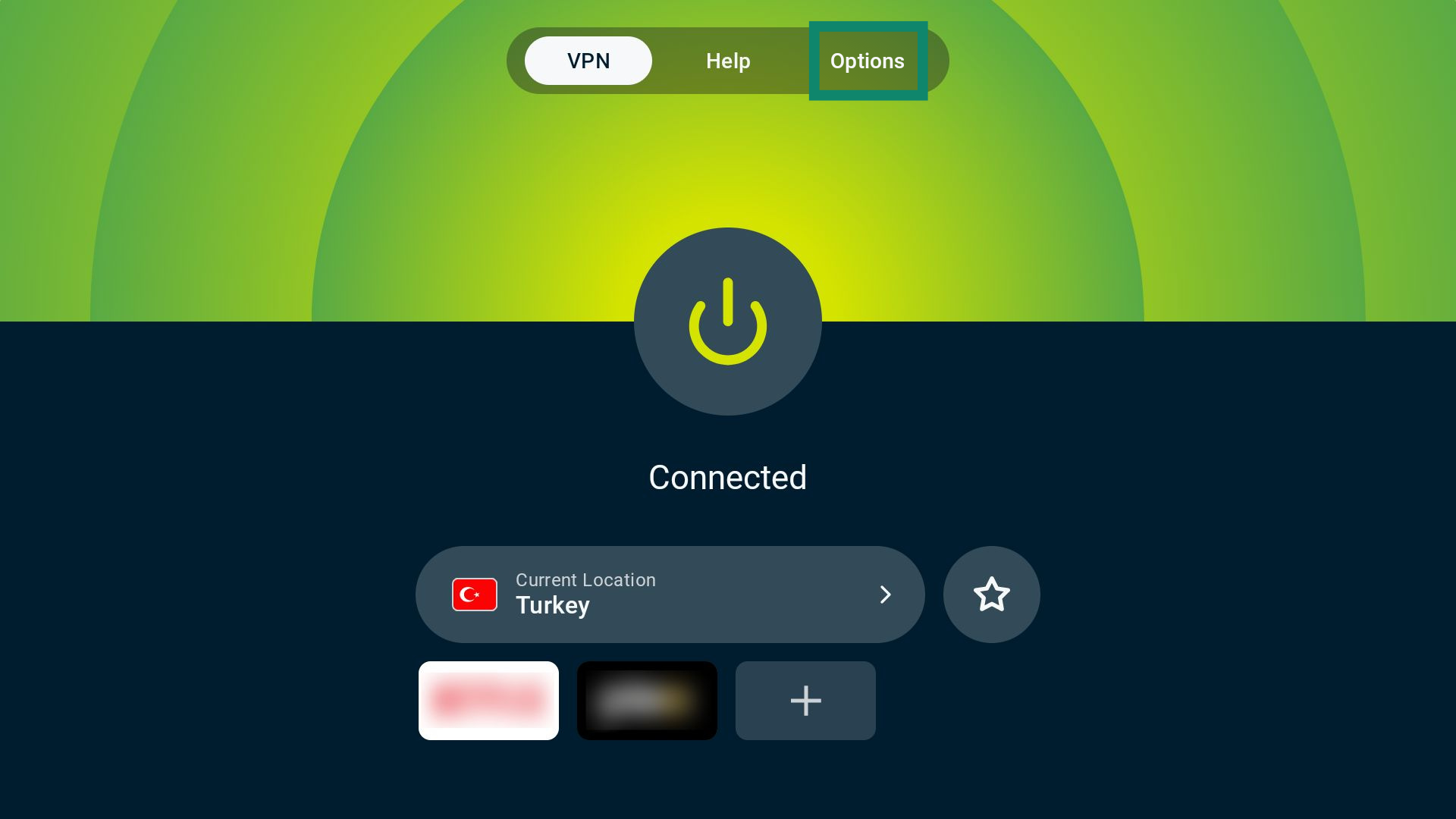
- On the VPN tab, select Options.

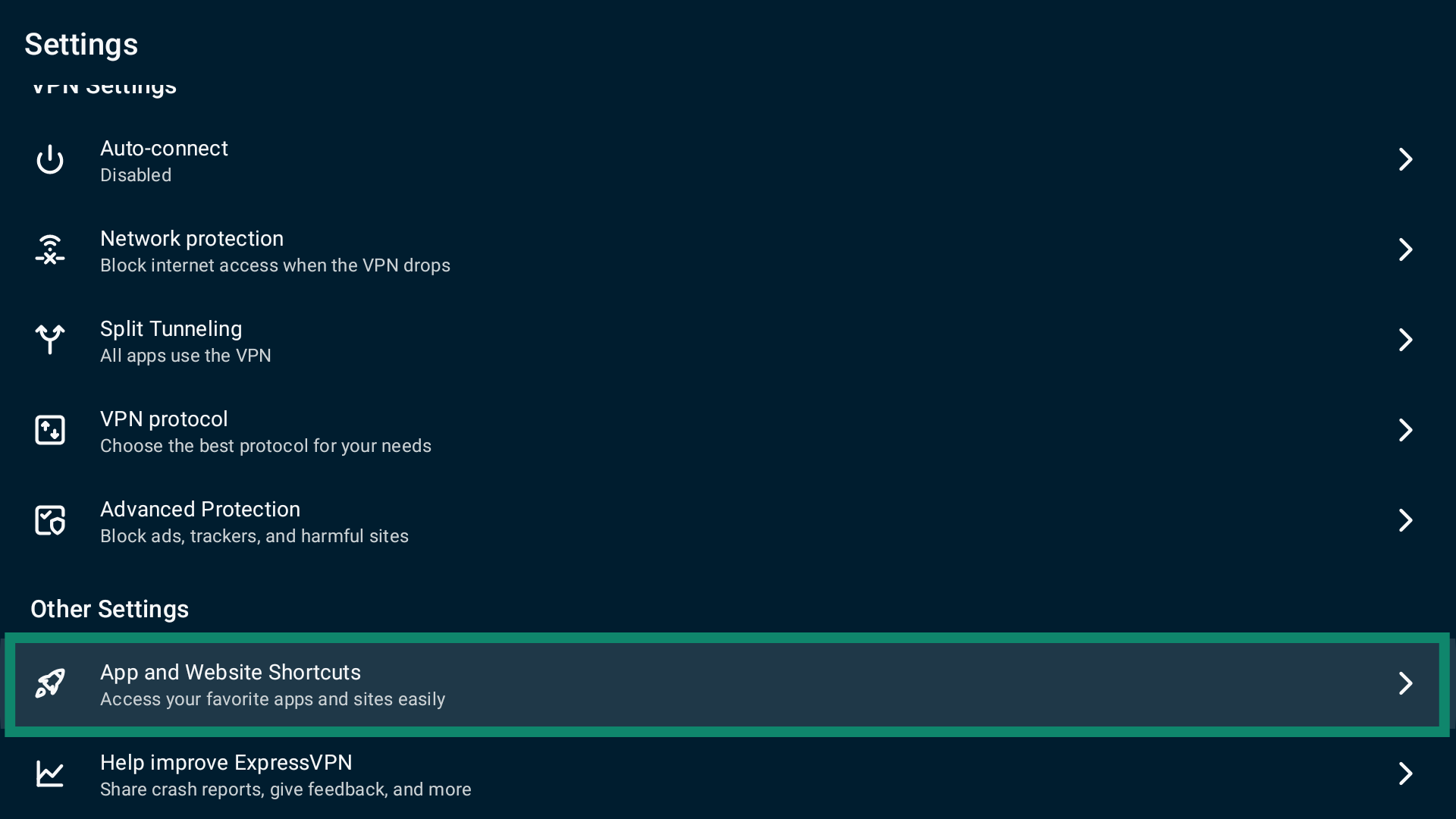
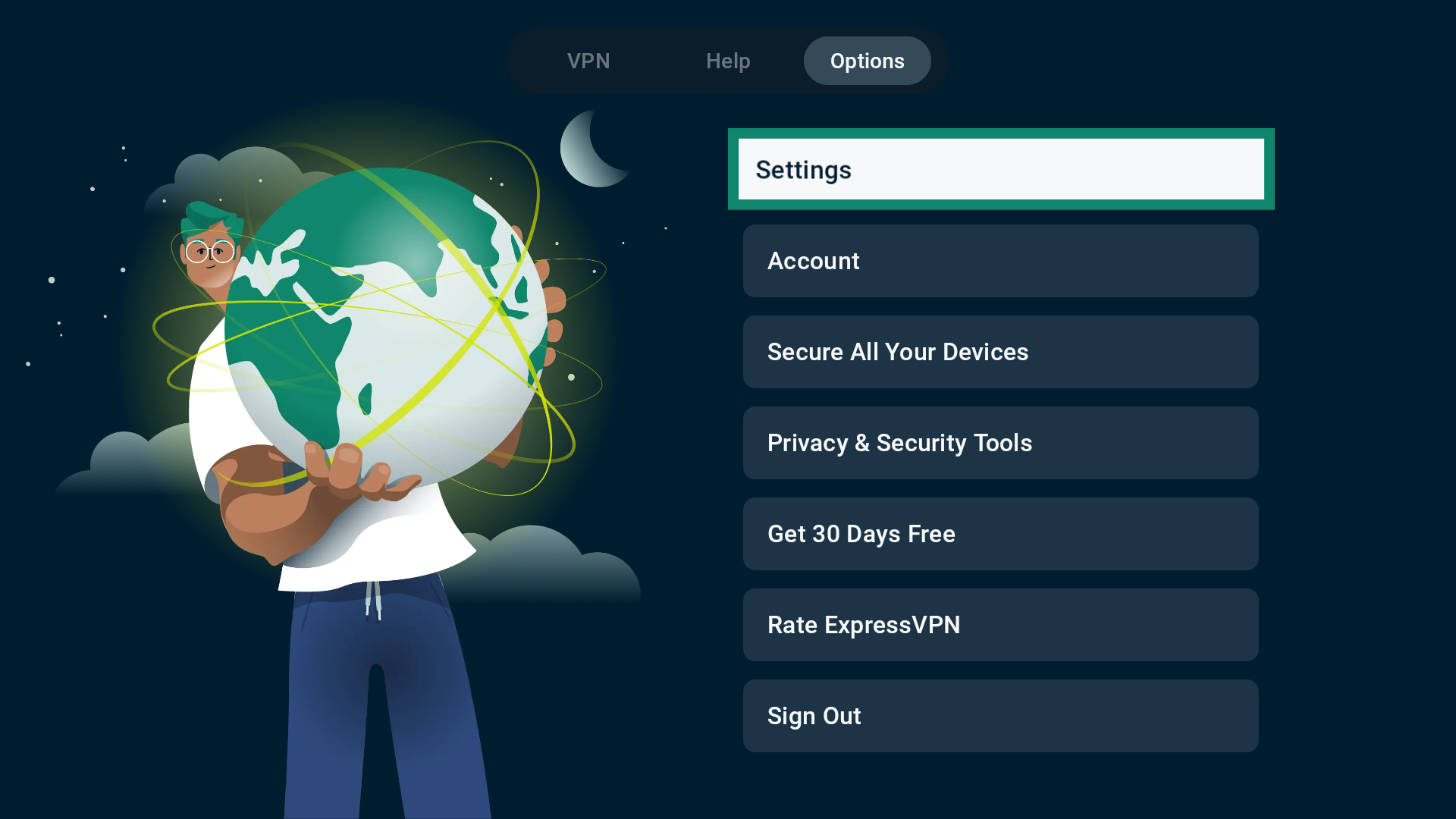
- Select Settings.

- Next, select App and Website Shortcuts.

- Toggle Show shortcut after VPN connects on or off.

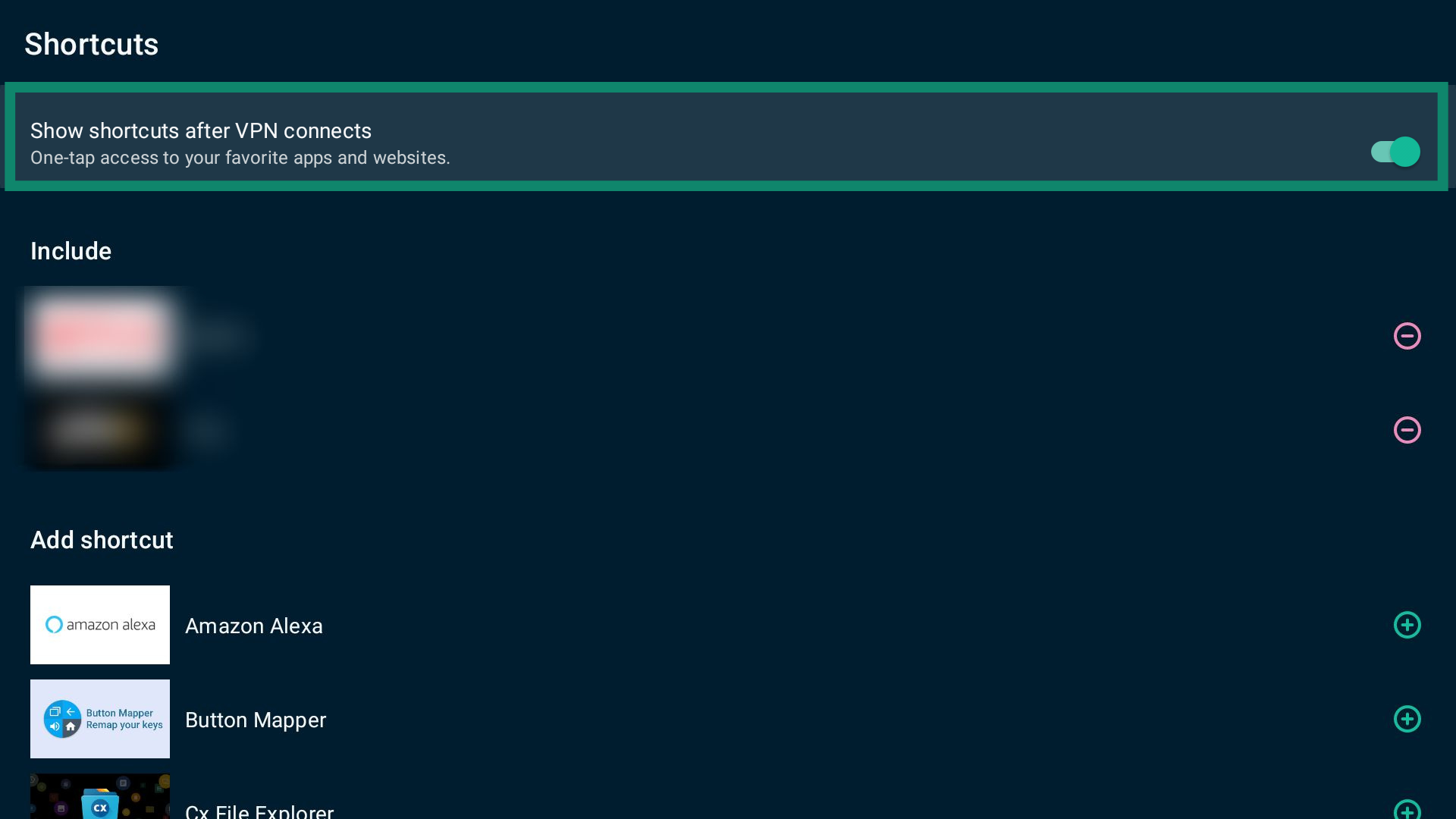
You can also add or remove shortcuts from this page.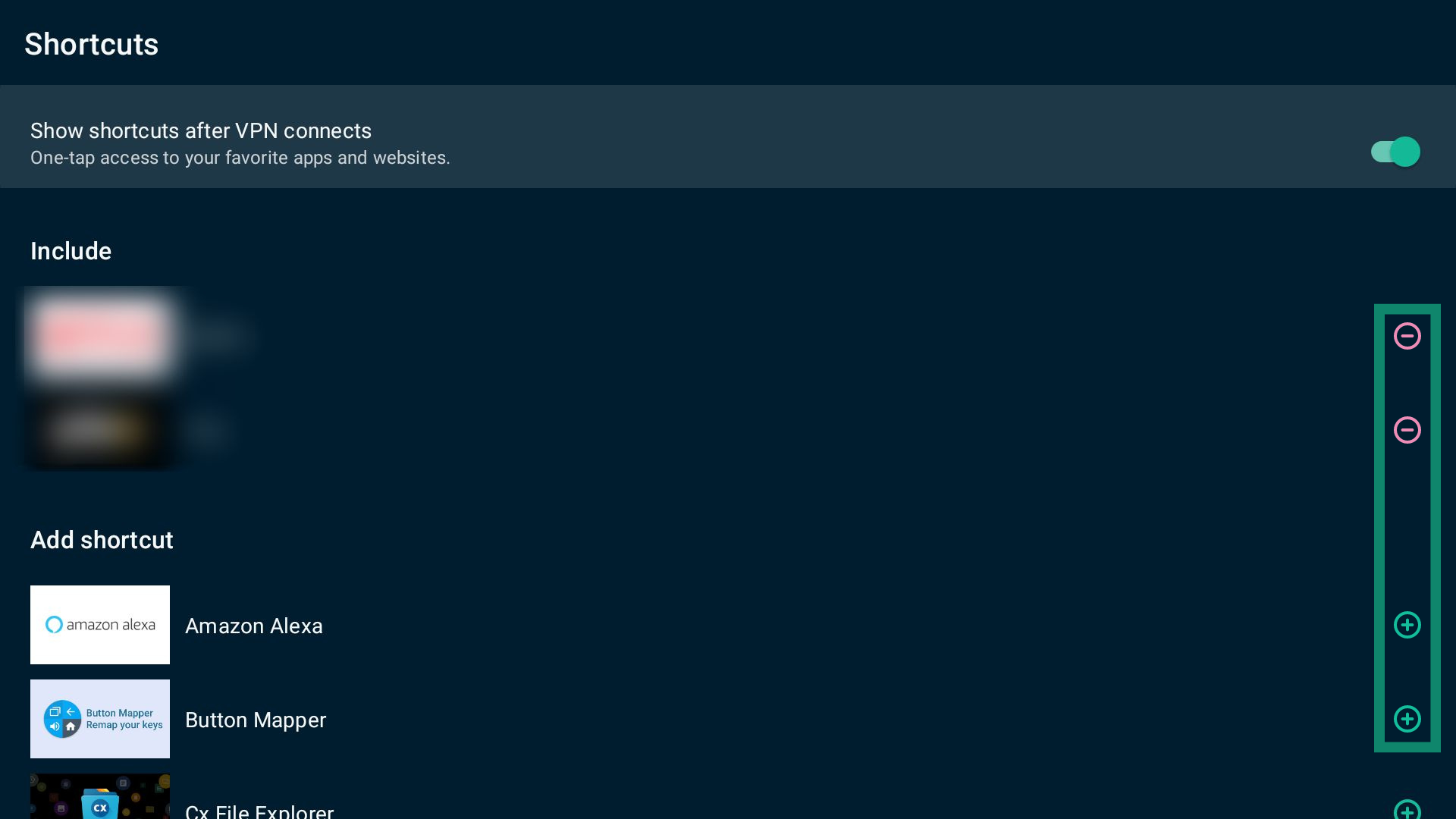
Need help? Contact the ExpressVPN Support Team for immediate assistance.
Change the VPN protocol
VPN protocols are rules that allow your device to connect to VPN servers. By default, ExpressVPN automatically picks the most optimal protocol for your network using the Automatic protocol option.
In some cases, changing the VPN protocol may help improve connection speeds or resolve connectivity issues.
To change the VPN protocol:
- Select the Options tab.

- Next, select Settings.

- Select VPN protocol.

- Choose your desired protocol. When you next connect to a VPN server location, ExpressVPN will automatically use it.

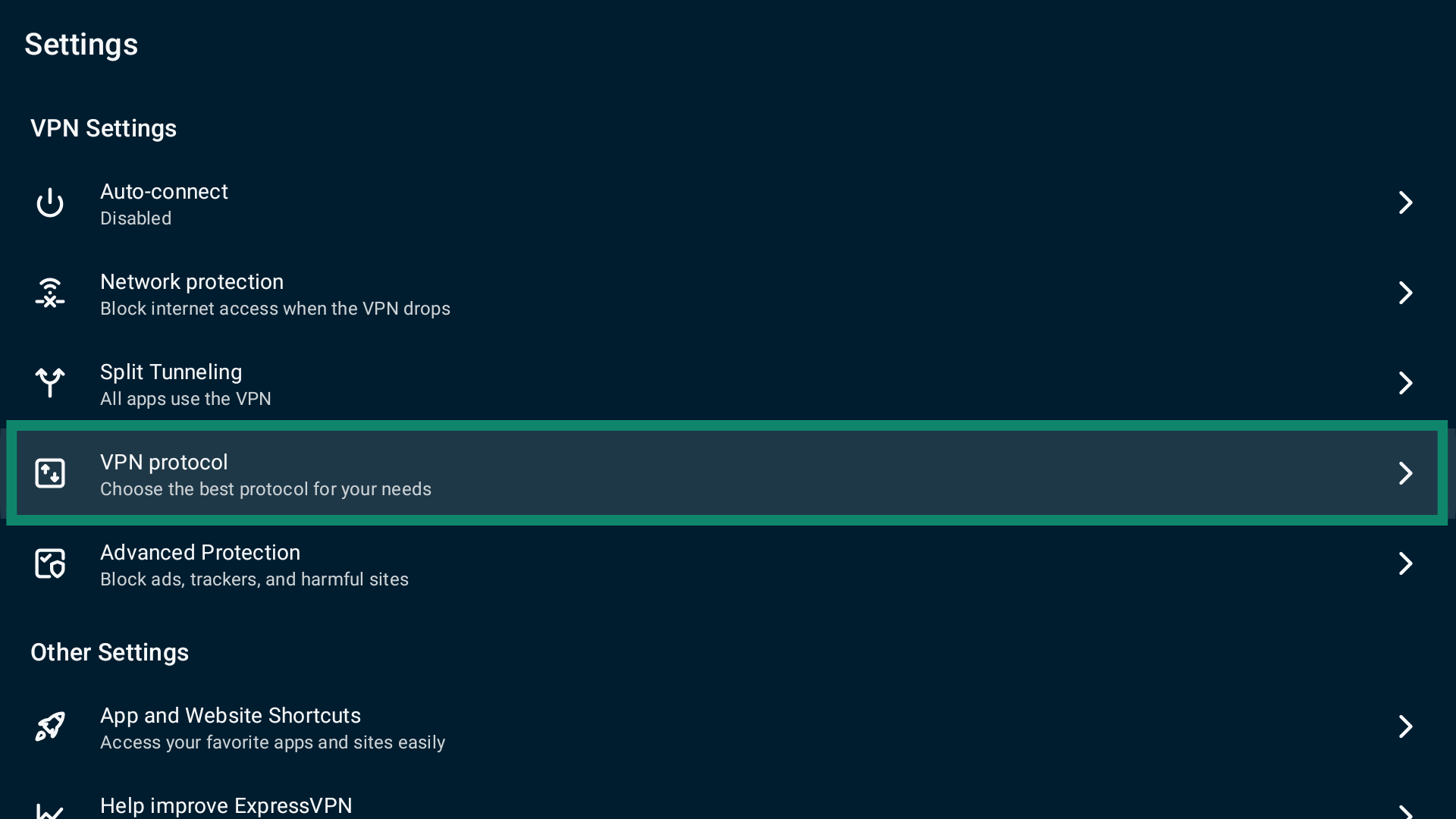
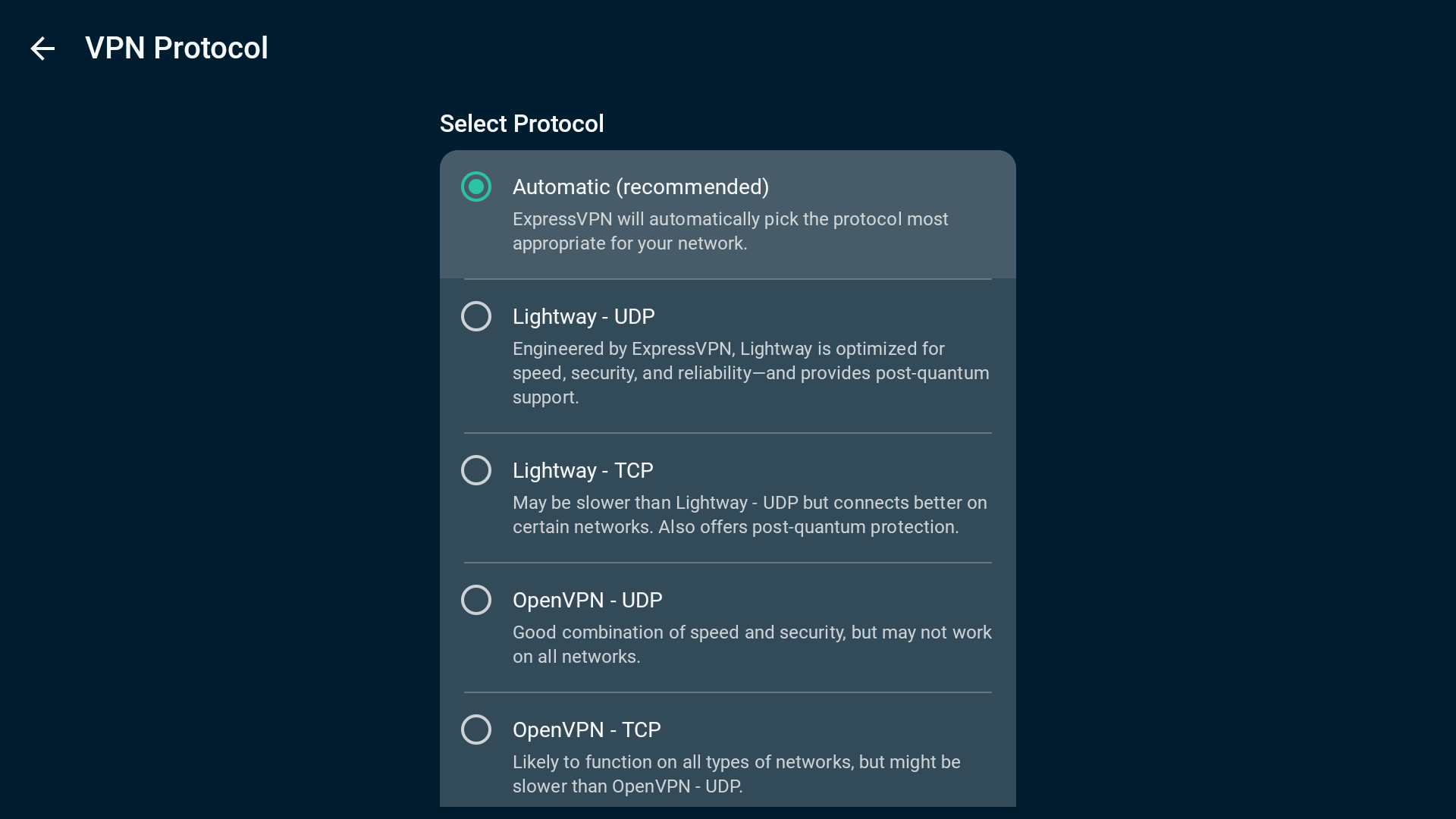
When you switch from the Automatic protocol option to OpenVPN or WireGuard, ExpressVPN will ask you to confirm the choice. Select CHANGE ANYWAY to continue.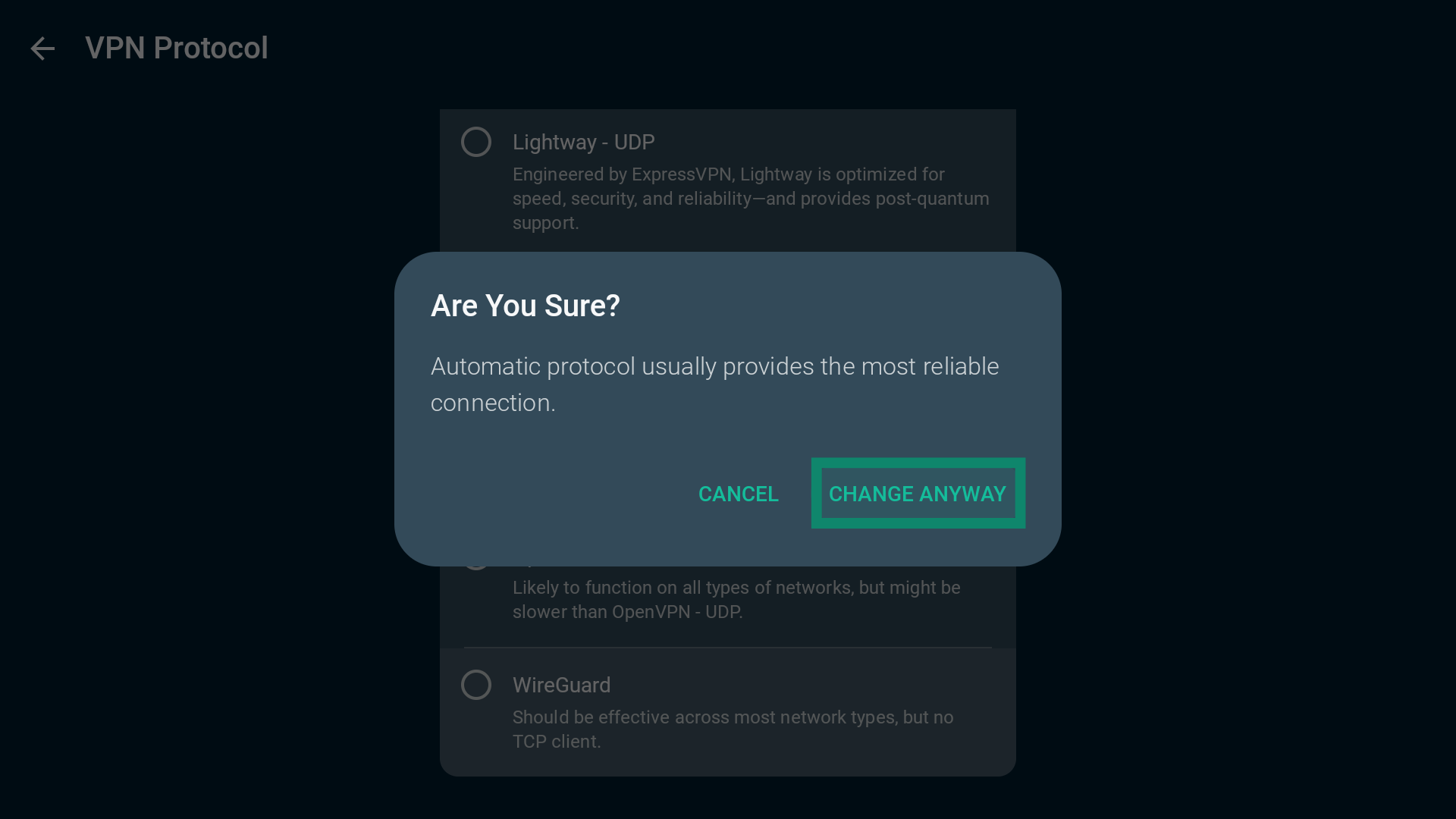
Note: Lightway is our proprietary protocol that we built from the ground up. When switching to it, you will see several options. Learn more about advanced options for Lightway.
Need help? Contact the ExpressVPN Support Team for immediate assistance.
Use split tunneling
The split tunneling feature allows you to choose which apps use the VPN and which apps do not when you are connected to ExpressVPN.
To access split tunneling settings:
- On the VPN tab, select Options.

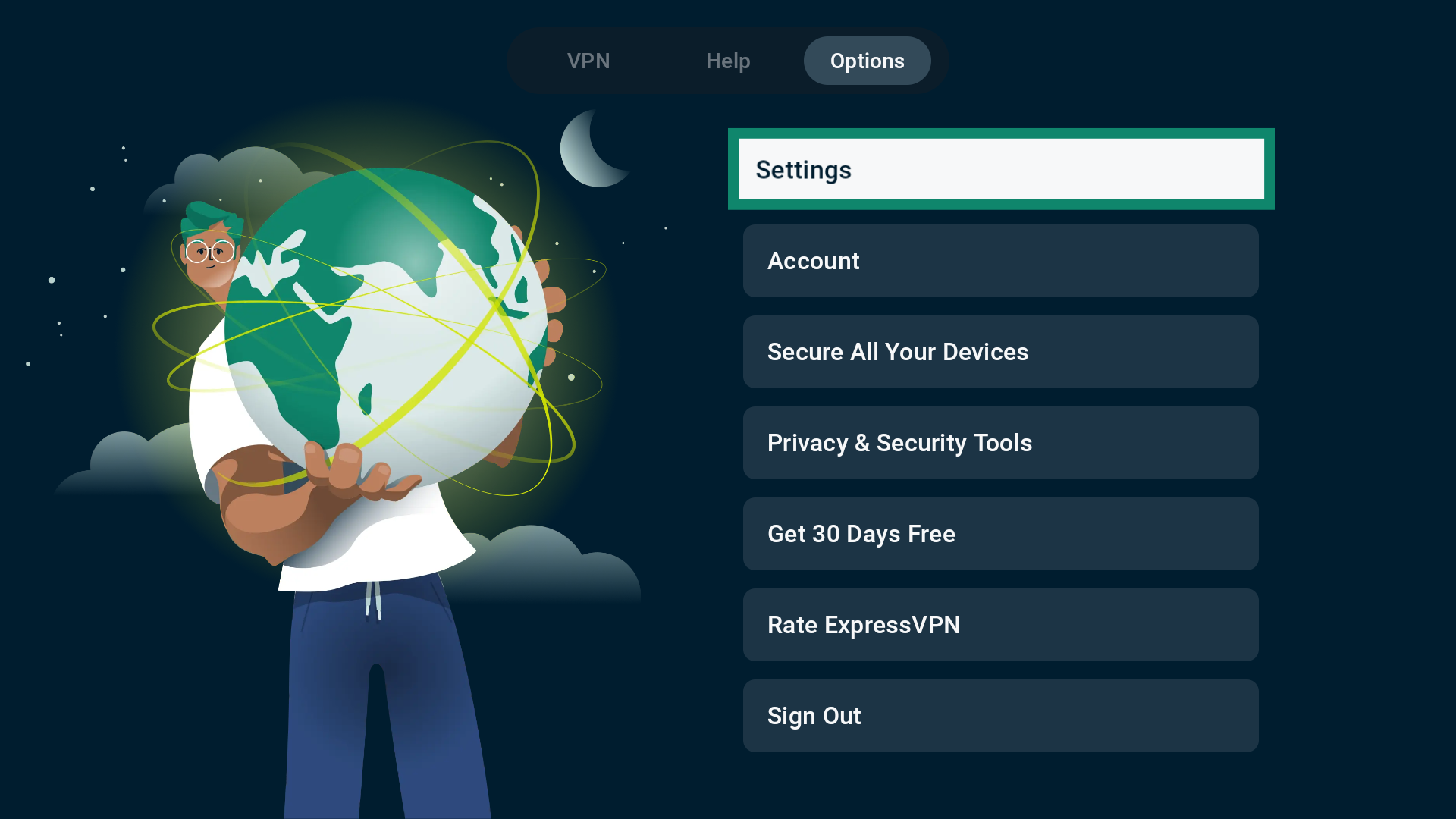
- Select Settings.

- Select Split Tunneling.

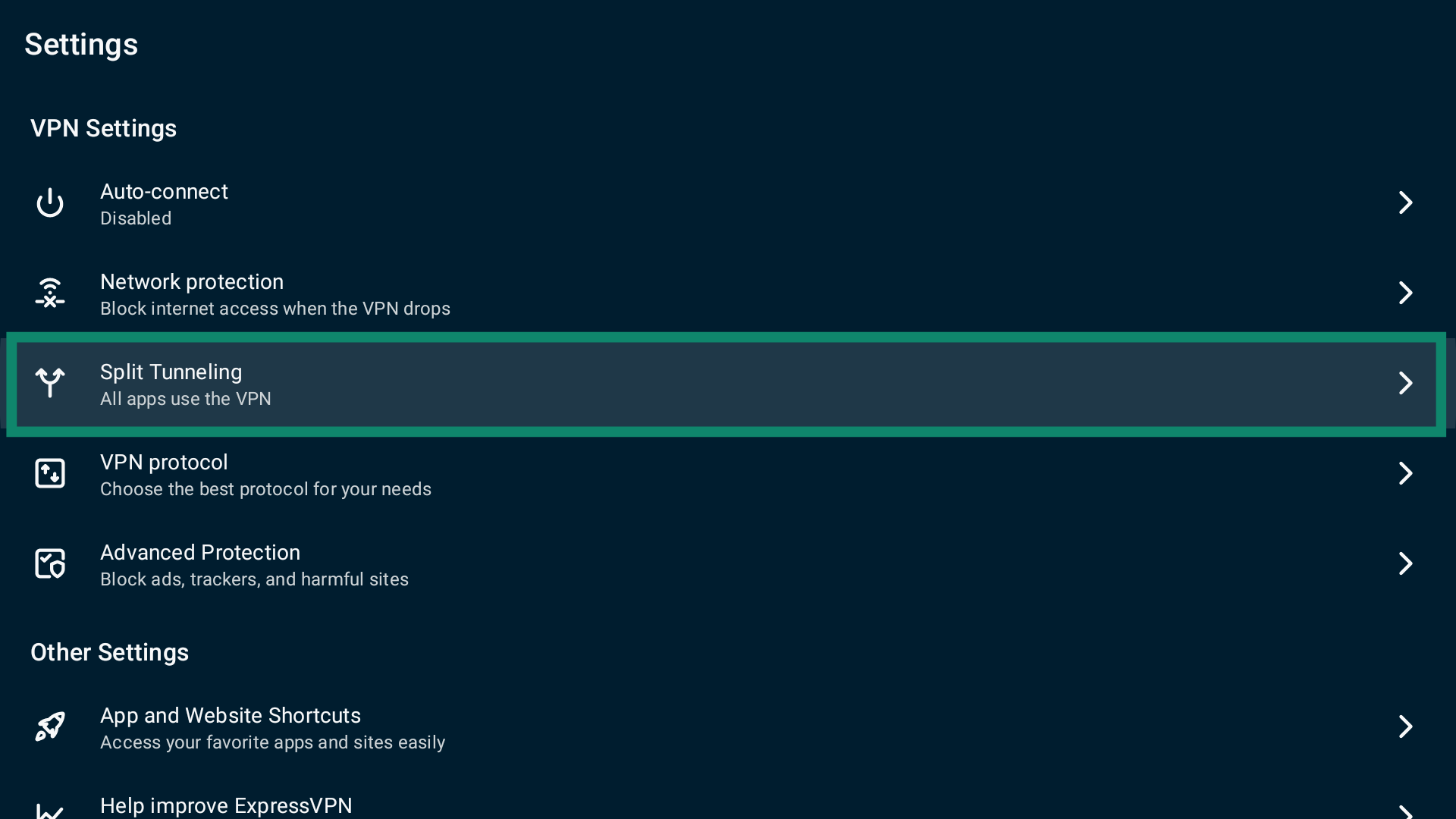
You will see three options:
- All apps use the VPN.
- Do not allow selected apps to use the VPN.
- Only allow selected apps to use the VPN.
By default, split tunnelling is set to All apps use the VPN. This means that when you are connected to the VPN, every app goes through the VPN connection.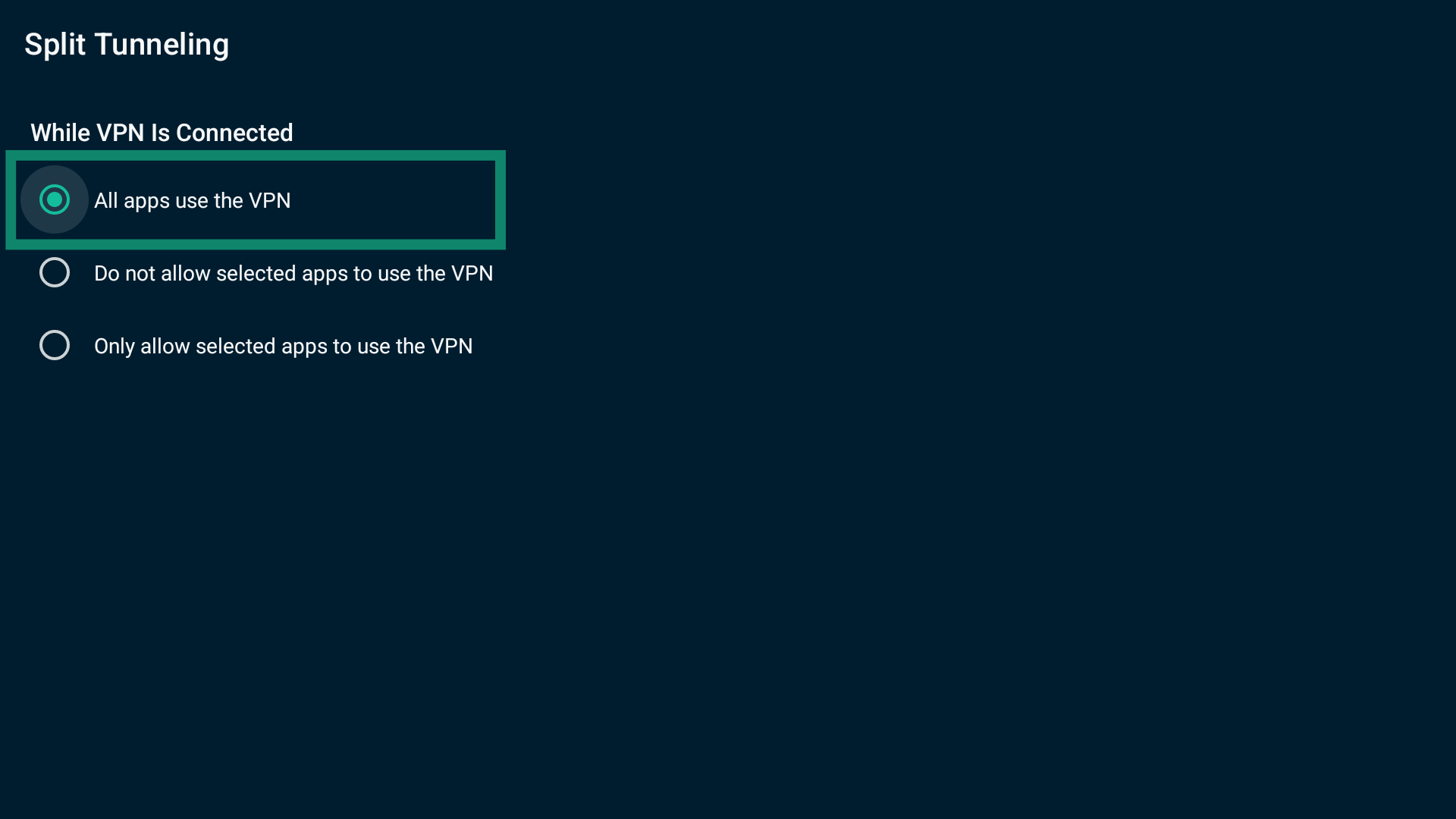
How to exclude apps from the VPN on Android TV
To exclude apps from the VPN connection:
- Select Do not allow selected apps to use the VPN.

- A list of apps on your Android TV will appear. Select next to the apps you want to exclude.

- The apps you choose will move to the Selected Apps list.

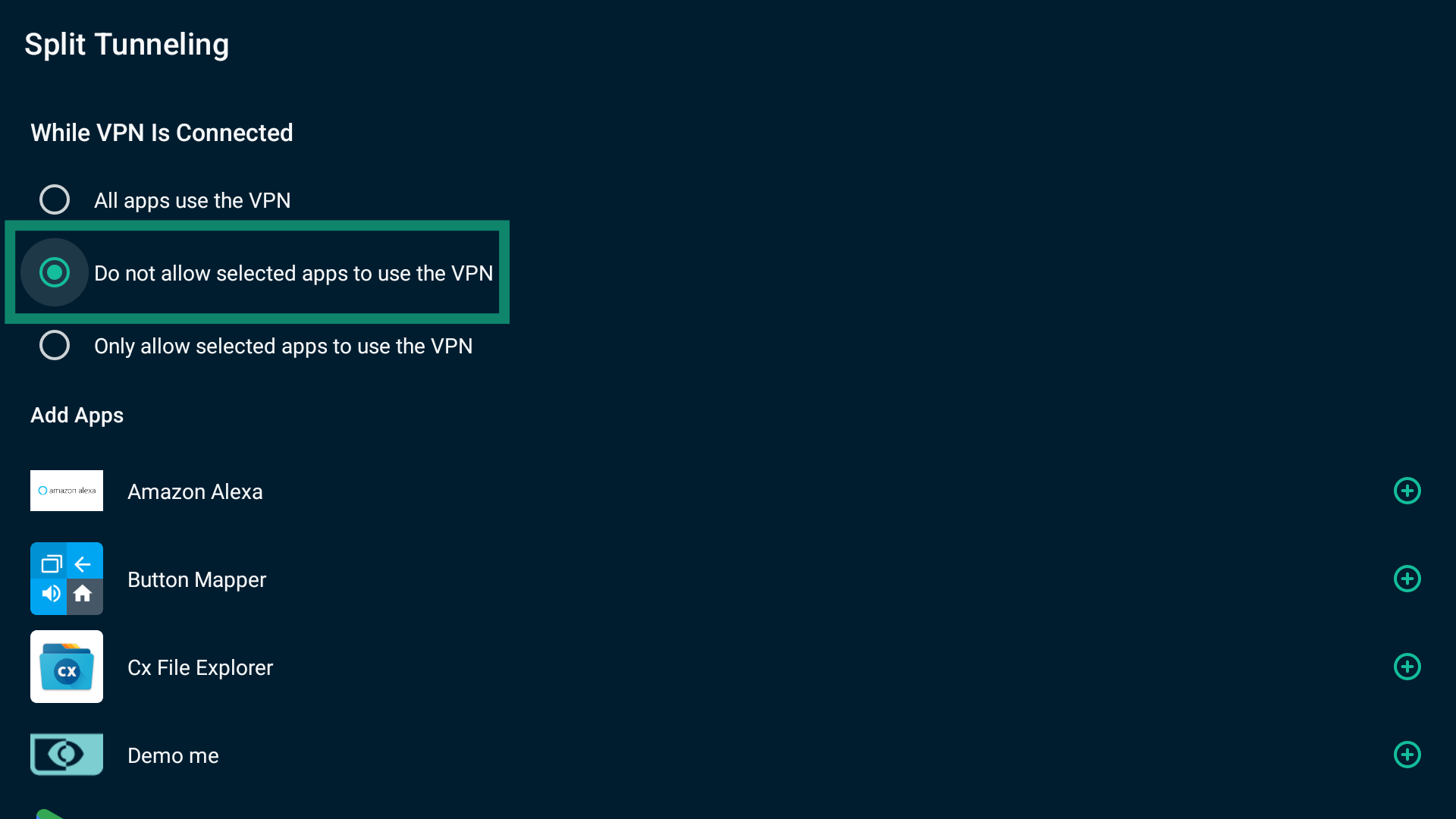
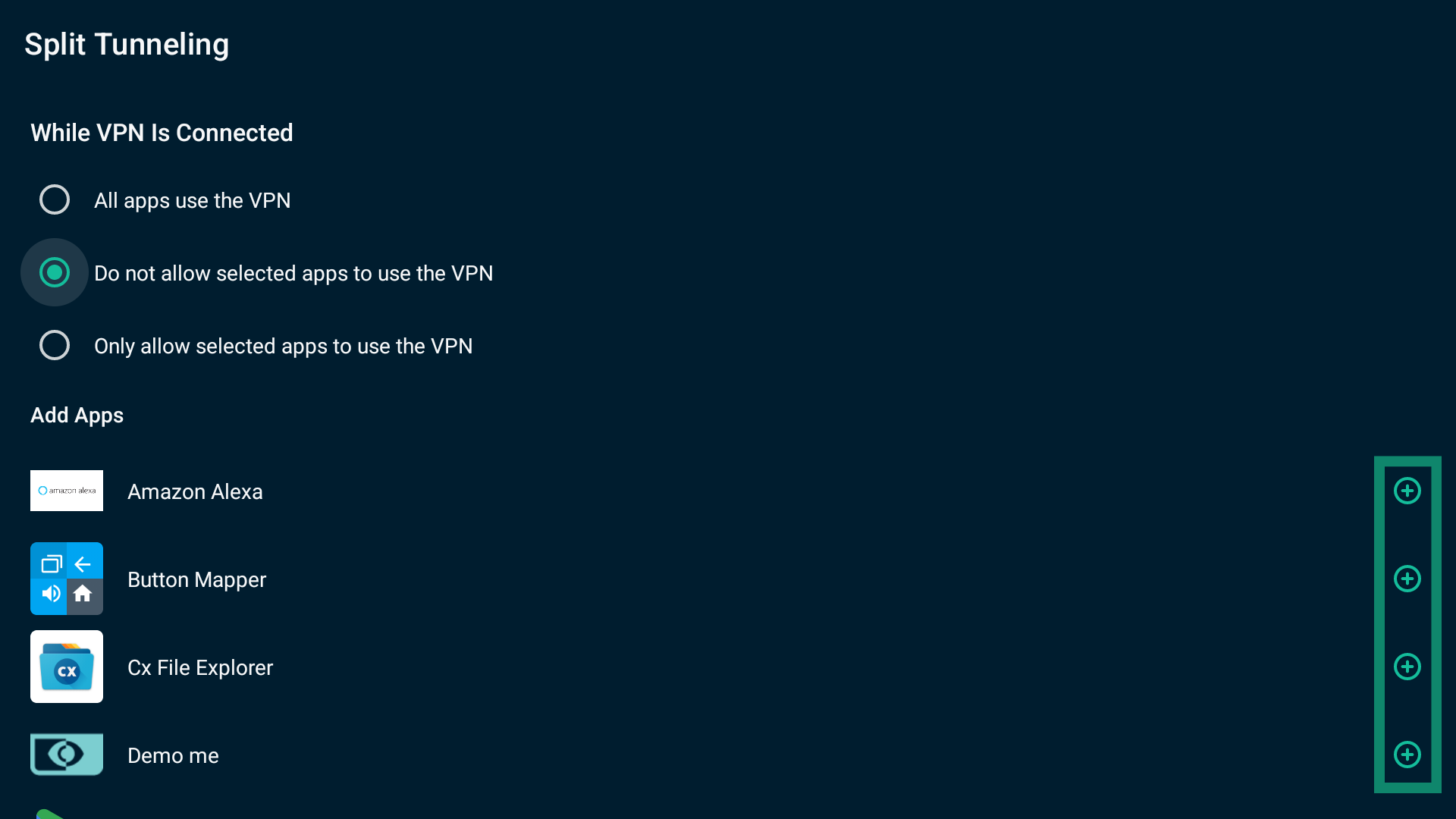
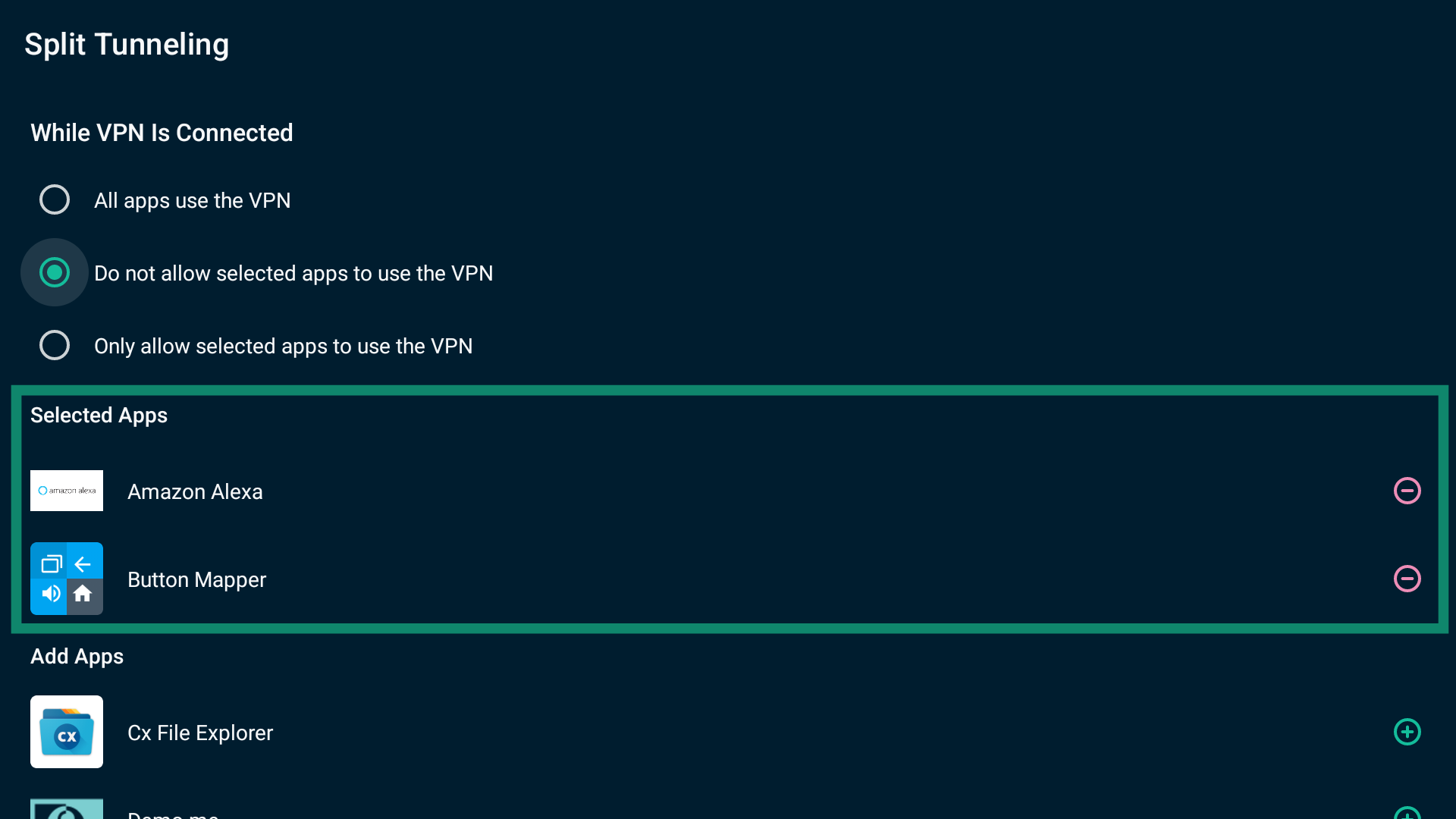
When finished, exit the settings. The apps you selected will not be included in the VPN connection when you next connect to a server location.
To remove an app from the Do not allow selected apps to use the VPN rule:
In the Selected Apps list, select  next to the app.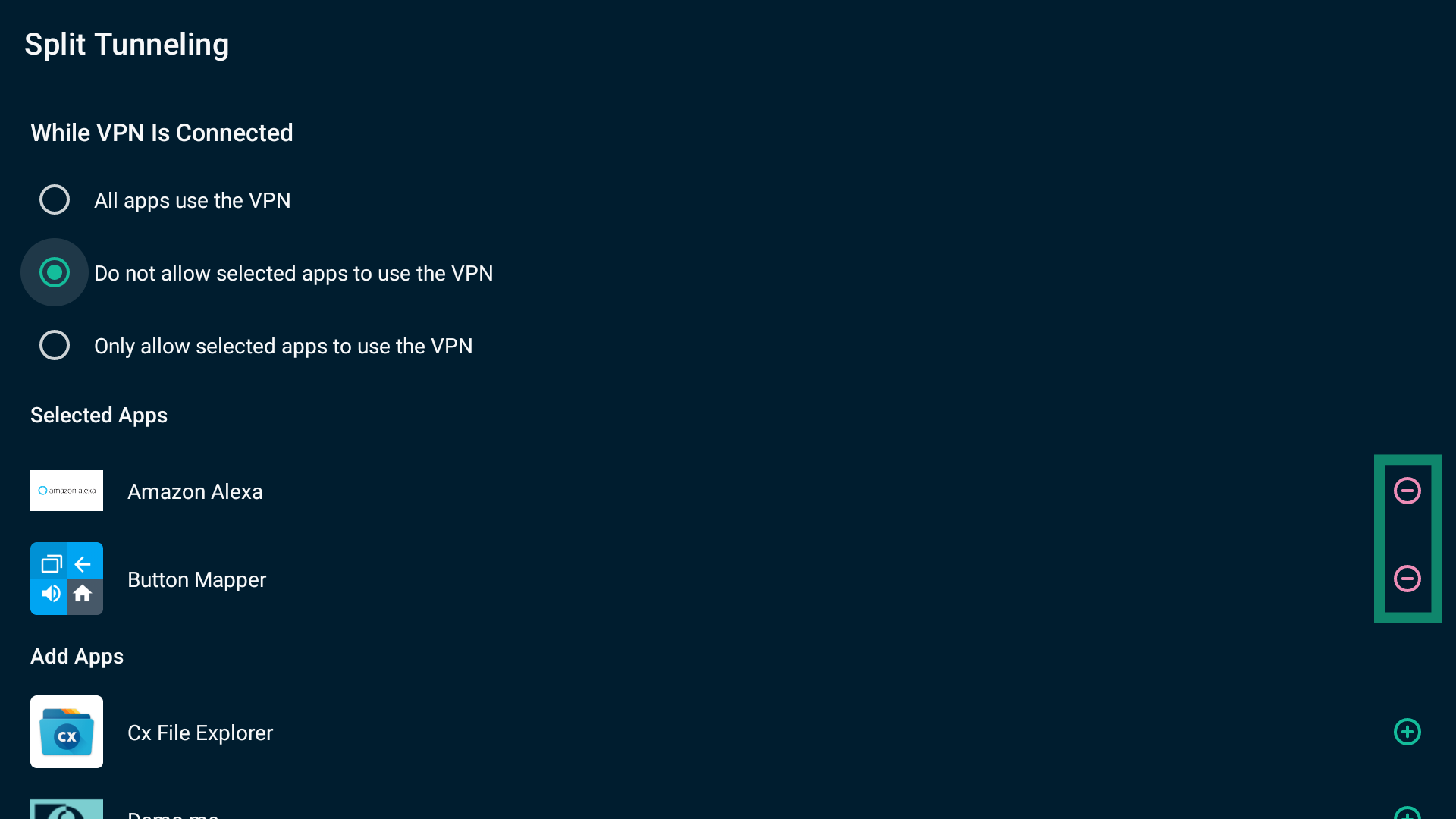
How to route only selected apps through the VPN on Android TV
To only let selected apps use the VPN:
- Select Only allow selected apps to use the VPN.

- A list of apps on your device will appear. Select
 next to the apps you want to go through the VPN.
- The apps you pick will be moved to the Selected Apps list.

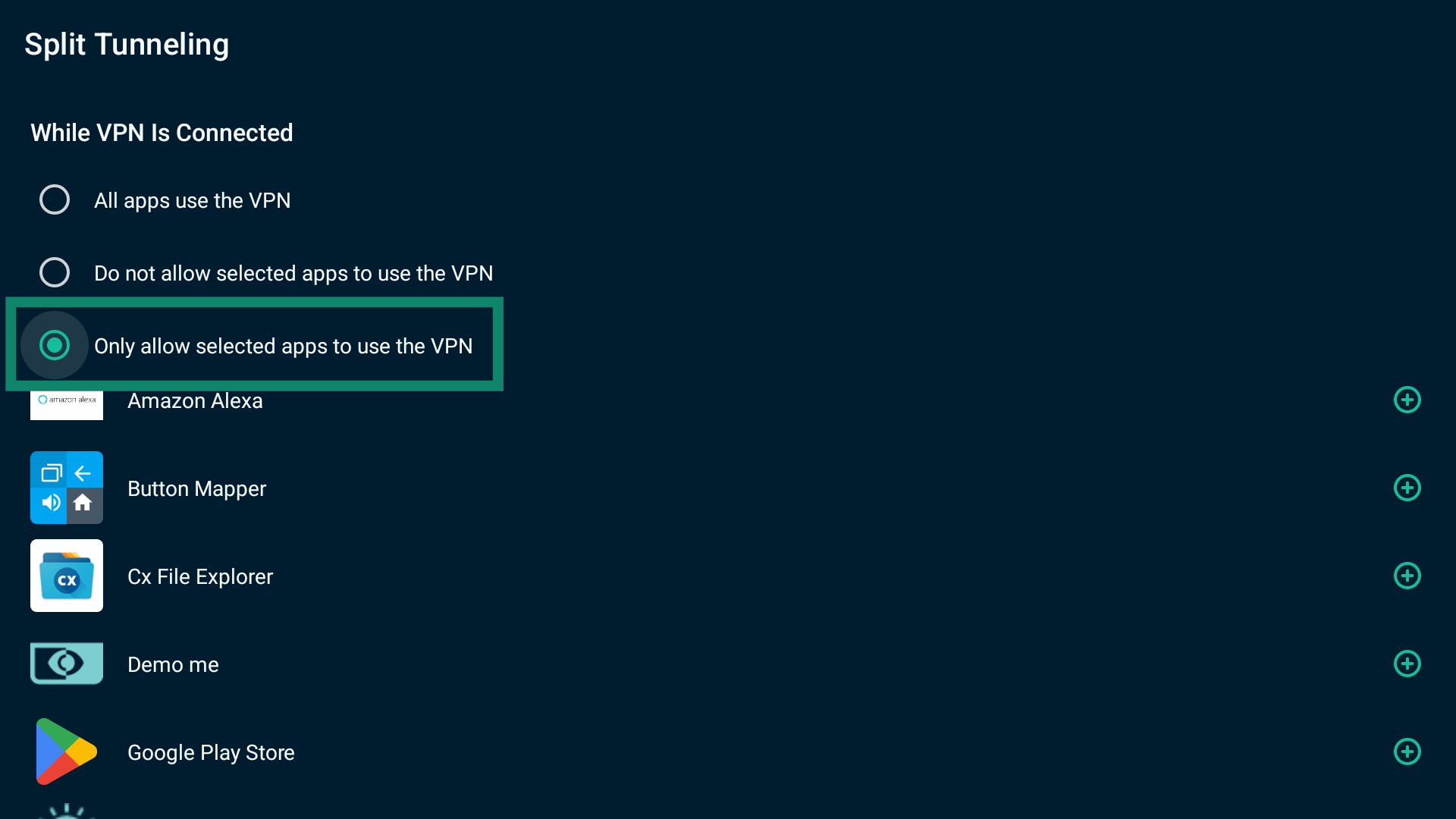
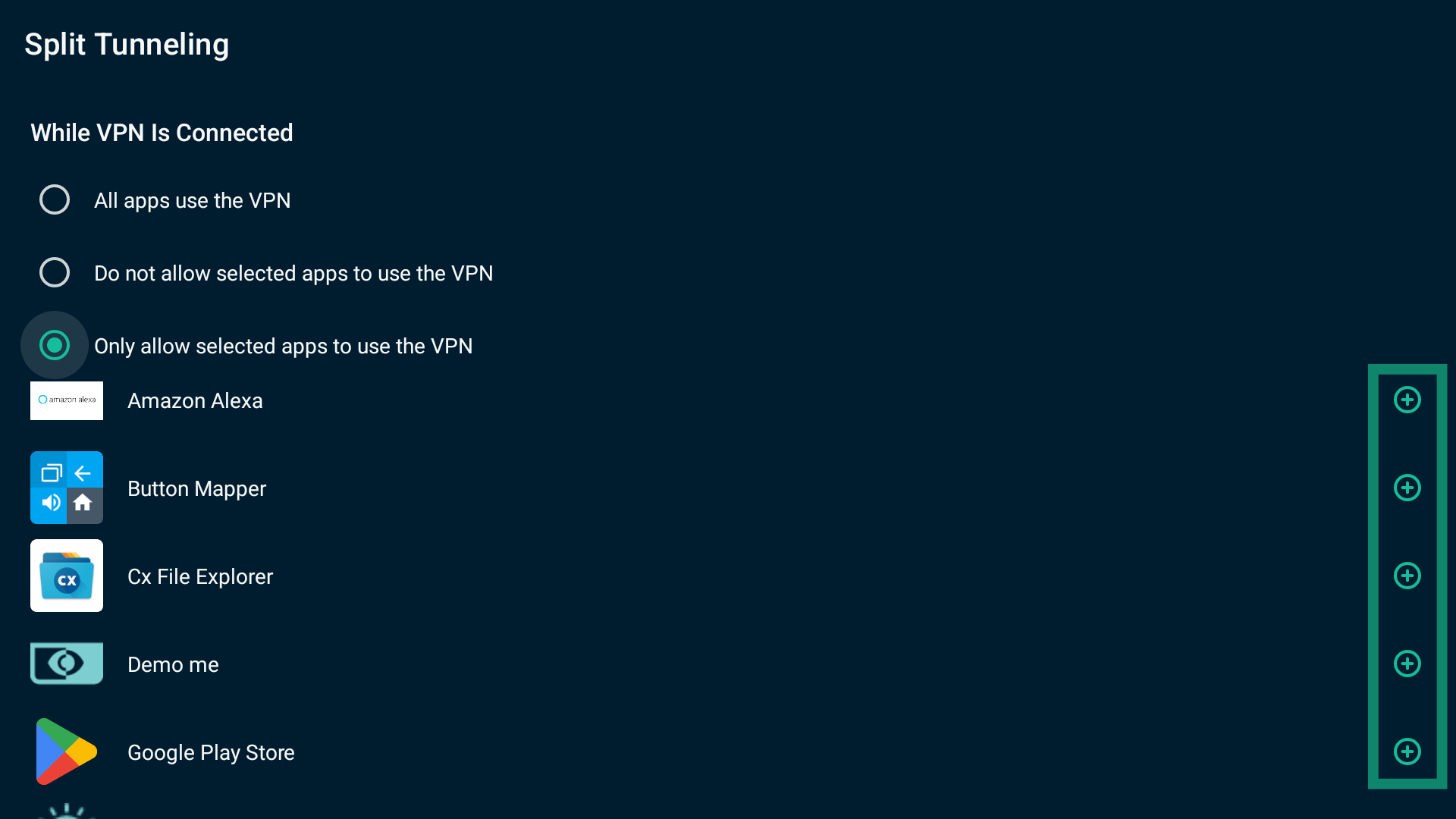
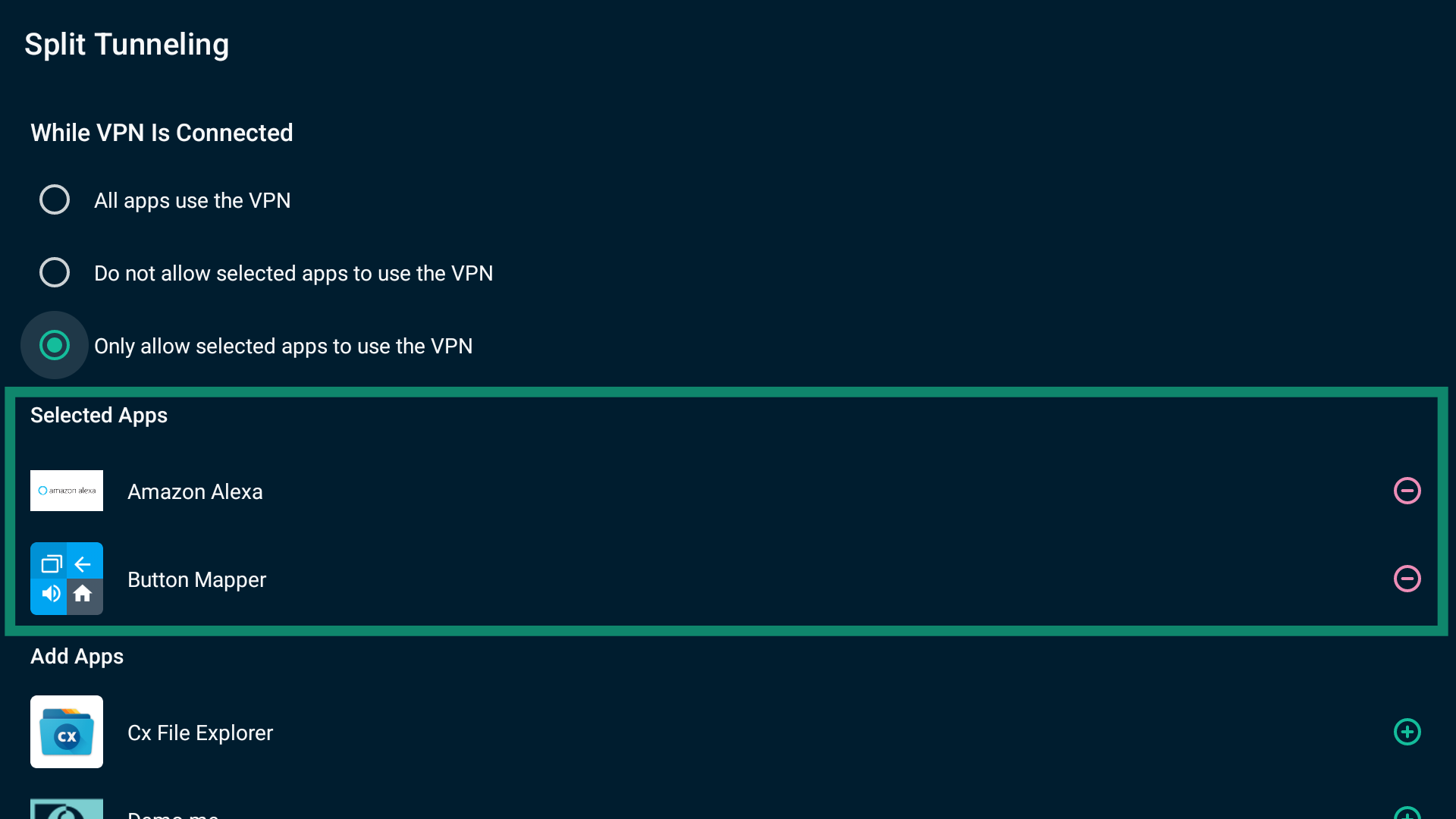
Once done, exit the settings. Only the selected apps will use the VPN connection when you next connect to ExpressVPN.
To remove an app from the Only allow selected apps to use the VPN rule:
Select next to the app you want to remove from the Selected Apps list.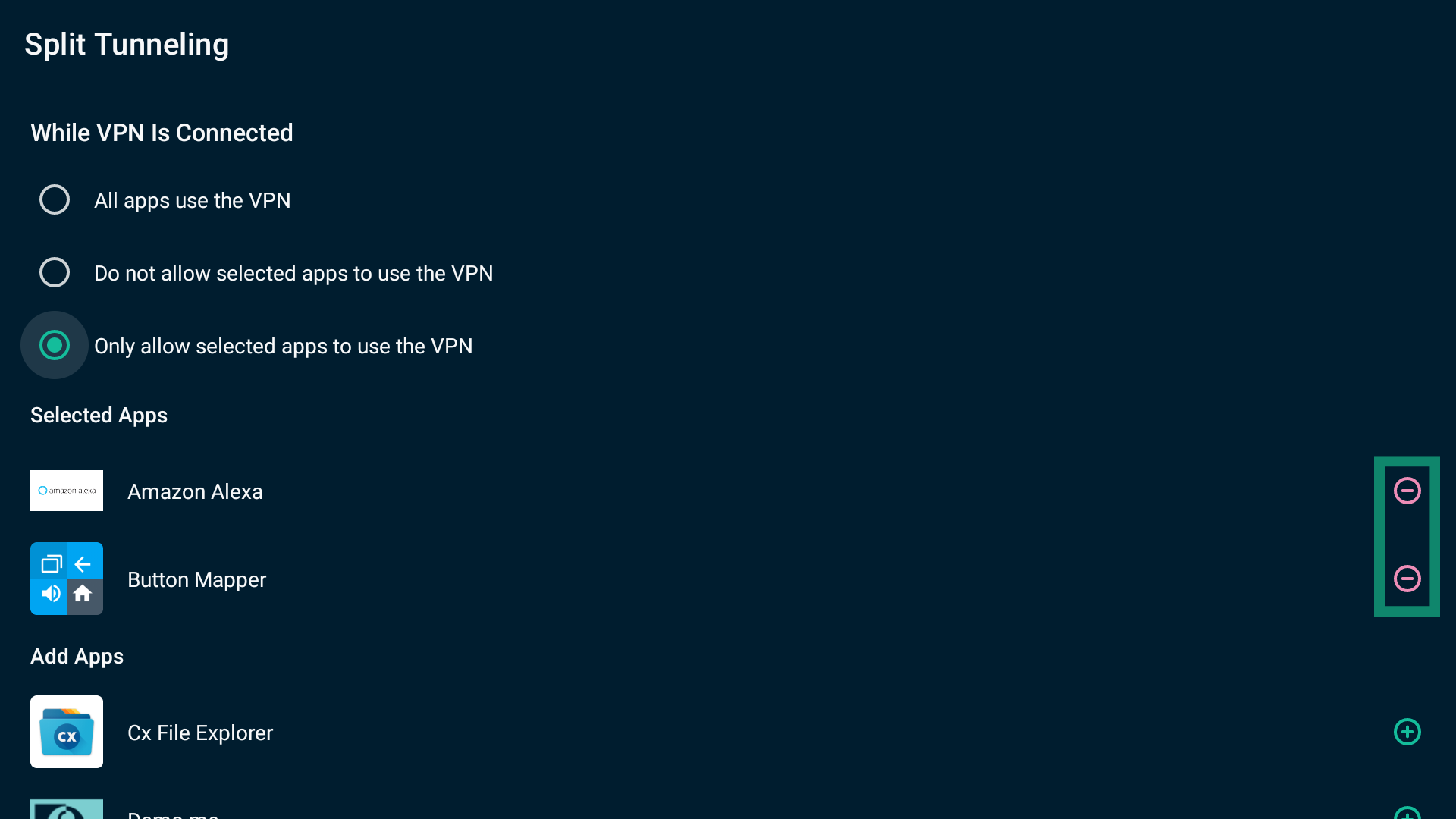
Need help? Contact the ExpressVPN Support Team for immediate assistance.
Block ads, trackers, and harmful sites
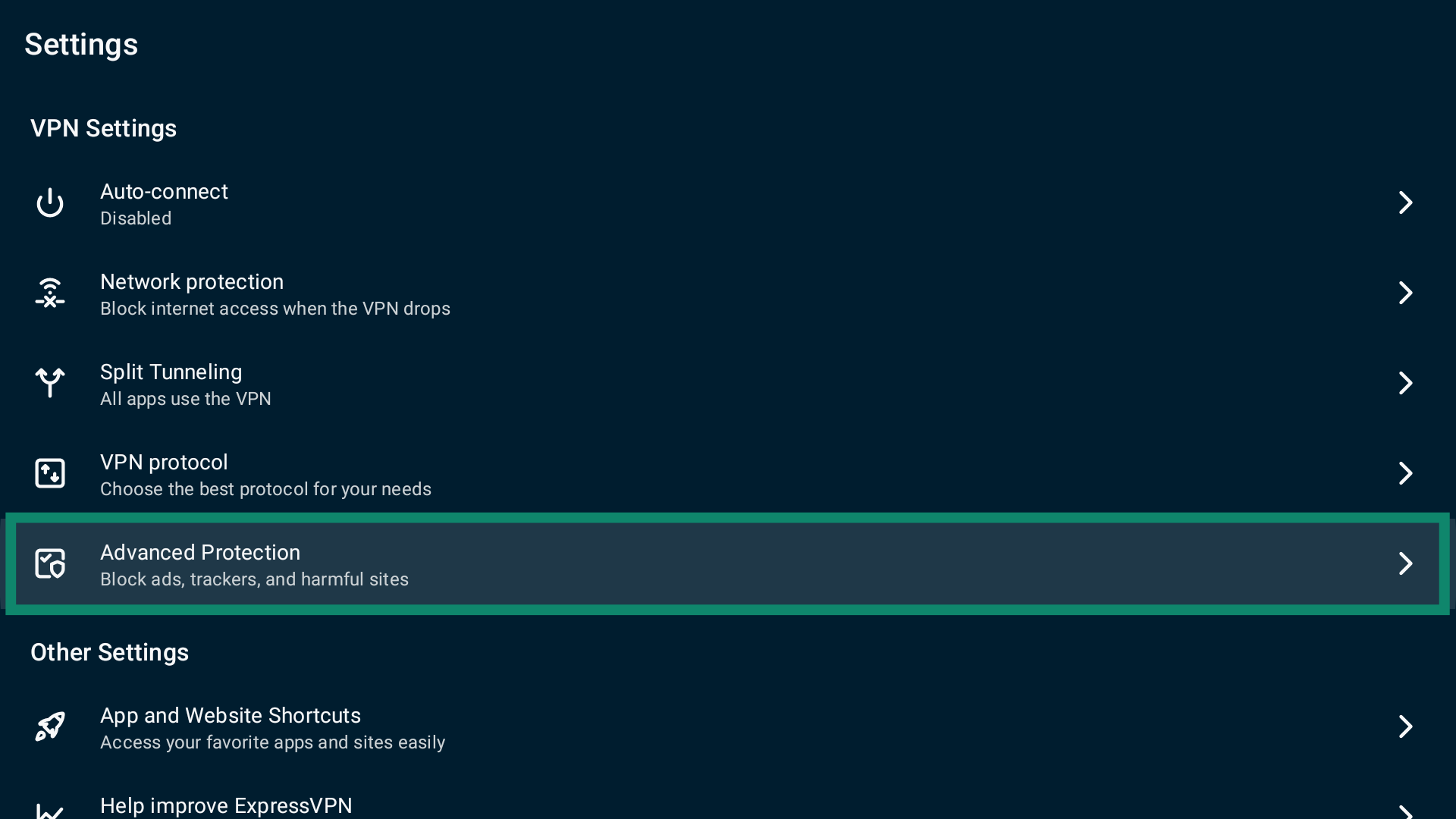
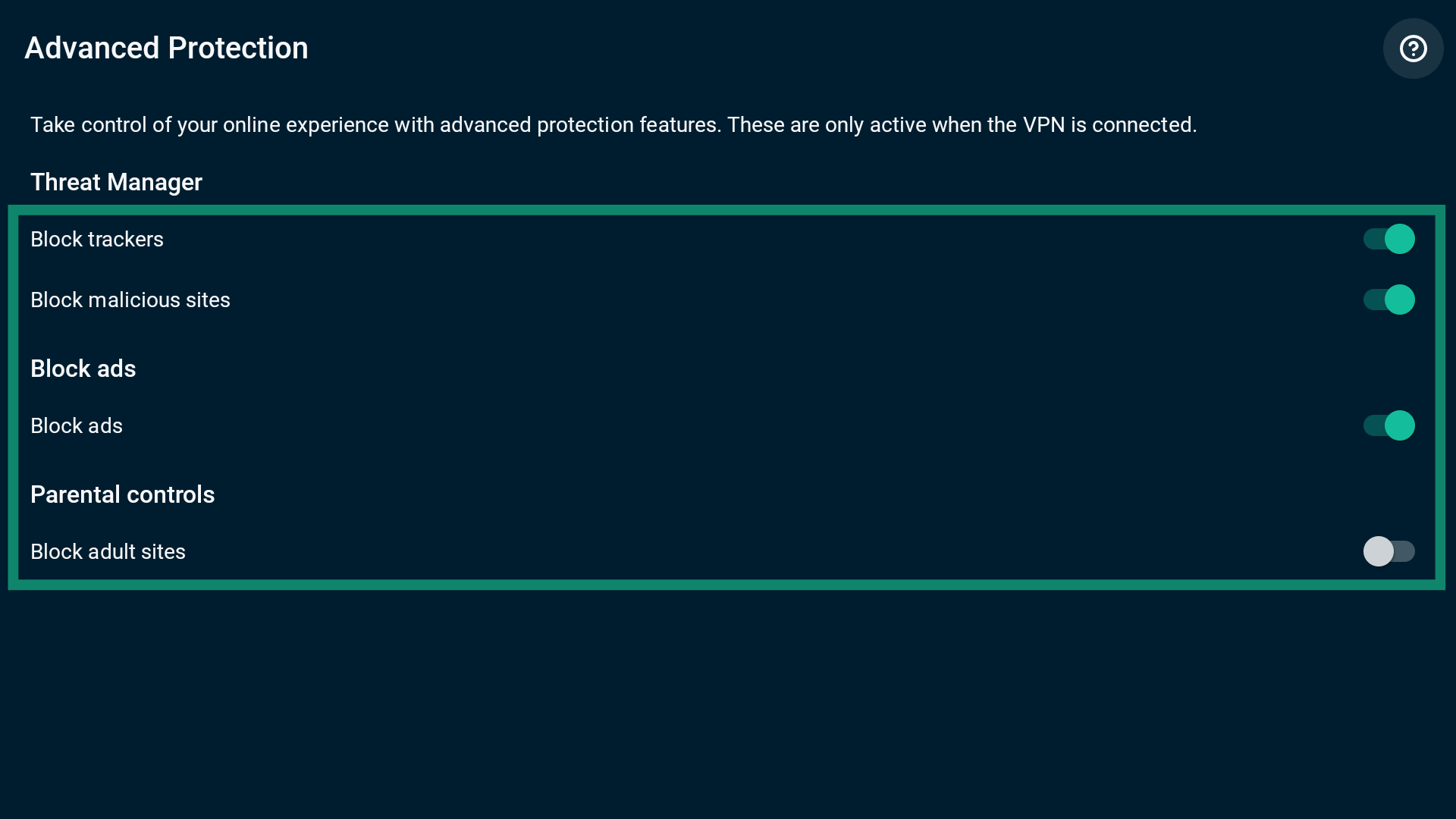
You can block ads, trackers, and malicious and adult sites using built-in advanced protection features. When enabled, these settings prevent apps and websites you access on your Android TV from communicating with third parties listed on our open-source blocklists. Advanced protection settings are turned off by default.
To turn on advanced protection features:
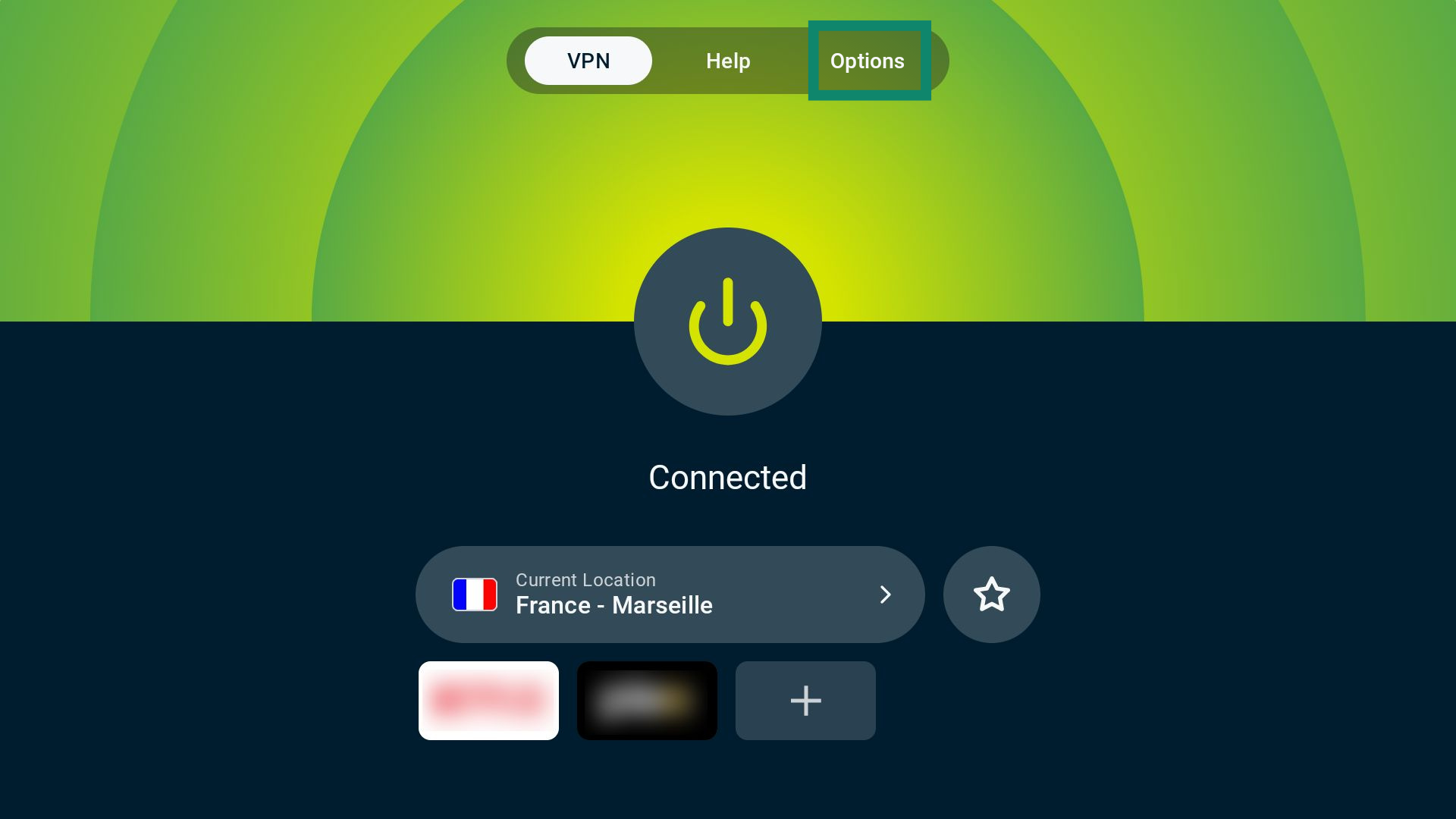
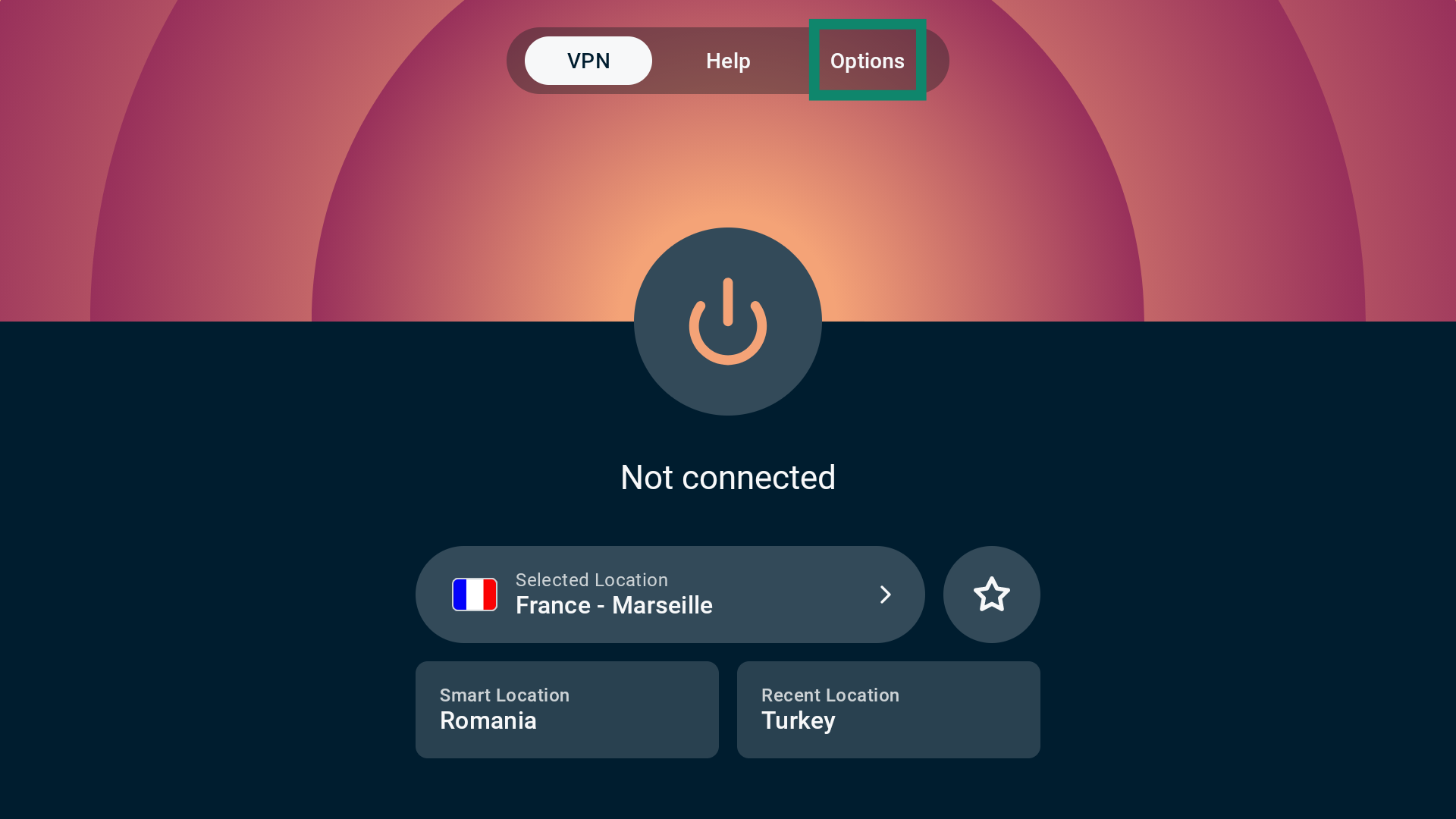
- Select Options on the main screen.

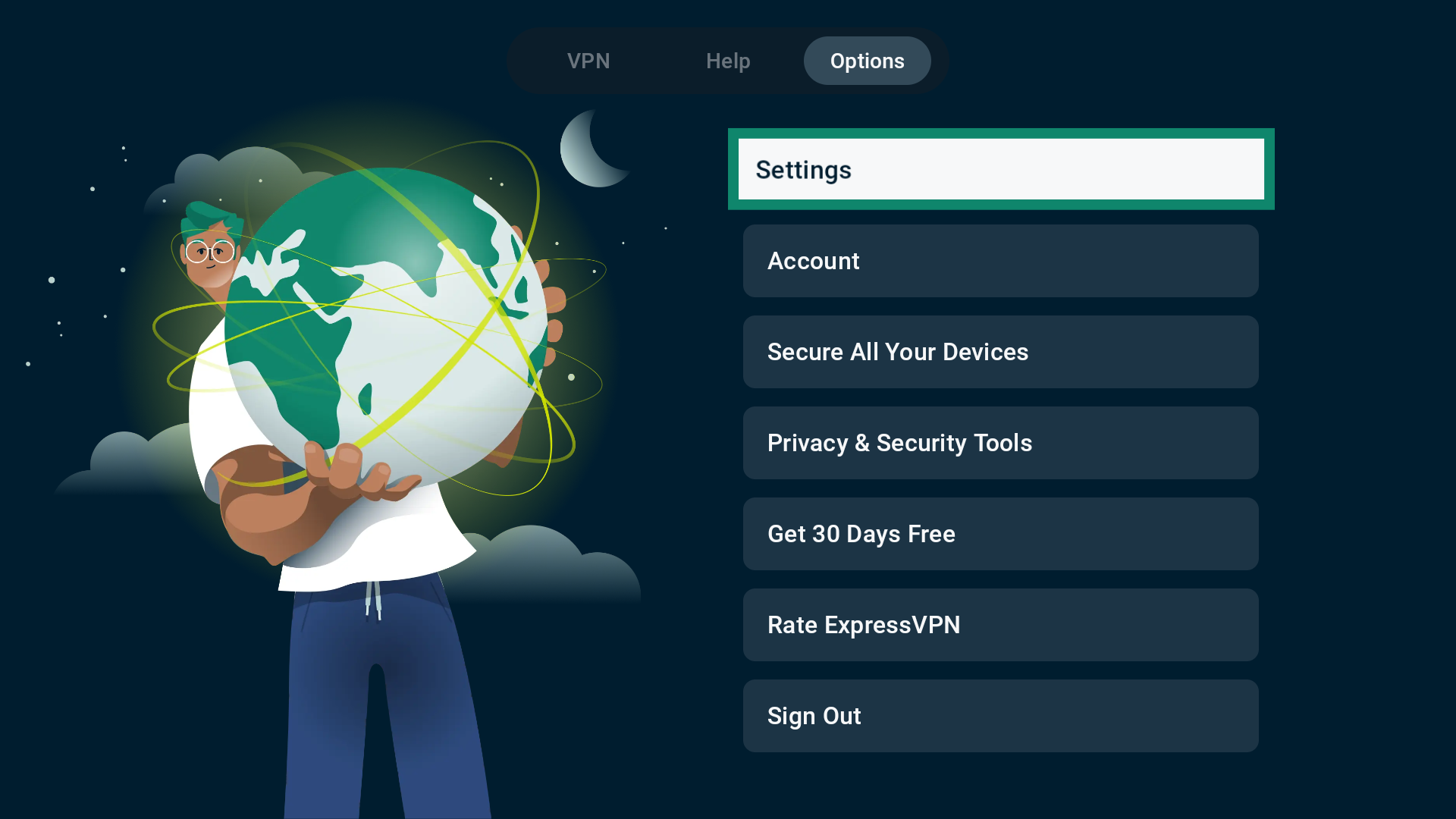
- Select Settings.

- Select Advanced Protection.

- Toggle advanced protection settings on and off as you see fit.

Note: If you turn on advanced protection features while connected to the VPN, you will see a popup saying that ExpressVPN will reconnect to apply the changes. Select CONTINUE to proceed.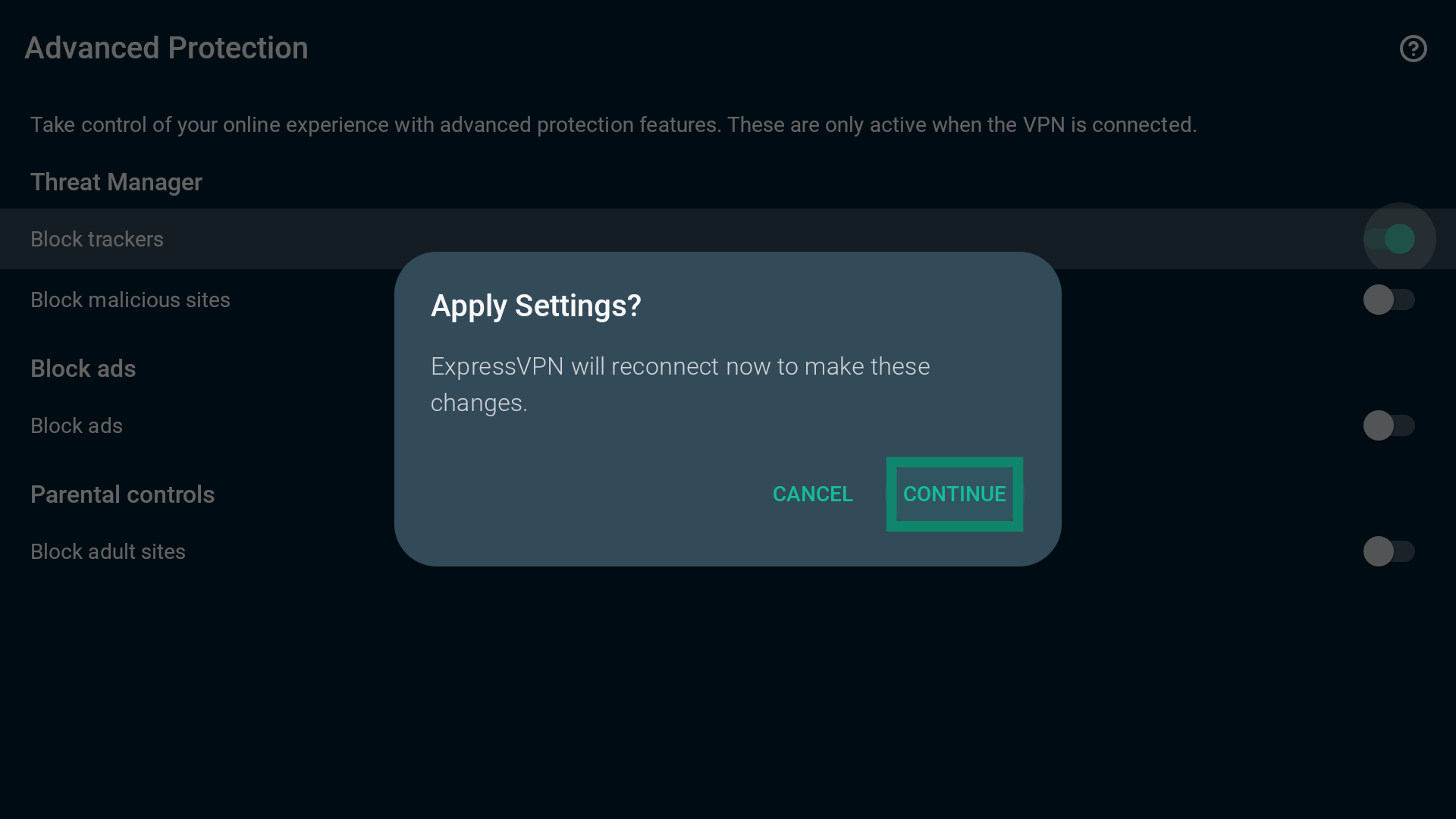
Need help? Contact the ExpressVPN Support Team for immediate assistance.
Enable or disable the kill switch
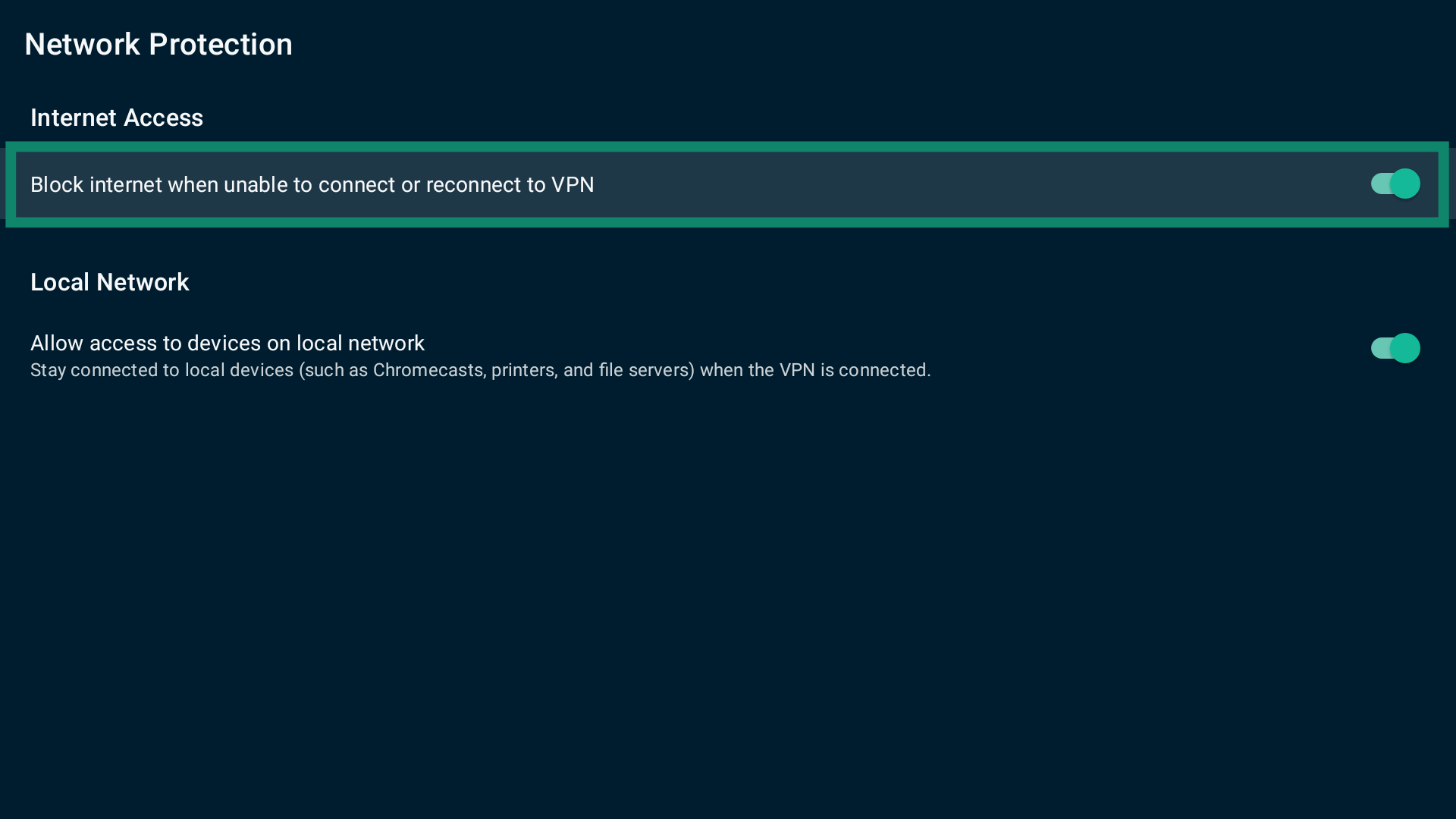
The Android TV app has a kill switch, which disables internet access if the app is unable to connect or reconnect to the VPN server. This helps limit accidental traffic leaks that may expose your data. By default, the kill switch on the Android TV app is disabled.
To turn the kill switch on or off:
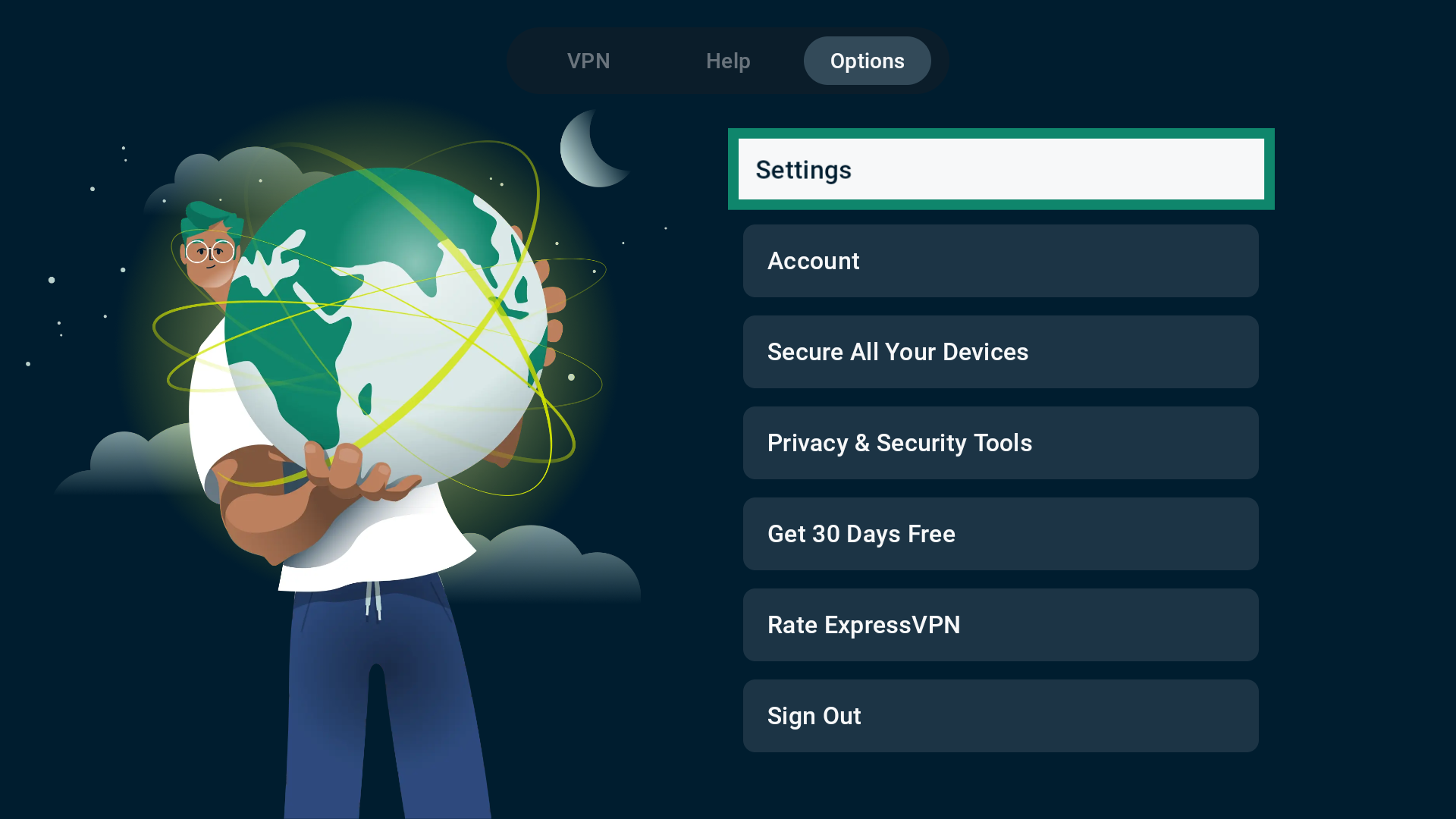
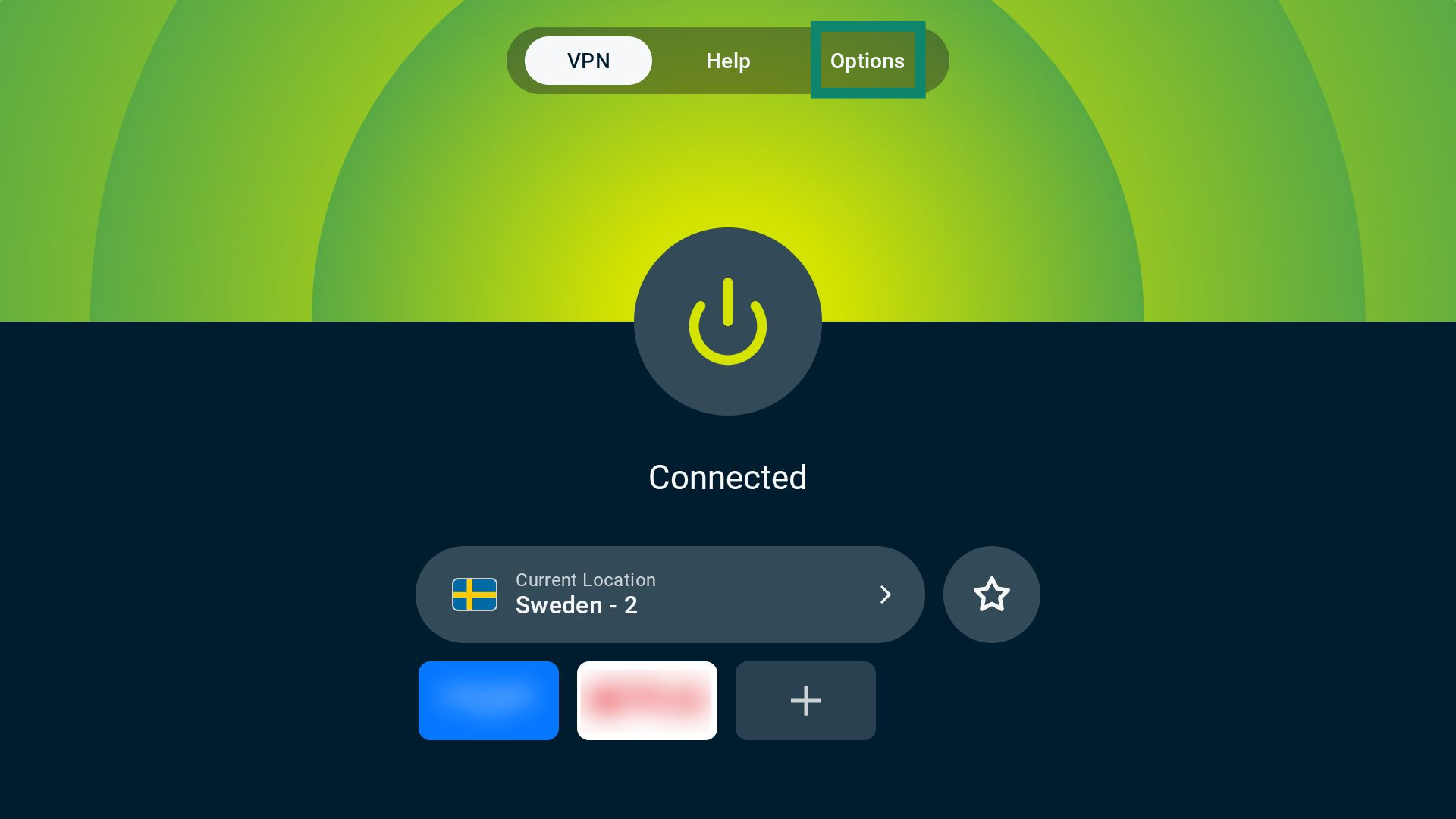
- On the VPN tab, select Options.

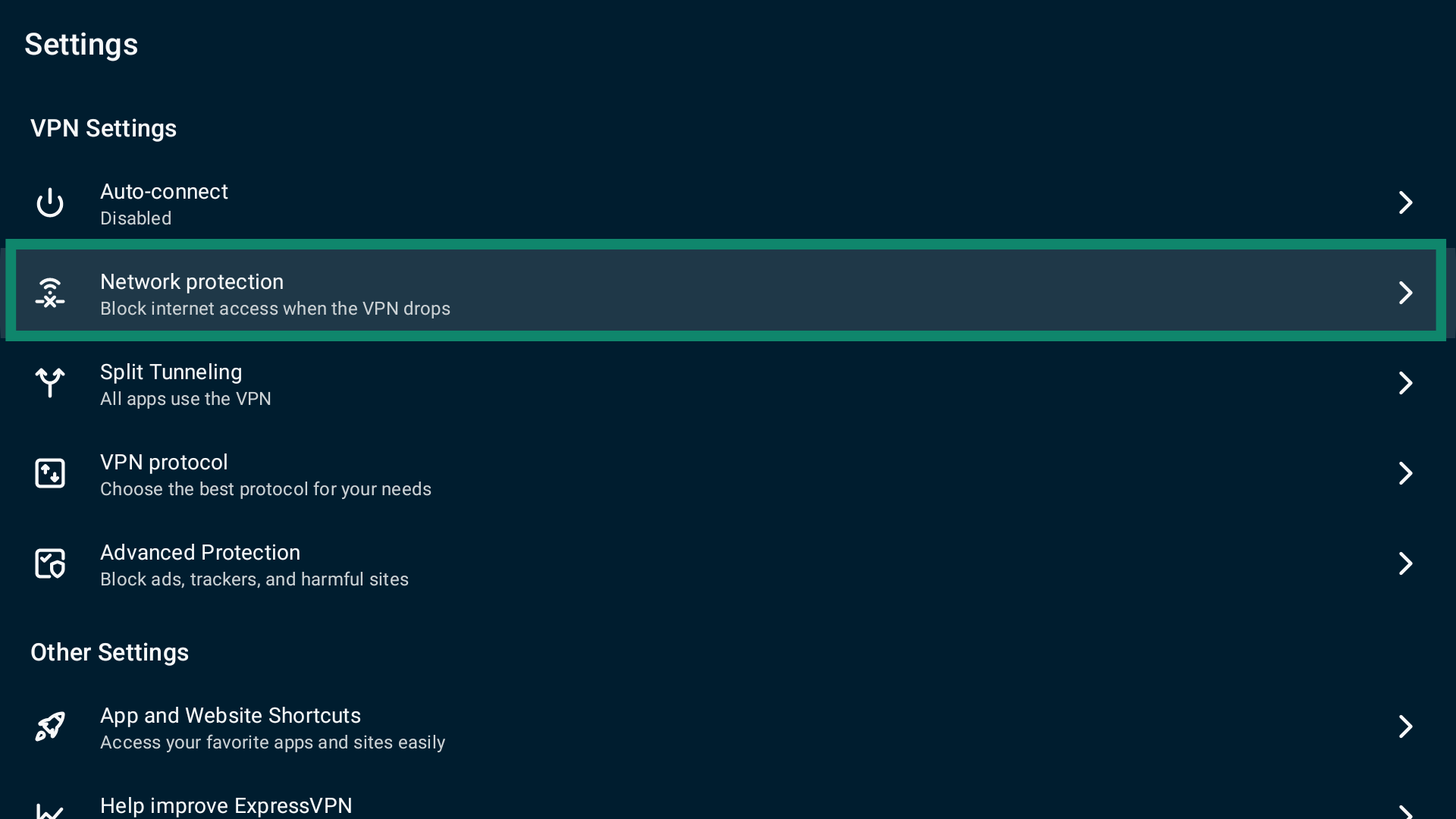
- Select Settings.

- Next, select Network protection.

- Toggle Block internet when unable to connect or reconnect to VPN on or off.

Note: You can enable or disable the kill switch both when connected to or disconnected from ExpressVPN.
Need help? Contact the ExpressVPN Support Team for immediate assistance.
Set up auto-connect
You can set your ExpressVPN app to auto-connect on startup or when you join an untrusted network.
To access auto-connect settings:
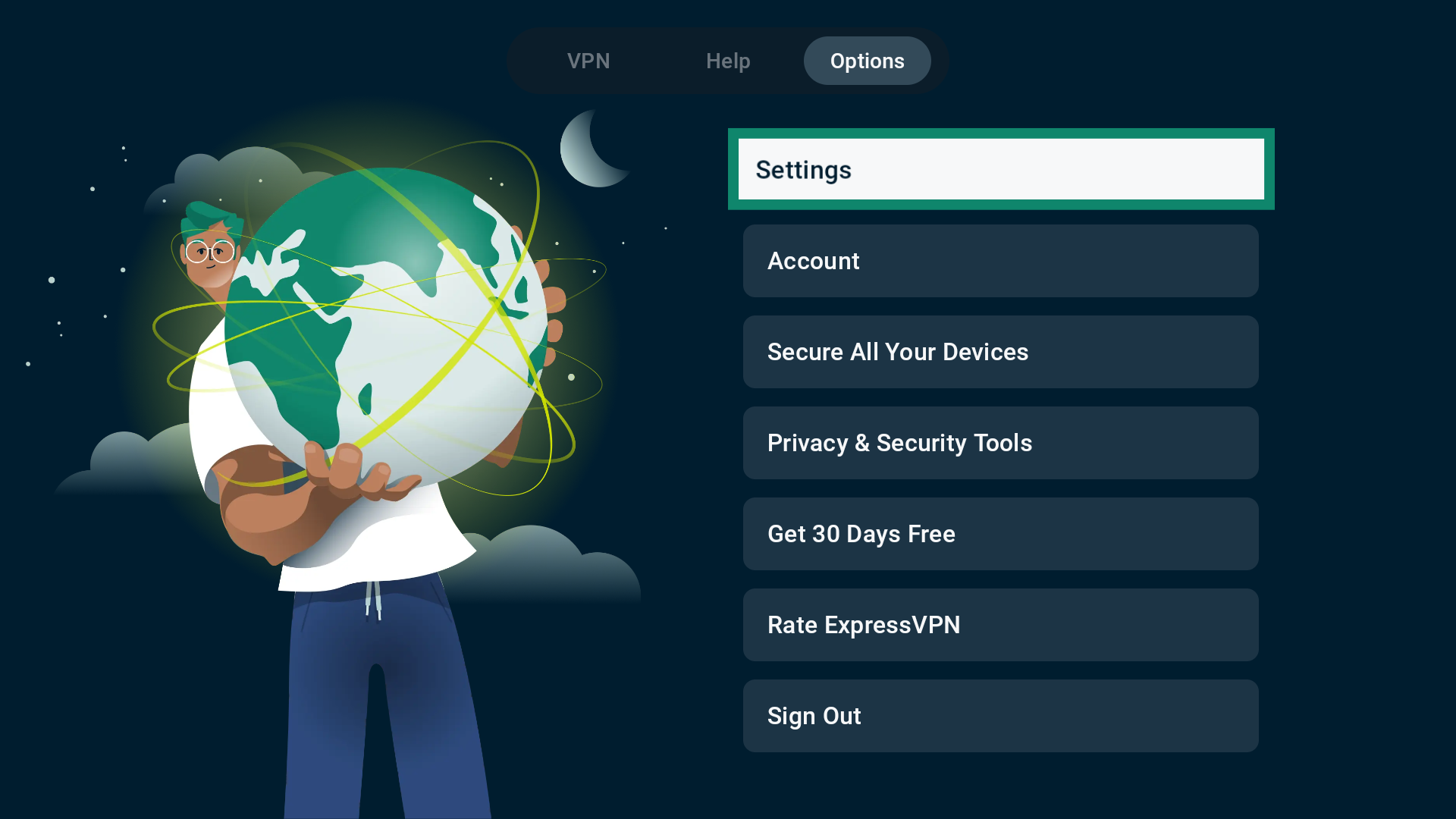
- On the main screen, select Options.

- Select Settings.

- Next, select Auto-connect.

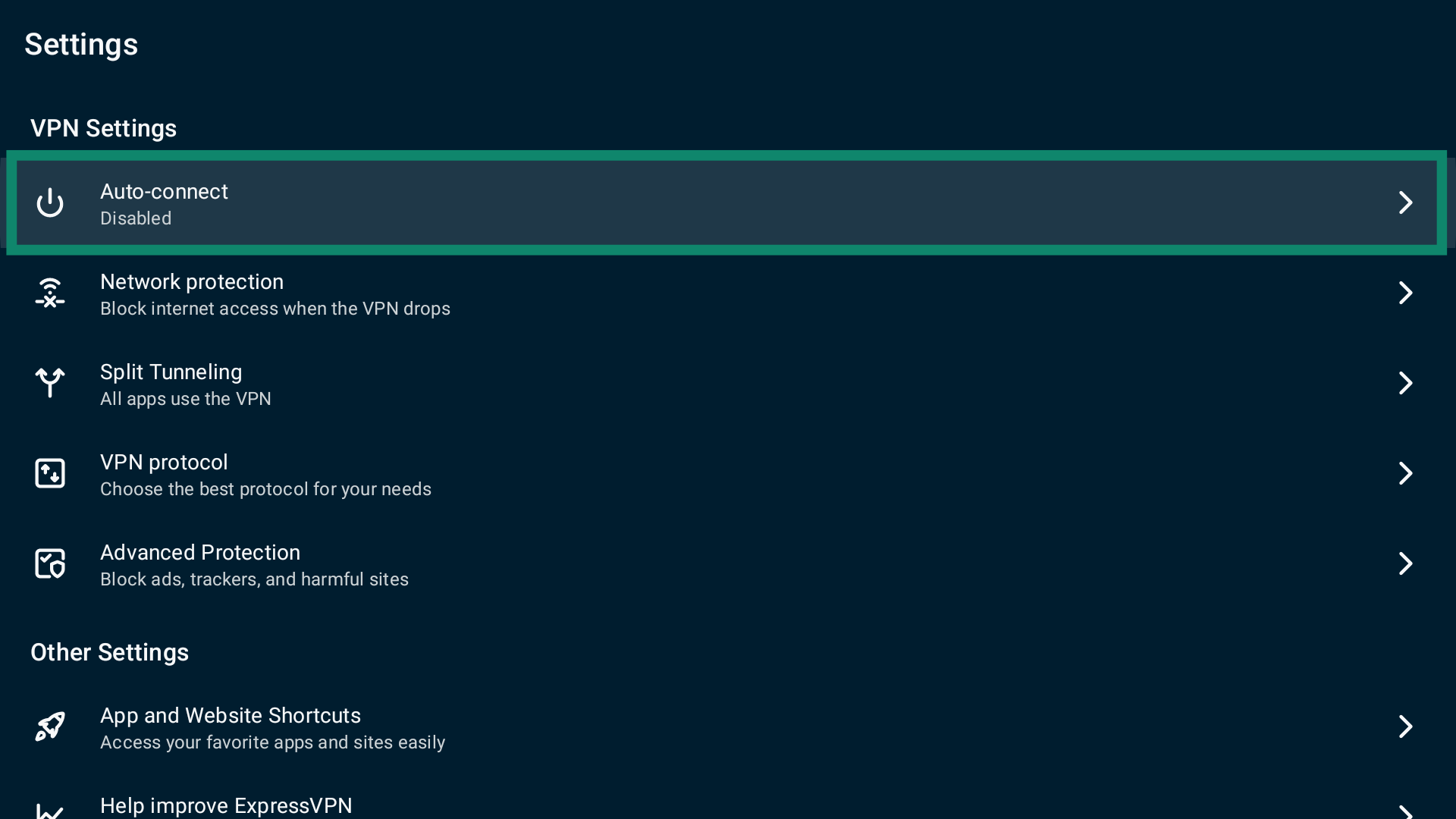
You will see two options:
- When Android starts up.
- When joining networks not listed as trusted.
When Android starts up
If you want ExpressVPN to automatically connect to the last VPN server location when your Android TV starts up, toggle When Android starts up on.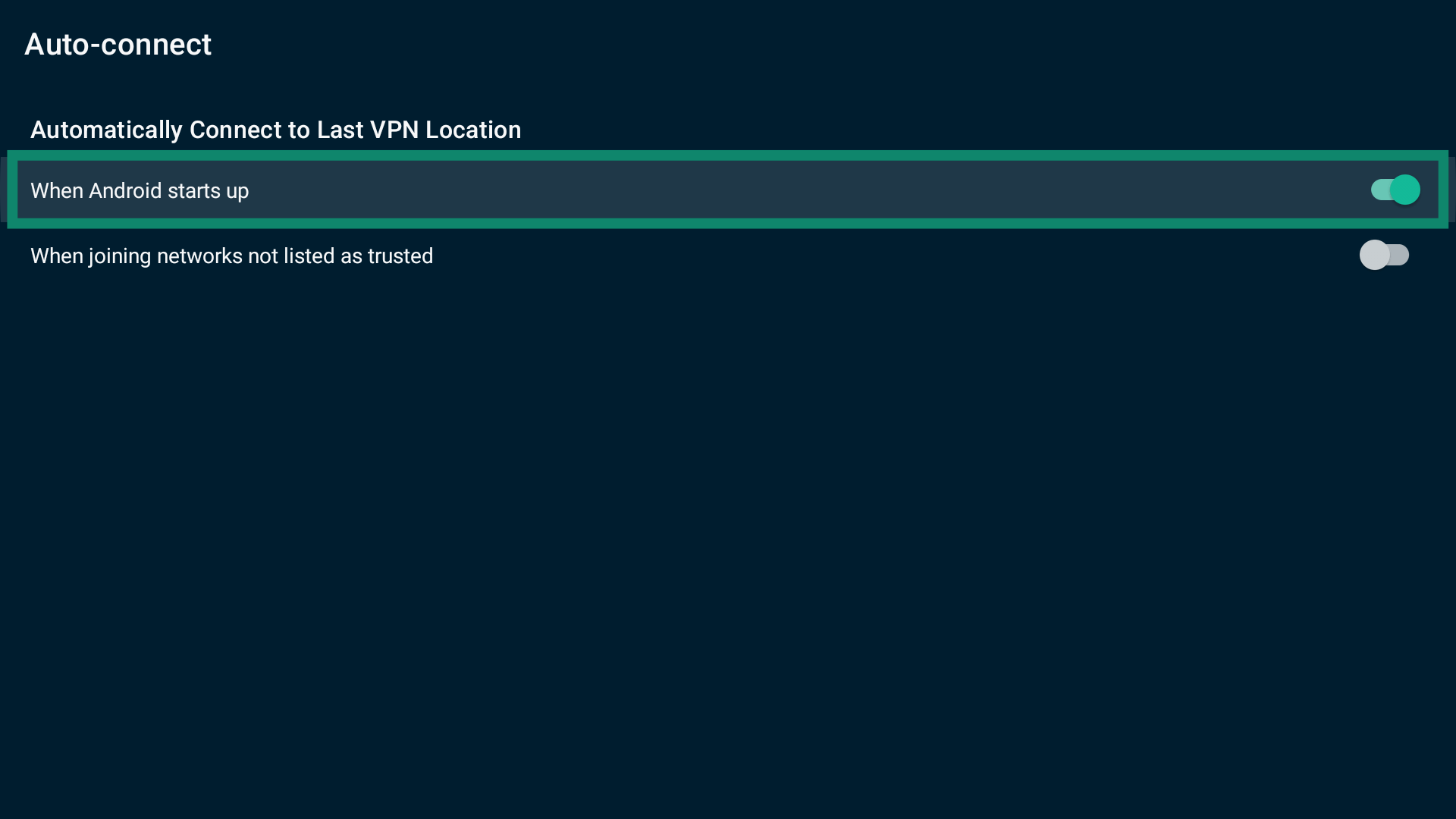
When joining networks not listed as trusted
If you want ExpressVPN to auto-connect when your device joins untrusted networks:
- Toggle When joining networks not listed as trusted on.

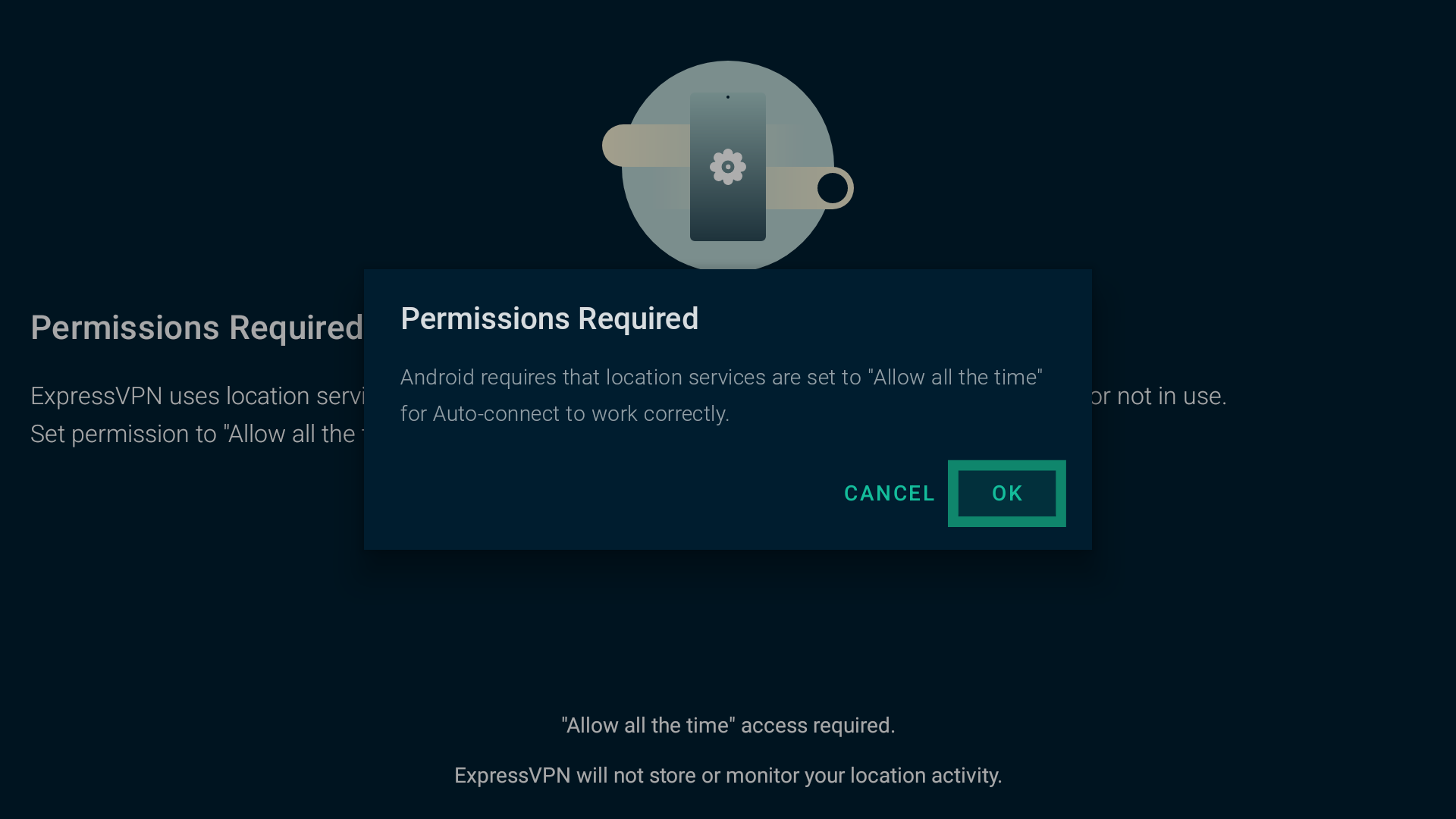
- The ExpressVPN app requires location permissions to detect untrusted networks. Select OK to continue.

- Select GRANT PERMISSIONS.

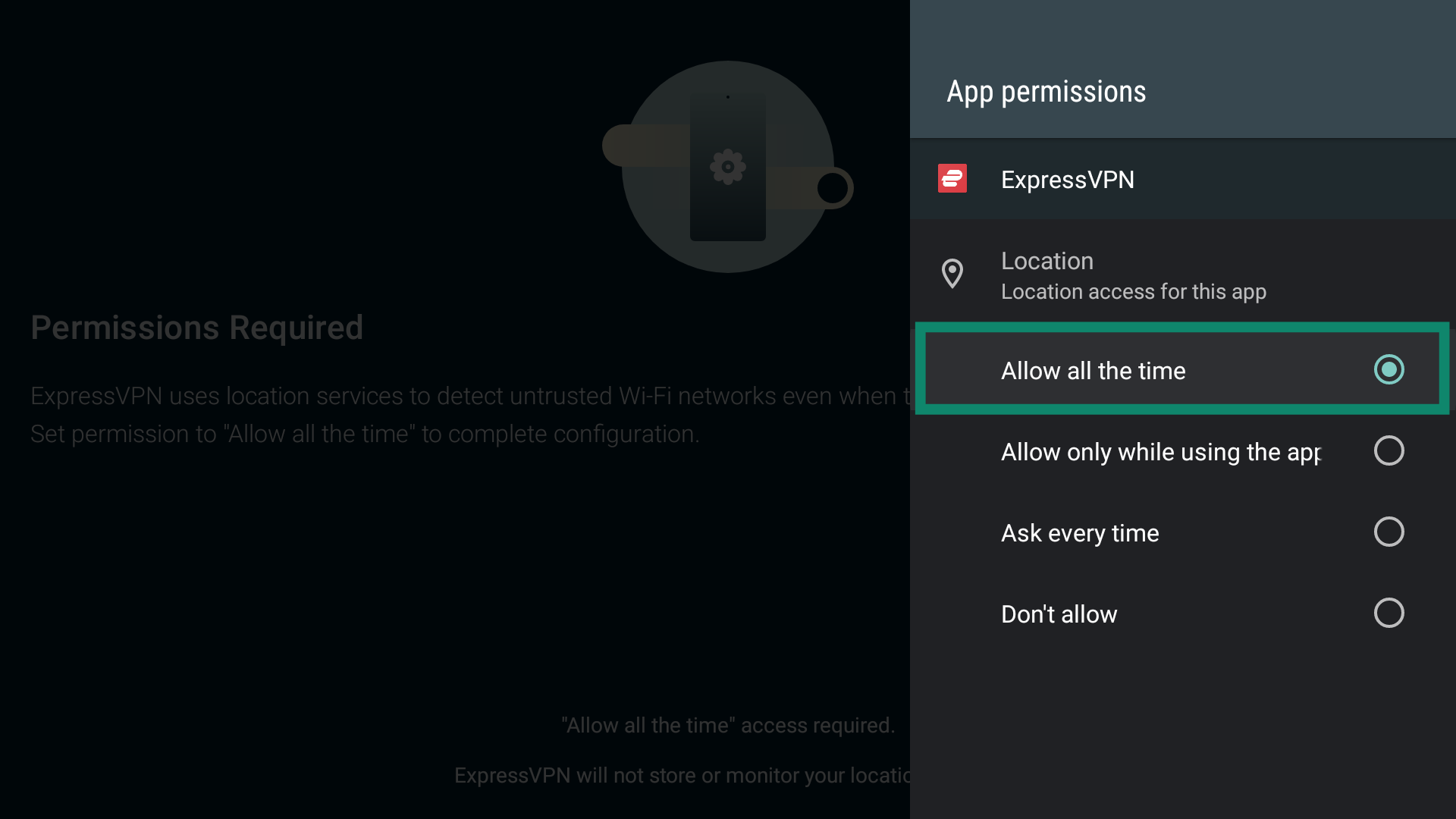
- Next, select While using the app.

- Select OK to proceed.
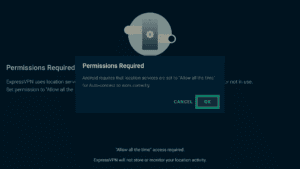
- Select Allow all the time.

- When done, press the back button on your remote to return to the auto-connect settings.
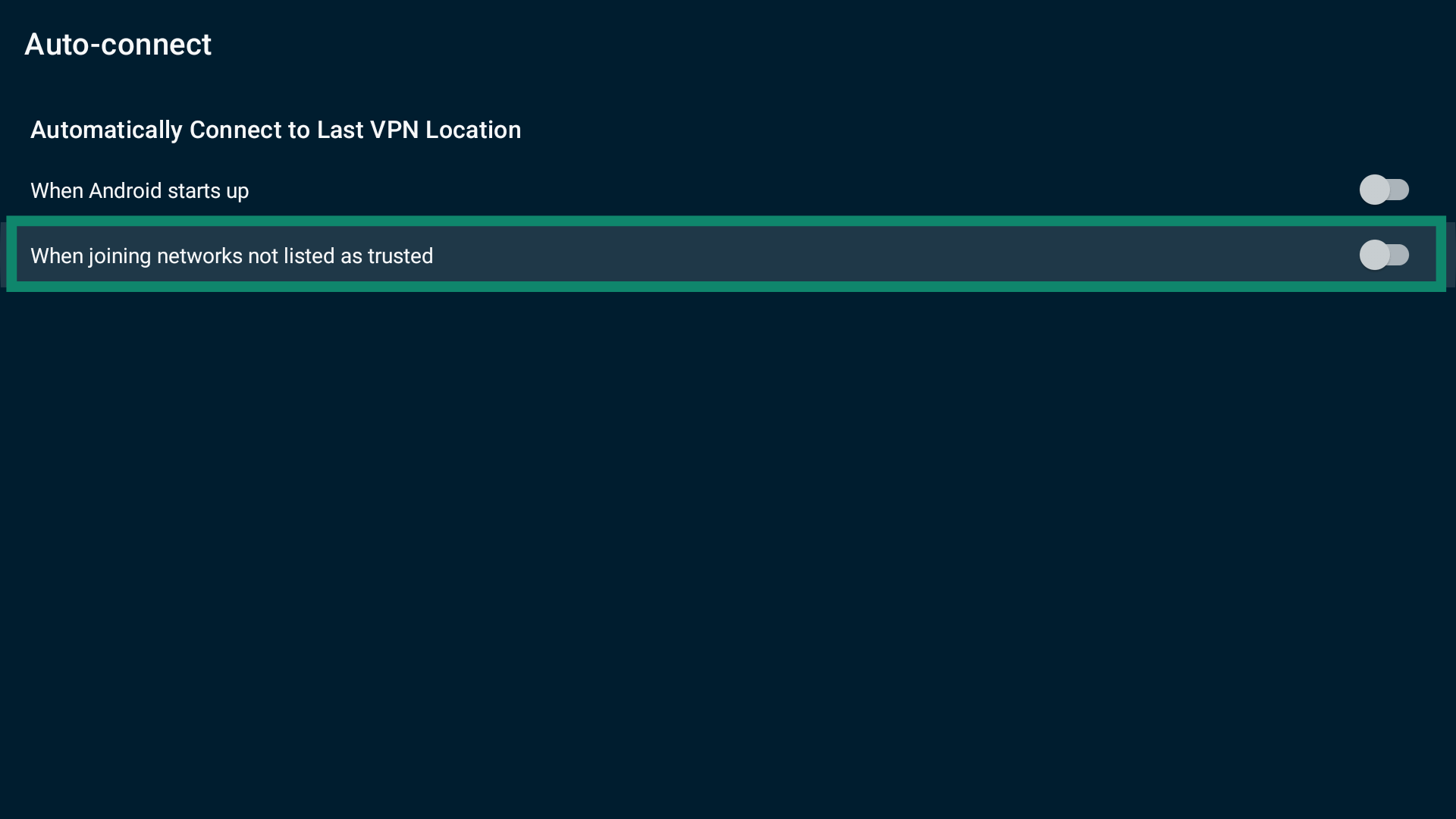
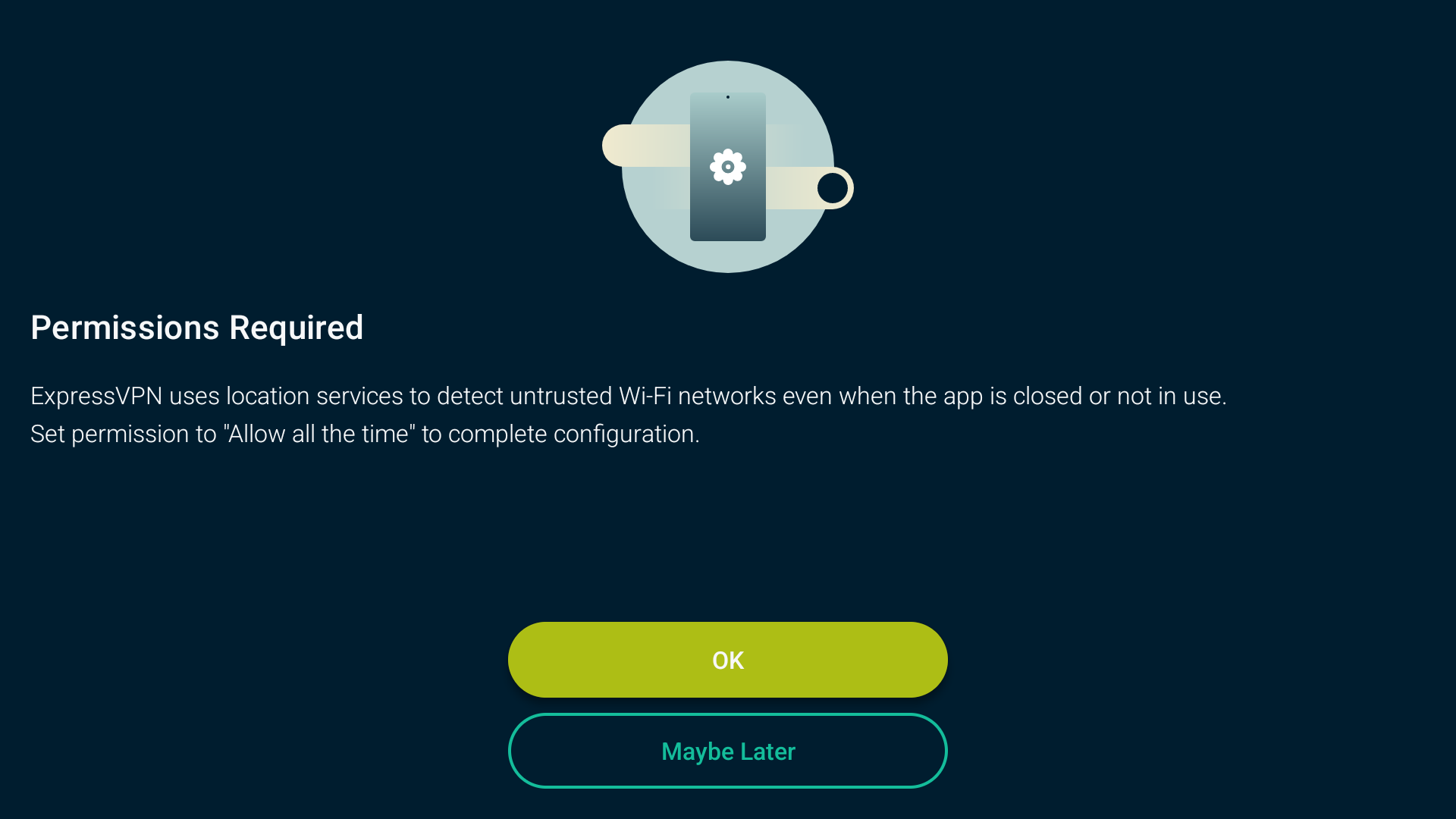
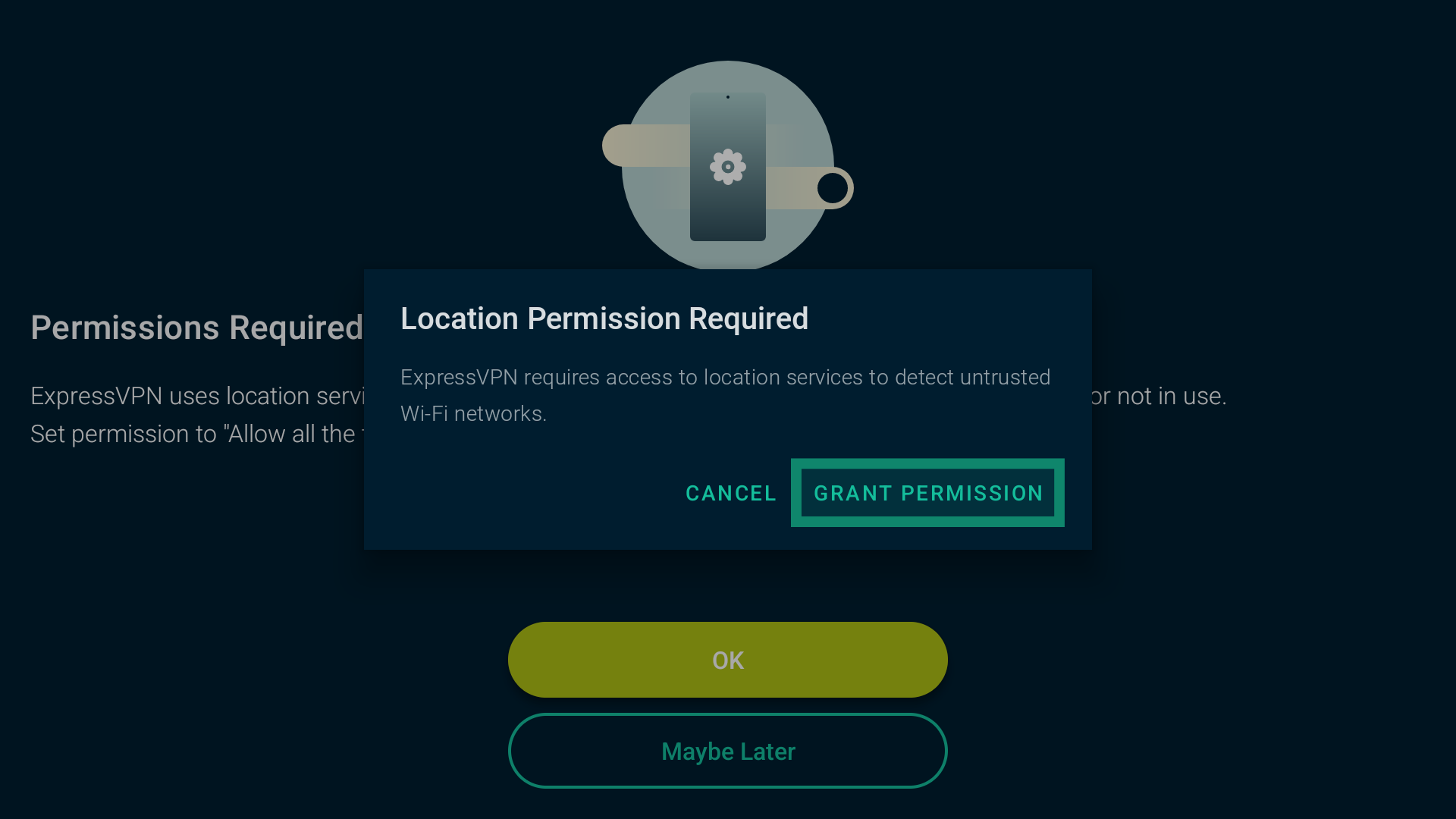
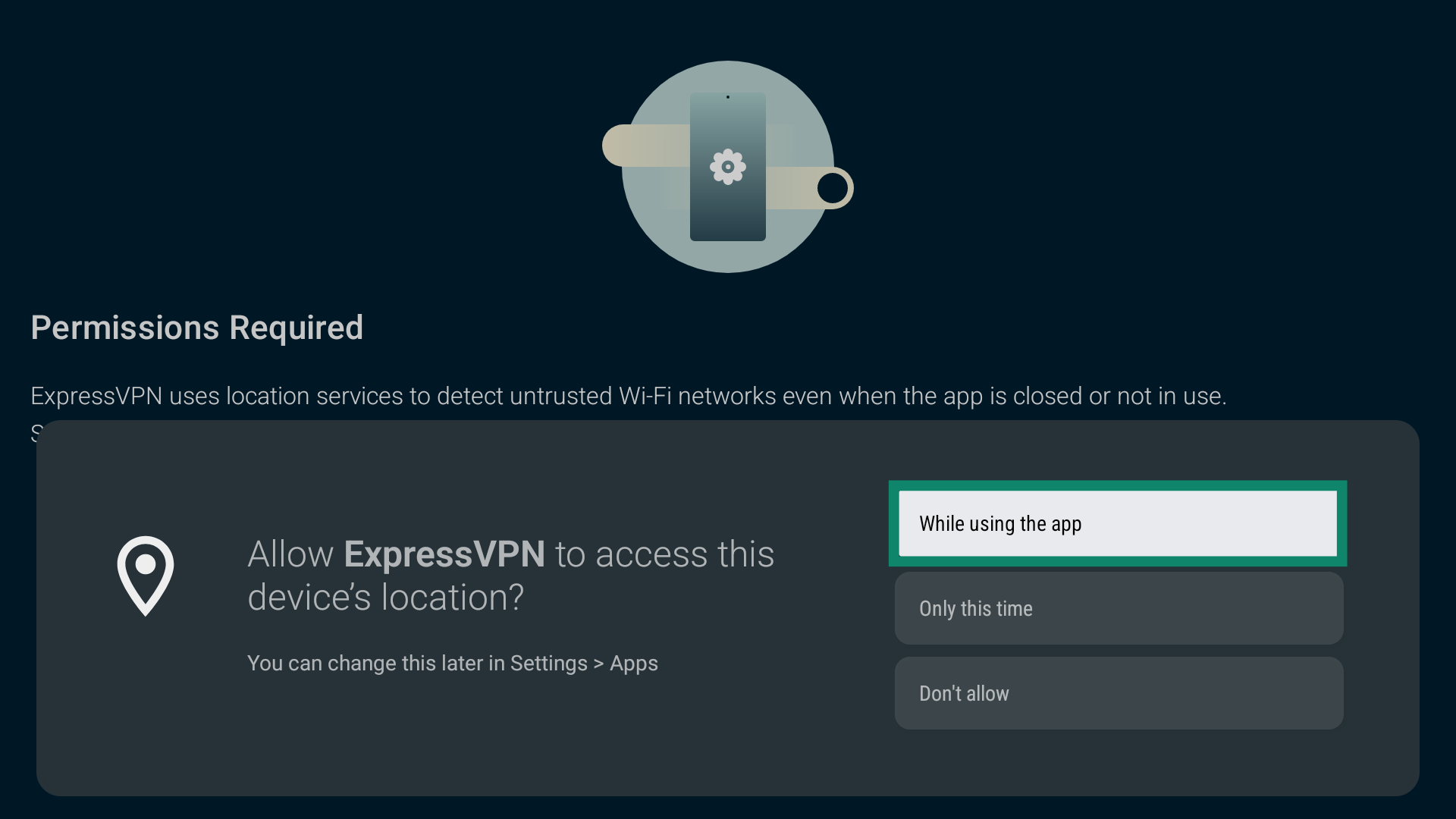
You will see a list of Current Networks. This includes networks your Android TV is currently connected to. By default, these networks are considered Untrusted.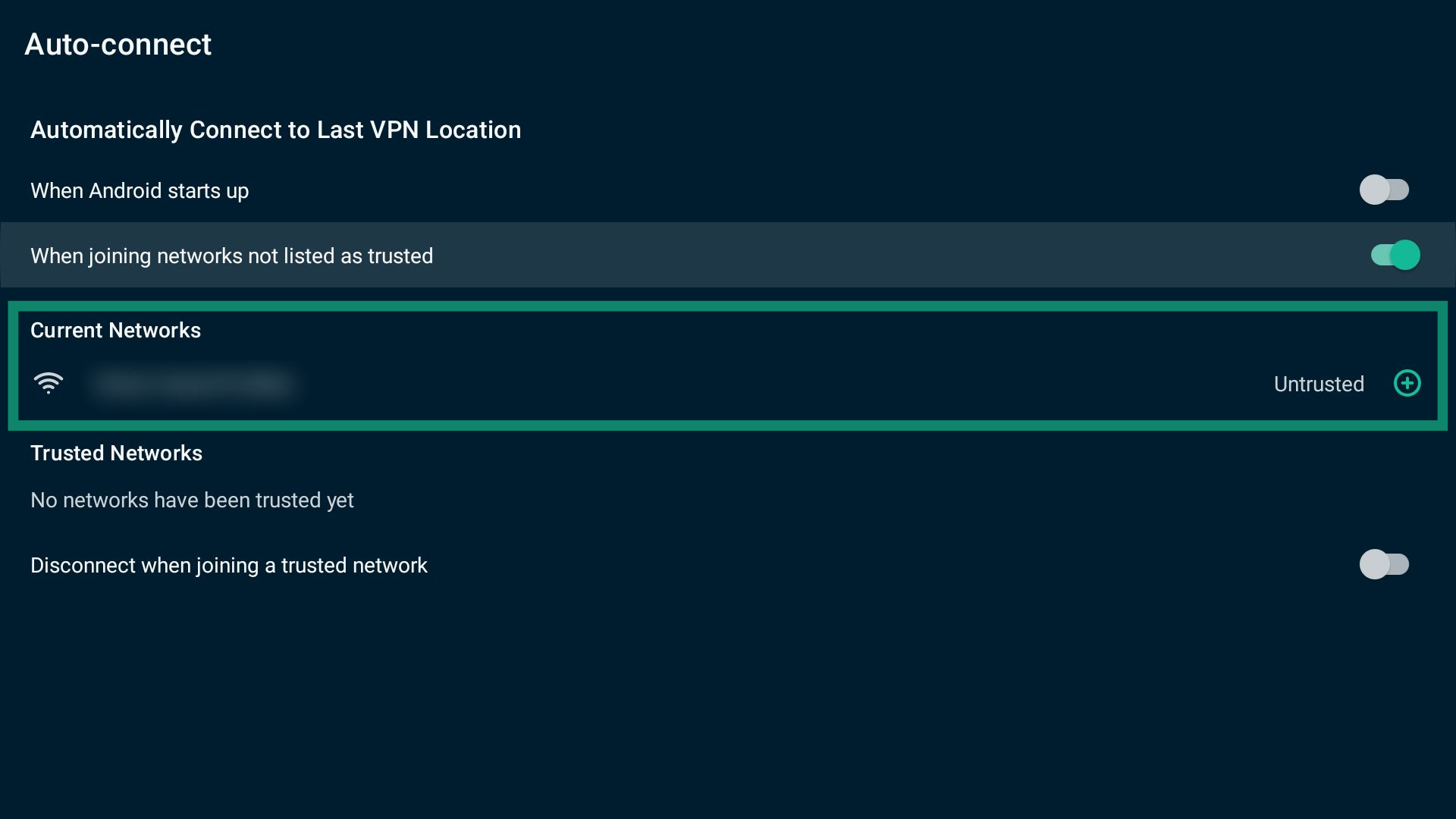
To add a network to the the Trusted Networks list, select next to the network you want to list as trusted.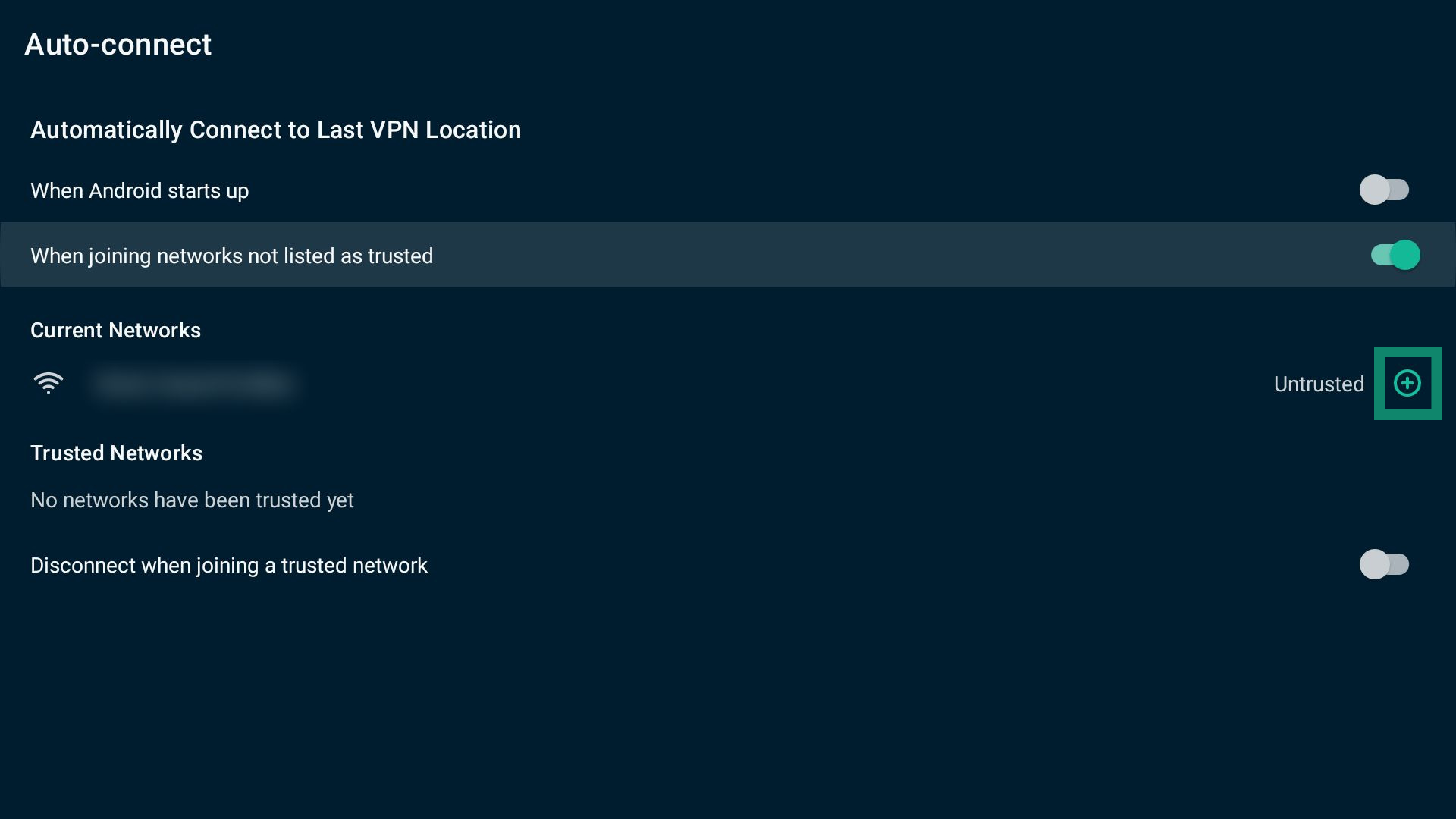
To remove a network from the Trusted Networks list, select next to the network you want to remove.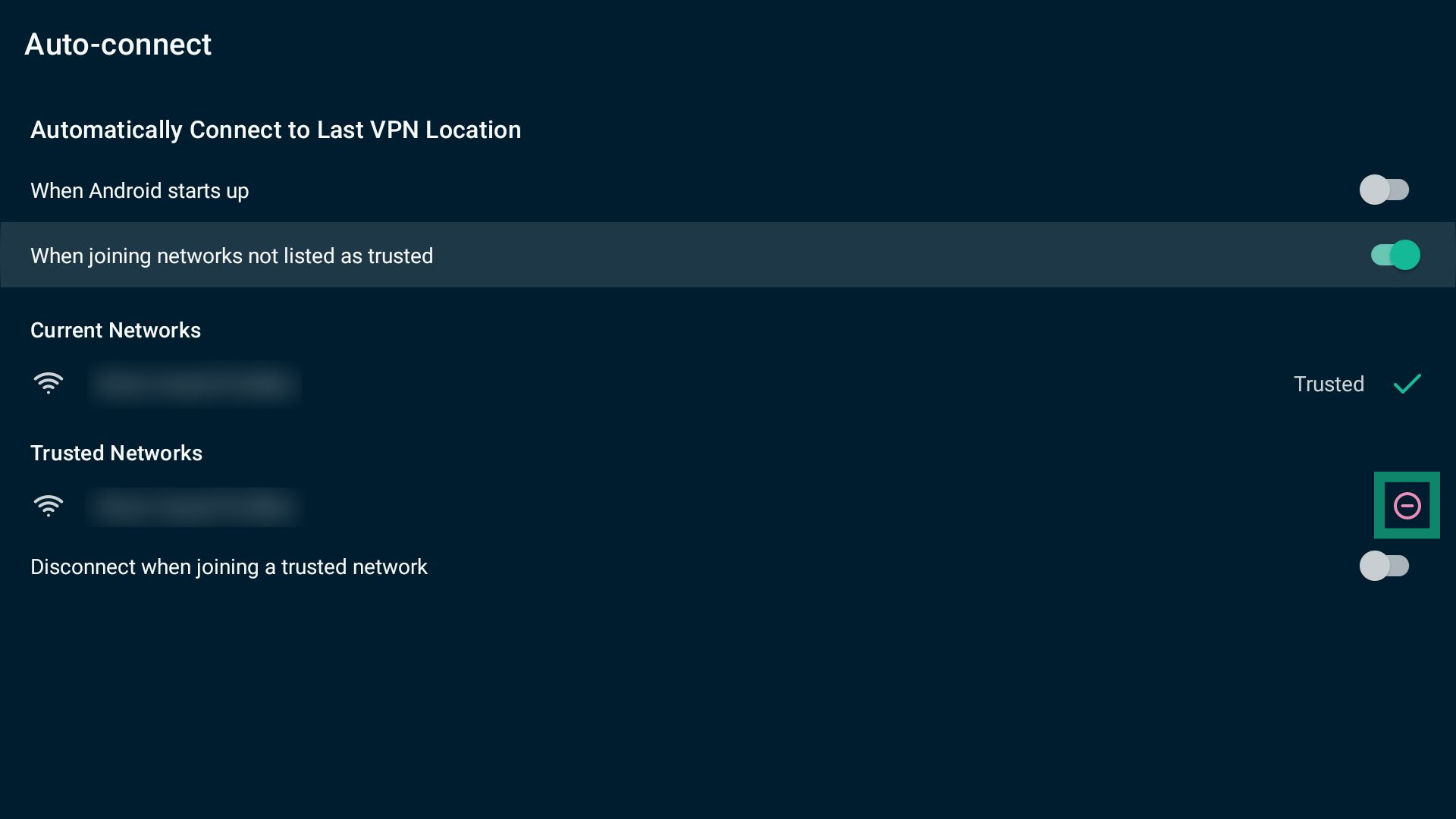
To disconnect the VPN when joining a trusted network, toggle Disconnect when joining a trusted network on.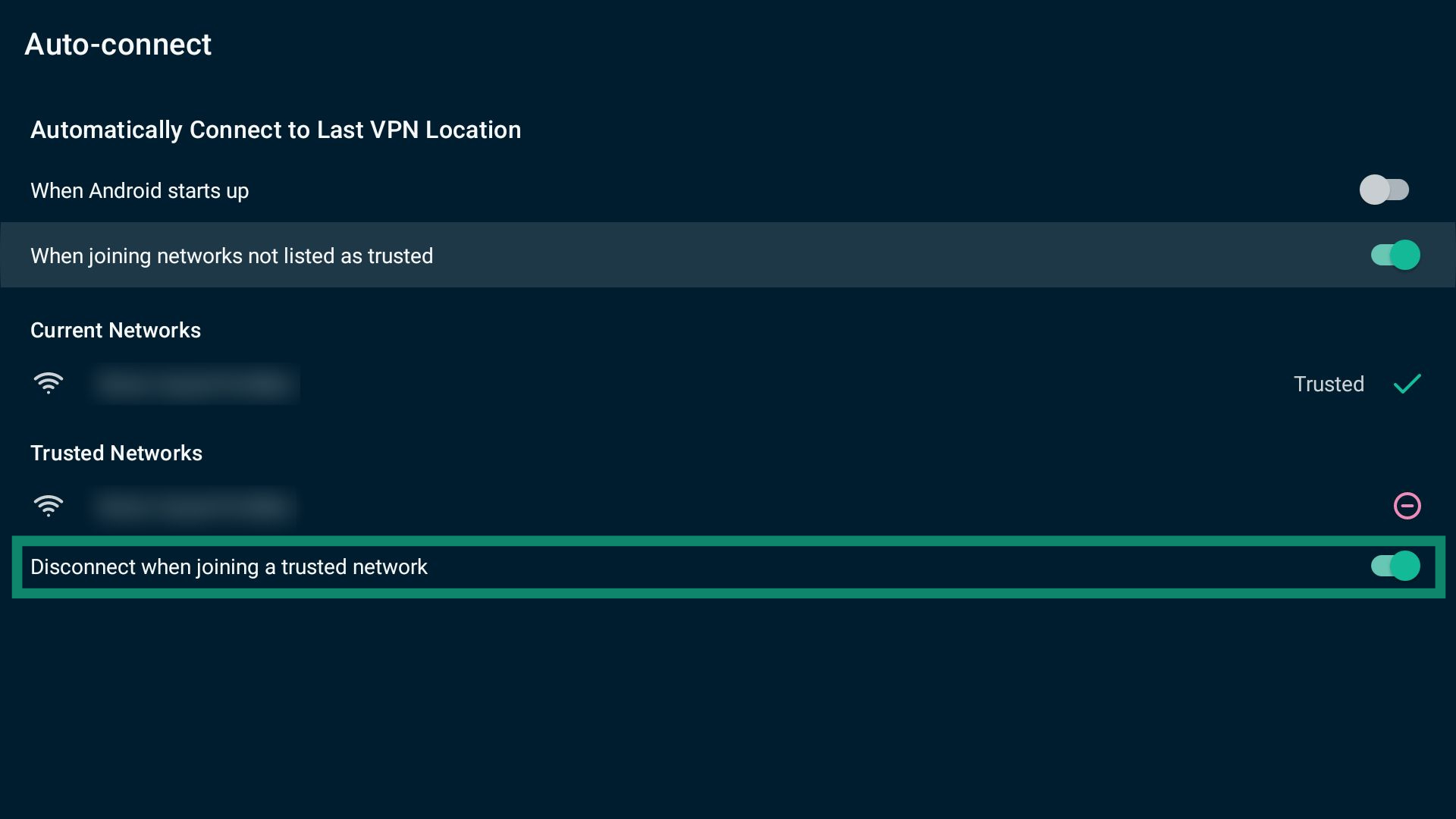
Note: You can modify auto-connect settings both when connected to or disconnected from ExpressVPN.
Need help? Contact the ExpressVPN Support Team for immediate assistance.
Contact support
If you experience issues while using ExpressVPN or have questions, you can contact the support team via in-app settings.
To contact the ExpressVPN support team:
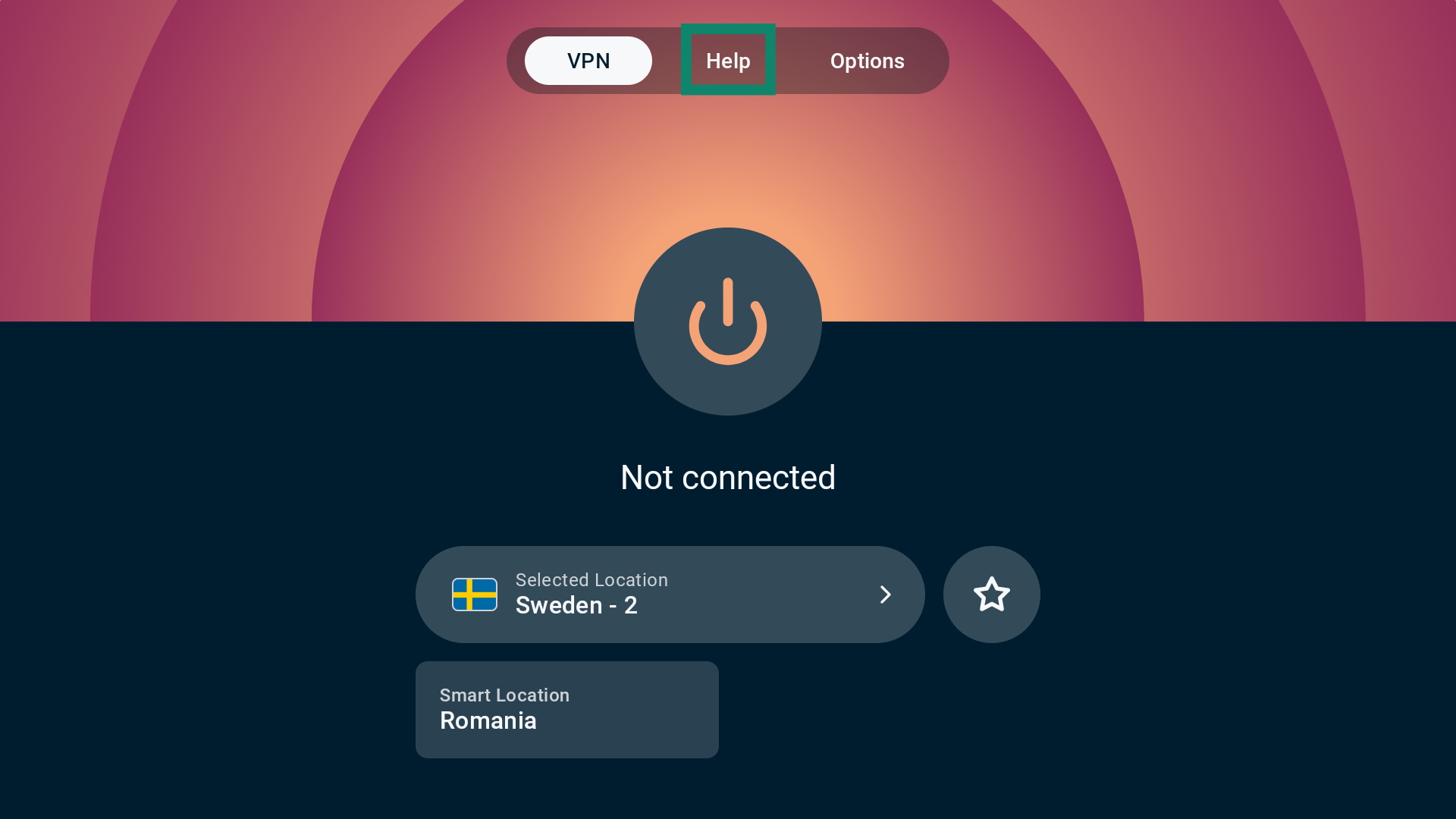
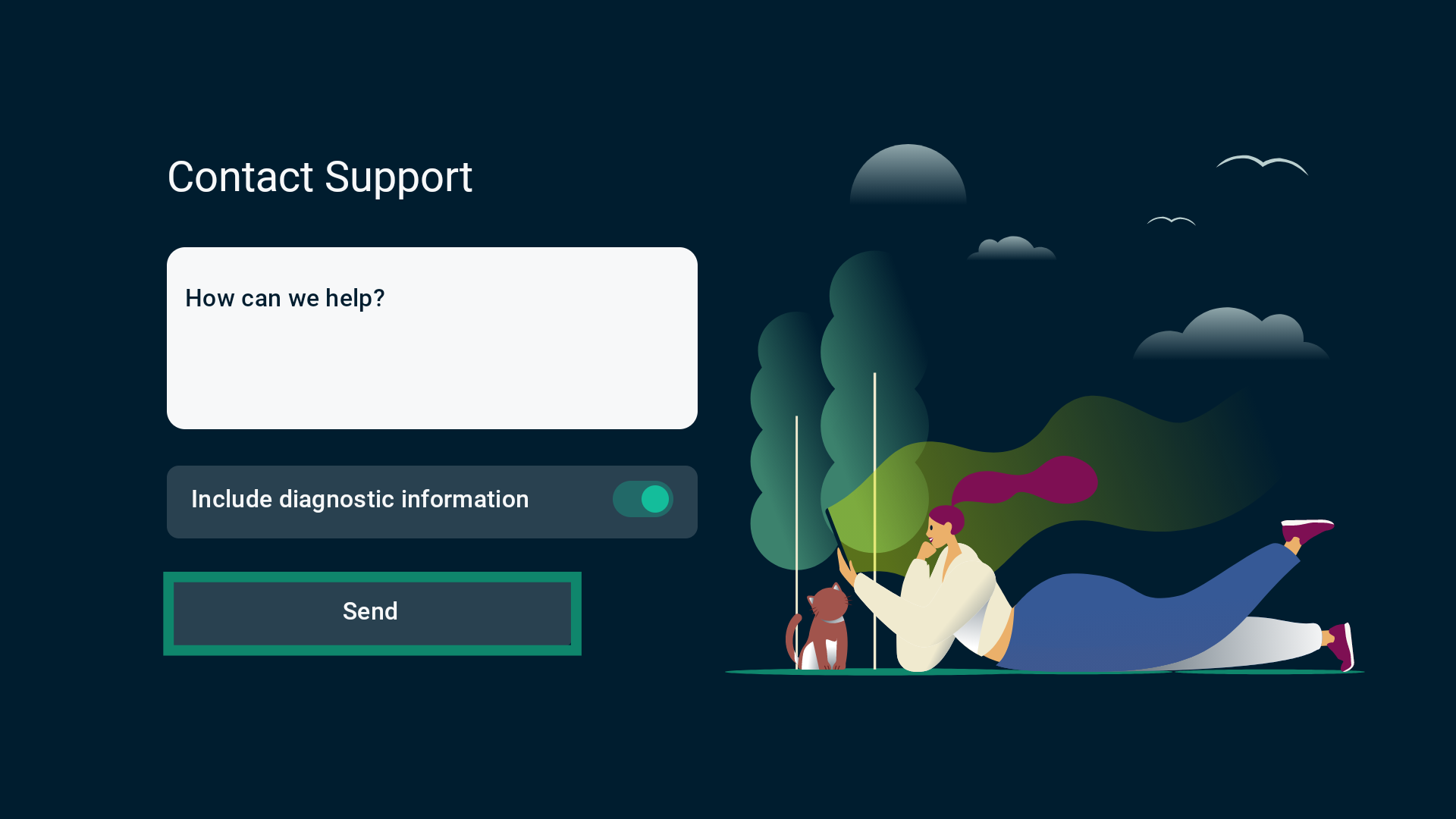
- In the VPN tab, select Help.

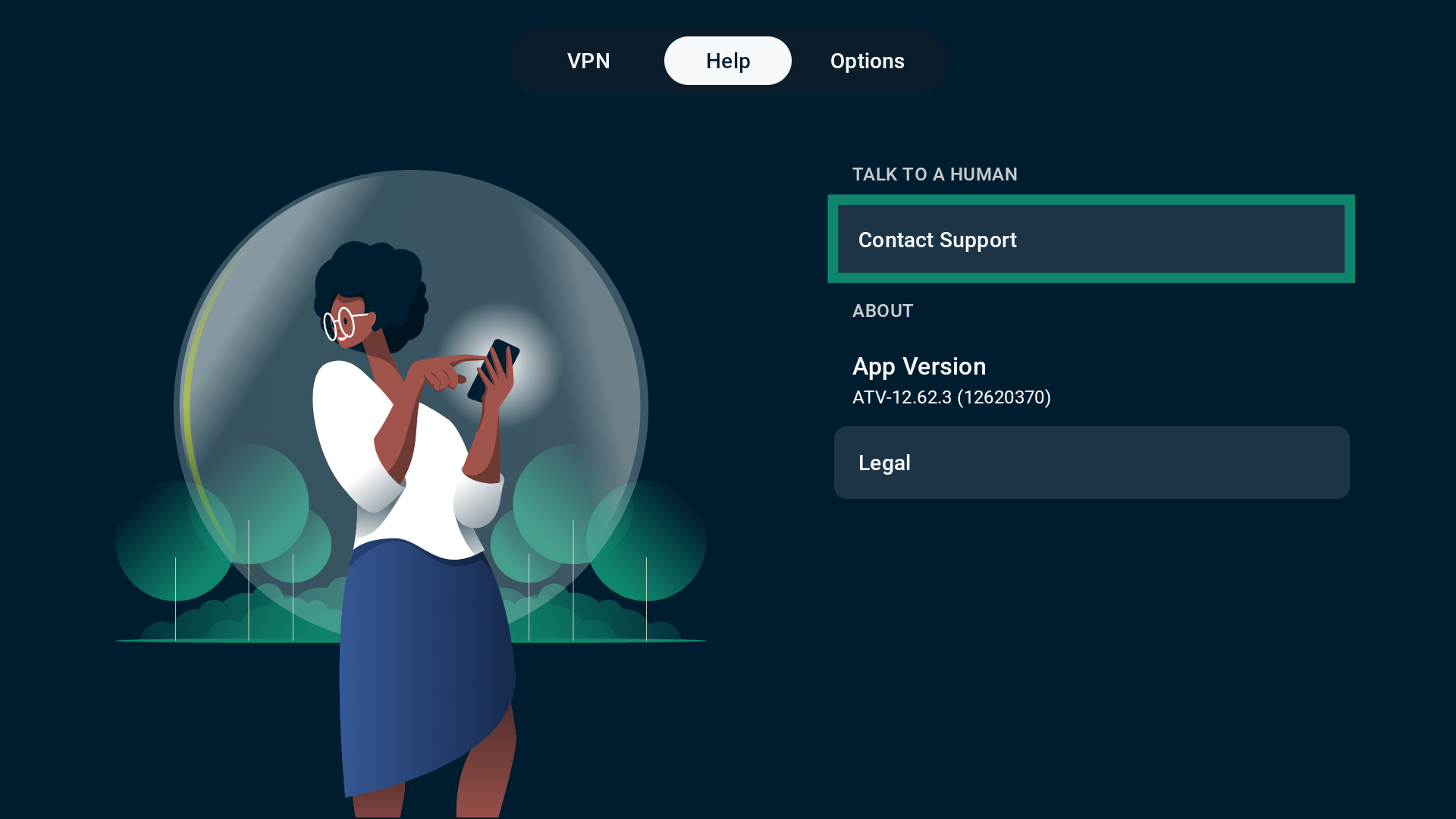
- Next, select Contact Support.

- Enter your support request and select Send.

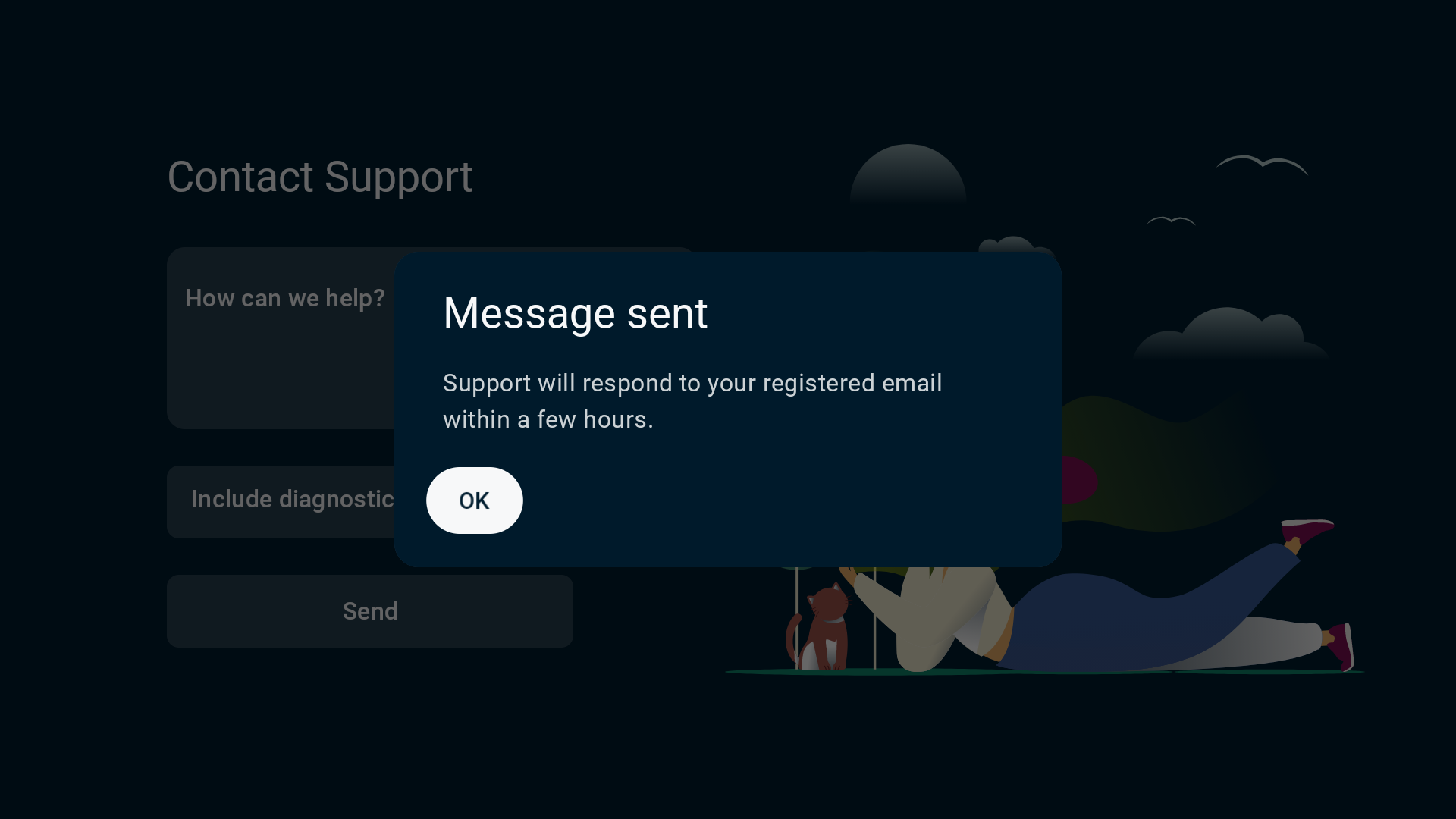
- If successfully done, the app will show a Message sent notification. The support team will reply to your registered email address.

Need help? Contact the ExpressVPN Support Team for immediate assistance.
Uninstall ExpressVPN from your Android TV
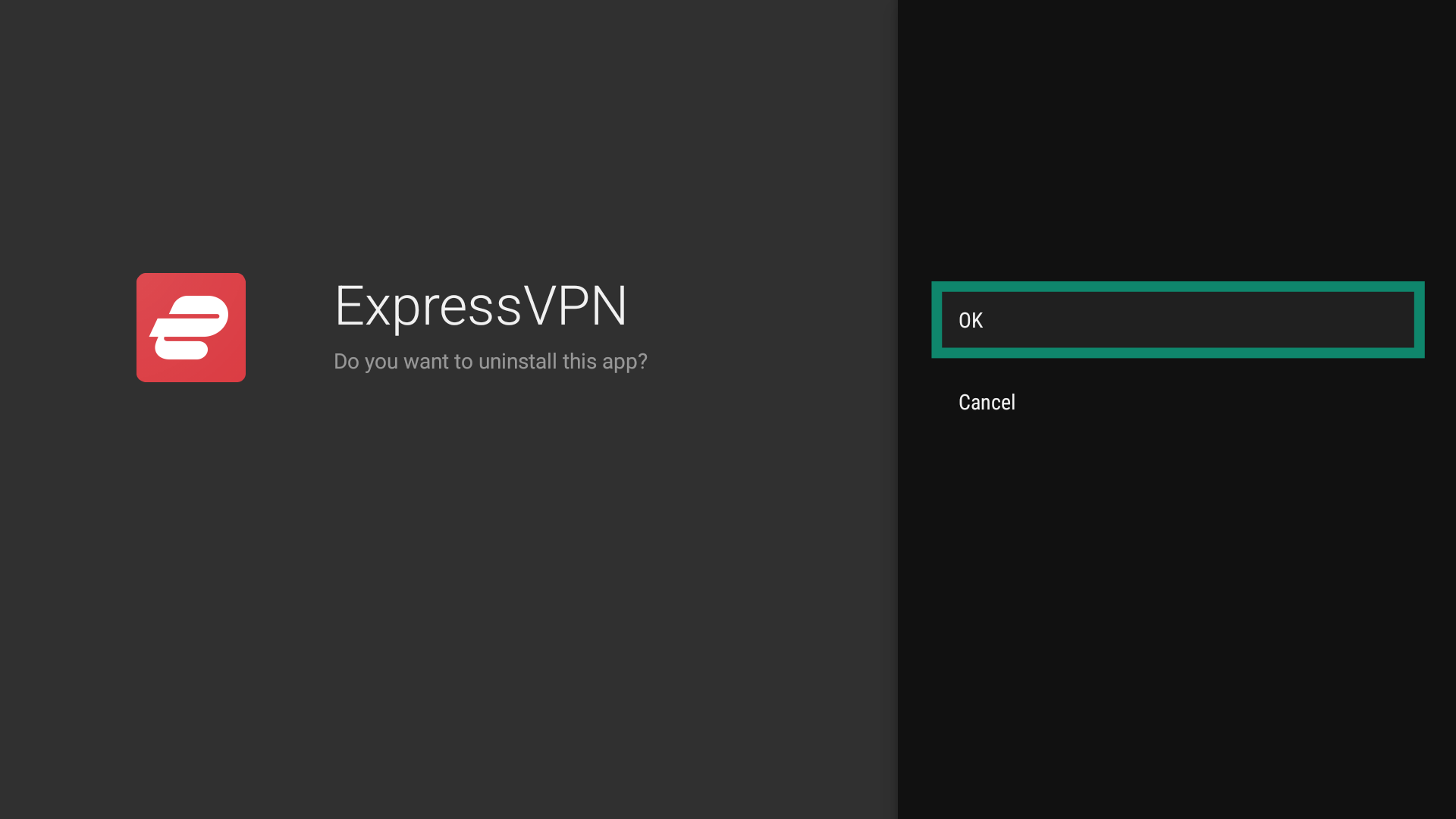
To uninstall the ExpressVPN app from your Android TV:
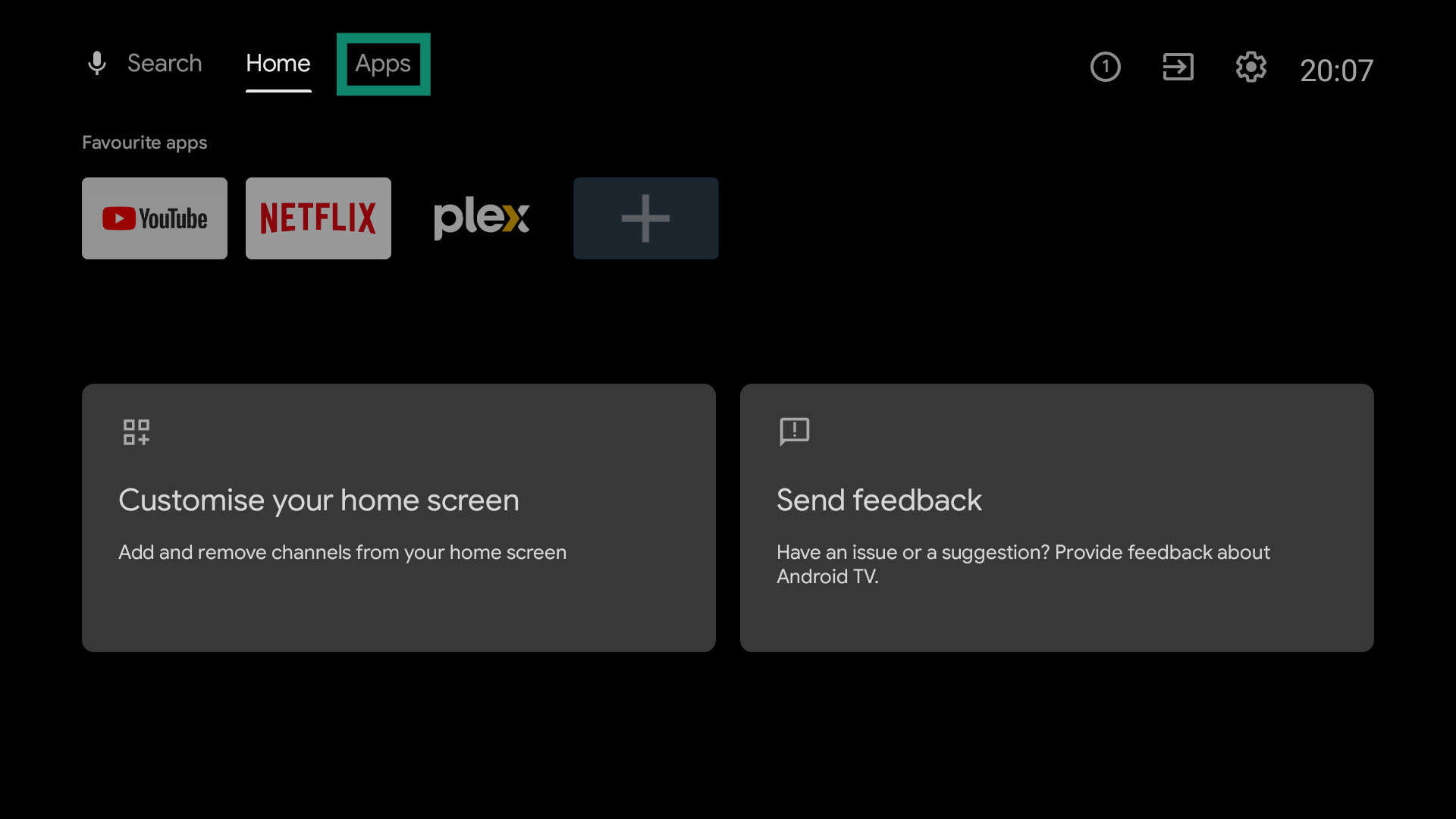
- On your home screen, select Apps.

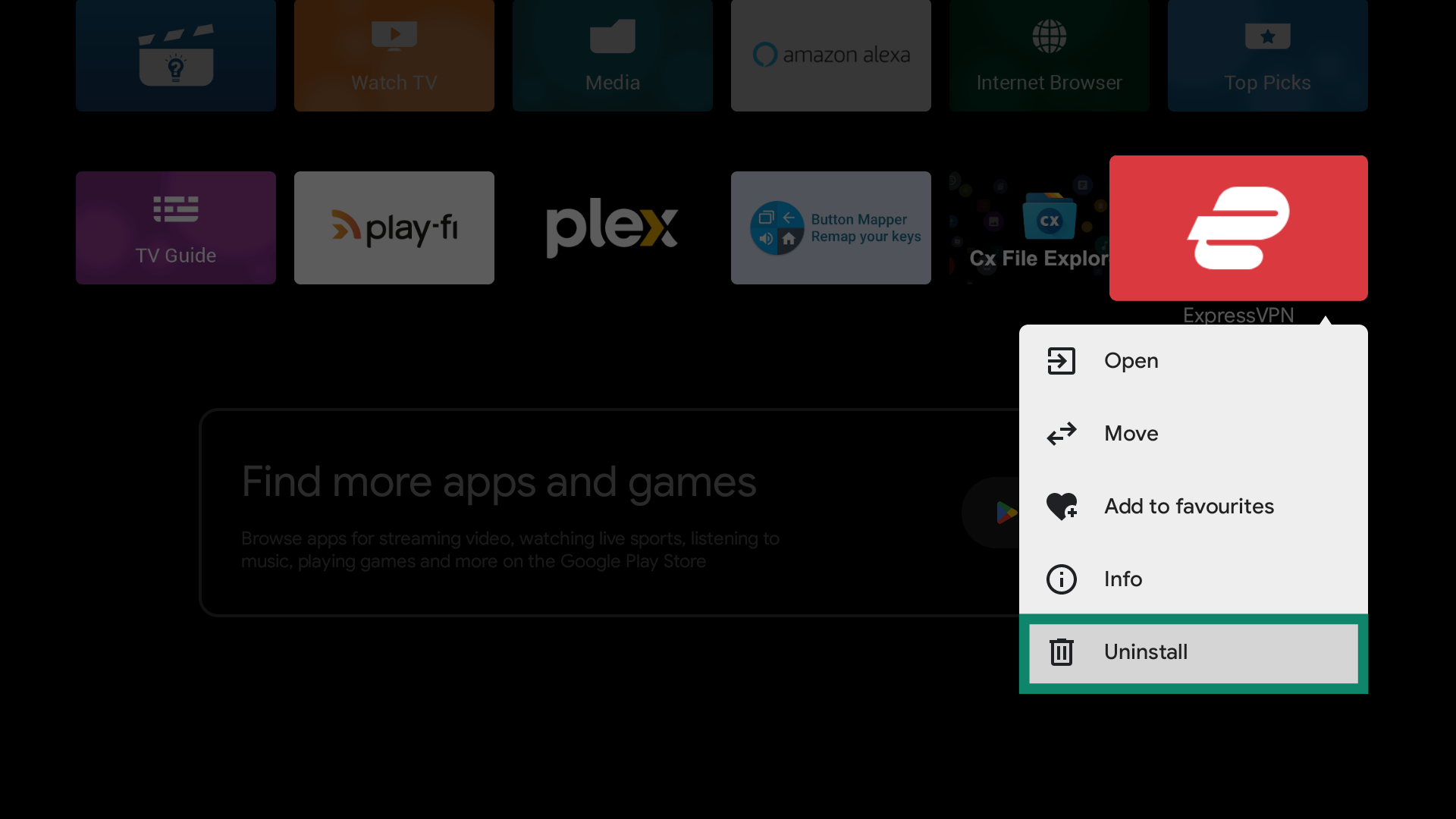
- Long-press the ExpressVPN icon and select Uninstall.

- Select OK to confirm. The app will be automatically removed from your device.

Need help? Contact the ExpressVPN Support Team for immediate assistance.