




Need a DNS for your Smart TV?
Try ExpressVPN's DNS Now
One ExpressVPN account. All devices.
Get Apps for FreeThis tutorial will show you how to set up MediaStreamer on your Samsung Smart TV. MediaStreamer can enhance your streaming experience online but does not provide the encryption benefits of a VPN.
Note: The steps in this tutorial were tested on a Samsung Crystal UHD DU8000 4K Smart TV. The steps to changing the DNS should be similar on most Samsung Smart TVs.
Jump to…
What is MediaStreamer?
1. Register your IP address on the ExpressVPN website
2. Get your MediaStreamer IP address
3. Access network status and IP settings
4. Configure the DNS servers on your Samsung Smart TV
5. Check if your connection is successful
6. Restore DNS settings
7. Cast or mirror from your device to Samsung TV
What is MediaStreamer?
MediaStreamer is a DNS service designed to improve your streaming experience. If your device doesn’t natively support VPNs, MediaStreamer is a great alternative for streaming.
To use MediaStreamer smoothly, you must register your IP address on the ExpressVPN website. This allows ExpressVPN to recognize your IP address and grant your device access to MediaStreamer. Alternatively, you can get your DDNS hostname and register the hostname on the ExpressVPN website.
Note: MediaStreamer is not a VPN and does not offer the privacy and security benefits of a VPN. You cannot change locations with MediaStreamer.
If you have an Android device or an iOS device and an AirPlay 2-compatible Samsung TV, you can mirror content to your Samsung TV without using MediaStreamer.
1. Register your IP address on the ExpressVPN website
- Open your ExpressVPN account in your browser and sign in.
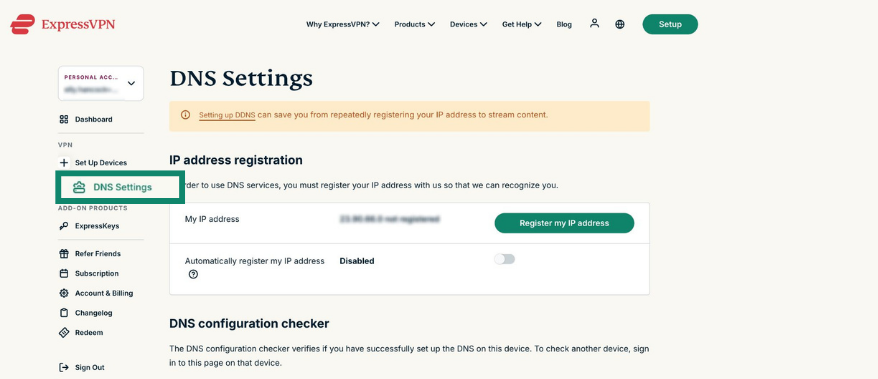
- In the left sidebar, click DNS Settings.
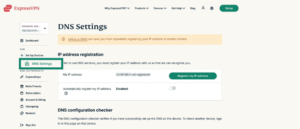

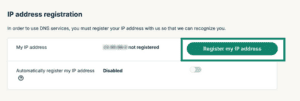
- Under IP address registration, click Register my IP address. If it already says registered next to your IP address, there is no need to select this option again.

- Toggle Automatically register my IP address on. This is recommended as it automatically tracks changes to your IP address.
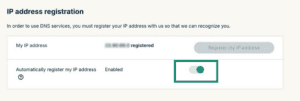
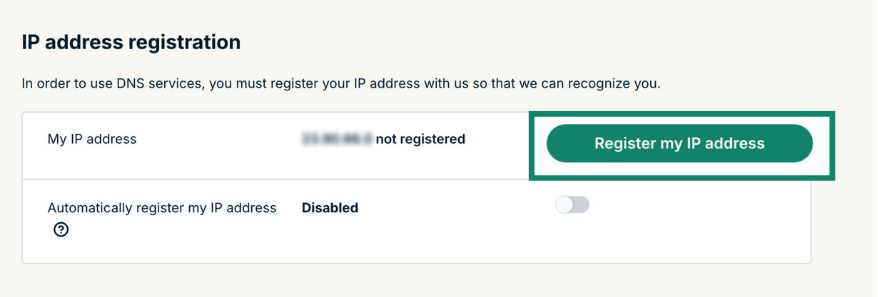
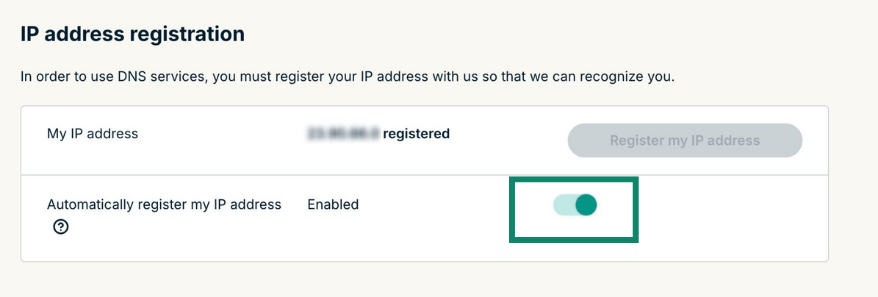
If you have enabled Automatically register your IP address, you can keep your IP address updated by using the ExpressVPN app on your device or signing in to your ExpressVPN account occasionally.
Need help? Contact the ExpressVPN Support Team for immediate assistance.
2. Get your MediaStreamer IP address
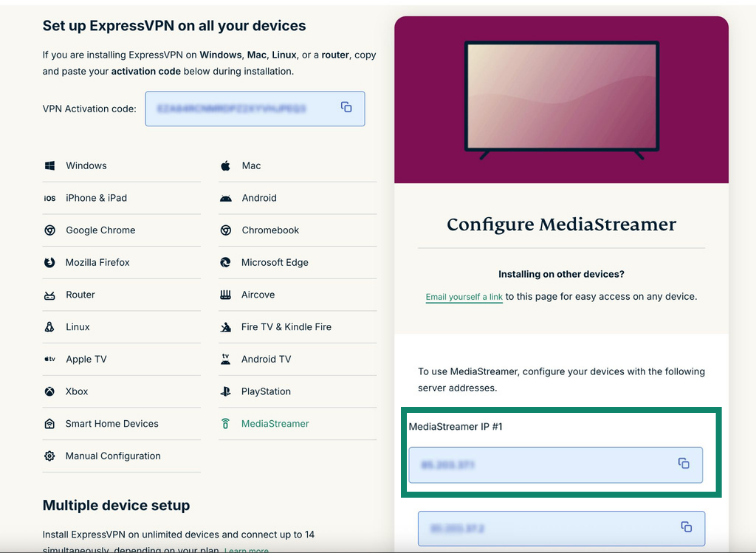
- Go to the ExpressVPN setup page and sign in.
- On the right, you will find the MediaStreamer DNS server IP address.

- Keep this browser window open. You will need this information for the setup later.
Need help? Contact the ExpressVPN Support Team for immediate assistance.
3. Access network status and IP settings
- With your Samsung Smart TV on, press the Settings/123/Color button on your remote.
- Select Settings (

 ).
). - Go to Wi-Fi and press the down button on your remote. Then select Network Status.
- Wait for the TV to check your internet connection.
- Once completed, the TV should list a few options on the screen. Select IP Settings.
Need help? Contact the ExpressVPN Support Team for immediate assistance.
4. Configure your DNS servers on your Samsung Smart TV
- In the IP Settings menu, select DNS setting.
- Select Enter manually.
- Enter the MediaStreamer IP addresses you found above.
- Once you have entered the new DNS address, select Done > OK.
Need help? Contact the ExpressVPN Support Team for immediate assistance.
5. Check if your connection is successful
Wait while the TV checks your internet connection again.
If you did not enter the DNS server address correctly, your TV will notify you that there is no internet connection. Repeat Step 4 if so.
If you entered the DNS server address correctly, you should see the following message: “You are connected to the Internet.”
Select Close.
Need help? Contact the ExpressVPN Support Team for immediate assistance.
6. Restore DNS settings
To restore your original DNS settings, repeat Step 4 but select Get automatically in the DNS settings.
Need help? Contact the ExpressVPN Support Team for immediate assistance.
7. Cast or mirror from your device to Samsung TV
Casting and mirroring are wireless technologies that allow you to stream content from your device to a Samsung TV. These options are commonly available on Android and Windows devices.
You can also cast or mirror content from iOS or macOS to Samsung TVs that support AirPlay 2.
Alternatively, you can connect your Samsung TV to a VPN router or a virtual VPN router. Under this option, you do not need to cast or mirror content from your device to your Samsung TV. You simply need a VPN-connected Samsung TV to stream the content.
Need help? Contact the ExpressVPN Support Team for immediate assistance.