




Need a VPN for Mac?
Get ExpressVPN Now
Love ExpressVPN? Want a free month?
Refer a Friend NowThis tutorial will show you how to set up ExpressVPN on Mac using the Tunnelblick GUI (graphical user interface). Tunnelblick is a free, open-source GUI (graphical user interface) for OpenVPN on macOS.
Not all ExpressVPN locations may be available for manually configured connections. To use the full list of VPN locations, use the app setup.
Prefer app setup? See the instructions for app setup for macOS 11 and above.
Jump to…
1. Find your ExpressVPN account credentials
2. Download and install Tunnelblick
3. Set up the VPN with Tunnelblick
4. Connect to a VPN server location
Disconnect from a VPN server location
1. Find your ExpressVPN account credentials
Go to the ExpressVPN setup page. If prompted, enter your ExpressVPN email and click Send Code.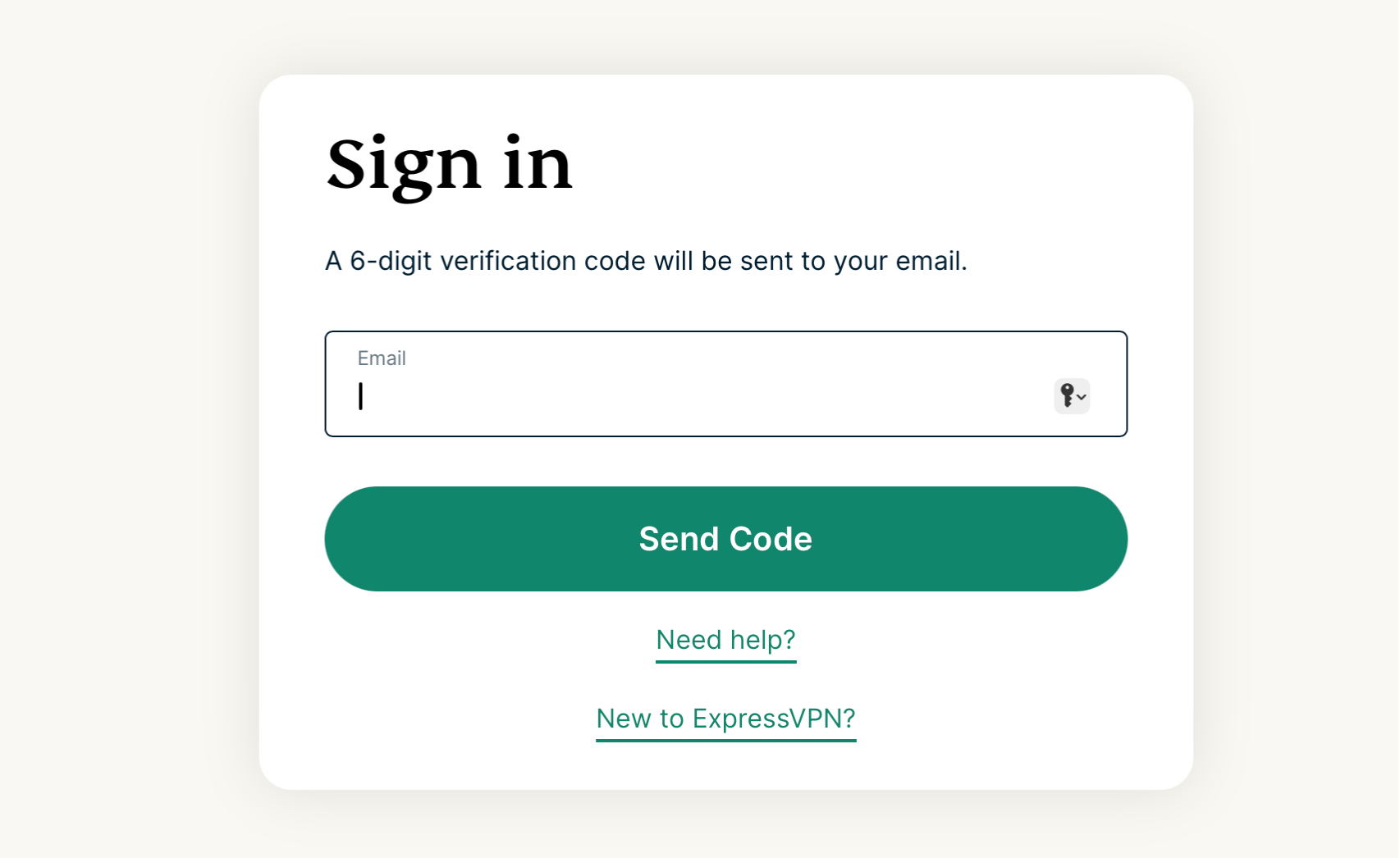
Enter the verification code that is sent to your email.
Click Advanced setup under Applications.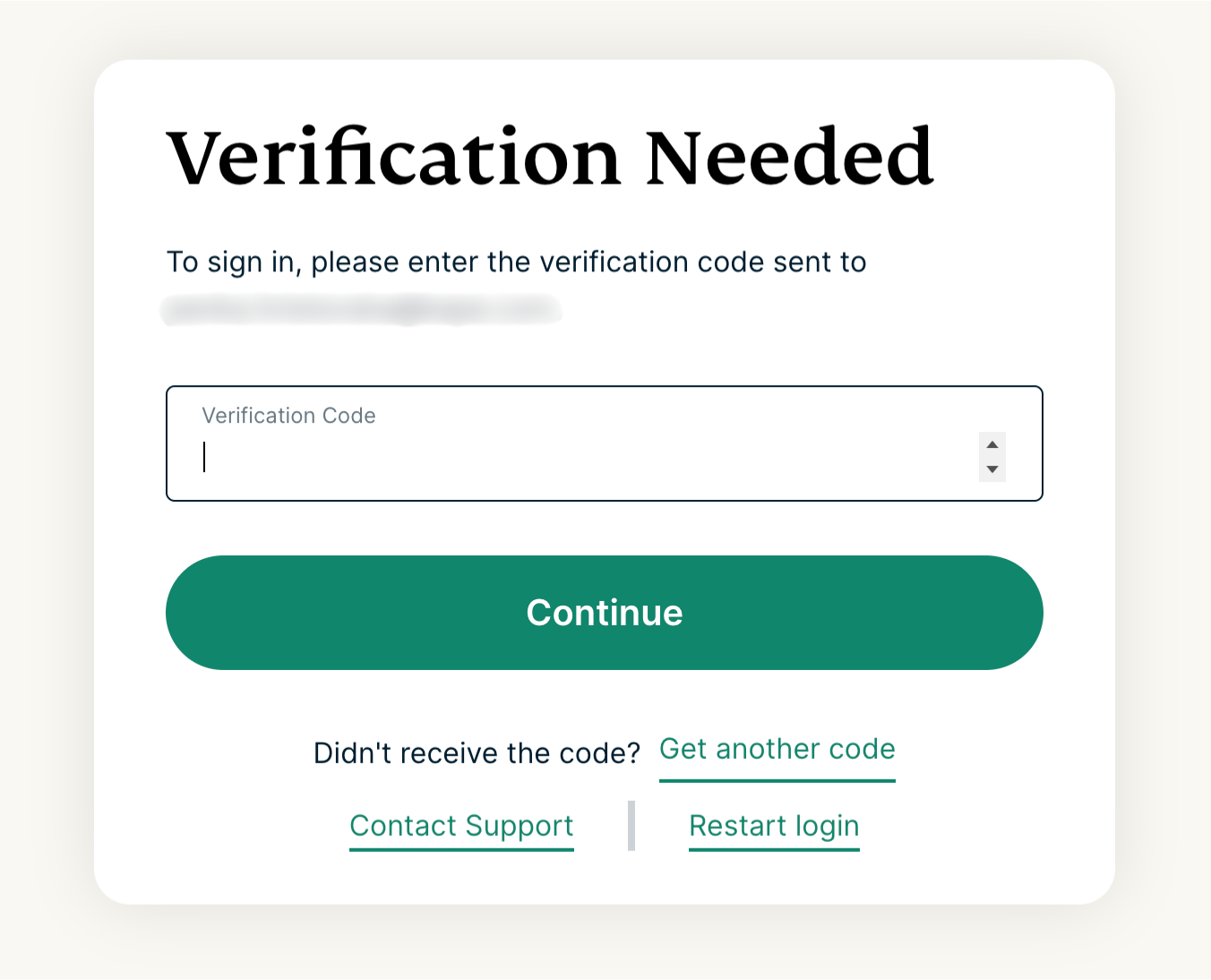
Click Manual configuration.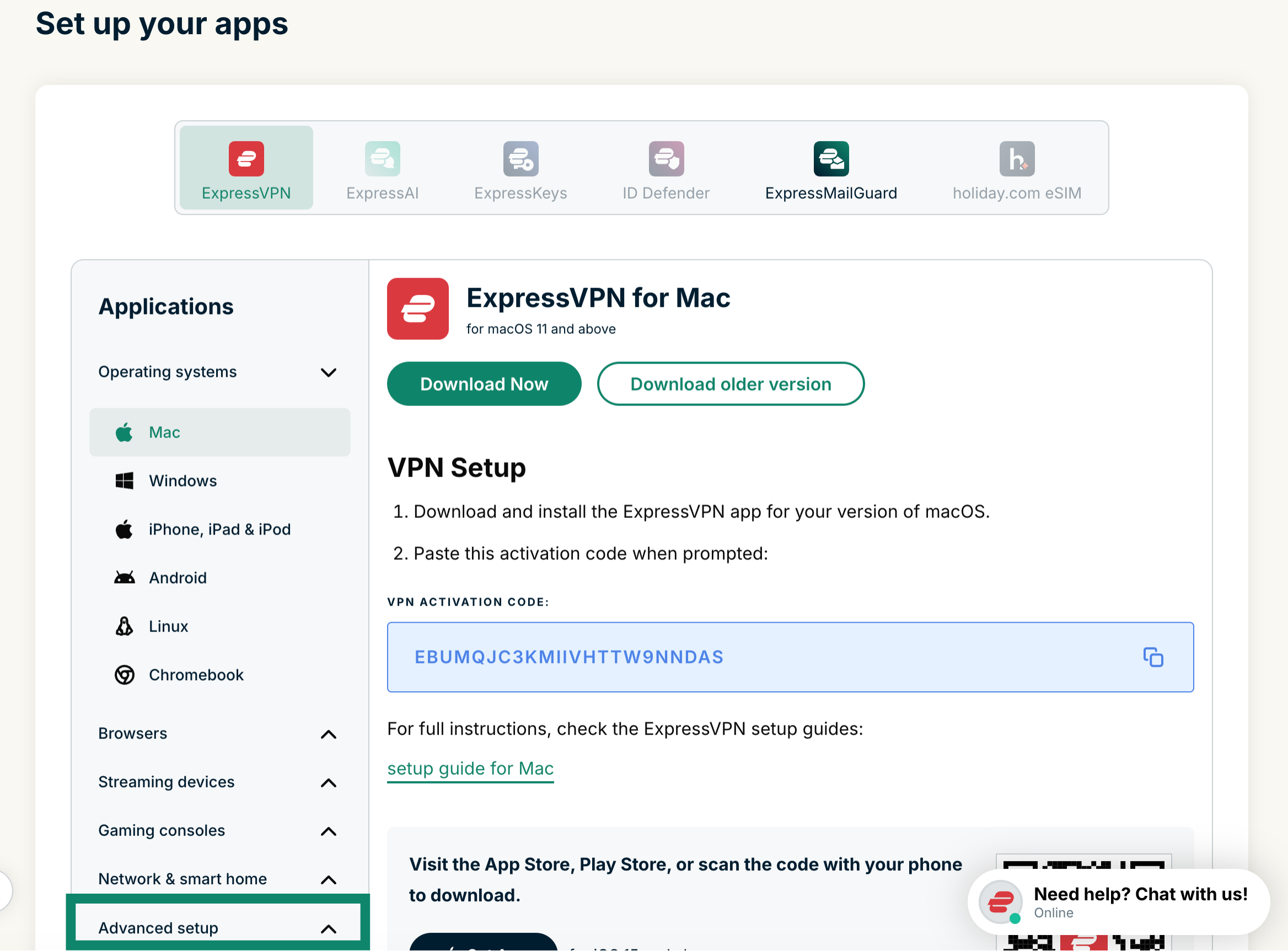 You’ll see your username and password on the right side under Setup in step 1.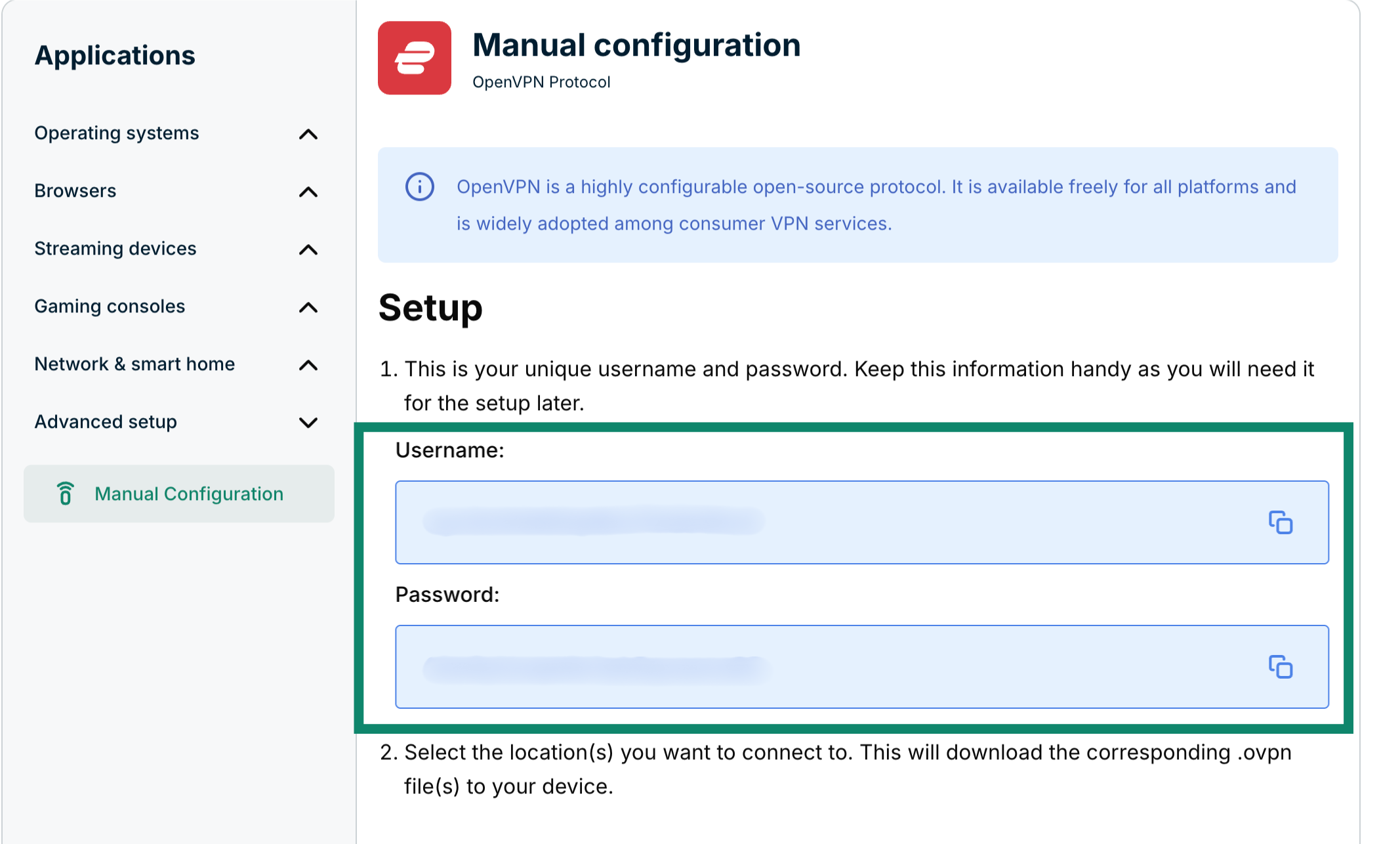
Scroll down to step 2 to see the available regions. Click a region to open a dropdown menu and see the available locations.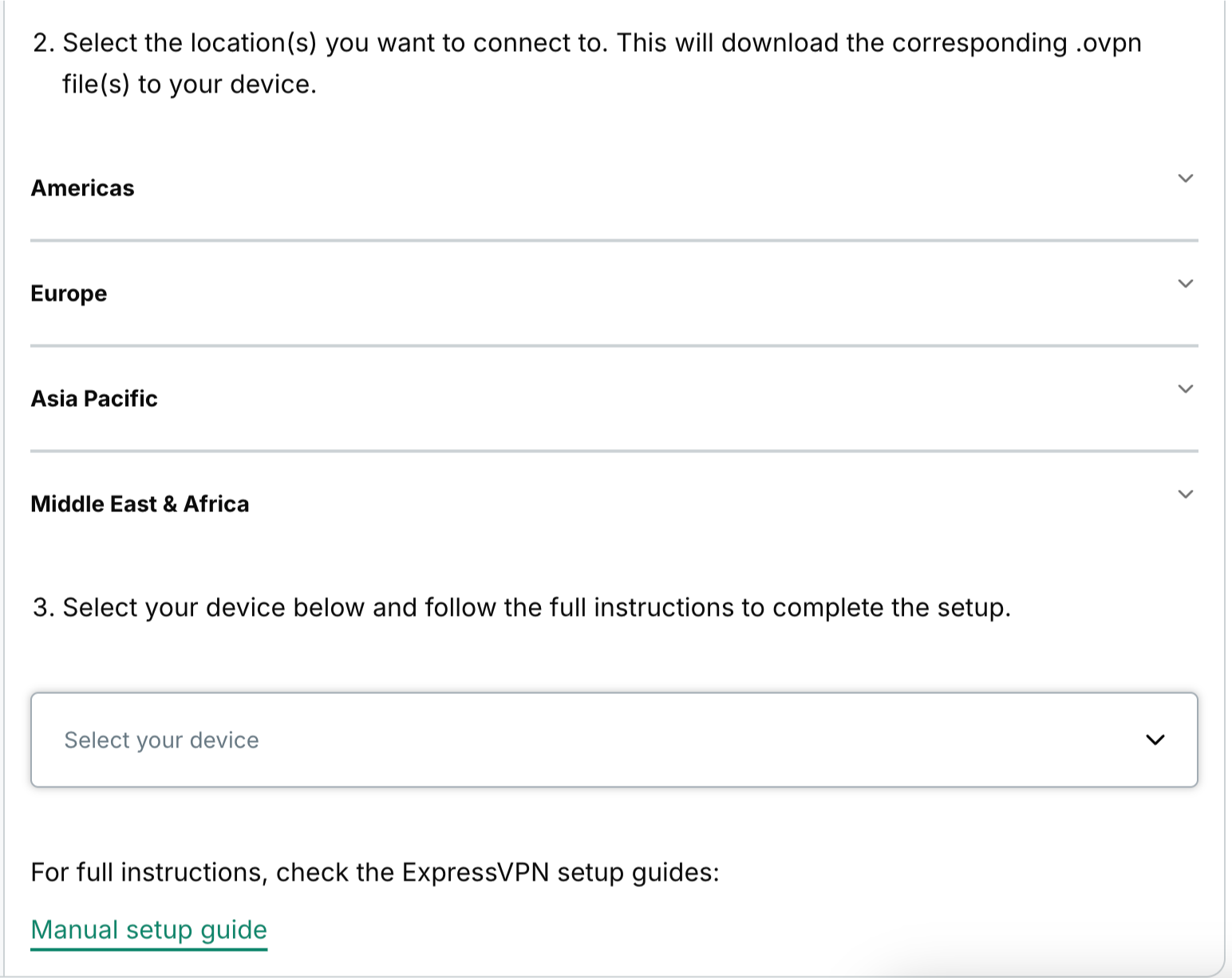
Click the location(s) you want in order to download the .ovpn file(s).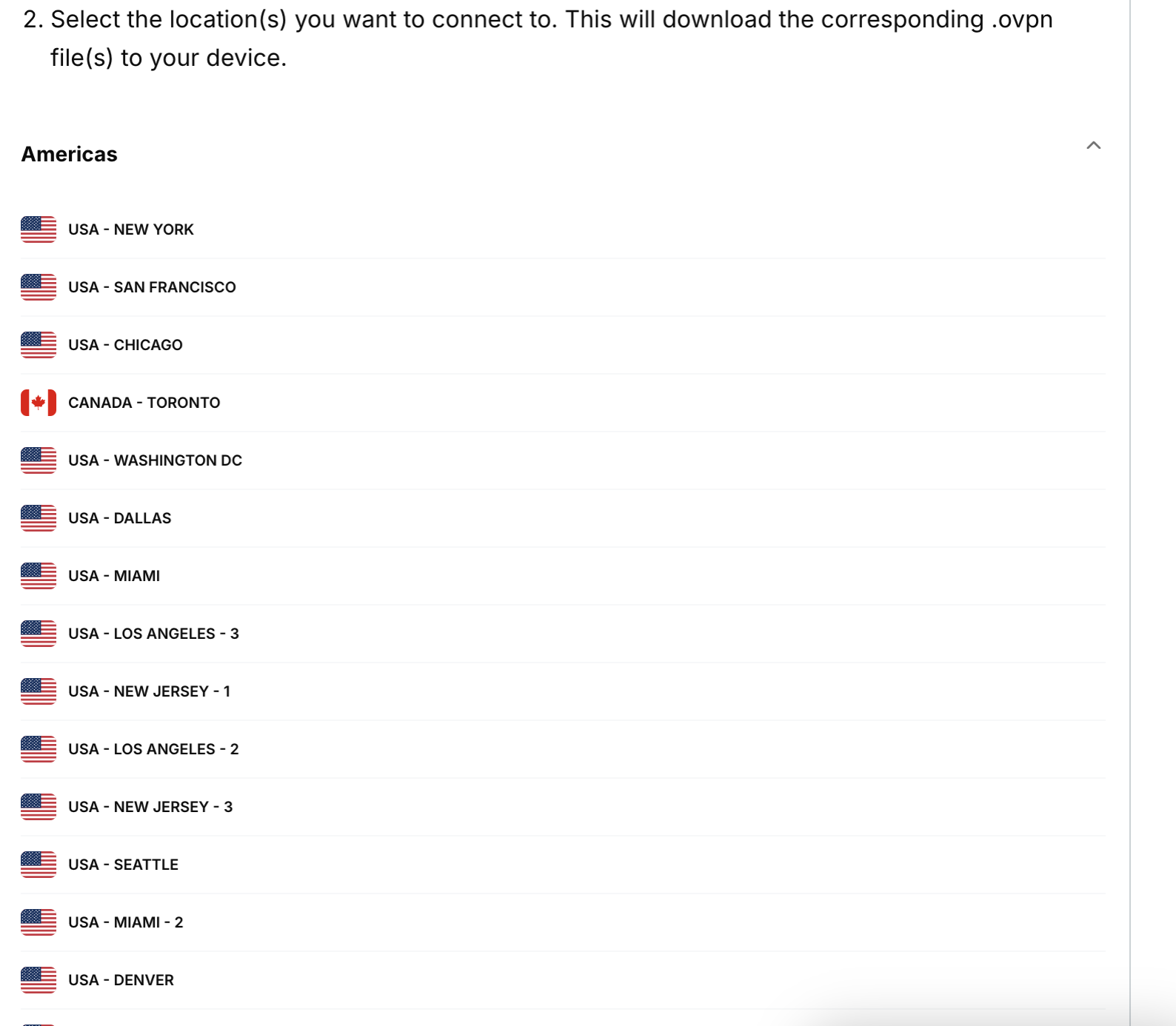
Keep this browser window open. You will need this information for the setup later.
Need help? Contact the ExpressVPN Support Team for immediate assistance.
2. Download and install Tunnelblick
On the Tunnelblick website, click Download Latest Stable Release.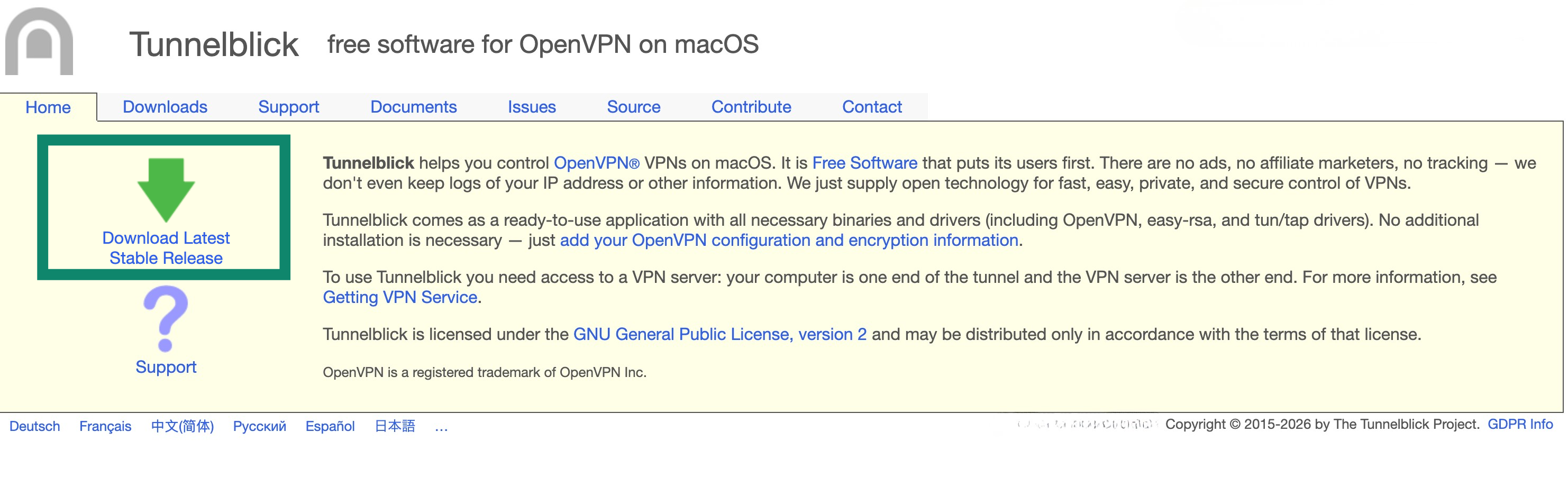 Open the .dmg installer file. Double-click the Tunnelblick icon.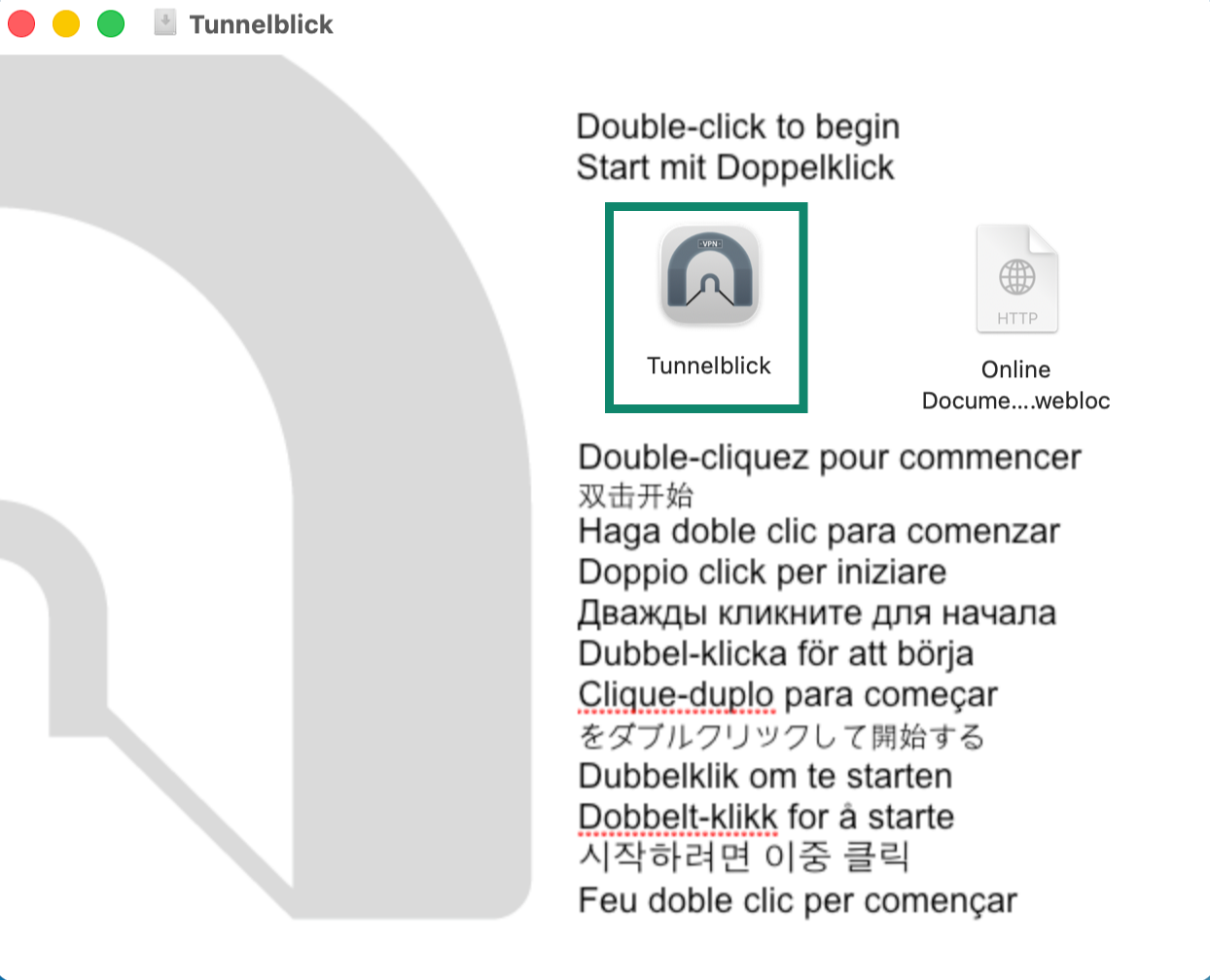
When prompted to open Tunnelblick, click Open. Enter your device password.
Need help? Contact the ExpressVPN Support Team for immediate assistance.
3. Set up the VPN with Tunnelblick
On the Welcome to Tunnelblick screen, click I have configuration files.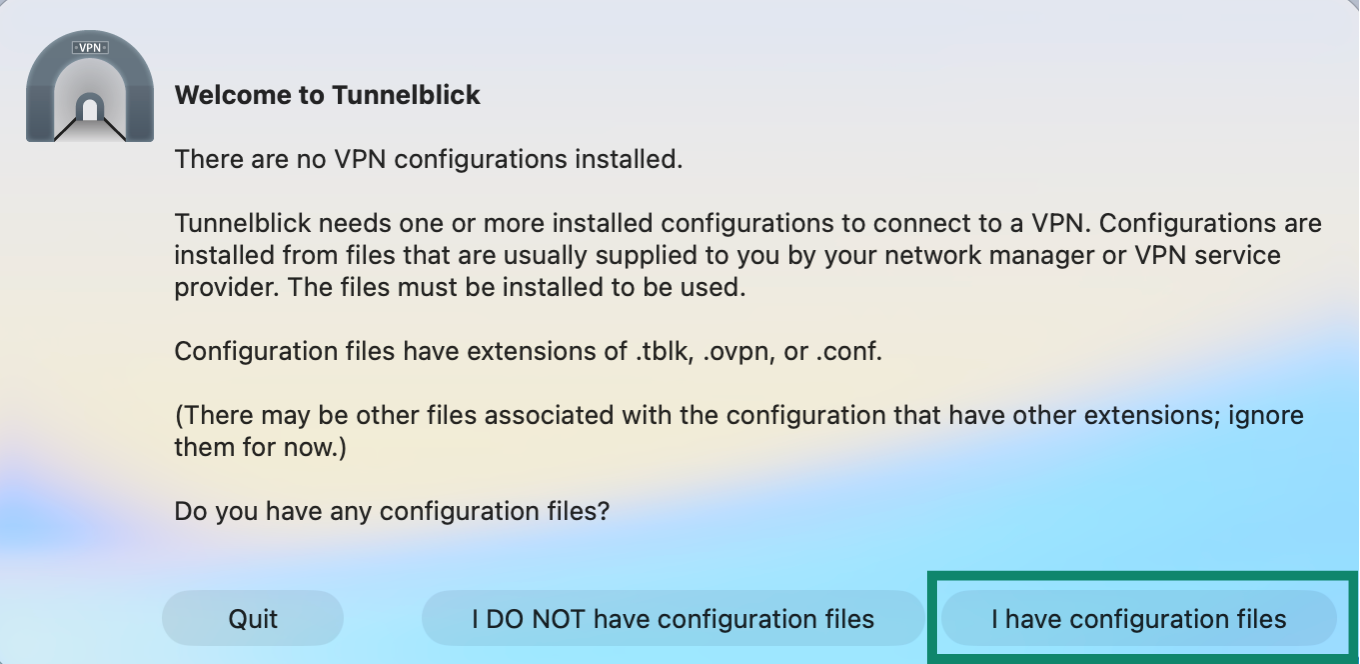
Go to your Downloads folder or wherever you saved the ExpressVPN OpenVPN configuration file earlier. Double-click the file you want to use.
You will be asked if you would like to install for all users. If the VPN is intended for all accounts on your Mac, select All Users. If the VPN will only be used by your current account, select Only Me.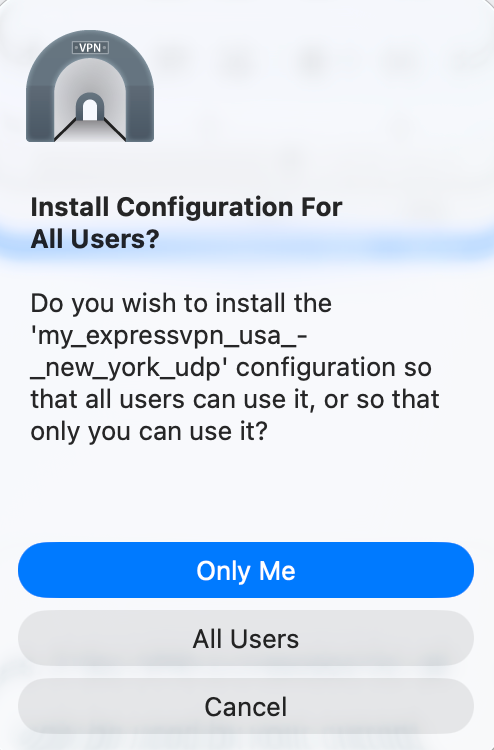
Enter your device password.
Need help? Contact the ExpressVPN Support Team for immediate assistance.
4. Connect to a VPN server location
To connect to a VPN server location, click the Tunnelblick icon in the top-right corner of your screen.
From the dropdown menu, select Connect [name of the .ovpn configuration file].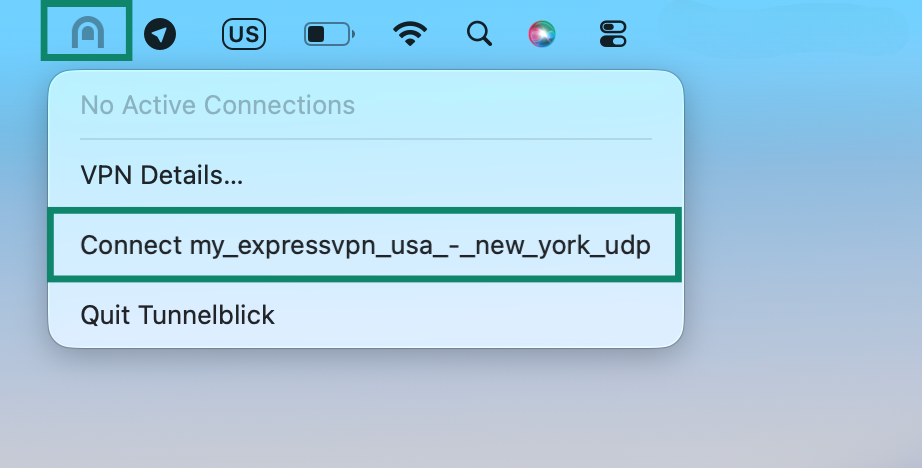
Enter the ExpressVPN OpenVPN username and password you found earlier, then click OK.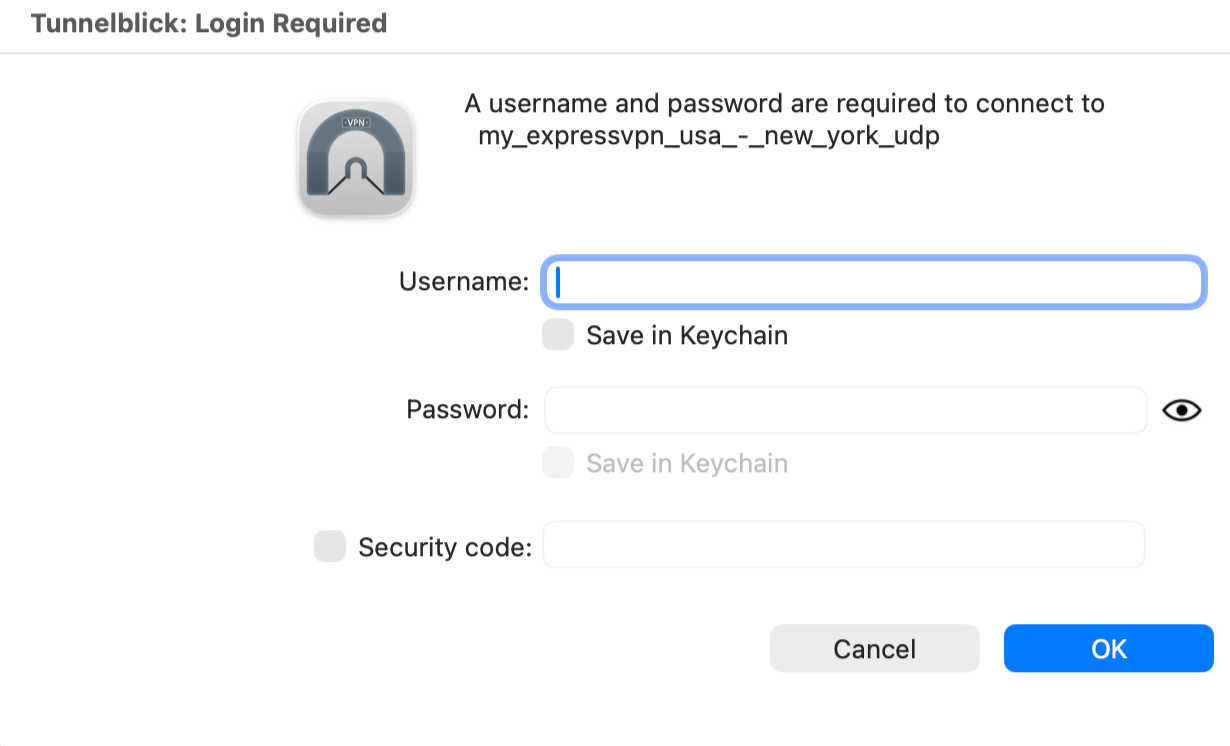
When you are connected to ExpressVPN successfully, you will see the “Connected” message in green.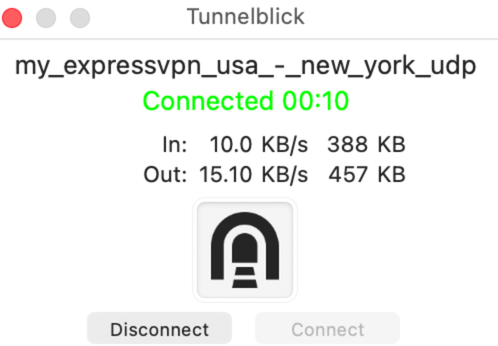
Need help? Contact the ExpressVPN Support Team for immediate assistance.
Disconnect from a VPN server location
To disconnect from a VPN server location, click the Tunnelblick icon in the top-right corner of the screen, then click Disconnect [name of the .ovpn configuration file].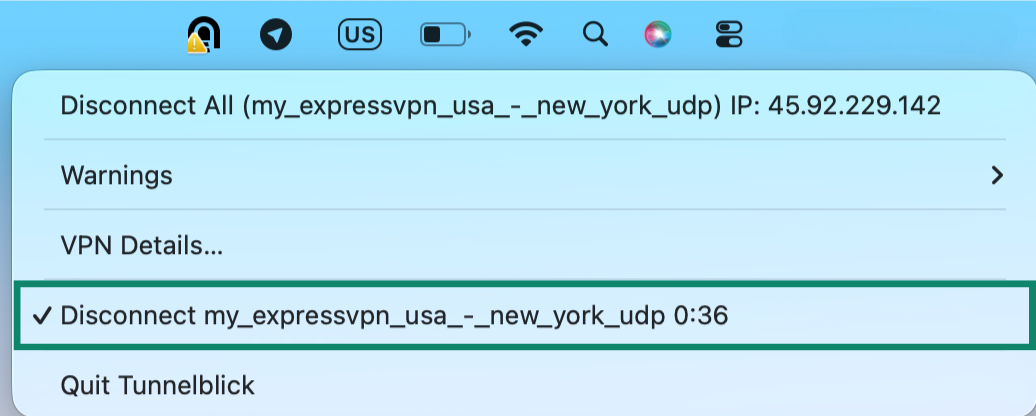
Note: Select Disconnect All if you have set up and connected multiple VPN configurations through Tunnelblick at the same time and you want to disconnect all of them at once.
Need help? Contact the ExpressVPN Support Team for immediate assistance.