 Celebrate with up to 80% off
How to stop Google Photos backup on Android, iPhone, and PC



Google Photos backup is convenient, but it can also use up Google Account storage and upload more images than expected. If backups are running on multiple devices, it can also make photo management more complicated. To simplify matters and save space, users can turn off backups on various devices.
Why you may want to stop Google Photos backup
Google Photos backup is useful for keeping photos available across devices, but it isn't ideal for everyone. Some people turn it off to manage uploads manually, avoid backing up screenshots or app images, or prevent the same photo library from syncing across multiple phones, tablets, and computers.
Storage management and backup quality changes
Before June 2021, photos uploaded using Google’s “High quality” setting, now called “Storage saver,” didn’t count toward Google Account storage. Photos and videos backed up in that quality before June 1, 2021, remain exempt, but most new uploads now count toward the same shared storage used by Google Photos, Gmail, and Google Drive.
For users with large photo libraries, that storage can fill up faster than expected, especially when backing up videos or photos in original quality. Once the account reaches its storage limit, you may no longer be able to back up new photos, upload files to Google Drive, or send and receive emails in Gmail until storage space is freed up.
Privacy and data control
When Google Photos backup is enabled, photos and videos are uploaded to the selected Google Account. Depending on your device, app permissions, and camera settings, uploaded files may also include embedded metadata such as timestamps, camera information, and location data.
For some users, the issue isn’t the photos themselves, but how much content ends up syncing automatically. On Android, Google Photos can back up more than camera photos, if additional device folders are selected, including:
- Screenshots.
- Images saved from messaging apps.
- Downloaded images.
- Photos from other synced folders.
Turning backup off or limiting which folders sync on supported devices gives you more control over what gets uploaded to your account.
Multi-device synchronization complications
Google Photos backup is managed separately on each device. If backup is enabled on another phone, tablet, or computer signed in to the same account, photos and videos may still upload from those devices even after backup is turned off on the main device.
This can also affect photo deletion. Deleting photos from the Google Photos app also removes them from the device, and if those items are backed up, the same content is deleted on all devices with backup enabled. To remove backed-up items from Google Photos while keeping them on a device, Google advises turning off backup on all devices where the photo or video should remain before removing the backed-up copies from Google Photos.
What happens when you turn off Google Photos backup?
Turning off Google Photos backup only stops new photos and videos from being uploaded from that device. It doesn't delete photos already stored in Google Photos, nor does it remove photos saved locally on your phone, tablet, or computer.
The Google Photos app can still show photos and videos stored locally on your device, so they can be viewed and edited without uploading new files to your Google Account. However, cloud-based syncing and access from other devices won’t apply to new items unless they are backed up.
Disabling uploads on one device doesn't automatically change backup settings everywhere else. For example:
- Existing photos in Google Photos aren't removed automatically.
- Each device handles backup settings separately.
- If backup is enabled on another signed-in device, photos and videos may continue uploading from that device.
- Photos already stored in Google Photos can still count toward your Google Account storage limit.
Note: Turning off backup is not the same as deleting photos from Google Photos. Deleting photos or videos from the Google Photos app can also delete the same items from the device, and backed-up items may be deleted on other devices where backup is turned on.
To fully stop new uploads, backup must be turned off on each device connected to the account.
How to stop Google Photos backup on Android
On Android, Google Photos backup settings are managed inside the Google Photos app. Turning backup off stops new photos and videos from uploading from that device, but it doesn't remove photos already stored in your Google Photos account.
Turn off backup in Google Photos
You can disable Google Photos backup directly from the app settings on Android.
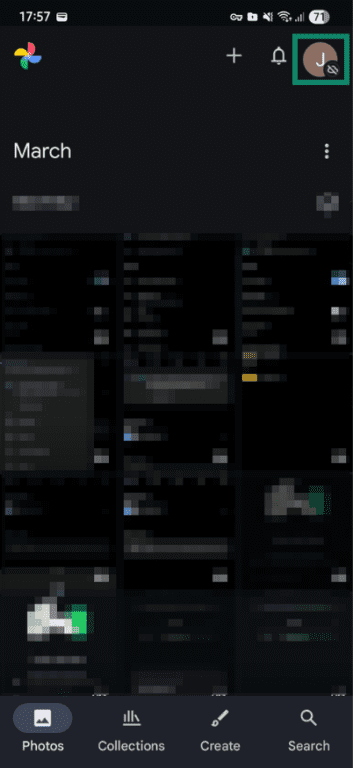
- Open the Google Photos app on your Android phone or tablet, then tap your profile picture or initial in the top-right corner.
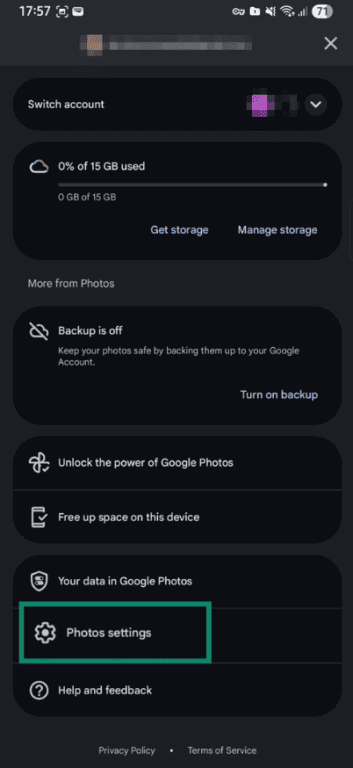
- Go to Photos settings (gear icon).
- Tap Backup.
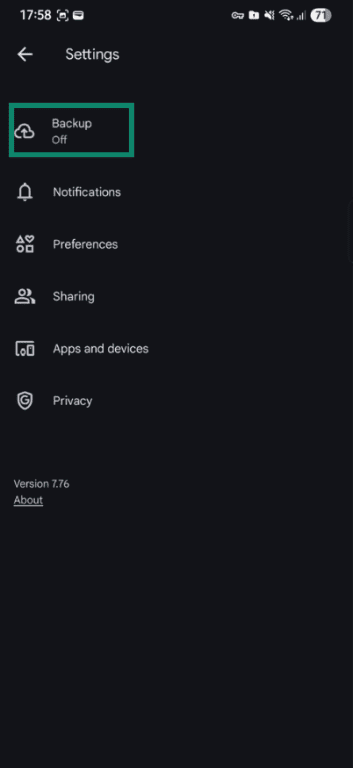
- Turn the Backup toggle off.
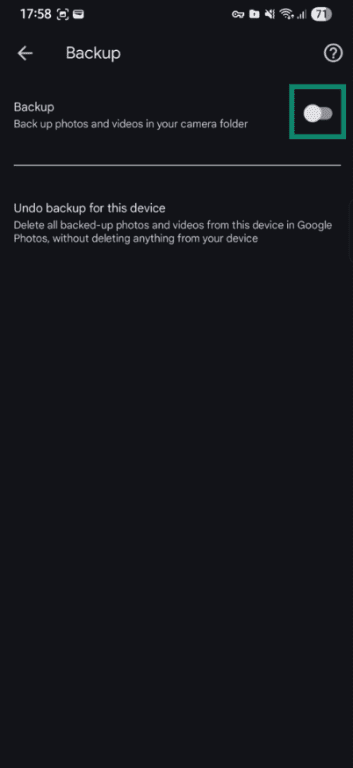
Once backup is disabled, Google Photos should show Backup is off in the backup status. New photos and videos from that Android device will no longer upload to Google Photos.
Stop Google Photos from backing up over cellular data
If you want to keep backup enabled but limit mobile data usage, adjust the Google Photos mobile data settings.
- In the Google Photos app, go to your profile picture > Photos settings > Backup > Mobile data usage.
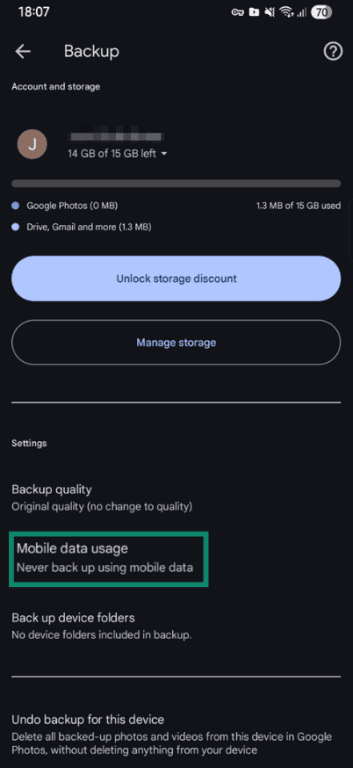
- Choose a Daily limit for backup for how much mobile data Google Photos can use to automatically back up photos and videos, or turn off Back up videos over data entirely. You can also turn off Back up while roaming if you don’t want Google Photos to back up over mobile data while roaming.
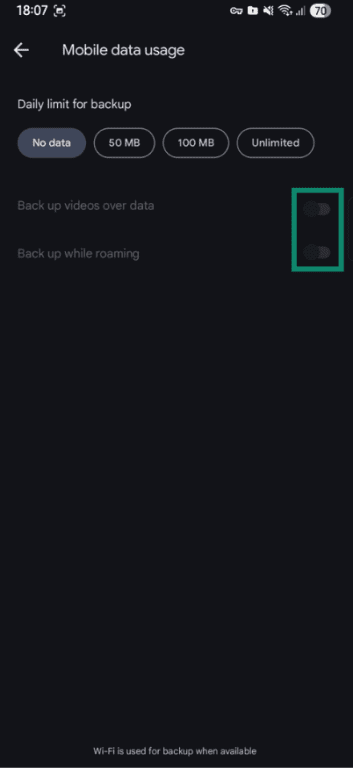
The exact options can vary depending on the Google Photos app version, Android version, device, and region.
These settings only affect uploads over cellular data. Google Photos backup can still continue over Wi-Fi unless backup is turned off completely.
Remove your Google Account from Google Photos
Google Photos also lets you use the app without an account. This stops Google Photos from using that account in the app, but it is different from removing the Google Account from the Android device.
- Open the Google Photos app, then tap your profile picture. Expand the account menu if needed. Tap Use Photos without an account if you only want to stop using a Google Account in Google Photos. To remove the Google Account from the Android device, tap Manage accounts on this device.
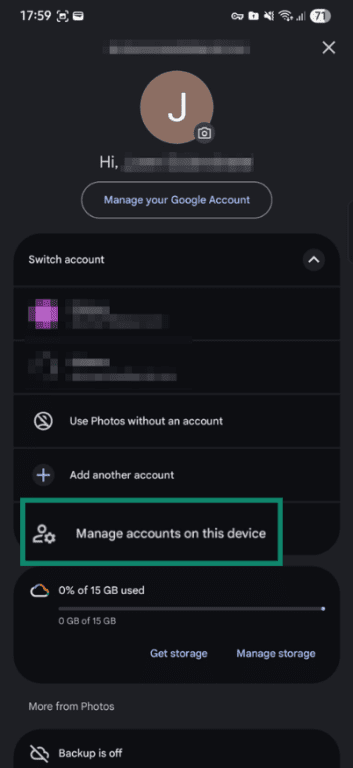
- Select the Google Account you want to remove.
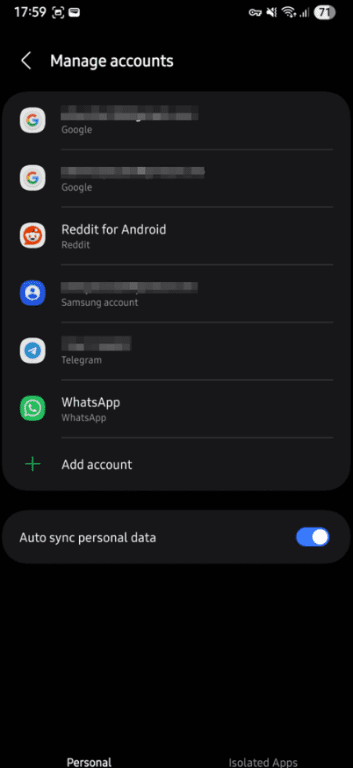
- Tap Remove account, then confirm.
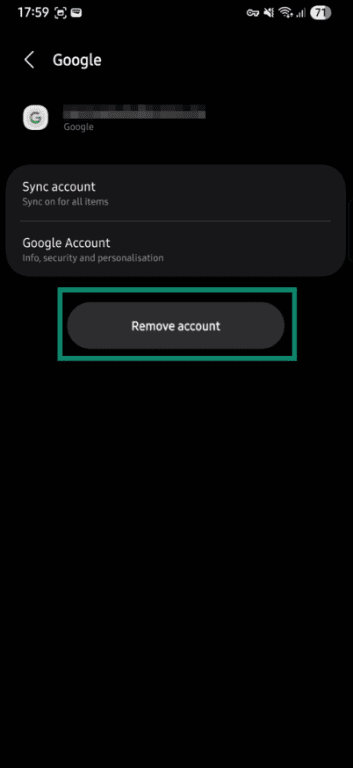
Removing the account from the device is broader than turning off Google Photos backup. It can sign the device out of other Google services linked to that account, not just Google Photos. Existing photos and videos already stored in Google Photos will stay in the Google Photos library unless they are deleted manually.
Also read: How to permanently delete your Google Account.
Stop specific folders from syncing
You can keep Google Photos backup enabled while excluding certain Android device folders from automatic uploads
- In Google Photos, tap the profile picture or initial, then go to Photos settings > Backup. Under Settings, tap Back up device folders.
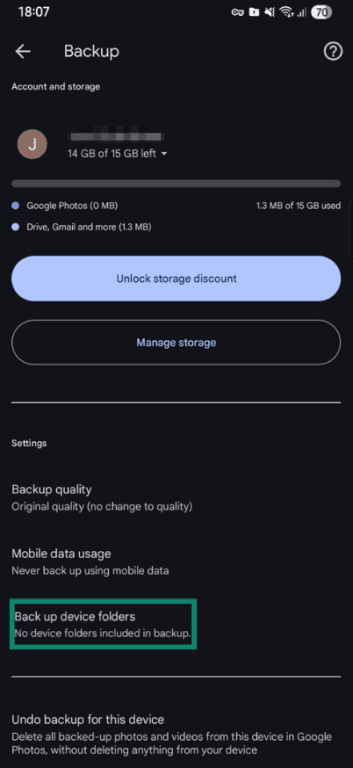
- Turn off backup for the folders you don’t want Google Photos to upload.
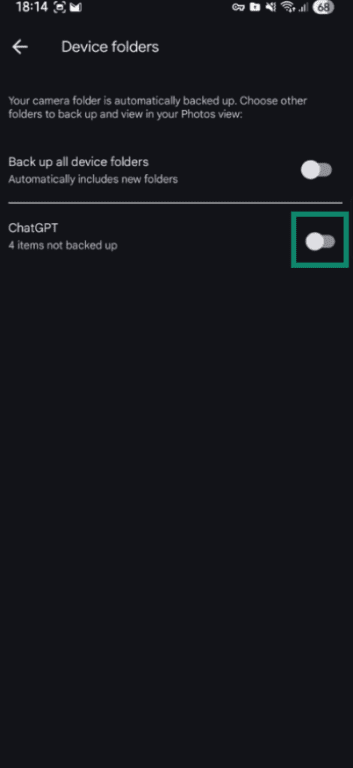
Common examples include:
- Screenshots
- Downloads
- WhatsApp Images
- App-created folders, such as social media or photo-editing folders
Some Android devices may show different device folders depending on which apps are installed and where images are saved. If Back up all device folders is turned on, photos in newly created device folders may automatically back up unless that setting is turned off.
Pause Google Photos backup temporarily
Google Photos doesn’t provide a standard manual pause button in the Android Backup settings, but uploads can pause automatically or be stopped temporarily in other ways.
To temporarily stop or limit uploads, you can:
- Limit backup over mobile data in the Mobile data usage settings.
- Turn on airplane mode.
- Disconnect the device from Wi-Fi and mobile data.
You can check the current backup status at the top of the Google Photos app. Common status messages include:
- Backup complete.
- Backup is off.
- Backing up photos.
- Preparing backup.
- Backup paused.
- Waiting for connection or Waiting for Wi-Fi.
Google Photos may also pause backups when the device has no internet connection, when the screen is off or in screen saver mode, or when battery optimization affects the Photos app.
How to stop Google Photos backup on iPhone
You can turn off Google Photos backup directly from the Google Photos app on iPhone or iPad. This only affects Google Photos uploads and doesn't change your iCloud Photos settings, which work separately on iOS devices.
Disable backup on iPhone
- Open the Google Photos app, tap your profile picture or initial in the top-right corner. Go to Photos settings and tap Backup.
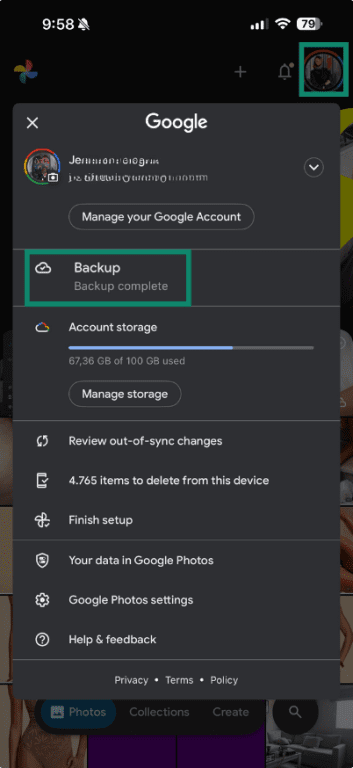
- Turn the Backup toggle off.
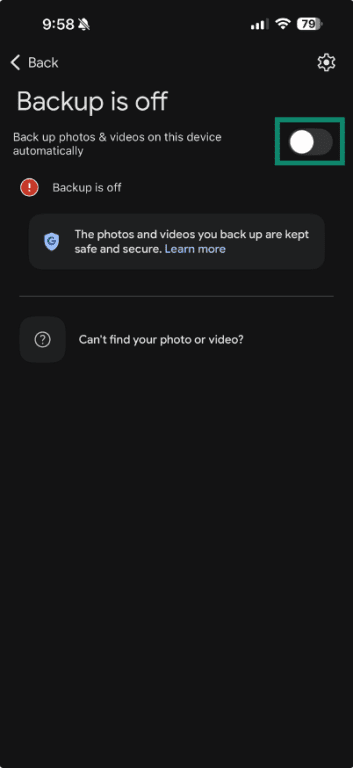
New photos and videos from that iPhone or iPad will no longer upload to Google Photos.
Google Photos also needs iOS photo library access to back up images and videos. If you want an extra safeguard after turning backup off, you can limit or remove photo access in iOS settings. Keep in mind that this may also prevent Google Photos from displaying local photos properly in the app.
Change Google Photos photo access on iPhone
- Open iPhone Settings and go to Privacy & Security.
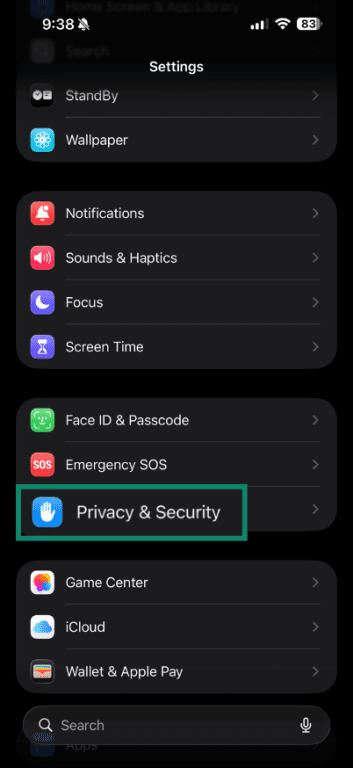
- Tap Photos.
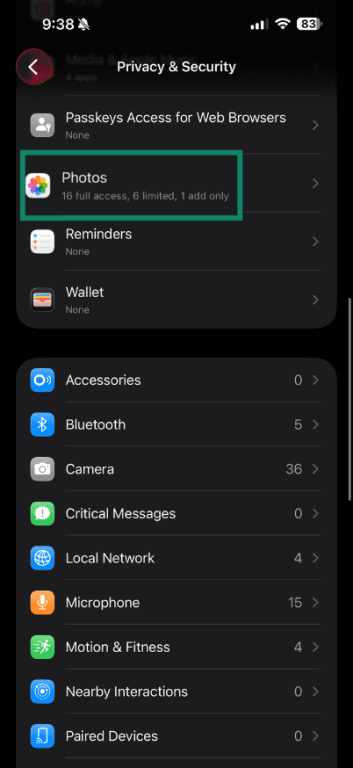
- Tap Google Photos.
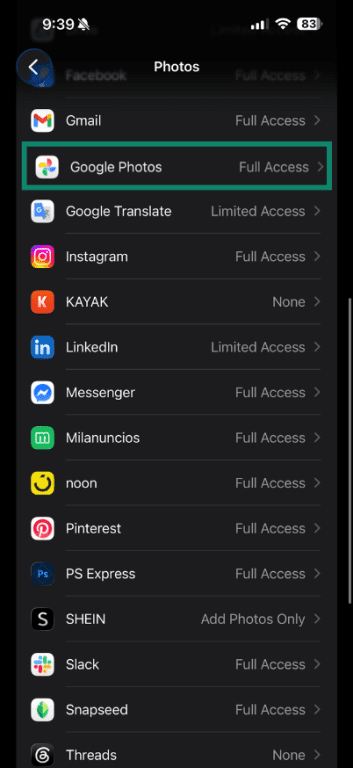
- Choose the level of photo access you want to allow, such as None, Limited Access, or Full Access, depending on the iOS version and available options. Full Access lets Google Photos show local photos, but uploads could resume if backup is re-enabled. Limited Access lets Google Photos access only the selected photos. None, blocks Google Photos from seeing the local photo library, which provides the strongest privacy, but also means the app can no longer act as a viewer for photos on the device.

Sign out of Google Photos
You can remove a Google Account from Google Photos on an iPhone or iPad. This stops Google Photos from using that account on the device, but it doesn't delete the Google Account or remove photos already stored in the Google Photos library.
- In Google Photos, tap your profile picture, then tap the drop-down arrow next to the Google Account. Select Manage accounts on this device.
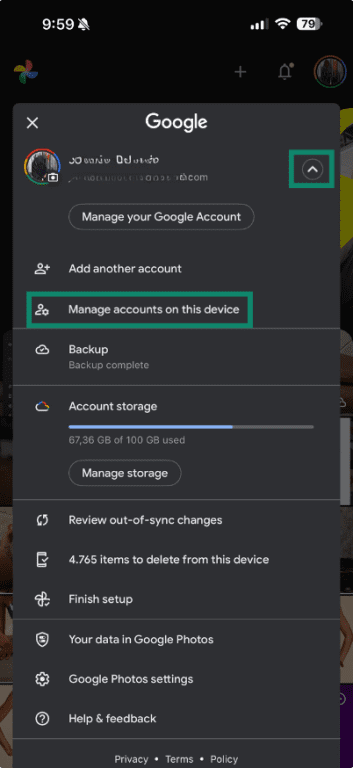
- Tap Remove from this device under the account you want to remove.
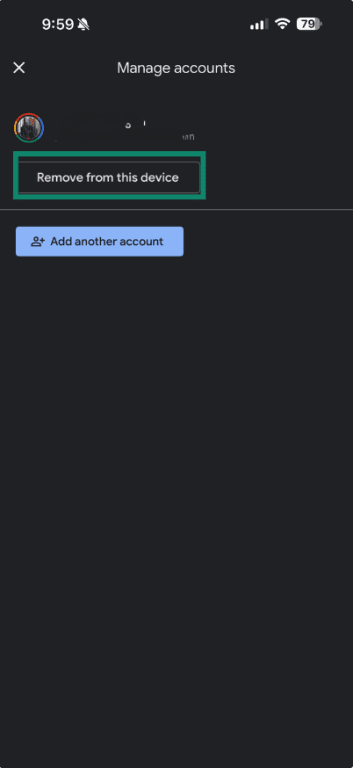
After the account is removed, Google Photos should stop uploading photos and videos to that account from the iPhone or iPad.
Removing the account may also sign you out of other Google apps on the device. If you only want to stop photo uploads, turning off backup inside the Google Photos app causes fewer changes
Delete photos from Google Photos without losing device copies
To remove photos from Google Photos without deleting the copies stored on your iPhone or iPad, you need to turn off backup first. If a backup is active on another device, deleting backup photos from Google Photos can also remove them from devices where backup is enabled.
Before deleting anything, make sure Google Photos backup is turned off on every device where the photo or video should stay.
Open photos.google.com in a computer or mobile browser and delete the photos you want to remove from Google Photos.
On the iPhone or iPad, wait a few minutes, make sure the device is connected to Wi-Fi, then close and reopen the Google Photos app.
Backed-up photos and videos remain in Google Photos Trash for 60 days before being permanently deleted.
How to stop Google Photos backup on PC or Mac
On Windows and Mac, Google Photos backup may be managed through Google Drive for desktop if folder backup was set up there. Instead of backing up the whole computer automatically, Drive for desktop lets users choose specific folders to upload photos and videos to Google Photos.
Note: Starting June 15, 2026, new Google Photos backup folders can no longer be configured in Drive for desktop. Existing folders continue syncing until August 10, 2026, when Drive for desktop ends support for Google Photos backup. Google says users will need to reselect their preferred backup folders in the new Google Photos interface.
Disable backup in Google Drive for desktop
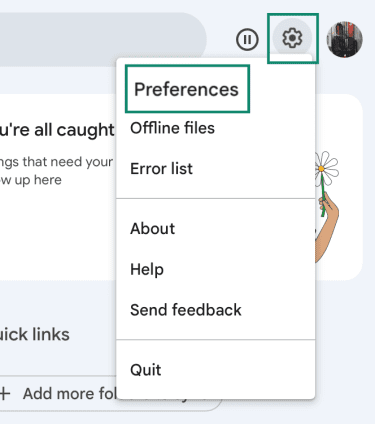
- Open Google Drive for desktop, click Settings (gear icon), then open Preferences.
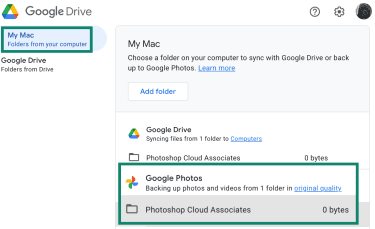
- Under the computer name, such as My Computer or My Mac, select the folder connected to Google Photos backup.
- Turn off Back up to Google Photos, then click Done.
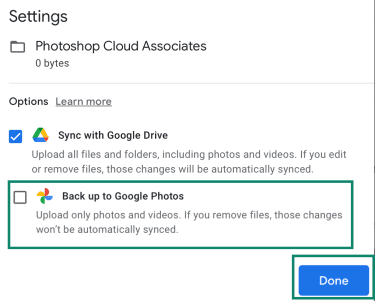
New photos and videos from that folder will stop uploading to Google Photos. Photos already stored in Google Photos will remain there unless you delete them manually.
On Mac, Google Drive for desktop can also back up the Apple System Photo Library to Google Photos. If this is enabled, open Drive for desktop Preferences, go to Settings, scroll to Google Photos, then turn off System Photo Library or Upload photos and videos to Google Photos, depending on the options shown.
Disconnect your Google Account
You can disconnect your Google Account from Google Drive for desktop to stop Google Photos uploads and Google Drive file syncing for that account on the computer. This is broader than turning off Google Photos backup for one folder.
- Open Google Drive for desktop. Click the Settings icon, then click Preferences, and click the Settings icon again.
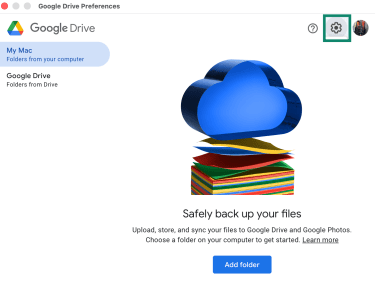
- Find the account you want to disconnect, select Disconnect account, then confirm.
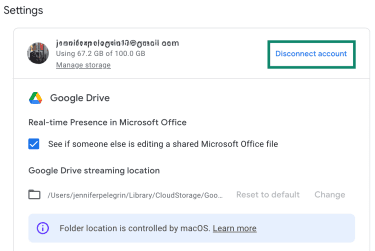
Disconnecting the account stops Google Drive for desktop from syncing files with that Google Account. If Drive for desktop has unsynced files, Google may offer to move them to the Desktop to avoid data loss. Offline-streamed files are removed when the account is disconnected, while mirrored files remain.
Best alternatives to Google Photos backup
Google Photos is not the only way to store and back up photos. Some people prefer local storage, while others want cloud services with different privacy features, storage limits, or sharing tools. The right option depends on whether local control, automatic backup, encrypted storage, or photography-focused features matter most.
Local backup options
Some people prefer to keep photo libraries stored locally instead of uploading them to a cloud service. Local photo management tools such as Excire Foto can organize and analyze photos on the computer rather than relying on cloud-based photo analysis.
With a local-only setup, photos stay on the computer or external drives unless they're manually uploaded to another storage service. Some tools can also support local tagging, search, and face or object recognition, depending on the software.
The trade-off is that local storage requires more manual management. Storage space, external drives, and additional backups need to be maintained separately.
Also read: How to back up files and encrypt them.
Cloud storage alternatives
Some people prefer different cloud storage setups, especially if they want more control over privacy, storage space, or photo organization.
End-to-end encrypted options
Some cloud storage services focus on end-to-end encrypted file storage and photo backup. These services are designed to limit provider access to stored photos and videos, although photo-management features vary by provider.
These services often include:
- End-to-end encrypted storage.
- Encrypted photo uploads.
- Secure file sharing.
- Access across multiple devices.
Some encrypted storage services also support automatic mobile photo backup.
People who already prefer privacy-focused tools may choose this type of storage setup to keep personal photos separate from broader cloud ecosystems.
Photography-focused platforms
Some platforms focus more on galleries, portfolio management, and high-resolution uploads, and client sharing than on general file syncing across devices.
Photography platforms like these often include:
- Full-resolution uploads.
- Portfolio and gallery tools.
- Photo sharing and selling features.
Some services also support professional photography workflows better than general cloud storage platforms. However, advanced storage features, RAW file support, or larger storage limits may require paid plans.
These platforms usually focus more on storage, sharing, and portfolio management, and presentation than on end-to-end encrypted private storage.
Common Google Photos backup problems
Google Photos backup usually runs in the background with minimal user interaction, but issues can still arise when account storage fills up, permissions are disabled, or backup is configured differently across devices.
Why Google Photos keeps syncing
Google Photos manages backup separately on each device connected to the same Google Account. Turning backup off on one phone, tablet, or computer doesn't automatically disable it on the others.
For example, if backup is enabled on a tablet, laptop, or second phone using the same account, those devices can continue uploading photos and videos to Google Photos even after backup is turned off on your main device.
Battery and background app settings can also affect backup behavior. If Google Photos gets stuck or stops updating its backup status, check the battery optimization steps in the section below.
Backup won't turn off
Sometimes the Google Photos backup status may not update right away after the backup is turned off. Fully close and reopen the Google Photos app, then check the Backup page again. It can also take a while for backup changes to complete, depending on the internet connection, upload size, and other conditions.
On Android, battery optimization settings can interrupt Google Photos backups or prevent them from running smoothly in the background. Google says backup may pause to save battery when the screen is off or in screen saver mode. If backup appears stuck, Google recommends turning off battery optimization for Google Photos.
To check this setting on Android:
- Open Settings and tap Apps, then select Photos from the app list.
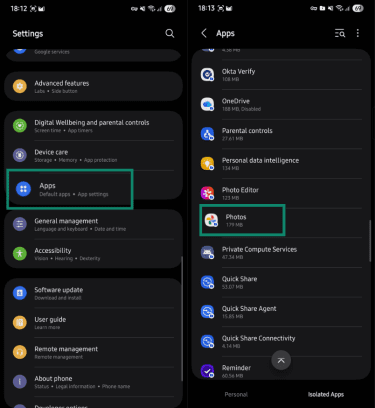
- Choose Unrestricted, or turn off battery optimization for Google Photos, depending on the options shown on the device.
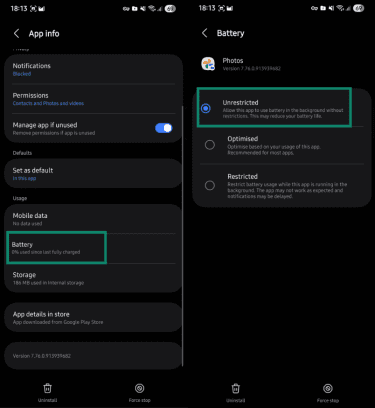
If uploads still continue, check which Google Account is selected for backup inside Google Photos. Google Photos backs up photos and videos to one Google Account at a time, so make sure backup is turned off for the account currently selected in the app.
Photos still uploading after disabling backup
After backup is turned off, Google Photos may still show photos or videos as uploading, queued, or paused while the app status refreshes or pending backup activity clears. Depending on the internet connection, file size, and number of pending items, this can take a while.
To check whether the backup has stopped, reopen the Google Photos Backup settings and look at the status message. Google Photos may show statuses such as “Backup is off,” “Backing up photos,” “Preparing backup,” “Backup paused,” or item-level indicators such as “Uploading,” “In Queue,” or “Paused.
It’s also important to check every device signed in to that Google Account. Turning backup off on one phone, tablet, or computer does not automatically stop uploads from another device.
On computers, Google Drive for desktop may also continue syncing photos separately from the mobile app if photo backup was configured there.
FAQ
Will stopping backup delete my existing photos?
How do I stop gallery photos from syncing to Google Photos?
Can I use Google Photos without backup enabled?
How do I free up storage in Google Photos?
What happens if I uninstall Google Photos?