How to delete a Teams account without losing important data



The steps for deleting a Microsoft Teams account depend on whether you're using Teams with a personal Microsoft account or a work or school account. Teams is tied to the Microsoft ecosystem, so closing your account can affect other Microsoft services linked to it.
This guide explains how deletion differs for personal, work, and school accounts; what can happen to files, chats, subscriptions, and recovery options; and how to export or save important data before you make changes.
Before you delete a Microsoft Teams account
Before deleting anything, it's important to understand what deleting means in Teams, how to check your account type, and how to export your data.
Deleting vs. removing a Teams account
Here’s how these actions differ when it comes to Teams accounts:
| What happens | |
| Delete/close Microsoft account | Marks the personal Microsoft account for closure. If it isn’t reopened within the selected 30- or 60-day window, Microsoft deletes the account data and content. |
| Remove account from Teams | Signs the account out or removes its Teams info from that app or device. It doesn't delete the Microsoft account, and signing out on one device doesn't sign you out of every device. |
| Uninstall Teams | Removes the Teams app from the device but leaves your account and data intact |
Check whether your account is personal, work, or school
Your account type determines who controls deletion, what data you can save, and what steps to follow. Here's how to identify which one you have:
- Open Microsoft Teams and click your profile picture in the top right.
- Look at the email address and organization details shown beneath your name.
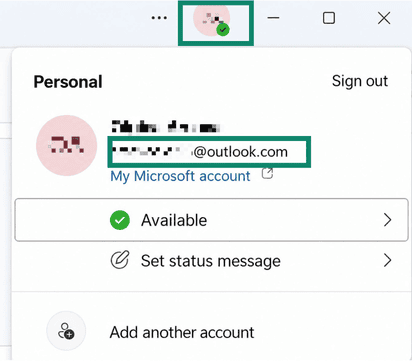
- Match it to one of the three account types below.
- A personal Teams (free) account: A Microsoft account you created yourself. It may use an Outlook.com, Hotmail.com, Live.com, Gmail, or other email address.
- A work or school account: An organization-managed Microsoft Entra account, usually using your company’s or school’s domain. Your IT administrator controls the account and must delete it fully.
Export your Teams data
Before closing a personal Microsoft account or asking an admin to delete a work or school account, save anything you may need later. The process differs between personal Teams accounts and work or school accounts.
For personal Microsoft Teams (Teams Free) accounts
Microsoft allows Teams Free users to export chat history, media, call logs, and certain calendar data through the Teams export page. Here’s how you can do that:
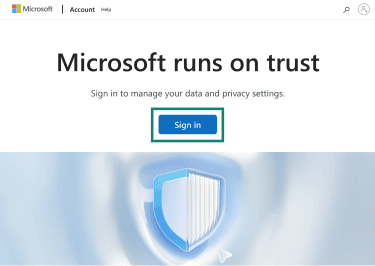
- Go to account.microsoft.com/privacy and click Sign in.
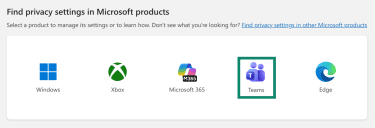
- Scroll to the bottom and pick Teams.
- You can request a copy of your Chat history and Media. Click Submit request once you’ve picked what you want to export. You’ll get an email once your export file is ready.
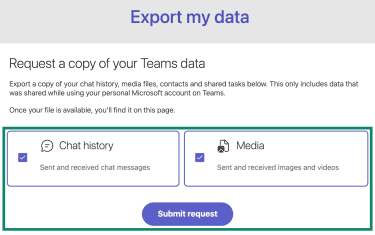
- Depending on the data available in your account, the export page may also include items such as Contacts, Shared calendar events, Community join request messages, and privacy settings. Contacts are downloaded as a CSV file, while shared calendar events are exported as a JSON file.
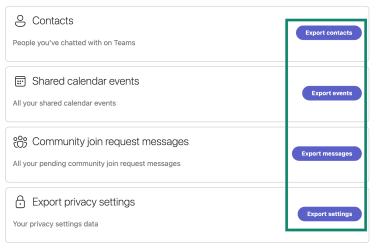
Tip: Teams Free chat and media exports are separate from files. Files shared in Teams Free are stored in the Microsoft Teams Chat Files folder in OneDrive, so check OneDrive and download anything you need before closing the Microsoft account linked to Teams. You should also consider saving your Outlook emails and calendar data, especially if you plan to close the Outlook account linked to the same Microsoft account.
For work or school Teams accounts
Work or school users usually don’t have a personal self-service export for Teams messages as Teams Free users do. Teams data is managed by the organization, including retention, eDiscovery, and export permissions. If you need copies of chats, files, recordings, or other Teams data, contact your IT admin as early as possible and ask them to export the data you need before your access is revoked.
If downloads are available while your account is still active, you may be able to save the following yourself:
- Channel files: Go to the associated SharePoint site and download files you still have permission to access.
- Chat files: Open your OneDrive for work or school and download files before access is revoked.
- Meeting recordings: Check the organizer's OneDrive for non-channel meetings, or the channel’s SharePoint site for channel meetings. Recordings may expire after a period set by your IT admin.
Learn more: How to back up files and encrypt them.
Cancel any active subscriptions
Before closing a Microsoft account, cancel any active subscriptions linked to it. If you have a Microsoft 365 subscription, Xbox Game Pass, Copilot Pro, extra OneDrive storage, or another paid Microsoft service, review the subscription first so you don’t leave recurring billing active.
To review and cancel active subscriptions before closing the account:
- Go to account.microsoft.com/services and sign in with the Microsoft account used to buy the subscription.
- Review all active subscriptions listed there.
- Select a subscription and click Manage.
- Choose Cancel and follow the on-screen instructions.
Tip: If you see "Turn on recurring billing" instead of "Manage" or "Cancel," the subscription is already set to expire on the date shown and shouldn’t renew automatically. If you bought the subscription through Apple, Google Play, Amazon, or another retailer, cancel it through that provider instead.
What happens after deleting a Teams account
What happens after deletion depends on the type of account.
If you have a Teams Free account
Deleting a Teams (free) account means closing the entire Microsoft account it’s tied to. Once you mark the account for closure, Microsoft gives you a 30- or 60-day grace period to reopen it. After that window passes, Microsoft permanently deletes the account and its data, and you lose access to Microsoft services tied to that account, such as Outlook, OneDrive, Skype, Xbox, and Microsoft Store purchases.
Note that some Teams data behaves differently. Deleting a chat removes it from your view, but it may still be visible to others in the conversation. Files shared in Teams chats are stored in the Microsoft Teams Chat Files folder in OneDrive. Before closing the account, delete the files or change sharing permissions if you don’t want others with the link to keep access.
If you have a work or school account
Your organization controls what happens. An admin may delete your account entirely, remove only the Teams license, or disable Teams while keeping other Microsoft 365 services active.
In any of those cases, your chat history, channel messages, and files remain subject to the organization's retention and compliance policies. Whether you can still access them after leaving depends on what your organization allows.
How to delete a Microsoft Teams account
Once you’ve identified your account type and saved any important data, follow the steps below for your situation.
How to delete a personal Microsoft Teams account
To close a personal Microsoft account:
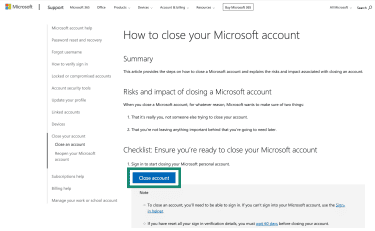
- Go to the How to close your Microsoft account page and click Close account.
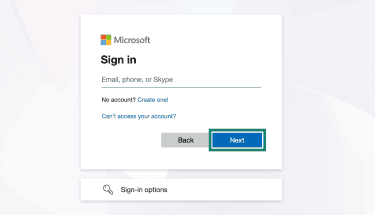
- If prompted, sign in and verify your account, then click Next.
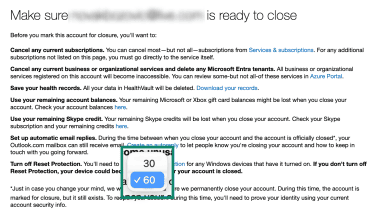
- Review the information you’ll see on the screen, including reminders about subscriptions, account balances, and services associated with the account.
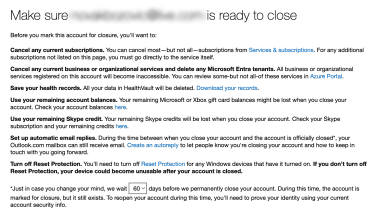
- Choose whether you want a 30-day or 60-day recovery period before the account is permanently deleted.
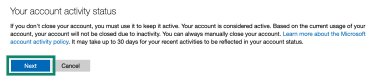
- When ready to proceed, click Next at the bottom of the page.
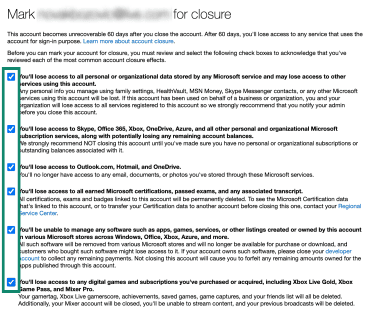
- Tick each box to confirm you’re aware you’ll lose access to different kinds of data related to your Microsoft account.
- Provide your reason for closing the account and click Mark account for closure to submit the request.
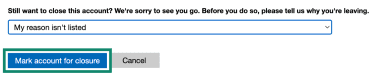
Once completed, the account enters the recovery period you selected. During that time, you can reopen the account by signing in again. After the recovery period ends, Microsoft permanently closes the account and removes access to Teams and other connected services.
How to delete a Teams account from an organization
For work or school accounts, you can’t delete the Teams account yourself. The account belongs to the organization, and Teams access is managed by that organization’s Microsoft 365 admin.
If you no longer need access, the practical options are:
- Contact IT and ask them to remove your account or disable Teams.
- Ask whether files, chats, or mailboxes need to be transferred first.
- If it’s an external/other organization, leave it from Microsoft’s My Account portal if that option is available.
- Remove the work or school account from your device after access is no longer needed.
Admins can delete a user, remove a Teams license, or turn off Teams access for an account. Disabling a Teams SKU can take about 24 hours to take effect. Admins may also need to preserve data for legal, compliance, or business reasons.
Troubleshooting account deletion issues
If you can’t delete a Microsoft Teams account, the issue is usually one of these:
- You’re signed into the wrong Microsoft account: Go to account.microsoft.com, check the email address shown in the top-right corner, and compare it with the account used in Teams. If they don’t match, sign out and sign back in with the correct Microsoft account before attempting deletion.
- You still have active subscriptions or recurring billing: Visit account.microsoft.com/services, review active Microsoft 365 or other paid subscriptions, and cancel them or turn off recurring billing before closing the account. Wait until the cancellation is processed before trying to close the account.
- You’re trying to delete Teams, but only app removal is available: Decide whether you want to remove the Teams app or close the account itself. If you want Teams off your device, uninstall the app. If you want to remove the account, follow Microsoft's account closure process instead.
- You haven’t completed Microsoft’s verification step: Follow the prompts on the account closure page and complete any required verification, such as entering a code sent to your email, phone, or authenticator app. Account deletion cannot proceed until verification is successful.
- You recently reset your security info: You must wait 60 days before closing the account if you reset all your sign-in verification details.
How to remove Teams without deleting your Microsoft account
If you don’t want to close your Microsoft account, but want Teams to stop appearing, stop launching, or stop showing an old account, you might want to:
- Sign out of the account.
- Disconnect the account from Windows.
- Uninstall the application.
These options are less destructive and easier to reverse.
How to sign out of Teams
On a computer or browser:
Open Teams, select your profile picture, then select Sign out.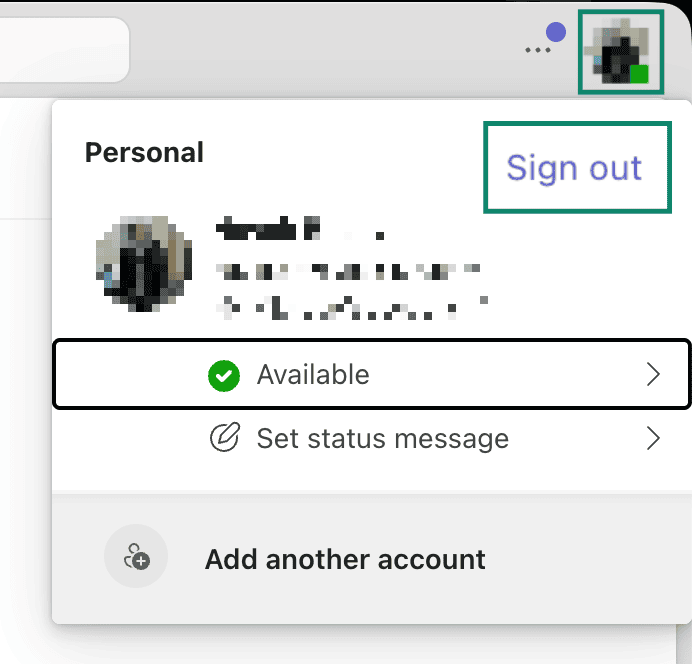
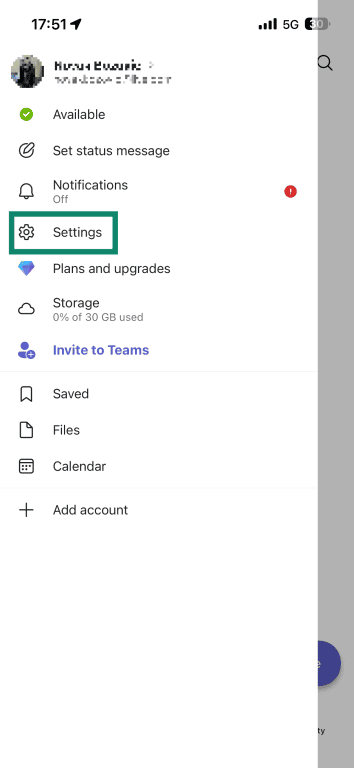
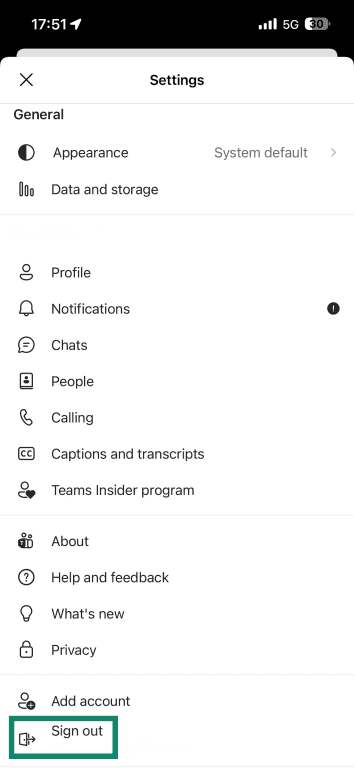
On mobile:
- Open the Teams app and tap your profile picture or More.

- Select Settings.
- Tap Sign out.
How to sign out of Teams on all devices
If you're using a personal Microsoft account, you can use Microsoft's Sign out everywhere feature, which ends active sessions across browsers, apps, and other devices that use the same Microsoft account, except Xbox consoles. This can be useful if you've used Teams on multiple devices, lost access to a device, or want to make sure no active Microsoft account sessions remain after removing Teams.
To use it:
- Go to your Microsoft account’s Advanced security options page. Sign in if needed.
- Scroll to the bottom and click Sign out everywhere.

- Click Sign out to confirm your decision.
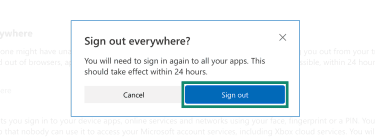
Note that the process can take up to 24 hours to complete.
How to remove an old or secondary account from Teams
Teams may keep showing old work or school accounts if those are still connected through the Teams app, the browser, or the device’s operating system. This can happen after someone changes jobs, leaves school, or no longer needs access to a guest organization.
To remove an old work or school account from Teams app access:
- Open Teams and select your profile picture.
- Sign out of the account or organization you no longer use, if it appears.
- If you need to leave a guest or other organization, go to Microsoft’s My Account portal and open Organizations. You can leave other organizations, but you can’t leave your home organization yourself.
If the account is managed by an organization, signing out of Teams only removes the account’s Teams app information until you sign in again. Other apps on the device may still have access. To completely remove a work or school account, especially if it’s your home organization, contact the organization’s IT admin.
How to remove a work or school account from Windows
Windows can keep work or school accounts connected at the system level. That connection can let Microsoft apps, including Teams, keep showing the account even after you’ve signed out of the Teams app.
To remove a work or school account from Windows:
- Open Settings and select Accounts.
- Select Access work or school.
- Choose the account you want to remove.
- Select Disconnect and confirm the change.
This removes sign-in information from the device. It doesn’t delete the work or school account itself. The organization may still retain the account and related data in accordance with its policies.
How to uninstall Teams from Windows, Mac, and mobile
Uninstalling Teams removes the app from the device. It doesn’t delete your Microsoft account, Teams profile, chats, or cloud-stored files.
On Windows
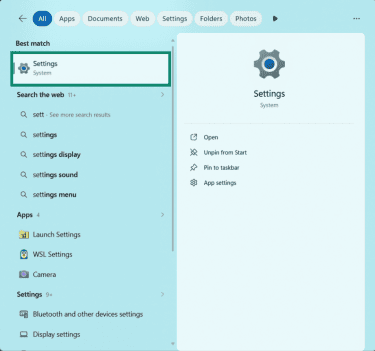
- Quit Teams and go to Start > Settings.
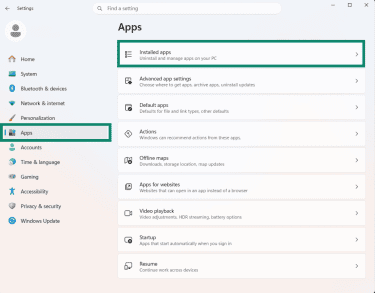
- Select Apps in the sidebar and click Installed apps.
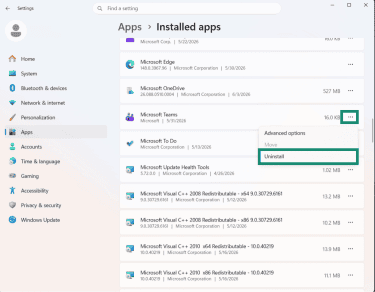
- Find Microsoft Teams, click the three-dot menu, and choose Uninstall.
On Mac
- Quit Teams, open Finder, and go to Applications.
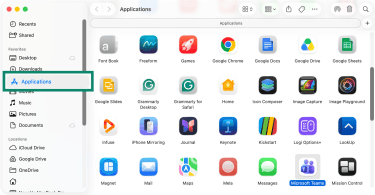
- Click on the Microsoft Teams app and move it to the Trash.
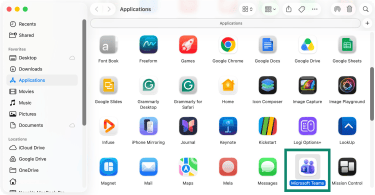
- Use the Empty Trash option to fully remove Microsoft Teams.

On iPhone or iPad
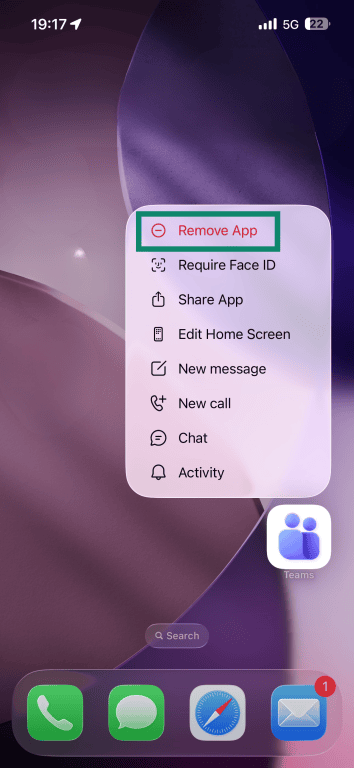
- Touch and hold the Teams app icon, then tap Remove App.
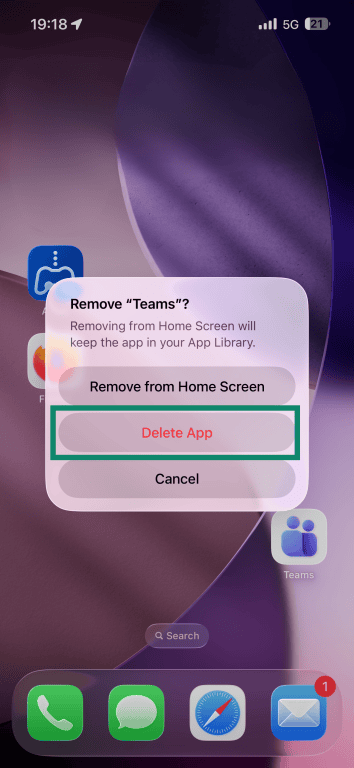
- Tap Delete App.
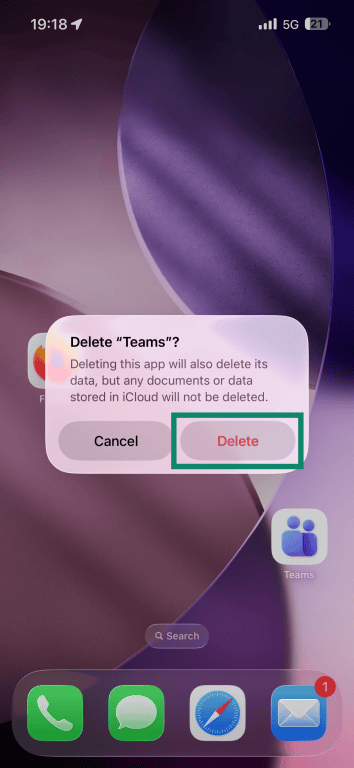
- Confirm deletion by tapping Delete.
On Android
Steps vary by device, but on many Android phones:
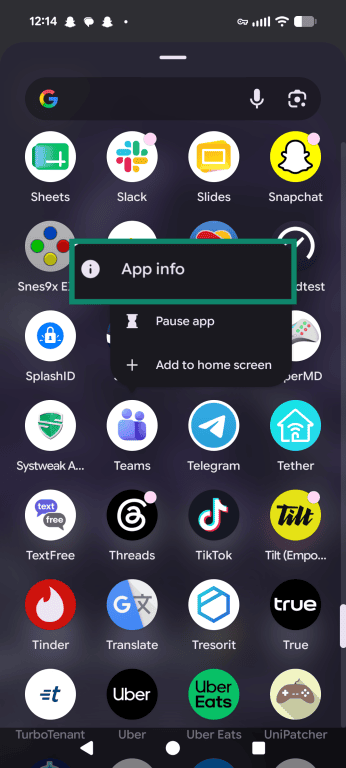
- Open your phone’s App Drawer and find the Teams app. Or swipe up and use the search bar to find it.

- Long-press the Teams app, then tap App info.
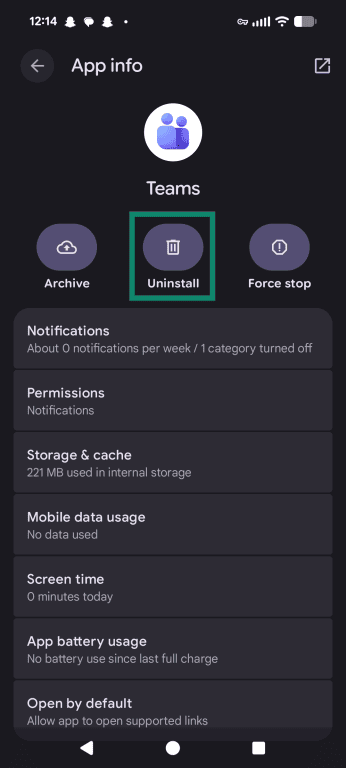
- Tap Uninstall.
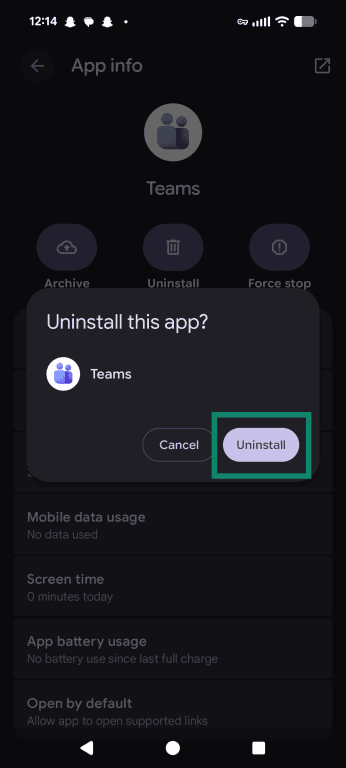
- Confirm by tapping Uninstall.
How to deactivate Microsoft Teams
Microsoft doesn't offer a "deactivate" button for Teams. If you have a personal Teams (free) account, you can sign out, uninstall Teams, or cancel any Microsoft subscription you no longer want.
For organizations, the equivalent is disabling Teams access while keeping the Microsoft 365 account active. This is something only the IT admin can do by removing the Teams license or disabling the Teams service plan in the Microsoft 365 admin center while keeping other needed Microsoft 365 services assigned.
How to stop Teams from starting automatically
If your Teams app launches automatically when you turn on your device, or even opens in the background, you can turn off startup options in the Teams app settings.
On Windows
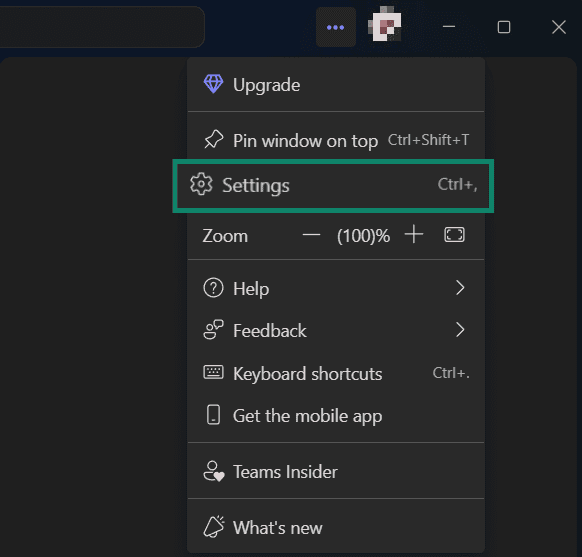
- Open Teams and click the three-dot more option next to your profile picture.
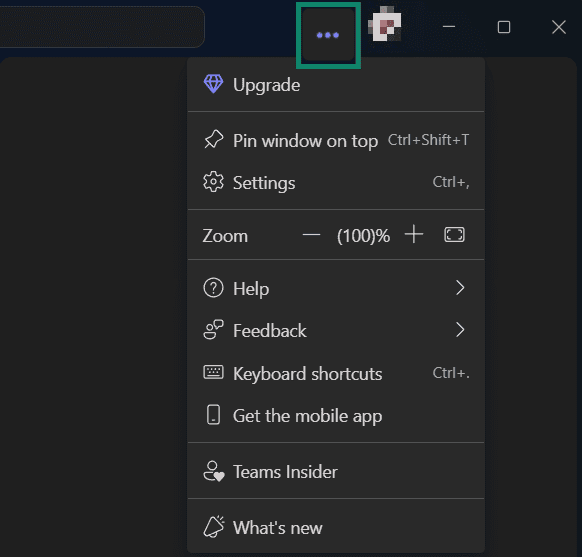
- Pick Settings.
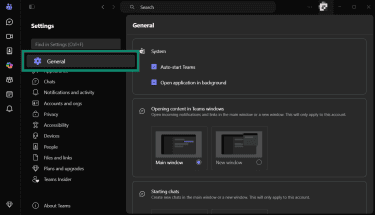
- Make sure General is selected on the left.
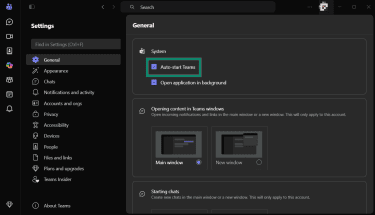
- Under System, uncheck Auto-start Teams. If available, also turn off options such as Opening application in background or On close, keep application running.
On Mac
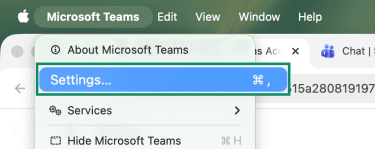
- Open Teams and select Microsoft Teams in the menu bar.
- Select Settings.
- Pick General.
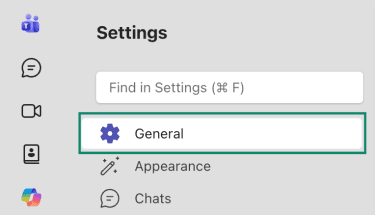
- Under System, uncheck Auto-start Teams. Also, uncheck Opening application in background or On close, keep application running if these options are available.

Security steps after deletion
If your Microsoft account has been permanently deleted after the recovery window, no further action is needed on that account. But if the Microsoft account is still active, or if a work account was only removed from Teams or Windows, make sure access is properly cleaned up:
- For an active personal Microsoft account, use Sign out everywhere to sign out of browsers and apps on other devices.
- Remove the work or school account from Windows Settings if it's still connected.
- Change your password if the account was used on a shared or old device.
- Turn on two-factor authentication (2FA), or use a stronger sign-in method such as an authenticator app or passkey, if the account is still active and used for other Microsoft services.
- Contact IT if you need a work or school account fully revoked, or if password, multi-factor authentication (MFA), or access settings are managed by the organization.
Can I recover a deleted Microsoft Teams account?
Recovery depends on the account type and how long ago the deletion happened. For personal Teams, recovery means reopening the linked Microsoft account. Work or school accounts depend on the organization’s admin settings, licenses, and retention policies.
Understanding Microsoft account deletion policy
When you close a personal Microsoft account, Microsoft lets you choose a 30-day or 60-day reopen window. During that period, signing back in can reopen the account. After the window passes, the account can no longer be recovered.
For work or school accounts, Microsoft 365 admins have separate recovery and retention options. A deleted user account may be restorable for 30 days, and OneDrive data has its own retention process. Organizations can also implement retention policies to retain certain Teams chat and channel messages for compliance.
Recovery options for personal accounts
For a personal account, recovery is usually straightforward if you’re still inside the reopen window:
- Go to the Microsoft sign-in page.
- Sign in with the closed account.
- Follow the prompts to reopen the account.
If you only uninstalled Teams or signed out, reinstalling Teams and signing back in should restore app access, assuming the account still exists.
Recovery options for work or school accounts
For work or school accounts, contact the organization’s IT team. They can confirm whether the account still exists, whether Teams access is disabled, whether the user account can be restored, and whether OneDrive or SharePoint files are still available.
Users usually can’t restore organization data themselves. Retention policies, legal holds, license status, and admin permissions decide what can be recovered.
FAQ: Common questions about deleting Microsoft Teams account
Does deleting Teams delete my Microsoft account?
For work or school accounts, removing Teams access doesn’t delete the organization-managed account. An IT admin can remove your Teams license or disable Teams access while keeping the rest of your Microsoft 365 account active.
Can I delete Teams without deleting Outlook or OneDrive?
Why can’t I delete my Teams account?
How long does Microsoft keep deleted account data?
Can my organization still access my Teams data?
What should I back up before deleting Teams?
How do I switch to a different Teams account?
Is removing an account the same as deleting it?
Explore the web with greater privacy
Get ExpressVPNSign up today for a chance to win FIFA World Cup 2026™ tickets.