 Celebrate with up to 80% off
The work-from-anywhere cybersecurity playbook: How to stay safe at home, in cafés, in hotels, and at the airport


Whether it means logging in from home, a busy café, a hotel room halfway across the world, or a departure lounge between flights, work can now be done just about anywhere.
While this flexibility offers employees greater freedom, it also introduces a range of cybersecurity risks that are unique to each location.
Why remote work changed the global cybersecurity picture
Maintaining the same levels of cybersecurity as in the office can be challenging when you work in remote settings, especially on unprotected Wi-Fi or insecure home setups.
Cybercriminals can exploit these vulnerabilities. In a Barracuda Networks survey conducted in May 2020, 46% of global businesses reported encountering at least one cybersecurity incident within the first two months of shifting to remote work during the pandemic.
As remote work culture continues to gain traction, so do the cybersecurity risks associated with it. A 2026 report by the UAE Cyber Security Council found that cyberattacks have risen by around 40% compared to earlier years. This growth is linked to the expansion of work-from-home practices.
In the following list, you can read about some of the most critical ways in which remote work has affected corporate cybersecurity.
- Expanded attack surface: Employees are now using personal devices, home networks, and public Wi-Fi for work purposes. This dramatically increases the number of potential entry points that attackers can exploit to gain access to corporate systems.
- Growing phishing and social engineering attacks: Remote workers frequently rely on email, chat, and video conferencing tools to keep in touch with clients and coworkers. Attackers can exploit these communication channels for phishing and other social engineering attacks. For example, they may impersonate trusted individuals or organizations to trick workers into revealing sensitive information (such as passwords or access credentials). They may also try to deceive employees into clicking malicious links that can compromise corporate systems.
- Rise of shadow IT: Shadow IT refers to apps, devices, or cloud services that workers may use for work-related things without the company’s knowledge or authorization. This includes consumer cloud storage services, messaging apps, and file‑sharing platforms that often bypass official security controls. This increases the risk of unauthorized access, malware infections, and accidental exposure of sensitive company information.
- Decline of the traditional security parameter: Before remote work became widespread, many organizations assumed that anything inside the network perimeter could be trusted. So, they relied on firewalls to protect against external threats. However, remote work makes systems more susceptible to insider threats and creates additional opportunities for attackers to bypass the network perimeter. This can occur through phishing attacks, stolen credentials, or unsecured devices.
As a result, many organizations have begun replacing perimeter-based security with zero-trust security models. Rather than automatically trusting users or devices inside the network, zero trust requires continuous verification of identity, device security, and access permissions before allowing access to company resources. Many companies now rely on multi-factor authentication (MFA), single sign-on (SSO), and biometric logins to help secure access to corporate systems.
Main cybersecurity threats of working remotely
In remote-work settings, attackers may target insecure networks, work devices, or online accounts to gain unauthorized access to sensitive systems and data.
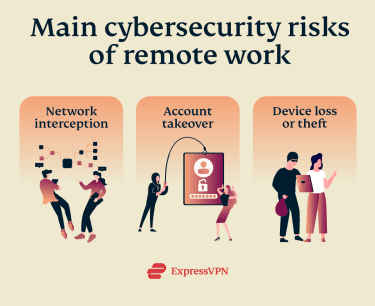
Each of these attack vectors involves different types of cybersecurity threats. We’ll go over what those are and how you can protect your data in those scenarios.
Network-layer risks
Corporate networks often enforce a set of security rules that employees must follow, such as performing regular software updates and using only approved devices. In-office environments also tend to have strong security systems that monitor and filter all internet traffic to block threats (like malware or hacking attempts).
In remote settings, security often depends solely on individual employees. Since most workers are not IT experts, they may use default router credentials, connect unsecured personal devices to the same network used for work, and rarely update their router firmware.
That’s why, when targeting remote employees, attackers often look for vulnerabilities in the network used to access corporate systems.
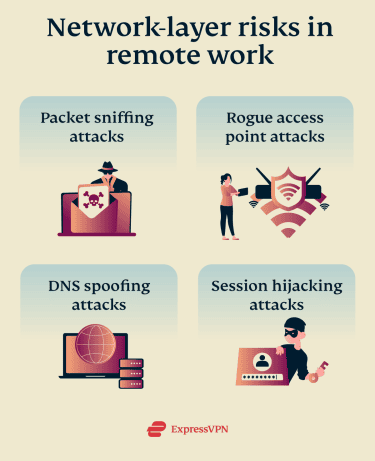
Packet sniffing attacks
Packet sniffing occurs when cybercriminals intercept an unencrypted network to gain unauthorized access to data packets (like login credentials, session cookies, or messages).
These attacks are most commonly employed on poorly secured networks (such as public Wi-Fi in cafés, hotels, or airports), where attackers can monitor traffic from nearby devices on the same network.
Packet sniffing is typically a passive attack, which means the attacker silently captures data without disrupting the user’s connection. This can result in sensitive work data being exposed without the employee realizing their connection is compromised.
Rogue access point attacks
Attackers may set up a fake Wi‑Fi access point that imitates a legitimate network. The fake network’s name looks identical (or nearly identical) to the real one, and it may offer a stronger signal, which tricks people into connecting to it.
These attacks often include spoofed captive portals. Once a victim connects to the fake Wi-Fi network, they may be redirected to a counterfeit login page and tricked into entering credentials or other sensitive information.
In a real-world example from 2024, Australian authorities charged an individual for setting up "evil twin" Wi-Fi hotspots mimicking legitimate networks at Perth, Melbourne, and Adelaide airports.
DNS spoofing attacks
DNS spoofing is a man-in-the-middle (MITM) technique in which an attacker manipulates or forges Domain Name System (DNS) responses to redirect users to malicious websites without their knowledge.
When a user tries to access a website, their device sends a DNS request to find its correct address. The attacker intercepts or forges the response, redirecting the user to a fake website. Any login details entered on this site are then captured by the attacker.
A DNS spoofing attack is often difficult for an employee to recognize. This is because attackers try to make the fake site look almost identical to the real one, so users may not notice anything unusual at first. Victims often only realize they’ve been targeted after they notice suspicious activity, such as password changes or unauthorized logins.
Session hijacking attacks
Session hijacking happens when an attacker takes over an active website session by stealing or reusing identifiers such as cookies or authentication tokens. When a user logs into a website, like a company cloud application, the server issues a unique token that keeps them logged in without repeatedly entering credentials.
In poorly secured or compromised networks, attackers may attempt to capture session tokens through techniques such as packet sniffing or MITM attacks and then reuse them to impersonate the victim. This allows them to gain full access to an account while remaining undetected by the user.
Once an attacker takes over a session, they are essentially treated by the application as the legitimate user, allowing them to perform various actions and even steal sensitive data.
How to secure your network
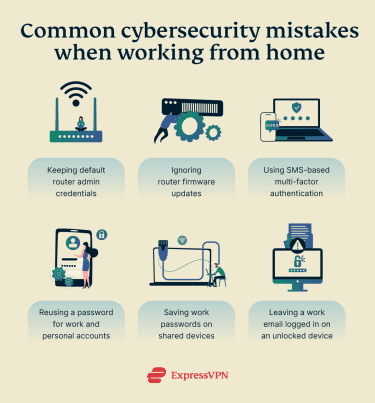
If you work primarily from home, improving the security of your Wi-Fi network is key to reducing the risk of network-based attacks. Here are some practical ways to do that.
Use a strong Wi-Fi password
Your Wi-Fi password controls who can connect to your wireless network. Weak passwords can allow unauthorized users to access your network and connected devices.
To create a strong Wi-Fi password:
- Connect to your Wi-Fi network.
- Open a browser and enter your router’s address.
- Log into the router’s admin panel.
- Open the Wireless, Wi-Fi, or Security settings section.
- Locate the Wi-Fi password field, often labeled Wi-Fi Password, Passphrase, or Network Key.
- Create a unique password.
- Save the changes and reconnect your devices using the new password.
To create a strong password, aim for at least 16 characters. Include a combination of uppercase and lowercase letters, numbers, and special characters. Avoid predictable patterns like “1234” and easily guessable personal details (such as names or birthdays).
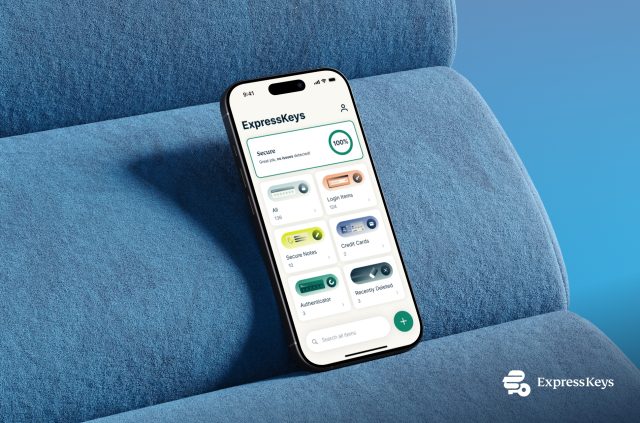
Coming up with and keeping track of multiple strong passwords can be challenging, but it’s important to set one up for each of your accounts. A password manager like ExpressKeys can help, if you need it.
Create a guest network
Working from home often means sharing a network with many other household devices (and even guests’ devices, too, when they visit your home). For example, your child’s gaming laptop, your friend’s smartphone, and your work laptop may rely on the same Wi‑Fi network, the same DNS settings, and the same router administration credentials.
This creates additional security challenges. If one device on the home network is compromised, it may create opportunities for attackers to access or target other devices on the same network, including those used for work.
While not all routers support this feature, creating a guest network can help reduce this risk. They allow you to isolate devices that may not be as secure as your own (like your visitors’) from the main network.
To create a guest network:
- Connect to your home Wi-Fi network and open a web browser.
- Enter your router’s IP address in the address bar to access the admin panel.
- Log in using your administrator username and password.
- Navigate to the Wireless, Wi-Fi Settings, or Network Settings section
- Find and select the option labeled Guest Network or Guest Wi-Fi.
- Enable the guest network feature.
- Set a network name (SSID) for the guest network.
- Create a strong, unique password for the guest Wi-Fi.
- If available, enable client isolation or a setting that prevents guest devices from accessing the main network.
- Save your settings and restart the router if prompted.
Keep your work devices connected to the main network and be selective about what other devices you allow to join in. If someone visits your home and asks for the Wi-Fi password, share the guest networks’ details with them. If you want to be extra cautious, consider hooking up your Internet of Things (IoT) devices (like your smart speakers or security cameras) to the guest network, too.
Change default router login credentials
Most home routers come with default admin usernames and passwords that can be easily found online and targeted by automated attacks. This is different from your Wi-Fi password, as the admin panel of a router is where you change all settings in your network (including the Wi-Fi password).
Changing the default admin login is strongly recommended to prevent unauthorized individuals from taking control of your network settings.
To change your default login credentials:
- Connect to your Wi-Fi network.
- Open a browser and enter your router’s address.
- Log in using the default credentials (usually found on the router label or manual).
- Navigate to the admin settings page.
- Change the admin username and password to a strong and unique one.
- Save changes and log out.
Enable strong encryption
Encryption protects the data transmitted between your devices and the router. Protocols like Wi-Fi Protected Access 3 (WPA3) or WPA2 with Advanced Encryption Standard(AES) are considered stronger because they use modern cryptographic standards to securely encrypt data transmitted over the network.
This makes it significantly harder for attackers to intercept or read your data. Strong Wi-Fi security protocols also make it more difficult for attackers to compromise your wireless network, especially when paired with a long, unique Wi-Fi password.
To enable WPA3 or WPA2-AES encryption:
- Log into your router settings.
- Go to Wireless / Wi-Fi Security.
- Select WPA3-Personal or WPA2-PSK (AES) if WPA3 is unavailable.
- Avoid outdated technologies like WEP or WPA.
- Save settings and reconnect devices if needed.
Activate the router firewall
Most modern routers come with a built-in firewall that serves as a barrier between your home network and the internet, monitoring incoming and outgoing internet traffic to block unauthorized access. Firewalls are usually enabled by default, but it’s still important to verify that the feature is turned on in your router’s security settings.
To activate your router firewall:
- Connect to your Wi-Fi network.
- Open a browser and enter your router’s IP address.
- Log into the router’s admin panel.
- Open the Security, Firewall, or Advanced Settings section.
- Ensure the firewall is turned On or Enabled.
Update router firmware
Router manufacturers regularly release updates to their firmware. This will patch any security vulnerabilities that have been discovered since the device was released and potentially add new features and improve its performance.
To update your router firmware:
- Log into your router settings.
- Look for Firmware Update, Router Update, or Maintenance in the settings menu.
- Check for updates manually or enable automatic updates.
- Install available updates and allow the router to reboot.
How to secure your connection while traveling
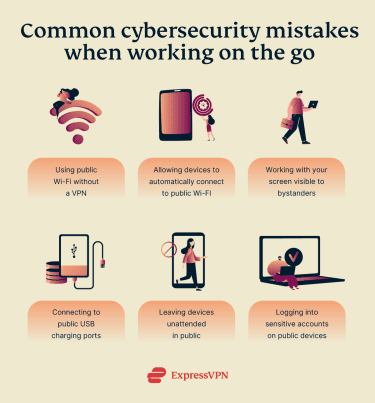
Working remotely often means connecting to unsecure public Wi-Fi networks, which are a common target for cybercriminals. Here are two practical ways to secure your connection when working on public spaces.
Opt for a personal hotspot
When you have to work remotely and you’re not at home, using a personal hotspot is generally safer than connecting to a public Wi-Fi network. As the name says, you’re using a private connection that is not shared with other users, reducing the risk of interception, fake networks, and other MITM attacks.
To activate a mobile hotspot on your smartphone:
- Open your phone’s Settings.
- Go to Mobile Data or Cellular settings.
- Select Personal Hotspot or Hotspot & Tethering.
- Turn the hotspot feature On.
- Set a strong password for the network if prompted.
- On your laptop or other device, connect to your phone’s hotspot like a regular Wi-Fi network.
Use a virtual private network (VPN)
If you don’t have access to a personal hotspot, using a VPN can help secure your internet connection on public or untrusted networks.
A VPN encrypts internet traffic between your device and the VPN server, regardless of whether the underlying network is encrypted. This makes it much harder for attackers on the same network to intercept or read your internet traffic.
To use a VPN:
- Choose a reputable VPN provider.
- Download and install the VPN app on your work device.
- Open the app and sign in using your account credentials.
- Select a server location.
- Connect to the VPN before accessing any work-related systems or sensitive data.
- Confirm that the VPN is active (usually indicated by a “Connected” status or icon).
- Work normally while keeping the VPN enabled for the entire session.
Account-layer risks
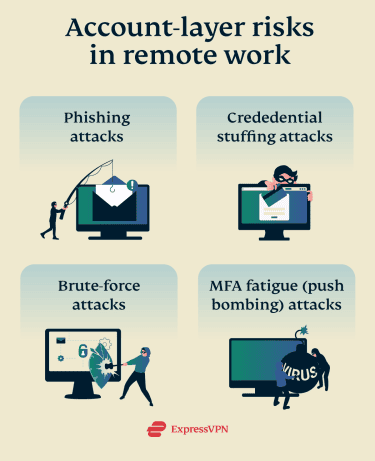
In remote-working environments, attackers often target employees’ identities and login credentials as a way to get into corporate systems. To obtain these, they may rely on social engineering tactics such as phishing attacks or take advantage of employees’ poor password practices.
Let’s go over some of the most common methods attackers use to compromise workers’ accounts.
Phishing attacks
Phishing attacks typically involve impersonating a trusted individual or organization to obtain sensitive information. For example, an attacker may send an email that appears legitimate but contains links to a fake or malicious website. This may trick the user into entering sensitive information such as usernames, passwords, or payment details.
While phishing attacks can target any and all employees, those working remotely may be particularly susceptible to them. A 2025 study on phishing in remote work found that isolation can increase vulnerability to phishing by limiting timely access to coworkers or IT staff who could help verify suspicious messages.
Credential stuffing attacks
In an effort to gain unauthorized access, attackers may test previously compromised login credentials across multiple accounts and online services. They typically rely on specialized software capable of carrying out hundreds or even thousands of login attempts simultaneously.
Credential reuse between personal and corporate accounts is a prominent risk factor when it comes to this type of cyberattack. If personal account credentials are ever compromised, attackers can use them to log into corporate accounts and gain access to sensitive work data.
Research suggests the practice remains common among remote workers, making them particularly vulnerable to credential stuffing. For example, a report from Lookout surveying 3,000 remote and hybrid workers from enterprises in the U.S., the UK, France, and Germany discovered that 45% are using the same password for both work and personal accounts.
Brute-force attacks
In a brute-force attack, cybercriminals systematically try every possible combination of characters until they crack a password or login credential. Like with credential stuffing, this process is typically carried out using automated tools capable of generating and testing large volumes of guesses at high speed.
The success of these attacks depends heavily on password strength and complexity, as the time required to crack a password increases exponentially the more complex it is.
This threat became particularly prominent during the shift to remote work. For instance, Kaspersky reported a 242% increase in brute-force attacks on Remote Desktop Protocol in 2020, reaching 3.3 billion attacks globally.
MFA fatigue attacks
Multi-factor authentication (MFA) adds an extra layer of security to your accounts by requiring a second form of verification. In addition to your password, MFA requires a second verification factor usually sent via email or an authenticator app. This means that even if an attacker obtains your password, they still cannot access your account without the second verification step.
In MFA fatigue attacks (also known as push bombing), a cybercriminal already has a valid username and password, which is often obtained from a previous data breach or phishing scheme. Attackers then repeatedly send MFA approval requests to the victim until they accidentally approve one.
A widely reported real-world example of an MFA bombing attack is the 2022 Uber breach. It involved a remote contractor whose corporate login credentials were previously compromised.
After obtaining the login credentials, the attackers triggered MFA push notifications to the contractor's device. Eventually, the contractor approved one MFA request, which granted the attacker access to Uber's internal systems.
How to secure your work accounts
Taking a couple of proactive cybersecurity measures can significantly reduce the risk of your account being compromised while working remotely.
Use a password manager
As we already suggested, creating strong passwords and avoiding password reuse can help protect you against threats such as credential stuffing and brute force attacks. However, it can also make it more challenging to keep track of all your login credentials.
A password manager eliminates the need to remember dozens of unique passwords across multiple accounts. It securely stores all your login credentials in an encrypted digital vault that you can access with one vault password.
To use a password manager:
- Choose a reputable solution and install it on your device.
- Create a unique master password (one that you don’t use anywhere else).
- Use the password generator feature to create unique passwords for each account.
- Allow the manager to autofill login details when signing into your work accounts.
- For extra safety, enable MFA on the password manager itself, to reduce the risk of unauthorized access. ExpressKeys also supports MFA, so you can easily add and generate 2FA codes.
Enable multi-factor authentication (MFA)
To enable MFA on your work accounts:
- Log into your account (email, cloud platform, or collaboration tool).
- Go to Settings and then look for Account Security.
- Find the option labeled Multi-Factor Authentication, Two-Step Verification, or 2FA.
- Choose an authentication method (preferably an authenticator app).
- Follow the on-screen instructions to link the app or device to your account.
Device-layer risks
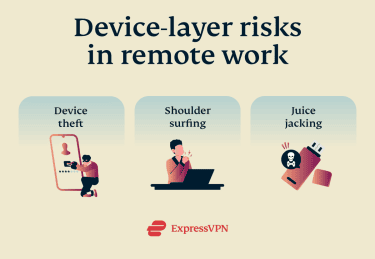
Securing the device you work on (whether that is a phone, laptop, or tablet) is equally as important as securing your network and accounts. Your device is the primary gateway to your work accounts, files, and communication tools, making it a common target for cybercriminals.
When working in a public setting, consider the following risks.
Shoulder surfing
Public locations are prime spots for shoulder surfing. This happens when someone nearby watches your screen or your keystrokes to capture sensitive information such as passwords, PINs, or confidential work content.
In the Ponemon Institute’s Public Spaces Interview Study on visual hacking, 87% of mobile workers surveyed said they had caught someone glancing at their screen in a public space.
Juice jacking
Juice jacking refers to a theoretical type of cyberattack in which public charging stations or USB ports (such as those found in airports) are compromised. Instead of only powering up your device, these ports may enable data transfer to or from it.
Although widely discussed in cybersecurity awareness contexts, there are no confirmed real-world cases of successful juice jacking attacks. However, it’s still considered a preventive security risk in high-traffic public environments.
Device theft
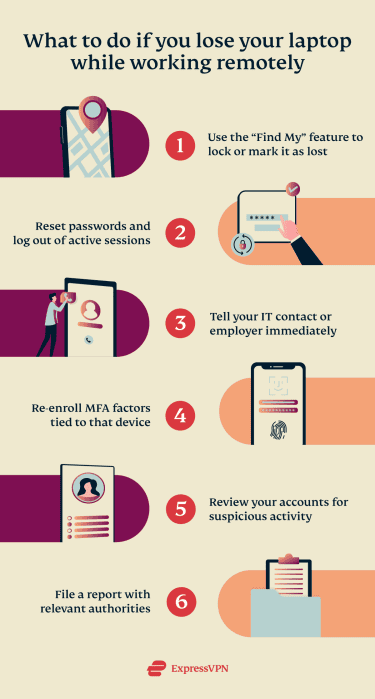
Leaving your work device unattended (even briefly) while in a public space can create an opportunity for theft. Once attackers gain physical access to a device, they may attempt techniques such as cold boot attacks, where data temporarily stored in a computer’s memory is recovered after the device is powered off or restarted.
In many cases, stolen devices may also provide direct access to cloud platforms, collaboration tools, and company networks through saved passwords or active sessions.
According to Kensington's 2025 hybrid work security research (based on a survey of 1,000 senior IT leaders in the U.S., UK, France, and Germany), 76% of organizations experienced device theft in the past two years. This issue was quite prevalent in hybrid (74%) and fully remote setups (94%).
How to secure your work device
Whether you work from home or while traveling, there are a few easy steps you can take to help keep your work device and the data stored in it secure.
Use a privacy screen protector
A privacy screen protector limits the viewing angle of your screen, making it difficult for people nearby to see your display. This is especially useful when working in public spaces, as it reduces the risk of strangers glancing at your screen to capture sensitive information such as passwords, PINs, emails, or other confidential data.
Set up automatic screen locking
Avoid leaving your work device unattended in public places to reduce the risk of theft or unauthorized access. If you need to step away briefly, enabling automatic screen lock ensures your device locks after inactivity. Then, it can only be accessed with a password, PIN, or biometric authentication.
To enable automatic screen locking on Windows:
- Open Settings on your Windows device.
- Go to System, then select Power & sleep.
- Under Screen timeout, set the screen to turn off after a short period of inactivity.
- Next, open Settings, go to Accounts, and select Sign-in options.
- Find the setting that requires sign-in after sleep (often labeled Require sign-in) and enable it.
- Set the device to require sign-in every time the PC wakes from sleep.
On macOS:
- Open System Settings and go to Lock Screen.
- Set the display to turn off after a short period of inactivity.
- Enable Require password after screen saver begins or display is turned off.
- Set the delay to immediately or a short period of time.
Enable full-disk encryption
Full-disk encryption converts all data stored on your laptop into unreadable code using strong algorithms (like AES-256) that can only be accessed with your login credentials. This ensures that even if your device is lost or stolen, the data in it remains inaccessible to unauthorized users.
To enable full disk encryption on Windows (BitLocker):
- Search for Manage BitLocker in the Start menu and open it.
- Click Turn on BitLocker for your system drive.
- Choose how to save your recovery key (Microsoft account, USB, or file).
- Select an encryption option (e.g., used disk space only or full drive).
- Start encryption and wait for it to complete.
On macOS (FileVault):
- Go to System Settings > Privacy & Security.
- Select FileVault and click Turn On.
- Choose a recovery method (iCloud or recovery key).
- Enter your administrator password.
- Wait for encryption to finish.
Stay safe wherever you work
Working from anywhere doesn’t have to mean working less safely. Simple steps like implementing strong passwords, using MFA, and relying on a VPN when on public networks can go a long way.
Staying cautious and making these habits part of your daily routine will allow you to enjoy the benefits of remote work while minimizing the cybersecurity risks associated with it. Protecting your sensitive data is feasible, even when you’re not in the office.