Is iCloud safe? Essential tips for secure usage



If you use an iPhone, iPad, or Mac, there's a good chance your photos, backups, and files are stored in iCloud. With so much personal data in one place, it's natural to wonder how safe it really is.
The short answer is that yes, iCloud is generally considered secure, with protections such as encryption and two-factor authentication (2FA) to protect your data. That said, the safety of your account still depends on factors such as password strength and device security settings.
Understanding iCloud security features
iCloud uses several built-in protections to help keep your data secure while it's stored on Apple's servers and as it moves between your devices.
How secure is iCloud?
Apple encrypts iCloud data both while it travels between your device and Apple's servers and while it's stored on those servers. This includes a mix of standard and end-to-end encryption (E2EE) for more sensitive data, reducing the risk of interception or access.
For many services, Apple manages encryption keys on the server side using a server-side key management model. This includes features such as iCloud Backups, iCloud Photos, Notes, and iCloud Drive. This approach helps syncing, backups, and account recovery work smoothly. However, it also means Apple could technically access that data if required for account support or legal requests.
Some iCloud services use E2EE instead. In those cases, your trusted devices hold the encryption keys, so Apple can't read the data. You can also enable additional protections that extend this level of encryption to more types of information.
Advanced Data Protection explained
Advanced Data Protection (ADP) is an optional iCloud feature that adds E2EE to more types of data. (Some sensitive data, like passwords in iCloud Keychain and Health data, already uses E2EE by default.)
When you turn it on, your trusted devices hold the encryption keys rather than Apple. Only your trusted devices where you're signed into your Apple account can then see the encrypted data. These keys are protected by your device passcode and Apple Account security, so only devices you trust can access the data. Apple can't see your encrypted data.
Let's compare the encryption levels of different categories of your iCloud data.
| iCloud data | Encryption by default | Encryption with ADP |
| Passwords (iCloud Keychain) | E2EE | E2EE |
| Health data | E2EE | E2EE |
| Messages in iCloud | E2EE* | E2EE |
| iCloud backups | Standard encryption | E2EE |
| iCloud Photos | Standard encryption | E2EE |
| Notes | Standard encryption | E2EE |
| iCloud Drive files | Standard encryption | E2EE |
* If iCloud backup is enabled, the backup includes a copy of the Messages in iCloud encryption key so your messages can be recovered.
It's important to know that Apple can't help you recover data if you lose access to both your account and your recovery method, since you hold the encryption keys. When you enable ADP, you'll need to set up a recovery method, such as a recovery key or contact.
How two-factor authentication protects you
2FA adds another layer of security to your Apple Account. Instead of relying only on a password, Apple requires a second form of verification to confirm it's really you signing in.
When you sign in to iCloud on a new device or browser, Apple sends a six-digit verification code to one of your trusted devices or phone numbers. You enter this code along with your password to complete the sign-in. If you use end-to-end encrypted iCloud data, Apple may also ask for the passcode from one of your trusted devices to confirm your identity.
You usually don't need to repeat this process every time you sign in. 2FA is typically required only when signing in on a new device, signing out completely, erasing a device, or changing your password for security reasons.
Although 2FA adds strong protection, attackers can still try to trick you into sharing verification codes through phishing or social engineering. It's important to enter codes only on trusted Apple sign-in prompts and to be cautious with links.
Exploring the risks involved with iCloud
Even with strong security features, iCloud isn't completely risk-free. Problems can happen when attackers target accounts through weak passwords, phishing, or compromised devices.
Weak or reused passwords
Weak or reused passwords can make it easy for attackers to crack them and get access to Apple Accounts. Passwords exposed in other data leaks often end up in large online databases, where attackers can search them and test them against popular services.
Many attacks rely on automated tools that attempt thousands of logins in a matter of seconds. For example, some attackers use credential stuffing, which gathers stolen usernames and passwords from other websites to try signing in to different accounts. If you reuse the same password across multiple Apple services, it may give an attacker access to all of them.
Phishing and social engineering scams
Phishing attacks often target Apple Account credentials rather than iCloud itself, tricking people into giving up their login details.
These scams often appear to be messages from Apple. For example, attackers may send emails or texts claiming there's a problem with your Apple Account, a suspicious purchase, or a security alert. The message usually includes a link to a fake Apple login page designed to steal your Apple Account password, often using lookalike domains closely mimicking Apple's official website.
Some scams go further by asking for verification codes from 2FA. Attackers may claim they need the code to confirm your identity or unlock your account. In reality, they use it to complete the sign-in themselves.
If a cybercriminal does get access to your Apple Account, they may also be able to access data stored in iCloud, such as photos, backups, contacts, and files.
Device theft and lost devices
If you lose your iPhone, iPad, or Mac, someone who finds it could access your data if the device isn't secured properly. Apple devices often stay signed in to your Apple Account, which means a person who unlocks the device may see synced data such as photos, files, messages, and notes.
Apple offers many security measures to help prevent unauthorized access to your device, even if it's lost or stolen. For example, a device passcode, Face ID, Touch ID, Stolen Device Protection, and Lost Mode limit what someone can do with your device if they have it. The Find My feature also lets you see your device's location, which can help you recover it.
iCloud backup exposure
iCloud backups can contain far more than photos or files. A single backup may include device settings, app data, messages, call history, and other information that helps restore your iPhone or iPad exactly as it was.
By default, iCloud backups aren't E2EE, so the encryption keys are stored in Apple's data centers. If you use both iCloud Backup and Messages in iCloud, the backup also includes a copy of the Messages in iCloud encryption key so you can recover your messages.
The main security risk here is that your backup data is not protected solely by keys on your own trusted devices. If access to those centrally stored keys is ever obtained, whether through a legal demand or a breach affecting stored backup data, someone could potentially access information contained in the backup.
You can reduce this risk by enabling ADP, which, as mentioned, stores the decryption keys for iCloud backups on your trusted devices instead of in Apple's data centers.
Learn more: Explore alternatives to iCloud and how external drives can help you securely store your data.
How to check for unauthorized iCloud access
If you're concerned someone may have accessed your iCloud account, a few quick checks can help you spot suspicious activity.
Check devices linked to your Apple Account
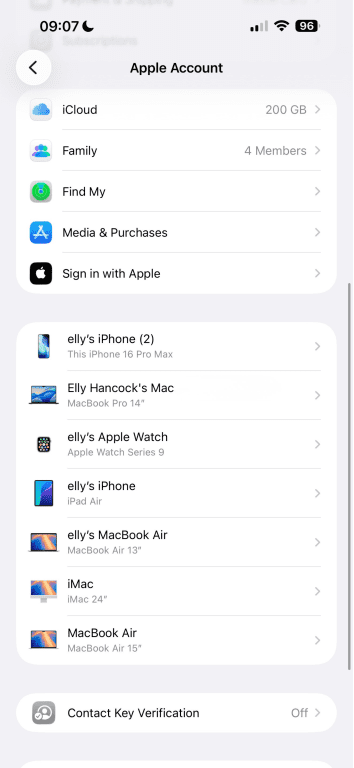
You can review all devices signed in to your Apple Account in your account settings. An unfamiliar device may indicate that someone else has signed in. If there are any you don't recognize, you can easily remove them so they no longer have access to your Apple account.
Keep in mind that someone may still have access through an existing signed-in browser session, so checking the device list alone may not show every place where your account is currently accessible.
To check:
- Open Settings and tap your name at the top of the screen.
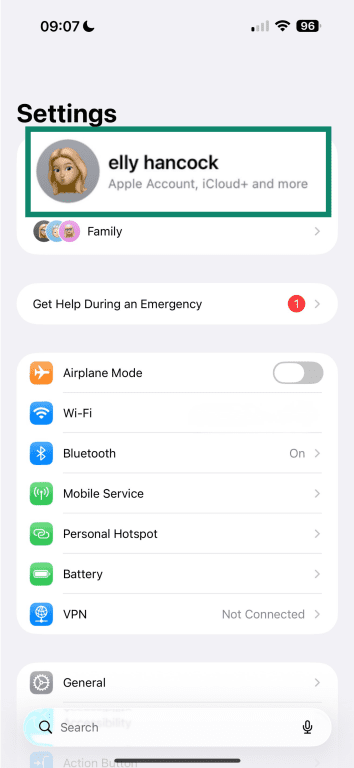
- Scroll down to see the list of connected devices.
Review recent sign-ins and alerts
Apple sends security notifications when your Apple Account is used to sign in on a new device or browser. These alerts usually appear on your trusted devices and can help you spot activity you don't recognize.
An unexpected alert can be a warning sign that someone is trying to access your account, so if you receive a sign-in notification you weren't expecting, review the details carefully. You might see information such as the device type, location, or time of the login attempt. You should also see the option to allow or deny the request, which helps prevent someone else from signing in.
Spot unusual iCloud activity
Unusual activity in your account can sometimes be a red flag that someone else has gained access. Watch for things like:
- Unexpected changes to your Apple Account settings, such as your password, recovery contacts, or trusted devices.
- Files, photos, or backups that have changed or been deleted without you doing anything.
- New devices are suddenly showing in your iCloud syncing list.
- Purchases or subscriptions you don't recognize.
Understanding iCloud's privacy policies
iCloud stores a large amount of personal data, so it's important to understand how Apple handles that information.
What data can Apple access in iCloud?
Some categories use E2EE, and Apple states it cannot read this data. This can include passwords stored in iCloud Keychain, Health data, and some messaging information protected with E2EE.
Other iCloud data uses Apple's standard protection model, where Apple holds the encryption keys. This means Apple may be able to access certain data if required, such as iCloud backups, Photos, Notes, and files stored in iCloud Drive, which help devices sync and support account recovery.
How iCloud uses and shares your data
Apple mainly uses iCloud data to operate its services. This includes syncing files and photos across devices, backing up data, and keeping information such as contacts, calendars, and notes consistent across your devices.
To keep iCloud running properly, Apple also processes some basic account and device information. This can include details about your Apple Account and the devices connected to it, which helps verify account activity and detect suspicious access. Apple also processes some technical metadata, such as timestamps, file details, and activity logs, which help iCloud sync data and maintain reliability.
Some features collect additional data when you turn them on. For instance, the Find My feature uses your device's location to help you locate it if it's lost or stolen. This includes location data from sources such as GPS, nearby Wi-Fi networks, or cellular towers, along with basic device information linked to your Apple Account.
It can also use nearby Apple devices to help detect your device's location, using encrypted Bluetooth signals as part of a crowdsourced network. You can usually control or disable these features in your device settings to limit the amount of location data you share.
Apple may also collect limited information about how ADP works on your account, such as:
- Whether you successfully enabled or disabled ADP.
- Sign-in and authentication activity related to your Apple Account.
- Activity related to setting up or using a recovery contact.
- Activity related to creating or using a recovery key.
- Information about attempts to recover access to your account or data.
- Basic reliability data about the recovery and authentication process.
Is iCloud safe for private photos?
Keeping your photos private depends largely on how well you secure your Apple Account and manage your sharing settings.
iCloud Photos stores your photo library in iCloud and syncs it across all devices signed in to your Apple Account. It keeps your photos, videos, edits, and related metadata consistent so you can access the same library from any device.
Your photo library is tied to your Apple Account, so anyone who gains access to that account could also access your photos, depending on the level of authentication you've set up and your trusted device network. If someone compromises your Apple Account, they may be able to view or download your entire photo library.
That said, Apple includes extra protections to limit access to some of your photos. For example, the Hidden and Recently Deleted albums require Face ID, Touch ID, or your device passcode to open.
Sharing settings can also affect privacy. If you create Shared Albums, the people you invite can view the photos and may be able to save or share them. If you publish an album using a public web link, anyone with that link can access the images.
When you enable iCloud Photos, deleting a photo on one device removes it from all devices connected to the same library. If you turn off iCloud Photos, your photos may be included in an iCloud device backup instead, which changes how they're stored and protected.
What happens when you delete iCloud data?
Deleting data from iCloud removes it from all devices signed in with the same Apple Account. iCloud keeps your files, photos, and notes synced across devices, so removing something from the cloud removes it everywhere that library appears.
Some iCloud services keep deleted items for a short period before permanently deleting them, giving you time to recover them. Many apps include Recently Deleted folders where items are temporarily stored.
iCloud backups remain available for 180 days after you stop using or sharing iCloud Backup, so you still have time to reconnect a device and restore the backup. Once that recovery window ends, you can't restore the data.
Practical tips to enhance your iCloud security
iCloud has strong built-in security, but there are still a few steps you can take to better protect your data.
Use a strong Apple Account password and enable 2FA
Your Apple Account password helps protect everything stored in iCloud, so it's important to use a strong and unique password that you don't reuse on other services. Using the same password can increase the risk of someone taking over other accounts if they get your login details.
2FA adds another layer of protection: you'll need to enter a verification code when signing in to your Apple Account on a new device. To enable it:
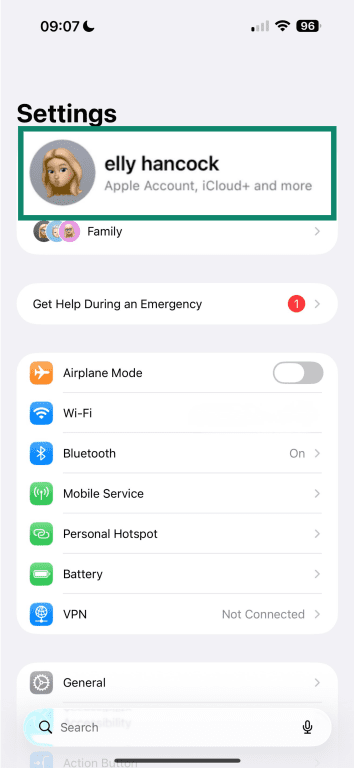
- Open Settings on your device and tap your name at the top.
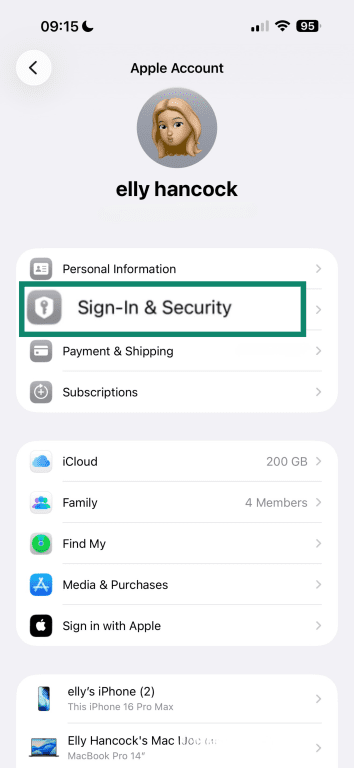
- Select Sign-In & Security.
- Tap Two-Factor Authentication.
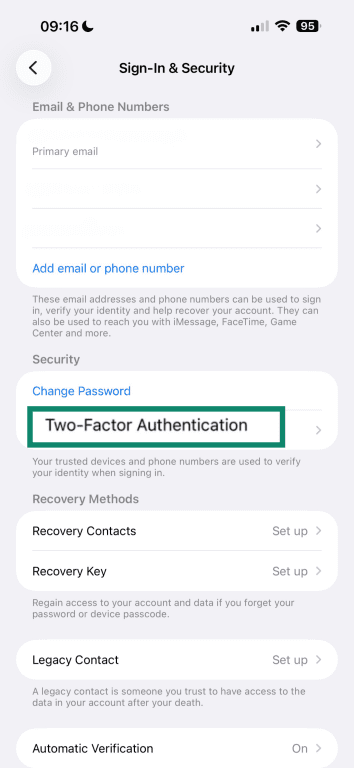
- Choose which devices to use for the 2FA verification.
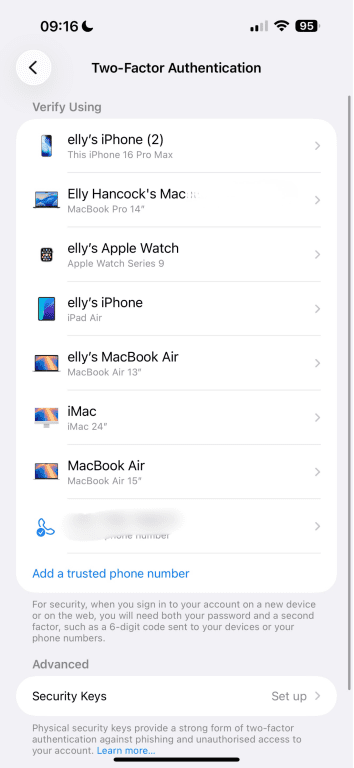
Never share your Apple Account password or verification codes with anyone. Remember, Apple won't ask for this information through emails, messages, or phone calls.
Use Apple's Passwords or a password manager
Apple includes built-in tools that help you create and store secure login credentials. One of these is the Passwords app, which stores your passwords and passkeys, and syncs them across your Apple devices.
Apple protects these passwords with E2EE, and the encryption keys are tied to your device passcode. This also means Apple can't read them. To enable it:
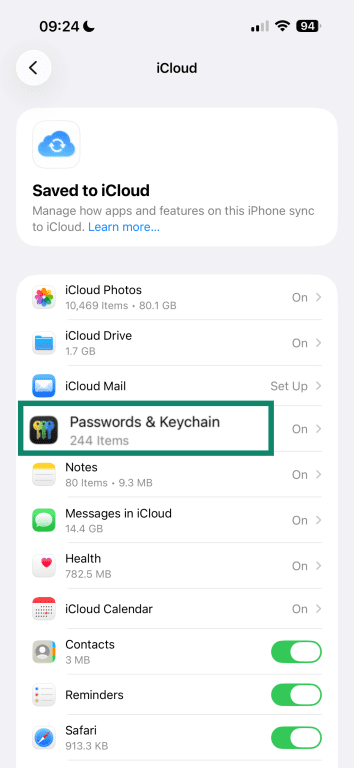
- Open Settings and tap your name at the top.
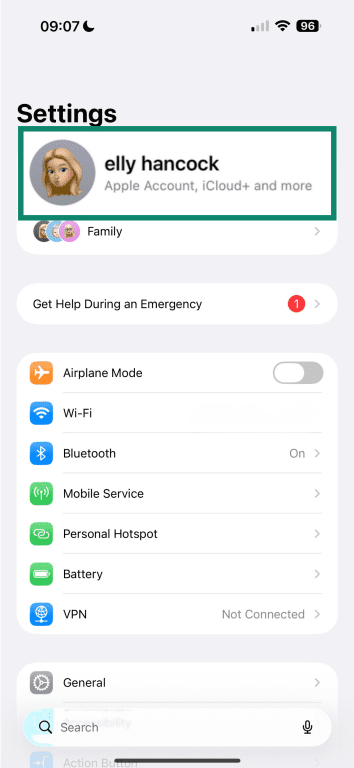
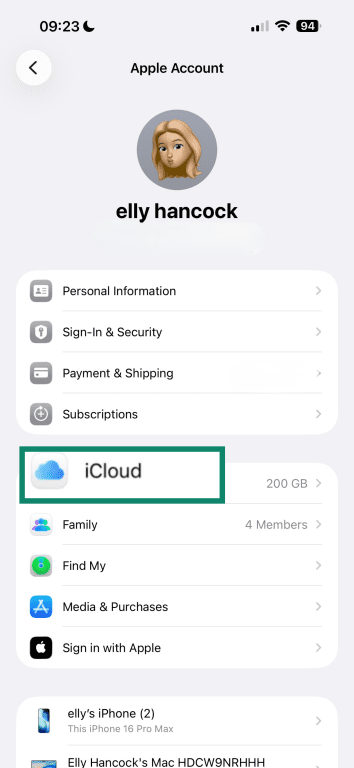
- Select iCloud.
- Under Saved to iCloud, tap See All.
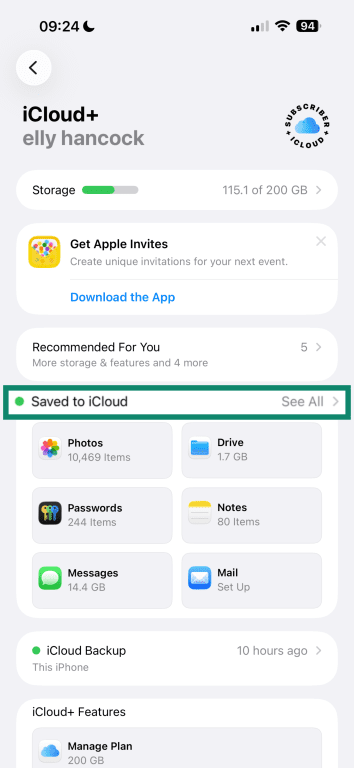
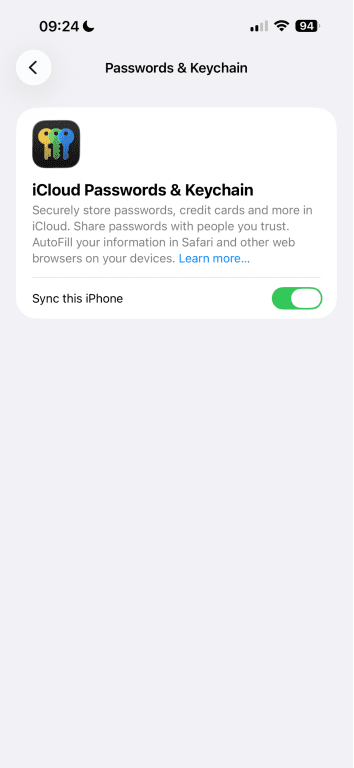
- Tap Passwords & Keychain.
- Turn on Sync this iPhone/iPad (iCloud Keychain).
You can also use passkeys, which replace traditional passwords with cryptographic keys stored on your device. Instead of sending a password, your device uses a private key to verify your identity, while the service stores a matching public key. When a website or app supports passkeys, your device can sign you in using Face ID, Touch ID, or your device passcode.
A dedicated password manager, such as ExpressKeys, can store your passwords and passkeys in an encrypted format. In addition to securely syncing credentials across devices, it can generate strong passwords, autofill logins, and help you manage all your credentials from a single place, so you don't need to remember or write them down.
Strengthen account recovery and login protection
A recovery key adds an extra safeguard to your Apple Account. It's a unique code that you create, so if you ever lose access to your account, you can use it to confirm your identity and restore access. Only you have the key, so it reduces the risk of someone else taking over the account through the recovery process.
You can also use hardware security keys to protect the sign-in process. These are small physical devices that replace traditional 2FA codes. When you sign in, you connect the key to your device or hold it near your phone to approve the login.
Since the key has to be physically present and verifies the website you're signing in to, attackers can't use it on fake login pages. This makes hardware security keys one of the strongest protections against phishing attacks.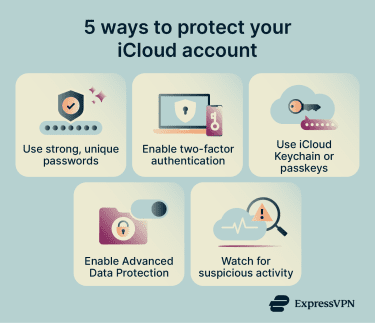
Enable Advanced Data Protection
Note: ADP is not available to users in the U.K. who have not already enabled it.
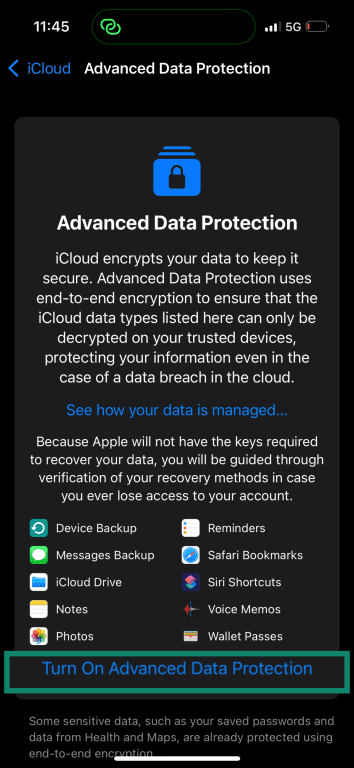
ADP adds stronger encryption to more types of iCloud data. To turn it on:
- Open Settings and tap your name at the top.
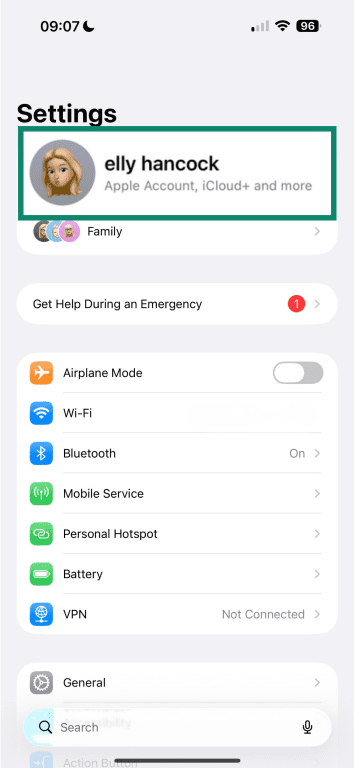
- Select iCloud.
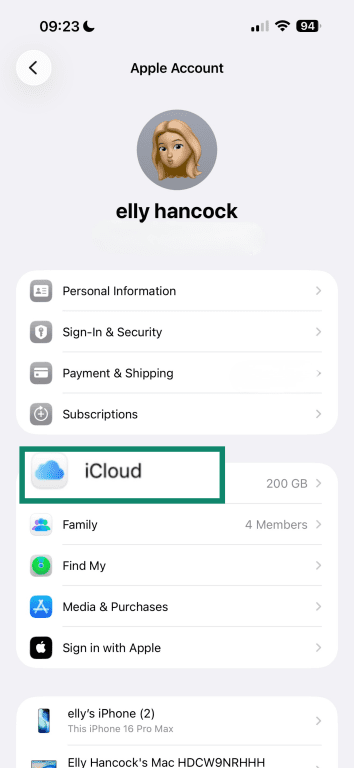
- Tap Advanced Data Protection.
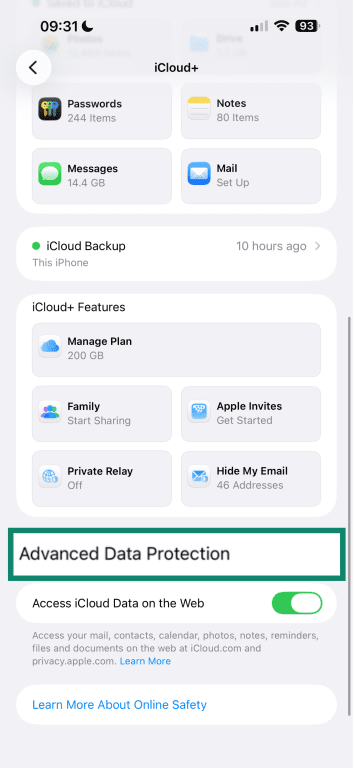
- Tap Turn On Advanced Data Protection.
Review and manage iCloud settings proactively
It's a good idea to review your iCloud settings to see which apps store data in iCloud and which devices can access it. You can do this from the iCloud section in Settings or by signing in to iCloud.com, which provides secure web access to your files, photos, notes, and other synced data.
You should also check your Apple Account information to make sure it's correct. Open your Settings and check your name, email, trusted devices, and recovery options.
Watch for suspicious activity
Apple sends alerts when important changes happen to your Apple Account, such as a new device signing in or an updated security setting.
If you receive a sign-in request you don't recognize, reject it. Then review your Apple Account security settings, change your password, and check your device list to make sure no unfamiliar devices are connected to your account.
FAQ
What are the biggest risks of iCloud?
Is iCloud really private?
Should I trust iCloud?
Can my iCloud account get hacked?
Can someone access my iCloud without my permission?
How does iCloud encryption work?
Is iCloud Keychain safe?
How can I protect my iCloud account from hackers?
What can I do if I suspect my iCloud has been hacked?