 Celebrate with up to 80% off
How to deGoogle your life: Reduce reliance on Google services


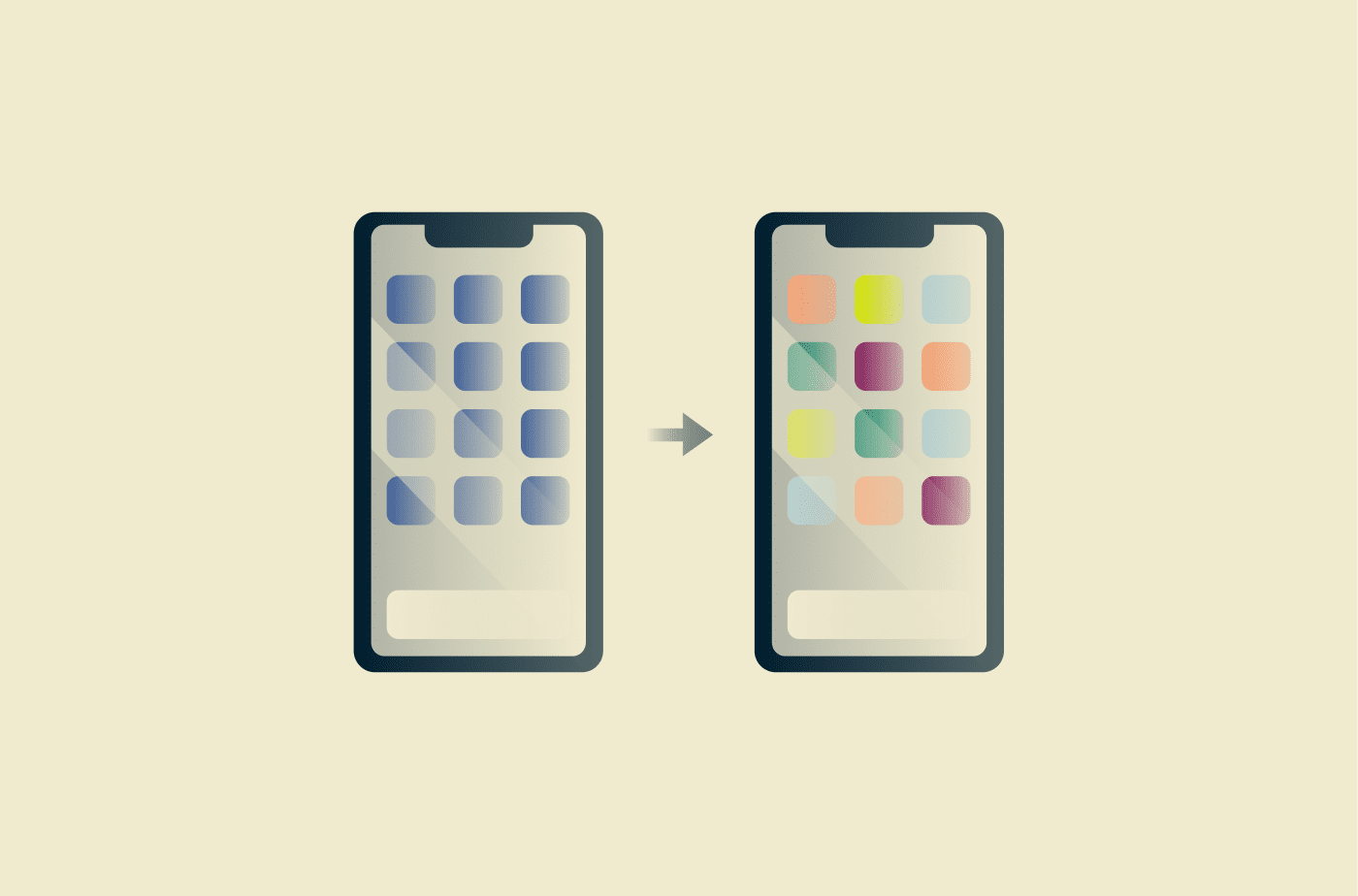
DeGoogling is the process of removing Google products from one’s digital life. This can mean anything from replacing Gmail and Chrome to reducing Google services across all devices. Some changes take minutes, while others involve moving files, switching apps, adjusting settings, and checking compatibility across accounts and devices.
A high level of separation is possible, but it can affect how certain apps, accounts, and devices work. For example, syncing contacts, photos, or files requires a third-party service instead of working automatically through Google. Because of that, a gradual approach can reduce disruption before replacing more central services.
Why people choose to deGoogle
People may choose to deGoogle for a range of practical and personal reasons. Some want to rely less on a single company, while others prefer the features, design, or data practices of alternative tools.
Reducing personal data exposure
One reason people deGoogle is to reduce the amount of personal information tied to a single account or provider. Services like Gmail, Google Search, Google Maps, Chrome, Android, and YouTube can all generate account, device, activity, and usage data within Google’s ecosystem. For some people, this raises questions about what Google knows about them.
Replacing these services can give you more choice over where specific types of data go. For example, using another email provider or search engine means future activity in those services is no longer handled through Gmail or Google Search, though some interactions may still involve Google services depending on recipients, workplace accounts, forwarding settings, or the alternative provider’s
Avoiding ecosystem lock-in
Some people want more flexibility across providers. Using different services can make it easier to switch tools based on privacy, features, compatibility, or convenience. It can also reduce disruption if a service changes its policies, removes a feature, or becomes harder to use.
Choosing different privacy and storage features
Some providers offer different approaches to syncing, storage, account management, and privacy settings. Depending on the provider, that may include features such as end-to-end encryption (E2EE), local file storage, or additional controls over how data is shared across devices and apps.
Full vs. partial deGoogling
Partial deGoogling usually means replacing selected everyday services. Full deGoogling involves broader changes across services, devices, data, accounts, and setup.
| Category | Full deGoogling | Partial deGoogling |
| Services | Remove Google services across most devices | Replace only selected services, like Chrome or Google Search |
| Devices | Use a non-Google mobile operating system or Android-based setup without Google services | Keep using devices like a Chromebook, Nest Hub, or Google Camera |
| Data | Move files, email, calendars, and backups away from Google services | Move only some data away from Google services |
| Accounts | Delete, remove, or stop using Google accounts for most services | Keep an existing Google account for selected services |
| Setup | More manual setup and compatibility checks | Fewer disruptions during the transition |
What deGoogling can't do
DeGoogling can reduce how much activity is handled through Google services, but it doesn’t eliminate every privacy or security concern:
- Online tracking can still happen: Websites, apps, internet providers, advertising networks, and embedded third-party tools can still collect information about online activity.
- It doesn’t make someone anonymous: Even without Google services, online activity can still be linked to accounts, devices, IP addresses, or browsing behavior.
- Phishing and scams can still happen: Fake login pages, malicious emails, and social engineering attacks can target any type of account, not just Google accounts.
- Data breaches can still happen: Any online service can experience security problems, regardless of size, business model, or privacy positioning.
What to consider before deGoogling completely
Replacing widely used Google services can take time, especially when they're tied to daily tasks like email, maps, browsing, file storage, or shared documents.
Search is a common example. Different search engines can return different results, especially for local searches, niche topics, or specific queries. This can affect whether an alternative search engine fits someone’s needs.
The same can happen with Gmail, Google Maps, and Google Workspace tools such as Docs, Sheets, Drive, Calendar, and Meet. Alternatives may offer different features or privacy settings, but they don’t always match the same level of compatibility, collaboration, map coverage, or familiarity. For example, people who rely on detailed navigation, live traffic, transit information, business listings, or saved places may notice differences when switching from Google Maps.
Compatibility with work, school, and shared documents
Work and school accounts can make full deGoogling difficult, especially when shared documents, Gmail addresses, Google Classroom, or Google Workspace tools are part of everyday communication.
Switching away completely may affect:
- Access to shared Google Docs, Sheets, and Slides.
- Calendar invites and scheduling.
- File sharing and permissions.
- Video meetings.
- Account logins connected to Google services.
In those cases, some Google services may still be required for work, school, or collaboration, even if other parts of a personal setup change.
How to deGoogle your digital life
DeGoogling is often less disruptive when it happens gradually. Replacing too many services at once can be difficult to maintain, especially when multiple devices and accounts are involved.
Start by auditing your Google Account
Before replacing services, it helps to see which apps, devices, sign-in methods, and data settings are connected to your Google Account. This step can uncover account connections that are easy to forget.
To review your account setup:
- Go to myaccount.google.com.
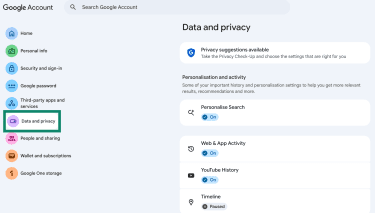
- Open Data & privacy to review activity settings, personalization features, and other data controls.
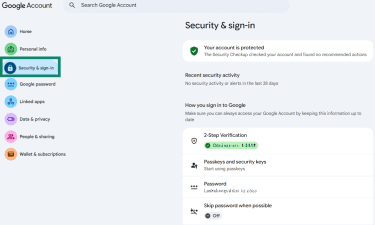
- Open Security & sign-in to review signed-in devices, third-party connections, sign-in methods, recovery options, and 2-Step Verification.
- Also, check device backup, app sync, and cloud backup settings on each phone, tablet, or computer connected to your Google Account.
Before changing or removing services, it’s worth confirming that recovery email addresses and phone numbers are up to date, so account access can still be restored if needed.
Export your data before switching
Before moving away from a Google service, you can use Google Takeout to download a copy of existing account data. Google Takeout lets you export data from services such as Gmail, Google Drive, Google Photos, Contacts, and Calendar.
To create an export:
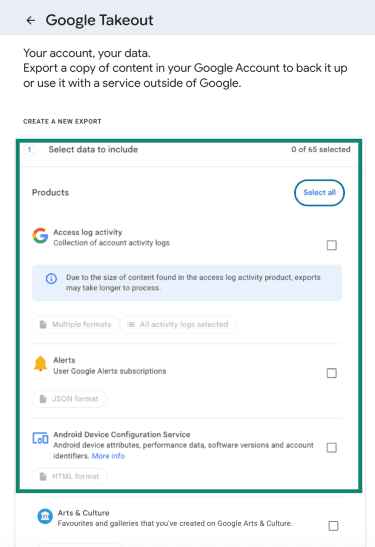
- Go to takeout.google.com, and select the Google services for which you want to export data.
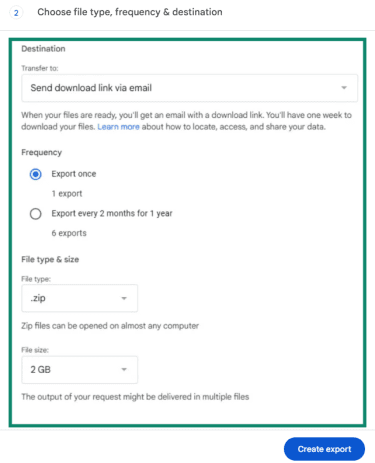
- Choose the export format, frequency, delivery method, and archive size.
- Start the export request.
- Wait for Google to prepare the archive and make it available through the selected delivery method.
Depending on how much data is stored in your account, the export can take anywhere from minutes to days to finish. Large photo libraries, email archives, and Drive folders may take longer to process.
Keeping a local copy of your data can make migrations easier later, especially when moving files, contacts, calendars, or email history to another service.
Replace Gmail with a private email
Email is often a central service to review because it can be connected to many accounts, subscriptions, and recovery settings.
Before moving away from Gmail:
- Choose a new email provider.
- Export older emails if needed.
- Enable forwarding from Gmail for new incoming messages, if needed.
Keeping Gmail active during the transition can help avoid missing password reset emails, invoices, login alerts, older account notifications, or archived messages. Once the transition is complete, the Gmail account can be kept for recovery purposes, the Gmail service can be removed from the Google Account, or the Google Account can be deleted entirely if it's no longer needed.
Switch to another search engine
Changing search engines usually requires fewer account or data-migration steps than replacing services such as email, cloud storage, or calendars. Most browsers let users change the default search engine in settings, though work or school profiles may have managed search settings.
When comparing search engines, it’s a good idea to look at:
- Privacy settings.
- Search result quality.
- Advertising policies.
- AI features.
- Whether accounts are required.
- How much personalization is included in the results.
To switch your default search engine in Chrome:
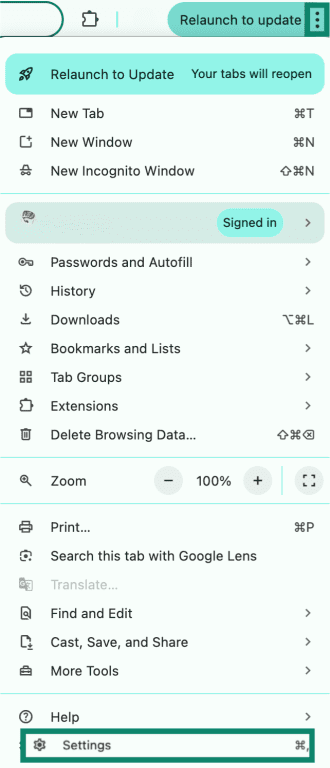
- Open Chrome, click the three-dot menu in the top-right corner, then open Settings.
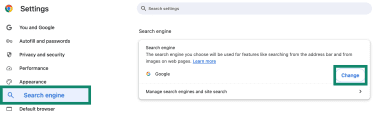
- Select Search engine from the left-hand menu and click Change.
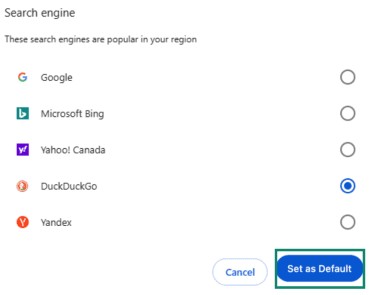
- Choose a different search provider and click Set as Default.
Use another browser instead of Chrome
Browsers are often among the simpler Google services to replace because many modern options support importing bookmarks, passwords, browsing history, and other browser data, though the types of data supported vary by browser and operating system.
Browser differences are among the more visible aspects of deGoogling because they affect everyday web use. Different browsers take different approaches to privacy, personalization, and account integration.
- Tracking protection: Built-in blocking may cover trackers, cookies, fingerprinting techniques, or other tracking mechanisms.
- Syncing: Some browsers offer their own syncing systems for bookmarks, passwords, history, or open tabs.
- Extensions: Add-on support can vary; some browsers limit extensions for privacy, compatibility, or performance reasons.
- Account integration: Some browsers integrate more closely with Google services, while others reduce that connection.
- Personalization: Search, recommendations, and built-in tools differ by browser.
To switch browsers:
- Download and install the alternative browser.
- Use its import tool to move bookmarks, saved passwords, and browsing history from Chrome where supported.
- Set the new browser as your default browser. Many browsers ask about this during setup or when you first open them.
- Check whether extensions and saved logins still work as expected.
Once everything works as expected, you can remove Chrome from regular use, uninstall it where the device allows it, or disable it on some devices.
Move files to another cloud storage provider
Moving files out of Google Drive can take time, especially if you use it for backups, shared folders, photo storage, videos, or work documents. Before transferring everything, it’s worth checking which files still need to be shared across devices, accessed remotely, or kept available for collaboration.
To move files out of Google Drive:
- Export them through Google Takeout or download them directly from Google Drive.
- Upload them to the new storage provider.
- Check whether shared links, permissions, desktop sync folders, and synced devices need to be recreated or updated after the move.
- Test important files to make sure they open correctly.
Replace Google Docs, Sheets, and Slides
Replacing Google Docs, Sheets, and Slides can be harder if you regularly use shared documents, live editing, classroom tools, or workplace collaboration. Some alternatives work in a browser, while others require desktop apps, so compatibility can vary depending on file types, collaboration needs, and device setup.
Google Docs, Sheets, and Slides files can also be exported into formats such as Microsoft Office files or PDFs before moving them elsewhere, though available formats vary by file type. Files no longer needed can be moved to the trash or removed from Drive first to reduce clutter and storage use. If someone else owns the file, removing it from Drive doesn't delete it for other people.
Before fully switching, check:
- Shared editing: Can other people view, comment, or edit files easily?
- File compatibility: Do imported documents keep their formatting?
- Export formats: Can files be saved in the formats you need?
- Mobile apps: Can files be accessed and edited on a phone or tablet?
- Offline access: Can files be accessed or edited without an internet connection?
- Collaboration features: Do comments, version history, and permissions work as expected?
For some, keeping limited access to Google’s office tools may still make sense for work, school, or shared projects.
Choose another calendar app
Many calendar apps support importing .ics calendar files, but imported events, reminders, recurring events, time zones, guests, and conferencing details may not transfer exactly the same way across services.
To transfer a calendar:
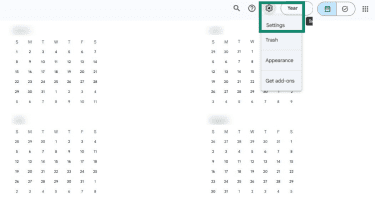
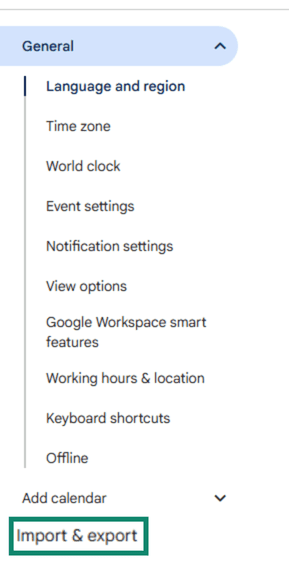
- Open Google Calendar settings by clicking the gear icon in the top-right corner, then clicking Settings.
- Click Import & export on the left menu.
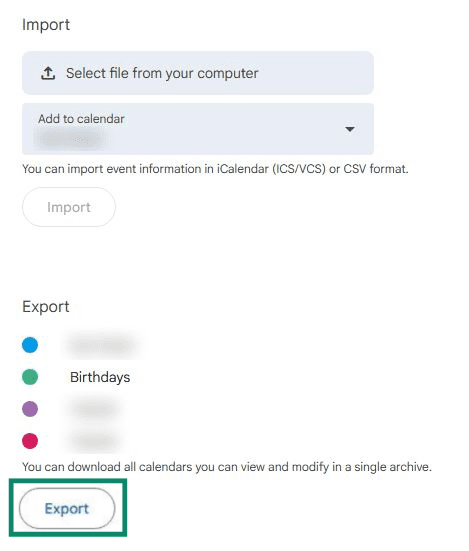
- Click Export. Google Calendar downloads a .zip file containing individual .ics files.
- Open the .zip file and import the relevant .ics file into the new calendar app or service.
- Check that recurring events, reminders, guests, conferencing links, and time zones still appear correctly.
Some calendar apps emphasize privacy or encryption features, while others prioritize collaboration, scheduling, or workplace integration.
If you share calendars with family members, workplaces, or schools, compatibility may matter more than privacy features. In some cases, Google Calendar may still be needed for shared schedules while personal events are moved elsewhere.
Replace Google Authenticator safely
Google Authenticator can store codes on the device and supports optional syncing with a Google Account. If sync is not enabled, moving codes usually involves exporting them from the old device or reconnecting each account in the new authenticator app.
Before switching, save any backup or recovery codes linked to important accounts. Those codes can help restore access if something goes wrong during the transfer.
To move accounts to a different authenticator app:
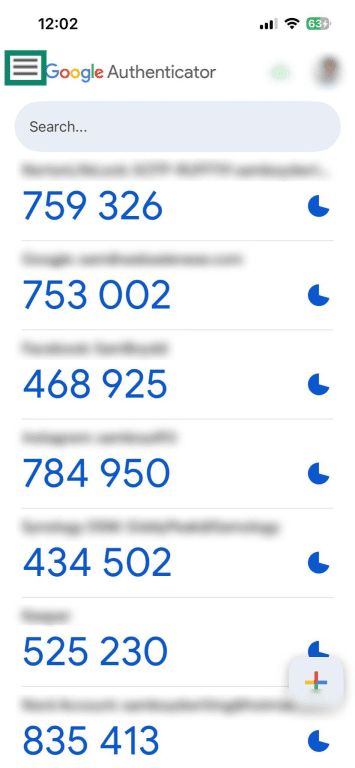
- Open the Google Authenticator app on the device that currently has the authentication codes. Tap the Menu icon (three horizontal lines).
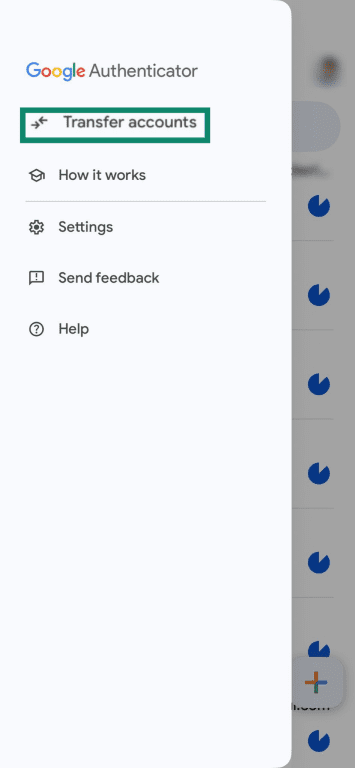
- Tap Transfer accounts.
- Tap Export Accounts.
- Select the accounts you want to export.
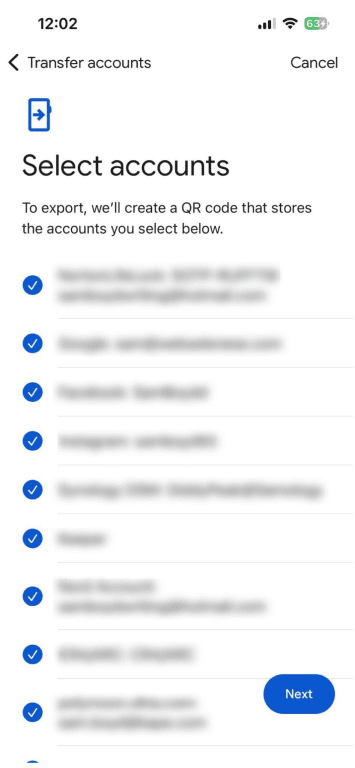
- Scan the provided QR code in the new authenticator app.
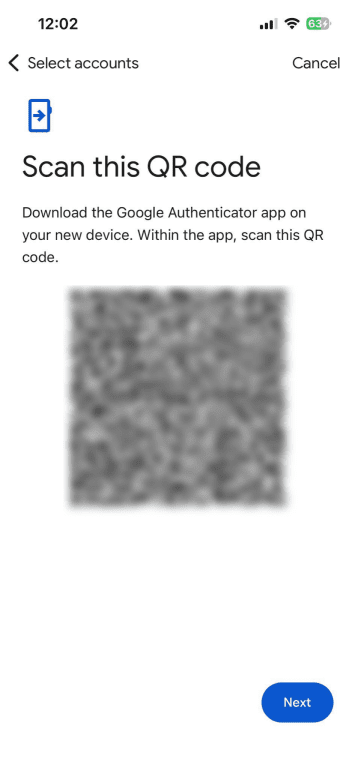
Note: Some authenticator apps may not support Google Authenticator’s bulk export QR code. In those cases, accounts may need to be reconnected one at a time through each service’s security settings.
How to deGoogle your phone
Phones are usually harder to deGoogle than browsers or email accounts because mobile services are often tied into apps, backups, notifications, location settings, and account syncing. The process also looks different on Android and iPhone.
How to deGoogle Android
Android may allow you to disable certain Google services, replace default apps, and install apps from sources outside Google Play more easily than many other mobile platforms. However, on some devices, certain Google apps and services can’t be fully removed, especially when they’re built into the system. Some Google services may also remain connected depending on the device, Android version, manufacturer, and account settings.
Remove or disable Google Apps
To disable a Google app:
- Open Settings on your Android device and tap Apps.
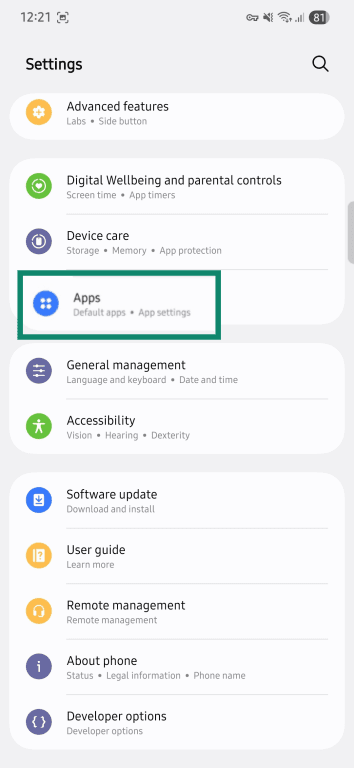
- Scroll through the app list and select the Google app you want to manage, such as Google.
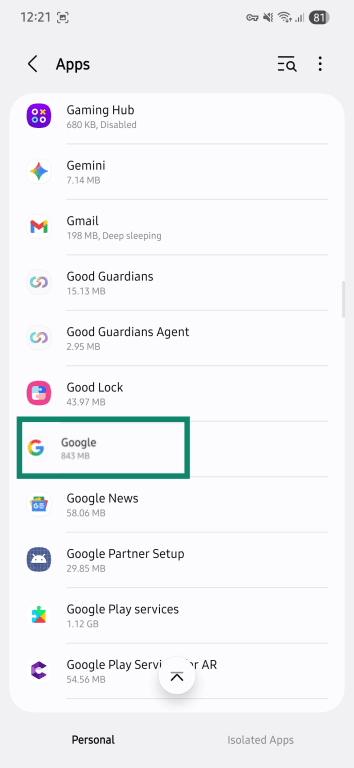
- On the app info screen, tap Disable. If Disable doesn’t appear, the app may be required by the system, restricted by the device manufacturer or administrator, or unavailable for disabling on that device.
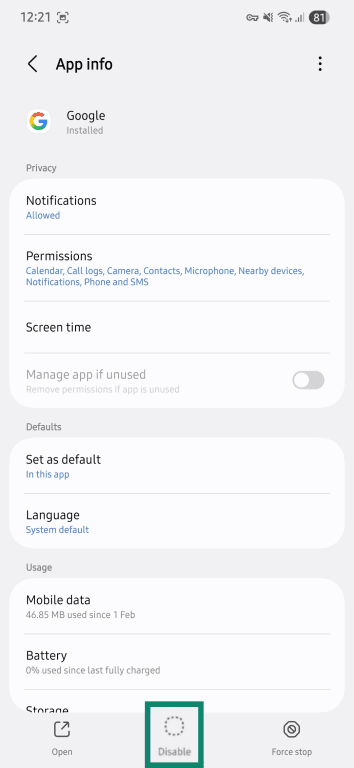
The exact steps can vary depending on the phone manufacturer and Android version. App permissions, background activity, and account access settings may also be available from the App info screen, depending on the device and Android version.
Replace default Google apps on Android
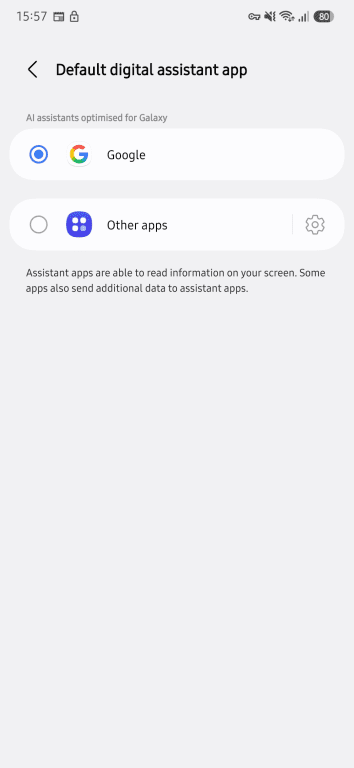
Some Android phones allow you to change the default apps for categories such as browsers, email, password managers, messaging apps, wallets, or digital assistants. Changing default apps can reduce how often Google apps or services open automatically during everyday use, especially for links, searches, messages, or email actions, though some Google services may still open through app-specific or system-level integrations.
To change default apps on Android:
- In Settings, go to Apps, and tap Choose default apps.
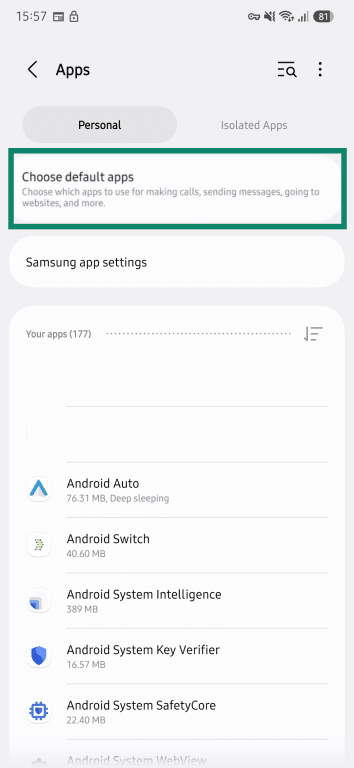
- Select the category you want to change, such as Browser app, SMS app, Wallet app, or Digital assistant app.
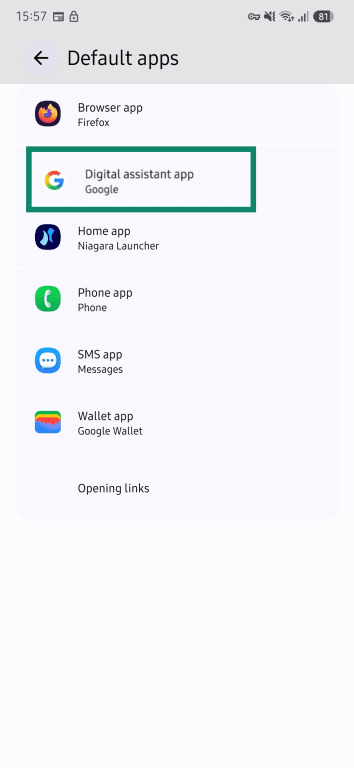
- Tap the current default app.
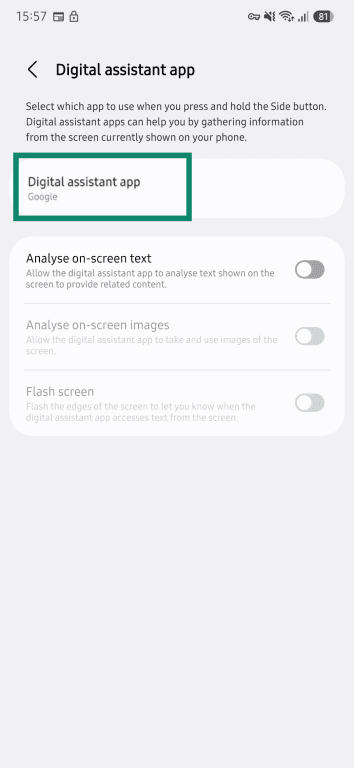
- Choose the app you want to use instead.
Use alternative app stores
Most Android phones use Google Play, but Android also allows apps to be installed from other app stores or downloaded directly from developers.
On certain Android devices, installing apps outside Google Play requires allowing installation from the app used to download or open the file, such as a browser, file manager, or third-party app store. This setting may appear as "Install unknown apps" or "Allow from this source," depending on the device and Android version.
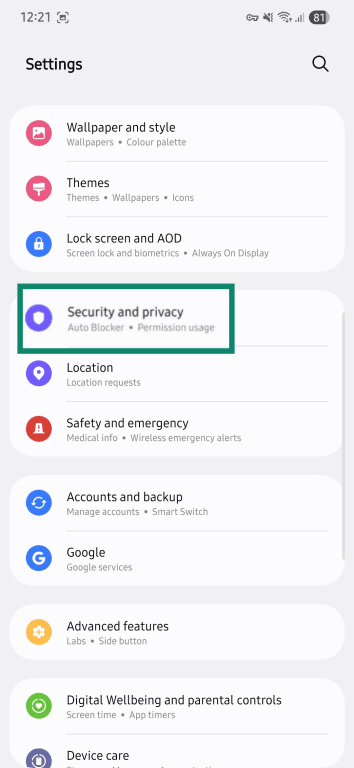
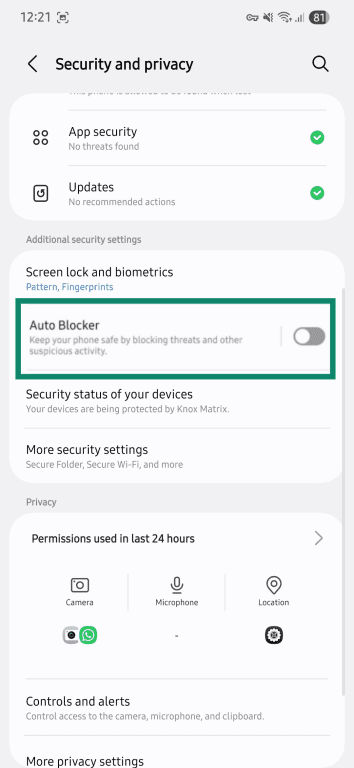
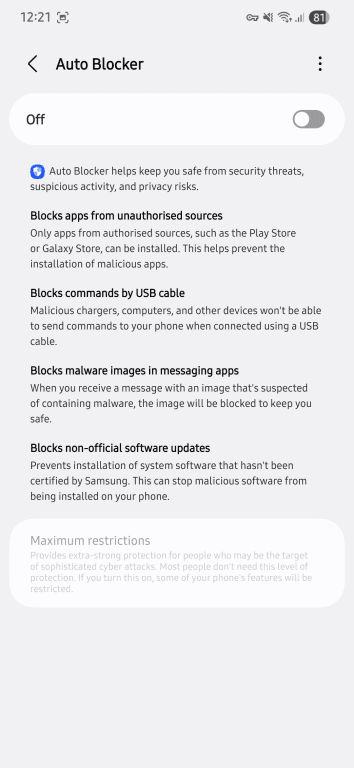
On some Samsung Galaxy devices, Auto Blocker may also prevent installation of apps from unauthorized sources when enabled:
- Go to Security and privacy in Settings.
- Scroll down and tap Auto Blocker.
- Review the settings to block apps from unauthorized sources, and toggle Auto Blocker off to allow downloads from third parties.
Note: Installing apps outside Google Play means relying less on Google Play’s app review and update system. App review, permissions, and update processes can vary by source.
Switching to an Android-based operating system without Google Apps
Some Android phones can run Android-based operating systems that don't include Google apps or Google Play Services by default. This can reduce Google’s role on the device, but it’s a more advanced option than changing apps or settings.
Not every phone supports this, and the experience can vary depending on the operating system and device. Some setups feel close to standard Android, while others require more manual setup and maintenance. App compatibility can also vary, especially for apps that rely on Google Play Services, such as certain banking apps, games, or apps that use Google’s push-notification services. Some operating systems use microG, while others offer optional sandboxed Google Play or require more manual setup for apps that depend on Google services.
Examples of Android-based operating systems that don't have standard Google apps by default include LineageOS, CalyxOS, /e/OS, and iodéOS. Their device support, update policies, app compatibility, and approach to Google Play Services vary.
Before switching, it’s worth checking device support, installation guides, security update policies, and warranty terms. Some changes may limit manufacturer support or affect warranty coverage, depending on the phone, manufacturer, and region.
How to deGoogle your iPhone
Since iOS uses Apple services by default rather than Google services, deGoogling an iPhone is mostly about uninstalling Google apps, changing default apps where possible, and removing Google accounts connected to Apple apps.
If Google accounts are used for services such as Mail, Contacts, Calendars, or Drive, review both the Google Account’s connected-app permissions and the iPhone’s account sync settings.
If you keep any Google apps installed, review iOS permissions for location, contacts, photos, microphone, or camera. You can also remove apps you no longer need.
Uninstall an app on iPhone
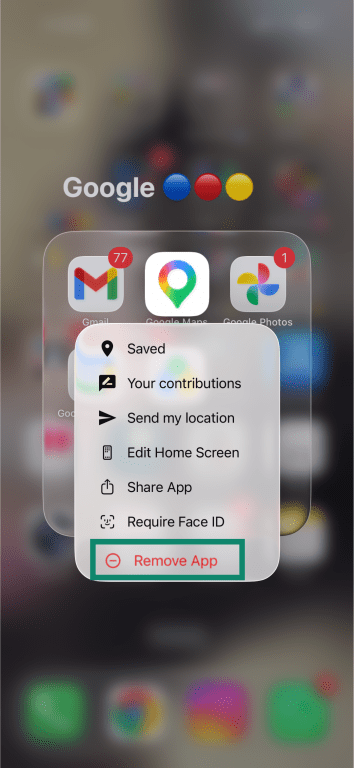
- Press and hold the app icon on the Home Screen or in the App Library, and tap Remove App.
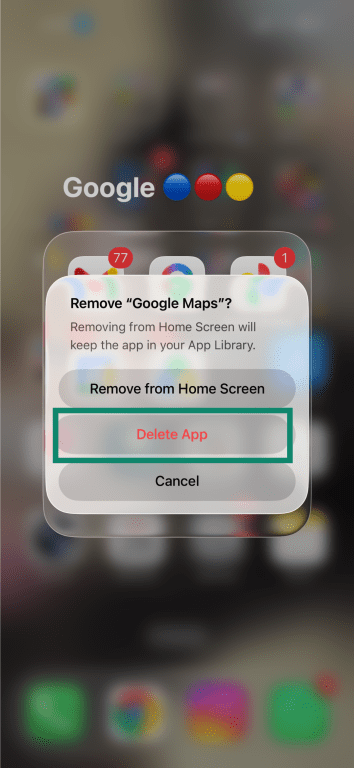
- Tap Delete App, then confirm the deletion.
Check app permissions on iOS
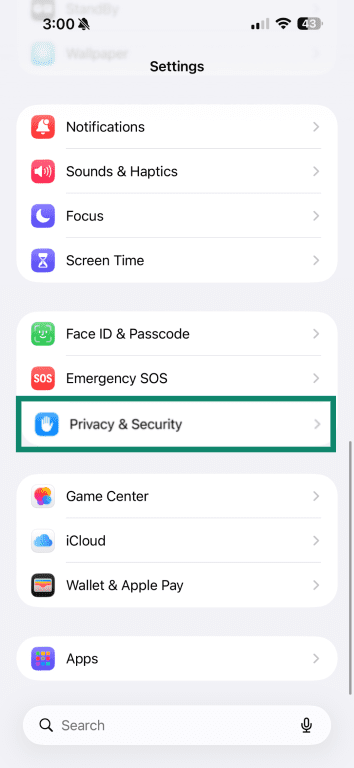
- Open Settings and tap Privacy & Security.
- Review app permission categories like Location Services, Contacts, Photos, Microphone, Camera, and Calendars.
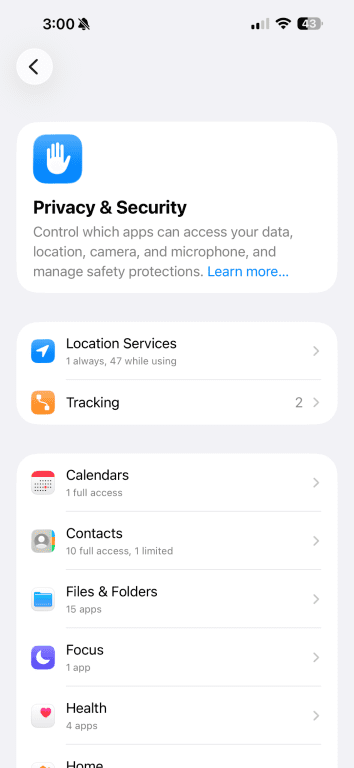
- Open a permission category, such as Calendars, to see which apps have access.
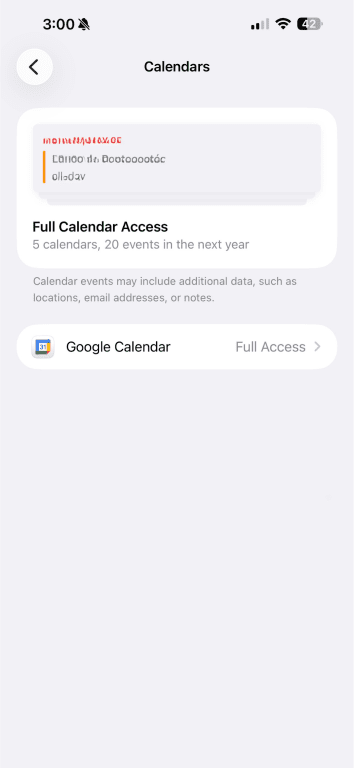
iOS also includes Safari privacy features that limit certain types of cross-site tracking while browsing. For example, Safari can prevent cross-site trackers, hide your IP address from known trackers, and restrict third-party cookies in some situations. You can review these settings under Settings > Safari. These are Safari browsing protections rather than Google-specific controls.
Also read: Is Safari safe? A complete guide to security and privacy.
Build better privacy habits after deGoogling
DeGoogling can reduce the extent to which activity is tied to Google, but privacy also depends on how apps, accounts, and services are configured. Even if some Google services remain in use, data sharing can be reduced by reviewing app permissions, limiting account connections, checking privacy settings, and choosing carefully which services handle sensitive information.
Reduce account and app exposure
Unused accounts, old apps, and forgotten subscriptions can continue storing data after you stop actively using them. Reviewing accounts from time to time can help reduce the number of services that still hold personal information, saved payment details, connected devices, or old login activity.
When signing up for new services, privacy settings may also be worth checking early instead of leaving optional settings enabled by default. Depending on the service, that may include:
- Disabling optional tracking features.
- Turning off personalized ads.
- Limiting data-sharing settings.
- Opting out of marketing emails.
- Removing unnecessary app permissions.
Review app permissions regularly
Apps on Android and iPhone can continue accessing certain permissions unless those settings are changed manually. On both Android and iPhone, permissions can usually be reviewed through the device’s privacy or app settings menu.
Use replacement apps consistently
After switching services, older apps may still remain installed on phones, in browsers, or on laptops. Using the same browser, search engine, email provider, or password manager across devices can reduce fragmentation across accounts, sync settings, and saved data locations. Long-term setups may also change as different tools are used across devices, routines, and privacy expectations.
Use a VPN to reduce network tracking
Even after replacing apps or services, internet providers, public Wi-Fi networks, and websites can still see parts of your online activity. A virtual private network (VPN) encrypts internet traffic between the device and the VPN server, which can help reduce the extent to which local networks or internet providers can directly monitor activity. However, it doesn't prevent websites, apps, or accounts from collecting information through logins, cookies, device identifiers, or in-app activity.
FAQ
Can you deGoogle without deleting your Google Account?
What Google service should you replace first?
Can you still use Android without Google?
Are Google alternatives as convenient?
How long does it take to deGoogle your life?
What are the risks of using too many new privacy tools?
Can deGoogling improve online security?