



Need a VPN or DNS for your device?
Get ExpressVPN Now
One ExpressVPN account. All devices.
Get Apps for FreeThis tutorial will show you how to set up your Amazon Fire TV with MediaStreamer.
Not yet a customer? Read why you should get ExpressVPN for Amazon Fire TV and Fire Stick.
Note: While MediaStreamer will enhance your streaming experience, it will not give your Amazon Fire TV VPN protection. To get VPN protection on your Amazon Fire TV, you can use the ExpressVPN app on your Amazon Fire TV or connect your Amazon Fire TV to the internet through a VPN router.
Jump to section
Set up and register your DDNS hostname
Register your IP address on the ExpressVPN website
Get your DNS server IP address
Change your Amazon Fire TV DNS addresses
Set up and register your DDNS hostname
Need help? Contact the ExpressVPN Support Team for immediate assistance.
1. Register your IP address on the ExpressVPN website
To set up the MediaStreamer DNS server on your Amazon Fire TV, you will need to obtain the ExpressVPN MediaStreamer IP addresses.
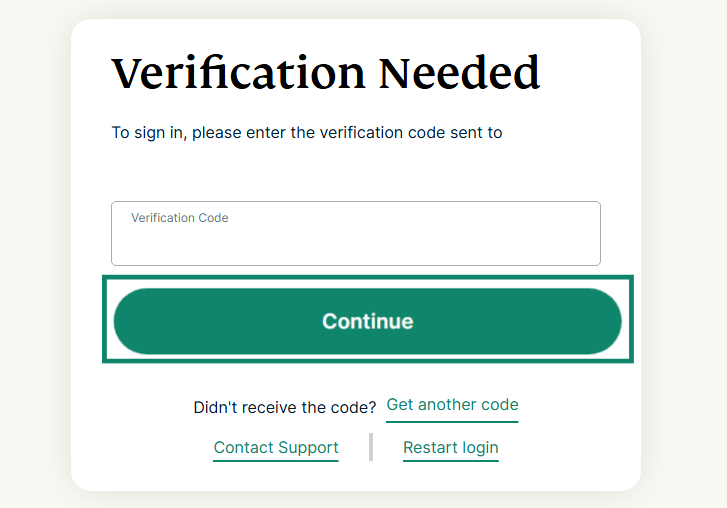
- Begin by signing in to your ExpressVPN account. Enter your email, followed by the verification code that’s sent to it. Then click Continue.


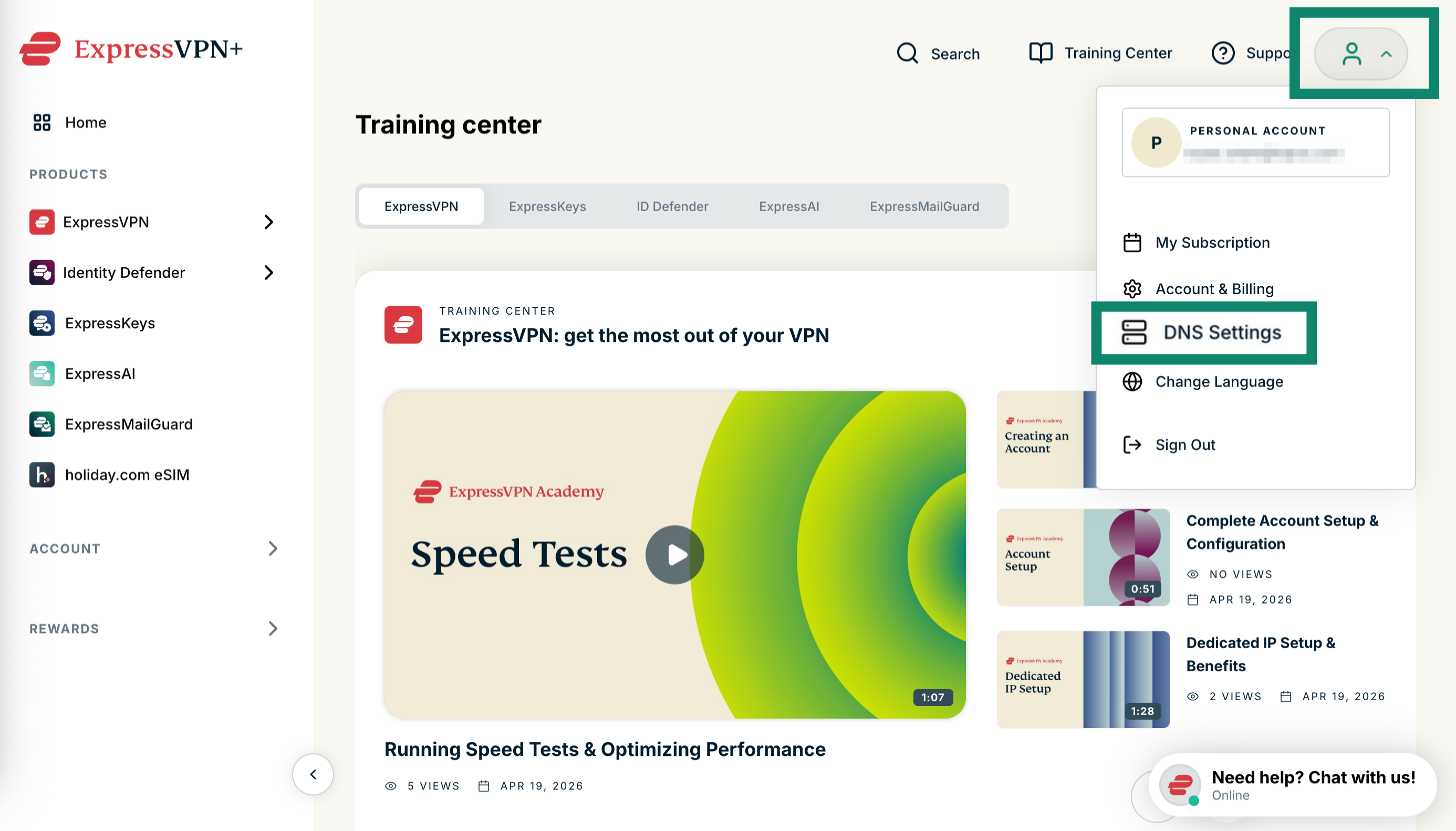
- Click DNS Settings in your profile menu.


- Under IP address registration, click Register my IP address. It’s also a good idea to also enable Automatically register my IP address.


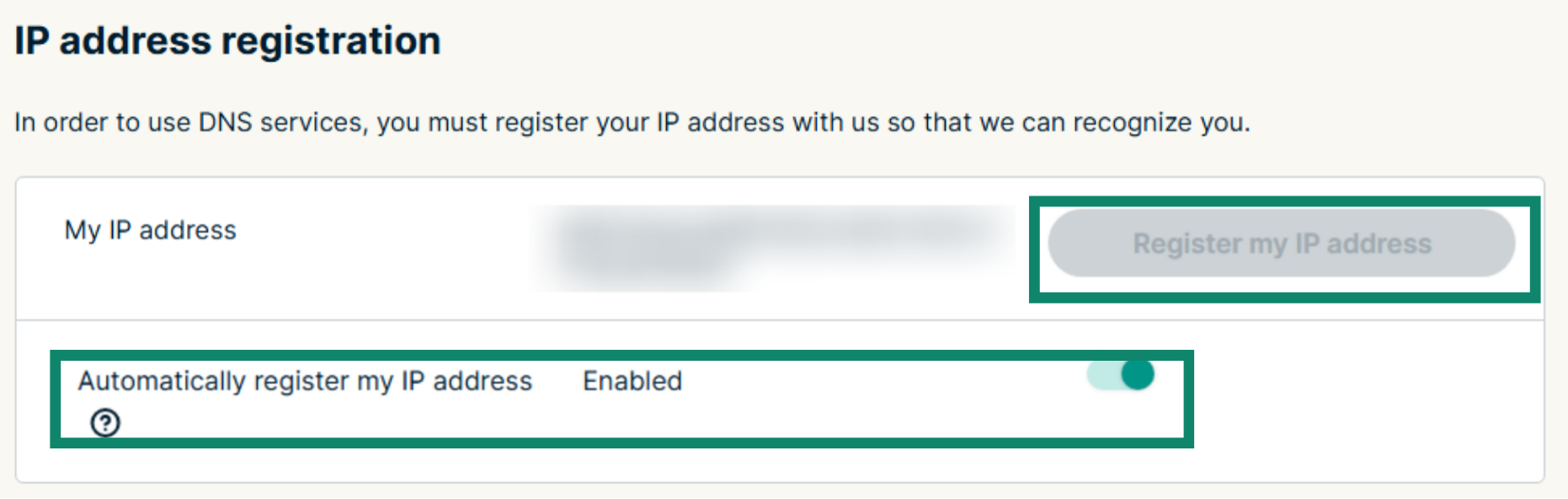
Note: The option to register your IP address will be greyed out if it’s already registered.
Once your IP address is registered, to maintain access to MediaStreamer on your Amazon Fire TV, keep it up-to-date. Periodically sign in to your account on the ExpressVPN website. Alternatively, you can use the ExpressVPN app on any device connected to the same network as your Fire TV. This will allow your devices to continue using MediaStreamer without disruption.
2. Get your MediaStreamer IP address
- Visit the ExpressVPN setup page and, if prompted, enter your email address followed by the verification code.
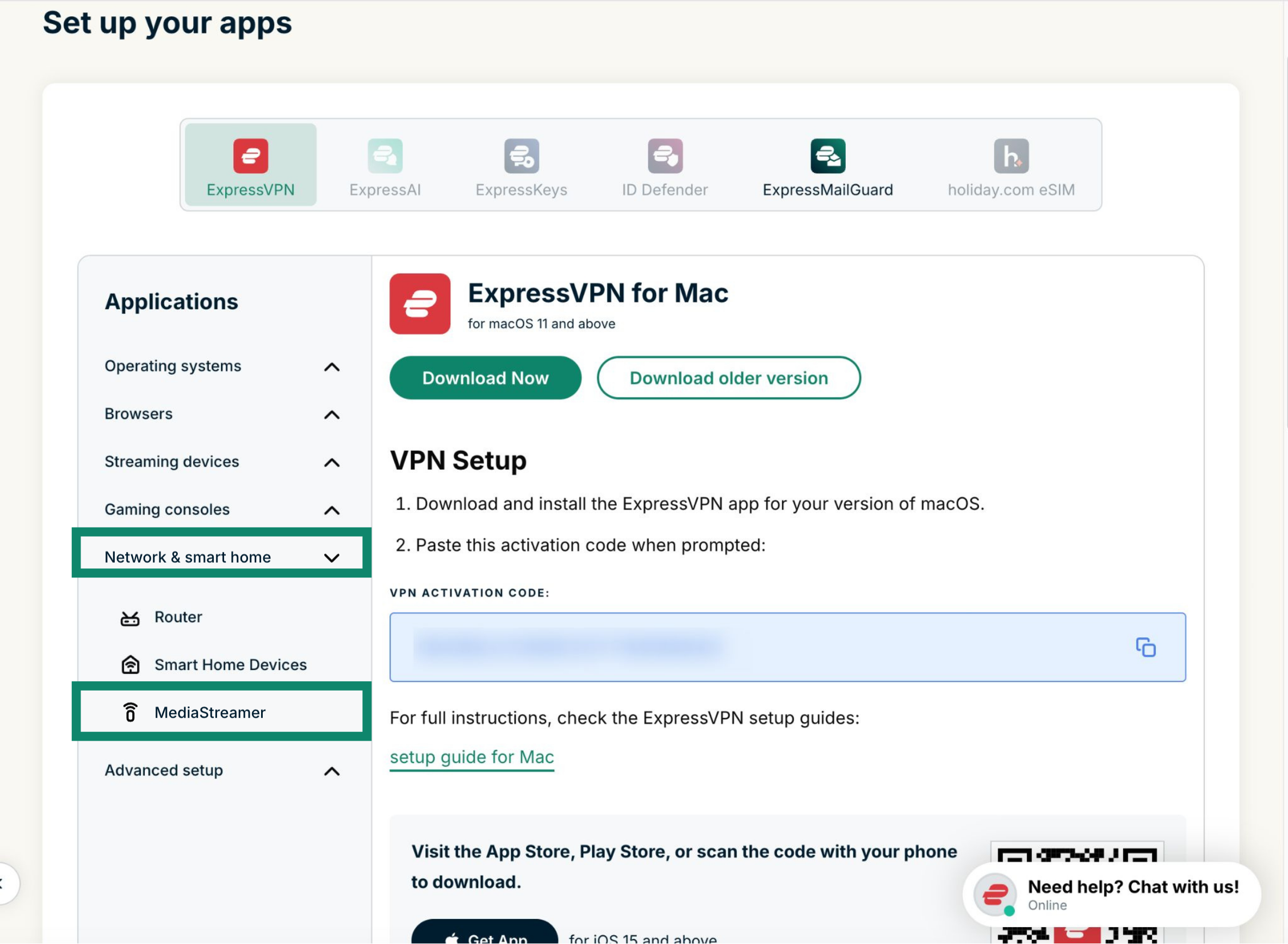
- Under Applications, select Network & smart home to open the dropdown menu. From there, click MediaStreamer.


- You will find your DNS server IP addresses on the right side, under MediaStreamer IP#1 and MediaStreamer IP #2.

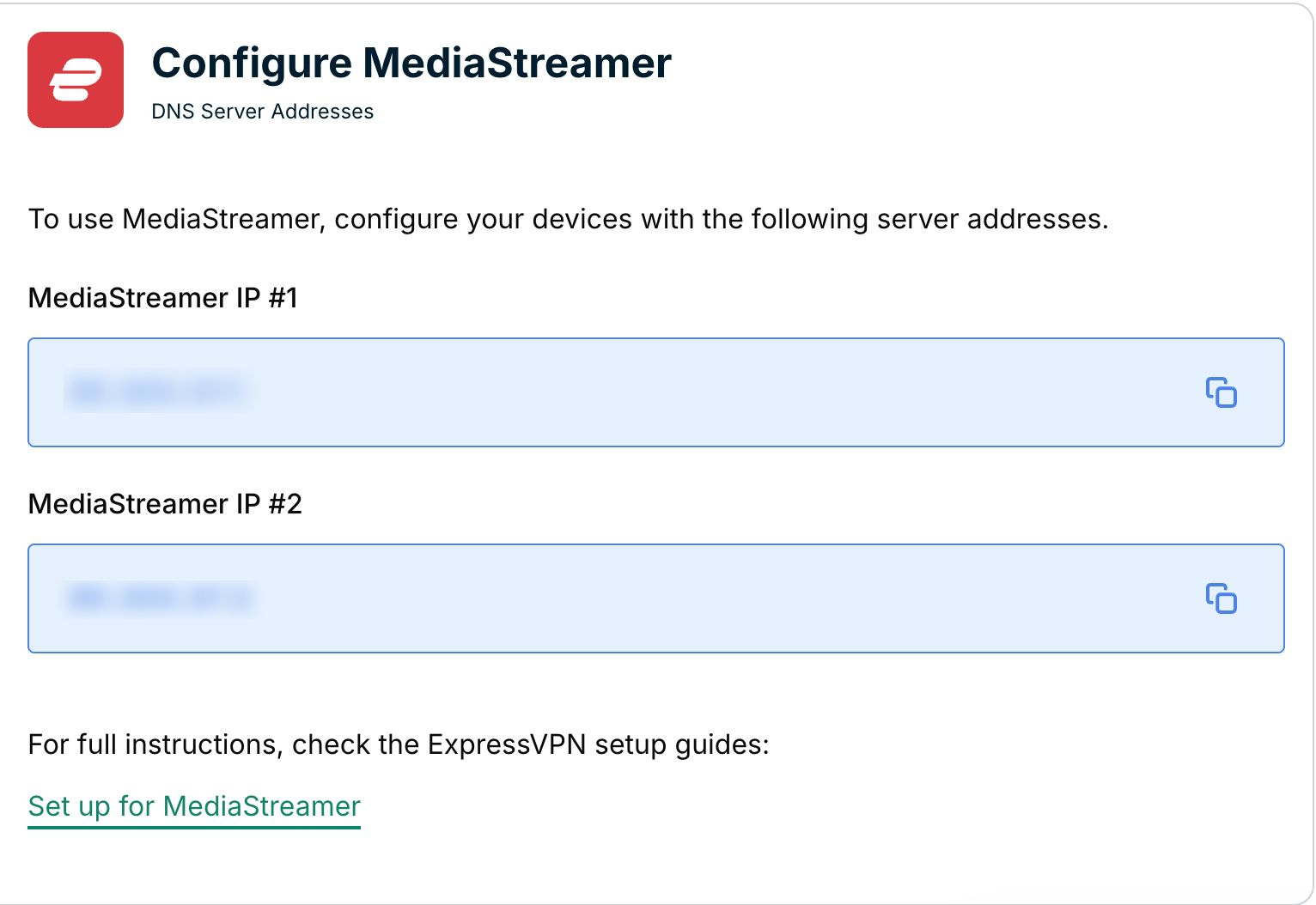
Keep this browser window open. You will need this information for the setup later.
Need help? Contact the ExpressVPN Support Team for immediate assistance.
Back to top
Change your Amazon Fire TV DNS addresses
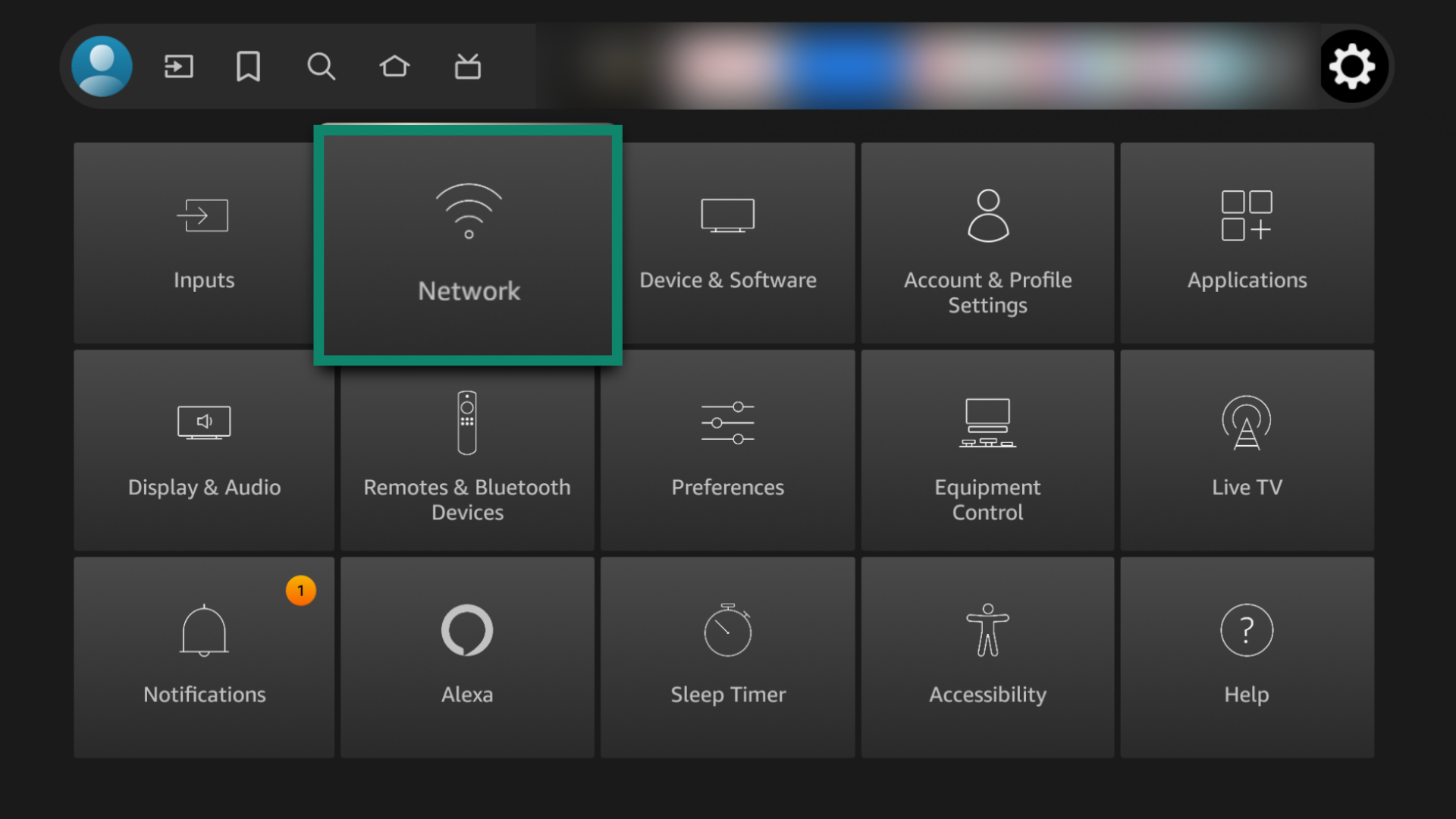
- On your Amazon Fire TV, go to Settings.


- Click on Network.

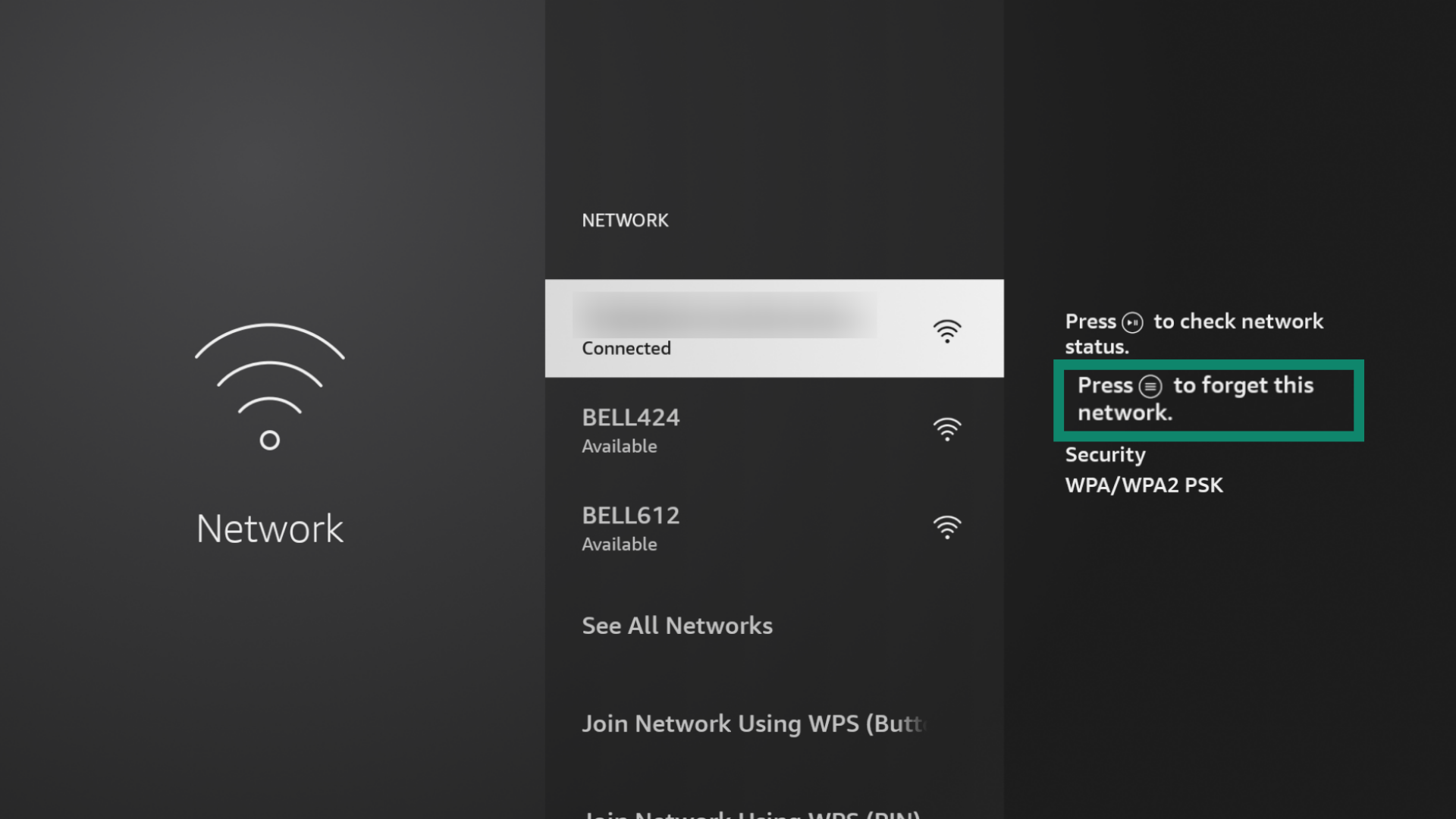
- Find your Wi-Fi connection and forget it. To do so, click the (≡) button on your remote, then click the select button.

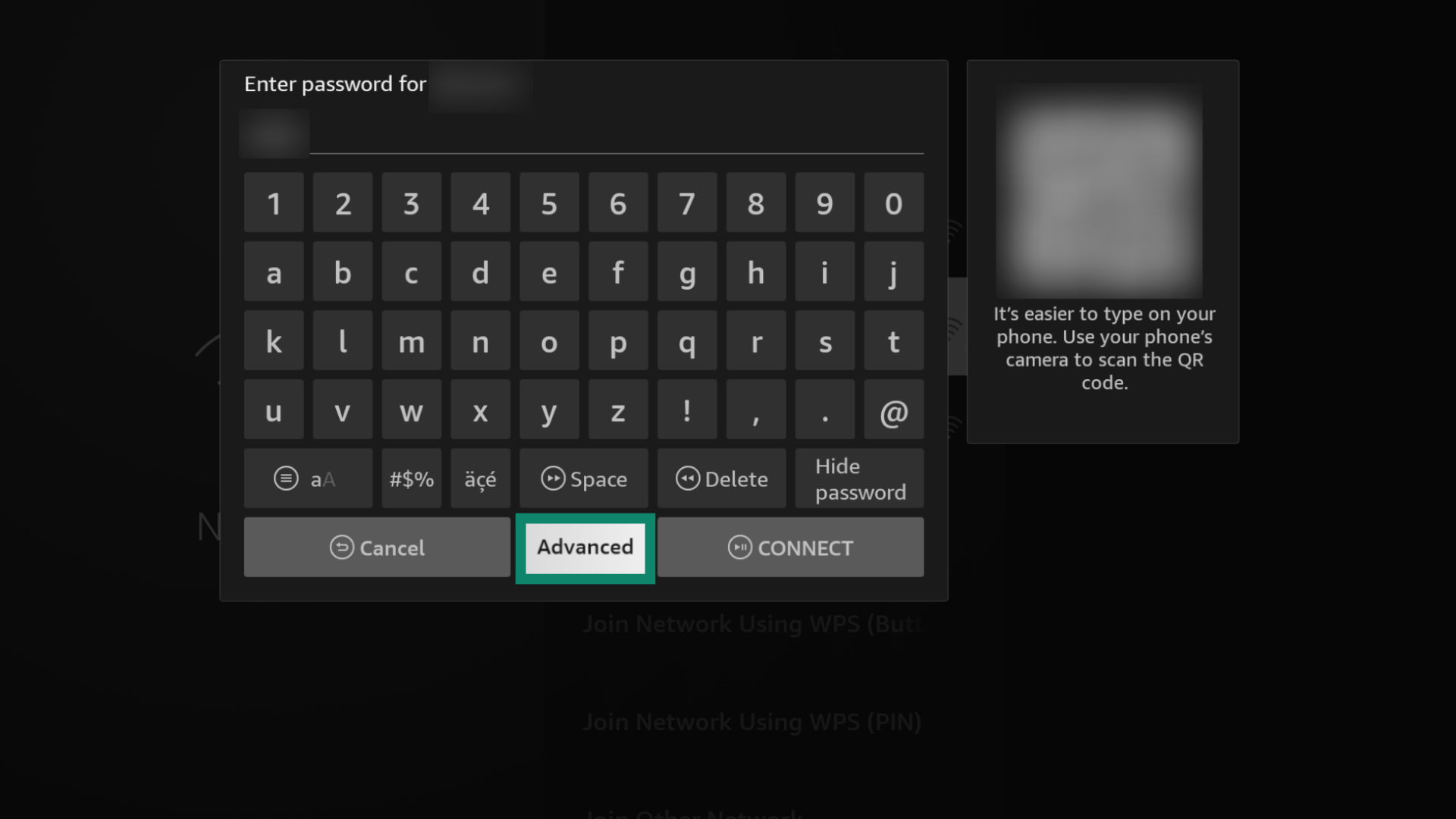
- Select your Wi-Fi network again, enter your Wi-Fi password, and then select Advanced. Do not click CONNECT.

- Enter an IP from the same IP range as your router. To do so, find your router’s IP, and enter the same first three groups of digits but change the last digit. For example, if your router IP is 192.168.44.1, you can enter 192.168.44.200. Click Next.
- In the “Default gateway field”, enter the actual IP of your router. Click Next.
- For “Network Prefix Length”, enter 24. Click Next.
- For “DNS 1”, enter the first ExpressVPN MediaStreamer IP address (found above) then click Next.
- For “DNS 2”, enter the second ExpressVPN MediaStreamer IP address then click CONNECT.
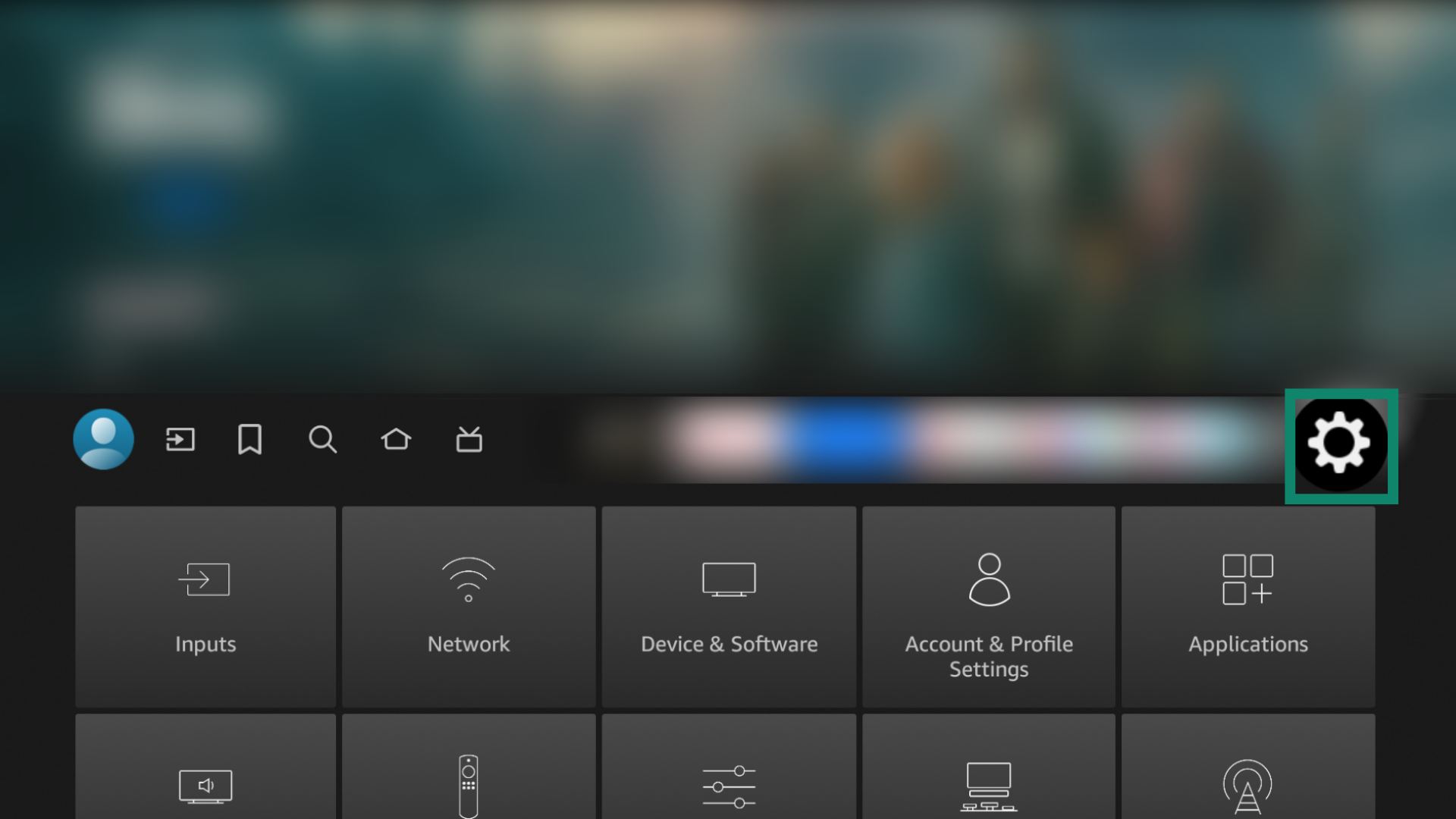
You should be successfully connected to your Wi-Fi connection and can now use MediaStreamer on your Amazon Fire TV.
Need help? Contact the ExpressVPN Support Team for immediate assistance.