



This guide will show you how to uninstall or remove the ExpressVPN app on various devices. Click on your device from the list below to jump to the steps you need.
Jump to…
Windows
Mac
Android
iOS
Apple TV
Android TV
Fire TV
Linux
Chromebook
Routers
Windows
The below instructions are for Windows 11 and Windows 10.
There are several ways to uninstall the ExpressVPN app on Windows 11.
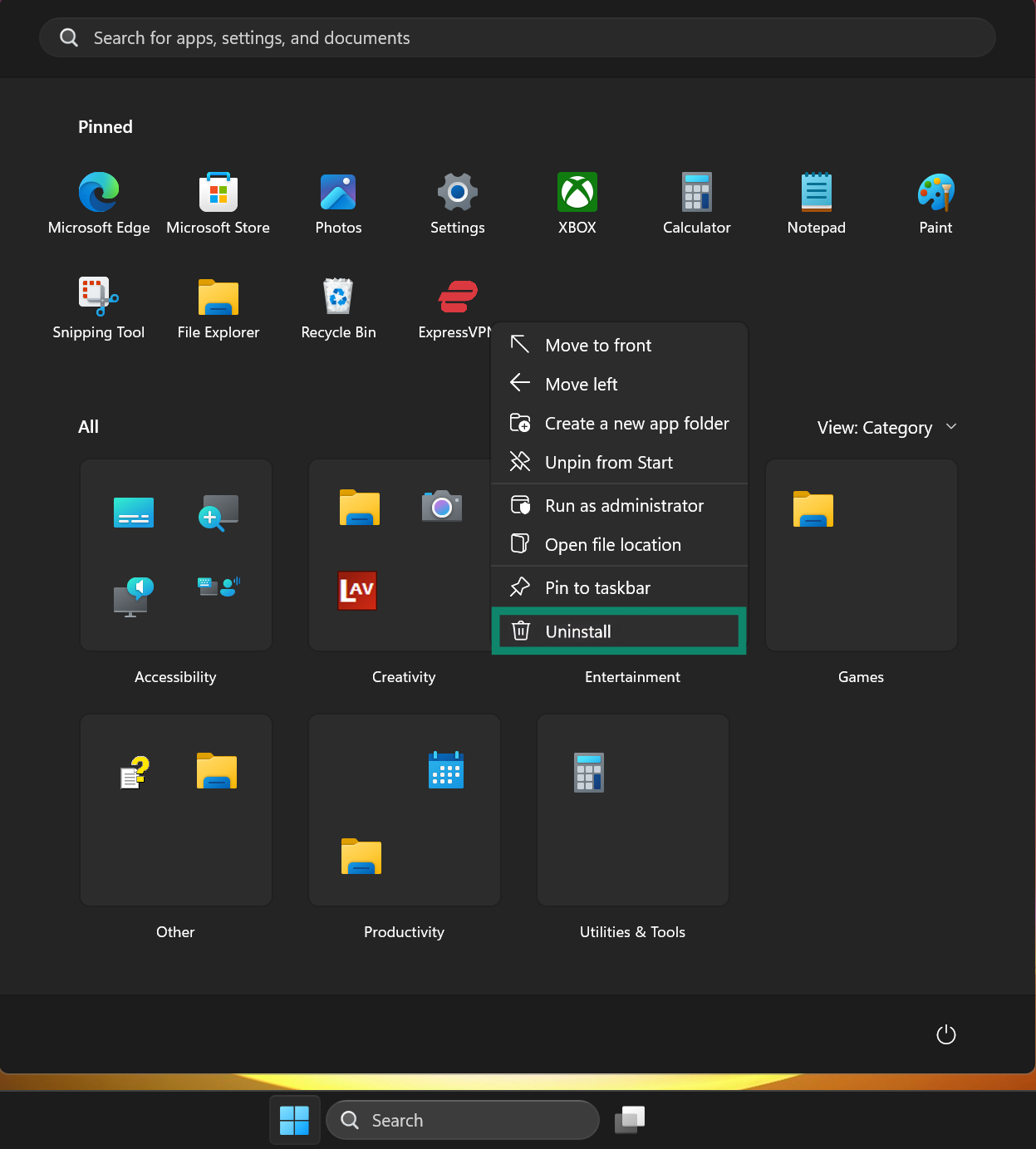
Uninstall from Start menu
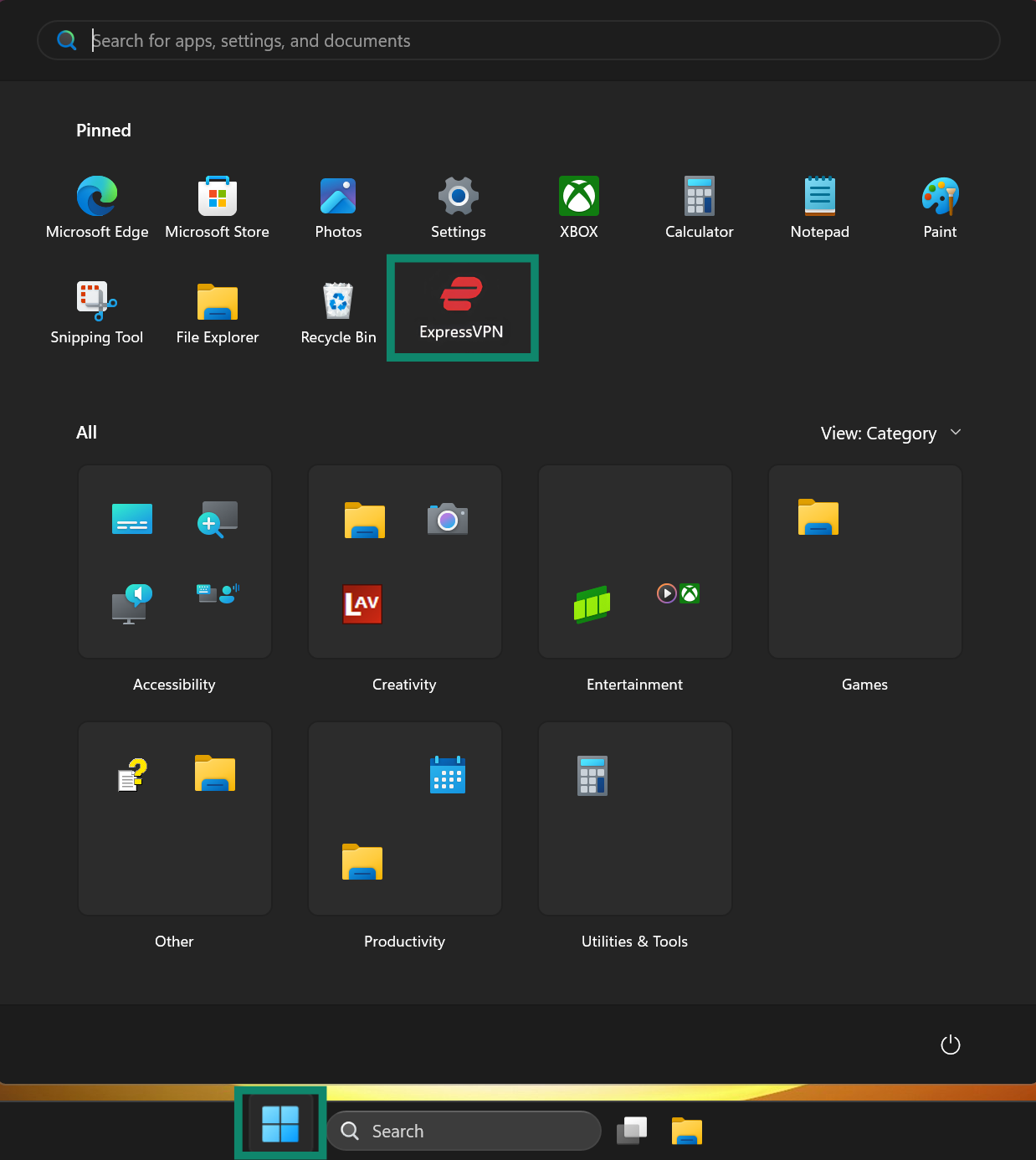
- Click

 and look for the ExpressVPN app.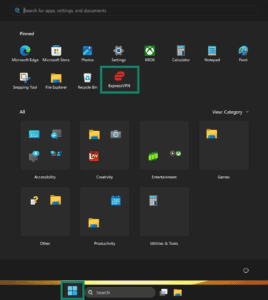

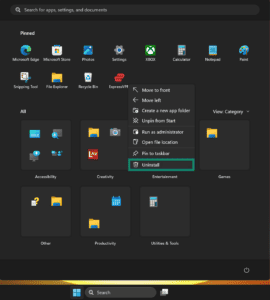
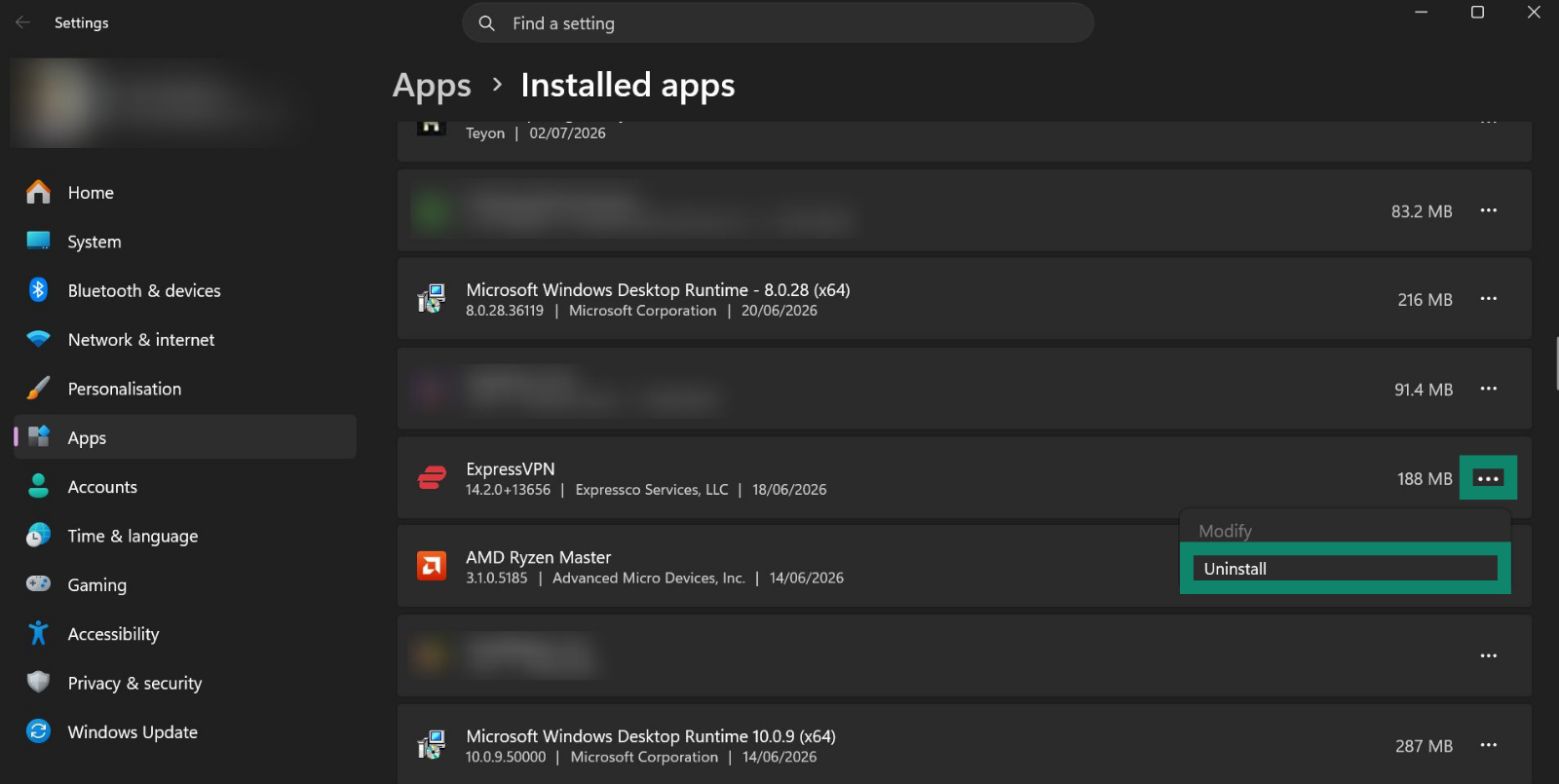
- Right-click the ExpressVPN app and select Uninstall. You will then be taken to the Installed apps section.

- Click
 next to the ExpressVPN app and select Uninstall.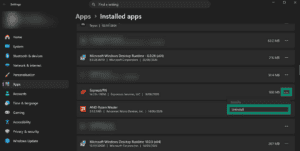

Uninstall from Settings
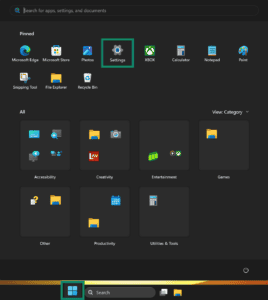
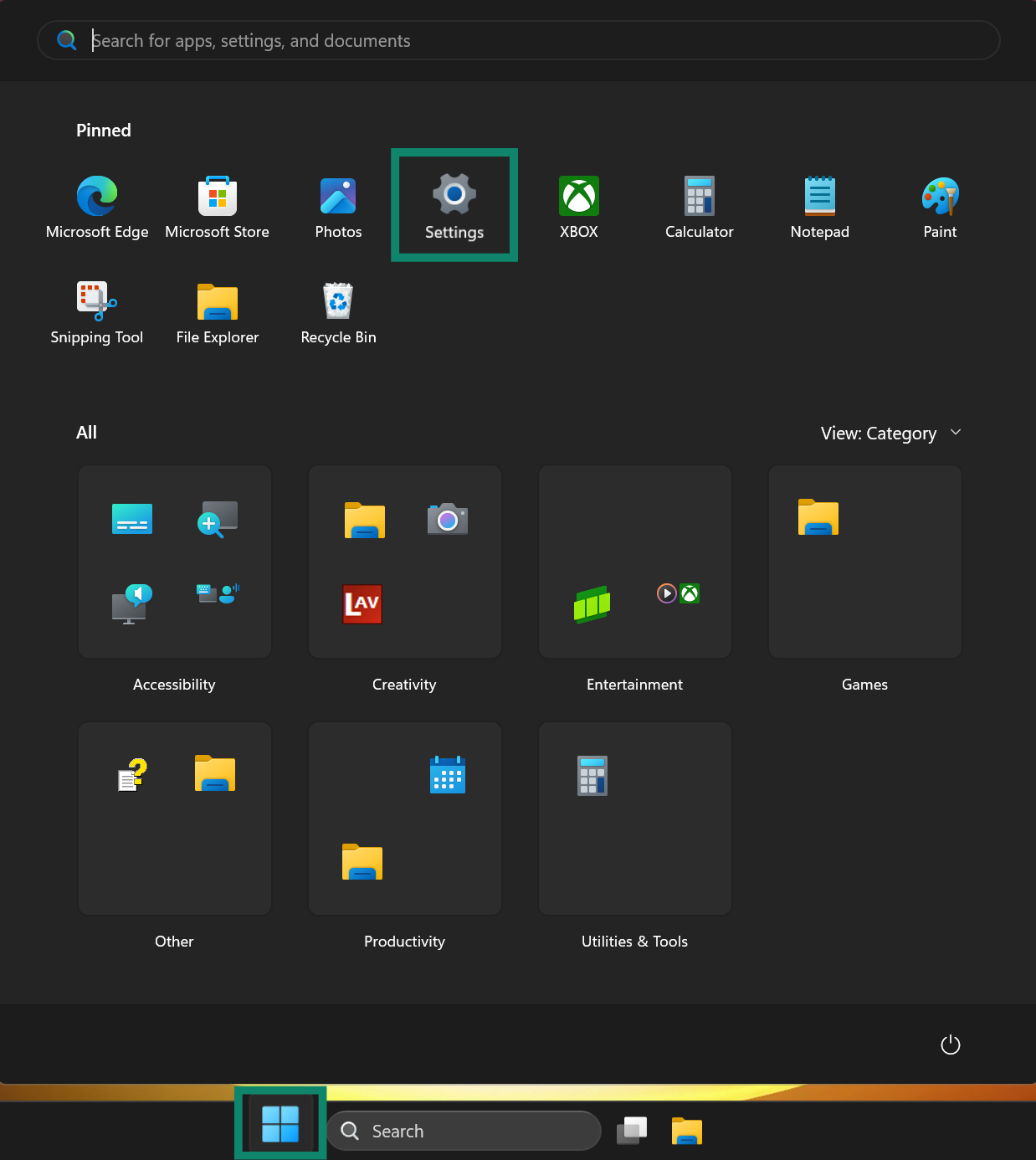
- Click > Settings .
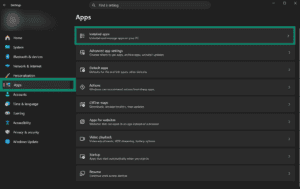
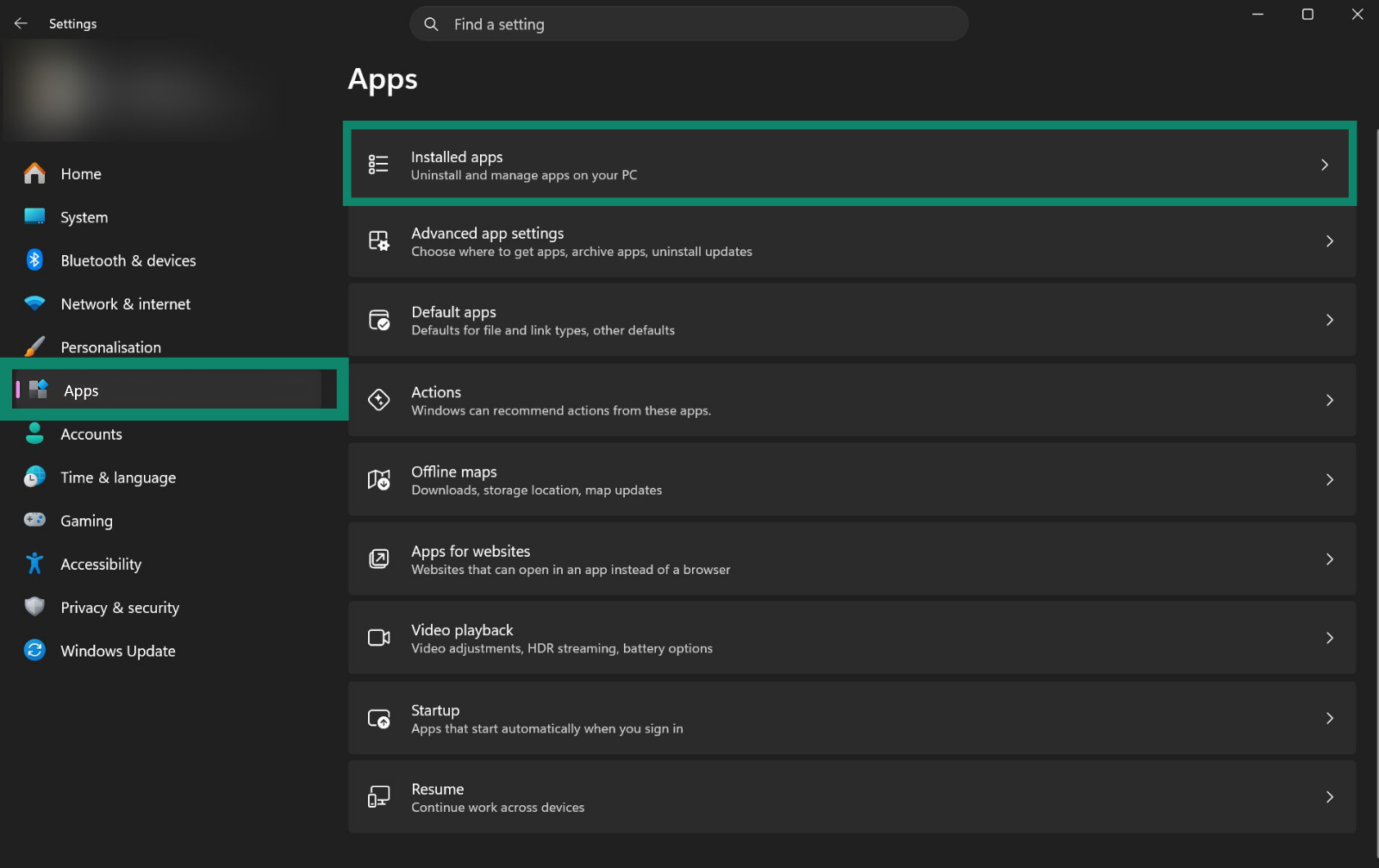
- Select Apps > Installed apps.

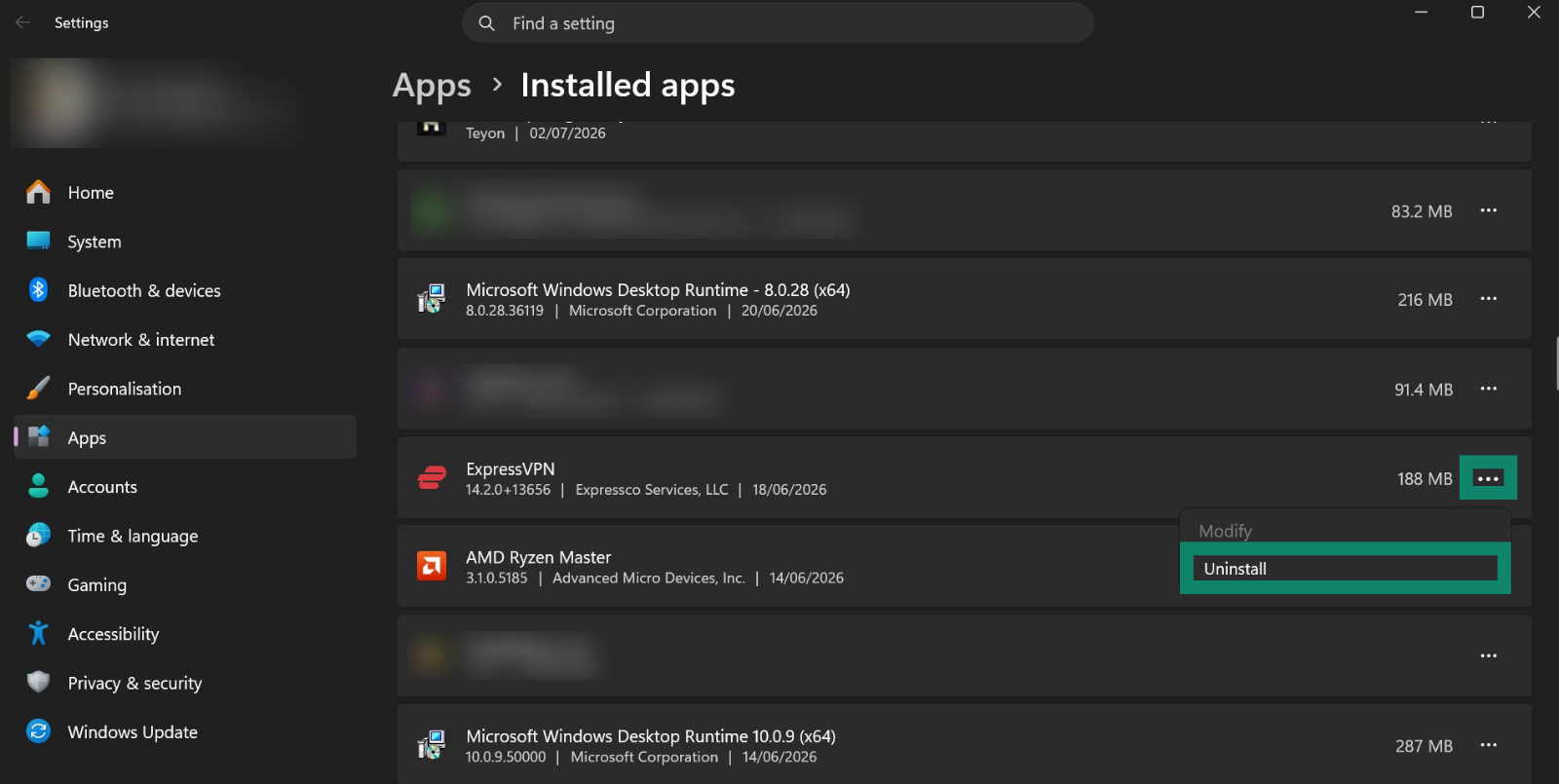
- Find the ExpressVPN app, then click > Uninstall.
 .
.
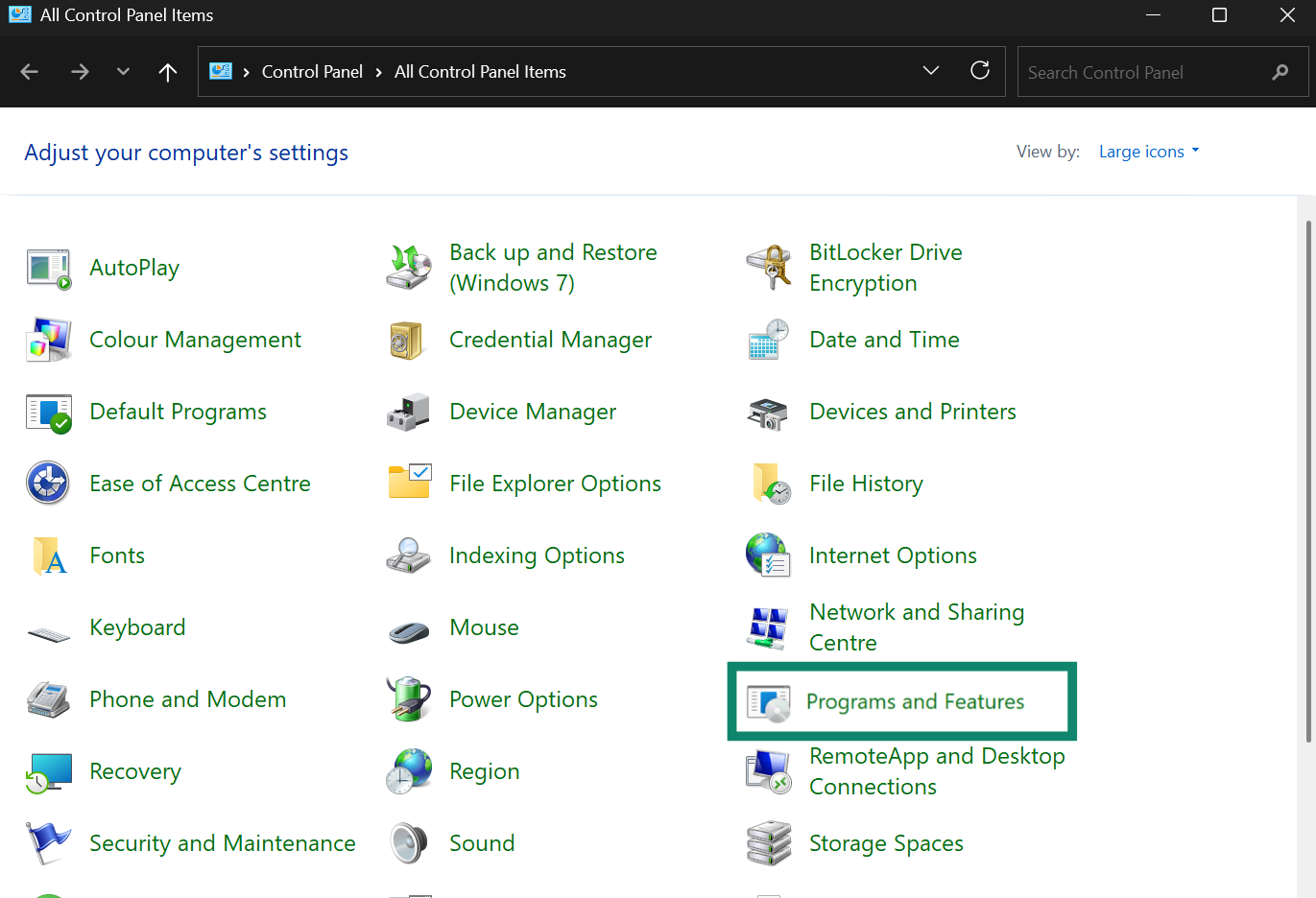
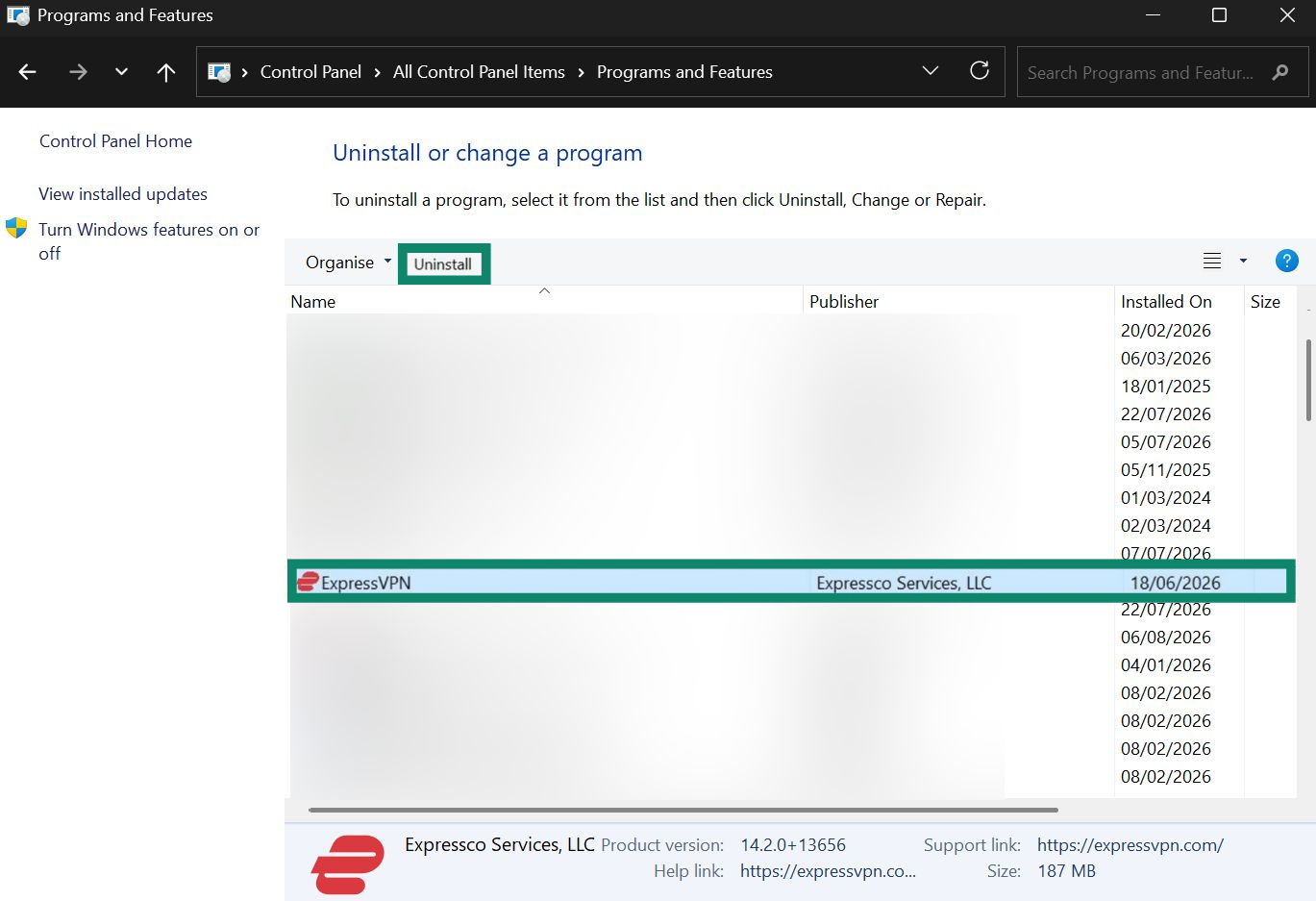
Uninstall from Control Panel
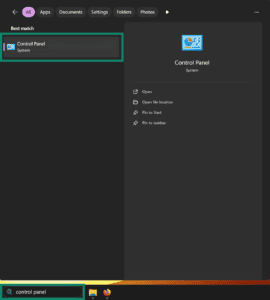
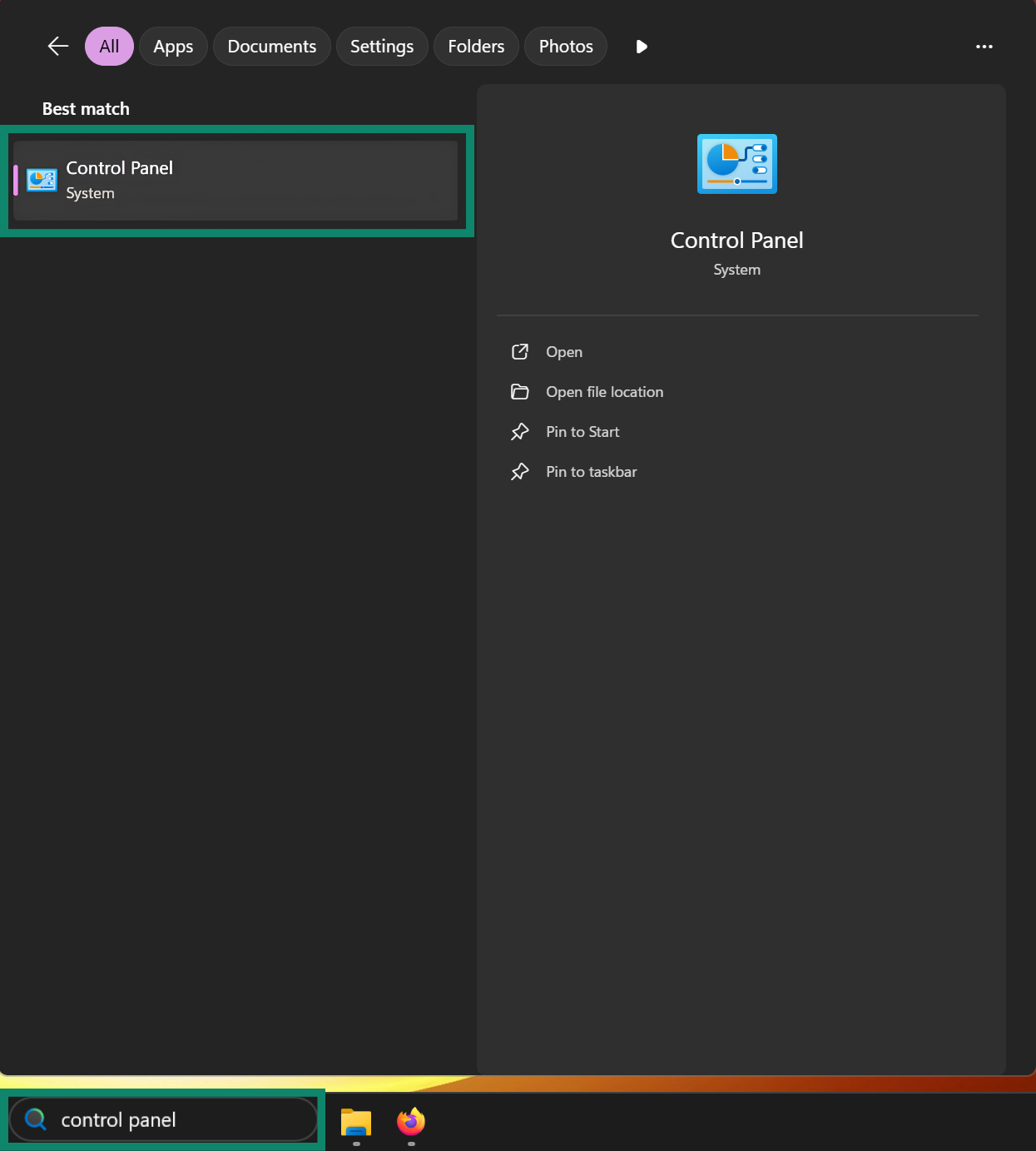
- In search on the taskbar, type Control Panel and select it from the results.

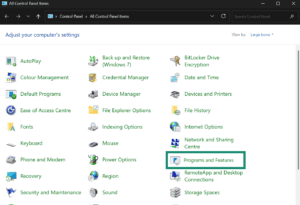
- Click Programs and Features.

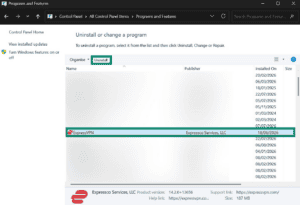
- Find the ExpressVPN app and click Uninstall.

There are two ways to uninstall the ExpressVPN app on Windows 10.
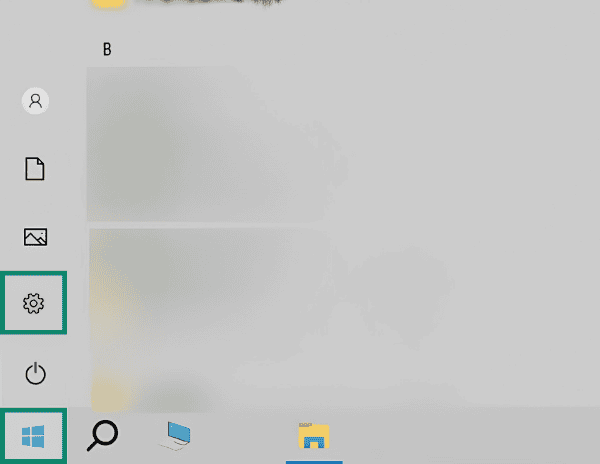
Uninstall from Settings
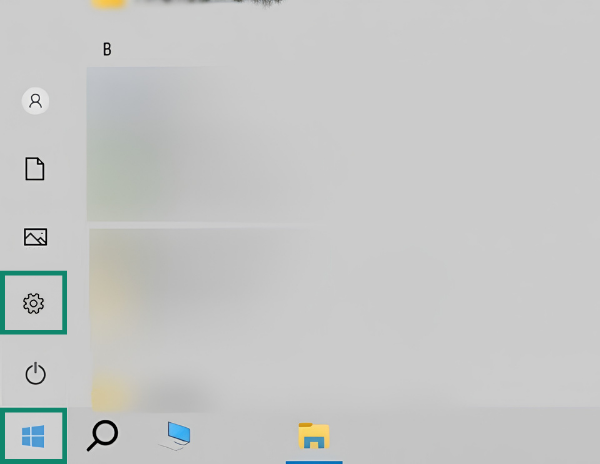
- Select , then select the Settings cog.

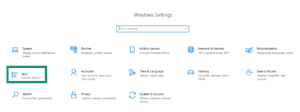
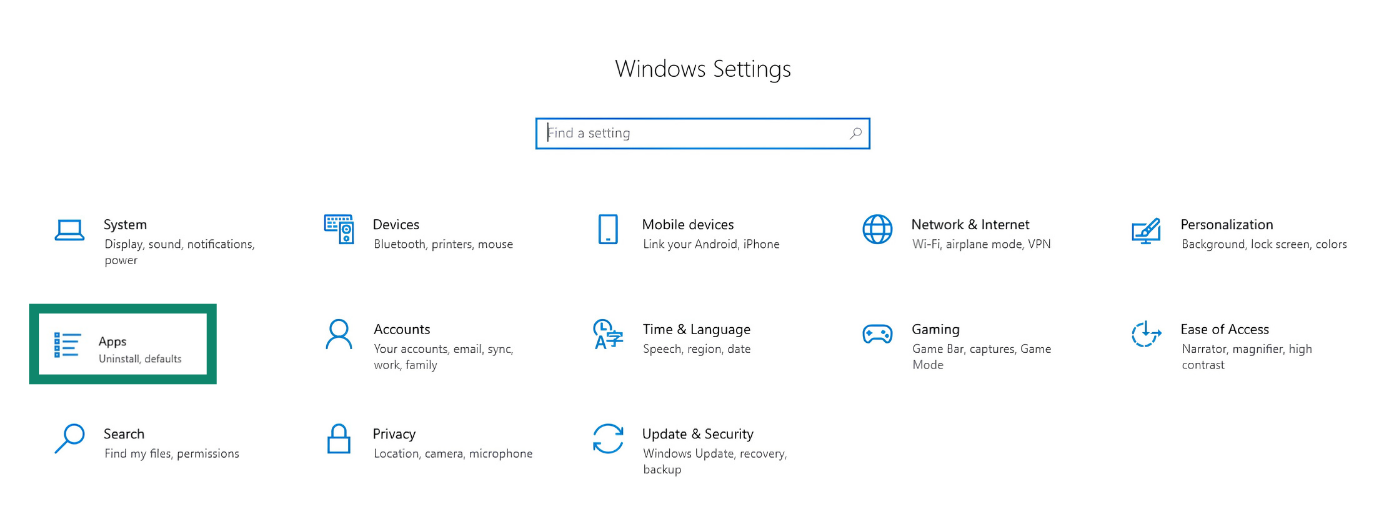
- Choose Apps.

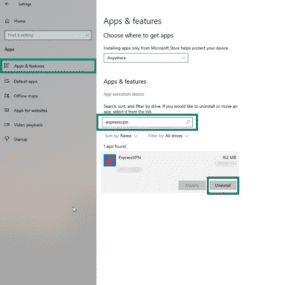
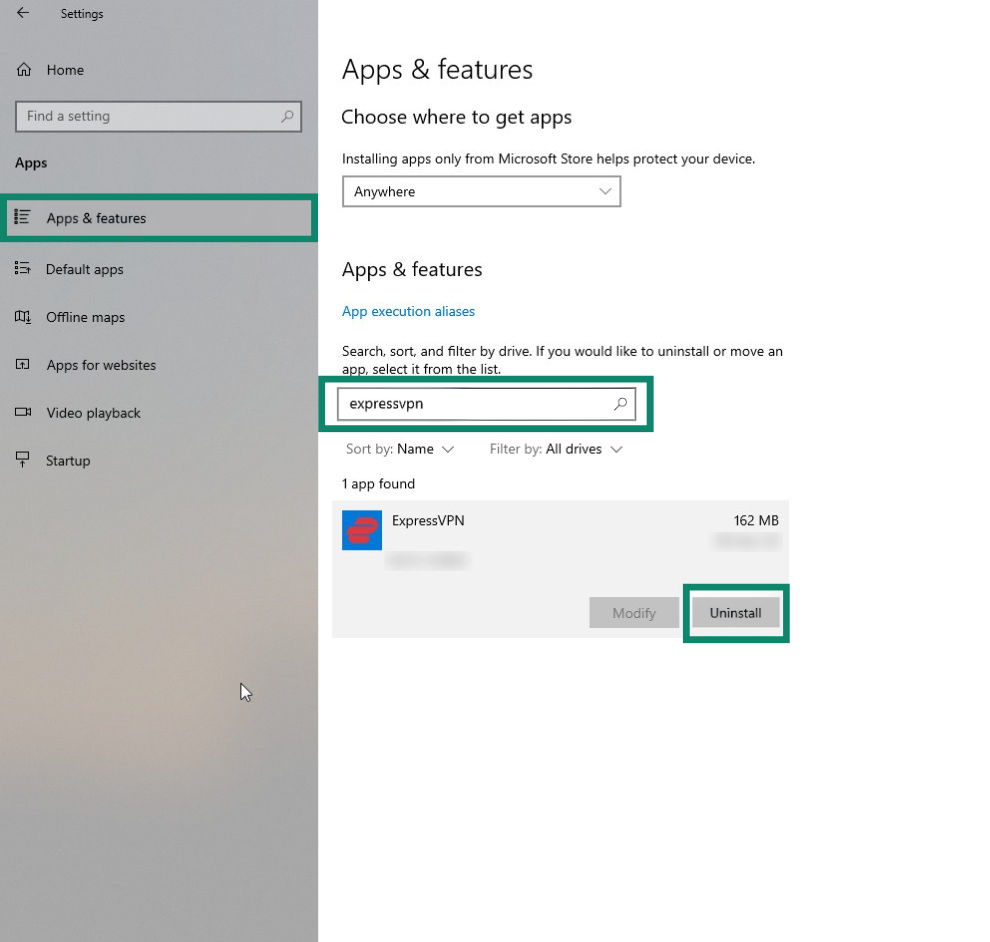
- Click Apps & features, type “ExpressVPN” into the search bar, and hit Uninstall.

Uninstall from Control Panel
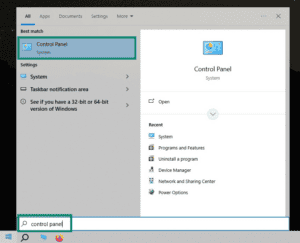
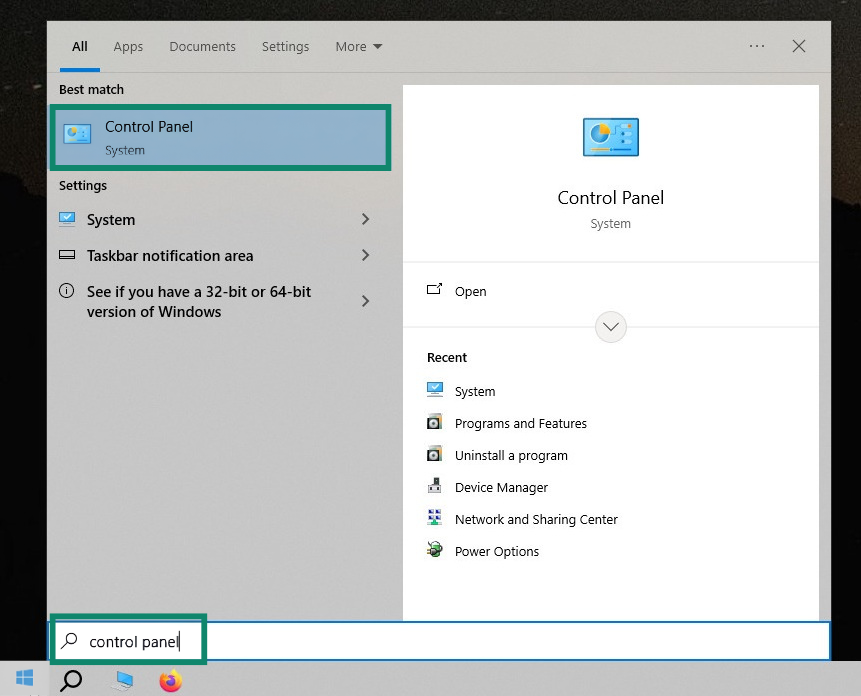
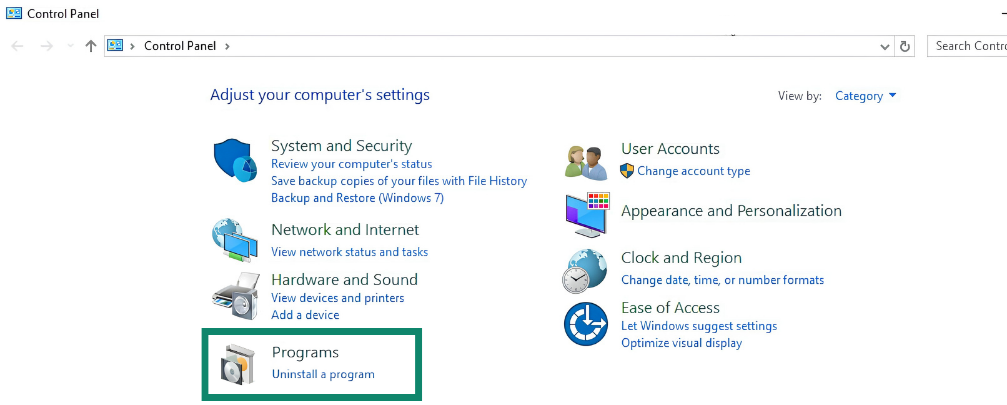
- In the search box on the taskbar, type “Control Panel” and click on it.

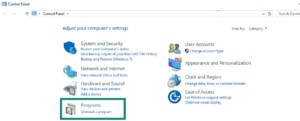
- Under Programs, click on the Uninstall a program option.

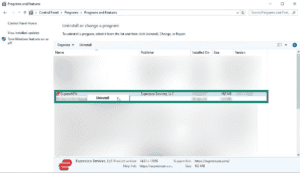
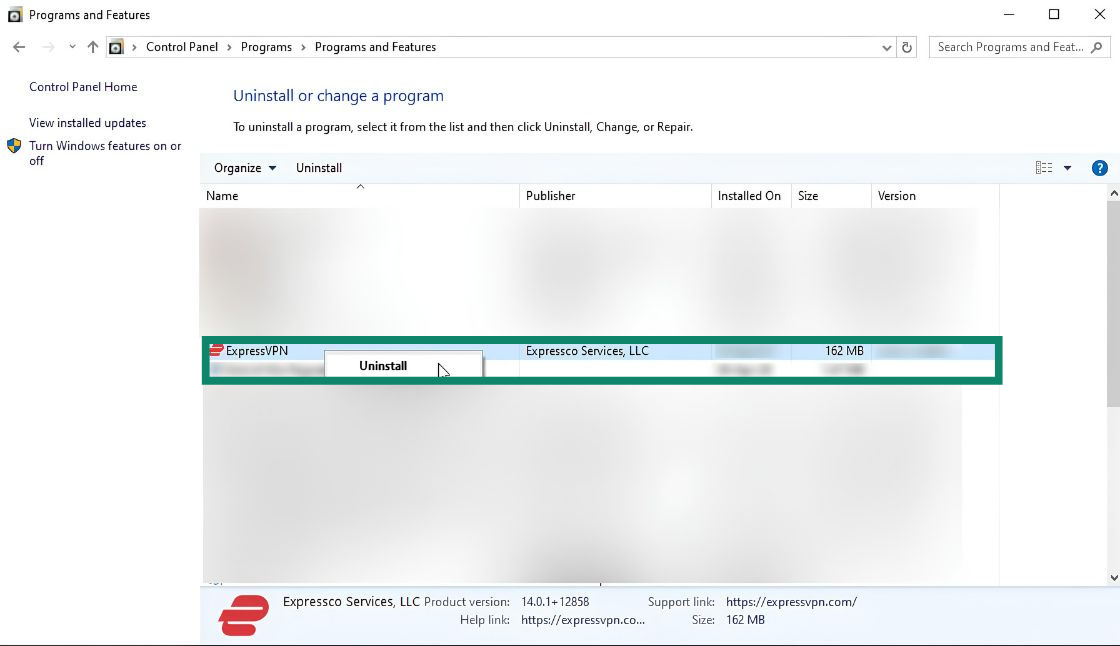
- Right-click ExpressVPN and select Uninstall. Then follow the directions on the screen.

If you see that ExpressVPN is still listed as an available connection after uninstalling:
- Click , and then press Windows key + R to launch the Run command.
- Type ncpa.cpl on the Run command and then press Enter to go to your Network Connections window.
- On your Network Connections window, right-click the WAN Miniport labeled ExpressVPN.
- Click Delete.
- From your Windows desktop, go to Settings > Network & Internet > VPN.
- If you see ExpressVPN as an available connection, delete it.
Need help? Contact the ExpressVPN Support Team for immediate assistance.
Mac
To remove the ExpressVPN app from your Mac computer:
- Open the ExpressVPN app.
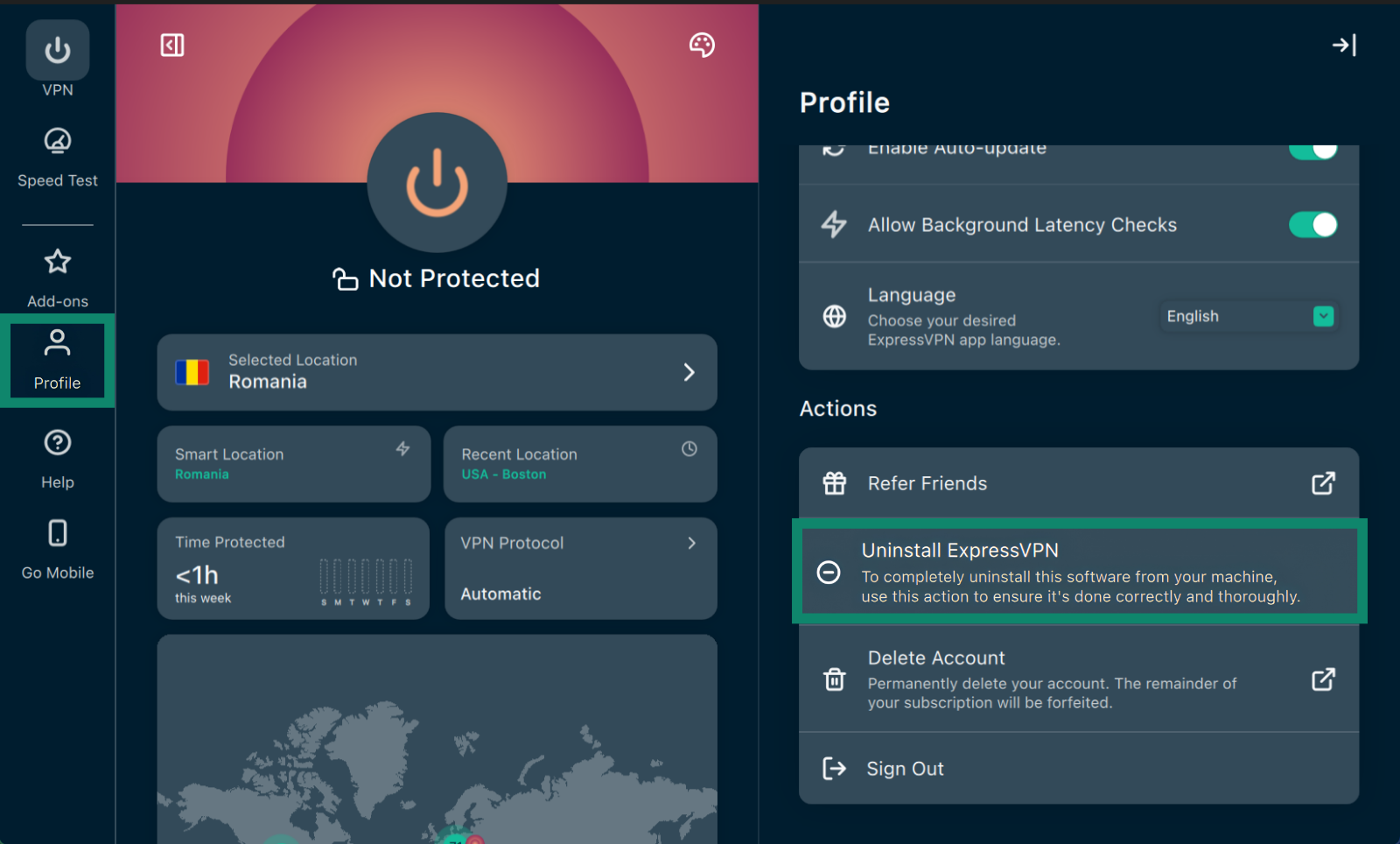
- Click the Profile tab, scroll down to Actions, and click Uninstall ExpressVPN.

- You will be prompted to enter your Mac computer’s password. Enter your password, then click Install Helper.
Need help? Contact the ExpressVPN Support Team for immediate assistance.
Android
To uninstall ExpressVPN on your Android device:
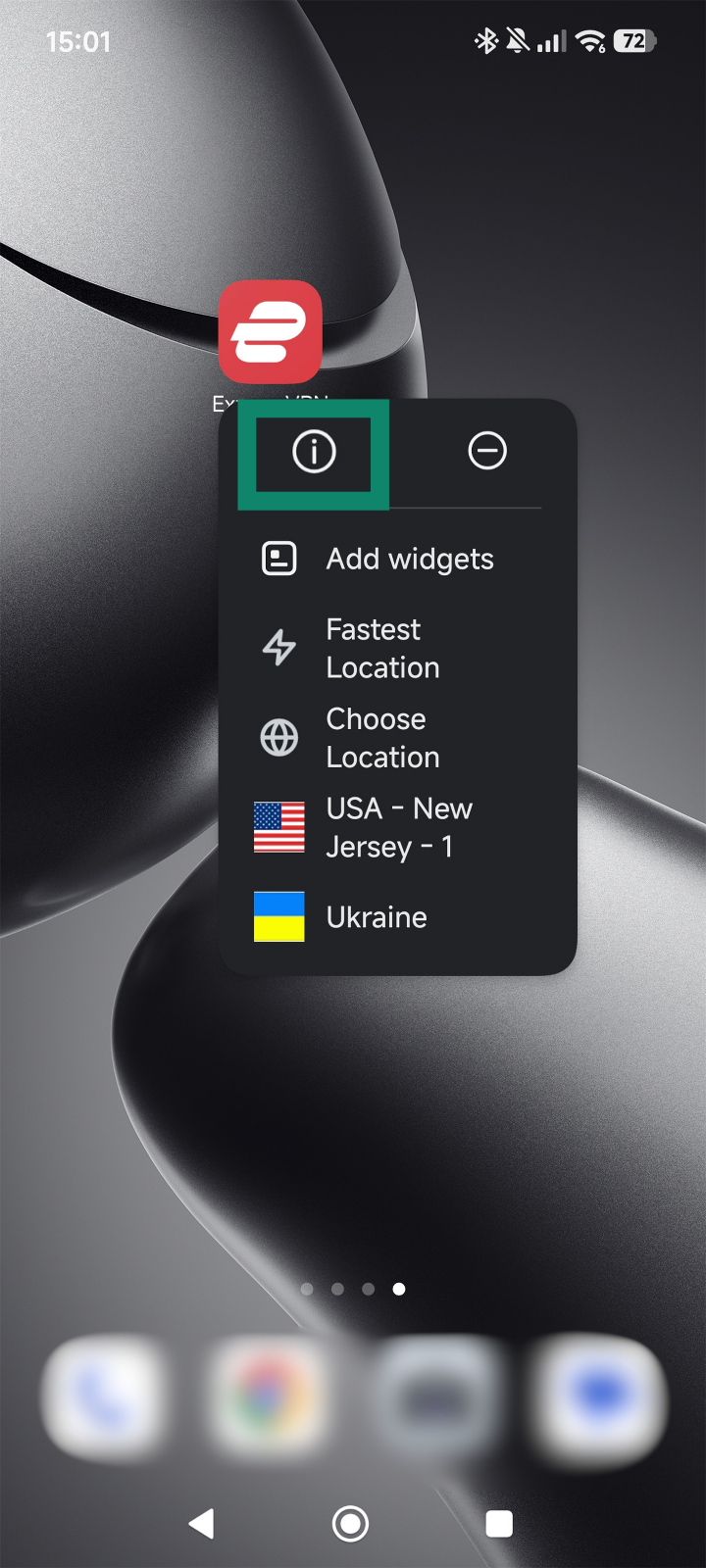
- Tap and hold the ExpressVPN icon on the home screen. Then tap
 .
.

- Tap Uninstall, then tap OK.

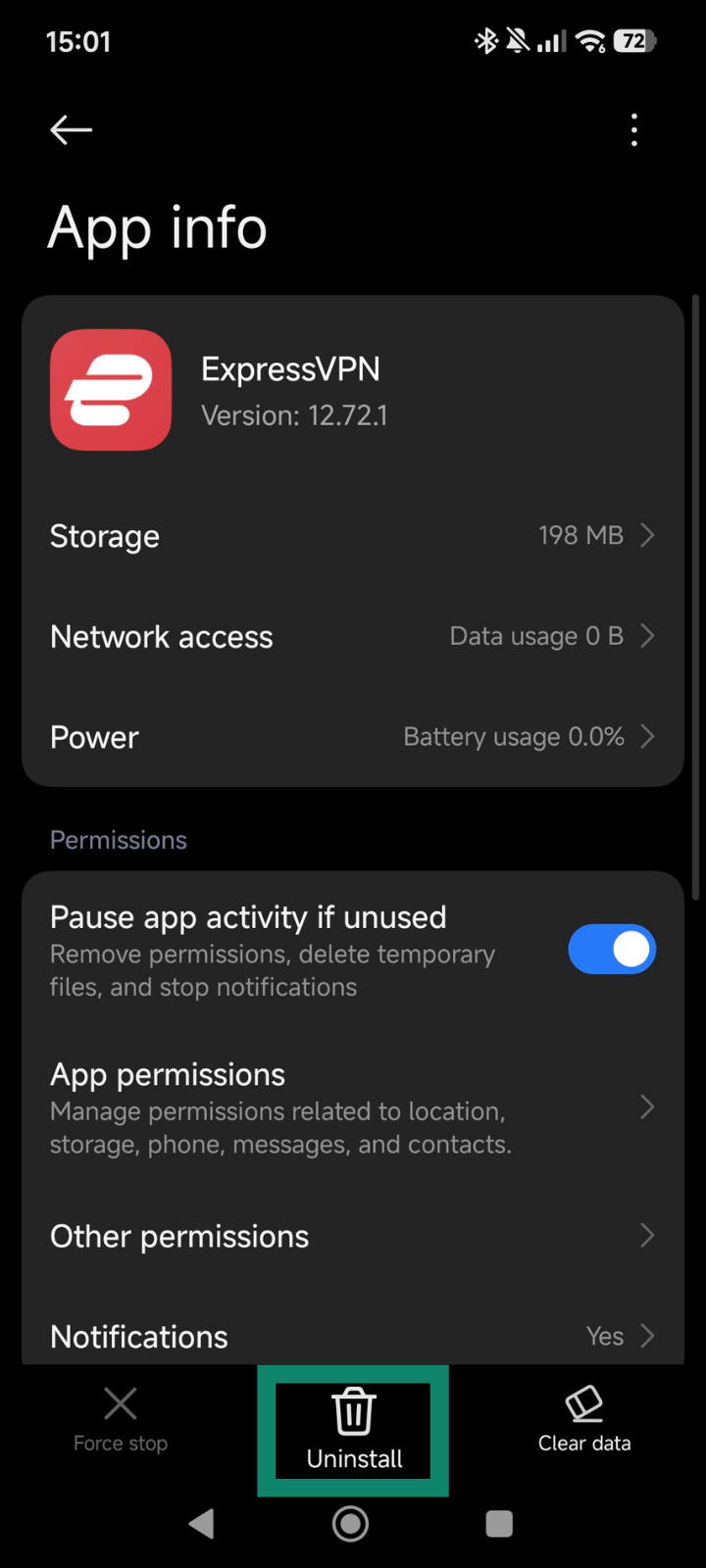
Need help? Contact the ExpressVPN Support Team for immediate assistance.
iOS
To remove ExpressVPN on your iPhone, iPad, or iPod:
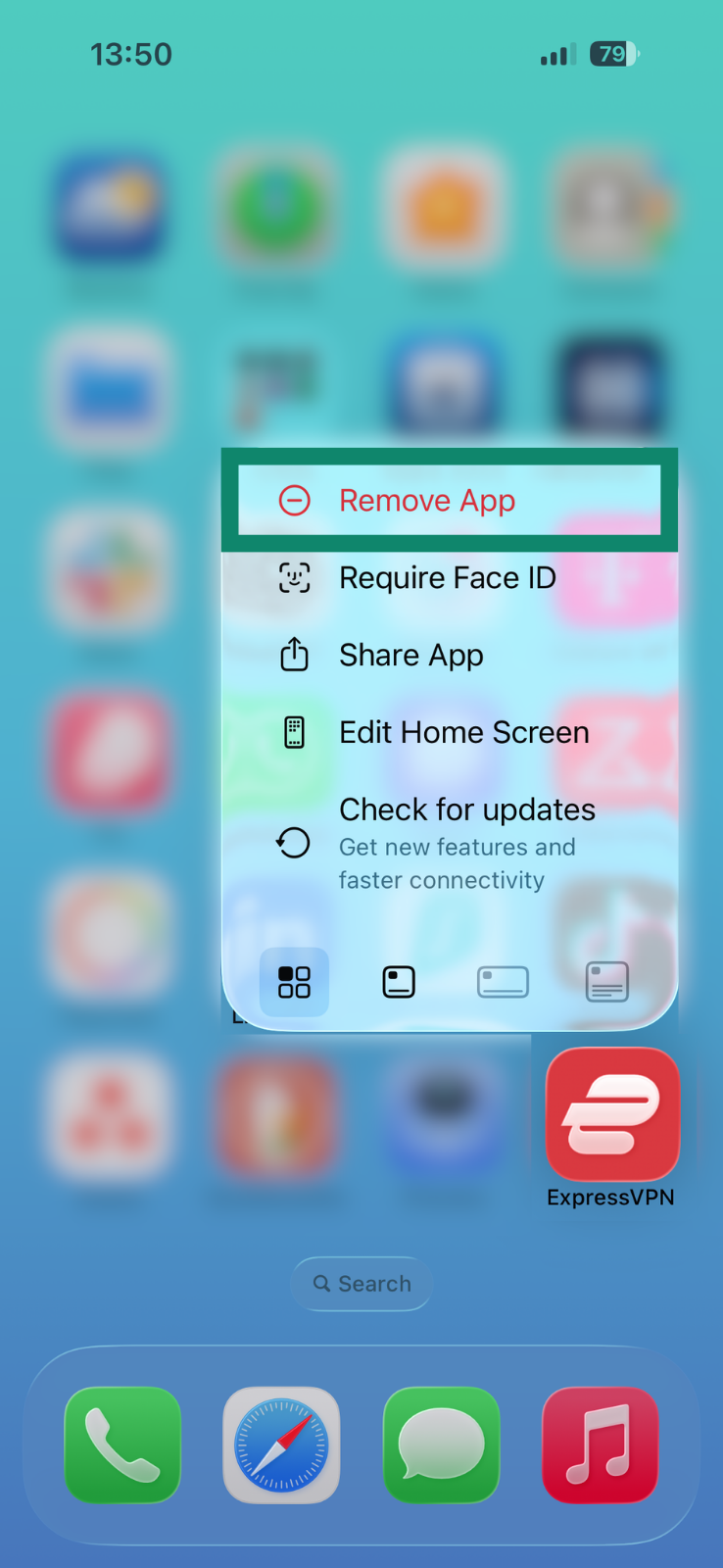
- Tap and hold the ExpressVPN icon until the app icons vibrate. Tap Remove App.
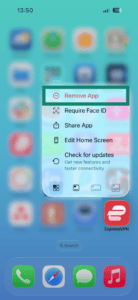

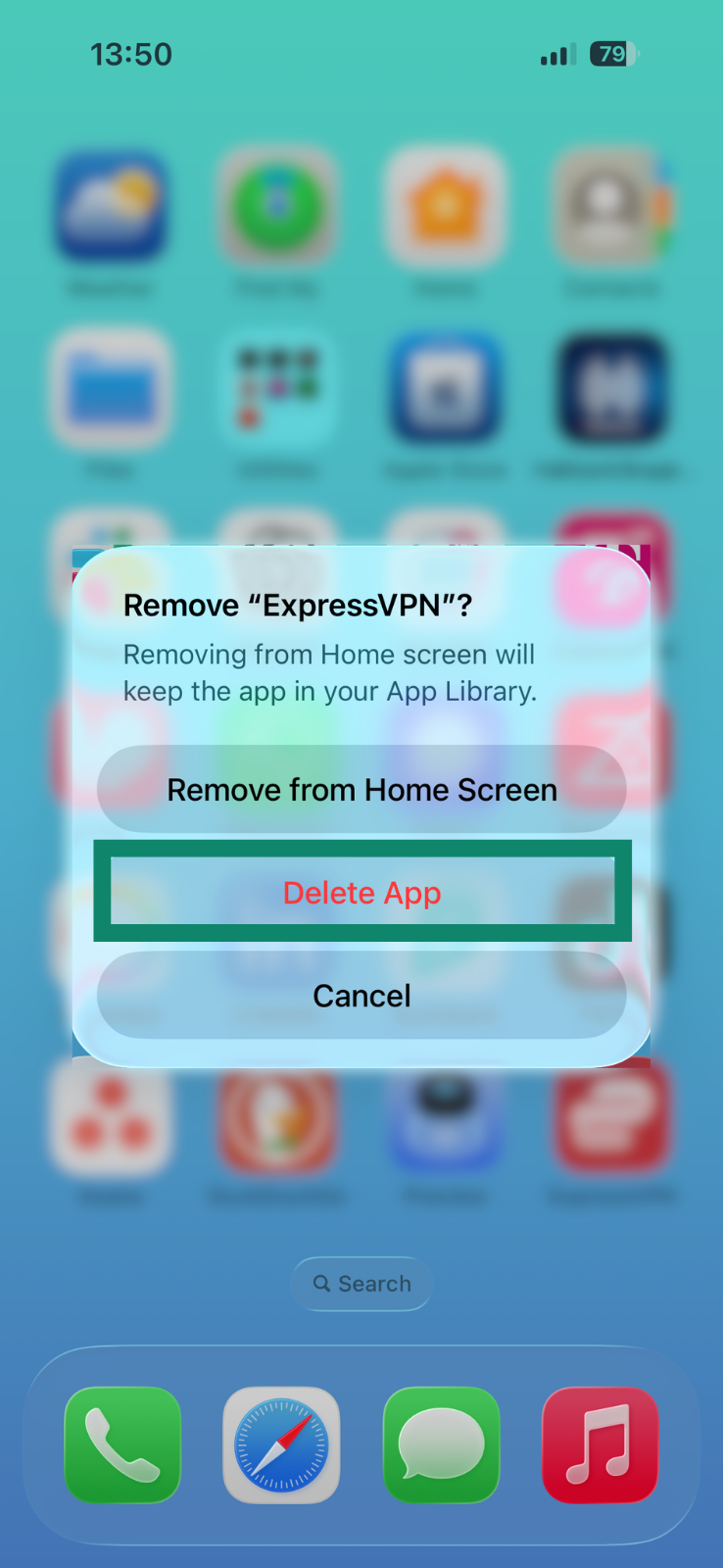
- Tap Delete App to remove the app. The app is now deleted from your device.
Need help? Contact the ExpressVPN Support Team for immediate assistance.
Apple TV
To remove ExpressVPN on your Apple TV:
- Find the ExpressVPN app on your Apple TV’s home screen, then press and hold the clickpad center (Siri Remote 2nd generation or later) or touch surface (Siri Remote 1st generation).
- Select Delete App.


- Select Delete or Offload.
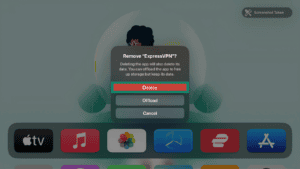

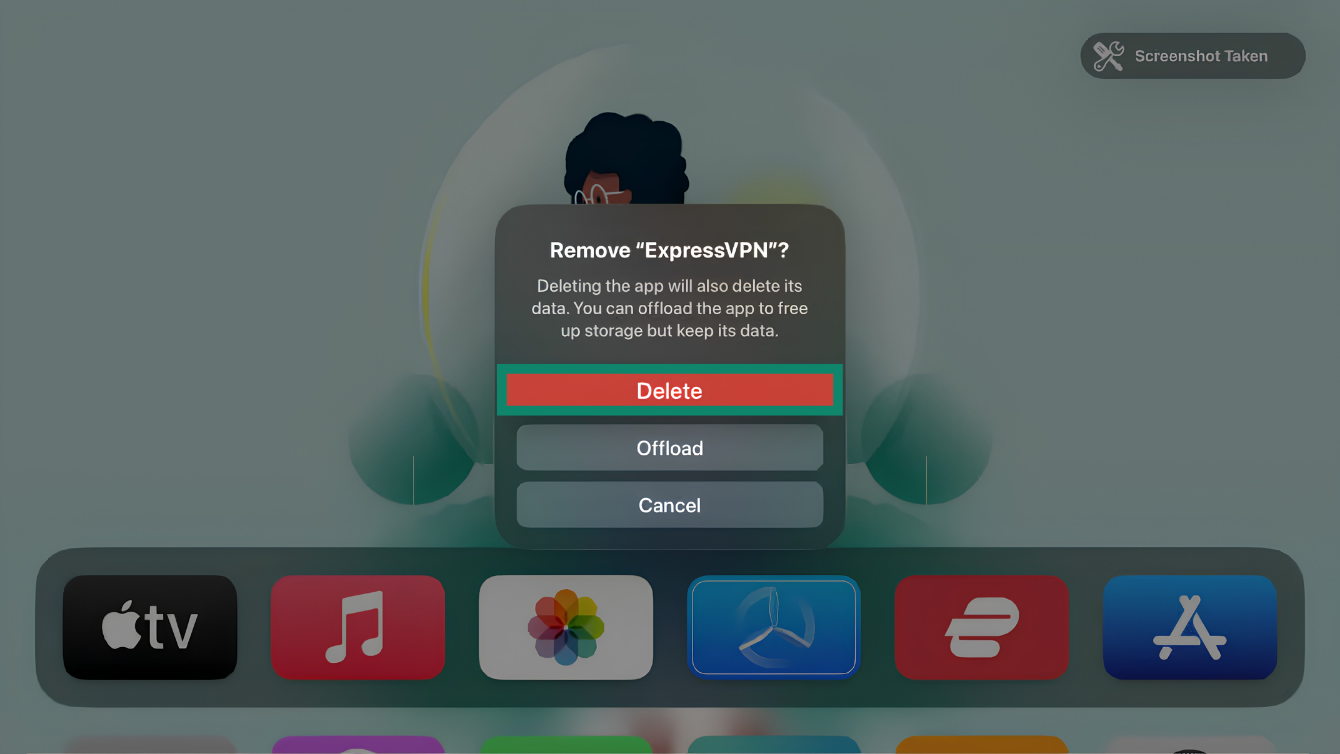
Offload removes the app from the Home Screen to free up storage. However, your Apple TV will retain the ExpressVPN app’s data in case you install it again.
Delete also deletes the ExpressVPN app’s data. You can download the app again, but the stored data may not be restored.
Need help? Contact the ExpressVPN Support Team for immediate assistance.
Android TV
To uninstall ExpressVPN on your Android TV:
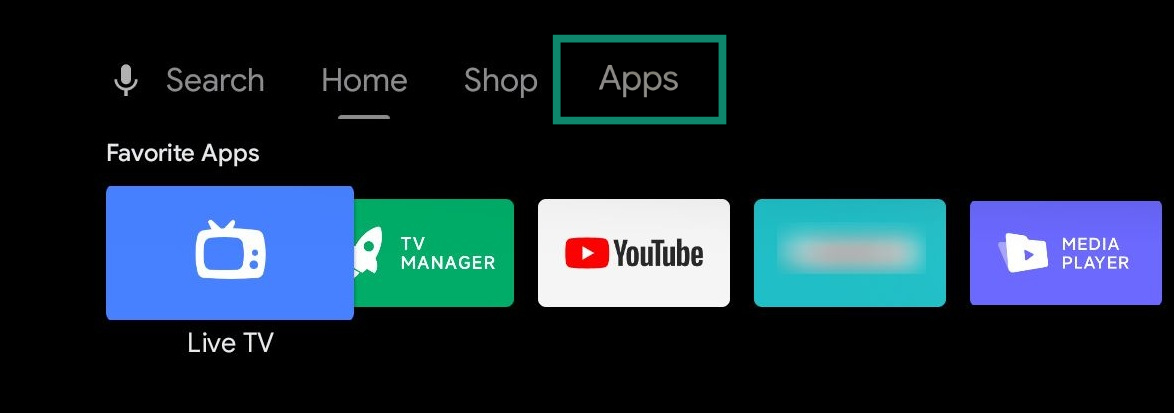
- Go to Apps and find ExpressVPN.


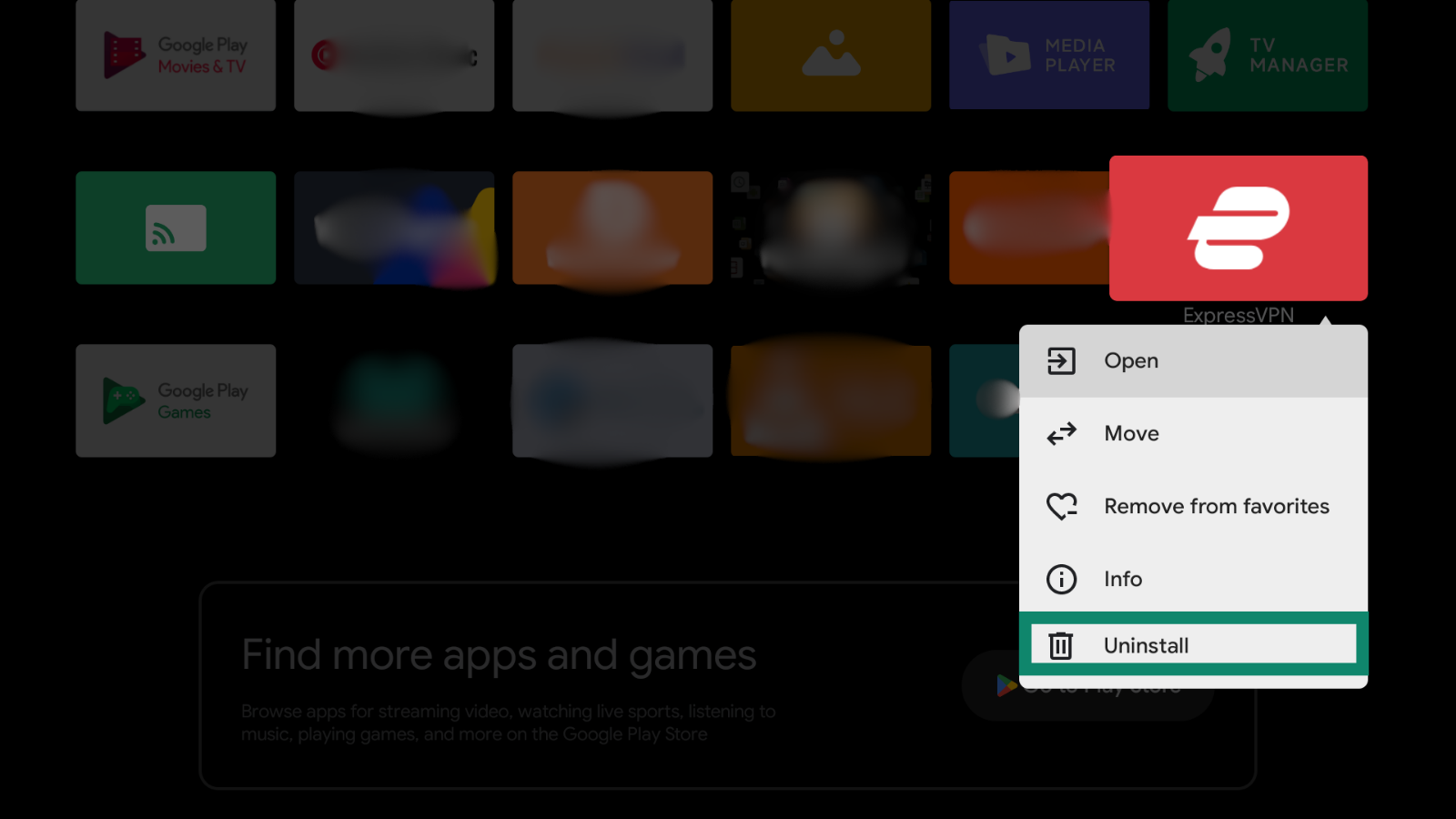
- Select and hold the ExpressVPN app, then select Uninstall.

- Select OK. The app is now deleted from your Android TV.
Need help? Contact the ExpressVPN Support Team for immediate assistance.
Fire TV
To uninstall ExpressVPN on your Fire TV:
- On your Fire device, go to Settings > Applications > Manage Installed Applications.
- Scroll down the list to find ExpressVPN.
- Select Uninstall > Uninstall. The app is now removed from your Fire device.
Need help? Contact the ExpressVPN Support Team for immediate assistance.
Linux
ExpressVPN GUI app for Linux
To uninstall the ExpressVPN GUI app for Linux:
- Click Profile.
- Scroll down to Actions and click Uninstall ExpressVPN.
- The Terminal will open. Type y to proceed with uninstalling the app.
- Enter your Linux device’s password.
- Once uninstalled, press any key to continue.
ExpressVPN CLI for Linux
To uninstall the ExpressVPN app for Linux via the CLI, locate the app installation file and run the command:
expressvpn-uninstall.sh
Legacy Linux app
To uninstall ExpressVPN on Linux, run the following commands depending on your Linux distro:
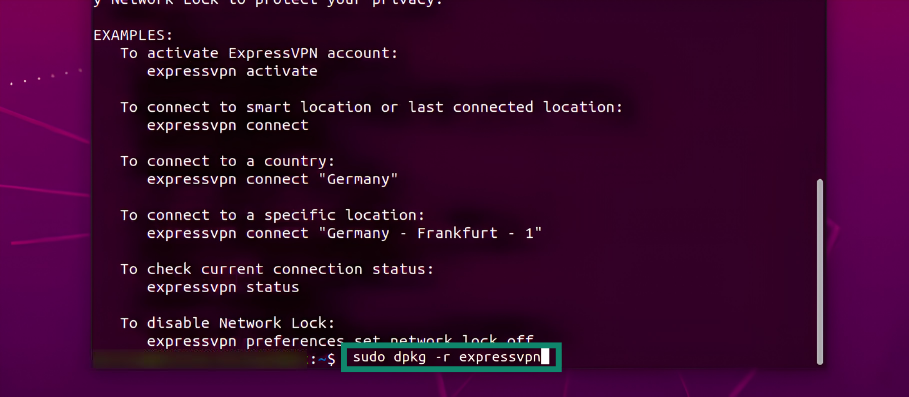
Ubuntu / Debian / Mint:
sudo dpkg -r expressvpn
Fedora:
sudo dnf remove expressvpn
Arch:
pacman -R expressvpn
Need help? Contact the ExpressVPN Support Team for immediate assistance.
Chromebook
To uninstall ExpressVPN on Chromebook:
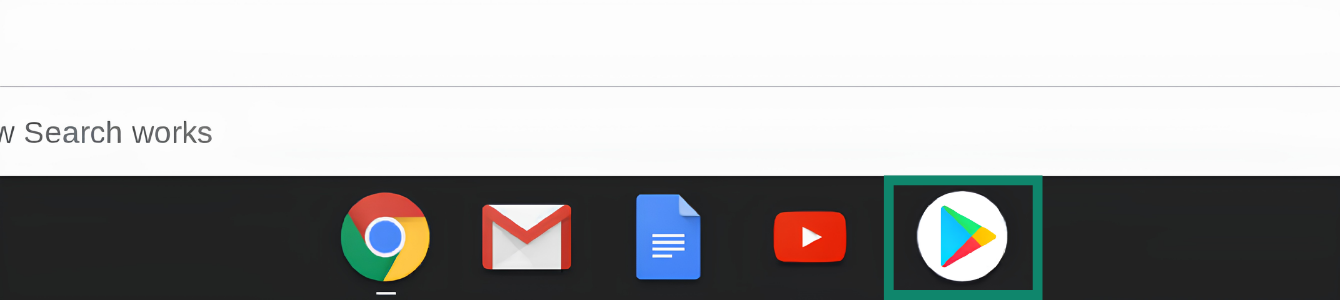
- On your desktop, select
 .
.

- In the Play Store search bar, search for ExpressVPN. Select ExpressVPN. Click Uninstall.


- Click OK to uninstall. The app is now removed from your device.




Need help? Contact the ExpressVPN Support Team for immediate assistance.
Routers
You can find the guide for restoring the original firmware of a router running ExpressVPN here.
Need help? Contact the ExpressVPN Support Team for immediate assistance.