
What does “No location found” mean on an iPhone and how do you fix it?


If you’ve opened Find My and seen “No location found” next to a person, device, or item, it means Find My can’t currently show its location. That doesn’t always mean someone stopped sharing their location or that a device is gone for good. It usually means the location data isn’t available right now, which can happen for several reasons.
Common reasons for "No location found" on an iPhone
Find My depends on several things working properly, including Location Services, network connectivity, Find My settings, and the device being connected to an Apple Account. Location Services can use GPS, Bluetooth, nearby Wi-Fi hotspots, and cell towers to help determine location.
Disabled Location Services
If Location Services is turned off, either for Find My specifically or for the device entirely, Find My has no location data to work with. It needs to be set to "While Using the App" or "Always." If it's set to "Never," it won't report a location.
The location change setting can happen after a privacy settings change, a device restore, or an iOS update that resets app permissions.
Weak or lost GPS signal
Find My uses GPS to pinpoint the device's location, and the accuracy of GPS depends on how clear the signals are from satellites.
GPS accuracy can drop when the device doesn’t have a clear view of satellites, such as indoors, underground, between tall buildings, inside vehicles, or near mountains. In those cases, the iPhone may rely more on Wi-Fi or cellular networks to estimate location, which can be less precise.
Poor internet connection
Find My needs either a Wi-Fi or cellular connection to transmit location data to Apple's servers. Without one, it can't send a live update, and if the app doesn’t get this data for a while, it’ll show the "No location found" message. This includes situations where the device is connected to Wi-Fi but that network has no internet access.
Low battery or Low Power Mode
Low Power Mode reduces background activity and turns off Background App Refresh, so it may contribute to delayed updates in some cases.
If the battery dies completely, the device stops broadcasting its location altogether. The only position visible in Find My at that point is whatever was last recorded before the phone shut off.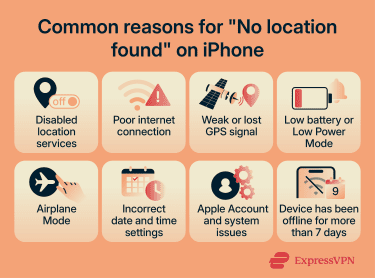
Airplane Mode
Airplane Mode turns off cellular and Wi-Fi by default, which can stop live location updates if the device can’t connect to the internet. However, Bluetooth may remain on, and Wi-Fi or Bluetooth can be turned back on while Airplane Mode is still enabled. On supported devices, Find My may still be able to locate the device through the Find My network.
Incorrect date and time settings
Apple links correct date and time settings to two things that affect Find My directly: GPS accuracy and iCloud sync. GPS uses timestamps to calculate position, and iCloud uses them to sync data with Apple's servers. If either fails because the clock is wrong, Find My may not be able to retrieve or update a location.
Apple Account and system issues
Find My requires an active iCloud account and working Apple servers to function. If the device has been signed out of iCloud, after a reset, a password change, or an account issue, it won't share or receive location data until signed back in.
Occasionally, the problem is on Apple's end. If Find My or iCloud is experiencing an outage, location updates will fail regardless of how the device is configured.
Device has been offline for more than 7 days
If more than seven days have passed since the device last sent its location to Apple, Find My stops showing a location entirely and displays "No location found." This can happen if someone has been traveling without connectivity, has turned off their phone, or has disrupted location sharing for an extended period.
How to fix the "No location found" error
If Find My isn’t able to retrieve a device’s location, the goal is to make sure it can receive location updates again. Here are some troubleshooting steps you can try.
Check Apple's system status
Where: Either device. The status page is the same for everyone.
Before changing any settings, it’s best to check Apple's System Status page to see if Find My or iCloud is experiencing an outage. If there's a known issue on Apple's end, no amount of troubleshooting on the device will fix it, and you'll need to wait for Apple to resolve it.
On the System Status page, search for Find My and iCloud. A green dot means it’s working normally, while a red dot indicates a server issue.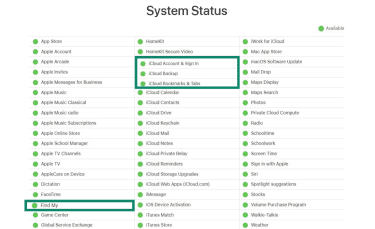
Check your internet connection
Where: Both devices.
Open a browser and try loading a webpage. If it doesn't load, open the Control Center and make sure both Wi-Fi and Cellular/Mobile Data are switched on.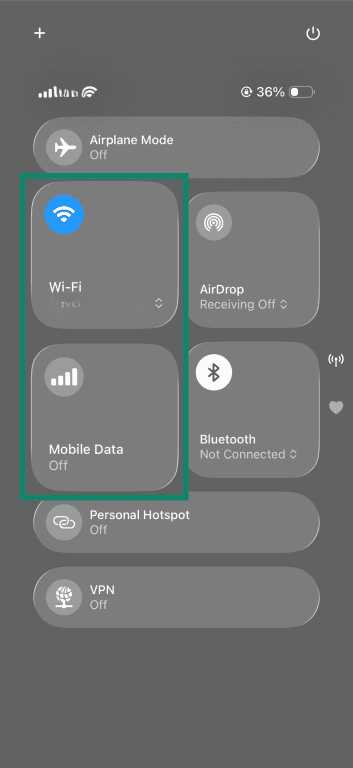
Turn off Airplane Mode
Where to check: The device not showing a location.
Swipe down from the top-right corner to open the Control Center and check if the airplane icon is highlighted. If it is, tap it to turn Airplane Mode off. Wait 30–60 seconds for the device to reconnect, then check Find My again.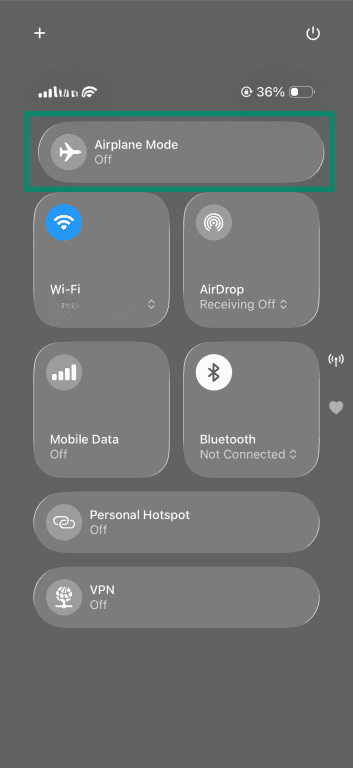
Restart your iPhone and Find My
Where: Both devices.
A restart clears temporary software issues that can cause Find My to stop updating, like a stuck background process, a failed refresh, or a stale app state. To restart the device:
- Press and hold either volume button and the side button together until the power-off screen appears.
- Slide the power button to turn off your device.
- Turn your device back on after a few seconds.
You can also restart the Find My app:
- Close the app from the recent apps screen.
- Open Find My again.
Enable Location Services and check that Find My has permissions
Where: Both devices.
To enable Location Services:
- Open Settings and tap Privacy and Security.
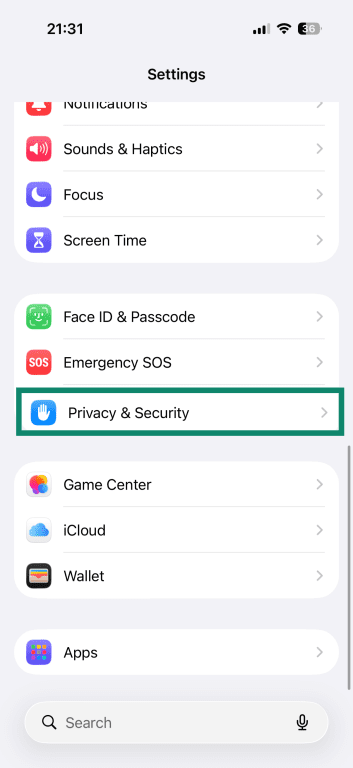
- Select Location Services.
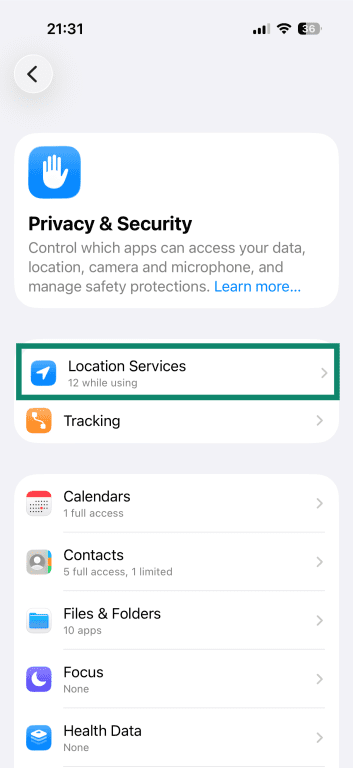
- Ensure that Location Services is turned on.
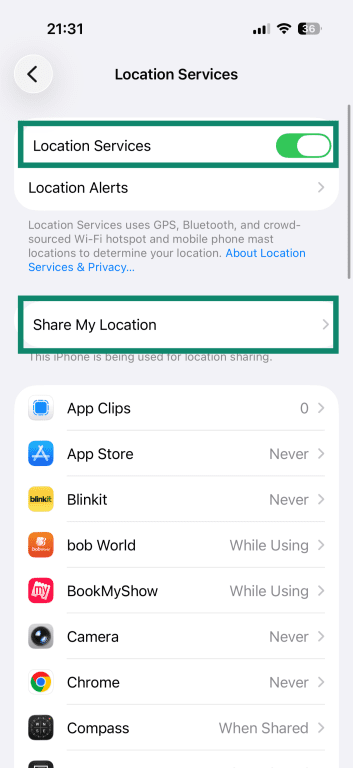
- On the device not sharing the location, tap Share my Location next, and confirm it’s on. This controls whether the device broadcasts its location to others.
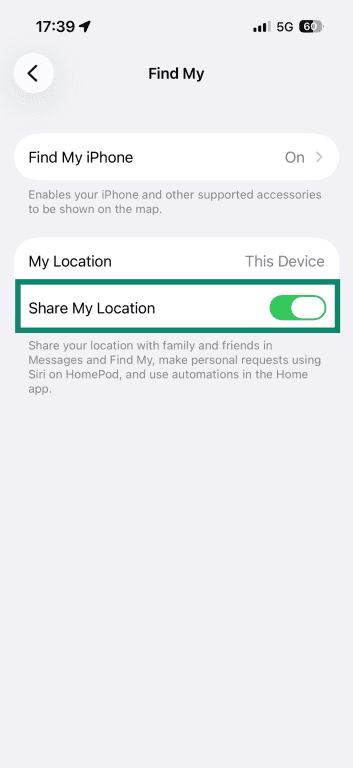
Then check that Find My specifically has permission. This controls whether Find My can access the device's location at all:
- Open Settings and scroll down to the Apps section.
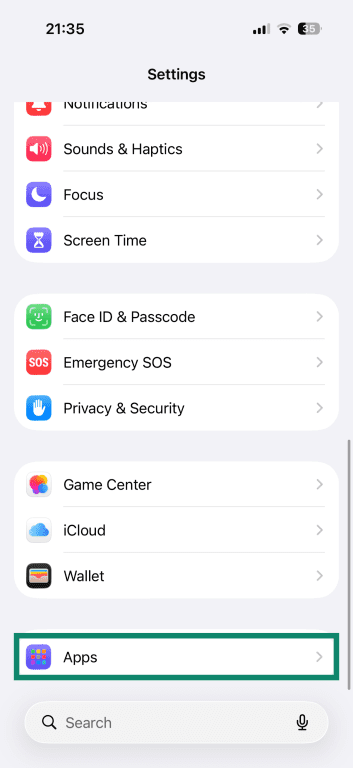
- Tap Find My from the list of apps.
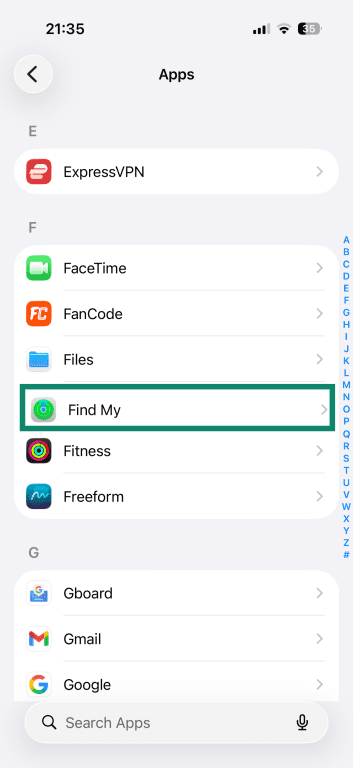
- Select Location.
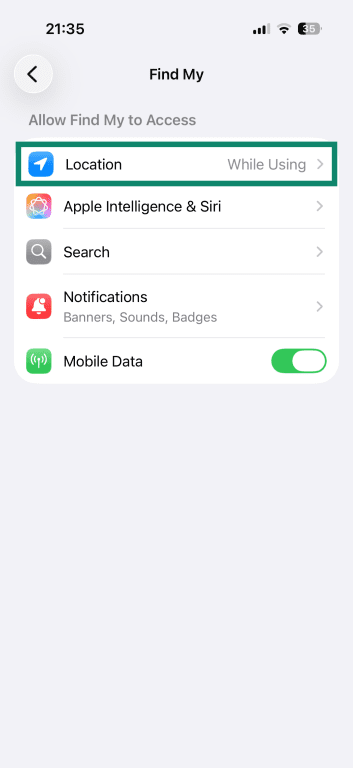
- Set it to While Using the App.
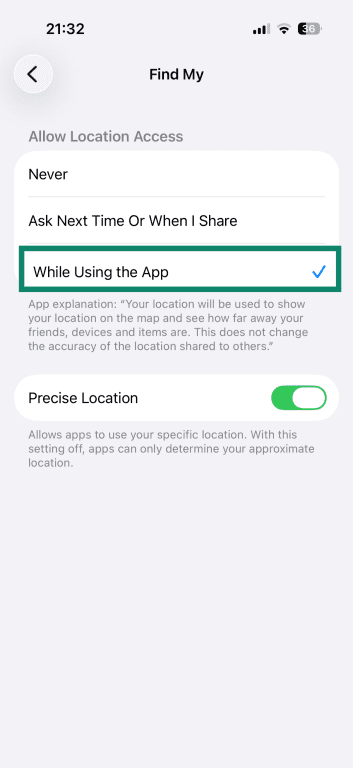
Turn on Precise Location
Where: The device not showing a location.
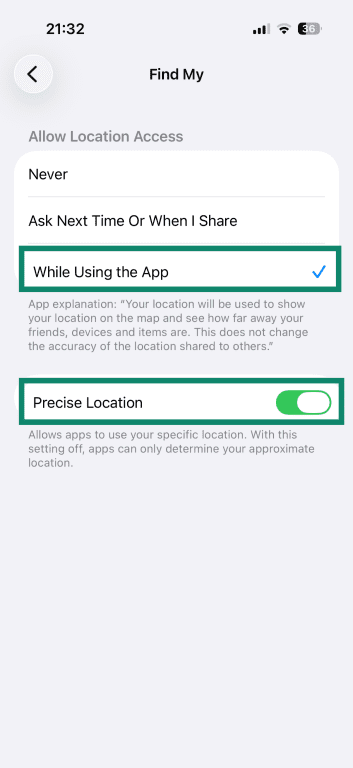
Precise Location controls whether Find My can use a more specific location rather than an approximate one. If Find My has location permission but location results are vague or unreliable, check that Precise Location is turned on.
To turn on Precision Location on your iPhone:
- Under Location Services, scroll down and tap Find My.
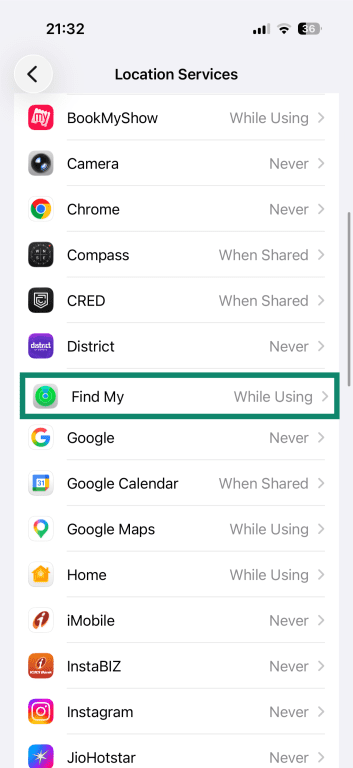
- Select While Using the App to allow location access and turn on Precise Location.
Check that Background App Refresh is on for Find My
Where: The device not showing location.
Enabling Background App Refresh helps maintain up-to-date location tracking without requiring the other person to open the app manually.
- Go to Settings > General > Background App Refresh.
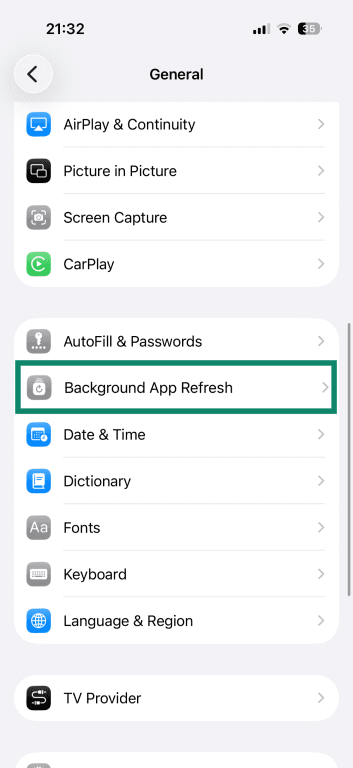
- Select Background App Refresh.
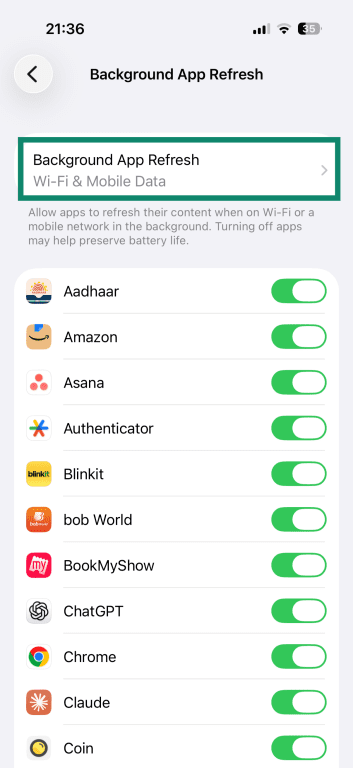
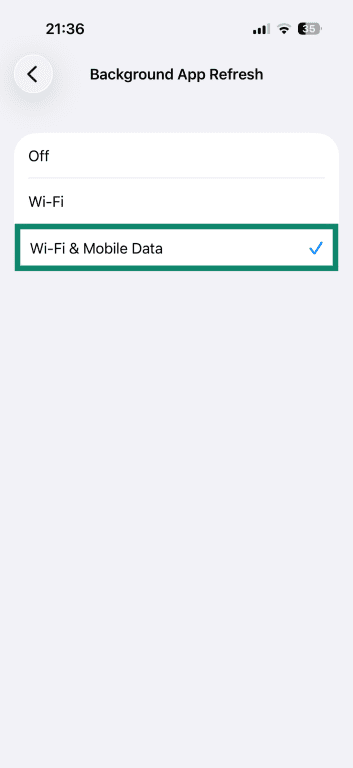
- Choose Wi-Fi & Mobile Data. This ensures that location stays up to date regardless of whether the device is on Wi-Fi or cellular data.
Check date and time settings
Where: The device not showing a location.
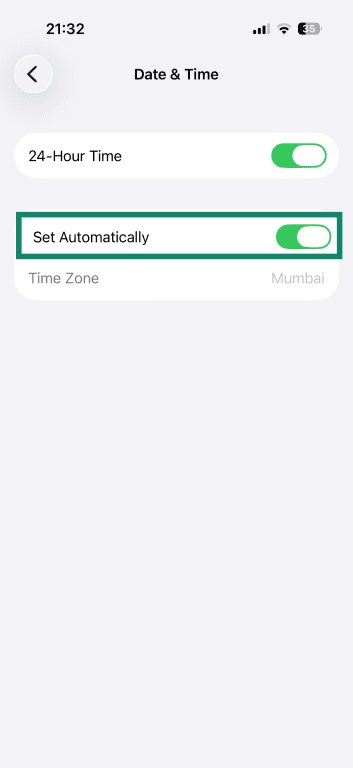
To prevent incorrect date and time settings from affecting GPS accuracy and iCloud sync:
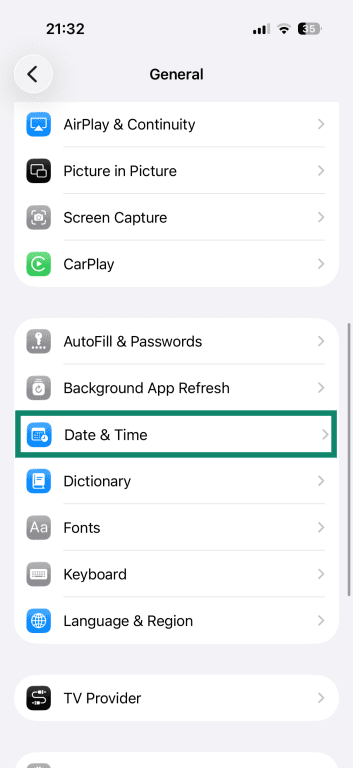
- Open Settings and tap General.
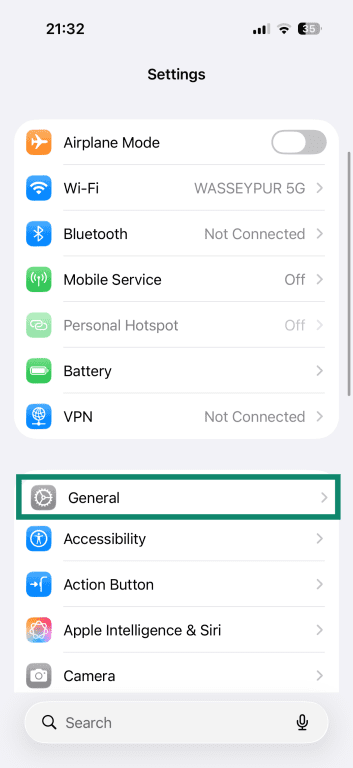
- Select Date & Time.
- Turn on Set Automatically.
Make sure you're signed in to iCloud
Where: Both devices.
To check if the device is logged into iCloud, open Settings and check if your name appears at the top.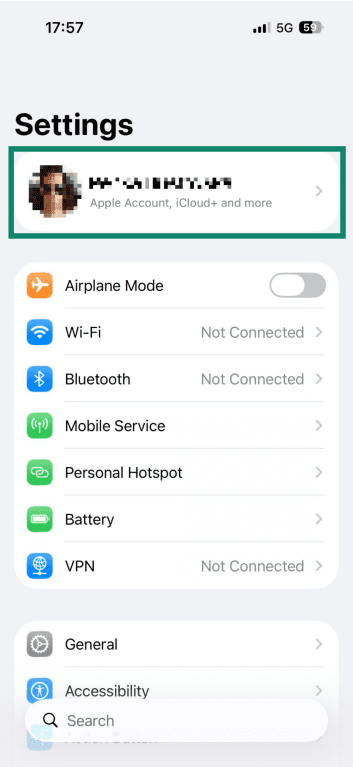
If you see Sign in to your iPhone instead, you are logged out and need to sign in using your iCloud credentials.
Update iOS
Where: Both devices.
An outdated iOS version can introduce bugs that affect how Find My works. Keeping both devices on the latest version reduces the chance of compatibility issues causing location updates to fail.
Usually, when there’s an update available, the device will show a “Software Update Available” prompt in Settings. However, you can also check by following these steps:
- Open Settings > General > Software Update. Wait while your device checks for updates.
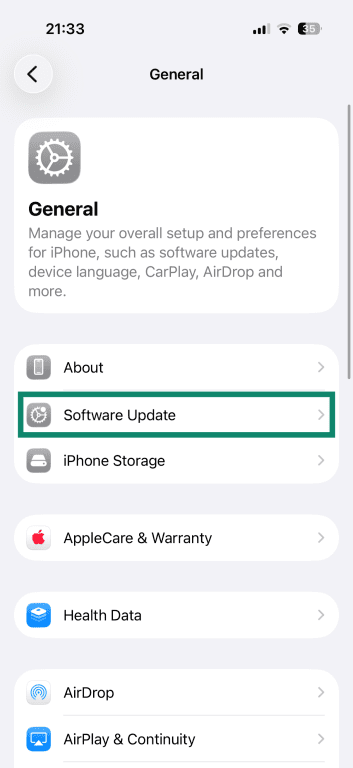
- When you see the latest iOS version, tap Update Now to install it immediately. Or you can choose Update Tonight to install it later.
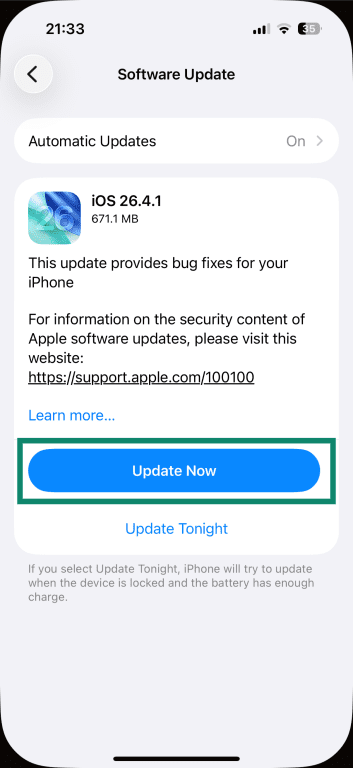
- Enter your phone’s passcode to confirm.

Tip: You can enable automatic updates in your iPhone settings so the latest version is installed as soon as it becomes available. This prevents you from having to manually check for updates while keeping Apple services secure and up to date.
Reset location and privacy settings
Where: Primarily, the device not showing a location.
If none of the previous steps have worked, resetting location and privacy settings restores all location permissions to their default state. This can resolve cases where a permission has been misconfigured in a way that isn't visible in the standard settings.
- Open Settings, tap General, and select Transfer or Reset iPhone.
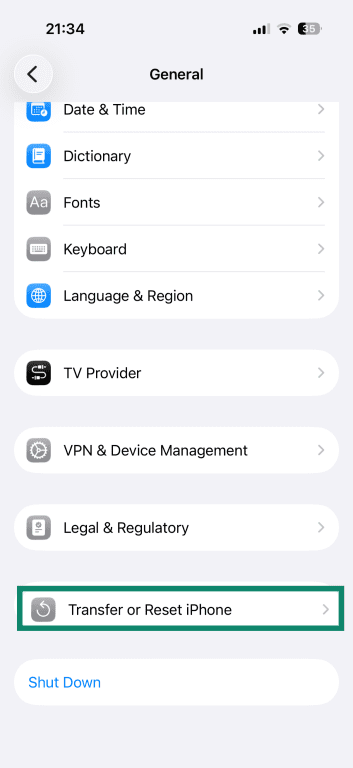
- Tap Reset.
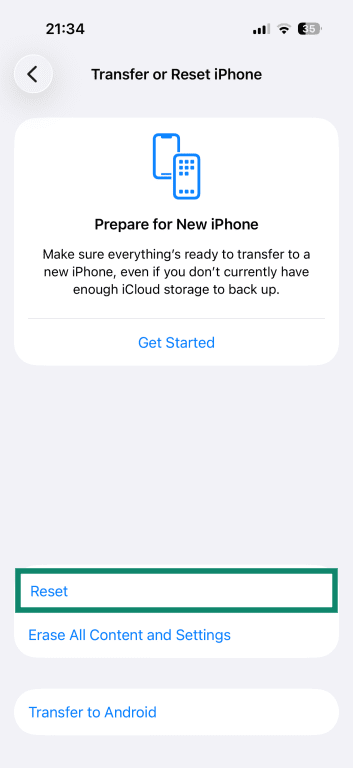
- Select Reset Location & Privacy.
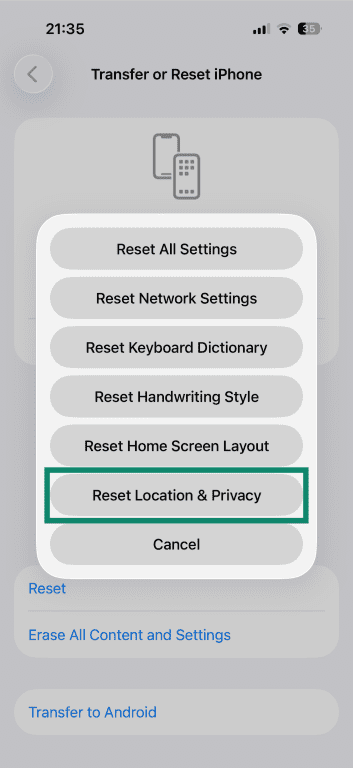
FAQ
Why does Find My say “No location found” for just one person?
Can someone secretly turn off their location?
Will resetting location settings remove saved app permissions?
Why does “No location found” appear after changing devices?