Google Docs AI data collection: What it means, what’s at risk, and how to stay in control


Google Docs is widely used to create, store, and collaborate on documents, but its growing integration with AI has raised new questions about data privacy.
Understanding Google Docs AI data collection
Google Docs AI tools process document content to generate responses. When you ask Gemini to rewrite a paragraph, for example, it processes the relevant text on Google's servers, generates a suggestion, and returns it inside your document.
This is different from web scraping, which broadly and automatically collects online data. Google Docs AI processes content in response to a feature or request. Depending on the feature, this may include selected text, the broader document, and relevant Workspace content that the user has permission to access.
With an eligible Google Workspace account, certain Gemini features can also draw on relevant context from enabled Workspace sources, such as Gmail, Drive, Calendar, and Chat. Availability depends on the feature, account settings, and administrator controls.
According to Google’s Gemini in Workspace data protection documentation, it doesn't use Workspace data to train or improve generative AI models powering systems outside Workspace without permission. Different data-handling terms may apply to personal accounts and experimental Workspace features.
Also read: App permissions explained: What they are and why they matter.
What types of document data may be analyzed?
What Gemini can draw on depends on the account type, plan, feature, and enabled settings. On eligible organizational Google Workspace accounts, Workspace Intelligence can provide context from permitted content across Workspace apps. Personal accounts with eligible Google AI plans can also use Gemini features across several Workspace apps, although different controls and data-handling terms may apply.
Depending on the feature and your account, Google Docs AI may draw on:
- Document content and structure: Gemini may process prompts, selected text, the active document, and referenced sources to generate edits, summaries, rewrites, or suggestions.
- Context from Workspace apps: When the relevant sources and features are enabled, Gemini can pull relevant information from Drive, Gmail, Calendar, and Chat. According to Google’s Workspace Intelligence documentation, it draws only on items you already have permission to view; for example, asking Gemini in Docs about a project can surface related meeting notes, documents, and chat discussions you can already see.
- Meeting content: On eligible organizational accounts, "Take notes for me" can capture meeting notes in Google Meet and generate a Google Doc containing a summary and suggested next steps. The document is saved to the organizer’s Drive and attached to the Calendar event. Its contents and access depend on the feature and sharing settings.
One important Workspace limitation is client-side encryption (CSE). Google states that Gemini cannot access or act on files and emails protected by CSE keys because Google’s servers cannot decrypt them.
Is Google Docs content used to train AI?
Whether your content can be used to improve Google’s AI depends heavily on the type of account and AI feature you’re using.
For personal Google accounts with an eligible Google AI plan, Google states in its Gemini in Workspace apps data protection documentation that content processed by Gemini inside Docs is not used to train or improve its generative AI models. The Gemini app follows separate data-handling rules, including the Keep Activity setting, which doesn't apply in the same way to Gemini features used directly inside Docs.
Different terms apply to personal accounts enrolled in Google Workspace Experiments. Google states that experimental data may be reviewed by humans and used to improve its products and machine learning (ML) technologies.
On an organizational Google Workspace account, such as a business, education, or public-sector account, Google states in its Generative AI in Google Workspace Privacy Hub that content is not human-reviewed or used to train generative AI models outside the organization’s domain without permission. Prompts and responses also remain within the organization.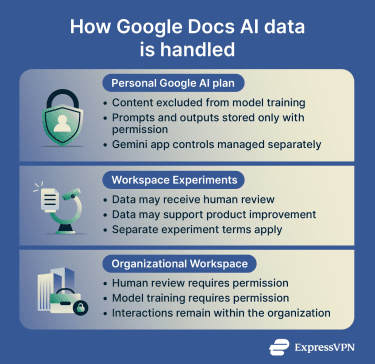
Common concerns and misconceptions
Several common concerns and misconceptions about AI features are worth clarifying
- Control over AI suggestions: Gemini’s proposed writing and editing changes can be reviewed, modified, accepted, or rejected. You're not required to apply them.
- Advertising: Some users worry their documents could shape the ads they see. According to Gemini's Apps Privacy Hub, Gemini App chats are not used to show ads, and Workspace content is not used for advertising.
- Permission sprawl: As previously stated, Gemini retrieves only content that the user already has permission to access. As a result, broadly shared or outdated permissions may allow relevant content to appear in Gemini’s responses, even when that access is no longer intended.
When documents may be processed by AI tools
AI processing generally occurs when a Gemini feature is used or presented, like when you submit a prompt, request a rewrite, or open content with an available AI-generated summary.
For organizational Workspace accounts, Google describes the lifecycle of a submitted prompt in four stages: Gemini retrieves relevant content you already have access to, passes that context to the model without using it for training, generates a response within your organization's "trust boundary," and applies existing security and access controls to content inserted into the document.
Administrators can disable individual Workspace services as actively searched data sources, reducing the content that Gemini can find automatically. However, disabling a source doesn't block all use of its content. In its Workspace Intelligence documentation, Google states that Gemini may still use content that the user explicitly references or that the user currently has open.
Also read: Google Gmail AI security: How to protect your inbox, privacy, and data.
When human reviewers may access content
In the Gemini app on a personal account, a subset of chats may be reviewed by trained human reviewers to improve Google’s services. Google states in its Gemini Apps Privacy Hub that chats reviewed by service providers are disconnected from the user’s account. To prevent future chats from being reviewed for service improvement or used to train AI models, unless feedback is submitted, turn off Keep Activity:
- Go to gemini.google.com and open Settings (gear icon).
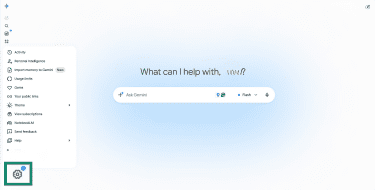
- Select Activity.
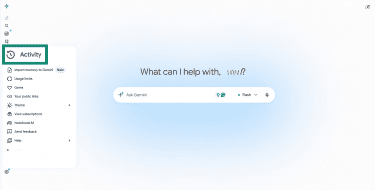
- Near the top of the Gemini Apps Activity page, choose Turn off or Turn off and delete activity. Confirm your change.
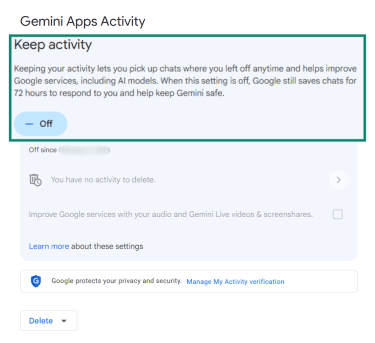
Temporary chats and chats created while Keep Activity is off are retained for up to 72 hours so Gemini can respond, process feedback, and help protect Google, its users, and the public. Chats already reviewed by service providers, along with related data such as feedback, may be retained for up to three years after being disconnected from the account.
What users should know about data access
On a Workspace account, Google states that Drive files remain private from other users unless access is granted through sharing or organizational permissions. Gemini can retrieve only content that the user already has permission to view. Google also states that files uploaded to Drive or created in Docs, Sheets, and Slides are encrypted in transit and at rest using 256-bit Advanced Encryption Standard (AES) encryption.
For oversight, Workspace provides audit logs that allow administrators to review Gemini usage and interaction events across the Gemini app and Workspace apps. The information available depends on the event type and Workspace edition.
Gemini in specified Workspace apps and the Gemini app have also achieved Federal Risk and Authorization Management Program (FedRAMP) High authorization. This means the services within the authorization boundary were assessed against stringent U.S. federal security requirements for high-impact cloud workloads. Organizations must still configure and use the services appropriately.
Your rights and responsibilities with AI data use
Using Google Docs AI still involves responsibilities for users and organizations:
- Ownership and permission: Your original content remains yours. For Workspace accounts, Google's terms classify generated output as Customer Data and state that Google doesn't claim ownership of any new intellectual property created in that output. This doesn't guarantee that AI-generated material qualifies for intellectual-property protection or is unique. Users must still have the necessary rights to upload, use, or share content. Gemini may also make information easier to find for people who already have permission to access it.
- Sensitive information: Avoid entering confidential data into prompts on a personal account, where a subset of chats may be reviewed and retained. For organizational Workspace accounts, administrators can limit Workspace Intelligence data sources and use controls such as data loss prevention (DLP), classification labels, and information rights management. Generated output inserted into covered Workspace services is evaluated against applicable DLP policies.
- Transparency about AI use: Disclosure requirements vary. Organizational policies, academic rules, contracts, or applicable regulations may require users to identify AI-generated or substantially AI-edited content. AI output may also be inaccurate or incomplete.
- Applicable terms and settings: Data handling depends on the Google terms governing the account, the organization’s policies and administrator settings, the feature being used, and any available user controls.
Also read: A guide to understanding and implementing AI security.
Can I turn AI off in Google Docs?
You can turn off some AI features, but Google doesn't provide a master switch for every AI feature associated with Docs. Available controls depend on the account, feature, plan, and administrator settings. On an organizational Workspace account, many controls are managed by the administrator.
Opting out of experimental AI features on personal accounts
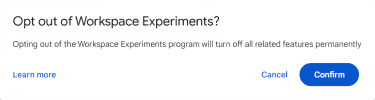
Google Workspace Experiments (formerly Google Workspace Labs until March 2026) is an early-access program for testing experimental generative AI features in Docs and other Workspace apps. Exiting permanently removes access to all Workspace Experiments features, and you cannot rejoin. However, it doesn't disable every Gemini feature associated with the account.
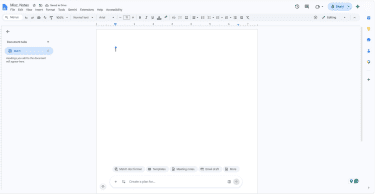
- On your computer, open a file in Google Docs, Sheets, or Slides.
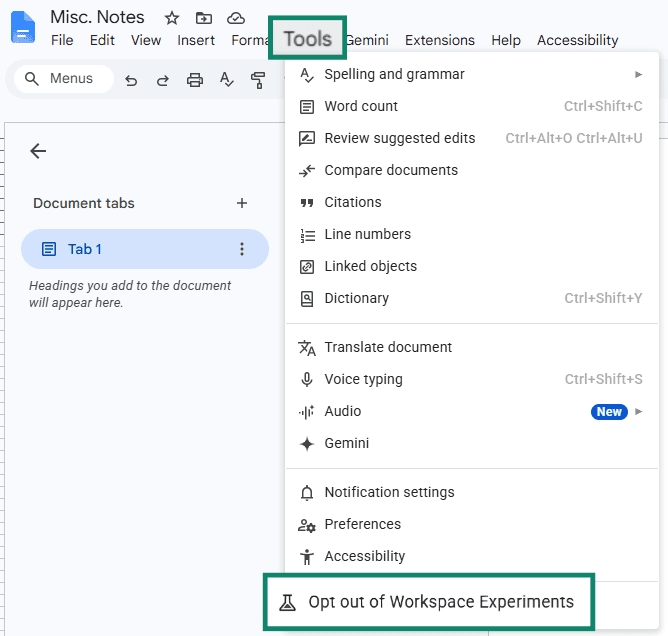
- At the top, go to Tools > Opt out of Workspace Experiments.
- Click Confirm.
Read more: How to turn off Gemini: A quick guide.
Managing Workspace smart features (admin)
In a Workspace account, an administrator can control whether members' Workspace content and activity are used to power smart features that underpin some Gemini experiences. According to Google's documentation, the default depends on where the domain is based: smart features are off by default in the European Economic Area (EEA), Japan, Switzerland, and the U.K., and on by default elsewhere. Individual users can override the administrator’s default.
- Open the Google Admin console.
- Go to Account > Account settings.
- Open Smart features for Google Workspace (you must be signed in as a super administrator).
- Choose whether to set a default: Don't set a default lets users decide, while Set a default lets you turn smart features on or off by default. Users can change the setting later.
Changes can take up to 24 hours to take effect, but usually occur sooner.
Managing Gemini feature access (admin)
An administrator with the required privilege can turn Gemini features and the side panel on or off in specific Workspace services, including Docs. This control is available only with supported Workspace editions.
- Open the Google Admin console.
- Go to Generative AI > Gemini for Workspace. The Gemini Settings administrator privilege is required.
- Click the Feature access panel.
- Optionally, select an organizational unit or configuration group to apply the change to specific users within that unit or group.
- Click Edit next to the Workspace service you want to manage.
- Choose On or Off, then click Save.
Turning Gemini off in one service doesn't necessarily block its content from Gemini in another enabled service. For example, users may still ask Gemini in Gmail about an accessible Drive file even if Gemini is disabled in Drive.
Important considerations before turning AI off
Disabling Gemini features removes access to supported capabilities, including drafting, summarizing, rewriting, and information retrieval. The scope of the change depends on the control used: it may affect one user, an organizational unit, a configuration group, or the wider organization.
How to protect your Google Docs data
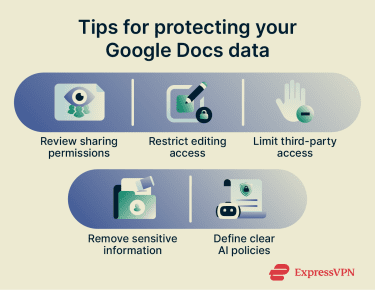
Review sharing and access permissions
Your files stay private unless you choose to share them, though Google does retain some data about your activity. One important step is to limit sharing: grant only the access required, use view-only access when editing is unnecessary, and periodically review access to older documents and folders.
In Workspace, administrators on eligible editions can use Access Transparency. Google states that these logs show actions taken by Google staff when accessing user content and provide the recorded business justification for that access.
Also read: What does Google know about me? How to see, control, and delete your data.
Limit third-party app connections
Third-party apps may request access to your Docs and Drive, so review the apps connected to your account regularly and revoke anything you don't recognize or no longer use, and assess an app’s source and requested permissions before connecting it.
Google's API policies prohibit developers from using Workspace API data to train or improve AI or ML models, except for a specific user’s personalized model for an approved user-facing feature. Developers must also publish a statement confirming compliance with Google’s Limited Use requirements. These policies do not independently guarantee that every app is secure or compliant, so reviewing connected apps remains important.
Avoid storing sensitive data in shared documents
The simplest protection is often the most overlooked: keep sensitive material (credentials, financial details, regulated or client-confidential data) out of broadly shared documents. Limiting who and what systems can access a file reduces its potential exposure.
Learn more: How AI chatbots work and what that means for your privacy.
Use privacy-focused alternatives when needed
When your privacy requirements are strict, consider tools or configurations that provide additional technical protections. Confidential computing architectures, for example, process data within isolated environments designed to prevent the service operator and the surrounding infrastructure from accessing it. Reviewing where prompts are processed, whether they are retained, and whether they are used for training is relevant to AI tools broadly, not just writing features in Docs.
If your concern is how AI tools generally handle prompts and outputs, there are products with different privacy architectures. For example, ExpressVPN's ExpressAI is a separate AI chat platform, not a substitute for in-document editing in Google Docs. It processes prompts inside confidential computing enclaves and doesn't retain prompts or outputs long-term, though it isn't a substitute for in-document editing. Cure53’s March 2026 penetration test and source-code audit concluded that, within the tested scope, user interactions were processed in cryptographically isolated contexts.
Read more: Gemini vs. ChatGPT.
Create a clear AI usage policy for your team
A team policy can define approved AI tools, permitted uses, information that mustn't be entered into prompts, and circumstances in which AI-generated content requires human review before being shared or published. Such a review may be appropriate because AI can produce inaccurate, incomplete, or overly broad output.
Depending on the organization, the policy may also identify who approves tools or higher-risk uses and explain how potential data exposure or unexpected AI behavior should be reported.
FAQ
How does AI processing differ from regular document search?
Does private Google Docs content appear in AI search results?
Can third-party AI tools read my Google Docs?
What settings should teams review before using Gemini?
Is it safe to connect Google Docs to automation tools?
Can deleted Google Docs still affect AI-related data handling?
Should businesses add an AI disclosure policy?
What is the safest way to use AI with confidential documents?
How often should I review Google Docs permissions?