Is Google Docs secure? Security, risks, and best practices


Google Docs is generally secure for writing, collaboration, and document sharing, but its safety depends primarily on how users manage accounts and permissions. While Google offers built-in protections, risks such as compromised accounts, unsafe sharing practices, and overly broad permissions can still expose sensitive information.
How Google Docs protects your documents
Google Docs includes several built-in security features designed to protect files, accounts, and shared documents. Here's an overview of the main protections in place.
Encryption
Google uses industry-standard protections, including Advanced Encryption Standard 256-bit (AES-256) for stored files and encrypted data transfers between devices and Google's servers.
However, this isn't the same as true E2EE. Google Docs helps protect files from unauthorized access and interception, but Google still processes document content to support features such as real-time collaboration, search, and version history.
For organizations handling sensitive data, Google Workspace also offers client-side encryption. This means files are encrypted before they reach Google's servers, allowing organizations to control their own encryption keys so Google can't decrypt supported files.
While this offers stronger confidentiality protections, some features become more limited. For example, search functions and collaboration tools may not work as they do in standard Google Docs files.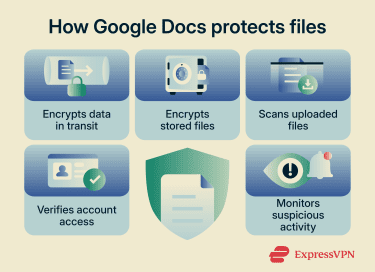
Malware detection
Google scans uploaded and shared files for malware and other suspicious content. If a potential threat is detected, it may warn users or block access to the file. However, Google's scanning isn't comprehensive. Some file types can't be scanned, and files larger than 100MB aren't scanned for malware.
While native Google Docs files generally carry a lower direct malware risk, some uploaded file types, including PDFs, ZIP files, and certain Microsoft Office documents, can contain malicious code, embedded scripts, or other harmful content. Also, shared documents can contain phishing links or misleading instructions designed to trick users into visiting malicious websites, downloading harmful software, or revealing sensitive information.
Read more: How to detect phishing and prevent scams online
Account protections
If someone gains access to a Google account, they can usually access the Google Docs associated with it. To reduce this risk, Google offers several account-level security features:
- Two-factor authentication (2FA): Adds a second verification step beyond the password to help reduce the likelihood of unauthorized access from stolen credentials.
- Passkeys: Replace traditional passwords with device-based cryptographic authentication, making phishing attacks far more difficult.
- Suspicious sign-in detection: Identifies unusual login attempts from unfamiliar devices, locations, or browsers and may block them or require additional verification.
- Security alerts: Warns users about potentially risky account activity, including password changes, recovery attempts, and unfamiliar sign-ins.
- Account recovery options: Helps users regain access to compromised accounts and reduces the risk of permanently losing important files.
- Advanced Protection Program: Adds stricter sign-in protections and additional checks for suspicious files and downloads for people at higher risk of attacks, such as journalists and activists.
Google Docs privacy considerations
Google Docs files are private by default, but privacy concerns can still arise from how documents are shared, tracked, connected to other Google services, and associated with account activity.
Here's an overview of the main privacy considerations:
Document metadata and activity
Google Docs stores both document content and file-related metadata, such as titles, owners, collaborators, sharing settings, and activity logs. This information is necessary for features like syncing, sharing, search, version history, access controls, and security monitoring.
For most users, this metadata is not a separate risk when it is visible to people who already have full access to the document. However, it can matter in environments where someone has administrative, audit, or indirect access to file information without necessarily reading the document itself. For example, a Workspace admin, a compromised admin account, or an attacker with partial access may be able to infer sensitive context from file names, collaborator lists, sharing activity, or access logs.
This is also why client-side encryption does not eliminate every form of exposure. It can protect supported document contents from being decrypted by Google, but some metadata may still remain available so Google Drive can manage, organize, and share files.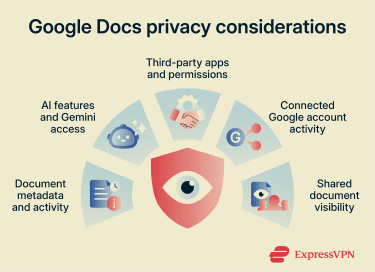
Data used for training Gemini
AI features can create additional privacy considerations because they may process document content differently from standard Google Docs storage and collaboration features.
Google states that Workspace customer data isn't used to train Gemini models without the organization's express permission. However, personal Google accounts may be subject to different data use policies depending on the Gemini features and settings being used. For example, interactions with Gemini Apps can potentially be stored, reviewed, and used to improve Google's AI systems.
Third-party apps, add-ons, and permissions
Google Docs supports third-party apps and add-ons that enhance Google Docs with tools such as e-signatures, grammar checking, automation, templates, and project management features.
Many of these apps request permission to access Docs or Drive data. Some may only need limited access to create or open files, while others may request broader permissions to view, edit, or manage documents.
Privacy and security risks increase when an app requests more access than necessary. In some cases, third-party services can copy, store, or process document data on their own systems, where different privacy and security practices apply.
Google Workspace accounts give organizations more control over these risks. Workspace admins can restrict app access, approve trusted integrations, and limit how external services interact with Workspace data.
Common security risks in Google Docs
Most security vulnerabilities stem from how files are handled, rather than from weaknesses in Google Docs' core infrastructure. Here are some of the main risks to be aware of.
Sharing and permission mistakes
Access settings are one of the most common causes of accidental document exposure in Google Docs. A single setting can change who can open, edit, copy, or forward a file.
Common sharing risks include:
- Broad link sharing: The "Anyone with the link" setting can expose documents to unintended recipients if the link is forwarded or shared more widely than intended.
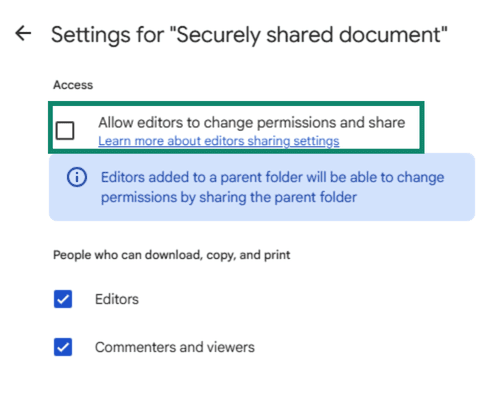
- Overly broad permissions: Unlike Viewer or Commenter access, Editor access allows users to modify content and allows them to share the file with others (unless you untick this option in Share settings).
- Inherited folder access: Documents inside shared folders may still be accessible to anyone with access to the folder itself.
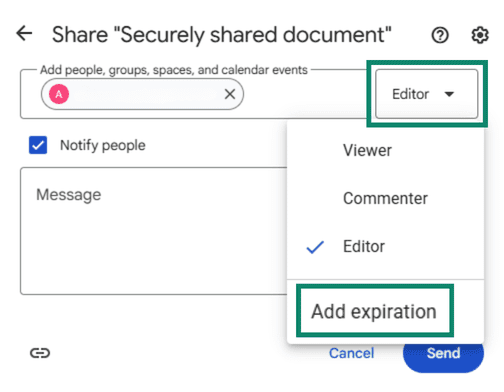
- Old collaborator access: Freelancers, former coworkers, or external partners may retain access long after a project ends unless permissions are manually removed. If you have an eligible work or school account and you know in advance that someone will only need access to your document temporarily, you can set an expiration date when sharing the file with them by clicking the Down arrow next to the person's name and selecting Add expiration.
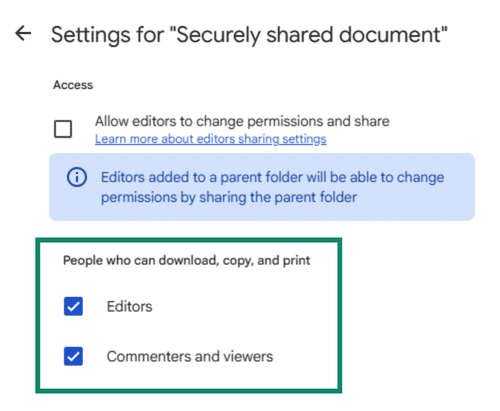
- Data exposure: Google Docs lets file owners restrict editors', viewers' and commenters' ability to download, print, or copy a document. However, this protection has limits. It can't stop someone from manually copying visible text, taking screenshots, photographing the screen, or otherwise reproducing information once they can see it. In other words, access controls can reduce casual sharing and make misuse less convenient, but they can't fully prevent downstream distribution of the content.
Account compromise and unauthorized access
Weak passwords, phishing attacks, and active sign-ins on shared devices are among the most common ways Google Docs files are exposed.
Common risks include:
- Weak or reused passwords: Weak reused credentials can allow attackers to sign in to the account and access connected Google Docs files.
- Phishing attacks: Fake Google sign-in pages or shared-document notifications can trick users into revealing their login credentials.
- Active sessions: Staying signed in on a shared or unmanaged device can allow someone else to open Google Docs without needing your account password.
- Insider misuse: Someone with legitimate access may intentionally copy, leak, or misuse confidential information without bypassing security controls.
Strict access controls, 2FA, passkeys, and strong and unique passwords can help reduce these risks. A password manager like ExpressKeys can help with this by creating and storing strong passwords and managing 2FA codes and passkeys.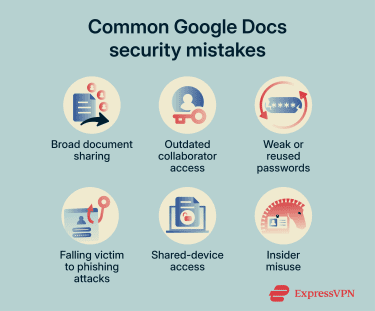
Is Google Docs secure for business?
Google Docs is generally secure for business use, but the level of protection depends on how Google Workspace is configured, the sensitivity of the information involved, and how access is managed.
Besides support for client-side encryption on some plans, Google Workspace also includes several controls that can help organizations manage Google Docs more securely:
- Shared drives: Files can be owned by the organization rather than individual employees to help reduce access issues.
- Audit logs: Record file activity, sharing changes, downloads, deletions, and ownership events for monitoring and investigations.
- Data loss prevention (DLP): Detects sensitive information and can block unauthorized sharing of confidential data.
- Context-Aware Access: Restricts access based on factors such as device security status, user identity, IP address, or location.
- Retention and Google Vault controls: Helps organizations preserve, search, and manage documents for compliance, legal investigations, and retention requirements.
Security settings should match the sensitivity of the information being handled. These controls are also most effective when applied consistently across departments, contractors, and shared drives.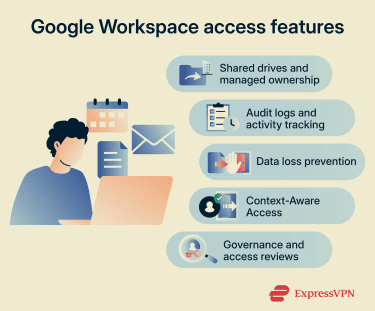
Risks when sharing sensitive business information
Sensitive business documents often contain confidential financial, legal, or operational information, increasing the impact of accidental exposure. Common risks include:
- Expanding internal access: Sensitive files becoming visible to more employees over time as sharing permissions gradually broaden.
- External collaboration growth: Business documents being shared across an increasing number of vendors, contractors, agencies, or consultants.
- Poor separation of sensitive files: Confidential documents being stored alongside routine team files with broader access settings.
- Unapproved tools and integrations: Business data moving through scripts, workflow tools, or third-party integrations without proper oversight.
Access control and document sharing
Business sharing works best when document access follows organizational roles and responsibilities rather than individual requests or informal sharing habits.
Effective business access controls often include:
- Restricting access based on department, role, or project needs.
- Using shared drives and managed groups instead of individual user permissions.
- Separating internal documents from client, vendor, or contractor collaboration spaces.
- Limiting temporary or external access where possible.
- Assigning clear ownership for sensitive drives and folders.
- Regularly reviewing permissions for sensitive documents and shared drives.
This approach makes document access easier to review, manage, and adjust as teams, projects, and external partnerships change.
Additional Google Docs security practices
Strong passwords and sharing controls are important, but document security also depends on how files are stored and managed over time.
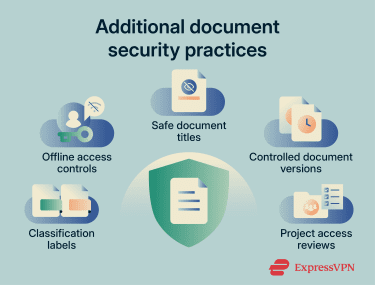
Additional security practices include:
- Classification labels: Admins can mark sensitive documents as Internal, Confidential, or Restricted to help teams identify which files require stricter sharing or handling controls.
- Offline access controls: Disabling offline access on shared or unmanaged devices so files aren't unnecessarily saved to the device for offline use.
- Safe document titles: Avoiding confidential details in file names, since document titles may still appear in search results, shared folders, or recent file lists.
- Controlled document versions: Removing outdated drafts and duplicate copies that may retain unnecessary sharing permissions or sensitive information that should no longer be accessible.
- Project access reviews: Removing unnecessary access and archiving unused files after projects end.
Google Docs and HIPAA compliance
Google Docs isn't Health Insurance Portability and Accountability Act (HIPAA)-compliant by default. Healthcare organizations must sign a Business Associate Addendum (BAA) with Google and only store or process protected health information (PHI) within Google Workspace services covered under the agreement.
A BAA defines how Google handles PHI within the covered Google Workspace services. However, even with a BAA in place, healthcare organizations remain responsible for configuring security controls, restricting access to PHI, monitoring document activity, and training staff on approved procedures for handling PHI.
It's also worth noting that, while Google Docs can support collaboration and general document creation in medical settings, it isn't designed as a clinical records system and doesn't provide the full functionality required of electronic health record (EHR) or electronic medical record (EMR) platforms.
For this reason, dedicated EHR systems are generally used to manage regulated clinical data, while collaboration tools like Google Docs are used for supporting documentation and internal communication.
Alternatives to Google Docs
Google Docs works well for general collaboration, but some organizations or individuals may prefer platforms with different privacy or hosting features depending on the sensitivity of the information involved.
Common features to look for in an alternative
Different document platforms prioritize different types of security, privacy, and administrative control. Features some organizations may look for include:
- Self-hosting options: Letting organizations host the document platform on their own servers or private infrastructure for greater control over storage, access, and configuration.
- Dynamic watermarks: Adding visible identifiers such as user names, email addresses, IP addresses, or timestamps to discourage unauthorized sharing or leaks.
- Integrity and tamper resistance: Using version history, audit trails, access logs, or digital signatures to help track changes and verify finalized documents.
FAQ
Can Google Docs be hacked if sharing settings are private?
Can Google Docs files be password-protected?
Is Google Docs safer than sending attachments by email?
That said, a misconfigured sharing link can still expose a document broadly, while some email systems offer encryption or controlled delivery mechanisms for sensitive attachments.
Can deleted Google Docs still be recovered?
Is Google Docs secure for medical records?