



To use our apps and configurations, please sign up for an ExpressVPN account first.
This guide will show you how to renew your ExpressVPN subscription.
Subscriptions purchased with certain payment methods, such as credit card, PayPal, Apple Pay, Google Pay, Apple in-app purchases, and Google Play in-app purchases, will automatically renew by default.
Jump to…
Subscriptions purchased with a credit card, PayPal, Apple Pay, or Google Pay
Subscriptions purchased with cryptocurrencies (via BitPay)
Subscriptions via Apple in-app purchases
Subscriptions via Google Play Store in-app purchases
How does auto-renewal work?
Subscriptions purchased with a credit card, PayPal, Apple Pay, or Google Pay
By default, subscriptions purchased with a credit card, PayPal, Apple Pay, or Google Pay will automatically renew when the current subscription ends. If you previously disabled auto-renewal, you can enable it in your account dashboard.
Renew an existing subscription
If you previously disabled auto-renewal and your subscription is about to end, you can manually renew your subscription by following these steps:
- Go to My subscription.
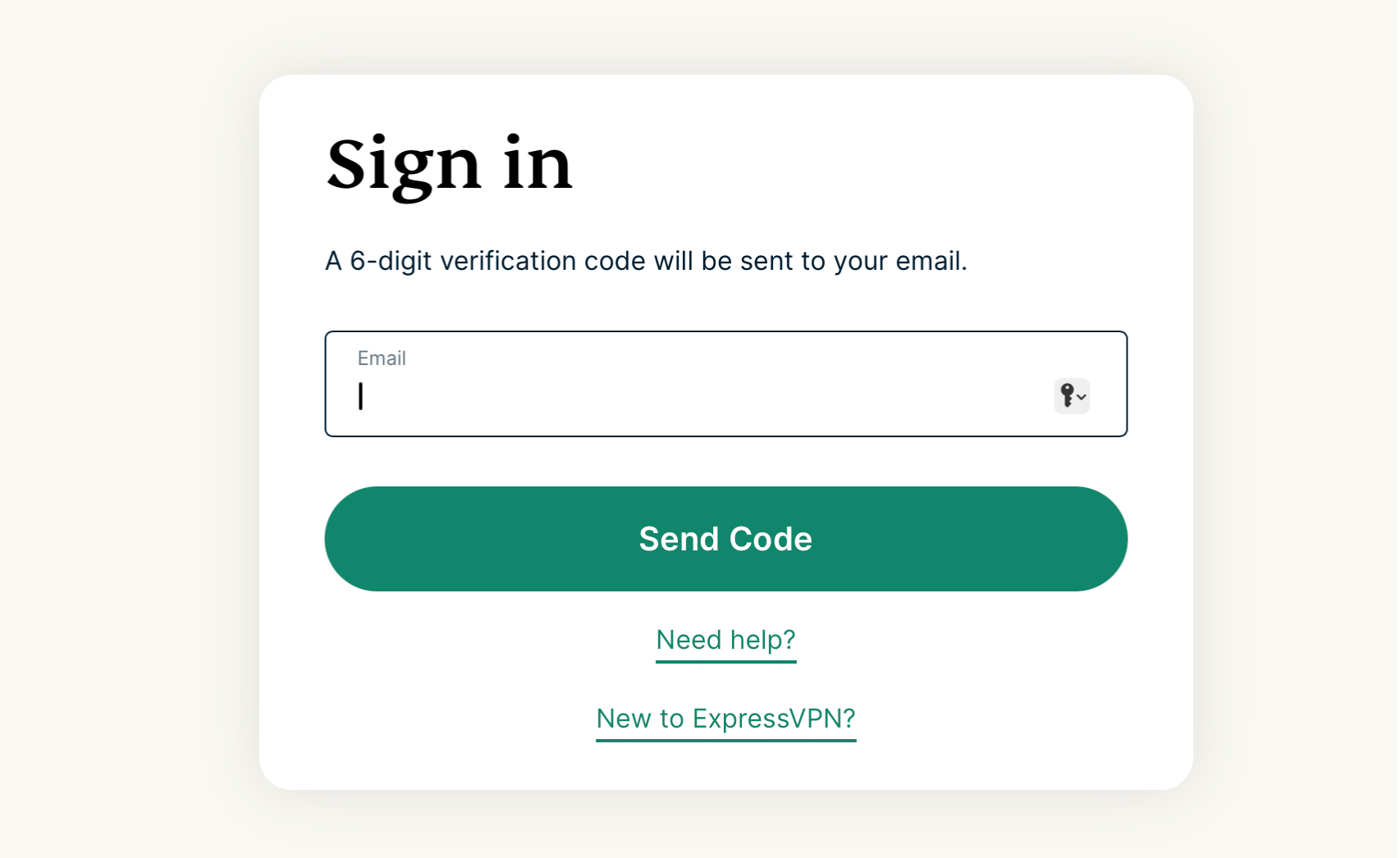
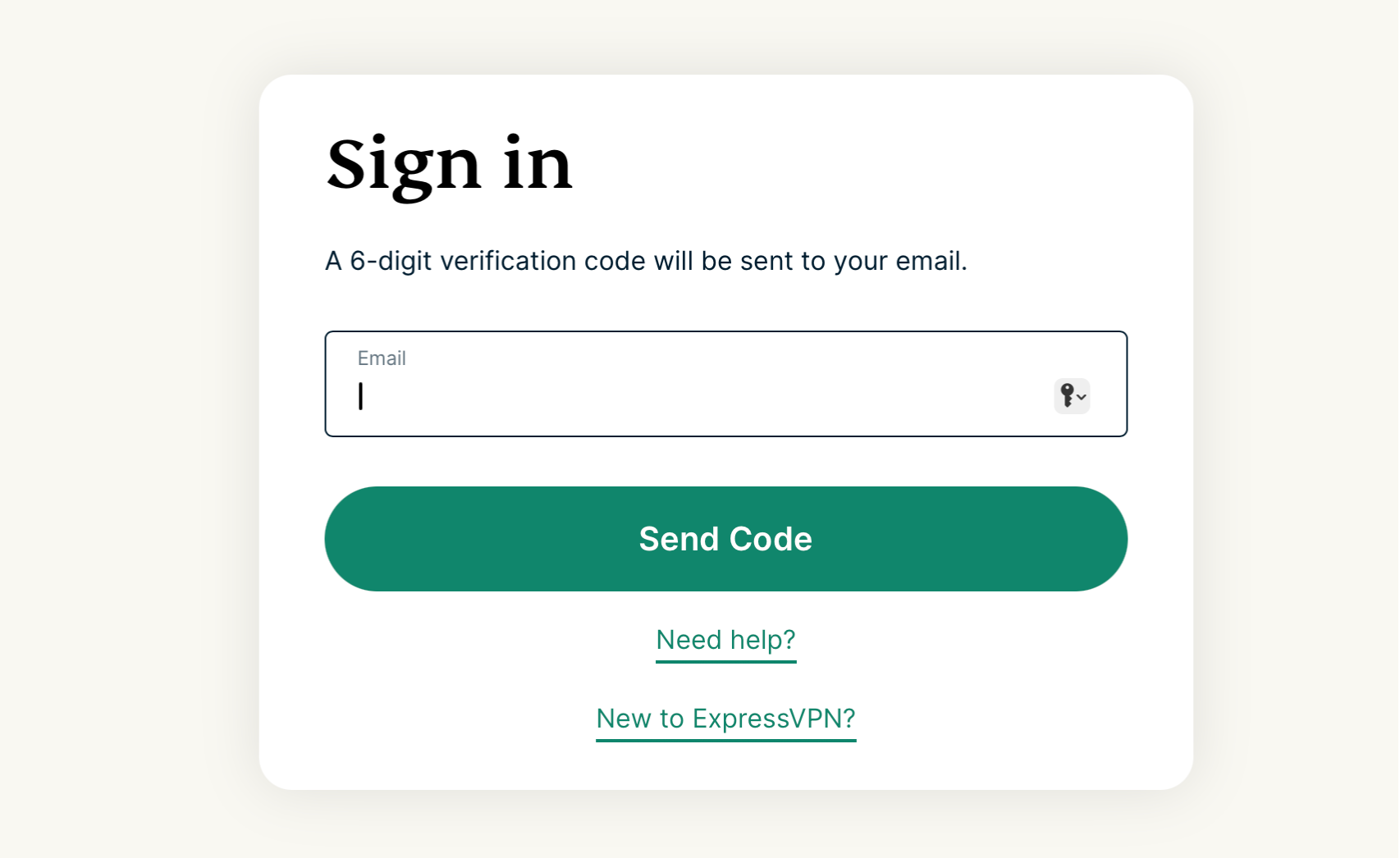
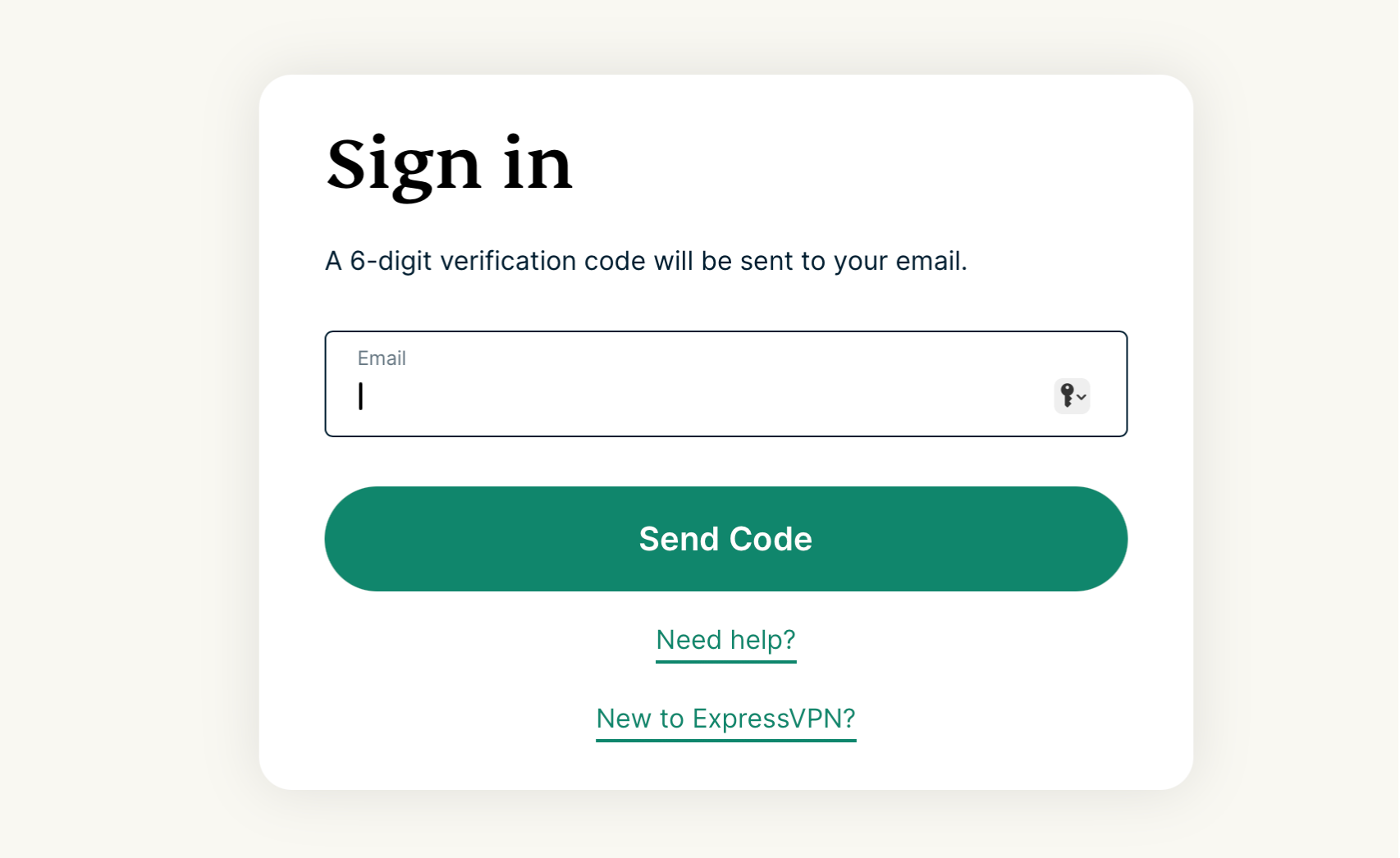
- If prompted, enter your email address and click Send Code.


- Enter the verification code sent to your email and click Continue.
- If prompted, enter your email address and click Send Code.
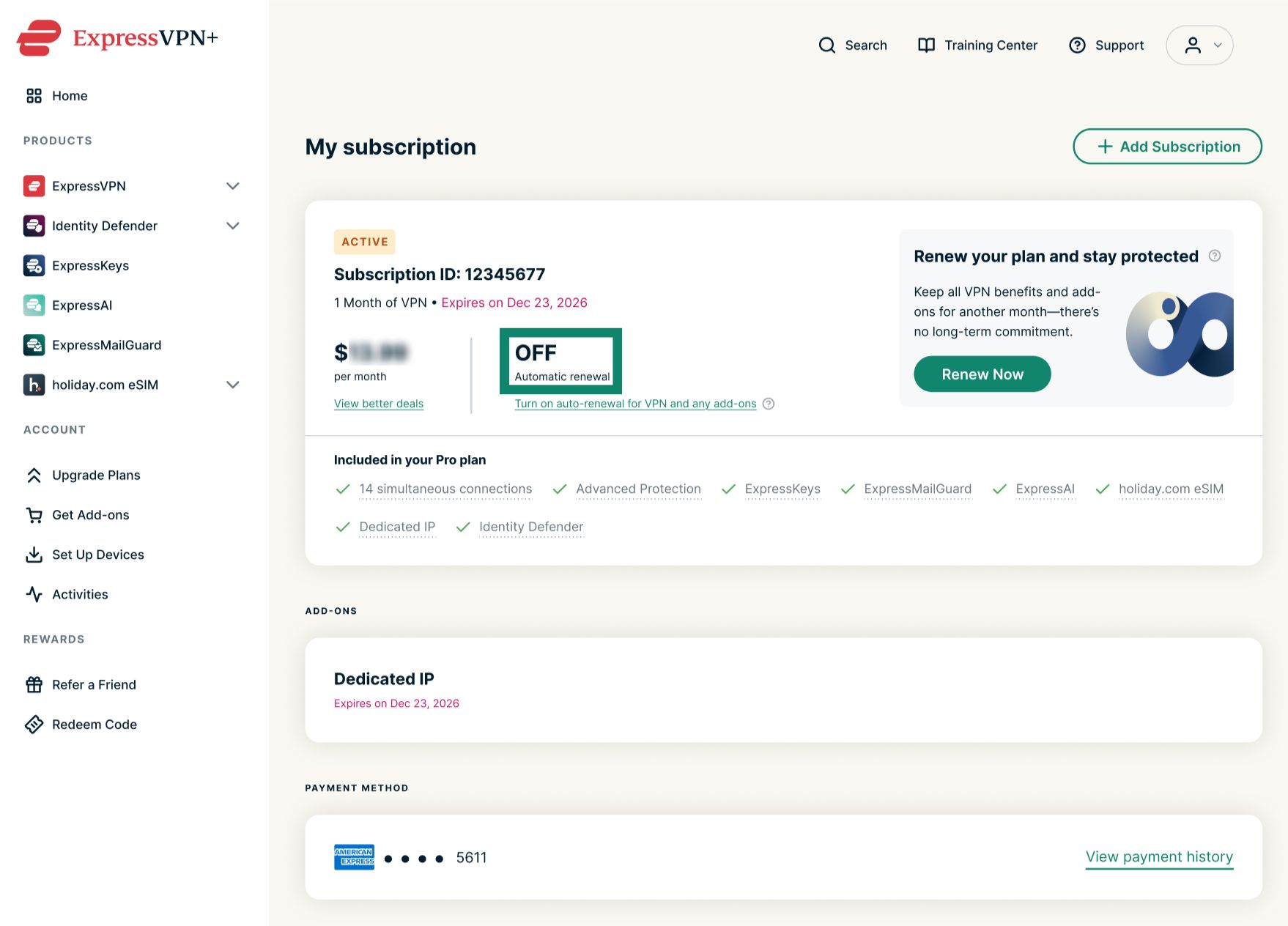
To renew your existing subscription: Select Turn on auto-renewal for VPN and any add-ons and enter your payment details.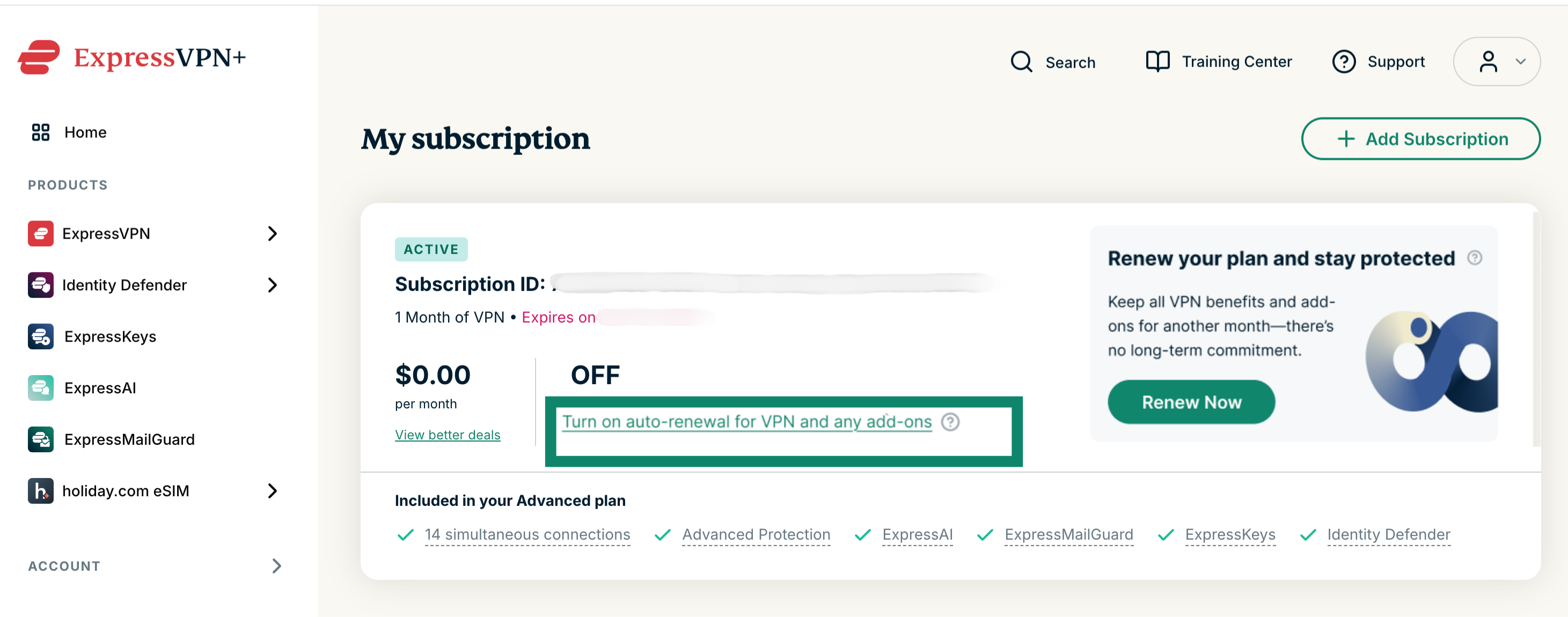
To change to a different subscription: Select View better deals and choose a new subscription.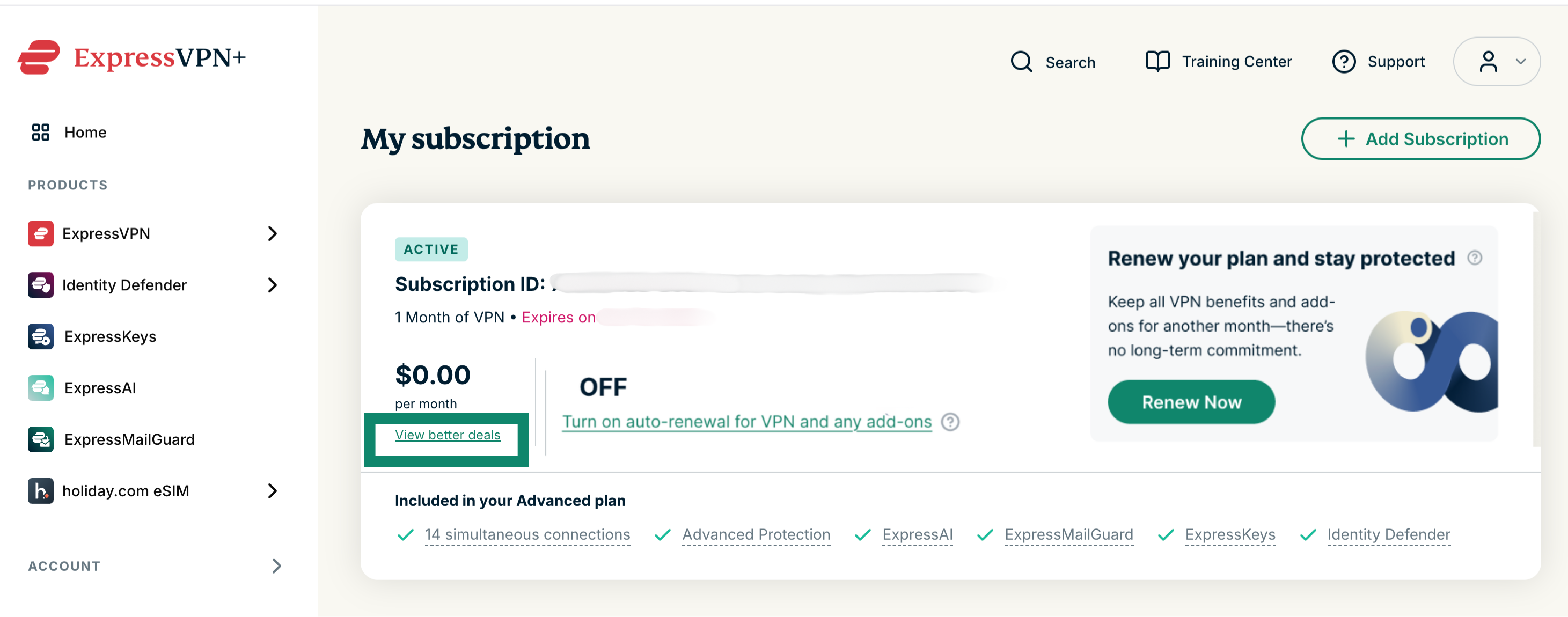
Renew an expired subscription
If your subscription has ended, you can renew your subscription by following these steps:
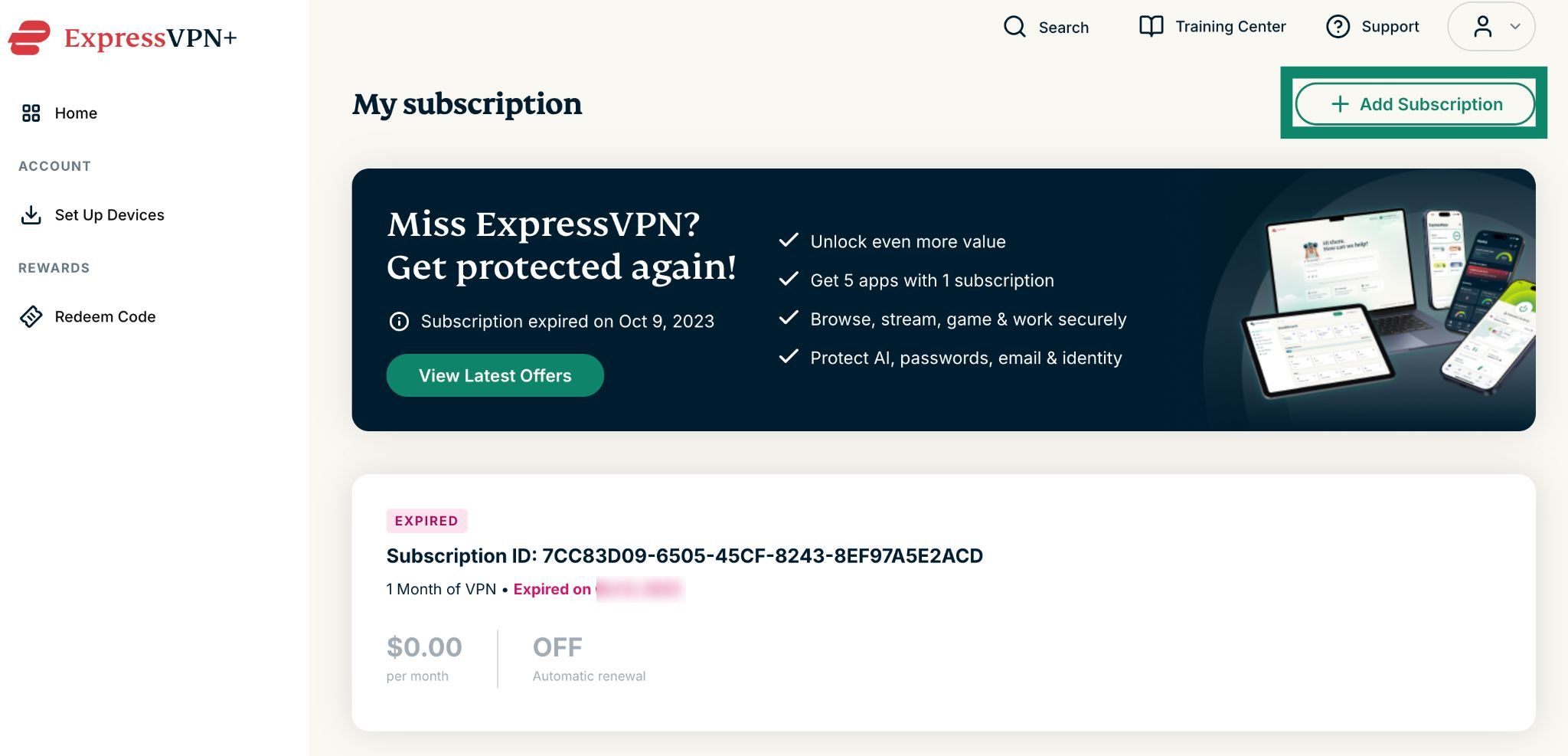
- Go to My subscription.
- If prompted, enter your email address and click Send Code.

- Enter the verification code sent to your email and click Continue.
- If prompted, enter your email address and click Send Code.
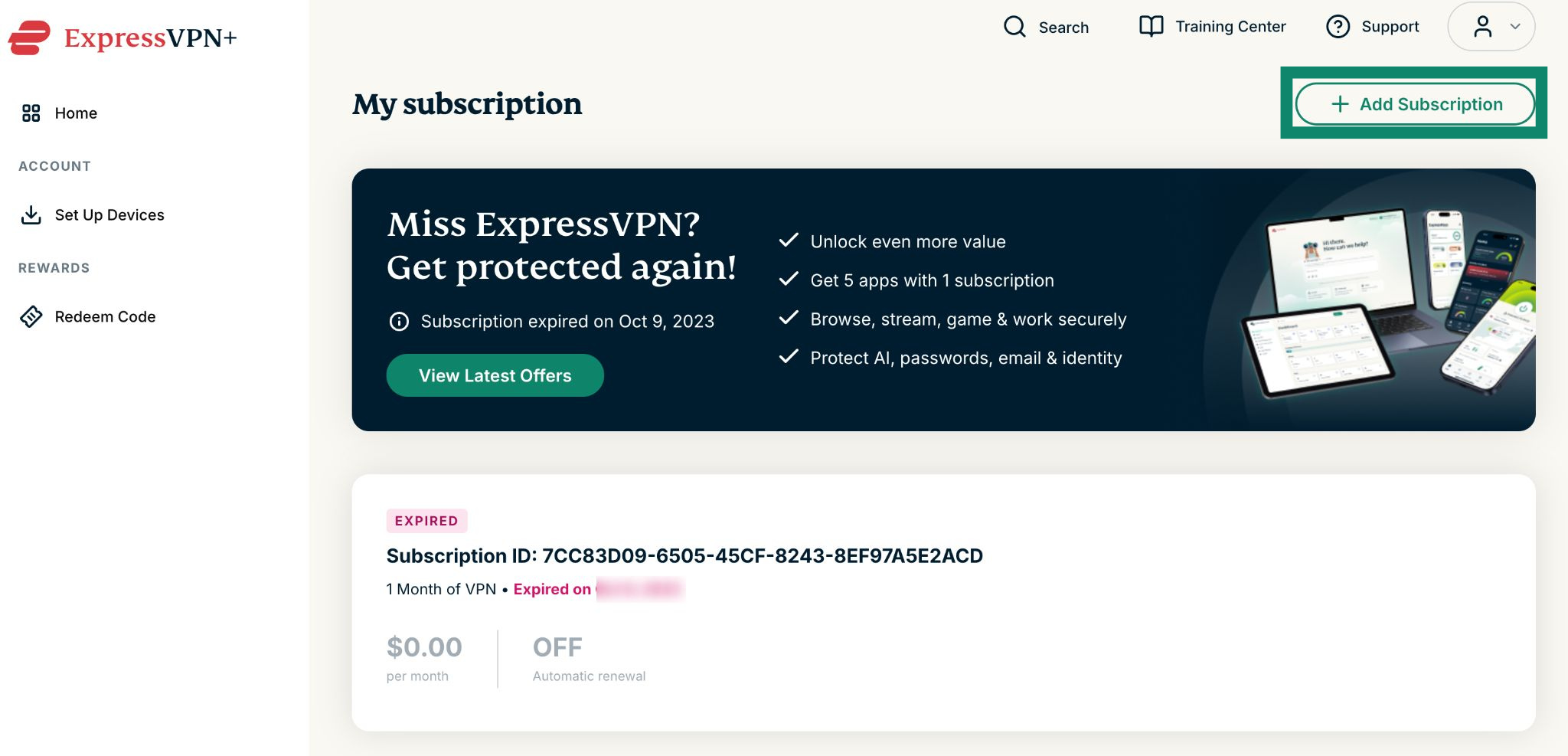
- Click Add Subscription.


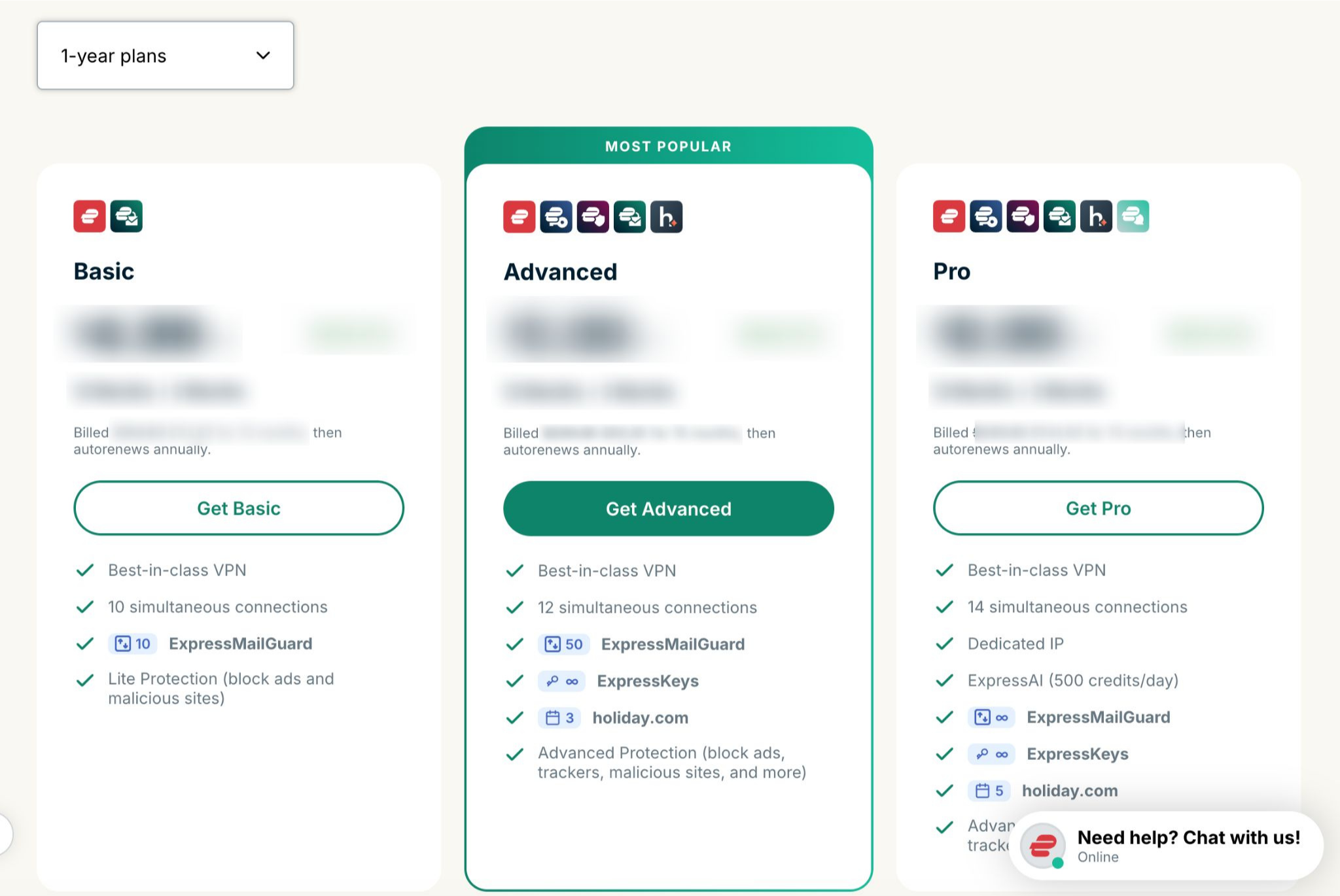
- Select your preferred plan.


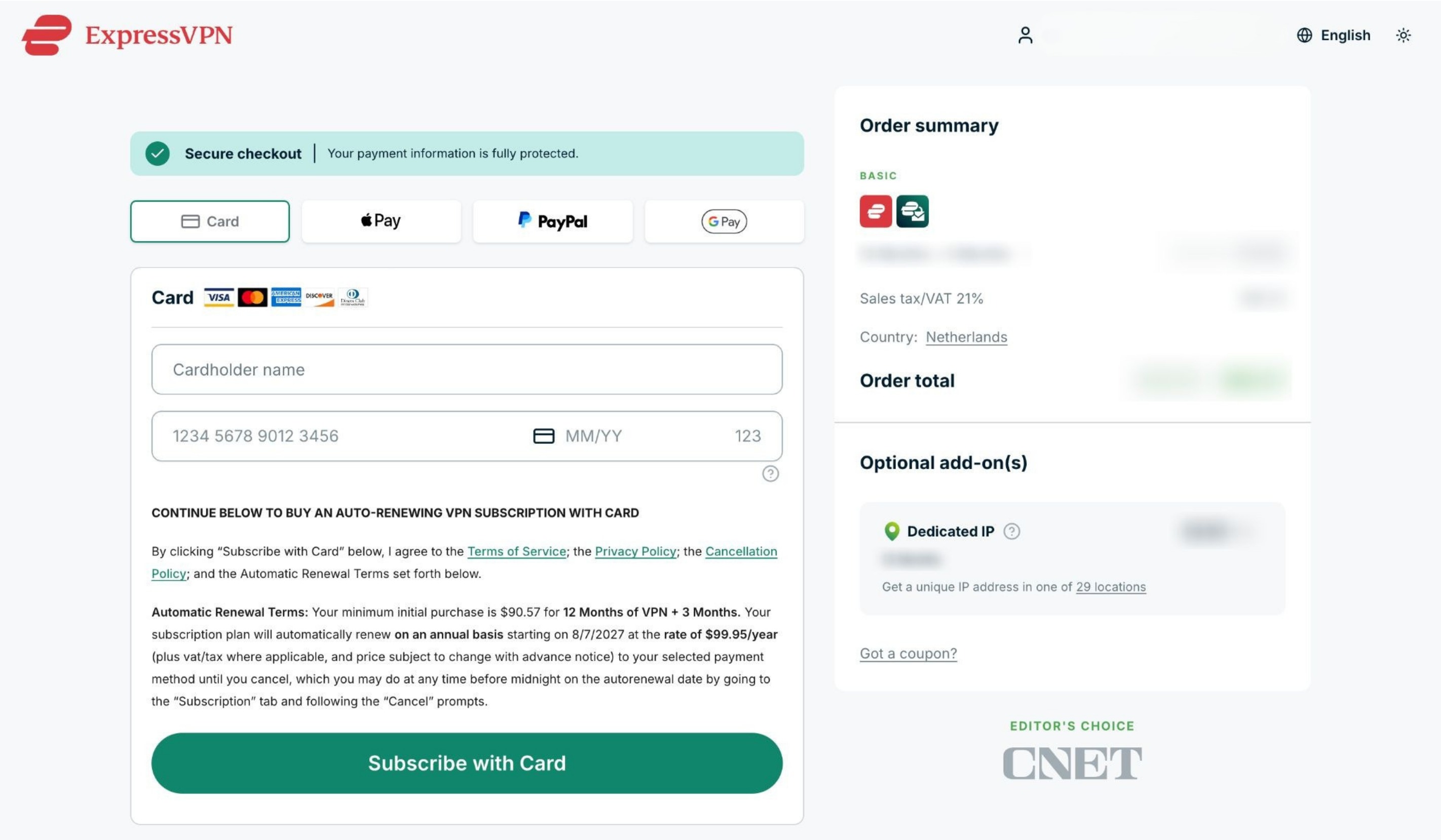
- Choose a payment method, enter your payment details, and click Subscribe with [payment method of your choice].


Need help? Contact the ExpressVPN Support Team for assistance.
Subscriptions purchased with cryptocurrencies (via BitPay)
ExpressVPN no longer supports cryptocurrencies (including via BitPay) as a payment method.
Subscriptions previously purchased with cryptocurrencies (via BitPay) will not automatically renew.
Renew an existing subscription
If your subscription is about to end, you can manually renew your subscription using a different payment method by following these steps:
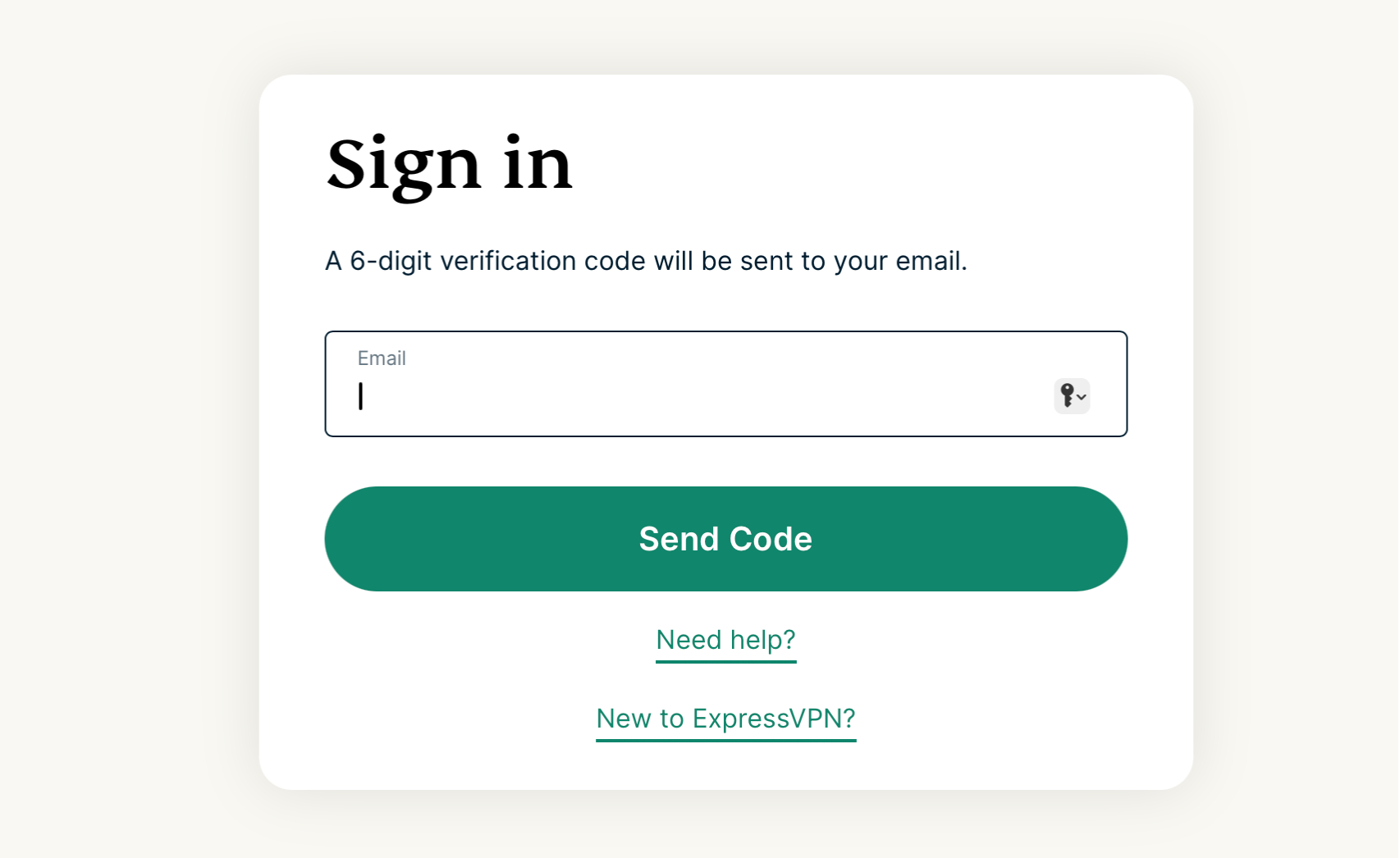
- Go to My subscription.
- If prompted, enter your email address and click Send Code.

- Enter the verification code sent to your email and click Continue.
- If prompted, enter your email address and click Send Code.
To renew your existing subscription: Select Turn on auto-renewal for VPN and any add-ons and enter your updated payment details.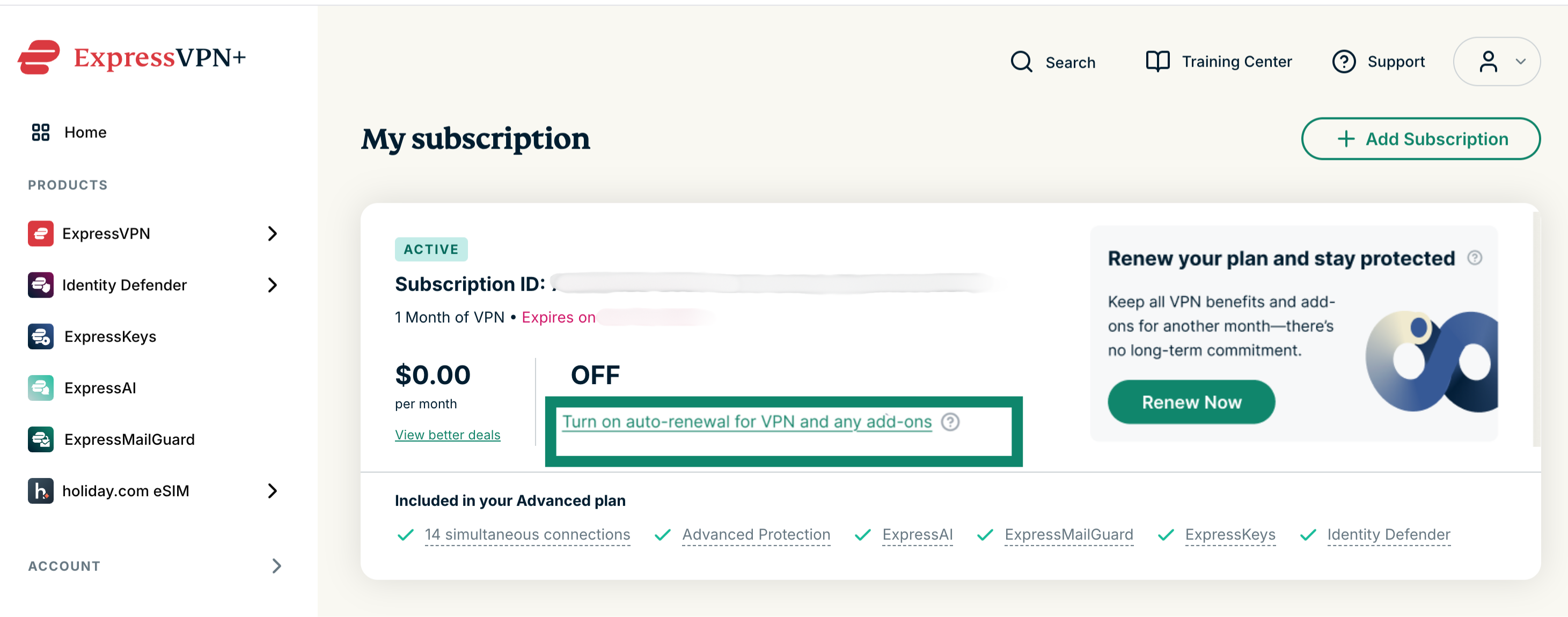
To change to another subscription: Select View better deals and choose a new subscription and payment method.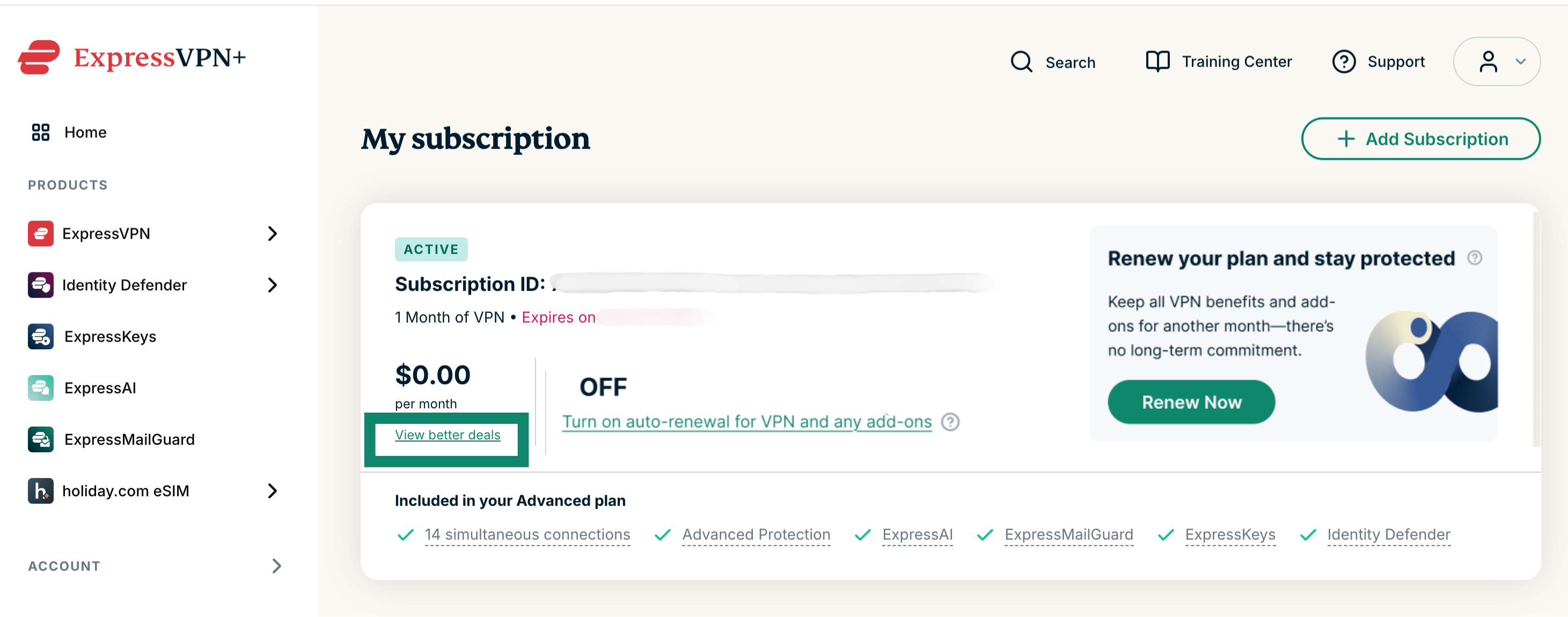
Renew an expired subscription
If your subscription has ended, you can renew your subscription by following these steps:
- Go to My subscription.
- If prompted, enter your email address and click Send Code.

- Enter the verification code sent to your email and click Continue.
- If prompted, enter your email address and click Send Code.
- Click Add Subscription.

- Select your preferred plan.

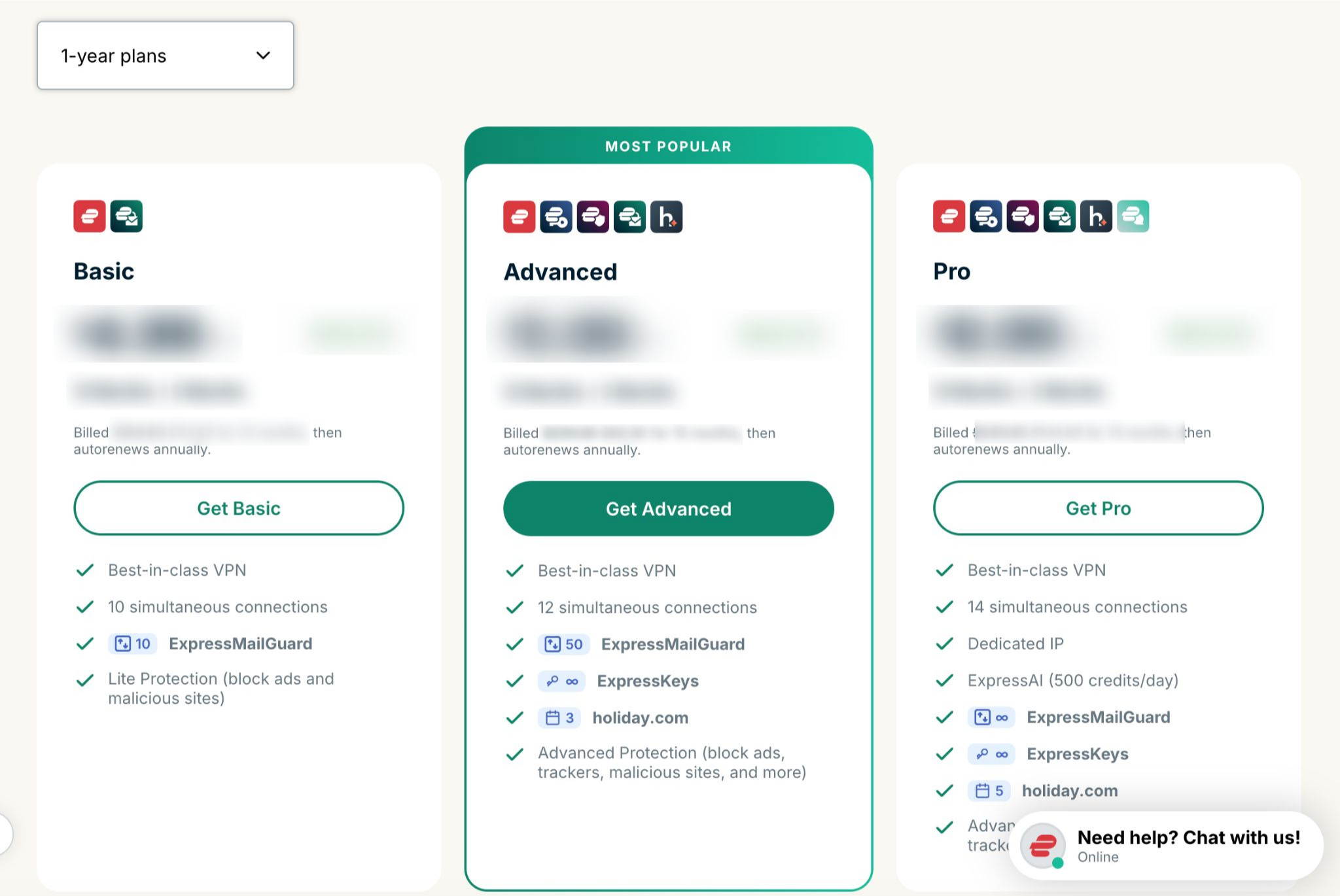
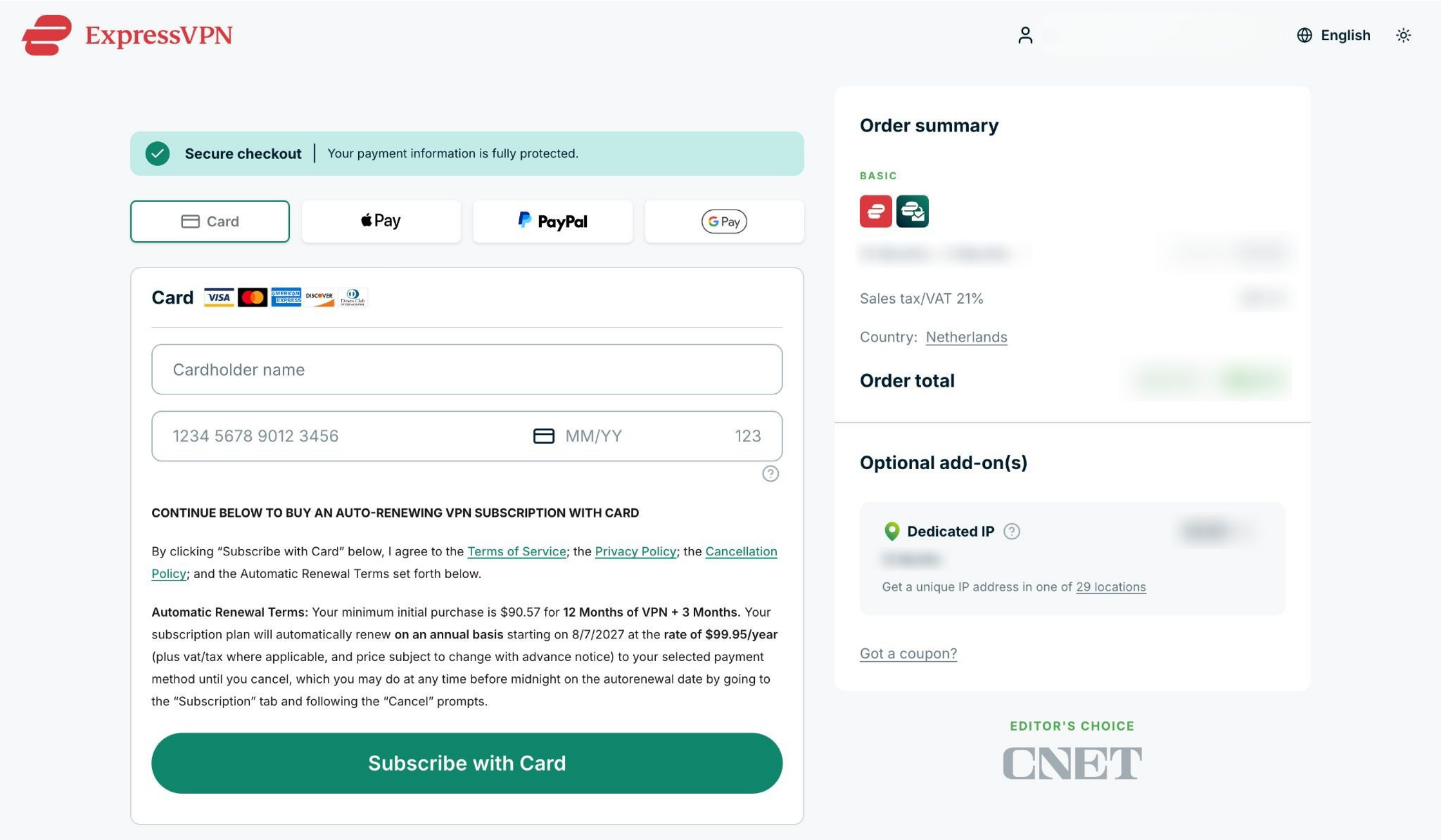
- Choose a payment method, enter your payment details, and click Subscribe with [payment method].

Need help? Contact the ExpressVPN Support Team for assistance.
Subscriptions via Apple in-app purchases
Subscriptions purchased via the App Store will automatically renew after your current subscription ends.
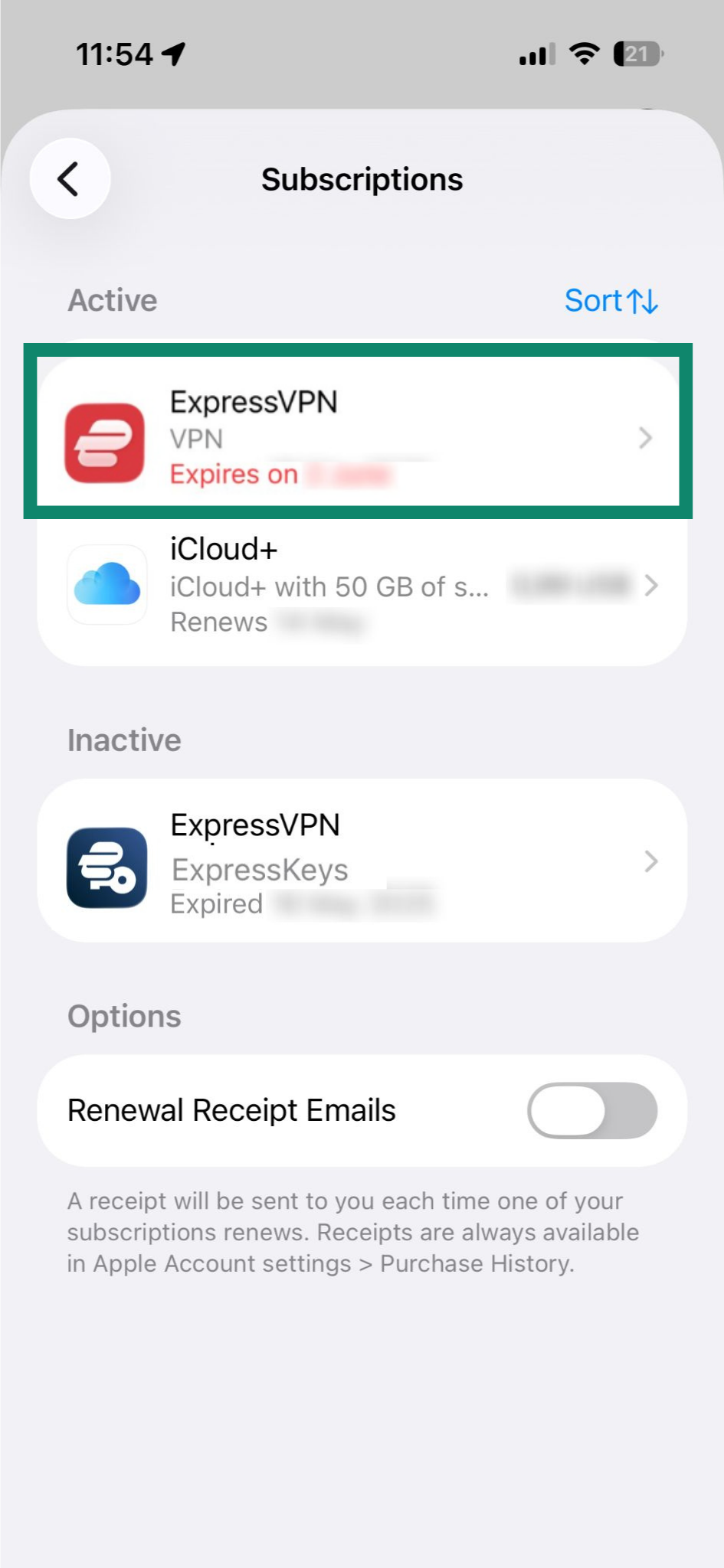
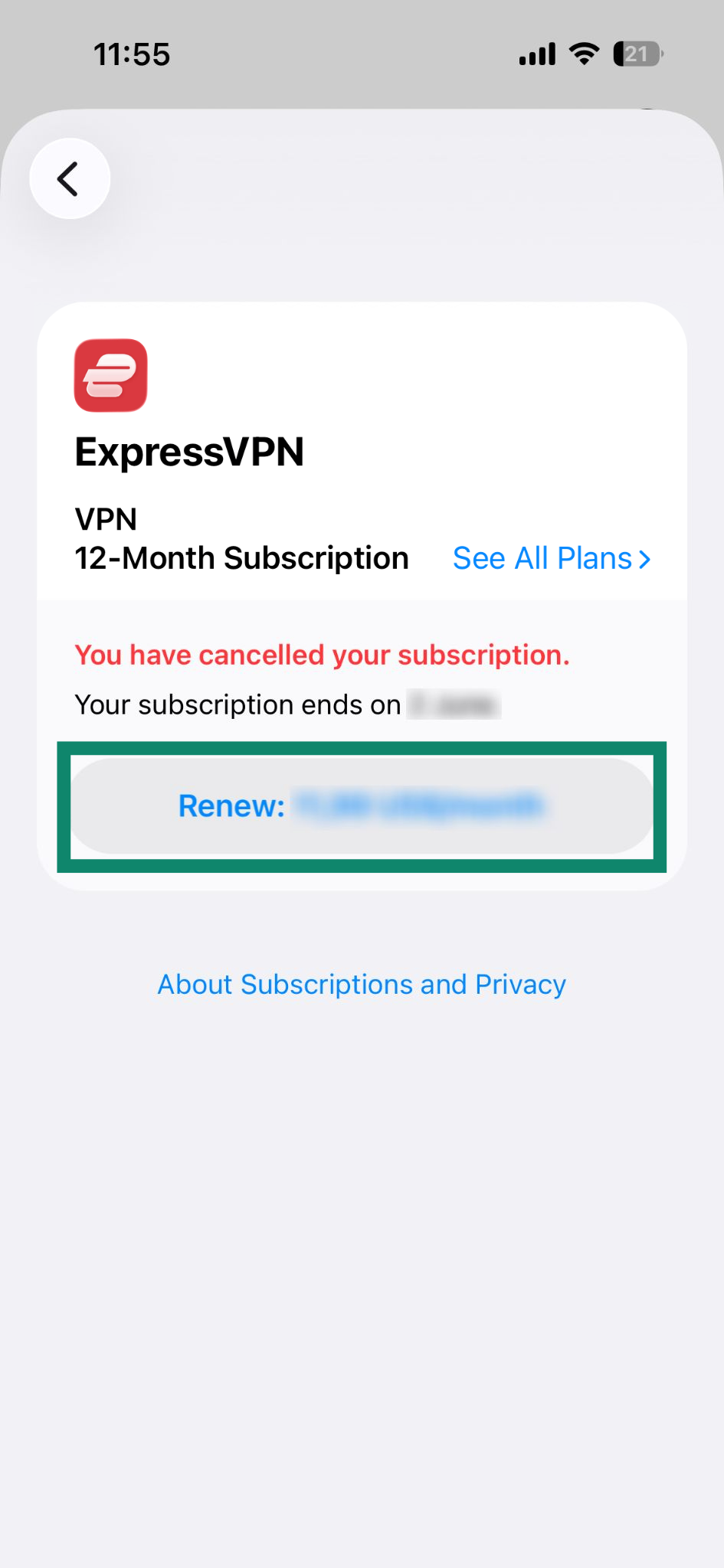
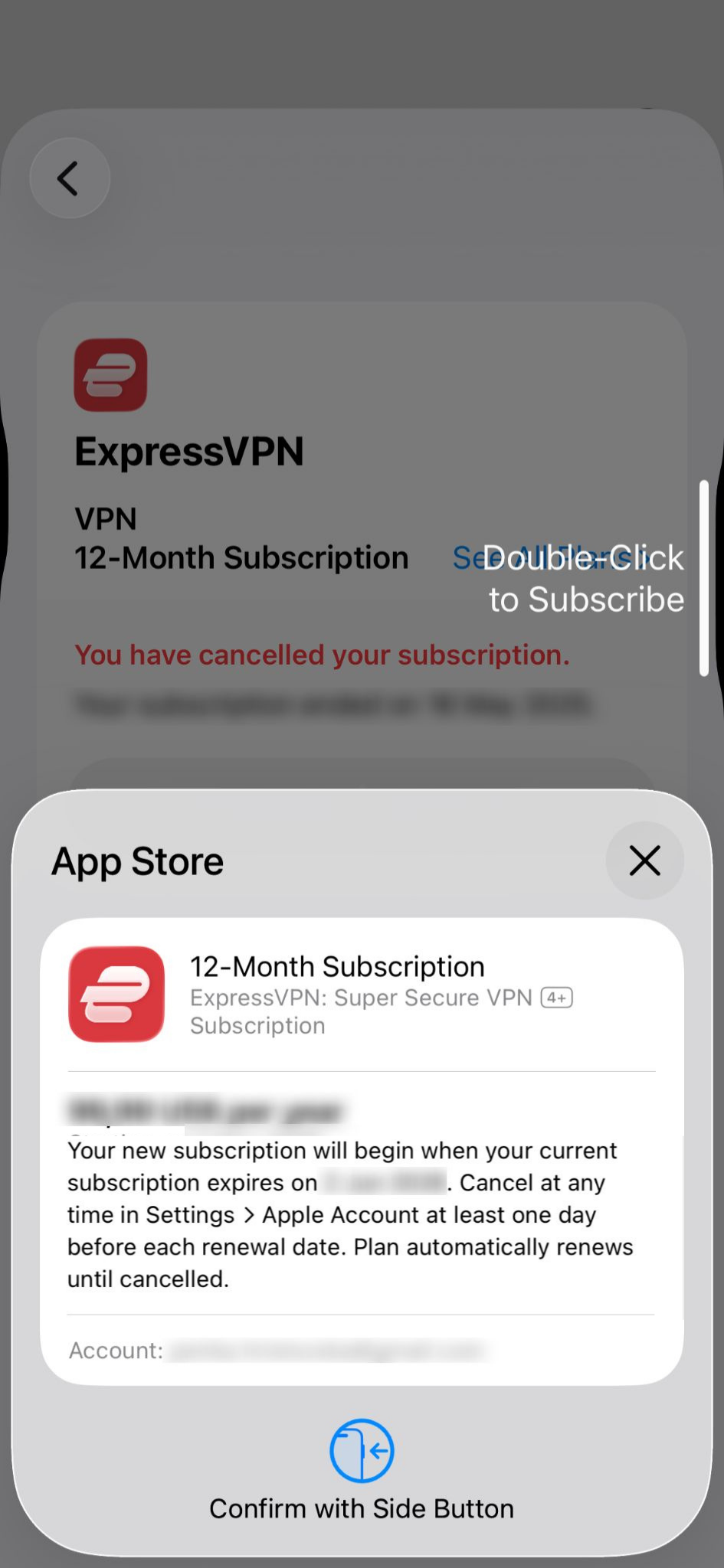
If you have canceled your subscription and it’s still active
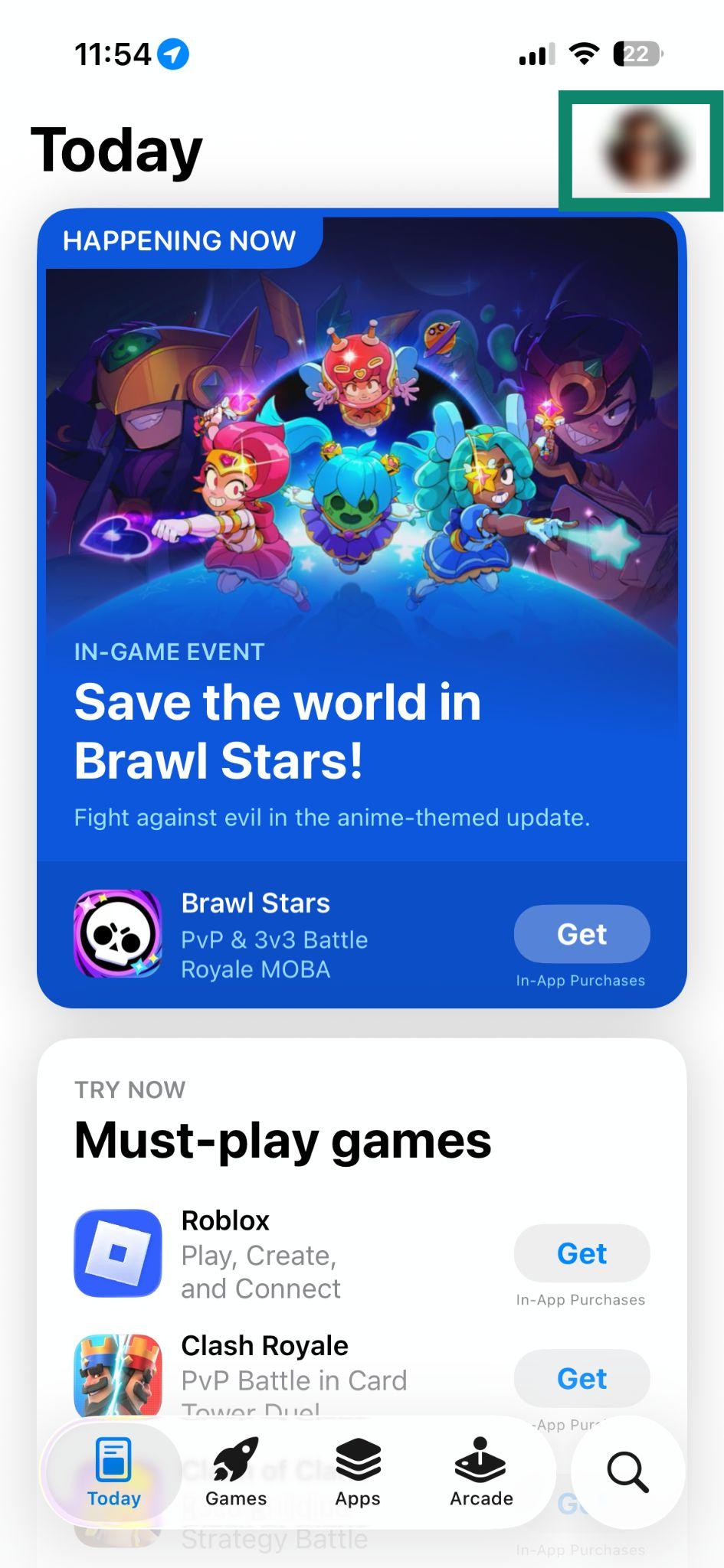
Follow these steps to renew it:
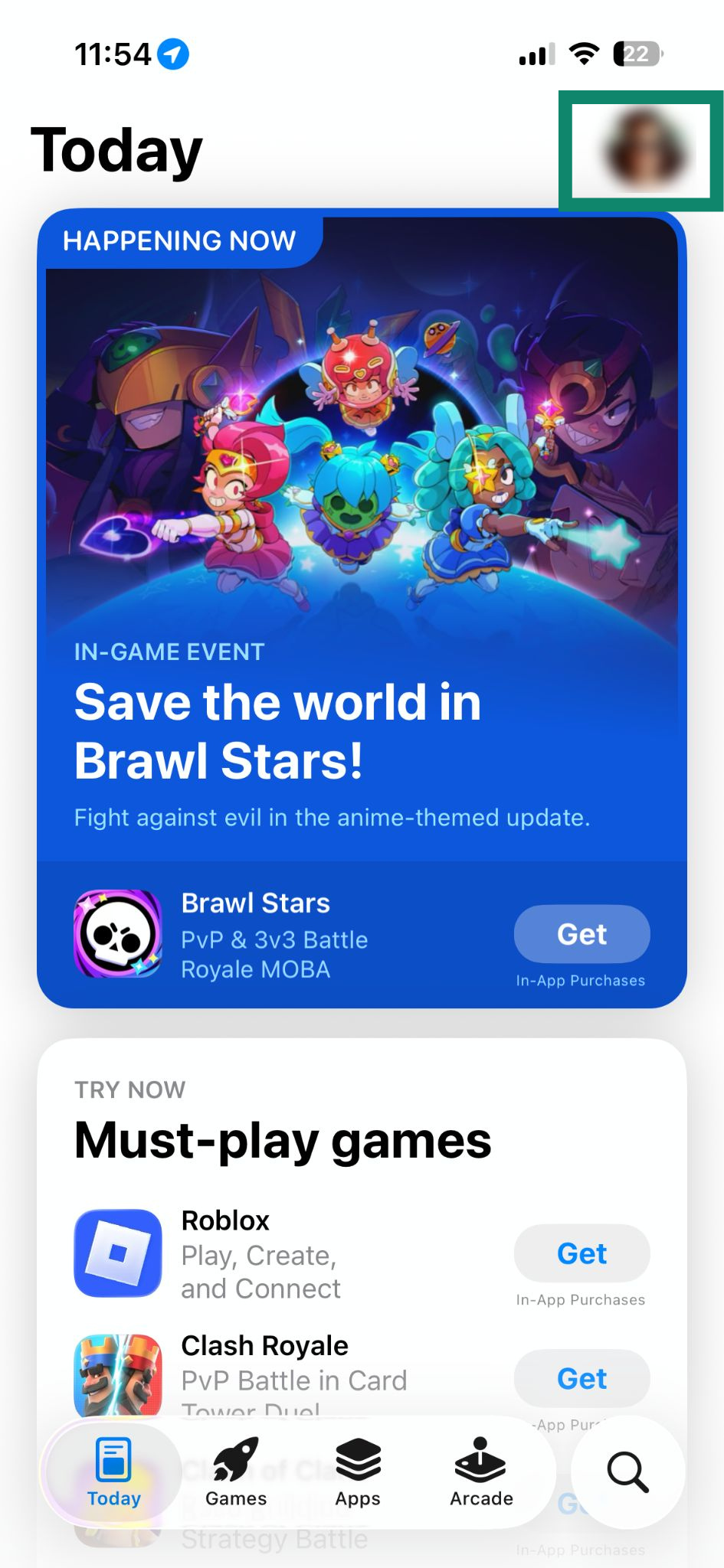
- Open the App Store and tap on your profile icon.


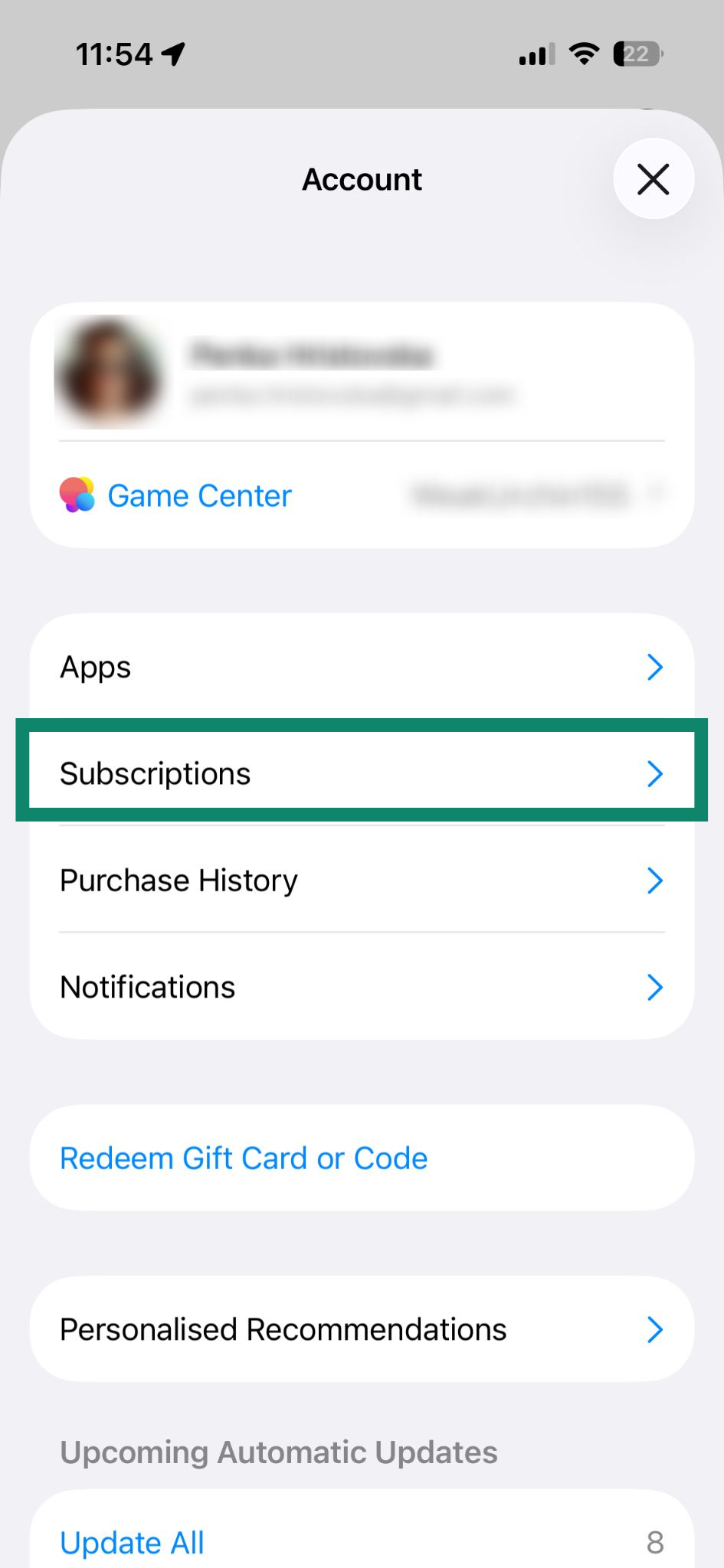
- Select Subscriptions.

- Tap on your current ExpressVPN subscription under Active.

- Tap Renew: [current price of the subscription].

- Confirm the purchase with Face ID or Touch ID.

If your subscription has ended
You can resubscribe by following these steps:
- Open the App Store and tap on your profile icon.

- Select Subscriptions.

- Tap on ExpressVPN under Inactive.

- Tap Subscribe.

- Confirm the purchase with Face ID or Touch ID.

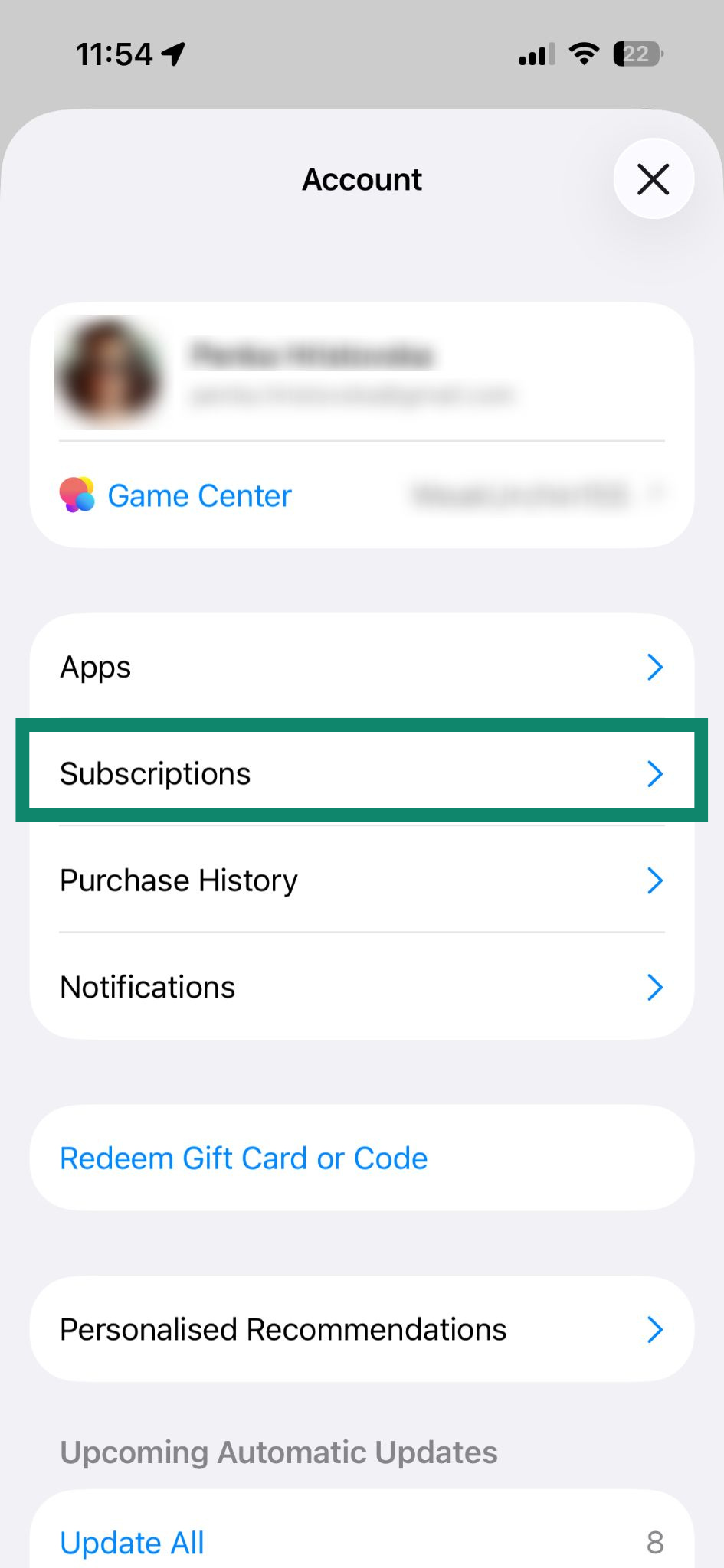
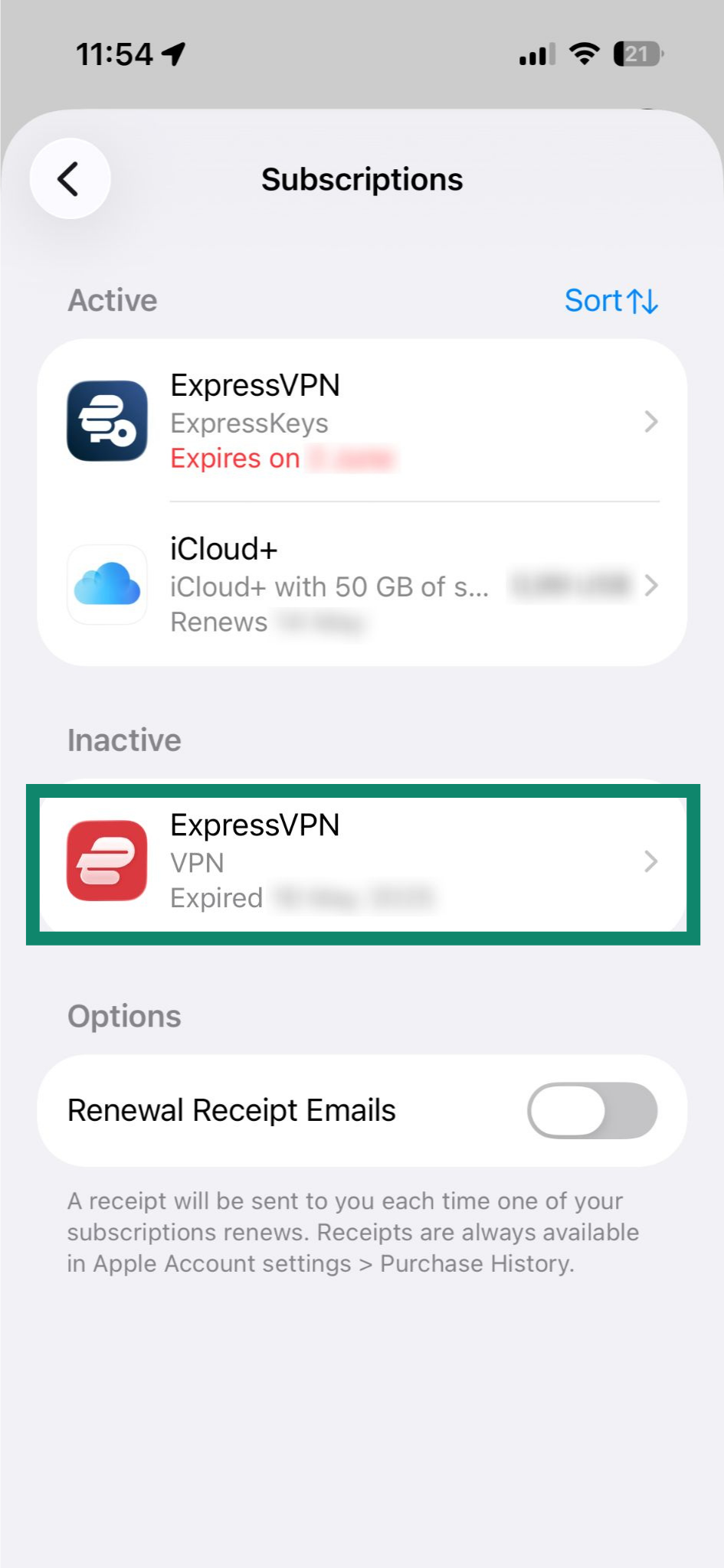
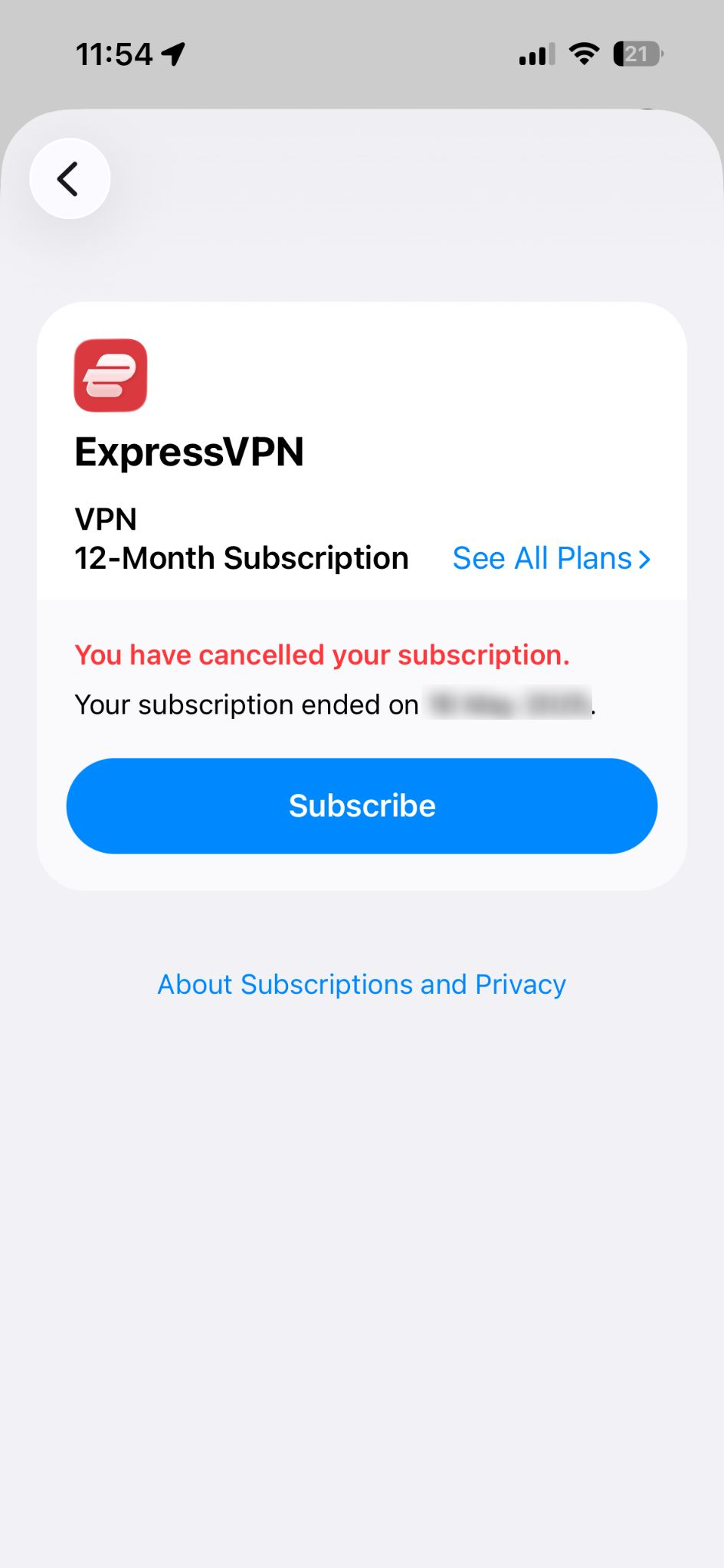
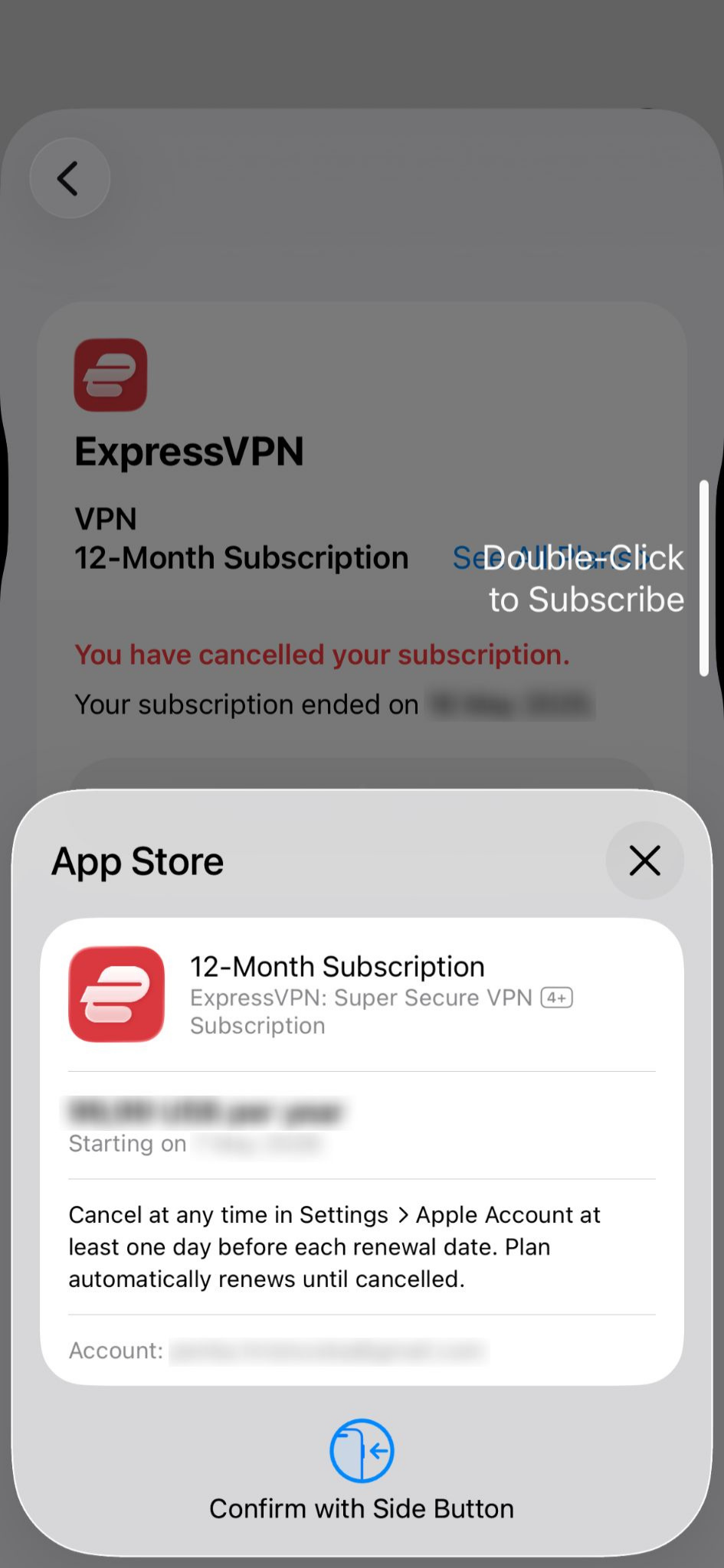
Learn more subscriptions via the App Store in-app purchases.
Need help? Contact the ExpressVPN Support Team for assistance.
Subscriptions via Google Play Store in-app purchases
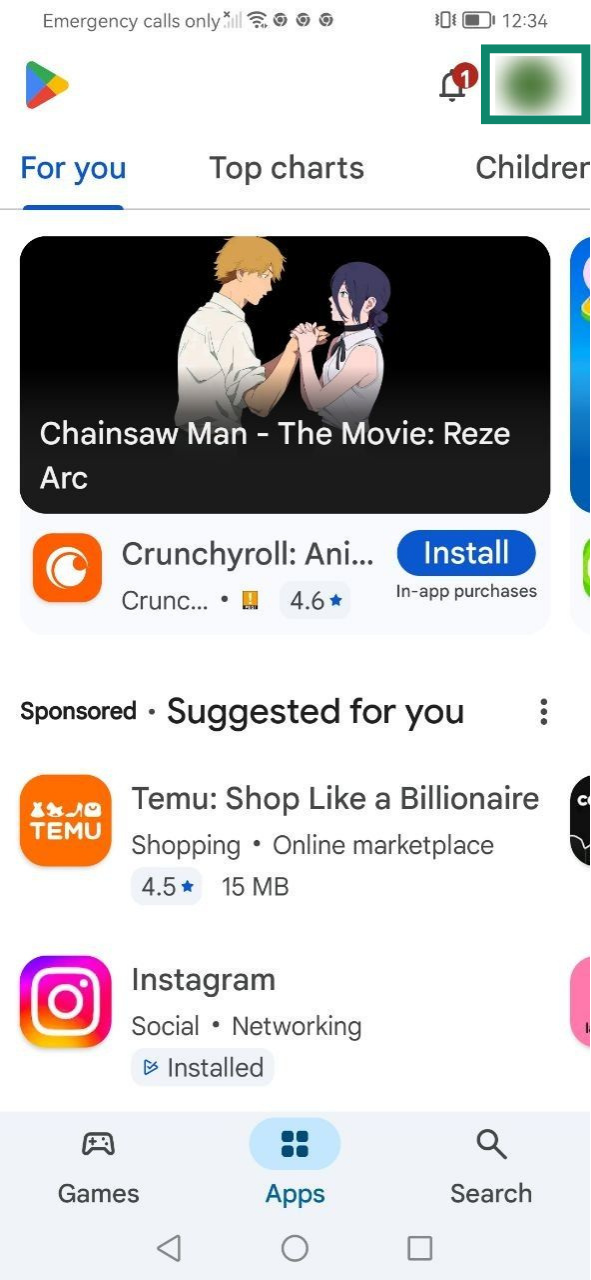
Subscriptions purchased via the Google Play Store will automatically renew after your current subscription ends. If you’ve canceled your subscription or it’s expired, follow these steps to renew it:
- Open the Google Play Store and tap your profile icon.

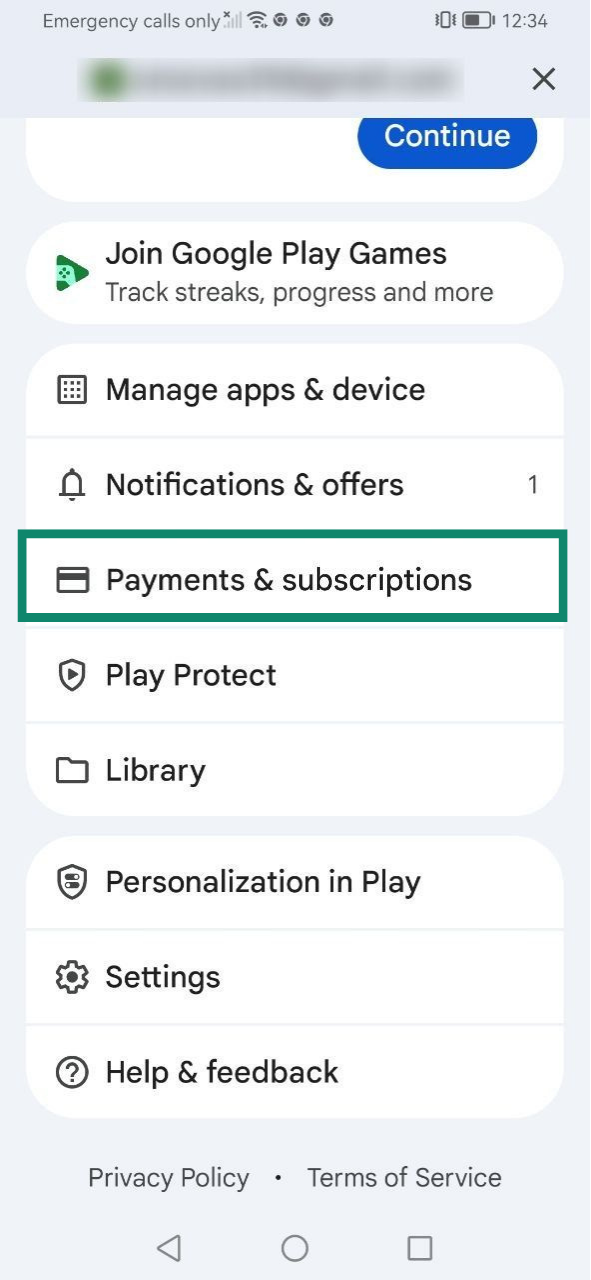
- Select Payments & subscriptions.

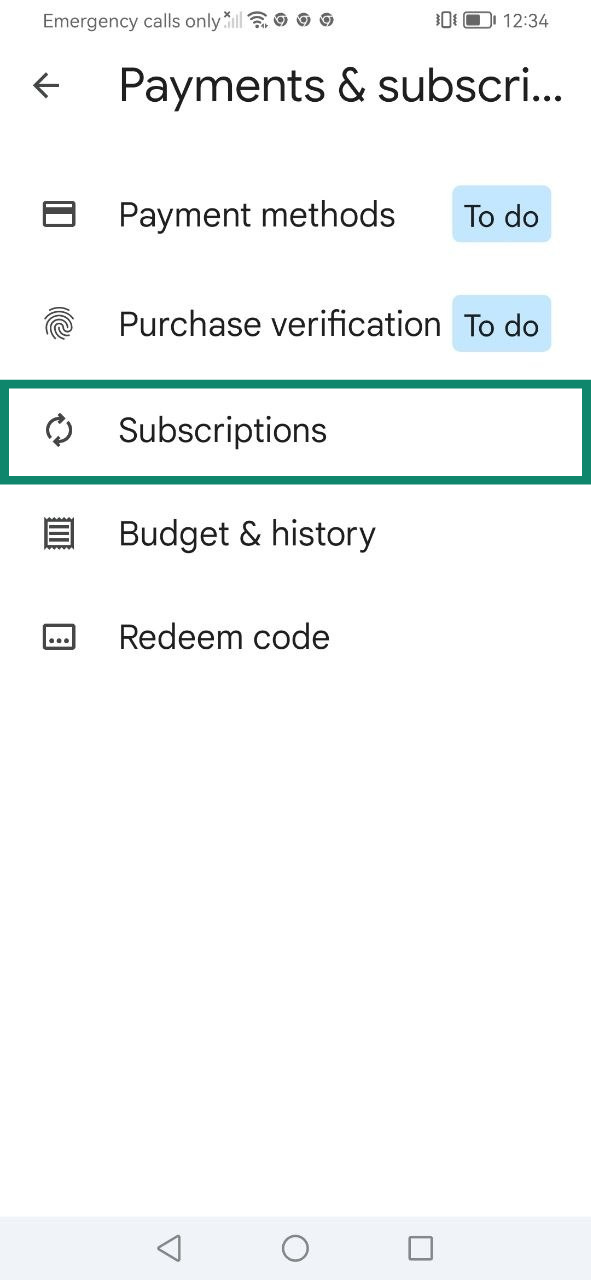
- Tap Subscriptions.

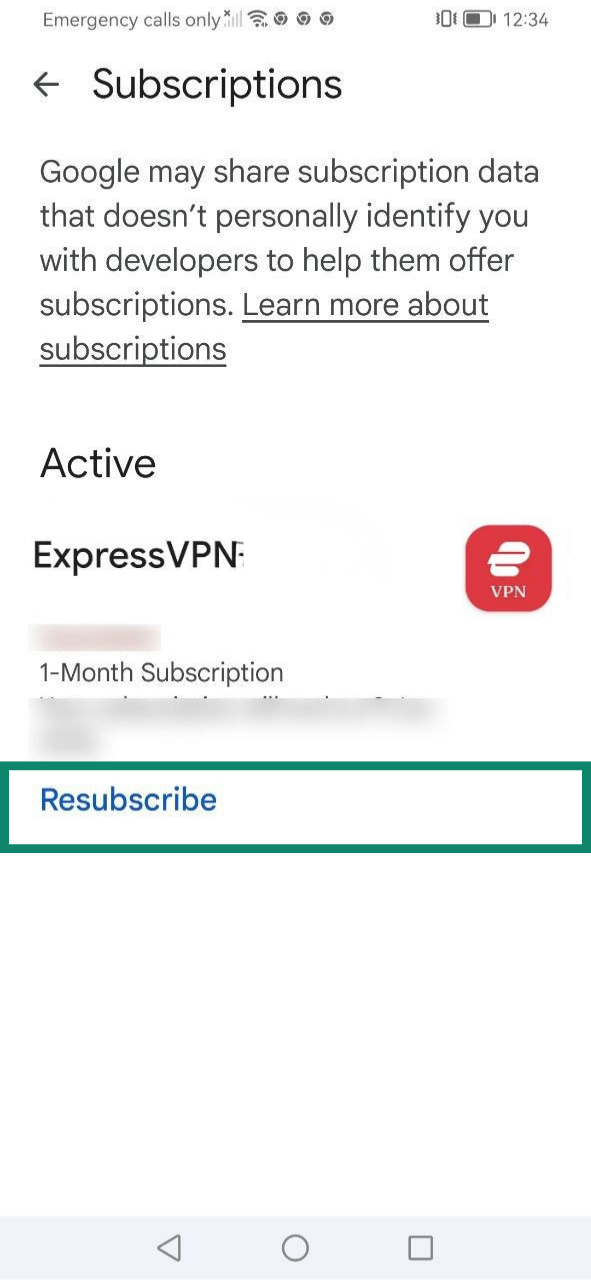
- Select Resubscribe under your ExpressVPN subscription.

- Tap Resubscribe again to confirm.

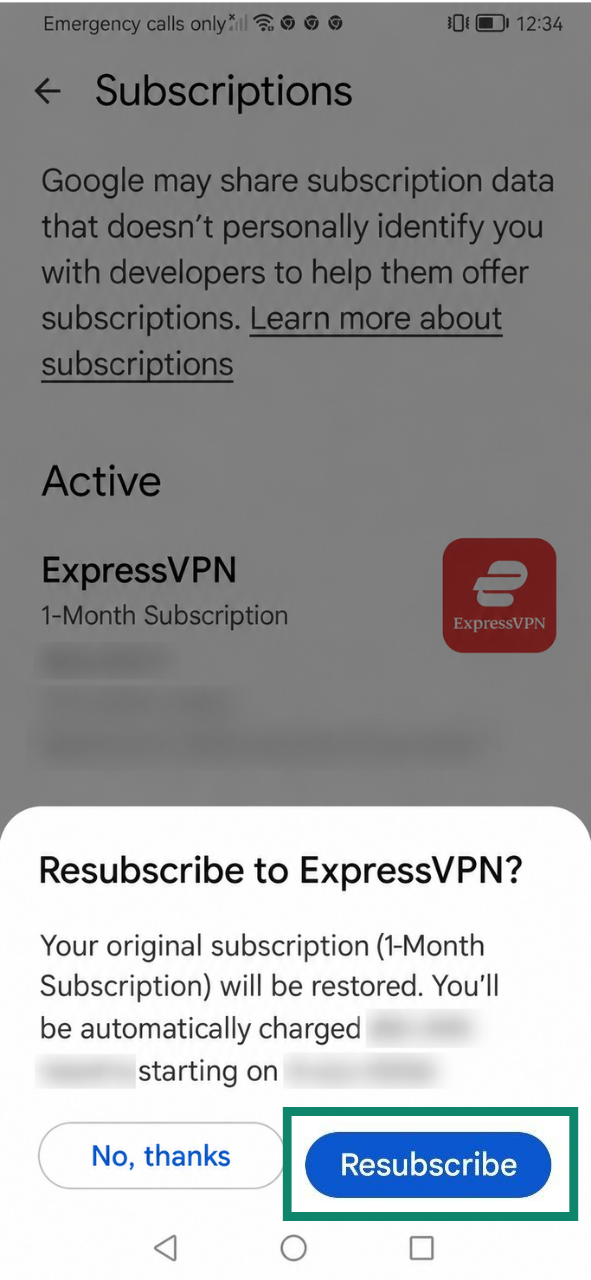
Learn about subscriptions via the Play Store in-app purchases.
Need help? Contact the ExpressVPN Support Team for assistance.
How does auto-renewal work?
Auto-renewal means that a subscription automatically renews at the end of its current billing term. By default, auto-renewal is turned on for supported payment methods, such as credit cards, PayPal, Apple Pay, or Google Pay.
If your current subscription is set to auto-renew, you will be charged again when the subscription expires, unless you cancel it before the renewal date by following the steps in our guide to canceling your ExpressVPN subscription.
If auto-renewal is canceled, you can continue using the services linked to your ExpressVPN subscription until the end of your current billing term. After that, your access will be suspended until you make a manual renewal payment.
How to check your subscription’s auto-renewal status
To see if auto-renewal is enabled or disabled:
- Go to the My subscription page in your ExpressVPN+ dashboard.
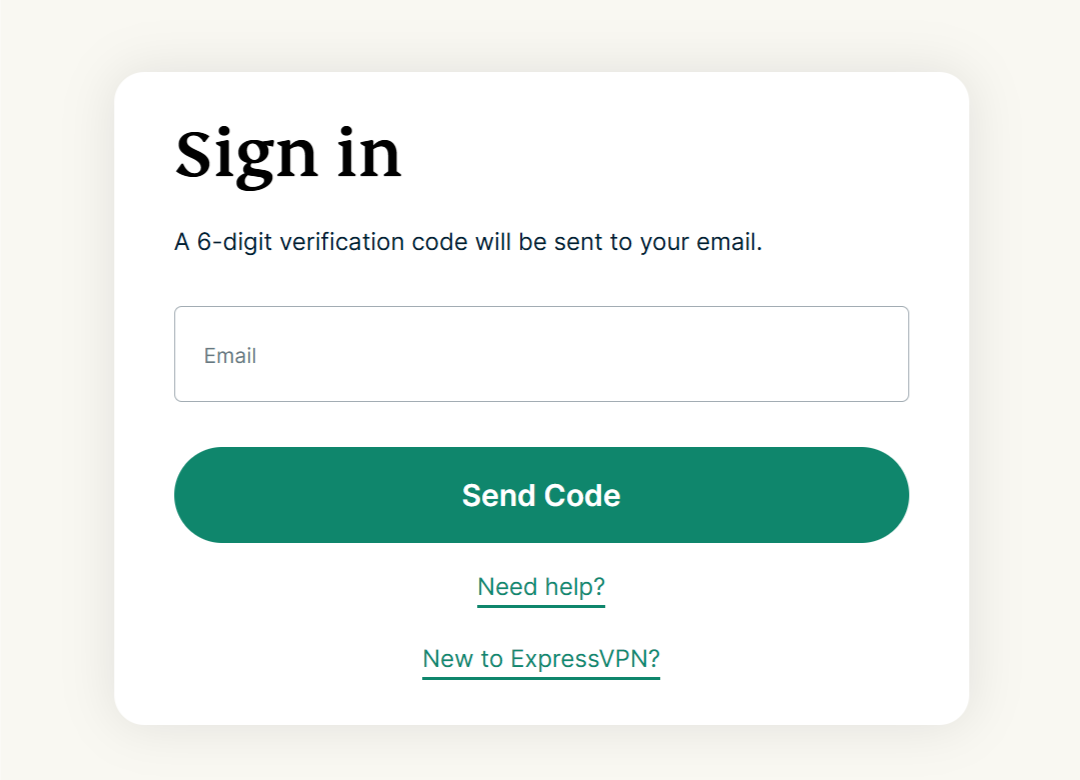
- If prompted, enter your email address and click Send Code.


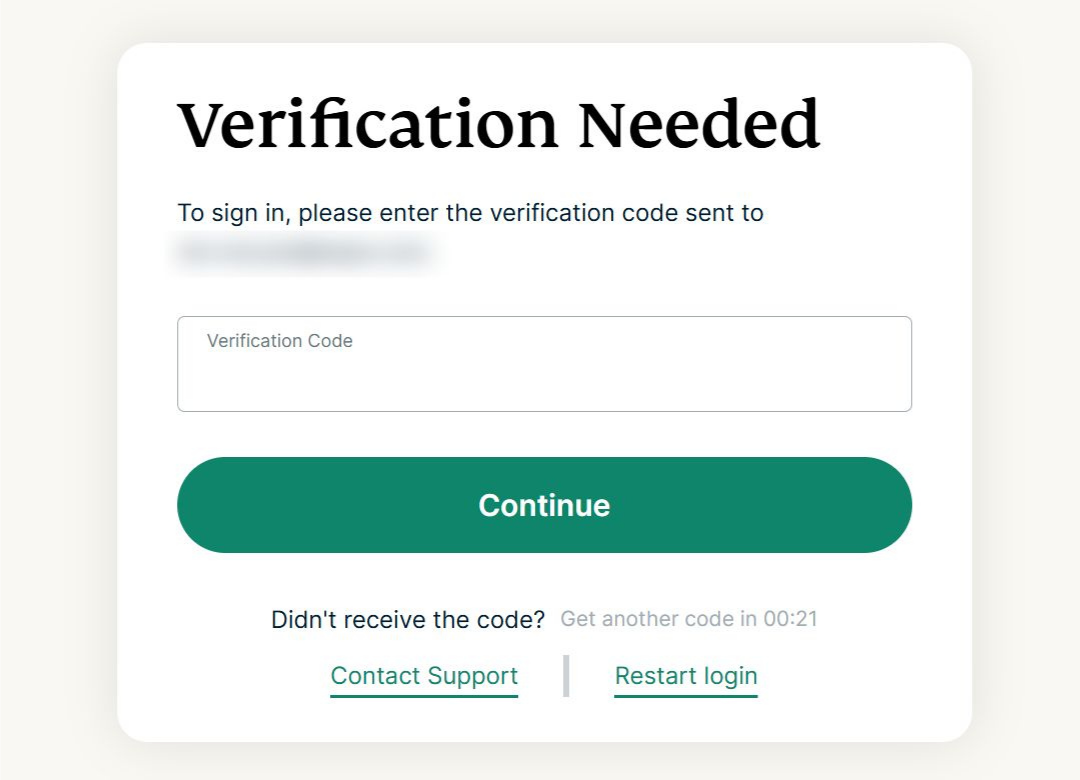
- Enter the verification code and click Continue.

- If prompted, enter your email address and click Send Code.
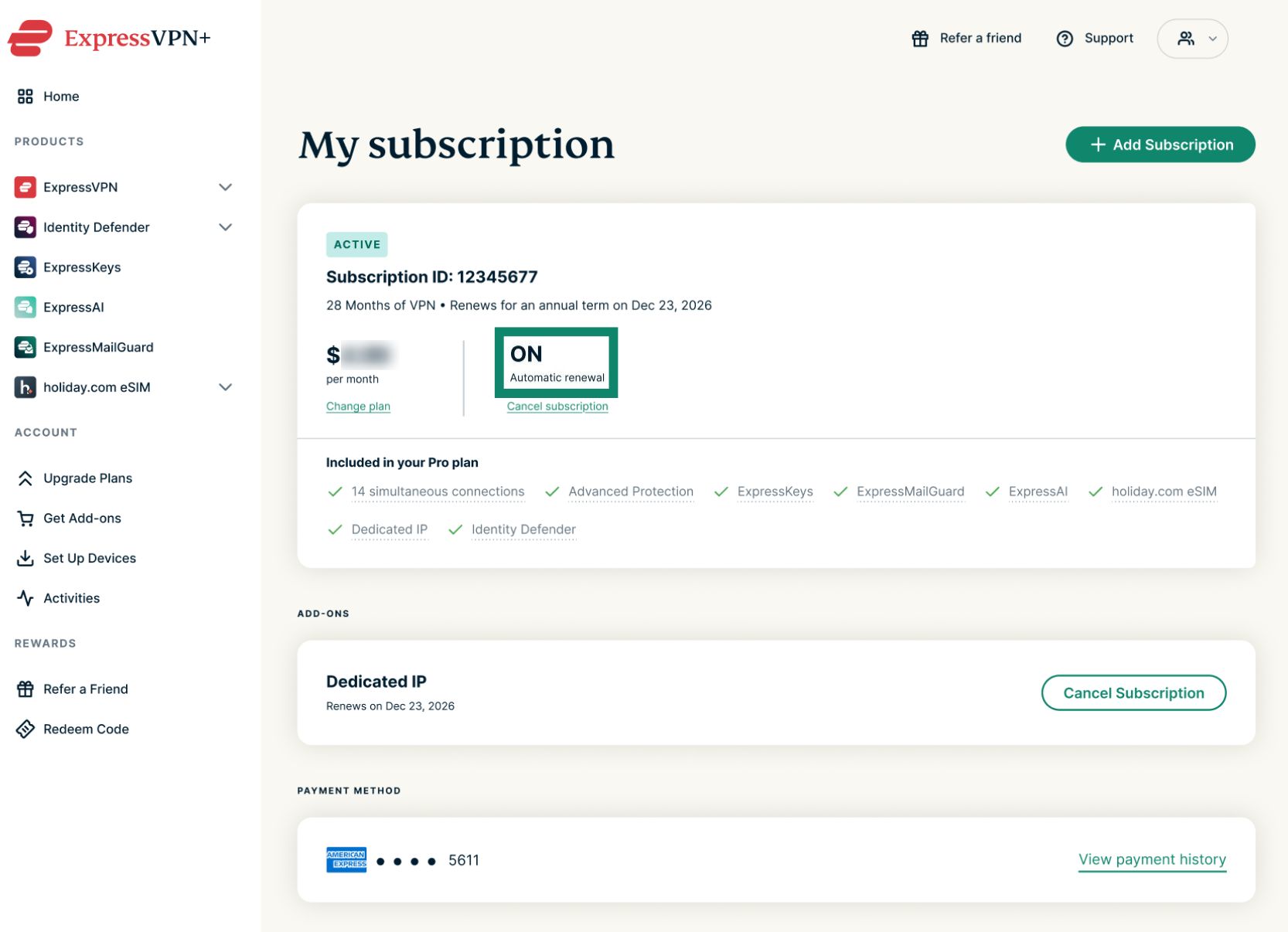
- Check the Automatic renewal status.
- ON means that auto-renewal is enabled for your subscription.


- OFF means that auto-renewal is disabled for your subscription.


- ON means that auto-renewal is enabled for your subscription.
How to check upcoming auto-renewals
If auto-renewal is enabled for your subscription, you can check upcoming charges by looking at the text under Subscription ID.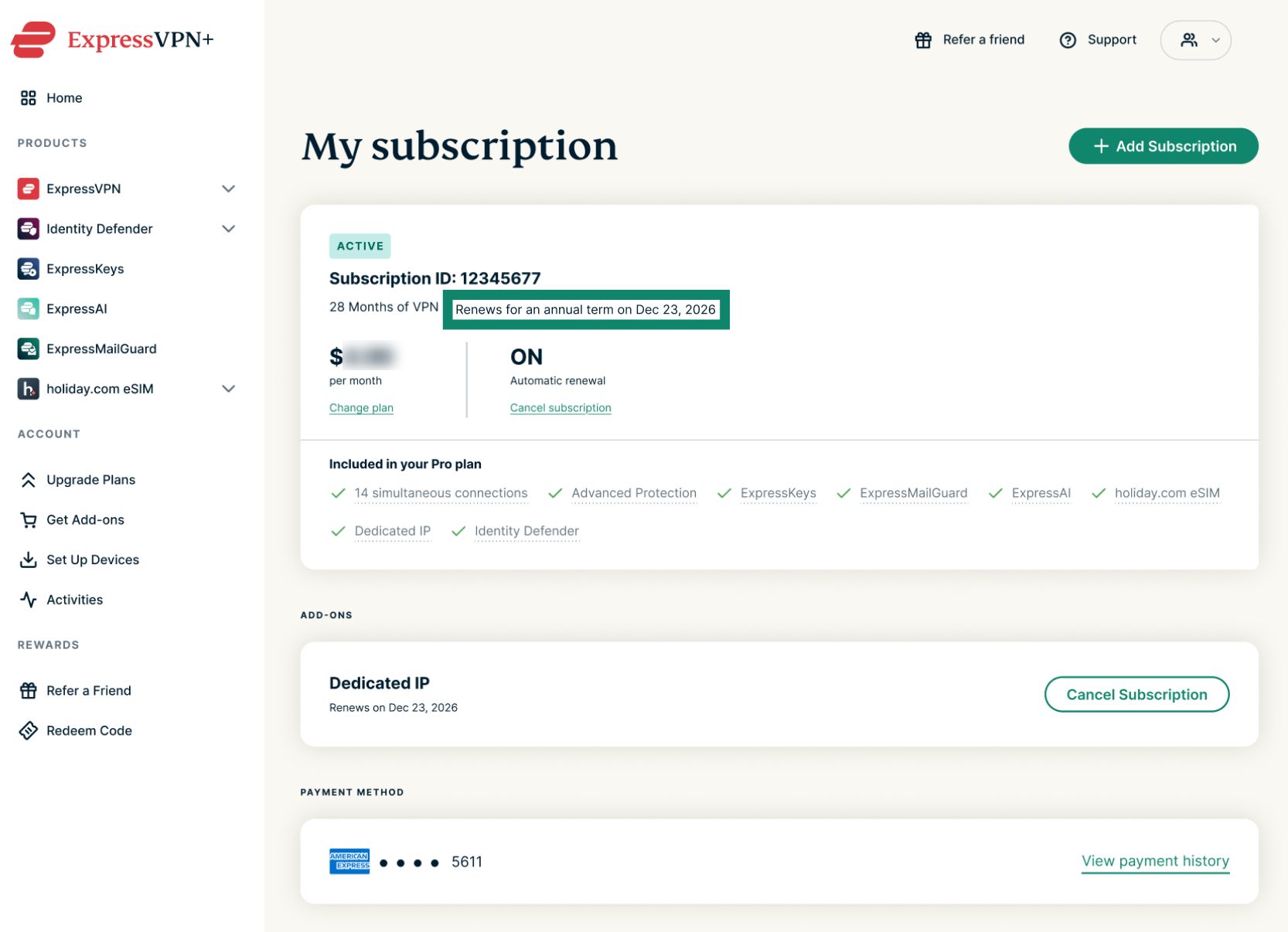
Your payment method will automatically be charged on the specified billing term. After that, renewals continue automatically until you cancel. Monthly plans renew automatically on the same date each month, yearly plans automatically renew on the same date once per year, and 2-year offers automatically renew yearly at the end of the initial 2-year period.
Need help? Contact the ExpressVPN Support Team for assistance.