Wireless network connection: Basics and beyond


When people mention wireless network connection, they’re usually talking about Wi-Fi. The terms are often used interchangeably, but Wi-Fi is actually just one type of wireless technology. “Wireless” can also refer to other radio-frequency technologies, such as Bluetooth, cellular networks, and satellite links.
This guide focuses on Wi-Fi, the most common way devices connect wirelessly on home and office networks. It explains what Wi-Fi is and what Wi-Fi standards exist. You’ll also learn how to improve Wi-Fi performance.
What is a wireless network connection (Wi-Fi)?
Wi-Fi is a wireless networking technology that lets devices connect to a local network without cables. It uses radio waves to send data over short to medium distances.
Most often, Wi-Fi creates a wireless local area network (WLAN), where multiple devices connect to the same router for internet access (when available) or local file sharing in homes or offices. That said, Wi-FI can also support other types of setups, which we’ll discuss later.
A central device (a wireless router or access point) broadcasts signals that nearby compatible devices, such as phones, laptops, and smart TVs, use to join the network. The router, or combined internet service provider (ISP) gateway, typically connects to a modem/optical network terminal (ONT) or another wired uplink to provide internet access.
Wireless connections often have higher latency than wired connections, especially when signal strength is weak and interference or congestion is present.
Wi-Fi standards and speeds
The Institute of Electrical and Electronics Engineers (IEEE) started Project 802 to develop local and metropolitan area networking standards (including wired and wireless). IEEE 802.11 is the working group that defines Wi-Fi standards.
That led to the introduction of the first IEEE 802.11 standard in 1997, often called legacy 802.11 or legacy Wi-Fi, which supported data rates of 1–2Mbit/s using several physical-layer options.
Since then, Wi-Fi standards have continued to evolve, with each new generation improving throughput and efficiency and typically offering better performance in busy environments (alongside advances in reliability, latency, and security features).
Here’s how the main Wi-Fi standards compare:
| IEEE standard | Wi-Fi name | Frequency band | Max speed |
| 802.11 | Legacy Wi-Fi | 2.4GHz | Up to 2Mbit/s |
| 802.11b | Wi-Fi 1 | 2.4GHz | Up to 11Mbit/s |
| 802.11a | Wi-Fi 2 | 5GHz | Up to 54Mbit/s |
| 802.11g | Wi-Fi 3 | 2.4GHz | Up to 54Mbit/s |
| 802.11n | Wi-Fi 4 | 2.4GHz, 5GHz | Up to 600Mbit/s |
| 802.11ac | Wi-Fi 5 | 5GHz | Up to ~6.9Gbit/s |
| 802.11ax | Wi-Fi 6 | 2.4GHz, 5GHz | Up to 9.6Gbit/s |
| 802.11be | Wi-Fi 7 | 2.4GHz, 5GHz, 6GHz | ~46Gbit/s |
Note: Typically, 2.4GHz offers longer range/penetration, 5GHz is medium, and 6 GHz is shorter (especially through walls). Max speed figures above are theoretical physical layer (PHY) rates; real-world speeds are lower.
Wi-Fi 7 is the newest generation currently being rolled out. It supports operation across 2.4GHz, 5GHz, and 6GHz and is designed to improve speed and efficiency, especially in busy networks. 6GHz was introduced to consumer Wi-Fi via Wi-Fi 6E; Wi-Fi 7 continues to use it.
Types of wireless network connections
Wireless network connections vary by size and coverage area, and each type serves a different purpose.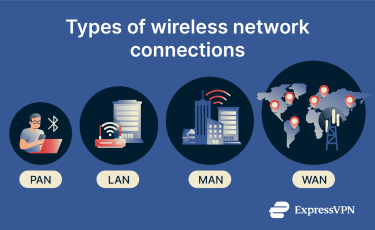
Personal-area network (PAN)
A PAN is the smallest type of wireless network. It connects devices in close proximity, often around a single person's device. This could be a phone, a laptop, a game controller, or wireless accessories.
Bluetooth is the most common technology used for PAN-style device-to-device connections over short distances.
Read more: Bluetooth security guide: How to stay safe from wireless attacks.
Local-area network (LAN)
LANs connect devices within a limited area, such as a home, office, or school. They may use routers, switches, access points, and Ethernet cabling, depending on the setup.
When the connection is wireless, it’s called a WLAN. Wi-Fi is the most common example of a WLAN.
Metropolitan-area network (MAN)
Unlike a LAN, a MAN connects networks across a larger geographic area, often a city or metropolitan region, and is typically smaller than a wide-area network (WAN). Organizations may use MANs to connect multiple sites or buildings across the same metro area.
Wide-area network (WAN)
A WAN spans large geographic areas and connects smaller networks together. The internet is the most well-known example of a WAN, linking many different networks into a global system.
Cellular networks can also provide WAN-scale connectivity (often described as a wireless WAN or WWAN), using carrier infrastructure and cell towers for mobile access.
WiFi connection modes
Wi-Fi modes describe common ways devices connect and communicate over Wi-Fi. Here are some of the most common modes.
Infrastructure mode
Most home and office networks use infrastructure mode. Devices, such as laptops, phones, and printers, connect to a central access point. Traffic passes through the access point to reach the internet or communicate with other devices on the network.
Read more: How to find a printer IP address.
Ad hoc mode
Instead of using an access point, devices connect directly to one another as peers. This setup creates a simple, temporary network without a router, though support and features may be limited on some modern devices.
Wi-Fi Direct
Also enables peer-to-peer connections, typically by forming a group in which one device acts as the coordinator (a “Group Owner”) to simplify setup and management. Many smart TVs support Wi-Fi Direct for sending media from a phone without a router.
Wi-Fi hotspot
A Wi-Fi hotspot provides wireless internet access in a specific location, often in public places such as cafés or airports. Some are free, while others charge a fee.
Public Wi-Fi hotspots can vary in security. Open networks may lack Wi-Fi encryption, making traffic interception easier, especially for unencrypted connections. A virtual private network (VPN) can encrypt data in transit between a device and the VPN server.
How to troubleshoot Wi-Fi connection issues
If you’re having trouble connecting to a wireless network or have a weak signal, these troubleshooting tips might help.
Read more: How to check your internet connection on any device.
1. Check Wi-Fi status
Before anything else, confirm that Wi-Fi is on and you're connected to the correct network. Here’s how to interpret common statuses:
- Not connected: No active Wi-Fi connection, so Wi-Fi internet access is unavailable.
- Connected but no internet: The Wi-Fi link to the router is active, but the router may not have internet access. For example, an ISP outage, a modem/optical network terminal issue, or a network configuration problem.
- Weak signal: The connection is active, but signal strength is low, which can result in slow speeds or dropped connections.
Sometimes, the cause is Airplane mode enabled on your device. Airplane mode typically turns off cellular service and may also turn off Wi-Fi at first, though many devices allow Wi-Fi to be turned back on while Airplane mode remains enabled. Check quick settings/control center to confirm Wi-Fi is enabled as intended.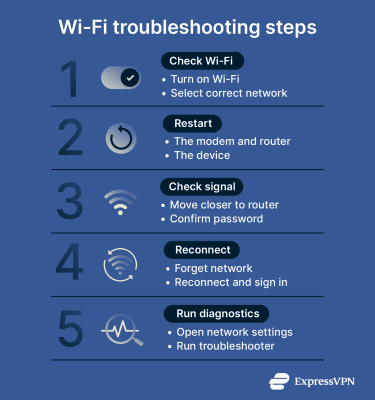
2. Restart your modem/router, then your device
First, power cycle the modem or router: unplug the power, wait 30 to 60 seconds, then plug it back in and wait a few minutes (or until indicator lights stabilize).
If the connection still isn't working, restart your device. This can clear temporary software glitches that prevent a successful connection.
3. Check basic settings, hardware, and signal
Misconfigurations or physical barriers are often the cause of Wi-Fi connection issues. Confirm the network name, Service Set Identifier (SSID), and password are correct (keep in mind that passwords are case-sensitive).
Moving closer to the router can strengthen the signal. Thick walls and floors can weaken it, and nearby devices like microwaves can interfere, especially on 2.4GHz.
4. Forget and reconnect to the network
If your device has trouble connecting after a router or password change, the saved network profile may be outdated or corrupted.
Open your Wi-Fi settings, select the network, and choose Forget. Scan again, select the same network, and re-enter the password to reconnect.
5. Run built-in network diagnostics
Many devices have built-in tools that automatically detect and fix common connection problems, such as IP conflicts, Domain Name System (DNS) errors, or misconfigured network settings. For example, Windows includes a built-in Network troubleshooter in Settings.
How to improve your Wi-Fi speed and signal
Slow or patchy Wi-Fi is often a setup issue, though network congestion, hardware limits, or an internet service outage can also play a role. A few simple changes can improve speed, stability, and coverage.
1. Optimize router placement and positioning
Your router’s location can affect signal strength and consistency. In general, placing it in a corner can limit how evenly coverage spreads. Place the router in a central, open area and elevate it on a shelf or table rather than the floor. Avoid enclosed spaces like cabinets or TV stands, since obstacles can weaken or block signals.
If your router has adjustable antennas, starting with antennas upright is common for same-floor coverage; adjusting angles can help in multi-level homes, depending on layout and device placement.
2. Reduce interference and congestion
Many household devices can interfere with Wi-Fi, including microwaves, cordless phones, and baby monitors. Neighboring Wi-Fi networks can also contribute to congestion.
Keep your router away from large electronics, metal objects, and reduce obstructions between the router and devices (dense materials like concrete or brick can weaken signals)
Channel congestion is common in apartments, particularly on 2.4GHz. If performance is inconsistent, selecting a less crowded channel (or enabling automatic channel selection) may help, depending on the router’s features.
2.4 GHz vs 5 GHz: Which to use?
The 2.4GHz and 5GHz bands have different trade-offs, so the best choice depends on distance, obstacles, and speed needs.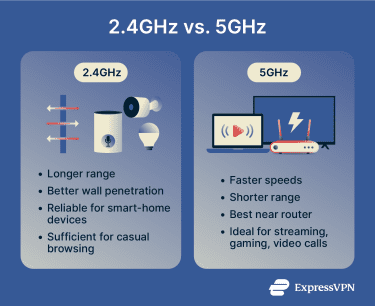
The 2.4GHz band tends to reach farther and perform better through walls, which can help when devices are spread across rooms or floors. Many smart-home devices also use 2.4GHz for reliable coverage.
The 5GHz band is typically better for higher speeds at shorter range, which suits tasks like 4K streaming, video calls, online gaming, and large downloads when the device is closer to the router.
When to use a mesh system or extender
A mesh system uses multiple nodes to extend coverage and reduce dead zones across a larger home, often with smoother roaming than a single router setup.
A Wi-Fi extender can boost your router's signal by helping fill small coverage gaps. However, it often creates a second SSID or may require switching networks depending on the setup.
Mesh systems cost more upfront but deliver steadier, more consistent speeds throughout your home than a basic extender.
How to secure your wireless network connection
An unsecured Wi-Fi network can expose your personal data and allow strangers to use your connection. A few security measures can make a big difference.
- Use WPA2 or WPA3 with a strong, unique password: WPA2/WPA3 encrypts the Wi-Fi connection and helps prevent unauthorized access. A long, unique passphrase is generally more effective than a short, complex one.
- Change the default router admin login: Many routers ship with default admin credentials that are widely known. Change the admin password (and the username, if the router allows it) to something unique to reduce the risk of unauthorized changes to network settings.
- Set up a guest network: This lets visitors connect to the internet without you having to share your main Wi-Fi password.
- Keep router firmware updated: Manufacturers release updates to fix security vulnerabilities. Check your router's admin page periodically or enable automatic updates if supported.
- Use a VPN on your devices (when needed): A VPN encrypts data in transit between a device and the VPN server, which can be especially useful on public Wi-Fi or other untrusted networks.
Read more: Find more tips on securing your home Wi-Fi.
FAQ: Common questions about wireless network connections
How do I turn on a wireless network connection?
Why is my Wi-Fi not connecting?
How do I find my Wi-Fi network?
What are common Wi-Fi problems?
How do I set up a guest network?
How do I connect to Ethernet instead of Wi-Fi?
Take the first step to protect yourself online. Try ExpressVPN risk-free.
Get ExpressVPN
















 Support Center
  FAQ
FAQ  VPN Setup Tutorials


