What is BitLocker and how secure is it?


BitLocker is one of Microsoft's primary Windows tools for protecting data on many modern laptops and PCs. While it can be a useful security feature, you may have questions about how it works and what exactly it protects against.
Note: This article is for general educational purposes only. Security needs vary by device, organization, and threat model, so consult a qualified IT or security professional for specific guidance.
What is BitLocker?
According to Microsoft's BitLocker documentation, it's a Windows security feature that encrypts entire volumes. Instead of encrypting only selected files or folders, it protects operating system drives, fixed data drives, and removable drives.
In its BitLocker overview for IT professionals, Microsoft describes it as a way to help mitigate data theft or exposure from lost, stolen, or inappropriately decommissioned devices. In practice, this means it's designed to make data harder to access without the correct unlock method or recovery key, especially if someone removes the drive and connects it to another machine. However, this protection depends on proper configuration, secure storage of the recovery key, and the device being locked or powered off when it's lost or stolen.
BitLocker Drive Encryption is available on Windows 10 and Windows 11 Pro, Enterprise, and Education editions. BitLocker is also supported on Windows Server 2016 through Windows Server 2025, although the feature must be installed before use. Some Windows Home devices may support Device Encryption, which uses BitLocker-based encryption but is managed differently.
What is BitLocker To Go?
BitLocker To Go is BitLocker Drive Encryption for removable storage devices, such as USB flash drives, SD cards, and external hard drives. While standard BitLocker protects a computer's internal drives, BitLocker To Go protects portable storage that may be used across different devices.
When enabled, the removable drive is protected as a BitLocker volume. Files on it can't be accessed without an approved unlock method, such as a password, smart card, or recovery key, depending on how it's configured.
How does BitLocker work?
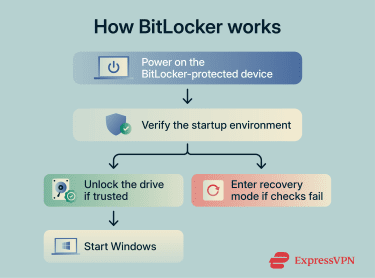
BitLocker works by encrypting your entire drive and only unlocking it when it can verify that the system is in a trusted state. This happens automatically in the background every time you start your PC.
How BitLocker encrypts data
According to Microsoft, BitLocker uses XTS- Advanced Encryption Standard (AES) 128-bit encryption by default, and it can be configured to use XTS- AES 256-bit if required. The appropriate key size may depend on performance needs and regulatory or industry requirements.
With BitLocker enabled, data remains encrypted on the drive. When the PC is running, and the drive is unlocked, Windows decrypts data as it's accessed rather than permanently decrypting the whole drive. When the PC shuts down or restarts, the encryption key is no longer available in memory, so the raw data on the disk remains unreadable without the correct unlock method or recovery key.
The role of TPM in BitLocker
When a BitLocker-protected PC starts, BitLocker can use a Trusted Platform Module (TPM) to help verify that the device hasn't been tampered with while offline. Before Windows starts, the boot process records measurements of components such as firmware, boot configuration, and startup files. If the expected measurements change, BitLocker may enter recovery mode instead of unlocking automatically.
If everything checks out, what happens next depends on how BitLocker is configured:
- TPM-only: The TPM automatically unlocks the drive upon successful validation. No user interaction is required. This is the most transparent option, but Microsoft's BitLocker countermeasures documentation describes it as less secure than options that require an additional authentication factor.
- TPM + PIN: The user must enter a PIN before the drive unlocks. The TPM provides anti-hammering protection designed to limit brute-force PIN attacks.
- TPM + startup key: Part of the encryption key is stored on a USB flash drive that must be inserted at startup.
- TPM + PIN + startup key: This multifactor setup requires TPM validation, the USB startup key, and the user's PIN. According to Microsoft's BitLocker countermeasures, this is stronger because a stolen USB key alone won't unlock the drive.
What if there's no TPM?
BitLocker can still work without a TPM, but it doesn't provide the hardware-based startup integrity verification. Devices without a TPM must use a startup key stored on a removable drive to unlock the operating system drive. A password option is also available, but in its BitLocker overview, Microsoft says it's discouraged and disabled by default because it lacks lockout logic and is vulnerable to brute force attacks.
BitLocker recovery keys
BitLocker provides recovery options for accessing an encrypted drive if the normal unlock method fails.
The recovery password is a 48-digit number generated when BitLocker is first enabled. It's used to unlock your drive when BitLocker enters recovery mode. For example, if the TPM detects a change in the system, or if you forget your PIN.
The recovery key is an encryption key stored on removable media (such as a USB drive) that can also be used to recover data from a BitLocker-protected volume. It serves a similar recovery purpose to the recovery password, but in a different form.
Either recovery method can unlock the protected volume if it matches that drive, so storage matters. If an attacker has both the device and the matching recovery password or recovery key, BitLocker can't prevent access to that drive. So, it's important to store recovery information securely and separately from the device it protects.
How secure is BitLocker?
BitLocker is widely regarded as a strong full-volume encryption feature used in many enterprise environments. When correctly configured and paired with appropriate authentication controls, it can be difficult to bypass through ordinary offline access. At the same time, it doesn't eliminate all security risks, and it's important to understand what it can and can't do.
What BitLocker protects
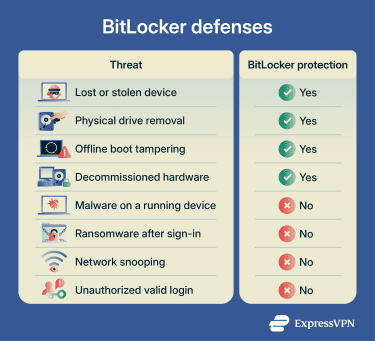
According to Microsoft, BitLocker is designed to protect data at rest, especially against attackers who gain physical access to a device or its storage media while the device is powered off or hibernating.
The concrete threats it helps address include:
- A lost or stolen laptop: If the device is powered off (or in hibernation), the drive contents remain encrypted and unreadable without the correct unlock method or recovery material.
- Drive removal attacks: Physically removing the drive and connecting it to another system should expose only encrypted data. Without the correct TPM-based unlock path or matching recovery material, the drive generally can't be unlocked.
- Decommissioned hardware: When a device is retired or recycled, BitLocker can help keep data inaccessible if the drive remains encrypted and the recovery material is not shared with the device. Organizations should still follow proper device retirement and key-management procedures.
- Bootkit and rootkit attacks: On TPM-protected devices, BitLocker uses boot measurements to help detect tampering in the startup chain. If unexpected boot-chain changes are detected, BitLocker may withhold the key or enter recovery mode.
- Rogue operating system attacks: On TPM-protected operating system drives, BitLocker is designed to prevent an attacker from accessing protected data by booting a different operating system from another partition or device.
- Paging file, crash dump, and hibernation file exposure: When BitLocker is enabled on the operating system drive, Microsoft states in its BitLocker countermeasures that the paging file, crash dump files, and hibernation file are secured on the encrypted volume by default. This helps protect sensitive data that Windows may write to disk during normal operation.
What BitLocker doesn't protect
BitLocker is a data-at-rest encryption solution. Once the drive is unlocked and Windows is running, BitLocker no longer prevents access by the running operating system or authorized sessions. It doesn't protect against attacks on a running system, such as malware, ransomware, network-level attacks, or unauthorized access by someone with valid credentials.
One related limitation is sleep mode. When a device enters sleep rather than hibernating or shutting down, data and key material may remain in memory, which can leave the device more exposed to memory-based attacks. Microsoft recommends disabling sleep or using Hibernate instead for improved security.
Common BitLocker limitations and concerns
While BitLocker can provide useful protection, all security technologies have limitations. Understanding those issues can help you make informed decisions about protecting your data and devices.
BitLocker limitations
BitLocker carries several practical limitations that affect both security and usability:
- No file-level encryption: BitLocker encrypts the volume, not individual files or folders. Once Windows is running, access depends on Windows accounts, permissions, and any additional file-level protections.
- Performance impact: BitLocker can add overhead to read and write speeds, though the impact varies by device, drive type, encryption method, and workload.
- Firmware and third-party updates: Some non-Microsoft firmware, Unified Extensible Firmware Interface (UEFI) / Basic Input/Output System (BIOS), TPM, or Secure Boot-related updates can trigger BitLocker's recovery mode if applied without first pausing BitLocker. This isn't a security flaw, but it can be disruptive if you're not expecting it.
Recovery key storage security concerns
The recovery password or key is a high-value recovery method for the matching BitLocker-protected volume. That said, it has to be stored somewhere, and its storage location can create risk:
- If it's saved to a Microsoft account, anyone who gains access to that account may be able to retrieve the recovery password.
- If it's stored in Microsoft Entra ID or Active Directory (AD), any administrator or help desk role with sufficient permissions can retrieve it.
- If it's printed or saved as a text file, anyone who finds that document may be able to unlock the protected drive.
Risks when entering a BitLocker recovery key
The recovery prompt can also create social engineering risks. A threat actor with brief physical access could try to trigger recovery mode, then observe or trick the legitimate user into entering the recovery password.
Because recovery happens before normal Windows security tools are available, unexpected recovery prompts should be treated carefully. You should confirm the reason for the prompt, check the recovery key ID where available, and avoid entering recovery information if the device appears to have been tampered with.
Potential vulnerabilities and exploits
While BitLocker's AES-based encryption is very difficult to break directly with today's technology, researchers have demonstrated ways to bypass some BitLocker protections under specific physical-access conditions. These include:
- Direct memory access (DMA) attacks: DMA-capable ports, such as Thunderbolt and USB4, can potentially access system memory while a device is running or locked, exposing sensitive data or key material. Windows includes Kernel DMA Protection and BitLocker-related countermeasures, but protection depends on hardware, firmware, driver support, and configuration.
- Cold boot attacks: If a device was recently running or sleeping, RAM may retain data for a brief period after power is removed. An attacker with physical access may attempt to recover encryption key material from memory before it's overwritten, especially on systems without stronger memory protections.
- TPM bus sniffing: On some devices with a discrete TPM connected to the motherboard, researchers have shown that an attacker with physical access may be able to intercept BitLocker key material as it travels between the TPM and the CPU. This specific bus-sniffing risk is lower on devices where the TPM is integrated into the processor, though integrated TPMs are not immune to all hardware attacks.
- TPM-only mode: If BitLocker is configured without a PIN or startup key, the device can unlock more transparently at startup. This improves usability, but it's less resistant to some sophisticated physical attacks than configurations that require an additional preboot factor.
- Firmware tampering: An attacker with physical access could try to modify firmware or boot settings that BitLocker relies on for integrity checks, potentially triggering recovery mode or weakening protection if the platform is compromised.
It's important to note, however, that these attacks usually require physical access to the device, technical expertise, and, in some cases, specialist hardware or device configurations. For most people and most threat scenarios, BitLocker still provides strong protection when properly configured.
BitLocker vs. Windows Device Encryption
On some Windows devices, including many running Windows Home, Microsoft offers Windows Device Encryption, which uses BitLocker encryption technology. Device Encryption is the simplified, automatic variant. It can activate automatically on qualifying devices when the recovery key can be backed up to a Microsoft account, Microsoft Entra ID, or AD Domain Services.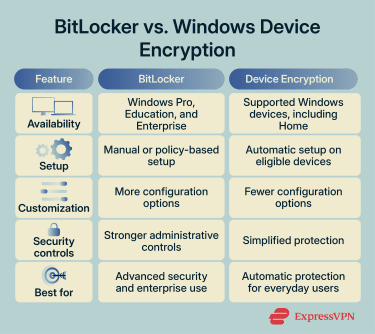
Key differences
- Flexibility: BitLocker is more advanced, offering greater customization potential and stronger administrative controls. It includes options such as configurable authentication methods and startup PIN support, which aren't available through the simplified Device Encryption settings.
- Availability: BitLocker Drive Encryption is only available on Windows Pro, Enterprise, and Education editions. Device Encryption is available on a wider range of supported devices, including some Windows Home devices.
- Security: Both solutions use XTS-AES 128-bit encryption by default, but BitLocker can support stronger security configurations because it offers more authentication, policy, and management controls, especially for enterprise use.
Choosing between BitLocker and Device Encryption
The choice between BitLocker and Device Encryption depends primarily on user needs.
Those seeking a simple and largely automated solution with minimal setup and configuration may prefer Device Encryption. It's also the default option for Windows Home users whose devices support it, since BitLocker Drive Encryption isn't available on Windows Home.
BitLocker may, however, be a better option for users who need stronger security controls or access to administrative features such as centralized management. It's usually favored in enterprise environments because it offers more flexible, granular settings.
Ways to improve BitLocker security
The following techniques may help reduce some BitLocker limitations and make better use of its protective benefits:
- Store recovery keys securely: If you lose your BitLocker recovery key, you may lose access to your files, and Microsoft Support can't recreate it. Store recovery information somewhere secure and separate from the device, such as a protected account, a secure vault, an encrypted USB drive, or a printed copy kept in a safe place. This makes it easier to regain access if your system prompts you for a recovery key.
- Use TPM with a PIN for stronger protection: Combining the TPM with a startup PIN adds an additional layer of authentication. To unlock a drive, the TPM must validate the boot environment, and you must enter your PIN. This makes it harder for unauthorized users to access encrypted data, even if they steal the device.
- Keep Windows and firmware up to date: Regular updates help keep your system more secure. Updates can patch vulnerabilities in Windows, firmware, TPM, or Secure Boot components that BitLocker relies on.
- Back up important data before changing encryption settings: Back up your files and verify that your recovery key is accessible before changing BitLocker or device encryption settings. This helps reduce the risk of data loss in case anything goes wrong during the process.
FAQ
Can BitLocker protect against hackers?
Can BitLocker stop ransomware?
What happens if I lose my BitLocker recovery key?
Should I use BitLocker on a personal laptop?
Is BitLocker enough for business data protection?