Is Apple's password manager safe? What Apple users should know


If you use an iPhone, Mac, or iPad, you may have seen prompts asking whether you want to save a password after signing into a website or app. That's Apple's built-in password manager, Passwords.
Understanding Passwords
Passwords is built on iCloud Keychain, which stores and syncs credentials across devices linked to the same Apple Account.
Introduced with iOS 18 and macOS Sequoia, it’s the main interface for managing most types of login credentials on Macs, iPhones, and iPads.
What is the Passwords app?
In the Passwords app, you can find your saved passwords and passkeys, see compromised or reused password warnings, share credentials with trusted contacts, and manage verification codes.
Apple also offers a Passwords extension for Chrome, Edge, and Firefox that brings iCloud Keychain autofill to those browsers.
What is the Keychain Access app?
Keychain Access manages the Mac's local keychain, an encrypted database built into macOS that stores passwords, certificates, encryption keys, and other sensitive information. It's stored locally on your Mac, and it exists independently of iCloud.
Keychain Access’s primary purpose is managing certificates, encryption keys, and other technical security items, not everyday password management. It does show passwords stored in your keychain, and before the Passwords app existed, it was the only way to access stored credentials on a Mac.
When enabled, iCloud Keychain can sync a subset of what's stored in the local keychain to the Passwords app.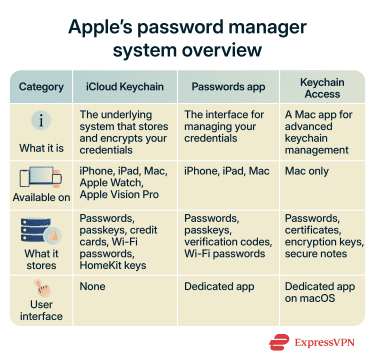
How does Passwords work?
Passwords can save, generate, autofill, and sync credentials across trusted Apple devices through iCloud Keychain.
- Saving passwords: Safari and supported apps can prompt users to save passwords and passkeys after signing in.
- Generating passwords: Passwords can suggest strong, randomly generated passwords during account creation.
- Autofilling credentials: Saved passwords, passkeys, and verification codes can autofill in Safari and supported apps after authentication with Face ID, Touch ID, or a device passcode.
- Syncing across devices: Saved credentials can sync securely across trusted Apple devices connected to the same Apple Account.
Is Passwords safe to use?
Key security features to know
Apple's password manager is built on several layers of security: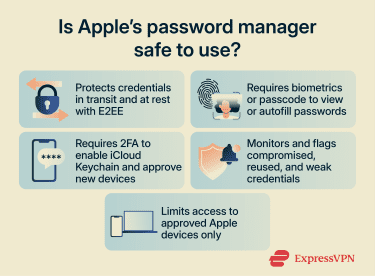
- Strong encryption: iCloud Keychain encrypts credentials using 256-bit Advanced Encryption Standard (AES) encryption, and stored passwords are encrypted end‑to‑end, meaning only your trusted devices can decrypt them.
- Biometric and passcode gating: Viewing passwords in the Passwords app and triggering Password AutoFill both require Face ID, Touch ID, or your device passcode. Without your device unlocking method, keychain data remains encrypted.
- Two‑factor authentication (2FA): Apple requires 2FA to enable iCloud Keychain. Signing into your Apple Account on a new device requires both your password and a verification code sent to a trusted device.
- Security alerts: The Passwords app monitors your saved credentials against known data leaks and flags compromised, reused, or weak passwords automatically.
- Limited attack surface: iCloud Keychain data is accessible only from your trusted Apple devices.
How Apple protects saved passwords
Apple encrypts keychain data using 256-bit AES, applied in two layers. The metadata, such as website names and usernames, is encrypted with one key for fast searching. The actual secret values, your passwords, are encrypted with a separate key that never leaves the Secure Enclave.
The Secure Enclave is a dedicated security processor built into Apple devices, physically isolated from the main chip. It has its own memory and encrypted storage, and it runs its own software.
Apple also isolates keychain data with Data Protection classes, a system that ties decryption keys to your device passcode and ensures data stays encrypted when your phone is locked.
How 2FA protects your account
Requiring 2FA for iCloud Keychain means an attacker needs more than just your Apple Account password to gain access. When you sign into your account on a new device, Apple sends a verification code to one of your trusted devices or phone numbers. Without that code, a remote attacker can’t approve the new device or access your synced credentials.
The Passwords app also supports storing one-time codes generated by services that use 2FA. This means you can keep your 2FA tokens alongside your passwords and have them autofill automatically when logging in, without needing a separate authenticator app.
How Apple handles password privacy
Apple states that its end-to-end encryption (E2EE) means the company can’t read your passwords. Additionally, your device generates and stores the encryption keys.
Key considerations for Passwords
No password manager is perfect. While iCloud Keychain includes several security features, it also comes with some limitations when compared to other password managers that are worth understanding.
Account recovery dependency
With most third-party password managers, your vault is portable and recovery is self-managed, typically through a recovery code or emergency kit generated when you set up the account.
But because iCloud Keychain is built into Apple's ecosystem, access depends on either having a trusted Apple device or holding a recovery key tied to your Apple Account. In the unlikely scenario where a user loses all their trusted devices, it can be difficult to recover their iCloud Keychain. If they also forget their recovery key (or don’t have one) and don’t have a recovery contact set up, Apple won’t be able to restore their keychain data.
No independent master password
Most third-party password managers add a master password on top of whatever authentication your device uses. That creates two separate layers: someone would generally need both access to the device and the separate master password to get in.
iCloud Keychain, however, uses the same authentication method (passcode or biometrics) as the device itself. That means that if someone knows your passcode and has physical access to your device, they might be able to access your passwords as well.
Apple added additional protections to help address this with the "Stolen Device Protection" feature, introduced in iOS 17.3. It disables the passcode fallback for sensitive actions when the device is away from familiar locations.
Tips for using Passwords more securely
- Use a strong Apple Account password: Because iCloud Keychain is tied to your Apple Account, protecting that account is critical. Use a long, unique password that isn’t reused elsewhere.
- Enable Stolen Device Protection: This feature adds extra protection for sensitive actions when the device is away from familiar locations.
- Review Security Recommendations regularly: The Password app can flag weak, reused, or compromised passwords that appear in known data leaks.
- Keep devices updated: Install the latest iOS, iPadOS, and macOS updates as soon as they’re released so that security patches are applied quickly.
- Maintain recovery options: Keep trusted phone numbers, recovery contacts, and recovery keys up to date and securely stored so you can regain access to your account if a device gets lost.
FAQ
Can the Apple password manager be used without iCloud?
What happens if you forget your Apple Account password?
Does Apple's password manager work offline?
How does Apple's password manager handle passkeys?