Precise Location on iPhone explained, and how to turn it off


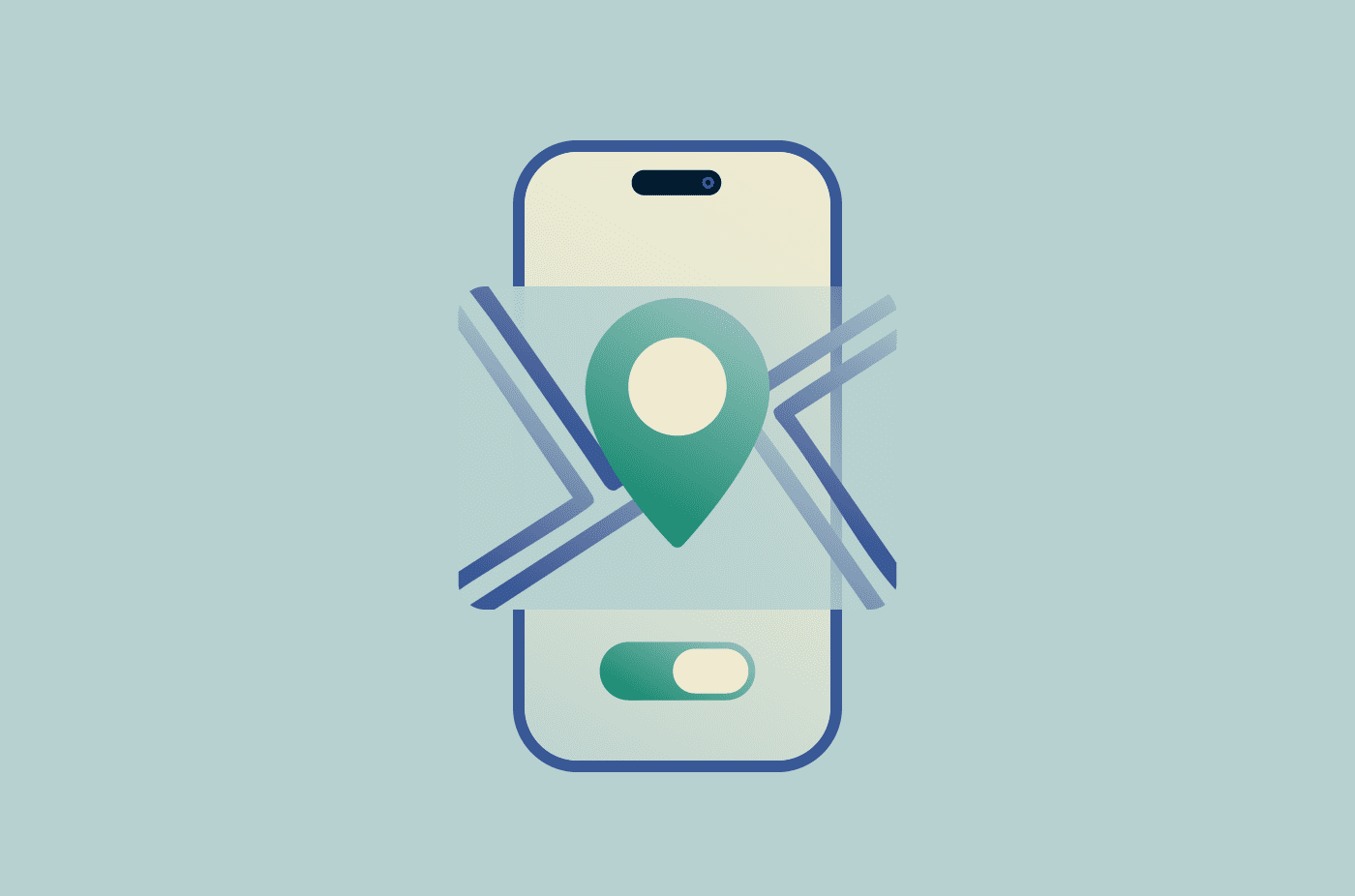
Precise Location is an iPhone setting that controls how accurately apps can see where you are. For apps that don't actually need your exact location, turning it off is one of the simplest ways to limit the level of location detail apps can access. This can help improve your privacy and potentially keep your personal data away from third parties.
What "Precise Location" on iPhone means
Precise Location is a per-app setting that controls whether an app can access your exact location. It's part of the Location Services system on iPhone that allows apps to access your location. This system uses a combination of GPS, Bluetooth, nearby Wi-Fi networks, and cellular towers to determine where you are. Apps can only access your location if you grant them permission.
When Precise Location is on, an app receives your specific location. When it's off, the app receives your approximate location instead, covering an area of roughly 10 square miles (16 km). That approximate area is large enough to identify your city or district.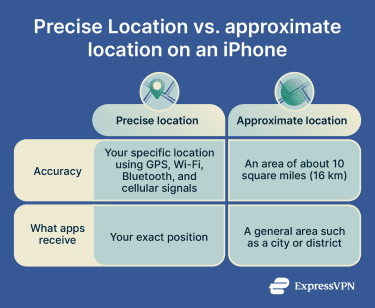
Apple introduced this toggle with iOS 14, giving users a finer level of control beyond simply allowing or denying location access altogether. Before that, granting location permission meant granting full location precision by default.
Learn more: How to change your location on an iPhone
Why some apps ask for Precise Location
Some apps rely on Precise Location to work as intended. For example, navigation apps rely on your specific location to provide turn-by-turn directions. This is why Apple Maps requests Precise Location. Ride-sharing and food delivery apps also rely on precision. A driver needs to find a specific pickup or drop-off point, not a general area of a city. The same applies to delivery tracking and apps that locate nearby places in real time.
That said, there are apps that ask for Precise Location for convenience rather than necessity. For example, though many weather apps may request Precise Location, knowing which city or district a user is in (which is what they get with access to an approximate location) is often enough to provide an accurate forecast.
The risks of sharing your Precise Location
Location data can be highly sensitive. If collected over time, it can be used to build a picture of a person's daily life. It can show where someone lives and works, the places they visit, and what events they attend. Even if the person doesn't share any of these details directly, this can often be inferred from location patterns over time.
Some apps may share location data with third parties through embedded software development kits (SDKs). If that happens, the data can reach brokers the user has never interacted with. Those brokers may sell it to advertisers, insurance companies, and other businesses, which can then use this data to build a profile of a user's habits and target them with ads or offers based on their location history.
Should you turn off Precise Location?
It depends. Whether you should turn off Precise Location depends on whether the app relies on it to function. A sensible default is to:
Keep Precise Location on for
- Maps and navigation apps: These apps need a precise location to provide accurate directions, adjust routes in real time, estimate arrival times, and ensure the device is on the right road or path. A rough location usually isn't enough for turn-by-turn guidance.
- Ride-hailing apps: These services work best when they can pinpoint the pickup spot as accurately as possible. Precise Location can help reduce confusion about where the rider is waiting, especially in busy areas, apartment complexes, airports, or places with multiple entrances.
- Food delivery and courier apps: Exact location can help a driver find the correct building, gate, entrance, or unit. This matters most in places where the street address alone may not be enough to guide someone to the right spot.
- Emergency and personal safety features: Some safety tools may work better when they can share a precise location with emergency contacts or responders. In situations where time matters, a precise location can help someone find the device holder quickly.
- Find My and similar device- or people-locating features: These tools are designed to show a device or person's location as accurately as possible. Precise Location makes them more useful when someone is trying to locate a lost phone, meet up with another person, or check whether a family member arrived safely.
- Apps built around real-time local activity: Some apps depend on precise positioning because their core function is tied to the immediate surroundings. This collection of tools can include parking apps, transit apps, location-based access tools, or apps that help a user interact with nearby places or services in real time.
Consider turning Precise Location off for
- Weather apps: Forecasts are based on city or district-level data. An approximate location is generally enough to get accurate local weather without sharing your exact position.
- Social media apps: Most social features that use location, such as tagging a place, finding nearby content, or surfacing local posts, work at a neighborhood or city level. An exact address adds little to the experience.
- News and content apps: Location is typically used to surface regional stories or local editions. A rough area is sufficient for this.
- Retail and coupon apps: Finding nearby stores or offers doesn't require pinpoint accuracy. Approximate location is usually enough to show relevant results within a reasonable distance.
- Fitness and step-tracking apps: Movement and activity tracking are typically based on motion sensors. General location, if needed at all, is sufficient for most fitness features.
What happens after you turn it off
When you turn Precise Location off, the app will continue to receive approximate location data instead, provided that it's still granted location data. Most apps will continue to work normally, especially apps that don't need your exact location, like social media or weather apps.
Note: Turning off Precise Location limits what kind of location data apps can collect going forward. It doesn't delete data that has already been shared.
How to turn off Precise Location on an iPhone
If you have iOS 14 or above, you can turn off Precise Location in Settings. Here's how to do that:
Turn off Precise Location for one app
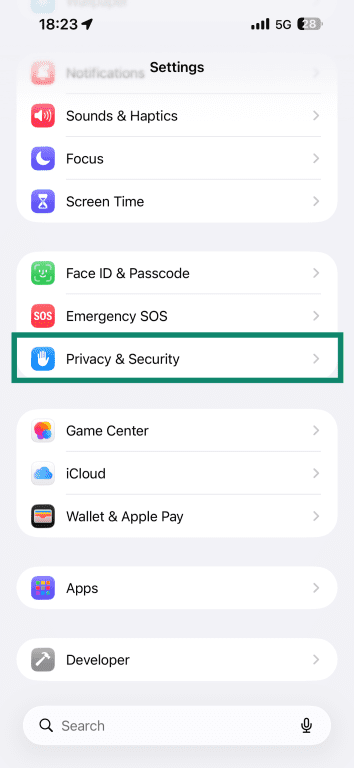
- Open Settings and tap Privacy & Security.
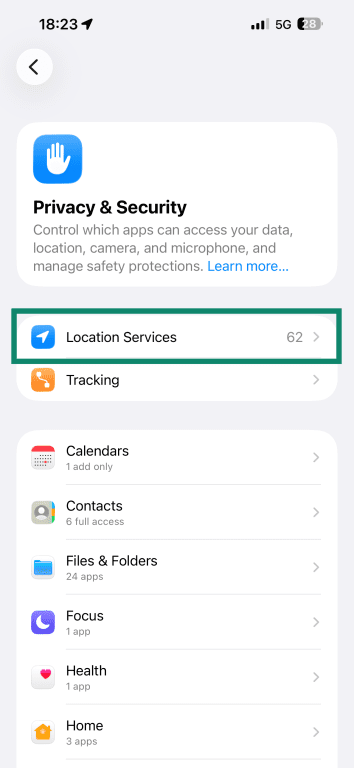
- Tap Location Services.
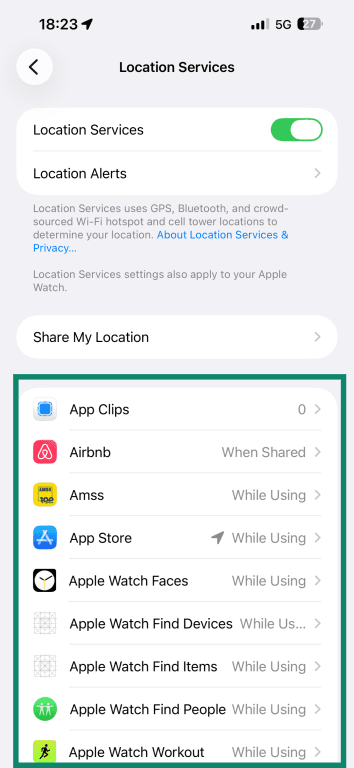
- Select the app you want to review.
- Turn Precise Location off.
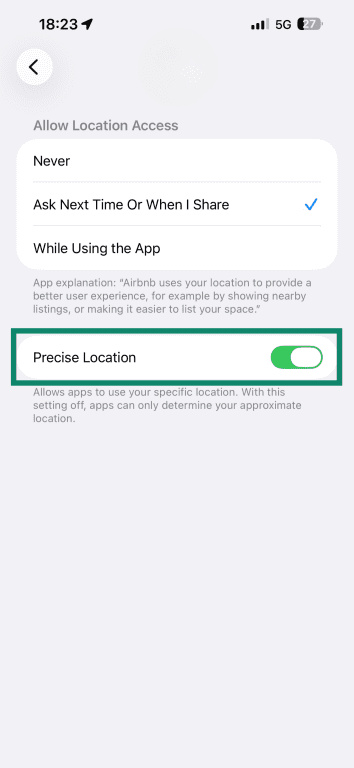
The app will now receive approximate location data when it accesses your location.
Turn off Precise Location for more apps
There is no master toggle to turn off the feature for all apps at once. The only way to manage Precise Location across apps is to go through them one by one. It is worth doing this at least once to see which apps were granted precise access and whether they actually need it.
- Go to Settings > Privacy & Security > Location Services.
- Tap each app to check whether Precise Location is on.
When a new app asks for location access
The first time an app requests location access, iOS shows a prompt that covers two things at once. The main options control when the app can access your location:
- Allow Once: Grants access for that session only
- Allow While Using App: Grants access whenever the app is open
- Don't Allow: Blocks location access entirely
This prompt also includes a Precise Location option, which is on by default.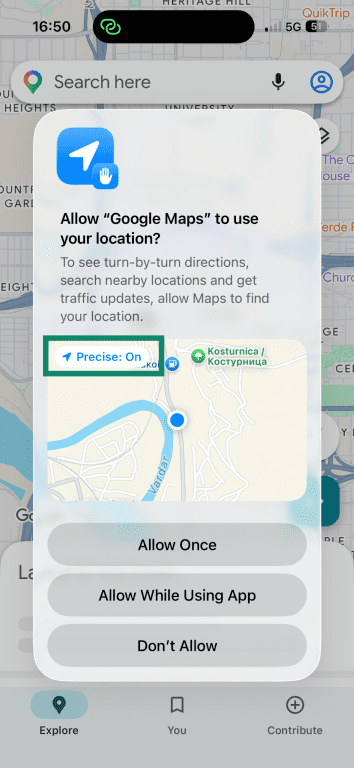
You can turn it off before granting access by tapping on it.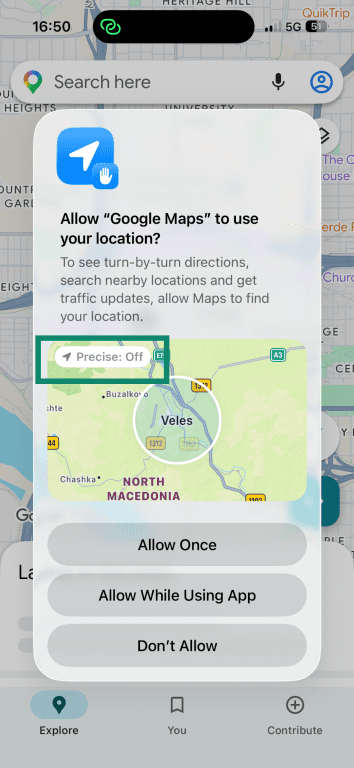
If you miss it, you can always change it later in Settings > Privacy & Security > Location Services.
What is the Limit Precise Location option?
Limit Precise Location is a separate setting from the Precise Location option on iPhones that addresses a different privacy concern: what your cellular carrier can see.
Every time your iPhone connects to a cell tower, it shares information with the network. Carriers use this information to determine your location through the cellular network itself.
Apple introduced the Limit Precise Location in iOS 26.3 as an additional privacy control. When turned on, it reduces the precision of location data your iPhone shares with your carrier. This setting is only available on iPhone Air, iPhone 16e, iPhone 17e, and iPad Pro (M5) and only with supported carriers.
Is it safe to turn it on?
According to Apple, the setting does not affect signal quality, doesn't impact location data shared with apps, and doesn't reduce the precision of location shared with emergency responders during a 911 call.
How to turn Limit Precise Location on
- Open Settings.
- Tap Cellular.
- Tap Cellular Data Options.
- Scroll down to Limit Precise Location and toggle it on. You may be prompted to restart your device.
FAQ
Can I turn off Precise Location without disabling Location Services?
How do I know which apps are using my location?
Will apps still work if Precise Location is off?
Does turning off Precise Location improve privacy?
Why does my iPhone keep asking for location access?