




Need a VPN for Windows?
Get ExpressVPN Now
Love ExpressVPN? Want a free month?
Refer a Friend NowThis tutorial will show you how to share your VPN connection from your Windows 10 or Windows 11 device. This will allow your other devices to use the VPN connection shared from your Windows device.
Before you begin, make sure to set up the ExpressVPN app on your Windows device. Do not connect to the app when setting up the virtual router or mobile hotspot.
Jump to…
(Windows 10 & 11)Set up your mobile hotspot
Connect to the ExpressVPN app
Connect devices to the VPN connection
Disable the VPN connection
Set up your mobile hotspot
Windows 11
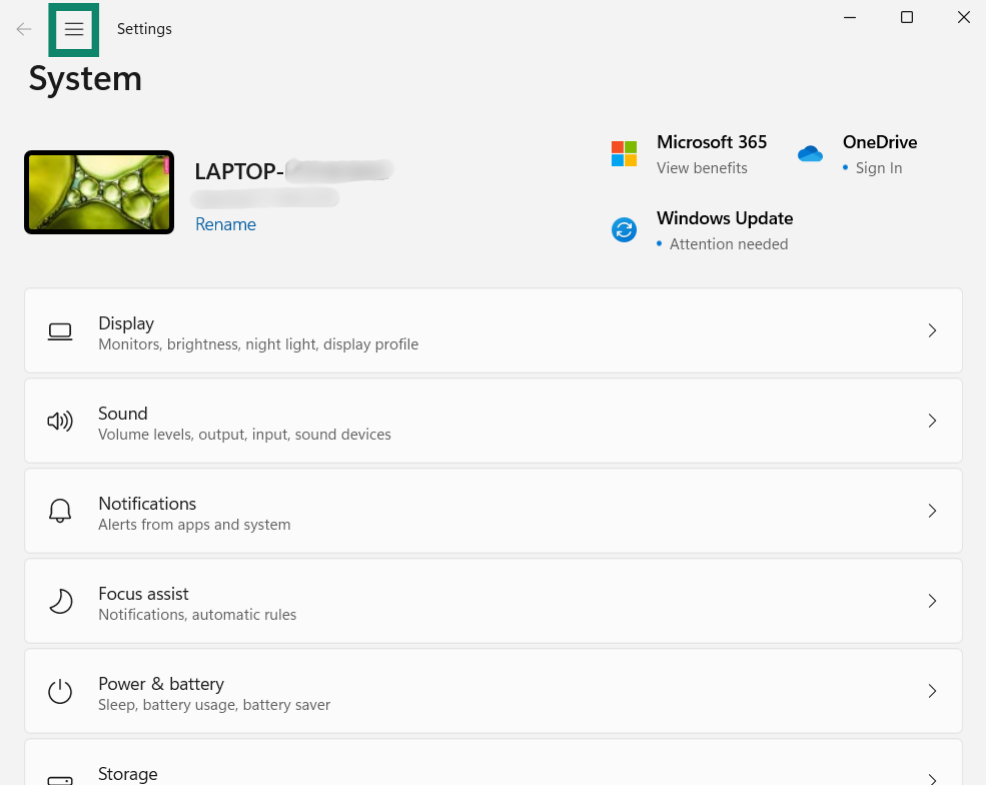
- On your Windows device, click then Settings.


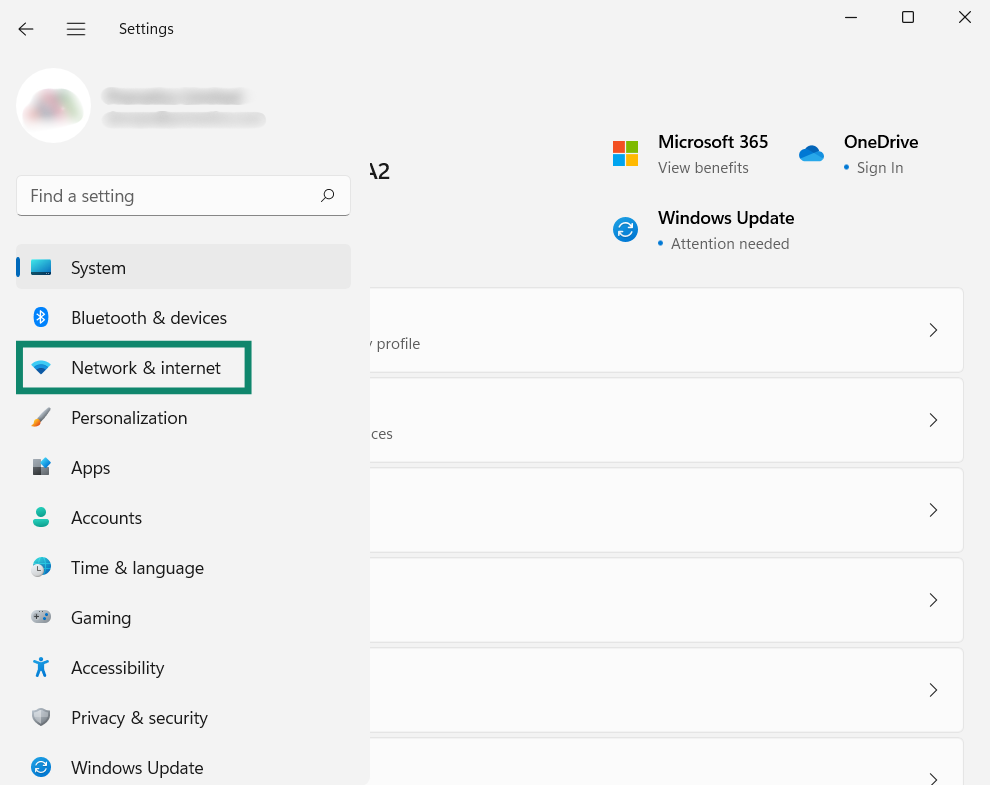
- In the left sidebar, click Network & internet.

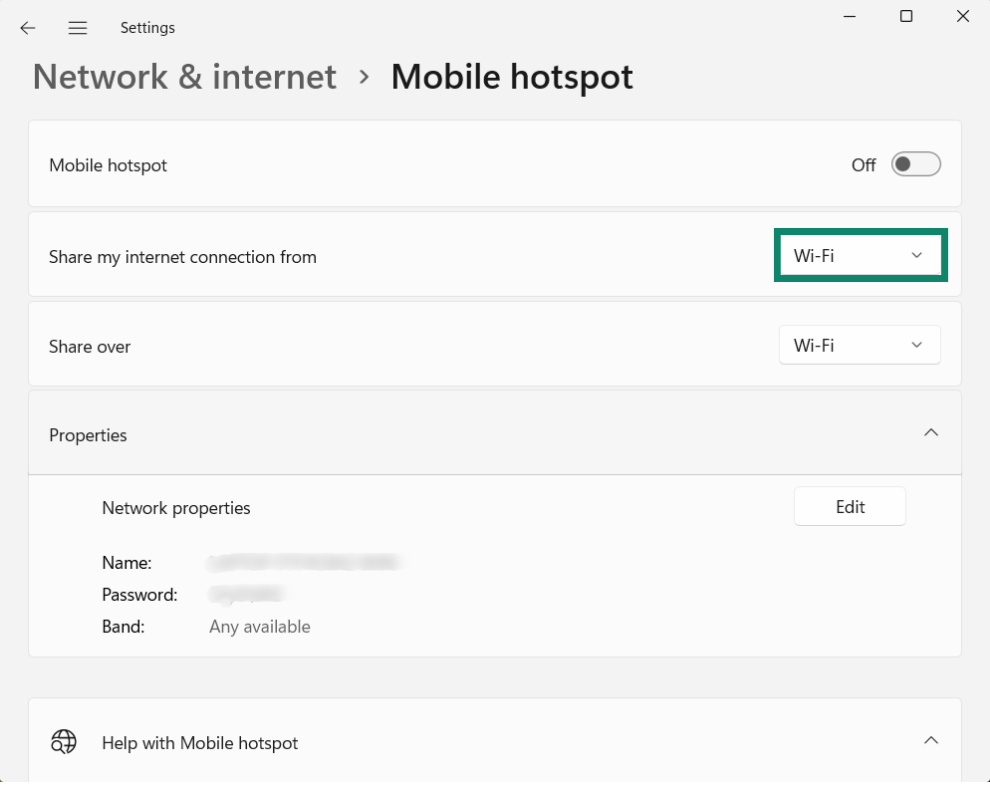
- Next to Share my internet connection from, select Wi-Fi.

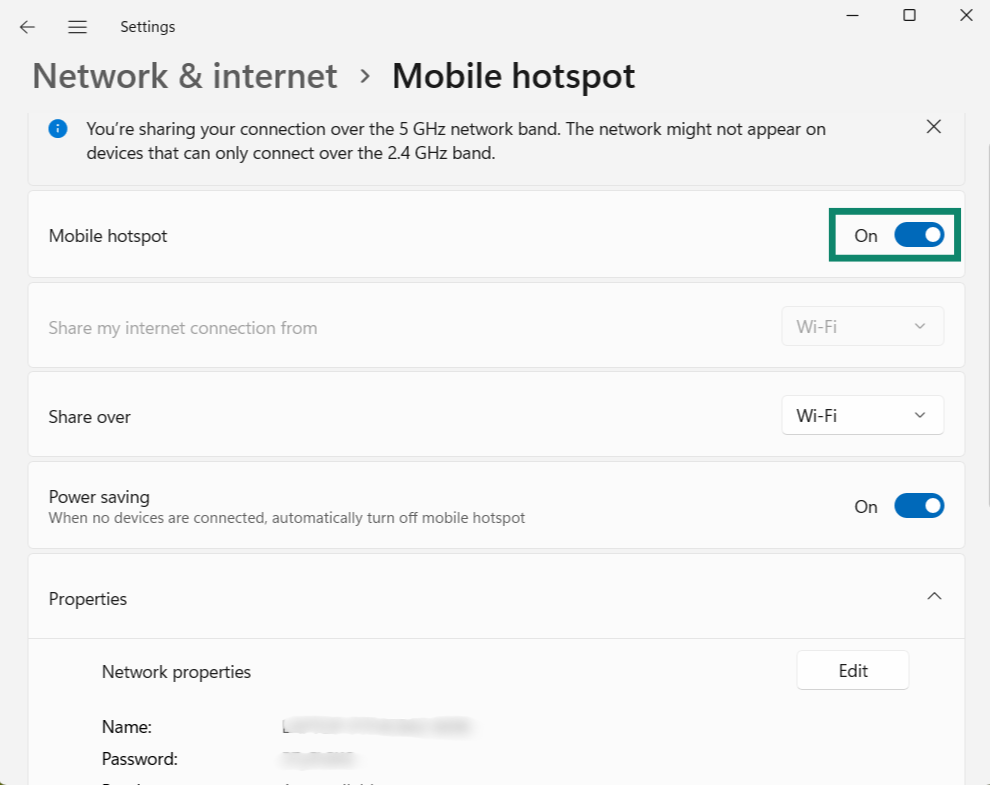
- Then toggle Mobile hotspot on.

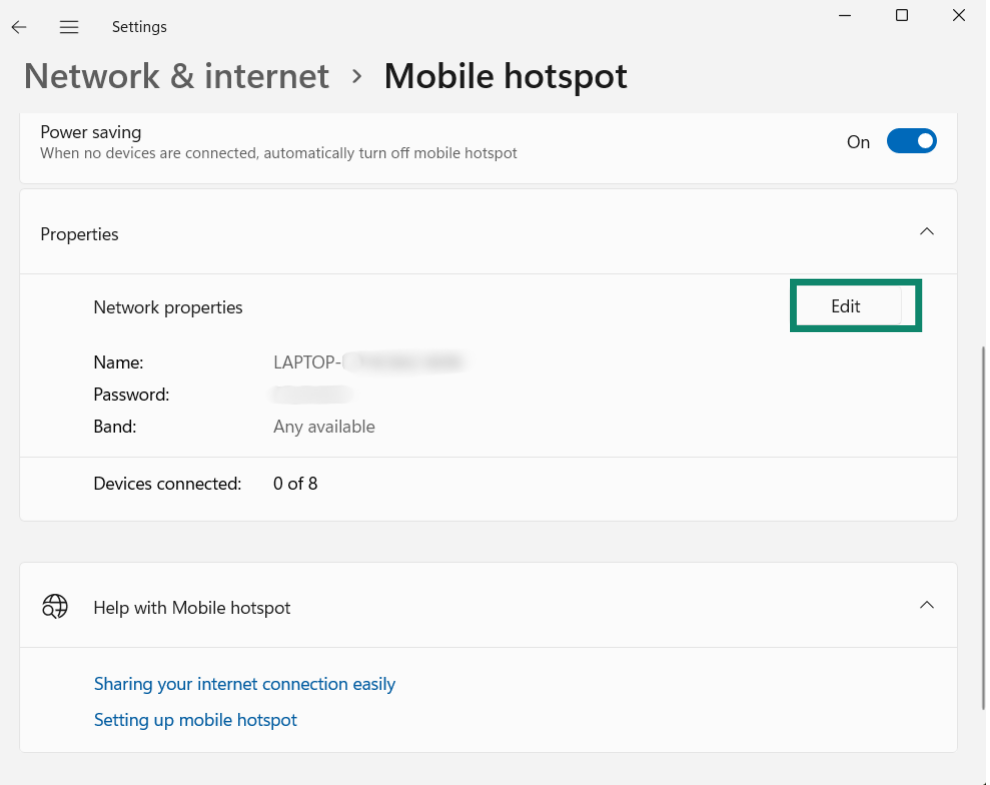
- To set a different network name and password for the mobile hotspot, click Properties > Edit. Enter your preferred Network name and Network password, then click Save.

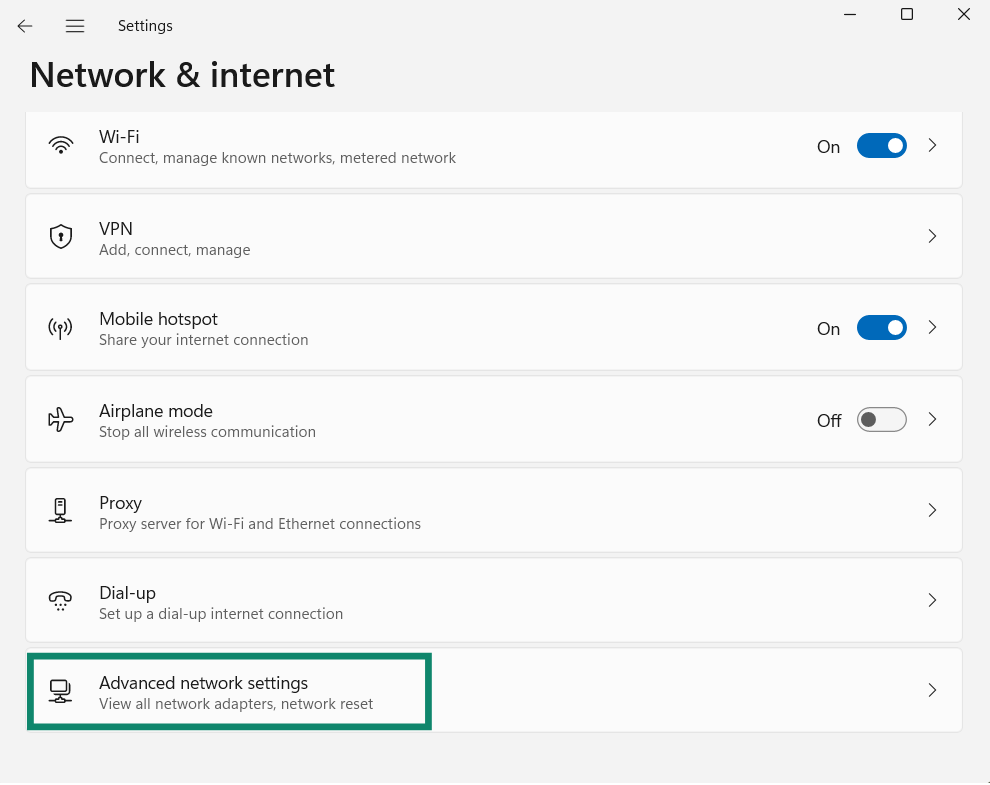
- Go back to the main Network & internet page, then click Advanced network settings.

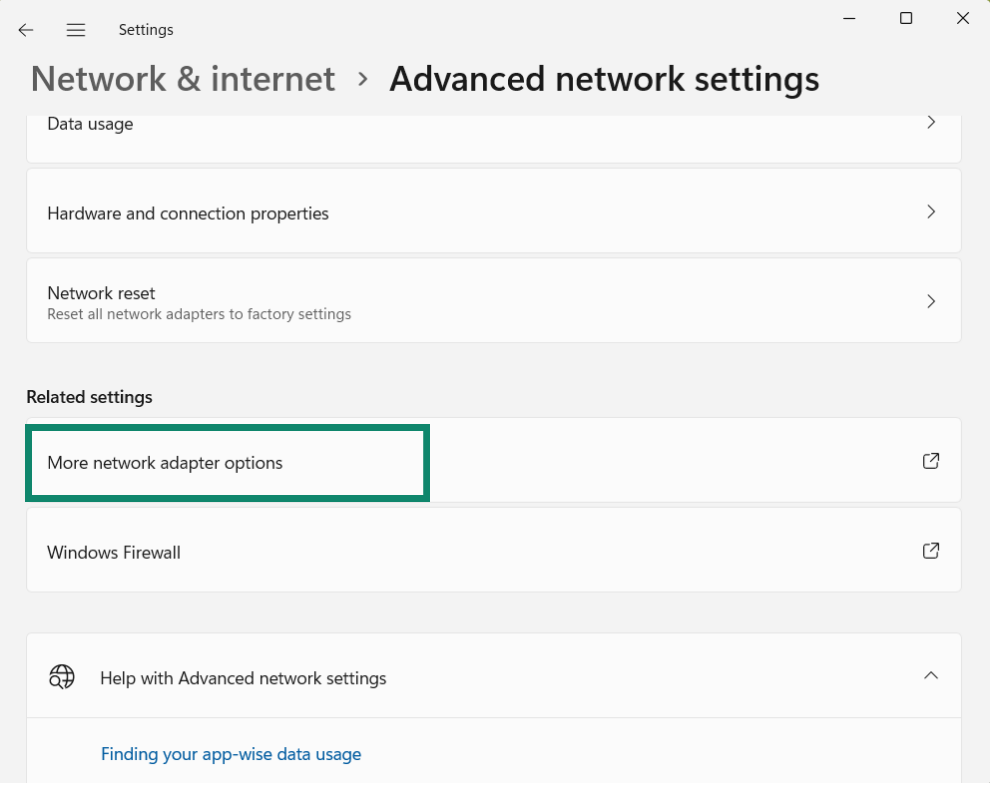
- Scroll down to Related settings, and click More network adapter options.

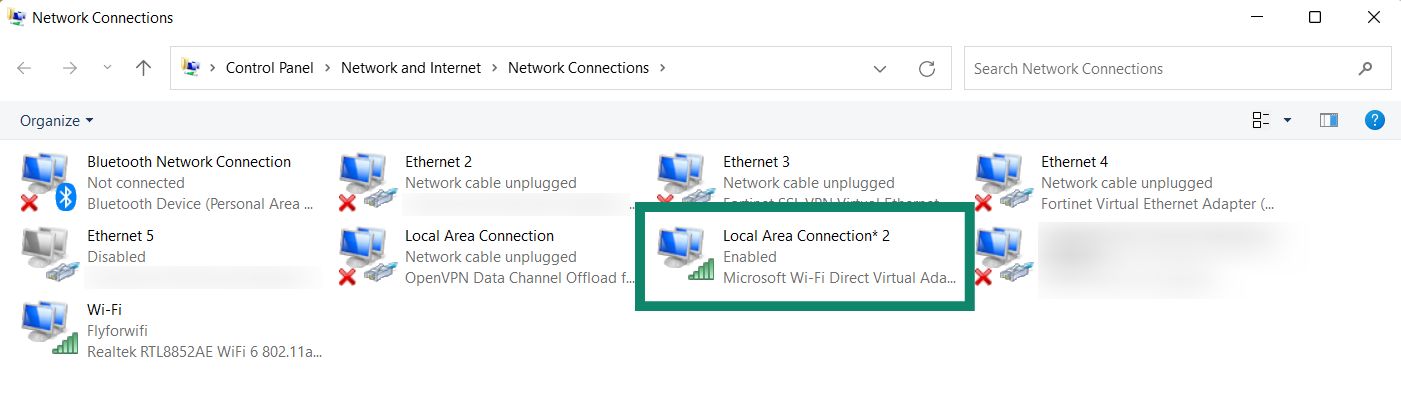
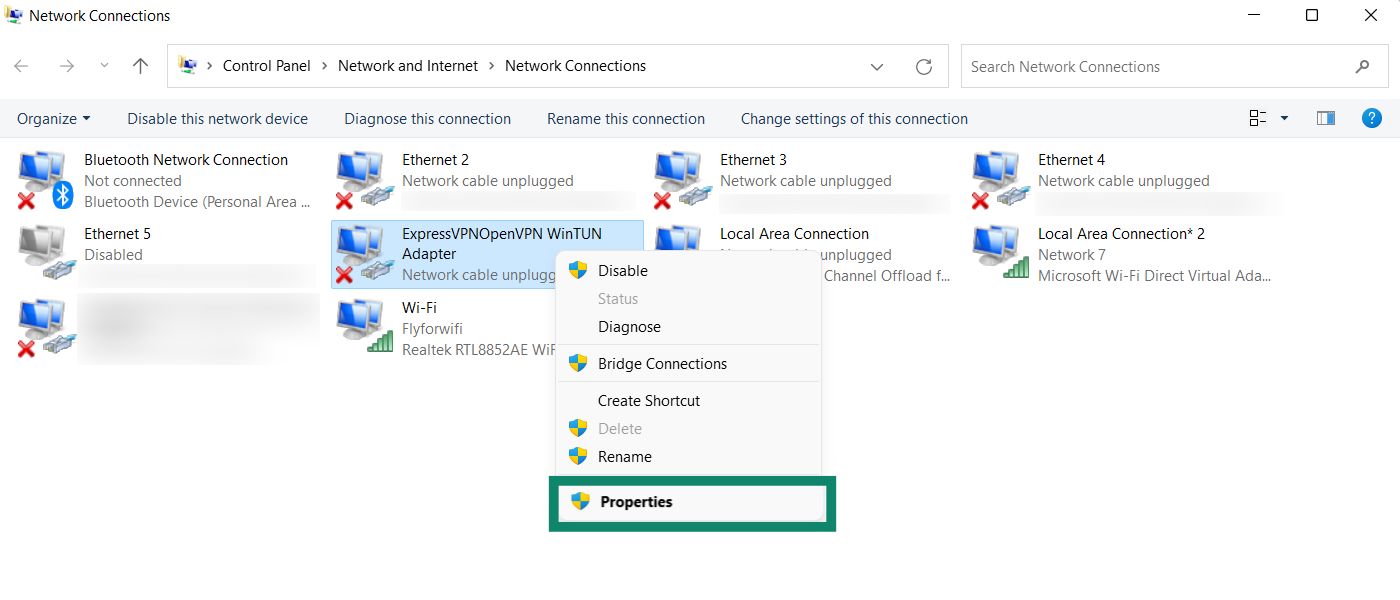
- In the Network Connections window, you will see a network called Local Area Connection* or similar. This is the new mobile hotspot you just created.


- Find a network with the description ExpressVPN WinTUN Adapter. Right-click it and select Properties.


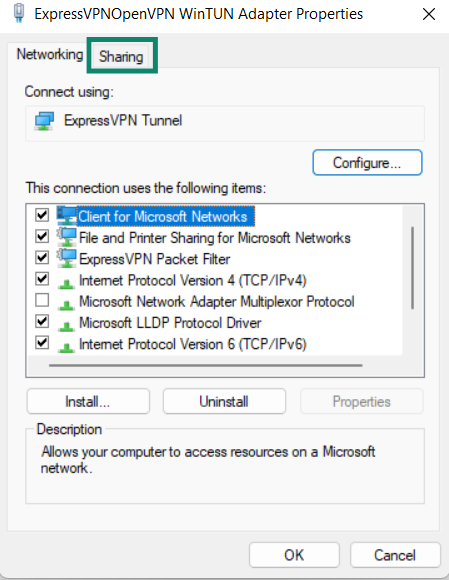
- At the top, click the Sharing tab.


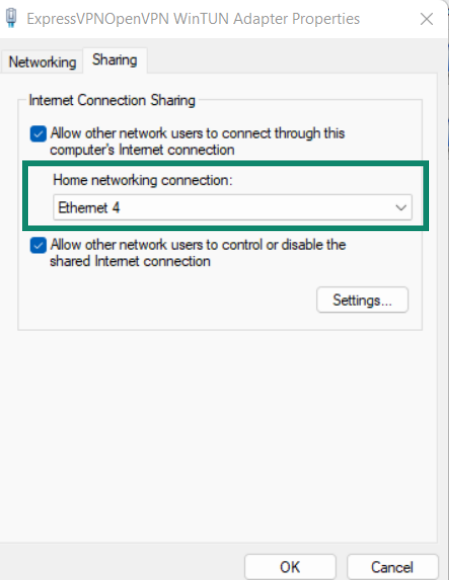
- Check the box for Allow other network users to connect through this computer’s Internet connection.

- Under Home networking connection, select the name of the mobile hotspot (Local Area Connection*) you just created. Click OK.
Need help? Contact the ExpressVPN Support Team for immediate assistance.
Windows 10
- On your Windows device, click . Click Settings > Network & Internet.
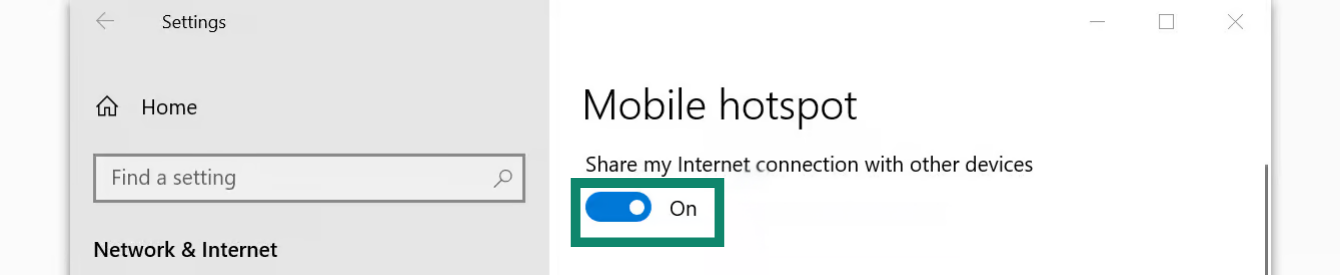
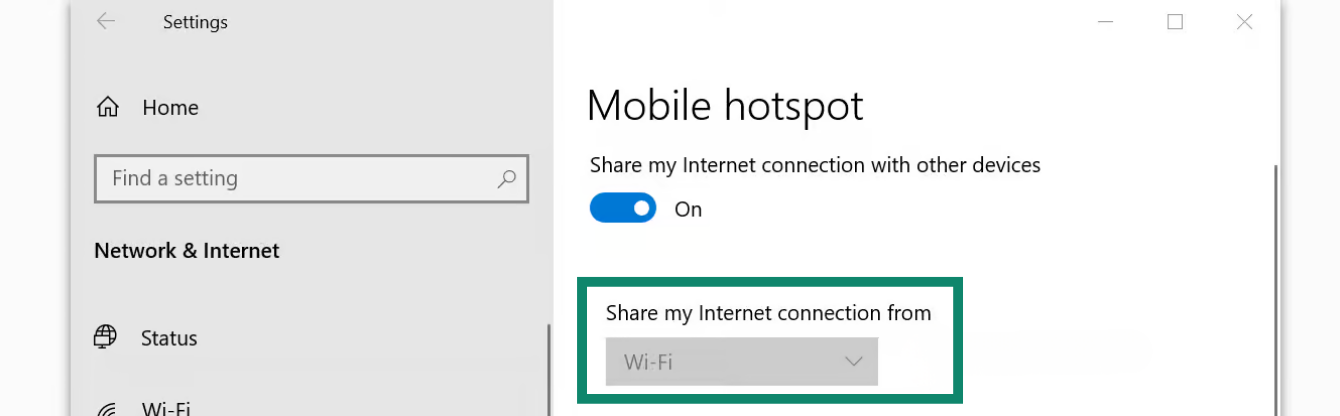
- Click Mobile hotspot. Toggle Mobile hotspot on.


- Under Share my Internet connection from, select Wi-Fi.


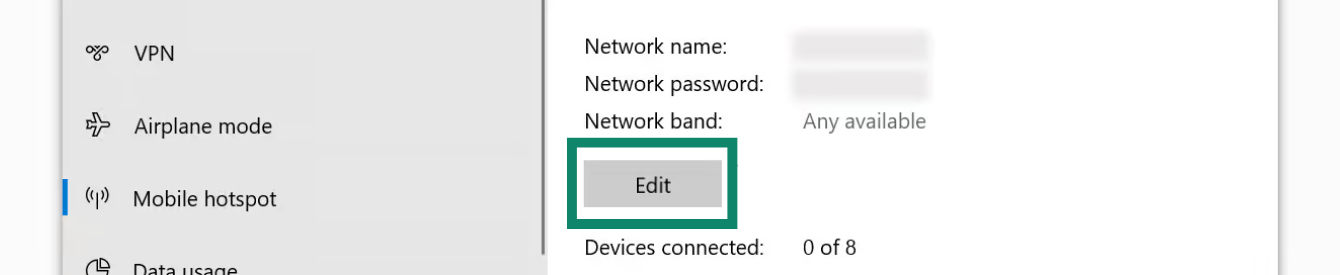
- To set a different network name and password for the mobile hotspot, click Edit. Enter your preferred Network name and Network password, then click Save.

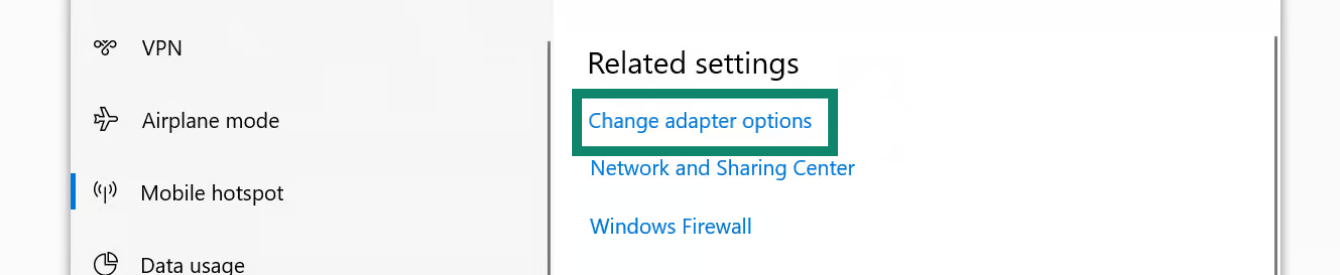
- Under Related settings, click Change adapter options.

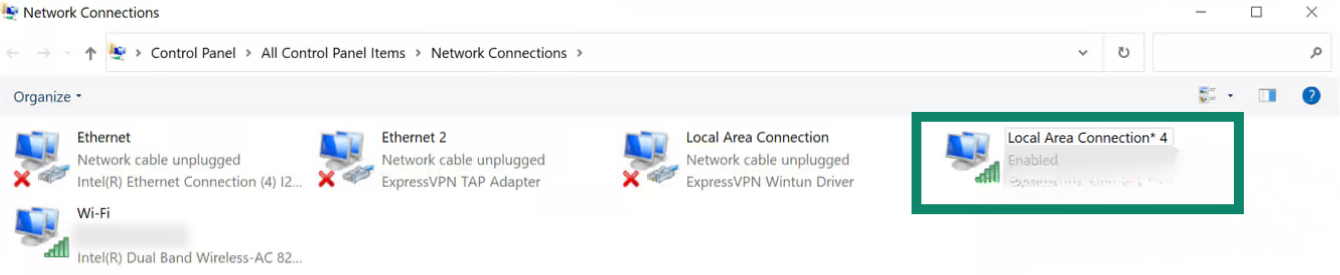
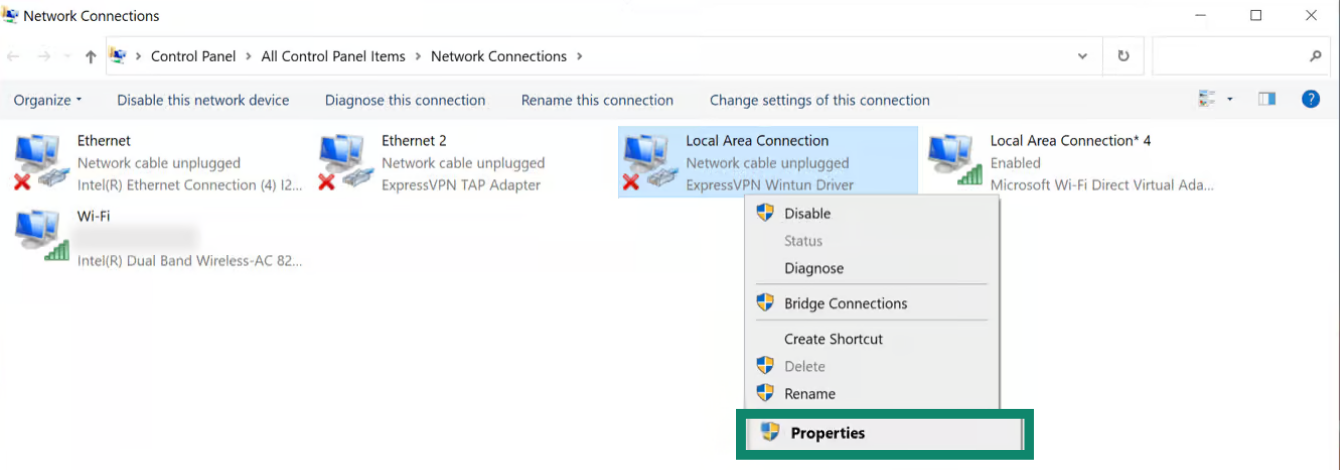
- In the Network Connections window, you will see a network called Local Area Connection*. This is the new mobile hotspot you just created.

- Find a network with the description ExpressVPN Wintun Driver. Right-click it and select Properties.


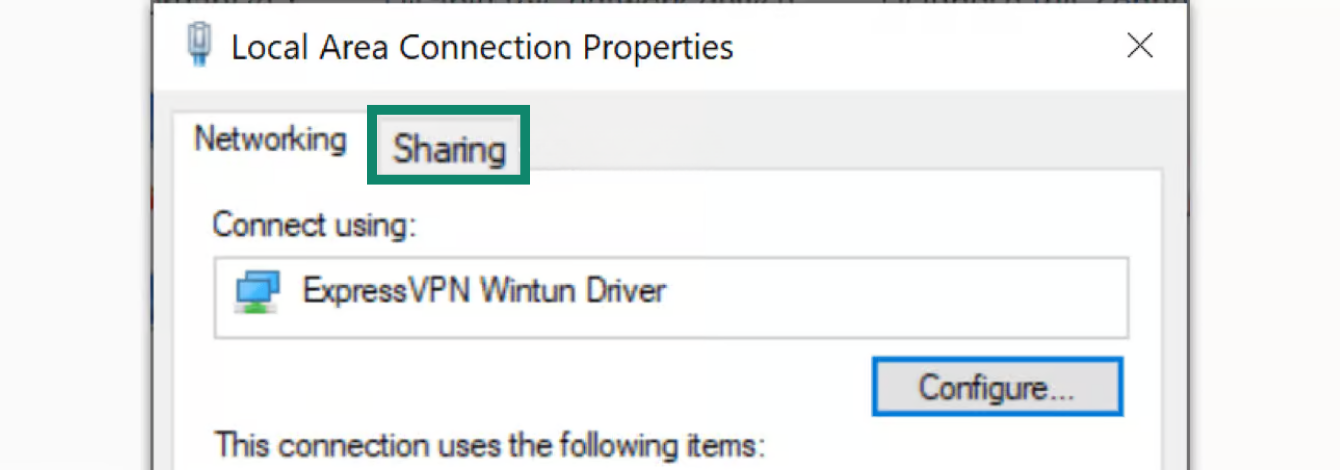
- At the top, click the Sharing tab.

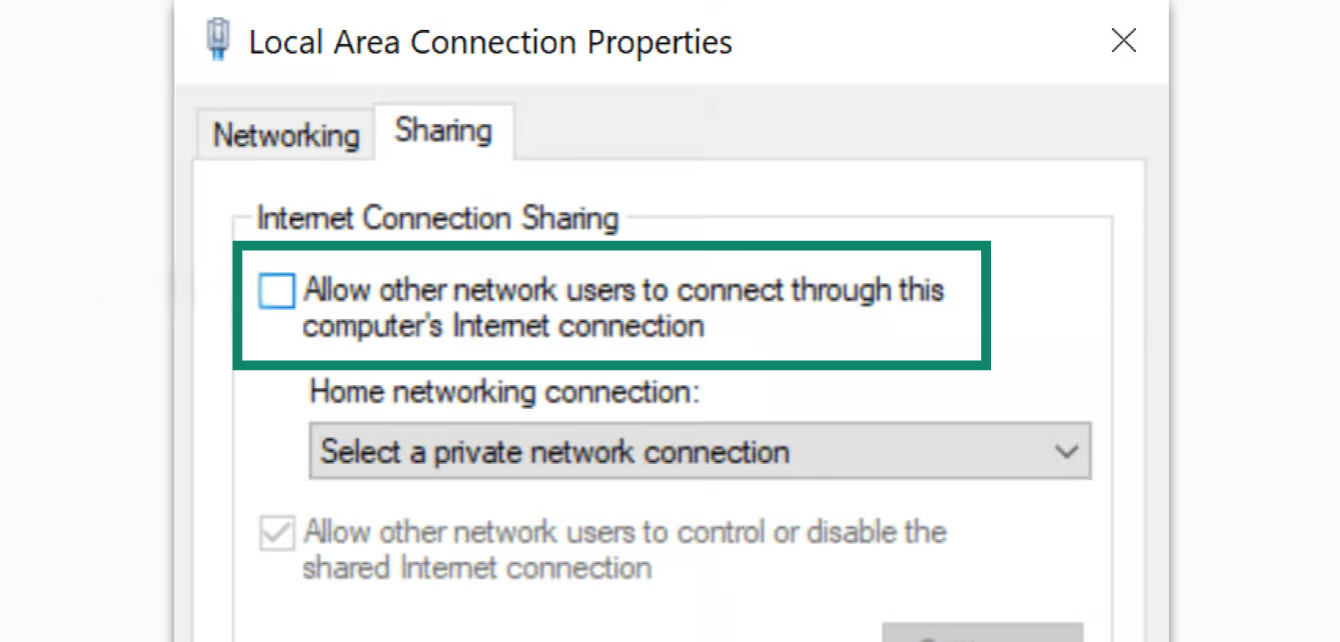
- Check the box for Allow other network users to connect through this computer’s Internet connection.


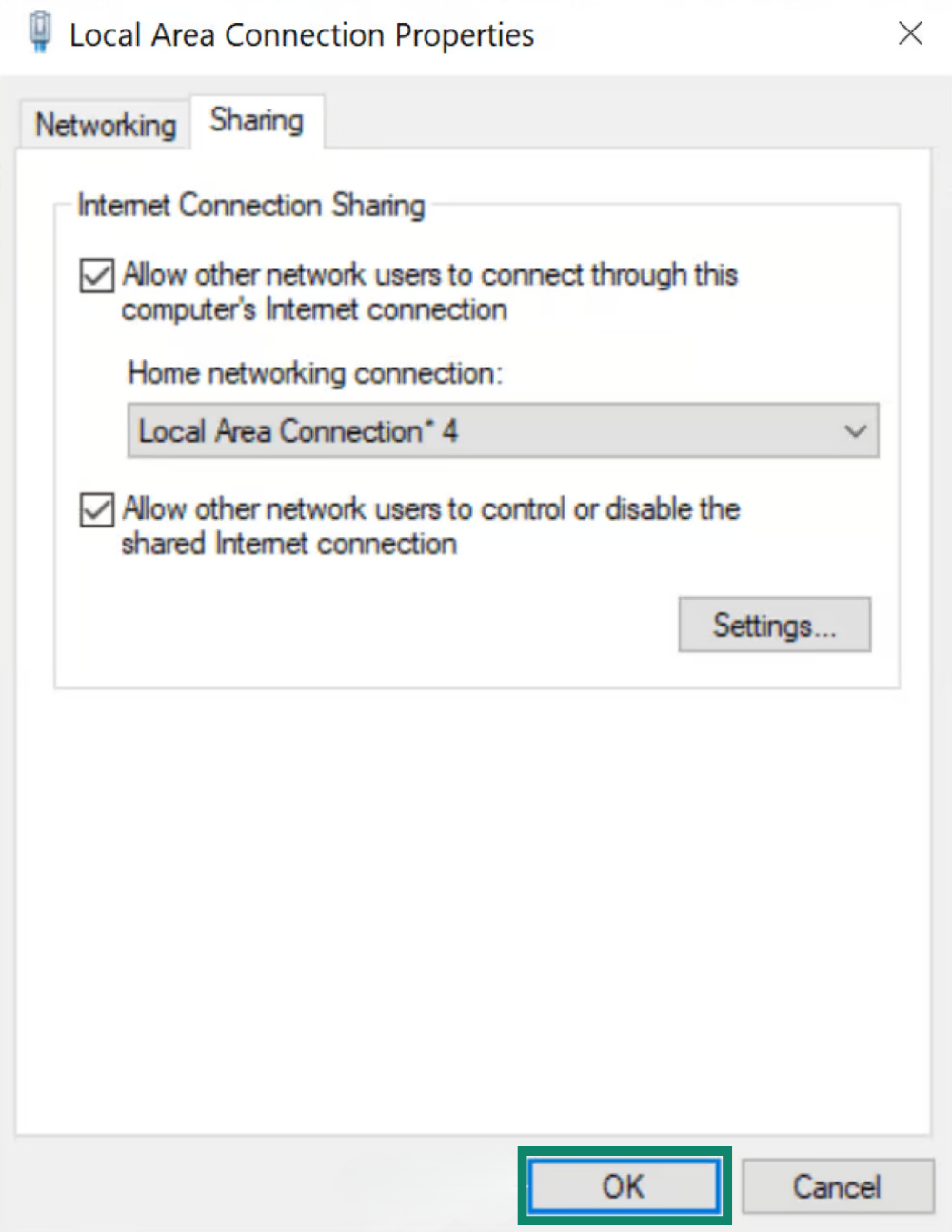
- Under Home networking connection, select the name of the mobile hotspot (Local Area Connection*) you just created. Click OK.


- Proceed to connect to the ExpressVPN app.
Need help? Contact the ExpressVPN Support Team for immediate assistance.
Connect to the ExpressVPN app
- On your Windows device, open the ExpressVPN app.
- Connect to a VPN server location of your choice.
Proceed to connect your devices to the VPN connection.
Need help? Contact the ExpressVPN Support Team for immediate assistance.
Connect devices to the VPN connection
- On a separate device, go to your Wi-Fi settings.
- Find the name of the network you created earlier and enter the password.
- To verify you are connected, you can use ExpressVPN’s IP Address Checker to check your IP address and location. They should match the IP address and location shown on the ExpressVPN app.
Need help? Contact the ExpressVPN Support Team for immediate assistance.
Disable the VPN connection
- On your Windows device, click

 .
. - Click Settings > Network & Internet > Mobile hotspot.
- Toggle Mobile hotspot off.
Need help? Contact the ExpressVPN Support Team for immediate assistance.