



A proxy server is an intermediary between your computer and the internet, often used to hide your real location and allow you to access websites that would otherwise be blocked. However, not all proxies offer the same privacy protections as a VPN. When you’re using ExpressVPN, you don’t need to run an additional proxy.
If you’re having trouble connecting to the internet, it’s possible that you are using a proxy server.
For instructions on how to disable your proxy in Chrome, please refer to the section appropriate to your computer.
I am on…
Disable proxy for Chrome on Windows
Windows 11
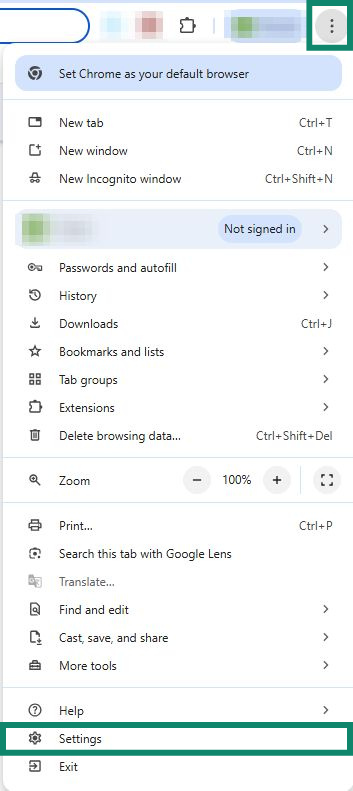
- Click the three dots

 in the top-right corner in the browser toolbar and select Settings.

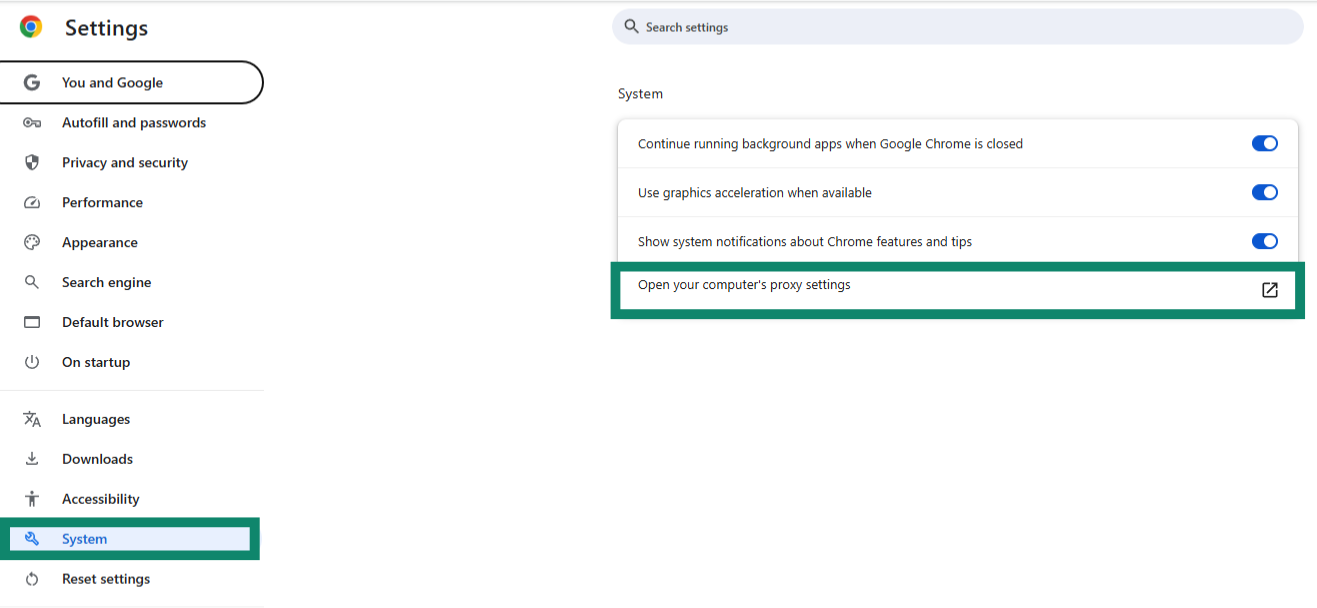
- On the left-hand side of the screen, click System, then Open your computer’s proxy settings. This will open the Proxy window in the Network & internet settings.


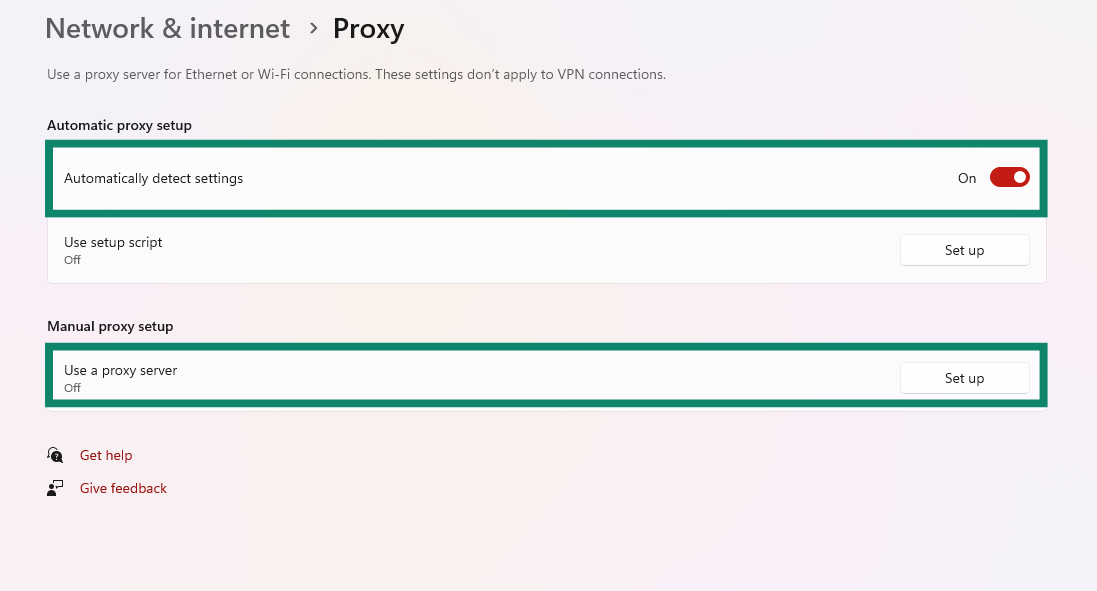
- Toggle Automatically detect settings off and make sure the Use a proxy server setting under Manual proxy settings is set to Off.


Need help? Contact the ExpressVPN Support Team for immediate assistance.
Disable proxy for Chrome on Mac
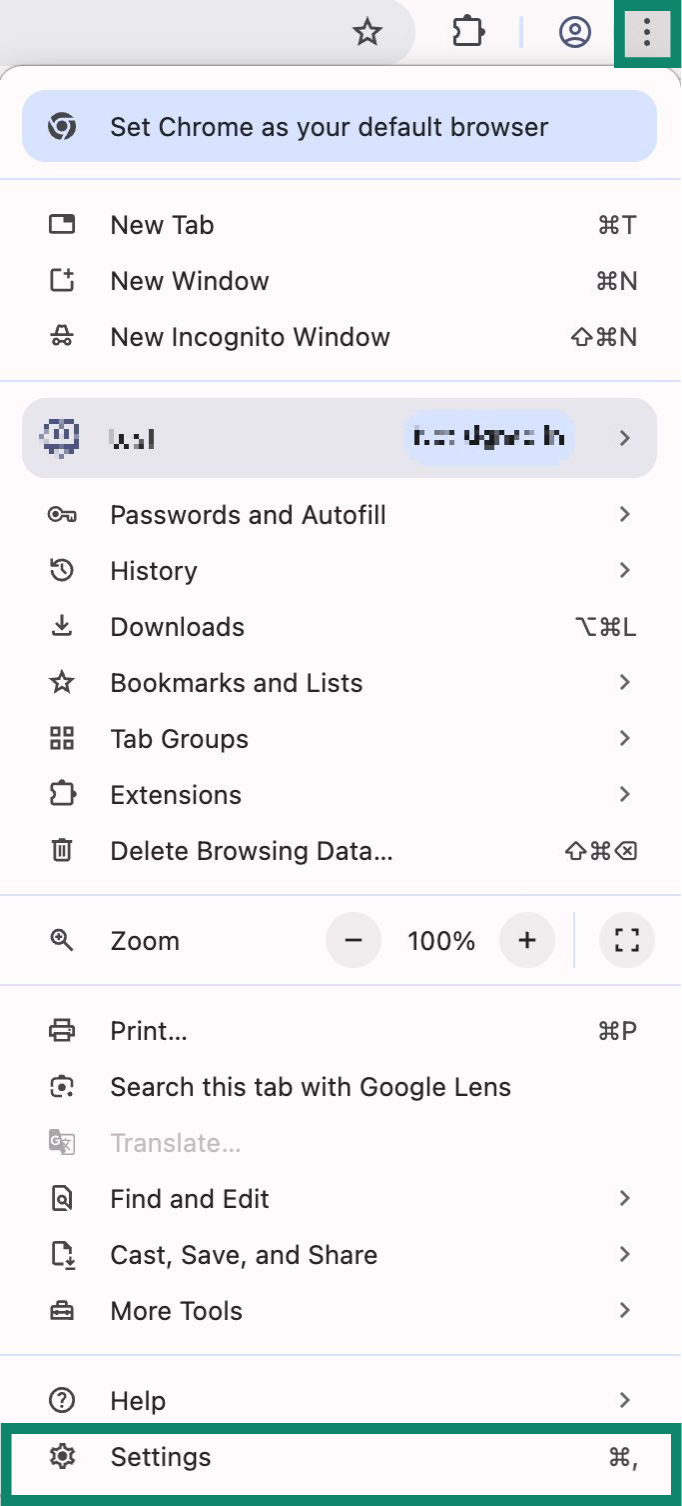
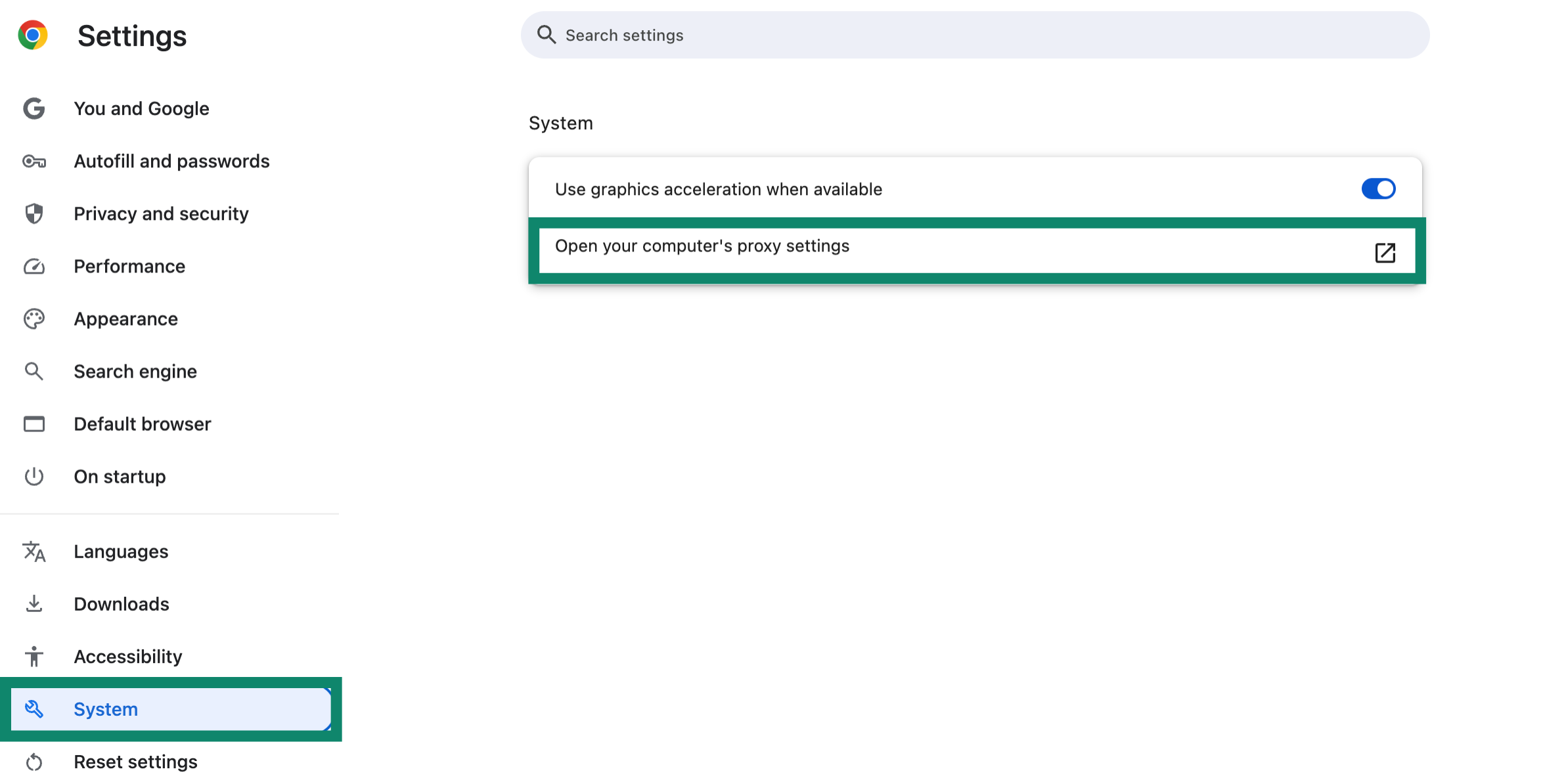
- Click the three dotsin the top-right corner in the browser toolbar and select Settings.


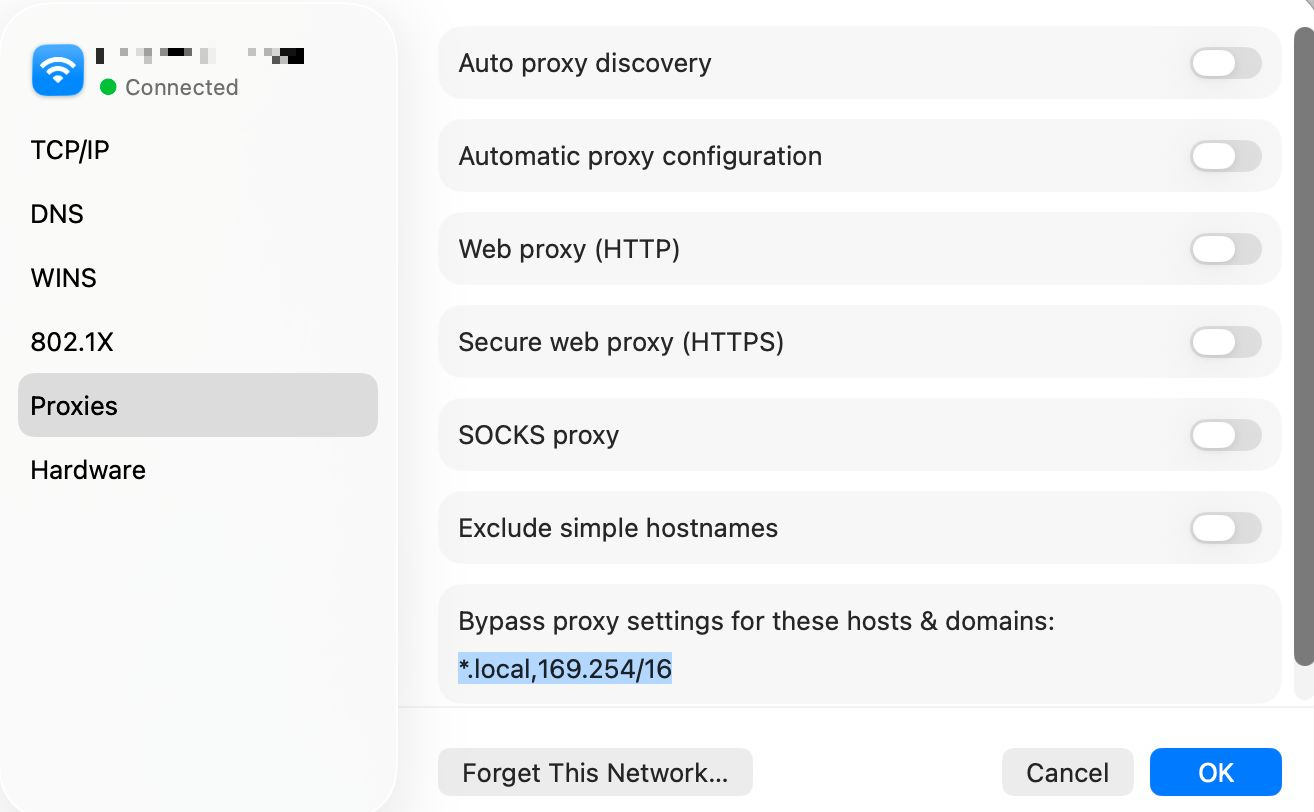
- On the left-hand side of the screen, click System, and then click Open your computer’s proxy settings. This will open the Proxy tab in the network settings.


- Toggle every protocol off and click OK. You can close the settings windows now.


Need help? Contact the ExpressVPN Support Team for immediate assistance.
Disable proxy for Chrome on Linux
Preliminary check
If you suspect a system-wide proxy setting is preventing you from browsing the internet, try disabling the proxy settings in Chrome.
1. Go to Terminal, then enter the following:
google-chrome --no-proxy-server
2. Launch Chrome to see if you can access the internet.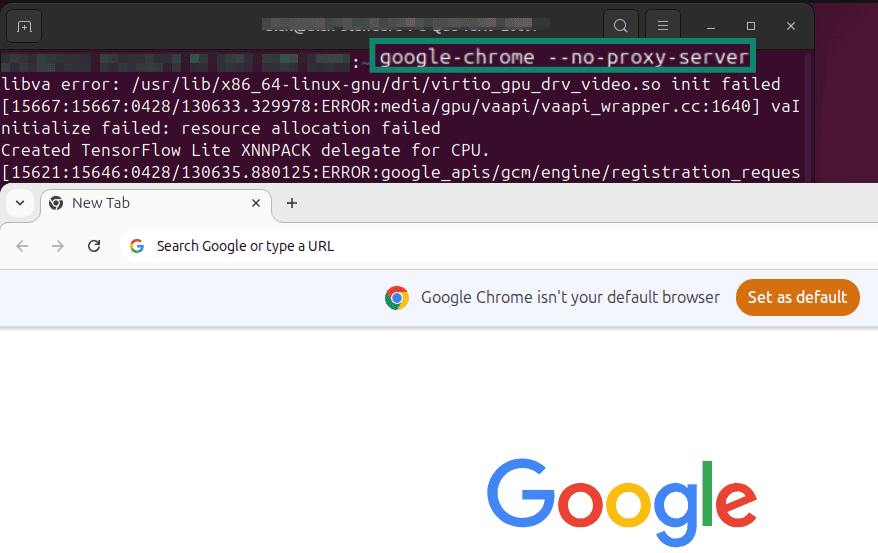
If you are able to access the internet again, follow these steps to disable the proxy on Chrome permanently or disable your global proxy settings.
Disable proxy settings on Chrome
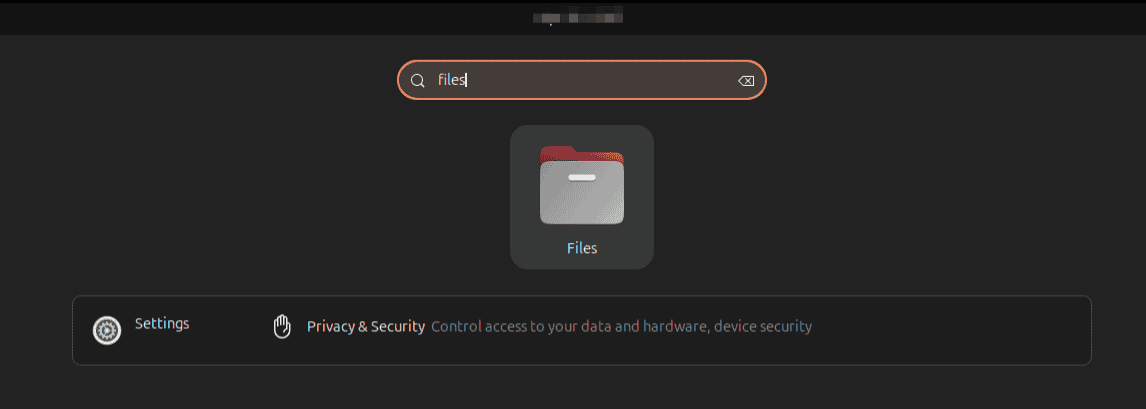
- On your desktop search bar, type “Files.”
- Select Files.

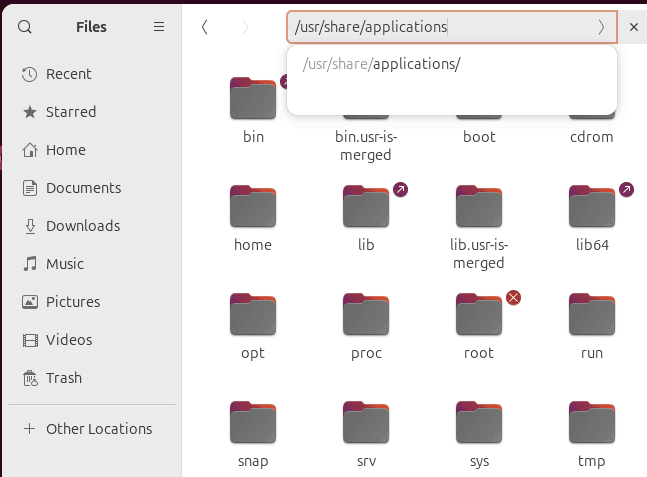
- In the Files search bar, type in “/usr/share/applications” and press Enter.
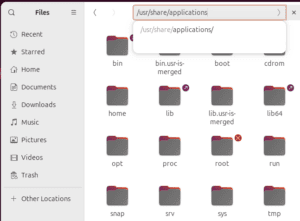

- Locate com.google-chrome.desktop, then copy and paste it to your desktop.
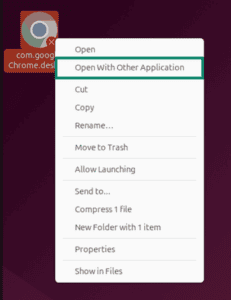
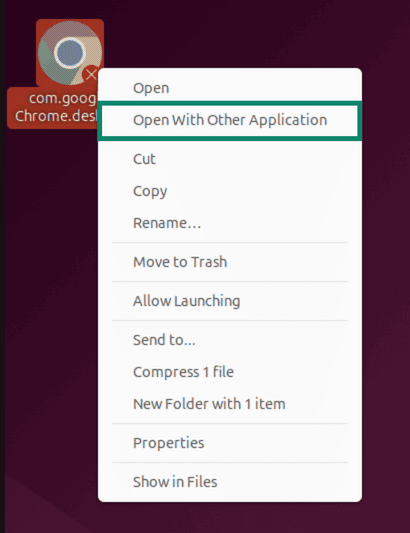
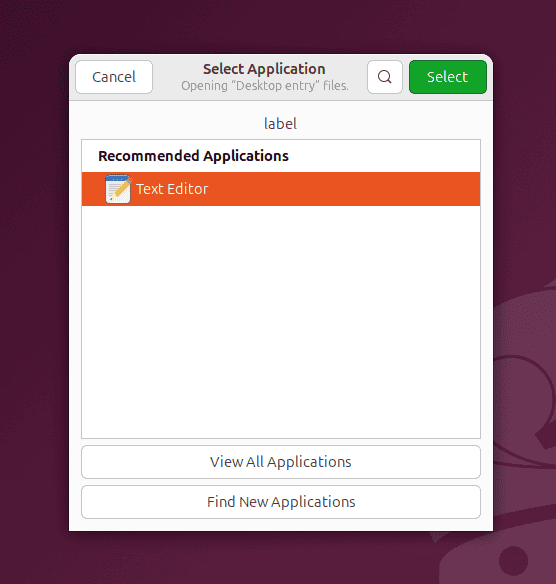
- Right-click com.google-chrome.desktop, then click Open With Other Application.

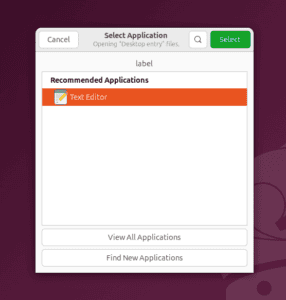
- Select Text Editor, and then click Open.

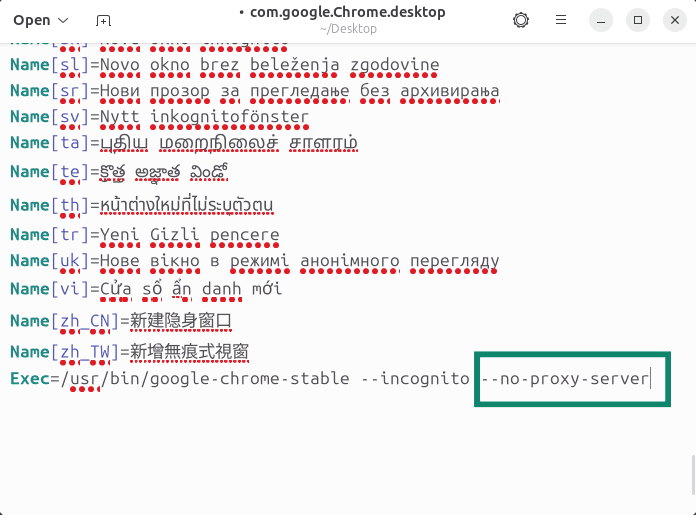
- Scroll to the bottom, then add the following to the line that starts with Exec:–no-proxy-server
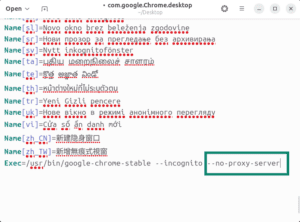

- Save the file.
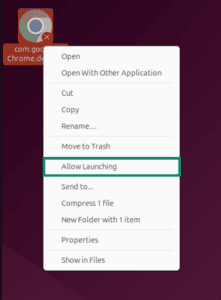
- Right-click com.google-chrome.desktop, then select Allow Launching.

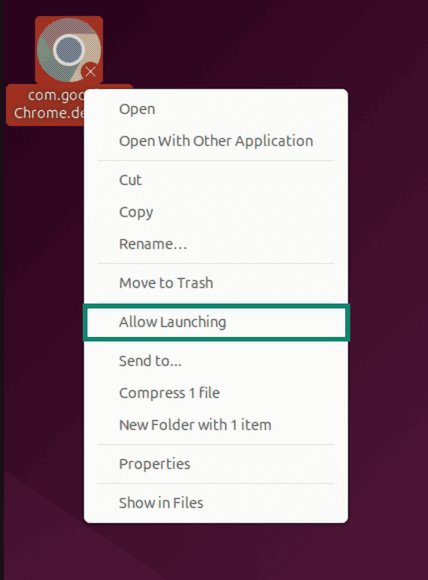
You should be able to launch Google Chrome as normal.
Disable global proxy settings
Alternatively, you can disable your global proxy settings.
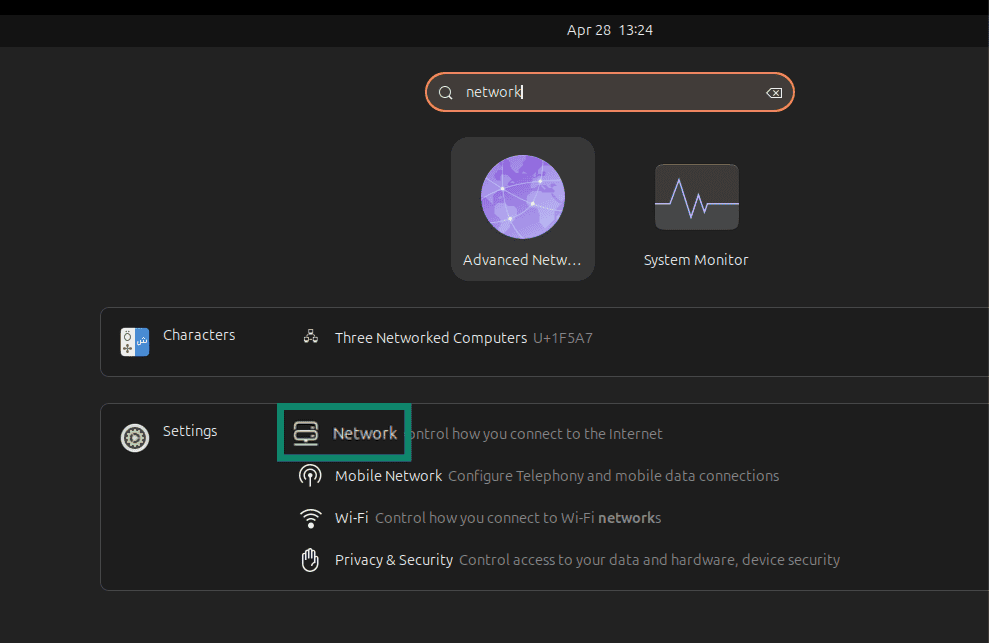
- On your desktop search bar, type “Network.”
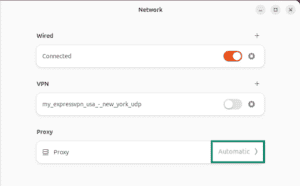
- Select Network.
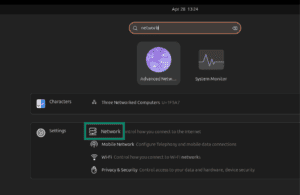

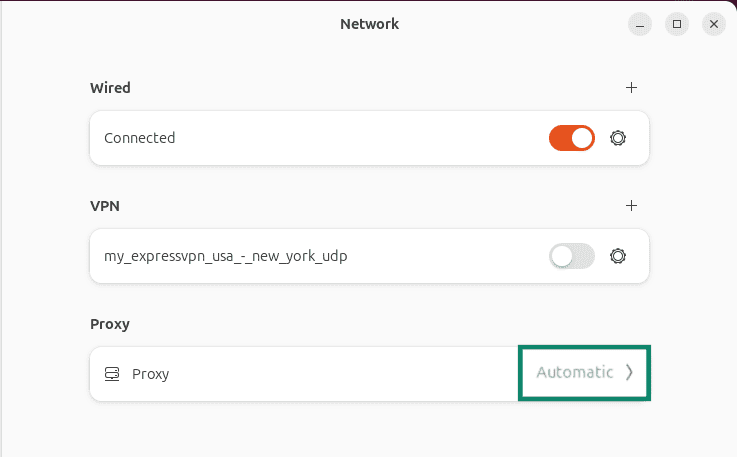
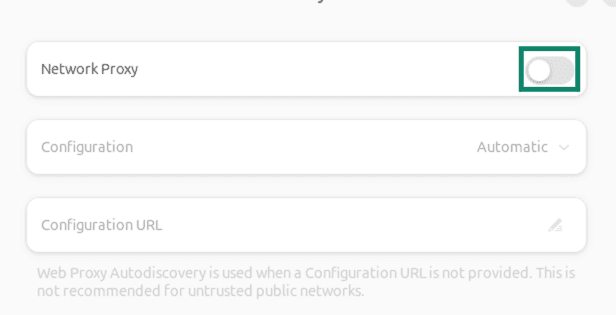
- Select Network Proxy.

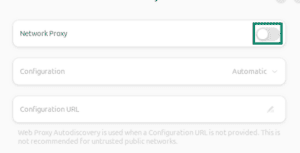
- Toggle Network Proxy off.

- Close the window.
Need help? Contact the ExpressVPN Support Team for immediate assistance.
Further Issues?
If you have other issues, including not being able to access certain websites and services, contact the ExpressVPN Support Team for immediate assistance.