




Need a VPN or DNS for your device?
Get ExpressVPN NowOne ExpressVPN account. All devices.
Get Apps for FreeThis guide outlines how to delete your ExpressVPN account. If you want to stop using ExpressVPN but keep your account, learn how to cancel your subscription here.
Note: Deleting your account is permanent and cannot be undone; you won’t be able to log in or recover the account once the request has been processed. Once deleted, you will lose access to all associated services and account data. If your subscription is active at the time of deletion, deleting the account will also stop future renewals. Before proceeding, make sure you no longer need access to the service.
There are two ways to delete your ExpressVPN account:
Option 1: Delete via the ExpressVPN+ portal
Desktop instructions
Follow these instructions if you are on a desktop device such as a Windows PC or Mac.
You can request to delete your account on the ExpressVPN website. To do so:
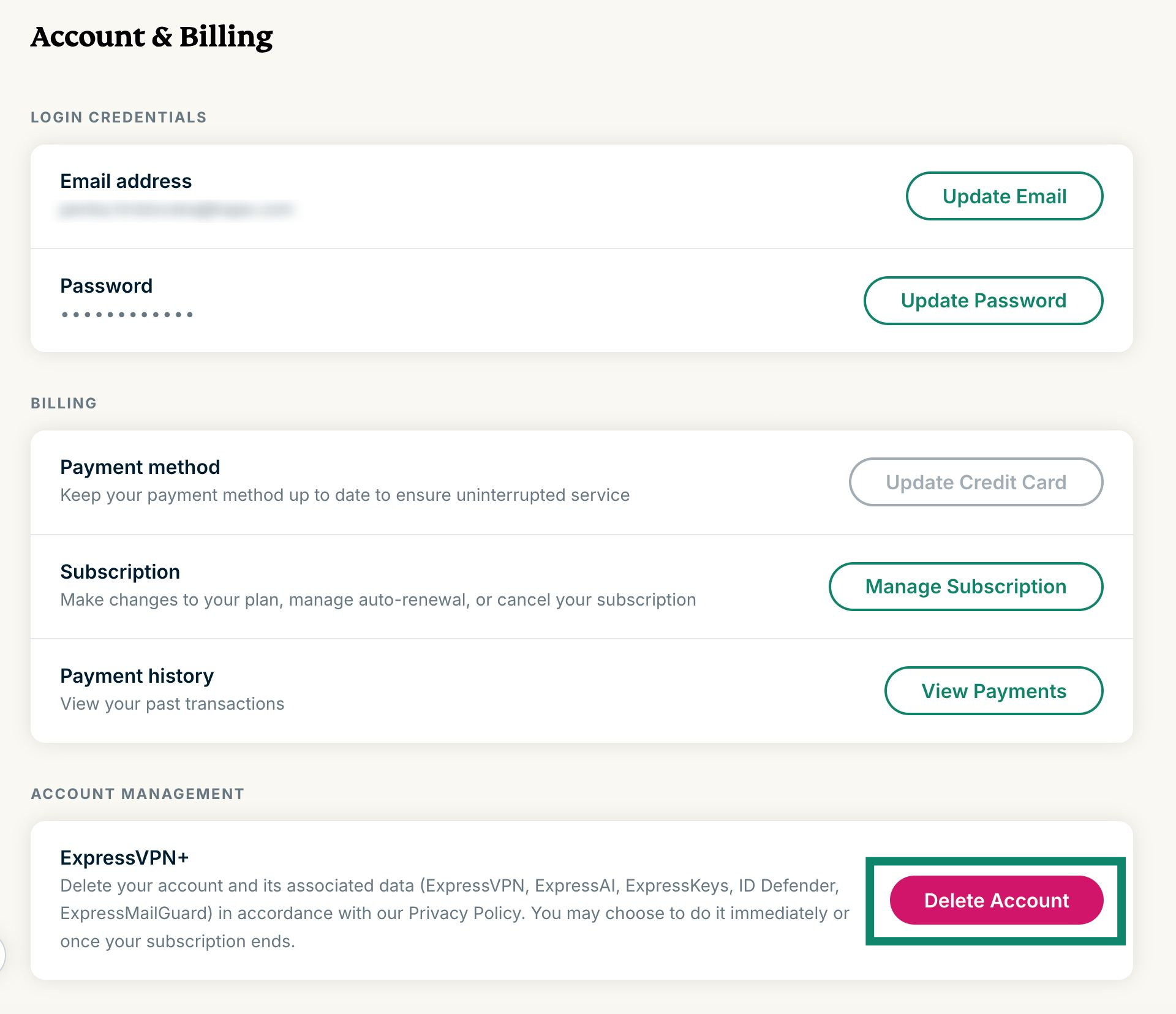
- Go to the Account & Billing page in the ExpressVPN+ portal.
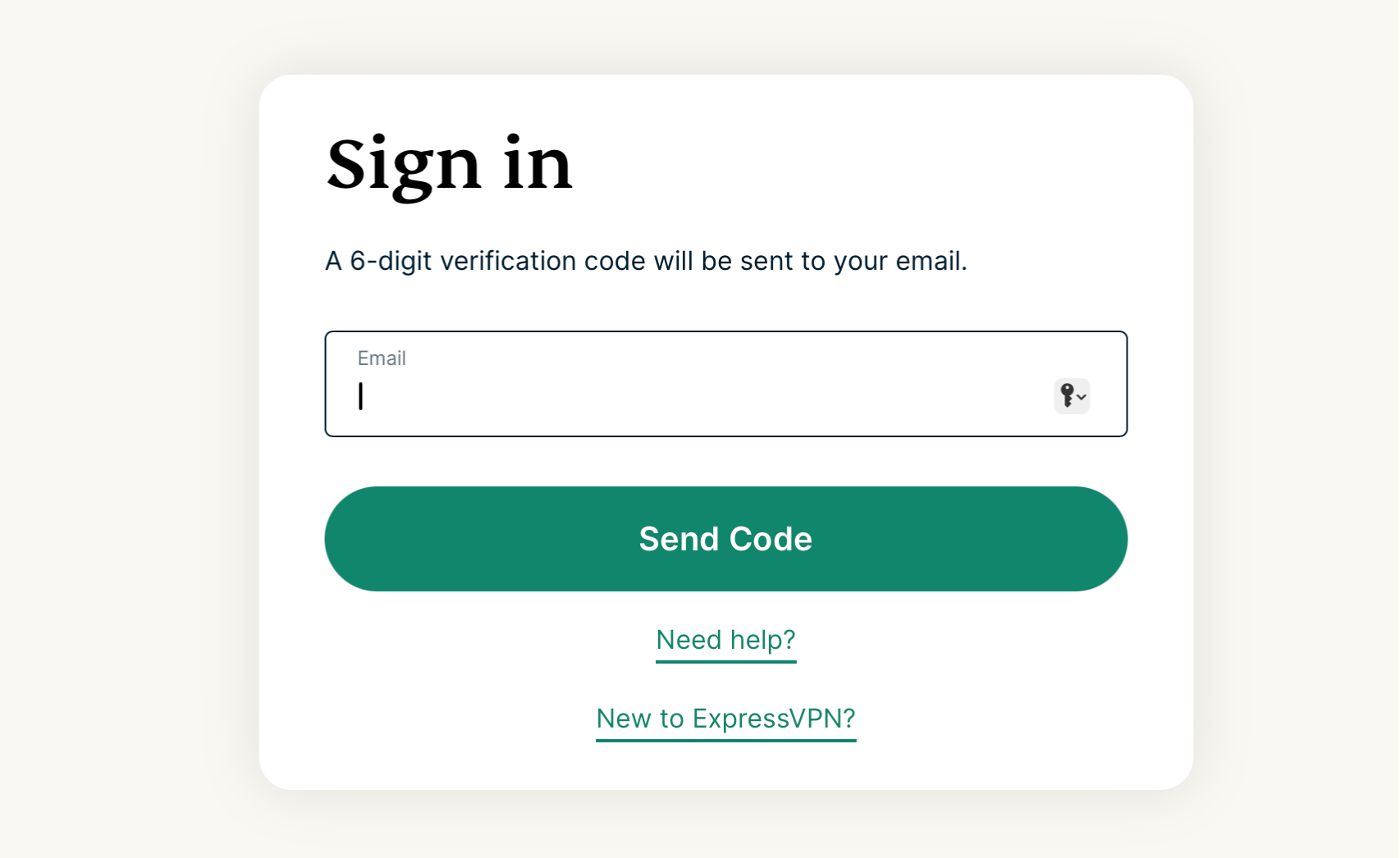
- If prompted, enter your email address and select Send Code.
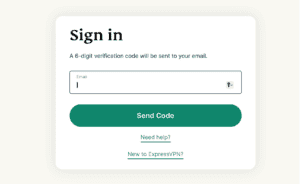

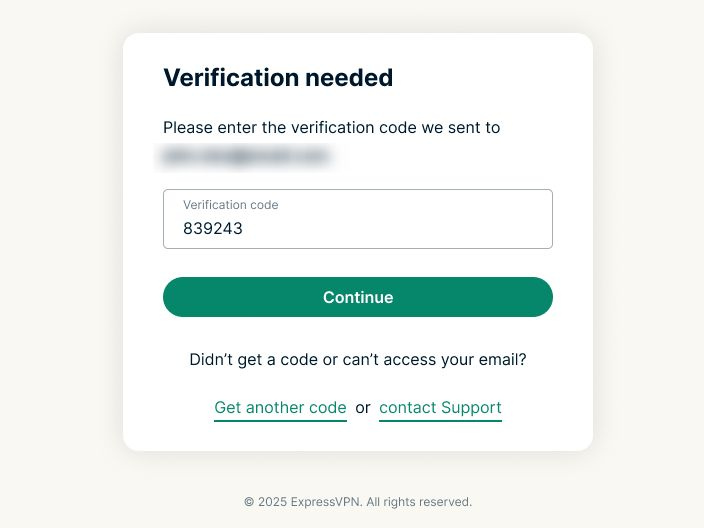
- Enter the verification code that is sent to your email, then select Continue.
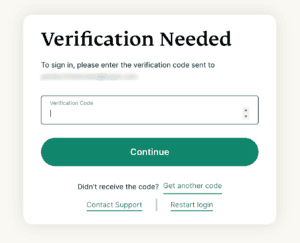

- If prompted, enter your email address and select Send Code.
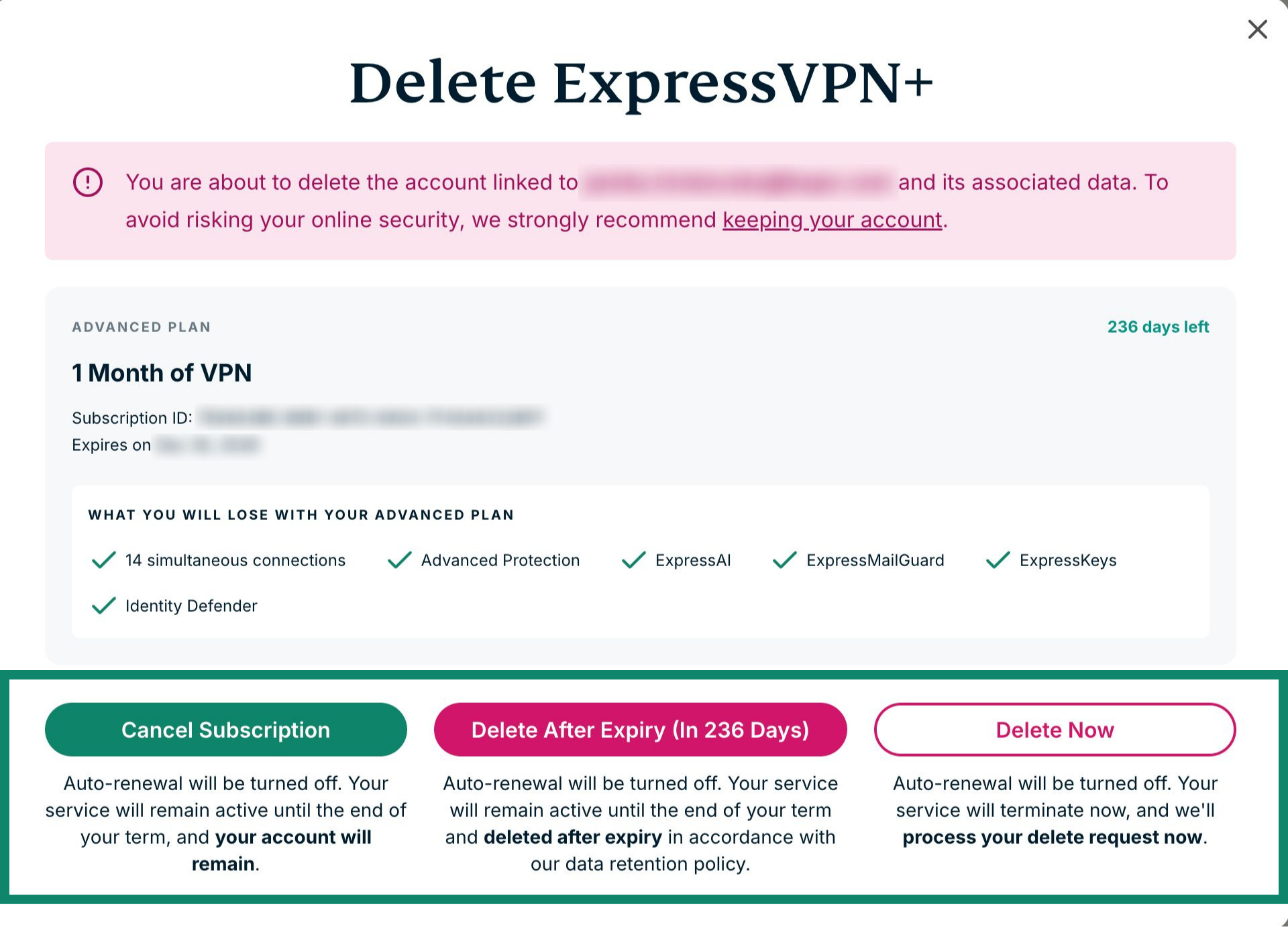
- Scroll down to Account management and select Delete account.
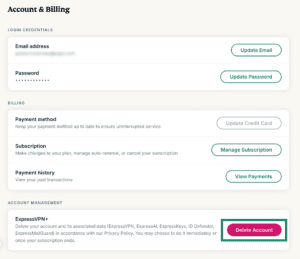

- Here you have three options:
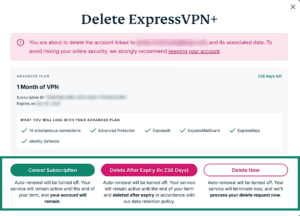

- Cancel Subscription: Auto-renewal will be turned off, but your account will not be deleted.
- Delete After Expiry (In xxx Days): Auto-renewal will be turned off and your account will be deleted after your subscription expires.
- Delete Now: Auto-renewal will be turned off and your request will be processed immediately. If you choose this option, the remainder of your subscription will be forfeited.
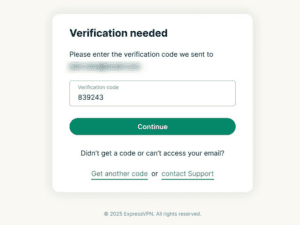
- You will then be asked to verify your request to delete your ExpressVPN account. A verification code will be sent to your email address. Enter the code in the space marked Verification Code, then select Continue.

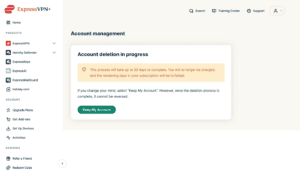
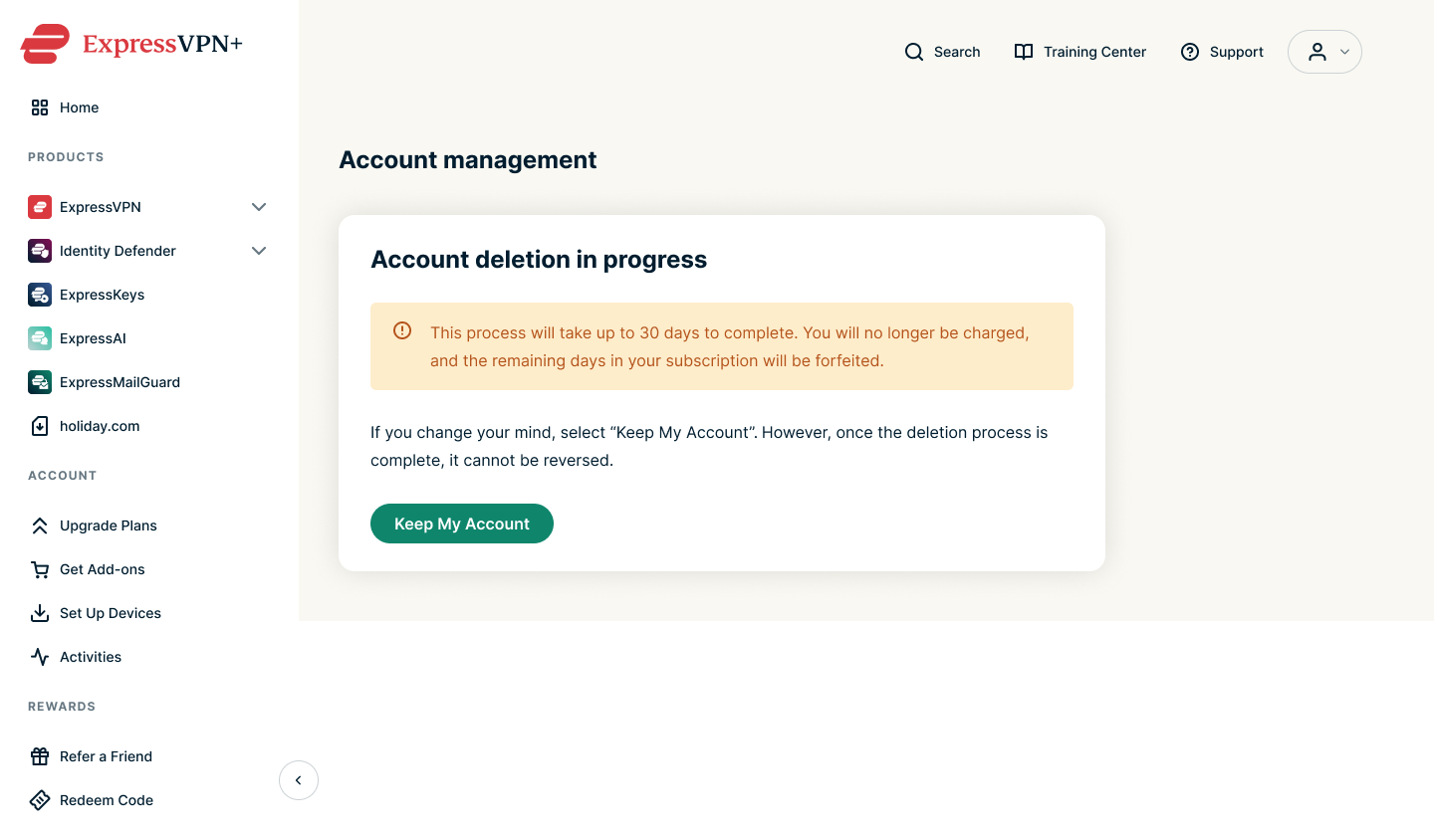
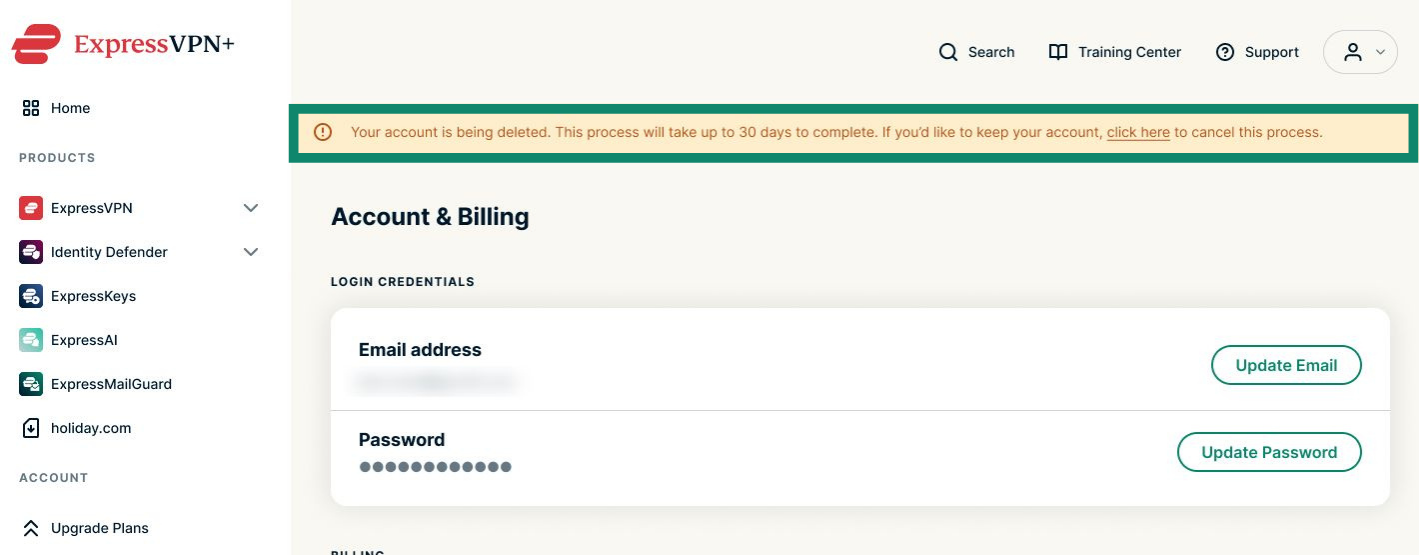
- You will then see a confirmation message and will also receive an email confirming your account deletion request.


Need help? Contact the ExpressVPN Support Team for immediate assistance.
Mobile instructions (Android or iOS device)
Follow these instructions if you are on a mobile device such as an iPhone, iPad, or Android phone.
You can request to delete your account on the ExpressVPN website. To do so:
- Go to the Account & Billing page in the ExpressVPN+ portal.
- If prompted, enter your email address and select Send Code.
- Enter the verification code that is sent to your email, then select Continue.
- Scroll down to Account management and tap Delete account.
- Here you have three options, as detailed below.
- Cancel Subscription: Auto-renewal will be turned off, but your account will not be deleted.
- Delete After Expiry (In xxx Days): Auto-renewal will be turned off and your account will be deleted after your subscription expires.
- Delete Now: Auto-renewal will be turned off and your account will be deleted immediately.
- You will then be asked to verify your request to delete your ExpressVPN account. A verification code will be sent to your email address. Enter the code in the space marked Verification code, then tap Continue.
- You will then see a confirmation message and will also receive an email confirming your account deletion request.
Note: If you mistakenly requested to delete your account, tap Keep My Account.
Need help? Contact the ExpressVPN Support Team for immediate assistance.
Option 2: Delete via the ExpressVPN iOS app
If you are using ExpressVPN on iOS (iPhone or iPad), you can delete your account manually within the app:
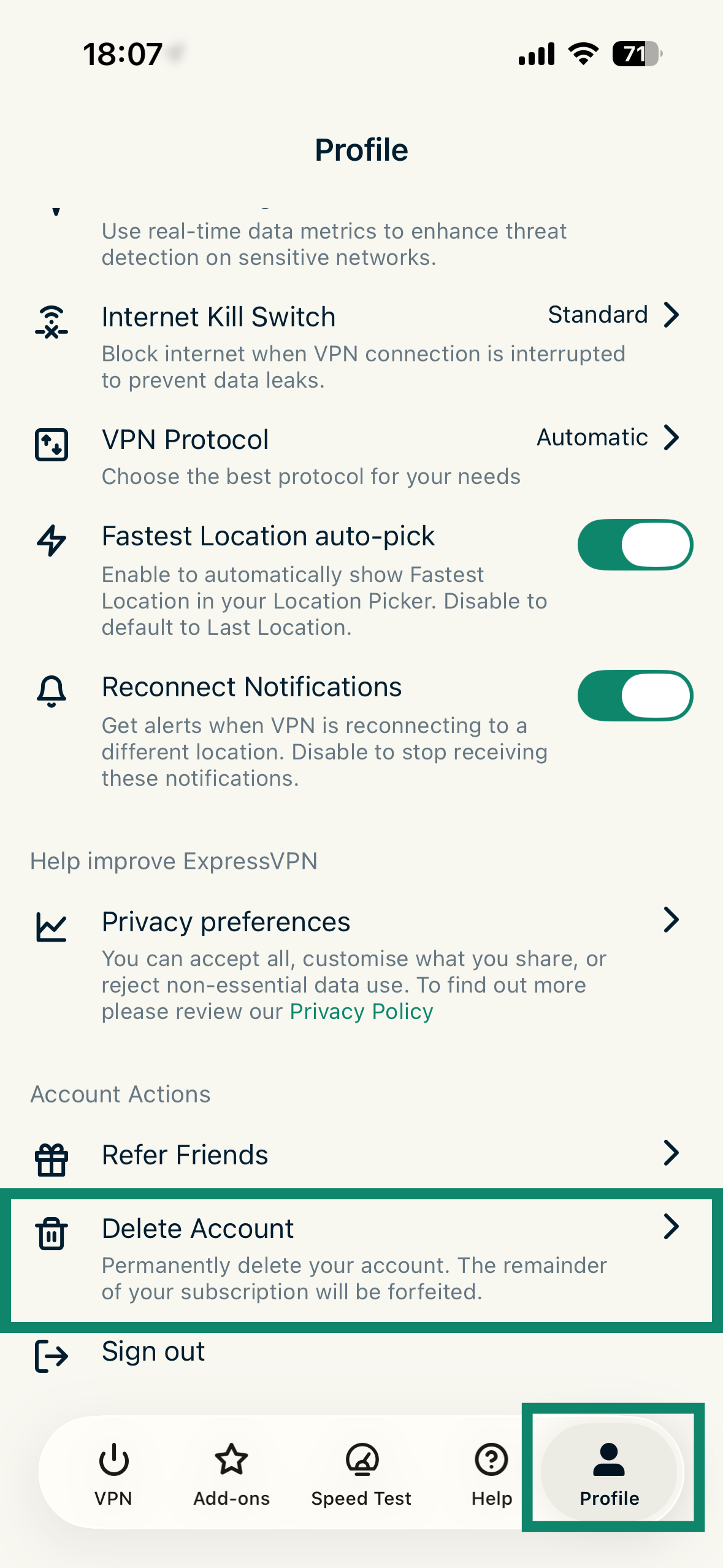
- In the ExpressVPN iOS app, tap Profile and then Delete Account.
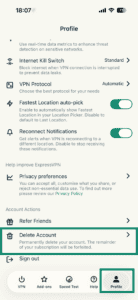

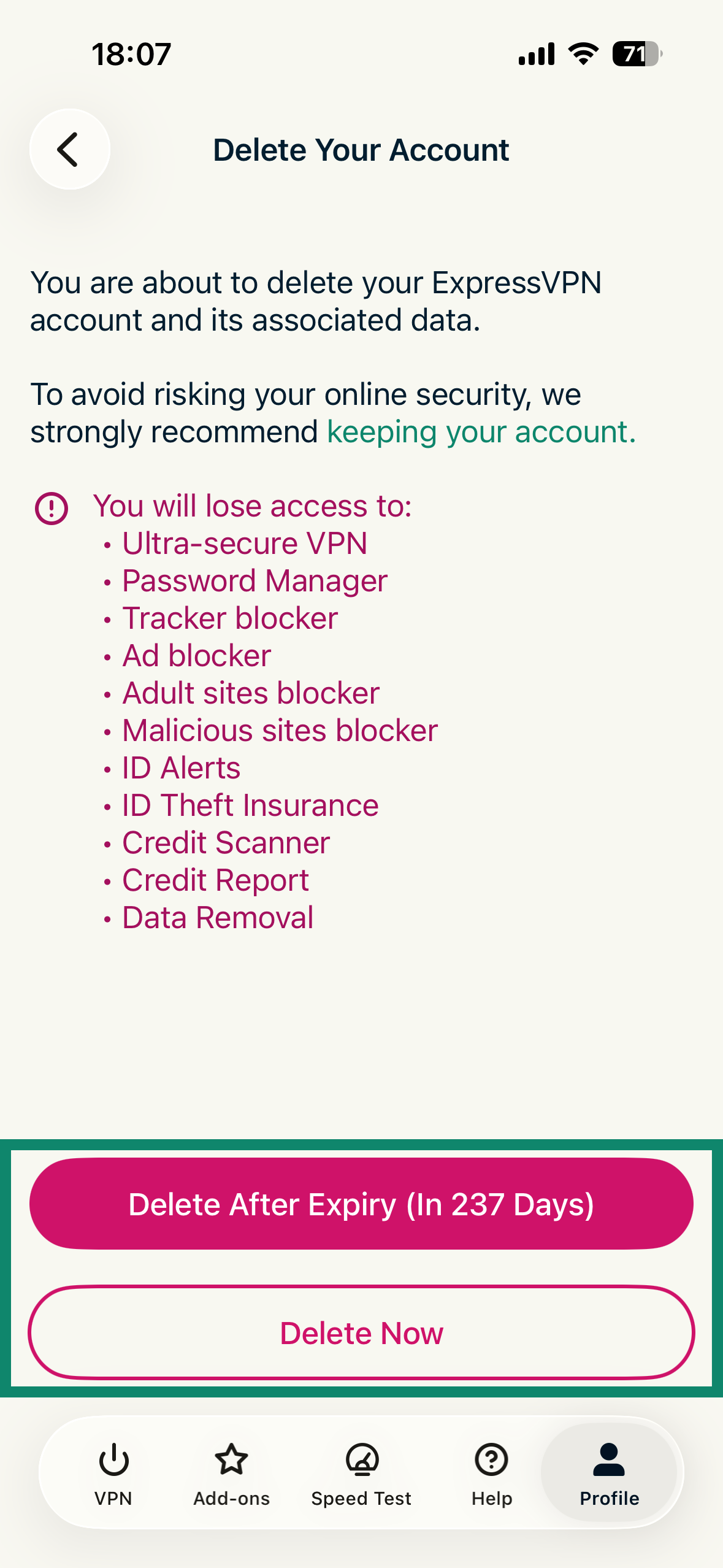
- Here you have two options, as detailed below. Tap the option you want:
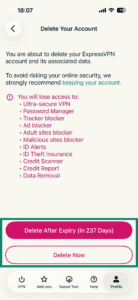
- Delete After Expiry (In xxx Days): Auto-renewal will be turned off and your account will be deleted after your subscription expires.
- Delete Now: Auto-renewal will be turned off and your account will be deleted immediately.
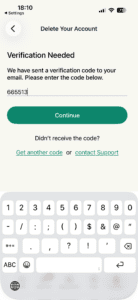
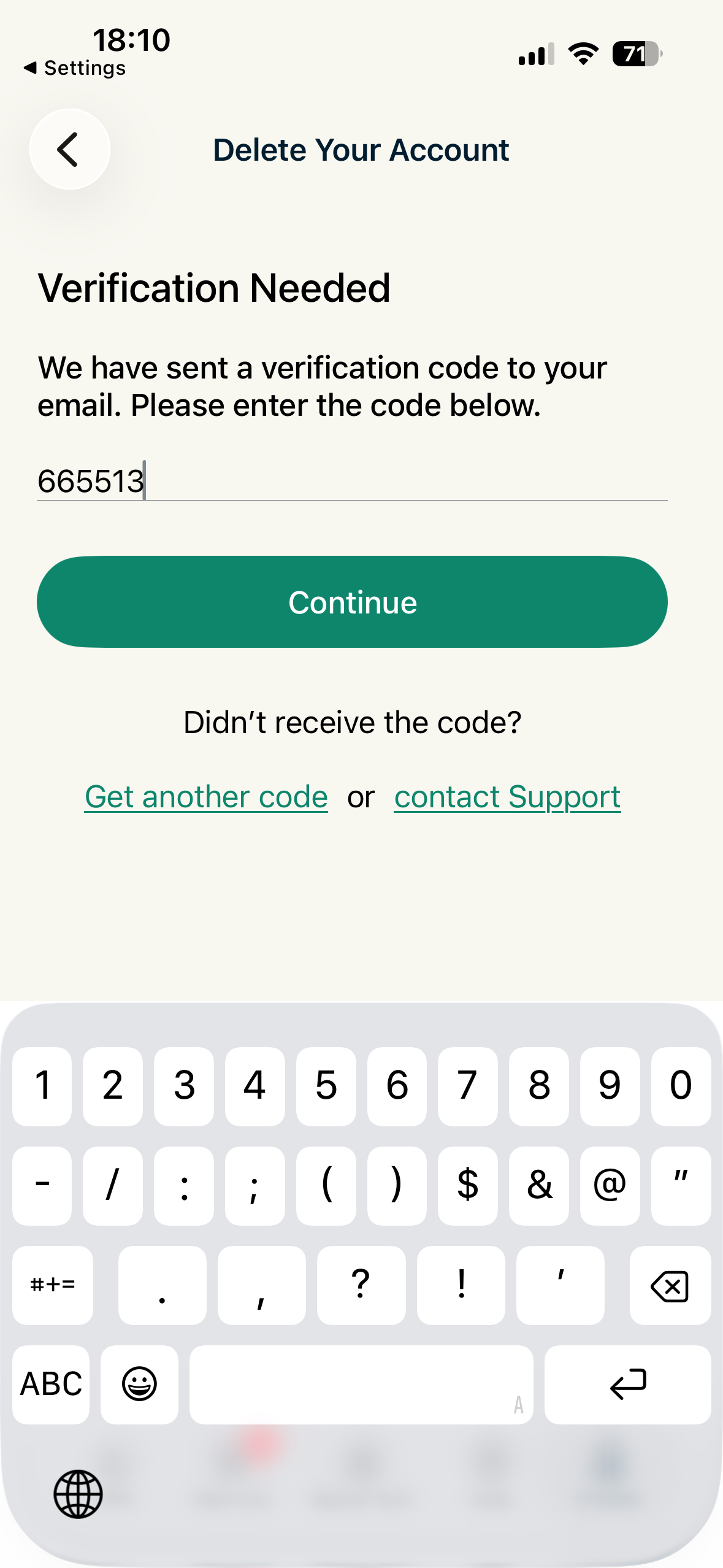
- You will then be asked to verify your request to delete your ExpressVPN account. A verification code will be sent to your email address. Enter the code in the space marked “Verification code,” then tap Continue.
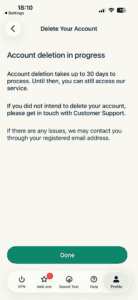
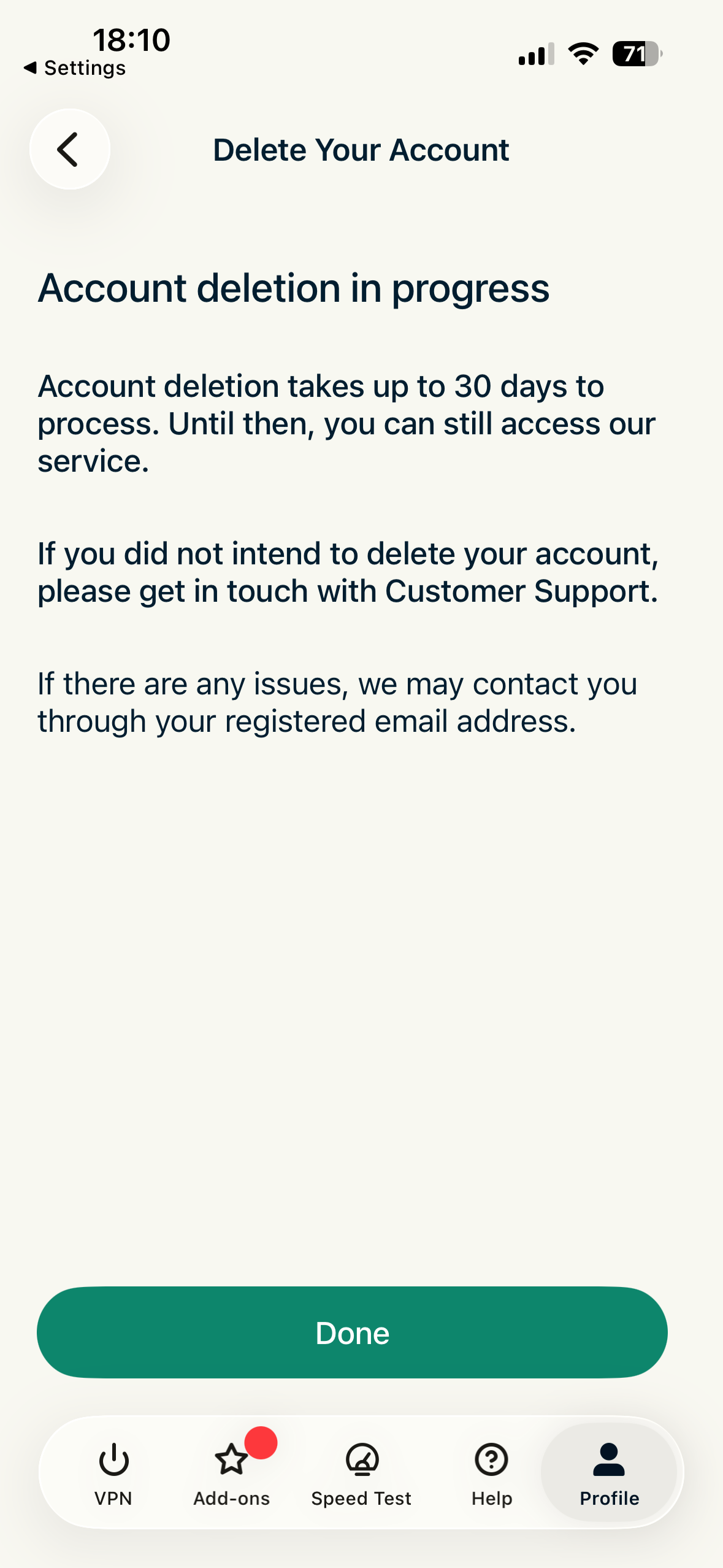
- On the next screen, tap Done.
Need help? Contact the ExpressVPN Support Team for immediate assistance.