
EXIF data explained: What your photos reveal and how to stay private



Photos can reveal more than what's visible in the image. Many image files contain embedded information like the Exchangeable Image File Format (EXIF) that may be retained when they're uploaded or shared, potentially exposing details you didn't intend to disclose. This can include the lens and exposure info and the exact time and place (potentially with GPS coordinates).
What is EXIF data?
EXIF data is a type of metadata embedded in many image files. Digital photos taken with smartphones, digital cameras, and other imaging devices commonly contain it.
EXIF is one metadata standard, but it isn't the only one. Image files may also contain International Press Telecommunications Council (IPTC) metadata and Extensible Metadata Platform (XMP) data. IPTC metadata generally covers descriptive, administrative, and rights-related information, while XMP supports metadata exchange across applications and workflows.
What information does EXIF data store?
EXIF data can store technical information about an image and the device that captured it. The exact details vary depending on the device or software involved.
Common EXIF fields include:
- Date and time the image was captured.
- Camera or smartphone model.
- Exposure settings.
- Aperture and shutter speed.
- Focal length.
- Image orientation.
- Image dimensions and resolution.
- GPS coordinates, if recorded or added later.
- Software used to create or modify the image.
- Embedded thumbnail previews.
Some devices also add manufacturer-specific metadata, often called "MakerNotes," which may contain additional camera or processing information.
Common uses of EXIF data
EXIF data supports several photography, editing, and file-management tasks, including:
- Organization: Sorting images by date, time, device, or location.
- Camera settings review: Examining International Organization for Standardization (ISO), shutter speed, aperture, and focal length.
- Editing: Interpreting image orientation, capture settings, and other technical details.
- Forensics: Providing potentially useful information during digital investigations, although metadata can be altered or removed and is not proof of authenticity on its own.
How to view EXIF data
You can view EXIF data in several ways, depending on your device and the level of detail you need. Built-in file information panels and photo apps are usually sufficient for quick checks, but they may not display every embedded field.
How to view EXIF data on Windows
On Windows, you can view basic photo metadata through File Explorer:
- Open File Explorer by clicking the folder icon on the taskbar or pressing Windows key + E, then find the image.
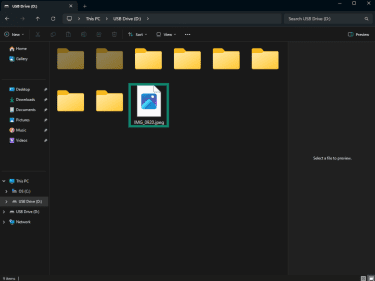
- Right-click the image and select Properties.
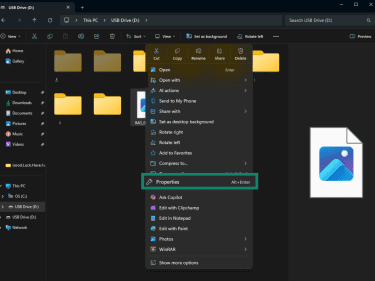
- Open the Details tab.
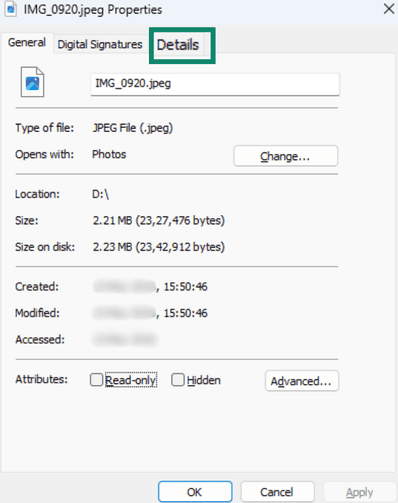
- Review the available information, such as the image dimensions, camera details, date taken, and exposure settings.
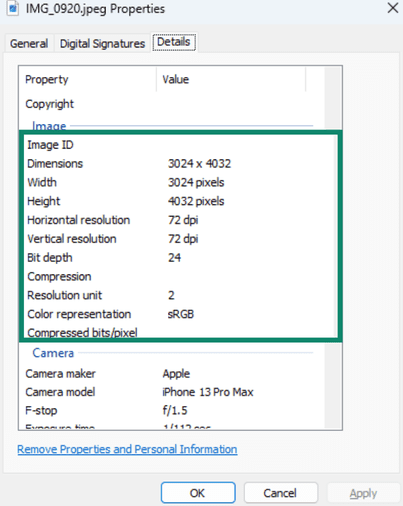
Note: The available fields vary by image format and file. A dedicated metadata viewer may be needed to inspect the complete metadata record.
How to view EXIF data on macOS
On macOS, you can check basic image metadata in Photos.
- Open the Photos app and select the image.
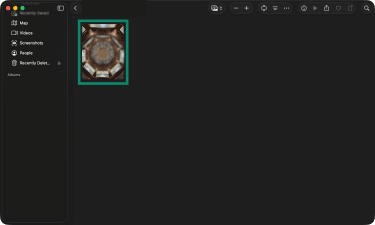
- Right-click the photo and select Get Info.
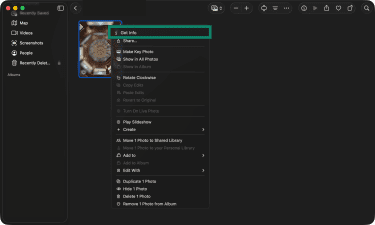
- Review the available details, such as the date and time, location, capture device, lens, shutter speed, and file size.
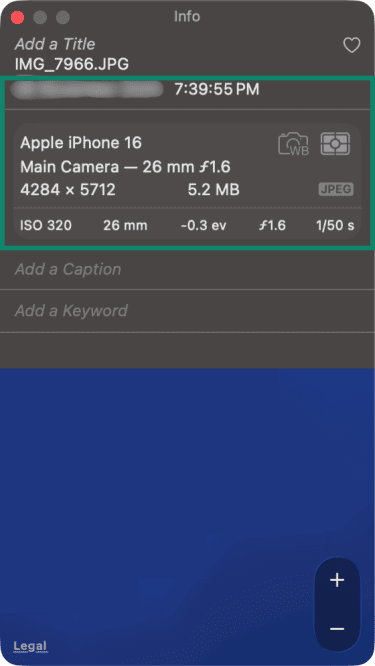
Note: The information shown depends on the image and may not include every embedded EXIF field.
How to check EXIF data on iPhone
- Open the Photos app.
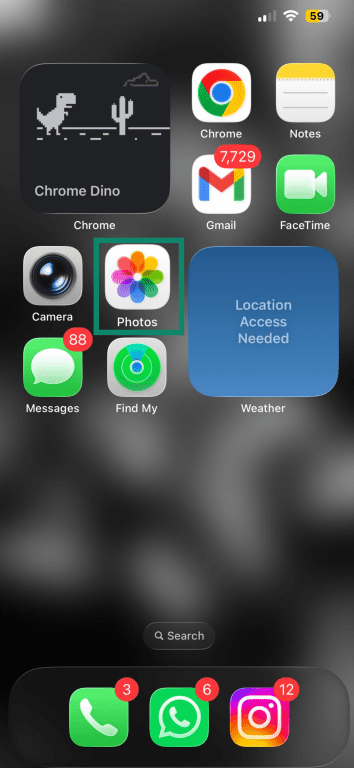
- Select the photo you want to check.

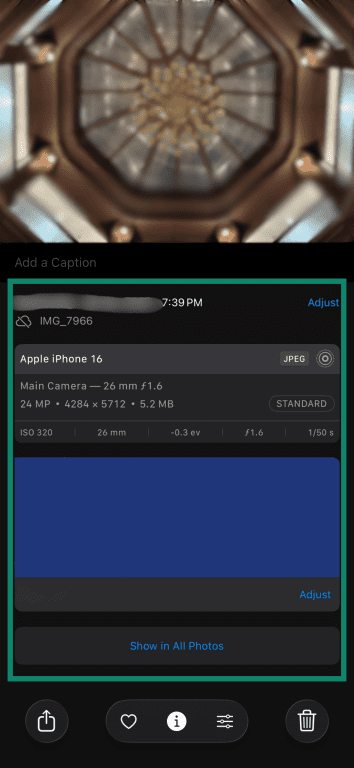
- Tap the Info button or swipe up on the photo.

- Review the available details, such as the date, time, location, device, camera settings, file type, and file size. If a photo has location data, Photos may also show it on a map.
How to check EXIF data on Android
The exact steps depend on the device and gallery app you use. Google Photos is a widely available option on Android devices.
- Open the Google Photos app.

- Open the photo you want to check.
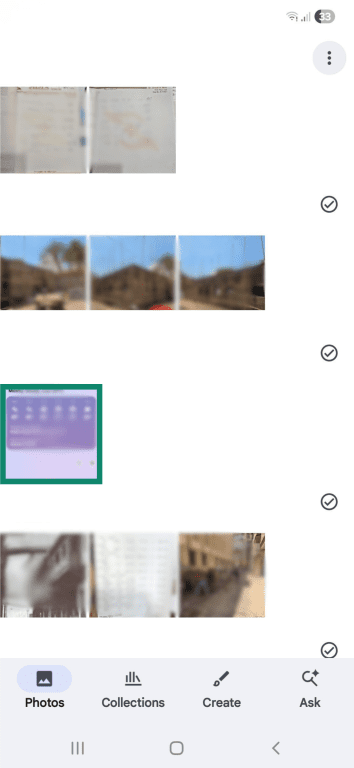
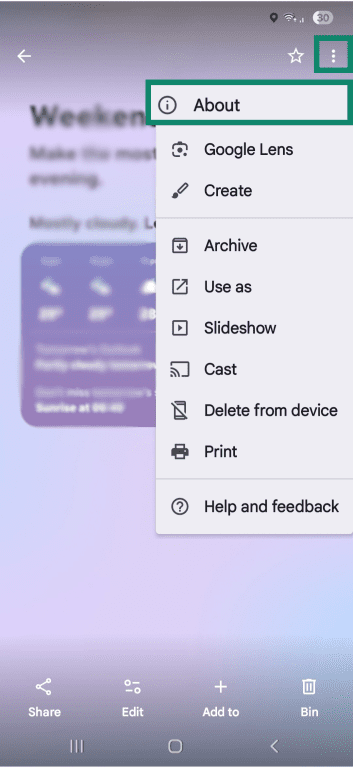
- Swipe up on the photo or tap the three-dot More icon and select About.
- Review the available details, such as the date, location, filename, file size, image dimensions, and camera information.
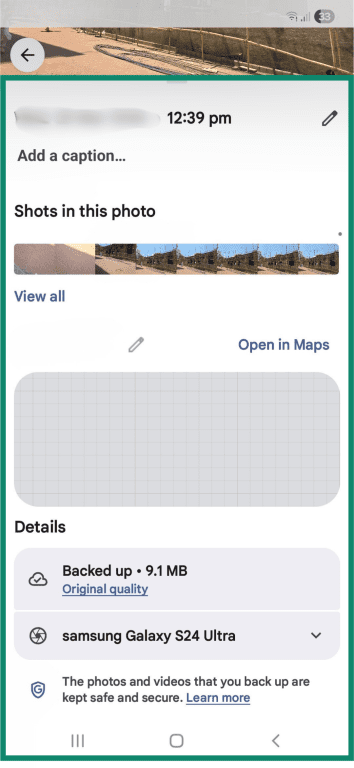
Note: The details shown vary by photo and may not include every embedded EXIF field.
How to use an online EXIF data viewer
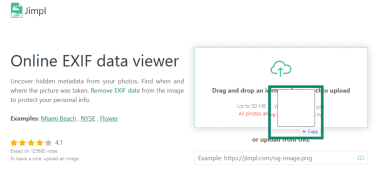
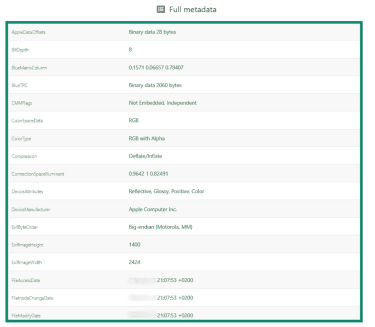
An online EXIF data viewer can read an image's metadata and display it in your browser. This is useful for quickly checking what information a photo contains without installing software, although the exact steps vary by tool.
Generally, you'll need to:
- Choose a reputable EXIF viewer. Look for HTTPS, a clear privacy policy, and an explanation of whether images are processed locally in the browser or uploaded to a server. If files are uploaded, check how long they're retained and whether they're shared.
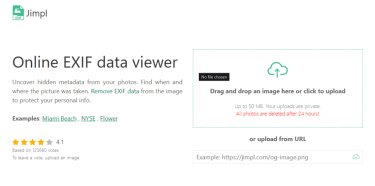
- Upload or select the image.
- Review the available metadata.
Be careful with sensitive photos. Sending an image to an online viewer may expose the photo itself, not just its metadata. HTTPS encrypts the upload in transit but does not control how the service handles the file afterward. For private images, a trusted offline metadata tool or a viewer that processes files entirely within the browser is generally safer.
What are the privacy concerns around EXIF data?
EXIF data isn't automatically dangerous. The privacy concern depends on what metadata is attached to a photo, whether it remains attached when the file is shared, and who can access it.
What EXIF metadata can reveal
Location data is usually the most sensitive. If GPS coordinates stay attached to a photo, they can reveal where it was taken, such as a home, workplace, school, hotel, or remote-work spot. Timestamps can add further context. They may reveal travel dates, event attendance, daily routines, or periods when someone was away from home.
Device and software details can also provide clues. A camera or phone model, editing application, or manufacturer-specific field may help connect photos to a similar device type or workflow, particularly when combined with other information. However, these fields don't necessarily identify a specific device or person.
A single photo containing precise location data may reveal sensitive information. Across multiple photos, metadata can expose broader patterns involving locations, activity times, travel, and devices.
How EXIF data can be misused
Location and time patterns could help someone monitor routines or determine when a person may be away from home. Other metadata may support profiling or social engineering attempts when combined with information from the image, social media, or other sources.
Not every platform preserves EXIF data when photos are uploaded or shared. However, users shouldn't assume that a service will automatically remove sensitive metadata.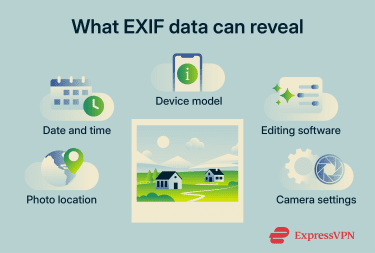
Should you remove EXIF data?
You don't need to remove EXIF data from every photo. A better approach is to consider what metadata the file contains, why it may be useful, and who might receive it.
When keeping EXIF data is useful
Keeping EXIF data makes sense when the photo remains in a trusted environment and the metadata has a clear purpose. For example:
- You want to preserve the original in its entirety for your own records.
- You need capture details for editing, organization, or comparison.
- You're sharing the file with trusted collaborators who need its technical context.
Keep an untouched original and remove sensitive metadata only from copies intended for wider sharing.
When removing EXIF data is safer
Removing sensitive EXIF fields is generally safer when a photo may leave your control, particularly if it contains precise location or time data.
Consider removing sensitive metadata before sharing:
- Home or family photos that could reveal an address or routine.
- Children's photos, to limit identifying details and help protect the child's privacy.
- Travel photos that reveal when you were away.
- Workplace photos containing sensitive location or device information.
- Photos shared publicly or with strangers through websites, forums, social media, portfolios, marketplaces, or dating apps.
Also read: How to protect your social media privacy.
How to protect your privacy before sharing photos
Photo privacy starts before you upload or send an image. EXIF data matters, but it's only one part of the picture.
Turn off location tagging
To prevent future photos from saving GPS coordinates, review the location access settings for your camera app. On iPhone and Android, these controls are generally found in the device's privacy, location, or camera settings, although the exact menus vary.
Turning off location tagging doesn't remove location information from existing photos. Review those images separately before sharing.
Check what's visible in the photo
Before sharing, check the image itself for details that could reveal where you are, who you're with, or what you're doing. Look for addresses, license plates, documents, computer screens, school uniforms, boarding passes, ID cards, reflections, or recognizable landmarks.
This is especially important for photos taken at home, at work, while traveling, or of children. Even without EXIF data, visible image details can still reveal sensitive information.
Rename files containing personal information
A filename may reveal names, locations, dates, clients, projects, or other personal details if it's preserved or displayed. For example, Smith-family-home-2026.jpg conveys more than a generic filename. Before sharing, rename files that include information you would rather not disclose.
Review how apps handle EXIF data
Apps and platforms handle EXIF data differently. Some remove certain fields when an image is posted, while others retain metadata or store the original file separately.
Handling may also vary by image format and sharing method. For sensitive photos, create a separate sharing copy and remove sensitive metadata rather than assuming the platform will do it.
How to remove EXIF data
How to remove EXIF data on Windows
Windows lets you remove some photo metadata through File Explorer.
- Find the photo in File Explorer.
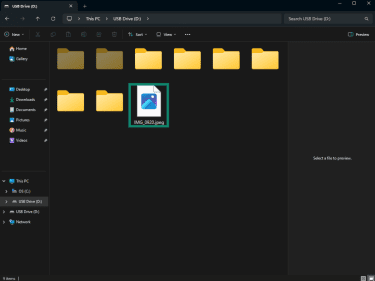
- Right-click the image and select Properties.
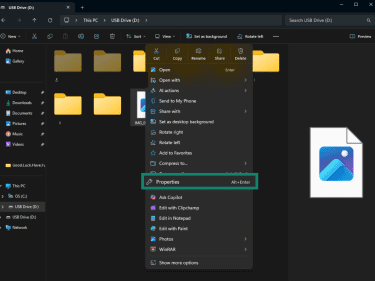
- Open the Details tab.
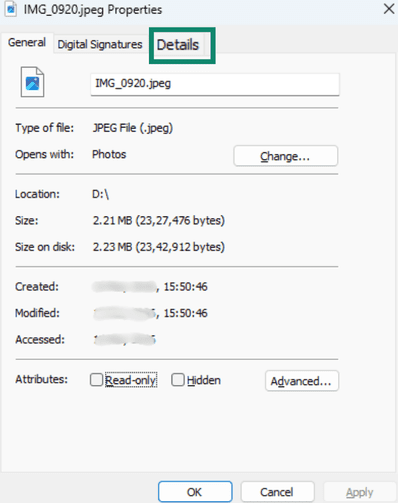
- Click Remove Properties and Personal Information.
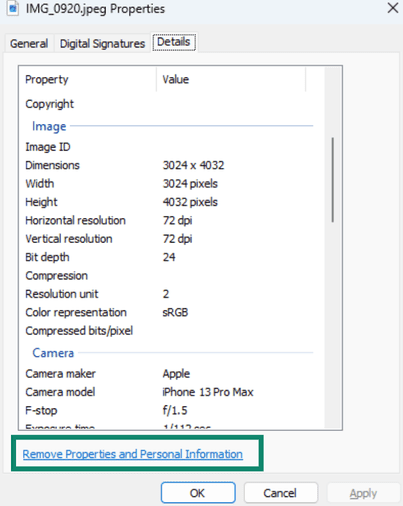
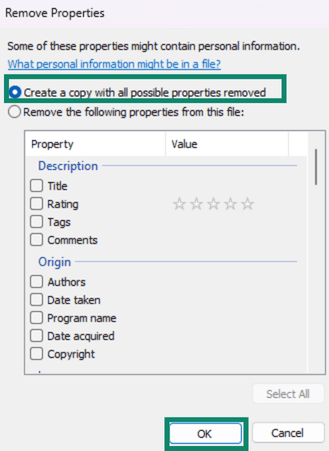
- Choose Create a copy with all possible properties removed to preserve the original, or Remove the following properties from this file to delete selected fields from the original. Then click OK.
How to remove EXIF data on Mac
Mac lets you view photo metadata with built-in tools, but its native controls for removing it are limited.
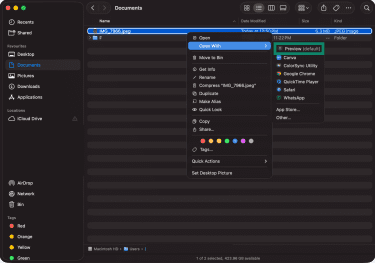
To remove location information in Preview:
- Open the image in Preview.
- Select Tools > Show Inspector.
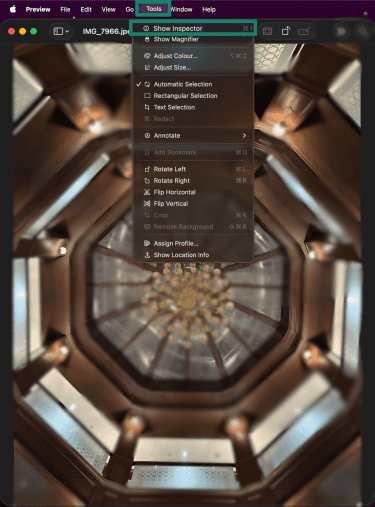
- Open the GPS tab.

- Scroll down and select Remove Location Info.

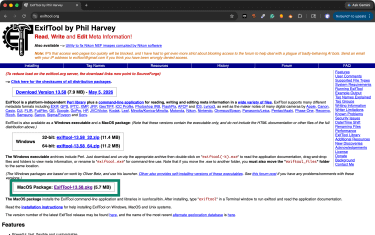
For a more thorough metadata cleanup, use a trusted local offline tool such as ExifTool and work on a copy of the image.
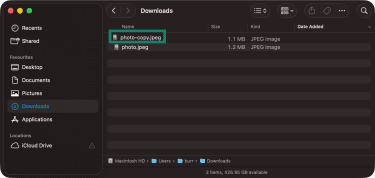
- Make a copy of the image you want to share.
- Install ExifTool from its official website.
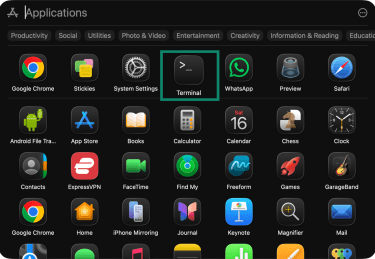
- Open Terminal.
- Run the exiftool -all= "photo-copy.jpg" command.
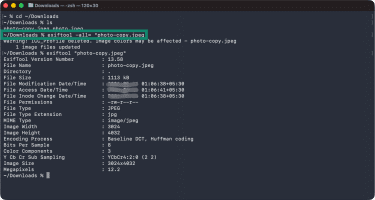
ExifTool updates the specified copy and, by default, creates a backup in the same folder with _original appended to its filename. Because this command removes more than EXIF data, check the image's appearance and metadata before uploading or sharing it.
How to remove EXIF data on Android
Android doesn't have one universal built-in workflow for removing all EXIF metadata. The available options depend on your phone manufacturer, camera app, gallery app, and photo app.
Built-in controls generally let you stop future photos from recording location data, while options for removing metadata from existing photos vary.
To stop future photos from saving GPS location data:
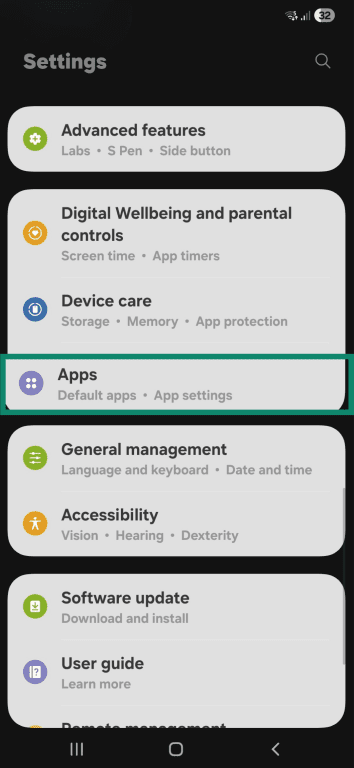
- Open Settings.

- Go to Apps.
- Select Camera.
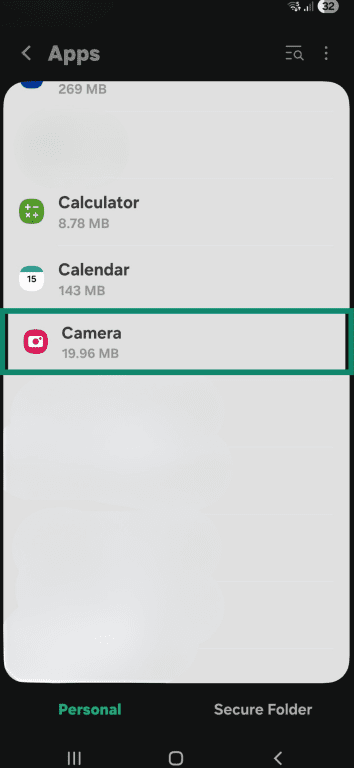
- Open Permissions.
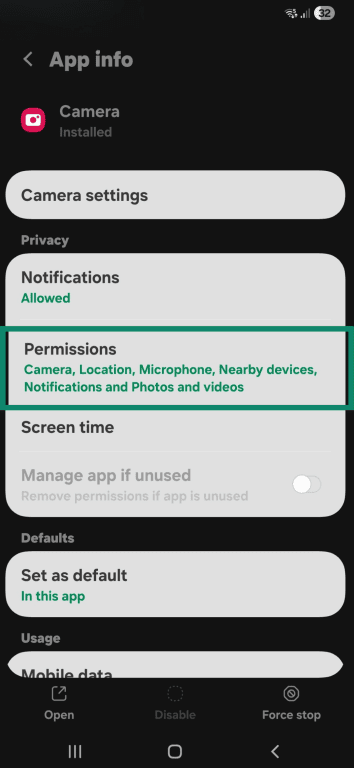
- Select Location.
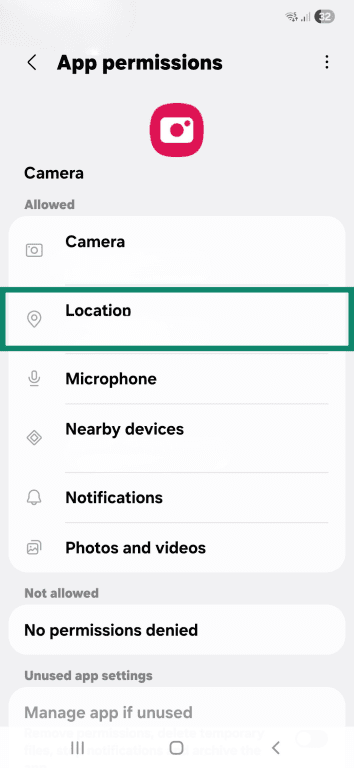
- Choose Don't allow under Location access for this app.
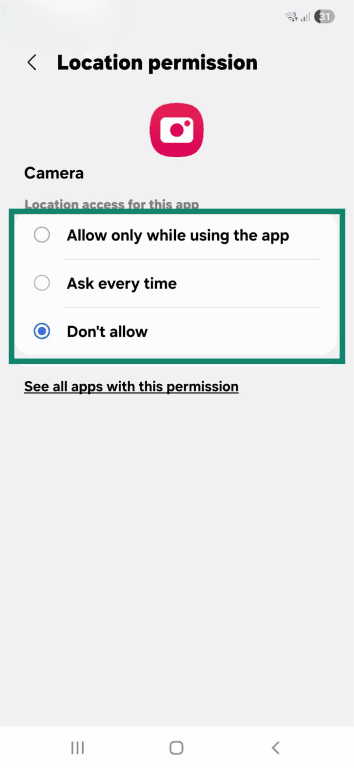
This prevents new photos from recording GPS data but does not remove metadata from existing photos.
For a more complete cleanup before sharing, use a trusted local metadata tool and recheck the resulting file.
How to remove EXIF data on iOS
iOS lets you exclude or remove location metadata. To remove other EXIF fields, you'll need a trusted third-party tool.
To exclude location information when sharing a photo:
- Open the Photos app.
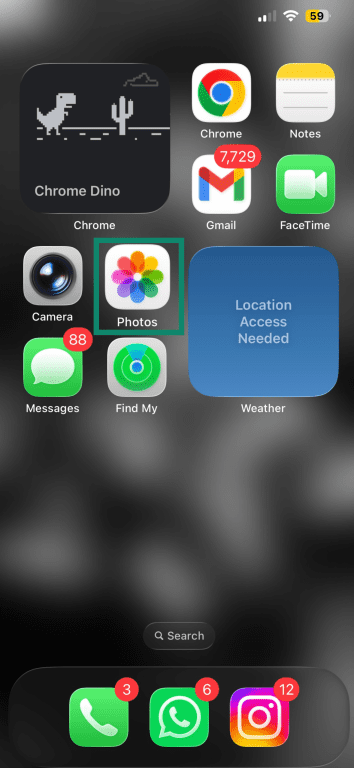
- Select the photo you want to share.

- Tap the Share button.

- Tap Options at the top of the sharing screen.

- Turn off Location.
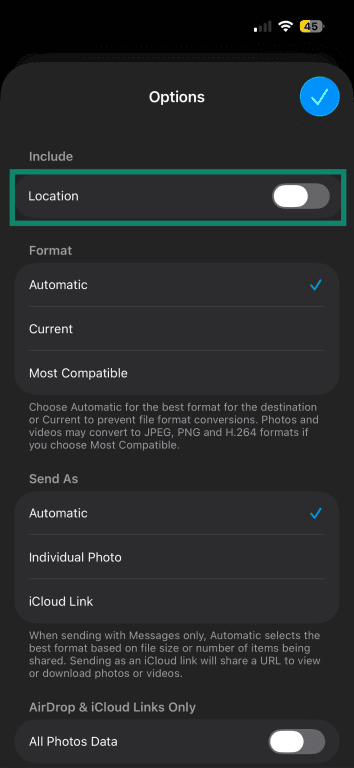
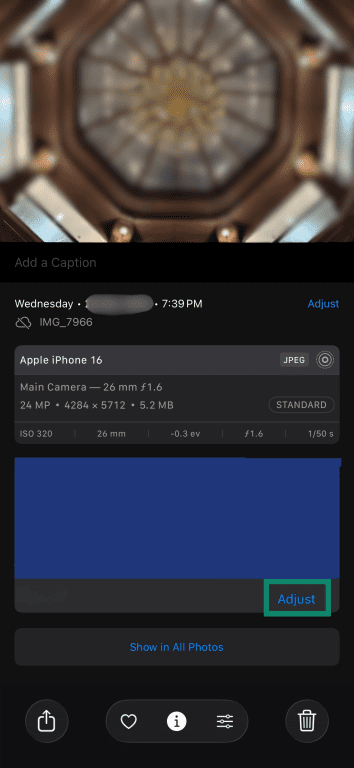
Alternatively, to remove the saved location:
- Open the photo in Photos.

- Tap the Info button or swipe up.

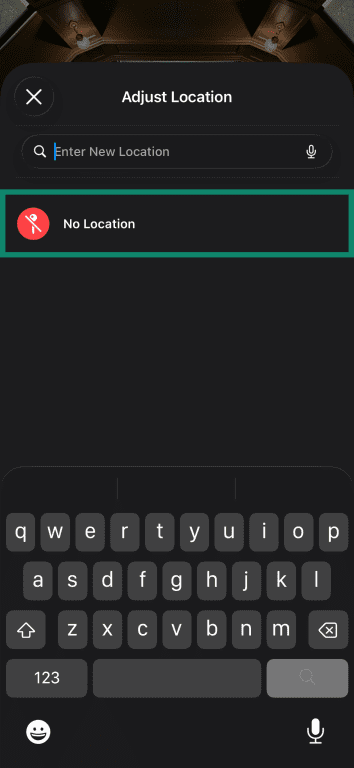
- Select Adjust next to the location.
- Choose No Location or enter a different location.
FAQ
Can EXIF data show my exact location?
Do social media sites remove EXIF data automatically?
Does removing EXIF data affect image quality?
Can screenshots contain EXIF data?
A screenshot also won't hide anything visible in the image, such as addresses, documents, screens, reflections, or landmarks.
Is EXIF data the same as photo metadata?
Can EXIF data be edited or faked?
Should photographers keep EXIF data in their images?
For public sharing, it's safer to remove sensitive details, particularly location data, while retaining the original file and its metadata in a private archive.