



Two-factor authentication (2FA) adds an extra layer of protection to your online accounts, preventing unauthorized access even if your passwords are compromised.
With ExpressKeys, you can add 2FA codes to compatible accounts. Like most authenticator apps, ExpressKeys generates 2FA codes, also known as time-based one-time passwords (TOTPs), for websites or apps with 2FA enabled. In the ExpressKeys app and Chrome extension, 2FA codes change every 30 seconds.
Jump to…
Add 2FA to a login
Step 1: Enable 2FA on a website or app
Important: You need to enable 2FA on a website or app for ExpressKeys to generate 2FA codes.
- Go to the website or app’s security settings and enable 2FA. If you have trouble locating the 2FA setting, search 2fa.directory for the website or app and you will find detailed instructions under Docs.
- Once you’ve obtained the setup key, open the ExpressKeys app or the browser extension and unlock it with your vault password. If you are using a QR code, which is an option in the ExpressKeys app for Android and iOS, you’ll need to make sure the QR code is displayed on a separate device from the device where you have the ExpressKeys app.
Step 2: Set up 2FA for a login in your ExpressKeys vault
You can set up 2FA while adding a new login to your vault, or you can add it to an existing login:
Set up while adding a new login
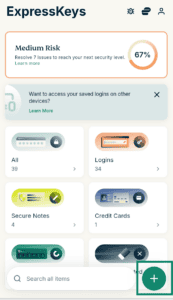
- Select the plus icon

 .
.

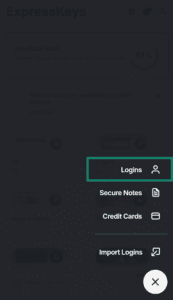
- Choose Logins.
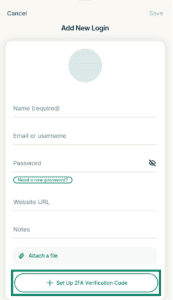
- Select Set Up 2FA Verification Code.
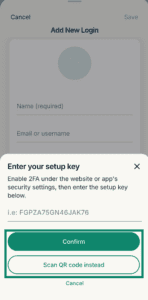
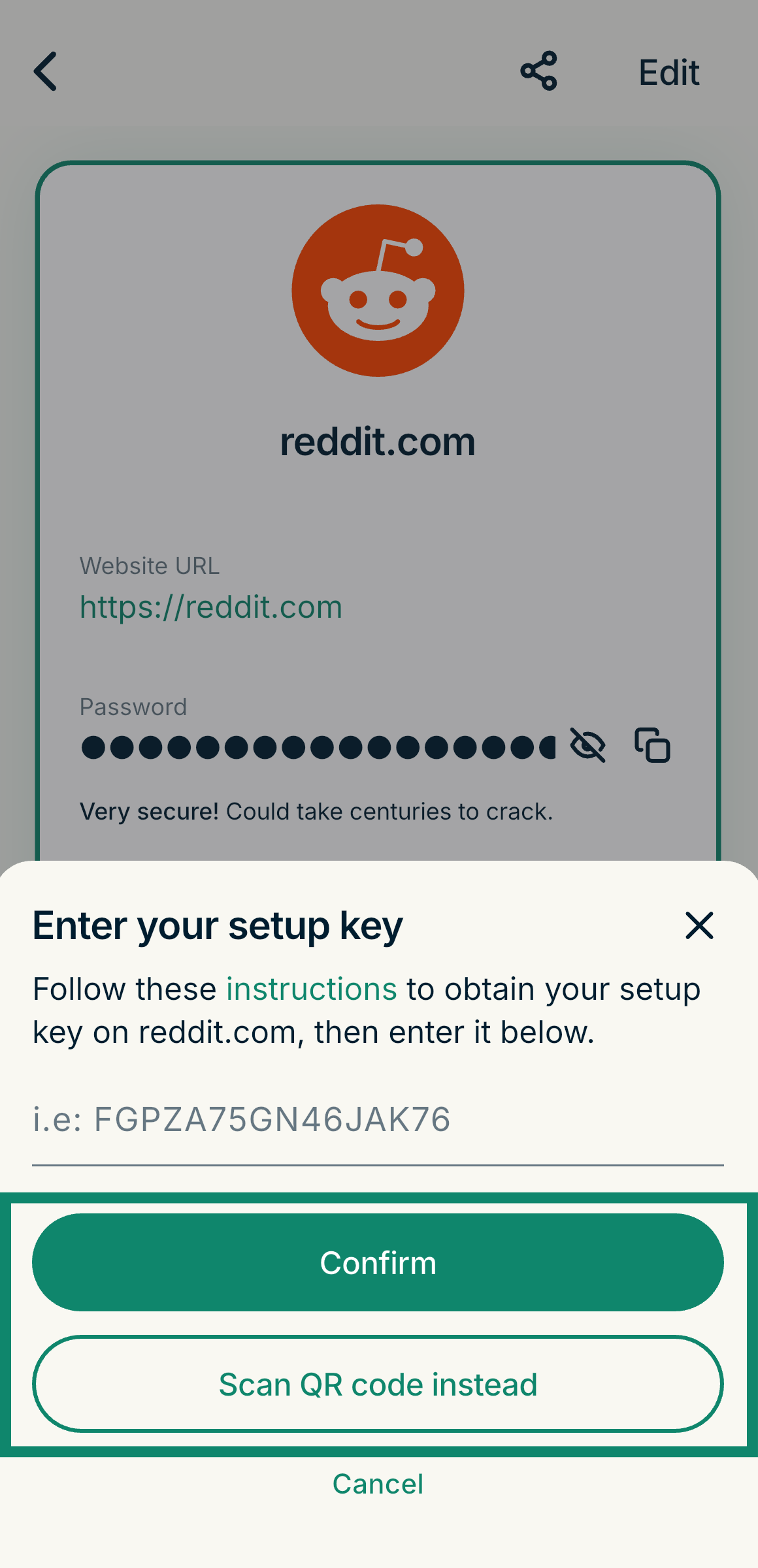
- If you’re using a setup key, enter it and tap Confirm. If you’re using ExpressKeys on mobile, you can also tap Scan QR code to use the QR code option instead.

- To complete the setup, the website or app will ask you to enter a one-time password or verification code. Copy and paste it from ExpressKeys or enter it manually.
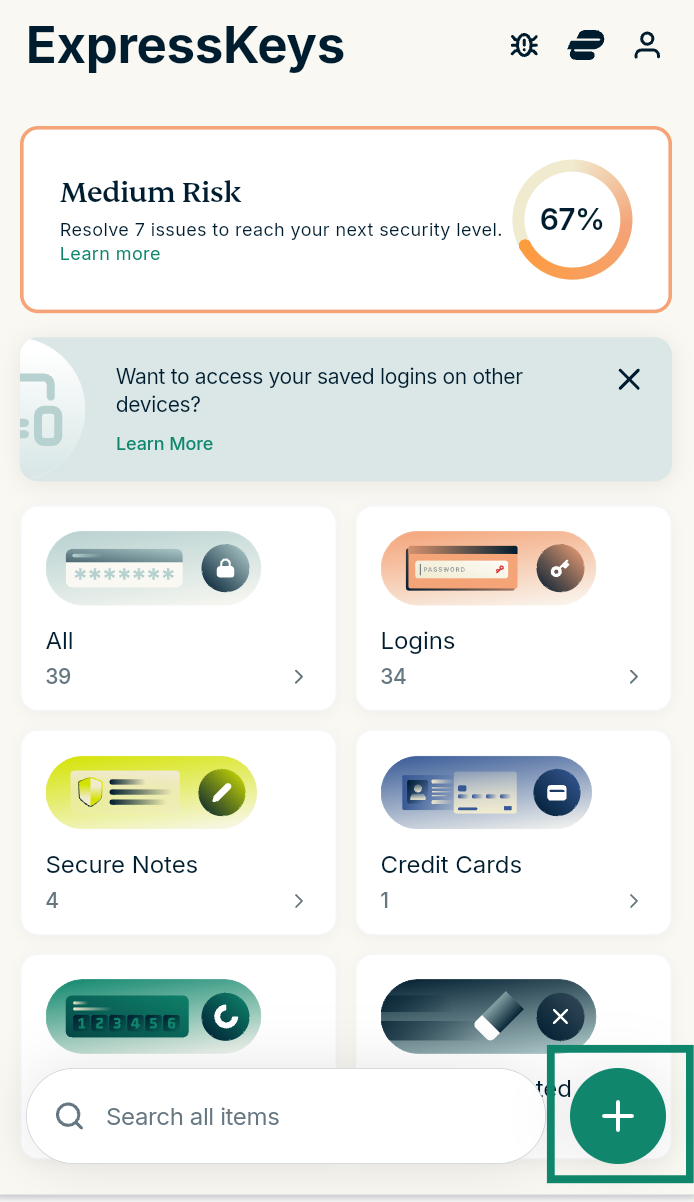
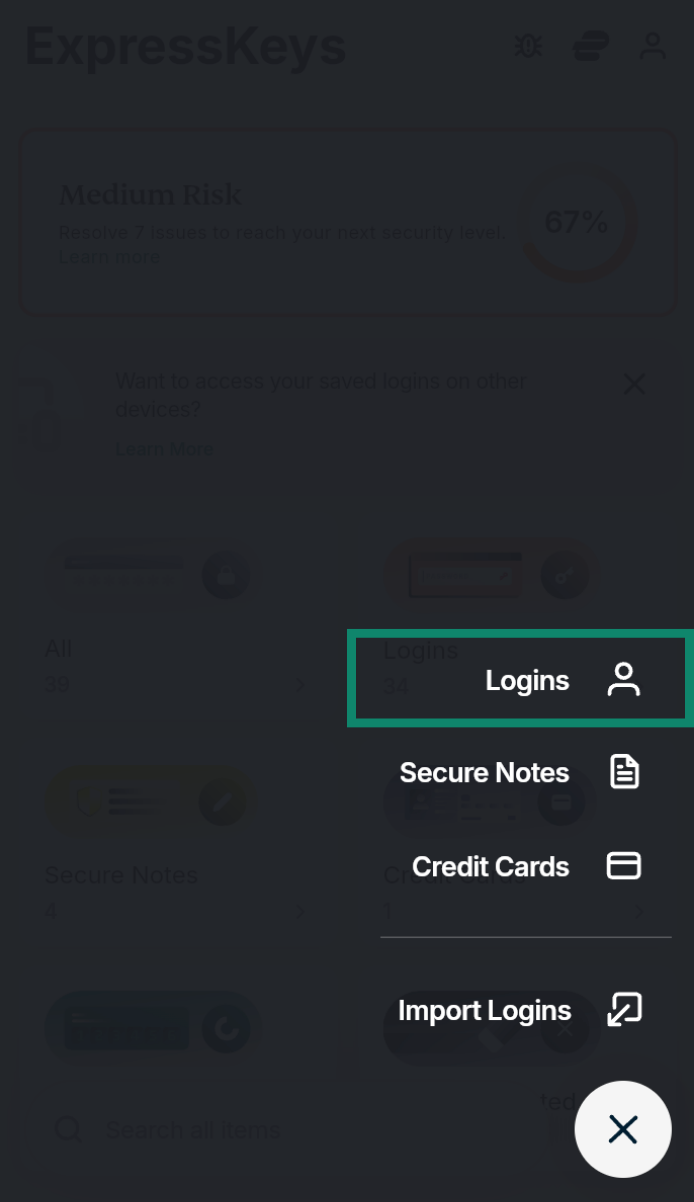
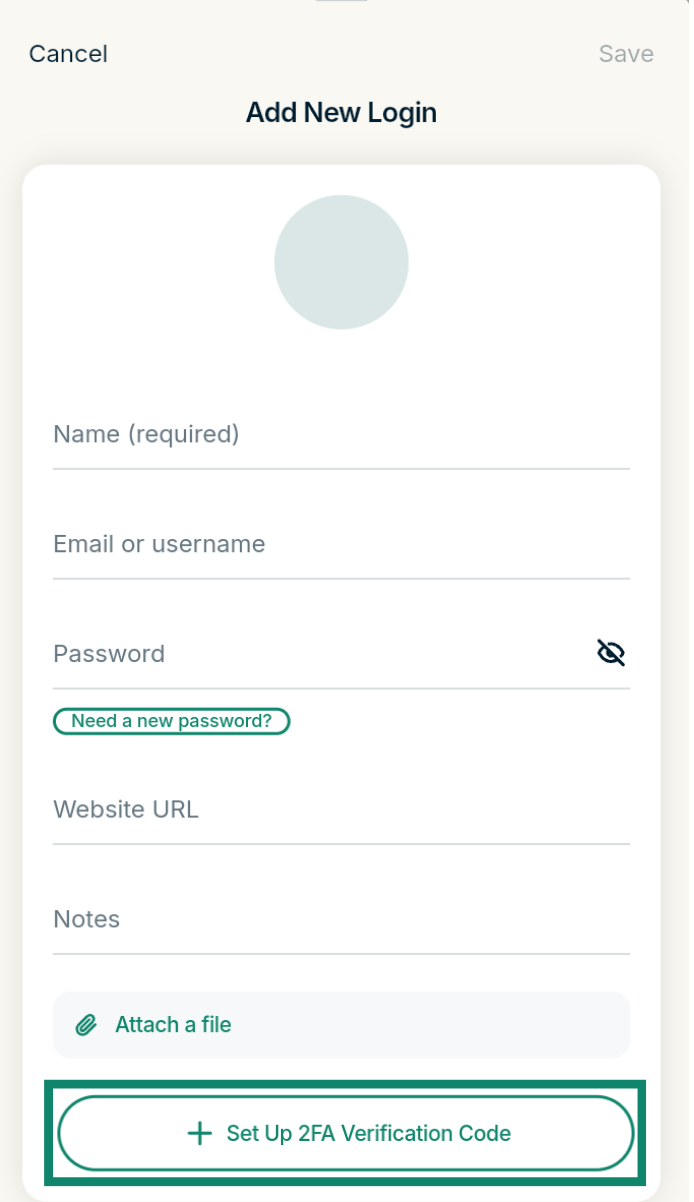
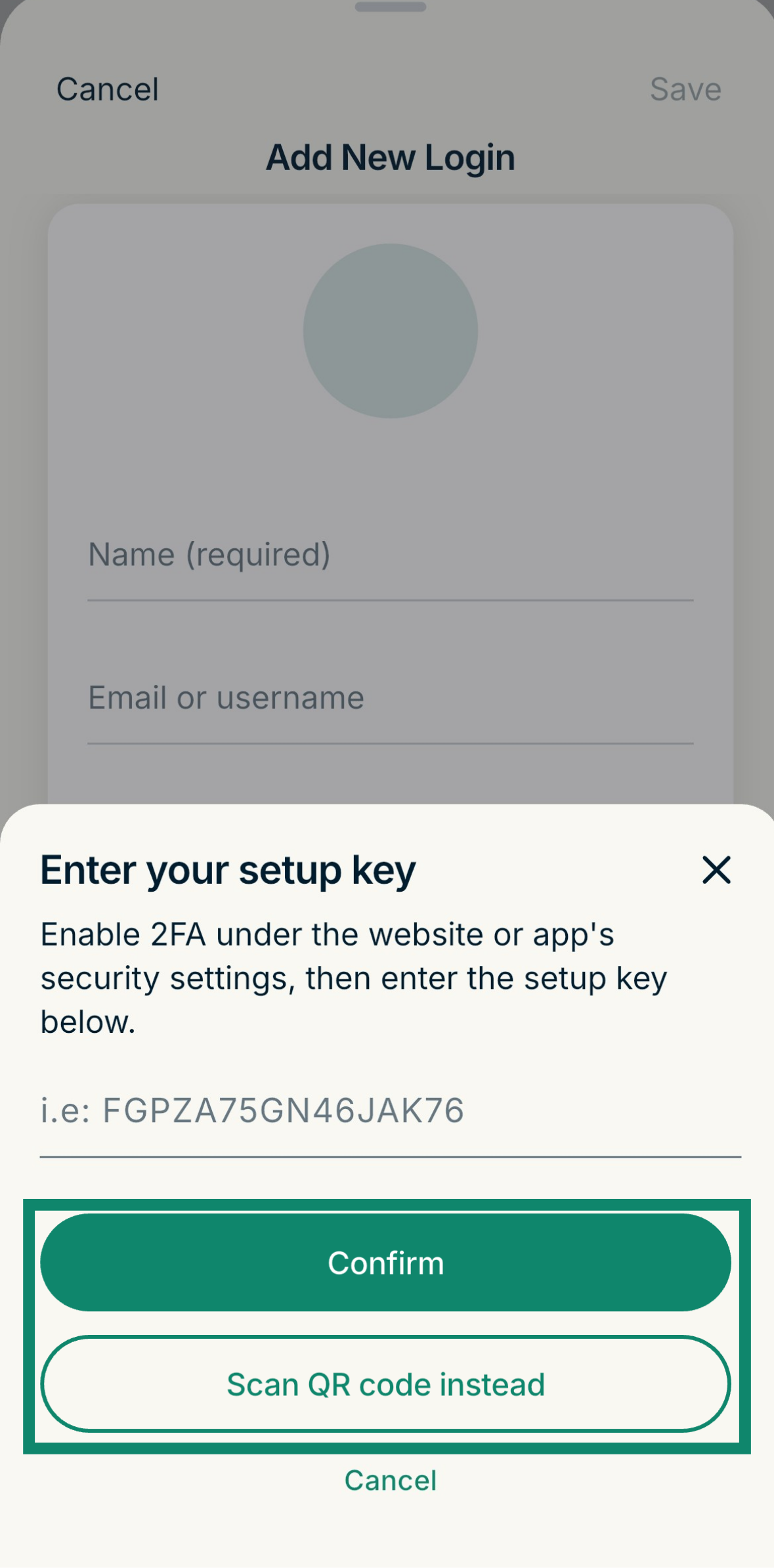
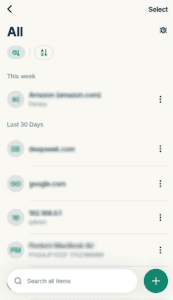
- Select the login you want to add 2FA to.
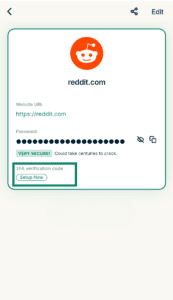
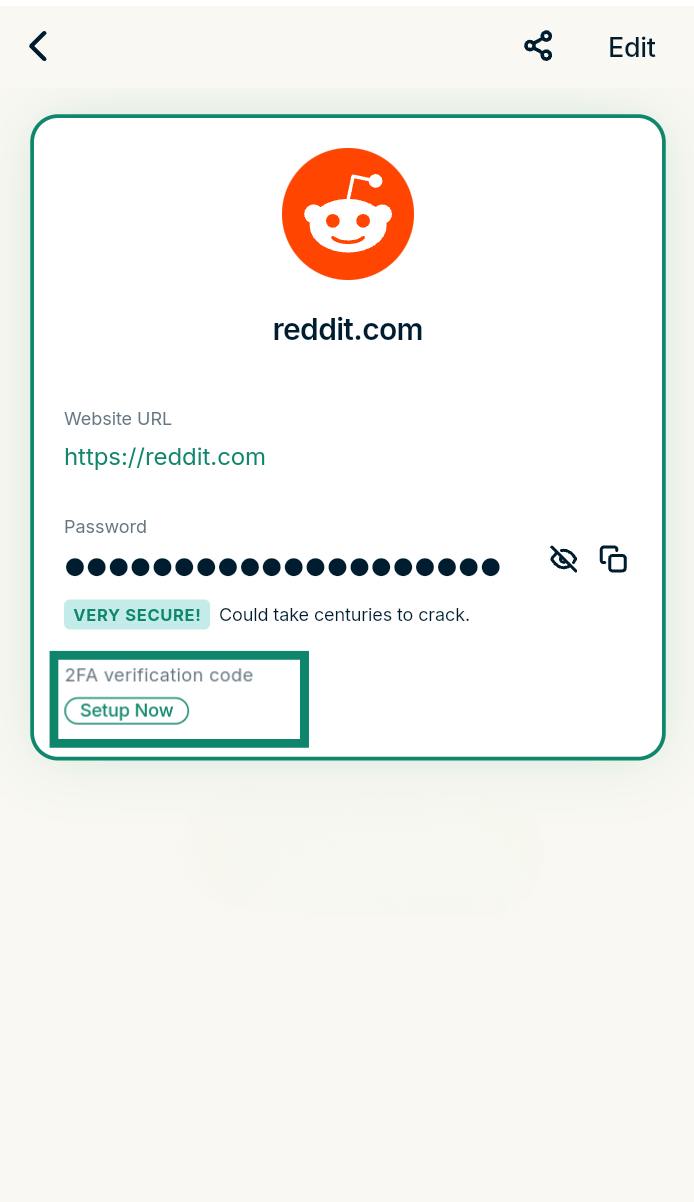
- Select Setup Now under 2FA verification code.
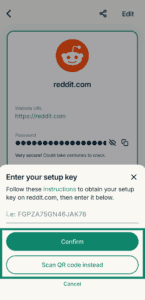
- If you’re using a setup key, enter it and tap Confirm. If you’re using ExpressKeys on mobile, you will also see a Scan QR code button. Tap it if you are using a QR code instead.

- To complete the setup, the website or app will ask you to enter a one-time password or verification code. Copy and paste it from ExpressKeys or enter it manually.
Need help? Contact our Support Team for immediate assistance.
Use your 2FA codes
If autofill is enabled, ExpressKeys will suggest filling in your username, password, and 2FA code on websites and apps with two-factor authentication.
You can also view and copy 2FA codes in the ExpressKeys app or the ExpressKeys Chrome browser extension.
Where to find your 2FA codes
The ExpressKeys app for Android and iOS and the browser extensions display your 2FA codes in three places:
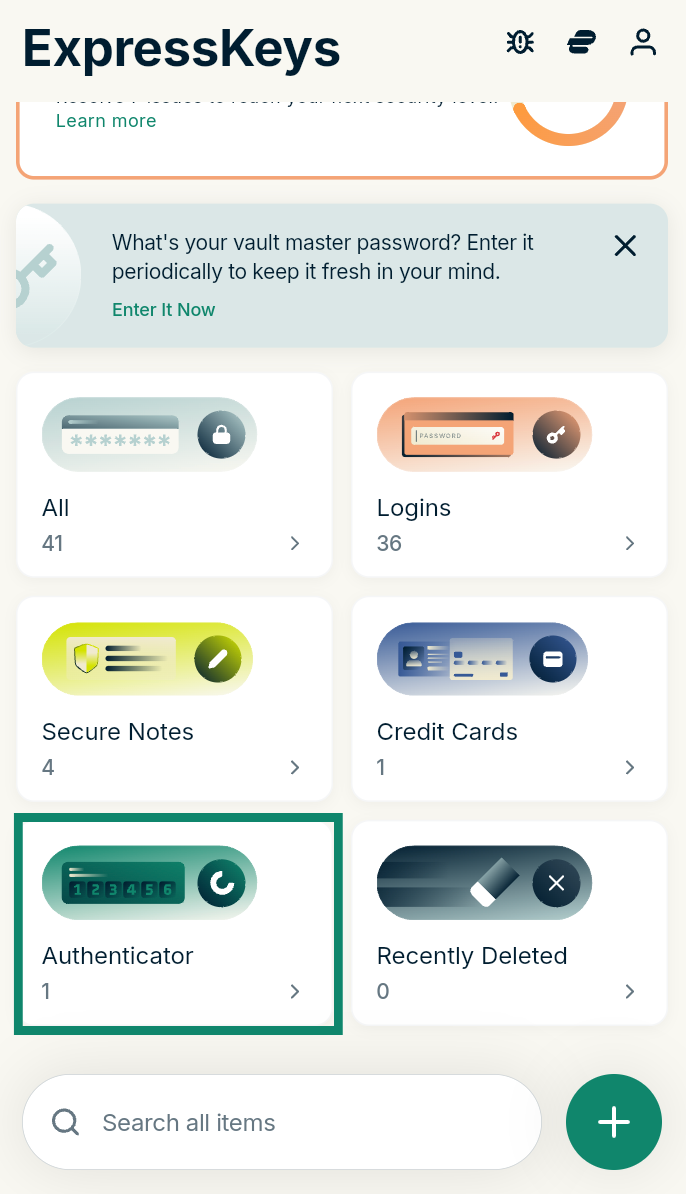
Authenticator tab
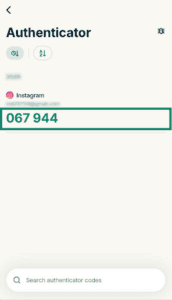
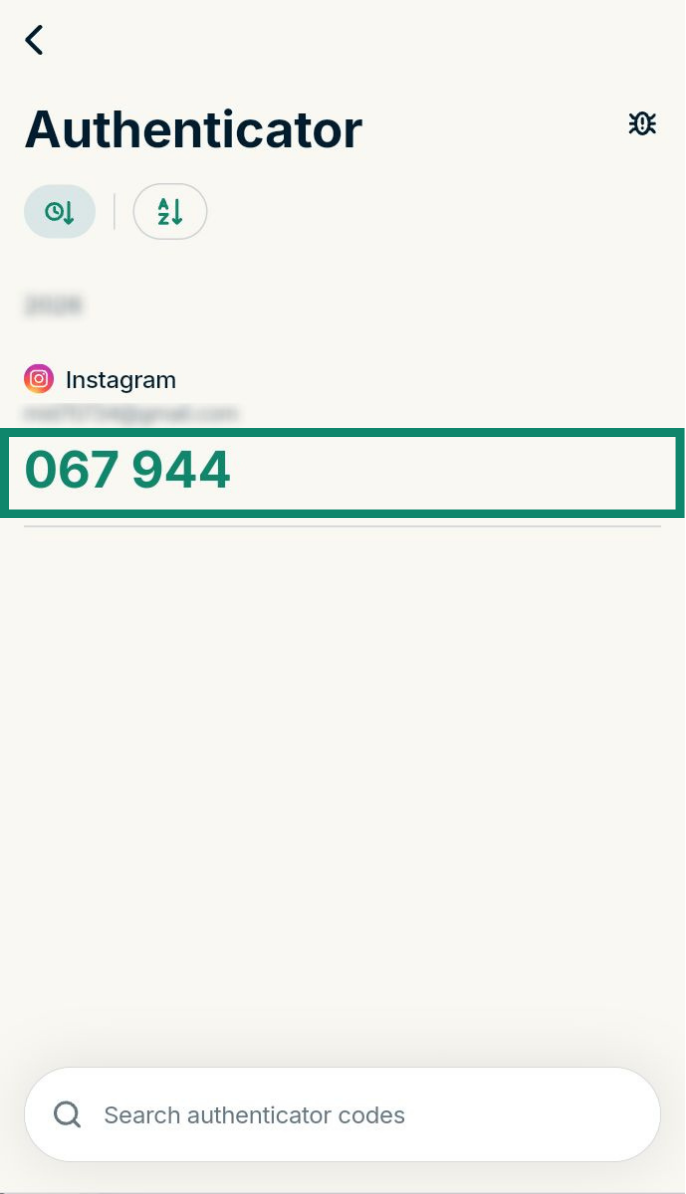
The Authenticator tab shows all your current 2FA codes in one place.
- From the main menu, select Authenticator.
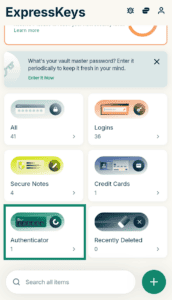

- Your 2FA codes are listed with a circular countdown timer next to each one. You can sort by date or alphabetically by app name.
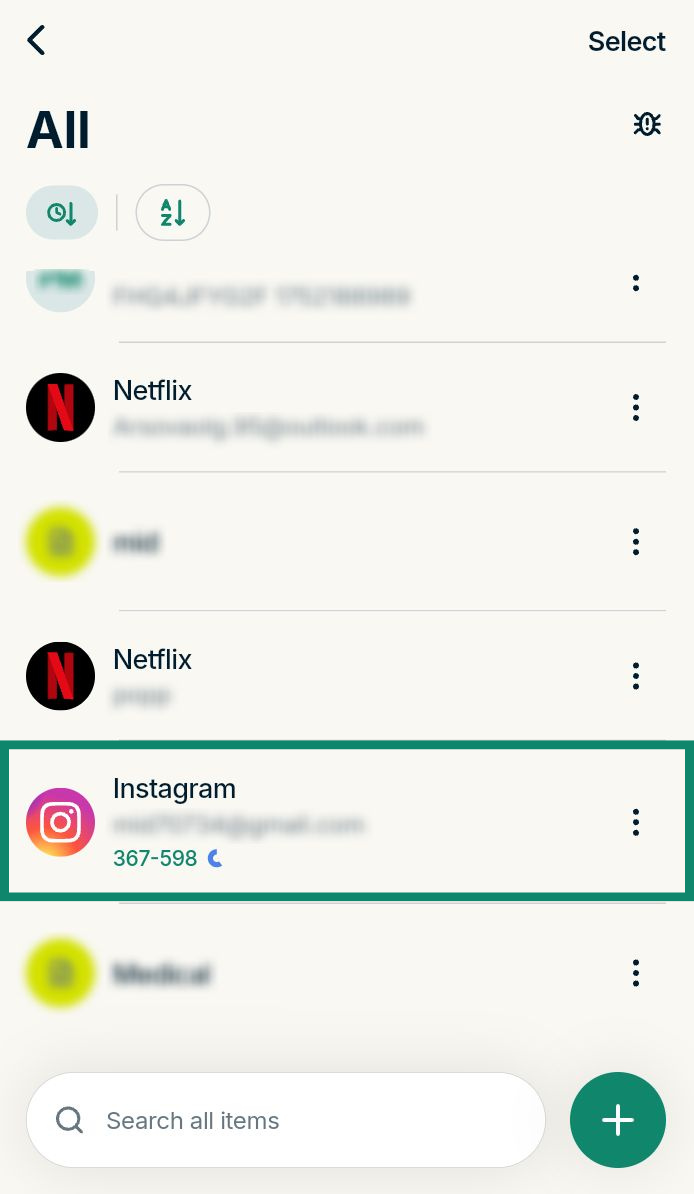
All or Logins tab
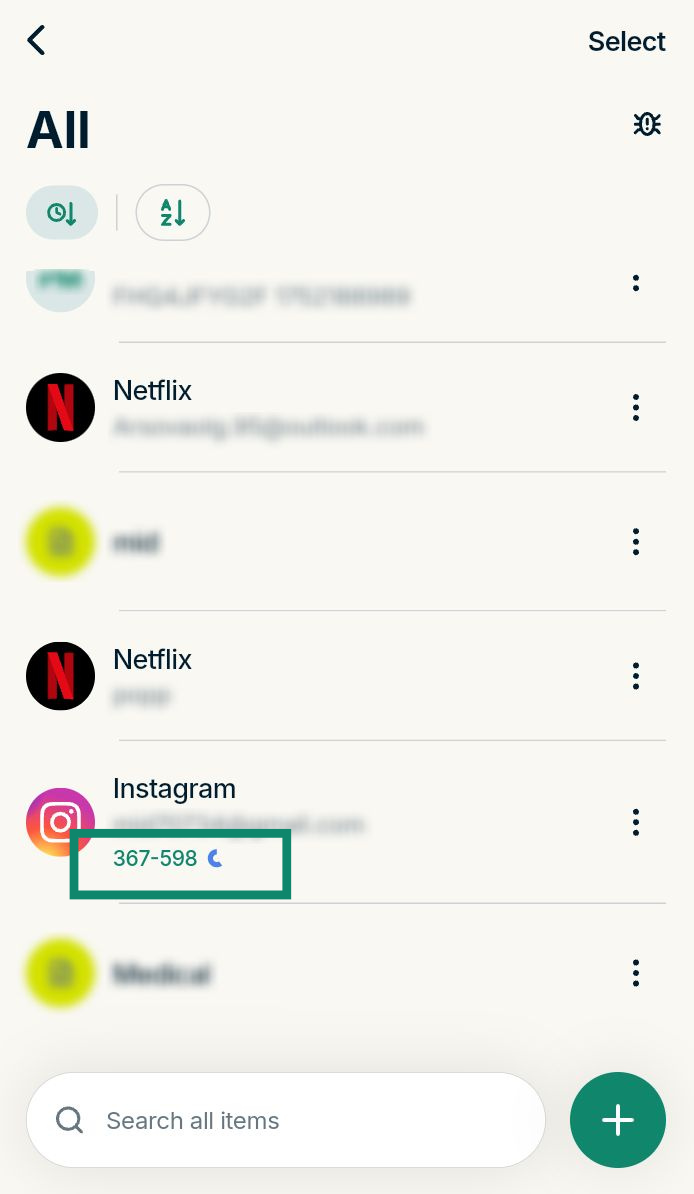
- From the main menu, select either All or Logins.
- The current code appears directly beneath each login that has 2FA enabled. From here, you can enter it manually on the website or app.

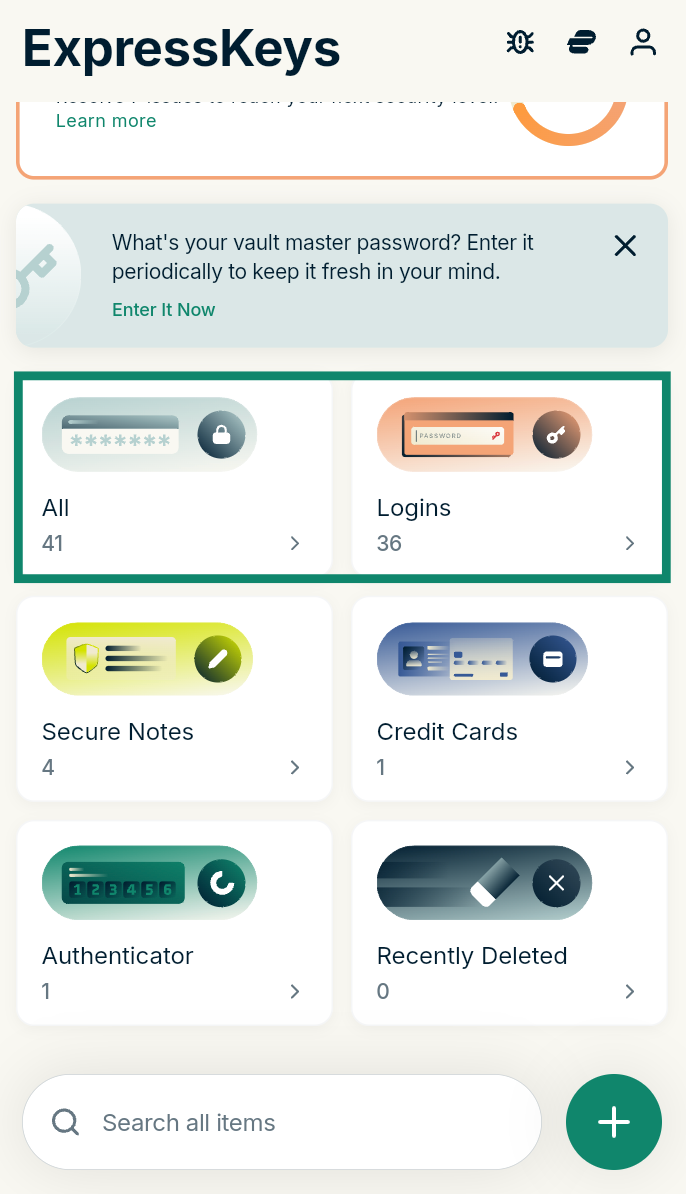
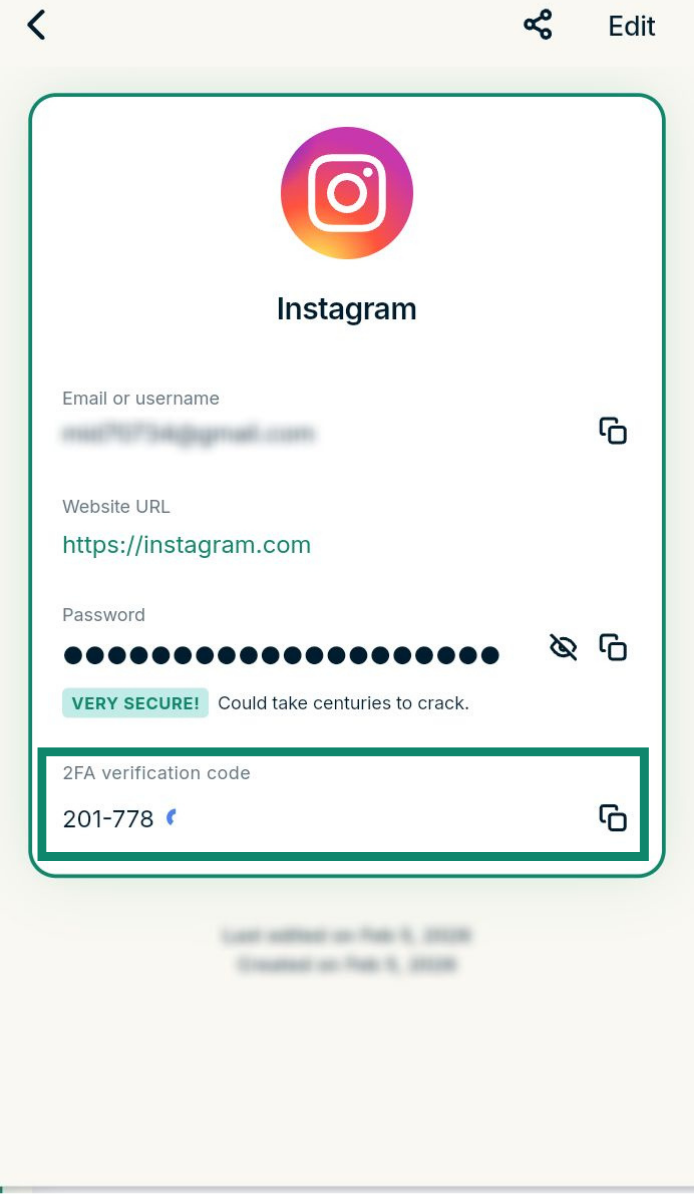
Inside the login entry
- From Login Items, select a login.
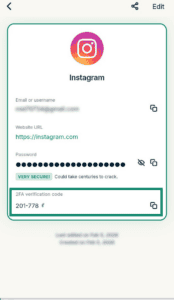
- The 2FA verification code is displayed with a copy button, so you don’t have to type it out manually.
Need help? Contact our Support Team for immediate assistance.