




Need a VPN for Linux?
Get ExpressVPN Now
Love ExpressVPN? Want a free month?
Refer a Friend NowThis tutorial will show you how to manually set up ExpressVPN on Linux via Ubuntu Network Manager.
Not all ExpressVPN locations may be available for manually configured connections. To use the full list of VPN locations, use the app setup.
Jump to…
1. Find your ExpressVPN account credentials
2. Set up the VPN
3. Connect to a VPN server location
Disconnect from a VPN server location
1. Find your ExpressVPN account credentials
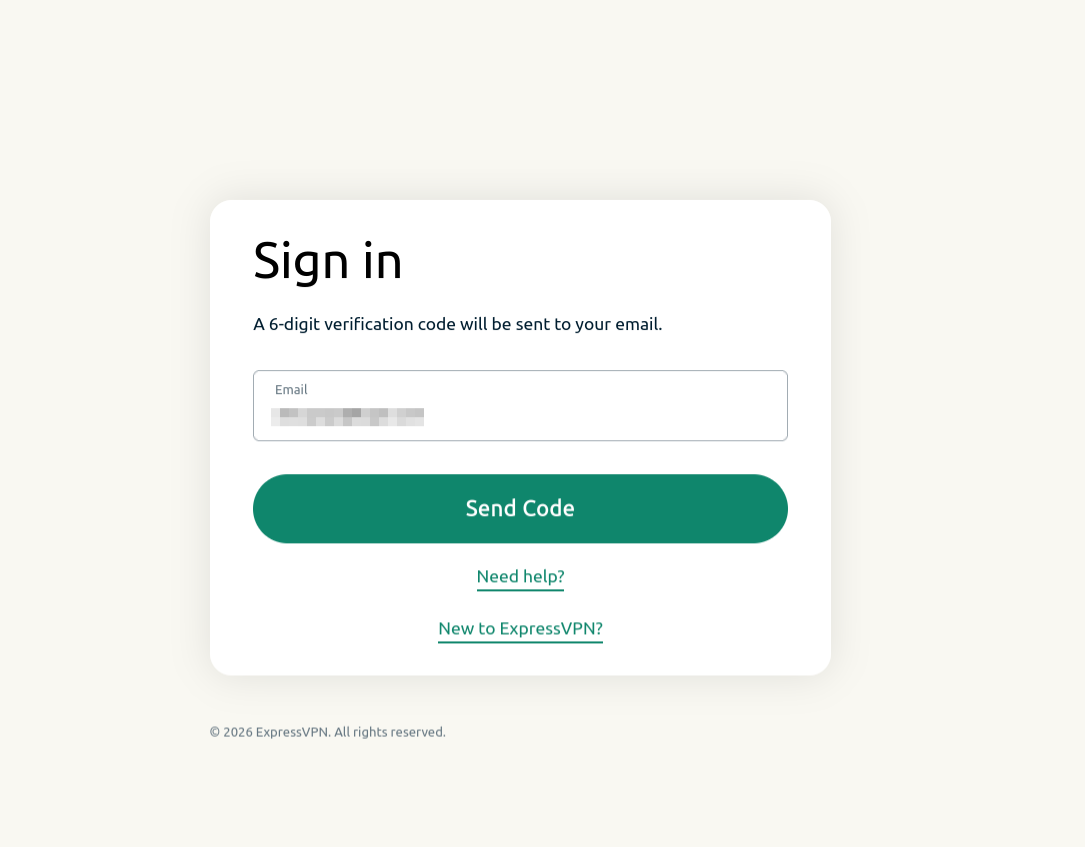
Go to the ExpressVPN setup page. If prompted, enter your ExpressVPN credentials and click Sign In.
Enter the verification code that is sent to your email.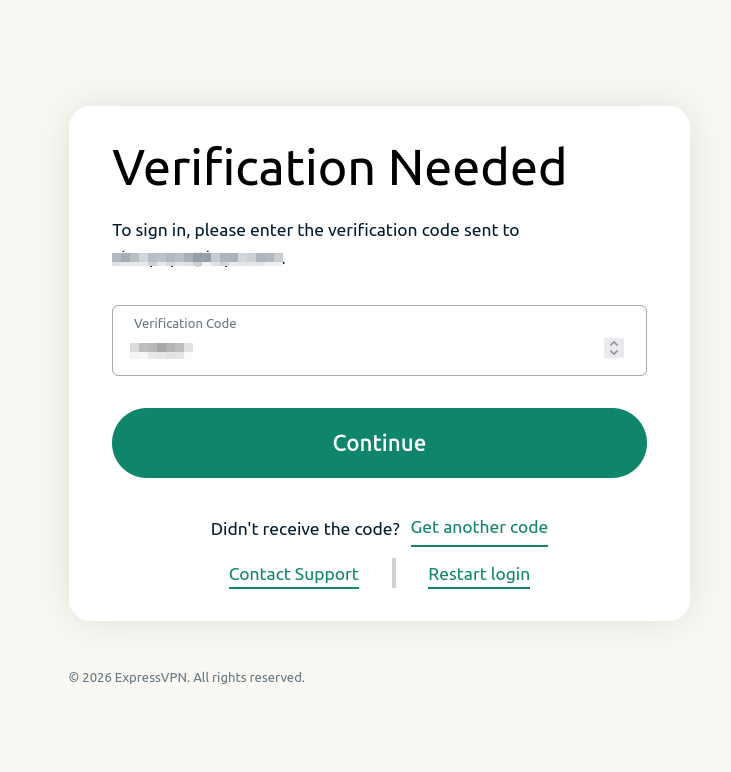
With Manual Configuration already selected for you, you will see your username, password, and a list of OpenVPN configuration files on the right.
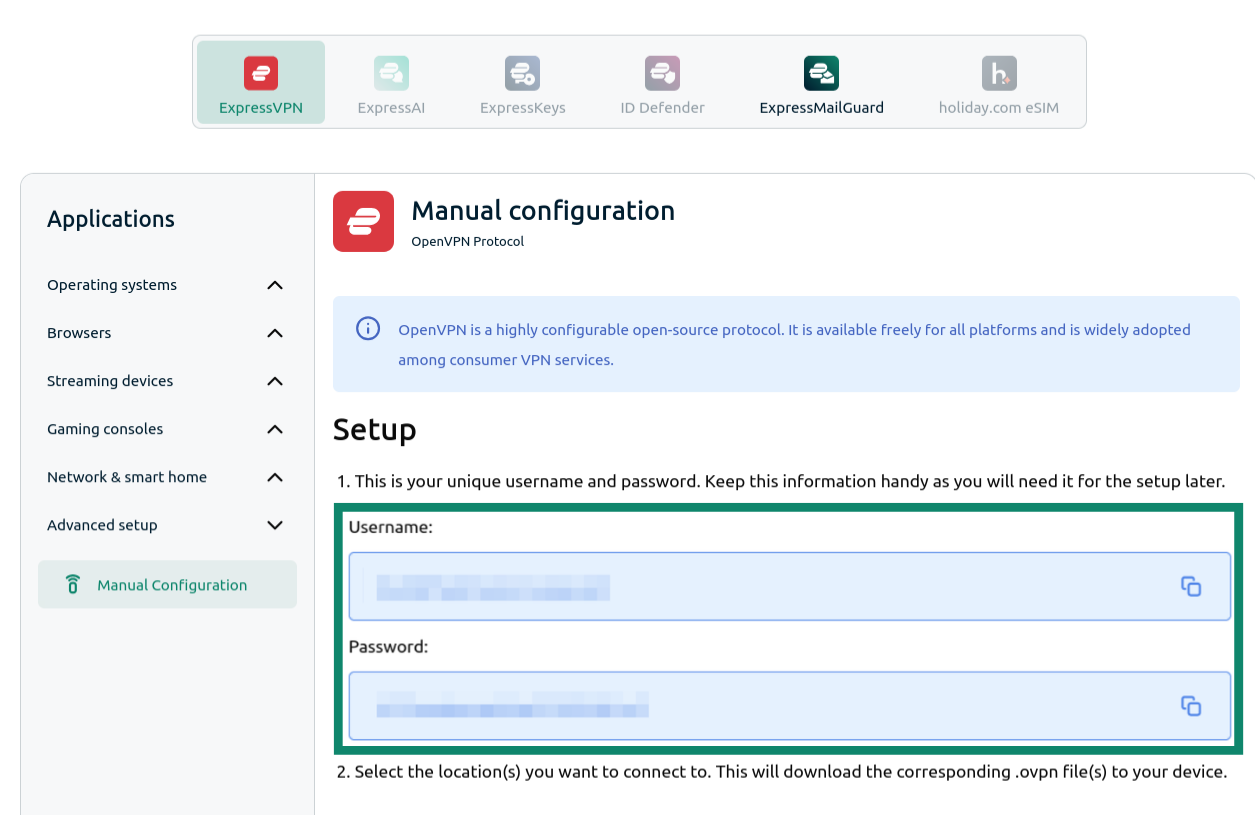
Click the location(s) you want in order to download the .ovpn file(s). Keep this browser window open. You will need this information for the setup later.
Next, download this ZIP file which contains the VPN keys and certificates.
After, go to the Downloads folder (or the location you saved the file to). Locate the file, right-click it, and select extract here to unzip it for later. Alternatively, use the extraction method that works reliably for your operating system configuration.
Need help? Contact the ExpressVPN Support Team for immediate assistance.
2. Set up the VPN
On your desktop, click ⋮⋮⋮. In the search bar, type Network.
Select Network.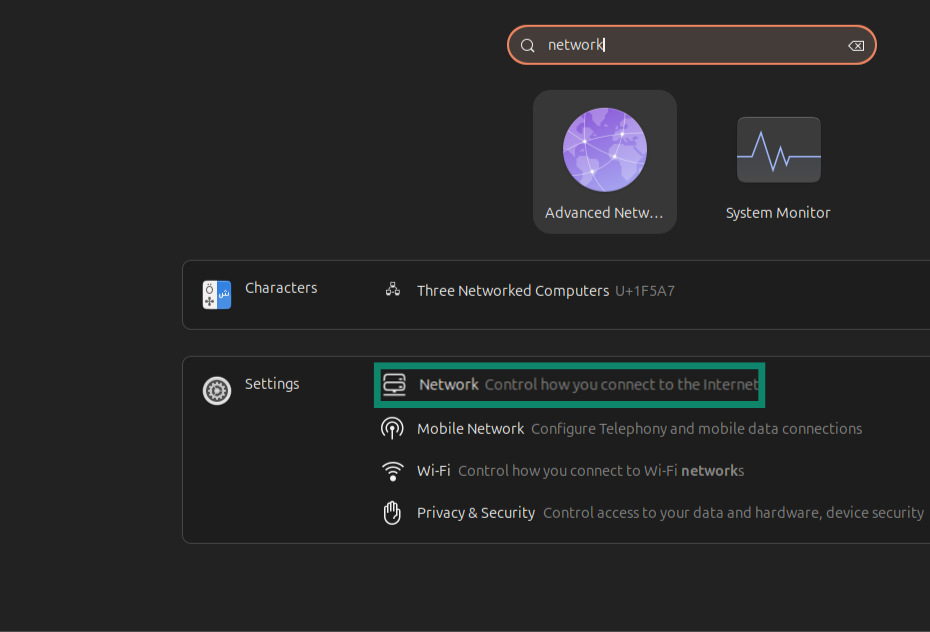
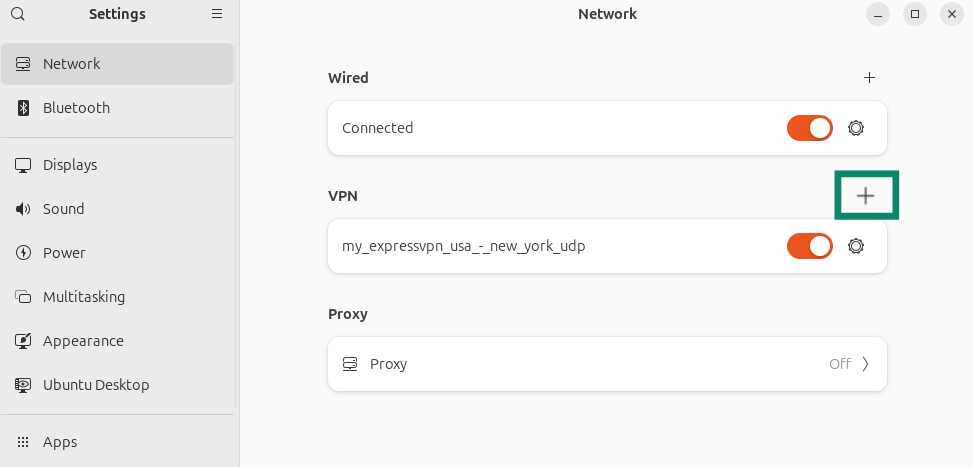
Next to VPN, click  .
.
Click Import from file…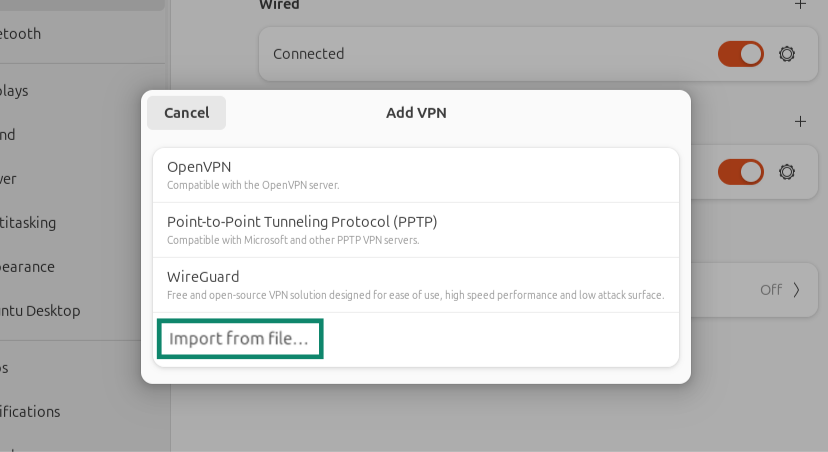
Select the ExpressVPN OpenVPN configuration file you downloaded earlier. Click Open.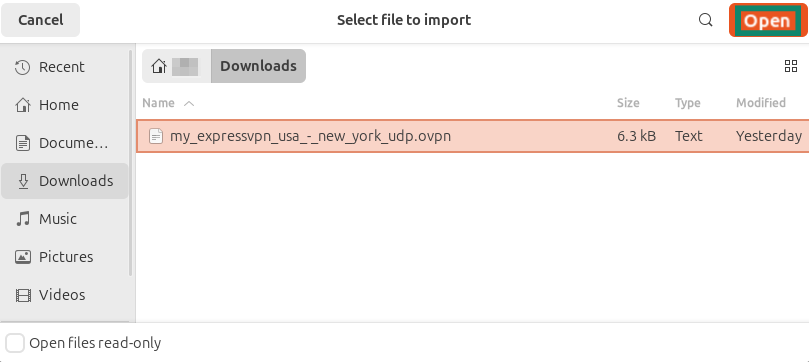
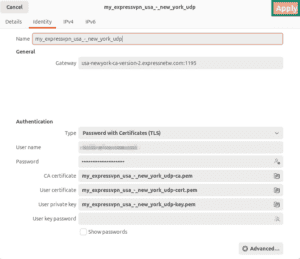
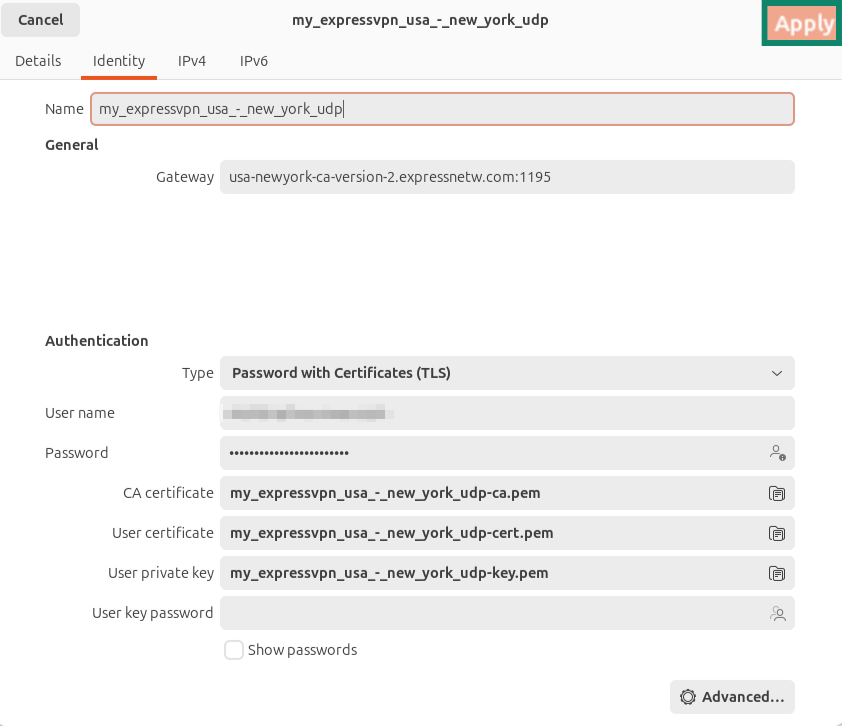
In the Identity tab, under Authentication, enter the following details:
- Type: Select Password with Certificates (TLS).
- User name: Enter the username you found earlier.
- Password: Enter the password you found earlier.

3. Connect to a VPN server location
To connect to a VPN server location, go to Network, then toggle the new VPN profile on.
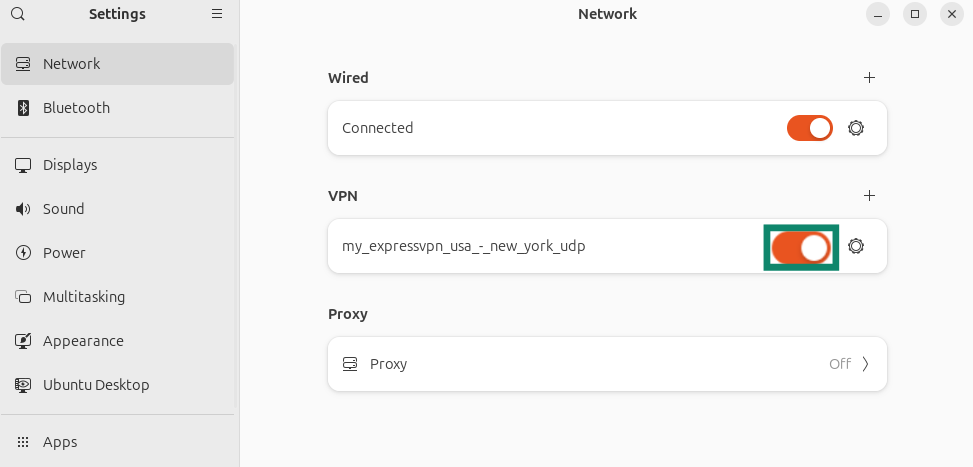
If prompted, enter the password provided for the OpenVPN configuration.
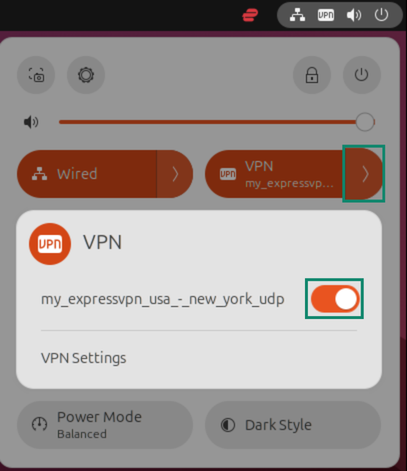
Once you are connected to ExpressVPN, you will see an icon that says “VPN” at the top right corner of your desktop.

Check your location and IP address to confirm the VPN connection is working.
Need help? Contact the ExpressVPN Support Team for immediate assistance.
Disconnect from a VPN server location
To disconnect from a VPN server location, click the VPN icon at the top right corner of your desktop. Select the VPN profile, then click Turn Off.
Need help? Contact the ExpressVPN Support Team for immediate assistance.