What is DD-WRT? Benefits and risks of installing it



Routers come with default firmware and settings, but they can be limiting if you need more customization or to extend Wi-Fi coverage. DD-WRT is an option that may offer better functionality, connection stability, and control (within your hardware's limits).
This post explains what DD-WRT is, how it can benefit you, and the risks of installing it. It also offers a brief guide to the installation process.
Disclaimer: Incorrect installation of DD-WRT may cause irreversible damage to a router and void the warranty. This article is intended as an overview, not a comprehensive guide.
What is DD-WRT?
DD-WRT is Linux-based third-party firmware for routers. It stands for “Dresden-Wireless Router,” after the city where it was developed. It’s widely compatible with Wireless Local Area Network (WLAN) routers and was developed to extend functionality beyond the stock firmware.
If you’re an individual user and only want DD-WRT for private use, it’s completely free. However, you may need to obtain a license to use it in some professional settings.
DD-WRT features
DD-WRT offers functionality that goes beyond most stock firmware. That said, if your hardware doesn’t support a feature, installing DD-WRT won’t change that.
- Device support: Works on over 200 different devices from various manufacturers.
- Outdoor deployment: Enables features such as repeater mode that may stretch coverage if your router’s firmware doesn’t have these features.
- Virtual Private Network (VPN) support: Secure your entire home network by connecting a VPN to your router.
- Enhanced frequency options: Access additional or less-congested wireless frequencies to reduce interference and improve performance when many nearby devices compete for bandwidth. Note that DD-WRT doesn’t add usable frequencies; it allows you to access ones that you may not have been able to through stock firmware.
- Parental controls: Block access during certain hours, restrict specific websites or services, and apply rules to individual devices.
- Bandwidth management: Control how internet bandwidth is allocated across your network to prevent any single device or download from consuming most of it.
Benefits of using DD-WRT
DD-WRT may upgrade a standard router into a more capable and longer-lasting device. Here are some of the main advantages of installing it.
Revives old routers
Router manufacturers often stop offering bug fixes and updates 3–5 years after sale. Without this, a router can feel obsolete even if the hardware is working properly.
As DD-WRT supports both newer and older models and continues to roll out updates and feature improvements, you can extend the life of a router when official support has ended.
Improves network stability and performance
Stock firmware on many consumer routers can sometimes cause occasional freezes, random reboots, or inconsistent speeds.
Common triggers include a high number of connected devices (including smart devices), heavy background traffic (e.g., downloads or streaming on multiple screens), or firmware bugs that accumulate after the manufacturer ends support.
Upgrading to DD-WRT may reduce random disconnects, improve handling of multiple devices, and deliver more consistent performance.
Learn more: How to boost your Wi-Fi signal
Makes your network more private and secure
DD-WRT lets you route network traffic through a VPN without installing software on each device (including smart TVs, gaming consoles, and Internet of Things (IoT) devices that usually can’t run VPN apps).
This built-in support enables the router to connect as a client to a VPN provider's servers, but you still need a VPN subscription for encryption, IP masking, and other privacy benefits.
You can also get preconfigured VPN routers that may provide similar protection without the risks associated with installing DD-WRT on your router. ExpressVPN's Aircove routers, for example, include a built-in VPN and parental controls.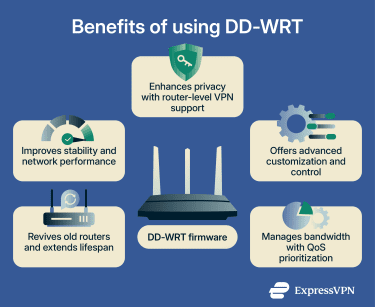
Gives you more customization options
Stock router firmware typically limits what settings you can change. DD-WRT lets you control far more. You can:
- Change wireless transmit power to adjust range or reduce interference.
- Set custom Domain Name System (DNS) servers for faster or more private lookups.
- Configure advanced port forwarding for specific apps or servers.
- Create detailed access restrictions by time, device, or website.
- Manage routing rules for more complex setups.
Enables bandwidth management through QoS
DD-WRT includes detailed Quality of Service (QoS) settings that let you prioritize traffic by type, device, or application. You can prioritize time-sensitive activities, such as online gaming, over less urgent traffic, like file downloads, for a more balanced, responsive network.
Risks of installing DD-WRT
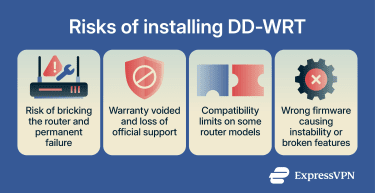
Bricking your router
"Bricking" means turning your router into a useless "brick," where it no longer boots, connects, or functions as a router; it may even become completely unresponsive and appear dead.
This can occur when installing DD-WRT, as flashing custom firmware overwrites the manufacturer's original software.
You might brick your router if you:
- Use the wrong build for your exact model.
- Accidentally interrupt the flashing process.
- Skip critical steps.
While you can sometimes recover a bricked router, some cases are permanent unless you can open the device or have specialized hardware.
Voiding your manufacturer's warranty
Most router manufacturers consider third-party firmware installations unauthorized modifications, so if issues arise after flashing the firmware, warranty coverage and official support are often denied. DD-WRT itself warns users about this risk.
Unless you’re comfortable troubleshooting problems on your own or are willing to give up manufacturer support, installing DD-WRT may not be worth the tradeoff.
Compatibility limitations
Not all routers work the same with DD-WRT. Models with limited flash or RAM capacity can run only basic firmware versions, which lack features such as VPN support or bandwidth controls.
Even with supported routers, selecting the wrong DD-WRT version can result in slower speeds, Wi-Fi that stops working, certain wireless bands no longer functioning, or features that used to work but now don't.
If the version is too old, too new, or not designed for your exact router model, the router may repeatedly restart, show no Wi-Fi signal, or experience other issues.
How to install DD-WRT on your router
The exact steps depend on your specific router model, so this is a general overview. Always use your model's exact instructions from the official router database and forums to avoid problems.
- Check router support: Search the database for your exact model and hardware version. Note any warnings for your router type.
- Download the firmware file: From the database entry for your router, download the recommended initial file (often a "factory" or "mini" build for first-time installs from stock firmware). Save it to your computer.
- Prepare your setup: Connect your computer to the router with an Ethernet cable (avoid Wi-Fi for the flash). Ensure the router is plugged in and functioning normally.
- Back up your current settings: Log in to your router's web interface by entering your router's IP address in a browser, and save your current configuration if possible.
- Flash the firmware (and reset if required): Log in to your router’s firmware upgrade page and upload the DD-WRT file. Start the upgrade and wait for the router to reboot. Do not unplug or power off the router during the process. If the instructions for your specific router recommend a reset, perform it after flashing.
- Set up DD-WRT: Access the new DD-WRT interface using your router’s IP address. Change the default password right away and configure your Wi-Fi, internet connection, and other basics.
Learn more: How to set up ExpressVPN on your DD-WRT router
Common installation pitfalls
Based on official documentation and community guidance, here are some of the most frequently reported issues encountered during DD-WRT installation.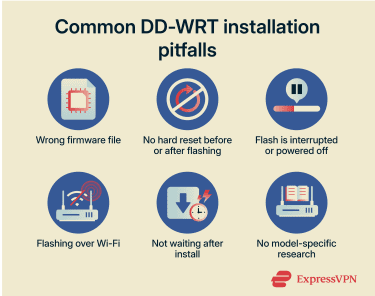
- Using the wrong firmware: Downloading a build that doesn't match your router (e.g., the wrong version) can cause upload failures, boot loops, or bricking.
- Not following reset instructions: Some router models require a hard reset and some don’t. It’s important to follow your router’s instructions.
- Interrupting the flashing process: Any disruption during upload or while the router is writing/flashing can corrupt the firmware, resulting in a brick.
- Flashing over Wi-Fi instead of a wired connection: Using Wi-Fi during flashing can cause packet loss or disconnections mid-process, often leading to incomplete writes and bricking.
- Not waiting long enough after flashing: Clicking "Continue" or accessing the interface before the router fully reboots can disrupt finalization, leading to corruption or the need for recovery.
- Failing to research the specific router model: Skipping model-specific warnings and build notes leads to mismatched steps or unsupported actions, often resulting in bricking or wasted time.
Checking router compatibility
Compatibility depends on the exact manufacturer, model number, and hardware revision, which is usually printed on the router label.
Three of the most popular routers with strong DD-WRT support are the Linksys WRT series, the Netgear R series, and the Asus RT-AC series.
To check compatibility for your router, follow these steps:
- Visit the official DD-WRT router database.
- Enter your router manufacturer and exact model name.
- Review the results for available firmware builds, hardware details, and any warnings or notes.
If you don’t see your router listed, consider checking DD-WRT’s forums, as they may have more recent builds. Note that routers provided by an internet service provider (ISP), cellular service, or satellite service may have a more restrictive firmware environment, a locked bootloader, or a lack of flashing interface, which usually prevents them from running DD-WRT.
DD-WRT vs. OpenWrt
DD-WRT and OpenWrt are two of the most popular third-party firmware options for routers, both built on Linux to replace stock firmware and add advanced features.
| DD-WRT | OpenWrt | |
| Ease of use | More beginner-friendly graphical user interface (GUI) | Good LuCI GUI, but often needs a command-line interface (CLI) |
| Customization | Many features built-in | Full package manager, thousands of add-ons |
| Device support | 200+ devices, strong on older models | Thousands of devices; wider coverage |
| VPN support | Built-in OpenVPN support; WireGuard® available in newer builds | Built-in OpenVPN support, with WireGuard support in mainline and additional protocols through packages |
| Bandwidth management | Strong QoS with prioritization | Highly customizable QoS and Smart Queue Management (SQM) |
FAQ: Common questions about DD-WRT
Should I use DD-WRT, and why?
Which routers support DD-WRT?
Is DD-WRT legal to use?
What is DD-WRT used for?
How do I know if my router supports DD-WRT?
What are the risks of installing DD-WRT?
How does DD-WRT improve router performance?
Can I uninstall DD-WRT from my router?
What are the differences between DD-WRT and alternatives like OpenWrt?
Take the first step to protect yourself online. Try ExpressVPN risk-free.
Get ExpressVPN













 Support Center
  FAQ
FAQ  VPN Setup Tutorials


