How to remotely wipe your device to protect your data



Whether you’ve lost a personal device or are offboarding an employee from your organization, remotely wiping a device is an important step to ensure sensitive data stays protected. In this guide, you’ll learn what remote wiping is, how it works, and how you can remotely wipe a device to ensure data protection.
What is a remote wipe?
A remote wipe is the process of wiping data from devices without needing physical access. It works by giving the device owner or administrator the ability to send a deletion command over a network. Once the command is received, the device begins erasing stored data, including files, apps, emails, and settings.
There are two kinds of remote wipes: full device wipes and account-specific wipes.
- A full device wipe is used on personal devices when they’re lost or stolen or on company-owned devices when an employee is offboarded.
- Account-specific wipes (selective wipes) are done when someone’s using a personal device for a workplace with bring-your-own-device (BYOD) policies.
Prerequisites for effective remote wiping
Before you can initiate a remote wipe, there are several prerequisites you must follow.
Ensure devices are online and enrolled
For remote wiping to work, the device needs to have a remote management app or service installed or configured. For personal devices, this includes the Find My function on Apple or the Find Hub on Android.
Work devices usually have a mobile device management (MDM), enterprise mobility management (EMM), or unified endpoint management (UEM) solution that allows IT teams to remotely wipe them if an employee leaves the company or a device is lost.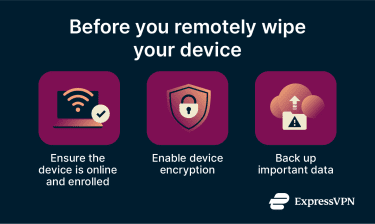
Reduce the risk of data recovery
A remote wipe doesn’t always guarantee that data is completely unrecoverable. Encrypting your device before you need to wipe it is a good way to reduce this risk. On encrypted devices, a wipe typically deletes the encryption keys that protect the stored data. Even if fragments of data remain on the device’s storage, they stay encrypted and are effectively unreadable without those keys.
Modern operating systems like iOS, Android, and Windows all provide encryption methods. Encryption on iOS is enabled by default when you set a passcode.
Older Android devices primarily used full-disk encryption. This system encrypts the entire data partition with a single key tied to the user’s device credentials. When the phone starts, the user must unlock the device before the system can access most stored data. Android versions 5 through 9 commonly relied on this approach, though support existed earlier.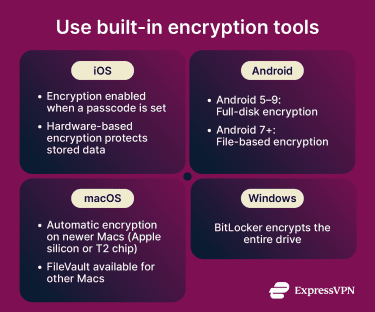
Starting with Android 7.0 (Nougat), Google introduced file-based encryption (FBE) as a more flexible alternative. Instead of encrypting the entire disk with one key, FBE encrypts individual files or groups of files with separate keys.
Windows devices have BitLocker, which provides drive encryption.
Some macOS devices automatically encrypt data, like newer Macs with Apple’s M-series processors and Intel-based Macs that have the Apple T2 security chip. However, those using Macs without Apple processors or the T2 security chip can use FileVault to encrypt their data.
Back up critical data
Make sure your critical data is backed up. If you run a full device wipe on a device that isn’t backed up, you’ll permanently lose any files on that device. Regularly backing up your data to a cloud service, a network-attached storage (NAS) device, or a USB drive ensures you can easily recover files on a new device.
Remote wipe vs. factory reset
What sets a remote wipe apart from a factory reset is that, in some cases, you can choose what data gets erased. For example, when remotely wiping a managed device, an administrator may be able to remove only a work-specific account instead of wiping the entire device.
A factory reset restores a device to its original factory state. It removes all data, settings, and accounts, returning the device to its out-of-the-box condition. It’s also known as a master reset or hard reset.
In some situations, a remote wipe and a factory reset are the same. For example, if a personal Android device is remotely wiped using Find Hub, the result is equivalent to a factory reset. The only difference is that the reset command is sent remotely.
On iOS or macOS, however, when a device is remotely wiped using Find My, Apple’s Activation Lock remains enabled. This means the device stays linked to the owner’s Apple account and can’t be set up again without the correct credentials. In this case, a remote wipe doesn’t function exactly like a standard factory reset.
When each option makes sense
Use a remote wipe when you need to remove data from a device that you no longer have physical access to, like when it’s been lost or stolen, or when an employee has left a company and work data must be removed from the device.
Use a factory reset if you have the device in hand and wish to return it to its original state before giving it away or selling it.
Note: For devices that aren’t managed by an organization, remote wiping usually means performing a remote factory reset, and the steps below cover how to do this using your platform's built-in tools.
How to remote wipe your personal devices
Here, we’ll cover steps for remotely wiping your Apple devices, an Android phone, Windows laptops, and Chromebooks.
Remotely wiping an iOS or macOS device
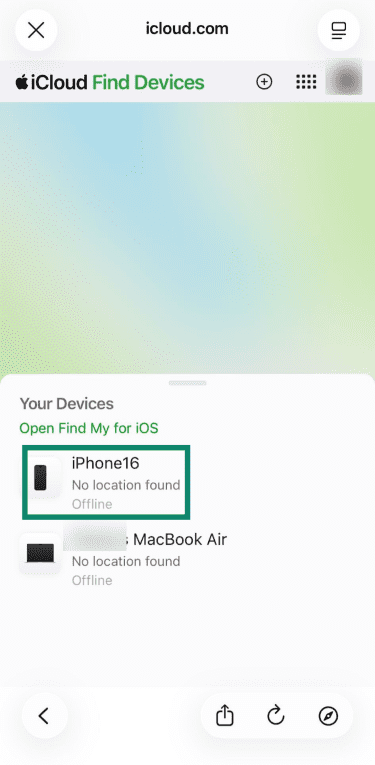
You can remotely wipe both iOS and macOS devices using the iCloud Find website or app. The screenshots below show the steps on an iOS device, but the process is similar on macOS and through a web browser.
- Access iCloud Find and sign into the account linked to your iOS or Mac device. Alternatively, you can use the iCloud app if you have another Apple device on hand.
- Look at the Your Devices tab near the bottom of the screen and select the device you wish to wipe.
- Choose the Erase option when prompted.
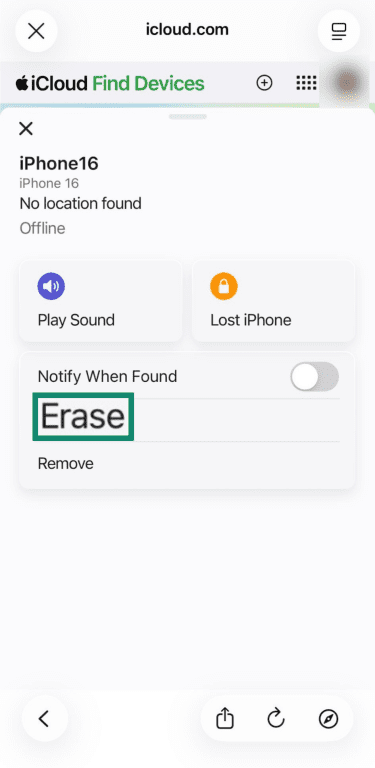
- Follow the on-screen instructions to finish remotely wiping your device.
Remotely wiping an Android device
- Navigate to Google’s Find Hub and click Sign in.
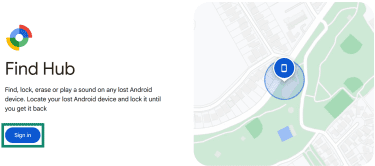
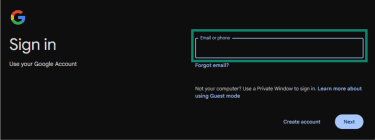
- Sign into the account linked to the Android device you wish to wipe remotely.
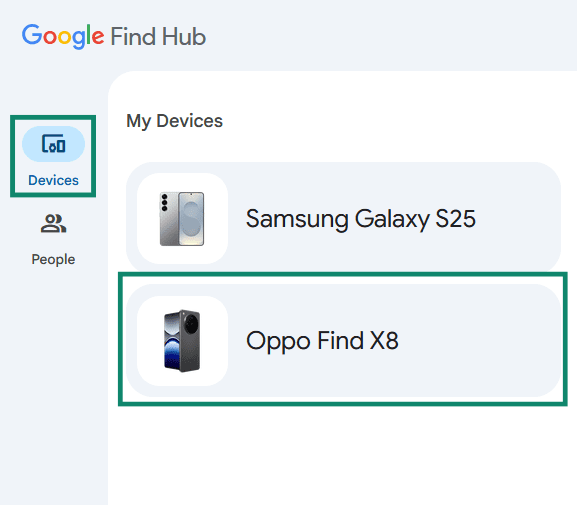
- Click the Devices menu on the left-hand side to see the list of devices connected to your Google account, then click the device you wish to wipe.
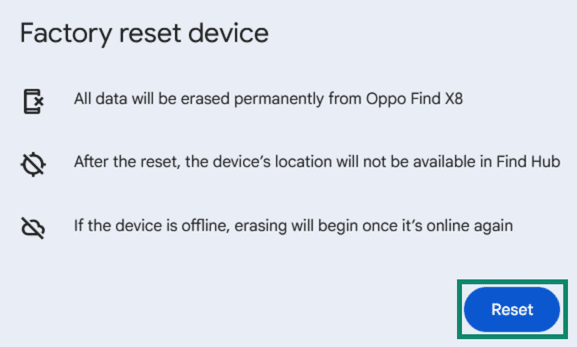
- Click on Factory reset device.
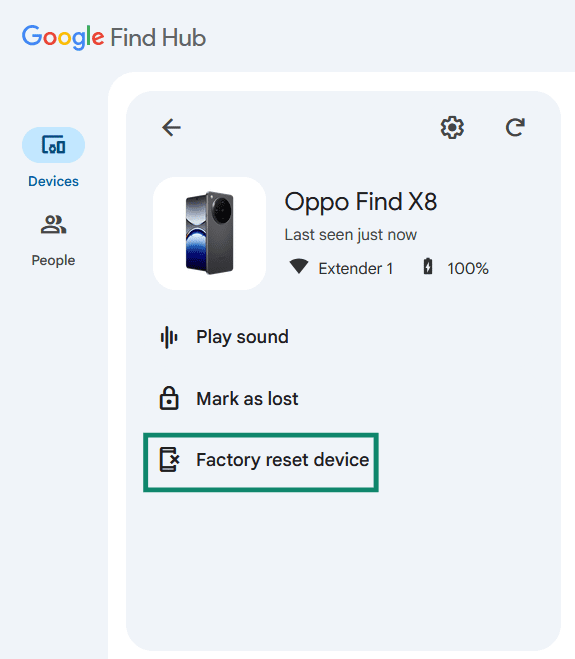
- Click the Reset button and follow the on-screen instructions to remotely wipe your device.
Remotely wiping a laptop
Windows
It’s not possible to remotely wipe your personal Windows device unless you have a device management solution, which is generally only seen in organizations. The only available options in Microsoft’s Find my device menus include Find and Lock.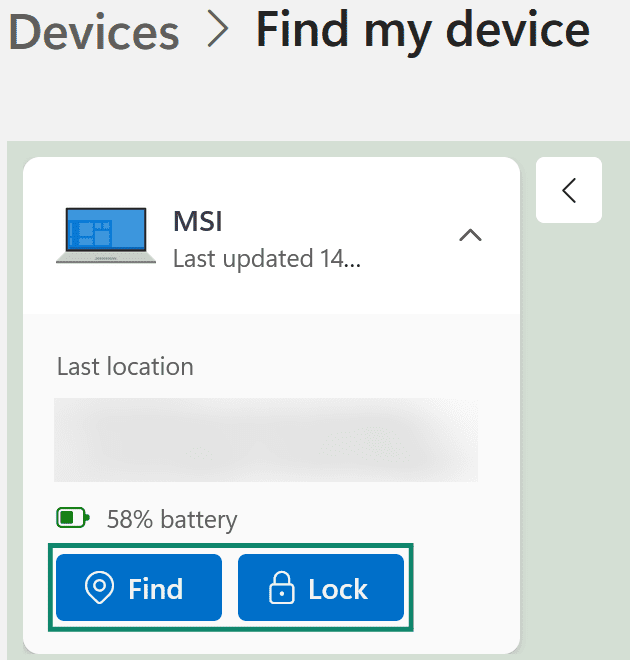
ChromeOS
Similar to Windows, these steps only apply to organization-managed Chromebooks, such as devices issued by a workplace or school. They require administrator access to the Google Admin console. Personal Chromebook owners cannot remotely wipe their device.
- Sign into the Google Admin console using an administrator account.
- Go to Devices > Chrome devices.
- On the left-hand side, select All devices to view every enrolled device, or choose a specific organizational unit. You can apply filters to narrow down the list if needed.
- To wipe a single device, click its serial number, then select Reset on the Device details page.
- To wipe multiple devices, select the checkboxes next to the devices, click More, then choose Reset.
- Select either Clear User Profiles or Factory Reset, confirm that you understand the action cannot be undone, then click Reset again to complete the process.
When should you perform a remote wipe? Common scenarios
There are various scenarios in which doing a remote wipe becomes important.
Lost, stolen, or sold device
Loss and theft are usually the most common reasons for remotely wiping a personal or company-owned device. After losing your device, a remote wipe removes the risk of someone else getting their hands on any sensitive data on the device itself.
Another possible scenario is if you sold your device to someone and forgot to reset it before shipping it. In this instance, a remote wipe lets you clear your data from the device without needing physical access.
Employee offboarding
Remote wiping is a reliable way of deleting company data from a former employee's device. In a standard offboarding process, the IT team triggers a full device wipe through the organization's device management platform on the day of departure.
However, in BYOD environments, there’s usually only an account-specific wipe to remove company-installed apps and data, leaving the employee's personal data untouched.
Device reassignment within an organization
When a device moves from one employee to another, doing a remote wipe before reassignment removes all previous data and configurations, ensuring the new user doesn’t accidentally access information and accounts that the previous employee had access to.
Suspected compromise
For individuals, running a local factory reset or remote wipe can be worthwhile after seeing symptoms of a hacked screen or other signs of compromise. In organizations, if security monitoring flags unauthorized access, unusual account activity, or malware on a device, a remote wipe can contain the damage before the malicious actor is able to steal sensitive data.
End of device life
When a device is being decommissioned, recycled, or disposed of in an organization, a remote wipe ensures no sensitive data remains accessible on hardware you no longer control. For individuals, wiping a device before handing it off for recycling or trade-in is a simple and easy way to safeguard their personal data and identity.
FAQ: Common questions about remote wiping
What can prevent a remote wipe from completing?
Can you remotely wipe your phone?
How long does a remote wipe take?
Are there limits to what can be wiped remotely?
How to ensure data isn’t recoverable after a remote wipe?
Does remote wipe guarantee data can't be recovered?
Take the first step to protect yourself online. Try ExpressVPN risk-free.
Get ExpressVPN








 Support Center
  FAQ
FAQ  VPN Setup Tutorials


