Data leak on iPhone? What it means and how to stay protected


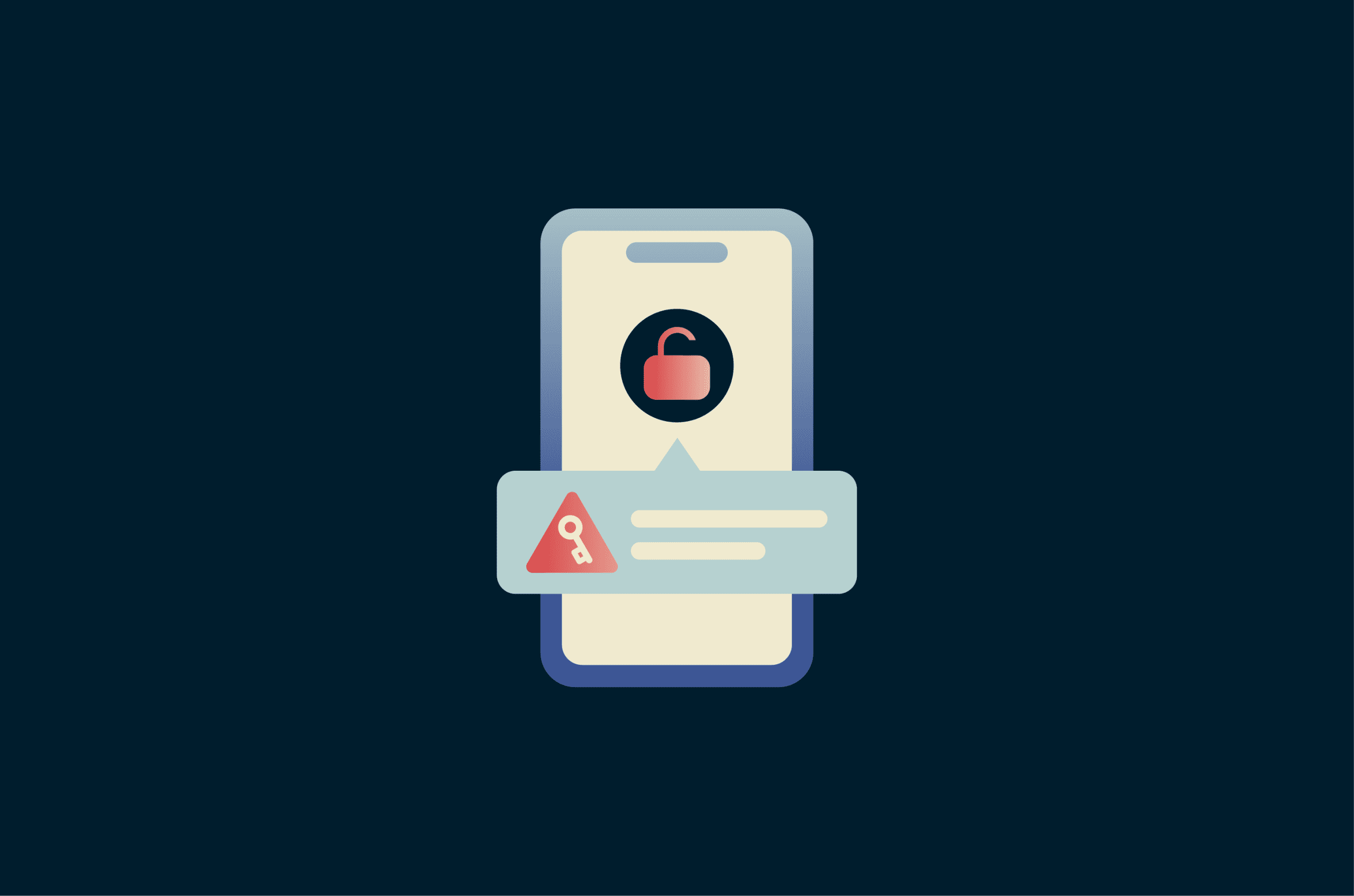
If you receive a notification on your iPhone about a compromised or leaked password, it means one of your saved passwords has been exposed in a data breach linked to another service.
In most cases, the next steps are to change the affected password, enable two-factor authentication (2FA), and review your account for any unusual activity.
It’s important to act on the alert even if the affected account doesn’t seem important. A leaked password can become a bigger risk if it has been reused, if the account contains personal details, or if it can be used to reset access to other accounts.
This guide explains what a data leak means on an iPhone, why you’re seeing it, and how to secure your accounts.
What does "data leak" mean on an iPhone?
On an iPhone, this type of “data leak” warning usually means that a password saved in Apple’s Passwords app or iCloud Keychain has been found in a known data breach or data leak from another service.
Apple checks passwords saved in Passwords / iCloud Keychain against databases of known compromised credentials. These are built from publicly reported breaches and findings from security researchers. If a match is found, you receive a warning.
This type of alert isn’t unique to Apple or iCloud Keychain. Many password managers include similar breach-monitoring or password health features that check whether saved credentials have appeared in known data breaches. The goal is the same: to warn you when a password may no longer be safe to use, even if the account still appears to be working normally.
What Apple means by a password appearing in a data leak
In this instance, the alert you’re seeing refers to a specific password saved on your iPhone. It means that exact password has been found in data from a known breach.
The breach may not be recent. In fact, you may see the warning long after the original breach happened. That can be because Apple’s database has been updated or because you recently saved or reused the password.
The main risk comes from reuse. Exposed passwords are often reused in credential stuffing attacks, where attackers try the same login details across multiple accounts. If that password has been reused, more than one account could be at risk.
For example, if the same password was used for an old shopping account and an active email account, the email account is the bigger priority. Email accounts are especially sensitive because they’re often used to reset passwords for many other services.
How iPhone detects compromised passwords
Apple’s Password Monitoring feature checks saved passwords against a vast curated list of passwords known to have appeared in leaks. The most commonly leaked passwords are checked locally on the device. For other leaked passwords, Apple uses a complex cryptographic process designed to check for matches without sending the user’s actual password to Apple.
This process is meant to warn you about known exposure, not to prove that someone has accessed your account. A data leak warning should be treated as a security risk.
The difference between leaked, weak, and reused passwords
Your iPhone can also warn you about weak or reused passwords. Here’s the difference between the three categories:
- Leaked passwords: Your password showed up in a breach. Strength doesn’t matter once it’s exposed, so attackers can use it immediately.
- Weak passwords: These are easy to guess, often using simple or predictable patterns. Cybercriminals can crack them through brute-force attacks.
- Reused passwords: You’ve used the same password across multiple accounts. If one account gets breached, every account using that password becomes vulnerable.
Of course, these categories can overlap. A password can be leaked, weak, and reused at the same time.
How to find the affected password on your iPhone
When you get a data leak notification, Apple highlights the affected accounts directly in the Passwords app, so you can review them.
Here’s how to find them:
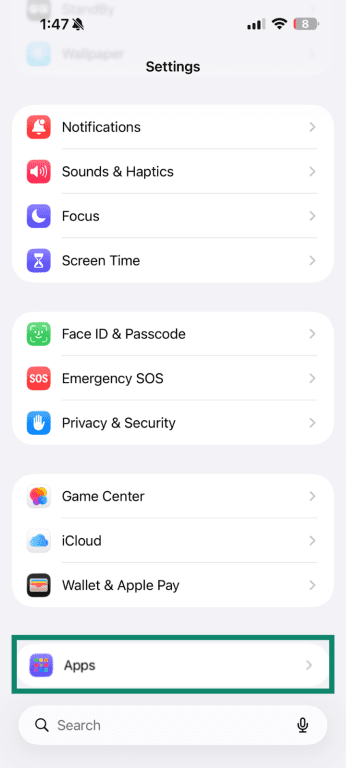
- Open Settings and go to Apps (normally at the bottom of the settings menu).
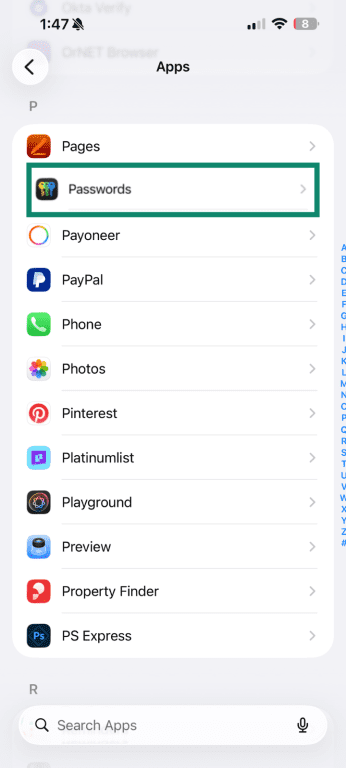
- Select Passwords.
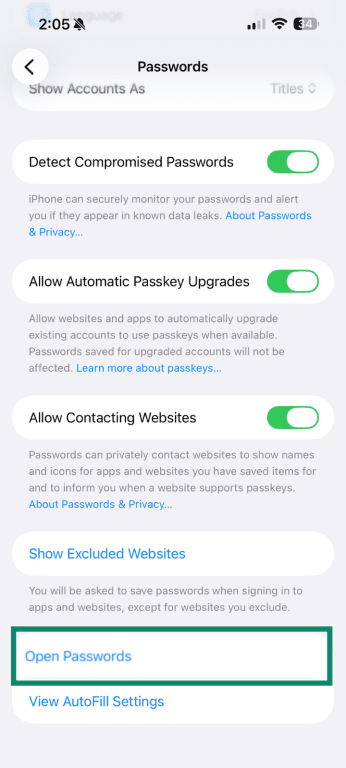
- Scroll down to the bottom and tap Open Passwords.
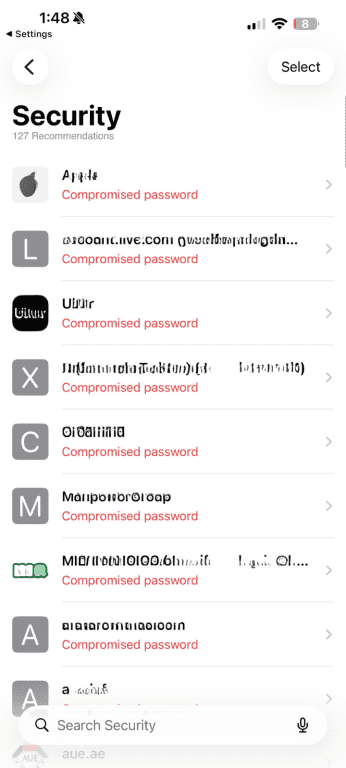
- Tap Security.
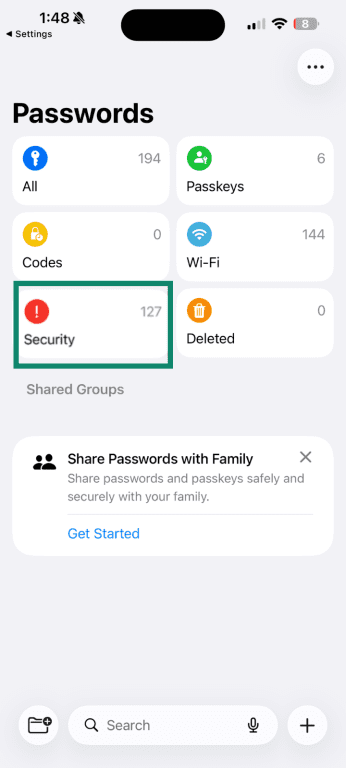
- If any of your passwords have been exposed in a data leak, they’ll be listed here. Select the affected account to view details.
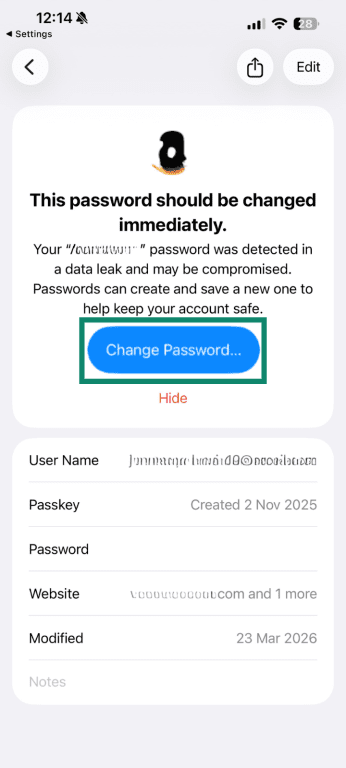
- Tap “Change Password…” which will take you directly to the service so you can update it.
When updating the compromised password, make sure the new one is strong and unique.
A strong password has:
- At least 12 characters (longer is better).
- A mix of uppercase, lowercase, numbers, and symbols.
- No dictionary words, names, or predictable patterns.
- Nothing related to you personally.
Examples include:
- Weak: MyDog2024, Password123, Anniversary0512.
- Stronger: Tr0pic@lSunset#92, K7x$mP2qL9vN4wR, RainyThursday$47.
Remembering unique passwords for every account isn't usually practical, so it’s worth considering a password manager. Password managers generate high-entropy passwords and store them securely so you don’t have to remember each one.
Tip: When changing your password, avoid small variations of the old password, such as adding a number, changing one symbol, or updating the year. Attackers may try predictable variations of the exposed password.
What to do if a password has appeared in a data leak
Once you've found and changed the compromised password, there are a few other steps to help ensure your accounts are secure.
Update any other accounts using the same password
If you’ve used the same password on other accounts, those need to be updated, too. Start with accounts that give access to others, like your email or Apple Account. From there, move onto anything tied to money or personal data, such as banking apps, shopping sites, or cloud storage.
If you’re not sure where you’ve used the same password, check your saved passwords in iCloud Keychain or your password manager; many will flag reused passwords.
Go through your accounts and change the password on every service where you’ve used it. This takes time, but it helps prevent multiple accounts from being compromised at once.
Older accounts that you no longer use should still be secured or closed if they contain personal information.
Check recovery email addresses and phone numbers
A password change helps, but it’s also worth checking the account’s recovery details. If someone accessed an account, they may have added a recovery email address, phone number, or backup method that could let them regain access later.
Make sure all recovery options belong to you. Remove anything unfamiliar, then save your changes.
How to protect your accounts after a leaked password
Changing your password addresses the immediate risk. Additional steps, such as enabling 2FA, can further reduce the risk of unauthorized access.
Turn on two-factor authentication
When you enable 2FA, logging in requires two things: your password plus something only you have.
Where possible, avoid relying only on SMS codes for important accounts. SMS-based 2FA is still better than having no second factor, but authenticator apps and security keys are generally stronger options because they don’t depend on your phone number, so they’re not affected by SIM-swap attacks, where someone takes control of your phone number to receive verification codes.
Your iPhone can also generate authenticator codes directly through the Passwords app for supported services. Apple says iPhone can generate one-time verification codes for websites and apps that support two-factor authentication, so you don’t have to rely on SMS messages or a separate authenticator app.
To set this up, first go to the website or app where you want to enable 2FA and look for its security or account settings. Choose the option to turn on 2FA, then select an authenticator app if the service gives you a choice. The service will usually show either a QR code or a setup key.
If you’re setting it up with a QR code, display the code on another device, then scan it with your iPhone camera. If you’re using a setup key, copy the key, then open the Passwords app, select the relevant website or app, and choose Set Up Verification Code.
Watch for phishing or suspicious login attempts
Even with strong passwords and 2FA, phishing remains a common way attackers try to access accounts. Apple-related scams can be especially convincing, as they often mimic Apple’s design and messaging. Some messages imitate Apple security alerts about unusual sign-ins or account issues to create urgency.
Instead of using links in emails or messages, access accounts directly through either their respective apps or the official website.
Related: Learn how to recognize a phishing attempt.
Use passkeys
Passkeys are a newer alternative that removes passwords entirely. Instead, you sign in using biometrics (Face ID or Touch ID) or a PIN. They’re more resistant to phishing and can’t be reused across services. Apple supports passkeys natively on iPhone.
Not every website supports passkeys yet, so it’s still worth having a password manager for accounts that rely on traditional passwords. The safest setup is to use unique passwords everywhere, enable 2FA for important accounts, and switch to passkeys when a service offers them.
Could your Apple Account be at risk?
A data leak notification doesn’t mean your Apple Account has been compromised, but it can increase the risk, especially if the leaked password is the same as your Apple Account password.
Your Apple Account should be treated as one of your highest-priority accounts because it can be connected to your devices, iCloud data, App Store purchases, subscriptions, payment methods, and recovery options. If the leaked password was ever used for your Apple Account, change it immediately.
Signs your Apple Account may be at risk
Check for these specific indicators:
- Login alerts from locations you don't recognize: Apple notifies you when your account is accessed from a new device or location. If you receive a notification and haven’t signed in anywhere, that’s a red flag. Deny the attempt and secure your account.
- Password reset emails you didn't request: These can indicate that someone tried to access your account or triggered a password reset. Check your inbox and spam folder for any you didn’t initiate, and treat them with caution, as some may be phishing attempts.
- Changes to recovery details: If your recovery email or phone number was updated without your knowledge, your account may have been accessed. Restore the correct details and review your security settings.
- Unexpected purchases or downloads: Check your App Store purchase history for any activity you don’t recognize. If anything looks unusual, update your password and review your payment details.
- Devices you don’t recognize: Review the devices signed in to your Apple Account. If you see an iPhone, iPad, Mac, or other device you don’t recognize, remove it from your account and update your password.
- "Sign in with Apple" accounts acting strange: If accounts linked through “Sign in with Apple” show unfamiliar activity or become inaccessible, it may indicate a problem with your Apple Account.
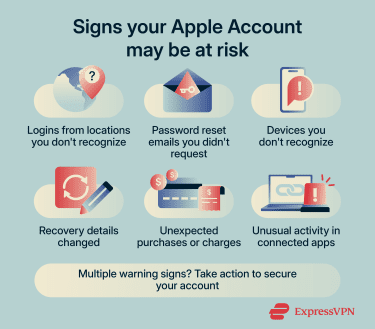 Seeing one of these signs doesn’t always mean your account has been compromised. However, some signs, such as unexpected purchases or password changes you didn’t request, are stronger indicators of unauthorized access.
What to do if you notice suspicious Apple Account activity
If something doesn’t look right, start by securing your account. Acting early can help limit further access and reduce potential damage.
Secure your Apple Account first
Change your Apple Account password to something strong and unique. You can do this in Settings under your account’s Sign-In & Security section.
Next, check that 2FA is enabled for your Apple account. This adds an extra layer of protection and helps prevent unauthorized access.
Check for unauthorized activity
Look at your trusted phone numbers in your Apple account’s 2FA settings, and make sure they all belong to you. These are used for verification, so anything unfamiliar should be removed.
Finally, review your payment method in Settings under your Apple Account’s Payment & Shipping section, and make sure all listed details are correct and belong to you.
Clean up connected apps
Open Settings, tap your Apple Account at the top, then select Sign in with Apple. Review the list of connected apps and remove anything you don’t recognize or no longer use.
These steps help block continued access and lock down the account.
If you’re locked out of your Apple Account or can’t change the password, use Apple’s official account recovery process rather than following links from emails or texts. This helps reduce the risk of interacting with a fake support page.
FAQ: Common questions about data leak on iPhone
What does "This password has appeared in a data leak" mean on iPhone?
Does a data leak warning mean your iPhone has been hacked?
Does a data leak warning mean your Apple ID was leaked?
Can I ignore a compromised password warning on my iPhone?
What if the leaked password is for an account I no longer use?
Will changing my Apple Account password fix all data leak warnings?
Can a strong password still appear in a data leak?
Do I need to delete the saved password from my iPhone?
Take the first step to protect yourself online. Try ExpressVPN risk-free.
Get ExpressVPN