 Celebrate with up to 80% off
How to disable WebRTC and stop IP leaks in major browsers



You turn on your virtual private network (VPN), open your browser, and your IP address should be private. It isn’t always.
WebRTC, a technology built into every major browser for real-time audio, video, and data communication, can expose your real IP address even when your VPN is connected. This is called a WebRTC leak, and it happens silently: the page loads normally, nothing crashes, and there’s no warning.
What is WebRTC?
WebRTC stands for Web Real-Time Communication. It’s a browser technology that enables direct peer-to-peer (P2P) audio, video, and data connections without plugins or extra software.
If you’ve joined a video call through Google Meet or Discord in your browser or shared your screen on a web-based conferencing tool, WebRTC made that possible. It’s built into Chrome, Firefox, Edge, Safari, and Brave.
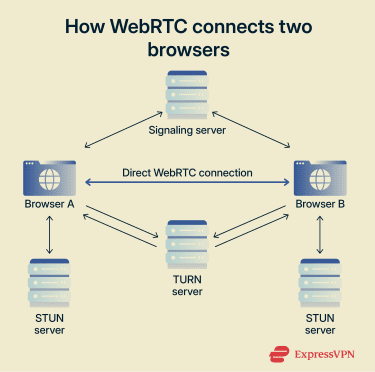
To establish those connections, WebRTC relies on a few underlying technologies:
- Interactive Connectivity Establishment (ICE): Finds the most efficient connection path between two devices.
- Session Traversal Utilities for NAT (STUN): Helps each browser discover its public IP address.
- Traversal Using Relays around NAT (TURN): Relays data when a direct connection isn’t possible.
These systems allow fast, direct connections. However, they also need access to your network information, including your IP address. In some configurations, that’s where the privacy problem starts.
How does WebRTC work?
When two browsers need to connect for a call, a file transfer, or screen sharing, WebRTC runs through a setup process in the background.
- Browsers exchange capabilities: They use a signaling server to confirm what audio and video formats they support, which codecs (technologies used to compress and decompress audio and video) are available, and other session details to ensure they can communicate properly.
- Browsers discover network routes: WebRTC uses ICE to test connection paths and STUN to discover each device’s public IP address to find the most efficient route.
- Browsers attempt a direct connection: Once those routes are identified, the browsers try to establish a direct P2P connection for better speed and lower latency.
What is a WebRTC leak?
A WebRTC leak happens when a website can see your real IP address through WebRTC network requests, even though you expect it to be hidden behind a VPN.
Normally, when you connect to a VPN, websites see the VPN server’s address instead of your own. A WebRTC leak breaks that.
The browser sends a STUN request directly through the system’s network interface rather than through the VPN tunnel. The STUN server responds with the public IP address assigned by your internet service provider (ISP). That information is used internally to route the connection, but scripts running on a page can also access it.
Your VPN isn’t broken. It’s still routing your regular browsing traffic. However, WebRTC traffic takes a separate path, and if the VPN doesn’t intercept it, your real IP becomes visible.
How to check for WebRTC leaks
Before changing any settings, first check whether your current setup is actually leaking. The test is simple: compare what your browser exposes with and without a VPN.
- Disconnect your VPN and visit a WebRTC leak testing site. Note the public IP address shown; this is your real ISP-assigned IP.
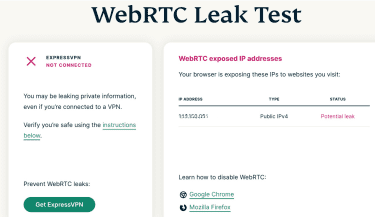
- Turn on your VPN and reload the same test page (or open it in a new private window).
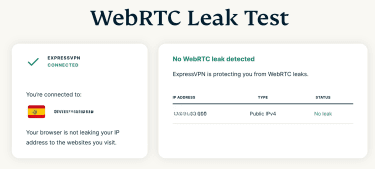
- Compare the results:
- If you only see the VPN server’s IP, your real IP is not being exposed.
- If your real IP still appears, you have a WebRTC leak.
- If you see a local IP address (such as 192.168.x.x), that only means WebRTC is active; it doesn’t necessarily indicate a leak.
- If you adjust your browser settings or enable VPN leak protection, run the test again. Don’t assume a change worked; verify it.
Should you disable WebRTC?
Disabling WebRTC isn’t necessary for everyone. If you ran the test above and your real IP didn’t appear, your current setup may be handling WebRTC properly.
However, you may want to disable or restrict it if you use a VPN specifically to keep your real IP private, and your VPN doesn’t include WebRTC leak protection or you want to reduce browser fingerprinting by limiting the network data available to websites.
Keep in mind that disabling WebRTC will break or result in poorer performance of browser-based features that depend on it, for example:
- Video and voice calls on platforms like Google Meet, Discord, and Microsoft Teams.
- Screen sharing in web-based meeting tools.
- P2P file transfers.
- Some real-time collaboration features in web apps.
If those features matter to you, the Alternatives section below covers ways to reduce IP exposure without disabling WebRTC completely.
How to disable WebRTC in your browser
WebRTC settings vary by browser. In some cases, you can disable it fully. In others, you can only limit what it exposes. Below, you’ll find instructions for Chromium-based Chrome and Edge, Firefox, and Safari.
Google Chrome and Edge
Chrome and Edge don’t include a built-in option. Both browsers treat WebRTC as a core part of how the modern web works, and that isn’t configurable from standard settings. That leaves two options:
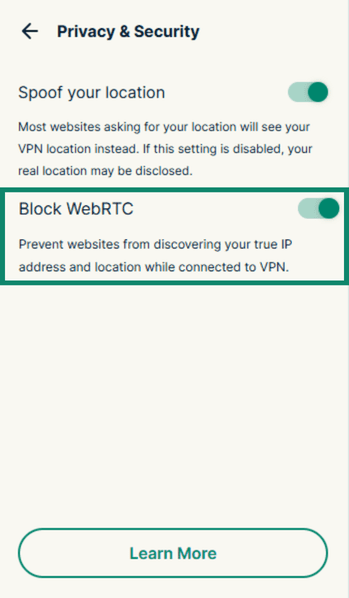
- Use a browser extension: Some browser extensions, like ExpressVPN, include built-in leak protection that routes WebRTC traffic through the VPN tunnel automatically. In the ExpressVPN extension, this protection can be found in Privacy & Security (it’s turned on by default).
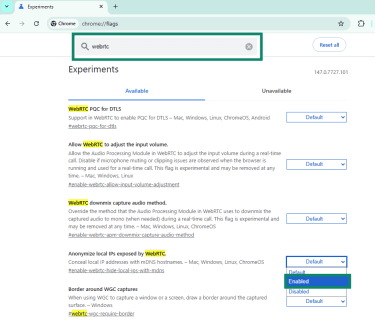
- Check flags: Type chrome://flags (for Chrome) or edge://flags and enter “WebRTC” into the search box. Set the option Anonymize local IPs exposed by WebRTC to Enabled and relaunch the browser when prompted. This prevents WebRTC from exposing your local network address but doesn’t stop it from discovering or exposing your public IP. It’s a partial fix.
Firefox
Firefox is the only major browser that lets you disable WebRTC directly, without any extension.
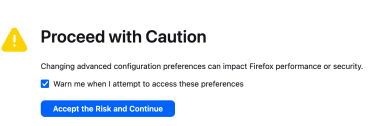
- Type about:config in the address bar, press Enter, and accept the warning to proceed.
- Search for media.peerconnection.enabled and set it to false.

- You’ve now disabled WebRTC at the browser level. To confirm, open about:webrtc. If nothing appears, the feature is off.
Note: Firefox updates may occasionally reset advanced configuration values. If WebRTC appears active again after an update, revisit about:config and check the setting.
Safari
While Safari doesn’t provide a standard way to fully disable WebRTC, it applies stricter privacy controls than most browsers by default. It requires explicit user permission before granting any site access to your camera or microphone, which limits how much WebRTC can do without your knowledge. It also limits local IP address exposure in some configurations.
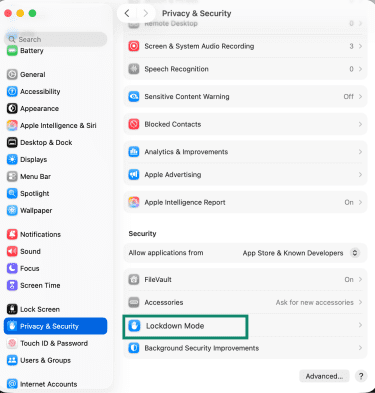
If you want stronger restrictions, the only way to completely disable WebRTC in Safari is to enable Lockdown Mode, which you can find under System Settings > Privacy & Security > Lockdown Mode on macOS.
If Lockdown Mode is not an option for you, consider using a VPN with WebRTC leak protection enabled. While this setting won’t disable WebRTC, it can help reduce the risk of IP address exposure by routing traffic through secure servers and preventing direct P2P leaks.
Alternatives: Prevent WebRTC leaks without disabling it
You don’t have to disable WebRTC entirely to keep your IP private. These approaches let you keep WebRTC functional while limiting what it can expose.
Use a VPN with WebRTC leak protection
Not every VPN handles WebRTC traffic. Some only encrypt regular HTTP browsing, while WebRTC requests go around the tunnel entirely.
If your VPN explicitly routes WebRTC through the encrypted connection, any IP visible through the browser will show the VPN server’s address, not your real one. WebRTC stays active, and your real IP stays hidden.
Always run a leak test after connecting. If it only shows the VPN IP, your setup is working.
Adjust browser privacy settings
Most browsers have settings that affect how WebRTC handles IP addresses. Depending on the browser, you may be able to:
- Hide your local IP address.
- Restrict P2P connections.
- Require permissions before a site can access your camera or microphone.
These adjustments don’t switch WebRTC off, but they reduce what it can expose by default.
Switch to a privacy-focused browser
Some browsers handle WebRTC more conservatively without any extra configuration. Brave, for example, restricts WebRTC to use only your VPN or proxy-assigned IP by default and includes built-in controls under its privacy and security settings. Tor Browser disables WebRTC entirely.
Install a VPN on your router
A VPN can also be configured on compatible home routers to cover your entire network. When a VPN runs at the router level, all traffic from every device on your network, including WebRTC requests from every browser, goes through the encrypted tunnel automatically. You don’t need to configure anything on each device.
It’s typically used in setups where consistent network-level privacy matters, such as home office configurations or privacy-conscious households.
FAQ
Does a VPN automatically prevent WebRTC leaks?
How do I turn off WebRTC?
Should I disable WebRTC?
Disabling it will break browser-based video calls, screen sharing, and some collaboration tools.
Can I safely use WebRTC if I'm connected to a VPN?
Can websites detect if WebRTC is disabled?
Does incognito mode stop WebRTC leaks?