




Need a VPN for Linux?
Get ExpressVPN Now
Love ExpressVPN? Want a free month?
Refer a Friend NowThis guide will show you how to verify the authenticity of the app installer for the ExpressVPN app for Linux. This process requires using a system called PGP, which ExpressVPN uses to digitally sign its installers for Linux.
Jump to…
1. Download the PGP key
2. Verify the fingerprint of the PGP key
3. Download the app installer and the signature file
4. Verifying the signature on an installer
1. Download the PGP key
There are two methods to download the PGP key. Try them in the following order:
Method 1:
Download the ExpressVPN PGP key by running the following command:
gpg --keyserver hkp://keyserver.ubuntu.com --recv-keys 0xAFF2A1415F6A3A38
Proceed to the next step to verify the fingerprint of the PGP key. If the above method does not work for you, try the method below.
Method 2:
Download the PGP key by running the following command:
wget https://www.expressvpn.com/expressvpn_release_public_key_0xAFF2A1415F6A3A38.asc
Alternatively, you can download the PGP key from the website. When prompted, click Save File.
Next, import the PGP key by running the following command:
gpg --import expressvpn_release_public_key_0xAFF2A1415F6A3A38.asc
Need help? Contact the ExpressVPN Support Team for immediate assistance.
2. Verify the fingerprint of the PGP key
Before using the PGP key, you are recommended to verify its fingerprint to make sure the PGP key is from ExpressVPN.
Run the following command:
gpg --fingerprint [key ID you downloaded].
For example: gpg --fingerprint AFF2A1415F6A3A38
Verify the fingerprint of the PGP key is 1D0B 09AD 6C93 FEE9 3FDD BD9D AFF2 A141 5F6A 3A38.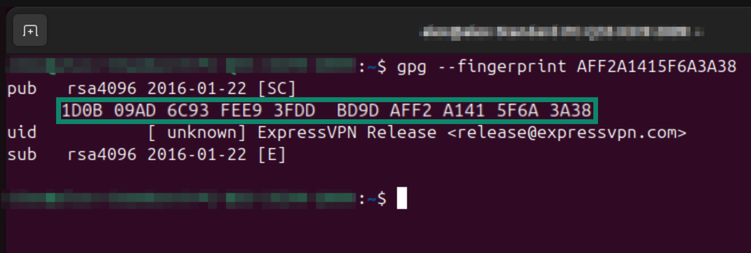
Need help? Contact the ExpressVPN Support Team for immediate assistance.
3. Download the app installer and the signature file
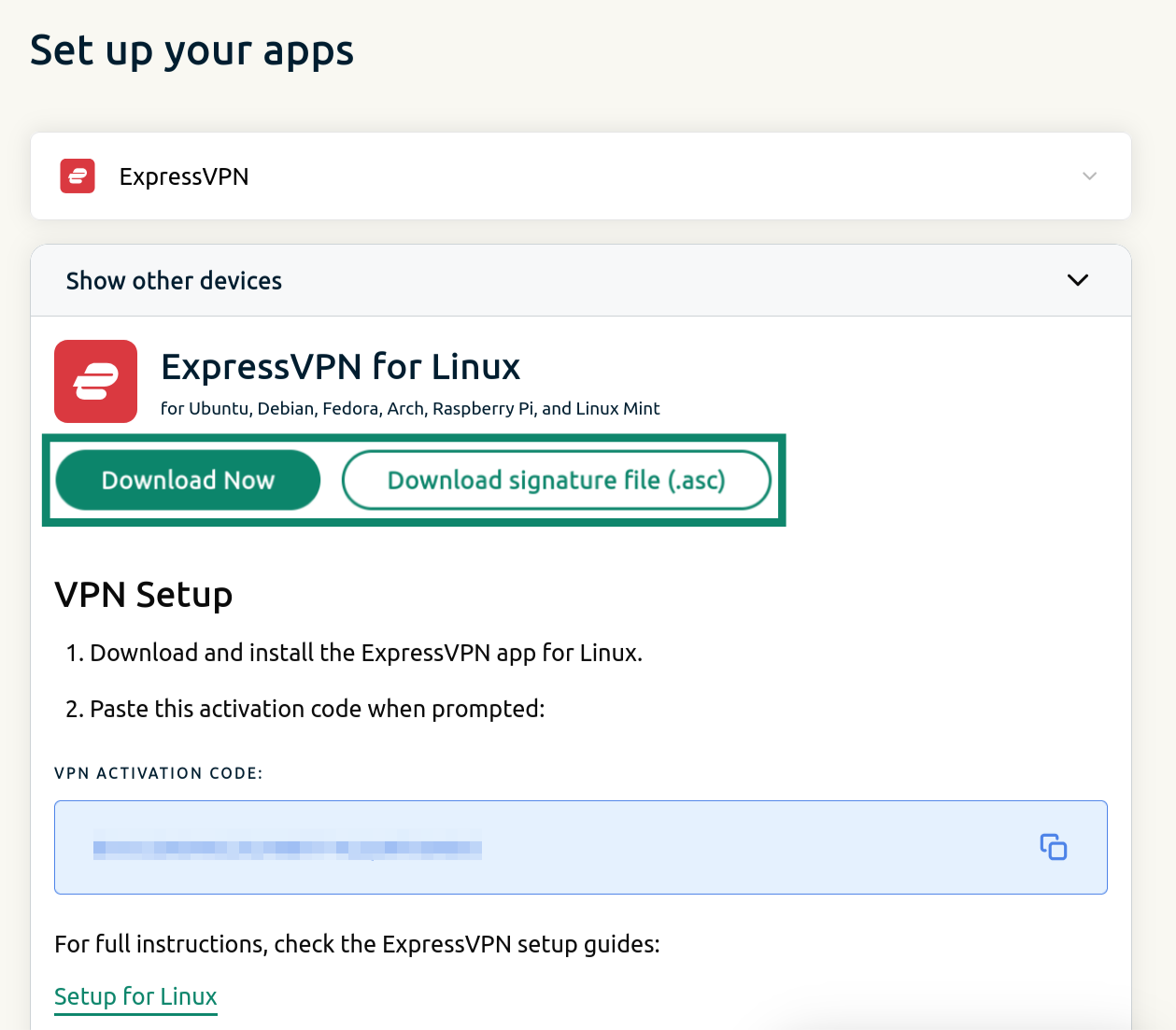
- Sign in to your ExpressVPN account.
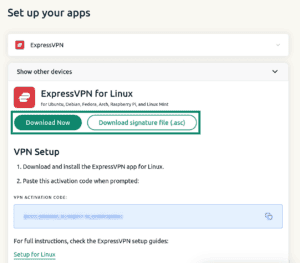
- Click Download Now to get the ExpressVPN app for Linux.
- Click Download signature file (.asc) to download the PGP signature file.

Need help? Contact the ExpressVPN Support Team for immediate assistance.
4. Verify the signature of the installer
Follow these steps to verify that the app installer you are downloading is from ExpressVPN.
- In Terminal, navigate to the folder where you downloaded the installer file and signature file. For example:
cd ~/Downloads/ - Run the following command:
gpg --verify [name of the signature file you downloaded].asc [name of the signature file you downloaded]
If you see “Good signature from ‘ExpressVPN…'”, the installer is authentic. - If the app installer you downloaded is authentic, the primary key fingerprint that appears should match the fingerprint of the PGP key you downloaded earlier.
You may also see a warning about the key not being trusted. This is normal and can be ignored as long as the fingerprint matches.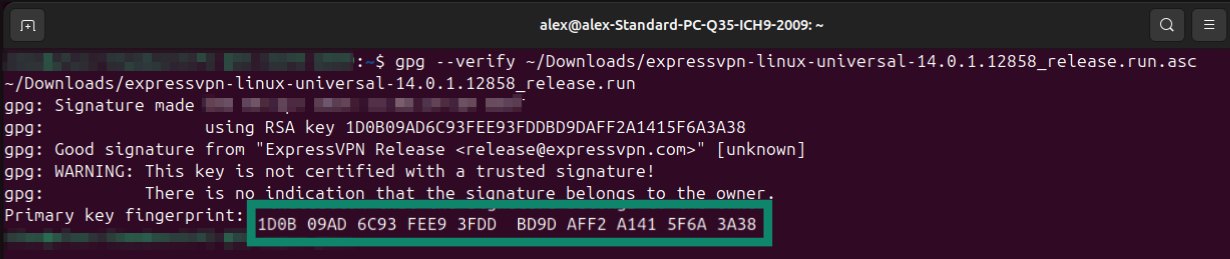
Need help? Contact the ExpressVPN Support Team for immediate assistance.