






Learn how to set up and use the ExpressVPN Android app on your Googlebook, including connecting to a VPN server, adjusting app settings, and using key features.
Jump to
- Sign into your account
- Download the ExpressVPN app
- Set up the VPN app
- Connect to a VPN server location
- Disconnect from a VPN server location
- Pause the VPN connection
- Choose a different VPN server location
- Switch to a different VPN protocol
- Enable or disable the Internet Kill Switch
- Block ads, trackers, and harmful sites
- Use split tunneling
- Set up auto-connect
- Use Secure Device Assistant
- Run a speed test
- Change app appearance
- Change languages
- Access support articles in the app
- Add the ExpressVPN app widget
- View Protection Summary
- Uninstall the app
Sign into your account
- Go to ExpressVPN+ setup page.
- Enter the email address for your ExpressVPN account and click Sign in.
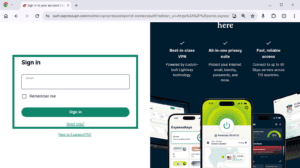

- If you set up a passkey during setup, you will be prompted to use it to sign in. Otherwise, you can sign in using a verification code sent to the email address linked to your ExpressVPN account.
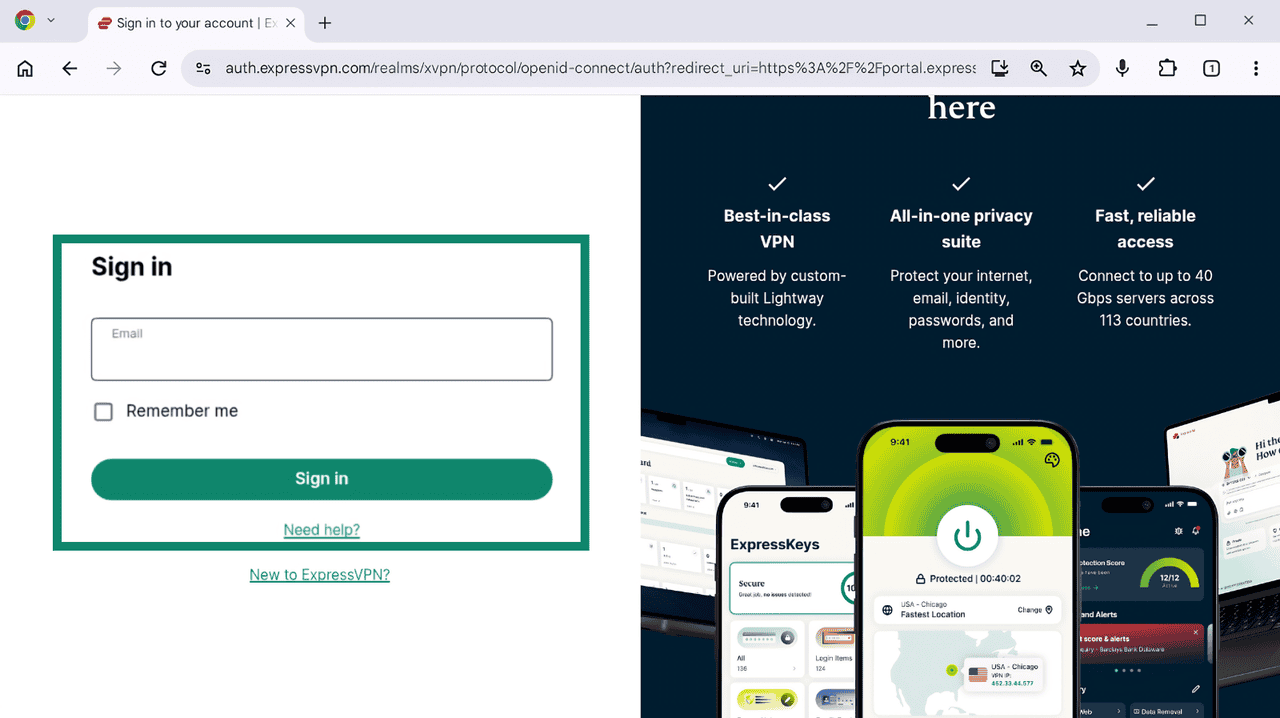
Once signed in, you will be taken to the download page for the ExpressVPN app.
Download the ExpressVPN app
There are two ways to download the app, depending on whether you can get the ExpressVPN app from Google Play.
F rom the Google Play Store
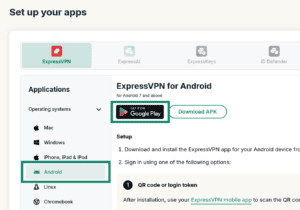
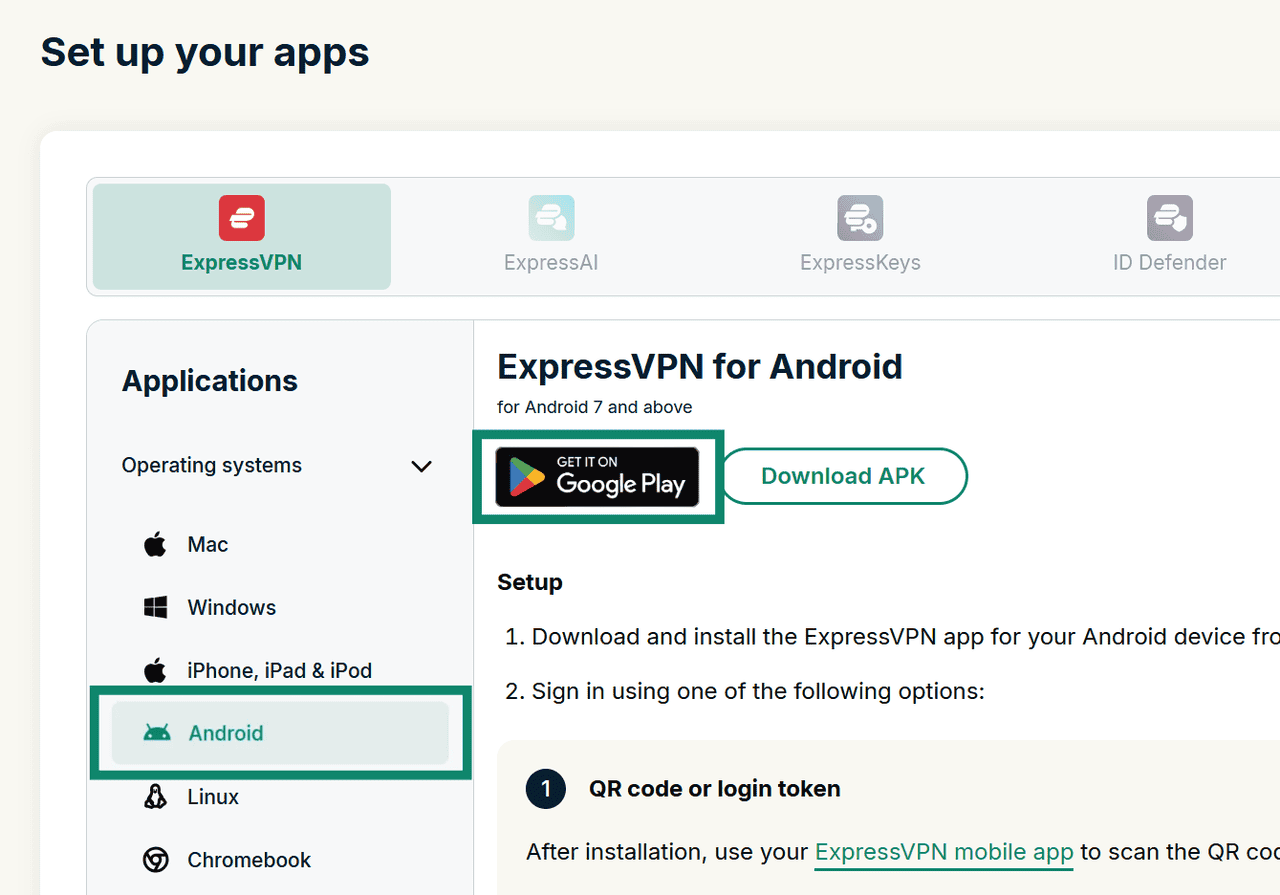
- On the ExpressVPN+ setup page, under Operating systems, select Android. On the right, click Get it on Google Play.

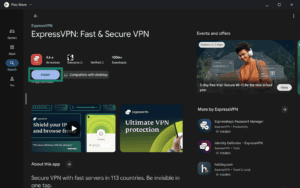
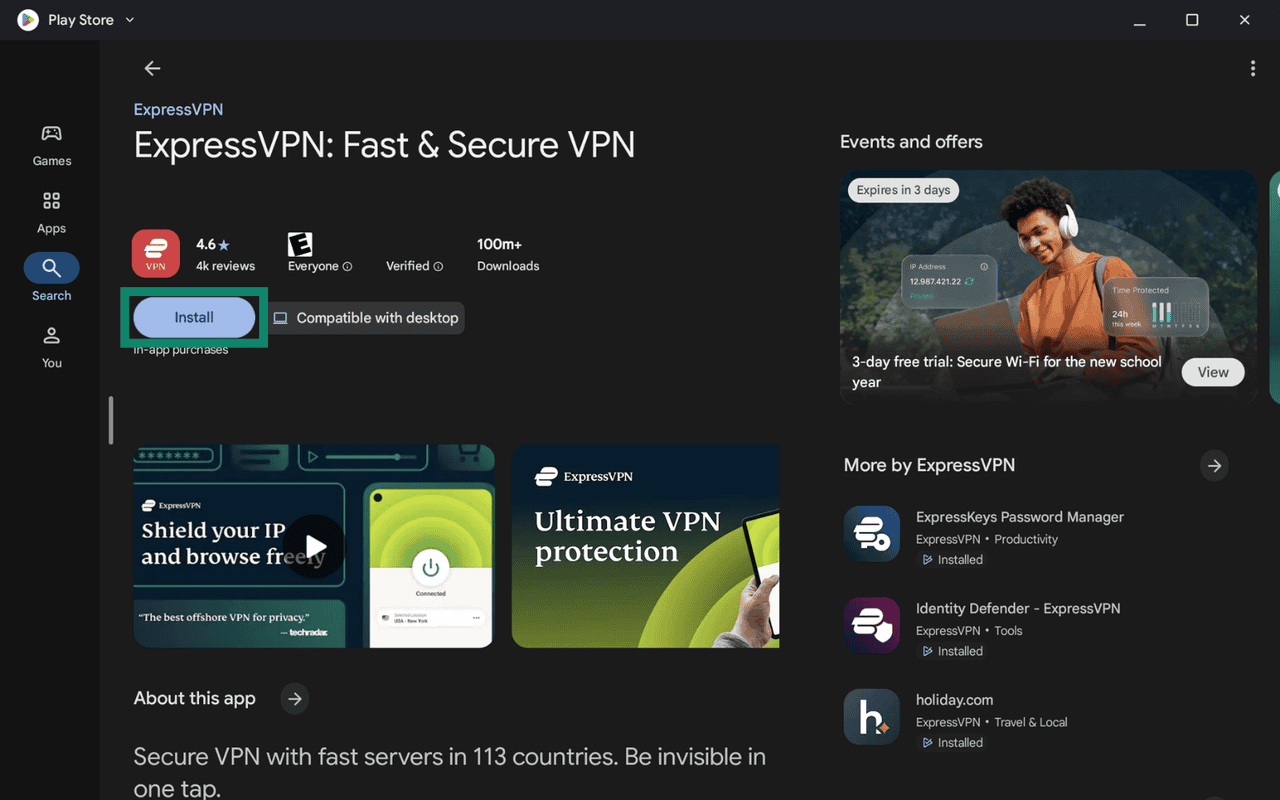
- Select Install to download and install the app.

If you cannot get the app from Google Play
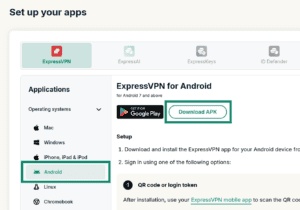
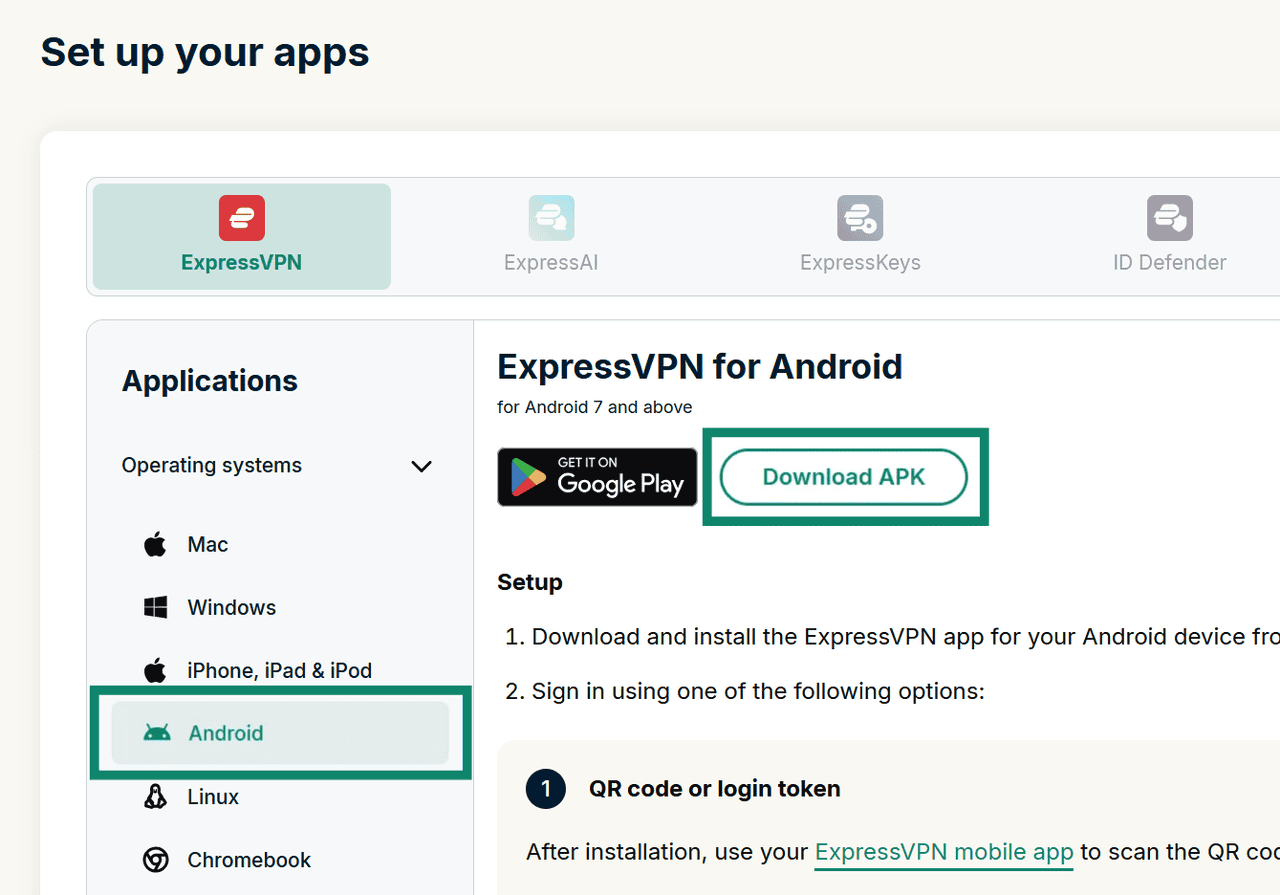
- On the ExpressVPN+ setup page, under Operating systems, select Android. Then, click Download APK.
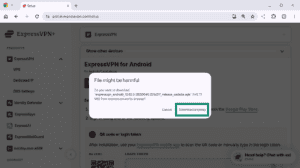
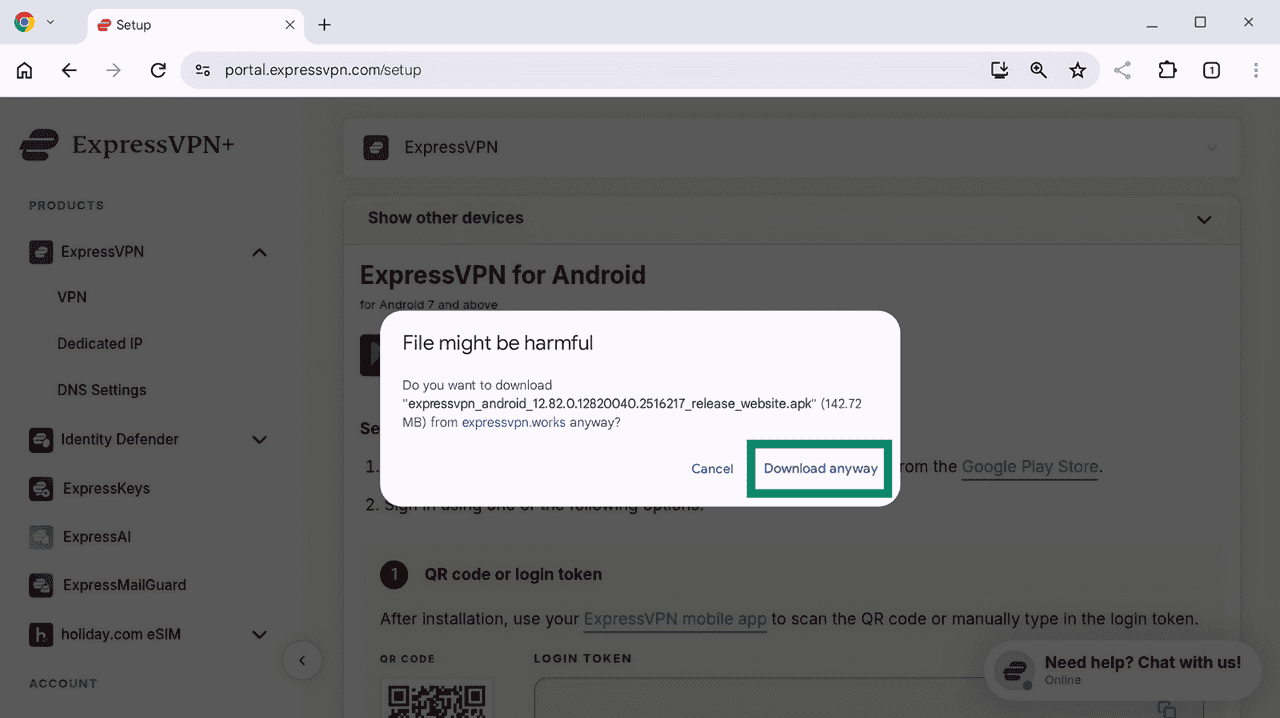
- Your Googlebook may display a “File might be harmful” security warning, which happens when you download an app from outside Google Play. If you are downloading the APK from ExpressVPN’s official website, click Download anyway to continue downloading the file.

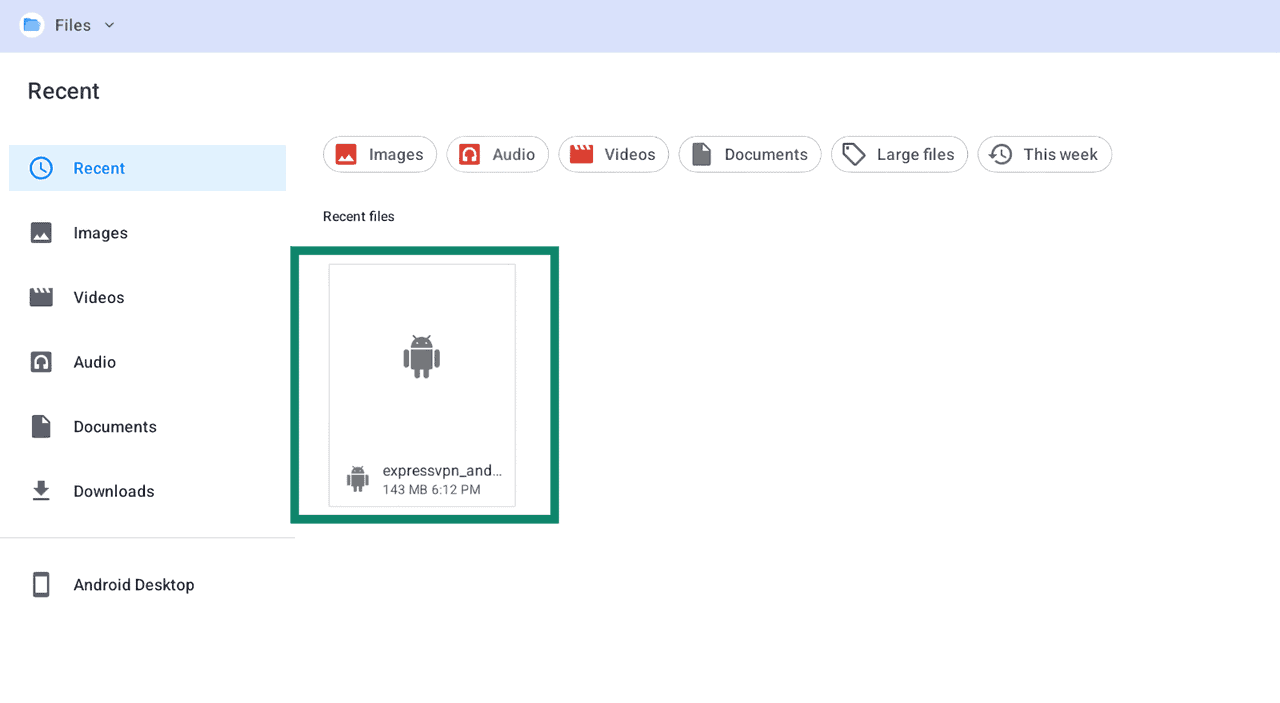
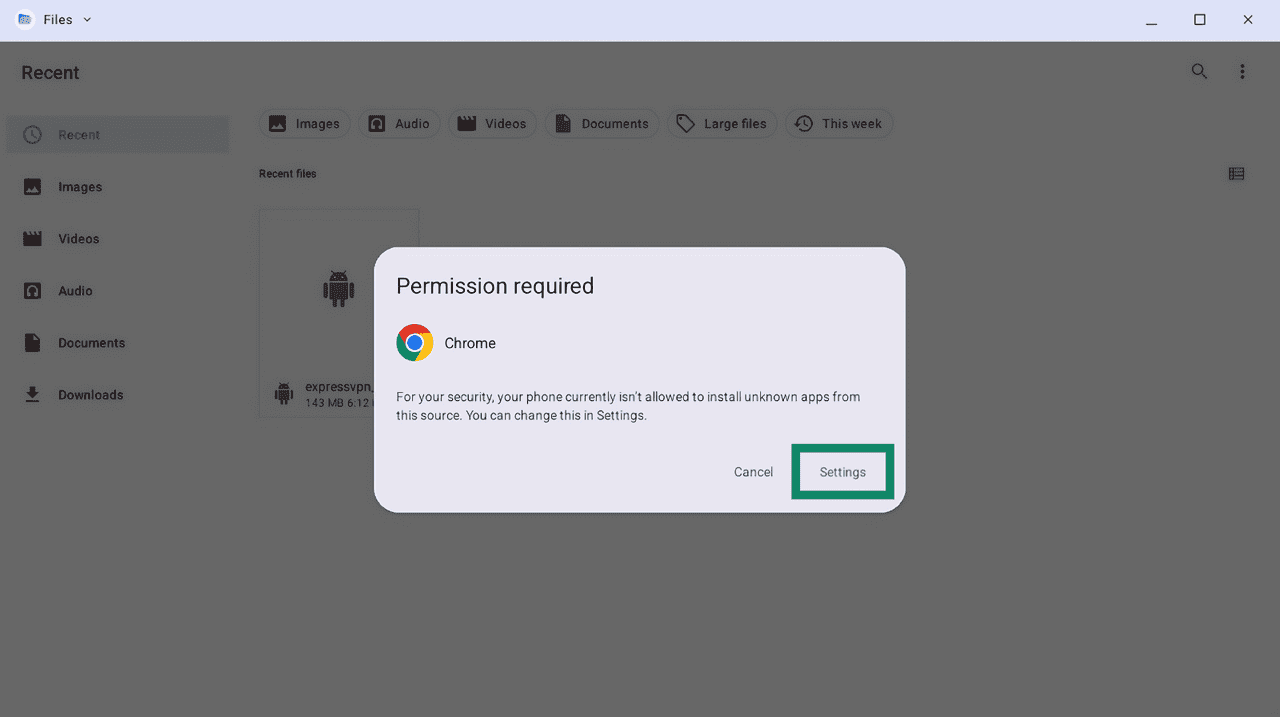
- Go to the folder where the file was downloaded (usually the Downloads folder) and double-click the ExpressVPN APK app.
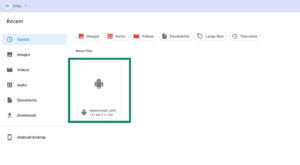

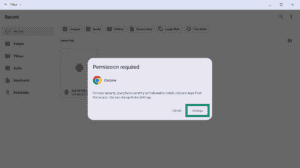
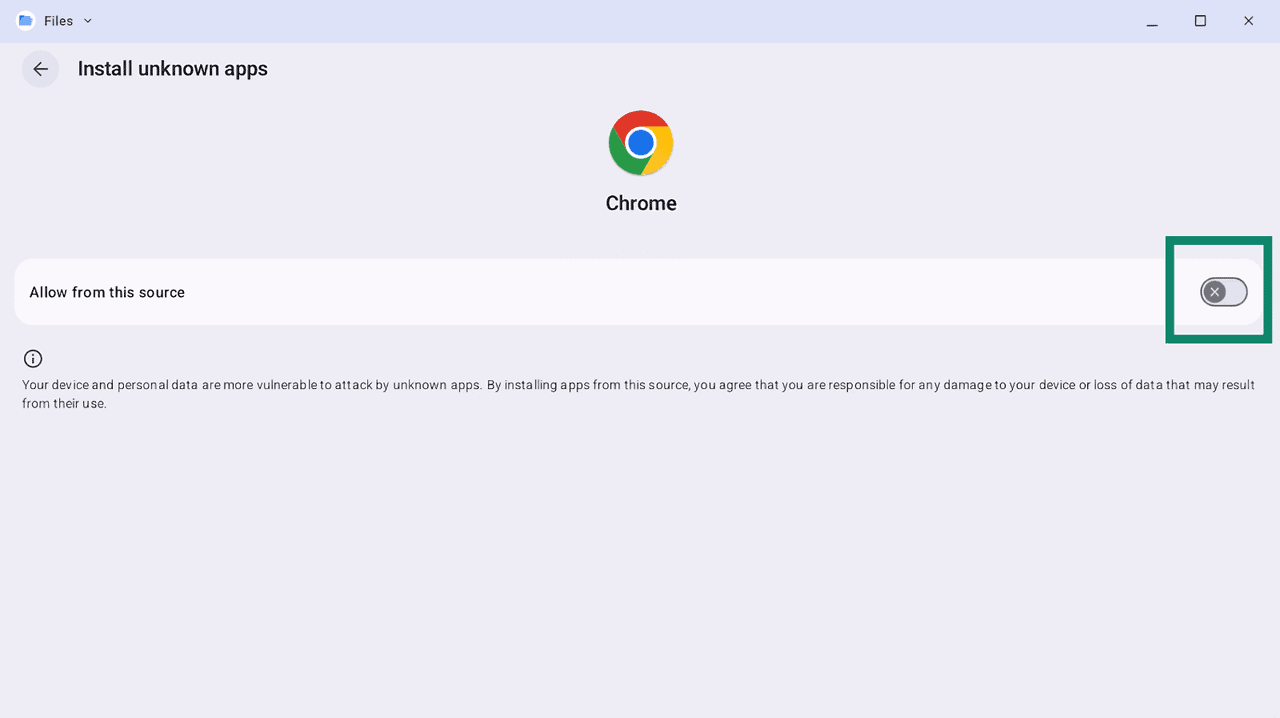
- You will see a “Permission required” prompt because, by default, Googlebook does not allow apps from unknown sources. Click Settings to proceed.
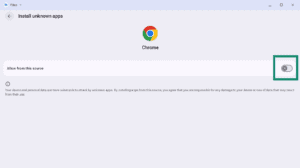
- Toggle Allow from the source.
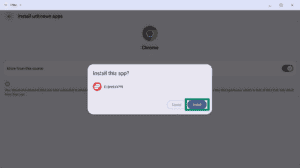
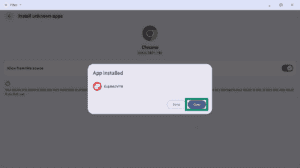
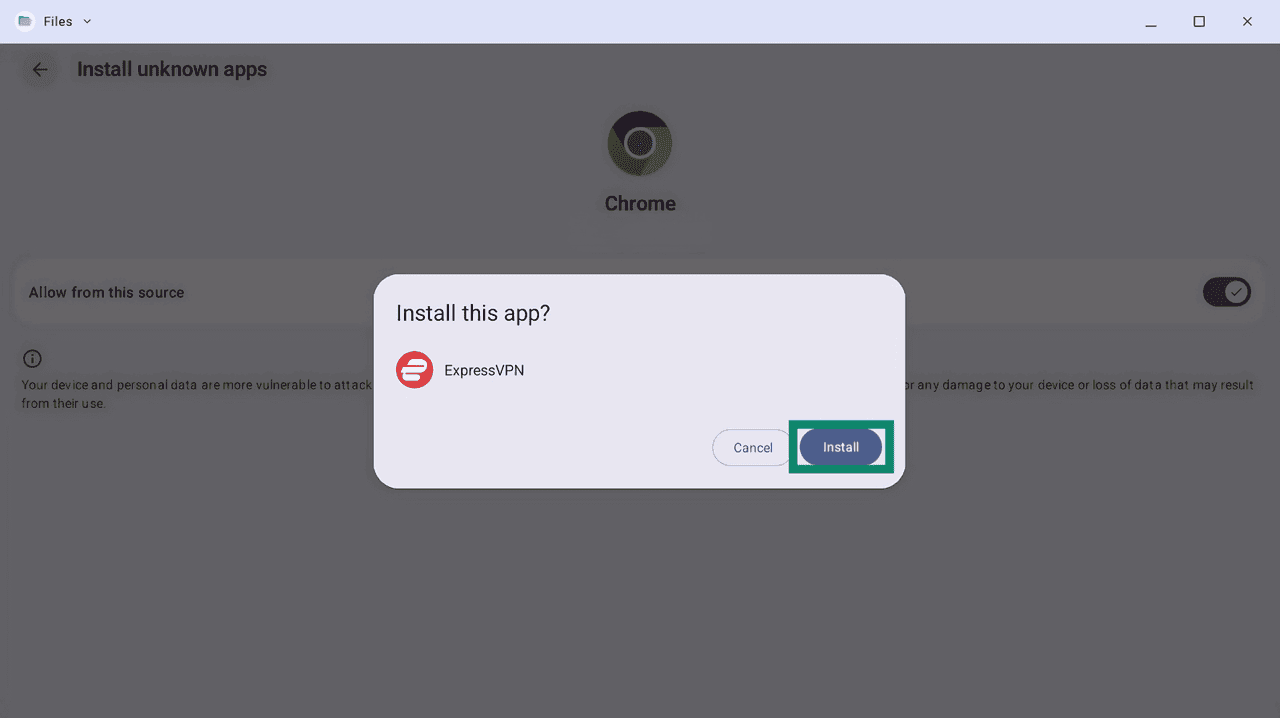
- Click Install to prompt your Googlebook to install the app.
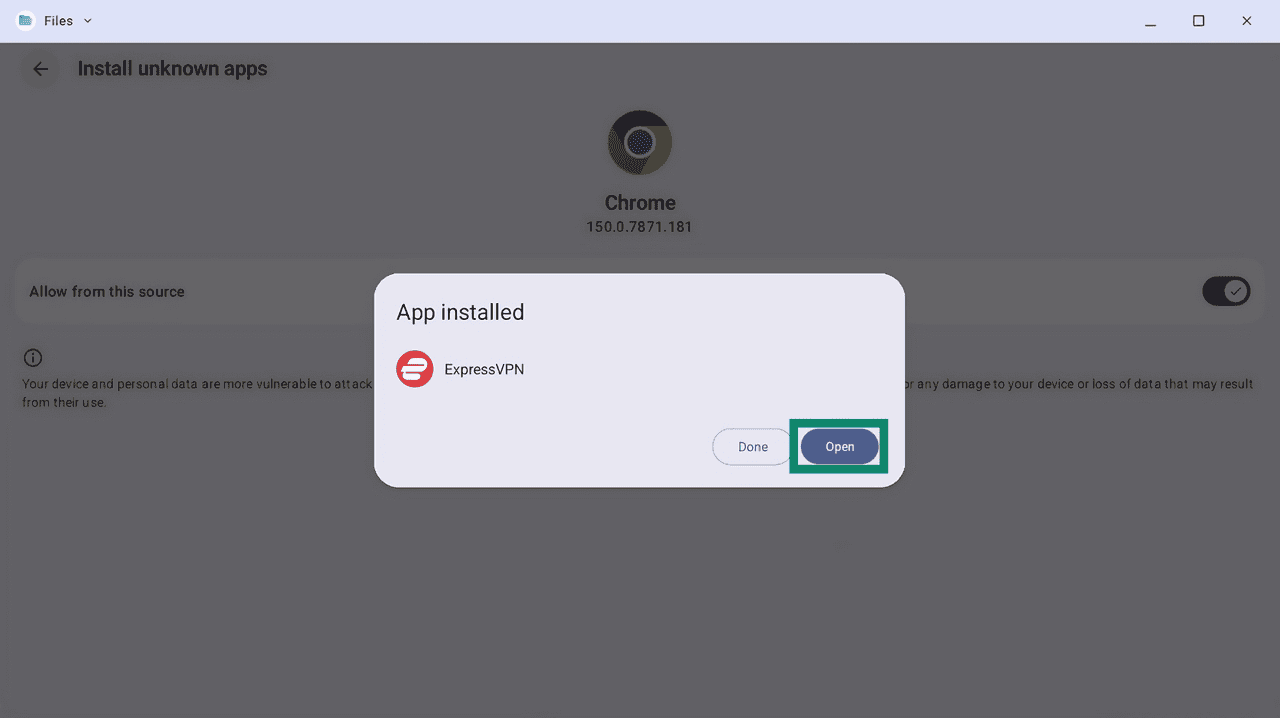
- Click Open to launch the app.
Set up the VPN app
- Open the ExpressVPN app.
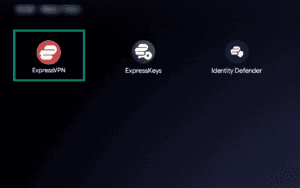

- Here you have two options: Sign In or Legacy Sign In.
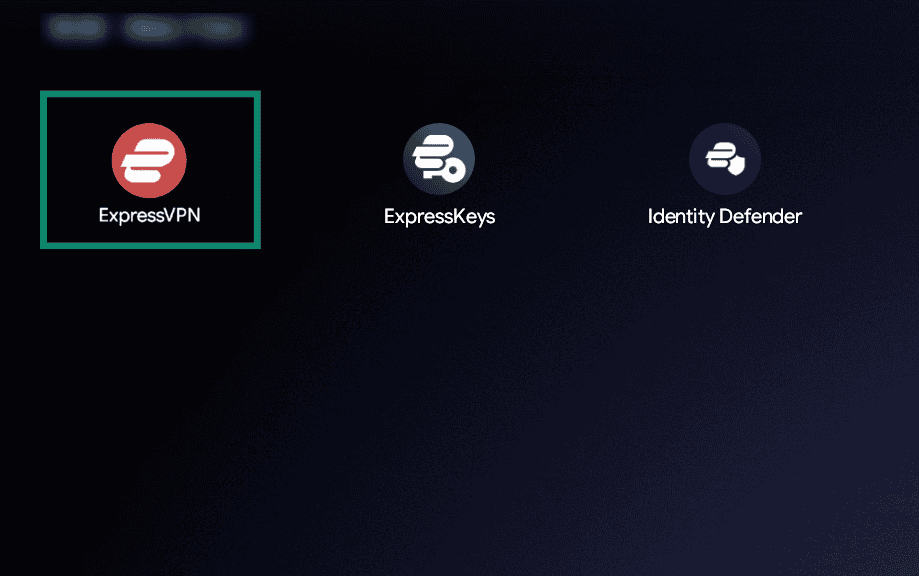
You can sign into your ExpressVPN account with an email code, login token (or QR code), or a passkey.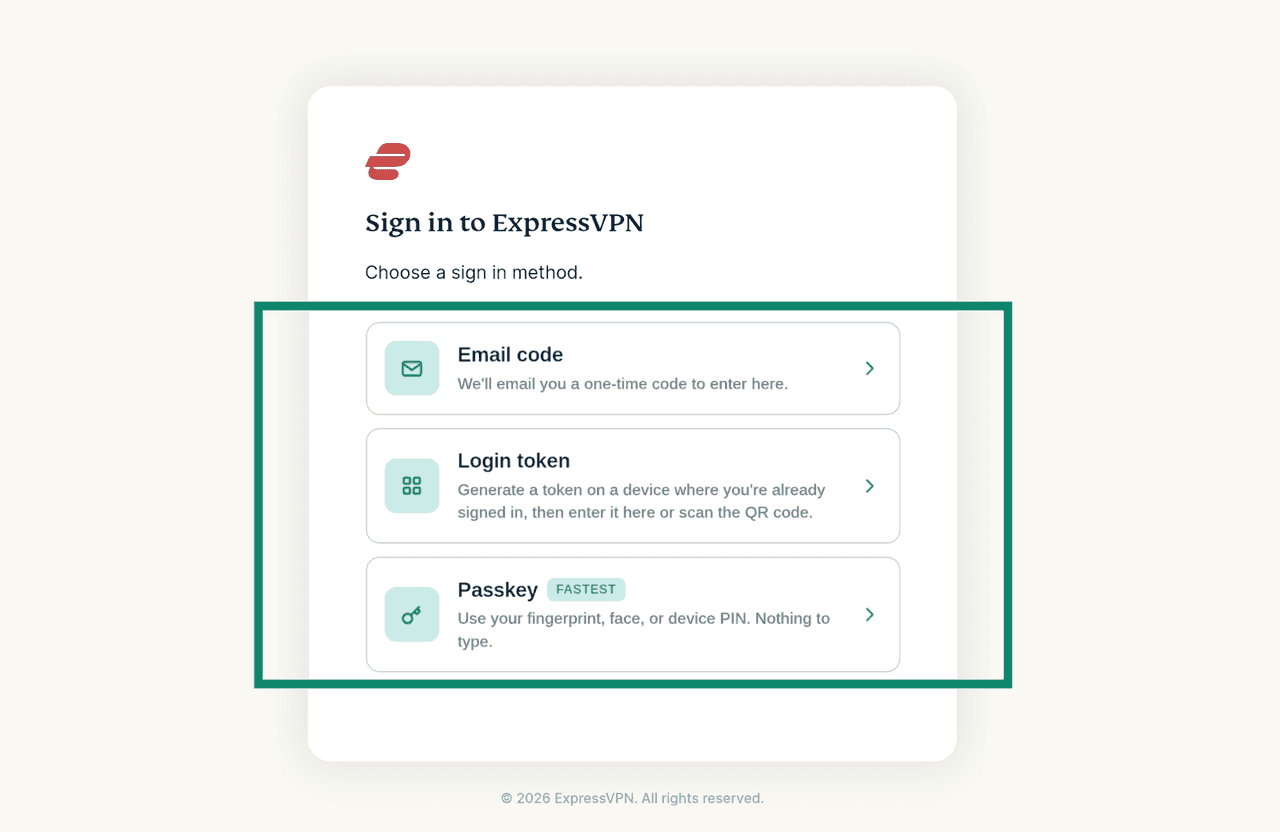
Email code
Enter the email address associated with your ExpressVPN account. Click Continue.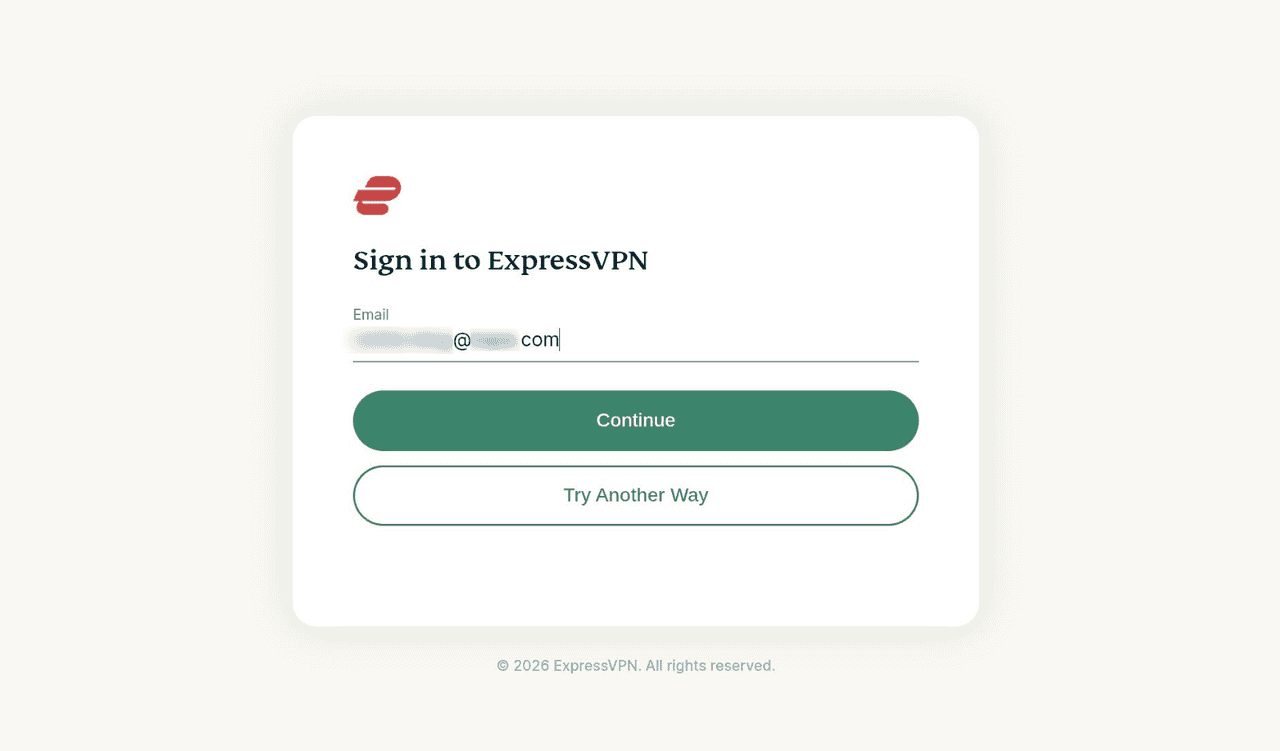
Find the verification code in your inbox and enter it here. Then, click Next to log into your account.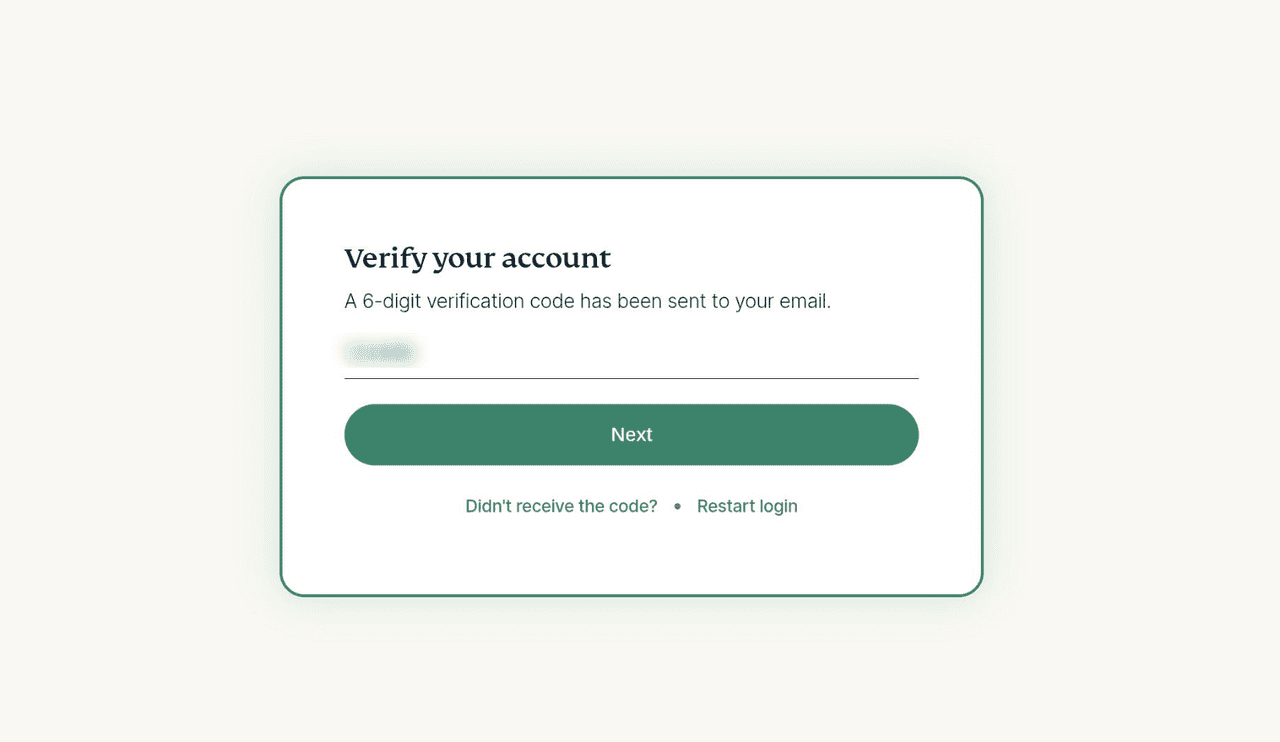
Login token
You can find your login token on the setup page of your ExpressVPN+ portal. Click Show other devices > Android, then click the copy icon to copy the token to your clipboard.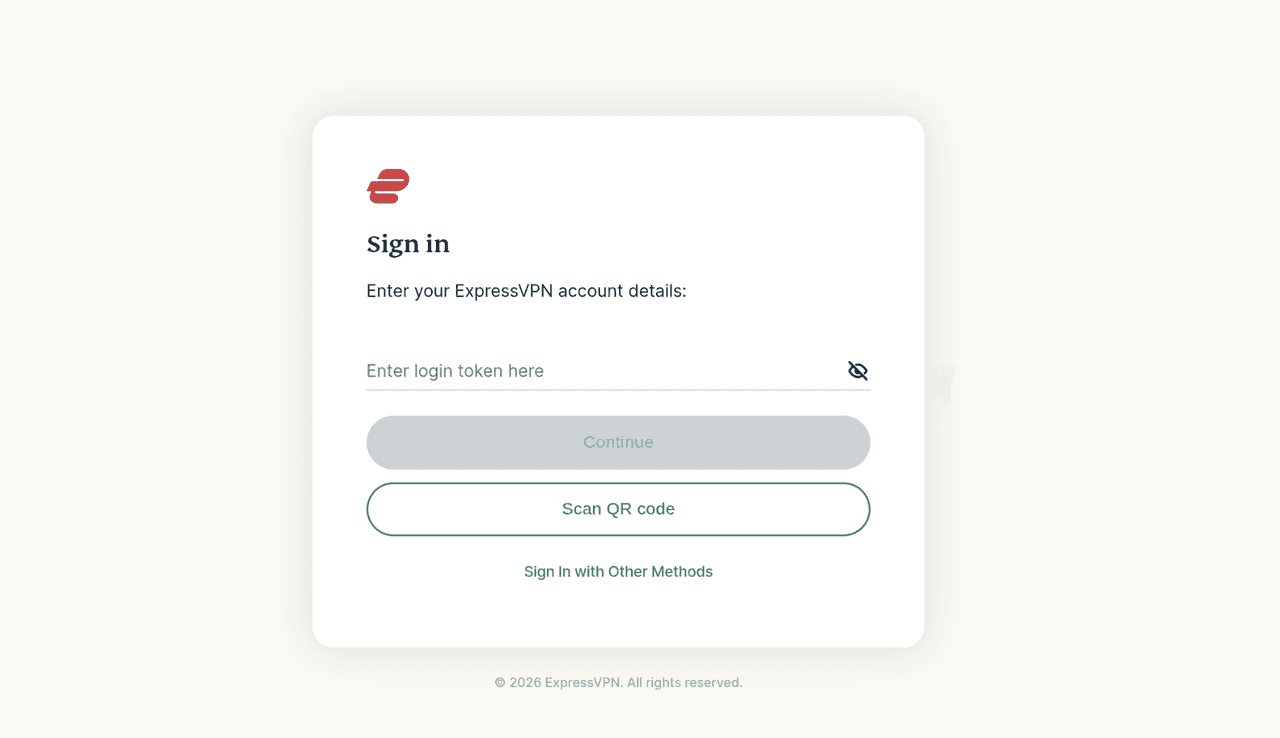
Paste the token in the Enter login token here field and select Continue to log into your account.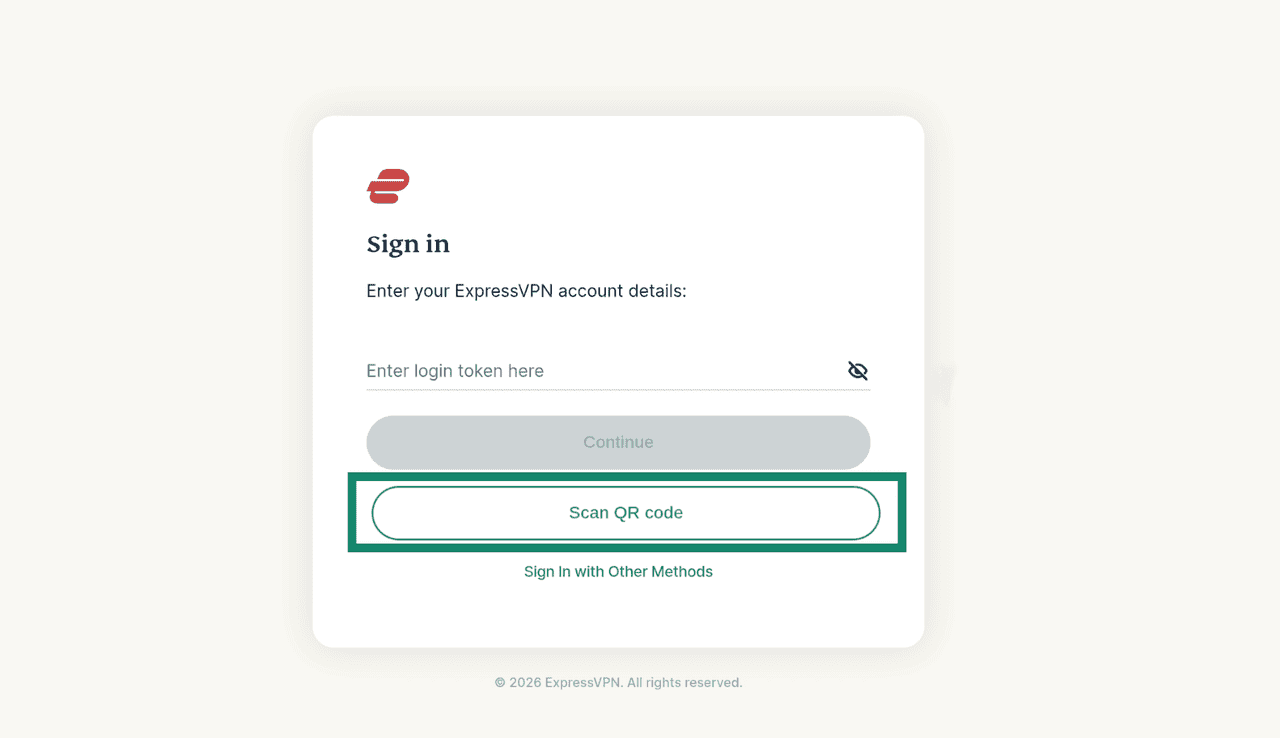
Alternatively, you can click the Scan QR code option and use your Googlebook camera to scan a QR code displayed on a device where you have already logged into ExpressVPN+ portal. This will automatically log you into your account.
Passkey
If you created a passkey during signup on your Googlebook device, you can use it to log into your account.
- Enter your email address and click Continue.
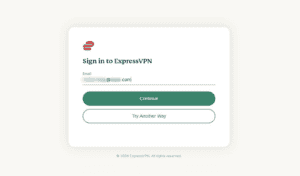

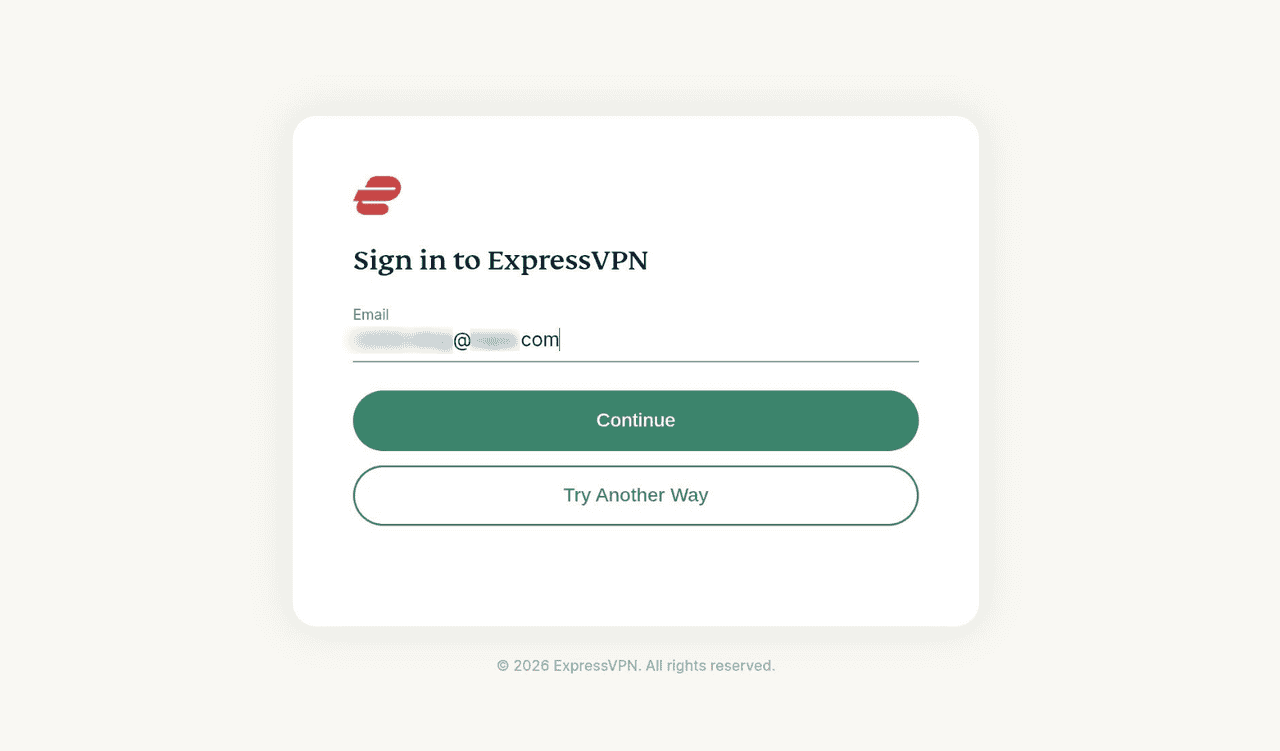
- When prompted, use your passkey and follow the on-screen instructions to log into your account.
There are three ways you can sign in via the legacy option, depending on where you purchased your ExpressVPN subscription:
- Email and password: Enter the email address and password associated with your ExpressVPN account and click Sign In.
- Email and activation code: Enter the email address associated with your ExpressVPN account and your activation code.
- Restore subscription: If you previously purchased your ExpressVPN subscription from the Google Play, selecting this option will automatically restore the subscription and log you in.
When you open the app for the first time, you will be asked to accept the ExpressVPN Terms of Service (ToS) and select your data-sharing preferences. Choose your preferred options to continue.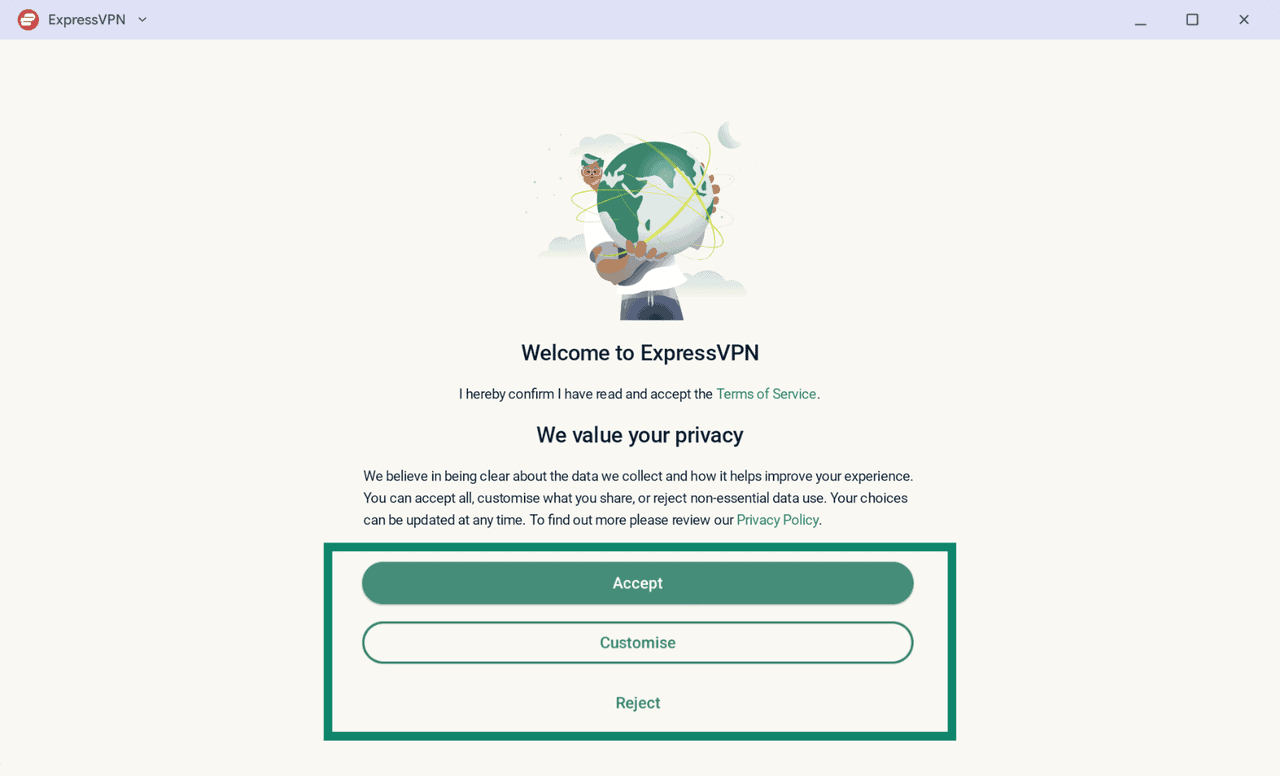
Once you are logged in:
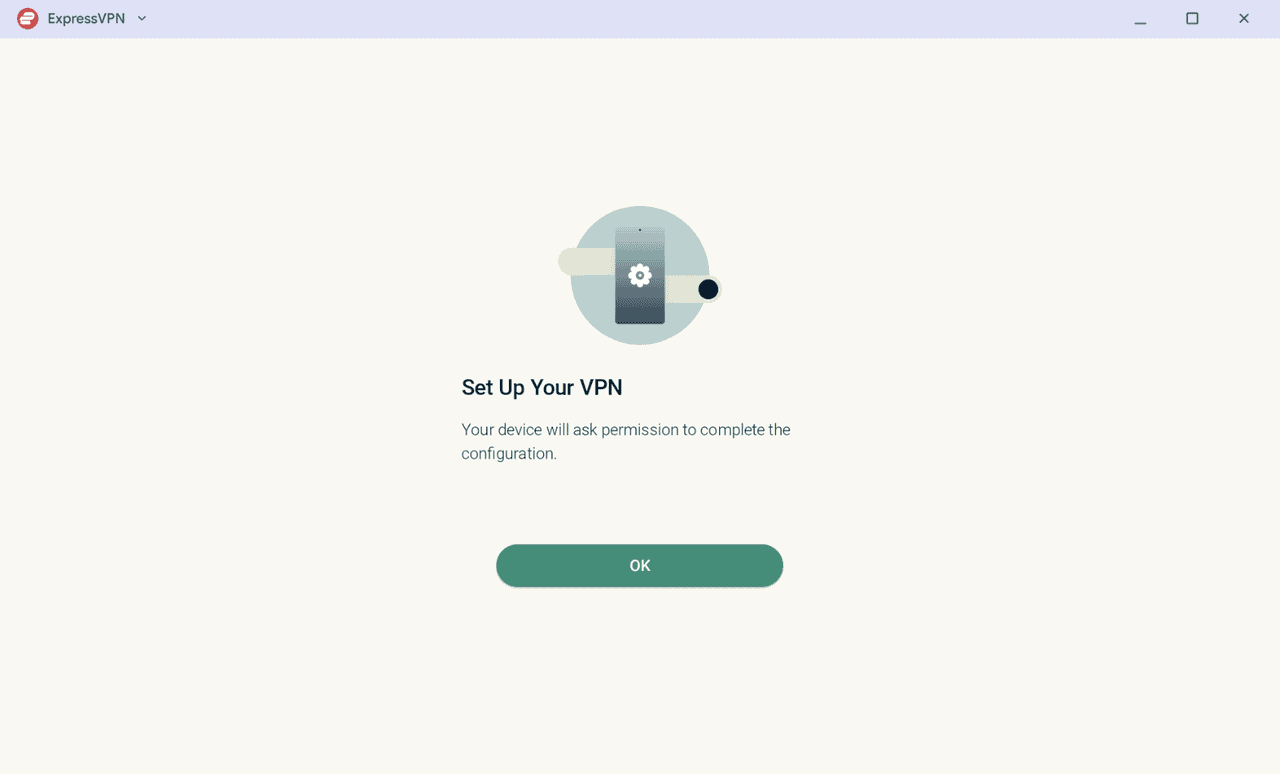
- Click OK to begin setting up the app.

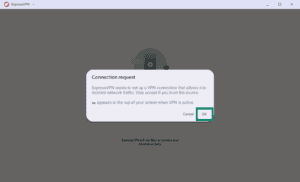
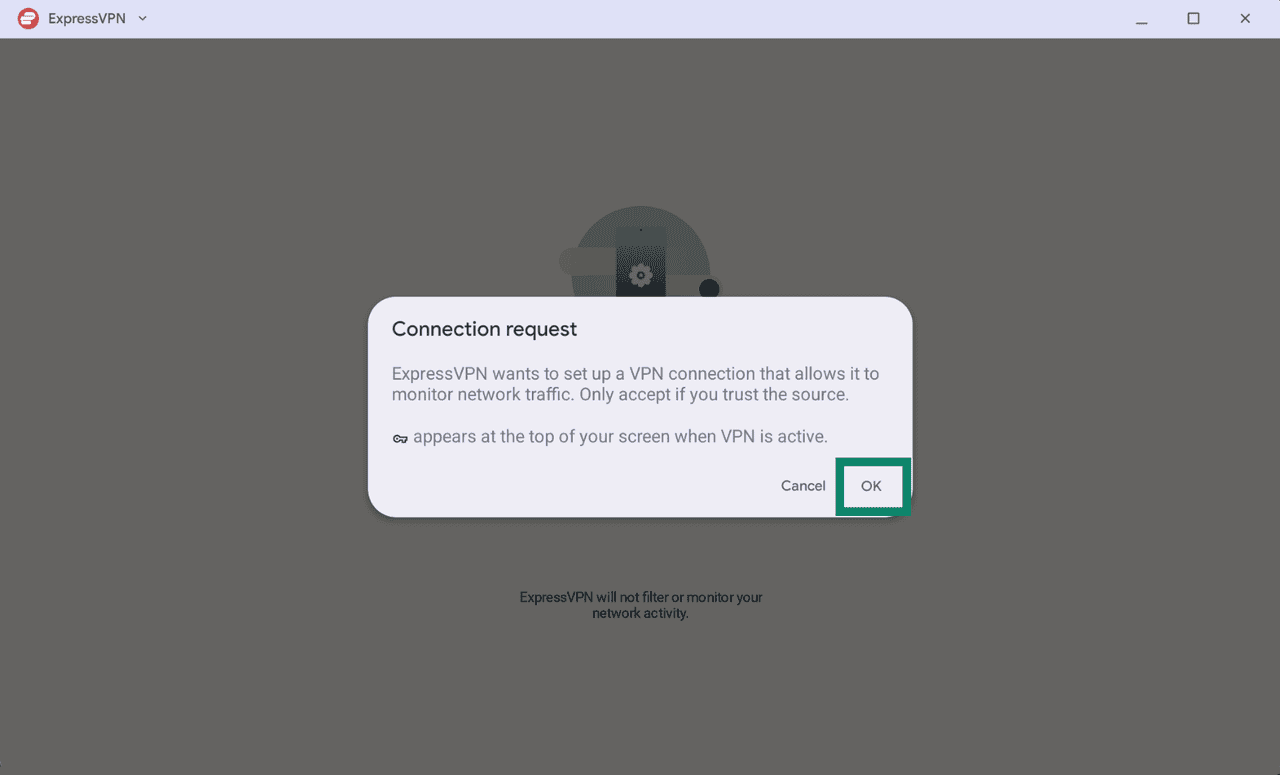
- ExpressVPN will ask for permission to set up VPN connections on your device. Click OK to continue. Without this permission, the VPN configuration will not be completed.

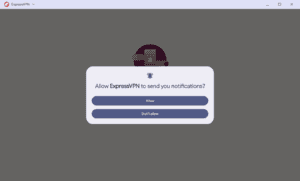
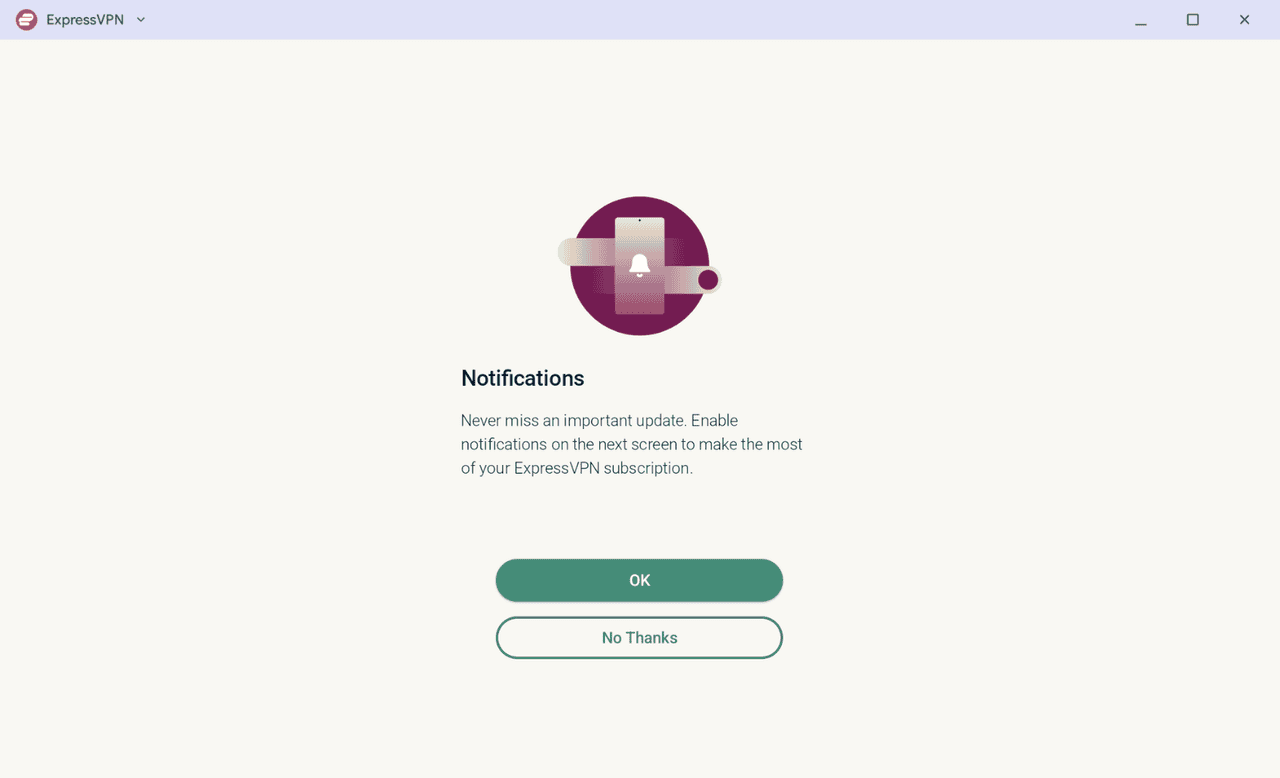
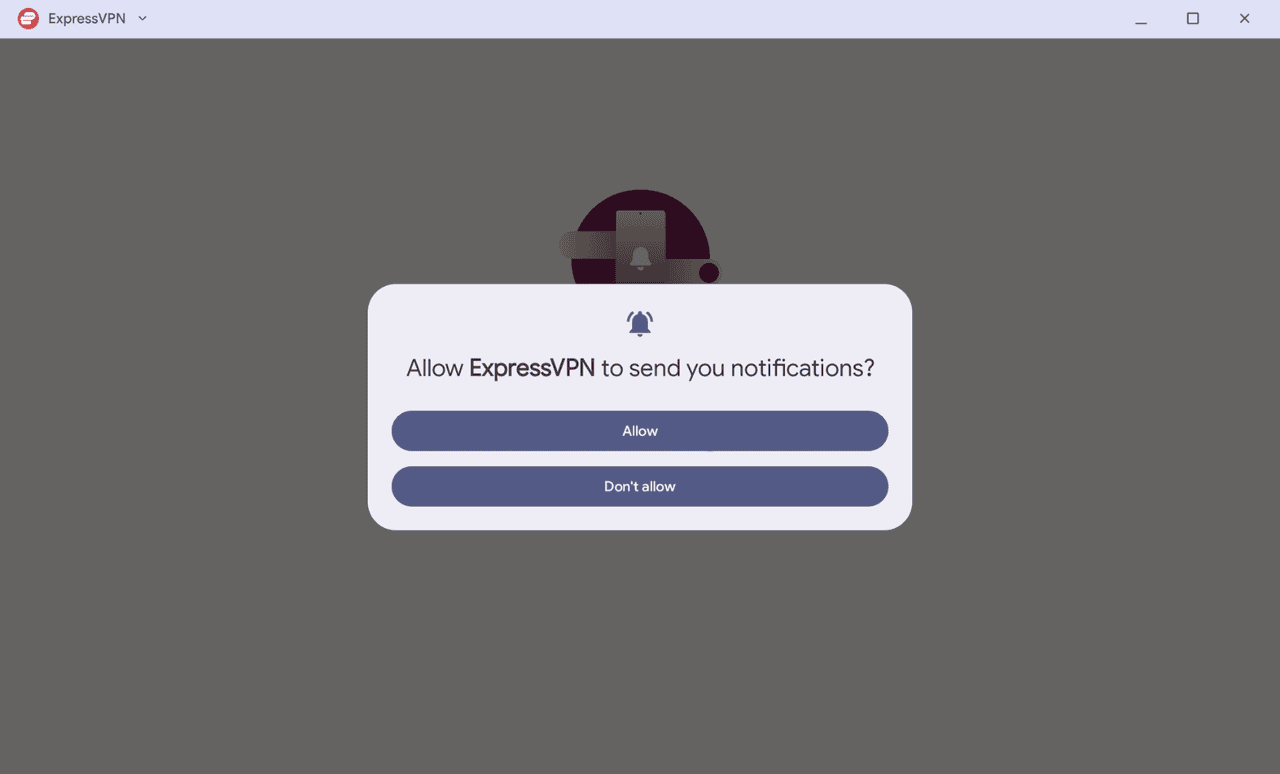
- The app will ask you to enable notifications. Choose your preferred option to continue.
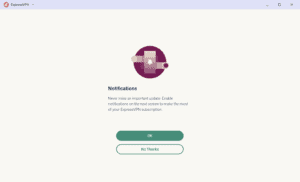

- If prompted, choose your preferences for whether you want ExpressVPN to send notifications.
Connect to a VPN server location
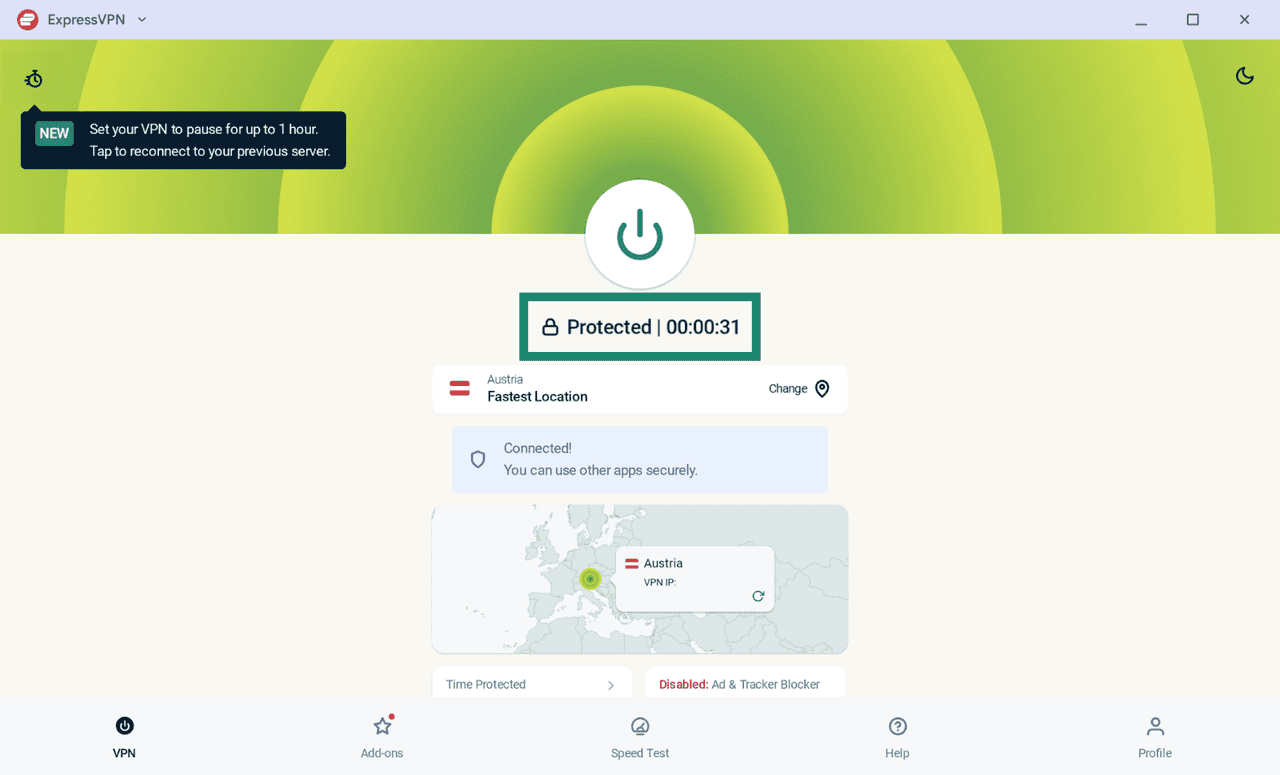
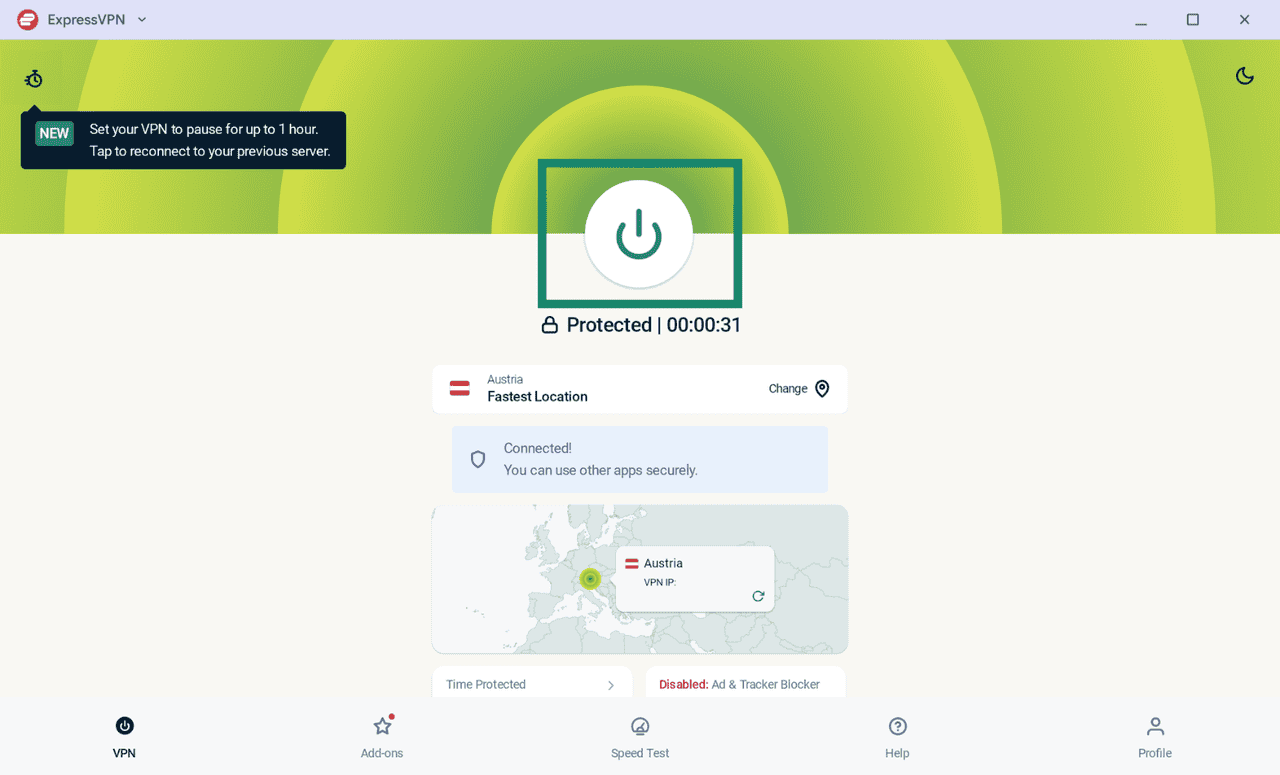
- On the home screen, click the power

 button to connect. By default, ExpressVPN selects Fastest Location for the best experience.
 - When Protected appears below the power
 button, your VPN connection is active, and you can browse the internet with added privacy and security.
Note: The number of devices you can connect to the VPN simultaneously depends on the subscription tier you selected at checkout:
- Basic: 10 simultaneous device connections.
- Advanced: 12 simultaneous device connections.
- Express Pro: 14 simultaneous device connections.
Disconnect from a VPN server location
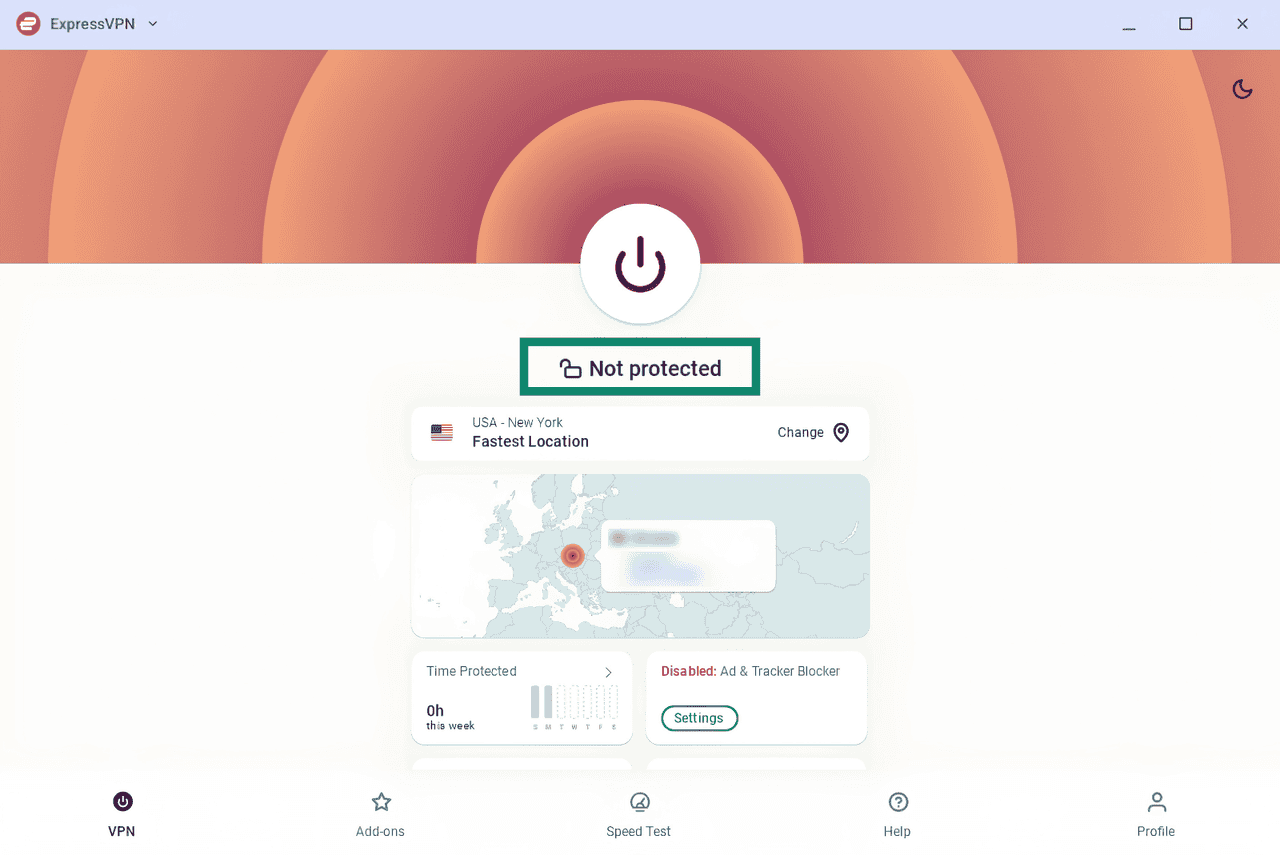
To disconnect from a VPN server, do the following:
- Click the power
 button.
- When the status says Not Protected, it means you have disconnected from the server.

Pause the VPN connection
ExpressVPN lets you pause your VPN connection for a specified period. The VPN will automatically reconnect when the pause ends.
To pause your VPN connection:
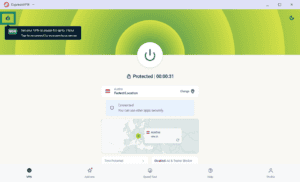
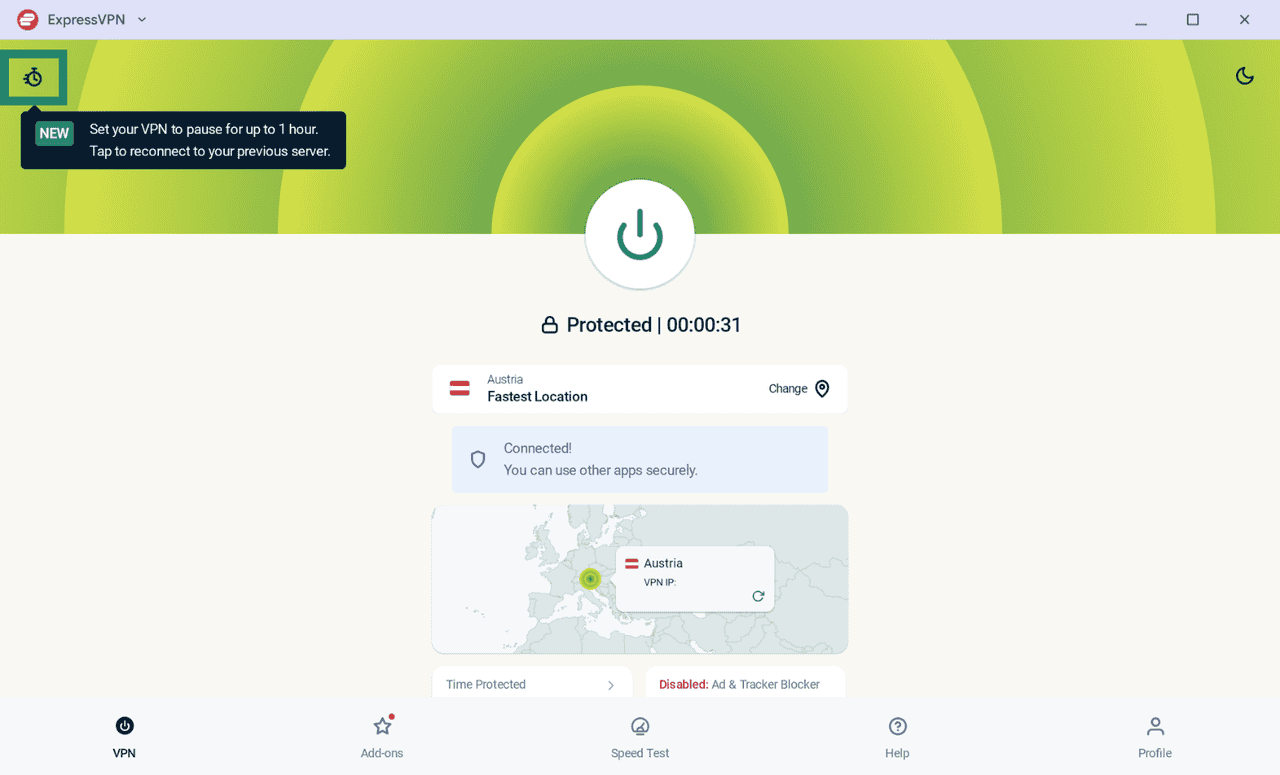
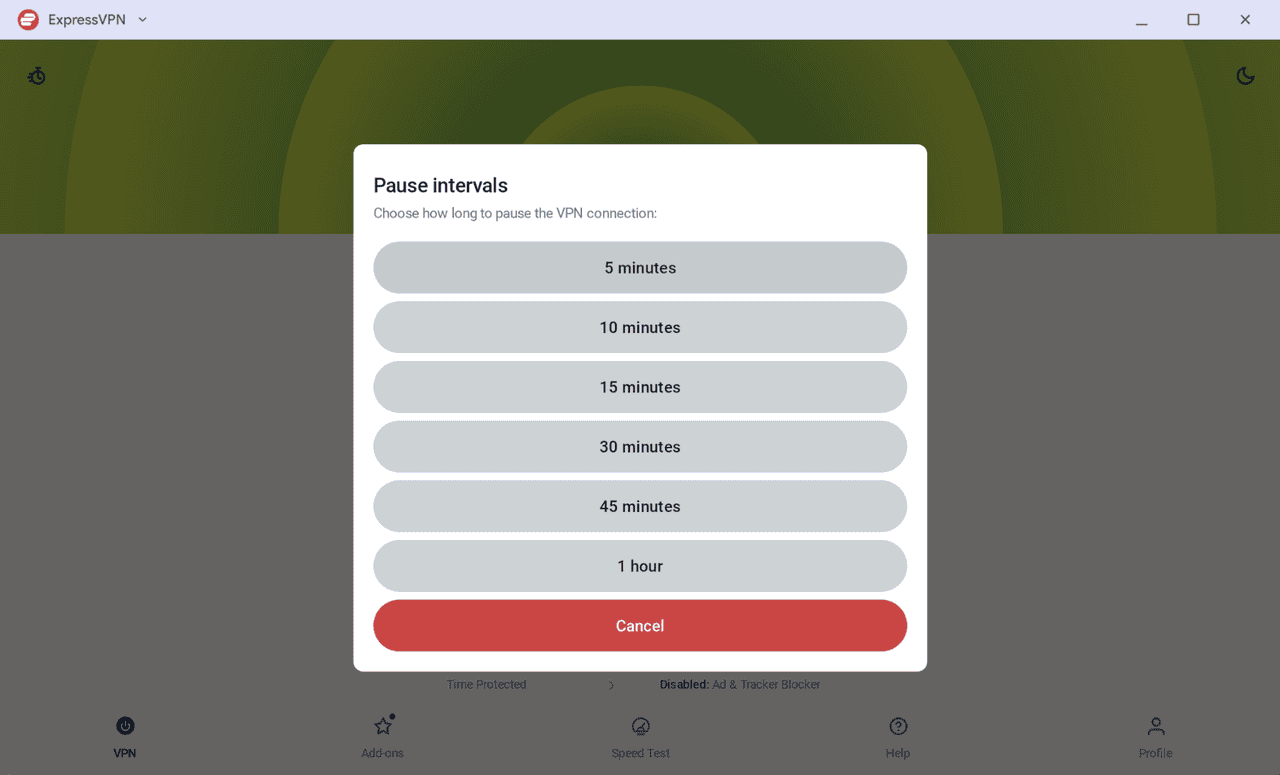
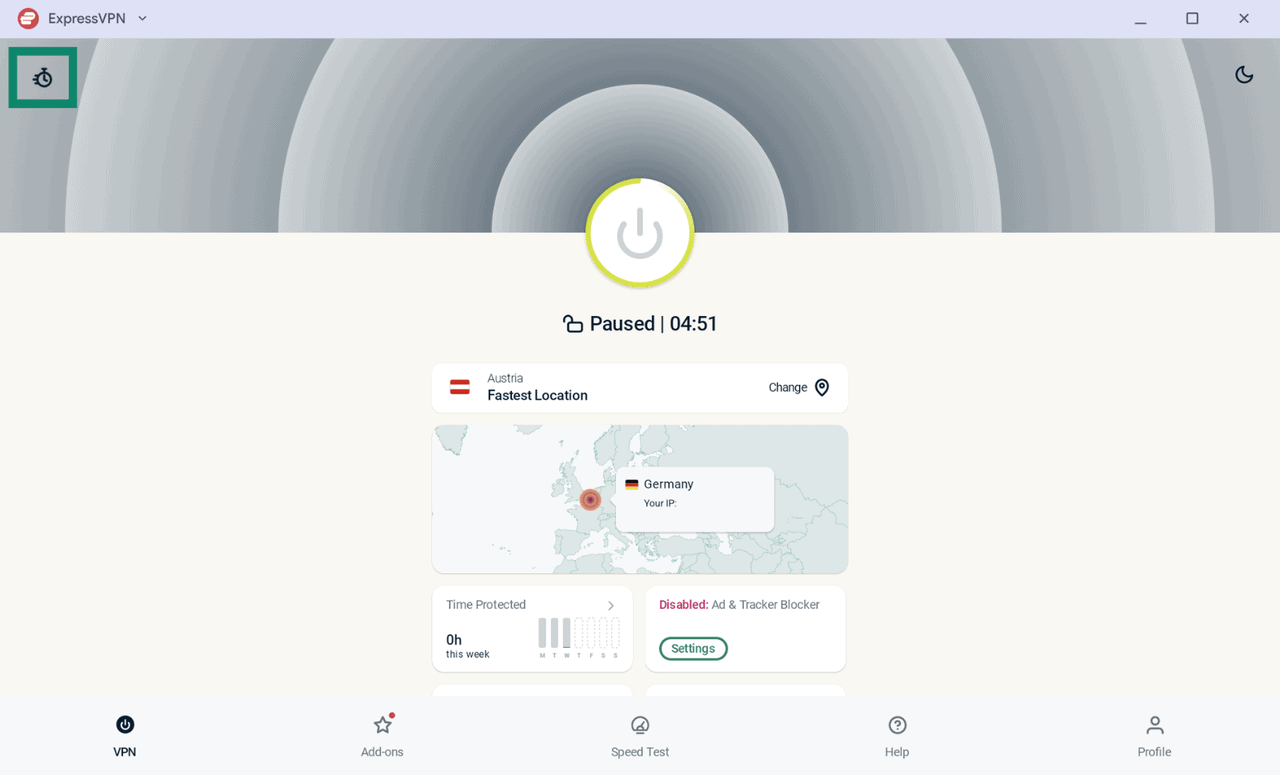
- Click the stopwatch icon at the top-left corner.
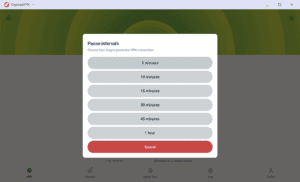
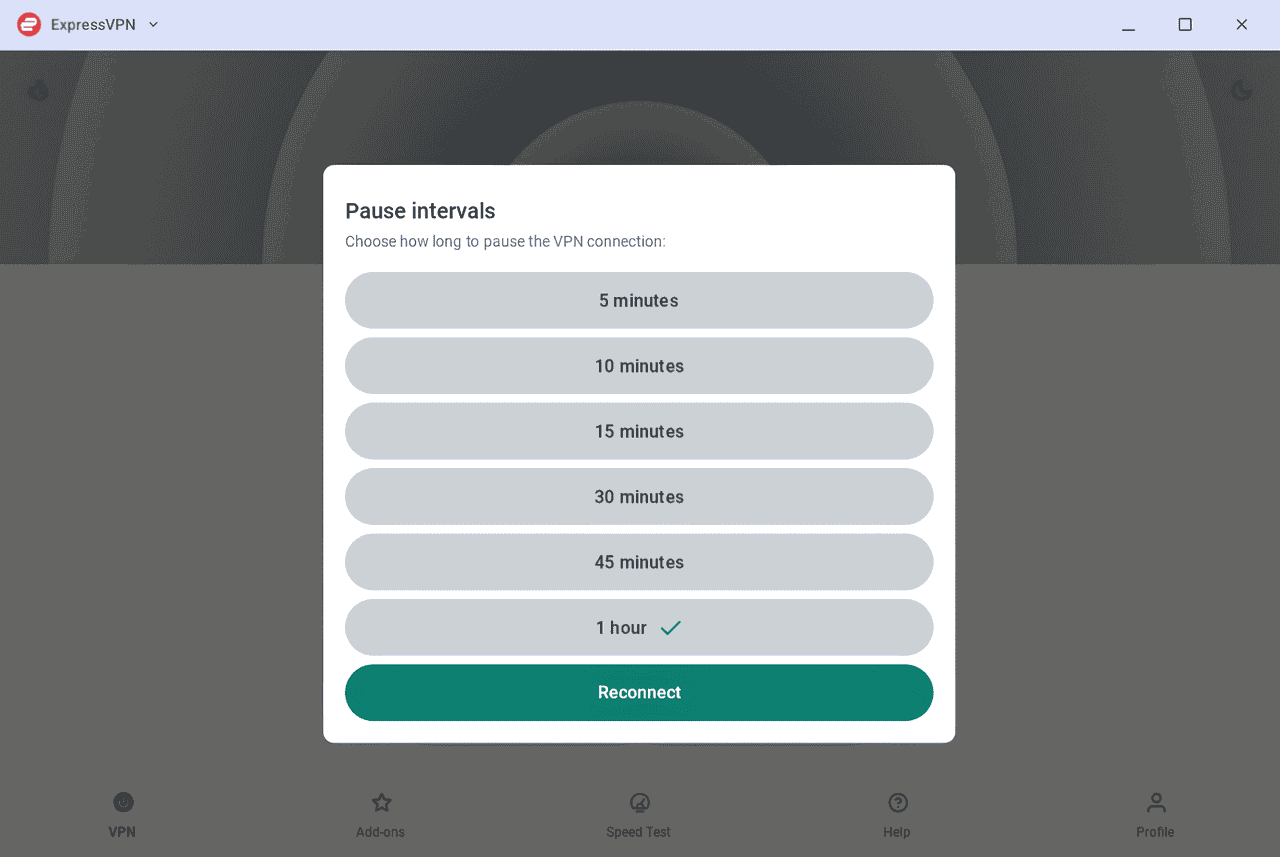
- Select a time period.
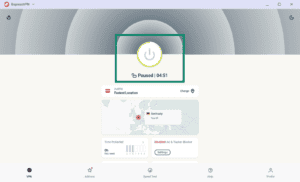
- After successfully setting a pause interval, you will see a Paused and a countdown timer below the power button.
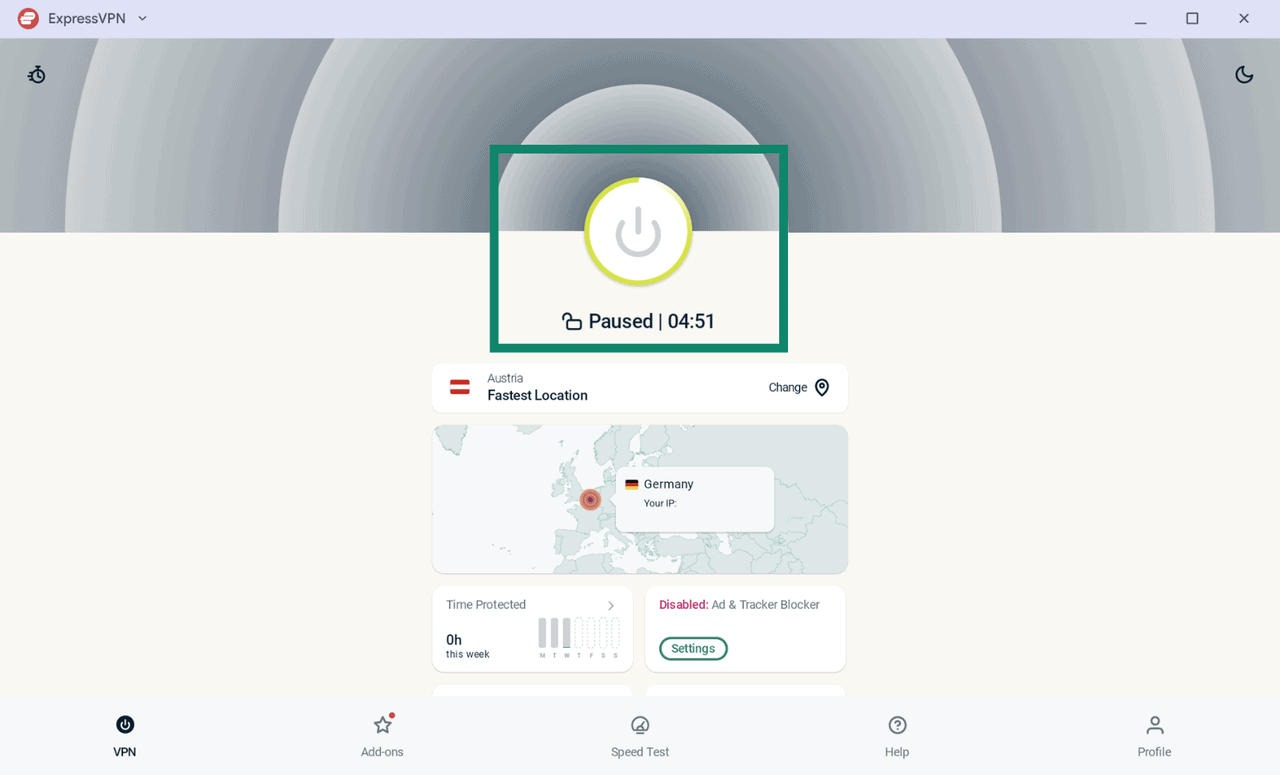
Once the timer runs out, the VPN app will automatically connect you to the previously connected server.
You can also extend the timer or resume the VPN connection manually by:
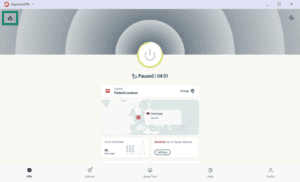
- Click the timer icon.
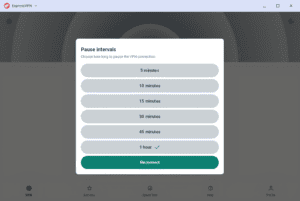
- Choose a different pause duration or select Reconnect to resume the VPN connection immediately.

Choose a different VPN server location
To connect to a different VPN server, do the following:
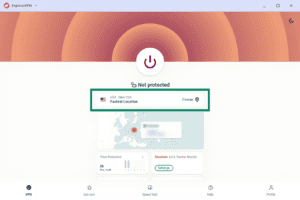
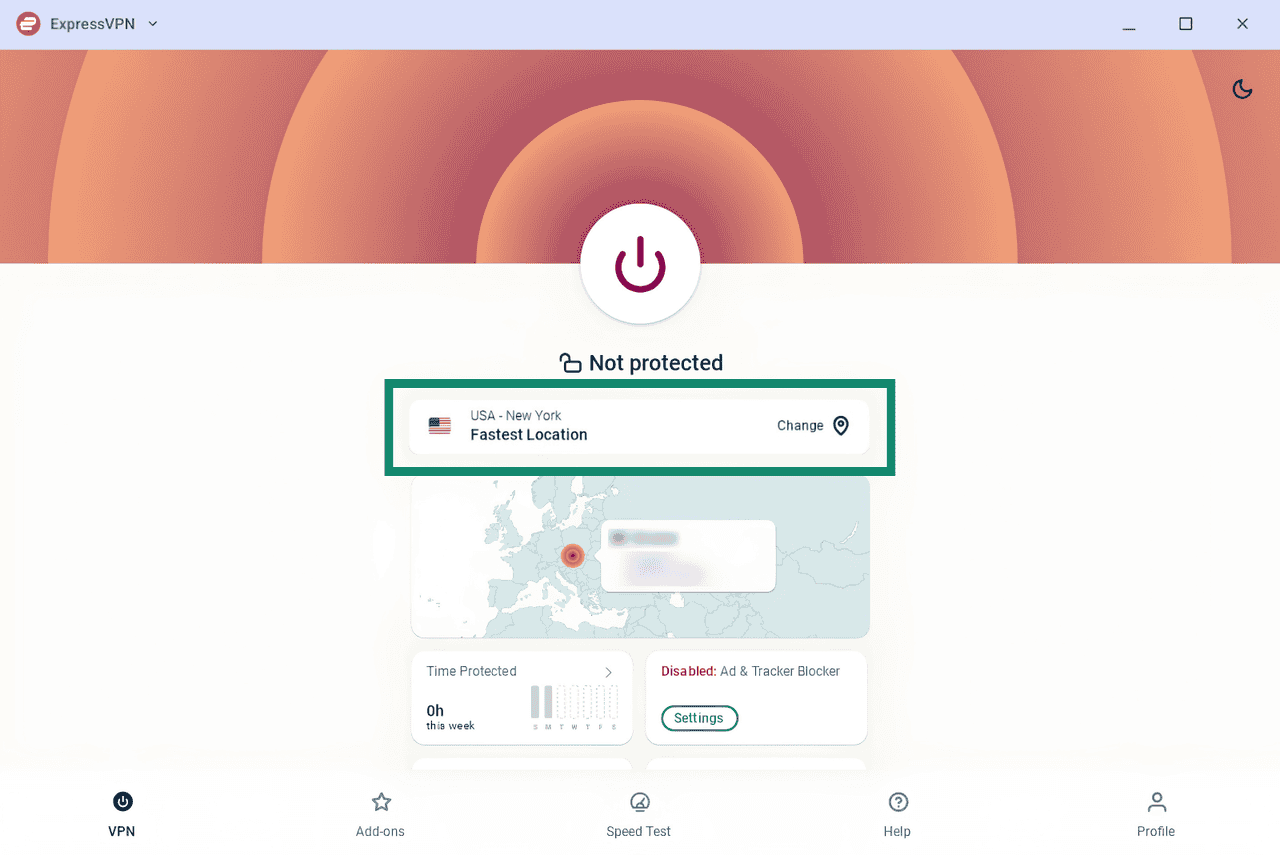
- Click the Change widget to view available VPN server locations.
- A list of server locations will appear under two tabs: RECOMMENDED and ALL LOCATIONS.
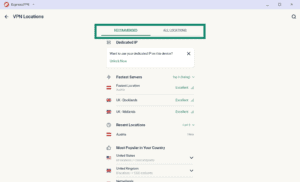
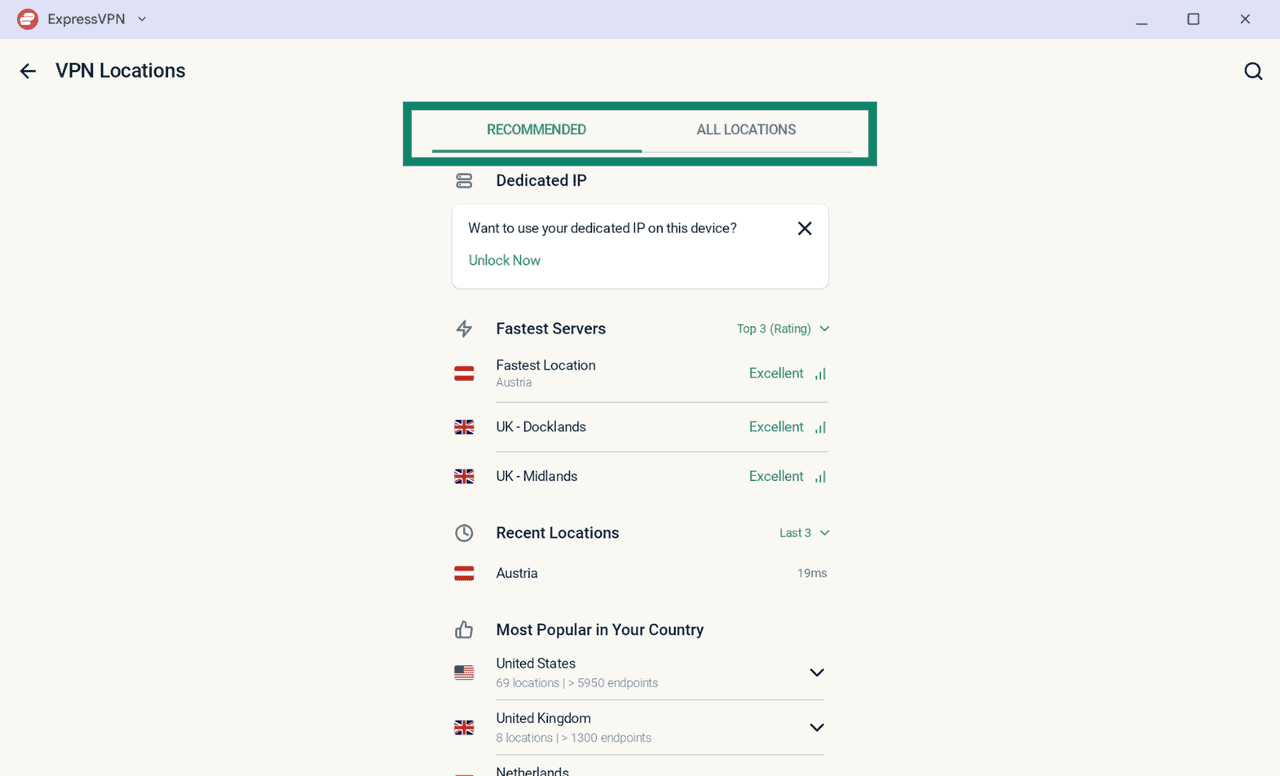
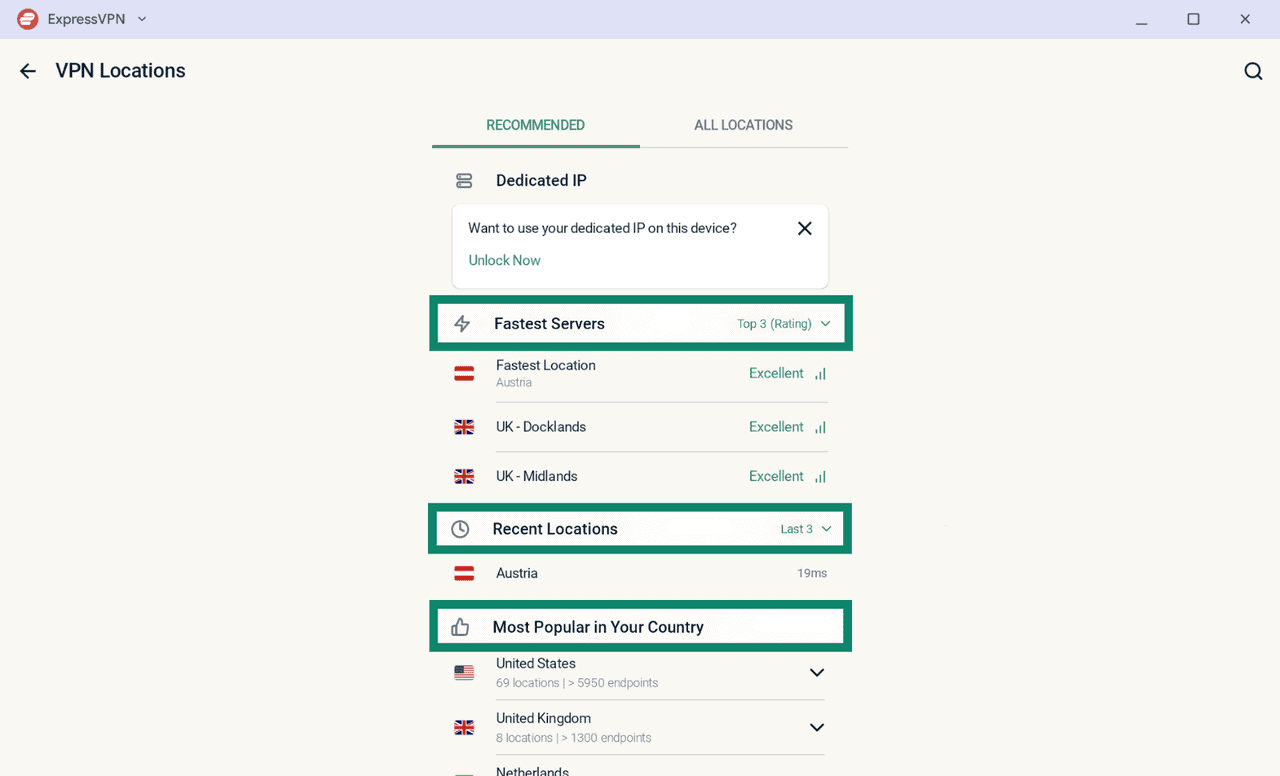
The RECOMMENDED tab includes three sections:
- Fastest Servers: Shows up to five of the fastest server locations based on your current location.
- Recent Locations: Shows up to five server locations you connected to most recently.
- Most Popular in Your Country: Lists the server locations most frequently used by other ExpressVPN users in your country.
The ALL LOCATIONS tab organizes VPN server locations by region. Click the downward  arrow or upward
  arrow to expand or collapse a list. You can filter the list by region (Americas, Asia Pacific, Europe, or Middle East and Africa) and sort locations alphabetically or by the number of server endpoints.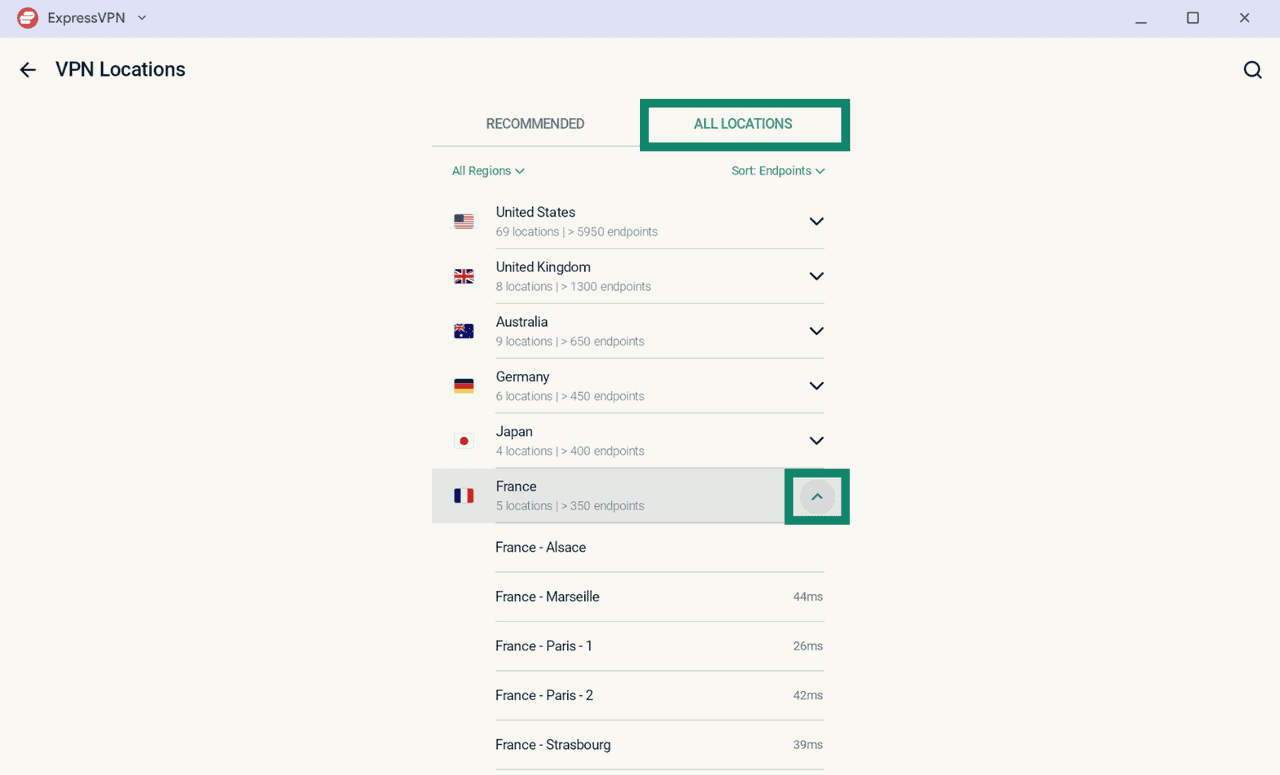
After you select a server location, ExpressVPN connects to it automatically. If you are already connected to the VPN, a notification will warn you that your connection will briefly drop while switching locations. Select Continue to proceed.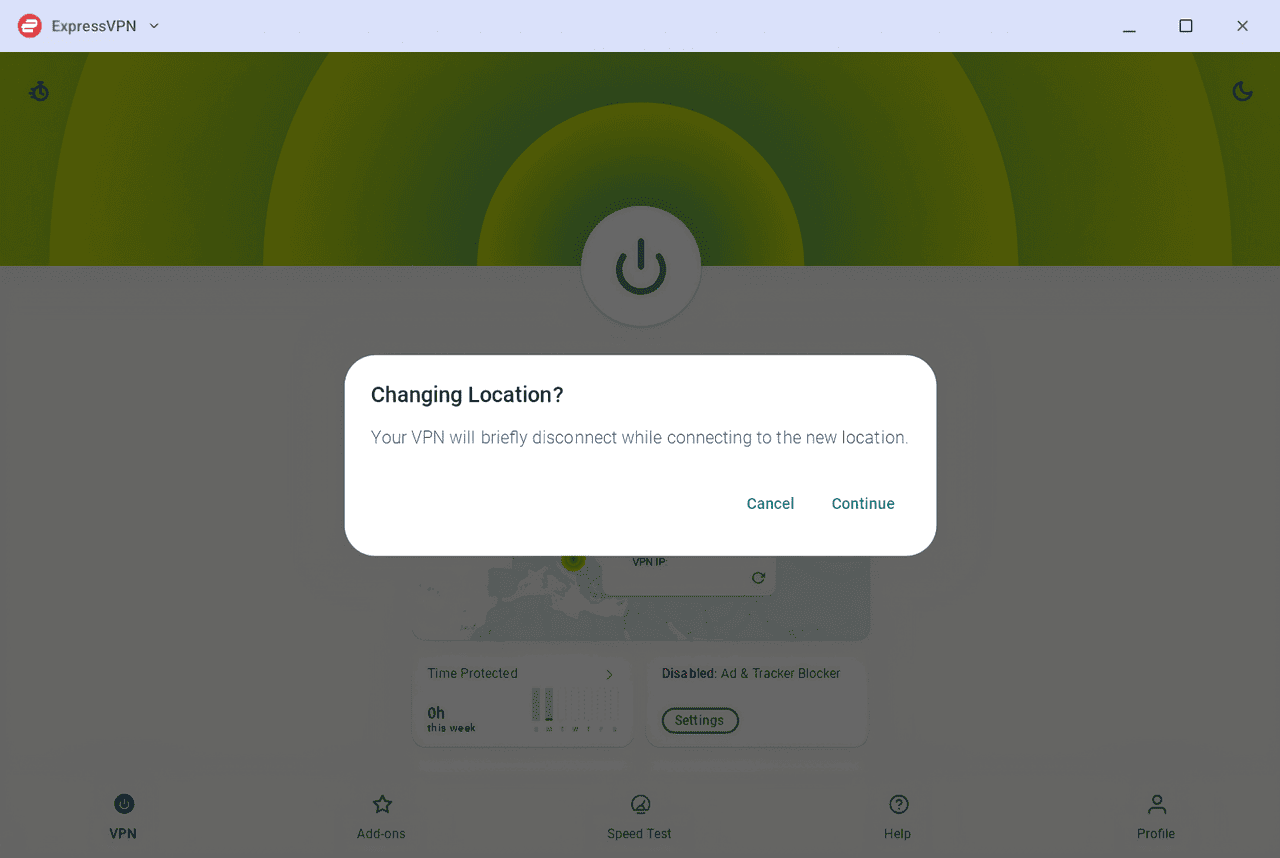
Switch to a different VPN protocol
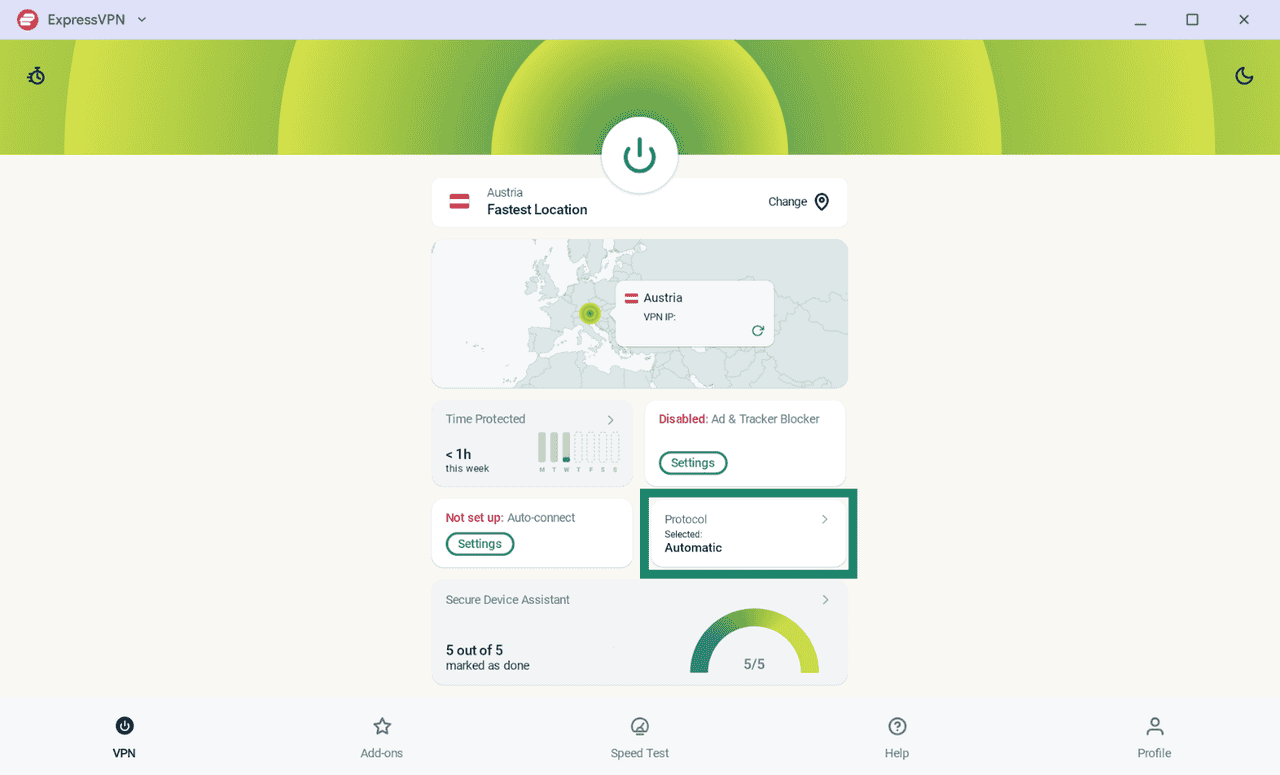
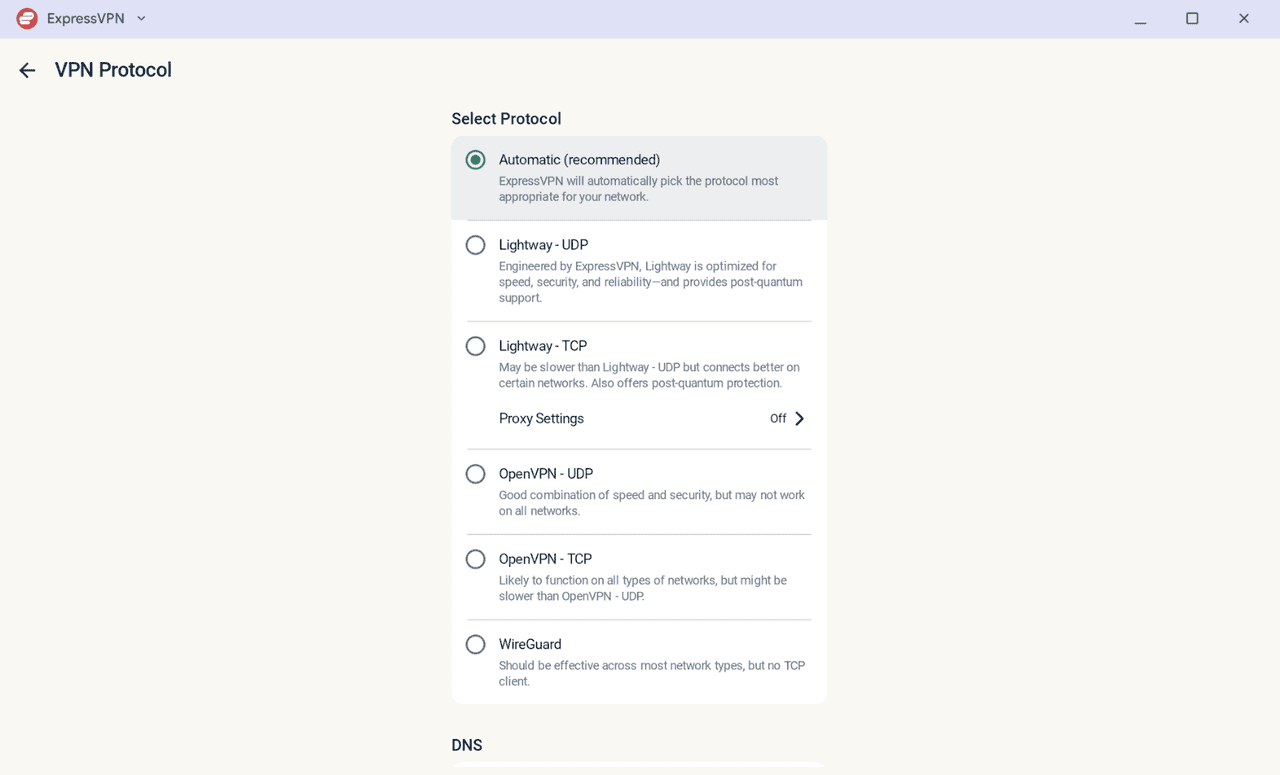
VPN protocols determine how your device connects to a VPN server. ExpressVPN recommends using Automatic, the default option that selects the most suitable protocol for your network. But if you experience slow connection speeds, switching to a different protocol may help improve performance.
To use a different VPN protocol:
- On the main dashboard, click Protocol.
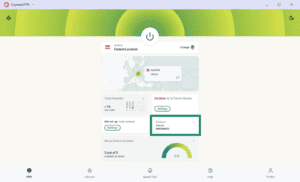
- Select your preferred protocol. The new setting will take effect the next time you connect to a VPN server.
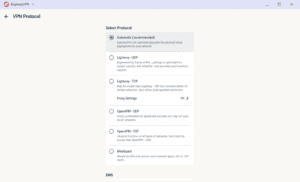
Tip: Learn more about the different VPN protocols and how they operate.
Enable or disable the Internet Kill Switch
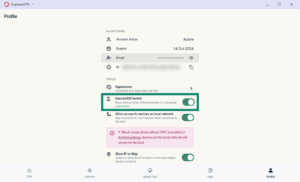
ExpressVPN’s Internet Kill Switch blocks your internet traffic if your VPN connection drops unexpectedly. This helps prevent your data from being exposed through an unencrypted connection. The feature is enabled by default.
To disable the feature:
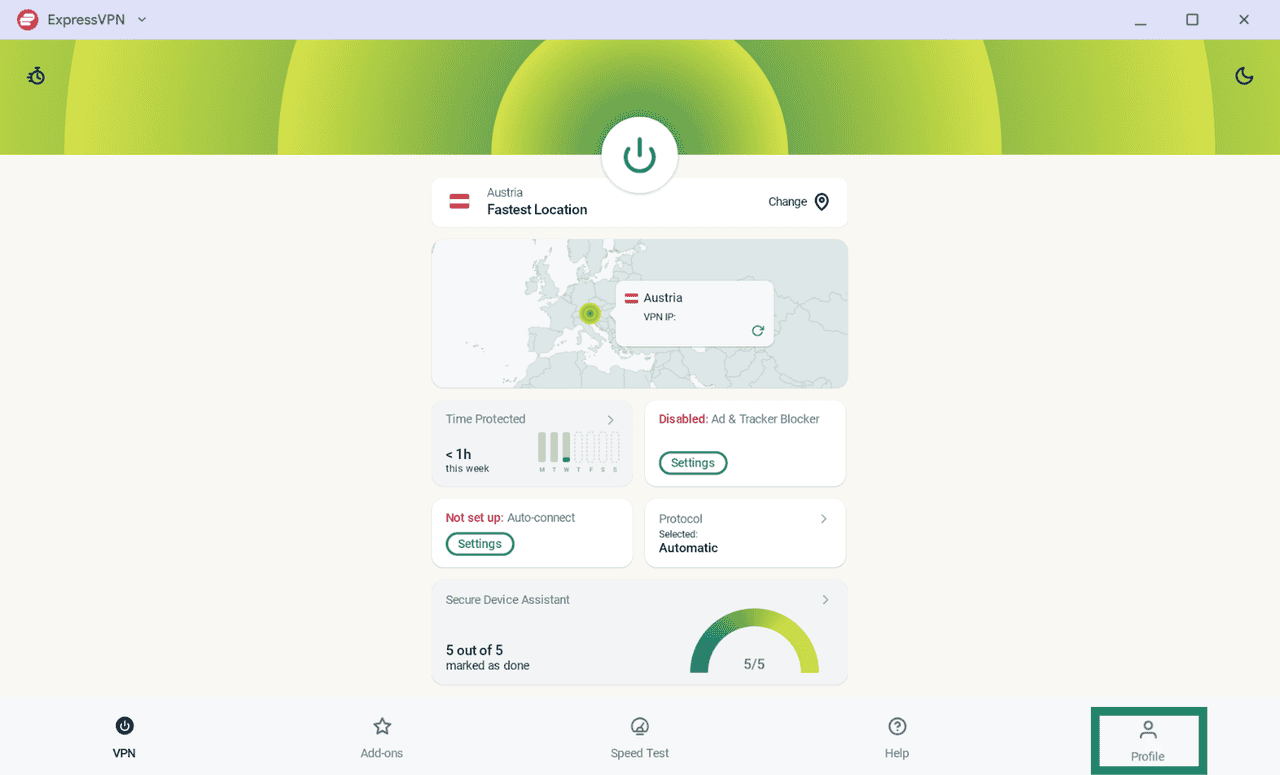
- Click on the Profile tab.
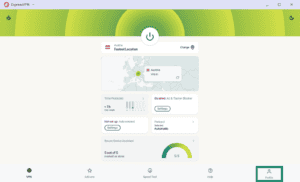
- Toggle the Internet Kill Switch on/off.
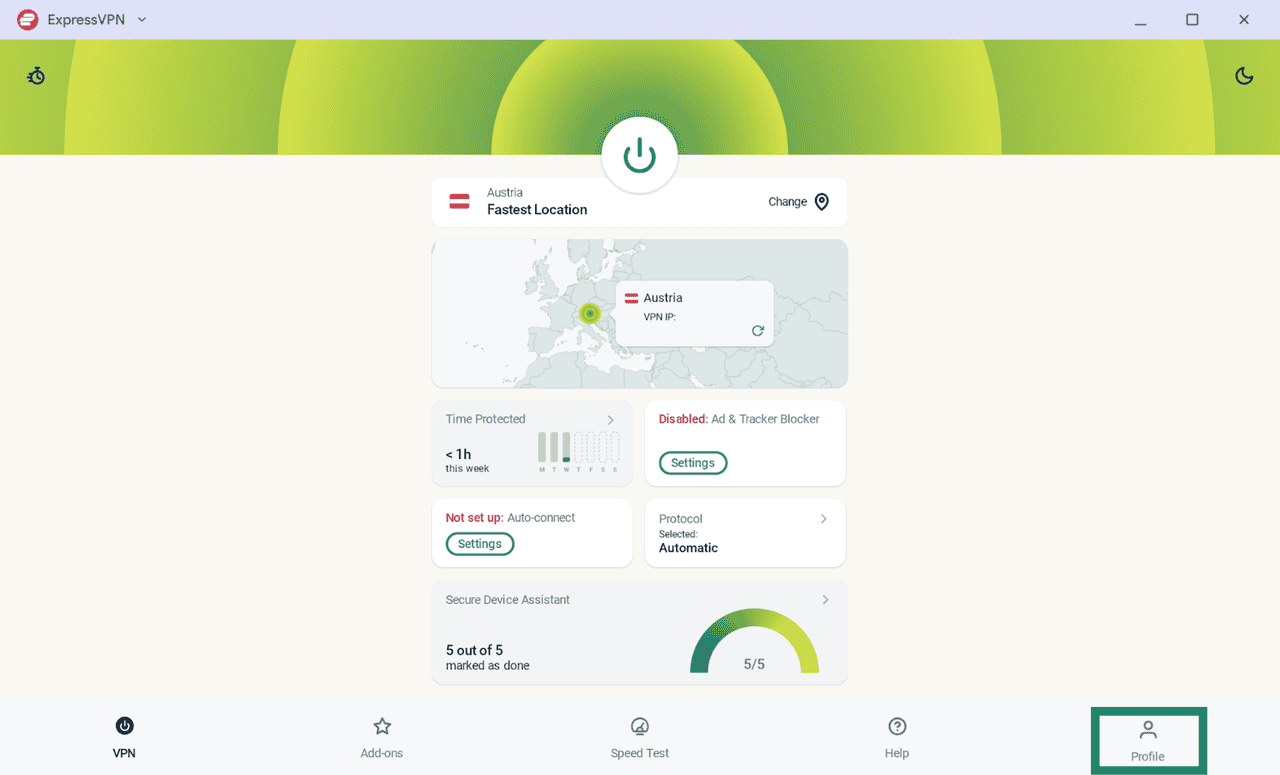
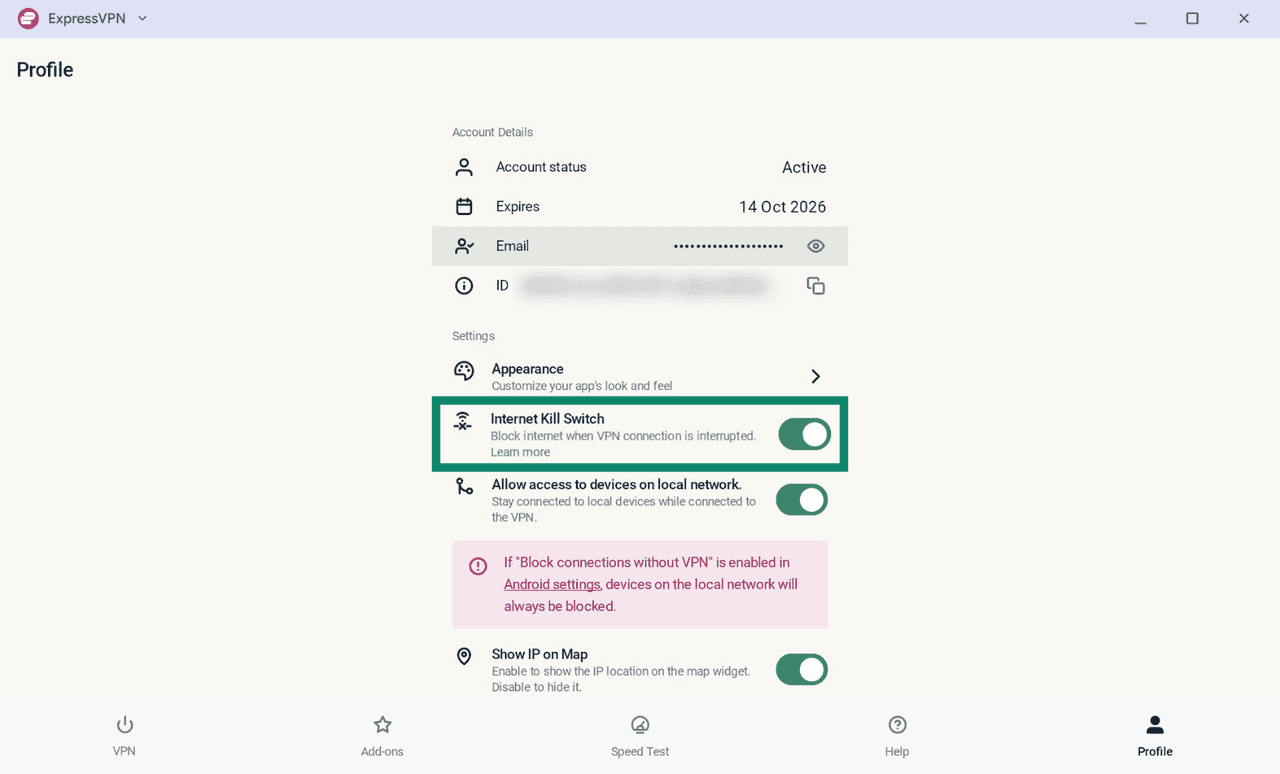
Block connections without VPN
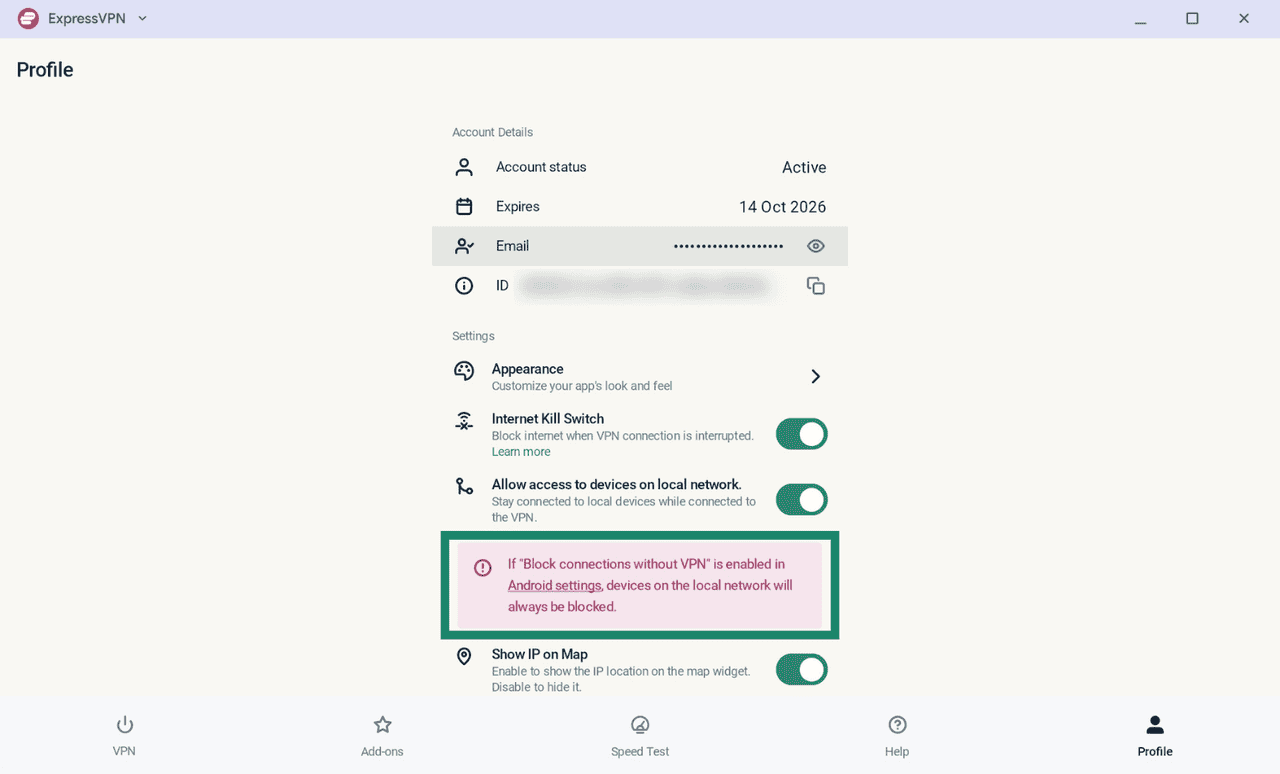
On Googlebook, you can also enable an advanced kill switch option through Android’s built-in settings, called Block connections without VPN, that blocks all network traffic unless the VPN is connected. ExpressVPN supports this feature on Android 8.0 and later.
To enable it:
- Click on the Profile tab.
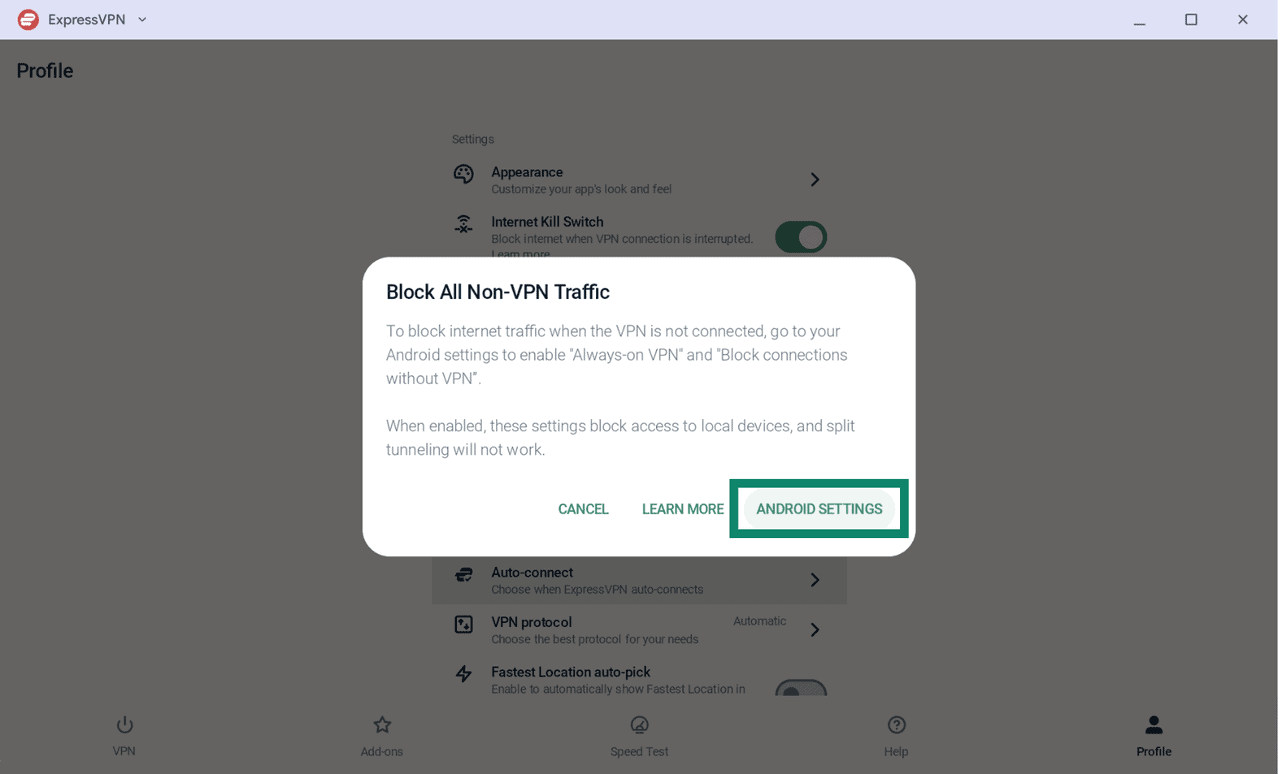
- Click the “Block connections without VPN” message.
- Select ANDROID SETTINGS in the pop-up.
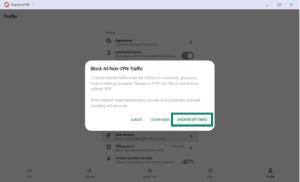
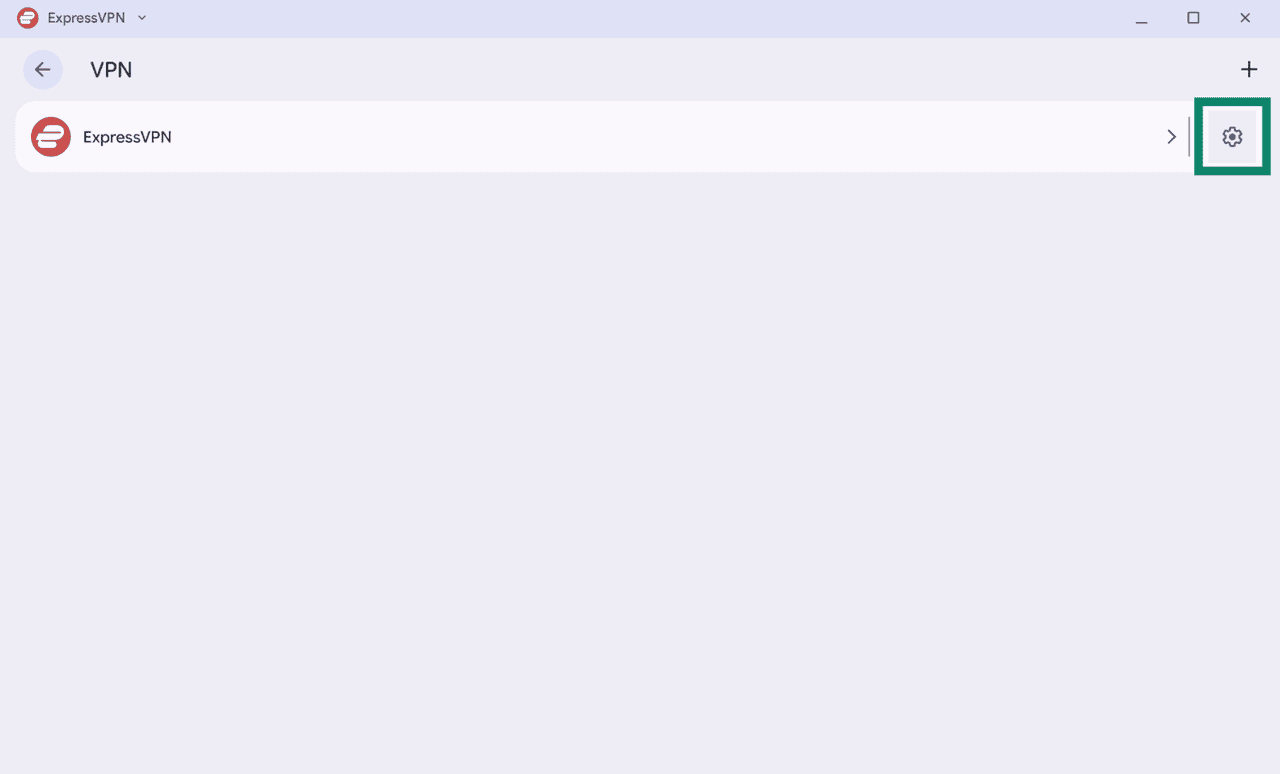
- Click on the settings
 icon next to ExpressVPN.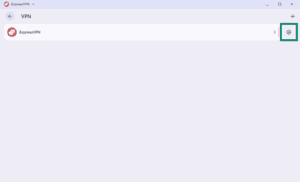
- Toggle Always-on VPN on, and then toggle the switch next to Block connections without VPN to enable it.
Note: The Always-On VPN option allows your Googlebook to automatically reconnect to the VPN whenever your device comes online. You have to enable this option to turn the advanced kill switch on.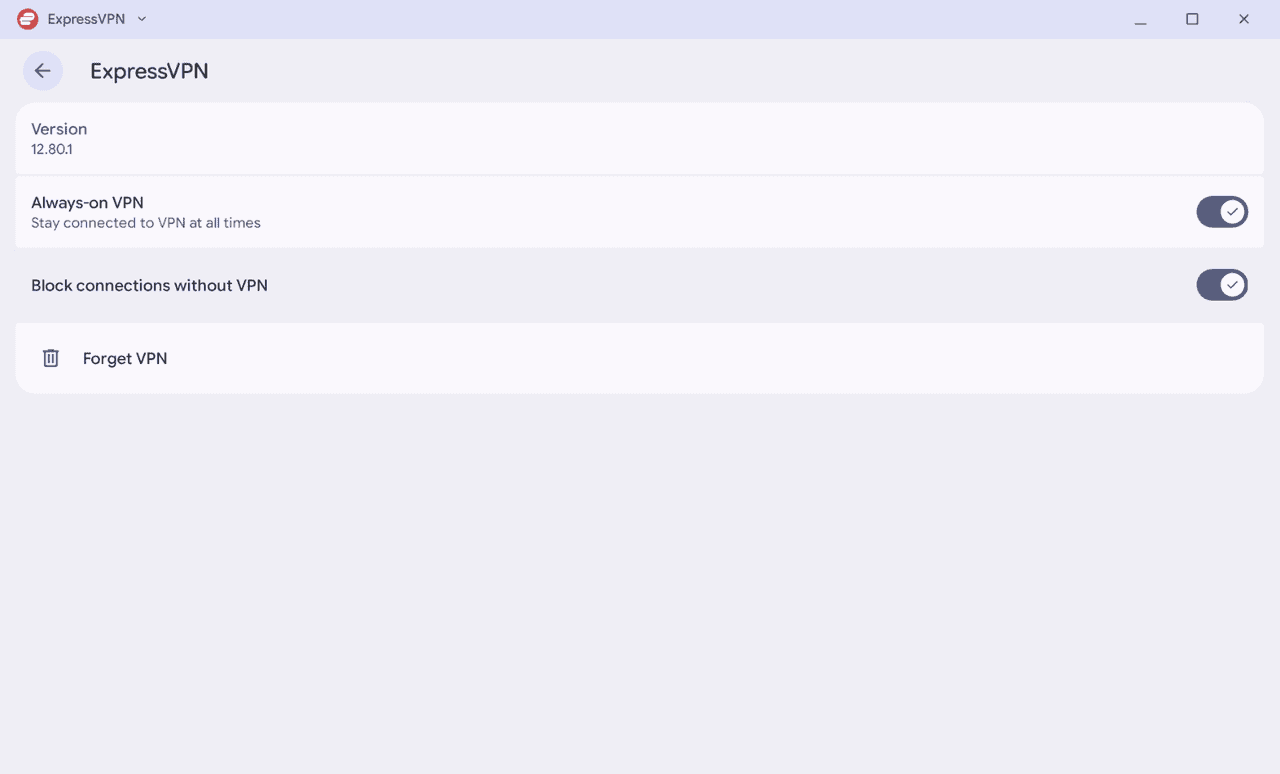
Block ads, trackers, and harmful sites
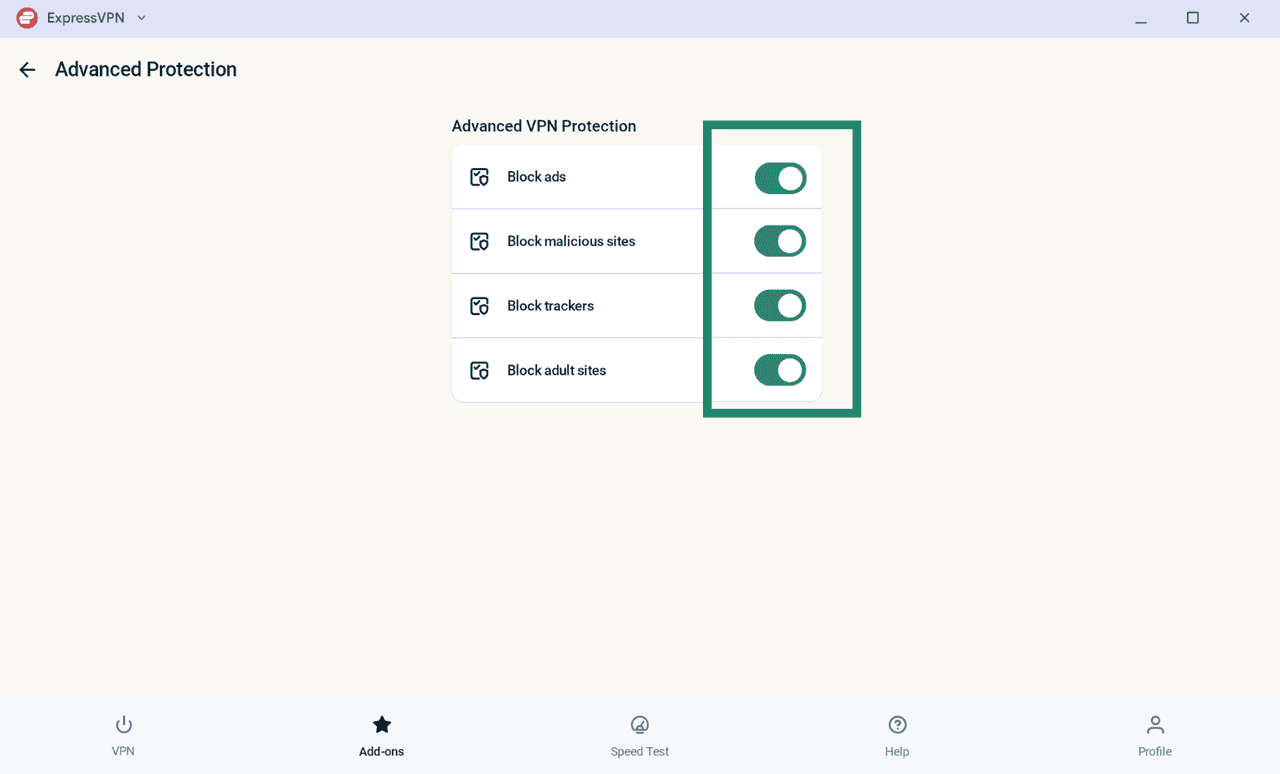
ExpressVPN’s advanced protection features let you block ads, trackers, harmful sites, and adult content. They prevent apps and websites you visit from communicating with third parties on this open-source blocklist. By default, these features are disabled.
To enable them:
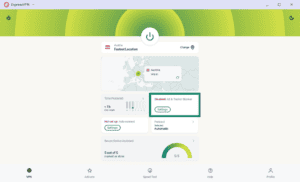
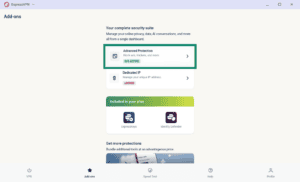
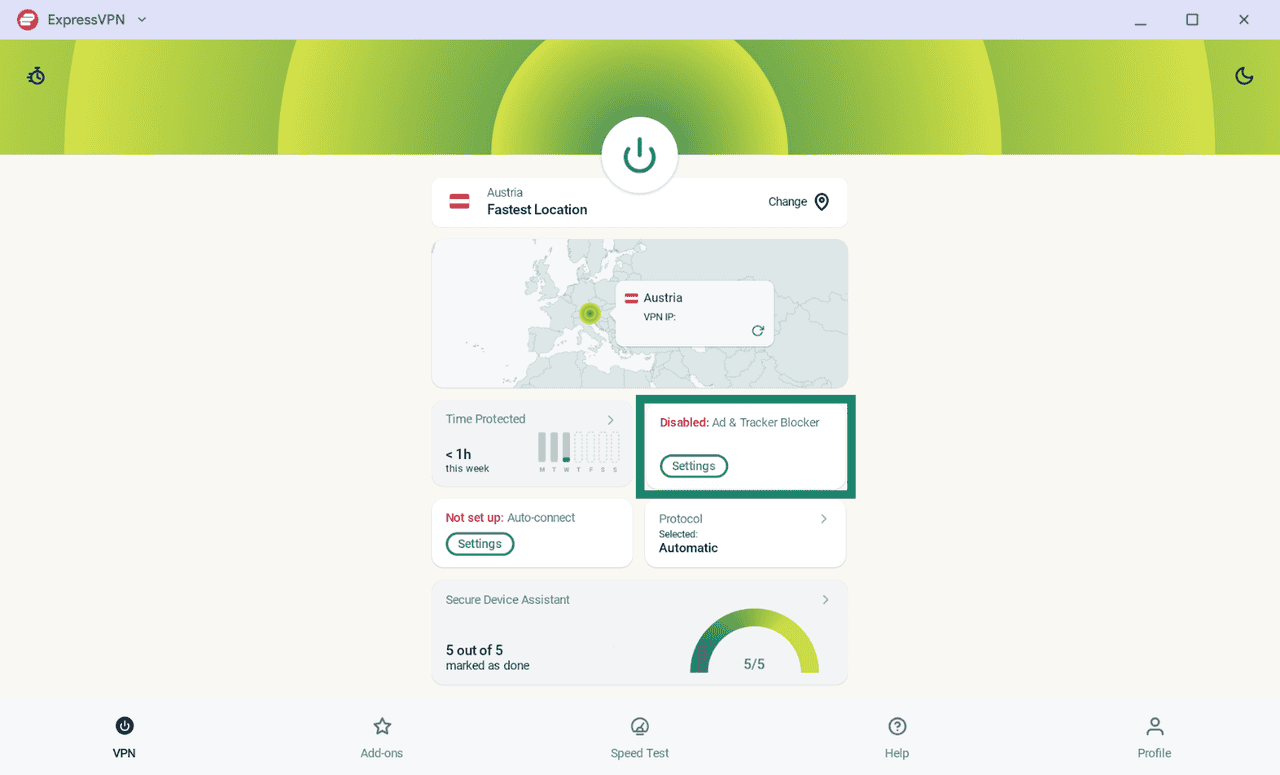
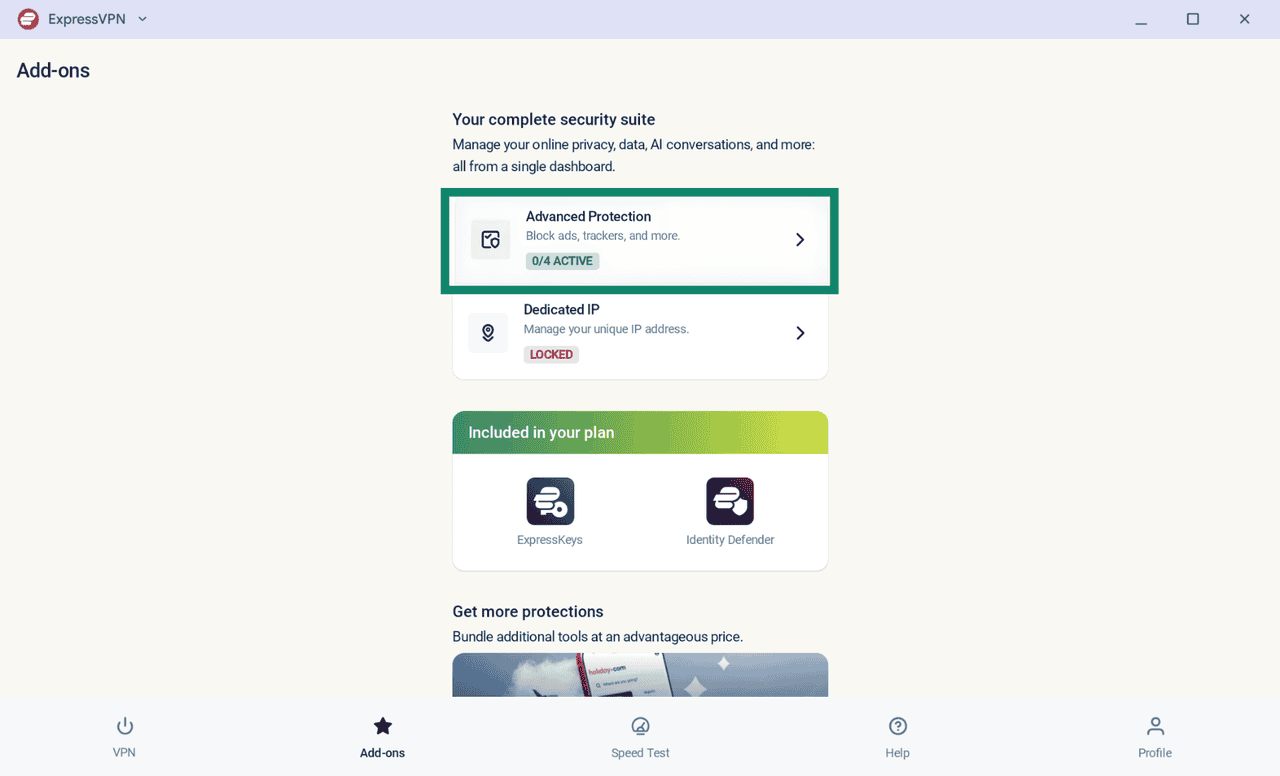
- On the VPN tab, click the Ad & Tracker Blocker widget.
- Click Advanced Protection.
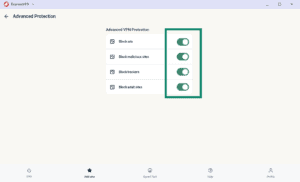
- Toggle on or off the desired blockers.
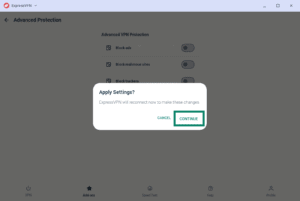
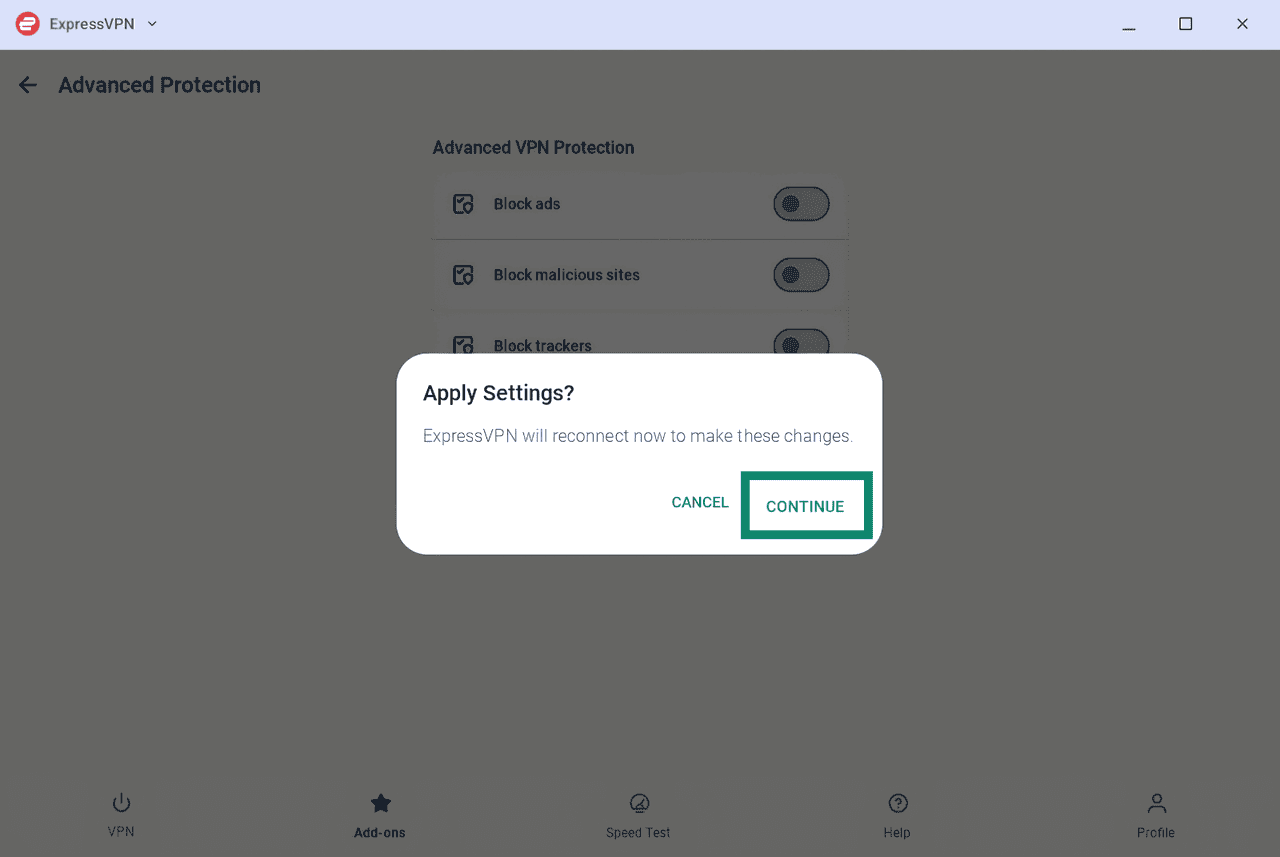
- If you are already connected to the VPN, you will be prompted to reconnect to apply the changes. Click Continue to proceed.
Use split tunneling
ExpressVPN’s split tunneling feature lets you choose which apps use the VPN connection and which connect directly to the internet. This gives you more control over how your apps handle internet traffic.
To use the split tunneling feature:
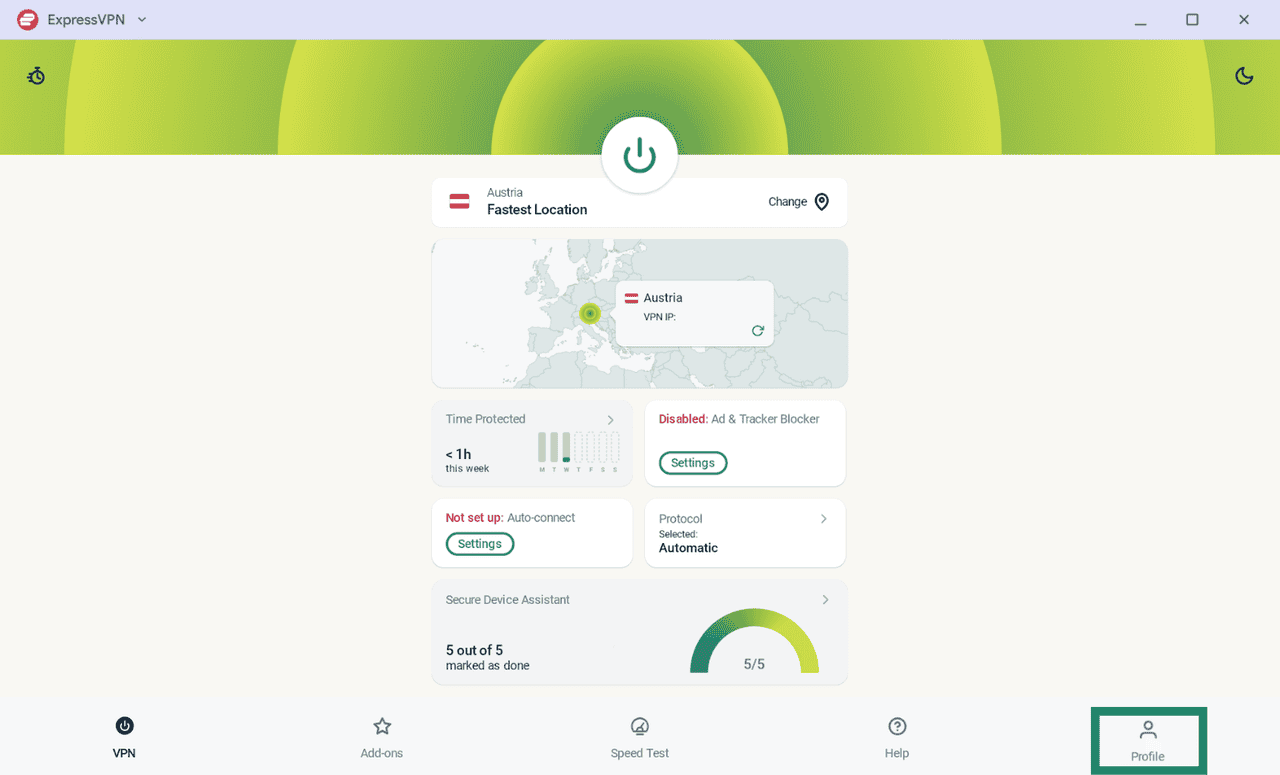
- Click the Profile tab.
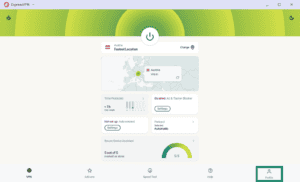
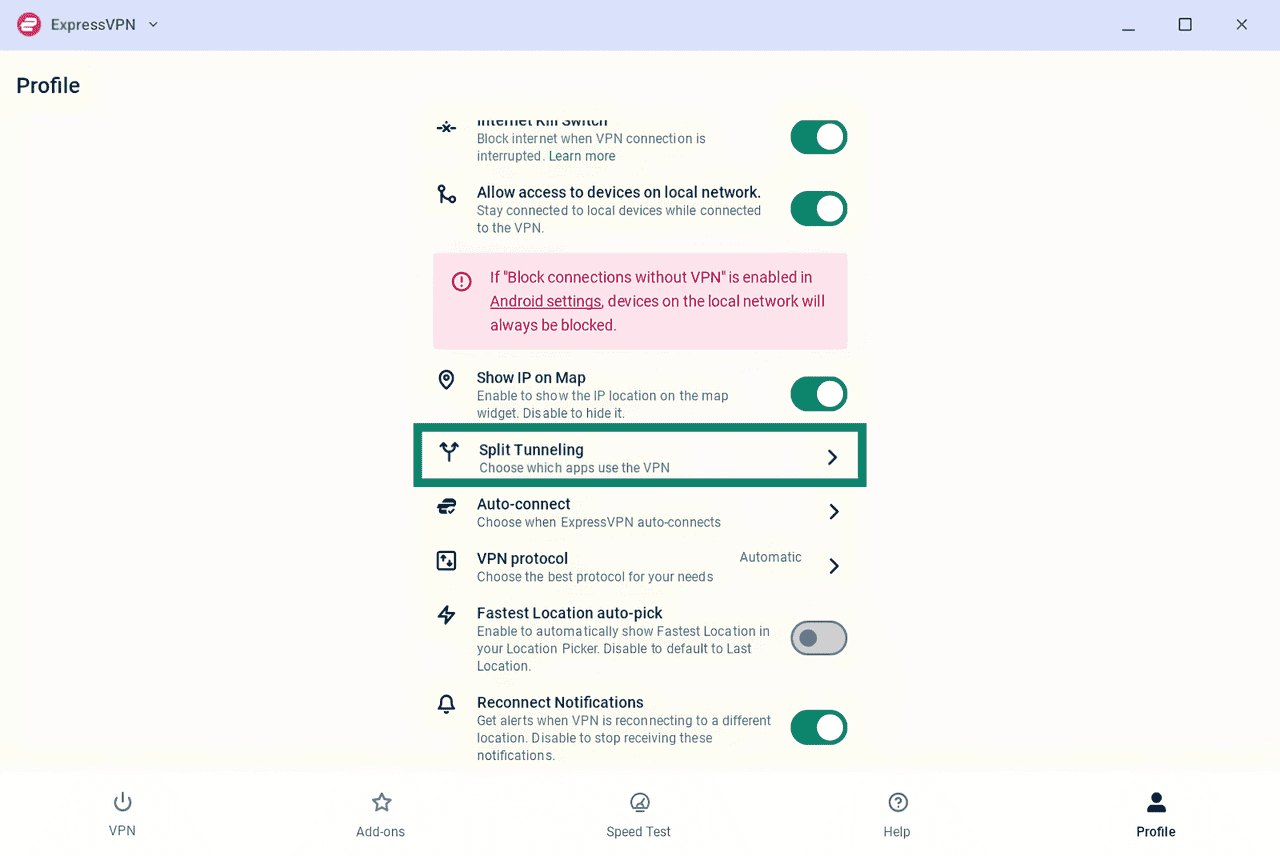
- Select Split Tunneling.
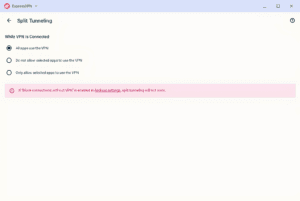
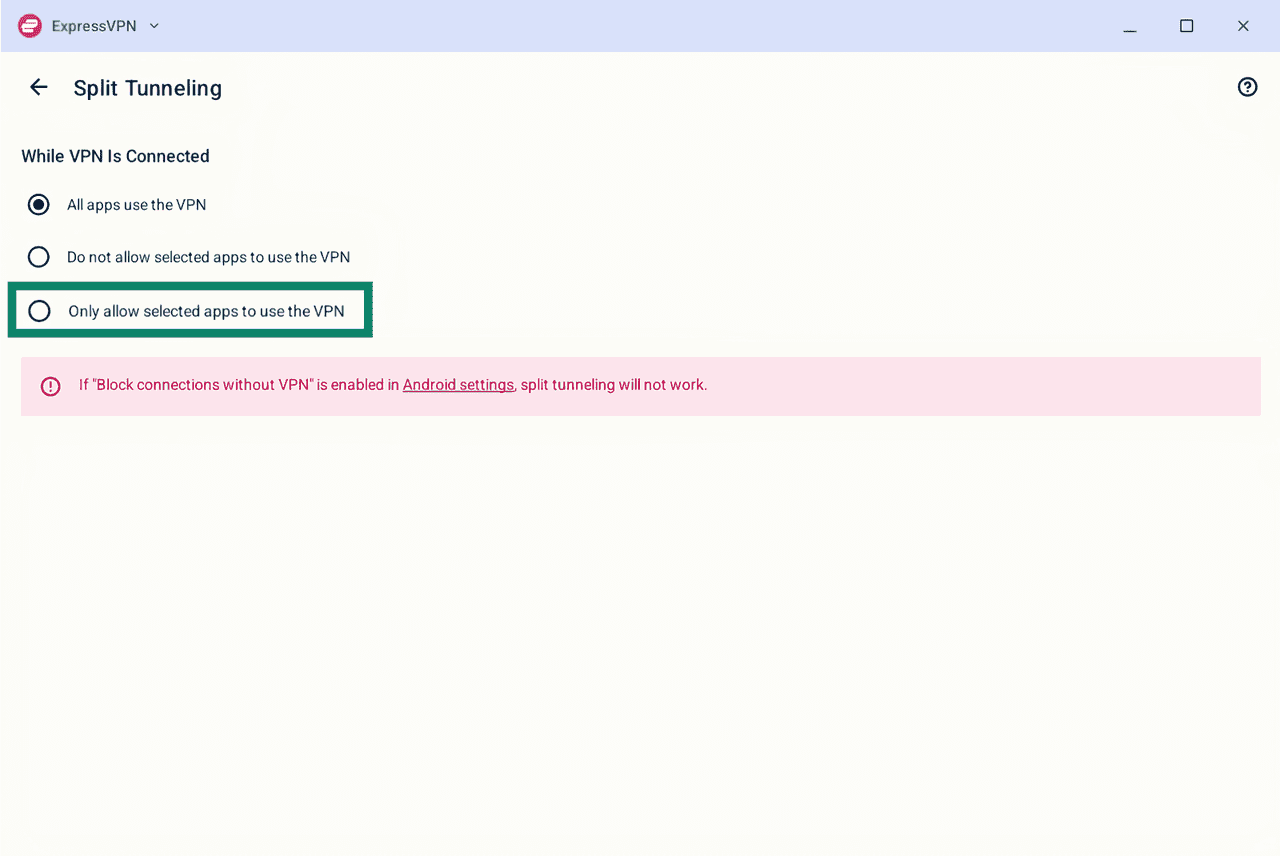
You will see 3 split tunneling options:
- All apps use the VPN
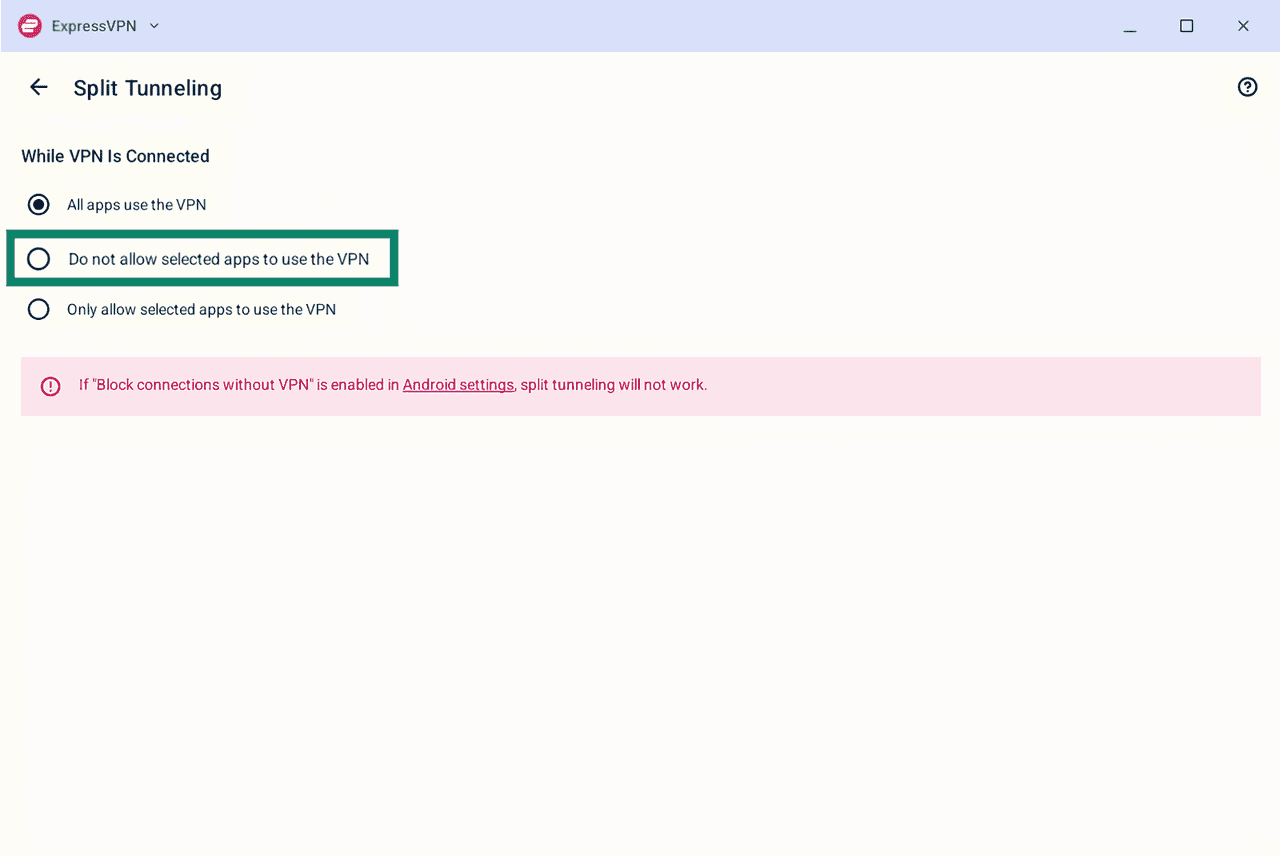
- Do not allow selected apps to use the VPN
- Only allow selected apps to use the VPN
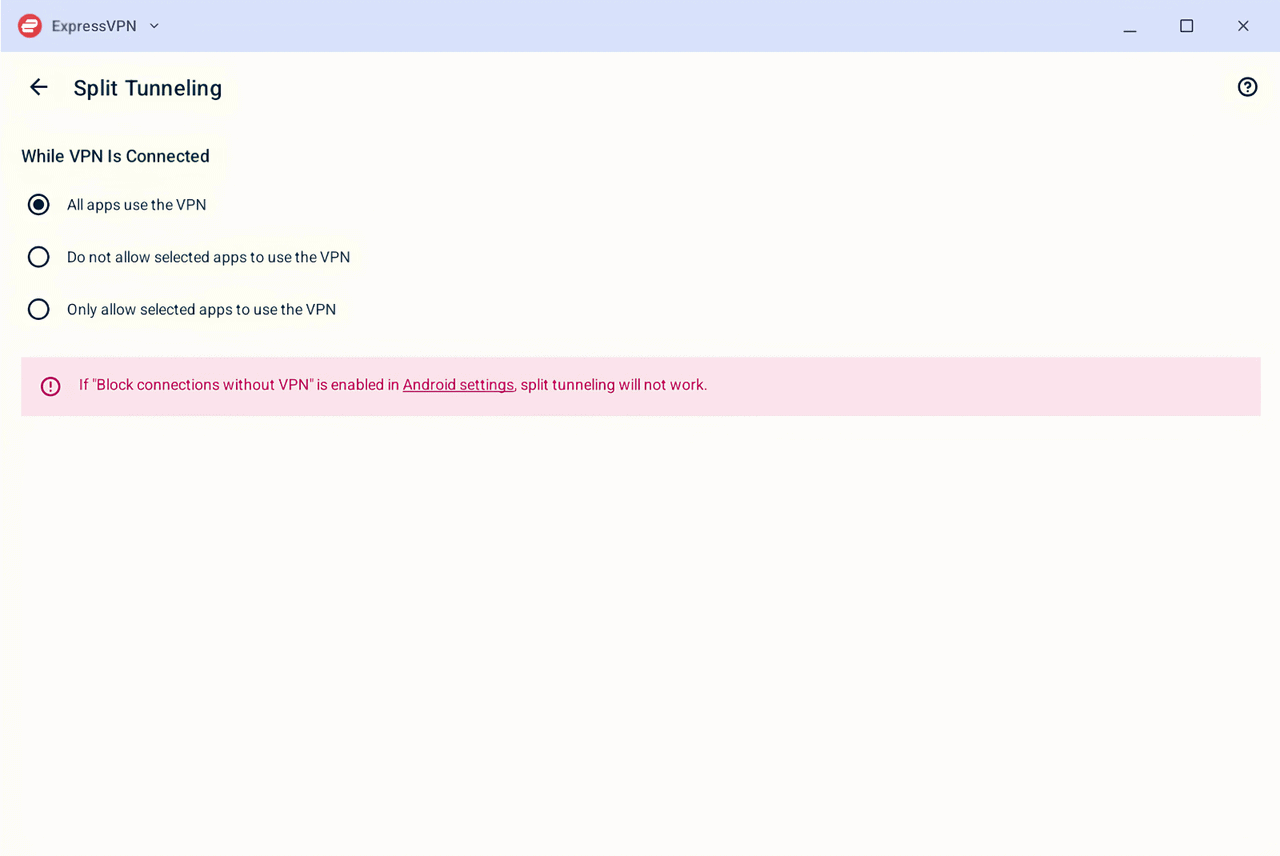
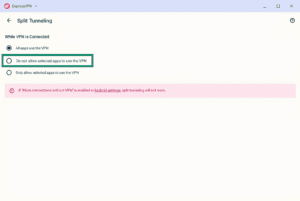
To exclude apps from the VPN tunnel
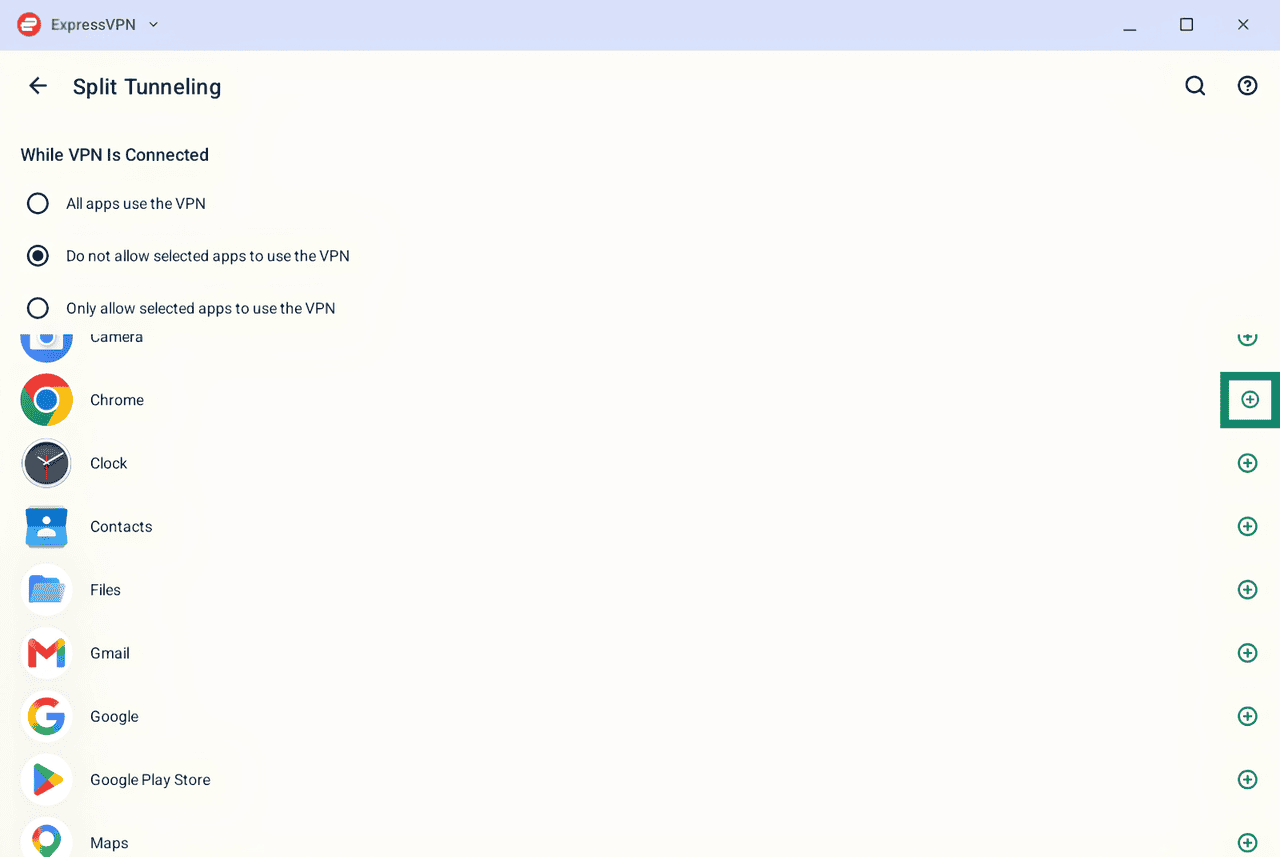
- Select Do not allow selected apps to use the VPN.
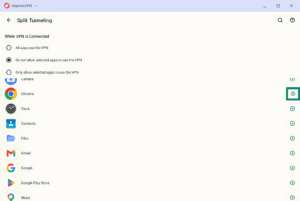
- A list of apps installed on your device will appear. Click the plus icon next to each app you want to exclude from the VPN. The chosen apps will appear in the Selected Apps list.
- Once you have selected your apps, exit the settings. When ExpressVPN is connected, the selected apps will access the internet without using the VPN.
To remove an app from the rule, simply click the minus icon next to the app in the Selected Apps list.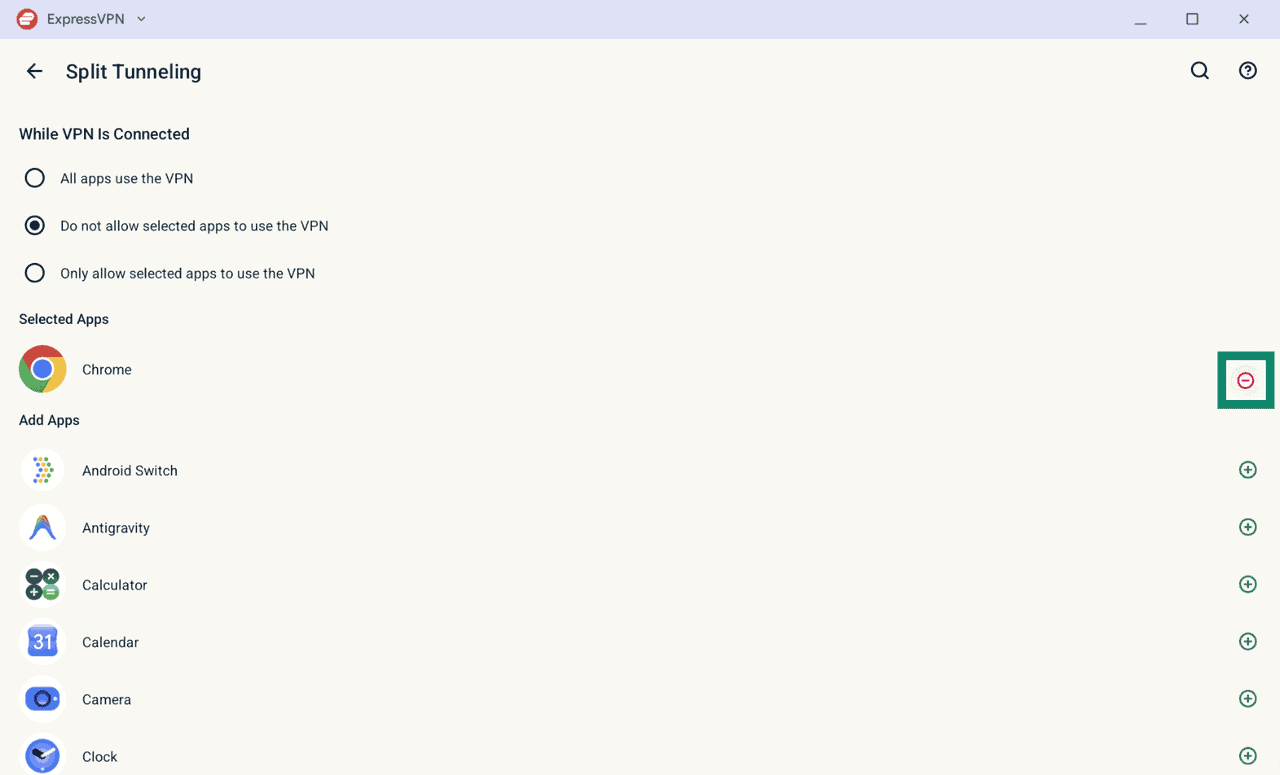
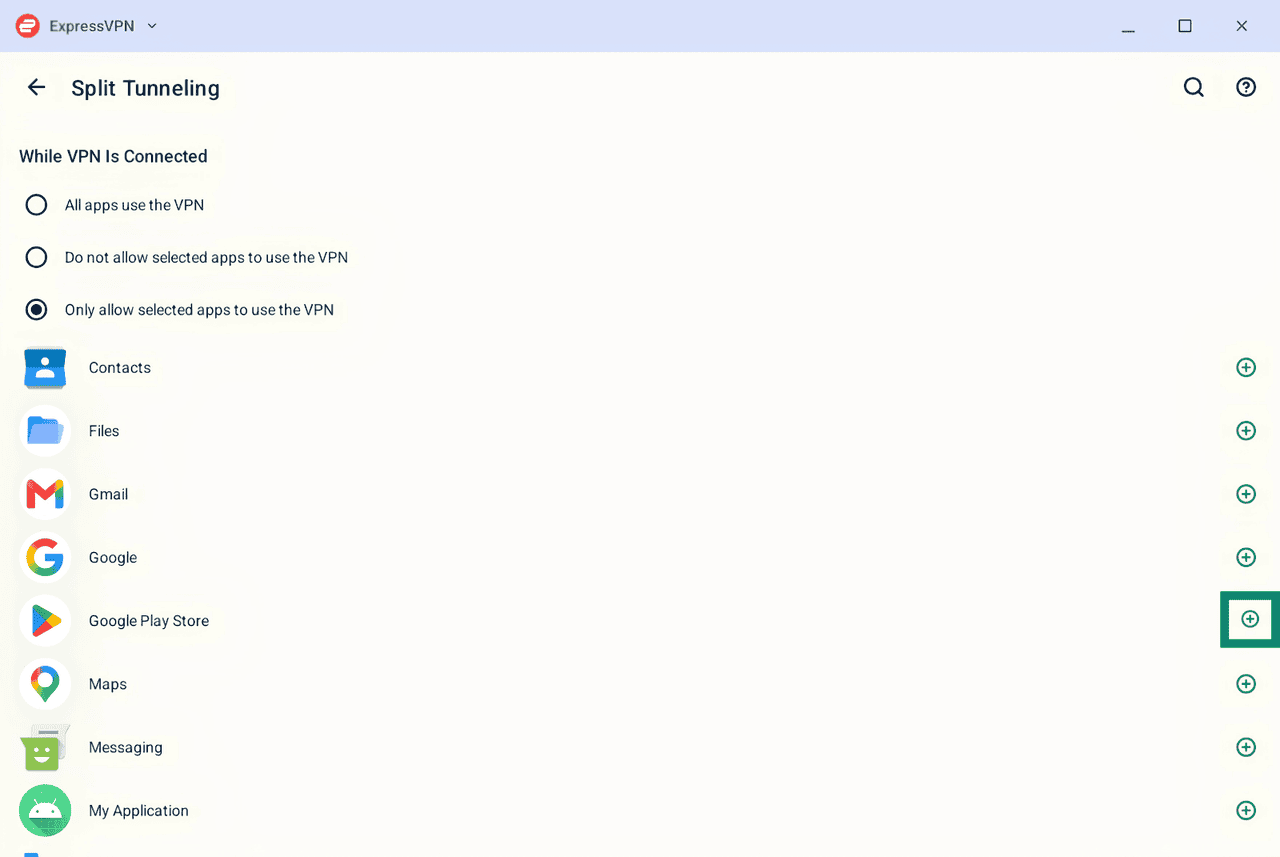
- Click Only allow selected apps to use the VPN.
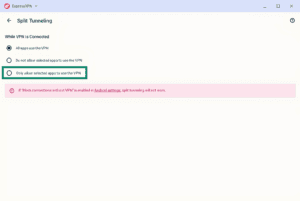
- A list of apps installed on your device will appear. Click the plus icon next to each app you want to include. The selected apps will appear in the Selected Apps list.
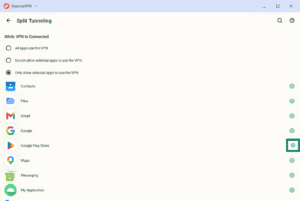
- Once you have selected your apps, exit the split tunneling settings. When ExpressVPN is connected, only the selected apps will use the VPN connection.
To remove an app from the rule, under Selected Apps, click the minus icon next to the app you want to remove.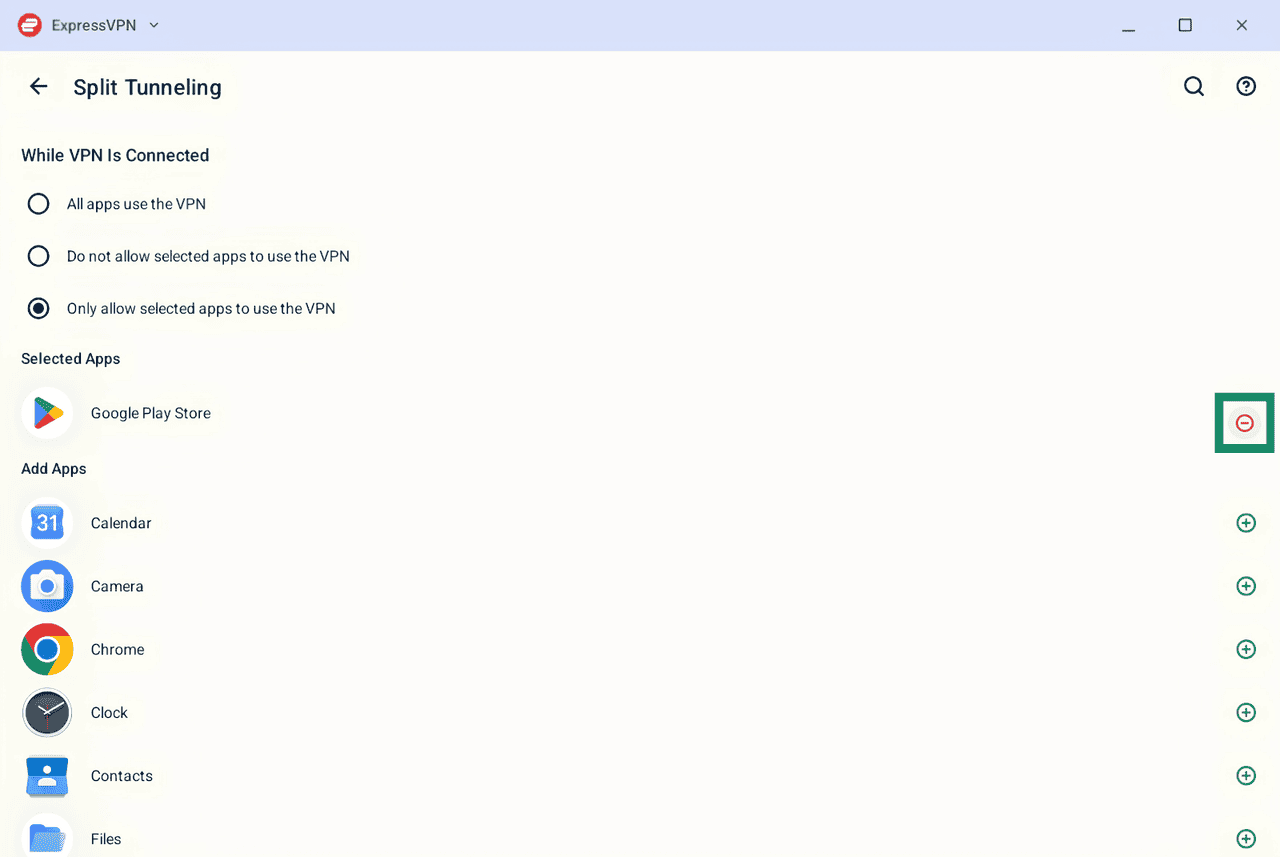
Set up auto-connect
To configure your auto-connect settings:
- On the VPN tab, click the Auto-connect card.
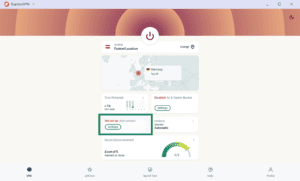
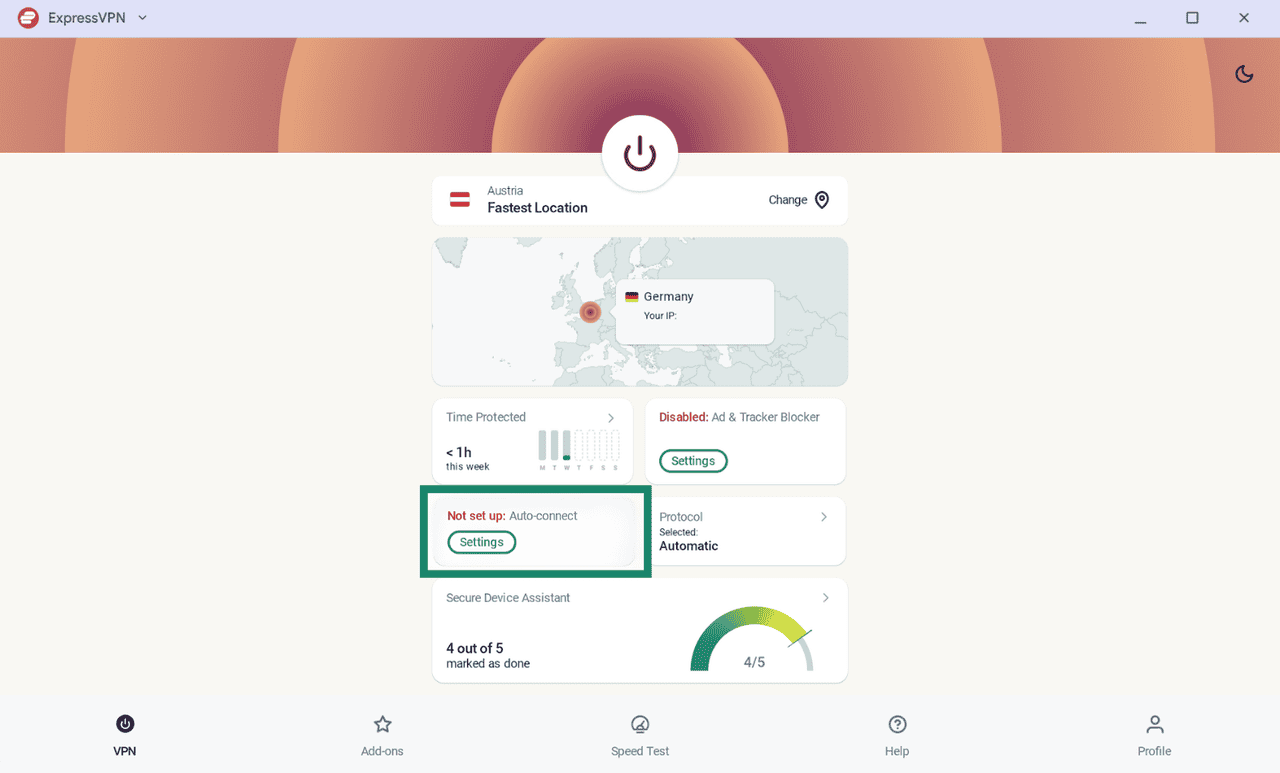
You will see 2 options:
- When Android starts up
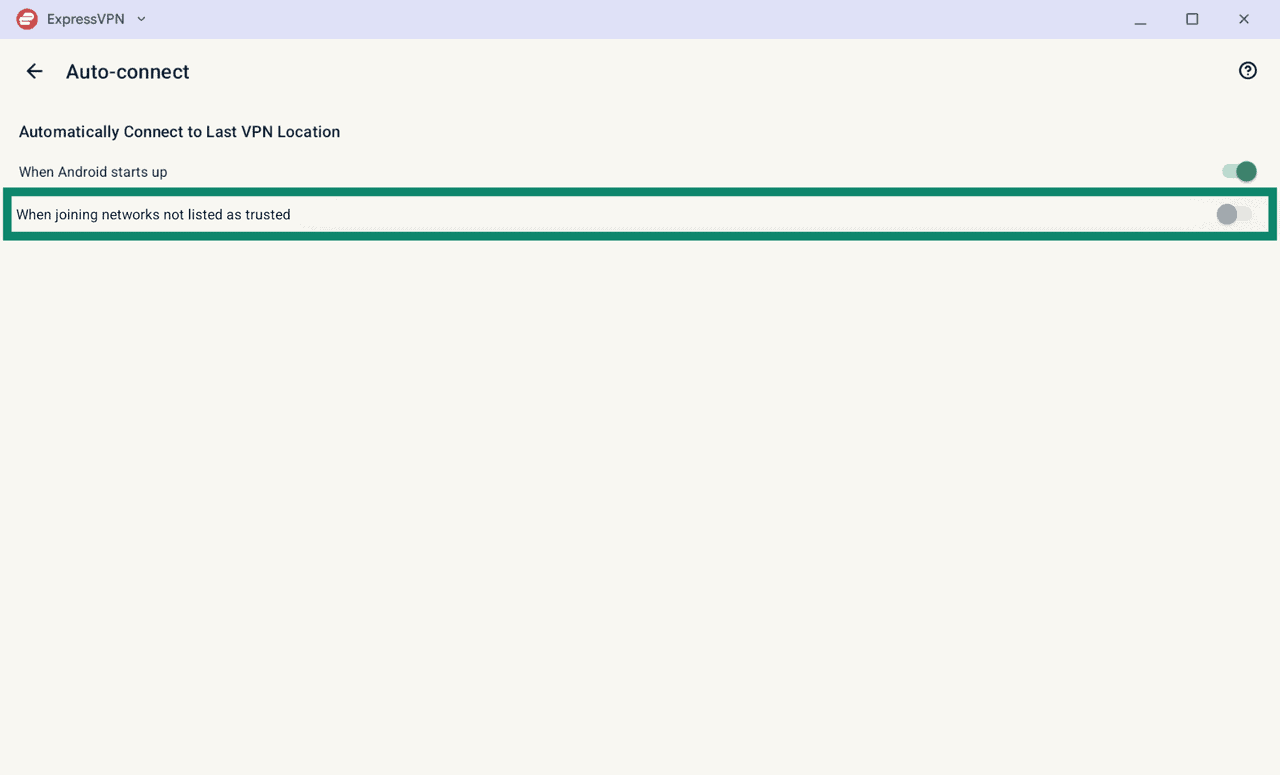
- When joining networks not listed as trusted
When Android starts up
To connect to the VPN automatically when your Googlebook device starts up, turn on When Android starts up.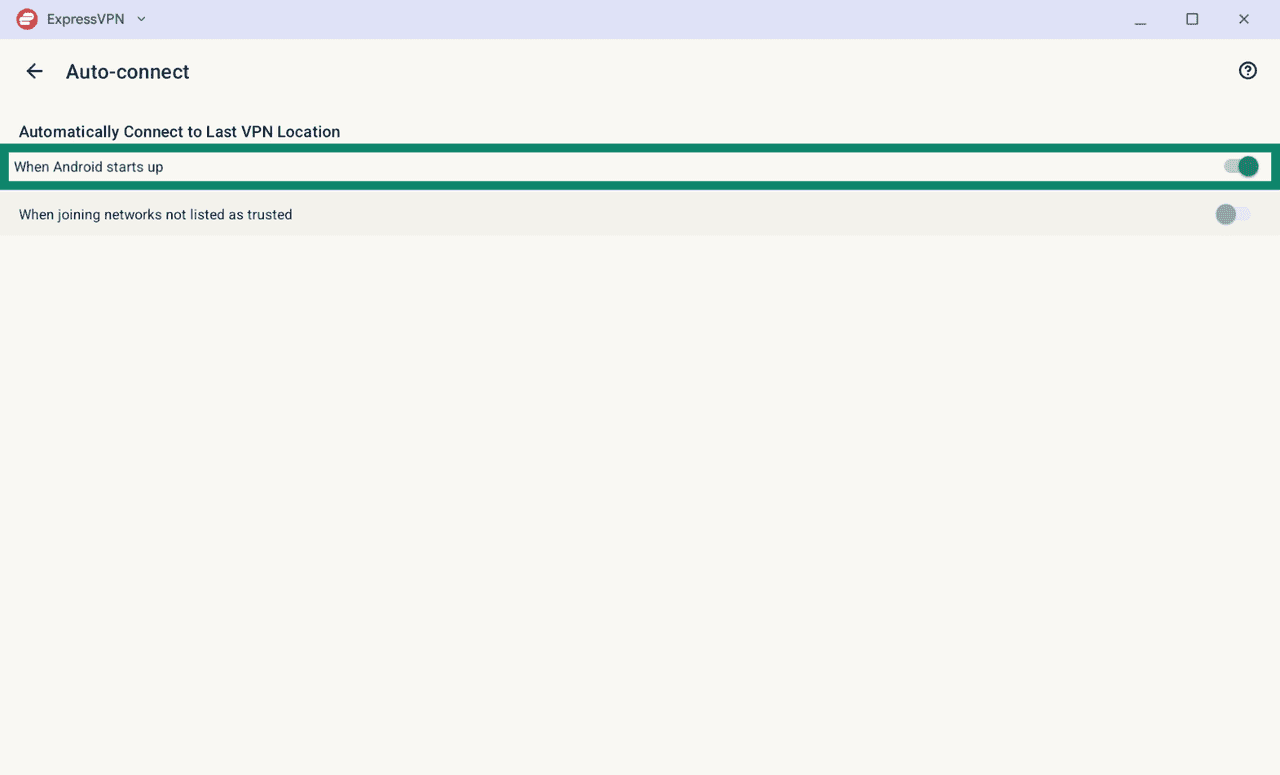
When joining networks not listed as trusted
To connect to the VPN automatically when you join an untrusted Wi-Fi network or use mobile data:
- Click When joining networks not listed as trusted on.
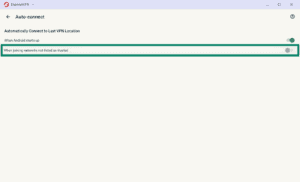
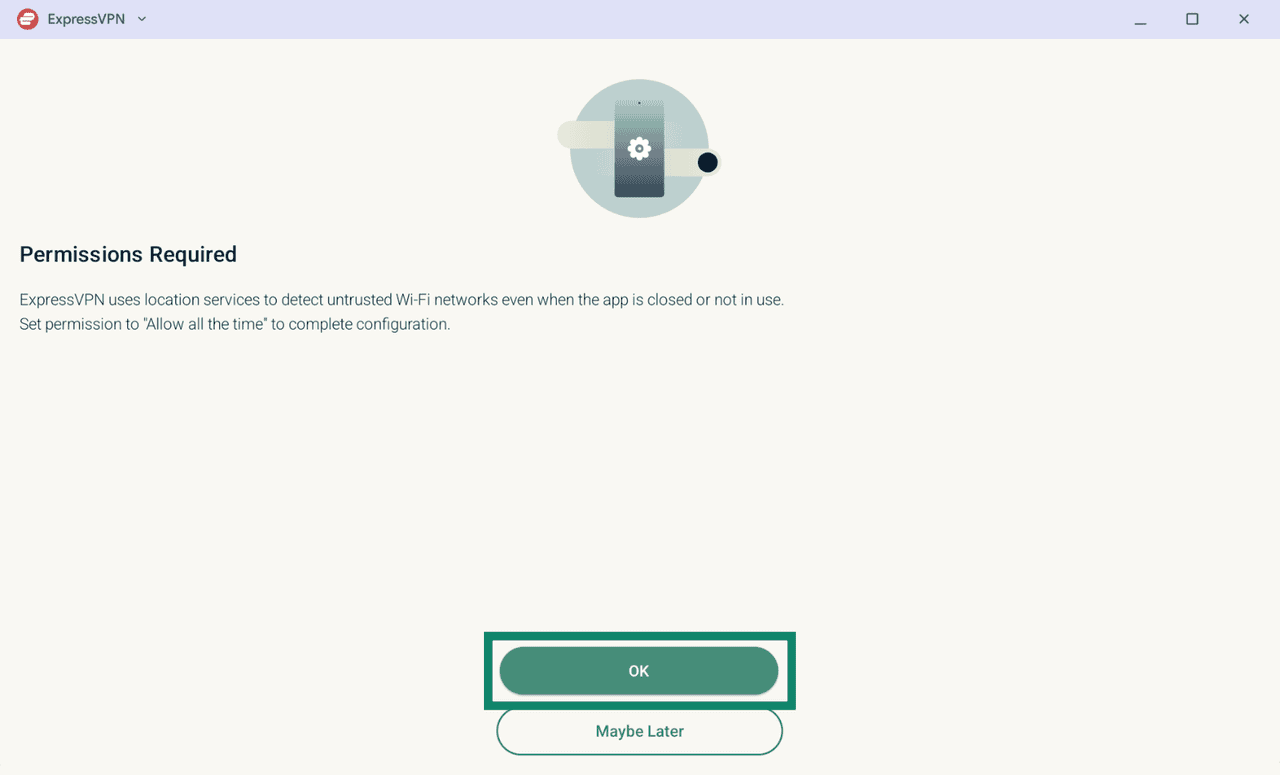
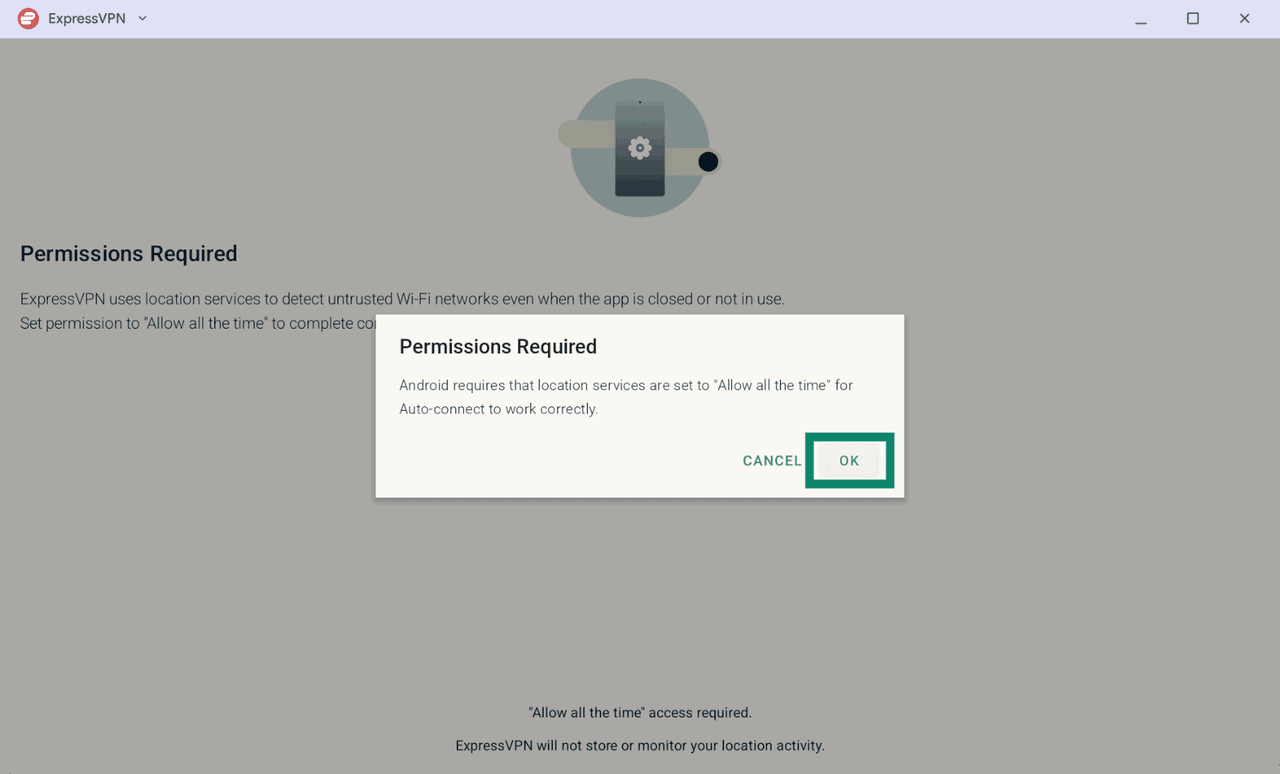
- ExpressVPN needs permission to detect untrusted Wi-Fi networks even when the app is closed or running in the background. Click OK to continue.
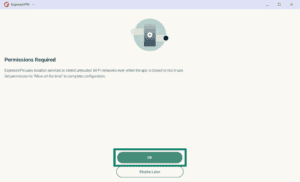
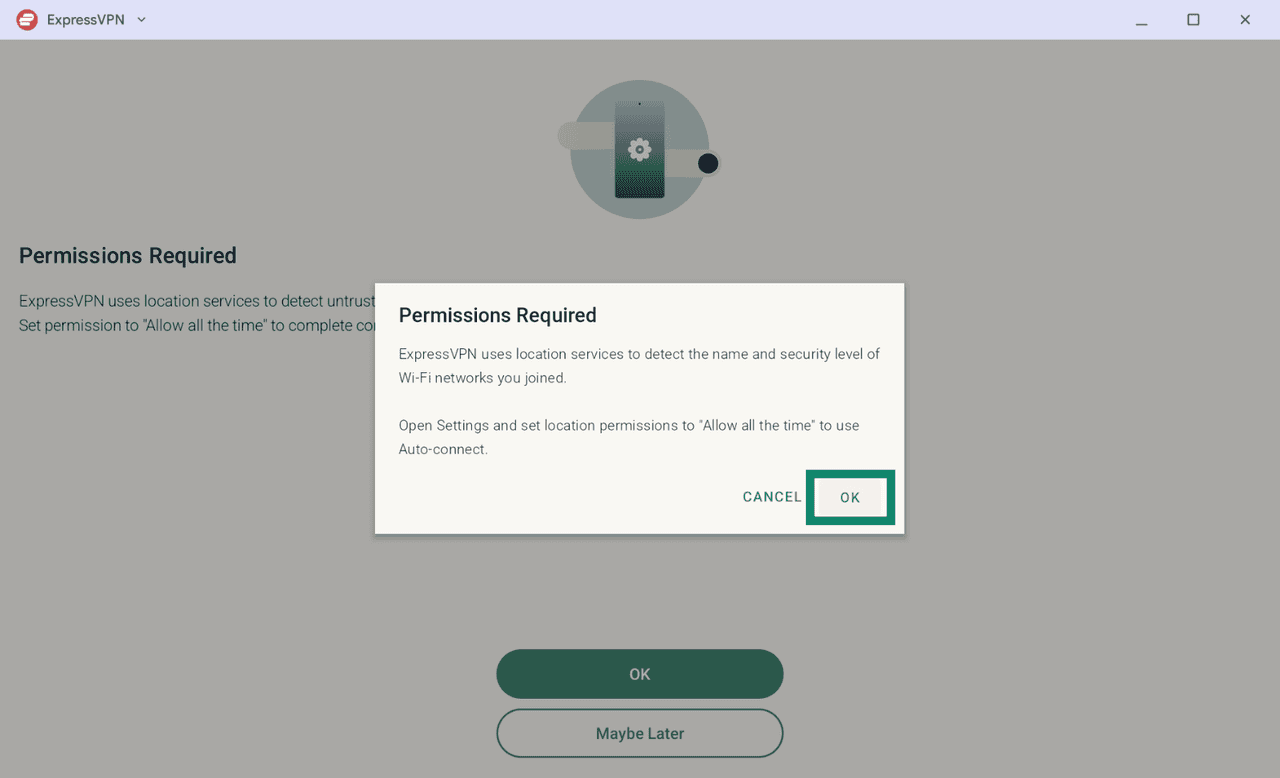
- In the pop-up window, click OK.
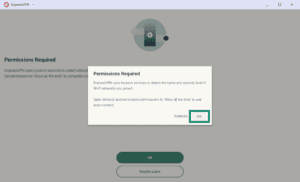
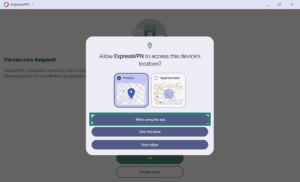
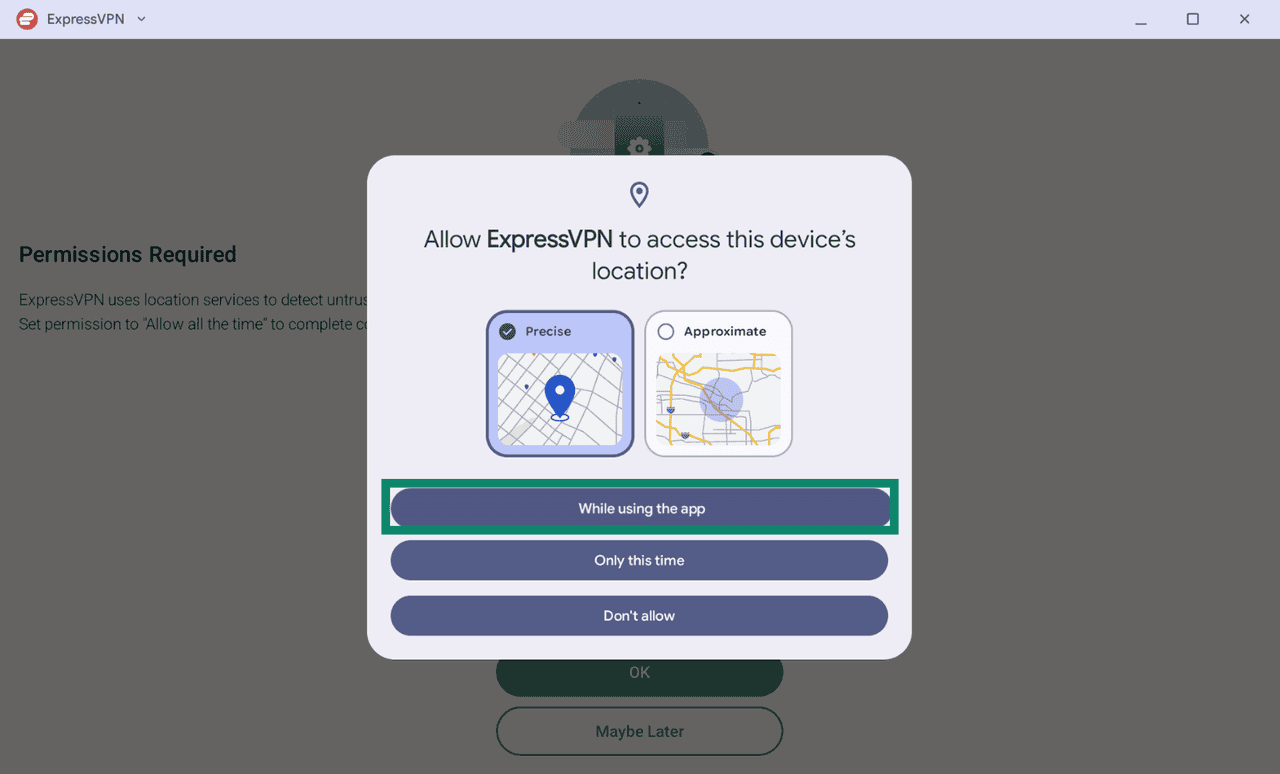
- Choose your preferred location accuracy level.
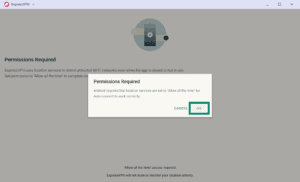
- Click OK.
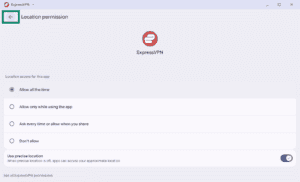
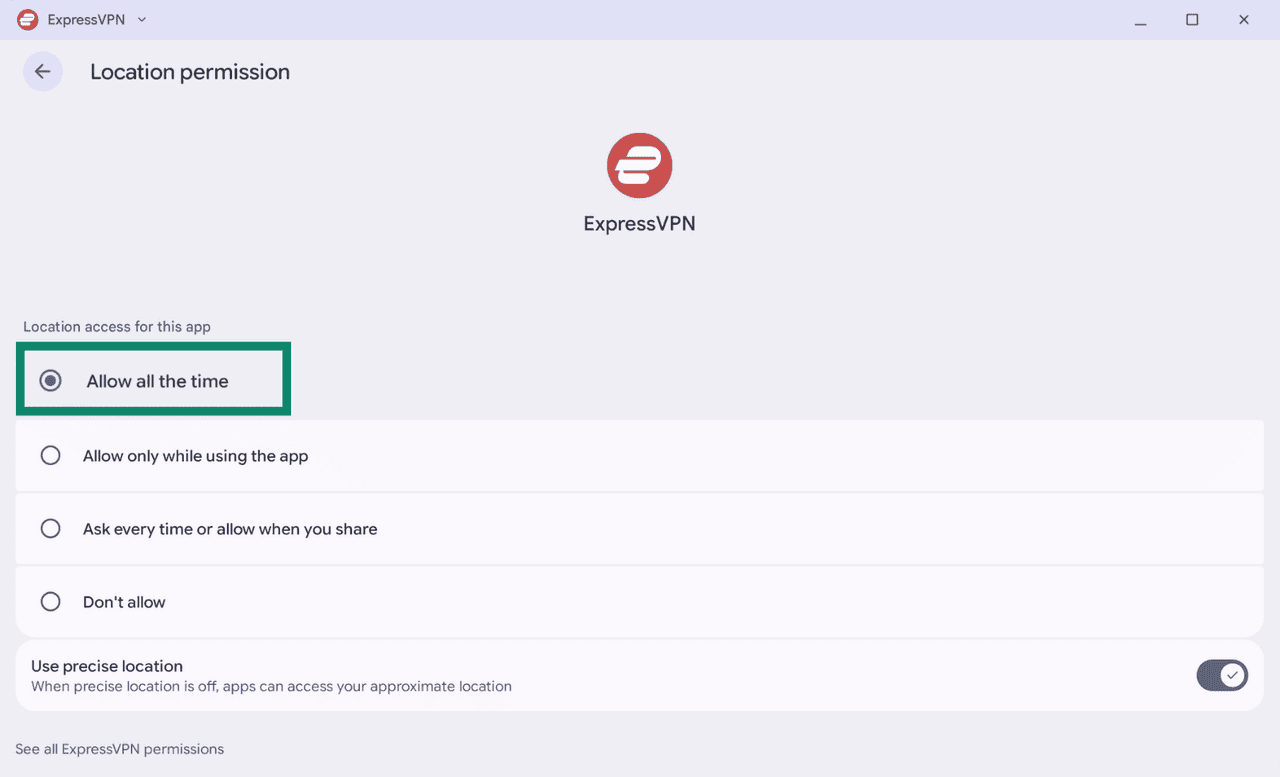
- Select Allow all the time.
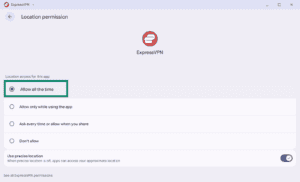
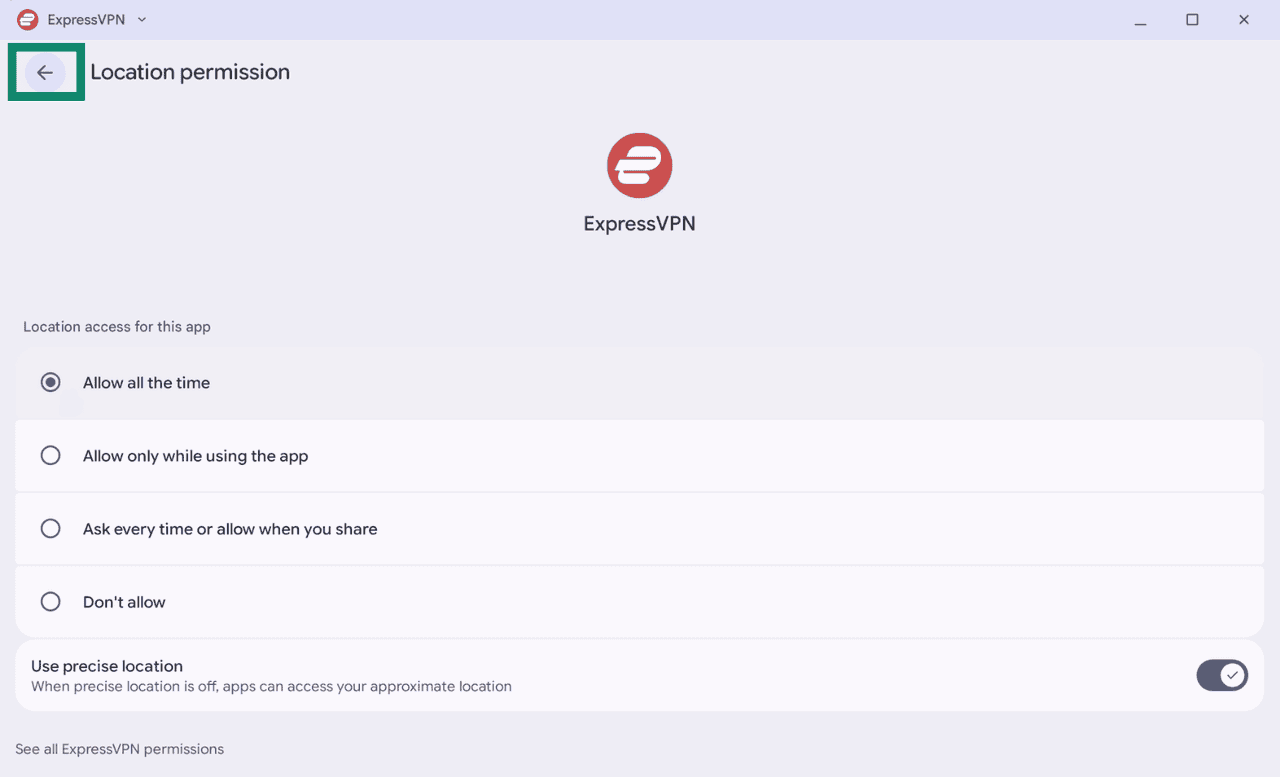
- Click the back arrow in the top-left corner to return to the ExpressVPN app.
A list of Current Networks will appear, showing the networks your device is connected to. By default, these networks are marked as Untrusted.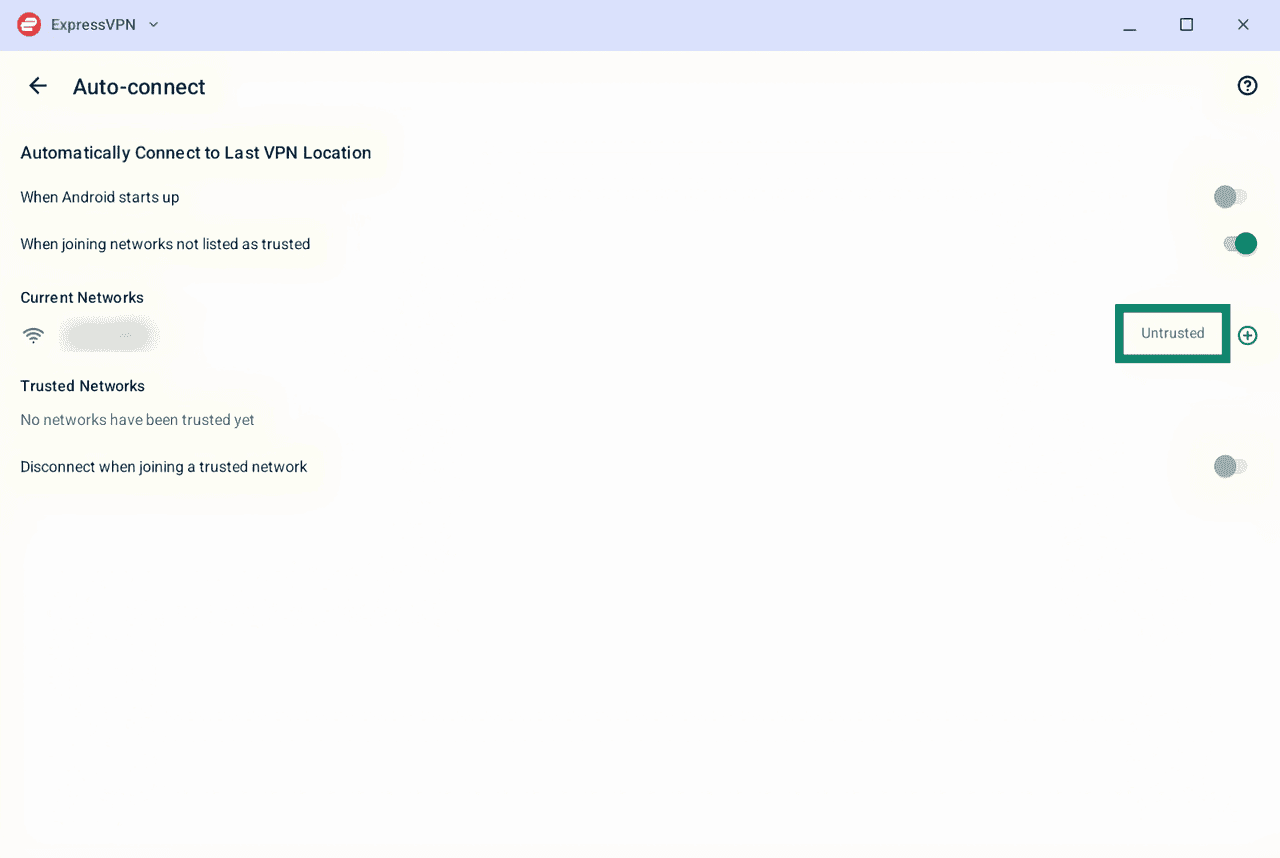
To add a network to your Trusted Networks list, click the plus icon next to the network you want to mark as trusted.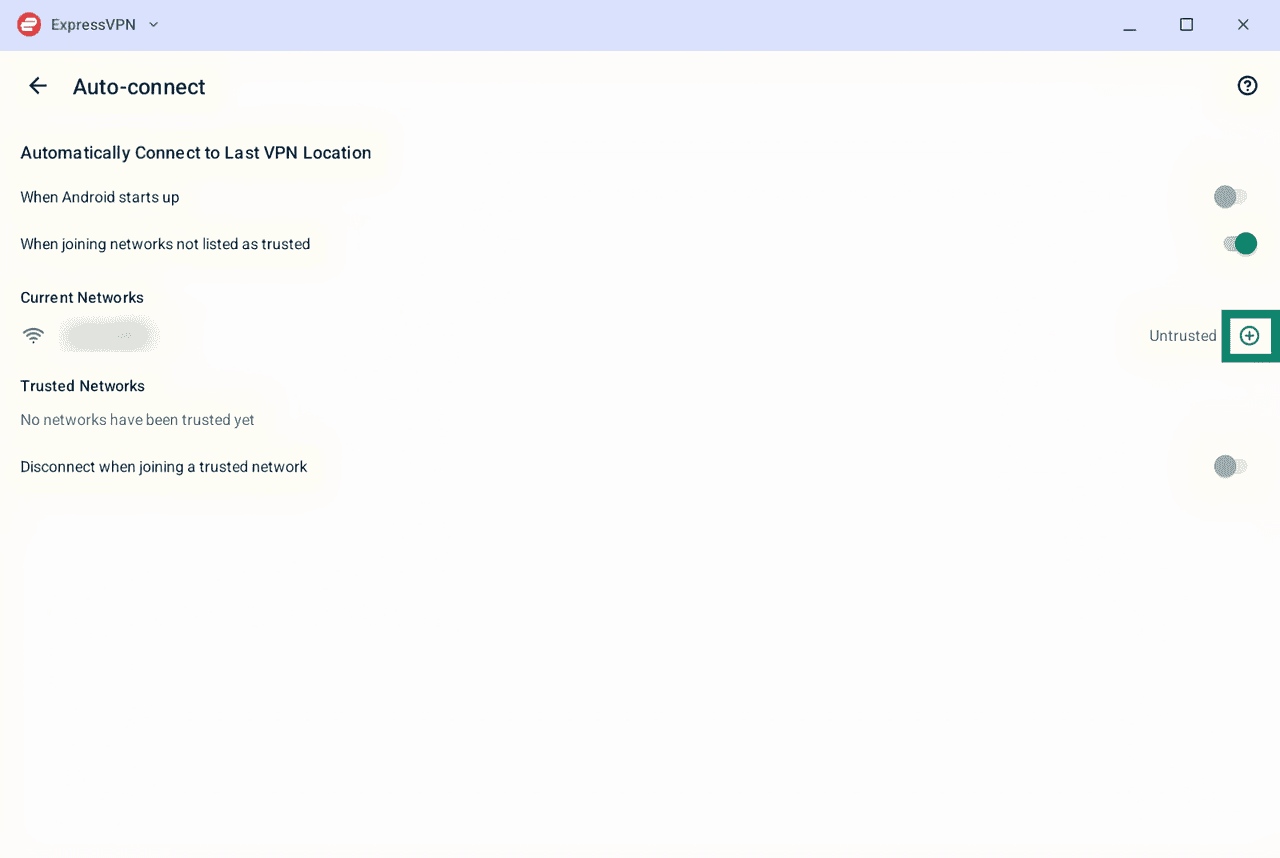
To remove a network from your Trusted Networks list, click the minus  icon next to the network.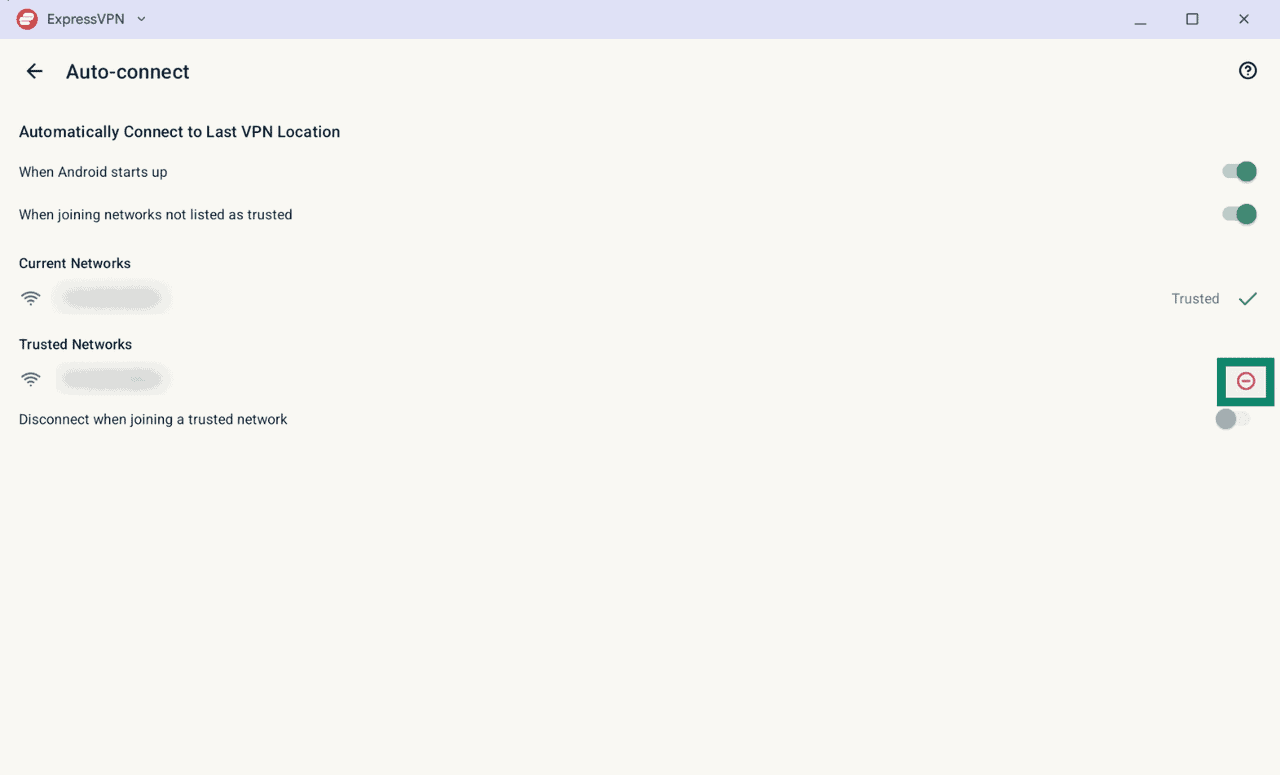
To disconnect from the VPN automatically when you join a trusted network, turn on Disconnect when joining a trusted network.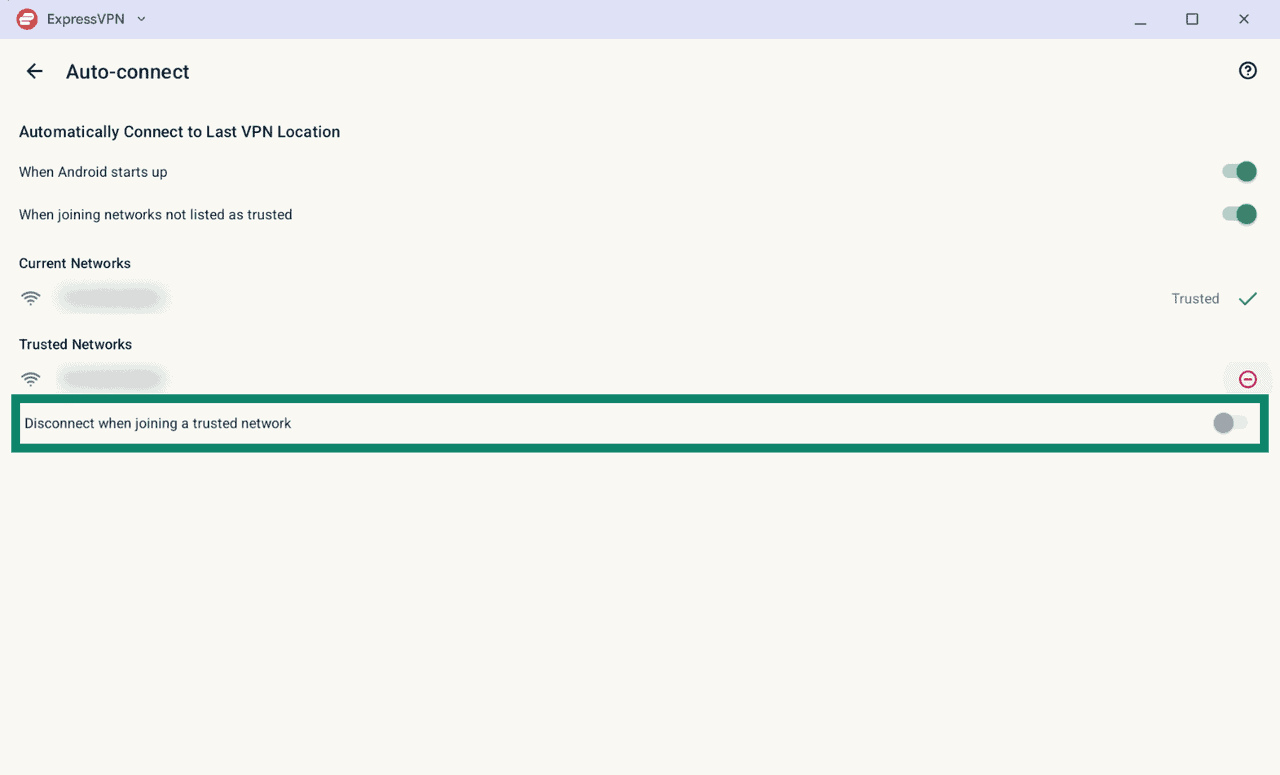
Use Secure Device Assistant
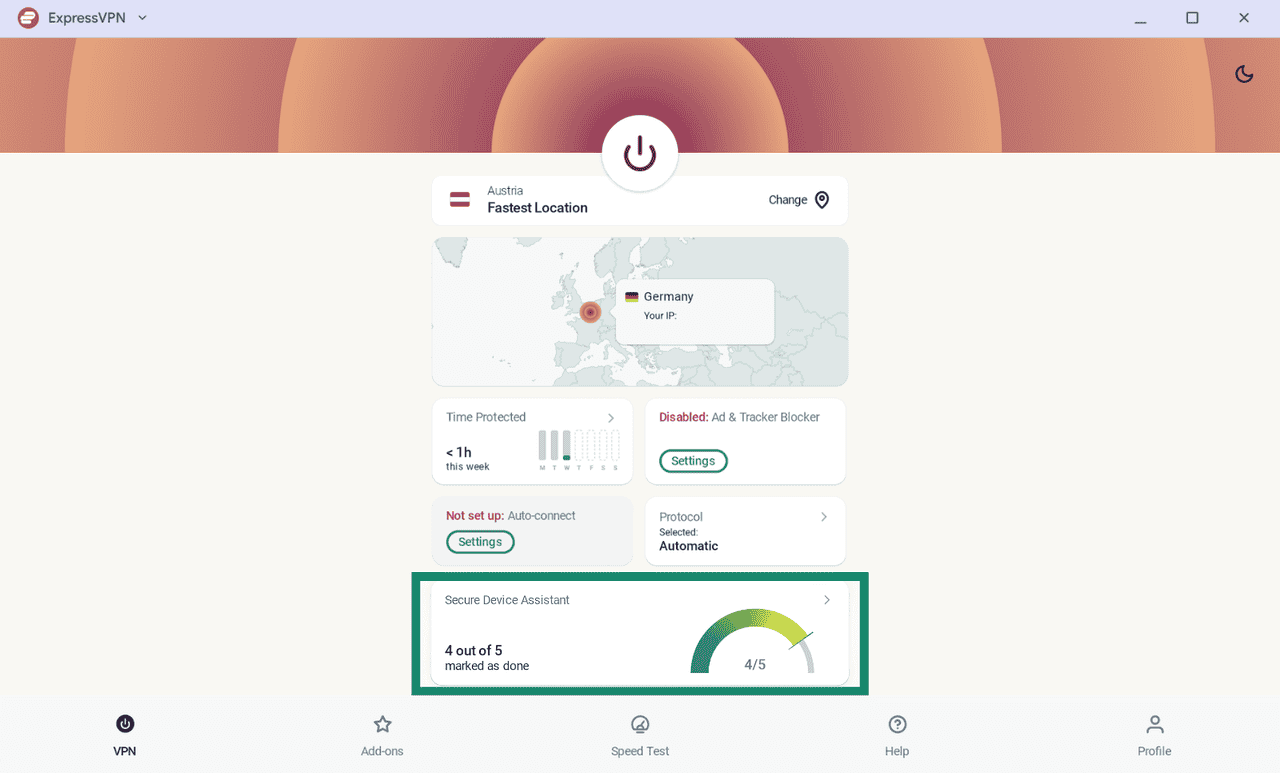
Secure Device Assistant helps you check whether your Googlebook device is fully protected. To run a check:
- On the VPN tab, click the Secure Device Assistant card.
- You will see the following:
- Latest Android Version: Checks whether your device is running the latest Android version.
- Screen Lock Enabled: Checks whether your screen is protected by a PIN, password, pattern, or biometric authentication.
- Biometric Security Enabled: Checks whether biometric authentication, such as facial or fingerprint recognition, is enabled.
- No Rooted Device: Checks whether your device is rooted, which can increase its exposure to security threats.
- Disk Encryption: Checks whether your device’s stored data is protected by built-in encryption.
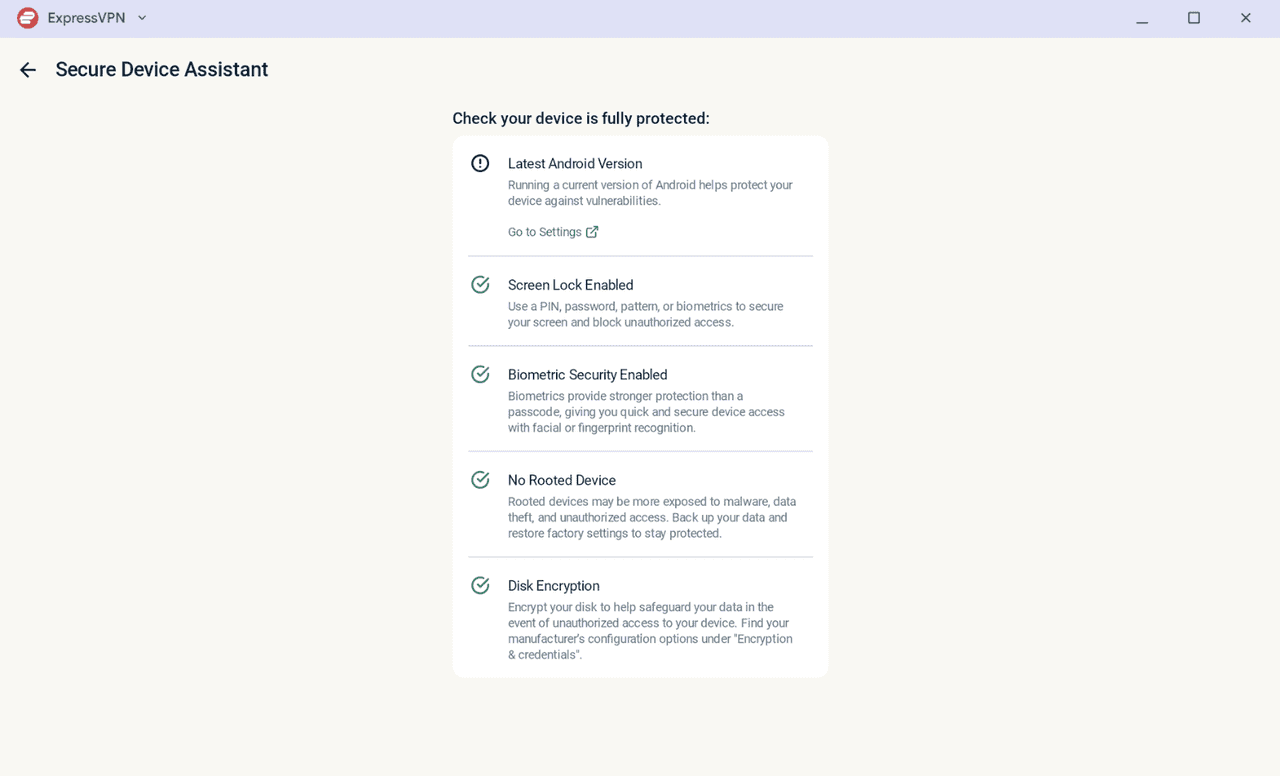
If there are any security improvements to make, follow the on-screen instructions or prompts to make the necessary changes.
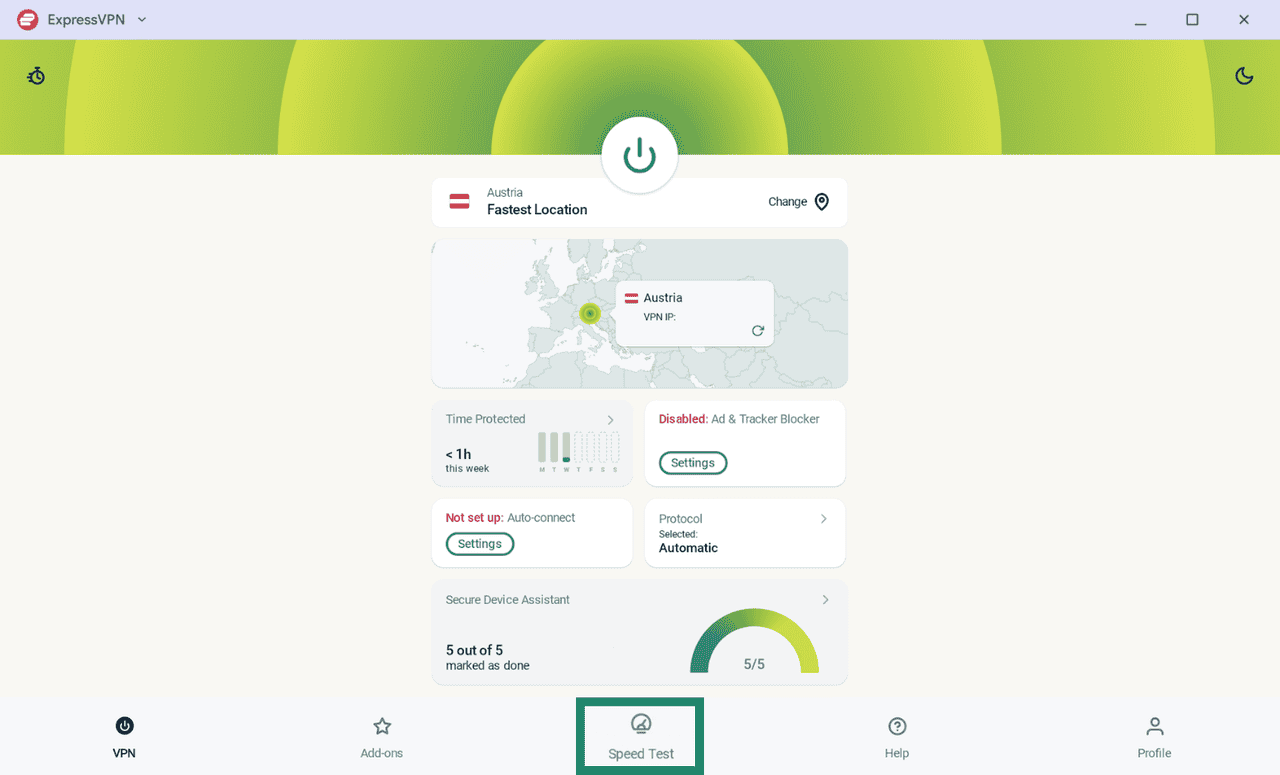
Run a speed test
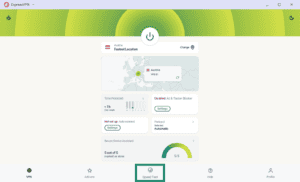
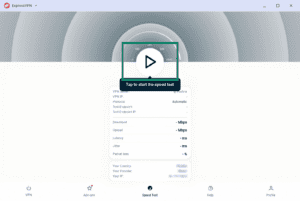
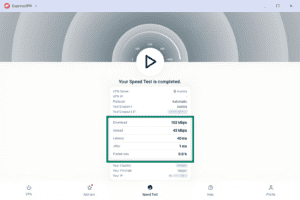
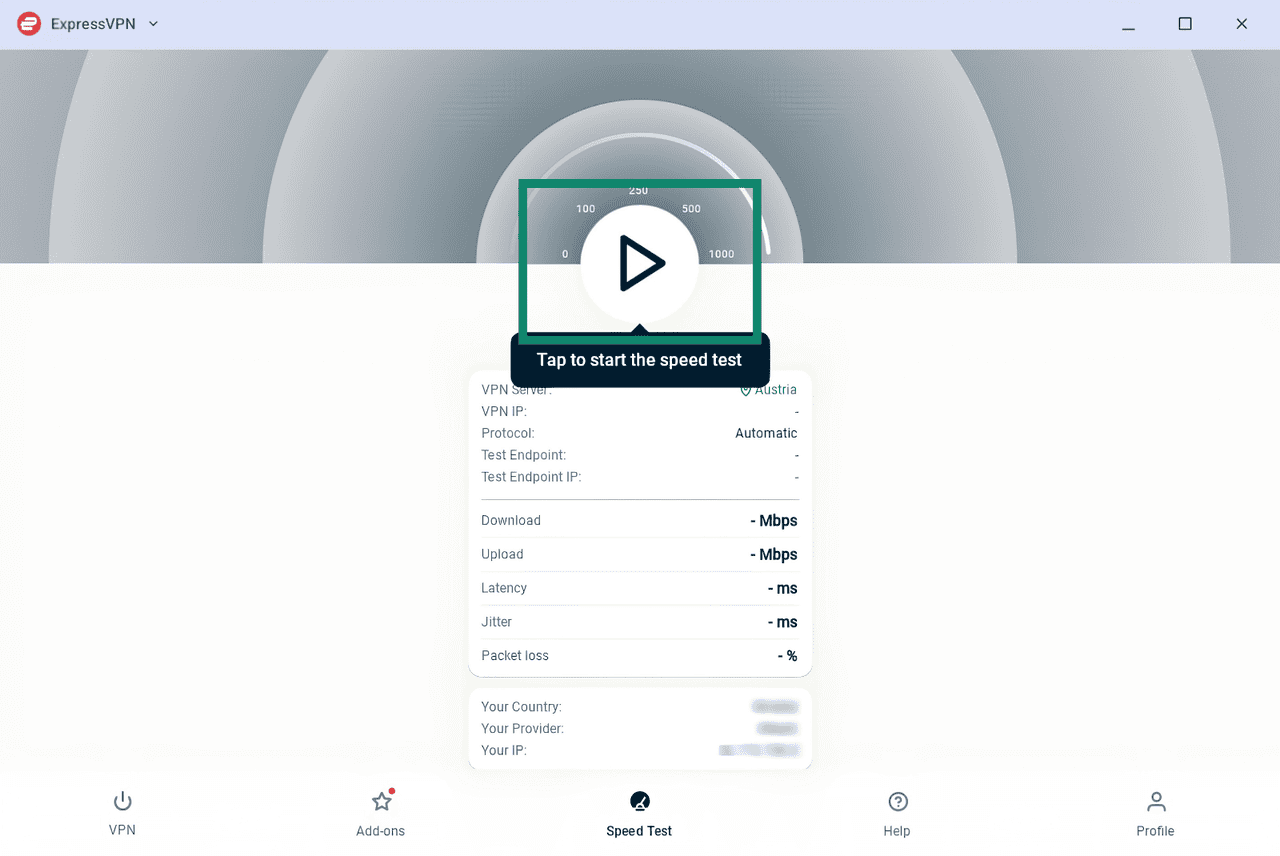
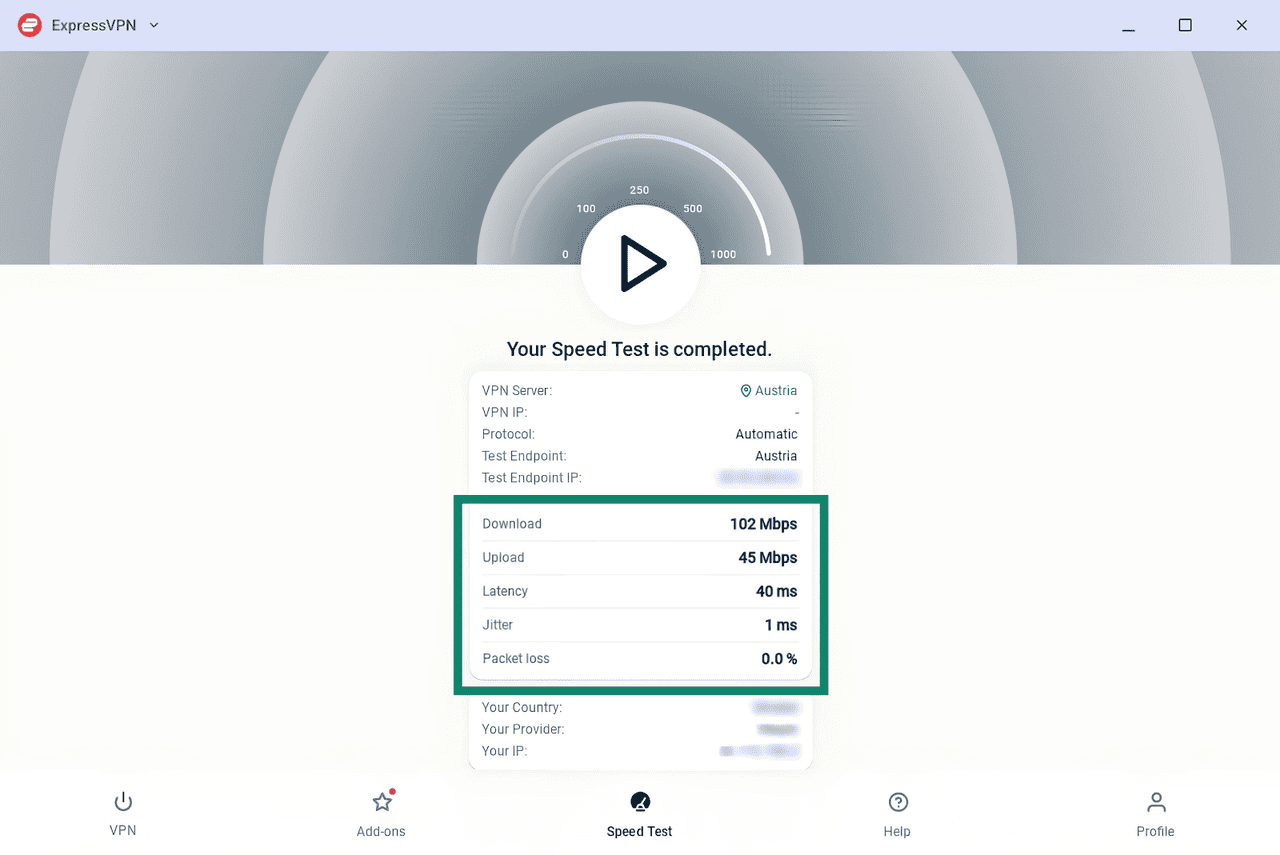
ExpressVPN lets you test your connection’s performance on your Googlebook while connected to a VPN server. The speed test measures download and upload speeds, latency (in milliseconds), jitter, and packet loss.
To measure your speed:
- Select the Speed Test tab.
- Click the Play button to initiate the test.
- Check your results.
Change app appearance
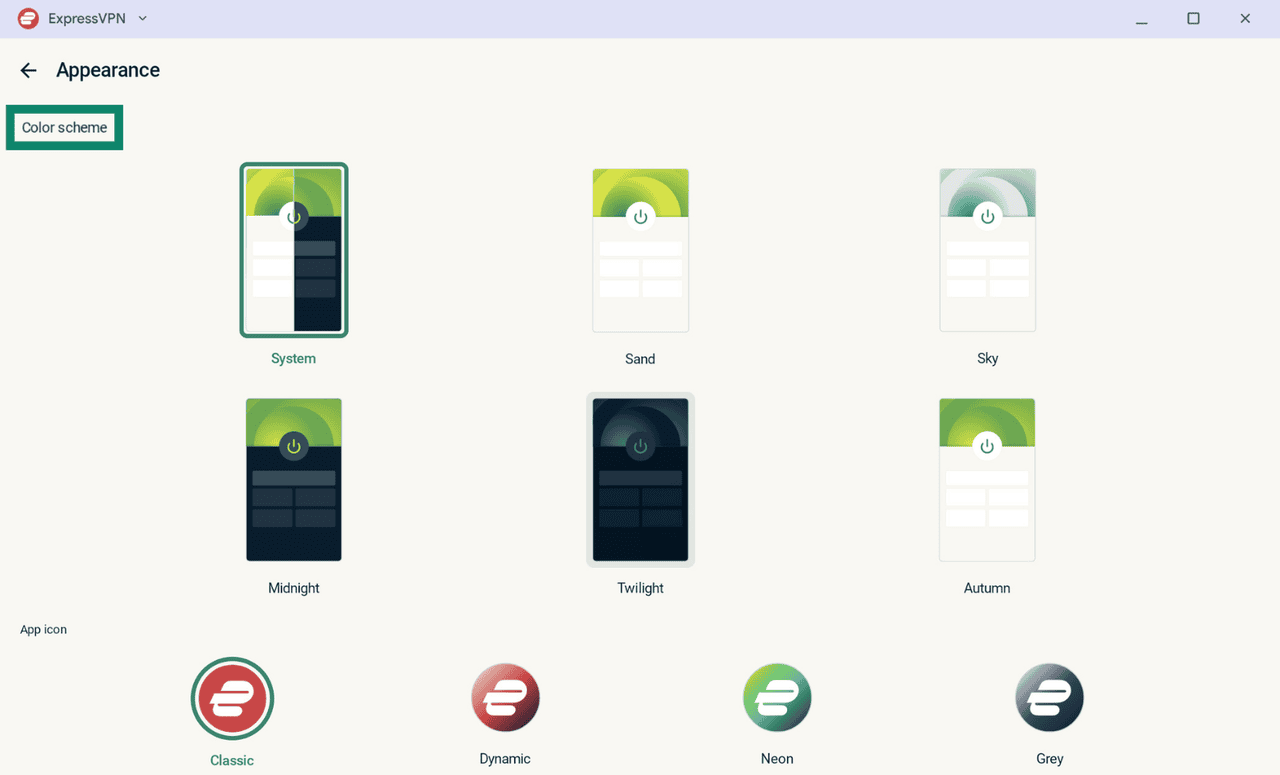
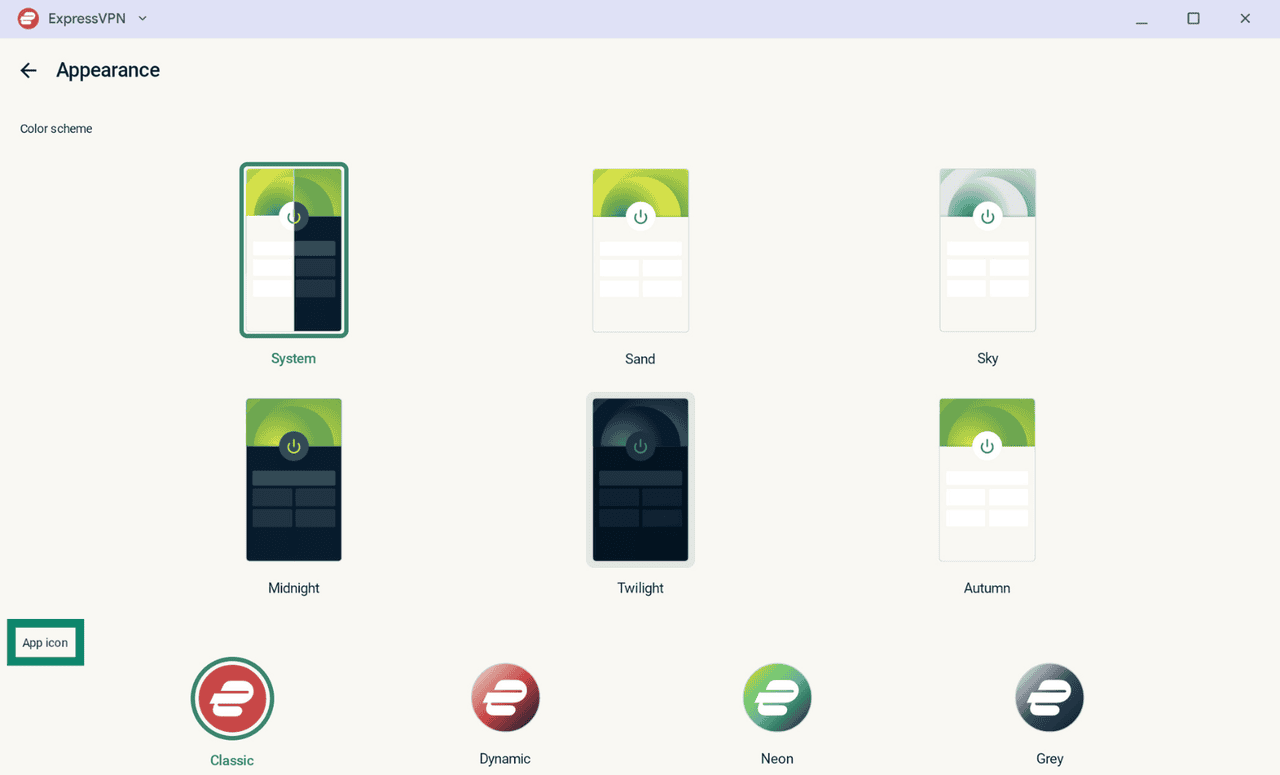
You can customize the ExpressVPN app’s appearance on your Googlebook, including its theme and app icon style.
To change your theme and app icon:
- On the VPN tab, click the Moon icon in the top-right corner.
- To change:
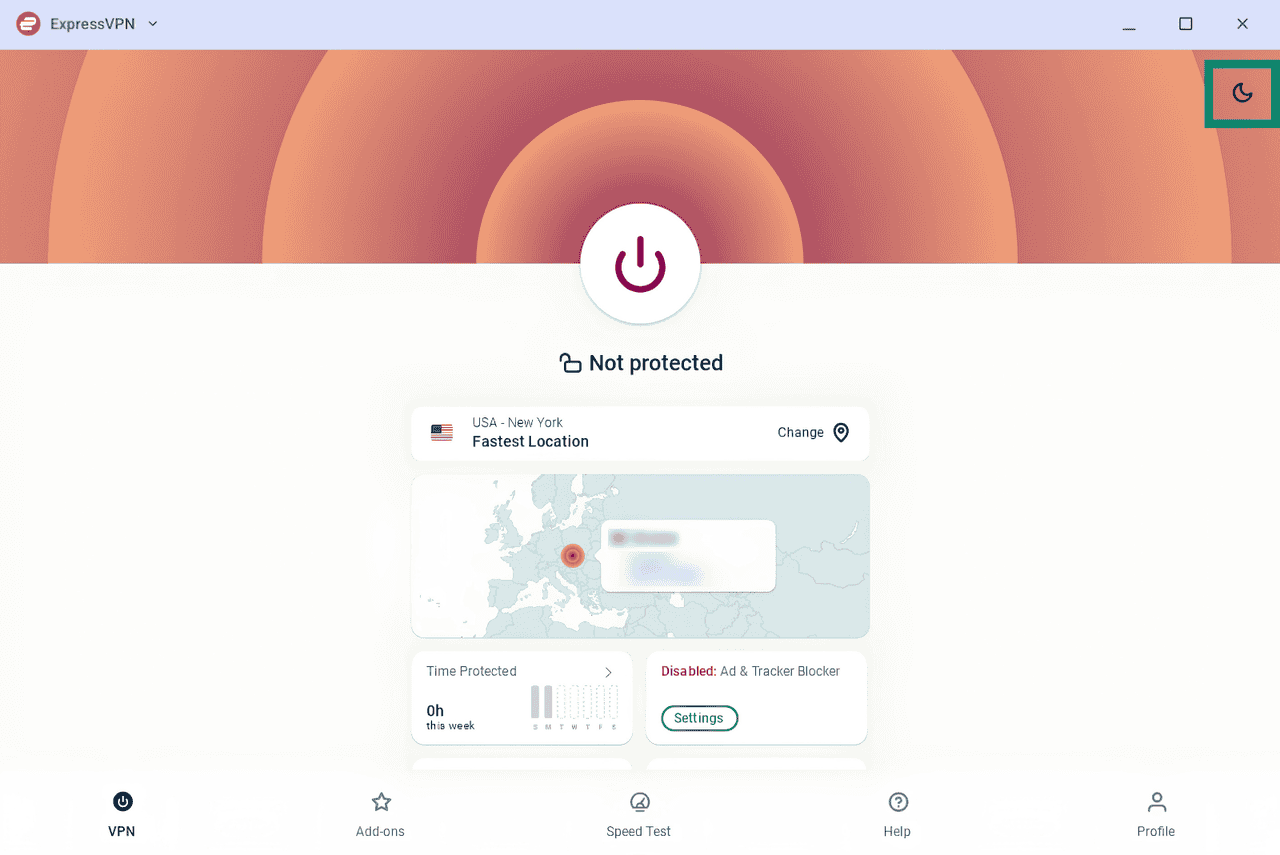
- App theme: Select your preferred theme under Color scheme. The app’s appearance will update immediately. Note that when System is selected, the ExpressVPN app automatically follows your Android device’s theme settings.
- App icon: Select your preferred icon under App icon. The app’s appearance will update immediately.
Change languages
The ExpressVPN Googlebook app is available in 18 languages, including:
- Danish
- German
- English
- Spanish
- French
- Indonesian
- Italian
- Dutch
- Norwegian
- Polish
- Portuguese
- Finnish
- Swedish
- Turkish
- Russian
- Thai
- Korean
- Japanese
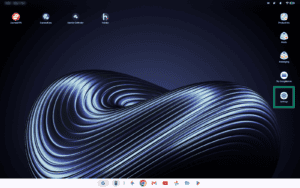
To change the app’s language settings:
- Open Settings.
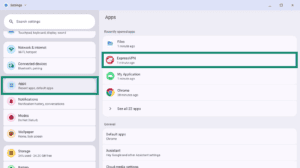
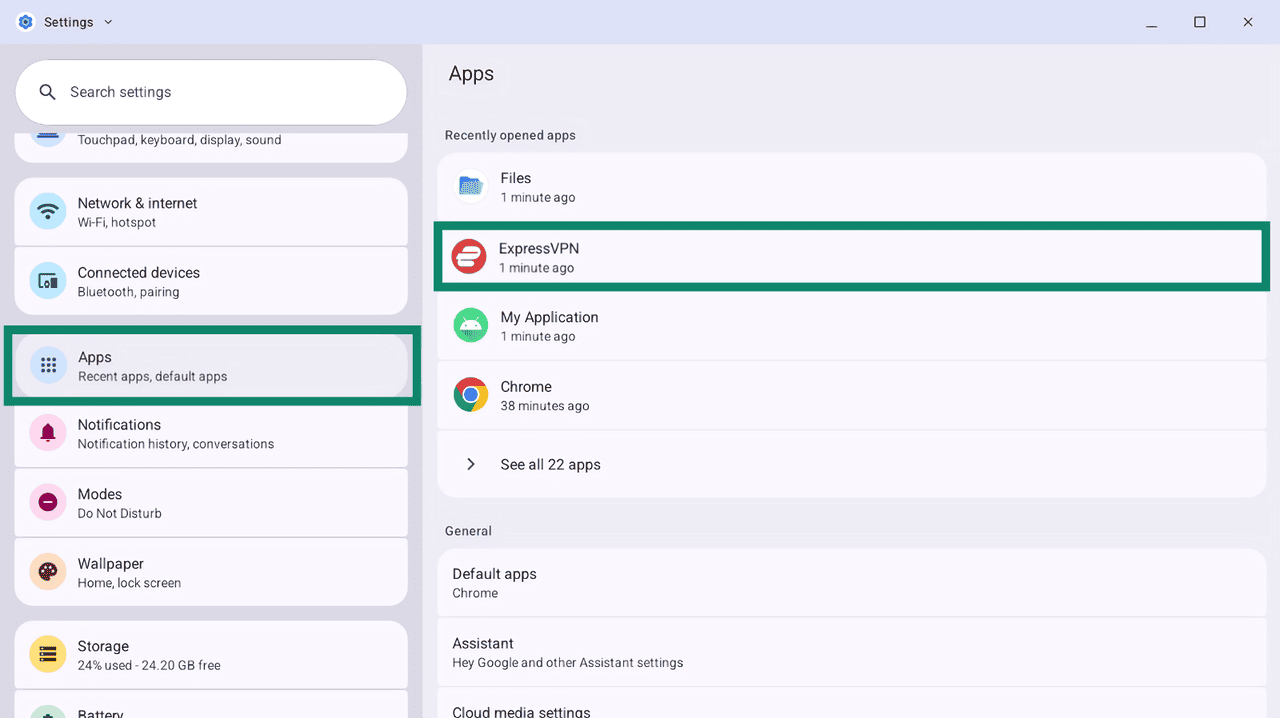
- Click Apps and select ExpressVPN from the list .
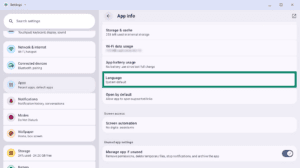
- Select Language.
- Choose your preferred language.
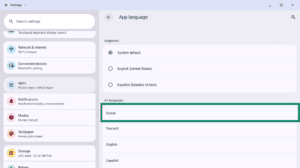
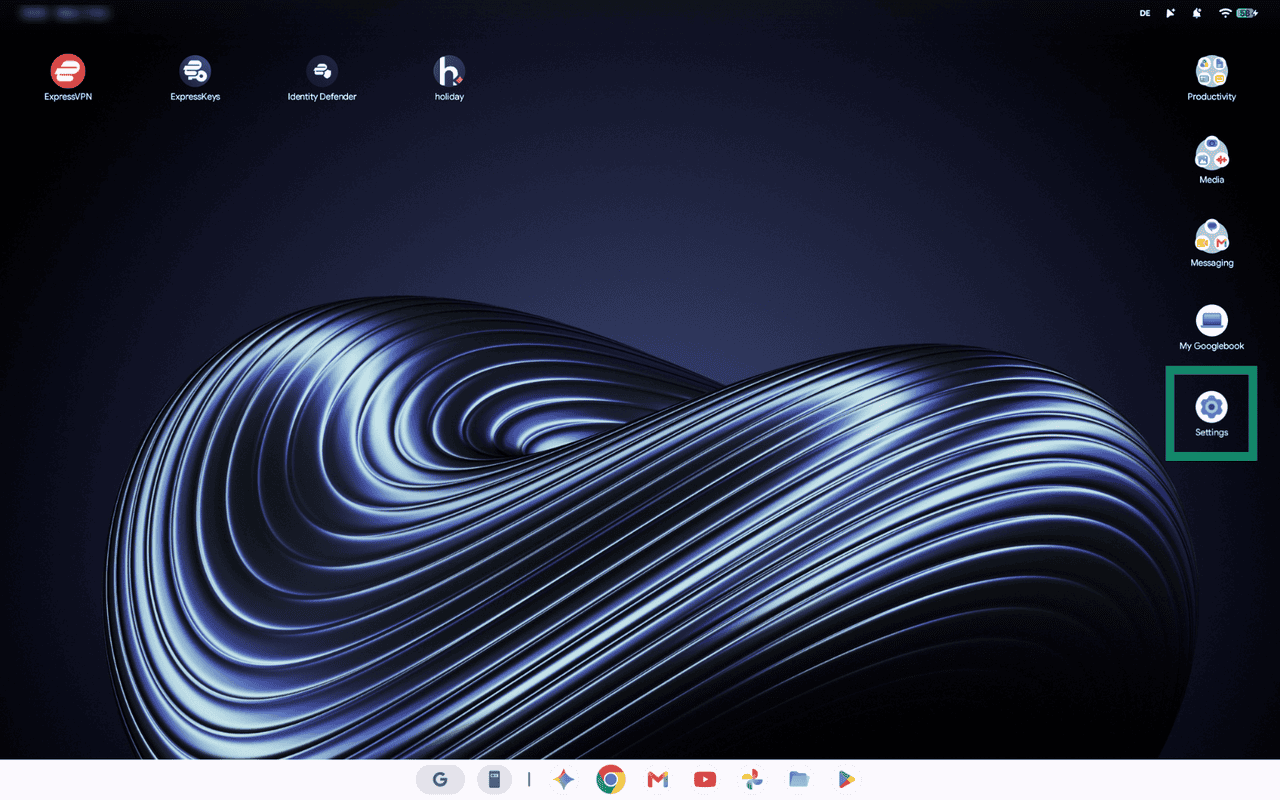
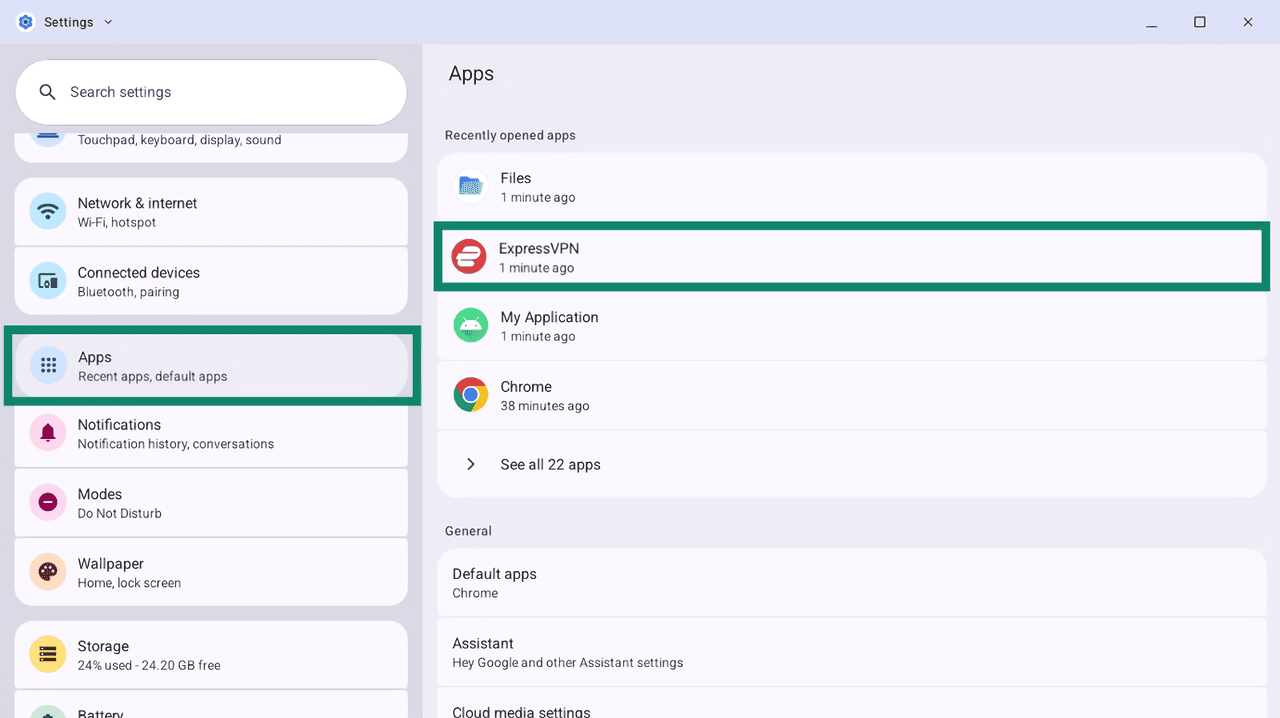
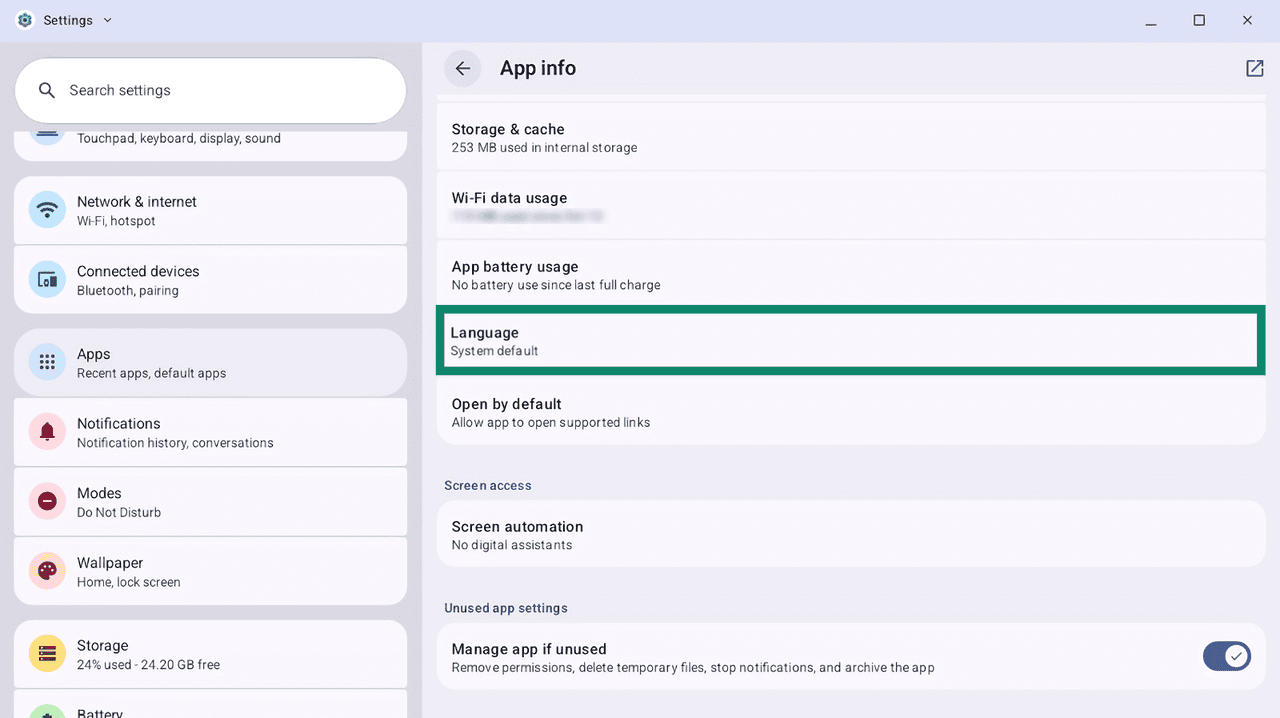
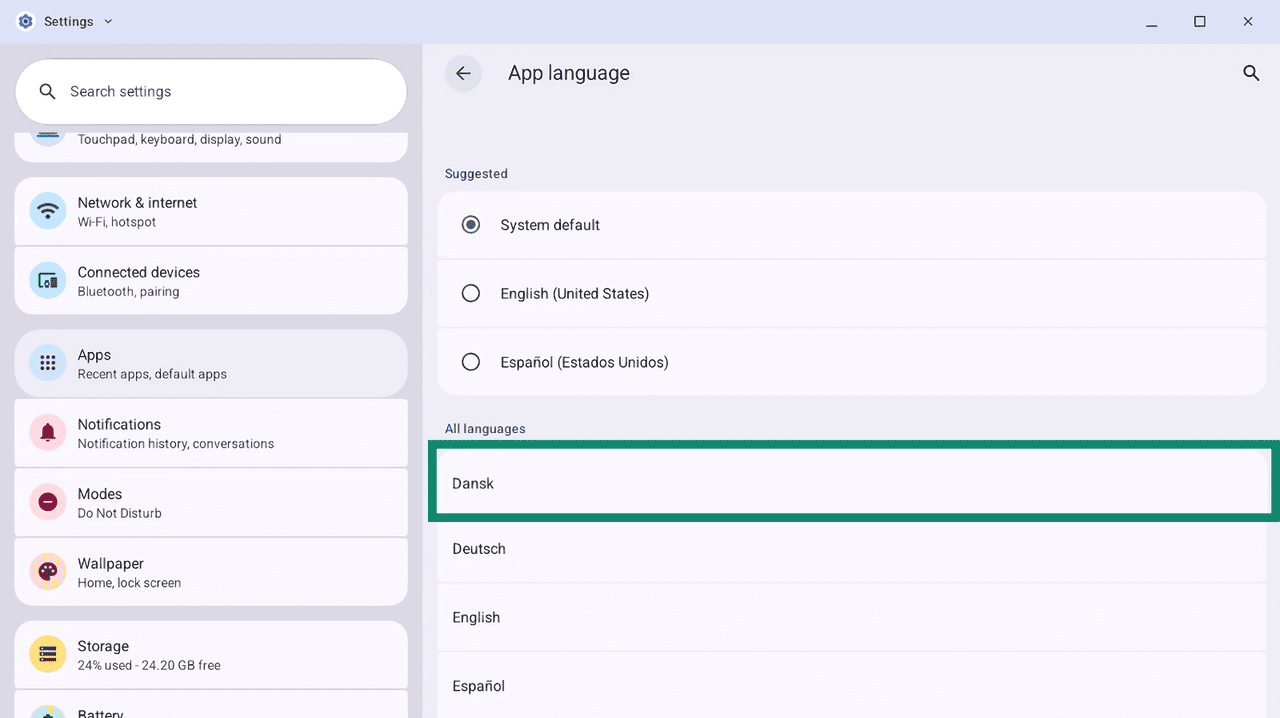
The ExpressVPN app will switch to your selected language the next time you open it.
Access support articles in the app
You can find support articles directly in the ExpressVPN app. They cover topics such as using the app, troubleshooting issues, and managing your account.
To access these articles:
- Open the Help tab.
- Select a category to browse the available support articles.
Add the ExpressVPN app widget
ExpressVPN lets you add widgets to your home screen for quick access.
To add a widget:
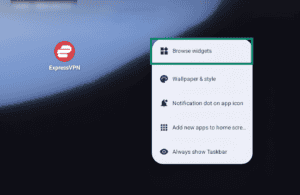
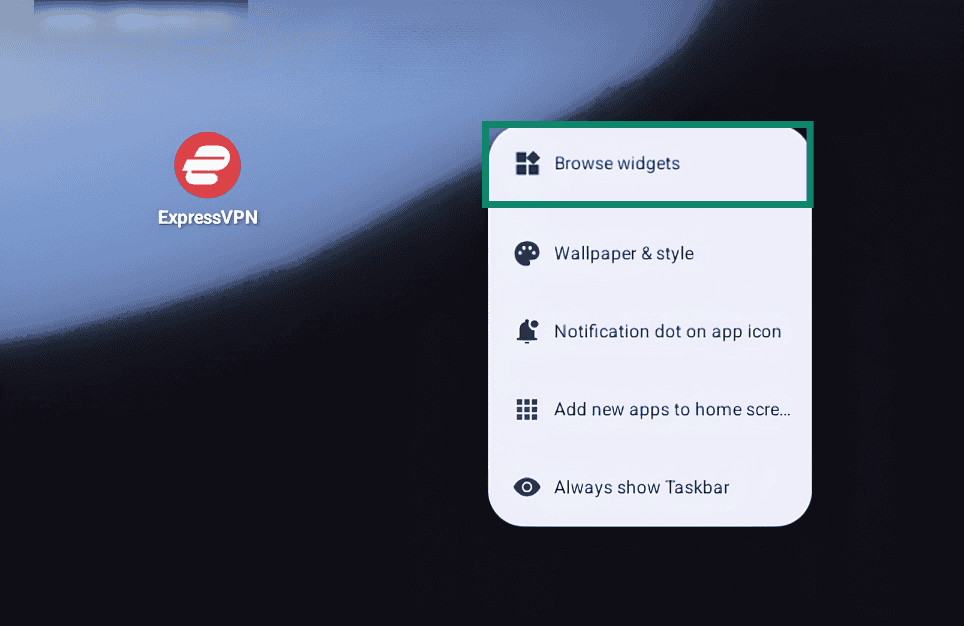
- On your Googlebook’s home screen, right-click and select Browse Widgets.

- Click ExpressVPN and select the widget.
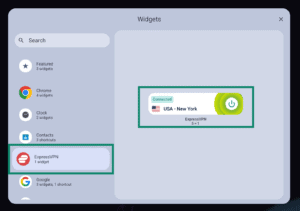

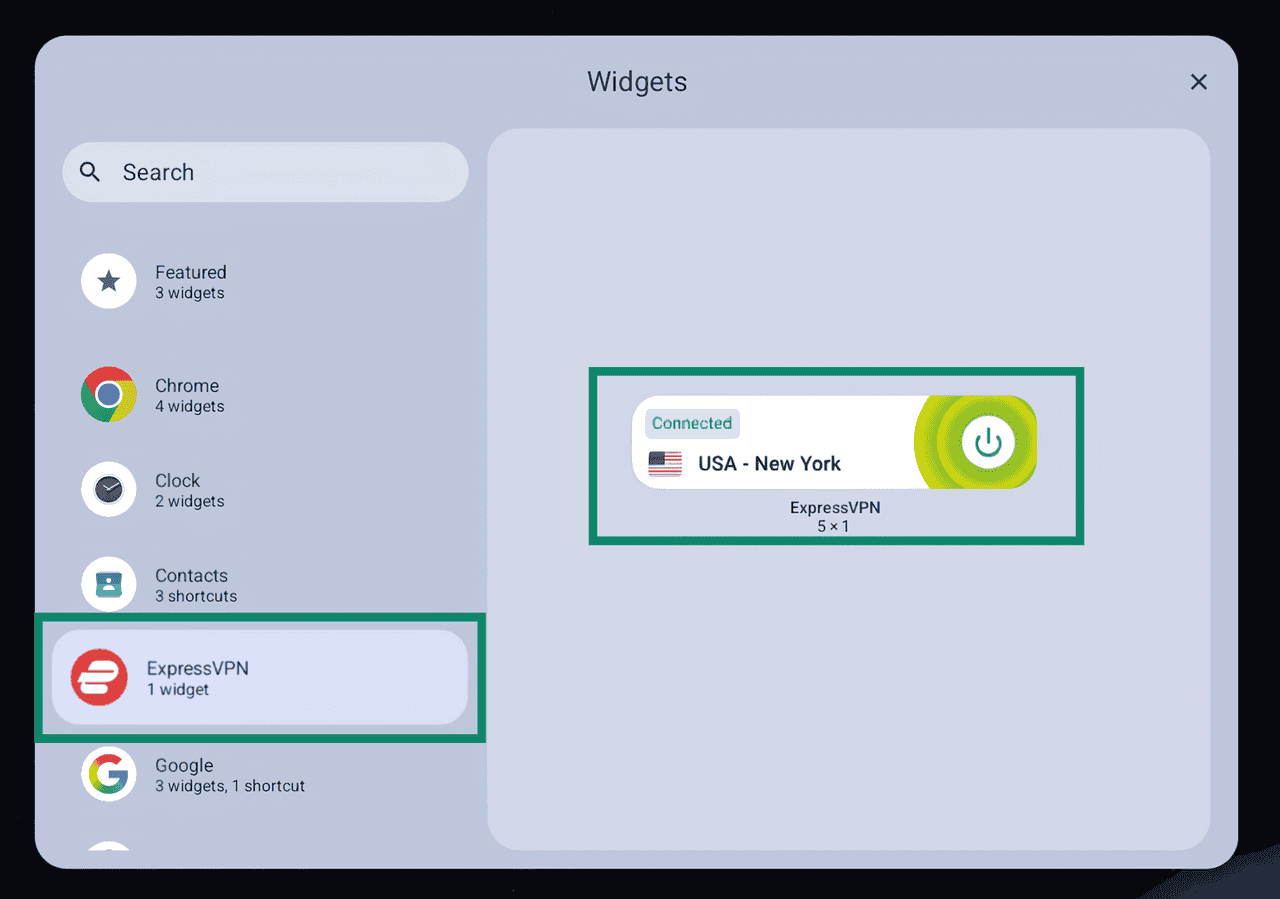
The widget is now on your home screen, and you can use it to connect to or disconnect from the VPN without opening the ExpressVPN app.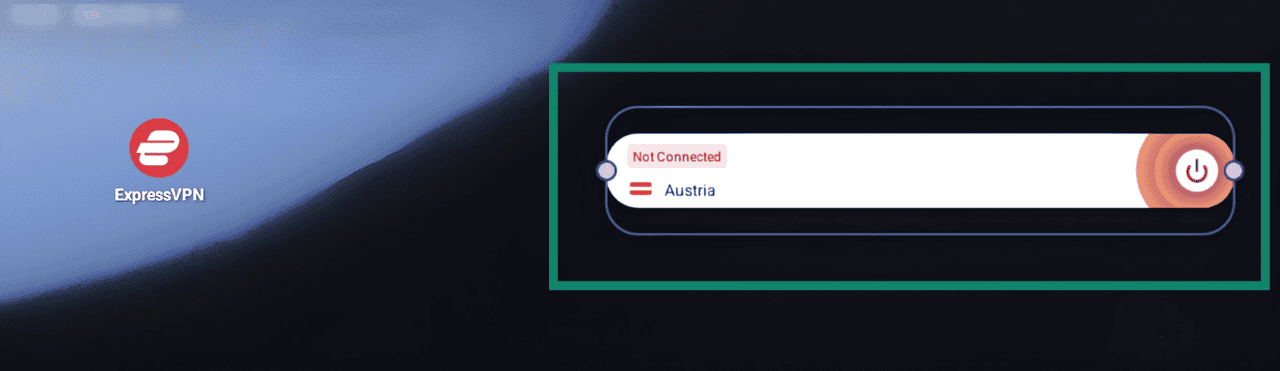
To connect or disconnect from the VPN, click the power button.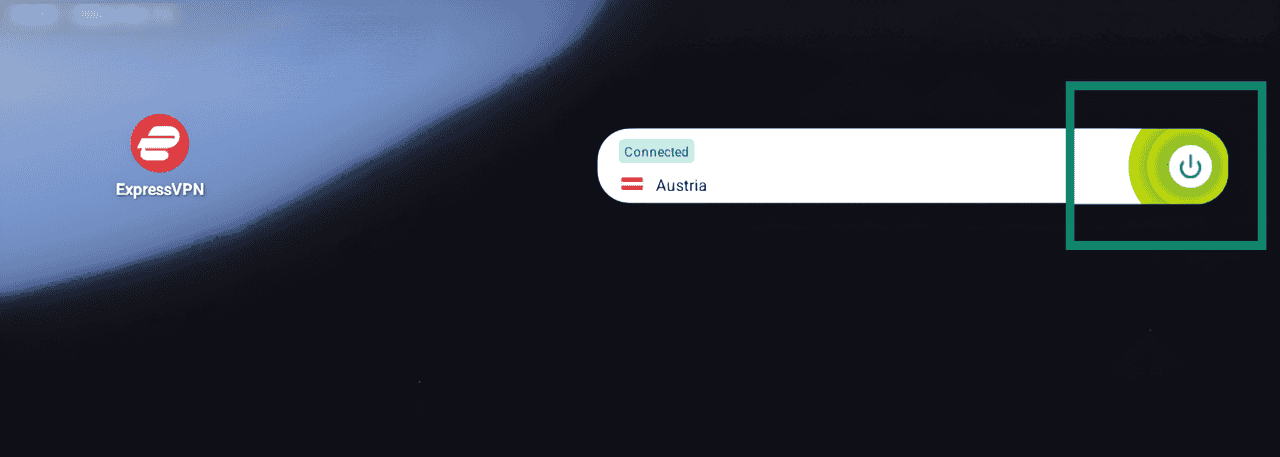
To change VPN location, click on the location flag.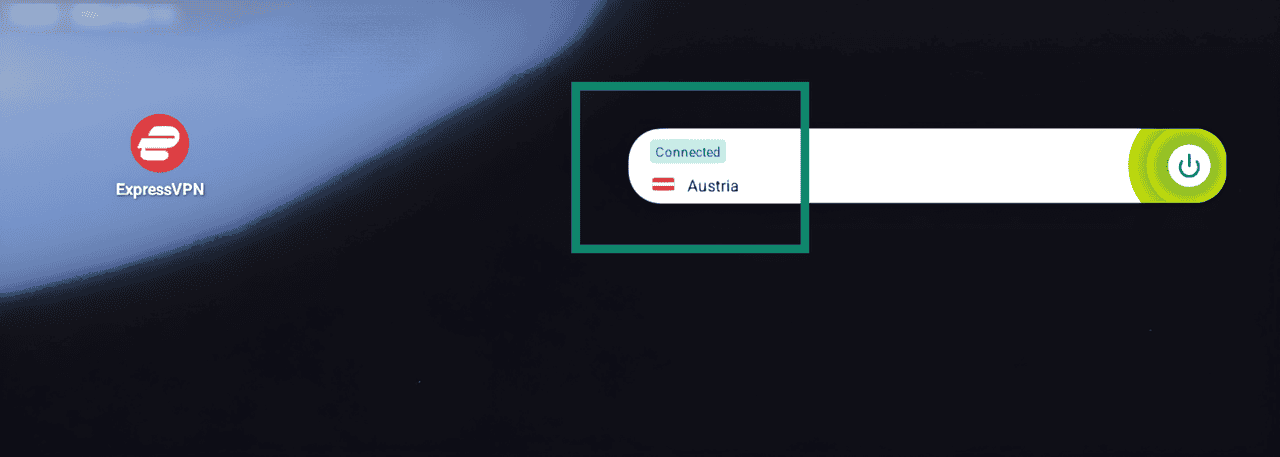
To remove the widget from your home screen, right click on the widget and select Remove.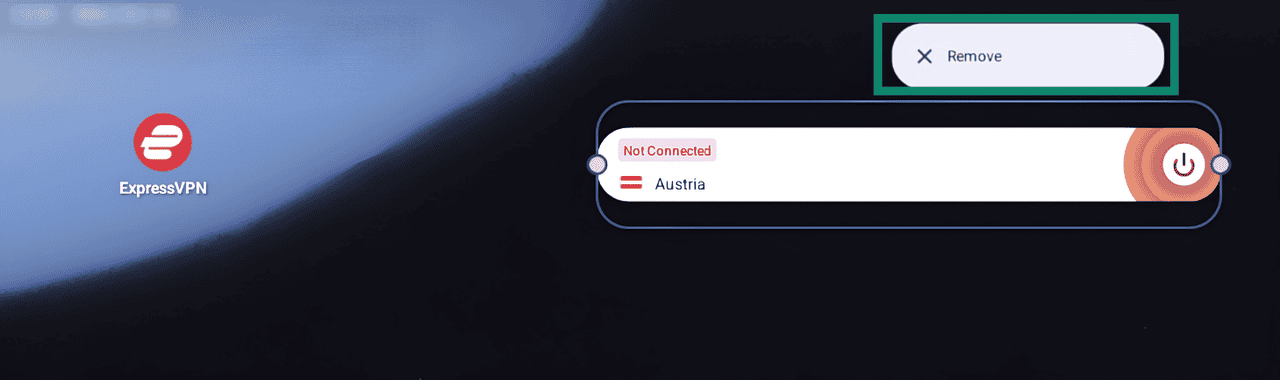
View Protection Summary
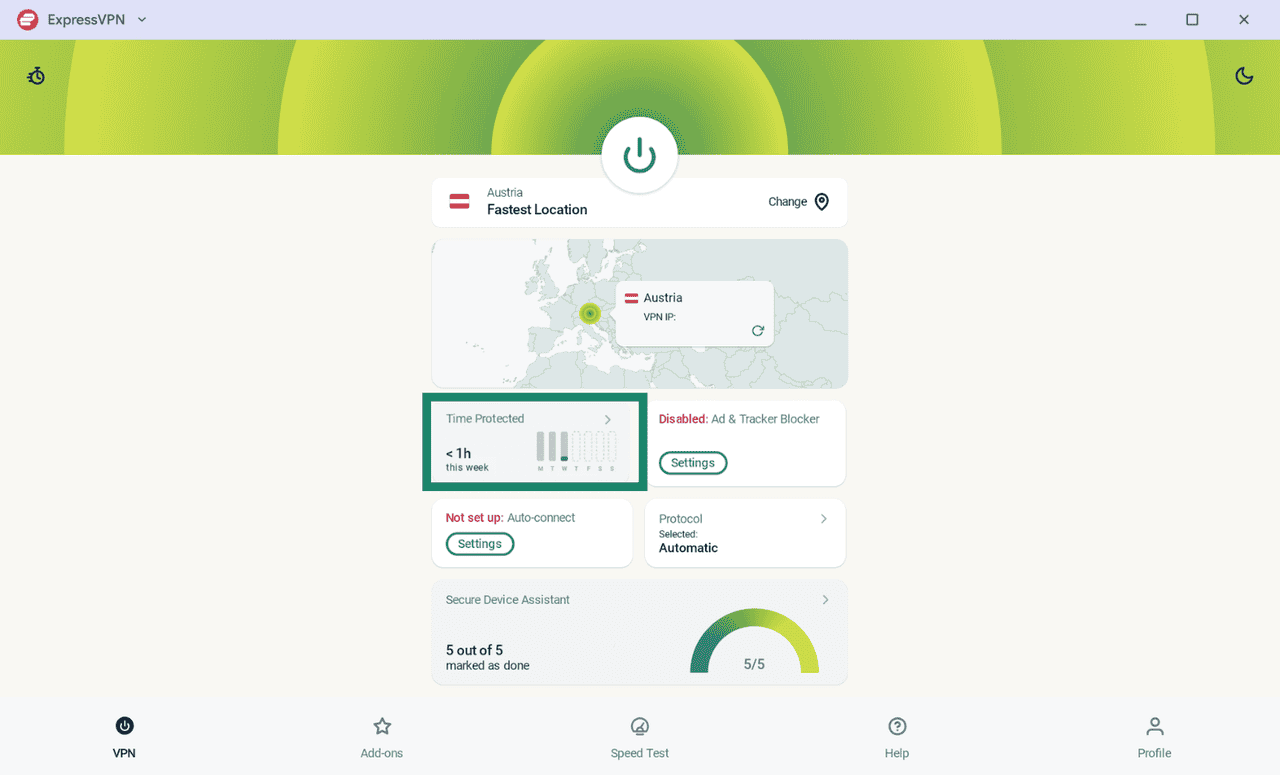
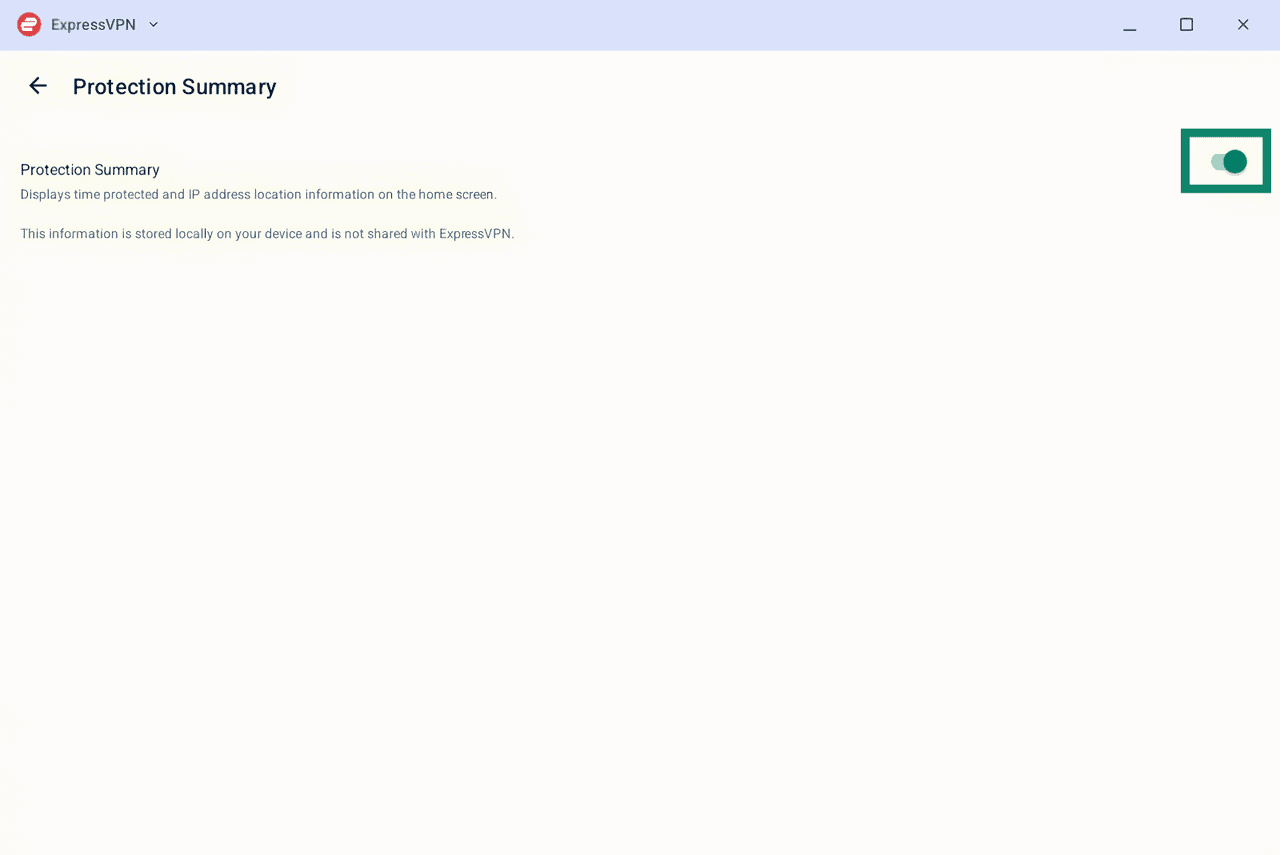
Protection Summary appears on the ExpressVPN app home screen and gives you an overview of your VPN usage.
To turn Protection Summary on or off:
- On the VPN tab, click the Protection Summary Time Protected card.
- Click the Protection Summary toggle to turn it on or off.
Uninstall the app
To uninstall ExpressVPN from your Googlebook device:
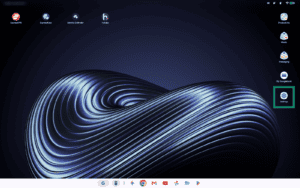
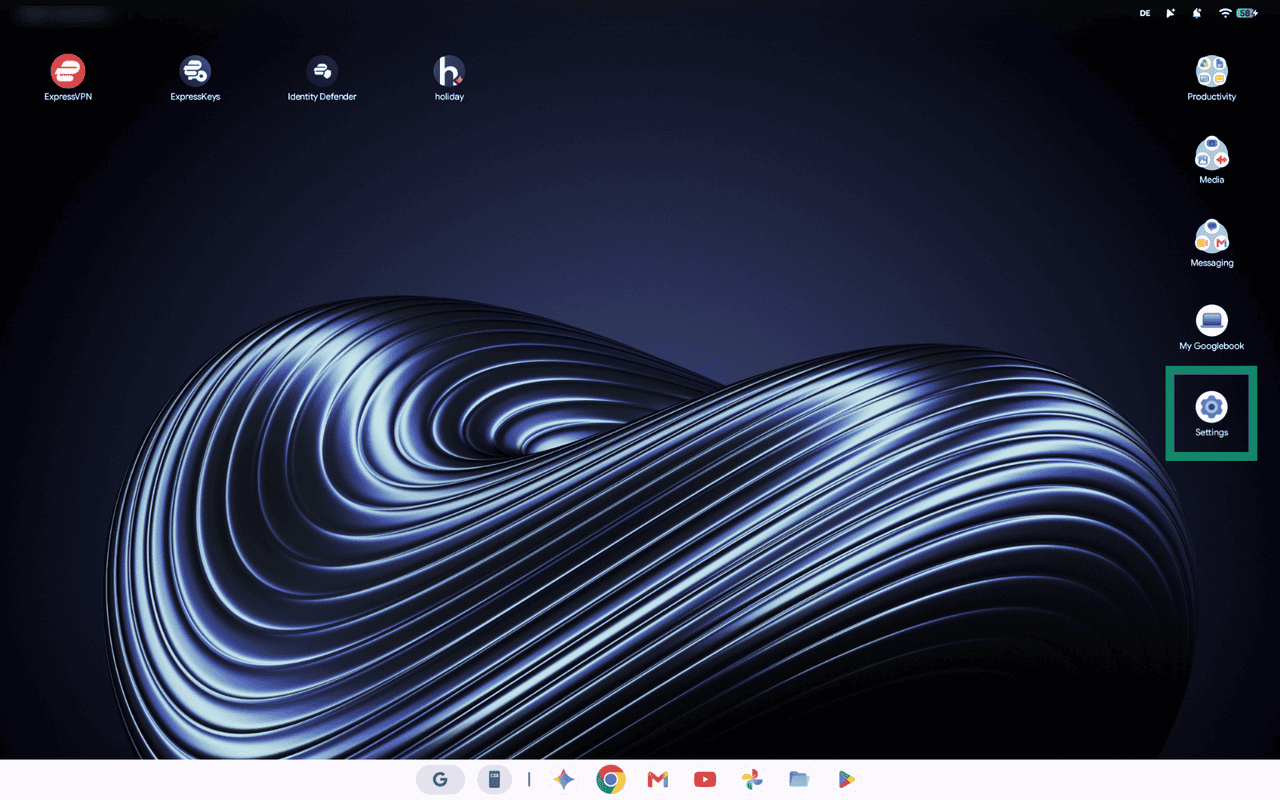
- Open Settings.
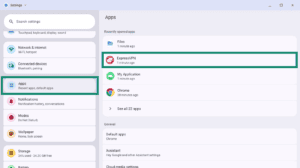
- Click Apps and select ExpressVPN from the list .
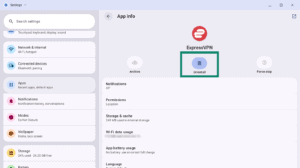
- Click Uninstall.
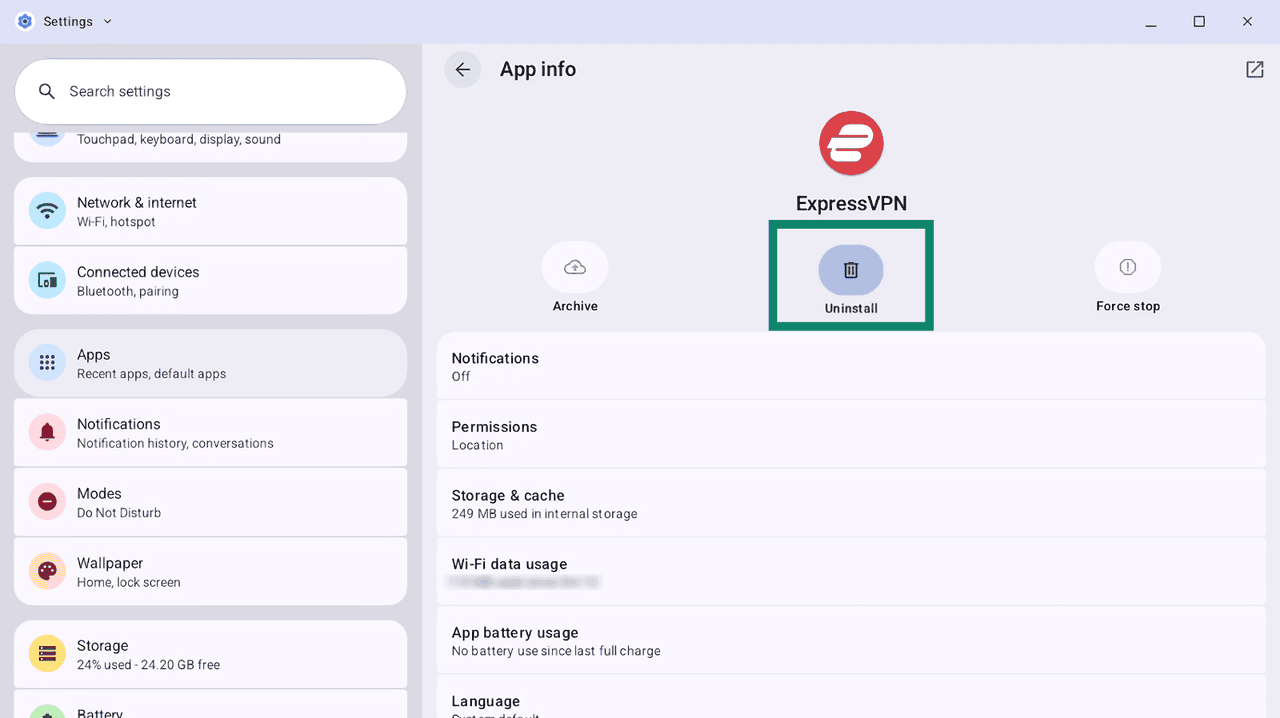
Follow the on-screen instructions to uninstall ExpressVPN from your Googlebook.
Need help? Contact the ExpressVPN Support Team for immediate assistance.