




Need a VPN for Chromebook?
Get ExpressVPN Now
One ExpressVPN account. All devices.
Get Apps for FreeThis tutorial will show you how to use the ExpressVPN app for Chromebook with OpenVPN protocol.
Jump to…
1. Download the VPN app
2. Set up the VPN app
3. Connect to a VPN server location
Disconnect from a VPN server location
Choose a different VPN server location
Uninstall the VPN app from your Chromebook
Troubleshoot your connection
1. Download the VPN app
On your desktop, click  .
.

(If you cannot see on your desktop, click the Launcher at the bottom-left corner of the screen, then search for the Play Store.)
In the Play Store search bar, search for ExpressVPN. Select ExpressVPN. Click Install.
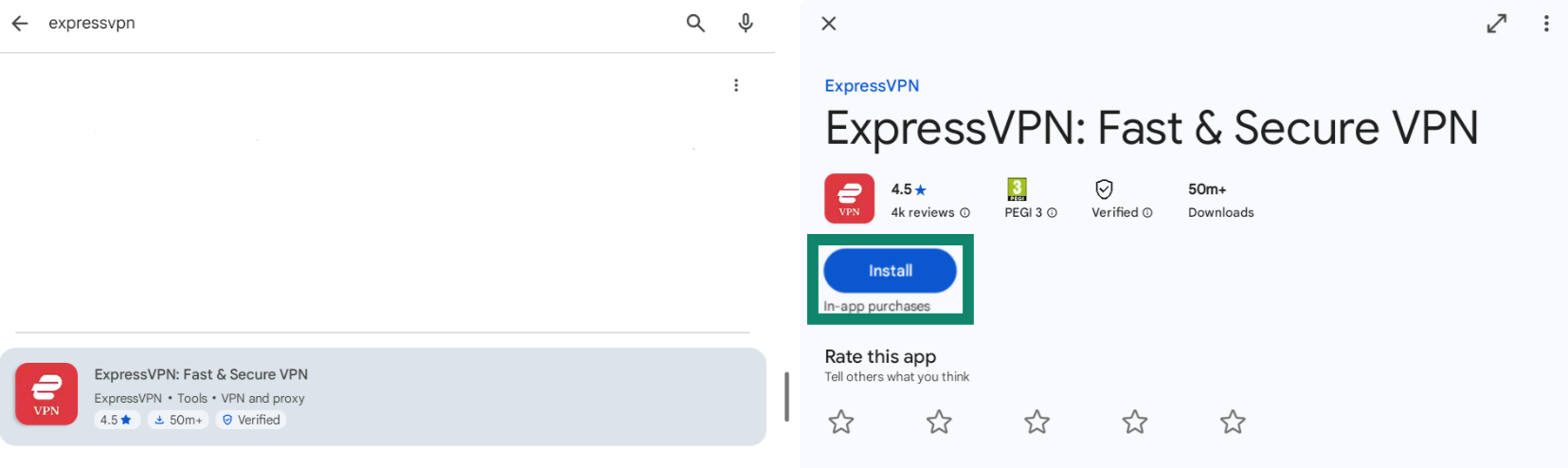
Click Open to launch ExpressVPN.
Need help? Contact the ExpressVPN Support Team for immediate assistance.
2. Set up the VPN app
Click Sign In.
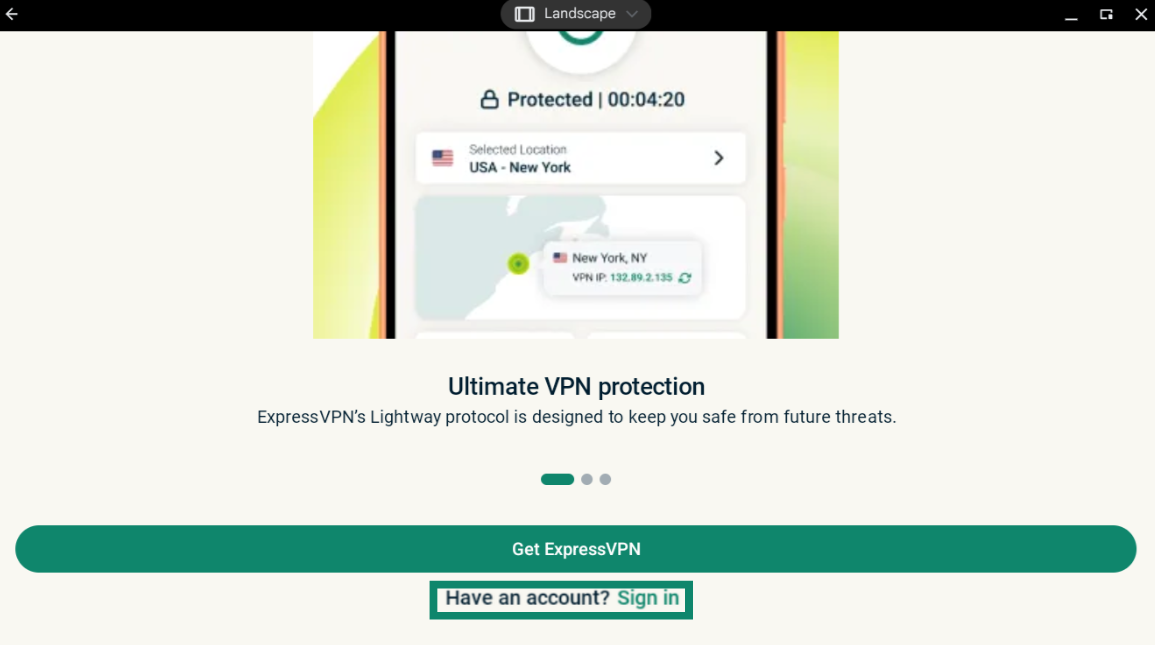
Enter your email address and password/activation code.
You will need to allow ExpressVPN to set up VPN connections. Select OK and OK to continue.
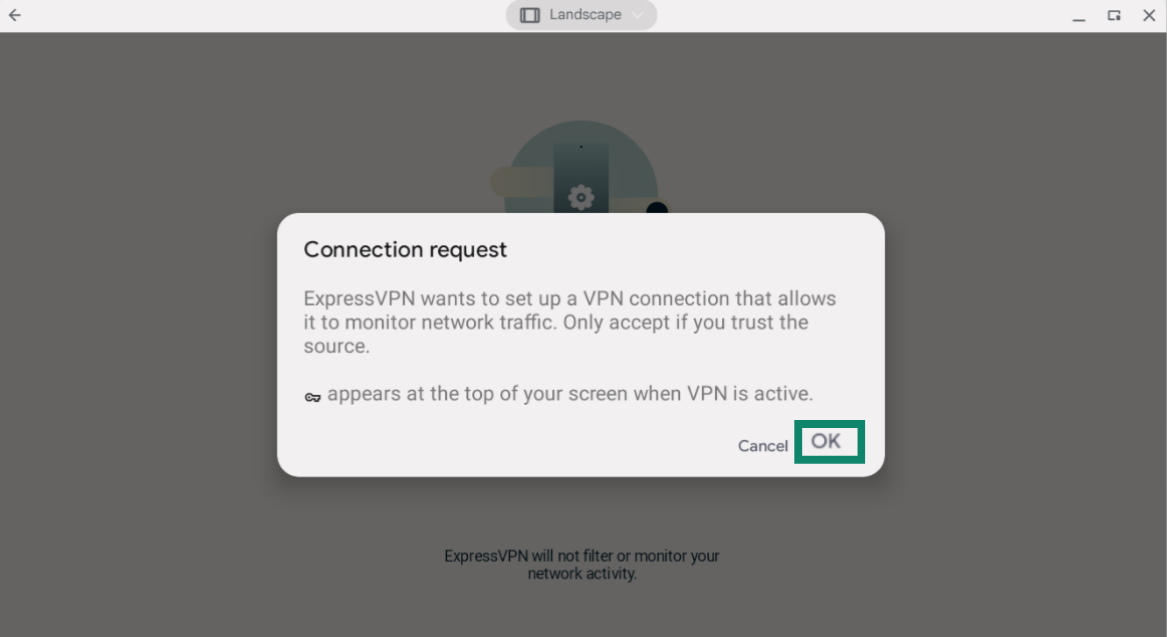
Need help? Contact the ExpressVPN Support Team for immediate assistance.
3. Connect to a VPN server location
Note: If you are running on a Chrome OS version lower than v64, only apps downloaded from the Google Play Store will be protected by the VPN.
To connect to a VPN server location, click  . By default, ExpressVPN will suggest the location that provides the optimal experience for you, a feature called Smart Location.
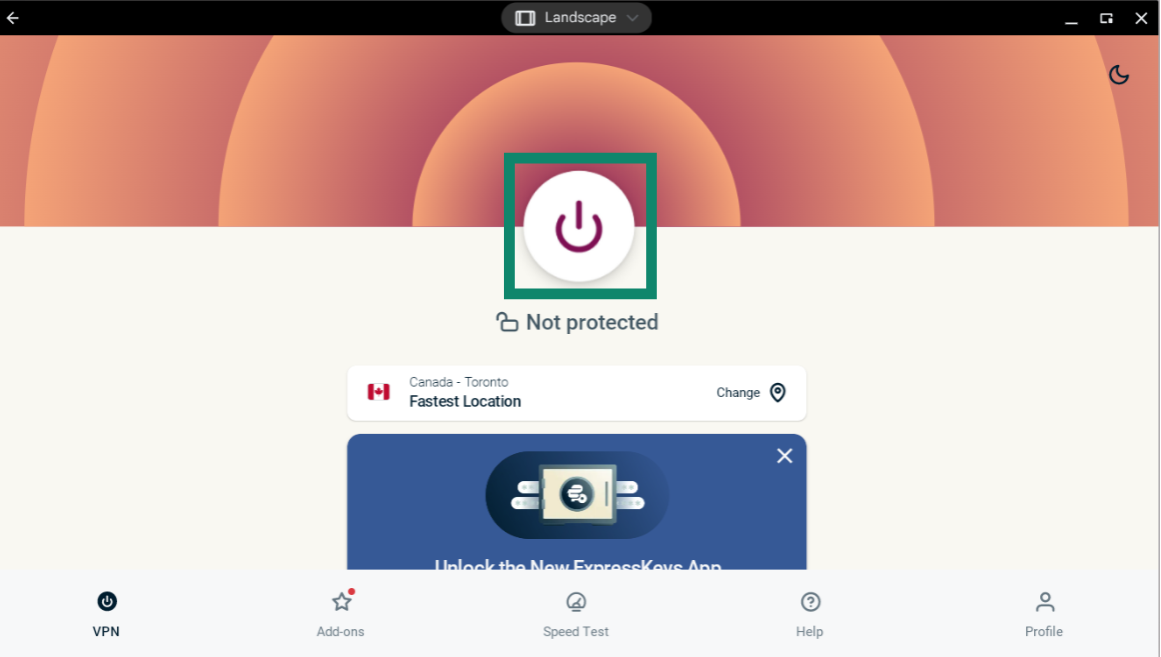
Once you see the “Protected” message on the app screen, you can begin surfing with added privacy and security!
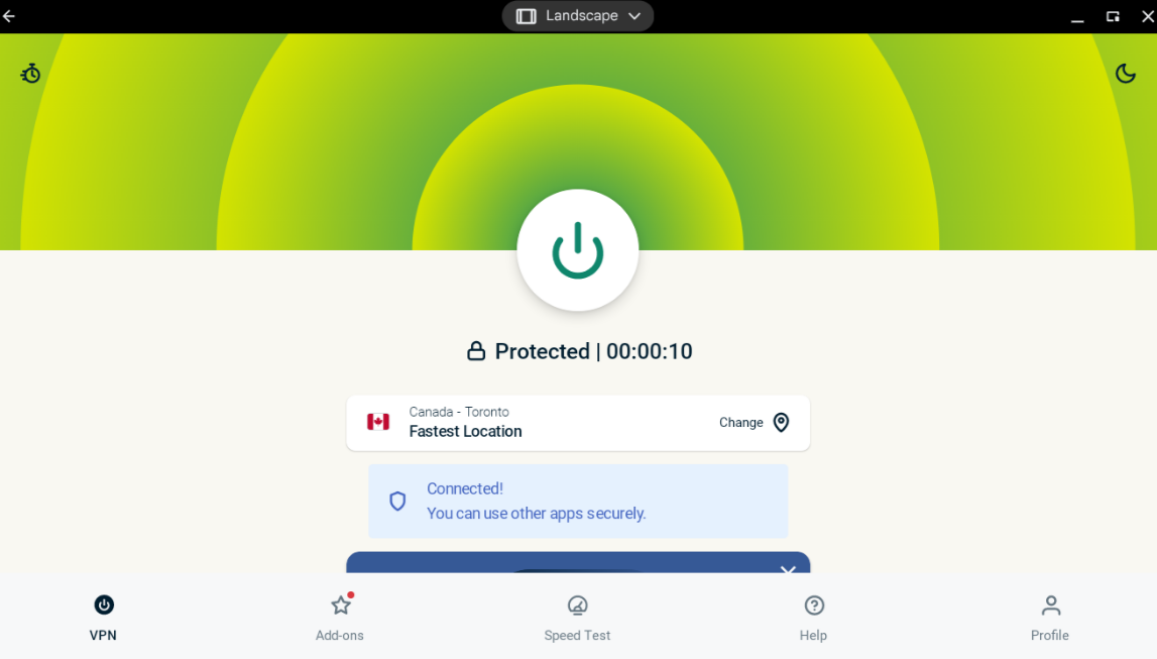
Note: The number of devices you can connect to the VPN at the same time depends on the subscription tier you chose at checkout:
- Basic: 10 devices at the same time.
- Advanced: 12 devices at the same time.
- Pro: 14 devices at the same time.
If you try to connect more devices than your subscription tier allows at once, you will see this screen:
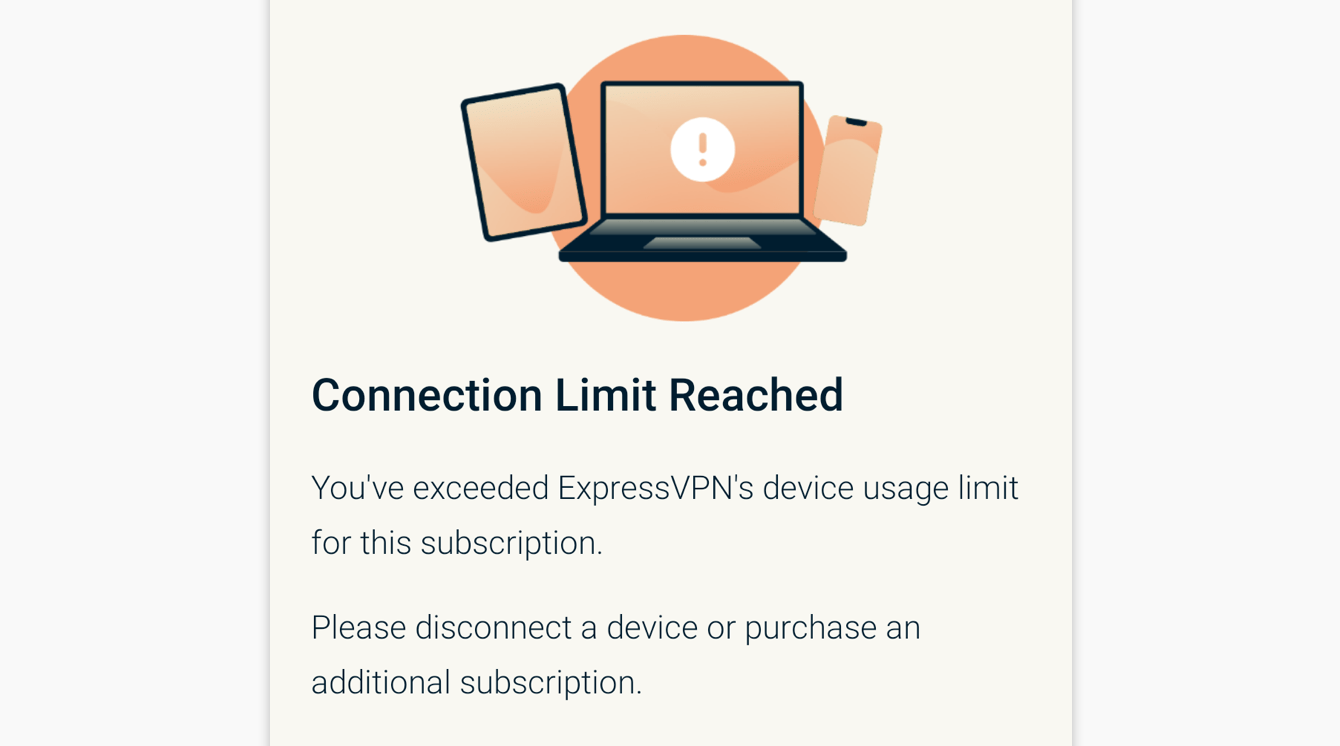
Need help? Contact the ExpressVPN Support Team for immediate assistance.
Disconnect from a VPN server location
To disconnect from the VPN server, click while the VPN is connected.
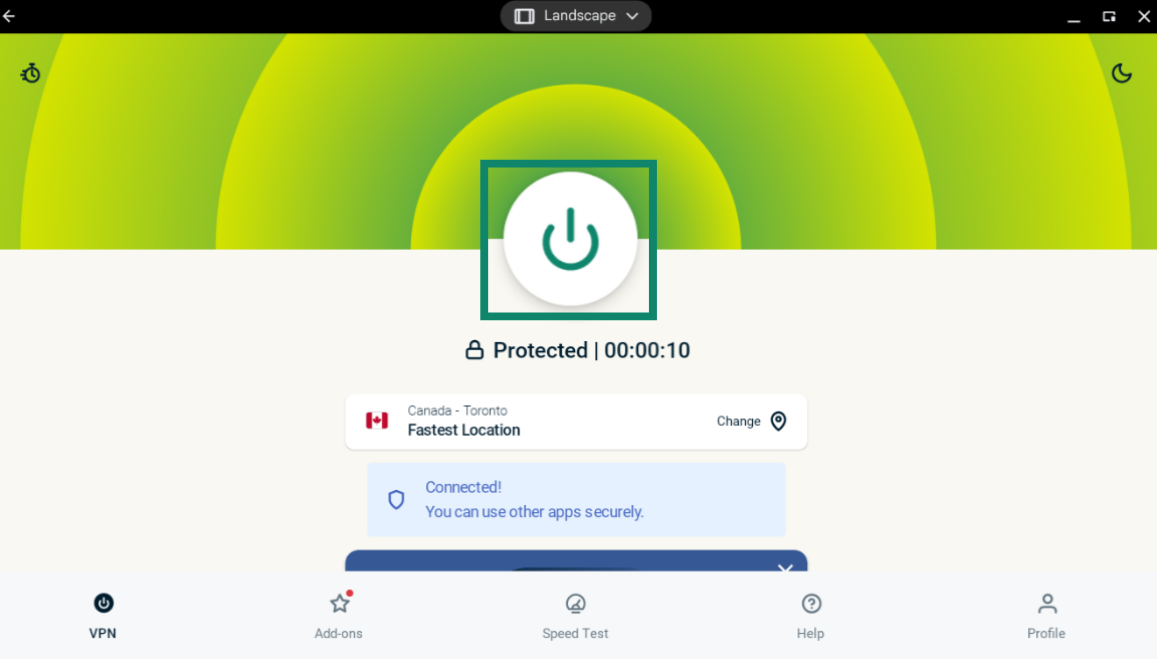
You will know you are disconnected when the screen says “Not protected.”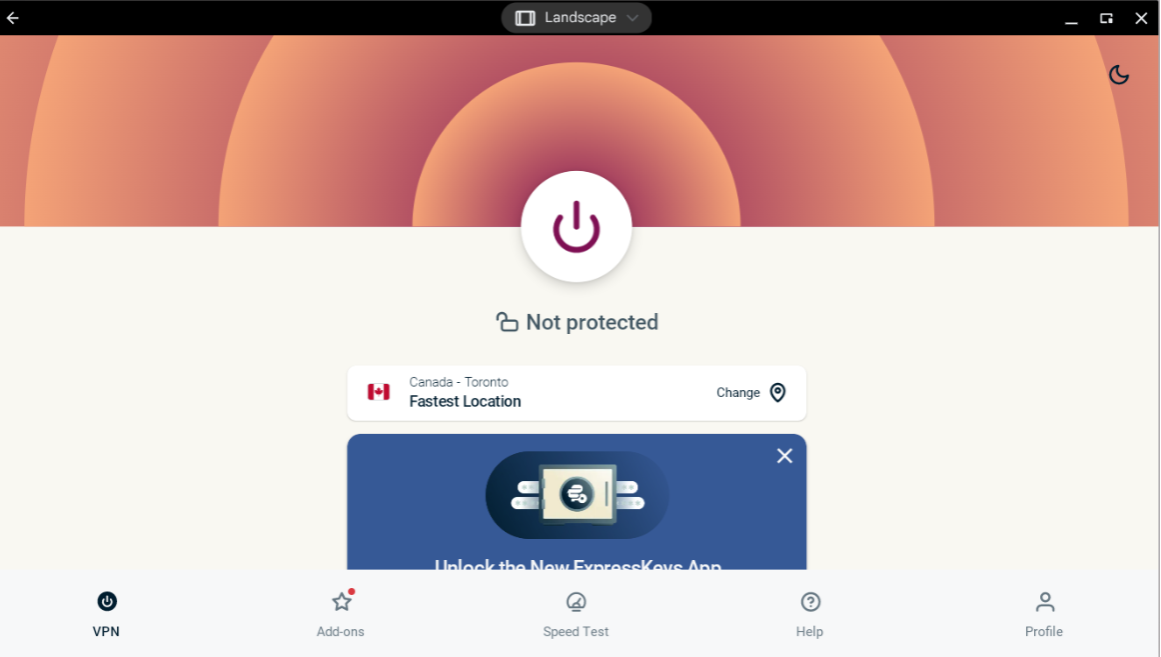
Need help? Contact the ExpressVPN Support Team for immediate assistance.
Choose a different VPN server location
To connect to a different server location, click the Change location icon.
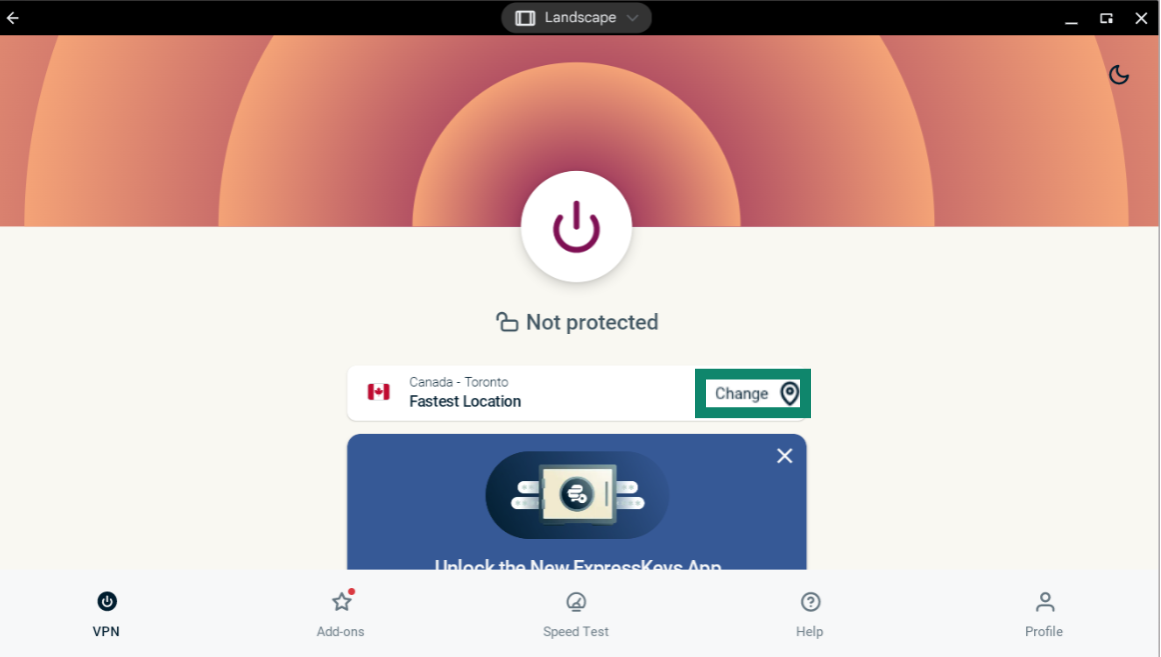
To connect to a server location, double-click the location.
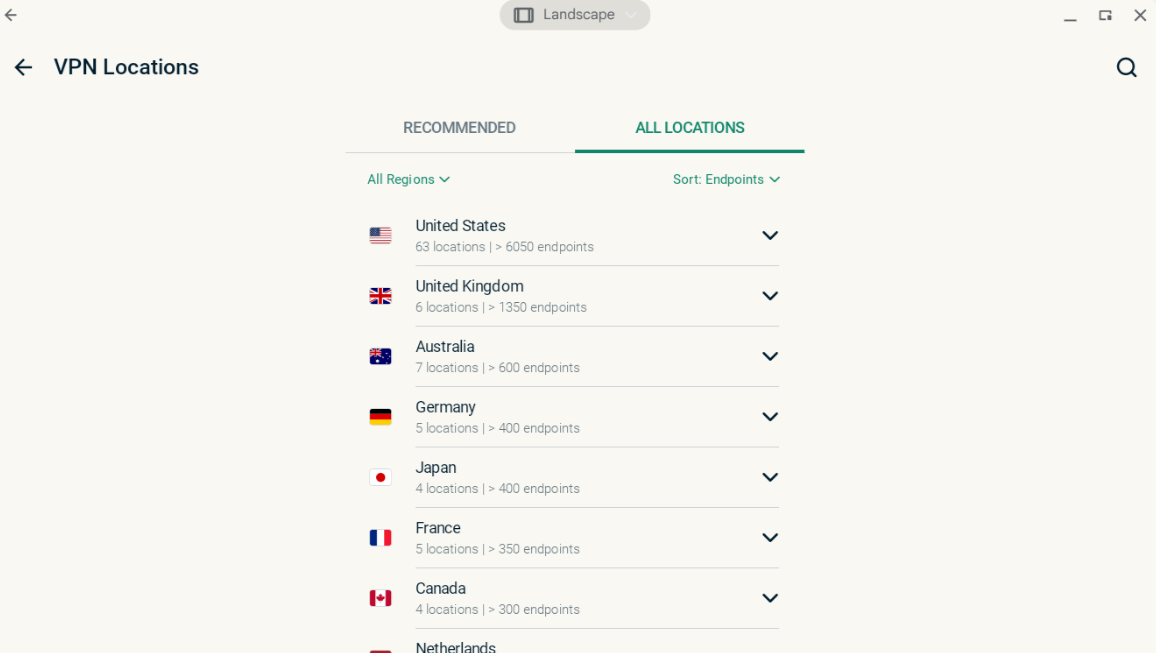
By default, the list of VPN locations features two tabs: RECOMMENDED and ALL LOCATIONS.
The RECOMMENDED tab shows ExpressVPN’s top picks for you.
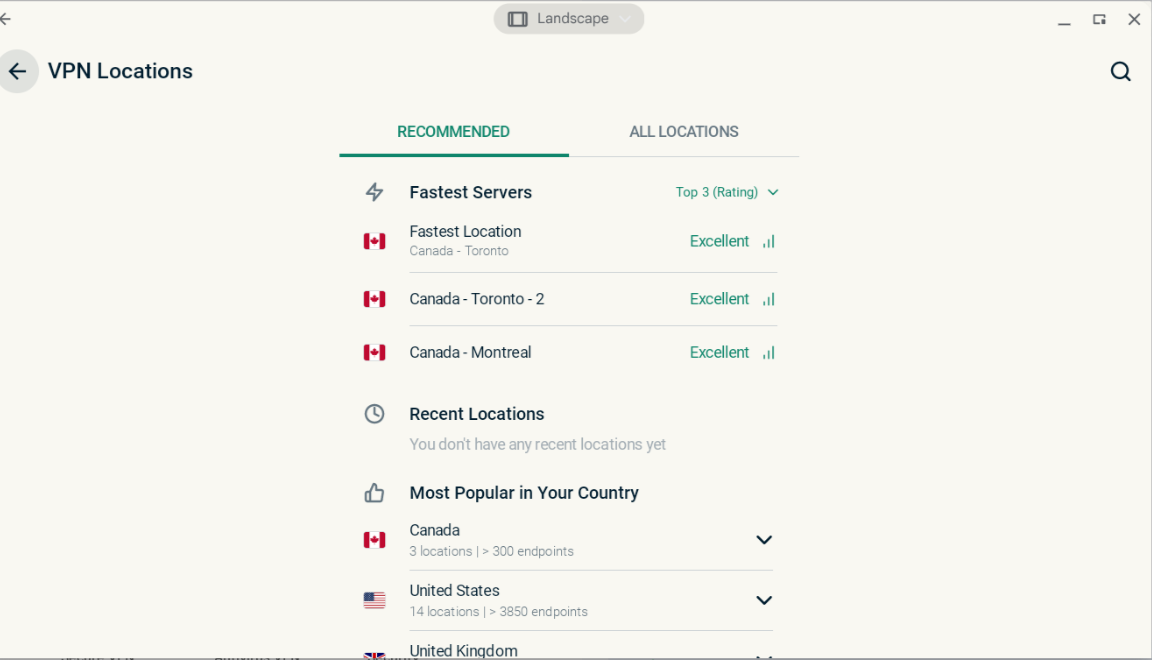
The ALL LOCATIONS tab lists VPN server locations by region. You can expand and collapse the lists by clicking  and
and  .
.
 Need help? Contact the ExpressVPN Support Team for immediate assistance.
Uninstall the VPN app from your Chromebook
On your desktop, select .

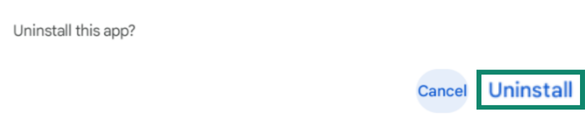
In the Play Store search bar, search for ExpressVPN. Select ExpressVPN. Click Uninstall.

Click OK to uninstall.
Need help? Contact the ExpressVPN Support Team for immediate assistance.
Troubleshoot your connection
If you encounter the “TUN driver missing” error, follow the steps in this troubleshooting guide.
Need help? Contact the ExpressVPN Support Team for immediate assistance.