



This guide explains what the Pause function does and how to use it in the ExpressVPN apps for iOS and Android.
Jump to…
What is the Pause function?
The Pause function in the ExpressVPN app temporarily disconnects your device from the VPN for a set amount of time. It then automatically reconnects when your chosen time is up, so you don’t have to worry about forgetting to turn it back on.
It’s currently only available on the ExpressVPN mobile apps for iOS and Android devices.
Need help? Contact the ExpressVPN Support Team for immediate assistance.
How to use the Pause function on iOS
To use the Pause feature on iOS, make sure you’re connected to a VPN server. Then, follow these steps:
- Tap the stopwatch icon on the top left of the homescreen.


- Choose a pause interval. Tapping one of the options will pause your VPN connection.

- If successful, the ExpressVPN app will show a Paused message below the power button along with a countdown timer.

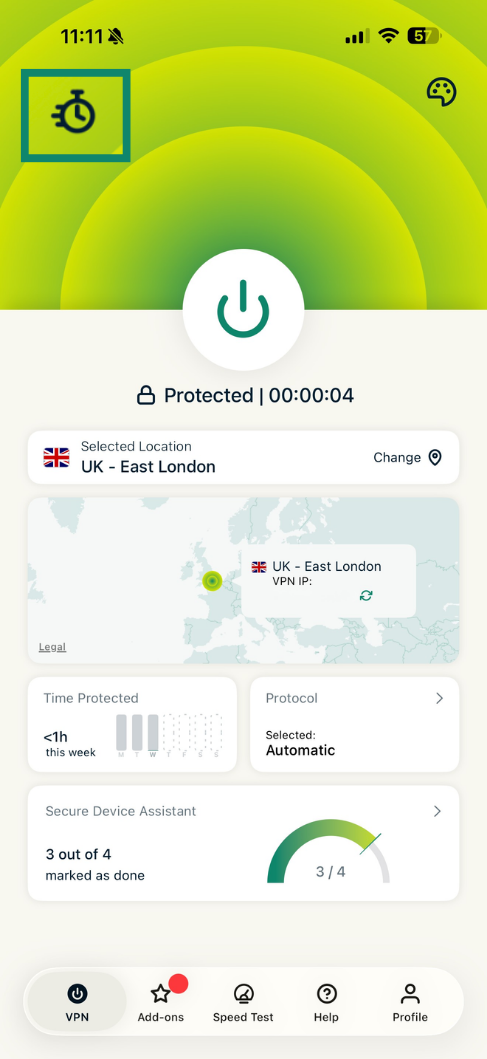
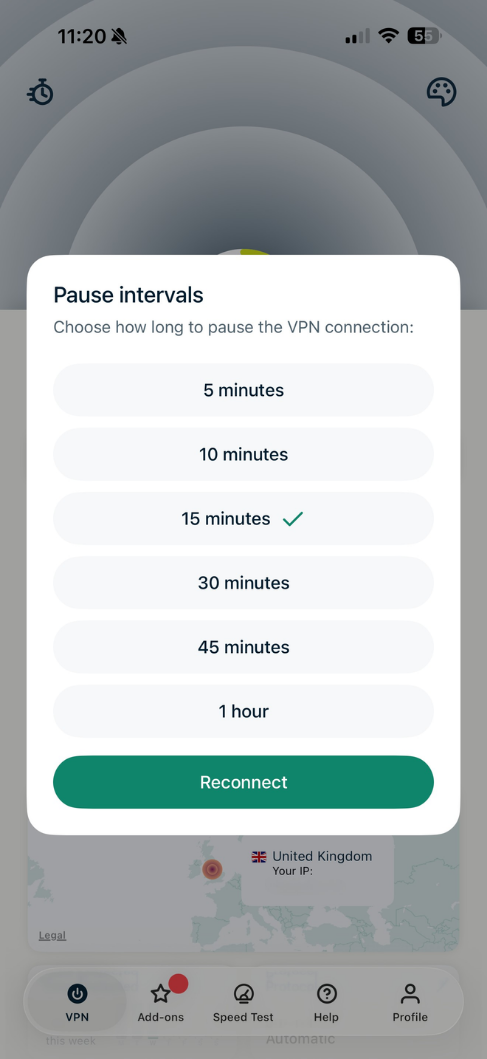
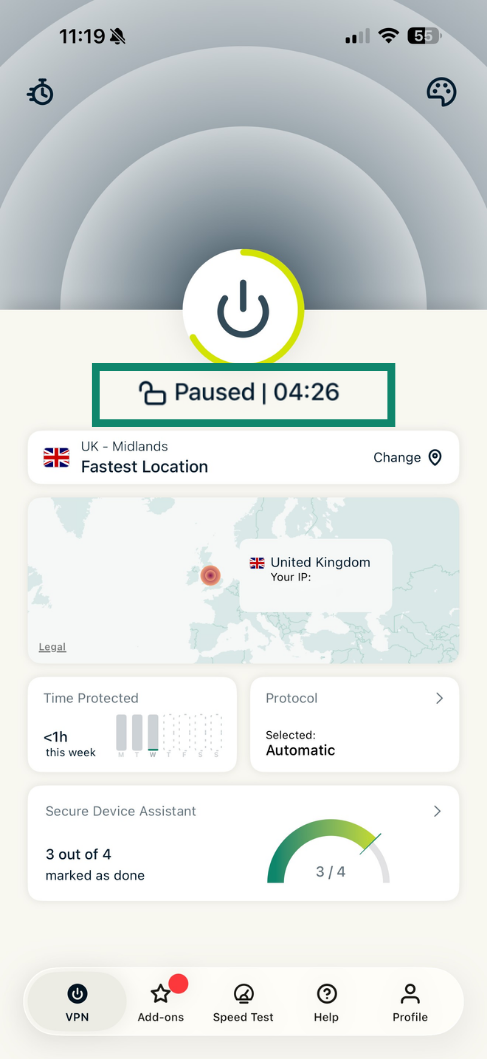
The VPN connection will automatically restore when the timer reaches zero.
How to extend or end a pause early
If you want to extend the pause or manually restore the VPN connection before the timer runs out, tap the stopwatch icon to open the options menu.
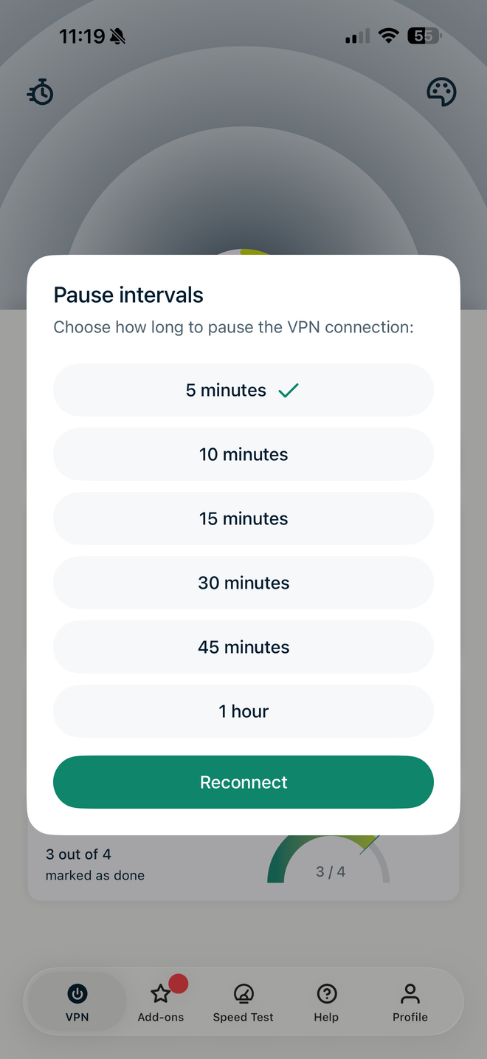
- To reconnect: Tap Reconnect under the pause intervals list to resume the VPN connection.
- To extend the pause: Tap an interval to reset the timer.
Need help? Contact the ExpressVPN Support Team for immediate assistance.
How to use the Pause function on Android
To pause an active VPN connection on Android:
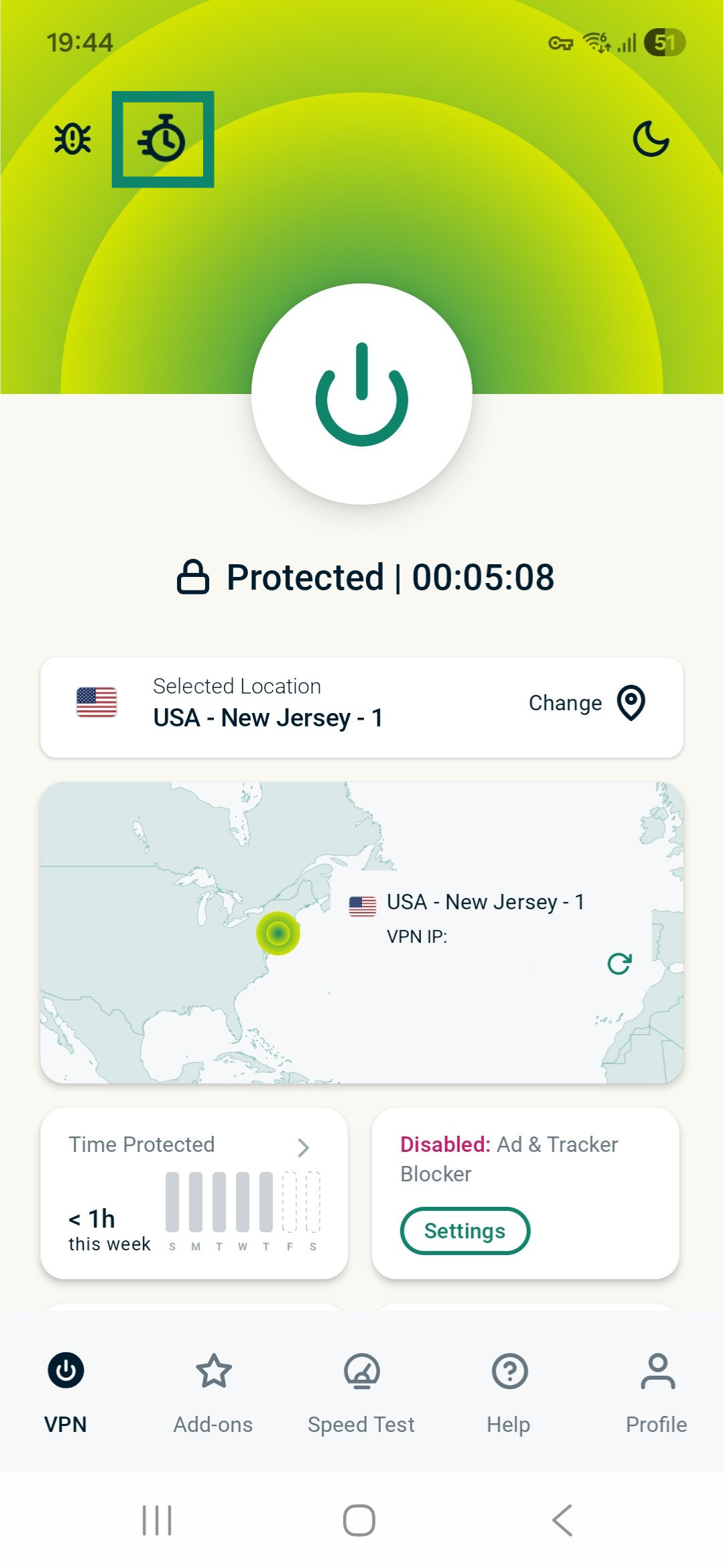
- Tap the stopwatch icon in the top left.
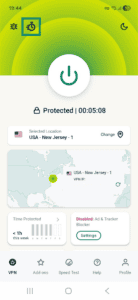

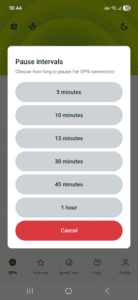
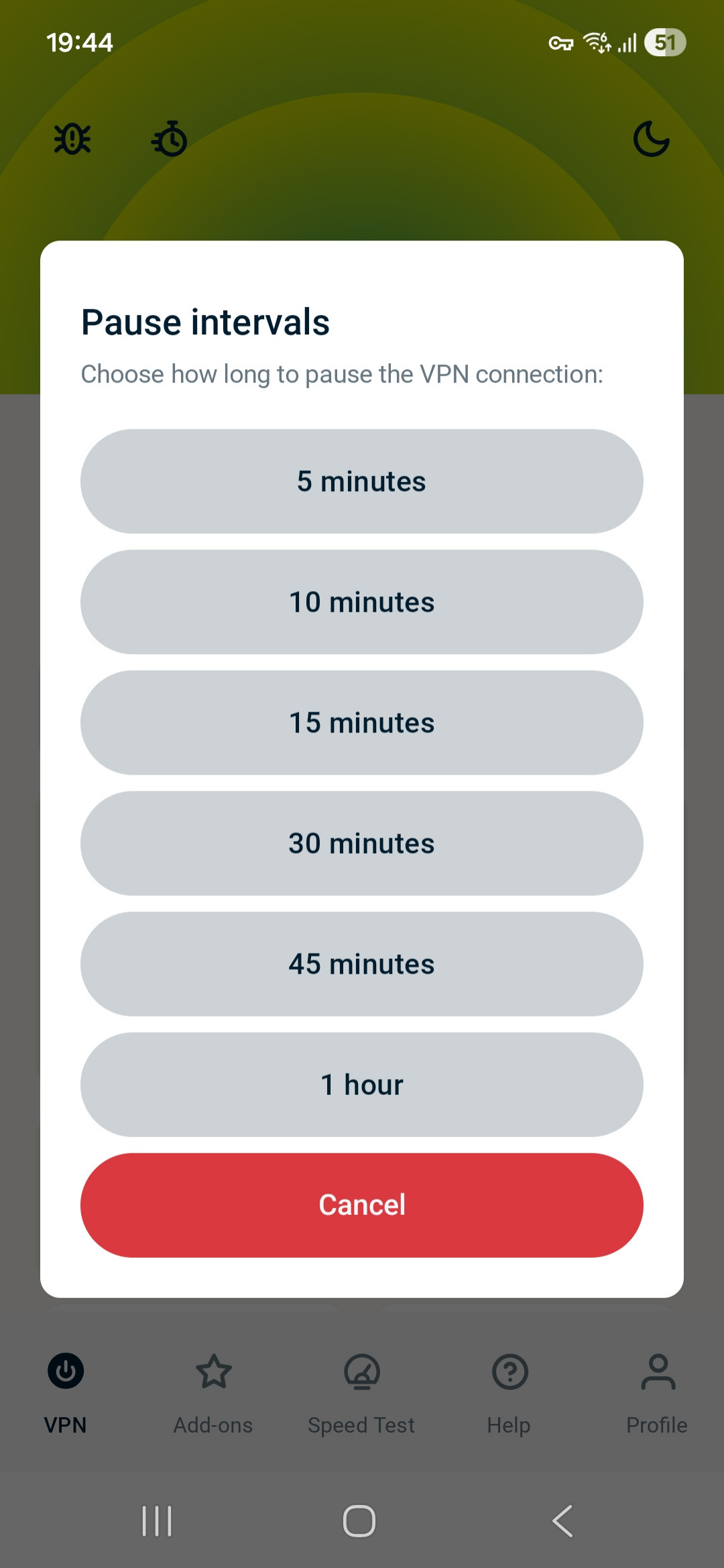
- Choose a pause interval and tap it. Tapping one of the options will pause your VPN connection.
- If you have paused the VPN successfully, you will see a Paused message and a countdown timer below the power button.

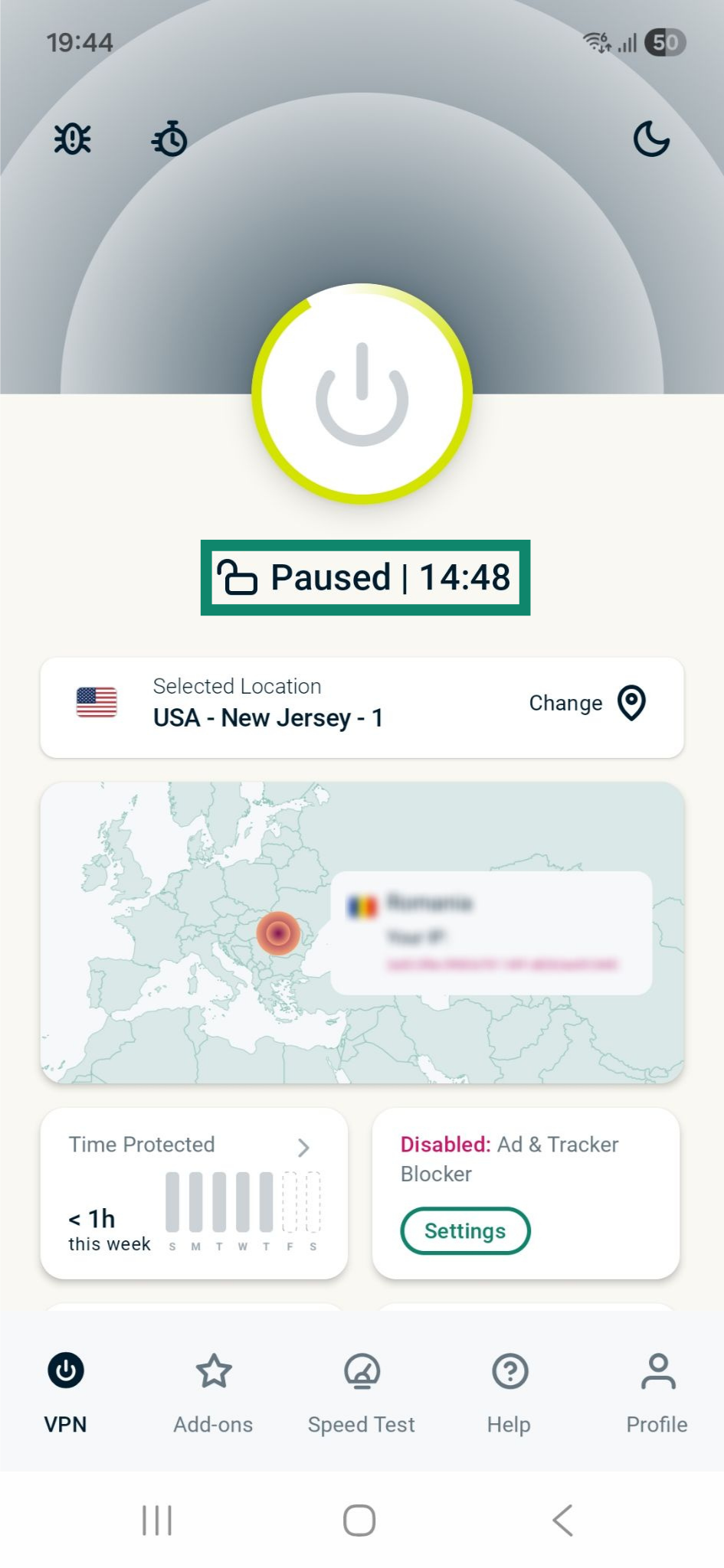
The VPN connection will automatically restore when the timer reaches zero.
How to extend or end a pause early
If you want to extend the pause or manually restore the VPN connection before the timer runs out, tap the stopwatch icon to open the options menu.
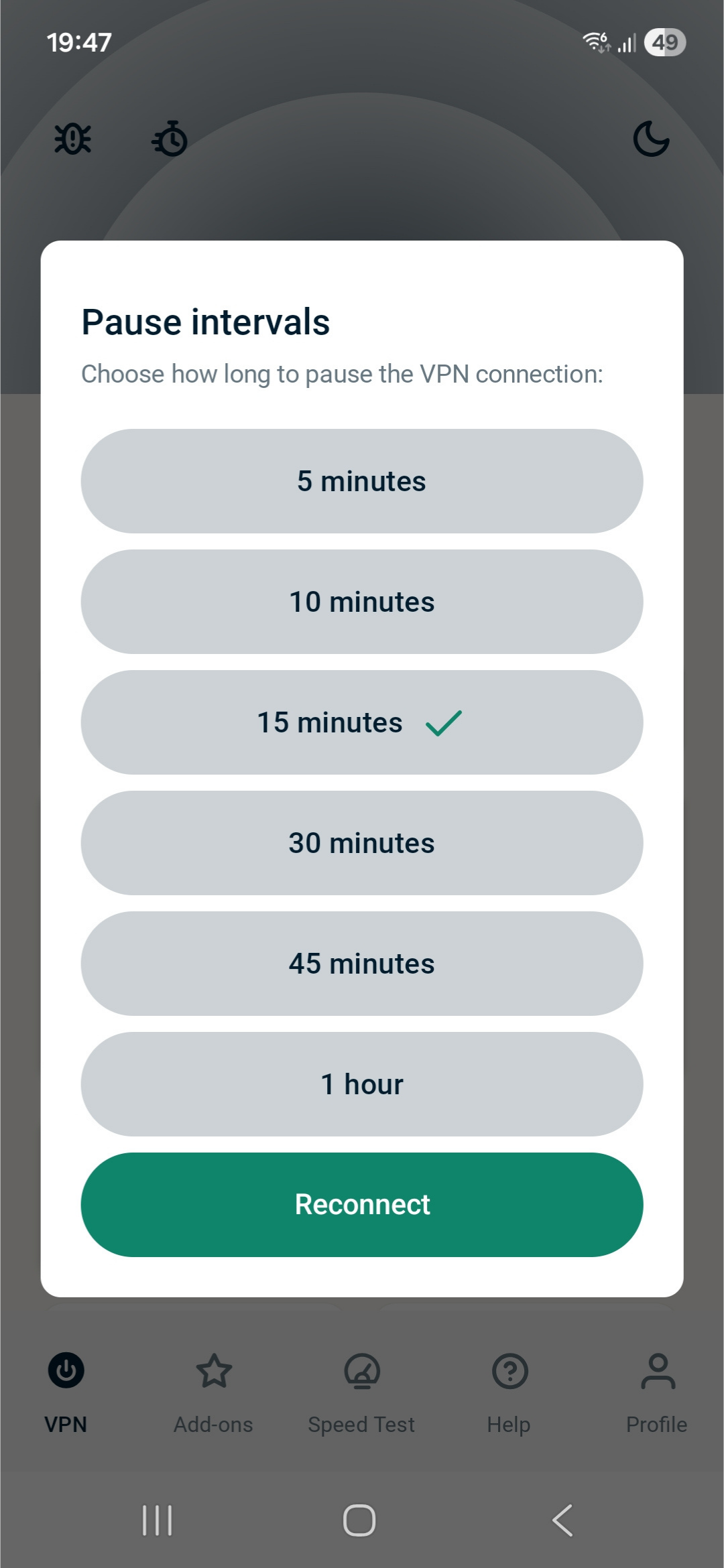
- To reconnect: Tap Reconnect under the pause intervals list to resume the VPN connection.
- To extend the pause: Tap an interval to reset the timer.
Need help? Contact the ExpressVPN Support Team for immediate assistance.
What to do if you can’t see the Pause function
The pause function only works when you’re already connected to a VPN server. You need to connect to ExpressVPN to see the stopwatch icon. If you are connected and still don’t see it, update the ExpressVPN app to the latest version available for your device.
Need help? Contact the ExpressVPN Support Team for immediate assistance.
When should you use the Pause function?
You can use the Pause function in the ExpressVPN apps on mobile when you need a brief connection change but don’t want to turn the VPN off for longer than needed, such as when:
- You need to briefly use a website or an app that doesn’t work well with the VPN.
- You want to test whether the VPN connection is causing an issue.
- You want to access devices or services on your local network, like printers or smart devices.
Need help? Contact the ExpressVPN Support Team for immediate assistance.