



To use our apps and configurations, please sign up for an ExpressVPN account first.
This guide will show you how to use the split tunneling feature on the ExpressVPN app for iOS.
Jump to…
What is the split tunneling feature on iOS?
What is the split tunneling feature on iOS?
The split tunneling feature on iOS allows you to choose which websites bypass the VPN.
When you connect to ExpressVPN on iOS, the VPN automatically protects all traffic. With split tunneling, you can choose which sites don’t use the VPN.
For example, if a website you regularly visit blocks or restricts VPN traffic, you can add it to your split tunneling list. It will load using your regular connection, while ExpressVPN continues to protect everything else. This way, you won’t need to disconnect the VPN each time you visit that site.
Need help? Contact the ExpressVPN Support Team for immediate assistance.
How to use split tunneling on iOS
To use split tunneling on iOS, first enable the feature in the app. You can then add IP addresses for websites you want to exclude from the VPN.
How to exclude IP addresses from the VPN on iOS
Note: Only single IPv4 addresses are supported. You cannot add domain names, URLs, or IP ranges.
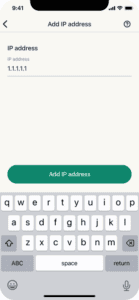
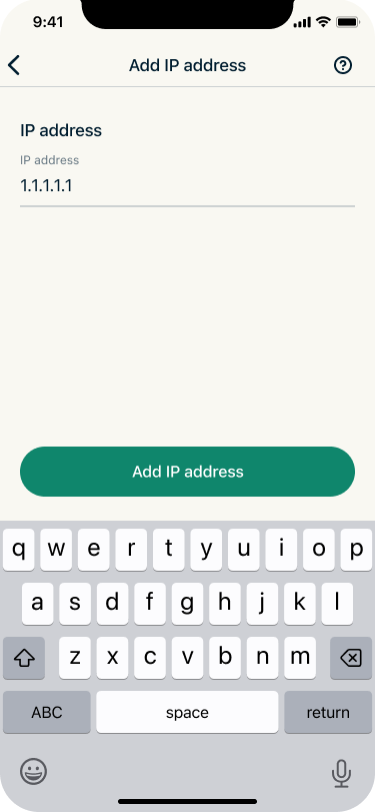
- Tap Add IP Address and enter the IP address you want to bypass the VPN tunnel.

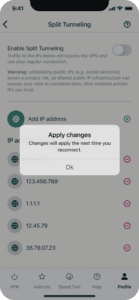
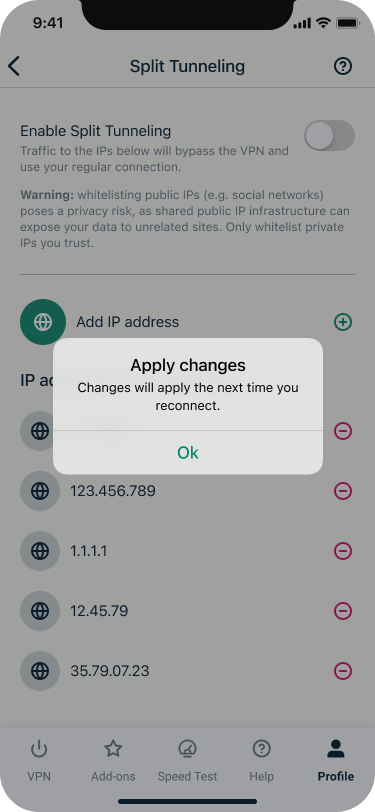
- Tap Ok in the “Apply changes” pop-up.
- Repeat for any additional IP addresses you want to add.
- Connect or reconnect to ExpressVPN for the changes to apply.
If you don’t know the IP address of a website
You can find a website’s IP address with a free website to IP lookup tool. Enter the domain name of the website, and the tool will return its IP address.
Need help? Contact the ExpressVPN Support Team for immediate assistance.
How to remove an excluded IP address from split tunneling
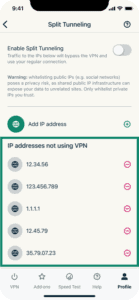
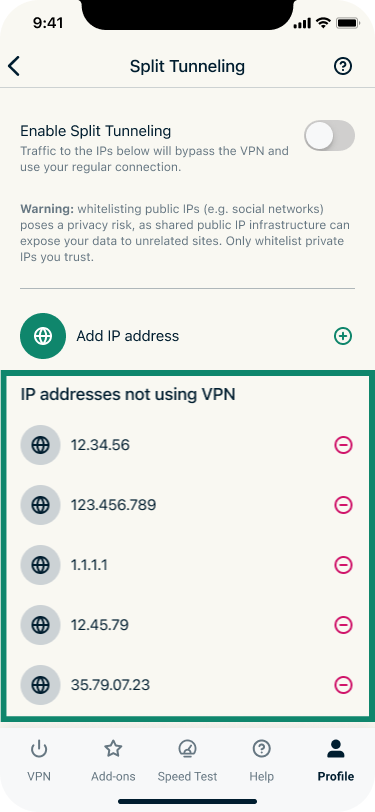
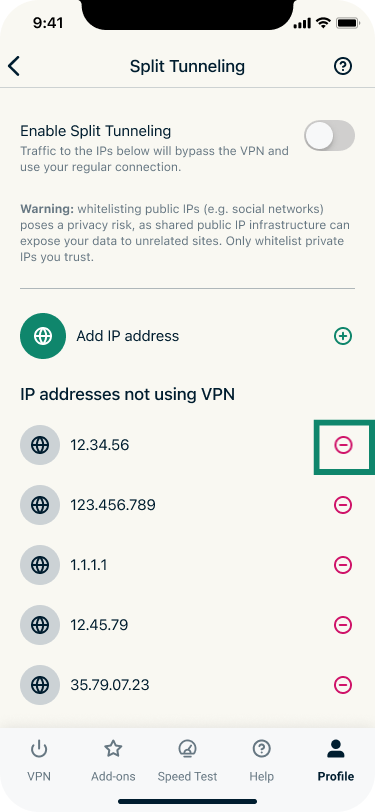
- Under IP addresses not using VPN, find the IP address you want to remove.
- Tap

 next to it.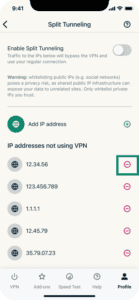
- Reconnect to ExpressVPN.
Need help? Contact the ExpressVPN Support Team for immediate assistance.
Split tunneling and Advanced Kill Switch on iOS
Split tunneling cannot be enabled if you have the Advanced Kill Switch enabled in your ExpressVPN kill switch settings for iOS. To use split tunneling, you need to switch to the Standard Kill Switch.
What is Advanced Kill Switch?
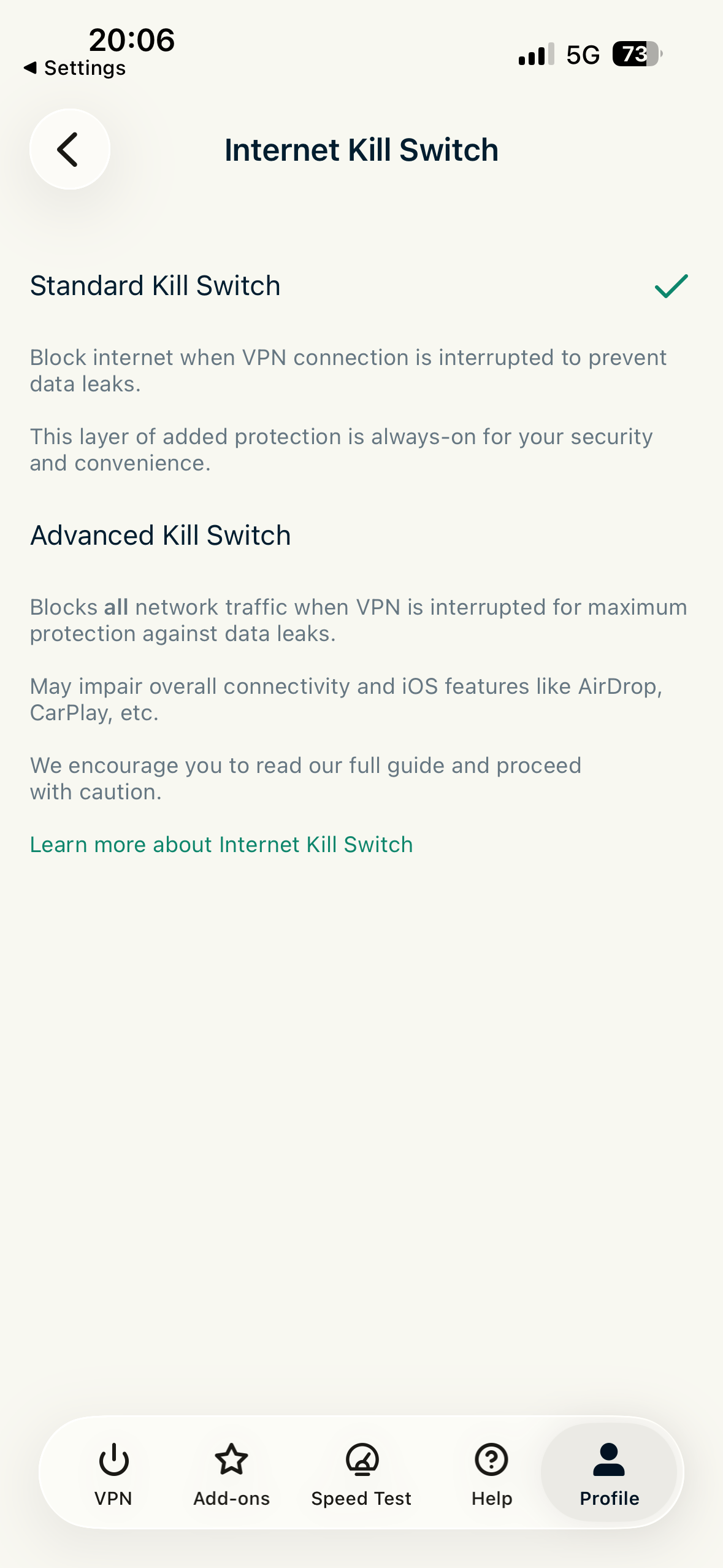
ExpressVPN on iOS offers two kill switch options:
- The Standard Kill Switch blocks internet connections if the VPN drops.
- The Advanced Kill Switch blocks all network traffic entirely.
Because the Advanced Kill Switch blocks all traffic without exception, it overrides split tunneling rules, meaning traffic to IP addresses on your list will also be blocked when the VPN is interrupted.
How to turn Advanced Kill Switch off
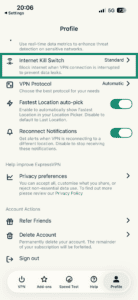
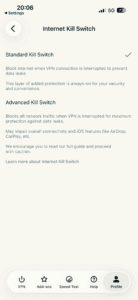
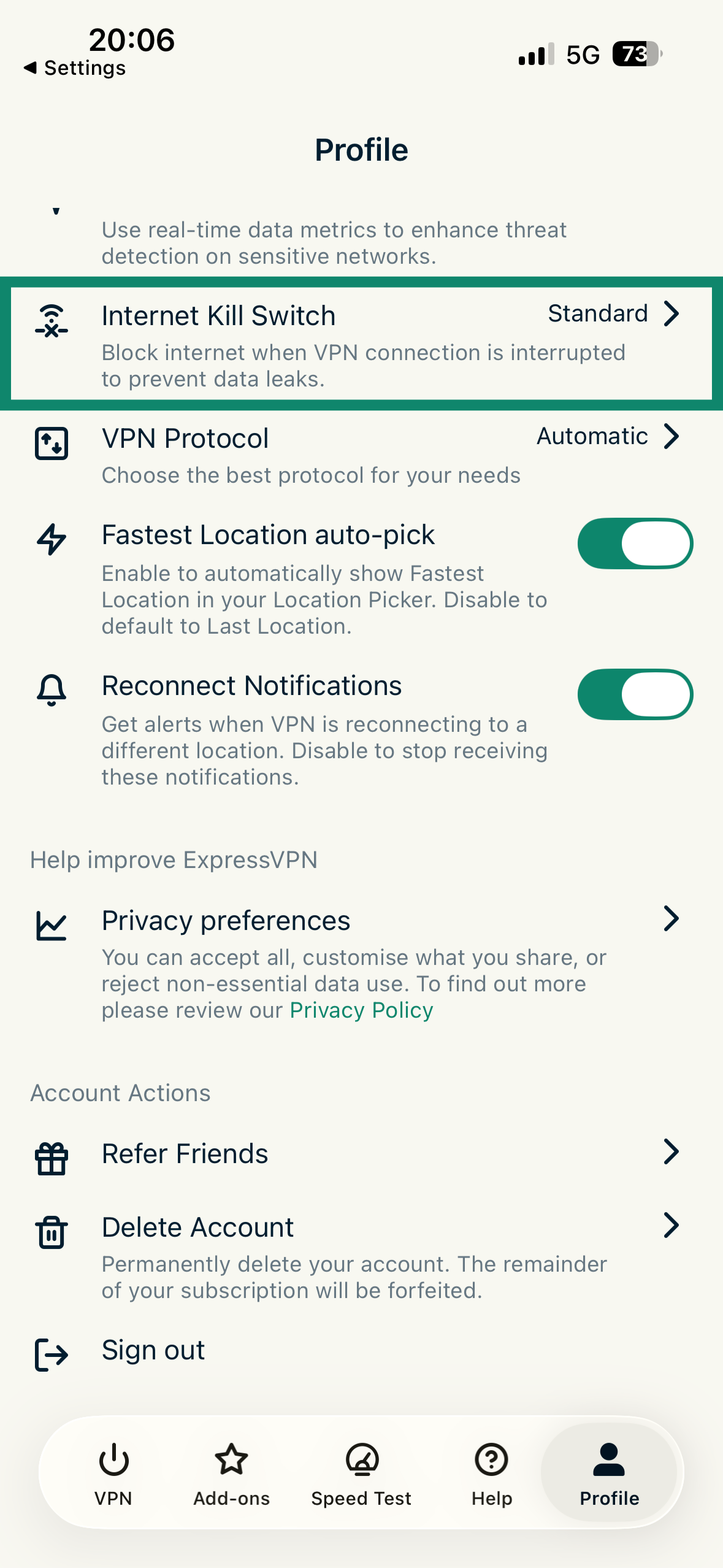
- In the ExpressVPN app, tap Profile > Internet Kill Switch.
- Tap Standard Kill Switch.
- Reconnect to ExpressVPN.
Need help? Contact the ExpressVPN Support Team for immediate assistance.