



To use our apps and configurations, please sign up for an ExpressVPN account first.
This guide will show you how to use the split tunneling feature on the ExpressVPN app for Android.
Jump to…
What is the split tunneling feature on Android?
How to use split tunneling on Android
- How to exclude apps from the VPN on Android
- How to include only selected apps with the VPN on Android
Split tunneling and Android’s “Block connections without VPN” feature
What is the split tunneling feature on Android?
The ExpressVPN split tunneling feature on Android lets you choose which apps use the VPN and which apps connect directly to the internet.
When you connect to ExpressVPN on Android, the VPN automatically protects all apps. With split tunneling, you can change this on a per-app basis.
For example, you can route most apps through the VPN while allowing specific apps, like your browser or banking app, to connect directly, depending on your needs.
Need help? Contact the ExpressVPN Support Team for immediate assistance.
How to use split tunneling on Android
In the ExpressVPN app, tap the Profile tab and select Split Tunneling.
In the split tunneling settings, you will see three options:
- All apps use the VPN.
- Do not allow selected apps to use the VPN.
- Only allow selected apps to use the VPN.
By default, split tunneling is set to All app use the VPN tunnel, which means that when the VPN is connected, every app goes through the VPN.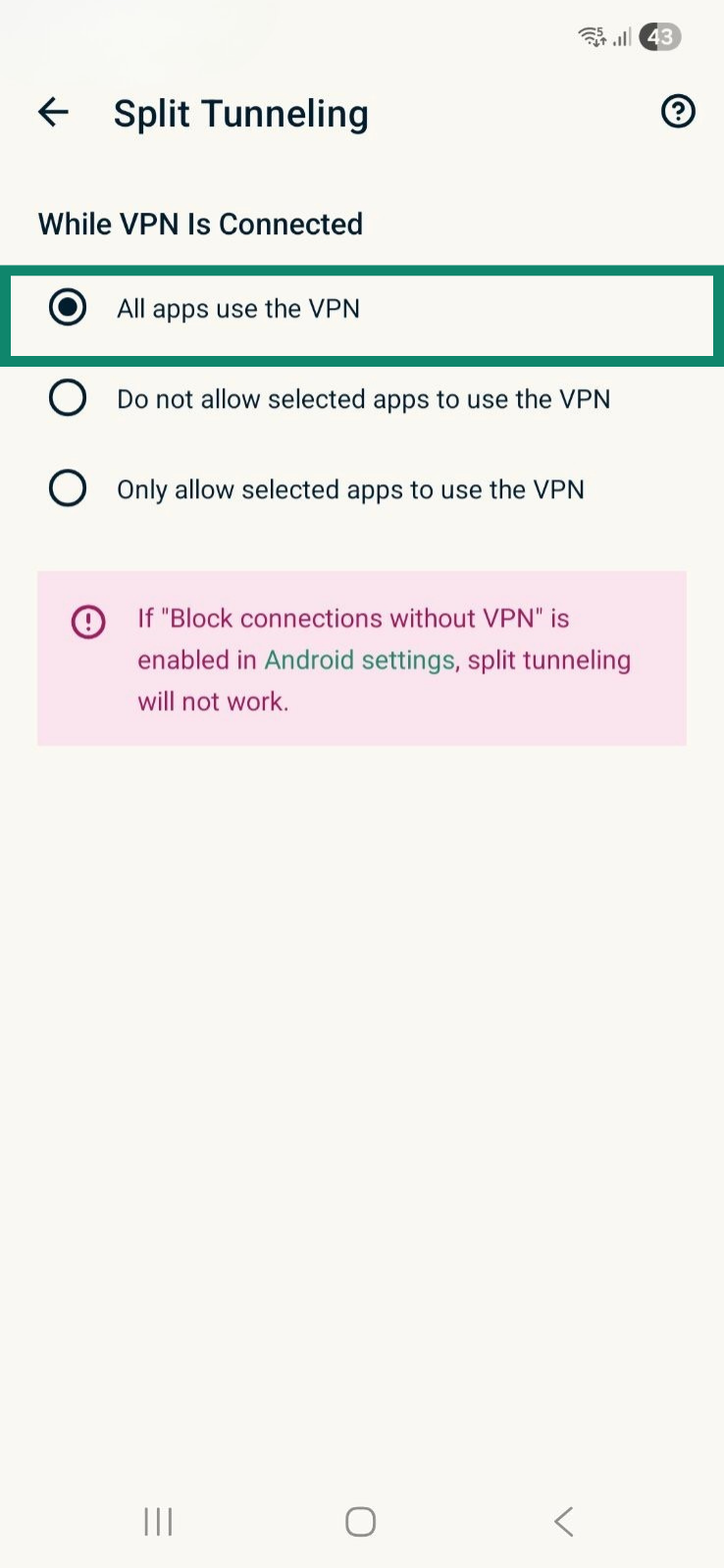
Need help? Contact the ExpressVPN Support Team for immediate assistance.
How to exclude apps from the VPN on Android
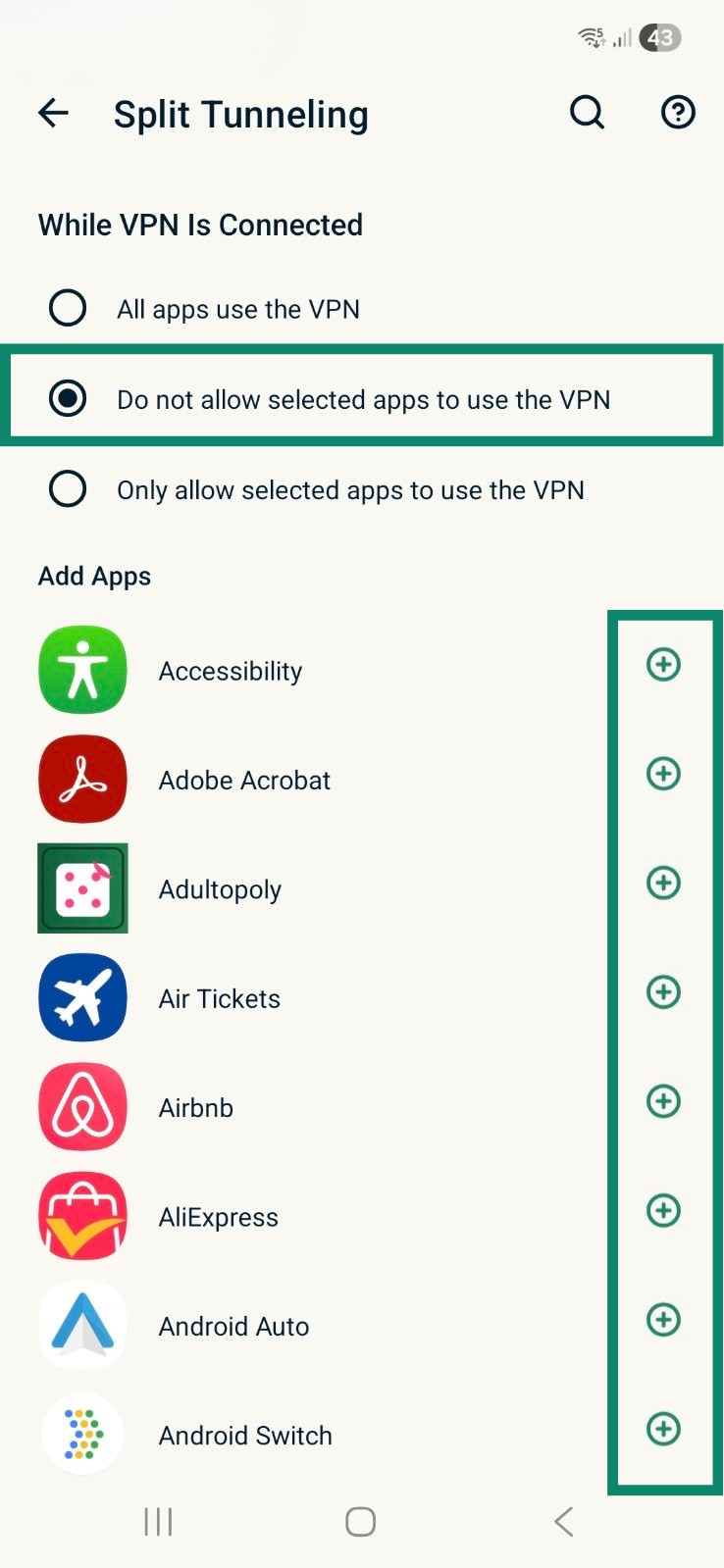
- Select Do not allow selected apps to use the VPN.
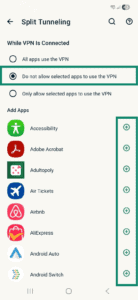

- A list of apps on your device will appear. Tap

 next to the app or apps you want to exclude. They will be added to the Selected Apps list.
- Once done, you can exit the setting. The apps you selected won’t use the VPN connection when ExpressVPN is connected.
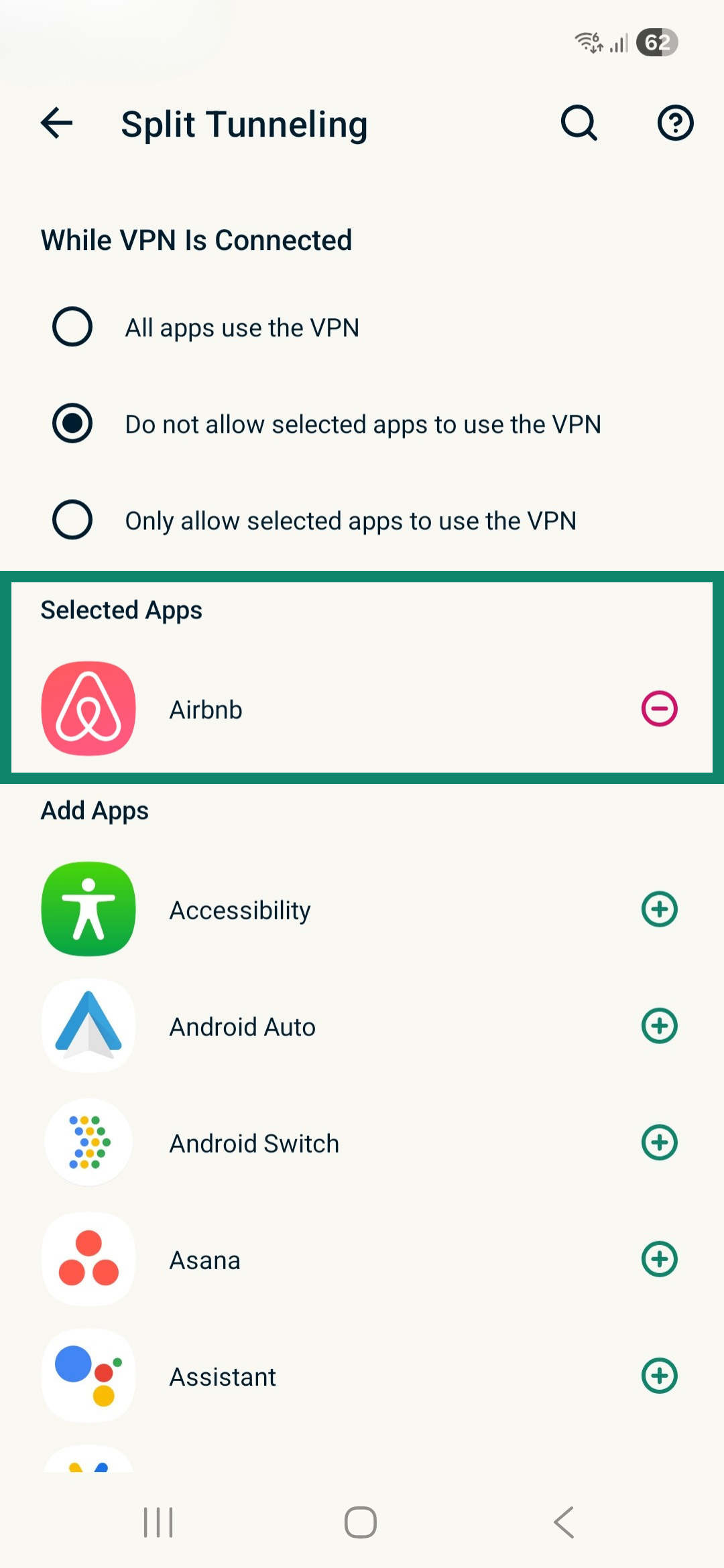
To remove an app from the Do not allow selected apps to use the VPN rule
If you want to remove apps from the rule, tap  next to the app in the Selected Apps list.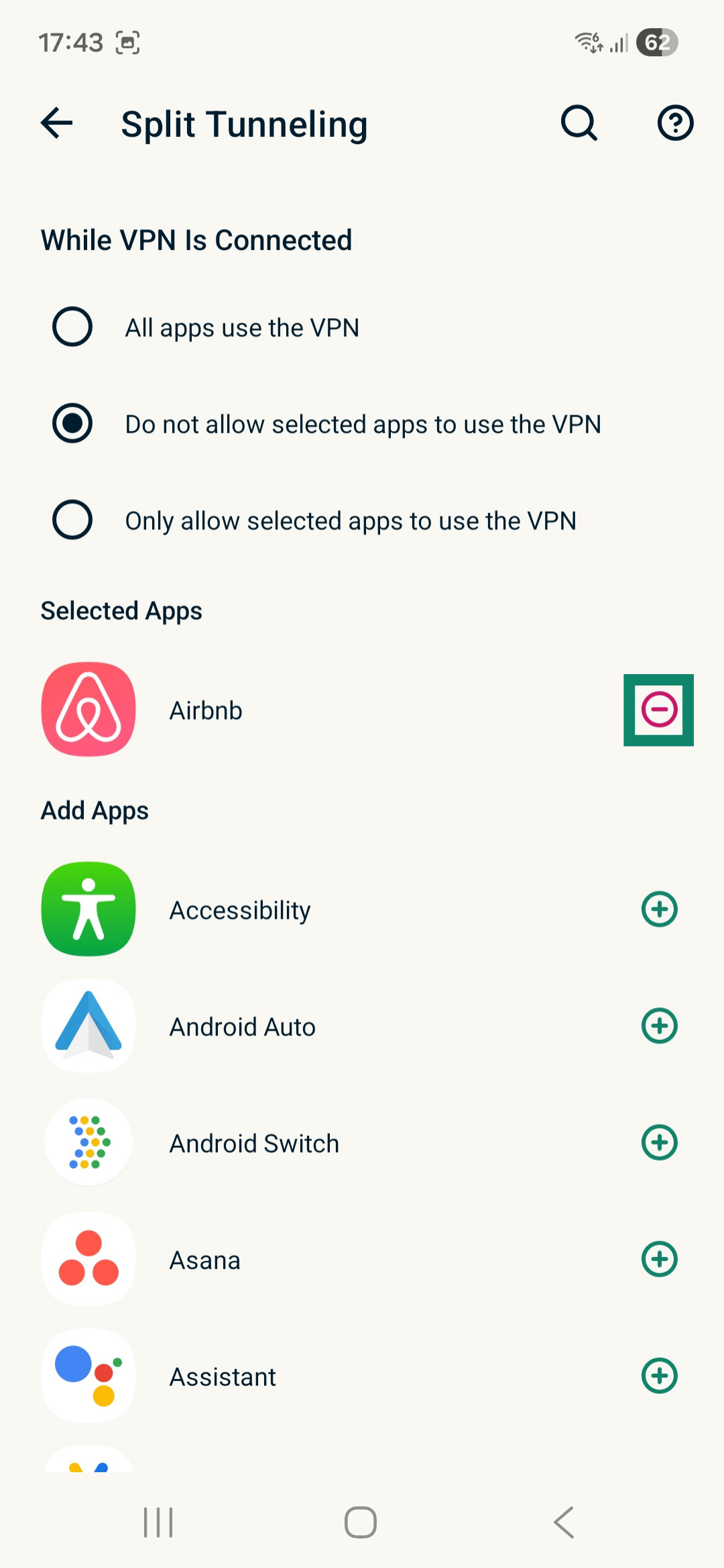
Need help? Contact the ExpressVPN Support Team for immediate assistance.
How to include only selected apps with the VPN on Android
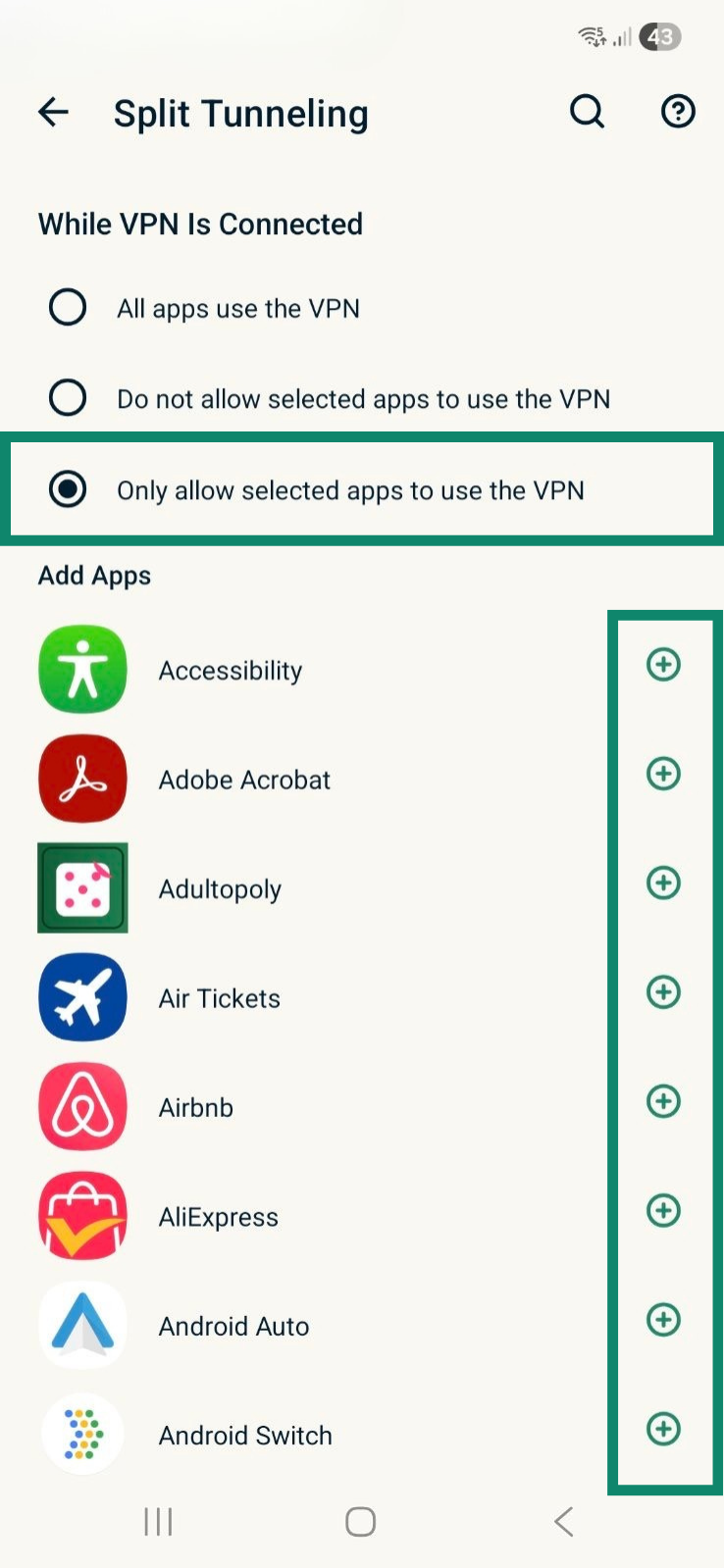
- Select Only allow selected apps to use the VPN.
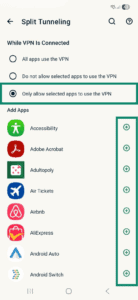
- A list of apps on your device will appear. Tap next to the app or apps you want to include. They will be added to the Selected Apps list.
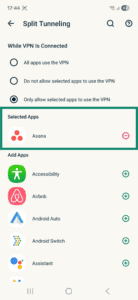
- Once done, you can exit the split tunneling settings. Only the selected apps will use the VPN connection when ExpressVPN is connected.
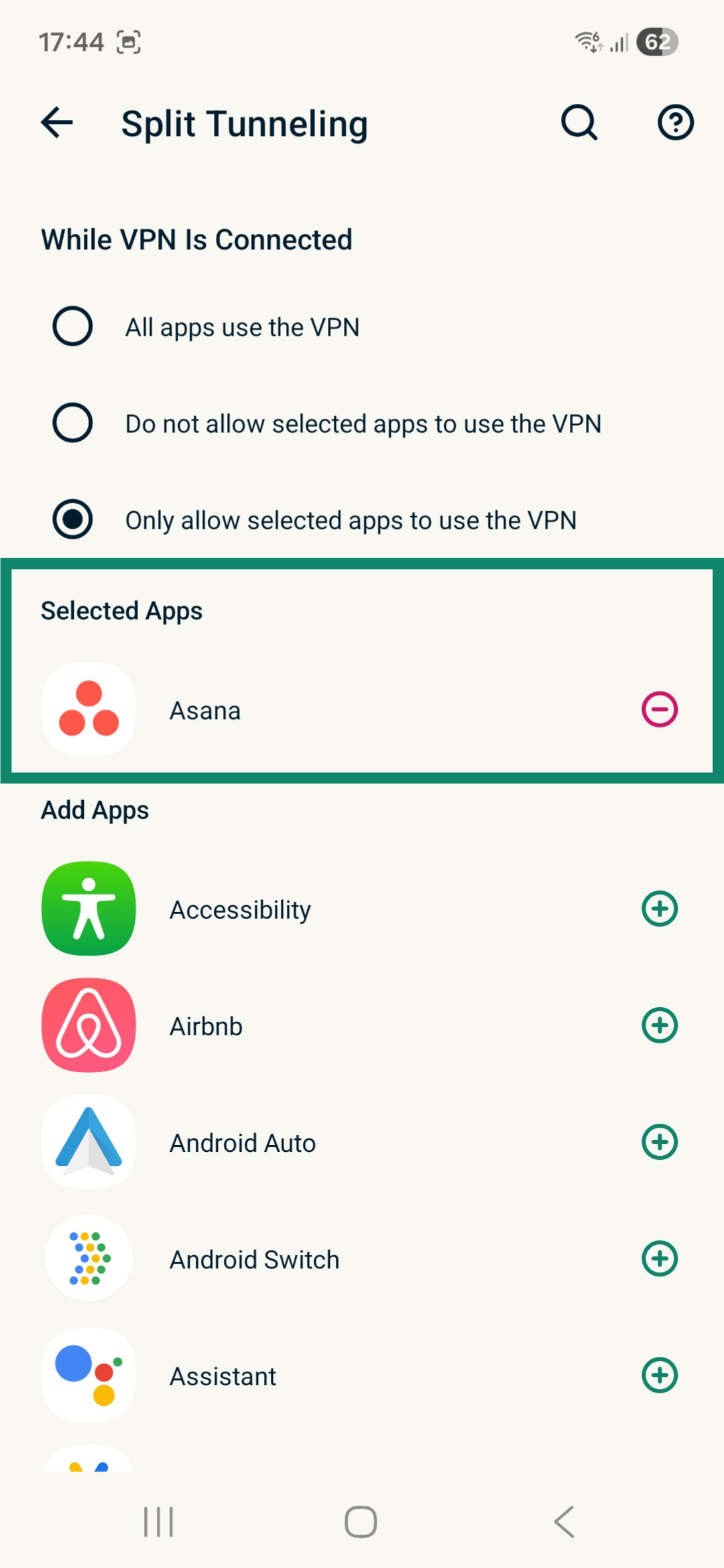
To remove an app from the Only allow selected apps to use the VPN rule
If you want to remove apps from the rule, under Selected Apps, tap next to the app in the Selected Apps list.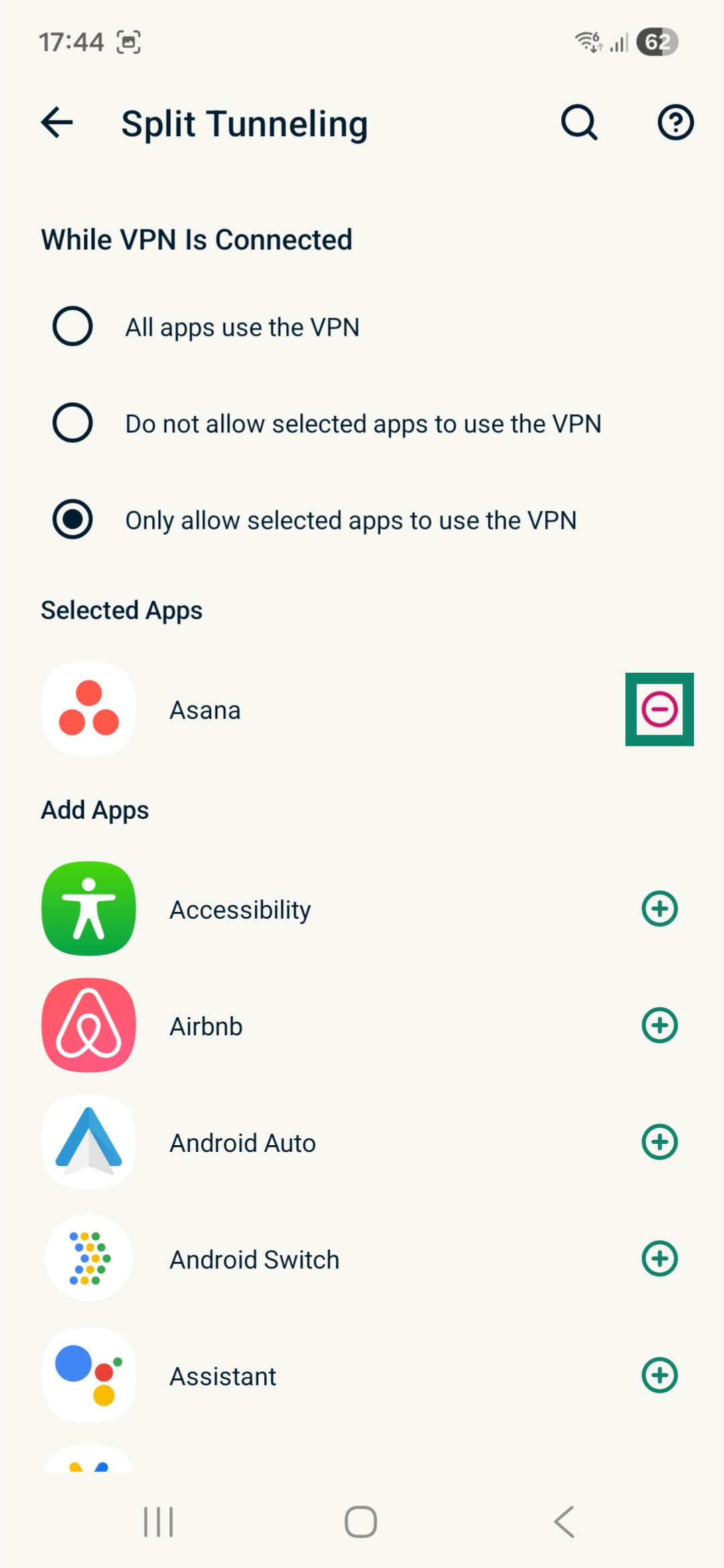
Need help? Contact the ExpressVPN Support Team for immediate assistance.
Split tunneling and Android’s “Block connections without VPN” feature
Split tunneling will not work if Block connection without VPN is enabled in your Android settings.
What is “Block connection without VPN”?
Android phones running 8.0 versions and above include a setting called Block connections without VPN. It acts as a kill switch at the operating system level, ensuring that no internet traffic leaves your device unless it goes through a VPN tunnel.
This setting is only available when Always-on VPN is enabled, which automatically reconnects the VPN whenever your device comes online. Block connections without VPN is a stricter option on top of this. It ensures that if the VPN connection drops, no traffic is allowed until it reconnects.
What happens when both are enabled?
Split tunneling works at the app level inside ExpressVPN, while Block connections without VPN works at the Android system level. Because the system setting takes priority, it overrides ExpressVPN’s per-app rules.
This means that even if you exclude an app from the VPN using split tunneling settings, Android will still block any connection that does not go through the VPN tunnel.
How to check if Block connections without VPN is active
Note: Menu names and steps may vary depending on your Android device and version.
- Open the Settings app on your Android device.
- Go to Connections > More connection settings > VPN.
- Tap the settings icon next to ExpressVPN.
- If there’s no settings icon, long-press ExpressVPN and select Edit.
- Check whether Block connections without VPN is toggled on.
If it’s on and you want split tunneling to work as expected, turn it off and reconnect to ExpressVPN.
Need help? Contact the ExpressVPN Support Team for immediate assistance.