What is IP whitelisting, and how a dedicated IP can help


IP whitelisting, or allowlisting, is a cybersecurity measure that only lets a specific list of IP addresses access a system, network, or application. This means that if your IP address changes, you may lose access to resources that rely on IP whitelisting until the new address is added.
ExpressVPN’s Dedicated IP feature can provide you with a stable IP address, which you can ask your network admin or organization to whitelist. This allows you to retain access to important resources while still protecting your traffic with VPN encryption.
What is IP whitelisting?
IP whitelisting is a system where only a specific list of IP addresses are allowed access to a system, network, or application. This means a device has to have one of those whitelisted IPs to gain access. It’s similar to needing a specific keycard to access the elevators at a workplace.
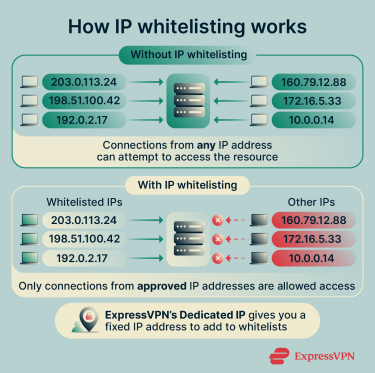
Organizations generally use IP whitelisting to help prevent unauthorized access and ensure only trusted users can access valuable assets, services, or network resources.
IP whitelisting works best if the users or networks needing access to the system have IPs that don’t change frequently. Otherwise, admins have to edit the whitelist every time IPs change, potentially leaving users unable to connect until the new IP addresses are added.
Can you use ExpressVPN with IP whitelisting?
ExpressVPN generally assigns users dynamic IP addresses. The VPN IP may be the same or different each time you reconnect, and with ExpressVPN’s ShuffleIP feature, the IP address can change for different websites you access. These changes can make it harder to link your activity across sites, but they make the connection unsuitable for networks that use IP whitelisting.
In addition to being dynamic, ExpressVPN IPs are also shared, meaning multiple people use the same VPN IP simultaneously. A shared VPN IP address isn't suitable when an organization needs to identify and allow access from a specific user or connection.
The good news is that ExpressVPN also offers a Dedicated IP feature that assigns you a static IP address that doesn’t change and that only you use. After you set up the dedicated IP address, you can share it with your network administrator so they can whitelist it.
How to use ExpressVPN Dedicated IP for IP whitelisting
Get a Dedicated IP
The Dedicated IP feature is included with the Express Pro plan and is available as a paid add-on to Basic and Advanced subscribers. Basic and Advanced users can buy the Dedicated IP add-on during checkout or through the ExpressVPN+ dashboard. For more information, refer to our Dedicated IP purchase guide.

Note: The Dedicated IP feature is only available with subscriptions purchased through the ExpressVPN site. It isn’t available with subscriptions purchased through the Google Play Store or Apple App Store.
Set up your Dedicated IP
You can activate and configure your dedicated IP through the ExpressVPN Windows, macOS, Linux, Android, or iOS apps. The tutorial below will cover how to do this using the Windows app, but the process is similar on other platforms.
Here’s how to configure the Dedicated IP feature:
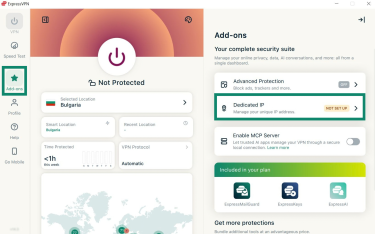
- On the VPN tab, click Add-ons and select Dedicated IP.
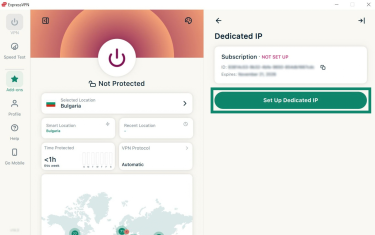
- Click Set Up Dedicated IP.
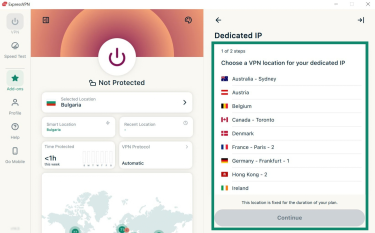
- Select your desired Dedicated IP location. ExpressVPN offers dedicated IP locations in over 20 countries. For optimal speeds, select a server near your physical location. Note that you can’t change the Dedicated IP location after you’ve set it up.
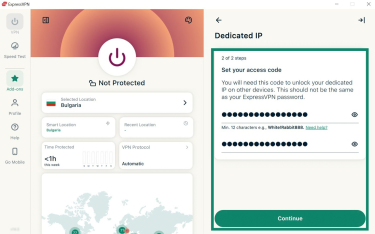
- Create an access code, enter it twice, and click Continue. You’ll use the access code to unlock the Dedicated IP on other devices. To quickly create a strong access code, we recommend using our random password generator. The access code must be different from your ExpressVPN account password.
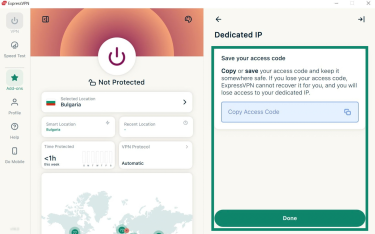
- Copy your access code and save it somewhere safe, then click Done.
For instructions on how to set up the Dedicated IP feature on other devices, refer to our macOS, Linux, Android, and iOS guides.
Important: If you lose the access code, our Support Team will try and help, but note ExpressVPN can’t view or retrieve your access code due to its commitment to privacy.
Give the IP to your administrator and connect
After you set up your dedicated IP, share the IP address with your network administrator. Once they whitelist the IP, connect to it to access the network or service. You can use the Dedicated IP feature on the ExpressVPN apps for Windows, macOS, Linux, Android, and iOS, as well as the ExpressVPN browser extensions.
Connect to the dedicated IP through the VPN server list by clicking the server location widget, then selecting the Dedicated IP location. ExpressVPN will then automatically connect to it.
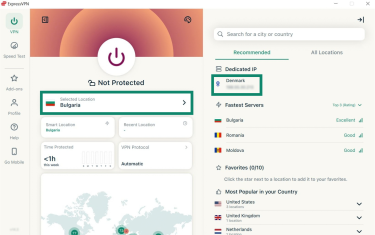
Alternatively, on the desktop apps, navigate to Add-ons > Dedicated IP, unlock the dedicated IP with your access code, and click Connect.
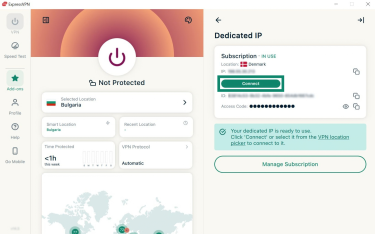
Please note you can only use the Dedicated IP feature when using Lightway, ExpressVPN’s proprietary VPN protocol, or the Automatic protocol setting, which selects the appropriate VPN protocol for your network.
For instructions on changing protocol settings on different devices, check our Windows, macOS, Linux, iOS, and Android guides.
What are the benefits of using ExpressVPN’s Dedicated IP for whitelisting?
ExpressVPN’s Dedicated IP lets you use a VPN with networks that implement IP whitelisting. You can connect to private resources using a consistent, dedicated public IP address that your network administrator can whitelist, while ExpressVPN encrypts your traffic between your device and the VPN server.
ExpressVPN’s Dedicated IP feature also includes strong privacy protections, such as zero-knowledge encryption and a blind-token system. This means ExpressVPN can’t view or access details about your dedicated IP, like its configuration settings or access code, ensuring it can’t be traced to your account or identity.
Additionally, when using the Dedicated IP feature, you may experience fewer interruptions when browsing the web. For example, platforms that typically block shared IP connections, such as some banking websites, may be less likely to trigger additional verification when you use a Dedicated IP.
Need a consistent IP address for secure access?
ExpressVPN's Dedicated IP gives you a static IP address that only you use, making it easier to access networks and services that require IP whitelisting while keeping your connection encrypted.
Get a Dedicated IP with ExpressVPN
Get Dedicated IP with Express Pro or add it to an eligible VPN plan.
FAQ
Is ExpressVPN Dedicated IP the same as a shared VPN IP?
ExpressVPN’s Dedicated IP feature assigns an IP address that only you use and that always stays the same. This is useful for accessing resources protected by IP whitelisting systems, for example. Shared VPN IPs, on the other hand, are assigned to multiple users simultaneously. They typically change on every reconnect, but may sometimes stay the same.
Can I change my ExpressVPN Dedicated IP?
Once you select a dedicated IP location, you can’t change it until your Dedicated IP add-on expires. ExpressVPN only allows one dedicated IP per account, so you’d need to create a new ExpressVPN account and get the add-on to use a separate location. Note that the ExpressVPN Support Team may be able to perform a one-time reset of your Dedicated IP subscription if the service doesn’t work as intended.
Will websites know I'm using a Dedicated IP?
If you use ExpressVPN’s Dedicated IP feature, websites may still see that the IP is associated with ExpressVPN. Websites also see connection details, so they may be able to infer that you’re using a dedicated or consistently assigned IP address. For example, an online service could associate the same IP address with your account when it repeatedly sees you accessing the account from that IP.
Does ExpressVPN Dedicated IP improve my online anonymity?
ExpressVPN’s Dedicated IP feature isn’t intended to enhance online privacy. Instead, it’s meant for situations where you need an unchanging IP address, like when dealing with IP whitelisting or platforms that block shared IPs. That said, the Dedicated IP feature has built-in privacy protections that ensure ExpressVPN can’t link your Dedicated IP to your account or identity.
What happens if my Dedicated IP is blocked?
If your dedicated IP isn’t working with some online services, you may have to reach out to the respective platform or try a regular ExpressVPN server. For more information, refer to our Dedicated IP troubleshooting guide.