How to delete your Google account permanently



Deleting a Google account can make sense in some situations, like closing an unused profile or starting over. But a permanent deletion can remove more than expected, especially if the account is still connected to important data or services.
This guide explains what permanent deletion means, how to delete a Google account on both phone and desktop, and how to back up your information first. It also covers alternatives, such as removing only a Gmail or transferring a Business Profile, when deleting the entire account isn’t necessary.
Before deleting your Google account
Deleting a Google account is usually permanent, and recovery may not be possible once some time has passed. To avoid losing important data or access to other services, it’s worth double-checking what's tied to your account. However, if you’re ready to proceed, skip to how to delete your Google account.
What happens after you delete
A Google account is used to sign in across Google services. When the account is deleted, access to that account and its data is removed, including content across services connected to that sign-in.
- Gmail, Drive, Photos, and YouTube: These services store data under the account. After deletion, access to emails and files (including Google Docs/Sheets/Slides saved in Drive) and photo backups in Google Photos is removed. The account also can’t be used to sign in to Gmail or YouTube, or manage YouTube content tied to that account.
- Google Play and YouTube purchases: You’ll lose access to subscriptions and content you bought with that account on YouTube or Google Play (including apps, movies, games, music, and TV shows). However, deleting a Google Account is different from closing a Google Payments profile. Closing a payment profile permanently removes transaction and payment information and cannot be reopened.
- Third-party accounts linked to “Sign in with Google”: If a website or app uses “Sign in with Google,” deleting the Google account removes the sign-in method for the connection. The third-party account may still exist, but access may require a different sign-in option set up directly with that service.
Other data associated with the account (including activity linked to that sign-in) is also deleted over time under Google’s deletion process.
Read more: See how to delete Google search history and remove personal Google data.
Back up or export Google data
Google lets you export certain account data, including emails, files, calendar entries, and photos. You receive this data as an archive, which you can save as a backup copy.
You can export your data using Google Takeout (a Google tool for exporting a copy of data from a Google Account):
- Go to the Google Takeout page. You’ll see multiple boxes checked for features and services tied to the account.
- Keep only the boxes checked for the data you want to back up; deselect the rest. Then scroll down and click Next step.
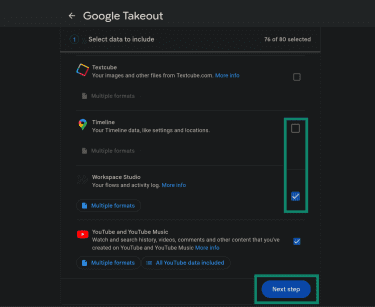
- Choose backup options such as the delivery method (for example, an email download link or an export to a cloud storage service), the export type (for example, a one-time archive), and the file type (for example, a .zip file). Then click Create export.
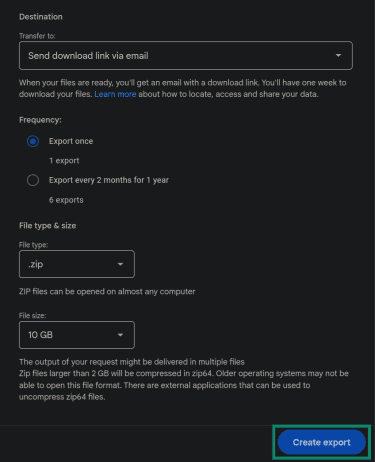
The process can take from a few minutes to a few days, depending on the amount of data included. If the export exceeds the selected archive size limit, it will be split into multiple archive files.
Note: Data that has been deleted (or is still in the process of being deleted) may not be included, and the archive download link expires in about 7 days.
Confirm access to apps and logins tied to Gmail
Deleting a Google account doesn’t delete third-party accounts created on other sites, but it can break access to them if they rely on “Sign in with Google.” It’s helpful to identify these accounts and switch them to a different sign-in method (email + password, a different email, etc.) before deleting the Google account.
To find platforms connected to your Google account:
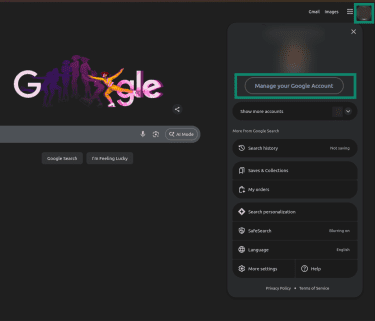
- Click the account icon (top-right corner) and go to Manage your Google Account.
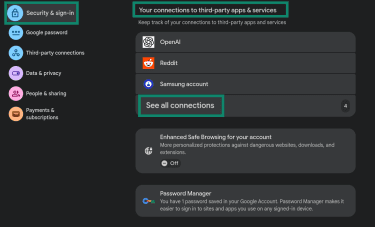
- Open Security & sign-in. Scroll to Your connections to third-party apps & services. For a view list of all connected apps, click See all connections.
- Open Password Manager (for example, at passwords.google.com or via Chrome’s Google Password Manager) to view saved logins.
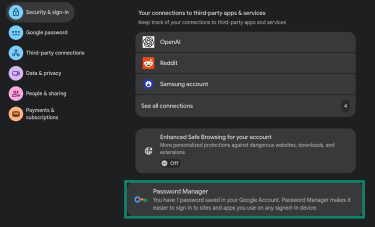
This won’t show every service that uses a Gmail address; it only lists sites and apps where login details were saved in Google Password Manager.
Review subscriptions and paid services
Reviewing active subscriptions beforehand helps you keep track of which services will stop and which ones you may want to restart under a different account.
To review subscriptions tied to your account:
- Open Manage your Google Account.
- Go to Payments & subscriptions (or Wallet & subscriptions) > Subscriptions to see the list of subscriptions associated with the account.
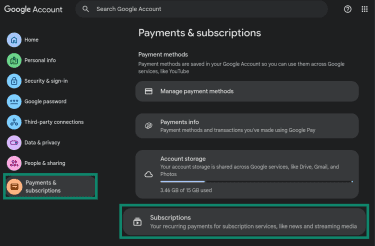
Note: Some subscriptions may be managed through Google Play (Play Store → Payments & subscriptions → Subscriptions) or through Google Payments (Subscriptions & services or Wallet & subscriptions), depending on where they were purchased.
Understand the difference between deleting a Google account and uninstalling Google apps
Deleting a Google account removes access to the account and the data stored in it across Google services.
Uninstalling apps like Gmail, Google Wallet, or Google Drive removes the app from a device (and may remove its local app data), but it doesn’t delete the account or the data stored in the account. That information remains in the Google account and can be accessed again after reinstalling the app (or by signing in elsewhere).
How to delete your Google account permanently
These steps delete your entire Google account (including the Gmail address tied to it). The process is the same across desktop and mobile; what changed is how the settings are opened.
The account must be signed in before starting. If this is a Google Workspace account managed by an organization, an admin may control account deletion.
Delete your Google account on desktop (Windows and Mac)
- In a browser, click the account icon and select Manage your Google Account.
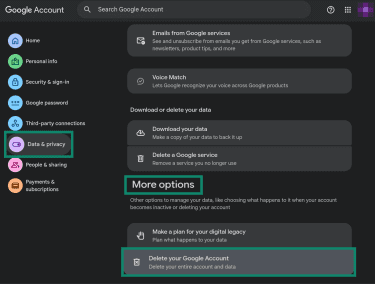
- Select Data & privacy from the left-side menu, then scroll to the More options section and click Delete your Google Account. If there isn't a "More options" section, "Delete your Google Account" is usually at the bottom of the page.
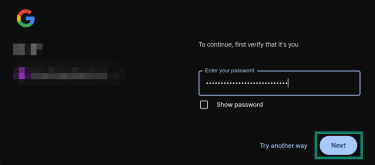
- Enter your password when prompted, then click Next.
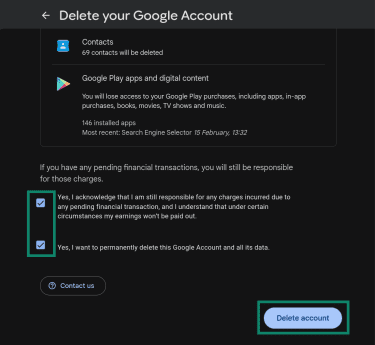
- Check the confirmation boxes and click Delete account.
Delete your Google account on Android
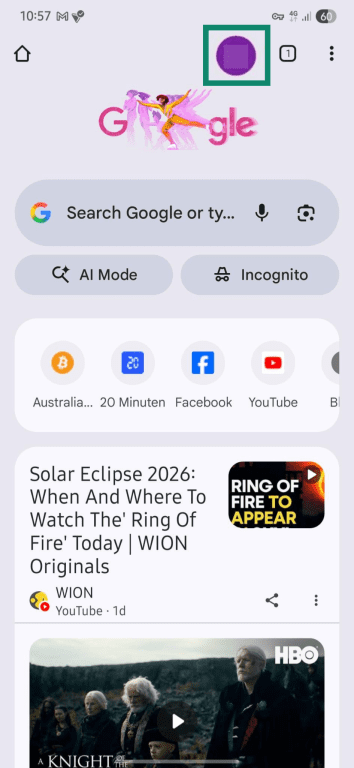
- Open Google Chrome and tap the account icon at the top of the screen.
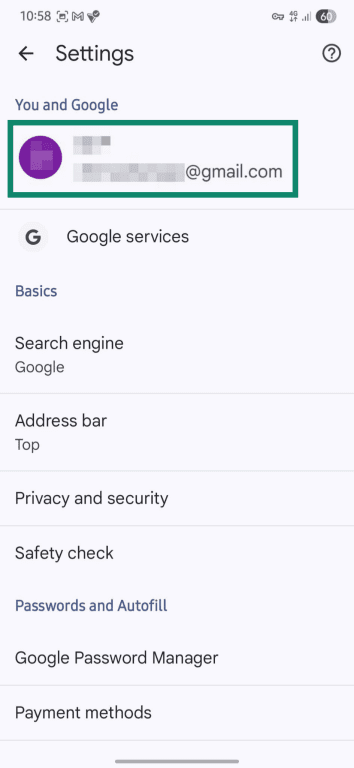
- Tap on the account address you want to delete.
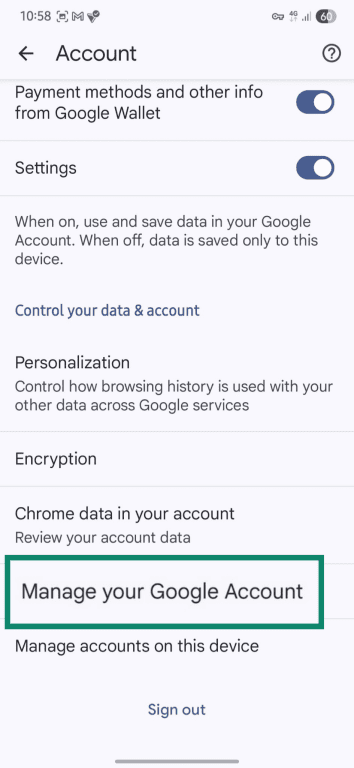
- Select Manage your Google Account.
- Open Data & privacy.
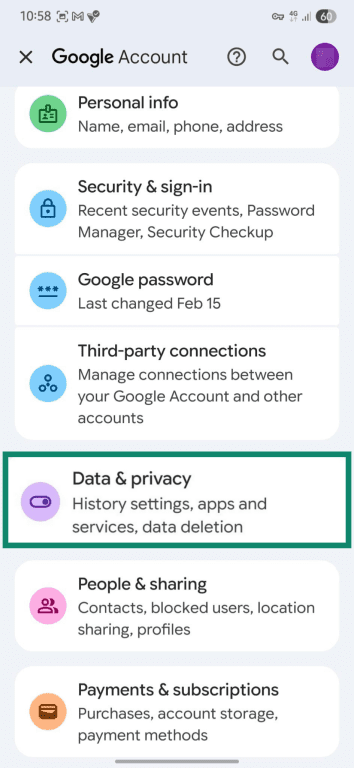
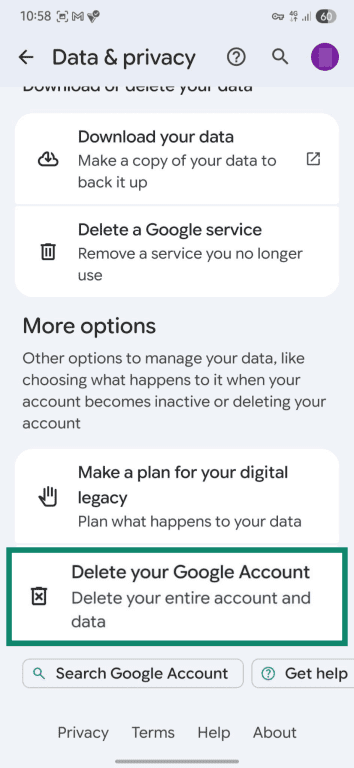
- Scroll to Delete your Google Account. Follow the prompts to confirm identity if asked (for example, by providing a password or fingerprint).
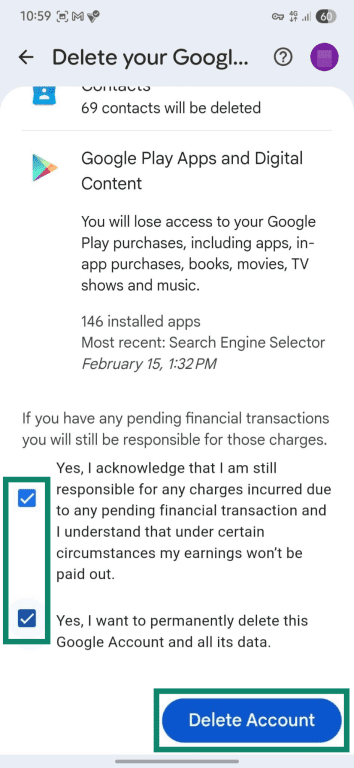
- Check the confirmation boxes and tap Delete Account.
Delete your Google account on iPhone or iPad
- Open a browser, make sure the account is signed in (for example, at myaccount.google.com).
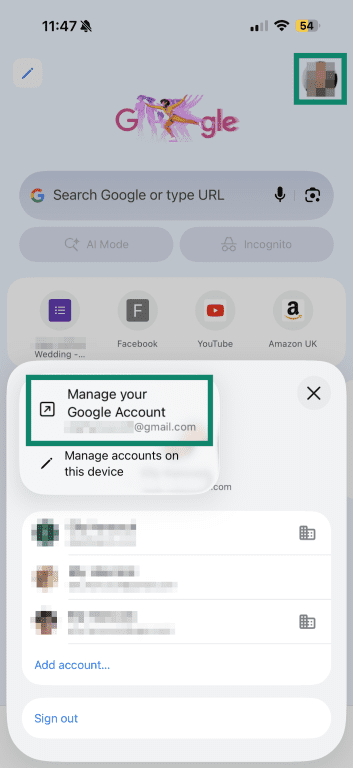
- Tap the account icon at the top, tap the three-dot menu that pops up, and select Manage your Google Account.
- Open Data and privacy.
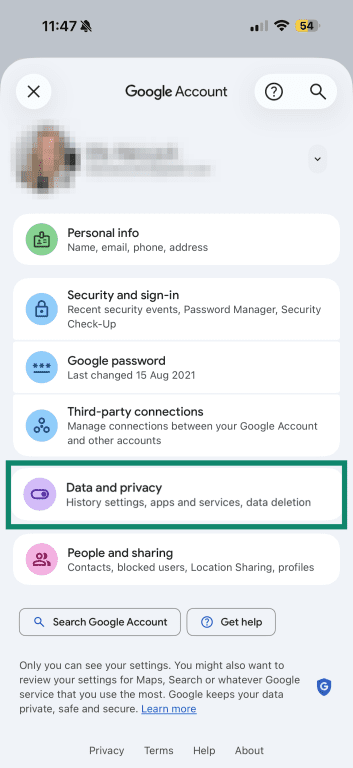
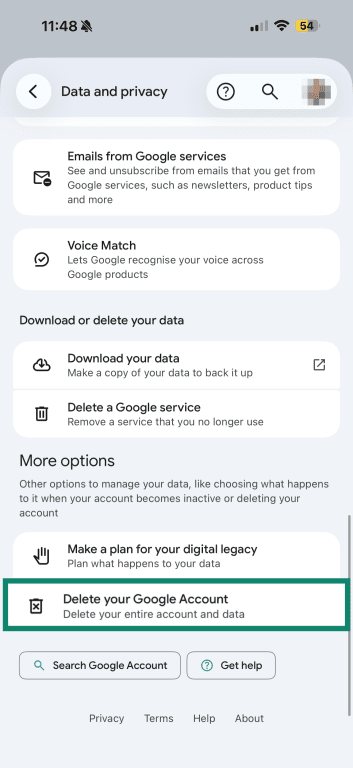
- Scroll to More options and tap Delete your Google Account. Follow the prompts to confirm your identity, such as by entering your PIN.
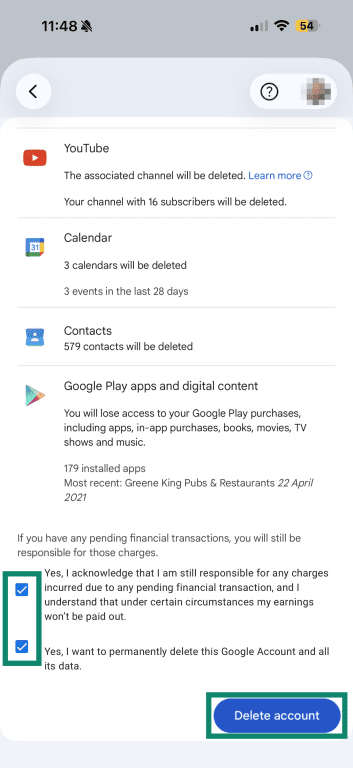
- Check the confirmations boxes, then tap Delete account to confirm.
Read more: How to delete yourself from the internet (complete step-by-step guide).
How to delete Gmail only
This method deletes a Gmail address and inbox while keeping the Google account active. It’s useful for switching email addresses while continuing to use other Google services that aren't affected.
Once removed, the Gmail address can no longer be used to send or receive emails. Gmail deletes emails and settings after 30 days. If plans change, you might be able to recover your Gmail address and emails if enough time hasn't already passed. Once deleted, the Gmail address can’t be used by anyone else in the future.
Remove Gmail from your Google account
- Open Gmail, click your profile icon, and go to Manage your Google Account > Data and privacy.
- Under Download or delete your data, select Delete a Google service.
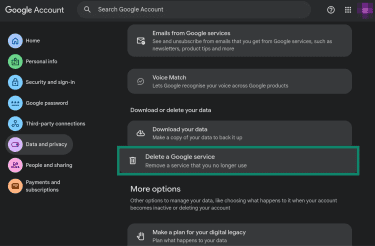
- Tap the bin icon next to Gmail.
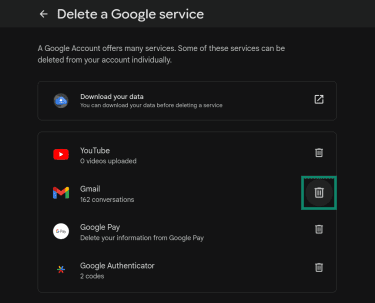
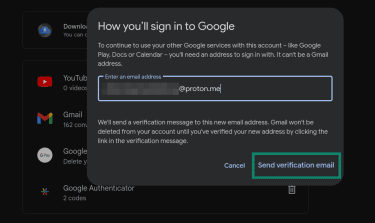
- Enter a non-Gmail email address to sign in with and select Send verification email. The change completes after that email address is verified.
Add a new primary email address
Some accounts may have an option to change the Google Account email from one @gmail.com address to another. This option is rolling out gradually and may not be available yet. Here’s how to check for it:
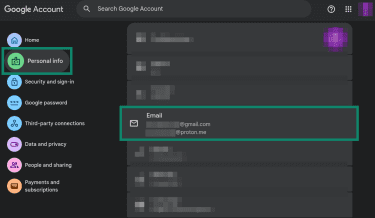
- Go to Manage your Google Account > Personal info > Email.
- Click the right-pointing arrow under Google Account email.
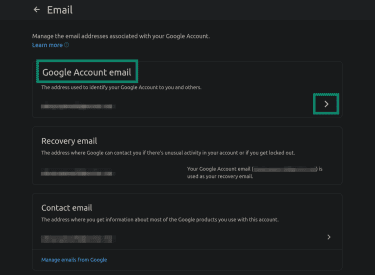
- If available, click the pen icon or Change Google Account email. Enter the new Gmail address you want to use and confirm. This must be a Gmail address that isn’t being used by another Google Account and wasn’t used by someone in the past and then deleted.
After the change, the old address becomes an alternate email, messages go to both old and new addresses, and Google limits how often new @gmail.com account emails can be created.
According to Google's official Help Center documentation, switching Gmail addresses can affect Sign in with Google on non-Google sites. Some platforms might not recognize the new email or may not recognize that it's the same account. See Google’s troubleshooting guidance for guidance.
How to delete a Google Business account
Google Business Profile is a free tool for managing how a business appears on Google Search and Google Maps (for example, business info, photos, posts, and reviews). It uses a Google Account for management access. Removing the Google account (or removing access) can prevent future management, and the listing may still appear on Search or Maps.
To stop managing a Business Profile, remove yourself as an owner/manager, or remove profile content and managers, you need to take different steps. Removing profile content and managers doesn’t guarantee the business won’t show up on Maps and Search, and removing a profile from Search/Maps is a separate request process.
Remove yourself as an owner or manager
This option stops management while keeping the listing active. If the account is the primary owner, primary ownership must be transferred first.
To transfer ownership:
- Go to the Business Profile page (make sure you’re signed in).
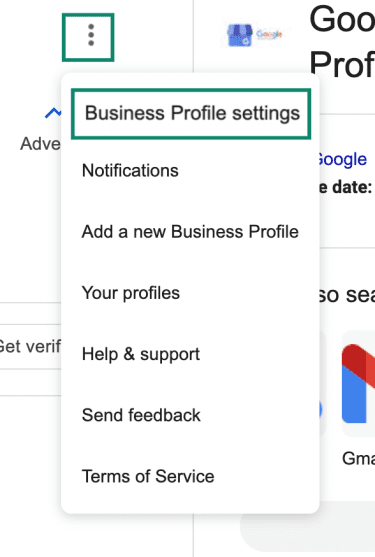
- Tap the three-dot menu and go to Business Profile settings.
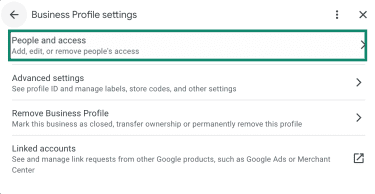
- Select People and access.
- Select the user you’d like to transfer ownership to, then next to Access, click Edit.
- Select Primary owner and click Save. New owners/managers must wait 7 days before they can manage all features, and may encounter errors if they attempt certain admin actions during that period.
If you need to add a new owner first:
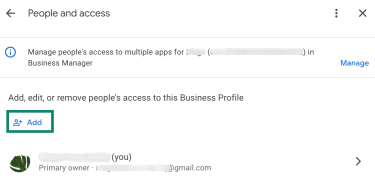
- Go to People and access, and click the Add option.
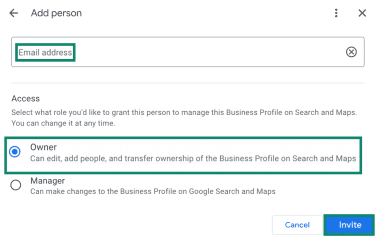
- Enter a new email address, select Owner, and click Invite.
To remove yourself from the Business Profile:
- Select your profile under the People and access section.
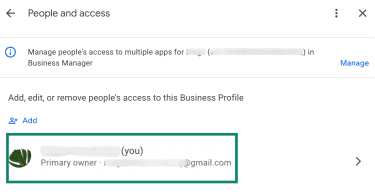
- Select Stop managing and click Confirm.
Remove a Business Profile from your account
This option removes profile content and managers. Any posts, photos, videos, and review replies by owners and managers are permanently removed, and user-generated content and reviews remain.
- In your Business Profile, go to the three-dot menu > Business Profile settings > Remove Business Profile.
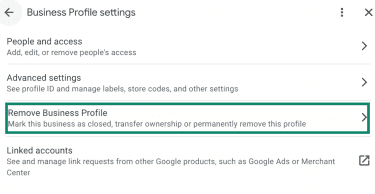
- Click Remove profile content and managers.
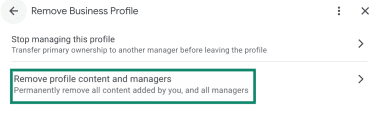
- Choose Continue > Remove > Done.
Remove a single business location
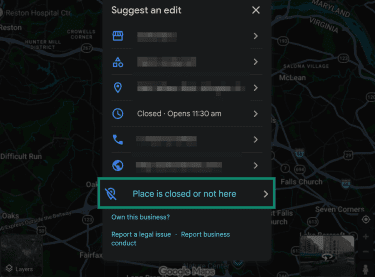
This option lets you request that a single location be updated (for example, marked as permanently closed or not located there) in Google Search and Google Maps. Google reviews edits, so it may take some time for changes to appear.
- In the Google Maps view, select the location you want to remove.
- Find and click Suggest an edit in the new menu.
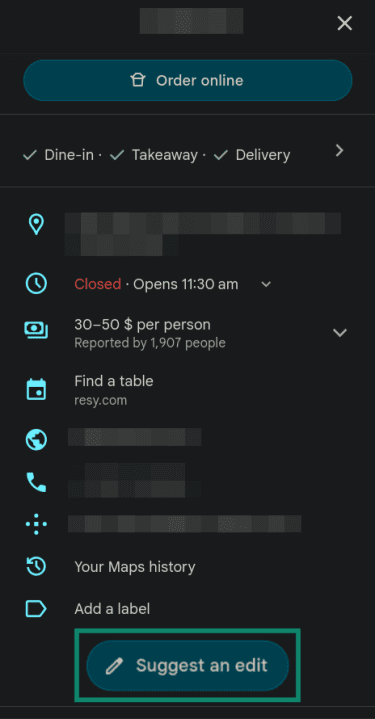
- Choose the Place is closed or not here option.
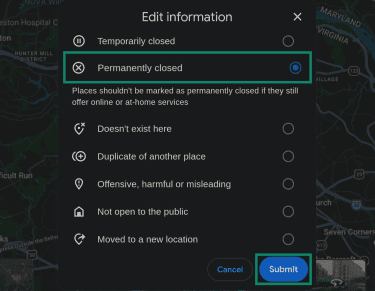
- Select Permanently closed or any other fitting option and click Submit. Google may contact the account or provide an update on the edit, depending on the case.
How to recover a deleted Google account
If a Google Account was recently deleted, recovery may still be possible for a limited period. If the account was deleted a while ago, recovery may no longer be possible.
For work/school accounts managed by an organization, recovery may require an administrator and may have a limited restore window.
To recover a recently deleted account:
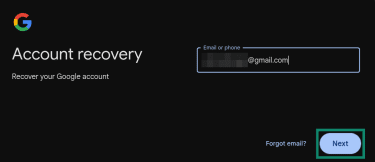
- Open Google’s account recovery page.
- Enter the email address for the account you want to recover and click Next.
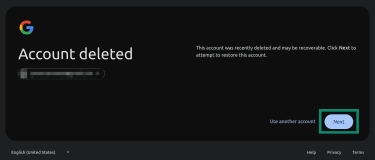
- You’ll typically see a message saying “This account was recently deleted and may be recoverable.” Click Next again.
- Follow the prompts to confirm it’s your account (for example, by answering recovery questions or confirming a password). Click Next.
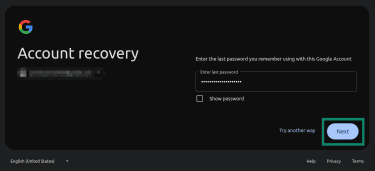
- If successful, the next message should confirm you’ve undeleted your account. Click Continue to enter the account.
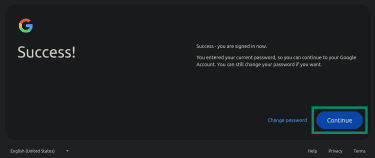
If the account is recovered, create a password that hasn’t been used with this account before.
Read more: How to recover a hacked Google account. If the goal is only to remove the account from that phone (while keeping the account active), remove it in the device settings under Passwords & accounts (or similar) > select the account > Remove account.
FAQ: Common questions about deleting a Google account
Does Google delete inactive accounts?
Will deleting a Google business account delete reviews?
How do I delete contacts from my Google account?
What will happen if I delete my Google Pay account?
Can I delete a Google Account from my phone only?
Take the first step to protect yourself online. Try ExpressVPN risk-free.
Get ExpressVPN













 Support Center
  FAQ
FAQ  VPN Setup Tutorials


