How to clear cache on Xbox for better performance



If your Xbox is experiencing performance drops, delayed load times, update errors, or interface slowdowns, clearing the system cache can help. Temporary system data occasionally becomes corrupted or inefficient, affecting how quickly the console processes tasks. Removing that temporary data allows the console to regenerate fresh system cache files the next time they’re needed without impacting installed content or saved progress.
This guide explains how to clear the cache on any Xbox console safely and includes additional tips to optimize your gaming console’s performance and prevent overheating.
Understanding Xbox caches
A cache is temporary system storage that your Xbox uses to speed up everyday tasks. Instead of repeatedly pulling the same data from the internal drive, the console temporarily stores frequently accessed information so it can load it faster the next time it’s needed.
This temporary data is created continuously while you use the console. It can include partial system update files, game update data, interface resources, and Blu-ray playback data on disc-enabled consoles.
Why the cache can cause problems
Although caches are designed to improve performance, they can occasionally become inefficient. If a game crashes, a download is interrupted, power is lost unexpectedly, or a system update fails, temporary files may become incomplete or corrupted. When that happens, the console may continue referencing outdated data, which can sometimes contribute to slower load times, freezing, update errors, or games failing to launch properly.
When to clear cache on Xbox
Clearing the Xbox cache is more of a troubleshooting step than a maintenance routine. You should consider clearing it if you notice:
- Games taking longer than usual to load.
- The dashboard or menus responding slowly.
- A game freezing, stuttering, or crashing unexpectedly.
- Updates failing to install or repeatedly restarting.
- Error messages appearing without a clear cause.
These issues can sometimes be linked to temporary system data becoming outdated or corrupted. Clearing the cache removes those temporary files and allows the console to rebuild them cleanly, which can restore normal performance without affecting installed games or saved progress.
How to clear cache on Xbox step by step
The exact steps for clearing cache on an Xbox depend on which Xbox generation you’re using. Below, you’ll find step-by-step instructions for each model.
Note: These steps clear temporary system files and memory and won’t remove installed games, apps, or saved data.
Cache clearing on Xbox Series X|S consoles and Xbox One
Newer consoles like the Xbox One and Xbox Series X|S clear cache through a full power cycle:
- Turn off the console: Press and hold the power button on the front of the Xbox for about 10 seconds until it fully shuts down.
- Unplug the power cable: Disconnect the power cord from the back of the console.
- Reconnect and restart: Wait 1–2 minutes, then plug the power cable back in and turn the console on.
Cache clearing on Xbox 360
The Xbox 360 includes a built-in system cache option in Settings.
- Press the Guide button on your controller.
- Go to Settings.
- Select System Settings.
- Choose Storage.
- Highlight your main storage device.
- Press Y for Device Options.
- Select Clear System Cache.
Keep in mind that clearing the cache on your Xbox 360 can remove previously downloaded game updates, which you’ll need to redownload the next time you play those games.
What if clearing cache doesn’t help
While clearing system cache may resolve temporary performance issues, Xbox consoles also include several other reset tools that address specific problems related to media playback, network configuration, or locally stored data. These options serve different purposes and should not be confused with a standard cache clear.
Clear persistent storage (Disc consoles only)
Persistent storage is a secondary cache used for Blu-ray playback data. When you insert a Blu-ray disc, the console may download additional content such as BD-Live features, interactive menus, and bookmarking data. This information is stored temporarily, so it doesn’t need to be reloaded every time the disc is inserted.
If you’re having playback issues or slow disc loading times, clearing persistent storage may help.
To clear persistent storage on Xbox One or Xbox Series X:
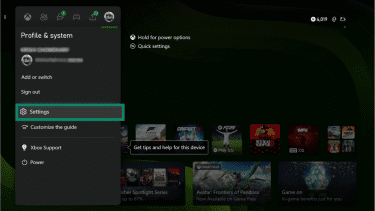
- Press the Xbox button, navigate to the Profile & system tab, and select Settings.
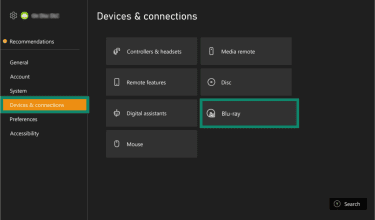
- Navigate to Devices & connections and select Blu-ray.
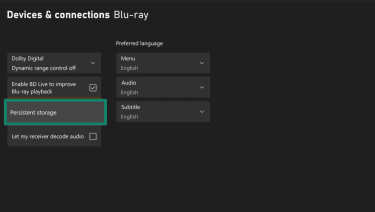
- Choose Persistent storage.
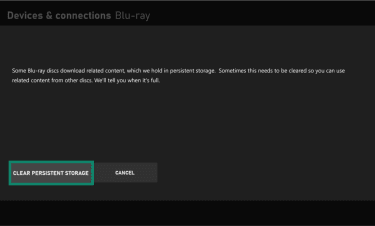
- Select Clear persistent storage.
Note: This setting isn’t available on the Xbox Series S due to its lack of a physical disc drive, nor on the Xbox 360, which uses DVD rather than Blu-ray technology.
Clear Alternate MAC address
The Alternate Media Access Control (MAC) address setting is a network troubleshooting feature that’s available on the Xbox One and Series X|S that allows the console to override its default network hardware identifier.
A MAC address is a unique ID assigned to a device’s network adapter, and some managed networks, such as those in dorms, hotels, or offices, require devices to register this identifier before granting internet access.
If a previously entered alternate MAC address becomes outdated or mismatched with the current network, the console may fail to connect properly. In this case, clearing the alternate MAC address forces the console to revert to its default hardware MAC and refresh its network connection.
To clear the alternate MAC address on your Xbox:
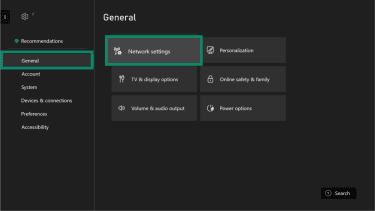
- Open Settings, then go to General and select Network settings.
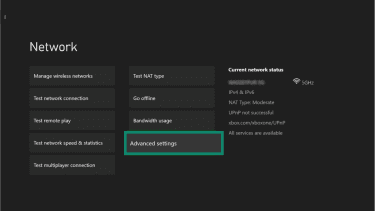
- Select Advanced settings.
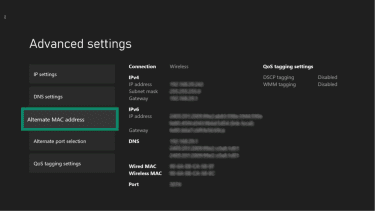
- Click Alternate MAC address.
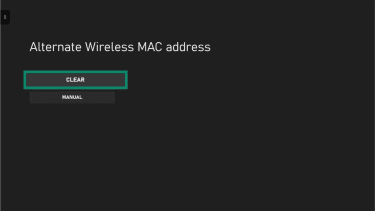
- Select Clear.
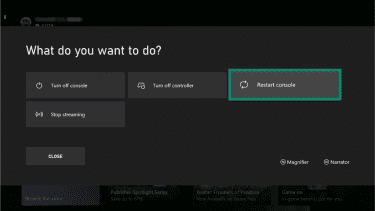
- Hold the Xbox button on your controller, then select Restart console.
Clear local saved games
If a game fails to load progress, repeatedly crashes during startup, or shows sync errors, deleting the local save forces the console to download the cloud-synced copy the next time the game launches.
The latest Xbox versions automatically back up saves to the cloud when connected online, so when you clear local saved games, the console deletes only the locally stored copies. After you sign back in, your cloud saves resync automatically once the console is connected to the internet.
However, if the console hasn’t recently synced to the cloud, local saves may be permanently lost.
To clear local saved games on Xbox One or Xbox Series X|S:
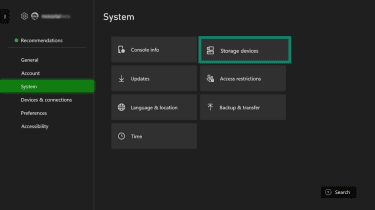
- Open Settings and select System. Then, choose Storage devices.
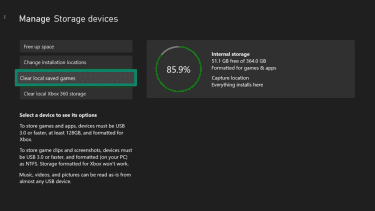
- Select Clear local saved games.
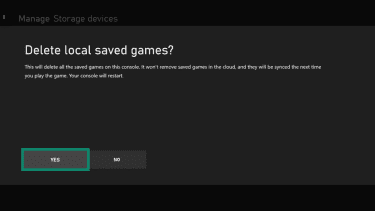
- Confirm the action by clicking Yes. The console will restart.
For the Xbox 360, there’s no “clear local saved games” option in Settings. Saved files must be removed manually from the Storage menu by navigating to each game and deleting its saved data individually.
Additional troubleshooting steps for Xbox
If you’ve cleared both your cache and persistent storage, as well as your alternate MAC address, and still see no improvement in console performance, the issue might be elsewhere.
Check Xbox service status
Microsoft provides an official status page where you can check the status of Xbox services. The status key includes three categories:
- Up and running: Everything is working normally.
- Limited: Certain features, games, or services may be affected.
- Major outage: Indicates widespread service disruptions.
Below the status key, you’ll see a list of Xbox service categories (such as Games & gaming, Account & profile, and others), which lets you quickly check if a specific service is currently experiencing issues.
Update console and controllers
You might experience performance issues if your Xbox isn’t up to date or if your controller is running outdated firmware. Your console periodically checks for updates and you’ll usually be prompted to install any available updates. Follow the on-screen instructions and allow the update to complete before restarting your console.
Manually update your Xbox console
If you don’t see an update prompt, you can manually check and update your Xbox:
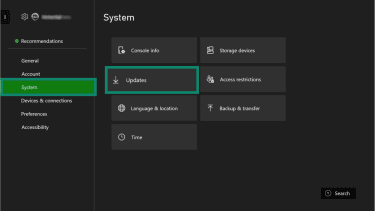
- Go to your console’s Settings, open the System tab, and select Updates.
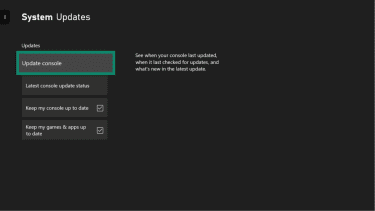
- Select Update console.
Manually update your controller’s firmware version
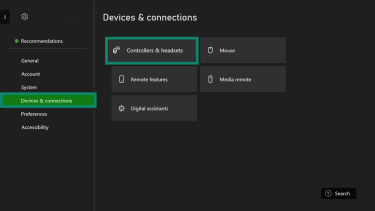
- From the Settings menu, go to Devices & connections, then Controllers & headsets.
- Select the three-dot More options button.
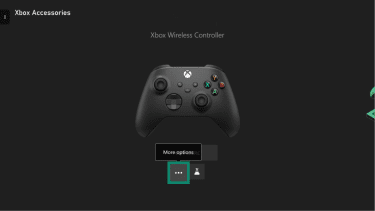
- Click Update now.
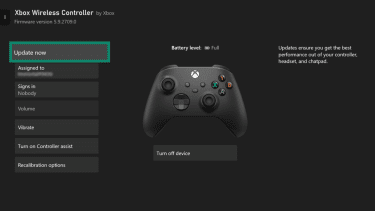
- Select Update now again.
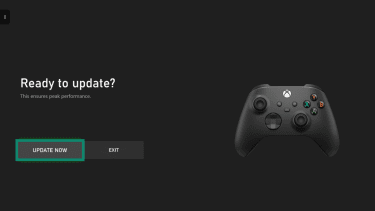
Keeping your console and controller updated ensures you have the latest stability fixes and performance improvements.
Reinstall the problem game or app
Reinstalling a game downloads a fresh copy of the latest files and replaces any corrupted or incomplete installation data.
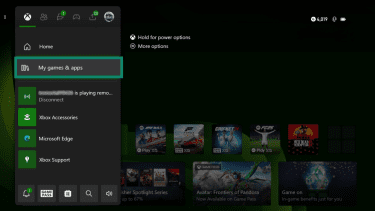
- Press the Xbox button on your controller and go to My games & apps.
- Select See all.
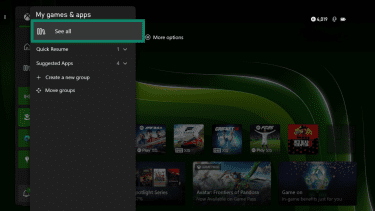
- In the Games tab, you’ll see all your games from both the internal and external storage in one place.
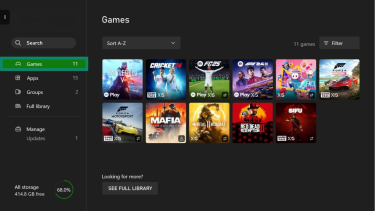
- Go to the game you want to delete, press the three-line button on your controller, and select Uninstall.
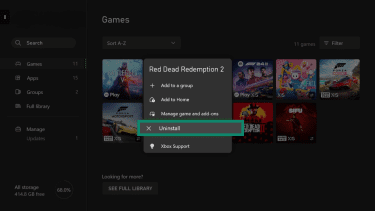
To reinstall the game, simply go to your Xbox library, search for the game, and install it.
Reset Xbox and keep games
If you’ve tried everything so far and still see no improvement, you may need to perform a soft factory reset.
This option resets the operating system and removes accounts, settings, and locally stored data, while keeping installed games and apps. So, it’s important to make sure your game data has been backed up to cloud storage before moving forward with the steps. Once that’s done:
- Go to Settings > System > Console info.
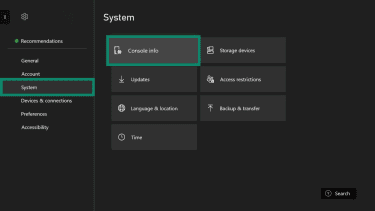
- Select Reset console.
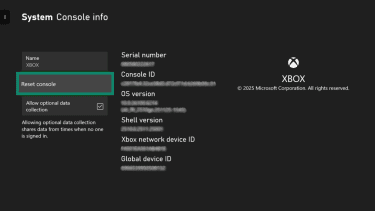
- Choose Reset and keep my games & apps.
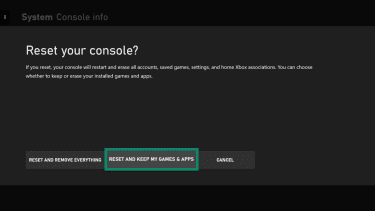
Wait for the Xbox to reset. After the reset is complete, log back into your account.
Tips to keep Xbox running smoothly
Beyond clearing the cache, there are several practical steps you can take to maintain consistent performance and keep your Xbox running smoothly.
Free up storage space
A full Xbox storage might also lead to slow performance and game lags. There are a few ways to clear up storage on your Xbox.
Uninstall unused games
This is the simplest way to free up a lot of space on your Xbox quickly. You can choose to uninstall games you’ve completed or stopped playing, or those you don’t play frequently.
- Go to the My games & apps section, select See all, and then click Free up space under Manage.
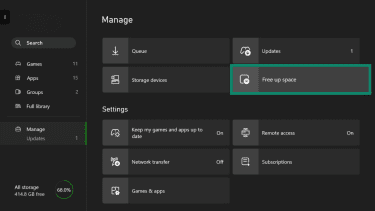
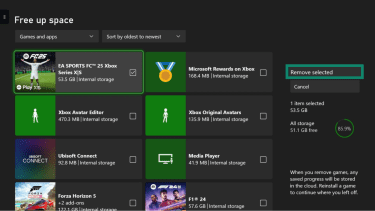
- Xbox will display apps and games you can uninstall. Select what you want to delete and choose Remove selected.
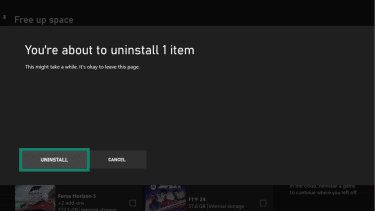
- Click Uninstall.
Use an external drive
If you don’t want to delete locally saved games, you can use an external drive. But it must have a capacity of at least 128 GB and connect via USB 3.0/3.1. Anything below this will be recognized as media storage by the Xbox, and it won't give you the option to install or move games to it.
When it comes to picking an external drive for Xbox, you have three options:
- Official Expansion Card: This is essentially an internal extension of Xbox memory. It uses the same architecture as the console’s internal storage, making it the fastest option.
- Hard Disk Drive (HDD): This is the cheapest option. However, you can’t play Optimized for Xbox Series X|S games directly from it, and transferring games back and forth to internal storage is slow.
- Solid-State Drive (SSD): This offers a strong balance between performance and price. SSD speeds are generally faster than HDD and more affordable than expansion cards.
When you first connect your drive to the Xbox console, you’ll be prompted to format it. This is because a drive can be used either for storing games or media (via computer or mobile), not both.
Next, you’ll be asked whether you want to use the drive on a specific console or across multiple gaming consoles.
Prevent overheating and improve airflow
Place your Xbox console on a stable surface in a well-ventilated area to ensure proper airflow. Keep it away from direct heat sources and position it in a relatively cool space. Also, avoid cluttering the area around your console or placing objects on or beside it, as this can block the air vents and lead to overheating.
Reduce background apps and Quick Resume
When multiple games are open on your Xbox, the console uses the Quick Resume feature to save the latest progress of each game in suspended memory, allowing you to resume without reloading the game. While Quick Resume allows you to switch between games quickly, closing unused games can sometimes help resolve temporary glitches or syncing issues.
For this reason, it’s recommended to close background apps and clear Quick Resume games at the end of each gaming session. To do this, go to the game that was recently running, press the three-line button on your controller, and select Quit.
FAQ: Common questions about how to clear cache on Xbox
Does clearing the cache delete games?
Will clearing the cache delete saved data?
How often should I clear the cache?
Will clearing the cache improve performance?
Take the first step to protect yourself online. Try ExpressVPN risk-free.
Get ExpressVPN











 Support Center
  FAQ
FAQ  VPN Setup Tutorials


