How to effectively remove Chromium virus


Seeing unexpected browser behavior or an unfamiliar Chromium-based application on a device can raise questions. The term “Chromium virus” is often used as a catch-all label for a range of browser-related threats or unwanted software, rather than a single specific threat. These issues can involve fake browser apps, malicious extensions, browser hijackers, adware, or other software that interferes with normal browsing.
This guide explains the different threats, how to remove them, and the best ways to stay safe.
Understanding the Chromium virus
First, it’s important to understand that “Chromium virus” doesn’t refer to a single specific threat. Instead, it's an informal label people sometimes use to describe problems involving Chromium-based browsers or software that pretends to be related to Chromium.
Second, it’s worth noting the distinction between malware and viruses. Malware is a broader term for software designed to cause harm. Viruses are a specific type of malware capable of self-replication.
The truth is that most Chromium viruses are not, strictly speaking, viruses. However, in popular usage, the words “virus” and “malware” are often used interchangeably. In practice, many so-called Chromium “viruses” are not true viruses at all, though the terms “virus” and “malware” are often used interchangeably in everyday language.
Before looking at how these threats work, it helps to understand what Chromium actually is
What is Chromium?
Chromium is a legitimate open-source browser project managed by Google. It provides the core code used by many well-known browsers, including Chrome, Microsoft Edge, Brave, Opera, and Vivaldi.
However, Chromium itself is not packaged the same way as consumer-focused browsers like Chrome or Edge. Compared with Chrome, it may lack some built-in services, proprietary media codecs, and the update infrastructure most everyday users expect. For that reason, Chromium is less commonly used by mainstream consumers and more often used for development, testing, or by people who specifically want a stripped-down open-source browser experience.
In simple terms, Chromium provides the foundation, while browsers like Chrome and Edge are finished products built on top of it.
Defining the “Chromium virus”
On its own, Chromium and most Chromium-based browsers are legitimate software. Problems arise not from the core project itself but from how its name, codebase, or browser environment can be misused by threat actors or distributors of unwanted software.
These threats often appear legitimate at first glance. In reality, they may be designed to interfere with browsing, collect data, inject ads, redirect searches, or make other unwanted changes. Some may be clearly malicious, while others fall into the category of potentially unwanted applications rather than outright malware.
Chromium-related threats generally fall into three categories: malicious or repackaged browsers, dangerous extensions, and unrelated malware or unwanted software that affects Chromium-based browsers.
Fake or repackaged Chromium-based browsers
Threat actors may create malicious or intrusive browsers using Chromium’s source code. These programs may imitate a legitimate Chromium-based browser such as Chrome, use the Chromium name directly, or present themselves as a generic browser app promising fast speeds or greater privacy. In other cases, they may not use Chromium’s code at all but still claim to be related to it.
Instead of functioning like a standard browser, these programs may redirect searches, inject ads, track browsing activity, or make unauthorized changes to settings. Because Chromium is open source, attackers can fork or repackage its code and add harmful features. The risk comes from those altered builds, not from the legitimate Chromium project itself.
Malicious extensions and add-ons
In many cases, the browser isn’t the primary problem. While extensions are often safe and useful, some can cause serious harm. Malicious extensions can steal data, alter search results, hijack sessions, monitor browsing activity, display intrusive ads, or block users from restoring normal settings.
Dangerous add-ons may come bundled with a malicious browser or installed by an unsuspecting user. Because extensions can often look harmless and may request broad permissions, they can be an effective way for unwanted software to gain access to a browser and remain installed without drawing much attention.
Malware not directly tied to browsers
Legitimate Chromium-based browsers can also be affected even when no malicious extension is present. Many potentially unwanted programs (PUPs) and adware packages work at the operating system level. Rather than attacking the browser directly, they may change system settings, registry keys, startup tasks, or the configuration sources that browsers rely on.
From the user’s perspective, it looks like the browser itself has been infected. This kind of software may change the default search engine or homepage. It may also push policies into the system that Chromium-based browsers automatically obey. This can lead to redirects, intrusive ads, or other unwanted changes to browsing behavior. In some cases, it may also expose users to more serious malware.
How to identify a Chromium virus
The warning signs of malware vary greatly. Even within the category of Chromium viruses, the symptoms will depend on what is actually affecting a browser. Malicious extensions, Trojan browsers, and other desktop threats can all behave differently.
Read more: How to know if your computer has a virus.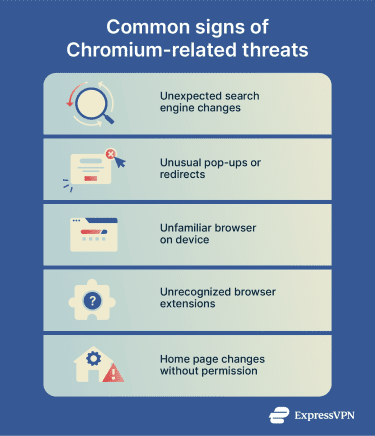
How to troubleshoot Chromium issues
If you believe your copy of Chrome, Edge, or any other Chromium-based browser has issues, it may be wise to try other fixes before removing it. Google recommends steps such as clearing browsing data, removing suspicious extensions, and resetting browser settings. Microsoft also recommends Edge troubleshooting measures such as clearing browsing data, reviewing extensions, scanning for malware, and repairing the browser.
Basic browser troubleshooting steps include:
- Clear your browser cache and cookies.
- Review installed extensions and disable anything unfamiliar.
- Run any built-in safety or security checks available in the browser’s settings.
- Reset the browser settings to their defaults and see if issues persist.
How to remove the Chromium virus
Removing unwanted software affecting Chromium-based browsers can involve resetting settings, manually removing apps or add-ons, or modifying system configurations. Before you begin, take a few basic precautions to avoid losing important data or interrupting other processes.
Before you start: Back up important information
Before removing a Chromium virus or related files, take a moment to prepare the system to ensure the cleanup goes smoothly.
If you believe your device is seriously compromised, it’s a good idea to back up all important documents and files. If the issue appears limited to a browser, your personal files may be unaffected, but it still makes sense to take precautions.
You may also want to save browser data in case anything is lost during cleanup. Browser sessions, history, and cookies may contain useful information.
Chrome, Edge, and many other Chromium browsers allow users to sync data across devices. This can help preserve selected browser data in the cloud, depending on what sync options are enabled. The easiest way to check is to open the browser’s settings and look for Sync, where you can see whether syncing is enabled and which types of data are included.
If syncing is not being used, browser data can also be saved manually, but the process is more complex and varies by operating system and browser. It may require copying files from the browser’s data folder and restoring them carefully later. Manual restoration can be complicated, and not all types of browser data will transfer cleanly to a fresh install.
Why is Chromium on my Mac?
Chromium is not preinstalled on Macs, and Safari is the default browser on a new Mac. If Chromium appears on the device and there is no memory of installing it, that may be a sign of unwanted software or a suspicious browser app. However, Chromium can also be installed legitimately for testing, development, or personal preference
If the installed version of Chromium is unfamiliar, unwanted, or behaving suspiciously, removing it is usually the safest option. Treat it as a potential sign of compromise if a new browser appears without a clear explanation.
How to uninstall Chromium on Mac
Whether you believe that the Chromium-based browser you’re using seems suspicious or you simply don’t need it, uninstalling the app may be the best course of action.
Mac users can remove suspicious or unwanted browsers by taking the following steps:
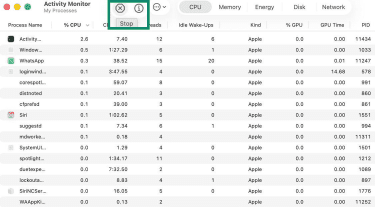
- Look in the Dock for an icon associated with the browser you’re trying to remove, then right-click it and choose Quit. If it doesn’t quit, open Activity Monitor and Stop any processes tied to the browser.
- Open Finder and go to the Applications folder. Find the app and drag it into the Trash. If a prompt says that the app is in use, go back and make sure all browser processes are closed.
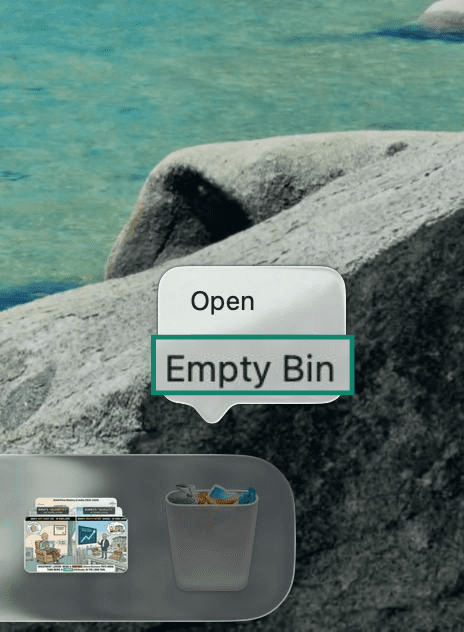
- Right-click the Trash icon and select Empty Bin to permanently remove the application files. Alternatively, choose Finder > Empty Trash to permanently remove the application files.
Remove login items and background items
Some unwanted Chromium-based threats may install login items or background components that cause the software to relaunch when the Mac starts.
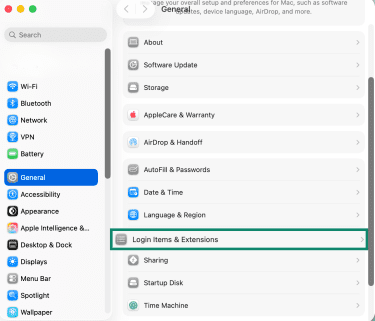
- Open System Settings and select General in the sidebar. From there, click Login Items & Extensions.
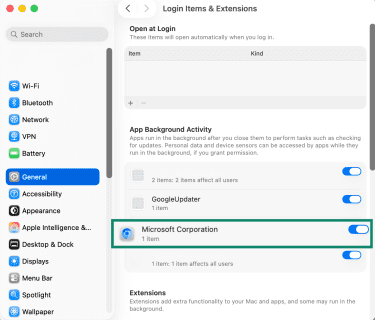
- Review the apps that open at login and the items allowed to run in the background. Look for anything related to the browser that was just uninstalled and disable or remove it if it appears suspicious or unnecessary.
Check launch agents carefully
Some unwanted software may also use launch agents or launch daemons for persistence.
- macOS uses the launchd service to manage these background items. Advanced users may inspect folders such as ~/Library/LaunchAgents, /Library/LaunchAgents, and /Library/LaunchDaemons, but these locations can also contain legitimate system or app-related files. In Finder, choose Go > Go to Folder to open these paths directly.
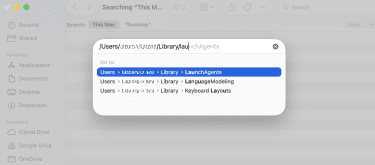
- Delete only items that are clearly tied to the suspicious browser or unwanted software. Removing the wrong file can affect normal app behavior
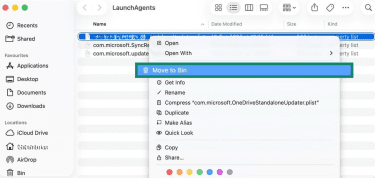
- If a suspicious .plist file is clearly linked to the unwanted app, select Move to Bin, then empty the Bin and restart the Mac.
How to uninstall Chromium on Windows
Removing a malicious or unwanted Chromium-based browser on Windows often starts with uninstalling it through the system settings. In straightforward cases, it may be enough to find the browser in the apps list and remove it. If the application returns after removal or continues running in the background, additional checks may be needed to stop it from relaunching.
Detailed removal guide for Windows 10/11
Whether you use Windows 10 or 11, these steps should help you uninstall a malicious or unwanted Chromium browser.
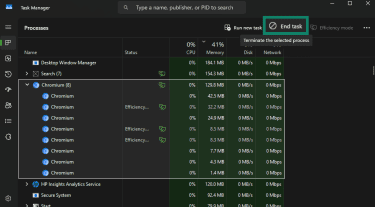
- Open the Task Manager by pressing Ctrl + Shift + Esc. Find any instances of the browser you intend to remove and select End task.
- Next, press Windows + I to open Settings, then go to Apps. Select Installed apps (Windows 11) or Apps & features (Windows 10).
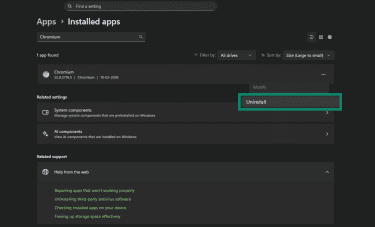
- You should see a list of installed apps. Scroll through it or use the search function to find the browser you wish to uninstall. Click the three dots next to the suspicious browser, choose Uninstall, and confirm when prompted.
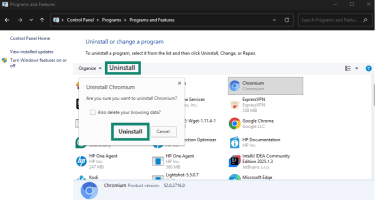
- If the unwanted app doesn't appear in Settings, open Control Panel using Windows search. From there, select Uninstall or change a program under Programs, then find the browser in the list and choose Uninstall.
Remove startup entries and check for persistence
Some Chromium-related malware sets itself to relaunch automatically when you start Windows. To address this, review the startup items first.
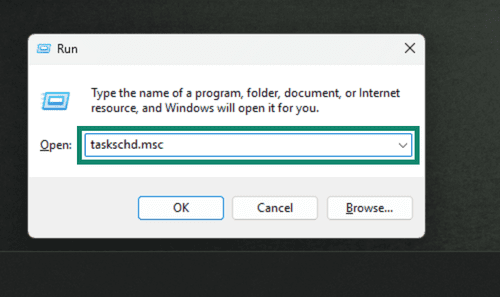
- Open the Task Scheduler by pressing Windows + R, typing out taskschd.msc, and pressing Enter.
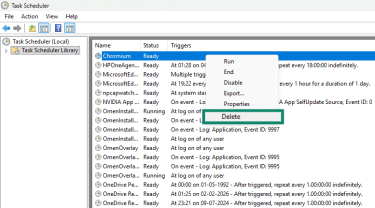
- Browse the Task Scheduler Library for tasks that reference Chromium or another browser that you’re attempting to uninstall.
- If you find a task that automatically executes Chromium or a related file at login or on a timer, right-click it and choose Delete.
Alternatively, press Ctrl + Alt + Del, then open Task Manager. Find and click Startup apps in the sidebar. Review the list, then click Disable for any suspicious items.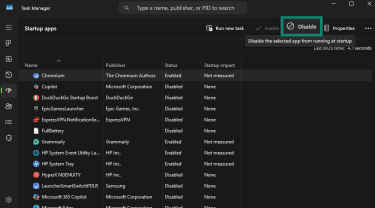
Troubleshooting tips post-removal
If Chromium persists even after taking the above steps, try the following:
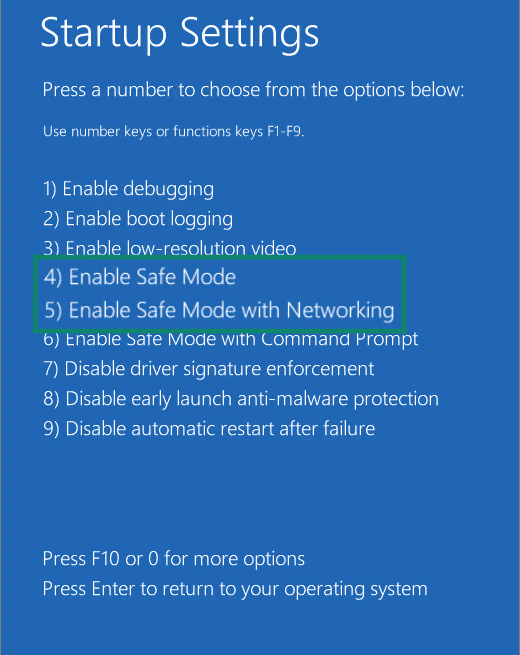
- Reboot and try Safe Mode: Booting into Safe Mode can prevent some malware and startup items from interfering with the removal process. Hold Shift while selecting Power > Restart, then go to Troubleshoot > Advanced options > Startup Settings > choose Enable Safe Mode or Enable Safe Mode with Networking.
- Run a security scan: Use Windows Security/Microsoft Defender Antivirus or another reputable security tool to scan for leftover components that manual checks may have missed. Microsoft also documents Microsoft Defender Offline for cases in which persistent malware may attempt to hide while Windows is running.
Remove Chromium-related browser issues
Unwanted browser behavior is not always caused by the browser application itself. In many cases, the issue comes from malicious extensions, hijacked settings, or additional software that modifies how your browser works. These problems can affect Chrome, Edge, Brave, Opera, and other Chromium-based browsers on both Windows and macOS, though the exact menus and cleanup steps may vary by browser.
The steps below focus on removing extensions, resetting browser settings, and checking for system-level changes that may be forcing unwanted behavior to return.
Remove suspicious extensions safely
As noted above, many things that might be considered Chromium viruses are actually browser extensions. The process for removing these is fairly standard across all Chromium-based browsers. Chrome, Edge, Brave, and Opera all provide built-in extension-management pages where extensions can be reviewed, disabled, or removed.
When reviewing extensions, be cautious with any that are unfamiliar, no longer used, or that request broad permissions without a clear reason. It can also help to check the publisher information and the extension’s store page, although download counts and reviews should be treated as signals rather than proof that an extension is safe or unsafe.
Remove extensions on Chrome
Enter chrome://extensions into the address bar and select Remove next to any extension that seems suspicious or that you don’t recognize.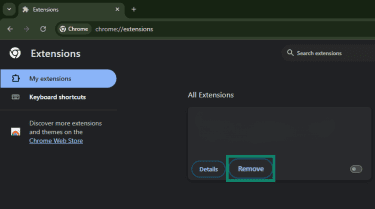
For other browsers, extensions can generally be found through the browser’s extensions menu, settings, or the puzzle-piece-style extensions icon. Here’s how to do it on other prominent browsers.
Remove extensions on Edge
In Microsoft Edge, click the three horizontal lines in the top-right corner, then click Settings. Next, click Extensions, search for the extension you want to remove, then click Remove.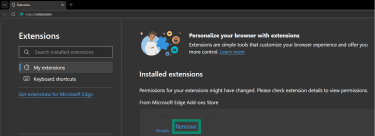
Remove extensions on Brave
Click the three horizontal lines and choose Settings. Next, click Extensions, then Manage extensions. Find the extension you want to remove, and click on Remove.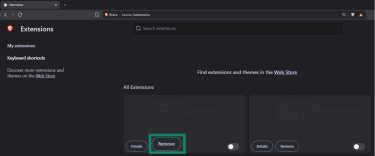
Remove extensions on Opera
Click the three horizontal dots in the bottom-left corner, look for Extensions, and click the icon (Open in new tab) next to it. Find the extension you want to remove, and click Remove.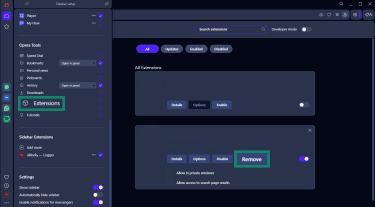
If an extension cannot be removed normally, the issue may be caused by system policies, unwanted software, or browser management settings rather than the extension alone. In those cases, run a malware scan and check whether the browser is being managed unexpectedly before making advanced system changes.
Preventing future Chromium virus infections
To avoid the stress of dealing with Chromium-related issues, you’ll need to adopt a few protective habits. Many Chromium-related threats stem from bundled downloads, unsafe extensions, misleading links, or overlooked security settings. Strengthening a few core habits can reduce the risk of similar problems in the future.
How to safeguard your system
To prevent similar issues from returning, it’s important to use multiple security tools and maintain safe browsing habits. Start by keeping your operating system, browsers, and apps up to date; updates often include security fixes that address known vulnerabilities.
Installing a reputable antivirus or antimalware tool and ensuring real-time protection is enabled can help detect and block threats before they take hold. Built-in tools like Microsoft Defender on Windows provide real-time malware scanning and protection.
Another key part of safeguarding is ensuring your browser’s built-in defenses are active. Modern browsers often include services that warn about dangerous websites, malicious downloads, phishing attempts, and other threats. For example, Google Safe Browsing checks websites and downloads against constantly updated threat data and warns you before interacting with risky content.
Safe browsing habits to adopt
Safe browsing is also about behavior, not just software. A few important habits can reduce the risk of infection:
- Always use the latest version of your browser and install security patches as soon as they’re available. Outdated browsers miss important protections.
- Be cautious about clicking links or downloading files from unknown or untrusted websites. Avoid sites that trigger browser security warnings or certificate warnings, and prefer secure HTTPS connections where possible.
- Use the browser’s privacy and security settings to limit pop-ups, control site permissions, and reduce exposure to unwanted content.
- Only install extensions from official web stores, and review extension permissions regularly. Malicious or overly broad extensions are a common way for unwanted behavior to persist in Chromium-based browsers.
These habits can complement technical protections and reduce the risk of future problems.
What to do if browser changes keep returning
If your homepage or search engine keeps switching back after you change it, something may still be modifying your browser settings. Start by resetting the browser’s settings and removing anything that may have been altered by unwanted software. If the changes return, check for suspicious extensions, unwanted apps, or system-level settings that may be forcing the browser to behave that way.
For Chrome, Google recommends checking for unknown policies, removing unwanted programs, removing unrecognized extensions, and resetting Chrome.
Fix: Chromium keeps coming back
If Chromium reappears after you’ve deleted it, some related component may still be installed, or another app may be reinstalling it.
Common causes include leftover login items, launch agents, startup entries, scheduled tasks, or recently installed programs that were not removed during the initial cleanup. In that case, review recently installed apps, disable suspicious startup items, and run a full system scan with a reputable anti-malware tool to identify the remaining cause. Microsoft Defender’s real-time protection and scanning tools can help detect threats that manual removal missed.
Clean up Google Chrome settings
Chrome can be reset to its original settings. This will affect the startup page, new tab page, search engine, and pinned tabs. It also disables extensions and clears temporary data such as cookies. Bookmarks, browsing history, and saved passwords remain intact. However, this is not a full reset, and some settings, such as fonts or accessibility settings, are not removed.
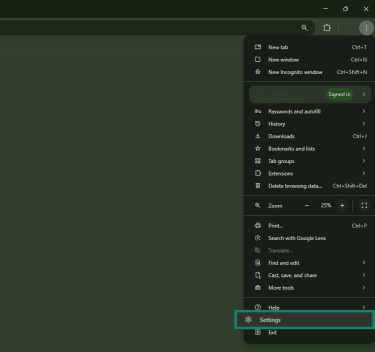
Here’s how to reset Chrome:
- Open Google Chrome and click the three dots in the top-right corner, then choose Settings.
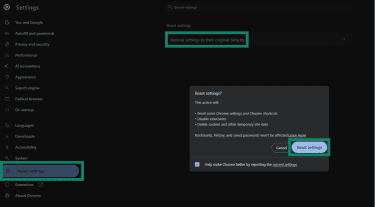
- Scroll to Reset settings, then Restore settings to their original defaults. Choose Reset settings in the next window.
Clean up Microsoft Edge settings
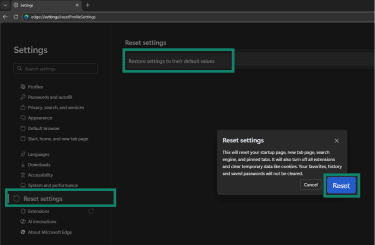
Resetting your Edge browser’s settings will restore the start page, new tab page, and default search engine to their defaults. It will also disable extensions and clear cookies and site data. Favorites, history, and saved passwords will be unaffected.
Here’s what to do:
- Click the three dots in the top-right corner of the browser and select Settings.
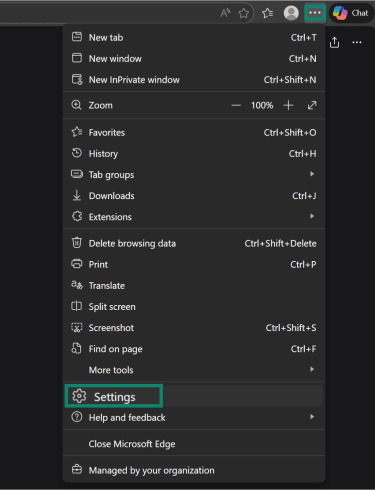
- From there, select Reset settings in the left sidebar. Next, click Reset settings to their default values and click Reset in the subsequent dialog box.
FAQ: Common questions about removing Chromium virus
How to get rid of the Chrome virus?
Why is Chromium running on my computer?
How can I check if my browser is compromised?
Can Chromium virus affect my other software?
What to do if Chromium keeps reinstalling?
Is it safe to use Chromium?
How long does it take to remove Chromium?
Take the first step to protect yourself online. Try ExpressVPN risk-free.
Get ExpressVPN