






An ExpressVPN account can hold multiple subscriptions, including different subscription tiers.
If you have two or more ExpressVPN subscriptions on the same account, you can switch between them in the ExpressVPN apps for iOS, Android, Windows, macOS, and Linux. You can also view and manage all your subscriptions in your browser via the ExpressVPN+ portal.
Jump to…
Choose a subscription when logging into the app
The ExpressVPN app will prompt you to choose a subscription to load if it detects more than one subscription under the account you’re logging into. The steps below are illustrated using the ExpressVPN app for Android, but they’re the same across the ExpressVPN apps for iOS, Windows, macOS, and Linux.
- When you launch the app, it first asks you to accept the ExpressVPN Terms of Service (ToS) and choose what level of data you share. Select your preference to continue.
- Tap Sign In on the next screen.
- Follow the on-screen instructions to log into your account. For more detailed steps, select the device you’re using from the list below:
- On the Select your Subscription screen, choose the subscription ID for the subscription you want the ExpressVPN app to load.
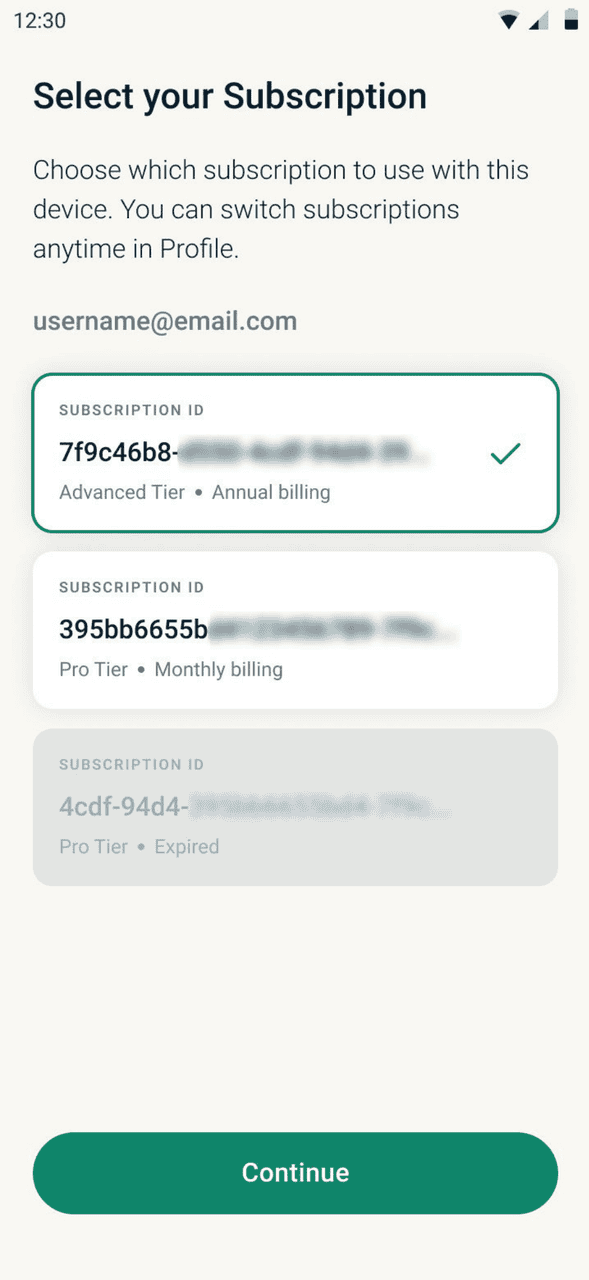

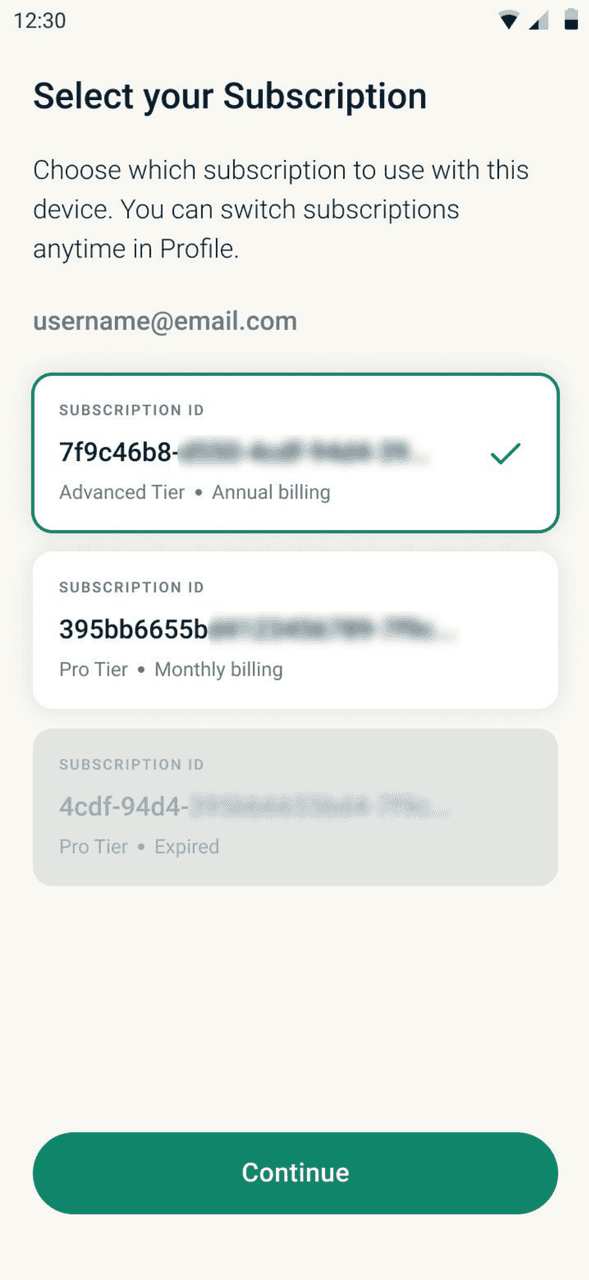
The app will then open with the subscription you chose, with access to all features included in it. To use features available in your other subscriptions, you can switch subscriptions in your app’s settings.
Need help? Contact the ExpressVPN Support Team for immediate assistance.
Switch between subscriptions within the app
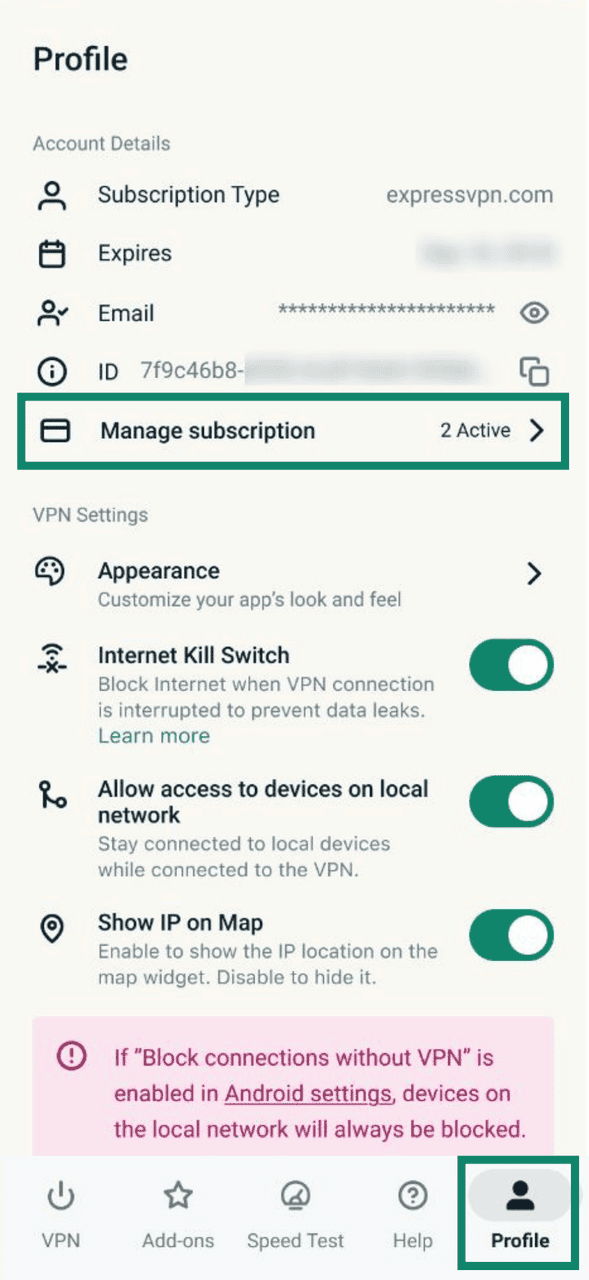
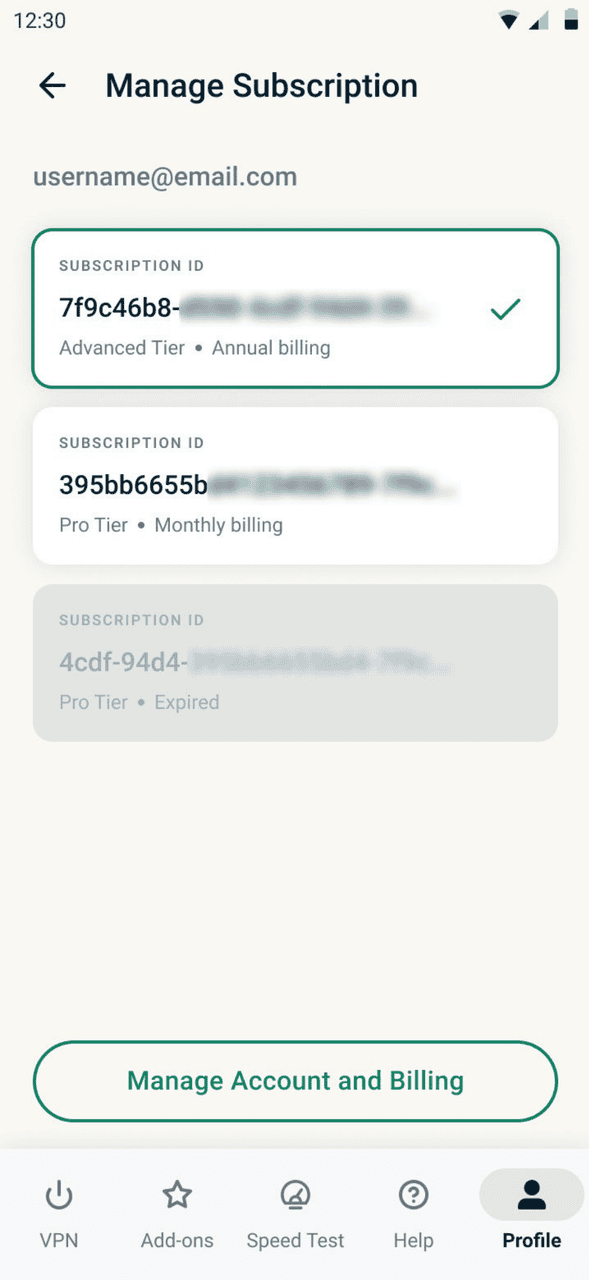
You can switch between subscriptions in the ExpressVPN app for Android, iOS, Windows, macOS, and Linux at any time. The steps below are illustrated using the ExpressVPN app for Android, but they’re the same across the ExpressVPN apps for iOS, Windows, macOS, and Linux.
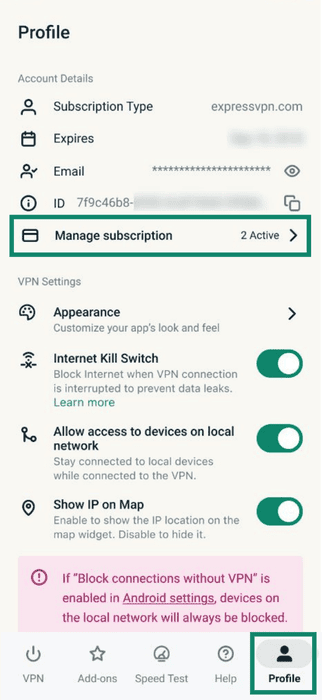
- Go to the Profile tab and select Manage subscription.
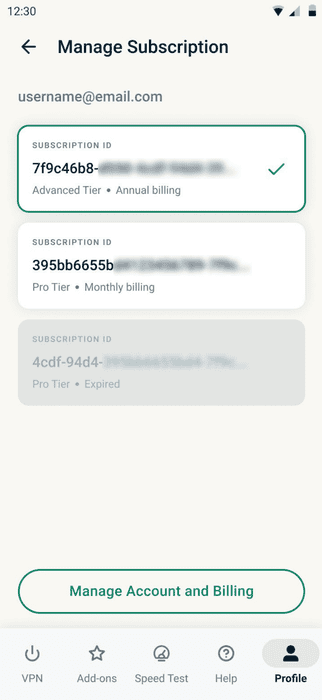
- Choose the subscription you want to use. You can check the tier listed under each subscription ID to identify the one you want.
Need help? Contact the ExpressVPN Support Team for immediate assistance.
Switch between subscriptions in the ExpressVPN+ portal
You can also manage multiple subscriptions in the ExpressVPN+ portal:
- In your browser, sign into the ExpressVPN portal.
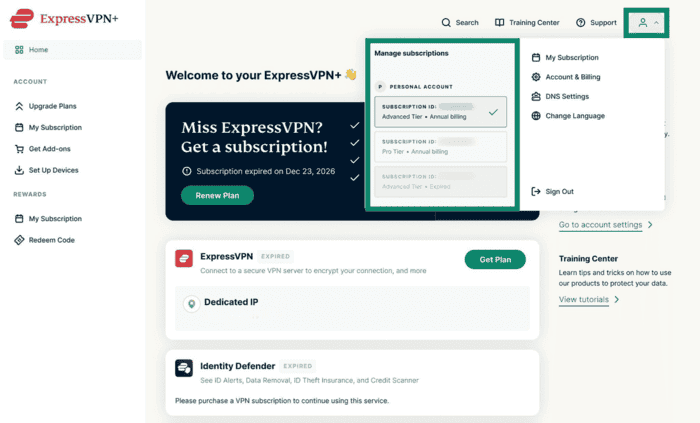
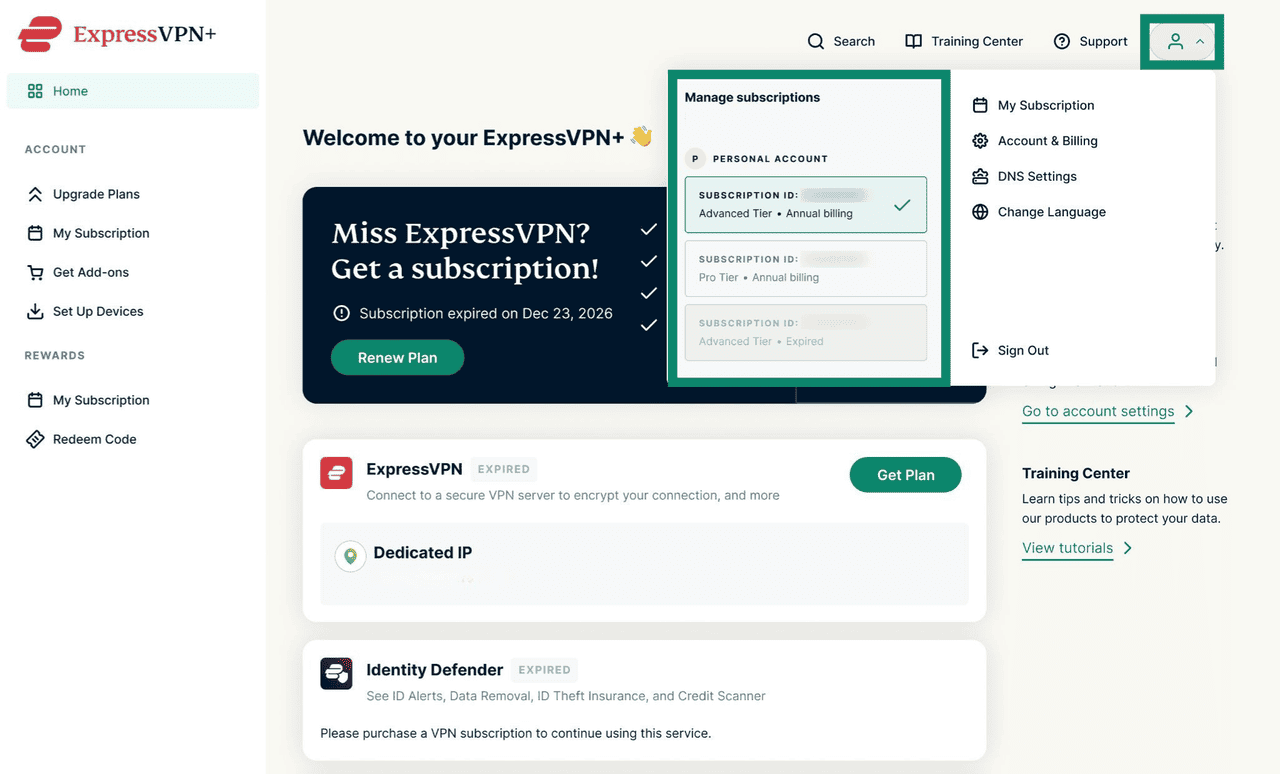
- Click on the Profile icon in the top-right corner.
- Under Manage subscriptions, you’ll see a list of all subscriptions tied to your account with their subscription ID and their tier. You can check the subscription tier under each subscription ID to tell them apart.

Need help? Contact the ExpressVPN Support Team for immediate assistance.
Troubleshooting multiple subscriptions
Unable to switch subscriptions in the app
There are a few reasons why you might not see the subscription selection screen:
- You’re logged in to a different account: Make sure you’re using the account associated with the subscriptions you want to switch between.
- You only have one active VPN subscription on your account: The selection screen only appears when you have two or more active VPN subscriptions under the same account.
- Switching subscriptions isn’t available on your device: This option is only available in the VPN app on iOS, Android, Windows, macOS, and Linux. If you’re using the ExpressVPN app on any other device, you will not see this option at login or in settings.
Missing features after switching subscriptions
If a feature seems to be missing, check which subscription you’ve selected in the app. You may need to switch to another subscription that includes it.
Need help? Contact the ExpressVPN Support Team for immediate assistance.